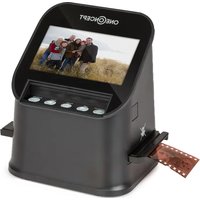
ION Pics 3 - Scanner OneConcept - Free user manual and instructions
Find the device manual for free ION Pics 3 OneConcept in PDF.


| Product type | Slide and photo film scanner |
| Brand | OneConcept |
| Model | ION Pics 3 |
| Dimensions (L x W x H) | 112 x 102 x 142 mm |
| Weight | 322 g |
| Power supply | DC 5V power adapter / USB port |
| Image sensor | 14 million pixels |
| Display | 4.3-inch color TFT LCD |
| Supported film types | 135 film (36x24 mm), 126 KPK (27x27 mm), 110 (17x13 mm), Super 8 (4.01x5.79 mm), black and white, slides |
| Image effects | B&W slides, negatives |
| File format | JPEG |
| Internal memory | 128 MB |
| External memory | SD card up to 128 GB (16 GB max recommended) |
| Menu languages | English, French, German, Italian, Spanish, Traditional Chinese, Simplified Chinese, Japanese |
| Compatible operating systems | Windows XP, Vista, 7, 10 |
| PC connection | USB 2.0 (MSDC mode) |
| Main functions | Scanning negatives and slides, 90° image rotation, delete, preview, auto play |
| Maintenance | Cleaning brush included; use compressed cotton for films; avoid alcohol, gasoline, thinner |
| Safety | Do not disassemble; unplug if abnormal smell; do not use in dusty/humid environment |
| Auto power off | After 30 minutes of inactivity |
Frequently Asked Questions - ION Pics 3 OneConcept
User questions about ION Pics 3 OneConcept
0 question about this device. Answer the ones you know or ask your own.
Ask a new question about this device
Download the instructions for your Scanner in PDF format for free! Find your manual ION Pics 3 - OneConcept and take your electronic device back in hand. On this page are published all the documents necessary for the use of your device. ION Pics 3 by OneConcept.
USER MANUAL ION Pics 3 OneConcept
Slide Film Photo Scanner
INHALTSVERZEICHNIS
Fotoscanner
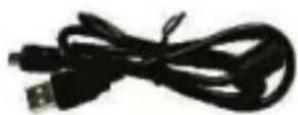
USB-Kabel
126/135 Positivdiahalter

110er Positivhalter
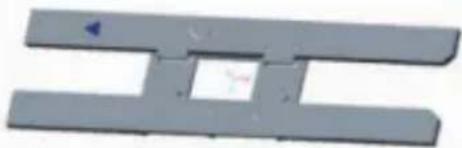
110er Negativhalter
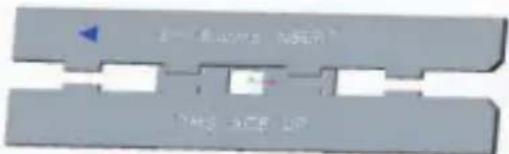
Super 8

135er Filmhalter

NEGATIVE IN DEN HALTER EINFÜGEN
![graph TD A["Start: Initial cargo ship at dock"] -->|ENTER| B["Intermediate: Vessel at dock"] B -->|ENTER| C["Exit: Initial vessel with navigation icons and home symbols"] C --> D["Step ①: Left arrow to next vessel"] C --> E["Step ②: Left arrow to next vessel"] C --> F["Step ③: Left arrow to next ves…](/content/2026/04/738585/images/42982396e97d5356a77d94b20bf06199e7554efa4c08ca92b77dd5451c4d5c55.jpg)
Berlin Brands Group UK Ltd
PO Box 1145
Oxford, OX1 9UW
United Kingdom
Dear customer,
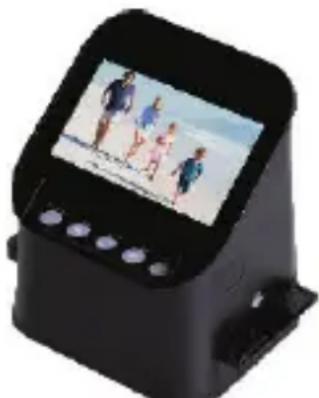
Congratulations on your purchase. Please read the following instructions carefully and follow them to prevent potential damage. We accept no liability for damage caused by disregarding the instructions and improper use. Please scan the QR code to access the latest operating instructions and further information about the product.

CONTENTS
Safety Instructions 25
Individual parts 26
Inserting negatives into the holder 27
Loading the slide holder 28
Operation 29
Language setting 35
Formatting (delete all data) 36
Computer connection 37
Disposal Considerations 38
Manufacturer & Importer (UK) 38
TECHNICAL INFORMATION
| Product code 10039932 | |
| Power supply DC 5V adapter / USB connection | |
| Function Photo Scanner/ USB MSDC | |
| Surface USB 2.0 | |
| Image sensor 14 million pixel sensors | |
| Screen Colour 4.3" TFT LCD | |
| Negative type Negative, black/white, slides | |
| Film type | 135 film (36*24 mm)/ 126 KPK film (27*27 mm), 110 film (17*13 mm)/ Super 8 film (4.01 * 5.79 mm), monochrome, slides |
| Picture effects B&W slides, negatives | |
| File format Image: JPEG | |
| Built-in memory 128 M | |
| External memory card SC card with up to 128 GB | |
| Power supply DC 5V adapter/ USB port | |
| Language | English, French, German, Italian, Spanish, Traditional Chinese, Simplified Chinese, Japanese |
| Supported systems Windows XP/vista/Windows7/Windows10 | |
| Size 112 mm (L) x 102 mm (W) x 142 mm (H) | |
| Weight 322 g | |
SAFETY INSTRUCTIONS
- Do not disassemble the unit.
- Do not touch the internal parts of the unit if it has been dropped or otherwise damaged.
- If any problems, such as a strange smell or smoke, occur while using the appliance, stop using it immediately.
- Never clean the unit with alcohol, petrol, thinner or other organic solutions.
- Do not use the unit in dusty or humid environments.
- To avoid malfunctioning of the photo scanner, do not overload the unit's USB port.
- Use standard film sizes.
- Cleaning: make sure the appliance is clean before use.
- Unplug the USB cable or adapter from the USB port of the computer if the unit will not be used for an extended period of time.
- The unit supports SD cards up to a maximum of 128 GB, but we recommend using an SD card with 16 GB or less, as the unit has to read the SD card in advance and calculate the capacity of the SD card. Calculating the capacity is used to find out how many images can be stored on the SD card. The larger the storage space on the SD card, the longer the calculation will take and the response speed will be significantly slower. This may even cause the screen of the unit to freeze. If this is the case, disconnect the power connection. Then switch the device on again.
- To protect the appliance and save energy, the appliance switches off automatically after 30 minutes of operation. Press the power button to continue using the unit.
Note: Take care when handling films to avoid fingerprints on them (it is best to wear cotton gloves when handling films). It is recommended to use compressed cotton if dust is to be removed from the films.
INDIVIDUAL PARTS
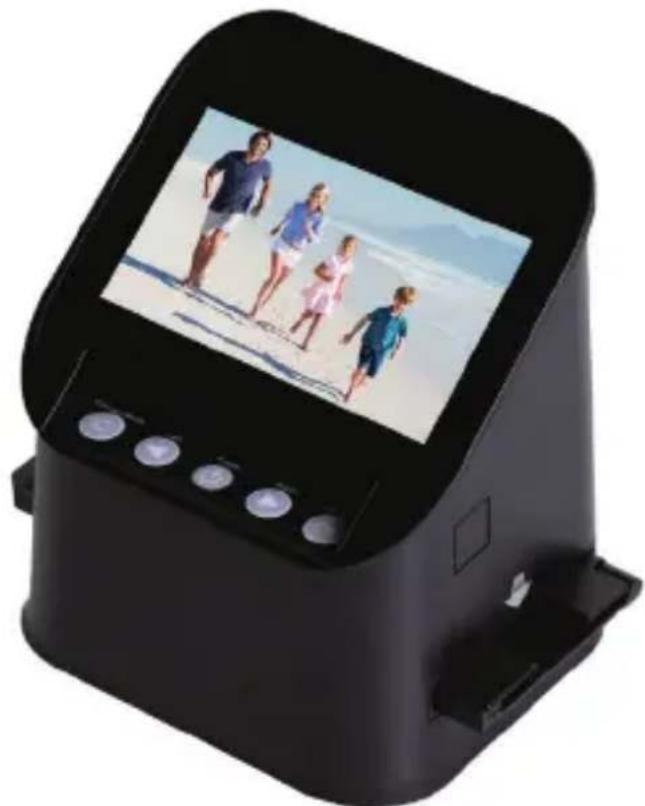
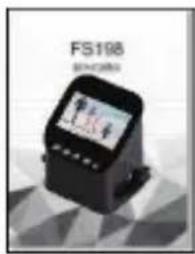
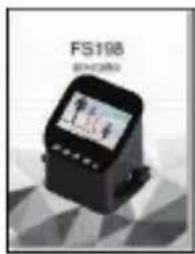
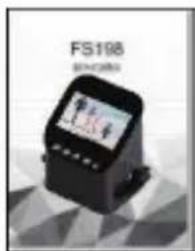
Photo scanner
USB cable
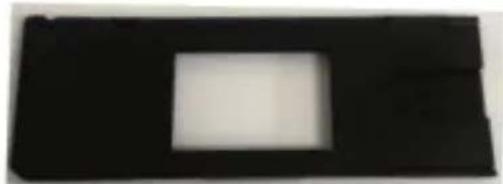
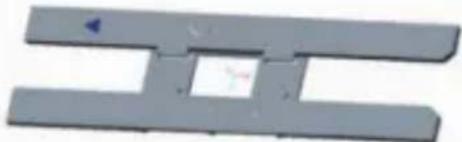
126/135 positive slide holder

110 positive holder
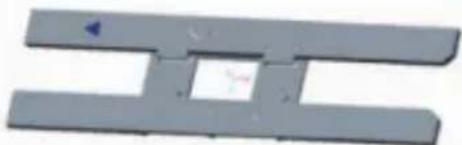
110 negative holder
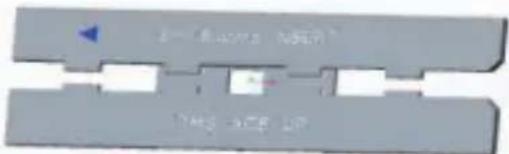
Super 8
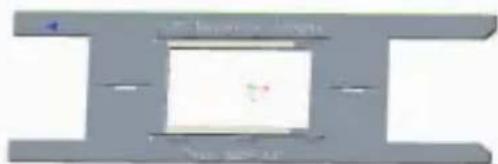
135 film holder

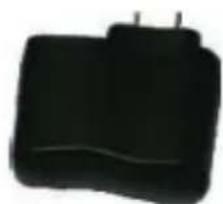
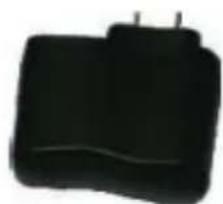
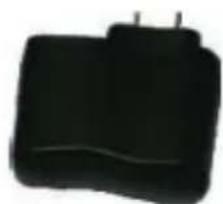
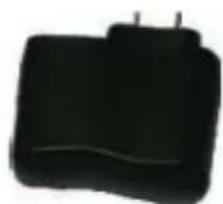
Power supply Instructions Cleaning brush
INSERTING NEGATIVES INTO THE HOLDER
| 1 | 2 |
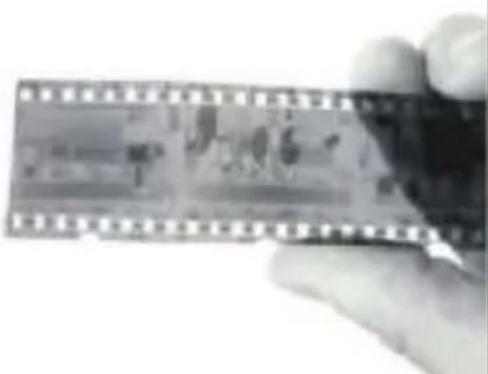 | 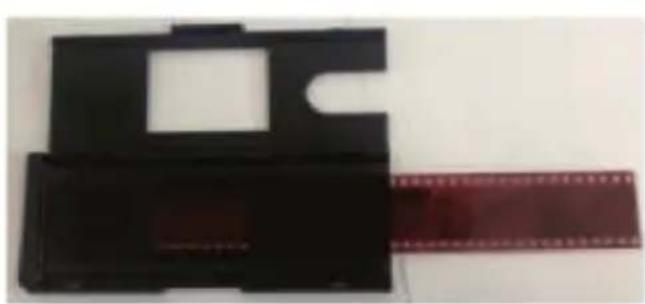 |
| Hold the negative film against the light. Make sure that the right side of the negative is facing you. | Place the 135 film holder in the positive holder and close the holder. |
| 3 | 4 |
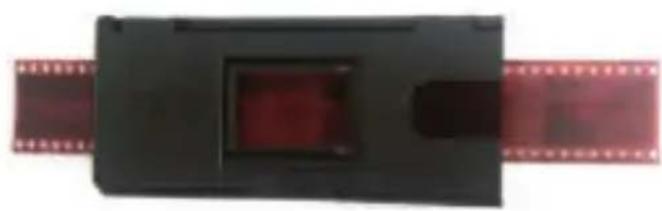 | 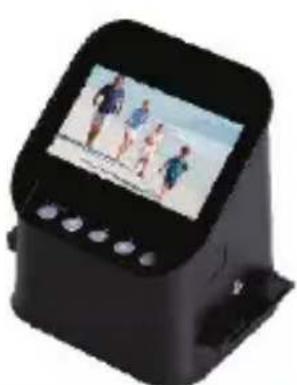 |
| Then insert a 135 negative film into the holder. | Place the positive slide holder in the device to allow scanning. |
LOADING THE SLIDE HOLDER
| 1 | 2 |
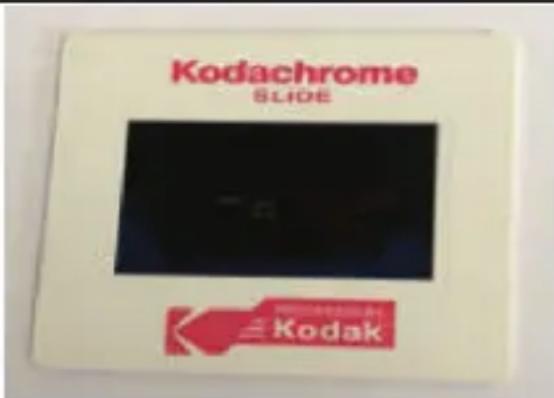 | 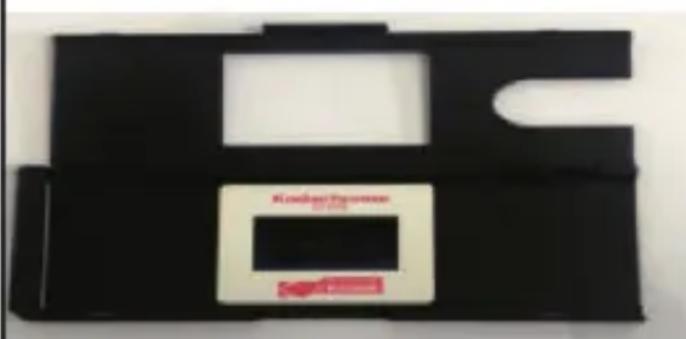 |
| Hold the slide against the light. Make sure the right side of the slide is facing you (a small white holder is not included). | Remove the slide holder. Make sure that the side labelled "open" is facing you and that the side with the symbol ◀is facing downwards.Open the slide holder and place the slides in the recesses of the holder (films can also be placed in the holder). |
| 3 | 4 |
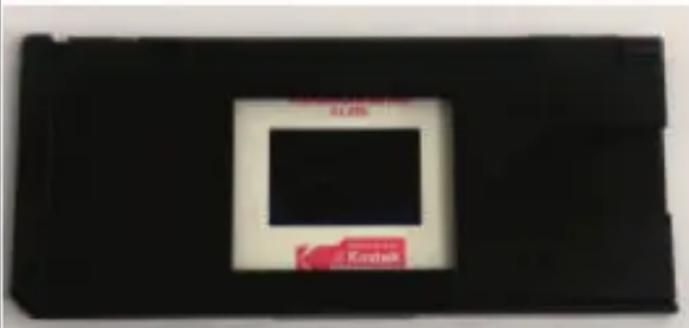 |  |
| Close the slide holder and press the corners together so that they are fixed. | Place the slide holder in the tray on the right-hand side of the photo scanner as shown in the illustration. |
OPERATION
Menu functions
| Capture ① ② ③ ④ ⑤ | Film ⑥ ⑦ | |
| 1 Language mode 4 Playback mode | ||
| 2 USB mode 5 Film type | ||
| 3 Recording mode 6 Format | ||
| 7 Resolution | ||
Image capture
Before scanning, make sure the backlight panel is clean.
Note: The cleaning brush included in the scope of delivery can be used for cleaning.
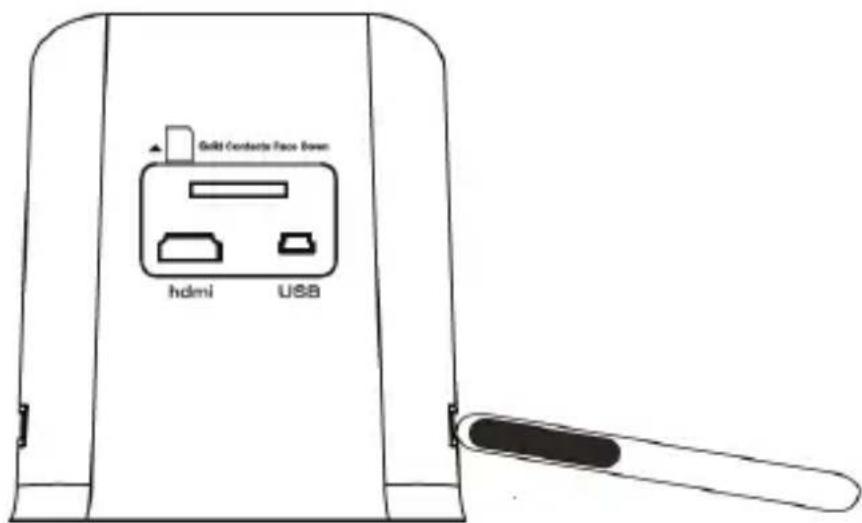
In the main menu mode, press OK/ENTER to enter the recording mode. Then press CONVERT/MODE and press OK/ENTER to capture the image.
![graph TD A["Capture"] -->|OK/Enter| B["EV 0.0"] B -->|Convert/Mode| C["Final Bus"] C -->|OK/Enter| D["Final Bus"]](/content/2026/04/738585/images/b0f1f31dfcfc25075eb1b9f29d8c3972cb2d03baf758efbf70d233e258ce06ae.jpg)
Type selection
You can select the type of negative used in the film type menu. Use the "right" and "left" keys to select the film type and confirm your selection by pressing the OK/ENTER key.
![graph LR A["Film"] -->|ENTER| B["Negatives Film"] B --> C1["①"] B --> C2["②"] B --> C3["③"]](/content/2026/04/738585/images/9adecfe5f3497b188f94c69e1a4080d96fedd6624fc37d0ab1d1cc7a1c1a95b9.jpg)
(1) Negatives: Select "negative" if you have inserted a negative film into the holder.
2) Positive: Select "positive" if you have inserted a positive film into the holder.
(3) Black-and-white: Select "black-and-white" if there is black-and-white negative film in the holder.
Photo preview
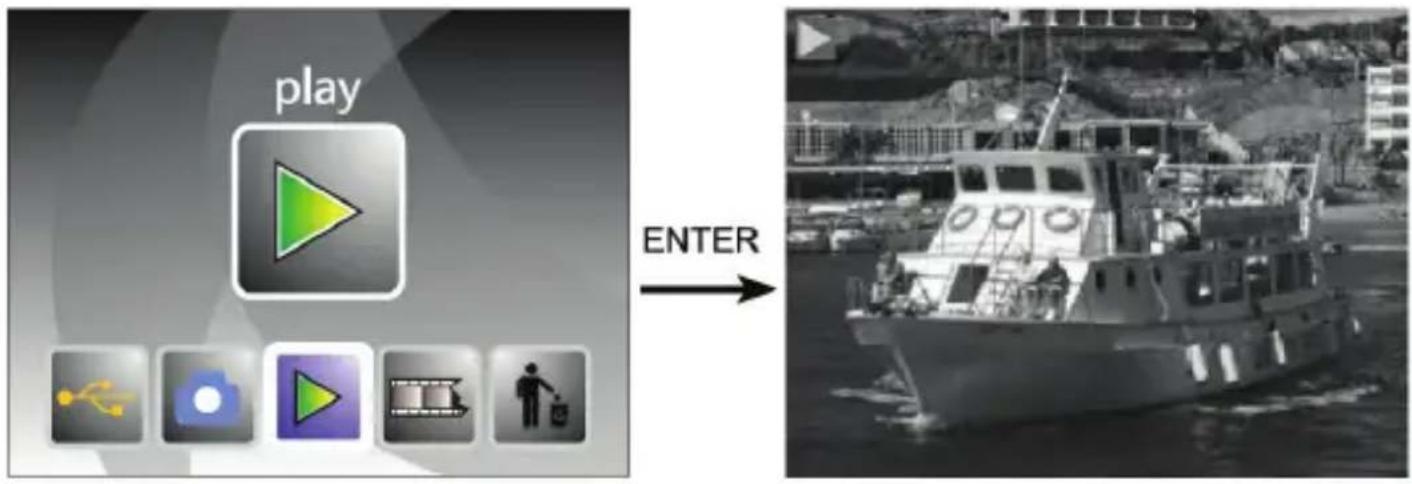
Press in the main menu mode◀ or ▶ press OK/ENTER in the photo preview to select automatic playback of the scanned photos. Press OK/ENTER to manually select preview photos and press OK/ENTER again.
Press OK/ENTER to select "rotate", "delete", "save", "exit", "return".
![graph TD A["Start: Initial cargo ship at dock"] -->|ENTER| B["Intermediate: Vessel at dock"] B -->|ENTER| C["Exit: Initial vessel with navigation icons and home symbols"] C --> D["Step ①: Left arrow to next vessel"] C --> E["Step ②: Left arrow to next vessel"] C --> F["Step ③: Left arrow to next ves…](/content/2026/04/738585/images/1e12ac3b51484f2a1cd58d8b7822afb3d43d74aef273031d0dc603b05bed6514.jpg)
(1) Rotate the current image 90 degrees clockwise
(2) Rotate the current image 90 degrees counter-clockwise
(3) Delete the current image from the memory card
(4) Exit the submenu, back
(5) Save the edited image
(6) Exit the editing menu, back to scanning
LANGUAGE SETTING
In the main menu, press ← to select the language mode. To select "Language", press the OK/ENTER button and select one of the following languages: English, French, German, Italian, Spanish, Russian, S-Chinese, Japanese.
![graph LR A["Language"] -->|ENTER| B["Language"] B --> C["English"] B --> D["Français"] B --> E["Deutsch"] B --> F["Italiano"] B --> G["Espanol"] B --> H["繁體中文"] B --> I["简体中文"] B --> J["Japanese"]](/content/2026/04/738585/images/4f9e2fd7f4a3502cbb0b65ce611544eb5f83e35ba52104d2f619c7a6bec64fab.jpg)
FORMATTING (DELETE ALL DATA)
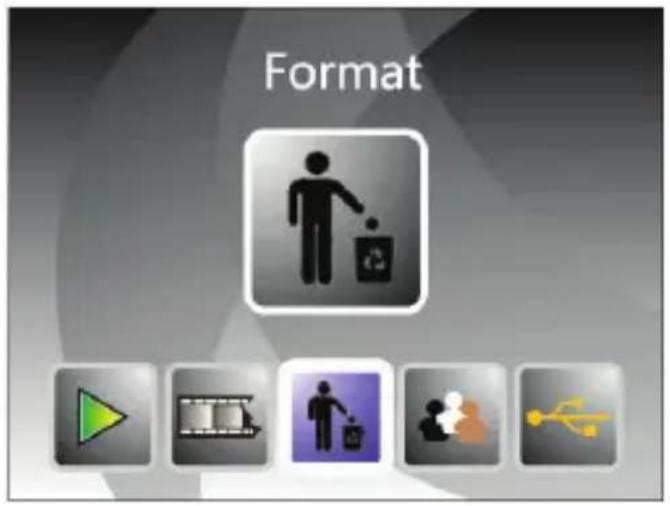
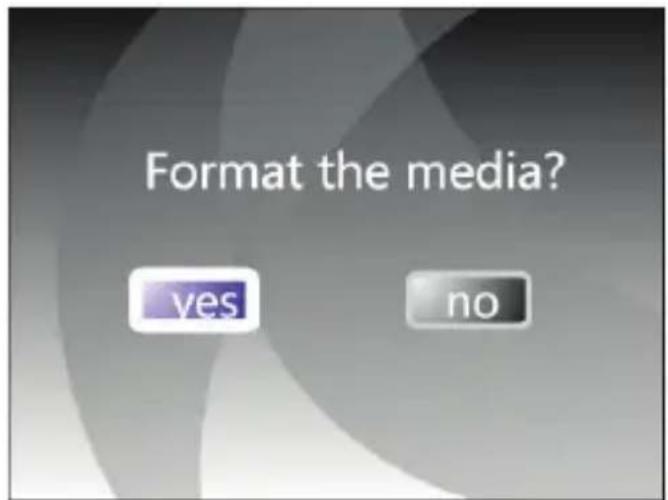
In the main menu, press the <button to enter formatting mode. Press OK/ENTER to confirm.
Note: If you use this function, all data on the micro SD card will be deleted!
COMPUTER CONNECTION
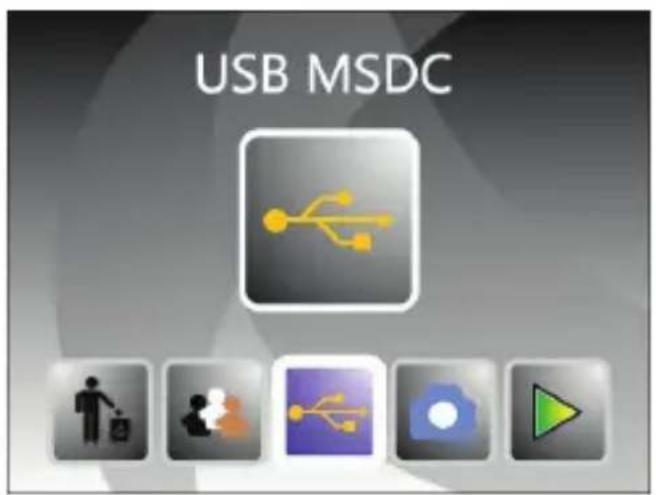
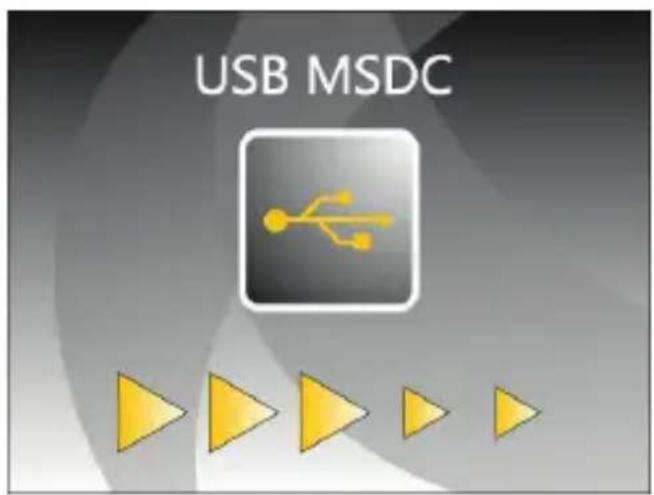
In the main menu, press the <ar buttons to select "USB MSDC". After successfully connecting to the computer, press the OK/ENTER button. You can view and edit images.
DISPOSAL CONSIDERATIONS

If there is a legal regulation in your country regarding the disposal of electrical and electronic equipment, this symbol on the product or on the packaging indicates that this product must not be disposed of with household waste. Instead, it must be taken to a collection point for the recycling of electrical and electronic equipment. By disposing of this product in accordance with the regulations, you are protecting the environment and the health of those around you from negative consequences. For information on recycling and disposal of this product, contact your local government or household waste disposal service.
MANUFACTURER & IMPORTER (UK)
Manufacturer:
Chal-Tec GmbH, Wallstraße 16, 10179 Berlin, Germany.
Importer for Great Britain:
Berlin Brands Group UK Ltd
PO Box 1145
Oxford, OX1 9UW
United Kingdom
Cher client, chère cliente,
SOMMAIRE
Scanner photo
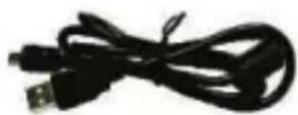
Câble USB

126/135 Support de
diapositives positif

Support positif 110
![graph TD A["Start: Initial cargo ship at dock"] -->|ENTER| B["Intermediate: Vessel at dock"] B -->|ENTER| C["Exit: Initial vessel with navigation icons and home symbols"] C --> D["Step ①: Left arrow to next vessel"] C --> E["Step ②: Left arrow to next vessel"] C --> F["Step ③: Left arrow to next ves…](/content/2026/04/738585/images/1e02575f16d78236b73b00747ccbd5a581bee6c055cc411d6449788485e78262.jpg)
Berlin Brands Group UK Ltd
PO Box 1145
Oxford, OX1 9UW
United Kingdom
Estimado cliente:
ÍNDICE
Escáner de fotos
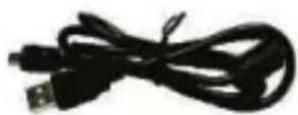
Cable USB
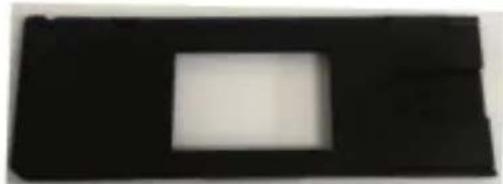
126/135 Soporte para diapositivas

![graph TD A["Start: Initial cargo ship at dock"] -->|ENTER| B["Intermediate: Vessel at dock"] B -->|ENTER| C["Exit: Initial vessel with navigation icons and home symbols"] C --> D["Step ①: Left arrow to next vessel"] C --> E["Step ②: Left arrow to next vessel"] C --> F["Step ③: Left arrow to next ves…](/content/2026/04/738585/images/fda3e42c67d21af2c69ff4f778fdf37627ea68a2a48918430d9ada6123edbc03.jpg)
Berlin Brands Group UK Ltd
PO Box 1145
Oxford, OX1 9UW
United Kingdom
Gentile cliente,
INDICE
Scanner fotografico
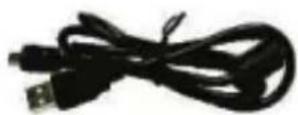
Cavo USB
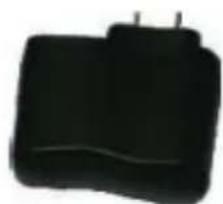
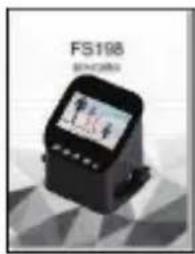
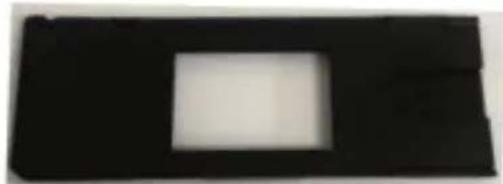
126/135 Porta diapositive positive

Porta positivi 110

Porta negativi 110
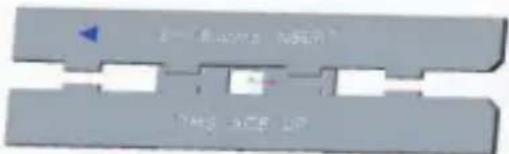
Super 8
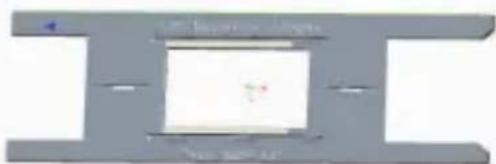
Porta pellicole 135
![graph TD A["Start: Initial cargo ship at dock"] -->|ENTER| B["Intermediate: Vessel at dock"] B -->|ENTER| C["Exit: Initial vessel with navigation icons and home symbols"] C --> D["Step ①: Left arrow to next vessel"] C --> E["Step ②: Left arrow to next vessel"] C --> F["Step ③: Left arrow to next ves…](/content/2026/04/738585/images/bb7ebdbde94e6864f65d96b72fb150f6bfafbf70639b04aeed81d9e3ce9550ad.jpg)
PRODUTTORE E IMPORTATORE (UK)
Produttore:
Chal-Tec GmbH, Wallstraße 16, 10179 Berlino, Germania.
Berlin Brands Group UK Ltd
PO Box 1145
Oxford, OX1 9UW
United Kingdom




- INHALTSVERZEICHNIS
- NEGATIVE IN DEN HALTER EINFÜGEN
- DEAR CUSTOMER
- CONTENTS
- SAFETY INSTRUCTIONS
- INDIVIDUAL PARTS
- INSERTING NEGATIVES INTO THE HOLDER
- LOADING THE SLIDE HOLDER
- OPERATION
- MENU FUNCTIONS
- IMAGE CAPTURE
- TYPE SELECTION
- PHOTO PREVIEW
- LANGUAGE SETTING
- FORMATTING (DELETE ALL DATA)
- COMPUTER CONNECTION
- DISPOSAL CONSIDERATIONS
- MANUFACTURER & IMPORTER (UK)
- MANUFACTURER
- IMPORTER FOR GREAT BRITAIN
- CHER CLIENT, CHÈRE CLIENTE
- SOMMAIRE
- ESTIMADO CLIENTE
- ÍNDICE
- GENTILE CLIENTE
- INDICE
- PRODUTTORE E IMPORTATORE (UK)
- PRODUTTORE
Brand : OneConcept
Model : ION Pics 3
Category : Scanner