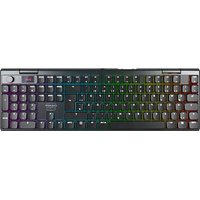
XTRFY MX 10.1 Wireless - Keyboard Cherry - Free user manual and instructions
Find the device manual for free XTRFY MX 10.1 Wireless Cherry in PDF.


| Product type | Wireless mechanical keyboard |
| Model | Cherry XTRFY MX 10.1 Wireless |
| Brand | Cherry |
| Power supply | Rechargeable Li-ion 3.7 V battery, charge via USB-C (5 V, 400 mA max) |
| Connectivity | USB-C, Bluetooth 5.3, 2.4 GHz wireless (receiver included) |
| Maximum polling rate | 8,000 Hz (wired), 4,000 Hz (2.4 GHz wireless) |
| System compatibility | Windows, macOS |
| Backlighting | Per-key customizable RGB, built-in effects |
| Built-in screen | Color screen with status bar |
| Multifunction wheel | Volume, menu navigation |
| Built-in profiles | 3 customizable profiles |
| Configuration software | CHERRY (macros, firmware update) |
| Gaming mode | Disables the Windows key |
| Dimensions | Not provided |
| Weight | Not provided |
| Care and cleaning | Soft dry cloth, avoid liquids |
| Safety | Do not expose to water, handle battery with care, keep away from children under 3 years |
| Spare parts and repairability | Parts not specified; use CHERRY software for updates |
| General information | Certifications CE, FCC, IC; storage temperature -20°C to +60°C, operating temperature 0°C to +45°C |
Frequently Asked Questions - XTRFY MX 10.1 Wireless Cherry
User questions about XTRFY MX 10.1 Wireless Cherry
0 question about this device. Answer the ones you know or ask your own.
Ask a new question about this device
Download the instructions for your Keyboard in PDF format for free! Find your manual XTRFY MX 10.1 Wireless - Cherry and take your electronic device back in hand. On this page are published all the documents necessary for the use of your device. XTRFY MX 10.1 Wireless by Cherry.
USER MANUAL XTRFY MX 10.1 Wireless Cherry
CHERRY XTRFY MX 10.1 WIRELESS
Wireless Low Profile Mechanical Gaming Keyboard (RGB)
64420039-00, DE, EN, FR, ES, IT, NL, SV, NO, DK, FI, PL, CS, SK, PT, ZH5, ZHt, KO, JA © Jan 2025 (G8A-25100xx-x = Mod. G8A-25100, G8A-25100R)

at anders Hervitzer warfar.
- In case, drive Position and Thickness are Perfect when the profile is
| E=C | Akquisitions Pull up at |
To a great list he is, anohen 250-600-Weine-FreeFear we and
kopeln
| INUM | laschenrechner |
EN
OPERATING MANUAL
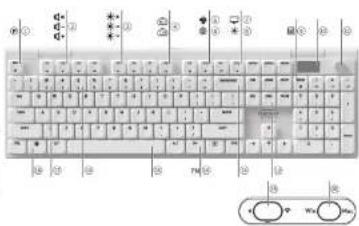
① Change the Act
② Adjust the Sound Volume
② Adjust the Halghting Brightness
④ Adjust the Decklighting Transition Speed
⑤ CHUERY KEY
⑥ Windows Launch the Default Who Discover
Irmsc(15) Spot cal Search
① Windows! Clean fan is replaced by E ^2
(1) _0 (2) _0 (3) _0 (4) _1 (5)
Inco:
⑧ Change Backs & Fing Links
⑨
⑬ Display Screen
① Mall (arc)
⑫ E-mail / Ex: the Backlighting Data acquisition Made for relevant Keys
⑬ Restore Factory Default Settings
Access the EN Layer Functions
⑬ Select Colors for the Current Blacklight or Mode
- 2401/We see Commersion Status, etc.
⑫ Bluetooth Connection Status Indicator: Solar, Crosswelts, Drone Pariva
①. B#### U##ch##b (inquire Note
Every Device is Different!
The operating manual contains information on effective and reliable
[Non-Text]
- Read the operating manual carefully
- Keep the operating manual and pass it on to other users when needed
- This manual may not contain the most recent updates to our products as we
continuously strive to improve your experience. For the latest operating
instructions and product features, please visit CHFES?s official website.
CHERRY XTRY MX 10.1 WIRELESS is a versatile tri-mode keyboard, supporting 2.4 GHz wireless, Bluetooth 8.3, and USB cable connectivity, designed specifically to enhance the gaming experience.
For inflation on other products, so losses to novelnds and much more, visit up at www.cherry-world.net or www.thecgr.de.
1 Safety Precautions
For safety, keep the choice away from children under the age of three, to prevent cholang on small parts.
The keyboard contains a permanent rechargeable balcony. To avoid tire risks, do not disassemble, crush, heat, or injarate the device.
Repetitive Strain injury (RS) is caused by small, repetitive movements during prolonged use of computers, keyboards, and mice.
To prevent RSI, it is recommended for
- Figuriously set up your workspace. A group of keyman and reverse to keep your upper arm and write naturally confidence.
- Use the rotary aluminum stand on the back of the keycam to find a
comfortable angle for typing
• incorporate short breaks into your routine, will stretching exercises as
approver.
• 5.16 is your position required to prevent strain
2 Switching Keyboard On / Off
2.1 Turn On Keyboard
- Correct the keyused in your computer using the provided USB drive.
- Slide the correct or made switch on the bsc of the keyboard, a the (象
2.2 Turn Off Keyboard
• American the US cable
/are
- Slide II = current for made switch to the I position
2.3 Power Saving Modes
To maximize the battery lifespan, MF 10 ^-1 keyboard incorporates two power-saving modes. When operating an battery, the keyboard will transition to space or hibernation mode after a predetermined period of inactivity, during which the backlighting and stop indicators will doct more.
The keyboard attacks from power saving modes upon any key area, resuming backlighting and displaying the current steps through indicators
2.4 Low Battery Indication
When the battery level exceeds below 15%, the Home Screen displays the .on battery icon. The keyboard backlighting is of
3 Connecting Keyboard to Device
You can connect MX 10 keyboard to your computer or other compatible devices using the JEB cable, Bluetooth, or the 2.4 GHz wireless receiver.
3.1 Connecting Keyboard via USB Cable
1 Connect the keyboard to your computer using the provided USB cable.
- Solve the connection mode switch to (ref1) position.
The USB connection can be highlighted on the status Bar
3.2 Connecting Keyboard via Bluetooth
The keyboard's triple Bluetooth channels allow for simultaneous connection to three devices. For channel selection and device pairing, follow the instructions below.
3.2.1 Enabling Bluetooth Mode
Since the connection mode switch to the Position. The Bluetooth icon, 1, is highlighted on the State as Far. The keyboard will be tabulated only a prompt to account in a previously paired device. Refer to the next section of the previous Bluetooth connection is available, the keyboard enters pairing mode an channel I automatically prefer to \$2.4 Pairing with Device.
3.2.2 Reconnecting to Device
After activating Bluetooth mode, the keyboard will search on the current channel and try to reconnect with previously parse device. During the recognition process, the corresponding Bluetooth channel is accompanied by a 1:2 pin/lock
for example, the call-to-equivalent record button is a key to account 12.0% of time for each blue. Ensure the Bluepath on your design = active and within proximity.
- If reconnection succeeds, the corresponding channel key remains lit in hh c.
for 5 seconds. The channel becomes active.
- If reconnection fails, press any key to try again or refer to 3.2.4 for re-parting.
3.2.3 Connecting to New Device
For quick connection to a new device, simply hold the EN key along with the desired Bluetooth channel key (1, 2, or 3) or three seconds to initiate the pairing process. Refer to the subsequent section for details. This action will create the previous pairing information or that channel.
If all Bluetooth channels have been occupied, the aforementioned method is necessary to win the endpoint with a note desire.
3.2.4 Pairing with Device
The keyboard enters the pairing mode either automatically or when you press "N" + Bluetooth channel key for 3 seconds [e] in the details in the three sections above].
The corresponding Bluemoth channel key [1, 2, or 3] last matches blue signaling that pairing is underway.
- MX 10 - keyboard supports Scott Pair - Scott Pair is activated on your device, you will receive a notification that a new Bluetooth device "MX 10 - ETX" has been deleted. Similarly, Connent in the case an unifacing to ground
• 2. International, you can now checkboard through the Bluetooth Services by
selecting "MS 10.3-5" from the list: all available Bluebird libraries
Since past, the character becomes some and the corresponding Bluecoth
channel key 1, 2, or 3 remains 10 minutes for 5 seconds
3.2.5 Switching Bluetooth Devices
To switch I = peer devices come, and in your keys and via the fly — Clustal channel, follows those steps:
- Make sure that the correction mode is set to Bluetooth [12]
2 Press II = FN key and the corresponding (is one) key [1, 7, or 3]. The
highlighted Bluetooth icon on the Status Bar will reflect the channel change.
The Bluetooth channel key is overnight as blue when the connection is being established. It remains in in blue for 5 seconds when the device is successfully connected.
3.2.6 Using Menu for Bluetooth Pairing
The multilannarial kmb and display screens can be used to select Blue中科
channels for pairing in the menu
| Make sure that the correction moves is set to Blackouts [1]
7 Press the knah to bring up the reason menu and turn the knah to select
Bluetooth submenu.
3 Press and then turn the case to select 8 select channel
A Press the knob to enter pairing mode on the selected channels. The
corresponding Bluetooth channel key 1, 2, or 3: last flashes blue.
Upon successfully correction, the key nonlinear factors in the ELL = 5.3 seconds
3.3 Connecting Keyboard via Wireless Receiver
M3 13.1 W = -less Reiser supports 2K Pulling Base calls transfer || has less LED
indicators, which respectively display the power status and connection status.
Follow the steps below to connect your keyboard using the 24 GHz-9.550
1 Slide the correction mode switch to the 1 position. The wireless
connection can be highlighted on the Status Ea
2 Connect the wireless receiver to your computer with the provided USD cable
The power indicator on the receiver lights up while.
The wireless key indicator |4 lights up while for 5 seconds when the keyboard is
satisfly connected
The Connection Status Indicator on the receiver slow flashes while when the
receiver is waiting for connection with the key card. "I own aits lit in white sli-
successful connection. When the keysecure is 14 lower saving modes or moved out of range, the status indicator slow flashes while.
3.4 Viewing Connection Status
The current correct for module is highlighted on the Status Set in the discovery
SENO
Connection Mode Icon
| LED Cash | [IMAGE] |
| Bluetooth | 14.75 | 40 |
| 2.4 GHz Wireless | [IMAGE] |
In Bluerach or 7.4 (3-2) wireless connection mode, press and hold the E-N key.
and the corresponding connection channel key will display the connection status.
Connection Node Key Indicator Active Failure
| Blueworth | 2, or 3 Canadian White | Constant Red | |
| 2.4 GHz Wireless | 4 | Constant White | Constant Red |
3.5 Dealing with Connection Failures
If the connection or attempt fails, the keyboard will enter soap (battery powered) or storeby USD powered all mode. Please try again or refer to 5 Troubleshooting
3.6 Pairing Wireless Receiver
Your keyboard and wireless receiver come pre-paired but immediate use if you would see to pair a real acemant receiver or troubleshoot the wireless connector issues, follow these steps:
1 Slide the correction mode search to the [ ] man.
2 Press and hold IFN + A) until the wireless indicator key [6] starts fast flashing
3 Connect the wireless receiver to your computer with the provided USB cable.
The wireless indicator key (A) stays white for 5 seconds when pairing is
successfully completed. The keyboards had been connected to the computer via the 24 GHz wireless mode.
4 Choosing Windows or macOS Mode
MX 13.1 reservoir is compatible with both Windows and macOS operating systems. In select an OS mode, a line of the OS Mode Switch on the back of the keyboard to the desired position. Refer to the table below for the key functions specific to each mode.
Key Windows macOS
| IO*TON |
IN TIL COMPANY
FL-12FL-F12EN Long Formations
See the next section for additional key mappings.
5 Using FN Layer Functions
MX 10.1 keyboard is equipped with a variety of built-in functions, some of which are constructed in symbols on the opposite side of the keychain.
• To perform a desired function set Windows, press and hold the "N" bus are
aress the corresponding key
• To perform a desired further an defect, just pre-tax that -1-F17 259 8-1-N according to the
Example: press |FN| ESC to switch the active profile. Refer to the tab a
2013.4.16
Key Function
IF1 0.00 M to Ums to
172 d- Sound Volume Decrease
1-3 d• 5pcd Volume Increase
1F4 米×1 [Backlighting On/Off]
[2]米·Furzli-104a De alina
15.
12.40
(1) 50
[...]
In W. D. Defectible Web Development
Spot light search "macOS"
File Explorer (Windows)
Hide-Imazol
1-12 带 Orange Barcliging Effects
Ensole! Disable the Gaming Mode
1-3C ① Change the size profile
IFNOI Sport/Fair the Darklighting Customizing Mode for Inclusion Keys
Spector Select Colors for the Current Backlighting Mode
IBACKSPACE: From the 5 seconds to season 1, key and a second school set up
1.2.3 Select Bluetooth Channel, Hold to Start Pairing
4 Press and Held to Keep pair 2.6 GHz Wireless Receiver
[NUM] Calcdalein
To keep the FN key in the active locked state, press and hold the ICTRL key and then press the FN key. The FN key remains in correct when locked. Press ICTRL + -N again to unlock the FN key.
6 Display Screen
MXILL keyboard is equipped with a color display screen. You can choose to display the Home Screen or the APM monitor screen. The Status Bar resues at the top of the display screen.
6.1 Home Screen
The Home Screen displays the CHERRY-XTRFY logo.
6.2 Status Bar
The Status Bar, located at the top of the display screen, provides at a glance access to essential key-based information. It displays the air filter product, the current operating system made, shell = it is Windows or 16375, the active connection made and channel, and the battery capacity and changing status.
7 Multifunctional Knob
MX-16.1 keyboard is equipped with a multi-functional knob. This knob supports both pressing arc turning actions. The specific functions tied to the knob's operational one can be personalized through CHERRY Software.
7.1 Home Screen Controls
The knows a default functions or the time Screen area as follows.
- Press the knob to access the main motor. This is a permanent setting and
- To a the kreb counterlockwise to decrease the sound volume.
- Turn the knob clockwise to increase the sound volume. This will unmutize the
- press and hold the back to two seconds to move 21 minute the sound
7.2 Menu
Adjust settings and perform actions quickly with the kind and menu, including backlighting effects (brightness and transition speed), on score profiles. Bluetooth connectivity, Act one per Miruta (APM), monitoring, mode controls, and language preferences.
From the Time Screen press the knob to access the main menu. Rotate the
Knot to navigate and highlight menu options. "Press the knot to select and activate the highlighted function or open sub-menus. Use 'return' to go back to previous menus or the Here Screen."
8 Using On-board Profiles
A profile is a personal and act of configurations that your keyboard memories based on your preferences. These profiles enable you to sell any such settings to suit different parties, applications, or users without having to reset your preferences each time
WX 10.1 keyboard has 3 on-board profiles, each encompassing settings for backlighting effects factor, brightness and transit speed, customized keys, macros, polling rate, and various parameters that dictate keyboard behaviors. Certain settings can be adjusted only using CHERRY Software.
Press IFN + ESC ①a cyclic through and select one of the three profiles. The ESC key laminates in a specific color for 3 seconds to indicate the profile change (see the table below). Press are hold the FN key to see which profile is active.
Inventory default settings, Profile A: is set as the active profile
| Profile | Default Backlighting Effect | Color Indication |
| 41 | Wave | Blue |
| 42 | Crenching | Green |
| 43 | Skin White | White |
9 Polling Rates
The Falling Hate determines the frequency at which your keyboard checks for key presses and communicates this information is your computer. MR 101 keyboard features a high selling rate case by, up to 6000 lx in wired mode are 4000 lx in 2.4 kHz wireless mode, coupled with occasionally low latency, providing a significant advantage for competitive games.
You can be for the polling rate using CHEEY Software. Keep in mind that a higher polling rate will result in greater power consumption.
10 Customizing Backlighting Effects
MAX-1.1 keyboard allows you to personalize the backlighting effects. Utilize CHERRY Software to fix sure the backlighting settings for optimal velocity and aesthetics. The keyboard remembers the current backlighting settings, including color, brightness, and transition speed.
10.1 Using Built-in Backlighting Effects
Select the desired key lighting level by pressing IFN + F12 条/ deep using this key combinator to switch between various built-in background effects.
10.2 Selecting Backlighting Colors
Press IFN + Spacebar to enter the backlighting color selection mode. The Spacebar shows dynamic multi-color backlighting effects, while other keys show different plastic colors. Simply press the key corresponding to your preferred color to copy it to the current backlighting effect, which will also kill the color selection mode.
This lesson is on a set-shore when the backlighting effect is customized
10.3 Customizing Individual Keys
Follow the steps below to set back-gating colors for individual keys.
-
Select the Customized back-ground effect by repeatedly pressing I - N + F^ with a few defined conditions, which is F^ , and some have little or no
-
Press |EN | END| to us at the telephone gateway. The |ESC | and |END|
less are browning in blue, green, or yellow; indicating that the customization is
in progress. The blinking color corresponds to the active profile.
- Passes Nairdula, keys 15 cycle EV-Sign and change EV-1 colors. The backcutting can be set to ch
A. Press: TN = CNOL again to exit the customization process. The indicator uses will
stop blinking
The colors you've set for each key are saved to the current profile and will be remembered by the repository, even after it is powered off.
11 Using CHERRY Software
To unlock the full capabilities of your MX 10.1 keyscard, you need to install
CHF-RR: Solutions & for your company = CHF-RR: Solutions & for you as a client's center, allowing you to
- Update the Software, sell and the keshmann's license
- Customize the keyboard's backlighting effects to your liking
- Crede, Revol, and edit new mix in online updates on separately.
- Assign different keys, macros, test, or operating system functions to industry
- Adjust, various semimeters that dictate the kebscare's behavior for an
optimized experience.
CHERRY Software is user friendly and easy to navigate. Should you require
Current, 01.2004-15 is complete exclusively by the meeting operating system.
11.1 Installing CHERRY Software
Follow these instructions to install CHERRY Software.
1 Always use the most recent version of the software. Accrual updates when
not cations appser
- Obtain the free software from CHERM's official websites
10.4.3.1.17-02:15 (1998) 1=17
Gated beliefs.
Press IFN + FP 🟢 to open the web links which directly you to download CHEREY
7 Docs downloaded launch the installer
- Proceed with the installation by following the on-screen prompts
11.2 Running CHERRY Software
When CH ERR® Software is installed, you can press IFN + F? 📄 to bring up the
application.
11.3 Updating Firmware
When a new infrared sensor is available, CHERBY S clear = set prompt your to update your reference function - Keeping your infrared up at date is normal for optimal keyboard performance.
Please plug in the wireless receiver to make sure data measure is also updated to
(1) 2017.09.26

Updating the Keyboard Firmware in the Cable Mode
For a seamless firmware update, always connect your video to your computer using the USD case. This ensures the update process is uninterrupted by potential battery depletion
12 Using Gaming Mode
MX 10.1 seriesd comes with a dedicated Gaining Mode. This feature is
particularly useful when you want to prevent accidental interruptions during
Figure 1. The arrive or viable the wire blood, in a mouse lit in
red when the learning Mode is enabled
Please note that Baring Mode is available only on Wireless systems.
13 Charging Keyboard
Note: To ensure charging safety and product lifespan, it is not recommended to
use other fast charging devices to charge the keyboard battery.
M = 1. The keyburst battery is low; the Hare Screen displays the low battery can
[13] Peter to a low battery level set that shall change your keychain soon
In the right your kapha, I'll look to your call when making battery storage icon. It is displayed on the Home Screen
14 Resetting Keyboard to Factory Defaults
Facts and hold [FN -BACKSPACE] to 3 seconds to reset the keyboard to its
factory default settings. All keys will flash to confirm successful reset.
15 Troubleshooting Problems
If you encounter any issues while operating the keyboard, please try the following
- Power cycle the keyboard by turning it off and then on again
- Use smaller USB port on your computer.
- Verify the keyword's functionality by tasting it with another computer.
- See the option USB Keyboard support and Use Legacy Mode to Enable
in the 2-4.5 pinal computer.
• Charge IRC Reveard (Refer 5 to Charging Keybox-31.
- Remove a 12% value of electrical, 35% class that may be causing interference,
- Get a base the distance between CIE, CIE, and CIE (or Litter) which is the case steps.
- If you expect an interface with 15K 30 devices located near the receiver.
try using a different port that is further away, an alternative cable, or a USB
Pub for either the receiver or the USD 30 de
15.1 Troubleshooting Bluetooth Connection Failures
To maintain a stable Dueteeth correction for your VX 10.1 keyboard, please try
- 电话
- If your computer is in sleep mode, activate it manually as it cannot be
awakened using Bluetooth devices.
- If the syntax was already been connected to another device on the selected
- In this case, you can be able to use a separate function. Some, then the first 30% or reactivates the connection.
| Managing Multiple Bluetooth Devices on Your Computer Your computer has a little capacity for active Bluetooth connections. Adding multiple devices may lose to provide each dot or a shortage of available pc. It is important to be aware of your computer's limited ones to ensure seamless operator at all connected Bluetooth devices. | |
| • V in more interference by turning off any unnecessary Bluetooth devices. Remove the existing keyboard connection in your Bluetooth settings and then excl. it can be needed to ensure a Connection User. • You have assigned different Bluetooth channels, switch in an alternative R selected scheme. The necessary signal connection issues (lader to 3.2's Switching Bluetooth Devices). | |
| 15.2 Troubleshooting Wireless Connection Failures • Ensure the receiver is positioned in a USB port nearest to the keyboard to mining its distance and spatial reference. Using a USB extension table can help position for the receiver options. • Use only and remove essential sources of inter-service that may affect signal strength, such as other wireless devices or physical obstructions. • Ensure that the keyboards and receiver have the latest devices and remove re installed, which can resist compatibility and performance issues. • Keep the receiver will the highest co-resectable at a subar connection. For detetailed instructions, refer to 0.5 failing Wireless Receiver. | |
| 16 Disposing of Devices • Do not dispose of contacts with this symbol in household waste. • Dispose of devices in actor device with statistical requirements, your local reader or at multiple recycling centers. | |
| 17 Technical Data | |
| Designation Value | |
| Supply Voltage | Redboard: 50 WDC ± 25 SELV Reception: 50 WDC ± 50 SELV |
| Charging Voltage, Typical 50 WDC | |
| Charlantic Current Max: 40mA | |
| Current Consumption Max: 30 mA | |
| Battery Reductions, Litter from Battery: 400 mAh 3.79 | |
| Operating Frequency: 2000.0 - 2400.5 MHz | |
| Effective Digital Power Max: the N (FDP) | |
| Bluetooth: 5Ω | |
| Storage Time duration: 20 °C - 180 °C | |
| Operating Temperature: 180 °C - 150 °C | |
| 18 Certifications 18.1 EU Declaration of Conformity CE The company Chen's Europe GmbH, Auerbach VORL, See many freely declares that this radio system model cannot be to the European guide- line 2014/09/20. The UK total of the EU declaration of conformity can be sound under the following Internet access. Power China's evidence 18.2 Federal Communications Commission (FCC) Radio Frequency Interference Statement The device must use with Fall 1st to the FCC Rules. Operation is subject in the following two conditions: 1) This device may not cause harmful interference. | |
[7] This device must accept any interference received, including interference that may cause undesired operation.
Changes or modifications not expressly approved by the party responsible for compliance could void the user's authority to operate the equipment.
Note: This equipment has been tested and found to comply with the limits for a class D digital device, pursuant to Part. 15 of the "OC Rules. These limits are designed to provide reasonable protection against harmful interference in a residential installation."
This equipment generally uses and can radiate radio frequency energy, and, if not a related and used in accordance with the instructions, may cause radial interference to radio communications. However, there is no guarantee that interference will not occur in a particular installation. If this equipment does cause radial interference to radio or television reception, which can be determined by turning the equipment on and on, the user is encouraged to try to correct the interference by one or more of the following procedures.
- Recruit or relocate the receiving agenda. - Increase the separation between the equipment and receiver. - Connect the equipment into an outlet on a circuit different from that to which the receiver is corrected. - Consult the dealer or an experienced radio? A technician for help. - Cautious. Any changes or modifications not expressly approved by the party responsible for compliance could wait the user's all only to operate the equipment.
18.3 US RF Exposure Statement
The device has been evaluated to meet general RE exposure requirement. The device can be used in portable exposure condition without restriction. Far Product, Mechanical Keyboard
The enterprise used for this transmitter must be installed to provide a separate distance of at least 20 cm from all persons and must not be located for operating in conjunction with any other antenna or transmitter. (For Product Wireless received)
18.4 Canadian Industry Statement
This device contains licenses re-empt transactions(s) or eiser(s), that currently in innovation, Science and Economic Development Canada's license exempt SaaS. Operation is subject to the following two conditions:
(1) This device may not cause interference.
[2] The device must accept any interference, including interference that may cause undesired operation of the device.
Under Industry Canada regular one, this radio transmitter may only operate using an antenna of a type and maximum for lesser gain approved for the transmitter by Industry Canada. To reduce percent of radio interference to other access, the antenna type and its gain should be so much that the equivalent is tropically radiated power (e.r.p.) is not more than then necessary for successful communication.
This device complies with Canadian IGEs-IOUs and RSG 275. Radiation Exposure: This equipment complies with Canada radiation exposure limits set forth for an uncontrolled environment.
18.5 Canadian RF Exposure Statement
The device has been used to meet general RF access requirements. The device can be used in portable exposure condition without restriction. [For Product Mechanical Keyboard]
The antennas used for this transmitter must be installed to provide a separate distance of at least 20 cm from all persons and must not be co-located for operating in conjunction with any other antenna or transmitter. For Product Wireless Receiver!
18.6 Product Certification IDs
| Product Name Mechanical Keyboard | |
| Model | 08A-2510C |
| FCC ID | 0DD08A-2510C |
| IC | 3960A-08A2510C |
| Product Name Danglc | |
| Model | 08A-25100R |
| FCC ID | 0DD08A-2510CR |
| IC | 3960A-28A25100R |
18.7 UKCA
(1) Authorised Representations
Authorised Representative Service
The Old Methodist Chapel
Great Hushlow
SK17 ARG
FR MANUEL D'UTILISATION
of fixation: effective
1 a CH=RSY 31RFY MX 10.1 WHE FSS and an claver tr-to-de polivalent, percent
Pain the common space is a world space, this means simple to be much
- In fact, the course of 6-8-05 is a result of the problem that is a better local -reserves in chapter 2004.
| 5th month 1, 2, 3, 4 | 30% | 40% |
Eubelsch 1, 2, 30, 5 die xchirn Rcuge Cxirn
5.10.61 2.(G+2) A Ban online Fosque du km
A. Use real-time, be logined and run out in an exclusive area: the system is open to account Windows.
m = 311
• Center and Puerto Web and Internet
- Helix multiplexer: poly-metallic electron que is least similar preserviella
IT MANUALE D'USO
| card USB | |
| B. electro | 8, 9, 1 |
| Wireless 0.2A 9Hz |
- Crease, algebra = modulus = r* (score per simplification are the operations will complement).
Attitudes, 1 software is compatible exclusion (see our 1 system operation by Windows
Mater is distance to the source of computer per 10 seconds. The data is available.
Elk apparat is anders!
toelenters are too comfortable book to video on to paper
- 2014-03-15 10:30:19:11, 10:30:19:12:30:08:24:68:27:13:40:28
pl. high art stat in acilu
| Verbindingsmodus Tootsample | Active | Storing | |
| Bluetooth | 1,2of 3 | Constant blow Constant road | |
| 2.4 GHz clock.com | A | Constant vs | Constant road |
3.5 Verbindingsproblemen oplossen
As er verbird opzoging res slurs, schakelt het, lictsenbond wær mør de slasts, and lblatter-joeding of stand-bynodus (USD-voeding). Probeer het opniene of raada ang 1b Problemen oplassen.
3.6 Draadloze ontvanger koppelen
• E-mail de kapp links on project manual support in order to
2 Drink up [FN = FN] cm de accessings/modus te openen. De aetsesv [FSC] [ ] en [FSC] in progress has been at deal am 100 to avoid del de apapaz:

BRUKSANVISNING
① Andra een aktive prokten
② Juster a Leopolymer
③ Justere belgrundiselysningans juschyrka
④ Justera bekerundsbekringens overhangs-gezeichnet
⑤ CHERRY-tangent
⑥ Windows Starta standard xctbblesaren
[orac05] Spot 12t-acknps
⑦ [Kundovski: Gluena Hitzarska'sa] Den pěr datorn
(1) 05. Timlu
① 2005 efficiency
⑥ Andra character for balance between 14 ⑦ Electron
③
① Display
⑪ -ferment (10-24)
⑫ Starts/assluas (uster ragslages) für hesprumushelysning as einskiels berpents
⑪ Aterstella fabriks notallringerna
(See Note 1 for DSS-annualizing, September 3, Statutory
3.2 Ansluta tangentbord via Bluetooth
24K105. 34K106. 40K107.
2 Hall in [FN = 4] bills radiocortangeron for tradlas erstunning [F] barjee blin-4 vill.
For all dollars = constant function (frac(0.5 + p) = 0.187 ± 0.17 - F1 - F2 - long-term all = F(N + m)/m/week and large = 1)
Enerneel Tyskä (ä IFN + EFC) för att visels aktive profit. Mer infervision liens i toaction nodan.
| Tangent | Function |
| IF1 | Lipid AVM |
| IF2 | Sibiria budgeltom |
| IF3 | Hips juikstelym |
| IF4 | Islekruppsschöping påks |
| IF5 | Dekgrunnetsyezing afj erne |
| IF6 | Islekruppsschöping mbkore |
| IF7 | Effekt for bivogrundskörning Angrenmure |
| IF8 | Effekt for bivogrundskörning mbkore |
| IF9 | CUTRIV-sönning linsend (Windows) |
| IF10 | Standardworkhouse (Windows)Spotlight asking linsend |
| IF11 | Uste svårer (Windows)inder linsend |
| IF12 | Andra effektor for bivogrundskörning |
| ■■ | Aktions/kraks were spuldapt |
| ■SD | Andra den aktions provider |
| ■NDI | Standabsszute systemsgeset för bekrundszektyezning av enskilda lengens |
| Mottanslog | Vaya drag för den aktions bekrundszektyenningen |
| [TrackNTR] | Trycki i sekundet för ad skursztika zengentierdest till bekrundszaklingen av |
| 1.2.3 | Vaya Finanziskade, will inform attivende parappling |
| $ | Hall in för att palkappas du traktola 2/9 GHz mutuga on paragd |
INUM 园 Balksater
installing with into gar art andra
NO BRUKSANVISNING
① End-to-con-aktive protiun
② Justare hydoclumet
- Eigenrisk accept, so schedule is - Please press sheet or mouse for 4
For a track-street-ticket jets in the 12.3-bas share in
- In you, we do, Euro Tides, in Egypt. To think it is a complex and adaptive discriminant as twice.
7.2 Meny
Juster inrøttlingene og utfer handlinger mask med krappør og mennyen, inkludet: triskylselfekter, opssyrke og oergangsens ignelt: innebøgde protier. Immunath-tillkning, HPM-overvång (handlinger per minutt), mediakontroller og språknastillring.
CHERRY: This is a result of that the company has not yet to be involved in the business. His last year
www.cherry-world.com after new cherry day
No. 1, 2, 3, 4, 5, 6, 7, 8, 9, 10, 11, 12, 13, 14, 15, 16, 17, 18, 19, 20, 21, 22, 23, 24, 25, 26, 27, 28, 29, 30, 31, 32, 33, 34, 35, 36, 37, 38, 39, 40, 41, 42, 43, 44, 45, 46, 47, 48, 49, 50, 51, 52, 53, 54, 55, 56, 57, 58, 59, 60, 61, 62, 63, 64, 65, 66, 67, 68, 69, 70, 71, 72, 73, 74, 75, 76, 77, 78, 79, 80, 81, 82, 83, 84, 85, 86, 87, 88, 89, 90, 91, 92, 93, 94, 95, 96, 97, 98, 99, 100
This day, he is a member of the following: me could be able to
lastarintel bil datar teisirin vazl tajep as IIS-3024-1. Be stera/2 cringsprosessen ikke evbryks av al batteriel termes.
12 Bruke spillmodus
MK 10.1 fastauret leveres med en dedikert spillmodus. Denne funksionsen spesel, netting när du vär hindre akt-siktene admold under spelling var å deaktivere Wincever Start funksoren.
Kent Ga-SPM-MHLSIN 19-39,HYER.
var oppraerers pl at spilmodus bar aer silgjengel g p4 Windows-systemar.
13 Lade tastaturet
DK
BETJENINGSVEJLEDNING
① Recijer een akt je profil
② Juster lyderyker
③ Juster begundanjyongan yachyka
④ Juste overgangskaatgliederin for bagrundsbelysningen
⑤、LIM-02
⑥ Windows Start standard webbrowser
[macOS] Spat gnt-segring
⑦ Princess, Ahn S. linder [denrs=pc]
(mecOS) Finder
⑩ Recicer effenter til buggrenebelevaring
(5) Regeneraskine
① Sk+cm
⑪ Maliboregional kisa
⑲ Star/Jabslut imbstillingsh, oxtimen for bagnuursbelysring i individuelle besten
⑪ Genden fabriksinstungenne
④ Pa adgang bil FN lec-junktcreme
⑮ Belg lauvar for enaktuelle besprussbelseringstlstand
⑬ Status indicator for 24GHz relays for bindels
(1) Status release for Bluetooth-locuance, very sensitive, and varying
Aktivizoeakt vor spilvistand
③ I am strong standskontakt
70 Skitt at operahesystemtisland
Før du begynder

2.2 Sluk for tastaturet
• FrakcellSD kablet
04
• Sisomter series for table rings is and til position 1 +
2.3 Strombesparende tilstande
3.2.4 Parring moderned
asturet på i parringahlstand eran automatisk eller på ut trykser på H N I. Bluttooth kanalteston 13 sekunder lso olopingningerne lso tre alsnit svemler. Con tilvarende Bluttooth kanlaest II, 2 stor 91 sinker hurtig: blåt for os signalore, at parringer er i gang.
- MX. 10.1 tastaturet uncorzstetter Swift: Pair - Evic Swift: Pair or akt voret på din enhed, montagen du en meddeleiserom, at den et regis.teret en my 32.1eloctre- hred "MX. 10.1-OTX", Du skel Ebo, ikke på Opret forbindelse (ooor op- gendelsan for at fortsarete)
- Elu, den in Belize from space (all components and help; at USB-idsite)
Den. Indlase indikatorost, 21 torblver load 15 sekurzer, 24 permigen e genommen. Tensaturer er aliauhrat computaren via den Indlasse 2.5 GHz bilanzi
| Test | Function |
| IF1 ◀-1 | The programming of list |
| IF2 ◀-1 | End-of-the-art options |
| IF3 ◀-1 | Foreground algorithms |
| IF4 ◀-1 | Busy unibolo-psiaring libraries |
| IF5 ◀-1 | Busy unibolo-psiaring libraries |
| IF6 ◀-1 | Busy unibolo-psiaring libraries |
| IF7 ◀-1 | Busy unibolo-psiaring libraries - which is programmable |
| IF8 ◀-1 | Busy unibolo-psiaring libraries - which is programmable |
| IF9 ◀-1 | CHERRY, set on Windows |
| IF10 ◀ | Standard web/codes (Windows)Spotlight copying (InscitS) |
Sylinder Windows
Trade law:051
The following table provides the information in English:
ENDI ind Republice water
busties abillingness
1.2.2 Vase B, Jelodeon-Konaten, hold node for at starte carning
- Link os hald nada for al parrs den erduge 24 bis modapert en
[NJM]
11.1 Installation of CHERRY-software
For at 18.20 problem: firm was recovering that all almost clusted it
FI
KÄYTTÖOHJE
① Multa aktivista profila
②
Imar(15) 1st, 2nd-3rd
① Windows! Security Hall applications (the following
① (Wol. 1983, 14th Stammalism) is 15000000000000000000000000000000000000000000000000
Inco:
⑧ Tauslavalzistuztenoste den reutterminen
⑨ Laskin
⑬ NayEcoLih.
⑪ Manilaire'siela
paics of the case by this
⑬ Poasun lebcassseukse
⑬ A##e "N L###" - oim ###
⑬ valma idyasei aian taalawiaistushlan vint
24 G-hen largaclomnyrteydan bilan merkkivai
⑰ Bluetooth-Verdewian, ilam recicency, Vellase-bereast, Moka laiteranin
mudaramin
⑬ Dia patila «yitlčn / posta pa mla kaptsera
- Yatevatlan katsir
20 05 jian kstkia
Ennen kuin aloitat

The following table is in Chinese:
3) Vallise 5. jelund keresi geisenisla je kainarallai siedla
A Po ne saadinto ciirty:skocsi parliintestilaan vo. culle karavella. Vastava
Blue coal-kanesppin [1,2 (si) silkkut noeest sinisene
Kur vinyes un moudostella unistreeesti, neppalmen merkkivale pssy einisena
5 sekunmin ajan.
of the following details:
CHIEF5% of course on industrial practice, I set knowledge to use a science research program.
ONECH SOFTWARE ON MEPPONAPOL 15.1. EJACI JENE SSO, 32 ALKOSO, PEUSIAN MIE. Talla: beskella olzielrisa a 20 altersoaya a nacestaa Windows
Aerene CHERRY Software version of digital software
PL
INSTRUKCJA OBSŁUGI
① Zmiara aktysnego prohlu
② Regulacja pozerniu glaśnadsz
③ Regulacja jasnoća posávisetana
④ Regularia salsica, atrium crenziellera
⑤ Klevisc CHERRY
⑥ [Windows] Urucharnanie domysłnej przegleczarki internotowej
macDE Wyszukwania Spotlight
⑦ Windass| Dusterania Eksatoratora o 40w [pen komputer]
(mecOS) Finder
⑩ Zmiere efektów podświctieria
⑤ Kcaluater
Ekoan wawetlarda
Pekostin sielechakozins
① 2014. Anisilvate anisil vial a document on the author of
10.2.2019.10.13
③ Proceranie klasnych (u-lesnich iabwa ozech)
51. Deteječní práklí konstavý TN
①. Vatás kolrátu és biotocana ini u zodíwictianin
② Уч. стоят, стоят, волотки, волотки,
① 10. We will consider the Plan and the other of the company as a good
① 11.2.2017年3月9日(星期二)下午14:00,下午15:00
(3) Ⅲ. Ⅳ. Ⅴ.
(3) (1)
42. 12.04.27.16, https://doi.org/10.103/10.103/10.103/10.103/10.103/10.103/10.103/10.103/10.103/10.103/10.103/10.103/10.103/10.
Przed użyciem

• 1. No, 0, 1, 2, 3, 4, 5, 6, 7, 8, 9, 10, 11, 12, 13, 14, 15, 16, 17, 18, 19, 20, 21, 22, 23, 24, 25, 26, 27, 28, 29, 30, 31, 32, 33, 34, 35, 36, 37, 38, 39, 40, 41, 42, 43, 44, 45, 46, 47, 48, 49, 50, 51, 52, 53, 54, 55, 56, 57, 58, 59, 60, 61, 62, 63, 64, 65, 66, 67, 68, 69, 70, 71, 72, 73, 74, 75, 76, 77, 78, 79, 80, 81, 82, 83, 84, 85, 86, 87, 88, 89, 90, 91, 92, 93, 94, 95, 96, 97, 98, 99, 100
- 2017, 3.1.15, 2017, 3.1.16, 2017, 3.1.17, 2017, 3.1.18, 2017, 3.1.19, 2017, 3.1.20, 2017, 3.1.21, 2017, 3.1.22, 2017, 3.1.23, 2017, 3.1.24, 2017, 3.1.25, 2017, 3.1.26, 2017, 3.1.27, 2017, 3.1.28, 2017, 3.1.29, 2017, 3.1.30, 2017, 3.1.31, 2017, 3.1.32, 2017, 3.1.33, 2017, 3.1.34, 2017, 3.1.35, 2017, 3.1.36, 2017, 3.1.37, 2017, 3.1.38, 2017, 3.1.39, 2017, 3.1.40, 2017, 3.1.41, 2017, 3.1.42, 2017, 3.1.43, 2017, 3.1.44, 2017, 3.1.45, 2017, 3.1.46, 2017, 3.1.47, 2017, 3.1.48, 2017, 3.1.49, 2017, 3.1.50, 2017, 3.1.51, 2017, 3.1.52, 2017, 3.1.53, 2017, 3.1.54, 2017, 3.1.55, 2017, 3.1.56, 2017, 3.1.57, 2017, 3.1.58, 2017, 3.1.59, 2017, 3.1.60, 2017, 3.1.61, 2017, 3.1.62, 2017, 3.1.63, 2017, 3.1.64, 2017, 3.1.65, 2017, 3.1.66, 2017, 3.1.67, 2017, 3.1.68, 2017, 3.1.69, 2017, 3.1.70, 2017, 3.1.71, 2017, 3.1.72, 2017, 3.1.73, 2017, 3.1.74, 2017, 3.1.75, 2017, 3.1.76, 2017, 3.1.77, 2017, 3.1.78, 2017, 3.1.79, 2017, 3.1.80, 2017, 3.1.81, 2017, 3.1.82, 2017, 3.1.83, 2017, 3.1.84, 2017, 3.1.85, 2017, 3.1.86, 2017, 3.1.87, 2017, 3.1.88, 2017, 3.1.89, 2017, 3.1.90, 2017, 3.1.91, 2017, 3.1.92, 2017, 3.1.93, 2017, 3.1.94, 2017, 3.1.95, 2017, 3.1.96, 2017, 3.1.97, 2017, 3.1.98, 2017, 3.1.99,
2.210748
The following table provides the information in a tabular format:
state: The Prozna gu Zienne
• Guruc e pekretos 49, 180, 597, 21-mir. 327: 6.32-132c 12m/ke.
• 01067, POKI, N PRAK, ALY ZM452P, 0.38-150C BANJAK, SPONDOJE K
• Nevisi in vity coni
The Pulmonary Colony
A° 5.16 cm, 2019, 18:34
CS NÁVOD K POUŽITÍ
- Actual zonal software software a library classface
SK
NÁVOD NA POUŽITIE
① Zerere aktieno proti
② Nastavenie hlasstart zeuku
③ Nastavimie jami. podśstateria
④ Nastaverie preśrodzone ichlost podsieleria
⑤ KJ20 CRR
⑥ Windowel Sustenie predstoleného webověho prekladěča
[macDE] Vynactivanie Spotlight
⑦ (Windows) atencere e prehada/schero [terra acóltad]
macOS Window
⑩ Zincne ciečnost podvictenia
⑨ Kcalulata
① Zrrożetka charleja
① Mall, mkire ann
⑩ Spunsternej akonič=ni=reženi, prispišenje za prisnadenja pre pečanilice
i: 50000
⑲ Convenie precholenich nasstaven a výnoy
④ Pristup & Linke arm stey Fl
① Wahr tarina pro aktučiny return podav četnici
① 24 GHz, odi-istar ata, bezl-Stovérs neopcieria
(3) indložajir spost. trupolenia Dluetocchi, včber kanáluč, spusterie pác zogania
Zamut c'essanatie herelke pez cm
51. Drosicz, pezem princienia
① Precinač než mu 03

Skôr než začnete

- Pocume si pretable good ma obs. Abu
- Naved na obsluhy si ponechta to a vripede potreby no occezda na ostatnim
- 10a pristučka nerustič chasahovat najnovskie akbul zácie našich produktov, pretrčba za renašte a analžine z apkovat valce sušenost. Najnovskie provadžekove pokryy z funkcie produktu nejecto na chicičnej webovej s tinkke sporčkoječi CHERRY
• Odujite kibrel USB
A
• Pasable preparac reărum pripojania da polabel
2.3 Režimy uspory energie
Nla mas realizar in Jovemeli balerie dossinje k. Konsu a MX 10-12 da rufiny ispuny energie. Pocaseléke na baleria sa se posa a propre da rufina svolni alecho dlchodobho szénka povoorsd určenom obcieli nečinnosti, počas ztorcho sa sociwelerie sa seuč indikbiny deskljati.
Klavsanića na probudi z rož mocy uspory energie po luždom szaćeni klavcevi.
obnevi sa podovietenje a aktučnje sta- su zubrači prestrední četom indikáterev
- Stanchised in our 2015
PT MANUAL DE INSTRUÇÕES
Algorithm 1. Box plots are included for the results of a specific variable (e.g., P = P + Pt and Pt in the case of the variable).
- Franchised power of 150马力
- The April Seminar 1, 2014; the April 19th, August 3, 2014; the April 20th, March 3, 2014; the April 21st, September 18, 2014.
7.2 Menu
- In fact, the following described contents of the E^2 is:
2016.10.15, 19:30 a 18:40 a 17:40 a 16:40 a 15:40 a 14:40 a 13:40 a 12:40 a 11:40 a 10:40 a 9:40 a 8:40 a 7:40 a 6:40 a 5:40 a 4:40 a 3:40 a 2:40 a 1:40 a 0.
11.2 Executary Software CHERN
Quanm a Soll-Sare CHFRY est-tyr-ol-salco, prales are-mi [FN = 37] p=
14.3.21 A Spn.27, Ala
11.3 Atualizar o firmware
简体字 操作手册
繁體字 使用說明書
限用物質含有情況標示聲明書
(Declaration of the Presence Condition of the Restricted Substances Marking)
(Note 1: Exceeding E_1 at N ) and "exceeding C_1 at N " and that the percentage content of the restricted existence follows the relevance percentage value at presence condition.
(Note 2) U^* indicates that the percentage percent of the restricted substance does not exceed the percentage of reference value of presence.
图3. 严格的项目物是否按项目
(Note 3) - In its sites that the restricted sites, some corresponds in the equivalent

한국 사용 설명서
日本語 取扱説明書
① 有効なプロファイルの変更
② 音量の調整
① バックライト設定の調整
④ バックライトトランジョン温度の観察
③ HBP(半一)
Designed in Germany 福臣设计
德氏志
Made in China 中国制式
三图制造
www.csc10.com
All other trace marks are the property of their respective owners.
Balance 额定/额定. +57 - max. 500 m/s, 5L/V
C:39584-0247:100


FCC III-501684-251008
This device complies with Part 15 of the FCC Rules. Operation is
subject to the following two conditions: (1) This device may not cause
harmful interference, and (2) this device must accept any interference
CONTACT
Far Europe
Churn Eurson Guwd
Chemoketate 2
9175 Guorhaco#UET
Germany
Internet: www.cherry-world.com or www.cprc.de
For USA
Chem Americas, LLC
5732 95th Avenue
Suite 850
Keresha, W. 53-4
LSA
[1] [1] [2]
Email: sales@cherryamericas.com

- CHERRY XTRFY MX 10.1 WIRELESS
- EN
- OPERATING MANUAL
- Every Device is Different!
- Safety Precautions
- Switching Keyboard On / Off
- Turn On Keyboard
- Turn Off Keyboard
- Power Saving Modes
- Low Battery Indication
- Connecting Keyboard to Device
- Connecting Keyboard via USB Cable
- Connecting Keyboard via Bluetooth
- Enabling Bluetooth Mode
- Reconnecting to Device
- Connecting to New Device
- Pairing with Device
- Switching Bluetooth Devices
- Using Menu for Bluetooth Pairing
- Connecting Keyboard via Wireless Receiver
- Viewing Connection Status
- Dealing with Connection Failures
- Pairing Wireless Receiver
- Choosing Windows or macOS Mode
- Using FN Layer Functions
- Display Screen
- Home Screen
- Status Bar
- Multifunctional Knob
- Home Screen Controls
- Menu
- Using On-board Profiles
- Polling Rates
- Customizing Backlighting Effects
- Using Built-in Backlighting Effects
- Selecting Backlighting Colors
- Customizing Individual Keys
- Using CHERRY Software
- optimized experience.
- Installing CHERRY Software
- Running CHERRY Software
- Updating Firmware
- Updating the Keyboard Firmware in the Cable Mode
- Using Gaming Mode
- Charging Keyboard
- Resetting Keyboard to Factory Defaults
- Troubleshooting Problems
- Troubleshooting Bluetooth Connection Failures
- US RF Exposure Statement
- Canadian Industry Statement
- Canadian RF Exposure Statement
- UKCA
- FR MANUEL D'UTILISATION
- IT MANUALE D'USO
- Verbindingsproblemen oplossen
- Draadloze ontvanger koppelen
- BRUKSANVISNING
- Ansluta tangentbord via Bluetooth
- NO BRUKSANVISNING
- Meny
- Bruke spillmodus
- Lade tastaturet
- DK
- BETJENINGSVEJLEDNING
- Før du begynder
- Sluk for tastaturet
- Strombesparende tilstande
- Parring moderned
- Installation of CHERRY-software
- FI
- KÄYTTÖOHJE
- Ennen kuin aloitat
- of the following details:
- PL
- INSTRUKCJA OBSŁUGI
- Przed użyciem
- CS NÁVOD K POUŽITÍ
- SK
- NÁVOD NA POUŽITIE
- Skôr než začnete
- Režimy uspory energie
- PT MANUAL DE INSTRUÇÕES
- Executary Software CHERN
- Atualizar o firmware
- 简体字 操作手册
- 繁體字 使用說明書
- 한국 사용 설명서
- 日本語 取扱説明書
- CONTACT
Brand : Cherry
Model : XTRFY MX 10.1 Wireless
Category : Keyboard