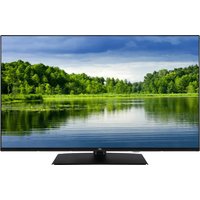
LT-43VD3300S - TV JVC - Free user manual and instructions
Find the device manual for free LT-43VD3300S JVC in PDF.


User questions about LT-43VD3300S JVC
0 question about this device. Answer the ones you know or ask your own.
Ask a new question about this device
Download the instructions for your TV in PDF format for free! Find your manual LT-43VD3300S - JVC and take your electronic device back in hand. On this page are published all the documents necessary for the use of your device. LT-43VD3300S by JVC.
USER MANUAL LT-43VD3300S JVC
1 Insert the batteries into the Remote Control
Insert two AAA/R3 or equivalent type batteries inside. Observe the correct polarity (+/-) when inserting batteries and replace the battery cover.
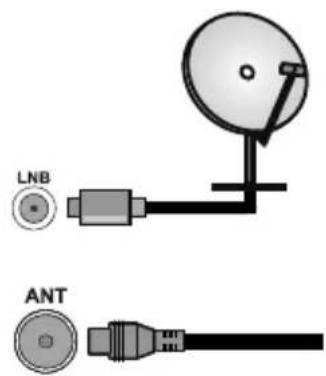
2 Connect the antenna to your TV
* The back connection options may differ depending on the model
REAR SIDE OF THE TV
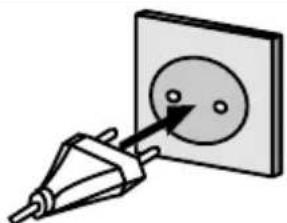
3 Connect the TV to the mains socket
natural_image
Simple line drawing of a plug inserted into a square socket (no text or symbols)4 To switch the TV on (depending on the model)
After connecting the power cord to the mains socket, the standby LED lights up.
To switch on the TV from standby mode either;
- Press the Standby button, a numeric button or Programme +/- button on the remote control.
or
2a. Press the middle of the side function switch on the TV in.
2b. Press the control button on the TV.
2c. Press the control button on the TV.
2d. Press the centre of the joystick on the TV in or push it up/down.
* The appearance of the remote control buttons and the position of the control buttons on the TV may differ depending on the model

flowchart
graph TD
    A["①"] --> B["②a"]
    B --> C["②b"]
    C --> D["②c"]
    D --> E["②d"]
    E --> F["P"]
    style A fill:#f9f,stroke:#333
    style B fill:#ccf,stroke:#333
    style C fill:#cfc,stroke:#333
    style D fill:#fcc,stroke:#333
    style E fill:#ffc,stroke:#333
    style F fill:#cff,stroke:#333
5 HDMI input
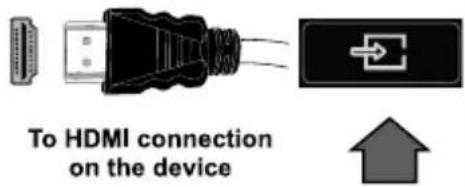
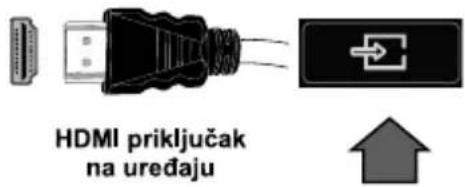
PLEASE ENSURE BOTH UNITS ARE SWITCHED OFF BEFORE CONNECTING. Use a HDMI to HDMI cable to connect the two units together. To select the HDMI input, press the Source button on the remote control. Each time it is pressed the on-screen menu confirms your selection.
* The appearance of the Source button may differ depending on the model of the remote control
6 Auto Setup procedure
When turned on for the first time, the language selection screen is displayed. Select the desired language and press OK.
On the next screen set your country preference. Then press OK to continue.
Select Home Mode for home use. You can activate Store Mode option at this point if necessary, however, this option is only intended for store use.
Depending on the model of your TV and the country selection Privacy Settings menu may appear at this point. Using this menu you can set your privacy privileges. Highlight a feature and use Left and Right directional buttons to enable or disable. If the Internet Connection option is disabled Network/Internet Settings screen will be skipped and not displayed.
Highlight Next and press OK button on the remote control to continue and the Network/Internet Settings menu will be displayed.
Refer to Connect your TV to the internet section to configure a wired or a wireless connection. After the settings are completed highlight Next and press OK button to continue.
Broadcast Search;
On the next screens et your preferences.
Scan Encrypted Channels On
Select favourite network type Satellite
D.Aerial
D.Cable
Satellite
Analogue
When finished, highlight Next and press OK to start channel scan.
After the initial settings are completed TV will start to search for available broadcasts of the selected broadcast types.
While the search continues a message may appear, asking whether you want to sort channels according to the LCN(*). Select Yes and press OK to confirm.
(*) LCN is the Logical Channel Number system that organizes available broadcasts in accordance with a recognizable channel number sequence (if available).
After the channel scan has been completed the Choose Region menu may appear. Select the appropriate settings for your location using the directional buttons then press OK.
After all the available stations are stored, Channels menu will be displayed. You can edit the channel list according to your preferences using the Edit tab options or press the Menu button to quit and watch TV.
Note: Do not turn off the TV while initializing first time installation. Note that, some options may not be available depending on the country selection.
7
Connect your TV to the Internet
Connectivity feature allows you to connect your TV to the home network wired or wirelessly. You can use this networking system to connect to internet or to access photo, video and audio files that are stored on a Media server connected to the network and play/display them on the TV.
However, if your TV does not have Wireless USB dongle or doesn't support internal WLAN feature, you should use wired connection type. Add your TV to your home network by connecting it to the modem/router via an LAN cable (not supplied) as illustrated.
To use your TV with your wireless network, you may need a WLAN USB dongle. You should connect it to one of the USB inputs on the TV. If your TV supports internal WLAN feature you won't need a wireless LAN adaptor.
Press the Menu button to open the main TV menu. Select Settings by using the directional buttons, highlight Network and press OK. While Network Type is highlighted, press Left or Right buttons to select connection type. Wired connection will be established automatically. If wireless connection is selected, highlight Scan Wireless Networks and press OK. The TV will search for the available wireless networks and list them when finished. Select one and press the OK button to connect. If the wireless network is password-protected you should enter the correct password to access the network.
Note: For more detailed information refer to the manual installed on your TV. To access this manual, enter Settings menu, select Manuals and press OK. For quick access press Menu button and then Info button.
Wireless Connection
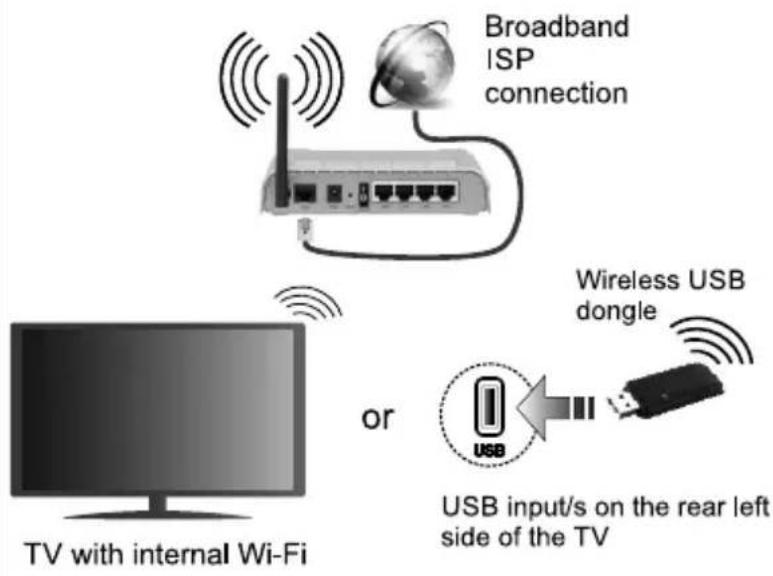
Wired Connection
(depending on the model)
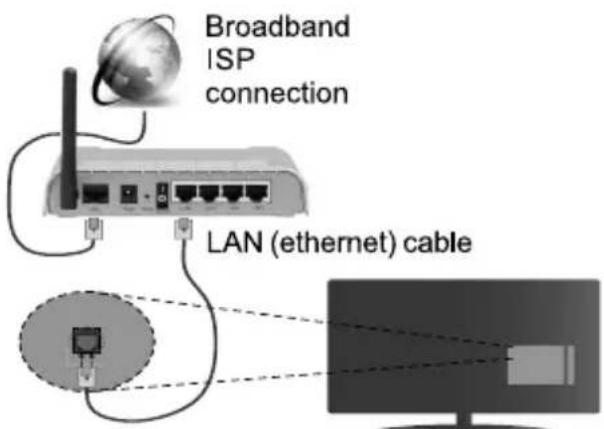
LAN input on the rear side of the TV
Dear Customer
This apparatus is in conformance with the valid European directives and standards regarding electromagnetic compatibility and electrical safety.
European representative of the manufacturer is:
Vestel Germany GmbH
Parkring 6
85748 Garching b. München
Germany
Accessories Included
- Remote Control
- Batteries: 2 x AAA
- Quick Start Guide
Depends on model
• WLAN USB Dongle and USB Extension Cable
- Wall Mount Kit
- Power Cord
Safety Information

CAUTION
RISK OF ELECTRIC SHOCK DO NOT OPEN

CAUTION: TO REDUCE THE RISK OF ELECTRIC SHOCK DO NOT REMOVE COVER (OR BACK). NO USER-SERVICEABLE PARTS INSIDE. REFER SERVICING TO QUALIFIED SERVICE PERSONNEL
In extreme weather (storms, lightning) and long inactivity periods (going on holiday) disconnect the TV set from the mains.
The mains plug is used to disconnect TV set from the mains and therefore it must remain readily operable. If the TV set is not disconnected electrically from the mains, the device will still draw power for all situations even if the TV is in standby mode or switched off.
Note: Follow the on screen instructions for operating the related features.
IMPORTANT - Please read these instructions fully before installing or operating
WARNING: This device is intended to be used by persons (including children) who are capable / experienced of operating such a device unsupervised, unless they have been given supervision or instruction concerning the use of the device by a person responsible for their safety.
- Use this TV set at an altitude of less than 5000 meters above the sea level, in dry locations and in regions with moderate or tropical climates.
- The TV set is intended for household and similar indoor use but may also be used in public places.
-
For ventilation purposes, leave at least 5cm of free space around the TV.
-
The ventilation should not be impeded by covering or blocking the ventilation openings with items, such as newspapers, table-cloths, curtains, etc.
- The power cord plug should be easily accessible. Do not place the TV, furniture, etc. on the power cord. A damaged power cord/plug can cause fire or give you an electric shock. Handle the power cord by the plug, do not unplug the TV by pulling the power cord. Never touch the power cord/plug with wet hands as this could cause a short circuit or electric shock. Never make a knot in the power cord or tie it with other cords. When damaged it must be replaced, this should only be done by qualified personnel.
- Do not expose the TV to dripping or splashing of liquids and do not place objects filled with liquids, such as vases, cups, etc. on or over the TV (e.g., on shelves above the unit).
- Do not expose the TV to direct sunlight or do not place open flames such as lit candles on the top of or near the TV.
- Do not place any heat sources such as electric heaters, radiators, etc. near the TV set.
- Do not place the TV on the floor and inclined surfaces.
- To avoid danger of suffocation, keep plastic bags out of the reach of the babies, children and domestic animals.
- Carefully attach the stand to the TV. If the stand is provided with screws, tighten the screws firmly prevent the TV from tilting. Do not over-tighten the screws and mount the stand rubbers properly.
- Do not dispose of the batteries in fire or with hazardous or flammable materials.
WARNING - Batteries must not be exposed to excessive heat such as sunshine, fire or the like.
WARNING - Excessive sound pressure from earphones or headphones can cause hearing loss.
ABOVE ALL - NEVER let anyone, especially children, push or hit the screen, push anything into holes, slots or any other openings in the case.
| Caution | Serious injury or death risk |
| Risk of electric shock | Dangerous voltage risk |
| Maintenance | Important maintenance component |
Markings on the Product
The following symbols are used on the product as a marker for restrictions and precautions and safety instructions. Each explanation shall be considered where the product bears related marking only. Note such information for security reasons.

Class II Equipment: This appliance is designed in such a way that it does not require a safety connection to electrical earth.

Hazardous Live Terminal: The marked terminal(s) is/are hazardous live under normal operating conditions.

Caution, See Operating Instructions: The marked area(s) contain(s) user replaceable coin or button cell batteries.
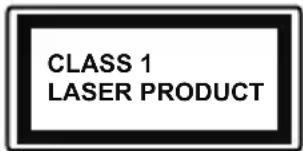
Class 1 Laser Product: This product contains Class 1 laser source that is safe under reasonably foreseeable conditions of operation.
WARNING
Do not ingest the battery, Chemical Burn Hazard This product or the accessories supplied with the product may contain a coin/button cell battery. If the coin/button cell battery is swallowed, it can cause severe internal burns in just 2 hours and can lead to death.
Keep new and used batteries away from children. If the battery compartment does not close securely, stop using the product and keep it away from children.
If you think batteries might have been swallowed or placed inside any part of the body, seek immediate medical attention.
A television may fall, causing serious personal injury or death. Many injuries, particularly to children, can be avoided by taking simple precautions such as:
- ALWAYS use cabinets or stands or mounting methods recommended by the manufacturer of the television set.
- ALWAYS use furniture that can safely support the television set.
- ALWAYS ensure the television set is not overhanging the edge of the supporting furniture.
- ALWAYS educate children about the dangers of climbing on furniture to reach the television set or its controls.
- ALWAYS route cords and cables connected to your television so they cannot be tripped over, pulled or grabbed.
- NEVER place a television set in an unstable location.
- NEVER place the television set on tall furniture (for example, cupboards or bookcases) without anchoring both the furniture and the television set to a suitable support.
- NEVER place the television set on cloth or other materials that may be located between the television set and supporting furniture.
- NEVER place items that might tempt children to climb, such as toys and remote controls, on the top of the television or furniture on which the television is placed.
- The equipment is only suitable for mounting at heights ≤ 2 m.
If the existing television set is going to be retained and relocated, the same considerations as above should be applied.

Apparatus connected to the protective earthing of the building installation through the MAINS connection or through other apparatus with a connection to protective earthing – and to a television distribution system using coaxial cable, may in some circumstances create a fire hazard. Connection to a television distribution system has therefore to be provided through a device providing electrical isolation below a certain frequency range (galvanic isolator)
WALL MOUNTING WARNINGS
- Read the instructions before mounting your TV on the wall.
- The wall mount kit is optional. You can obtain from your local dealer, if not supplied with your TV.
- Do not install the TV on a ceiling or on an inclined wall.
- Use the specified wall mounting screws and other accessories.
- ighten the wall mounting screws firmly to prevent the TV from fall. Do not over-tighten the screws.
Figures and illustrations in this user manual are provided for reference only and may differ from the actual product appearance. Product design and specifications may be changed without notice.
License Notification
The terms HDMI, HDMI High-Definition Multimedia Interface, and the HDMI Logo are trademarks or registered trademarks of HDMI Licensing Administrator, Inc.

Dolby, Dolby Vision, Dolby Atmos, and the double-D symbol are registered trademarks of Dolby Laboratories Licensing Corporation. Manufactured under licence from Dolby Laboratories. Confidential unpub works. Copyright © 2012-2022 Dolby Laboratories. All rights reserved.
Dolby Vision·Atmos
Google, Android, Android TV, Chromecast, Google Play and YouTube are trademarks of Google LLC.
Depends on model
For DTS patents, see http://patents.dts.com. Manufactured under licence from DTS Licensing Limited. DTS, DTS:X, Virtual:X, and the DTS:X logo are registered trademarks or trademarks of DTS, Inc. in the United States and other countries. © 2022 DTS, Inc. ALL RIGHTS RESERVED.

Depends on model
The Bluetooth ^® word mark and logos are registered trademarks owned by the Bluetooth SIG, Inc. and any use of such marks by Vestel Elektronik Sanayi ve Ticaret A.S. is under license. Other trademarks and trade names are those of their respective owners.
This product contains technology subject to certain intellectual property rights of Microsoft. Use or distribution of this technology outside of this product is prohibited without the appropriate license(s) from Microsoft.
Content owners use Microsoft PlayReady™ content access technology to protect their intellectual property, including copyrighted content. This device uses PlayReady technology to access PlayReady-protected content and/or WMDRM-protected content. If the device fails to properly enforce restrictions on content usage, content owners may require Microsoft to revoke the device's ability to consume PlayReady-protected content. Revocation should not affect unprotected content or content protected by other content access technologies. Content owners may require you to upgrade PlayReady to access their content. If you decline an upgrade, you will not be able to access content that requires the upgrade.
The "CI Plus" Logo is a trademark of CI Plus LLP.
This product is protected by certain intellectual property rights of Microsoft Corporation. Use or distribution of such technology outside of this product is prohibited without a license from Microsoft or an authorized Microsoft subsidiary.
DVB is a registered trademark of the DVB Project.

This product is manufactured, distributed and warranted exclusively by VESTEL Ticaret A.Ş and serviced by its designated service providers. "JVC" is the trademark of JVCKENWOOD Corporation, used by such companies under licence.

Wall mounting instructions (depending on the model)
Wall Mounting the TV
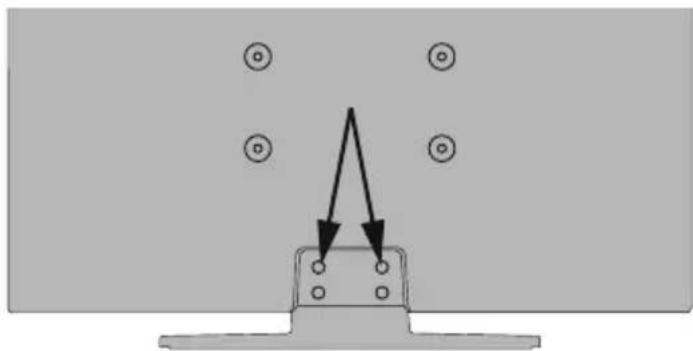
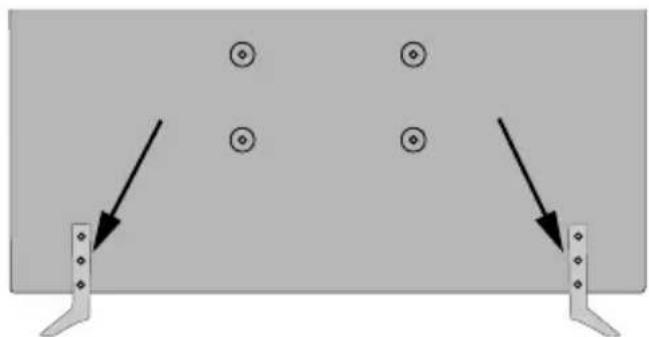
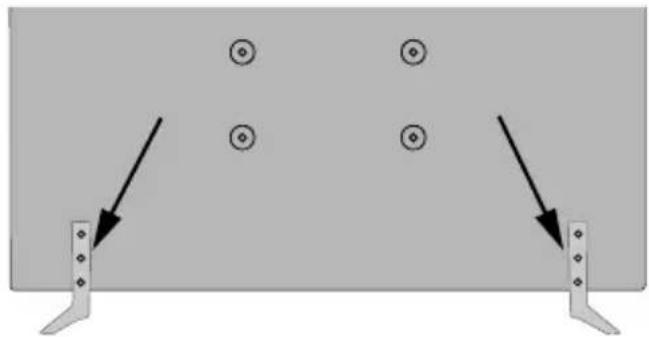
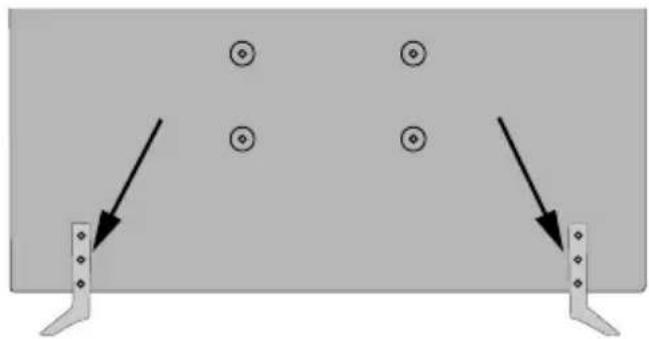
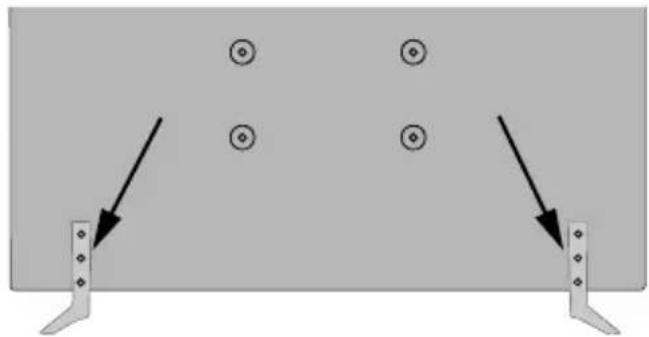
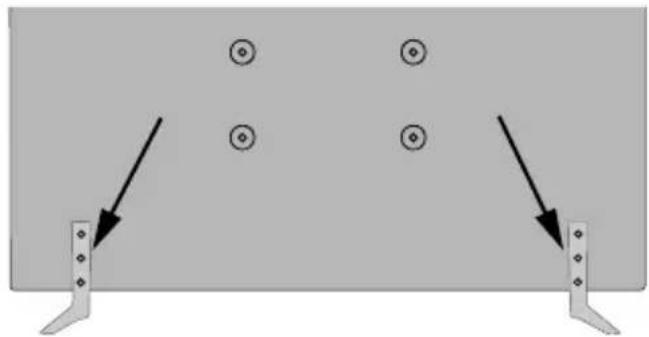
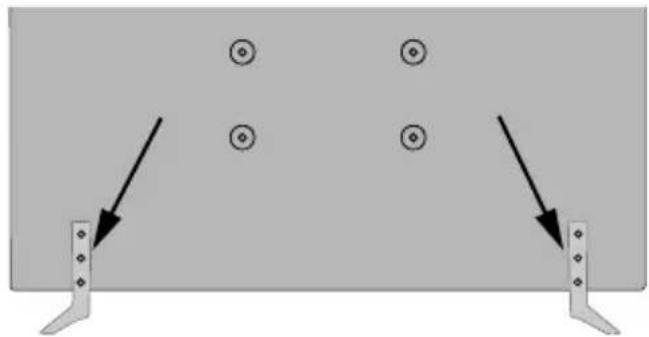
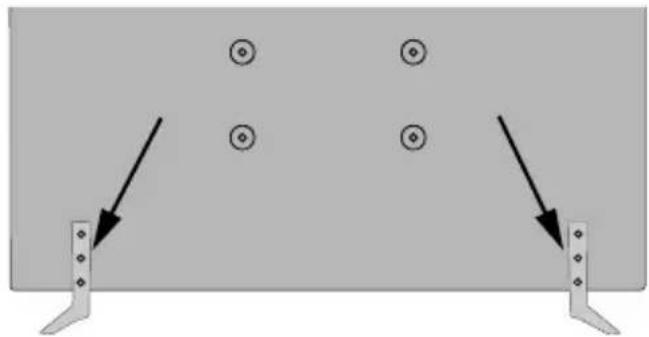
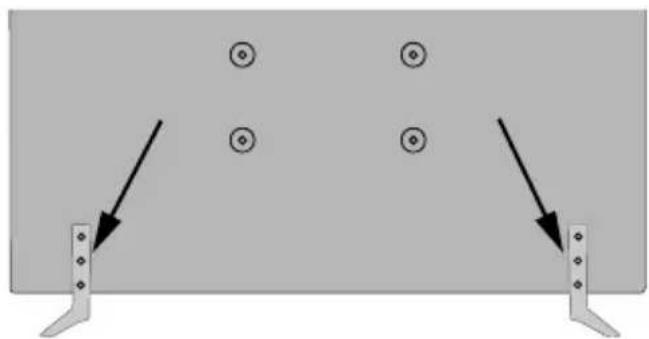
The TV can be mounted on a wall using a MX X*X mm (*) VESA mounting kit supplied separately. Remove the base stand as shown. Mount the TV according to the instructions supplied with the kit. Beware of electrical cables, gas and water pipes in the wall. In case of any doubt please contact a qualified installer. The screw thread length must not exceed X mm (*) into the TV. Contact the store where you purchased the product for information on where to purchase the VESA kit.
(*) Refer to the related additional page for the accurate VESA measurements and screw specifications.
Removing the base stand
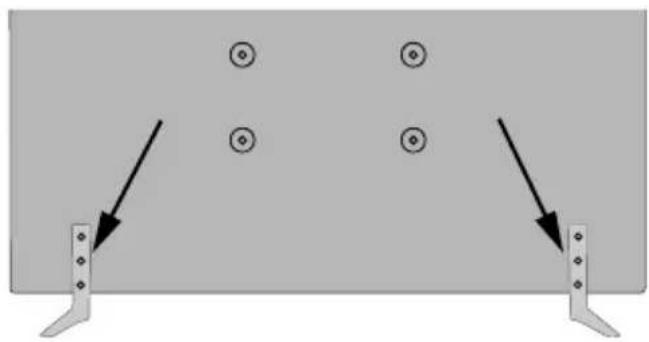
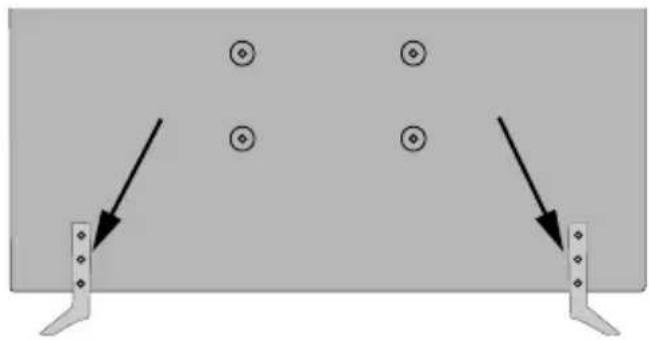
- To remove the base stand, protect the screen and lay the TV flat on its face on a stable table with the base over the edge. Remove the screws fixing the stand to the TV.
natural_image
Diagram showing a mechanical or structural component with arrows indicating direction, surrounded by circular symbols (no text or labels)-or-
natural_image
Diagram showing two vertical supports with circular symbols and arrows pointing to them, no text or labels present.Turning On/Off the TV (depending on the model)
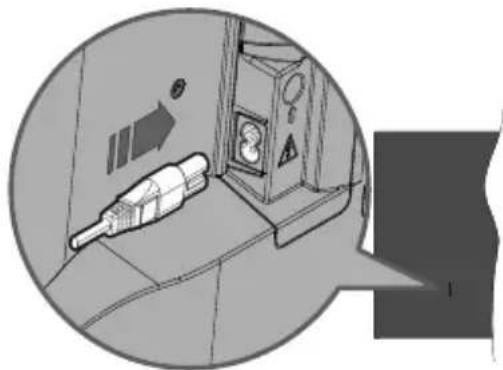
Connect power
IMPORTANT: The TV set is designed to operate on 220-240V AC, 50 Hz socket.
After unpacking, allow the TV set to reach the ambient room temperature before you connect the set to the mains.
natural_image
Illustration of a medical device with catheter placement inside a vehicle (no text or symbols)Plug one end (the two-hole plug) of the supplied detachable power cord into the power cord inlet on the rear side of the TV as shown above. Then plug the other end of the power cord into the mains socket outlet. The TV will switch on automatically.
Note: The position of the power cord inlet may differ depending on the model.
To switch on the TV from standby
If the TV is in standby mode the standby LED lights up. To switch on the TV from standby mode either:
- Press the Standby button on the remote control.
- Press the control button on the TV.
The TV will then switch on.
To switch the TV into standby
The TV cannot be switched into standby mode via control button. Press and hold the Standby button on the remote control. Power off dialogue will appear on the screen. Highlight OK and press the OK button. The TV will switch into standby mode.
To switch off the TV
To power down the TV completely, unplug the power cord from the mains socket.
Quick Standby Mode
In order to switch the TV into quick standby mode either;
- Press the Standby button on the remote.
Press again to go back to operating mode.
- Press the control button on the TV.
Press the control button again to go back to operating mode.
Your TV continues to operate in the quick standby mode state, as it regularly checks for updates. This is not a malfunction, it meets the requirements for energy consumption. In order to minimise energy consumption switch your TV into standby mode as explained above.
Disposal Information
[European Union]
These symbols indicate that the electrical and electronic equipment and the battery with this symbol should not be disposed of as general household waste at its end-of-life. Instead, the products should be handed over to the applicable collection points for the recycling of electrical and electronic equipment as well as batteries for proper treatment, recovery and recycling in accordance with your national legislation and the Directive 2012/19/EU and 2013/56/EU.
By disposing of these products correctly, you will help to conserve natural resources and will help to prevent potential negative effects on the environment human health which could otherwise be caused by inappropriate waste handling of these products.
For more information about collection points and recycling of these products, please contact your local municipal office, your household waste disposal service or the shop where you purchased the product.
Penalties may be applicable for incorrect disposal of this waste, in accordance with national legislation.
[Business users]
If you wish to dispose of this product, please contact your supplier and check the terms and conditions of the purchase contract.
[Other Countries outside the European Union]
These symbols are only valid in the European Union.
Contact your local authority to learn about disposal and recycling.
The product and packaging should be taken to your local collection point for recycling.
Some collection points accept products free of charge.
Note: The sign Pb below the symbol for batteries indicates that this battery contains lead.
![JVC LT-43VD3300S - [Other Countries outside the European Union] - 1](/content/2026/04/732342/images/f7d5cd2067a066a3fb8fca043bc3710254c41394f4c0eb47bb2c2debe7147e90.jpg)
Products
![JVC LT-43VD3300S - [Other Countries outside the European Union] - 2](/content/2026/04/732342/images/4e922e4cfa051e79cdd7bcdeec2b398e53f44f31efa068b81b4af0cec4d69746.jpg)
Battery
and
Inserting the Batteries into the Remote
The remote may have a screw that secures the battery compartment cover onto the remote control (or this may be in a separate bag). Remove the screw, if the cover is screwed on previously. Then remove the battery compartment cover to reveal the battery compartment. Insert two 1.5V - size AAA batteries. Make sure the (+) and (-) signs match (observing correct polarity). Do not mix old and new batteries. Replace only with same or equivalent type. Place the cover back on. Secure the cover again with the screw, if any.
To pair remote with the TV
When the TV is turned on for the first time, a search for accessories will be performed after the initial setup starts. You will need to pair your remote control with your TV at this point.
Press and hold the Source button on the remote until the LED on the remote starts to blink, then release the Source button. That means the remote is in pairing mode.
Now you will wait for the TV to find your Select the name of your remote and press OK when it appears on the TV screen.
When the pairing process is successful, the LED on the remote will go off. If the pairing process fails the remote will enter sleep mode after 30 seconds.
In order to pair your remote later on, you can go to Settings menu, highlight Remotes & Accessories option and press OK to start a search for accessories.
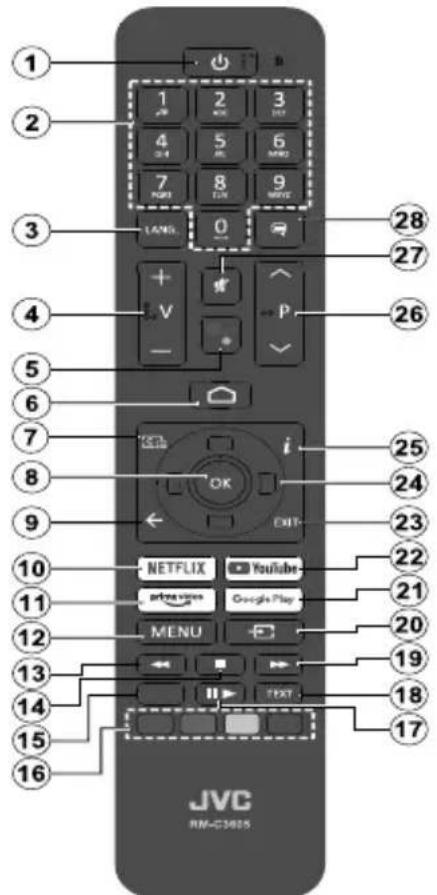
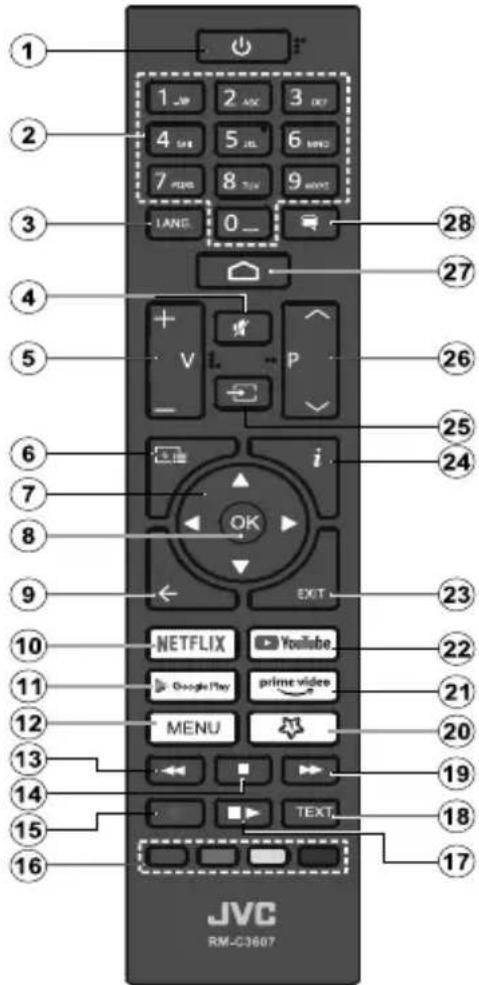
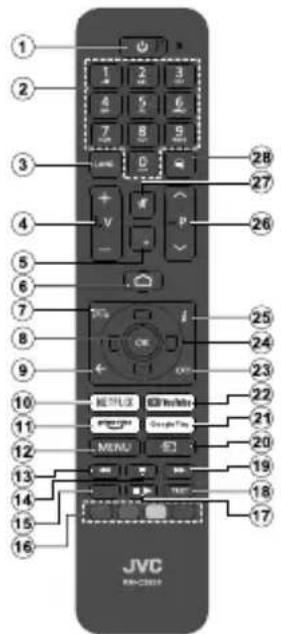
- Standby: Quick Standby / Standby / On
- Numeric buttons: Switches the channel in Live TV mode, enters a number or a letter in the text box on the screen
-
Language: Switches among sound modes (analogue TV), displays and changes audio language (digital TV, where available)
-
Volume +/-
-
Microphone: Activates the microphone on the remote
-
Home: Opens the Home Screen
-
Guide: Displays the electronic programme guide in Live TV mode
-
OK: Confirms selections, enters sub-menus, views channel list (in Live TV mode)
-
Back/Return: Returns to previous menu screen, goes one step back, closes open windows, closes teletext (in Live TV-Teletext mode)
-
Netflix: Launches the Netflix application
-
Prime Video: Launches the Amazon Prime Video application
-
Menu: Displays Live TV Settings menu (in Live TV mode), displays available setting options such as sound and picture
-
Rewind: Moves frames backwards in media such as movies
-
Stop: Stops the media being played
-
Record: Records programmes in Live TV mode**
-
Coloured Buttons: Follow the on-screen instructions for coloured button functions
-
Pause: Pauses the media being played, starts timeshift recording in Live TV mode** Play: Starts to play selected media
-
Text: Opens and closes teletext (where available in Live TV mode)
-
Fast forward: Moves frames forward in media such as movies
-
Source: Shows all available broadcast and content sources, is also used in pairing process of the remote.
-
Google Play: Launches the Google Play Store application
-
YouTube: Launches the YouTube application
-
Exit: Closes and exits from Live TV Settings menus, closes the Home Screen, exits from any running application or menu or OSD banner, switches to last set source
-
Directional buttons: Navigates menus, setting options, moves the focus or cursor, etc. sets record time and displays the subpages in Live TV-Teletext mode when pressed Right or Left. Follow the on-screen instructions.
-
Info: Displays information about on-screen content
-
Programme +/-: Increases/Decreases channel number in Live TV mode
-
Mute: Completely turns off the volume of the TV
-
Subtitles: Turns subtitles on and off (where available)
remate Standby Button
Press and hold the Standby button on the remote control. Power off dialogue will appear on the screen. Highlight OK and press the OK button. The TV will switch into standby mode. Press briefly and release to switch the TV into quick standby mode or to switch on the TV when in quick standby or standby mode.
Footnote:
Red, green, blue and yellow buttons are multifunction; please follow on-screen prompts and section instructions.
(**) If this feature is supported by your TV.
Inserting the Batteries into the Remote
Remove the battery compartment cover to reveal the battery compartment. Insert two size AAA batteries. Make sure the (+) and (-) signs match (observing correct polarity). Do not mix old and new batteries. Replace only with same or equivalent type. Place the cover back on.
To pair remote with the TV
When the TV is turned on for the first time, a search for accessories will be performed after the initial setup starts. You will need to pair your remote control with your TV at this point.
Press and hold the Source button on the remote until the LED on the remote starts to blink, then release the Source button. That means the remote is in pairing mode.
Now you will wait for the TV to find your Select the name of your remote and press OK when it appears on the TV screen.
When the pairing process is successful, the LED on the remote will go off. If the pairing process fails the remote will enter sleep mode after 30 seconds.
In order to pair your remote later on, you can go to Settings menu, highlight Remotes & Accessories option and press OK to start a search for accessories.
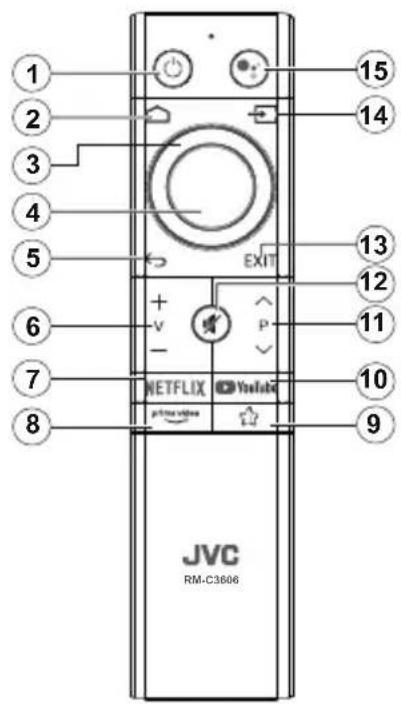
- Standby: Quick Standby / Standby / On
- Home: Opens the Home Screen
- Directional buttons: Navigates menus, setting options, moves the focus or cursor etc. and displays the subpages in Live TV-Teletext mode when pressed Right or Left. Follow the on-screen instructions.
- OK: Confirms selections, enters sub-menus, views channel list (in Live TV mode)
- Back/Return: Returns to previous menu screen, goes one step back, closes open windows, closes teletext (in Live TV-Teletext mode)
- Volume +/-
- Netflix: Launches the Netflix application
- Prime Video: Launches the Amazon Prime Video application
- MyButton1 (*): Opens the picture mode setting menu on available sources
- YouTube: Launches the YouTube application
- Programme +/-: Increases/Decreases channel number in Live TV mode
- Mute: Completely turns off the volume of the TV
- Exit: Closes and exits from Live TV Settings menus, closes the Home Screen, exits from any running application or menu or OSD banner, switches to last set source
- Source: Shows all available broadcast and content sources, is also used in pairing process of the remote.
- Microphone: Activates the microphone on the remote
(\*) MyButton1 Customisation
This button can be assigned as a hotkey for an application. Press and hold the button, available applications will be displayed on the screen. Highlight one and press OK. After that, you can launch the selected application by pressing the MyButton1 button. In the same way, you can change the function of this button any time later.
Note that if you perform initial setup (Factory reset / Reset), MyButton1 will return to its default function.
Remote Control 45157
Inserting the Batteries into the Remote
The remote may have a screw that secures the battery compartment cover onto the remote control (or this may be in a separate bag). Remove the screw, if the cover is screwed on previously. Then remove the battery compartment cover to reveal the battery compartment. Insert two 1.5V - size AAA batteries. Make sure the (+) and (-) signs match (observing correct polarity). Do not mix old and new batteries. Replace only with same or equivalent type. Place the cover back on. Secure the cover again with the screw, if any.
Standby Button
Press and hold the Standby button on the remote control. Power off dialogue will appear on the screen. Highlight OK and press the OK button. The TV will switch into standby mode. Press briefly and release to switch the TV into quick standby mode or to switch on the TV when in quick standby or standby mode.
- Standby: Quick Standby / Standby / On
-
Numeric buttons: Switches the channel in Live TV mode, enters a number or a letter in the text box on the screen
-
Language: Switches among sound modes (analogue TV), displays and changes audio language (digital TV, where available)
-
Mute: Completely turns off the volume of the TV
-
Volume +/-
-
Guide: Displays the electronic programme guide in Live TV mode
-
Directional buttons: Navigates menus, setting options, moves the focus or cursor, etc. sets record time and displays the subpages in Live TV-Teletext mode when pressed Right or Left. Follow the on-screen instructions.
-
OK: Confirms selections, enters sub-menus, views channel list (in Live TV mode)
-
Back/Return: Returns to previous menu screen, goes one step back, closes open windows, closes teletext (in Live TV-Teletext mode)
-
Netflix: Launches the Netflix application
-
Google Play: Launches the Google Play Store application
-
Menu: Displays Live TV Settings menu (in Live TV mode), displays available setting options such as sound and picture
-
Rewind: Moves frames backwards in media such as movies
-
Stop: Stops the media being played
-
Record: Records programmes in Live TV mode**
-
Coloured Buttons: Follow the on-screen instructions for coloured button functions
-
Pause: Pauses the media being played, starts timeshift recording in Live TV mode** Play: Starts to play selected media
-
Text: Opens and closes teletext (where available in Live TV mode)
-
Fast forward: Moves frames forward in media such as movies
-
MyButton1: Opens the picture mode setting menu on available sources
-
Prime Video: Launches the Amazon Prime Video application
-
YouTube: Launches the YouTube application
-
Exit: Closes and exits from Live TV Settings menus, closes the Home Screen, exits from any running application or menu or OSD banner, switches to last set source
-
Info: Displays information about on-screen content
-
Source: Shows all available broadcast and content sources
-
Programme +/-: Increases/Decreases channel number in Live TV mode
-
Home: Opens the Home Screen
-
Subtitles: Turns subtitles on and off (where available)
Footnote:
Red, green, blue and yellow buttons are multifunction; please follow on-screen prompts and section instructions.
(**) If this feature is supported by your TV.
natural_image
Simple line drawing of a plug inserted into a wall socket (no text or symbols)natural_image
Diagram showing three electronic components: a USB connector, a USB cable, and a black connector with an arrow symbol (no text or labels)natural_image
Diagram showing a mechanical or structural component with arrows indicating direction, no text or symbols present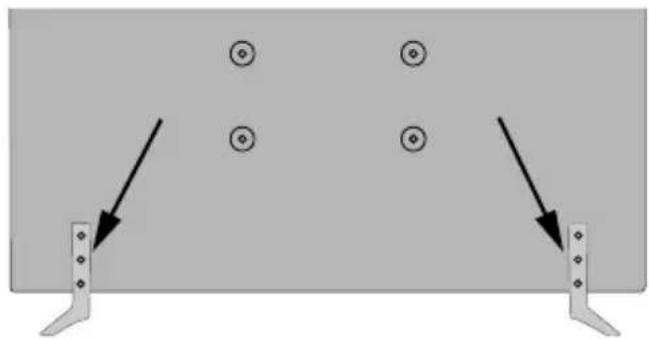
natural_image
Diagram showing two vertical supports with circular symbols and arrows pointing to them, no text or labels present.natural_image
Diagram of a fuel pump inside a vehicle, showing airflow direction and warning symbol (no text or labels)
The Ground Truth image displays a single, solid horizontal line. According to Rule 2 (UNDERSCORE & LINE RULES), this is a stylistic or background line, not a placeholder underscore. Therefore, the OCR result must ignore it and output nothing or only meaningful text. The provided OCR content is "____", which consists of four underscores. This is an incorrect interpretation of the line as a placeholder, violating the rule that stylistic lines must be ignored. The OCR has hallucinated underscores where none should exist based on the GT's visual context. Hence, the OCR result is inconsistent with the Ground Truth.
Productos
Pila
natural_image
Simple line drawing of a plug inserted into a socket (no text or symbols)4 Para ligar a TV (Dependendo do modelo)
natural_image
Diagram showing a mechanical component with arrows indicating direction, surrounded by circular symbols (no text or labels)-OU-
natural_image
Diagram showing two vertical supports with circular symbols and arrows pointing to them, no text or labels present.Ligar / Desligar a TV (dependendo do modelo)
Ligar à corrente
natural_image
Diagram showing a mechanical device inside a vehicle, with directional arrows and a magnified view of the component (no text or symbols)natural_image
Simple line drawing of a plug inserted into a wall socket (no text or symbols)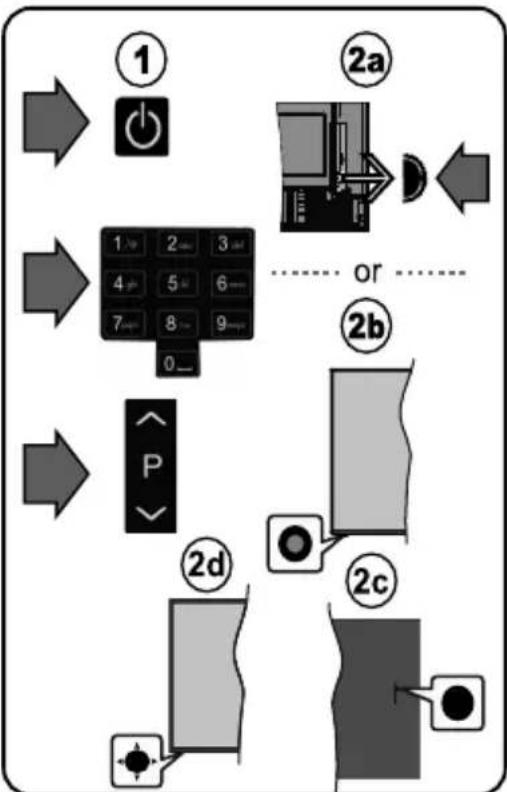
flowchart
graph TD
    A["①"] --> B["②a"]
    B --> C["②b"]
    C --> D["②c"]
    D --> E["②d"]
    E --> F["P"]
    style A fill:#f9f,stroke:#333
    style B fill:#ccf,stroke:#333
    style C fill:#cfc,stroke:#333
    style D fill:#fcc,stroke:#333
    style E fill:#ffc,stroke:#333
    style F fill:#cff,stroke:#333
5 HDMI-Eingang
natural_image
Diagram showing a mechanical or electrical component with arrows indicating direction, surrounded by circular symbols (no text or labels)-oder-
natural_image
Diagram showing two vertical supports with circular symbols and arrows pointing to them, no text or labels present.natural_image
Diagram showing a plug inserted into a device with warning symbols, enclosed in a circular frame (no text or labels)natural_image
Simple line drawing of a plug inserted into an electrical outlet (no text or symbols)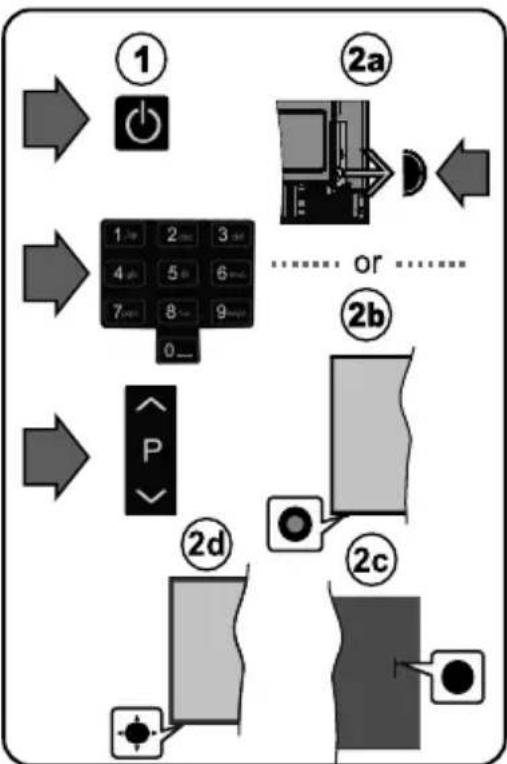
flowchart
graph TD
    A["①"] --> B["②a"]
    B --> C["③"]
    C --> D["④"]
    D --> E["⑤"]
    E --> F["⑥"]
    F --> G["⑦"]
    G --> H["⑧"]
    H --> I["⑨"]
    I --> J["0"]
    J --> K["P"]
    K --> L["②d"]
    L --> M["②c"]
    M --> N["②b"]
    N --> O["or ..."]
    style A fill:#f9f,stroke:#333
    style B fill:#ccf,stroke:#333
    style C fill:#cfc,stroke:#333
    style D fill:#fcc,stroke:#333
    style E fill:#cff,stroke:#333
    style F fill:#ffc,stroke:#333
    style G fill:#cfc,stroke:#333
    style H fill:#fcc,stroke:#333
    style I fill:#ffc,stroke:#333
    style J fill:#cfc,stroke:#333
    style K fill:#fcc,stroke:#333
    style L fill:#cfc,stroke:#333
    style M fill:#cfc,stroke:#333
    style N fill:#cfc,stroke:#333
5 HDMI vstup
natural_image
Diagram showing a mechanical component with arrows indicating direction, surrounded by circular symbols (no text or labels)-nebo-
natural_image
Diagram showing two vertical supports with circular symbols and arrows pointing to them, no text or labels present.natural_image
Illustration of a mechanical device with a connector and warning symbol, enclosed in a circular frame (no text or labels)natural_image
Simple line drawing of a plug inserted into a wall socket (no text or symbols)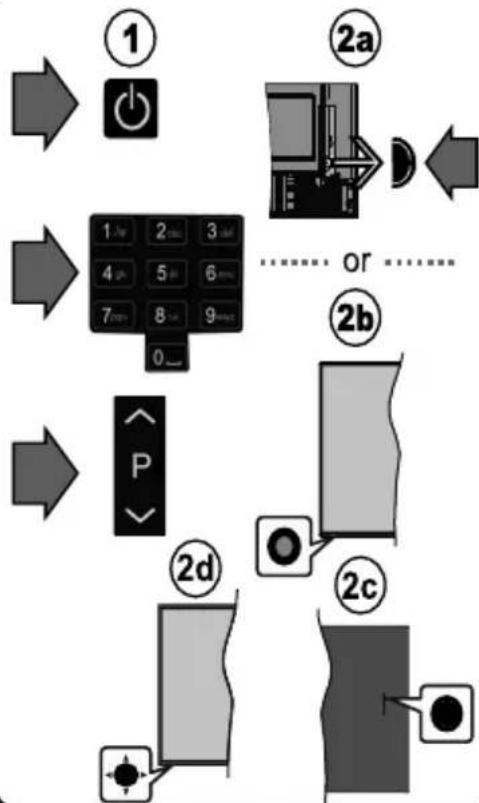
flowchart
graph TD
    A["①"] --> B["②a"]
    B --> C["②b"]
    C --> D["②c"]
    D --> E["②d"]
    E --> F["P"]
    style A fill:#f9f,stroke:#333
    style B fill:#ccf,stroke:#333
    style C fill:#cfc,stroke:#333
    style D fill:#fcc,stroke:#333
    style E fill:#ffc,stroke:#333
    style F fill:#cff,stroke:#333
5 Vstup HDMI
natural_image
Diagram showing three connected components: a USB connector, a USB cable, and a black connector with an arrow symbol (no text or labels)natural_image
Diagram showing a mechanical component with arrows indicating direction, surrounded by circular features (no text or symbols)-alebo-
natural_image
Diagram showing two vertical supports with circular symbols and arrows pointing to them, no text or labels present.Zapnutie / Vypnutie televízora (v závislosti od modelu)
Pripojit' napájanie
natural_image
Illustration of a fuel pump connected to a control panel inside a vehicle (no text or symbols visible)natural_image
Simple line drawing of a plug inserted into a wall socket (no text or symbols)natural_image
Diagram showing a mechanical component with arrows indicating direction, surrounded by circular symbols (no text or labels)-vagy-
natural_image
Diagram showing two vertical supports with circular symbols and arrows pointing to them, no text or labels present.natural_image
Illustration of a mechanical device with directional arrows and a warning symbol, enclosed in a circular frame (no text or labels)natural_image
Simple line drawing of a plug inserted into a socket socket (no text or symbols)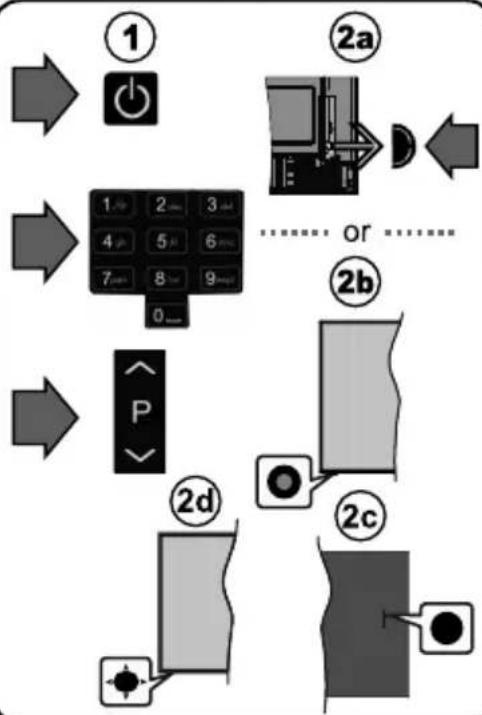
flowchart
graph TD
    A["①"] --> B["②a"]
    B --> C["③"]
    C --> D["④"]
    D --> E["⑤"]
    E --> F["⑥"]
    F --> G["⑦"]
    G --> H["⑧"]
    H --> I["⑨"]
    I --> J["0"]
    J --> K["P"]
    K --> L["②d"]
    L --> M["②c"]
    M --> N["②b"]
    N --> O["or ..."]
    style A fill:#f9f,stroke:#333
    style B fill:#ccf,stroke:#333
    style C fill:#cfc,stroke:#333
    style D fill:#fcc,stroke:#333
    style E fill:#cff,stroke:#333
    style F fill:#ffc,stroke:#333
    style G fill:#cfc,stroke:#333
    style H fill:#fcc,stroke:#333
    style I fill:#ffc,stroke:#333
    style J fill:#fcc,stroke:#333
    style K fill:#ffc,stroke:#333
    style L fill:#cfc,stroke:#333
    style M fill:#fcc,stroke:#333
    style N fill:#cfc,stroke:#333
5 Hyrja HDMI
natural_image
Diagram showing a mechanical or electrical component with arrows pointing to circular features (no text or symbols present)-ose-
natural_image
Diagram showing two vertical supports with circular symbols and arrows pointing to them, no text or labels present.natural_image
Illustration of a mechanical device with a tool inserted, showing motion indicators and components (no text or symbols)natural_image
Simple line drawing of a plug inserted into a socket socket (no text or symbols)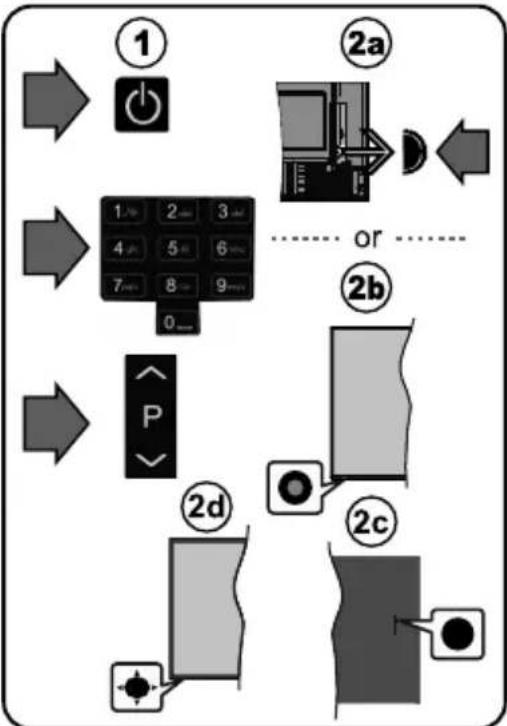
flowchart
graph TD
    A["①"] --> B["②a"]
    B --> C["②b"]
    C --> D["②c"]
    D --> E["②d"]
    E --> F["P"]
    style A fill:#f9f,stroke:#333
    style B fill:#ccf,stroke:#333
    style C fill:#cfc,stroke:#333
    style D fill:#fcc,stroke:#333
    style E fill:#ffc,stroke:#333
    style F fill:#cff,stroke:#333
5 HDMI вход
natural_image
Diagram showing a mechanical or electrical component with arrows indicating direction, surrounded by circular symbols (no text or labels)-ИЛУ-
natural_image
Diagram showing two vertical metal supports with circular holes and directional arrows pointing to them, no text or symbols present.natural_image
Illustration of a fuel pump connected to a control panel inside a vehicle (no text or symbols visible)natural_image
Simple line drawing of a plug inserted into a socket with a circular component (no text or symbols)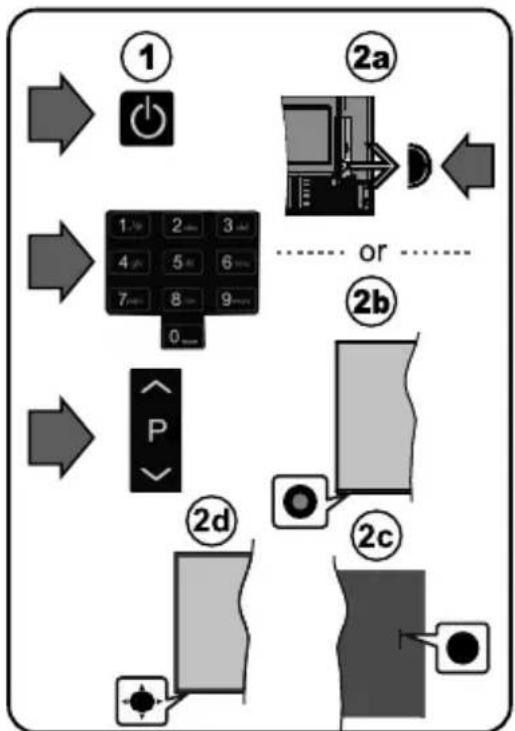
flowchart
graph TD
    A["①"] --> B["②a"]
    B --> C["②b"]
    C --> D["②c"]
    D --> E["②d"]
    E --> F["P Button"]
    style A fill:#f9f,stroke:#333
    style B fill:#ccf,stroke:#333
    style C fill:#cfc,stroke:#333
    style D fill:#fcc,stroke:#333
    style E fill:#ffc,stroke:#333
    style F fill:#cff,stroke:#333
5 HDMI ulaz
MOLIMO OBEZBJEDITE DA SU OBA UREĐAJA ISKLJUČANAPRIJE POVEZIVANJA. Da biste povjezali dvije jedinice koristiti HDMI ka HDMI kabel. Da biste izabrali HDMI ulaz, pritisnite dugme Izvor na daljinskom upravljaču. Svaki put kada ga pritisnite, meni na ekranu potvrđuje vaš izbor.
* Izgled dugmeta Izvor može se razlikovati ovisno o modelu daljinskog upravljača
6 Procedura automatskog podešavanja
Laserski proizvod klase 1: Ovaj proizvod sadrži laserski izvor Klase 1 koji je siguran u razumno predvidljivim uvjetima funkcioniranja.
UPOZORENJE
Nemojte gutati bateriju, opasnot od hemijskih opekotina
Ovaj proizvod ili dodatna oprema isporučena uz ovaj proizvod mogu da sadrže dugmastu bateriju.
Ukoliko se baterija proguta, može dovesti do teške unutrašnje opekotine u samo 2 sata i može dovesti do smrti.
natural_image
Diagram showing a mechanical component with arrows indicating direction, surrounded by circular features (no text or symbols)-iji-
natural_image
Diagram showing two vertical metal supports with circular symbols and arrows pointing to them, no text or labels present.natural_image
Diagram of a fuel pump inside a vehicle, showing airflow direction and warning symbol (no text or labels)natural_image
Simple line drawing of a plug inserted into a socket (no text or symbols)natural_image
Diagram showing a mechanical component with arrows indicating direction, surrounded by circular symbols (no text or labels)-OU-
natural_image
Diagram showing two vertical supports with circular symbols and an arrow pointing to them, no text or labels present.natural_image
Illustration of a mechanical device with directional arrows and warning symbols, enclosed in a circular frame (no readable text or labels)natural_image
Simple line drawing of a plug inserted into a socket (no text or symbols)natural_image
Diagram showing a mechanical or electrical component with arrows pointing to circular features (no text or symbols)-oppure-

natural_image
Diagram showing two vertical metal supports with circular holes and directional arrows pointing to them, no text or symbols present.
- Insert the batteries into the Remote Control
- Connect the antenna to your TV
- Connect the TV to the mains socket
- To switch the TV on (depending on the model)
- HDMI input
- Auto Setup procedure
- 7
- Connect your TV to the Internet
- Dear Customer
- Accessories Included
- Depends on model
- Safety Information
- CAUTION
- RISK OF ELECTRIC SHOCK DO NOT OPEN
- IMPORTANT - Please read these instructions fully before installing or operating
- Markings on the Product
- WARNING
- WALL MOUNTING WARNINGS
- License Notification
- Dolby Vision·Atmos
- Wall mounting instructions (depending on the model)
- Wall Mounting the TV
- Removing the base stand
- Turning On/Off the TV (depending on the model)
- Connect power
- To switch on the TV from standby
- To switch the TV into standby
- To switch off the TV
- Quick Standby Mode
- Disposal Information
- [European Union]
- [Business users]
- [Other Countries outside the European Union]
- Inserting the Batteries into the Remote
- To pair remote with the TV
- remate Standby Button
- Footnote:
- (\*) MyButton1 Customisation
- Remote Control 45157
- Standby Button
- Para ligar a TV (Dependendo do modelo)
- Ligar / Desligar a TV (dependendo do modelo)
- Ligar à corrente
- HDMI-Eingang
- HDMI vstup
- Vstup HDMI
- Zapnutie / Vypnutie televízora (v závislosti od modelu)
- Hyrja HDMI
- HDMI вход
- HDMI ulaz
- Procedura automatskog podešavanja
- UPOZORENJE
Brand : JVC
Model : LT-43VD3300S
Category : TV