
Q7 L5+ - Robot vacuum ROBOROCK - Free user manual and instructions
Find the device manual for free Q7 L5+ ROBOROCK in PDF.


| Product type | Robot vacuum with auto-empty dock |
| Brand | ROBOROCK |
| Robot model | RRA0TAC |
| Charging dock model | SPCDZ03RR |
| Emptying dock model | AED08LRR |
| Robot power supply | 20 V=0.8 A (via dock) |
| Dock power supply | 120 V~, 60 Hz |
| Battery | Lithium-ion 14.4 V, 3200 mAh |
| Navigation | LiDAR |
| Connectivity | WiFi 2.4 GHz, Roborock app |
| Main functions | Scheduled cleaning, auto-empty, mopping, mapping |
| Brushes | Main brush + side brush |
| Filter | Washable filter |
| Mop | Washable, reusable |
| Main brush maintenance | Clean every 2 weeks, replace every 6-12 months |
| Side brush maintenance | Clean every month, replace every 3-6 months |
| Filter maintenance | Clean every 2 weeks, replace every 6-12 months |
| Mop maintenance | Clean after each use, replace every 3-6 months |
| Dock dust bag | Disposable, replace when full |
| Safety | Anti-drop sensors, Do Not Disturb mode, auto-stop |
| Operating temperature | 4 °C to 40 °C |
| Compatible floor types | Hard floors, carpets (avoid high-pile carpets) |
Frequently Asked Questions - Q7 L5+ ROBOROCK
User questions about Q7 L5+ ROBOROCK
0 question about this device. Answer the ones you know or ask your own.
Ask a new question about this device
Download the instructions for your Robot vacuum in PDF format for free! Find your manual Q7 L5+ - ROBOROCK and take your electronic device back in hand. On this page are published all the documents necessary for the use of your device. Q7 L5+ by ROBOROCK.
USER MANUAL Q7 L5+ ROBOROCK
Robotic Vacuum Cleaner User Manual
Read this user manual with diagrams carefully before using this product and store it properly for future reference.

roborock
English02
Français 14
03 Safety Information
04 Battery and Charging
04 International Symbols Explanation
05 FCC/IC Statement
06 Product Overview
07 Installation
08 Connecting to the App
08 Instructions for Use
09 Routine Maintenance
10 Basic Parameters
11 Environment Protection Information
12 Common Issues
Safety Information
WARNING
- For the purposes of recharging the battery, only use with roborock AED08LRR or SPCDZ03RR (use with roborock BLJ18WD200080P-U power supply) docking station.
- The product must be switched off and the plug must be removed from socket outlet when not in use, before cleaning or maintaining the product.
- To reduce the risk of electric shock, this appliance has a polarized plug (one blade is wider than the other). This plug will fit in a polarized outlet only one way. If the plug does not fit fully in the outlet, reverse the plug. If it still does not fit, contact a qualified electrician to install the proper outlet. Do not change the plug in any way.
• The docking station can only be used to charge the robotic vacuum cleaner equipped with a 14.4 V/3200 mAh (TYP) lithium-ion battery.
CAUTION
- Only use the product in accordance with the User Manual. Any loss or damage caused by improper use will be borne by the user.
- Do not allow to be used as a toy. Close attention is necessary when used by or near children.
• Do not rinse the robot and the dock. - Do not use the product to clean hard or sharp objects (such as decoration wastes, glass, and nails) to avoid scratching the robot, the dock or the floor.
- Make sure dustbin, washable filter, dust bag, side brush, mop cloth, main brush and main brush cover are installed in place before cleaning.
- Do not sit or stand on the robot or dock.
• To prevent corrosion or damage, do not use any disinfectant and only use cleaning solution recommended by Roborock. - Do not put any low objects (such as shoes, mats) near raised areas like stairs. Otherwise, the robot may fall down caused by malfunctional sensors.
• To prevent water damage, make sure that the floor where the robot operates is free of water. - Do not operate the product in a room where an infant or child is sleeping.
- Before using the product, move sundries such as wires and any unstable, fragile, precious, or dangerous items from the floor to prevent them from being pulled by the robot and causing personal injury or property damage.
- Keep hair, loose clothing, fingers, and all body parts of people and pets away from seams, openings and moving parts of the product to avoid possible injury.
• Do not carry the robot using vertical bumper, side brush or bumper. -
Place the dock on a hard, flat floor. Keep the dock, robot, and power cord away from fire and heat sources like a heating radiator. Avoid humid and narrow spaces or locations where the robot may be suspended in the air.
-
This product can be used by children aged from 8 years and above and persons with reduced physical, sensory or mental capabilities or lack of experience and knowledge if they have been given supervision or instruction concerning use of the product in a safe way and understand the hazards involved. Children shall not play with the product. Cleaning and user maintenance shall not be made by children without supervision.
- Do not dismantle, repair or modify the battery or charging dock.
- If the dock is placed in an area susceptible to thunderstorms or with unstable voltage, take protection measures.
- Do not use the product on high pile carpets. Product effectiveness may also be reduced on dark carpets.
- Do not place any object on top of the robot or dock, near the suction inlet of the dock, or cover them with any item (including dust-proof cover).
- Do not use this product on elevated surfaces without barriers such as the floor of a loft, an open-ended terrace, a slide, or top of furniture.
- Do not use the dock to pick up stones, paper scraps, or other objects that may block the air duct.
- Do not operate the product if it has been damaged in any way. Contact customer service for help.
• Always operate the device in well-ventilated areas to prevent overheating. - Roborock disclaims all liability for indirect, punitive, incidental, or consequential damages resulting from the use, misuse, or inability to use this product. This disclaimer does not affect any statutory rights that may not be disclaimed under applicable law.
Battery and Charging
- Do not wipe the charging contacts with wet cloth or wet hands.
- If the product is left unused for a long period, store it in a cool, dry place after having it fully charged, unplugged, and switched off. Recharge it at least every three months to avoid battery overdischarge.
- Do not use the product when the temperature is higher than 40^ (104°F) or lower than 4^ (39°F), or if there is any liquid or sticky substance on the floor.
- Do not discard waste batteries. Leave them with a professional recycling organization.
• To transport the product, be sure to unplug the dock, switch off the robot, and empty water tanks. Use of the original packaging is advised. - Be sure that the supply voltage meets the requirements listed on the dock.
International Symbols Explanation
\~ - ALTERNATING CURRENT symbol [symbol IEC 60417-5032 (2009-02)]
- DIRECT CURRENT symbol [symbol IEC 60417-5031 (2009-02)]

- For indoor use only.
FCC/IC Statement
| Compliance Information | |
| Product Name Robotic Vacuum Cleaner with Charging Dock | |
| Product Model | Robotic Vacuum Cleaner Model: RRA0TACDocking Station Model: SPCDZ03RRPower Supply Model: BLJ18WD200080P-UAuto-Empty Dock Model: AED08LRR |
| Compliance Statement | This device complies with Part 15 of the FCC Rules.Operation is subject to the following two conditions:(1) this device may not cause harmful interference, and(2) this device must accept any interference received, including interference that may cause undesired operation.This device contains licence-exempt transmitter(s)/receiver(s) that comply with Innovation, Science and Economic Development Canada's licence-exempt RSS(s).Operation is subject to the following two conditions:(1) This device may not cause interference.(2) This device must accept any interference, including interference that may cause undesired operation of the device. |
| Correspondence of the responsible party in USA | |
| Company | Roborock Technology Co. |
| Address | ROOM 1227, 12TH FLOOR, 1000 N. WEST STREET, WILMINGTON, DE 19801 |
| support@roborock.com | |
A Product Overview
A1 Robot (Top View)

Power/Clean
- Press and hold to turn the robot on or off
- Press to start cleaning
Power Indicator Light
• Steady white: Waiting for orders/Paused/WiFi connected/Cleaning/Docking/Mapping/Emptying
• Breathing white: Starting up/Charging (battery level > 20%)
- Flashing white slowly: Waiting for WiFi connection
- Flashing white quickly: Updating/Connecting
• Steady red: Battery level < 20%
- Breathing red: Charging (battery level < 20%)
- Flashing red: Error

— Dock
- Press to start docking
Press any button to pause a running robot. Note:
A1-1—LiDAR Sensor
A1-2—Bumper
A1-3—Dock Locator
A1-4—Charging Contacts
A2 Robot (Bottom View)
A2-1—Side Brush
A2-2—Cliff Sensors
A2-3—Omnidirectional Wheel
A2-4—Main Brush Cover Latches
A2-5—Main Brush
A2-6—Main Wheels
A2-7—Mop Module
A3 Dustbin and Water Tank Combo Unit
A3-1—Water Tank
A3-2—Water Tank Stopper
A3-3—Release Buttons
A3-4—Washable Filter
A3-5—Dustbin
A3-6—Filling Port
A3-7—Filter Holder
A3-8—Filter Holder Latches
A4 Mop Module
A4-1—Mop Cloth Mount
A4-2—Mop Cloth Mount Latches
A4-3—Mop Cloth
A4-4—Hook and Loop Pads
A5 Moisture-Proof Mat
A5-1—Moisture-Proof Mat Adhesive Tape
A6 Power Cord
A7 Auto-Empty Dock
A7-1—Dock Cover
A7-2—Dustbin
A7-3—Status Indicator Light
• Steady white: Powered on while the robot is not docked
• Flashing white slowly: Emptying
• Steady red: Dust bag is not in place
• Off: Powered off or the robot is charging
A8 Auto-Empty Dock (Top Cover Open)
A8-1—Disposable Dust Bag
A8-2—Charging Contacts
A8-3—Dock Location Beacon
A8-4—Suction Inlet
A9 Auto-Empty Dock (Back View)
A9-1—Power Port
A9-2—Power Cord Storage Slot
A9-3—Cord Outlets
Power cord can exit at either side. Note:
B Installation
Important Information
natural_image
Four-panel architectural sketch showing room layouts and furniture, with red X marks indicating missing or invalid areas (no text or symbols present)-
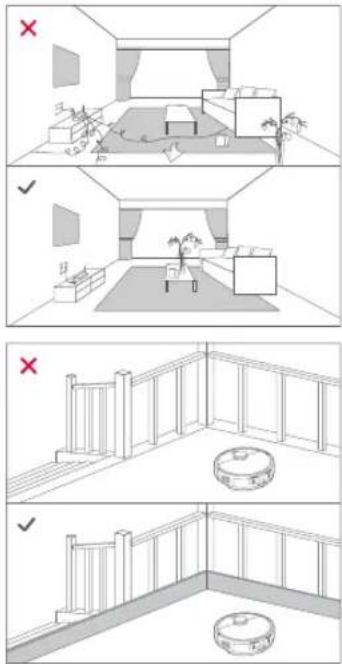
Tidy cords, hard or sharp objects (such as nails and glass), and loose items from the ground and move any unstable, fragile, precious, or dangerous items to prevent personal injury or property damage due to items becoming tangled in, struck by, or knocked over by the robot.
-
When using the robot in a raised area (such as in a duplex apartment), always use a physical security barrier to prevent accidental falls that may result in personal injury or property damage.
Notes:
- When using the robot for the first time, follow it throughout its whole cleaning route and watch for potential problems. The robot will be able to clean by itself in future uses.
• To prevent excessive buildup of dirt on the mop cloth, floors should be vacuumed at least three times before the first mopping cycle.
B1 Positioning the Dock
Place the dock on a hard, flat floor, flat against a wall. Connect the power cord with the dock and tidy up the excess cord. Make sure that the location has good WiFi coverage for a better experience with the mobile app. Plug in and make sure that the status indicator light is on.
B1-1—More than 1.5 m (4.9 ft)
B1-2— More than 0.5 m (1.6 ft)
Notes:
- Keep at least 0.5 m (1.6 ft) of clearance on either side, 1.5 m (4.9 ft) in front.
- If the power cord hangs vertically to the ground, it may be caught by the robot, causing the dock to be moved or disconnected.
- Keep the dock away from direct sunlight or anything that may block the dock location beacon, otherwise the robot may fail to return to the dock.
B2 Attach the Moisture-Proof Mat
After fixing the dock in place, use a dry cloth to clean the area where the moisture-proof
mat will be located. Tear off the double-sided tape at the bottom of the moisture-proof mat, and stick the mat on the floor.
Notes:
• Always place the moisture-proof mat on wooden floors.
- When necessary, remove the double-sided adhesive tape slowly to reduce residue glue.
• The moisture-proof mat attaches best to smooth surfaces.
B3 Powering On & Charging
Before using, be sure to remove the film on the dock locators on the front of and at the rear of the robot. Press and hold up power on the robot. Wait until the power indicator light is steady white, and then place the robot to the dock. The robot is equipped with a built-in high-performance lithium-ion rechargeable battery pack. To maintain battery performance, keep the robot charged.
Notes:
• The robot may not be turned on when the battery is low. In this case, place the robot to the dock for charging.
• The robot cannot be turned off when it is being charged.
B4 Starting Mopping
Note: To prevent excessive buildup of dirt on the mop cloth, floors should be vacuumed at least three times before the first mopping cycle.
B4-1—Remove the dustbin and water tank combo unit, open the water tank stopper, and fill the water tank with tap water before reinstalling the stopper. Do not immerse the unit into the water directly.
B4-2—Dampen the mop cloth and wring it until it stops dripping. Install the mop onto the mop cloth mount and stick it flat in place.
B4-3—Align the positioning hole and install the mop cloth mount into the bottom of the combo unit.
B4-4—Reinstall the combo unit into the robot in place.
Notes:
• To avoid deformation, only use cold water.
- Do not rinse or immerse the dustbin and water tank combo unit with water.
• To prevent damage, do not use any disinfectant and only use cleaning solution recommended by Roborock.
- Dampen the mop cloth and wring it until it stops dripping. Install the mop onto the mop cloth mount and stick it flat in place. After mopping, empty the water tank of unused water immediately.
- All combo units are subject to water-based tests before leaving the factory. It is normal that a small amount of water remains in the unit.
Connecting to the App
1. Download the App
Search for "Roborock" in the App Store or Google Play or scan the QR code to download and install the app.

2. Reset WiFi
Turn on the robot, then press and hold ⏻ and ⏱ simultaneously for three seconds until you hear the "Entering network configuration mode" voice message. The robot will then wait for a connection.
Notes:
- If you cannot connect to the robot due to your router configuration, a forgotten password, or any other reason, reset the WiFi and add your robot as a new device.
- If you want to disconnect WiFi, reset the WiFi and make sure the WiFi is successfully resetted. Then wait for 5 minutes and WiFi will be automatically disabled. If you want to reconnect, reset the WiFi before proceeding.
3. Add device
Open the Roborock app, tap the "Add Device" or "+" button and add your device following the in-app guide.
Notes:
• The actual process may vary due to ongoing app updates. Follow the instructions provided in the app.
• Only 2.4 GHz WiFi is supported.
Instructions for Use
Turning On/Off
Press and hold to turn on the robot. The power indicator light will come on, and the robot will wait for orders.
Press and hold 📊 to turn off the robot and complete the cleaning cycle.
Note: The robot cannot be turned off when it is being charged.
Starting Cleaning
Press to start cleaning. The robot will plan its cleaning route and in each room, it firstly draws out edges and then fills the room in a zigzag pattern. In so doing, the robot cleans all rooms one by one, thoroughly and efficiently.
Notes:
• Before cleaning, tidy cords (including the power cord of the dock) and valuables from the floor. Loose items may be dragged by the robot, resulting in the disconnection of electrical appliances or damage of cords and property.
• Before starting each cleaning task, make sure that the mop cloths have been properly installed.
• To make sure the robot returns to the dock automatically, start the robot from the dock and do not move the dock during cleaning.
- Cleaning cannot start if the battery level is too low. Allow the robot to charge before starting a cleanup.
• If the battery runs low during a cleaning cycle, the robot will automatically return to the dock. After charging, the robot will resume where it left off.
Pause
When the robot is running, press any button to pause it, press to resume cleaning. Press on a paused robot to send it back to the dock for charging.
Note: Placing a paused robot on the dock manually will end the current cleanup.
Emptying
After cleaning, the robot will return to the dock and auto-emptying will automatically begin.
Notes:
- When emptying has been left unused for a long period, empty the dustbin manually and make sure the air inlet is clear for optimal emptying performance.
- Do not use without dust bag installed in place or dock cover closed.
Sleep
If the robot is paused for over 10 minutes, it will go to sleep, and the power indicator light will flash every few seconds. Press any button to wake the robot up.
Notes:
• The robot will not go to sleep when it is charging.
• The robot will automatically shut down if left sleep for more than 12 hours.
Charging
After cleaning, the robot will automatically return to the dock for charging. During cleaning, the robot will return to the dock to charge when the battery level is low. Press☐ to send the paused robot back to the dock. The power indicator light will breathe during robot charging.
Note: If the robot fails to find the dock, it will automatically return to its starting position. In this case, place the robot to the dock manually to charge.
Error
If an error occurs, the power indicator light will flash red. A pop-up notification will appear in the app and a voice alert may sound.
Notes:
• The robot will go to sleep automatically if left in a malfunctioning state for over 10 minutes.
- Placing a malfunctioning robot on the dock manually will end the current cleanup.
DND Mode
The default Do Not Disturb (DND) period is from 22:00 to 08:00. You can use the app to modify the DND period or disable the mode. In DND mode, the robot will not play voice messages.
Restoring Factory Settings
If the robot does not respond when a button is pressed or cannot be turned off, power it on and press and hold for five seconds.
After hearing a voice message, press and hold for five seconds. The robot will then restart and be restored to factory settings.
Note: After this process, existing settings such as scheduled cleaning and WiFi will be restored to factory settings.

Routine Maintenance
C1 Main Brush
* Clean every 2 weeks and replace every 6-12 months.
C1-1—Turn over the robot and press the main brush cover latches to remove the main brush cover.
C1-2—Remove the main brush and clean it.
C1-3—Reinstall the main brush and main brush cover, and press the cover securely.
Notes:
- It is recommended to wipe the main brush with a wet cloth. If the main brush is soaked, air-dry it away from direct sunlight.
- Do not use corrosive cleaning fluid or disinfectant to clean the main brush.

Side Brush
* Clean monthly and replace every 3-6 months.
Unscrew the side brush screw. Remove and clean the side brush. Then, reinstall the brush and tighten the screw.

Robot Sensors
* Clean as required.
Use a soft, dry cloth to wipe and clean all sensors, including:
C3-1—Dock Locator
C3-2— Cliff Sensors
Note: Do not use chemicals such as cleaning fluids and sprays to clean these sensors.

Omnidirectional Wheel
* Clean as required.
C4-1—Use a tool, such as a small screwdriver, to pry out the axle and take out the wheel.
C4-2— Rinse the wheel and the axle with water to remove any hair and dirt. Air-dry, reinstall, and press the wheel and axle back in place.
Note: The omnidirectional wheel bracket cannot be removed.
C5 Main Wheels
* Clean as required.
Clean the main wheels with a soft, dry cloth.
C6 Dustbin and Water Tank Combo Unit
* Clean as required.
C6-1—Press the release button to take out the unit.
C6-2—Open the lid of the unit, empty the dustbin and clean it.
C6-3—Open the water tank stopper and empty the tank.
C6-4—Reinstall the unit in the robot.
Note: After mopping, empty the water tank, wash the mop cloth, and air-dry them to prevent odors.
C7 Mop Cloth
* Clean after each use and replace every 3-6 months.
C7-1—Remove the mop cloth mount in the direction shown in the picture.
C7-2—Remove the mop cloth from the mount.
C7-3—Wash the mop cloth and then air-dry it.
C8 Washable Filter
* Clean every 2 weeks and replace every 6-12 months.
C8-1—Open the lid of the dustbin and water tank combo unit as shown, press the filter holder latches to pull out the filter holder.
C8-2—Remove the filter from the filter holder, rinse the filter repeatedly and tap it to remove as much dirt as possible.
C8-3— Allow at least 24 hours for the filter to dry thoroughly before reinstalling it.
Note: Do not touch the surface of the filter with hands, brushes, or sharp objects to avoid potential damage.
C9 Auto-Empty Dock
* To ensure optimal emptying performance, replace the dust bag when it is full.
C9-1—Open the dock cover, lift the dust bag out of the dock and discard it.
C9-2— Clean the filter with a dry cloth.
C9-3—Install a new dust bag in place and close the dock cover.
C9-4—Wipe the dock location beacon and charging contacts with a soft, dry cloth to keep them clean.
C10 Charging Contacts
* Clean as required.
Use a soft, dry cloth to wipe the charging contacts on the robot and the dock.
Basic Parameters
Robot
| RRAOTACModel | |
| Battery | 14.4V/3200mAh (TYP) lithium-ion battery |
| Rated Input | 20V =0.8A |
Auto-Empty Dock
| AED08LRRModel | |
| Rated Input Voltage | 120V~ |
| Rated Frequency | 60 Hz |
| Rated Input (Dust Collection) | 3.5A |
| Rated Input (Charge) | 0.3A |
| Rated Output | 20V=0.8A |
Environment Protection Information
Removing the battery
* The following information applies only when disposing of the robot and should not be followed for day-to-day operations.
The chemical substances contained in the built-in lithium-ion battery of this product can cause environmental pollution. Remove the battery before disposing of this product and hand it to a professional battery recycling facility for centralized disposal.
How to remove the battery:
- Operate the robot without connecting to the dock until it runs out of battery.
- Turn off the robot.
- Unscrew the battery cover.
- Remove the battery cover.
- Press the latch to pull out the battery connector and remove the battery.
Notes: - Before removing the battery, make sure it is fully drained and the robot is disconnected from the dock. - Remove the entire battery pack. Avoid damaging the battery pack casing to avoid short-circuits or leakage of hazardous substances.
• In the event of accidental contact with battery fluid, rinse thoroughly with water and seek immediate medical care.
Common Issues
| Issue | Solution |
| Unable to power on | Battery low. Put the robot on the dock and charge it before use.Battery temperature too low or too high. Only use the robot within the range of 4-40°C (39-104°F). |
| Unable to charge | Dock not connected to power. Check whether both ends of the power cord are properly connected.Poor contact. Clean the charging contacts of the dock and the robot.Battery temperature too low or too high. Only use the robot within the range of 4-40°C (39-104°F). |
| Unable to return to dock | Too many obstacles near the dock. Clear them up or move the dock to an open area.Robot too far from the dock. Place it closer and retry. |
| Abnormal behavior | Restart the robot. |
| Unable to connect to WiFi | WiFi disabled. Reset the WiFi and try again.Poor WiFi signal. Move the robot to an area with better WiFi.Abnormal WiFi connection. Reset the WiFi, download the latest app version and retry.Unable to connect to WiFi abruptly. There may be an error with your router settings. Contact Roborock customer service for help with troubleshooting. |
| Robot becomes offline | Check that your robot is connected to Roborock app and is always within WiFi coverage. |
| Noise during cleaning | The main brush, side brush, or main wheels may be jammed. Turn off the robot and clean them.The omnidirectional wheel may be jammed. Use a screwdriver to remove it for cleaning. |
| Poor cleaning performance and/or dust leakage | The dustbin is full and needs emptying.The filter is blocked and needs cleaning.The main brush is tangled up. Clean it. |
| Scheduled cleaning is not working | Keep the robot charged. Scheduled cleaning can only begin when the battery level is above 20%. |
| The robot does not resume cleaning after recharging | Make sure that the robot is not in DND mode. DND mode will prevent auto top-up.If the robot is placed manually on the dock or sent to dock by pressing buttons, it will not be able to resume cleaning. |
Common Issues
| Issue | Solution |
| Slow charging | When used at high or low temperatures, the robot will automatically reduce its charging speed to extend battery life.Charging contacts dirty. Wipe them with a soft, dry cloth. |
| Is power always being drawn when the robot is on the dock? | The robot will draw power while it is docked to maintain battery performance, but the power consumption is extremely low. |
| Does the robot need to be charged for at least 16 hours for the first three uses? | No. Lithium-ion batteries have no memory effect. The robot can be used once fully charged. |
| Unable to auto-empty | Auto-emptying is disabled. Check in-app settings.Dust bag is not installed. Check and install.Auto-emptying will not be triggered if the robot returns to the dock without cleaning.The robot will not auto-empty after returning to the dock in DND mode. Adjust the cleaning time or DND period. |
| Reduced emptying performance or unusual noise when emptying | The main brush or main brush cover is not properly installed. Check and install in place.The filter, air duct, disposable dust bag, suction inlet, air inlet, or dustbin is blocked. Clean to remove blockages. |
| The status indicator light is steady red | The dust bag is not in place. Check and install in place. |
| The robot begins to miss certain spots | The cliff sensors may be dirty. Clean them with a soft, dry cloth. |
| No or little water during mopping | Use the mobile app to increase the water flow.Check whether there is water in the water tank and check the manual for instructions on how to correctly install the dustbin and water tank combo unit, mop cloth mount and mop cloth. |
| The robot cannot return to the charging dock when it has been moved manually | After a significant position change, the robot will re-generate the map. If the charging dock is too far away, it may not be able to return to recharge and must be placed on the charging dock manually. |
Français
Roborock Q7 Series
A2-3: roulette omnidirectionnelle
2. Réinitialiser le WiFi
2. Restablecer la conexión WiFi
C1 Cepillo principal
natural_image
Four-panel diagram showing room layouts and furniture arrangements, with red X marks indicating selection or inspection points (no text or symbols present)2. Redefina o WiFi
Robotic Vacuum Cleaner
Product Model: RRA0TAC
Manufacturer: Beijing Roborock Technology Co., Ltd.
Address of Manufacturer: Room 1001, Floor 10, Building 3, Yard 17, Anju Road, Changping District, Beijing, P.R. China
For more product information, visit our website: www.roborock.com
For after-sales support, contact our support team at:
support@roborock.com (United States/Canada/Non-Europe)
1-855-960-4321 (United States only)
1-833-421-1915 (Canada only)

- Robotic Vacuum Cleaner User Manual
- English02
- Safety Information
- WARNING
- CAUTION
- Battery and Charging
- International Symbols Explanation
- A Product Overview
- A1 Robot (Top View)
- Power/Clean
- Power Indicator Light
- — Dock
- A2 Robot (Bottom View)
- A3 Dustbin and Water Tank Combo Unit
- A4 Mop Module
- A5 Moisture-Proof Mat
- A6 Power Cord
- A7 Auto-Empty Dock
- A7-3—Status Indicator Light
- A8 Auto-Empty Dock (Top Cover Open)
- A9 Auto-Empty Dock (Back View)
- B Installation
- Notes:
- B1 Positioning the Dock
- B1-1—More than 1.5 m (4.9 ft)
- B1-2— More than 0.5 m (1.6 ft)
- B2 Attach the Moisture-Proof Mat
- B3 Powering On & Charging
- B4 Starting Mopping
- Connecting to the App
- Download the App
- Reset WiFi
- Add device
- Instructions for Use
- Turning On/Off
- Starting Cleaning
- Pause
- Emptying
- Sleep
- Charging
- Error
- DND Mode
- Restoring Factory Settings
- Routine Maintenance
- C1 Main Brush
- Side Brush
- Robot Sensors
- Omnidirectional Wheel
- C5 Main Wheels
- C6 Dustbin and Water Tank Combo Unit
- C7 Mop Cloth
- C8 Washable Filter
- C9 Auto-Empty Dock
- C10 Charging Contacts
- Basic Parameters
- Environment Protection Information
- Removing the battery
- Français
- Roborock Q7 Series
- Réinitialiser le WiFi
- Restablecer la conexión WiFi
- C1 Cepillo principal
- Redefina o WiFi
- Robotic Vacuum Cleaner
Brand : ROBOROCK
Model : Q7 L5+
Category : Robot vacuum