
Gloria HPS-2.5-1200 - Energy storage battery HAIER - Free user manual and instructions
Find the device manual for free Gloria HPS-2.5-1200 HAIER in PDF.


| Brand | Haier |
| Model | Gloria HPS-2.5-1200 |
| Category | Energy storage battery |
| Product type | Energy storage controller system with inverter |
| Nominal capacity | 2.5 kWh |
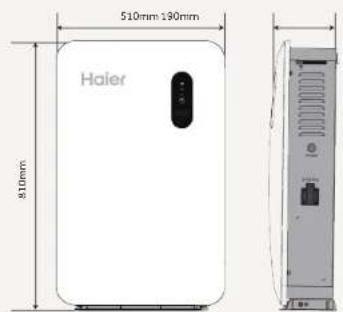
| Dimensions (L x D x H) | 510 mm x 190 mm x 810 mm |
| Max PV input power | 1200 W |
| Max PV input voltage | 150 V (Voc) |
| Max PV input current | 28 A (Imp) |
| Connectivity | WiFi 2.4 GHz, Nahui app (iOS/Android) |
| Protection rating | IP54 |
| Display | LCD screen and LED indicator |
| LED indicators | Blue (charge/discharge), green (upgrade), red (fault) |
| Installation | Wall-mounted, indoor (living room, balcony, garden, awning) |
| Required clearance | 50 cm on each side for heat dissipation |
| Included accessories | Wall mount, expansion bolts, PV cables (3 m), AC cable (1.5 m), fork wrench, smart plug, installation guide |
| Mobile app | Nahui Intelligent APP for monitoring and control |
| Safety | Protective grounding, high voltage, surface temperature >60°C, use insulated tools |
| Maintenance | Clean dust, dry and ventilated environment, check connections |
Frequently Asked Questions - Gloria HPS-2.5-1200 HAIER
User questions about Gloria HPS-2.5-1200 HAIER
0 question about this device. Answer the ones you know or ask your own.
Ask a new question about this device
Download the instructions for your Energy storage battery in PDF format for free! Find your manual Gloria HPS-2.5-1200 - HAIER and take your electronic device back in hand. On this page are published all the documents necessary for the use of your device. Gloria HPS-2.5-1200 by HAIER.
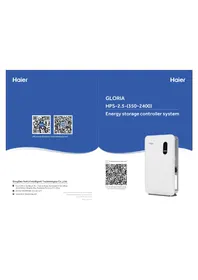
USER MANUAL Gloria HPS-2.5-1200 HAIER
Official website: NAHUI Nahui Intelligent APP
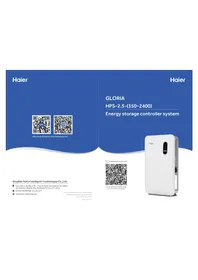
GLORIA
HPS-2.5-(350~2400)
Energy storage controller system
QingDao Nahui Intelligent Technologies Co., Ltd.
Room 205-2, Building 4, No. 7 Keji 1st Road, Aoshanwei Street Office, Jimo District, Qingdao City, Shandong Province, P.R. China service-nahui@haier-europe.com www.nahui-newenergy.com
If the product size and parameters are changed,
the latest information of our company shall
prevail without prior notice.
2024 10.15 A1.0

Multilingual manual QR code
Scan the QR code to download the user manual in other languages
EN
Installation Guide 01-08
- Important Note 01
- Packing Details 02
- Product Size 02
- Product Introduction 03
- Installation Requirements 03
- Installation Steps 04
- System Connection 06
- Check Before Power On 06
- Test Operation Process 07
- App Connection 07
- Indicator Light Definition 08
- This document will be updated from time to time due to product upgrades or other reasons. Under no circumstances may this document replace the User Manual and the safety instructions on the product.
- Before any operation, please read the User Manual and relevant standards and specifications carefully, which can be obtained on the website of www.nahui-newenergy.com.
- Please read the manual completely for all equipment operations, master the safety matters related to operation, and be familiar with local standards and relevant safety specifications of electrical systems.
- Please use insulating tools and wear personal protective equipment when operating.
- Failure to follow the requirements of this document and the User Manual for equipment related operations may cause casualties or equipment damage, and Haier will not assume any responsibility.
02/Packing Details
| Name NameQuantity | Quantity | ||
| Energy storage controller system | 1 | Expansion bolt assembly M8*60 | 2 |
| Wall bracket | 1 | Quick installation guide | 1 |
| 3m PV extension cable | 2 | Installing positioning paper | 1 |
| 1.5m AC Cable | 1 | Open-end wrench | 1 |
| Smart plug | 1 | Meter or Smart Meter | Optional |
Warning Label On Energy Storage Controller System
 | All external power connections must be disconnected before the maintenance operation of the energy storage controller system. |  | There is a high voltage after the energy storage is powered on, and there is still a residual voltage after the energy storage is powered off, which needs to be discharged to safe voltage. |
| [YCAS] | The temperature of the hot surface of the equipment may be higher than 60°C, so be careful of burns. |  | Read the instructions before operating the energy storage controller system. |
 | High-voltage danger, it is forbidden to connect and disconnect wires, disassemble the chassis and replace devices under live conditions. |  | Protective grounding. |
03/Product Size
HPS-2.5-350, HPS-2.5-400,
HPS-2.5-600, HPS-2.5-800,
HPS-2.5-1000, HPS-2.5-1200,
HPS-2.5-1600, HPS-2.5-2000,
HPS-2.5-2400
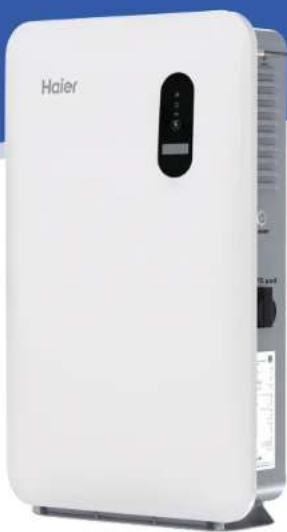
04/Product Introduction
(1) Display screen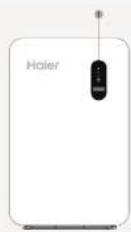
(2) Photovoltaic input positive port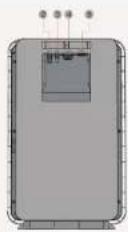
(3) Photovoltaic input negative port (6) Wifi antenna (10) External grounding point (9) Product nameplate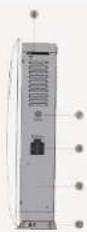
05/Installation Requirements
Be suitable for indoor, living room, balcony, garden, sunshade and other home places.
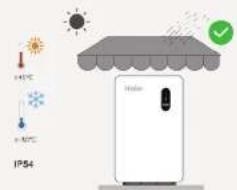
Ensure the coverage of Wi-Fi network signals.
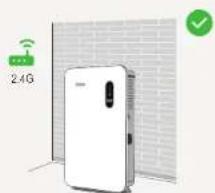
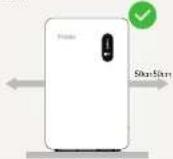
When installing, reserve 50cm of space on the left and right sides to ensure heat dissipation and safety isolation during installation, such as away from sunshades and other household items.
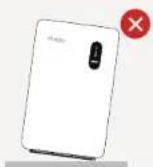
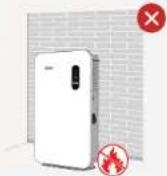
Do not mount at an angle. Ensure that there are no flammable,
explosive, or other dangerous materials around when installing the product.
06/Installation Steps
- Make sure to avoid water and electricity lines in the wall before drilling to prevent danger! - Place the mounting plate vertically against the wall. It is recommended to select the hole positions as shown in the figure, mark the drilling points, and drill holes with a depth greater than 60mm.
Step 1
First, take the product out of the box.
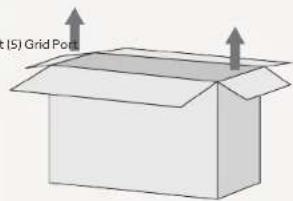
Step 3
Using the positioning paper template, place it on the wall, mark the installation hole positions, and drill holes with an impact drill.
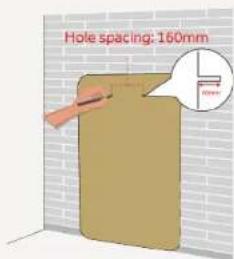
Step 2
During installation, ensure the product is at least 50cm away from both sides of the wall, and that heat dissipation is ensured. It should be installed in a waterproof, dry, and ventilated environment.
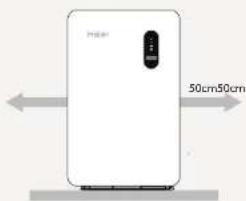
Step 4
Use a vacuum cleaner to remove dust from the holes. Take out the expansion screws, insert the expansion nuts into the holes, and use a rubber hammer to fully tap the expansion nuts into the holes.
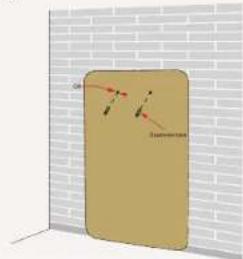
Step 5: Install the wall bracket.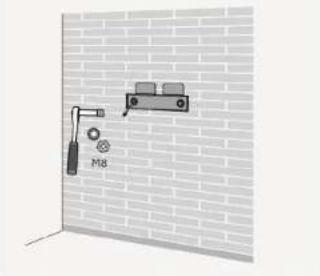
Step 6 Remove the four screws of the backboard on the back of the product, and be careful to save the screws.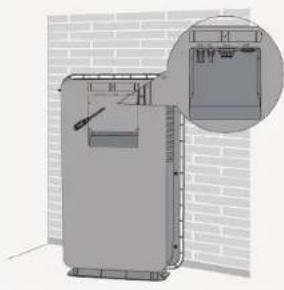
Step 7 Connect the prepared PV+, PV- and AC wires to the corresponding positions of the product, ensure that the connection is undamaged, and then reinstall the backplane.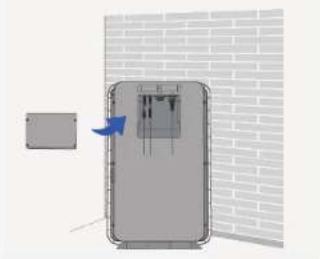
Step 8 Align the mounting holes on the back of the product and insert them into the fixing bracket from top to bottom to ensure that the product can be placed on the ground, that is, the product is fixed and installed.
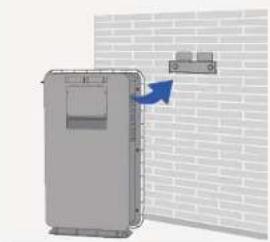
07/System Connection
- Before connecting to the power grid, first ensure that the grid voltage and frequency meet the requirements of the energy storage controller system. For detailed parameters, please refer to the "Technical Parameters" in the User Manual; otherwise, it is needed to contact the power company to solve it.
- Verify your country requirements if you need to obtain the access permission of the local power company to connect the energy storage controller system to the power grid;
- The power strip connected between EPS output port and Grid needs to be purchased by yourself.
- Before connecting the PV modules, to avoid any damage not covered by the warranty, please verify the configuration chosen respect the main parameters. Verify the power (Pmax) installed does not exceed 1200W, the sum of the current (Imp) of each parallel configured panel is less than 28A, and the sum of the voltage (Voc) of each serial configured panel is less than 150V.
![graph LR A["PV"] --> B["Energy storage controller system"] B --> C["2.4G"] C --> D["Smart plug-in (Latent need to buy it themselves)"] D --> E["Small household load"] E --> F["Plug-in (Latent need to buy it themselves)"] F --> G["Smart plug"] G --> H["Ground"] B --> I["EPS Port"]](/content/2026/04/725947/images/8dae59bf46ab26f30385a9d35dbc42d2c204e9b71e9c2d7991fdcac0d9cdecdb.jpg)
08/Check Before Power On
Inspection items Acceptance standard
| Equipment installed in place | The equipment is installed correctly, firmly and reliably. |
| Reasonable cable layout | The cable layout is reasonable and meets the user's requirements. |
| Binding tape | Tie the tape evenly, and leave no sharp corners at the cut. |
| Switch disconnected | The product start switch is in the off state, and the LED and LCD are in the off state. |
| Cable connected in place | DC, AC and Comm connection is correct, firm and reliable. |
| Backplate installation | Backboard is installed in and fixed with the 4 screws |
| The installation environment meets the requirements | The installation space is reasonable, the environment is clean and tidy, and there is no construction residue. |
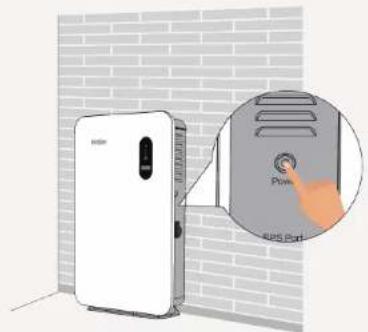
09/Test Operation Process
Step 1: Check that the external wiring harness is connected normally;
Step 2: When the button is in ON state, the light is green;
Step 3: When powered on for the first time, Observe whether the LCD screen are on and LED indicator is red.
Step 4: Perform the first commissioning using the dedicated app Nahui Intelligent.
10/App Connection
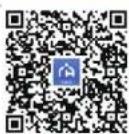
- Scan the QR code or enter the link to download the APP to your mobile phone, and register/log in according to the operation instructions;
- APP Android / iOS download address:
https://server-hr.shuoxd.com:8443/resources/od m/download-hr.html
* For more detailed contents of the App, please refer to the Nahui Intelligent User Manual.
Nahui Intelligent APP User Manual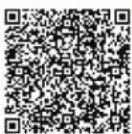
11/Indicator Light Definition
- LED light + LCD screen is used as the human-machine interaction interface, and the LED indicator on the front panel of the inverter can indicate the current working state of the inverter.
| Indicator | Color | Explanation | |
| [028Z] | Blue is always on | Discharging | |
| Blue is flicking | Charging | ||
| [22XT] | Green is always on The system is upgrading | ||
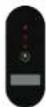 | Red is always on | System failure or alarm | |
| LCD indicator | Fault code |
| Please refer to the User manual |
Note:
- If the test operation fails, please refer to the "Fault Code" in the User Manual.
- Please refer to "Indicator Definition" in the User Manual for the indicator definition.
Step 2
Step 3
Step 5
Step 6
Step 7
Step 8
10/App connection
Phase 2
Phase 3

Phase 6
Phase 7
Phase 8
![graph LR A["PV"] --> B["Internal control on installed range"] B --> C["Power supply unit"] C --> D["DC/DC"] D --> E["Ground"]](/content/2026/04/725947/images/ba9e4c0bd5c5356acb2170ba87db559a44bc800c63a05b05d42594ca4c111c00.jpg)

Step 3
Step 5 Install the wall mount.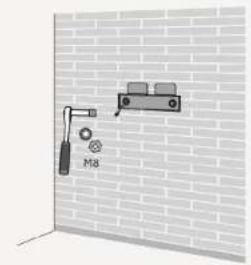
Step 8
05/Installation Requirements
Step 2
Step 8
- QINGDAO NAHUI INTELLIGENT TECHNOLOGIES CO., LTD
- EN
- INSTALLATION GUIDE
- PRODUCT SIZE
- PRODUCT INTRODUCTION
- INSTALLATION REQUIREMENTS
- INSTALLATION STEPS
- STEP
- SYSTEM CONNECTION
- CHECK BEFORE POWER ON
- TEST OPERATION PROCESS
- APP CONNECTION
- APP ANDROID / IOS DOWNLOAD ADDRESS
- INDICATOR LIGHT DEFINITION
- NOTE
- PHASE
Brand : HAIER
Model : Gloria HPS-2.5-1200
Category : Energy storage battery