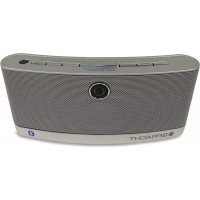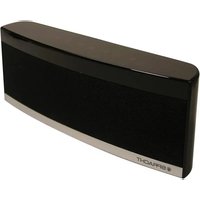
BluNote Pro - Speaker Spracht - Free user manual and instructions
Find the device manual for free BluNote Pro Spracht in PDF.


User questions about BluNote Pro Spracht
0 question about this device. Answer the ones you know or ask your own.
Ask a new question about this device
Download the instructions for your Speaker in PDF format for free! Find your manual BluNote Pro - Spracht and take your electronic device back in hand. On this page are published all the documents necessary for the use of your device. BluNote Pro by Spracht.
USER MANUAL BluNote Pro Spracht
PORTABLE CONFERENCING + WIRELESS SPEAKER
Stream Music Wirelessly From Any Bluetooth® Device + Have High Quality Conference Calls Anywhere
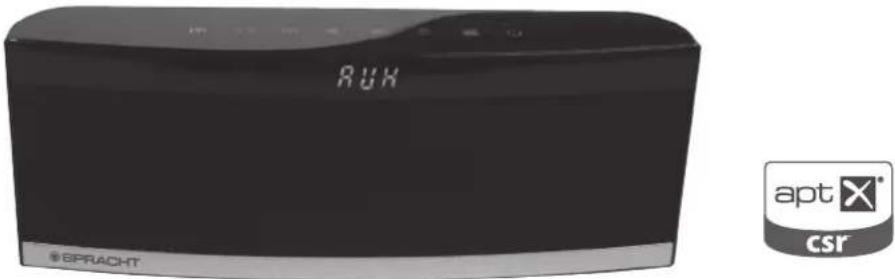
USERGUIDE
English, French, Spanish
(rev 1.1)
TABLE OF CONTENTS
Introduction 1
Package Contents - 2
BluNote Pro Design 2,3
Safety Precautions 4,5
User Guide
Compatibility -5
Powering 5,6
Pairing - - - - - - - - - - - - - - - - - - - - - - - - - - - - - - - - - - - - - - - - - - - - -
Bluetooth connection -8
Playback -8
Volume Adjustment- -8
Back Track / Pause/Play / Next Track 8,9
Bass Boost -9
Listening to Music - 9
Taking and making calls 10
Troubleshooting 11
Specifications- 12
Warranty Information- 13
FCC statements 14,15
Introducing the BluNote Pro™, the second generation BluNote product from Spracht and first of its kind, Bluetooth® portable dual use device: professional conferencing and full range music playback device. The BluNote Pro™ is compatible with any A2DP Bluetooth® Stereo source, such as smart phones and tablets. It features aptX® from CSR, the newest generation of expanded frequency for perfect music playback. Make or receive calls wirelessly by pushing the Phone Icon on the Lighted Capacitive Touch Panel on the top of the BluNote Pro™. Phone number caller ID is displayed by scrolling on the front of the unit. New and enhanced in this unit are dual MEMs microphones, which provide superior quality conference calls. The passive radiator and Bass Boost provide a full, rich sound with deep bass tones. It can also be used with your PC or Mac for VoIP (Voice over Internet Protocol) for
For complete specifications, see page 12 of this manual.
such applications as Skype and iChat. It is powered by a rechargeable Li Ion battery or an AC power adaptor (included) - perfect for travelling.
FEATURES:
- A2DP Bluetooth® Speaker with aptX® fromCSR for perfect music playback wirelessly.
- Make and receive phone calls in stereo quality just by pressing the Phone Icon.
- Scrolling phone number caller ID.
Full duplex with Noise Reduction and Echo Cancellation.
Passive radiator and Bass Boost features produce rich, deep, bass tones for a more powerful overall sound. - Dual MEMs impedance matched microphones for high quality conference calls.
- Capacitive Touch Panel controls.
-
Power with Rechargeable Li Ion battery or AC adaptor.
-
BluNote Pro
- AC power adapter
- 3.5 mm jack for non-Bluetooth® devices
- User Guide
- Registration Card
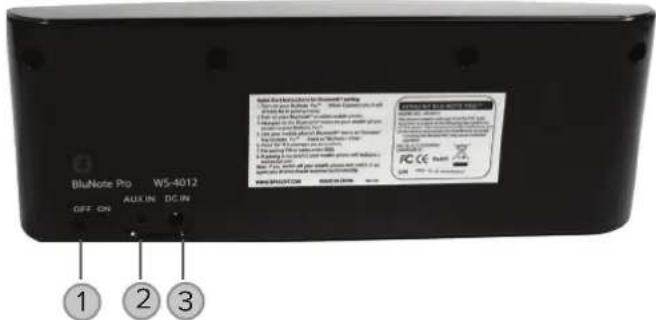
Back View
- On/Off Switch
- Aux In jack 3.5mm
- DC Adapter jack
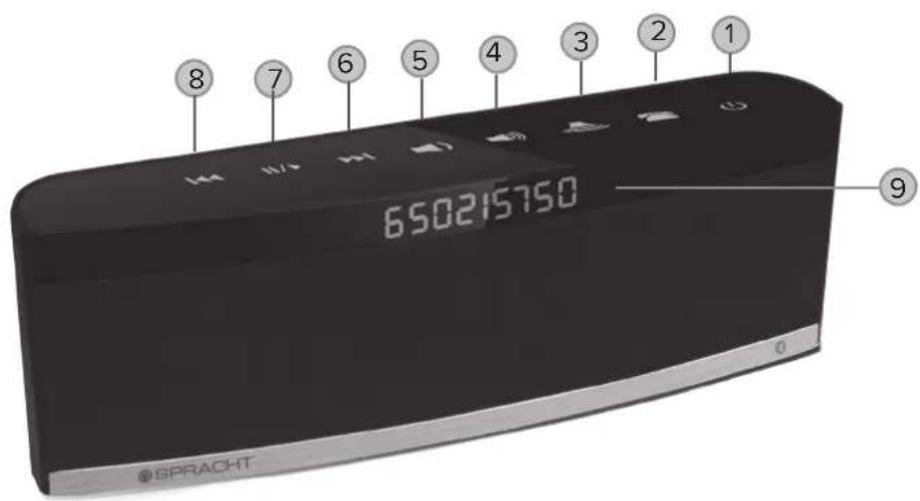
Front View
- Power On / Off
- Phone
- Bass Boost
- Volume Up
- Volume Down
- Fast Forward/Next Track
- Pause/Play
- Back/Previous Track
- Phone Number Caller ID
Precautions

Safety Precautions
- Please read the operating instructions and safety precautions carefully before using.
- Explain the content and the hazards associated with using the device/accessories to your children.
- Remember to comply with legal requirements and local restrictions when using the device, for example: in airplanes, gas stations, hospitals or while driving.
- The functioning of medical devices such as hearing aids or pacemakers can be impaired. Keep at least 9 inches/20cm between the device and the pacemaker. For more information consult your doctor.
- Do not throw the device into an open fire.
- Do not exceed the voltage specified on the power supply unit (5V). Exceeding the voltage may destroy the device.
If you use the BluNote ProTM for wireless mobile phone calls in your car, please obey all cell phone and driving laws in your area. - Do not open the unit. Doing so will invalidate the warranty.
- Permanent hearing loss may occur if you use the device at high volume. You can adapt over time to a higher volume, which may sound normal but can be damaging to your hearing. Set your volume to a safe level. If you experience ringing in your ears, reduce the volume or discontinue use of your system.
- Use only original accessories. This will avoid potential damage to health or property and ensure compliance with all relevant regulations.
- Do not use the BluNote Pro™ near water, such as a sink or bath tub, or in a wet area.
- Do not use the BluNote Pro™ during an electrical storm or near a gas leak or vapors that could be ignited.
Please Note: Improper use will invalidate the warranty!
In some countries there may be restrictions to the use of Bluetooth® devices. Please make enquiries with the authorities responsible.
Compatibility
- Mobile phones, Smart phones and Wireless Phones
- Tablets, iOS and Android
- PDAs*
- PC / Mac Computers and Laptops
Game consoles - MP3/MP4 players
*Compatible with all Bluetooth® devices supporting the A2DP profile.
The 3.5mm audio cable (included) provides instant audio connectivity for any non-Bluetooth® devices such as PC/Mac/Laptops, game consoles, MP3/MP4 players or wireless phones (non-Bluetooth®).
1. Powering your BluNote Pro™
Before you can pair your BluNote Pro™ to a Bluetooth® device, you must power it either by plugging in the AC power adapter or by using the rechargeable Li Ion Battery. In order to run on the battery, you must first charge it. This will take about 3 hours the first time; subsequent charging times will vary based on the battery life left.
User Guide
2. Powering On/Off
ON/OFF Switch: There is an main On/Off switch at the back of the unit. When you turn the switch to the On position The BluNote Pro will automatically be in pairing mode. Pairing is the process of two Bluetooth compatible devices linking or communicating with one another. A mobile phone identifies a Bluetooth device and uses a password or PIN to establish pairing. This process allows only a verified device to connect to your mobile phone, ensuring security. The pairing process is described below.
POWER ICON: There is a Power Icon on the top of the unit. Pressing this icon puts the unit in the equivalent of "sleep mode". The lights on the top will dim but there will be a red line that flashes every 5 seconds to remind you it's in Stand By mode. You'll be able to resume playing music just by touching any Icon on the top of the unit. Keep in mind that this mode will discharge your battery more rapidly, if you are running from battery and not plugged in. If you use the cable for devices that don't have Bluetooth® press the Power Icon to switch from Bluetooth® mode to AUX mode.
3. Pairing the BluNote Pro™ with a Bluetooth® enabled Mobile Phone or other device
Note: When pairing the BluNote Pro™ to a Bluetooth® device, pair as "speaker" or "wireless speaker". Your device may list different pairing options: choose the one that most closely fits "speaker". If your Bluetooth® enabled device does not list a speaker option, please make sure your device is: 1)A2DP compatible, and, 2) has the latest Bluetooth® driver available for your device installed. You may need to check with your device's manufacturer for compatibility. You may find that your Apple device only lists the "Headset" option. Check the Spracht website for more information. If you need assistance with pairing, please call Spracht Customer Service at +1 877-300-8860, or email support@spracht.com.
- Turn the switch at the back of the BluNote Pro™ to On.
- Power on your Bluetooth® enabled mobile phone or other device.
- Activate Bluetooth® on your device and search for Bluetooth® devices (if in doubt please refer to your device's user manual for details on activating Bluetooth®).
-
Follow your device's instruction guide to connect to a Bluetooth® device. Typically, you will click on a Bluetooth® icon and click "Discover device."
-
Your A2DP Bluetooth® device should give you an option to choose to pair your BluNote Pro™ as a "Headset" or a "Speaker". The preferred pairing option is "Speaker". If you do not see a "Speaker" option, please check with your device's manufacturer for compatibility.
- Your mobile phone should find the BluNote Pro™ which is displayed as "BluNote + Chat" or "BluNote Pro".
- Click on "BluNote + Chat" or "BluNote Pro" and click "OK" if your phone prompts you to confirm.
If your device then prompts you to enter a PIN or password, enter: 0000
If the pairing is successful, your device will indicate a successful pair and "Pair On" will scroll through the LED display for 5 seconds. - Depending on the software concerned, your device may then CONNECT automatically to the BluNote Pro™. You will then see the message CONNECTED on your device's display. In this case you will be able to stream music, and if you're connected to a phone, make and receive calls immediately. If you do not become connected automatically, you should return to your phone's Bluetooth® menu, select "Blunote Pro" from the list of paired devices and select CONNECT. You will then be connected and ready to make and receive calls.
4. Bluetooth® connection
User Guide
- If you switch off your device and switch it back on again the Bluetooth® connection should be re-established automatically – although this can depend on the software your device uses. If your device does not reconnect automatically to the BluNote Pro™, turn the switch on the back of the unit to Off, then switch it back On.
- If you switch off the BluNote Pro™ speaker and switch it back on again the Bluetooth® connection should be re-established automatically - Otherwise your device should send a request to reconnect the BluNote Pro™.
5. Playback
- You can operate playback from your mobile phone or any other audio device that is compatible with any Bluetooth® Stereo (A2DP) source. Alternatively you can use the audio cable included in the box for all non-Bluetooth® devices. When you do, make sure any devices that are paired via Bluetooth® are un-connected, as the BluNote Pro gives priority to Bluetooth® pairing.
6. Volume Adjustment
Press to Decrease the volume.
Press to Increase the volume.
Turn up the volume on your paired device to maximum, then control the volume level from the BluNote Pro™.
7. Back Track / Pause/Play / Next Track
Press once to go back to the beginning of the song, or twice for the previous song.
Press to Pause what's playing, press again to resume Play

Press to advance to Next Track.
8. Bass Boost
Press the Bass Boost Icon once to increase the bass. Press again to deactivate the Bass Boost.
9. Listening to music
Mobile phones with a Media Player and other playback devices with A2DP/AVRCP Bluetooth® profiles will work with the BluNote Pro™ speaker.
Listening to music with a Bluetooth® (A2DP) enabled device
- Once you have successfully paired your A2DP mobile phone (or any other A2DP audio device) to the speaker you will be ready to stream your music to it.
- Enter the media player or playback feature on your A2DP device.
- Press the play button on your device to stream the track to the BluNote Pro
The music should automatically start playing through the BluNote ProTM - although this can depend on the software in your device. If your device does not stream automatically to the BluNote ProTM you can manually select to play your tunes via a Bluetooth® device. (if in doubt please refer to your device's user manual for details on how to play music via Bluetooth®). - Non-Bluetooth® devices can be connected using the supplied audio cable.
- You can use the controls on then top of the BluNote Pro or you can use the controls from your phone, whichever is most convenient. Please Note: Functionality may be limited depending upon the devices used.
User Guide
10. Taking and making calls using the Phone Icon
Accepting and Rejecting a Call
- Press the Phone Icon briefly to Accept a call.
- Press and hold the Phone Icon to Reject a call or end it.
Please Note: Music playback is interrupted by incoming calls. You will hear a ring tone informing you of the incoming call. The LED display on the front of the unit will scroll to show the caller's number.
Making a call using your mobile phone
- Dial as usual on the mobile phone.
- Press the Phone Icon briefly when the call is ringing to transfer the call to the BluNote Pro (If supported by the phone). Please note: If the Bluetooth connection to the mobile phone is interrupted for several seconds during a call, you can only continue the call with the mobile phone.
11. LED flash sequences
The flash sequence of the LED indicates the different operating states of the BluNote Pro™.
- Powered On- Sleep Mode - a red line will flash on the front LED display every 5 seconds
- Powered On- Play Mode - BLUETOOTH PAIR ON will scroll through on the front LED display for 5 seconds and then disappear
- Pairing successful - PAIR ON will scroll through the front LED display for 5 seconds then disappear
- Bluetooth® disconnected - PAIR OFF will scroll through the front LED display for 5 seconds then disappear
-
Incoming Call - Caller Phone number will scroll through the front LED display
-
Bass Boost Activated - BASS ON will scroll through the front LED display for 5 seconds then disappear
- Bass Boost Off - BASS OFF will scroll through the front LED display for 5 seconds then disappear
12. Troubleshooting
Q: The sound is not working
A: If the battery is running low, the LED will flash. Charge the battery, or use the power supply instead.
Q: Bluetooth® connection problems
A: 1. The Bluetooth® profiles of your mobile phone and your BluNote Pro ™ speaker are not compatible.
or 2. No mobile phone connected.
or 3. Your mobile phone is out of range.
Q: Poor audio quality
A: Confirm that the BluNote Pro " has been paired as "speaker" or "wireless speaker" and not as headset or earphone. If you find it is paired incorrectly, re-pair.
A: If the audio quality deteriorates the connection is about to drop.
A: Reduce the distance between the speaker and the mobile phone.
Q: The BluNote Pro™ is connected but no sound is playing.
A: Make sure you have selected Bluetooth® Speaker as your default sound output on your device.
BluNote Pro
Specifications
Order Information: Part Number WS-4012
Features
Certifications:FCC,UL,CSA,TCA,TUV,RoHS
Bluetooth Operating Range: Up to 33' (10m)
Playback Time (Li Ion Battery): Up to 12 hours
Speaker Output Power: 2.2W× 2 for 4.4W
Dual MEMs impedance matching microphones)
Operating Temperature: 14^ F to 131^ F (-10 °C to +55 °C)
Audio Input: Jack socket 3.5 mm
Controls and Interfaces
Touch Panel Icons:
On/Off, Volume Up/Down, Phone, Bass Boost, Play/
Pause, Next Track, Back Track
Operating Mode:
Noise reduction and echo cancellation
Electrical Specifications
Power: Rechargeable Li Ion Battery, or AC power adapter
Charger Input: AC120V 60Hz/240 VAC 50Hz/
Output: 5 VDC, 1.0A
Physical Specifications
BluNote Pro": (LxWxH)
9.0" (22.8 cm) x 3.25" (8.3 cm) x 1.375" (3.5 cm)
Weight 9.5 oz (270 g)

All information is believed to be reliable, however specifications are subject to change without notice.
Spracht warrants its products against defects or malfunctions in material and workmanship under normal use and service, with the exceptions stated below. This warranty lasts for one year from the original date of purchase. Coverage terminates if you sell or otherwise transfer the product. In order to keep this warranty in effect, the product must have been handled and used as prescribed in the instructions accompanying the product.
Spracht shall (at its option) repair or replace a defective unit covered by this warranty, or shall refund the product purchase price. Repair, replacement with a new or reconditioned unit, or refund, as provided under this warranty, is your exclusive remedy. This warranty does not cover any damages due to accident, misuse, abuse, or negligence. Spracht shall not be liable for any incidental or consequential damages. Some states do not allow limitation or exclusion of incidental or consequential damages, so the above limitation or exclusion may not apply to you. Implied warranties of merchantability and fitness for a particular purpose are limited in duration to the duration of this warranty. Some states do not allow limitations on how long an implied warranty lasts, so the above limitation may not apply to you. To make a warranty claim, the purchaser must obtain a return authorization number (RA) from Spracht (serial number and purchase date required), and then return the product to Spracht at purchaser's expense. A copy of the original dated receipt or shipping document must accompany the product. To obtain a return authorization, see "Warranty" on our website at www.spracht.com, send an e-mail to info@spracht.com, or contact us at:
Spracht, 974 Commercial Street, Suite 108, Palo Alto, CA 94303 USA
Tel: +1 877-300-8860
For repair or replacement of a failed product, allow 4 to 6 weeks for processing and shipment.
This warranty gives you specific legal rights, and you may also have other rights which vary from state to state.
FEDERAL COMMUNICATIONS COMMISSION STATEMENT
Interference Statement
This device complies with Part 15 of the FCC Rules. Operation of this device is subject to the following two conditions:
(1) This device may not cause harmful interference, and
(2) this device must accept any interference received, including interference that may cause undesired operation.
NOTE: This device has been tested and found to comply with the limits for a Class B digital device pursuant to Part 15 of the Federal Communications Commissions Rules and Regulations. These limits are designed to provide reasonable protection against harmful interference when the equipment is operated in a commercial environment. This equipment generates, uses, and can radiate radio frequency energy and, if not installed and used in accordance with the instruction manual, may cause harmful interference to radio communications. However, there is no guarantee that interference will not occur in a particular installation. If this equipment does cause harmful interference to radio or television reception (which can be determined by turning the equipment off and on), the user is encouraged to try to correct the interference by one or more of the following measures:
- Reorient or relocate the receiving antenna.
- Increase the separation between the device and the receiver.
- Connect the device into an outlet on a circuit different from that to which the receiver is connected.
- Consult the dealer or an experienced radio/TV technician for help.
NOTE: This Bluetooth® radio device must be installed and used in strict accordance with the instructions as described in the
BlNote Pro User Guide that accompanies the product. Any other installation or use will violate FCC Part 15 regulations.
Modifications not expressly approved by Spracht could void the user's authority to operate the equipment.
Important Information
The Manufacturer is not responsible for any radio or TV interference caused by unauthorized modifications to this equipment. Such modifi cations could void the user's authority to operate the equipment
FCC Radiation Exposure Statement
WARNING: To comply with FCC RF exposure compliance requirement, the antenna used for this transmitter must be installed so that it is at a distance of at least 2.5cm from all persons and must not be collocated or operating in conjunction with any other transmitter.
Radio Approvals
It is important to ensure that you only use your radio device in countries where the device is approved for use. To determine whether you are allowed to use your wireless network device in a specific country, please check to see if the radio type number that is printed on the identification label of your device is listed as approved for that country on the radio approval list posted on the vendor's support website.
© 2017 Spracht. All rights reserved. Spracht, the Spracht logo, and BluNote Pro are trademarks and registered trademarks of Spracht. All other trademarks are property of their respective owners. Visit our website at www.spracht.com.
BLUNOTE ProTM
HAUT-PARLEUR DE CONFÉRANCE SANS FIL PORTATIF
Conception BluNote ProTM