C22 - Mirrorless cameras IMILAB - Free user manual and instructions
Find the device manual for free C22 IMILAB in PDF.


User questions about C22 IMILAB
0 question about this device. Answer the ones you know or ask your own.
Ask a new question about this device
Download the instructions for your Mirrorless cameras in PDF format for free! Find your manual C22 - IMILAB and take your electronic device back in hand. On this page are published all the documents necessary for the use of your device. C22 by IMILAB.
USER MANUAL C22 IMILAB
Home Security Camera
User Manual
Read this manual carefully before use, and retain it for future reference.
CONTENTS
English 01-09
Русский 10-18
Polski....19-27
Français 28-36
한국어 37-45
ภาษาไทย 46-54
Tiếng Việt 55-63
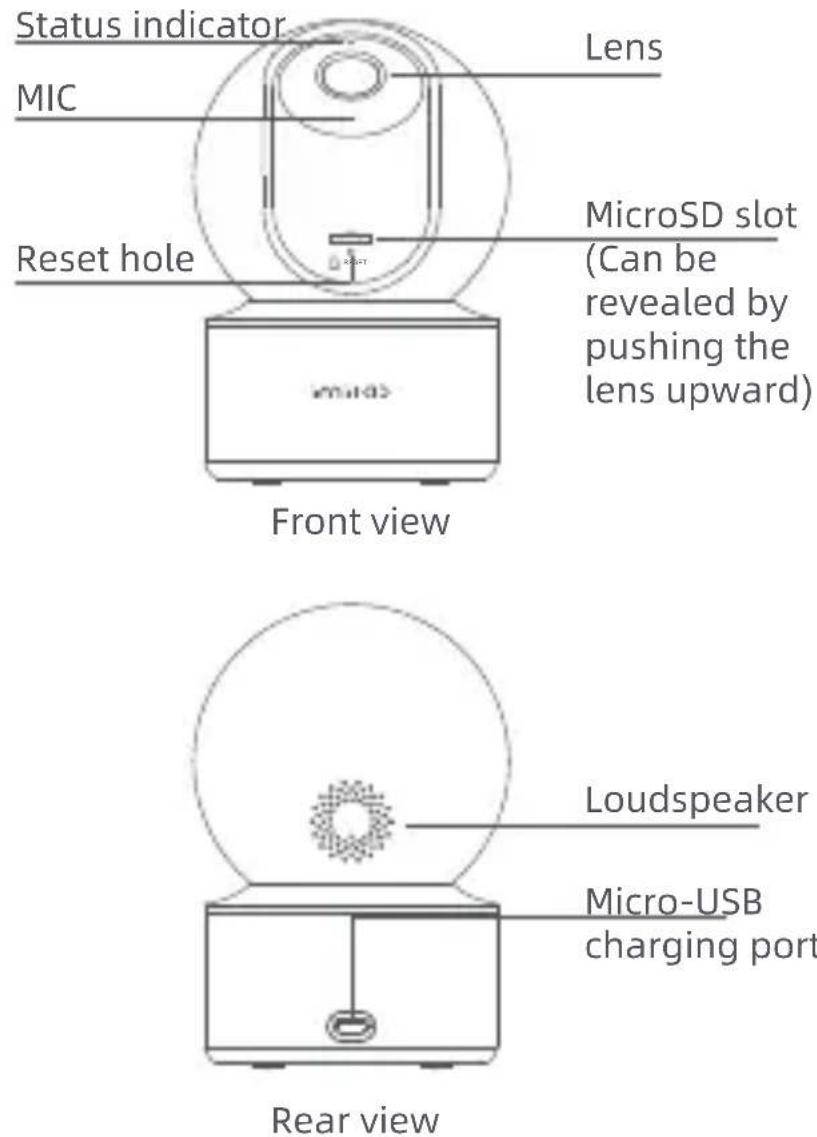
Product Overview
text_image
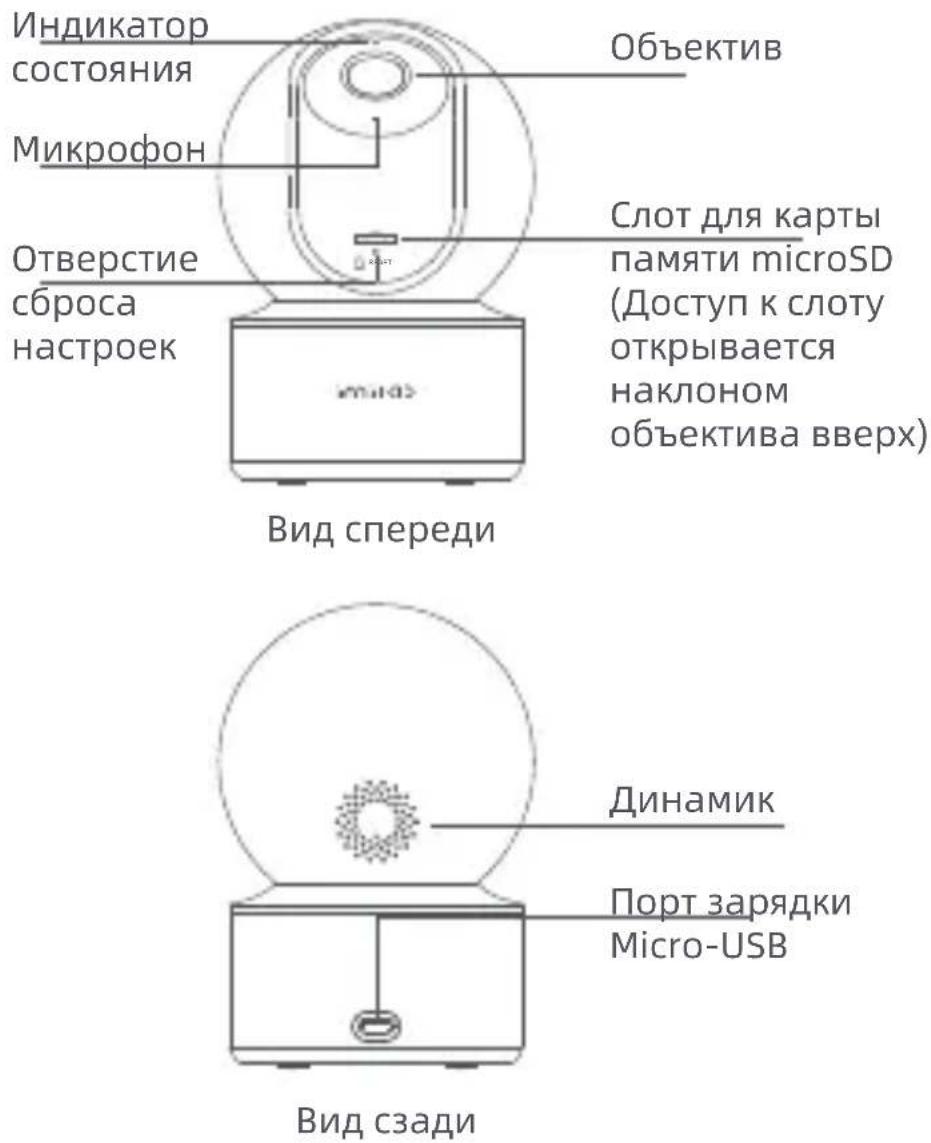
Status indicator MIC Lens Reset hole MicroSD slot (Can be revealed by pushing the lens upward) Front view Loudspeaker Micro-USB charging port Rear viewPackage Contents: IMILAB C22 x 1, power cable x 1, wall mounting accessories pack x 1, user manual x 1
EN-01
Installation
The IMILAB C22 can be placed on flat surfaces, such as desks, dining tables, and coffee tables. It can also be mounted on a wall.
Mounting the Camera on a Wall:
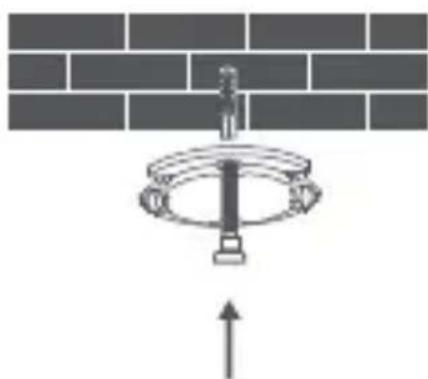
- First use a pencil to mark the positions for the base mounting holes on the wall, then drill two holes at the marked positions. The diameter of each hole is approximately 6 mm, and the depth is approximately 30 mm.
- Insert the plastic wall plugs into the drilled holes.
- Place the side of the base with arrows facing forward, and then align the holes. Insert the screws and then tighten them into the wall plugs with a Phillips head screwdriver.
- Align the grooves on the bottom of the camera with the raised part on the base, and then turn it clockwise until it locks into place.
natural_image
Diagram of a pipe installation with a circular component and upward arrow, against a brick wall background (no text or symbols)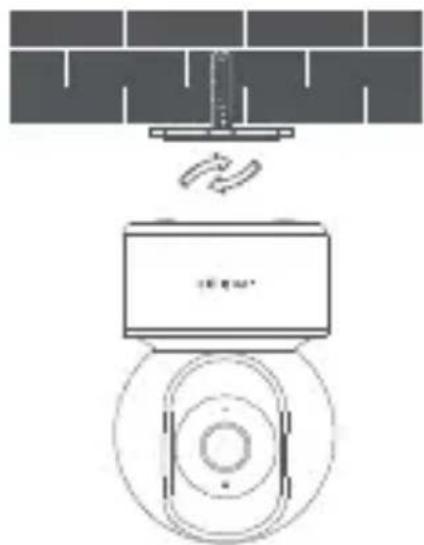
text_image
Diagram showing a wall-mounted device with a sensor emitting sound waves, labeled in Chinese.△ Precaution for Mounting the Camera on a Wall
The wall must be able to support at least three times the total weight of the camera.
WARNING
To prevent possible injury, the camera must be securely fixed to the ceiling or wall according to the installation instructions.
How to Use
• Installing a MicroSD Card
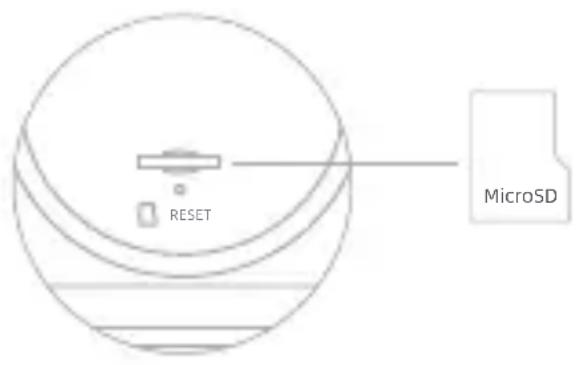
Make sure the camera is unplugged. Adjust the lens upward until the microSD slot is revealed, then insert the microSD card into the slot (the side with contact points must be facing down).
text_image
RESET MicroSDNote: Unplug the camera when installing or removing the microSD card. Please use a microSD card from a qualified brand (the camera supports a microSD card with a maximum capacity of 64 GB and the FAT32 format only, and a microSD card with a capacity of 64 GB and above may need to be formatted to the FAT32 format before use via “Settings > Manage Storage” on the camera’s plug-in page in the Mi Home/Xiaomi Home app). It is recommended that the microSD card has a read/write speed of no less than U1/Class 10.
• Turning the Device On
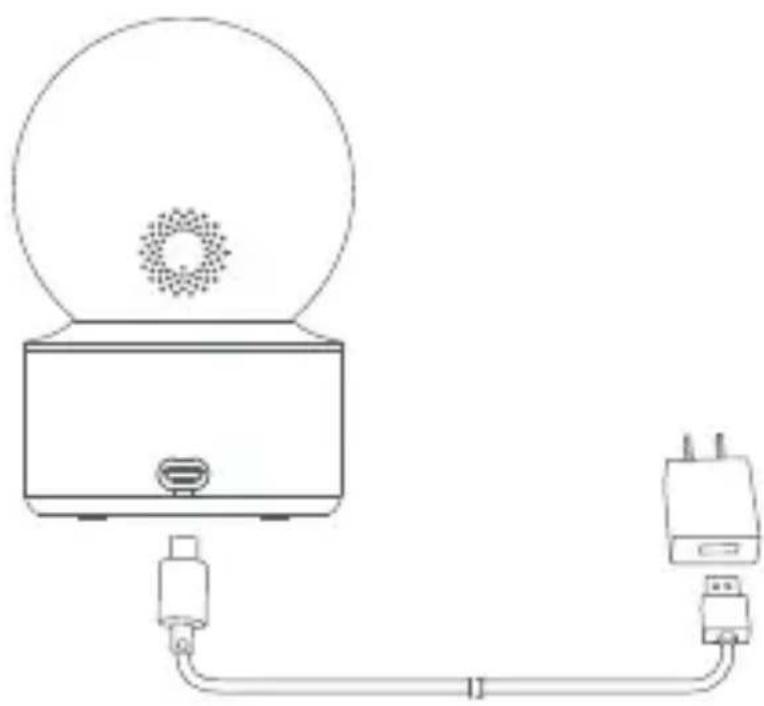
IMILAB C22 will automatically activate once the power cable is inserted into the Micro-USB charging port.
natural_image
Line drawing of a device with a circular top and connected to a plug, showing wiring (no text or symbols)-
If the indicator light is flashing orange, that means the device is activated successfully. Else, please reset the device.
-
Once the IMILAB C22 is turned on, please do not attempt to rotate its head by force. If the camera position is incorrect, adjustments can be made through the app.
- Indicator Light
Steady blue on: connected/device status is normal
Flashing blue: network error
Flashing orange rapidly: waiting for connection
Flashing orange slowly: system upgrade in progress
EN-04
Connecting with the Mi Home/Xiaomi Home App
This product works with the Mi Home/Xiaomi Home app*. Control your
device with Mi Home/Xiaomi Home app.
Scan the QR code to download and install the app.
You will be directed to the connection setup page if the app is installed already. Or search for "Mi Home/Xiaomi Home" in the app store to download and install it.
Open the Mi Home/Xiaomi Home app, tap "+" on the upper right, and then follow the instructions to add your device.

text_image
QR code with central logo, likely linking to a digital service or website1C33955C
* The app is referred to as Xiaomi Home app in Europe (except for Russia). The name of the app displayed on your device should be taken as the default.
Note: The version of the app might have been updated, please follow the instructions based on the current app version. Make sure the camera turns on and the network connection is stable during connecting. The indicator is blinking orange rapidly when waiting for a connection, and turns into blue once the camera is successfully connected.
• Restoring Factory Settings
In case of changing the network that the camera is connected to or the Xiaomi Account in the Mi Home/Xiaomi Home app that the camera is paired with, press and hold the reset button for about three seconds until the indicator blinks orange rapidly, so that the camera is restored to factory settings, and then reconnect the camera with the app.
Note: Restoring factory settings will not delete the content on the microSD card.
Real-time Surveillance
In the camera's plugin of the Mi Home/Xiaomi Home app, you can view the real-time monitoring screen, adjust the sharpness of the image, change the horizontal and vertical angle of the camera, capture and record the screen, and make remote calls.
Infrared Night Vision
The camera can automatically switch to night vision mode at night according to the change in ambient light. With built-in infrared night vision lights, the camera can clearly capture images/videos in the dark.
Playback
The playback feature of the camera is only available when a compatible microSD card is installed or a cloud storage service is purchased for the IMILAB C22.
Automatic Surveillance
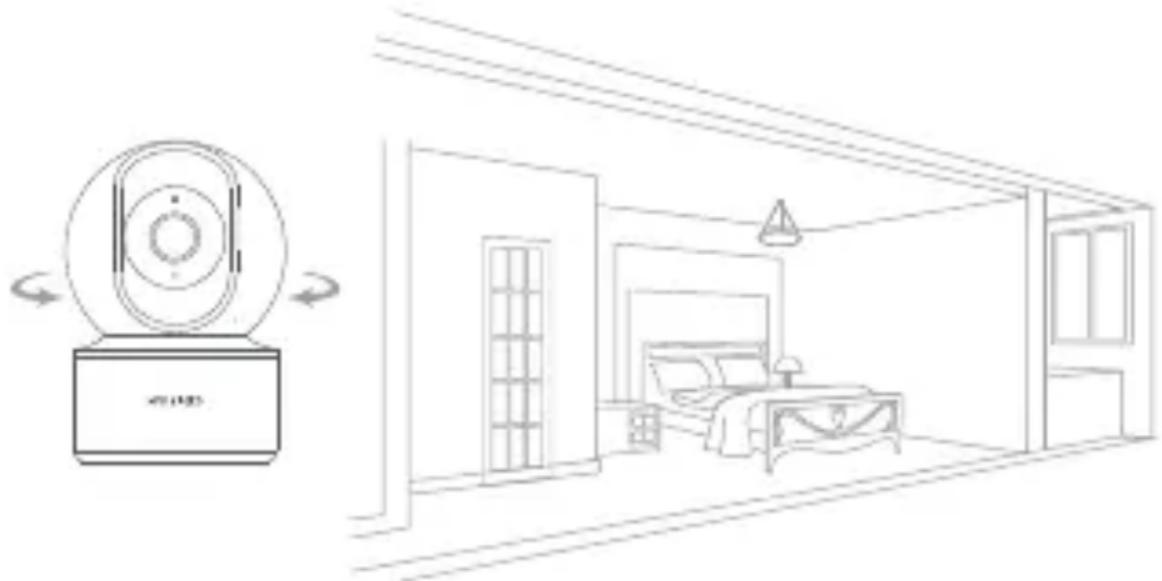
- When the home surveillance assistant is enabled, the camera will record videos if it detects human movement and changes in real-time within its monitored area. Then you will receive notifications on the app.
- You can enable or disable the function of home surveillance assistant in the camera's plugin in the Mi Home/Xiaomi Home app.
- You can set surveillance of all-day, daytime, nighttime, or any other time meeting your demands. Alert sensitivity and alert time intervals can also be customized in the app.
natural_image
Line drawing of a bedroom interior with a monitor and lamp, showing no text or symbolsVideo Sharing
In the camera's plugin in the Mi Home/Xiaomi Home app, you can select the device sharing option in the settings menu to share the camera with others. The person the camera is shared with needs to download the Mi Home/Xiaomi Home app and sign in with a Xiaomi account.
EN-07
Specifications
Name: IMILAB C22
Model: CMSXJ60A
Net Weight: 239 g
Resolution: 2880 x 1620
Wireless Connectivity: Wi-Fi IEEE 802.11 b/g/n/ax 2.4 GHz
Expandable Memory: MicroSD card (up to 64 GB)
Operating Frequency Range: 2400-2483.5 MHz
Max Output Power: 18 dbm
Precautions
- The operating temperature range for this camera is between -10^ and 40^ . Do not use the camera in environments with temperatures above or below the specified range.
- The camera is a precision electronic product. In order to ensure its normal operation, do not install the camera in environments with high humidity levels nor allow water to get into it.
• To improve the camera's performance, do not place its lens facing or next to a reflective surface, such as glass windows or white walls, as this will cause the image to appear overly bright in areas close to the camera and darker in areas further away, or cause the camera to produce white images.
• Make sure the camera is installed in an area with a strong Wi-Fi signal. Do not place the camera near the objects that may affect its Wi-Fi signal, such as metal objects, microwave ovens. - Under normal use of condition, this equipment should be kept a separation distance of at least 20 cm between the antenna and the body of the user.
WEEE Information

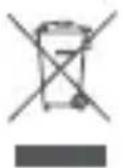
All products bearing this symbol are waste electrical and electronic equipment (WEEE as in directive 2012/19/EU) which should not be mixed with unsorted household waste. Instead, you should protect human health and the environment by
handing over your waste equipment to a designated collection point for the recycling of waste electrical and electronic equipment, appointed by the government or local authorities. Correct disposal and recycling will help prevent potential negative consequences to the environment and human health. Please contact the installer or local authorities for more information about the location as well as terms and conditions of such collection points.
EU Declaration of Conformity
Hereby, Shanghai Imilab Technology Co., Ltd. declares that the radio equipment type IMILAB C22 is in compliance with Directive 2014/53/EU. The full text of the EU declaration of conformity is available at the following internet address: https://www.imilabglobal.com/pages/eu-declaration-of-conformity

Обзор продукта
natural_image
Diagram of a mechanical or electrical component with a circular base and upward arrow, against a brick wall background (no text or symbols)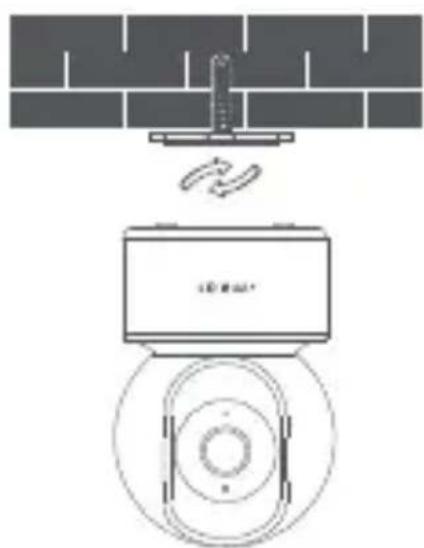
natural_image
Diagram of a bathroom sink with a wall-mounted fixture and a circular vent, no text or symbols present.natural_image
Line drawing of a portable electronic device connected to a power outlet via cable (no text or symbols)text_image
QR code with central logo, likely linking to a digital service or website1C33955C
natural_image
Line drawing of a bedroom interior with a TV unit and a lamp, showing no text or symbols.natural_image
Diagram of a pipe fitting with an upward arrow indicating direction (no text or symbols)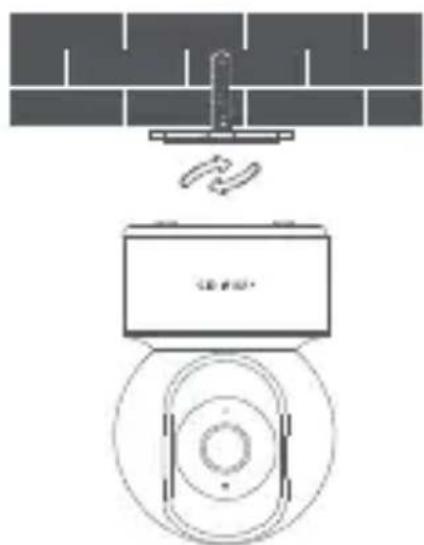
natural_image
Diagram of a mechanical device with a bracket and circular base, no text or symbols presentnatural_image
Line drawing of a portable electronic device connected to a power outlet via cable (no text or symbols)text_image
QR code image with a central logo, likely linking to a digital service or application.1C33955C
natural_image
Line drawing of a bedroom interior with a TV and a monitor, showing no text or symbols.natural_image
Diagram of a pipe fitting with an upward arrow indicating direction (no text or symbols)
natural_image
Diagram of a mechanical device with a bracket and circular base, no text or symbols presentnatural_image
Line drawing of a portable electronic device connected to a power outlet (no text or symbols)text_image
QR code image with a central logo, likely linking to a digital service or website.1C33955C
natural_image
Diagram of a mechanical or electrical component with a central rotating ring and an upward arrow, no text or symbols present.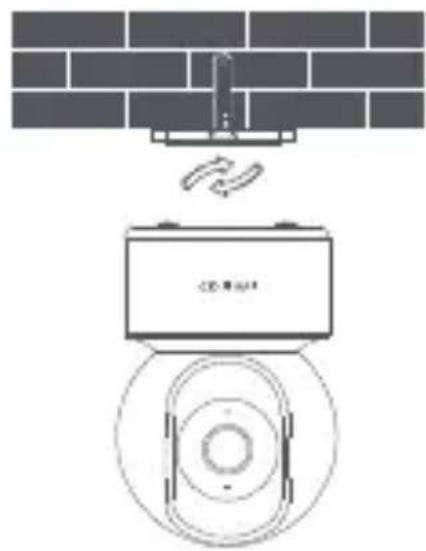
natural_image
Diagram of a mechanical or electrical device with a brick wall and circular base, no text or symbols present.natural_image
Line drawing of a portable electronic device connected to a power outlet (no text or symbols)text_image
QR code image with a central logo, likely linking to a digital service or website.1C33955C
natural_image
Diagram of a mechanical or electrical component with a central rotating ring and an upward arrow, against a brick wall background (no text or symbols)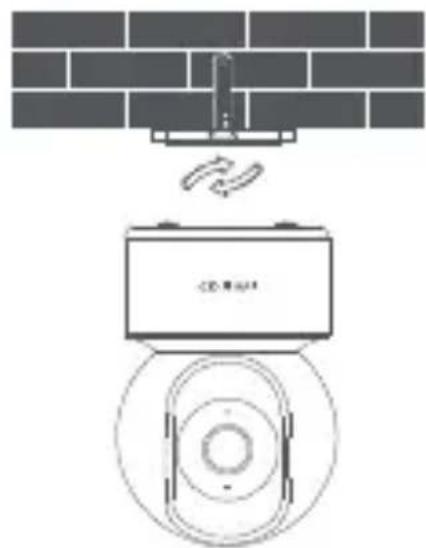
natural_image
Diagram of a smart air conditioner unit with sensor placement and control panel (no text or symbols)natural_image
Line drawing of a portable electronic device connected to a power outlet (no text or symbols)text_image
QR code image with a central logo, likely linking to a digital service or website.1C33955C
natural_image
Line drawing of a bedroom interior with a monitor and lamp, showing no text or symbolsการแขร์วิตีโอ
natural_image
Diagram showing two mechanical or electrical setups with a circular component and a battery, no text or symbols present.VN-56
natural_image
Line drawing of a portable electronic device connected to a power outlet via cable (no text or symbols)text_image
QR code with central logo, likely linking to a digital service or websitenatural_image
Line drawing of a bedroom interior with a monitor and lamp, showing a circular device and a bed (no text or symbols)Chia sê Video
Manufacturer: Shanghai Imilab Technology Co., Ltd.
Address: Room 001A, Floor 11, Block 1, No. 588 Zixing Road, Minhang District, Shanghai, China
For further information, please go to www.imilabglobal.com.
Support: help@imilab.com
www.imilabhelp.com