Purofon mobile - Smartphone Opis - Free user manual and instructions
Find the device manual for free Purofon mobile Opis in PDF.


User questions about Purofon mobile Opis
0 question about this device. Answer the ones you know or ask your own.
Ask a new question about this device
Download the instructions for your Smartphone in PDF format for free! Find your manual Purofon mobile - Opis and take your electronic device back in hand. On this page are published all the documents necessary for the use of your device. Purofon mobile by Opis.
USER MANUAL Purofon mobile Opis
Welcome to the Opis Technology Purofon mobile 4G, your simple desktop phone that conveniently works with a SIM card. This short manual is intended to help you set up and use your new phone.
Informati on
In this manual numbers written in brackets like this (1) always refer to the illustrations on page 2 & 3.
The three buttons near (3) change their function according to the display.
Quick Start
1. Assembly
Unpack phone, charger, antenna, receiver and cable from the box. Connect the cable to the bottom of the receiver and to the left side of the phone. Slide on and tighten the antenna to the right side of the phone with your hands.
2. Install a SIM card
Slide your SIM card (not included) into the bottom of the phone into the slot marked (11) on the drawings on page 2 and 3. (To reach the SIM-card slot you first need to remove the cover at the bottom of the phone and take out the battery.)
3. Charging
Connect the battery (9) to the socket (10) and replace the cover.
Connect the charger to the right side of the phone and plug it into any standard household A/C power outlet.
4. Switch it on
Press the power button (marked ON/OFF near (6)) for 5 seconds. The Opis Technology Logo appears on the screen and the phone switches on. A screen similar to the following shows:
19:32
My Network
2033-01-01 Wed
Main menu Back
5. Enter a PIN
This step is only required for a PIN-locked SIM card. If this is the case the following screen will appear:
Input PIN(4-8):
Remain 3 time(s)
OK
Clear
Now you can enter your PIN number on the numberpad (press CLEAR near position (3) to delete a digit). Once the number is complete, press the OK key near position (3). Your phone should now start up normally.
6. Make a call
Pick up the receiver, wait for the dial-tone and dial the number:
The Opis Technology telephone connects you automatically after a dial pause (configurable, see "13.1) Phone Settings Submenu" on page 10.)
Tip: To tell the phone to start a connection immediately, press the TALK/RD button near positi on (6).
Tip: You can Redial the last number by pressing the TALK/RD button near position (6) twice instead of entering a number..
7. Receive a call
When the phone rings, pick up the receiver to accept a call.
8. Switch it off
To switch off the phone press the ON/OFF button near position (6) for 5 seconds.
Mobile Phone use
Like any other mobile phone, the Opis Purofon mobile 4G contains a battery that
needs to be charged before use. To charge, simply plug the charger into the right side of the phone and plug it into any standard household A/C power outlet. The charge state is indicated on the display (2).
Advanced Features
9. Hands Free
The phone can be used in hands-free mode.
To start a call in hands free mode simply leave the handset in place and enter the number. When finished press the H-F button (7).
To receive a call in hands free mode press the H-F button (7) instead of lifting the receiver when the phone rings.
10. Quick Dials
10.1) Programming
The phone supports eight normal speed dials (2-8) and one special speed dial (M1). In order to get to the speed dials, press the middle button near (3) (directly under the screen). A screen similar to this will show:
2 (Empty)
3 (Empty)
4 (Empty)
Options
Exit
You can select speed dial slots by pressing the up or down arrow near 5.
In order to program a new speed dial press the leftmost button near 3 (it now functions as Options) twice.
You can now enter the number here:
Pressing the leftmost button near 3 accepts the entry (OK) while pressing the CLEAR
button deletes the last digit.
Input number
1234567890
OK
Clear
10.2) Modify
To edit an existing quick dial number select it with the up and down arrows, press the leftmost button near (3) (now with the Options function as indicated):
2 (1234567890)
3 (Empty)
4 (Empty)
Options
Exit
In the popup menu select the Edit option with the up/down keys (5) then press the leftmost key (OK function).
To delete a quick dial proceed in the same way but select the Delete option in the pop-up menu instead of Edit.
10.3) Dial
To dial a quick dial, take off the receiver, press the middle button near (3), then select the desired quick dial with the up/down keys (5) as explained in "10.1" Programming" and press the TALK/RD button near (6).
IMPORTANT: The M1 quick dial can be programmed in the same way as any other quick dial, but once it is set, the function of the middle button near (3) changes. It no longer leads to the quick dial menu, but immediately dials the quick dial saved in position M1 when pressed.
The only way to change this behaviour is by performing a reset to factory settings (see "13.1) Phone Settings Submenu" on page 10).
Main Menu features
In order to enter the main menu press the leftmost button near (3) when the phone is on the main screen as shown in "4. Switch it on" on page 4.
You can step through the various features by pressing the up and down keys (near position 5). You can then select the desired main menu feature by pressing the OK key (near position 5).
IMPORTANT: At any point you can leave all menus either by pressing the BACK key (rightmost key near (3)) repeatedly.
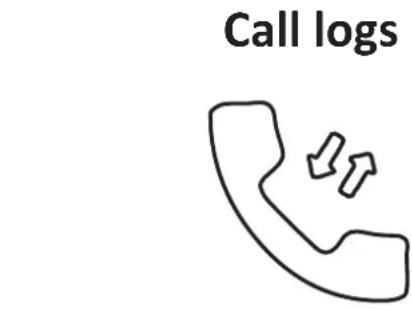
11. Call Logs
The Opis Purofon mobile 4G saves numbers for missed calls, dialled calls and received calls.
OK Back
Go to the main menu and select Call logs as explained in "Main Menu features" on page 7.
11.1) Missed Calls, Dialled Calls, Received Calls
Each of these three menu items shows a list of calls including phone number, date and time of call for the particular type of call in the menu name.
0123456789
01/01 01:01
987654321
12/12 12:12
Options
Back
You can scroll through the entries with the up/down keys (5). Pressing the leftmost button brings up a context menu that allows you to see Details about the call, Call the number, Delete the number or Delete all numbers in the menu. You select the option using the up/down key (5) and then pressing the leftmost button (3).
11.2) Delete all
Selecting this menu entry will clear all call logs. To perform this action make sure the Delete all menu item is active, then press the OK key twice.
12. Message menu
Here you can view received text messages, delete them or call the number they have been sent from
Message

OK Back
Go to the main menu and select Message as explained in "Main Menu features" on page 7.
You can now see a list of messages like this:
0123456789 01:01
Text message …
9876543210 12:12
Options
Back
Use the up/down keys (5) to move through the list, then press OK (5) to bring up the context menu. This allows you to View the message, Delete it, Delete all messages or Call back the originating number by using the up/down keys to select the option of your choice and pressing the OK (5) button.
13. Setti ngs menu
This menu allows you to configure how your phone works.
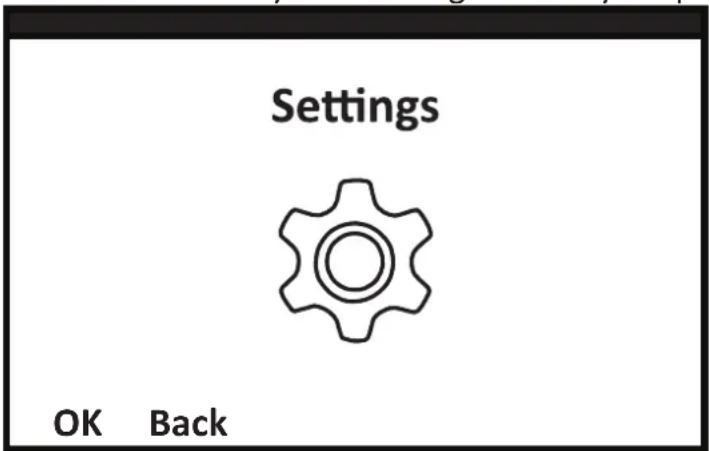
Go to the main menu and select Settings as explained in "Main Menu features" on page 7.
You now can choose between Phone settings, Security, and Version by using the up/down keys (5) and then confirming with OK (5).
13.1) Phone Settings Submenu
Here you can adjust the Language setting, set the Post-dialing delay or Restore Factory settings.
Using the up/down keys (5) and then confirming with OK (5), select which of the three options you want to set. This is also how you navigate the Language setting and Post-dialing delay submenus.
Language setting: this allows you to select English, Deutsch, Français, Espanol or Italiano.
English o
Deutsch o
Francais o
OK Back
Post-dialing delay: By default the phone will automatically dial an entered number after 4 seconds (or when the TALK/RD key - (6) or the H-F key - (7) are pressed). Here you can choose from a list of different delays up to 30 seconds.
2s
0
5s
0
10s o
OK Back
Restore Factory settings: If you want to delete any configuration changes you have made to your phone and delete all and any saved data, select this option and press OK (5). You will be asked to Input password. Enter 1234 and press the OK button twice in order to reset the phone.
Input password(4-8)
1234
OK
Clear
The phone will now restart.
This menu allows to enable/disable the PIN-lock or to modify the PIN.
Select PIN by pressing the OK key (5).
PIN: This allows you to toggle the PIN-lock between enabled and disabled by pressing the OK key (5). If you are enabling the PIN lock, a pop-up appears and you need to enter the SIM-card PIN and confirm with OK in order to proceed. See "5. Enter a PIN" on page 5.
Modify PIN: (This menu only works when the PIN lock has been enabled as explained right above). First you will be asked to enter the existing PIN. See "5. Enter a PIN" on page 5. Now you can input the new PIN and confirm by pressing the OK key (5).
Input new PIN(4-8):
OK
Clear
A confirmation window appears. Please repeat the same PIN and press the OK key (5) again. The new PIN is now active.
13.3) Version Info
This entry displays various information about the hardware and software of your telephone. It is only relevant if you need to contact our technical customer support for advice.
14.Profi les Menu
Here you can enable Silent mode or Adjust the ringtone or in-call volume.
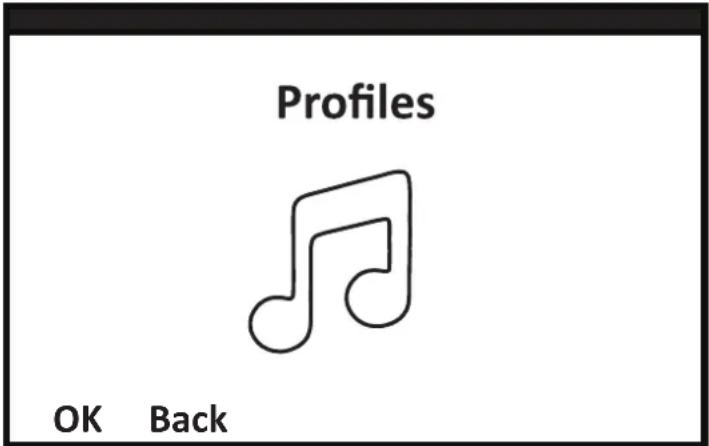
Go to the main menu and select Profiles as explained in "Main Menu features" on page 7.
Here you can enable or disable the silent mode of the phone by pressing the OK key
(5) to toggle. When the silent mode is active (the box checked), the phone will not ring for incoming calls.
Within this submenu you find two entries that you can select using the Up/Down keys (5) and confirm with the OK key (5)
Caller ringtone: A pop-up will appear. You can adjust the ringtone volume by pressing the left or right keys (5). Simply wait when the volume is correct and it will be activated.
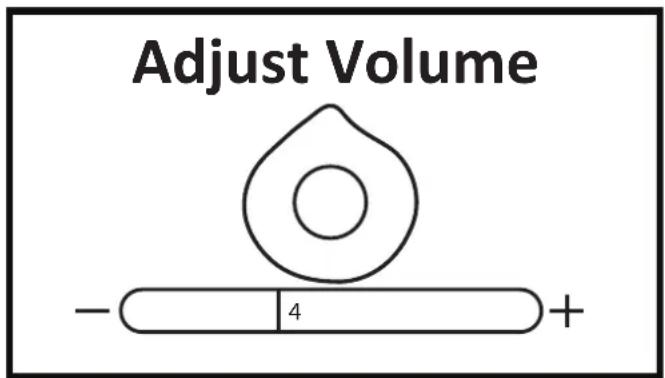
Call volume: A pop-up will appear. You can adjust the volume of the handset by pressing the left or right keys (5). Simply wait when the desired volume is selected and it will be activated. (There is no audible indication of the new volume. Try it out in a phone call.)
Top information bar symbols
The information bar at the top of the screen can contain various different symbols and texts. Only some of these symbols will display at any one time.
Network: 2G, 3G or 4G depending on the current network. Example:
- VoLTE: This means a maximum quality voice connection is active. Example:
- Signal strength: From 0 to 5 bars. Example:
Transmission direction(s): Up=sending / Down = receiving. Example:
- Roaming: If the phone is roaming on another network. Example:
- Battery charge: From 0=empty to 5=full. Example:
- Hands-free: Display when hands-free is active. Example:

VoLTE


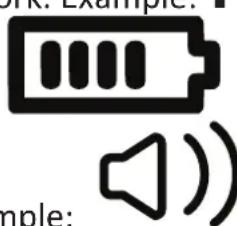
- Missed-call(s): Displays when there are missed calls. Example:
- New Message(s): Displays when there are unread messages. Example:
- Silent Mode: Displays when silent mode is active. Example:
- No SIM card: Indicates that no SIM was detected. Example:



DEUTSCH
Einführung
2 (vide)
3 (vide)
4 (vide)
Options
Retour