PushMeFon mobile - Smartphone Opis - Free user manual and instructions
Find the device manual for free PushMeFon mobile Opis in PDF.


User questions about PushMeFon mobile Opis
0 question about this device. Answer the ones you know or ask your own.
Ask a new question about this device
Download the instructions for your Smartphone in PDF format for free! Find your manual PushMeFon mobile - Opis and take your electronic device back in hand. On this page are published all the documents necessary for the use of your device. PushMeFon mobile by Opis.
USER MANUAL PushMeFon mobile Opis
text_image
4 3 5 2 6 1 7 ops technology 8 9 0Manual, Handbuch, mode d'emploi, manual de uso, manuale d'uso, kullanım kılavuzu
Phone index, Telefonregister, registre téléphonique, agenda telefónica, registro numeri di telefono, telefon rehberi
text_image
(60s mobile)4G& (PUSH ME FON MOBILE)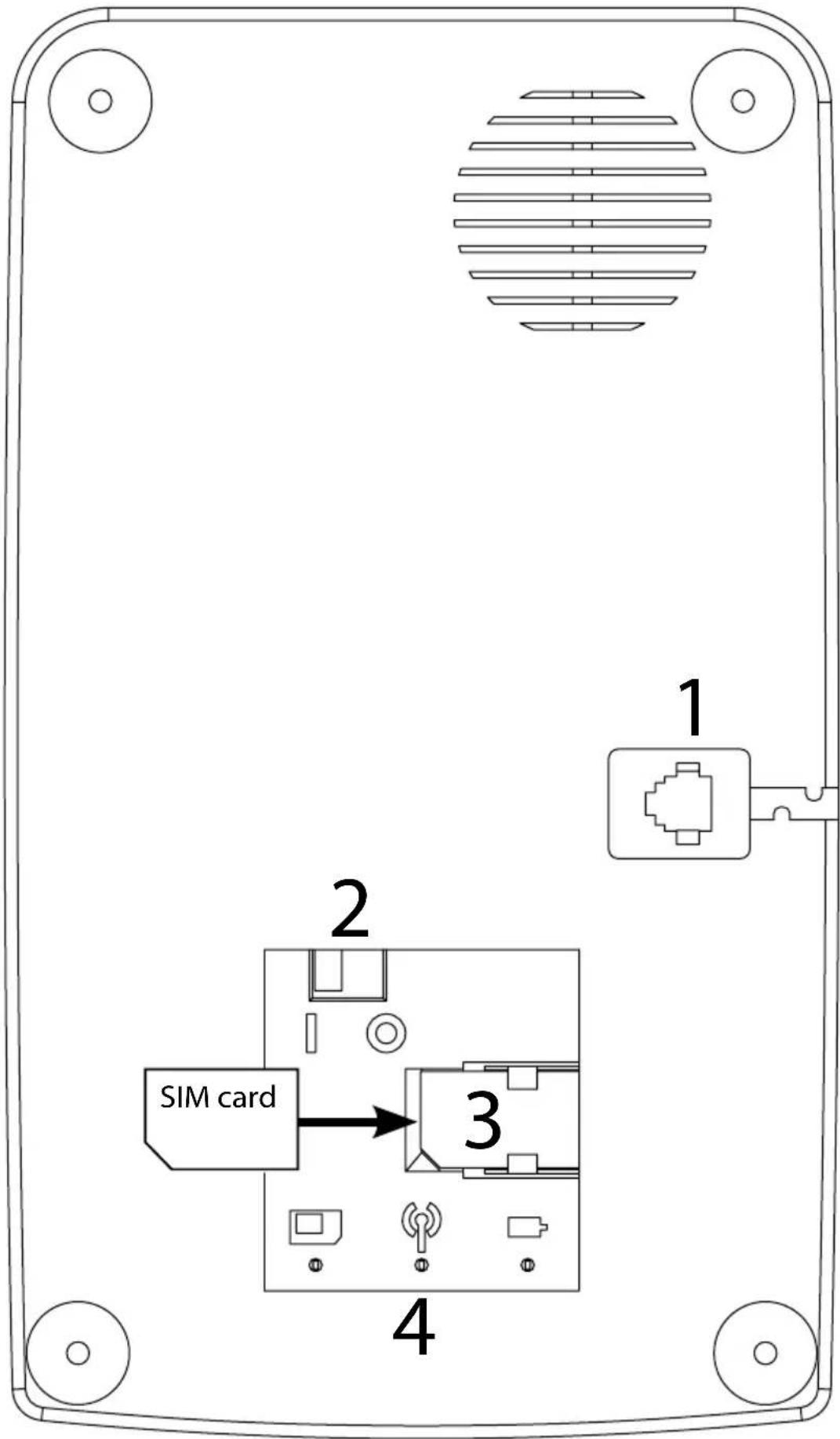
text_image
SIM card 1 2 3 4bottom, Unterseite, partie inférieure, parte inferior, parte inferiore, taban
ENGLISH
Introduction
Welcome to the 4G version of your Opis Technology desktop mobile, your new retro-styled mobile phone, resembling a classic fixed-line phone. This short manual provides you with quick start guide, list of special features, and troubleshooting tips.
Quick Start
1 Assembly
Unpack phone, charger and receiver from the box. Plug the receiver into the bottom of the phone (1). Connect the charger to the back of the phone and plug it into any standard household A/C power outlet.
② Install a SIM card
Slide your SIM card (not included) into the bottom of the phone oriented as shown (3). For simplified operation, use a card that is not PIN locked (see 11)
3 Switch it on
Slide the main switch on the base from the 0 to the 1 position as shown in (2). The two red status lights (network and SIM card) flash alternately for about 30 seconds. The alternate flashing indicates that the phone is busy. Please just wait. After some time, all three status lights should light up briefly. (Please note that the battery light will remain on if the phone is charging.) Afterwards the lights provide information on the phone's status as described in section Status lights.
4 Enter a PIN
This step is only required for a PIN-locked SIM card. Please check the status lights at the bottom of your phone to find out if this is the case (see section Status lights). Pick up the receiver, wait for the busy tone (see section Receiver Tones) and dial:
Format:
Example: if the PIN is 1234: 1234
⇒ if the PIN is accepted the phone rings once.
Note: After 3 failed attempts your SIM card will be locked and it is necessary to dial the PUK and a new PIN:
Format:
Example: if the PUK is 88888888 and the PIN is 1234: 88888888#1234
if the PIN is accepted the phone rings once.
The phone is now ready for normal operation. (If a PIN or PUK is not accepted the
phone rings twice and you can try again. For details on phone rings see section Ring signals.)
5 Make a call
Pick up the receiver, wait for the dial-tone (see section Receiver Tones / if you don't hear a dial-tone check the Status lights), and dial the number:
Format:
Example: if the number is 0123456789: 0123456789
you will now be connected to the dialled number.
The Opis Technology telephone connects you automatically after a dial pause of 6 seconds (configurable, see 10). During this pause, beeps are played in the receiver to inform you about progress.
Tip: To tell the phone to start a connection immediately, dial a final *.
Tip: You can Redial the last number by dialling #/R (PushMeFon mobile only #) instead of the
6 Receive a call
Pick up the receiver to accept a call.
Tip: if the receiver is not on the hook, for example because you are taking your Opis Technology mobile phone with you in a bag, the phone still rings and you can connect by replacing the receiver and taking it off again.
Mobile Phone use
Like any other mobile phone, the Opis 60s mobile and Opis PushMeFon mobile contain a battery that needs to be charged before use. To charge, simply plug the charger into the back of the phone and plug it into any standard household A/C power outlet. You can check the charge status as described in Status lights below.
Advanced Features
⑦ Entering/Changing a local area code
The desktop mobile can save a local area code (to fully emulate fixed line phone behaviour). To do so, you must first program that code. Pick up the receiver and dial:
Format: \*01#\*
Example: if the area code is 0351: *01#0351*
if the local area code is accepted the phone rings once.
From now on it will no longer be necessary to dial the area code for local numbers. NOTE: This function only works where local area codes start with a 0, for example it doesn't work in the USA or Canada. Once enabled you can disable the feature again, simply by dialling *01*.
8 Using a network short-dial number (eg recharge, mailbox)
You can use short-dial numbers within your network by dialling the number followed by an extra #. Pick up the receiver and dial:
Format:
Example: if the GSM network short dial is 2222: 2222#
you will now be connected to the dialled number.
9 Quick-dials
The Opis 60s mobile and PushMeFon mobile support entering nine quick dial numbers. To program or change a quick dial number, pick up the receiver and dial:
Format: *02#
Example: if the number is 08154711 and is to be saved as quick dial 5:
*02#5#08154711*
if the number is accepted the phone rings once.
To use a quick dial number, pick up the receiver and dial:
Format: *
Example: if you would like to connect to quick dial 5: *5
you will be connected to the stored number.
10 Changing the call connection delay
Normally, the Opis Technology desktop mobile automatically connects a call 6 seconds after dialling the last digit. This delay can be changed in 2 second increments as follows. Pick up the receiver and dial:
Format: *03#<(1-9)>* (1 x 2 seconds to 9 x 2 seconds delay).
Example: if you would like to set the connection delay to 4 seconds (2x2 sec
onds = 4 seconds): *03#2*
if the new dial delay is accepted, the phone rings once.
11 Disabling/Enabling the SIM card PIN lock
You can disable (recommended) or enable your SIM card PIN lock. Pick up the receiver and dial:
Format: *04#<0-1>#
Example: if your PIN is 1234 and you would like disable the PIN lock:
*04#0#1234*
if the PIN lock setting is accepted the phone rings once.
If the setting is not accepted the phone rings twice and you can try again.
12 Disabling/Enabling Roaming lock
You can enable or disable (default) the roaming lock. When the roaming lock is active, the telephone can only connect to the home network. Pick up the receiver and dial:
Format: *05#<0-1> * (0 - no roaming lock, 1- roaming lock enabled)
Example: to disable roaming connections: *05#1*
if the new setting is accepted the phone rings once.
If the setting is not accepted the phone rings twice and you can try again.

Setting the speaker level
The speaker level of the receiver can be changed from 1 (lowest) to 9 (highest). Pick up the receiver and dial:
Format: *06#<1-9>*
Example: to set the speaker level to 5 (medium): *06#5*
if the new speaker level is accepted the phone rings once.

Sending IMEI Number and Network Identification by SMS
Sometimes our customer service or your network operator may require this information. You can send it via SMS to any phone number. (Please note that this only works if your contract includes the sending of text messages and while your Opis desktop mobile is connected to a network. For sake of simplicity you can also find the IMEI number underneath your telephone)
Pick-up the receiver and dial:
Format: *07#
Example: to send IMEI and network identification to 01234567:
*07#01234567*
⇒ if the SMS was sent, the telephone rings once

Sending logging information to Opis Technology
Opis desktop mobiles support modern network technology worldwide. Due to the complexity of this, there is a risk of problems occurring. This function helps us understand a problem by providing us with relevant data for analysis (no personal information or caller lists is transferred). Pick-up the receiver and dial:
Format: *001*
Example: to send the phone log to Opis Technology: *001*
⇒ if the log was sent, the telephone rings once

Forwarding text messages (SMS)
In line with its retro appearance, your Opis desktop mobile does not have a screen. However, it is sometimes required to display text messages (eg when registering a new SIM-card). For this purpose you can set up forwarding text messages to a number of your choice. Pick-up the receiver and dial:
Format: *002#
Example: to forward text messages to 01234567: *002#01234567*
⇒ if the forward was set-up, the telephone rings once
Hint: Test if everything is set-up correctly by sending a text message to your Opis desktop mobile now.
Hint: To disable all text message forwarding simply use this function without a destination number, i.e. *002#*.
17 Configuring for a cell phone service provider
IMPORTANT: Only use this function if there are issues operating your Opis desktop mobile.
The number needed to identify your cell phone service provider (
Format: *003#
Example: to set-up for AT&T USA: *003#005*
if the configuration was successful, the telephone rings once
18 Reset to factory defaults
To reset all configurations of your Opis Desktop Mobile to the initial settings, pick up the receiver and dial:
Format: *08*
Example: to restore factory defaults: *08*
if the original settings were restored the phone rings once.
19 Special operating modes
Opis 4G desktop mobiles support three special operating modes, which, for example, enable demonstration use (at trade fairs, advertising stands, etc.) and can also help persons with memory loss.
The operating modes are each protected with a PIN number (not to be confused with the SIM-card PIN). Only with this PIN number can a desktop mobile be reset from the special operating mode to normal mode. Other settings cannot be changed while a special operating mode is active and resetting the phone is not allowed.
19 ① Only quick dials and emergency calls
This mode only allows the use of quick dials as defined in ⑨ as well as the emergency numbers 112, 110 and 911. All other numbers result in the line busy tone. To enable this mode, pick up the receiver and dial:
Format: *00#1#
Example: to enable mode 1 and set the 4-digit PIN to 1234: *00#1#1234*
if the mode was set successfully the phone rings once.
19② Only national numbers and no emergency calls
This mode only allows the use of national phone numbers. The emergency numbers 112, 110 and 911 are not allowed. Short dials as set in ⑨ only work if they are national numbers. To enable this mode, pick up the receiver and dial:
Format: *00#2#
Example: to enable mode 2 and set the 4-digit PIN to 1234: *00#2#1234* ⇒ if the mode was set successfully the phone rings once.
19③ Immediate dial of one number on pick-up
This mode automatically dials the quick-dial programmed as *1 (see ⑨) as soon as the receiver is picked up. All dial inputs are ignored. Incoming calls can still be answered by picking up the receiver when the phone rings. To enable this mode, pick up the receiver and dial:
Format: *00#3#
Example: to enable mode 3 and set the 4-digit PIN to 1234: *00#2#1234* ⇒ if the mode was set successfully the phone rings once.
19 ① Disabling special modes
The special modes 19① and 19② can be disabled at any time by picking up the receiver and dialling:
Format: *00#0#
Example: if your chosen PIN was 1234: *00#0#1234*
if special modes were disabled and normal operation is again active the phone rings once.
IMPORTANT: Special mode 19③ cannot be disabled this easily, because picking up the receiver will always lead to dialling short dial *1. To end this mode, please switch off the telephone. For the 60s mobile 4G then rotate the dial disc to the 1 position and hold it there, for the PushMeFon mobile 4G press and hold both # and *. Now switch on the telephone (still holding the dial disc or pressing the buttons) and wait for about 30 seconds. Now you can disable this special mode in the same way as described for 19① and 19② above.
List of all commands
| Command Example Function | ||
| *01#* * 01#01234* Enter/Change a local area code | ||
| *02#<1-9>## | *02#4#0123456789* Enter/Change a quick-dial number | |
| *03#<1-9>* *03#2* Change connection delay | ||
| *04#<0-1>##* 04#0 | #1234* Disable/Enable | PIN-lock |
| *05#<0-1>* *05#0* Disable/Enable Roaming-Lock | ||
| *06#<1-9>* *06#5* Change loudspeaker volume | ||
| *07##* 07#01234567* Send IMEI and net code to smart-phone | ||
| *001* *001* Send log to Opis Technology | ||
| *002##* *002#01234567* Forward texts to number | ||
| *003##* *003#005* Configure service operator settings | ||
| *00#<0-3>##* 00#1 | #1234* Enable/disable special mode | |
| *08* *08* | Reset to factory defaults | |
| *<1-9> | *5 | Use quick dial |
Receiver Tones
You will hear one of 3 possible tones when you pick up the receiver. The following table explains their meaning.
| Type Signal | Meaning | |
| Silence | None | Phone is not switched on (Note: you have to wait for 5 seconds after switching on the phone till a tone is generated) |
| Dial-tone | Continuous toot | The phone is ready to accept any dial input. |
| Busy | Toot-toot-toot | The phone is not ready to make a call. Check the lights in the bottom of the phone and refer to section Status lights for more details. |
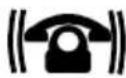
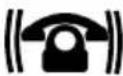
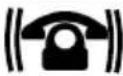
| Status lightsThere are 3 different status lights in the bottom of your Opis 60s mobile or PushMe-Fon mobile (4). Please see the following table for details. | ||||
| Light symbol Colour Indication Meaning | ||||
 | Orange | Off Normal operation or phone switched-off. | ||
| On Battery charging. | ||||
| Flashing Battery critically low. | ||||
 | Red | Off All is fine. | ||
| On No SIM card is present. | ||||
| Flashing SIM card requires PIN-entry. | ||||
| Flashing fast SIM card requires PUK-entry. | ||||
 | Red | Flashing alternately | The phone is busy. Please wait. | |
| Both On After alternating flashing: The telephone has successfully completed the task. | ||||
| Flashing simultaneously | After alternating flashing: The telephone has completed the task with an error. | |||
 | Red | Off All is fine. | ||
| On Phone is not connected to a network. | ||||
| Flashing Active roaming lock prevents connection. | ||||
| Ring signals | ||||
| Type Signal | Meaning | |||
| OK 1 long ring | Phone has accepted your last input. | |||
| Failure 2 short rings Phone has rejected your input, but you can try again now. | ||||
| Low power 3 short rings Phone battery is low. Connect to charger. See also section Status lights . | ||||
| Call | Continuous ring pause alternation | Incoming call. | ||
| Battery PolicyBatteries shouldn't just be thrown away. Please visit our website at www.opis-tech.com/battery-policy to learn how to dispose the battery included in your Opis Technology telephone safely.Technical Specifications• desktop mobile | ||||
• 4G mobile phone / 4G desk phone
• 4G & VoLTE telephony support for best world-wide network coverage
• classic rotary dial or classic keypad
• classic metal bell ringer
• built-in Lithium-Ion battery
- >5 hours talk time
- >1 week standby
- works with any 4G network operator's SIM card
• supports DTMF menu control
- can store local area code for fixed-line phone behaviour
• saves up to 9 quick-dial numbers
package also includes:
- mains-powered charger
• phone register (this booklet)
length: 23cm
width: 21cm
height: 13cm
weight: 1.0kg
Additional features ONLY in hEar version
Controlling the electronic ringer volume
The electronic ringer volume can be set to off (0), low (1), medium (2) and high (3). Pick up the receiver and dial:
Format: *09#<0-3>*
Example: to set the ringer volume to 2 (medium): *09#2*
if the new bell volume is accepted the phone rings once.
Using with hearing aid
Proceed exactly as stated in ① to ⑲. Our hEar technology automatically works with your hearing aid. You do not need to change anything.
Tip: You can set your hearing aid to T-mode for extra-clear sound transmission. (Most hearing aids support this. Please check your manual or contact your shop assistant to find out how to enable T-mode for your model.)
Technical Specifications
• supports induction mode (T-coil)
• (instead of classic metal bell ringer) adjustable, extra-loud electronic ringer
DEUTSCH
Einleitung
natural_image
Solid black vertical rectangle with a single letter 'M' above it (no other text or symbols)

















natural_image
Solid black vertical rectangle with a small 'N' label at the top (no other text or symbols)

natural_image
Solid black vertical rectangle with a small white circle above it, no text or symbols present.


















text_image
PQ


















natural_image
Solid black rectangle with a single letter 'R' above it, no additional text or symbols present.
















S

















natural_image
Solid black rectangle with a small 'T' above it, no text or symbols present.
















natural_image
Solid black rectangle with a white top labeled 'UV' (no additional text or symbols)












































© 2024