Scriba 195 S - Tablet WOXTER - Free user manual and instructions
Find the device manual for free Scriba 195 S WOXTER in PDF.


| Product Type | E-reader (e-book) |
| Brand | Woxter |
| Model | Scriba 195 S |
| Dimensions (estimated) | 180 × 130 × 10 mm |
| Weight (estimated) | Approximately 250 g |
| Display | 6-inch e-ink display (unspecified) |
| Power | Rechargeable lithium battery, charges via micro USB |
| Storage Capacity | Internal memory (unspecified) + Micro SD slot |
| Supported File Formats | e-books (unspecified format), images, etc. |
| Connectivity | Micro USB port |
| Main Functions | E-book reading, image display, games, calendar, system settings |
| Box Contents | E-book, USB cable, user manual, protective cover |
| Care and Cleaning | Wipe with a dry, soft cloth; do not use water or chemical products |
| Safety | Do not open or disassemble; avoid shocks and moisture; do not expose to extreme temperatures |
| Battery | Rechargeable lithium; initial charge of 8h; full charge in 2-3h after activation |
| Warranty | 2 years (under conditions) |
| General Information | Manufactured by Woxter; technical support at www.woxter.es |
Frequently Asked Questions - Scriba 195 S WOXTER
User questions about Scriba 195 S WOXTER
0 question about this device. Answer the ones you know or ask your own.
Ask a new question about this device
Download the instructions for your Tablet in PDF format for free! Find your manual Scriba 195 S - WOXTER and take your electronic device back in hand. On this page are published all the documents necessary for the use of your device. Scriba 195 S by WOXTER.
USER MANUAL Scriba 195 S WOXTER
natural_image
Abstract pink logo design resembling the letter 'W' (no text or symbols)woxter
IEC 62321-1:2013, IEC 62321-2:2021
IEC 62321-3-1:2013
IEC62321-4: 2013+A1:2017, IEC 62321-5:2013
IEC 62321-6:2015, IEC 62321-7-1: 2015
IEC 62321-7-2: 2017, IEC 62321-8: 2017
Madrid, 27 de octubre de 2022
QUATROTEC ELECTRONICA, S.L
QUATROTEC ELECTRONICA, S.L.
$$ \mu $$

Mario Mateos
CEO - QUATROTEC ELECTRÓNICA, S.L
Thank you for purchasing the new Woxter eBook.
You are holding in your hands an electronic product that requires on your part a series of precautionary measures to be followed to avoid damaging it or causing any damage to it.
around it
1, Do not open or disassemble the parts of the product; contact a specialized technician or distributor if you have any technical problem.
-
Keep the product away from electromagnetic sources.
-
When storing or transporting the product, be careful not to put excessive pressure on the product,
-
When storing or transporting the product, keep it away from humid environments. When storing or transporting the product, keep it away from humid environments directly.
-
Do not clean the product with water or other chemical agents, wipe the surface with a dry and soft cloth,
-
Do not press the buttons with excessive force, to avoid damaging the buttons.
-
Do not put the electronic book under direct sunlight. Also keep it away from extreme temperatures (too hot or too cold). (very cold or very hot).
-
Please do not shake the unit roughly and avoid accidents such as accidental dropping. accidents such as accidental drops.
-
To protect your hearing, do not set the speaker volume to maximum, doctors report that exposing the ear continuously to a very high volume can damage the hearing. If you start to experience ringing, turn down the volume or press stop.
-
To avoid overheating, do not connect the USB to the computer for a long period of time. computer for a long period of time. Remove it from the USB interface if you are not using it,
11, Do not use the product in hot, cold, dusty, dry or humid environments.
12, When the book is being formatted or upgrading, please do not stop formatting or upgrading, otherwise it will damage the documents.
13, This unit is subject to change in performance and functionality without prior notice. functionality without prior notice, - When using the eBook as an external hard disk, please store and export the files following the correct operation method of the file manager,
- Defragment the disk periodically. To do this connect the book and the PC with the included USB cable, then format the book with the Windows operating system. Do not forget that if you format the book, all the data (books, photos, songs, etc..) will disappear, if you want to keep them, make a backup copy of them.
16 There may be some difference in memory calculation. The firmware and FLASH memory of the book occupies some space, therefore, there will be differences between the memory capacity of the book and that shown on the PC. It depends on the firmware version and its FLASH category. -
There are many viruses on computers that can easily damage documents and firmware programs. Strengthen your computer with a good antivirus. If the book has been infected with a virus and you cannot use it, we recommend that you update the firmware on a virus-free computer and format the disk.
-
Woxter is not responsible for documents that are missing or damaged due to improper use or maintenance.
- Follow the instructions in the manual to keep the unit in perfect working order and make a backup copy of the information that you consider relevant,
- Do not use the product in areas where electronic products are prohibited.
- Precautionary measures for charging the unit:
- The product is powered by reusable lithium batteries. We recommend charging the product for a full eight hours the first few times. You will also extend the life of the batteries if you let them run down completely.
- Keep the Unit charged for an additional half hour after the battery is fully charged for longer playback time.
- The lithium battery must be replaced through customer service and can only be replaced with the same type of battery. Users cannot replace them at their own free will.
- The service life of the batteries will differ according to different usage situations.
- Two ways to realize charging:
- It can be charged through the USB port, in its connection with the computer. It will be charged once the e-book is paired with the computer regardless of whether the product is turned on or not.
- It can be charged through the compatible charger (adapter). It will start charging after you have plugged the adapter to the mains and the eBook.
- It is normal for the product to get slightly warm duringcharging.
NOTE: Turn off the book and charge, plug in the charger when the power is on, press POWER key for 3 seconds, the unit will enter charging condition automatically,
Some differences may occur between the manual and the actual functions, when updating the firmware, Please note that this guide is for reference only.
Woxter maintains the right to change and improve the product in specifications and design without prior notice,
Box Contents
E-book - 1 pc
USB cable - 1 pc
User manual - 1 pc
Cover - 1 unit
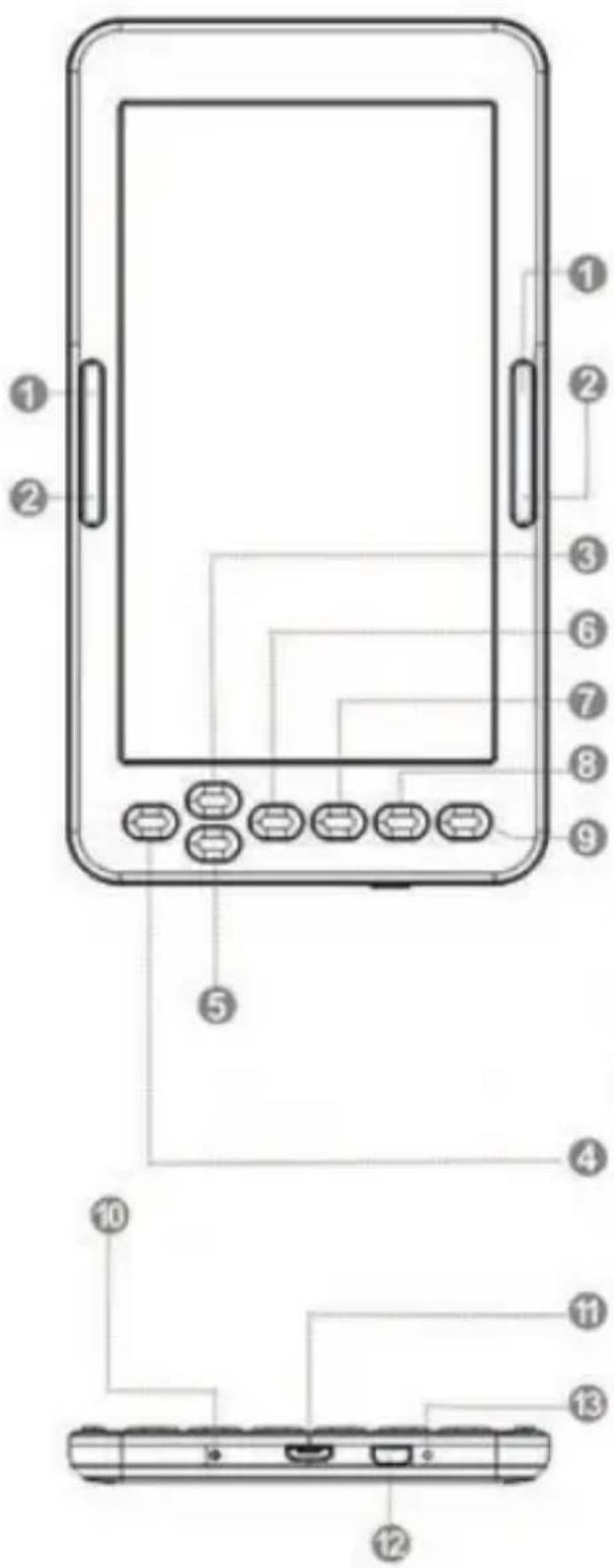
1: Next page - move cursor down
2: Previous page - move cursor up
3: Up - Page up
4: Left - Previus Page - move cursor up
5: Down - Page down
6: Right - Nect Page
7: Ok button to confirm
8: Back to menu
9: Refresh the page, update the existing image on the screen (short press back to previus page, long press refresh the page)
10: Light ON when is charging the device
II: Micro USB port for charging
12: Switch on/off the device (press and hold the button until the required action)
13: Reset button (in the hole)
Operation
- Turn the unit on and off,
Turn the unit on by pressing the ON/OFF button for about 5 seconds.
The unit will automatically turn on and go directly to the main interface.
Press the ON/OFF button for about 5 seconds and then the unit will turn off automatically.
Press the ON/OFF button for about 5 seconds and then the unit will turn off automatically,
- Previous or next file, Press the left or right button to go to the previous or next file, Press the left or right button to go to the previous or next file.
button to go to the previous or next file,
3, Connect to computer and transfer files,
Use the USB cable to connect the unit to a computer, then the product can be used as a portable disk.
the product can be used as a portable disk for data transmission.
When the unit is connected to the computer through the USB port, it can be used as an external hard drive. You can easily purchase your documents, pictures, songs, etc. without the need for a third access partition,
4, Reset,
If the unit does not respond, press the RESET button to reset and start again.
and start again.
Instructions for use
After you have turned on the unit and accessed the main menu, you can use the directional buttons to access eight different
main menu, you can use the directional buttons to access eight different options including History, Library, Browse ebooks, Browser, Images, Games, Calendar and Settings,
HISTORY
Select this option and press OK to access the last read books. Briefly press the M button to exit this interface,
NOTE: Only the last 10 recently read books can be selected.
LIBRARY
Select this option and press OK to access the complete list of books in your library, You can use the directional buttons to move up or down to select the book you want to start reading, Once you have selected one of the books, press OK to start reading.
Once you have selected one of the books, press OK to start reading, Press the M button to exit this interface.
While reading a file, you can perform the following operations:
- Make the font size larger or smaller,
- Change the display format from landscape to portrait and vice versa,
a) When you switch to the horizontal page, press the right and left
b) When you switch to portrait page, press the up or down buttons to go to the previous or next page down buttons to go to the previous or next page,
- Add a bookmark,
- Bookmarks,
- Table of contents.
- Add to favorites.
- Go to the page.
Briefly press the OK button to switch to the option to jump to a specific page.
Enter the numbers of the page you want to go to.
Enter the numbers of the page you want to go to. If the number exceeds the number of
If the number exceeds the actual number of pages in the book it is considered invalid, Select YES and press OK to go to the desired page.
press OK to go to the desired page, Press the button to exit,
- Search.
- Margin: to set margins.
SEARCH EBOOKS
Select this option and enter the name of the book you want to read, press OK to start reading. press OK to start reading,
EXPLORER
This option allows you to manage and search for files
IMAGES
Select the IMAGES option in the main interface and press OK to access the image list. Short press the UP or DOWN button to select a file, then press OK to enter the full screen status, at this time, short press the UP button to go to the previous image and short press the DOWN button to select the next image. Press the M button to return to the image list.
GAMES
Access the GAME option in the main menu and briefly press the OK button. Select from the available games available.
CALENDAR
Access the CALENDAR option in the main menu and briefly press the OK button.
SETTINGS.
Choose this option from the main menu to access the system configuration and press OK to access the configuration list. There are six different options:
- Screen refresh: allows refreshing after each page, after 3 and/or 5 pages.
- Power settings: with this option you can set the power off time: this unit allows you to This unit allows you to set a timer for the automatic shutdown of the unit or to automatic shutdown of the unit or put it into stand-by mode (power sleep).
- Setting the time and day: allows you to set the year, month and day using the right, right and left keys, as well as the hour, minute and second using the up and down keys,
- Language setting: allows you to set the OSD menu language of the unit, English, Spanish, French, etc...
- Format device,
- Restore factory defaults: use this option to return the unit to the initial factory defaults.
- USB connection: allows connection to PC and file copying,
- Product information: displays information about the product:
model, software version, etc... as well as used and free internal and external memory capacity. If there is a Micro SD card, you can also check the capacity of the card.
Battery and energy
- When the unit is in the charging state, the E icon will be displayed at the top of the unit once charging is complete. E icon will be displayed at the top of the unit the icon will automatically change to HIM and appear full.
- When the battery is empty, the (+) icon will be displayed. It is time to
time to charge it,
- If you are charging the product for the first time, we recommend charging for more than eight hours,
- A new product must be fully charged and fully discharged for at
least the first three times to activate it properly.
After that, the battery can be fully charged in about 2–3 hours. In operation, the charging time is longer.
- We recommend a full charge and discharge of the battery once every 3 months to keep the battery in perfect condition.
- After charging, please unplug the USB cable and disconnect the charger from the mains. Do not insert the charger into a mains socket if you are not going to connect any devices,
- If the unit is not going to be used for a long period of time, If the unit is not to be used for a long period of time, charge the battery fully, charge and discharge the battery at least once every 3 months,
- When there is insufficient power, continue use after charging; when the battery is completely empty, continue use after charging and connect it to the PC; do charging in the following situations:
(a) when the battery icon shows that the battery is empty,
b) the system shuts down automatically and shuts down very soon after restarting, c) the system shuts down automatically and shuts down very soon after restarting after starting again,
c) The buttons do not respond.
d) To ensure the charging stability, we recommend not to charge with the PC USB, try to use the mains charger for safer charging.
Troubleshooting
1, I CAN'T TURN ON THE E-BOOK
Connect the USB or charger, check if the battery voltage is too low.
too low. If so, recharge it for the time, as regulated before use. If after charging, the unit still does not turn on, please contact the
If after charging the unit still does not turn on, please contact the customer service system,
- THE BUTTONS DO NOT WORK,
Confirm that the unit is not locked, If so, unlock it and try again,
3, THE FILES CANNOT BE DOWNLOADED,
Check that the connection between the PCS and the unit is correct, check that there is enough space, check that the USB cable is not damaged,
4, WHY DOES THE RUN TIME OF THE READER VARY,
It will depend on the operating conditions of the unit, if it is
subjected to very high temperatures, very low temperatures, in humid environments, dry environments, etc., 5. humid, dry, etc., the lithium battery will vary accordingly.
Technical support and warranty information
If you have any problems with this product, we recommend that you first read this manual in detail or go to our web page www.woxter,es where you can access "Frequently Asked Questions about the product", "Troubleshooting", "Updates and Drivers", "Manuals", etc. If the problem persists, and for any procedure that you consider necessary, please contact the distributor where you purchased the product, always presenting the original purchase invoice of the product,
Warranty terms
- Two years warranty for our products, provided that each and every one of the steps indicated in the WOXTER SAT procedure available at www.woxter.es are followed.
- The warranty will be considered void in case of breakage or tampering of the warranty seals, if the material is physically damaged (abuse, blows, falls), without proper packaging and / or transport damage, in case of obvious signs of improper handling, misuse, dirt ... eto
- Woxter is in no way responsible for the discs or data contained in our various "optical" media. contained in our different "optical" or "magnetic"
supports,
being the user the only responsible for them,
4, This warranty does not cover damage to other equipment used with the unit.
Terms subject to change without notice.

Brand : WOXTER
Model : Scriba 195 S
Category : Tablet