SureFeed Connect Microchip PetFeeder - Pet feeder Sure Petcare - Free user manual and instructions
Find the device manual for free SureFeed Connect Microchip PetFeeder Sure Petcare in PDF.


User questions about SureFeed Connect Microchip PetFeeder Sure Petcare
0 question about this device. Answer the ones you know or ask your own.
Ask a new question about this device
Download the instructions for your Pet feeder in PDF format for free! Find your manual SureFeed Connect Microchip PetFeeder - Sure Petcare and take your electronic device back in hand. On this page are published all the documents necessary for the use of your device. SureFeed Connect Microchip PetFeeder by Sure Petcare.
USER MANUAL SureFeed Connect Microchip PetFeeder Sure Petcare
natural_image
Silhouette of a cat walking with sound waves, next to a triangular object (no text or symbols)Thank you for choosing the Microchip Pet Feeder Connect!
The Microchip Pet Feeder Connect system is made up of three elements all working together to keep you connected to your pet and provide more insight into their eating habits.
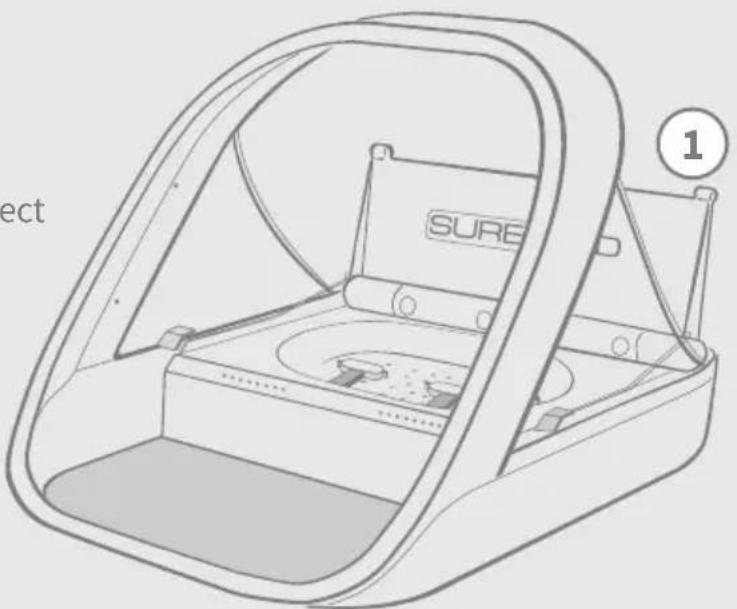
The Microchip Pet Feeder Connect is the main component of the system. It recognises the microchip ID already implanted in your pet or the Sure Petcare RFID Collar Tag (one included), allowing your pet to access their food whilst keeping out other animals.
The Hub (sold separately) is the connected element of the system. It connects to your home internet and can talk to both the Feeder and your Sure Petcare app.
By using the Sure Petcare app, you'll be able to monitor the amount of food that your pet has eaten and how frequently they visit the Feeder. The app also allows you to send a portion weight to the Feeder so you can control the amount of food per serving.
What's in the box
Please make sure you have all these parts*
① 1 x Microchip Pet Feeder Connect
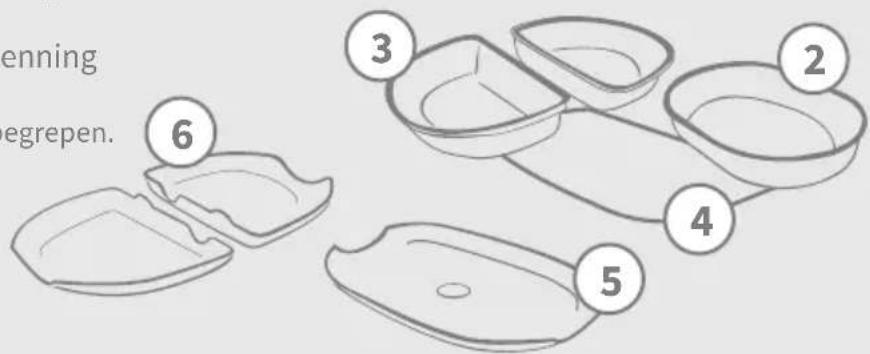
② 1 x Single bowl
③ 2 x Half bowls
④ 1xMat
⑤ 1 x Single bowl support
6 2 x Half bowl supports
7 1 x Sure Petcare RFID Collar Tag
*Batteries and Hub are not included.
natural_image
Line drawing of a 3D-rendered device with a labeled component (1) and 'SURE' branding, no readable text or symbols beyond the label.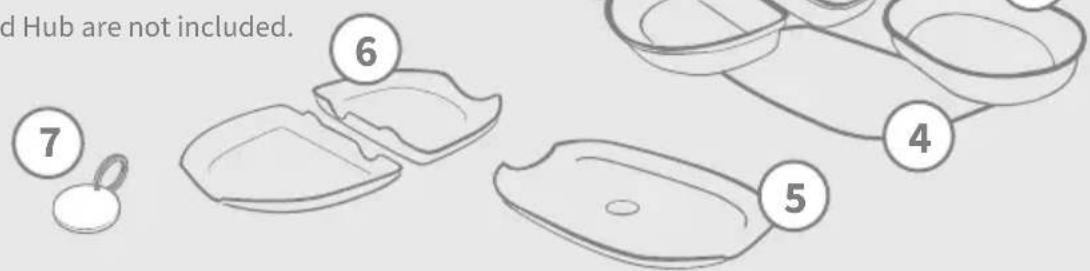
text_image
d Hub are not included. ⑦ ⑥ ⑤ ④
In order for your Microchip Pet Feeder Connect to work as a connected system you will need to purchase an accompanying Hub. For more information on how to purchase a Hub please visit surepetcare.com/hub
Contents
Important information 3
Product overview 5
Microchip Pet Feeder Connect system 7
Hub
Set up your Hub 8
Where to put your Hub 9
Hub lights 10
Feeder
Batteries 11
Connect your Feeder 12
Buttons & lights 13
Adding your pet to the Feeder 15
Setting Portions 16
Adding & replacing the food 17
Training mode 19
Introducing a cautious pet to the feeder 21
Households with multiple feeders 22
Cleaning & maintenance 23
Help & support 25
Warranty & disclaimer 29

PLEASE READ THE FOLLOWING INFORMATION CAREFULLY AND RETAIN THIS MANUAL FOR FUTURE REFERENCE.

This product is intended for domestic pets only.
Use only SureFeed accessories to ensure compatibility: surepetcare.com/accessories
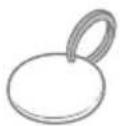
Make sure you have all of the parts listed on page 1.
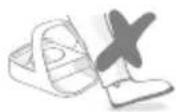
Don't place the Feeder in areas where people are walking past frequently.

The Feeder is designed for indoor use only.
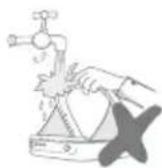
Do not submerge the Feeder into water or place it under a running tap.

Do not place the Feeder in the fridge or put ice packs underneath or inside it.

Do not place the Feeder anywhere it may be exposed to excessive heat.
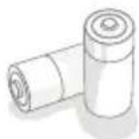
This product requires 4 x C cell batteries which should be inserted and replaced with caution. Do not mix different types of batteries or use a combination of new and used batteries. If the Feeder is going to be stored unused for a long period, please remove the batteries.
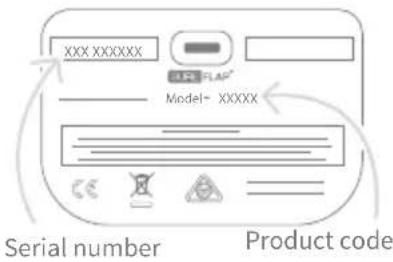
You will find the product code and serial number for the Microchip Pet Feeder Connect on the underside of the product.
text_image
XXX XXXXXX Model= XXXXX Serial number Product codeSafety warnings
- Do not use this product if parts are missing, damaged or worn.
- There are small components used in the construction of this item. Any loose parts should be kept away from young children and pets to avoid choking hazards.
Other important things to consider

natural_image
Silhouette of a dog and a cat, no text or symbols presentPETS: Sure Petcare recommends that the SureFeed Microchip Pet Feeder Connect is used with your pet's implanted microchip, however it may also be operated using the Sure Petcare RFID Collar Tag. If using the collar tag, it should be used with a safety collar which incorporates a breakaway buckle (cats only). Sure Petcare cannot accept liability for any injury or death caused by a pet's collar.

FOOD ACCESS: Sure Petcare cannot accept liability for any access obtained by an unauthorised pet due to unintended use. As the owner of this product, you accept full responsibility for supervising the administration of any food that could cause harm to other pets if consumed unintentionally.

natural_image
Simple clock icon with a checkmark and an 'X' symbol, no text or numbers present.NO TIMER FUNCTION: This product does not contain a timer and does not have any time related functionality. Therefore, do not leave your pet unattended, or rely on this product to sustain them for any prolonged periods of time - no longer than 24 hours for a cat, or the average amount of time between meals for a small dog. This product is not a substitute for responsible pet ownership.

natural_image
Simple gray line drawing of a smiling baby face with a bow (no text or symbols)CHILDREN: Children should not be permitted to play with the SureFeed Microchip Pet Feeder Connect. It is not a toy and should not be treated as such. However, this product can be used by children aged 8 years and above and also by persons with reduced physical, sensory or mental capabilities as long as they are supervised or have been given instructions on how to use the product in a safe way. They should always be made aware of any potential hazards involved. Do not allow children of any age to clean the product without supervision.

natural_image
Simple icon of a smiling baby face with a bow on top, enclosed in a shield shape (no text or symbols)CHILD PROOFING: In households with children, it is essential to include the SureFeed Microchip Pet Feeder Connect in any childproofing considerations. Misuse of this product by a child may result in the child coming into contact with potential dangers. For this reason, young children should be monitored at all times when in the immediate vicinity of the Feeder. Please also be aware that when the Feeder is in training mode (see page 19-20) a child will still be able to access the pet's food.
The Microchip Pet Feeder Connect system consists of three main components:
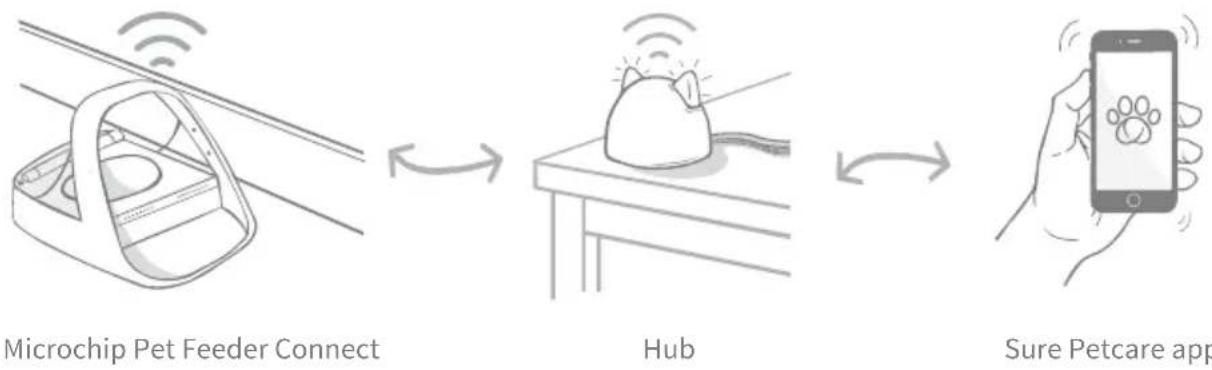
The Hub is connected to the internet via an Ethernet cable and monitors the activity of your Microchip Pet Feeder Connect. It communicates with both the Feeder and the Sure Petcare app allowing you to see updates on the Sure Petcare app even when you're away from home!
You are also able to set a portion weight in the app. Once set, the Feeder will guide you as food is added to ensure your pet is getting the correct portion. For more information, see page 14.
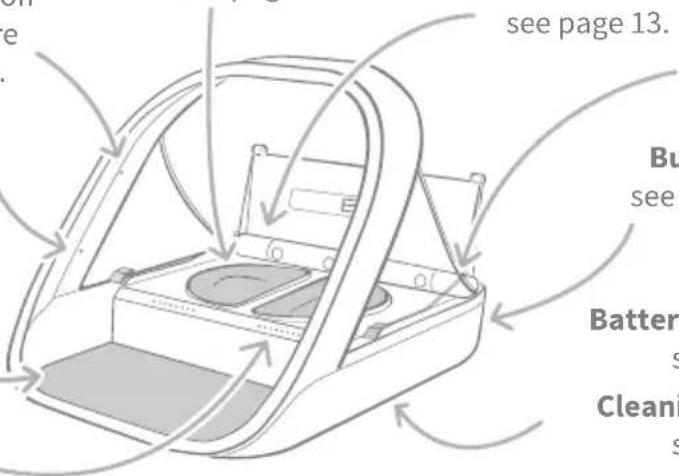
Bowls & bowl supports:
Sensors: Four small dots on the inside of the hoop are used to detect your pet.
Mat: Designed to collect food mess, making the Feeder easier to clean.
Portion indicator lights:
see page 14.
text_image
see page 13. Buse see Battery s Cleani sLid lock:
Rear LED:
see page 13.
Buttons:
see page 13.
Battery compartments:
see page 11.
Cleaning access cover:
see page 23.
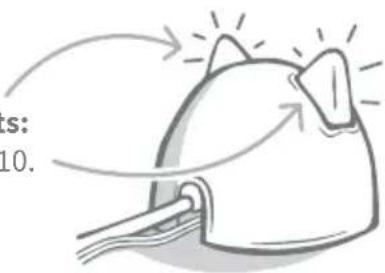
Hub lights:
see page 10.
text_image
S: 10.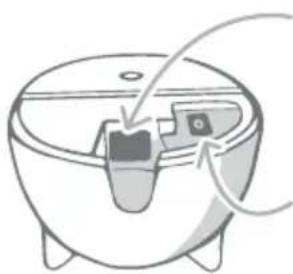
natural_image
Diagram of a bowl with a small container and a switch, showing fluid flow direction (no text or symbols)Ethernet port: to connect
to internet router.
Power supply: to connect
the power supply cable.
The SureFeed bowls have an integrated seal on their top edge helping to keep your pet's food fresher for longer. If you feed your pet only one type of food you can use the single bowl, but if you give them both wet and dry food, then the half bowls are perfect!
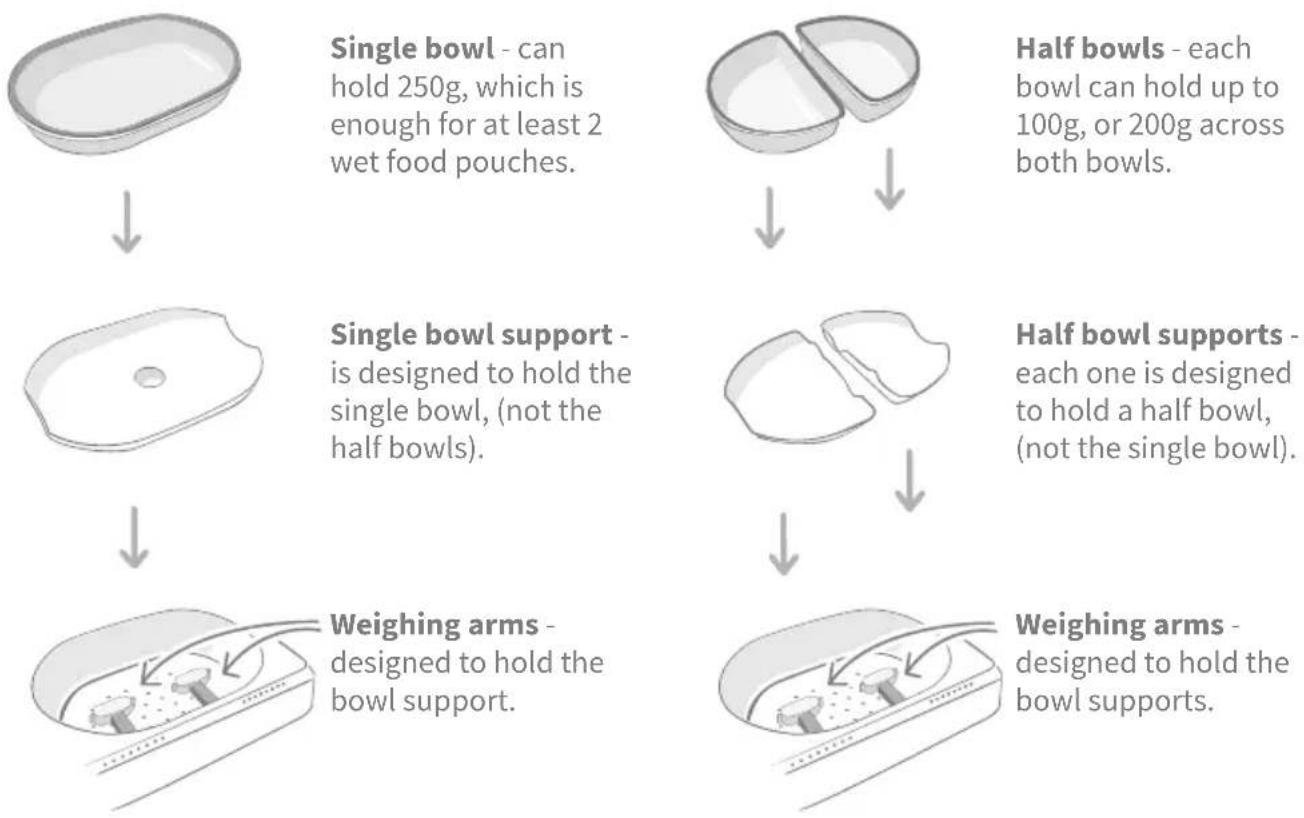
Single bowl - can hold 250g, which is enough for at least 2 wet food pouches.
Half bowls - each bowl can hold up to 100g, or 200g across both bowls.
Single bowl support - is designed to hold the single bowl, (not the half bowls).
Half bowl supports - each one is designed to hold a half bowl, (not the single bowl).
Weighing arms - designed to hold the bowl support.
Weighing arms - designed to hold the bowl supports.

Do not put your pet's food directly on top of the bowl supports. Always use the bowls to ensure the correct functioning of the Feeder.
The SureFeed split bowl is not intended for use with the Microchip Pet Feeder Connect.
To purchase additional bowls or mats ask a Sure Petcare stockist or visit surepetcare.com
Add some colour Or add some shine
natural_image
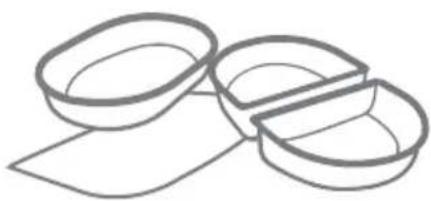
Simple line drawing of two stacked containers with a flat base (no text or symbols)SureFeed plastic bowls and mats come in four different colours: blue, green, pink and grey.
natural_image
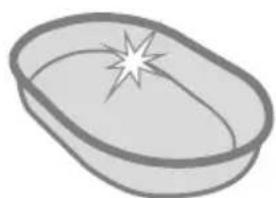
Simple illustration of an oval bowl with a starburst on the rim (no text or symbols)The SureFeed single bowl can also be purchased in stainless steel.
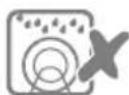
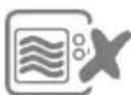
Do not put bowls in the dishwasher or microwave.

Hand-wash bowls before first use.
Download the free Sure Petcare app now

Download on the App Store

GET IT ON Google Play

AVAILABLE ONLINE surepetcare.io
Receive notifications when your pet eats from the Feeder.

Monitor your pet's food intake and notice changes in behaviour.
Accurately portion food to control the amount eaten per serving.

Share access to your household with family and friends.
Download the Sure Petcare app and create an account. You'll be asked to make a ‘household’ (a connected network containing all of your Sure Petcare connected products and pets). You can invite other members of your family to join your household.
To download the app, your phone or tablet must be running at least iOS 9 on Apple, or 4.4 on Android.

If you'd rather control your Sure Petcare connected products from your computer, you can use the Sure Petcare web app at surepetcare.io
You will need the latest version of Safari, Chrome, Firefox or Internet Explorer running on either Mac OS X v10.9 (or above) or Windows 7 (or above).
Purchase a Sure Petcare Hub
In order for your Microchip Pet Feeder Connect to work with the Sure Petcare app you will need to purchase an accompanying Hub. For more information please visit surepetcare.com/hub
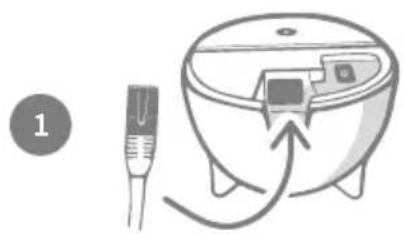
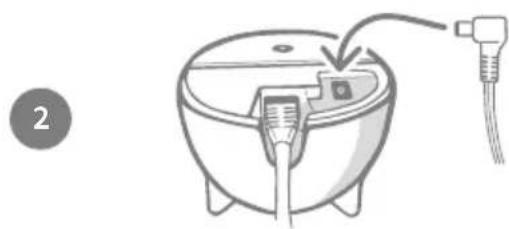
Once you have successfully downloaded the Sure Petcare app, you will need to plug in your Hub and set it up. Once your Hub is set up you will be asked to connect it to both the Feeder and the app. Please follow the steps below:
natural_image
Illustration of a medical device connected to a patient's ear with a medical device (no text or symbols)Plug one end of the Ethernet cable into the base of your Hub and the other end into a spare Ethernet port on your router.
natural_image
Diagram of a medical or laboratory device with a plug inserted into a bowl, showing internal components and wiring (no text or symbols)Assemble the power supply and plug it into your power outlet. Plug the other end of the cable into the base of your Hub.
natural_image
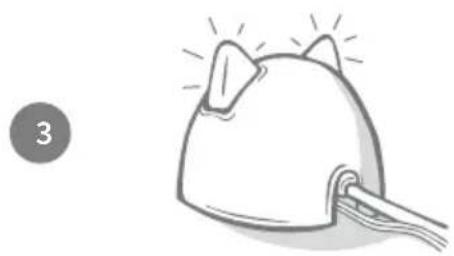
Simple line drawing of a cat-shaped object with a handle, emitting light rays (no text or symbols)Your Hub's 'ears' will start alternating red and then green. When both ears remain solid green your Hub is ready. If the ears fail to do this sequence please see page 10 for more information.
text_image
Sure Petcare ApolIn order to complete the setup of your Microchip Pet Feeder Connect system you will need to follow the remaining steps on the Sure Petcare app.

Your Hub may receive a software update. If you see solid red lights during setup, don't panic, your Hub is updating its software. Once complete the Hub will reboot and you'll see the light sequence detailed in step 3.
Because your Microchip Pet Feeder Connect system communicates wirelessly, the location of your Hub can affect its performance.
natural_image
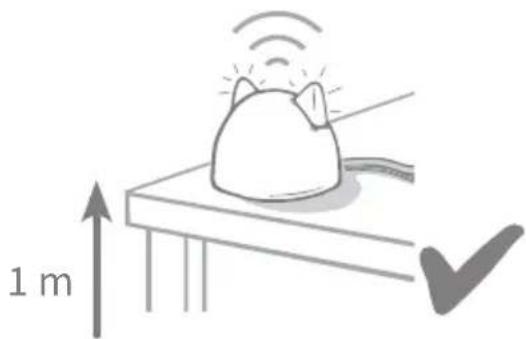
Illustration of a cat on a platform with a signal icon and directional arrow (no text or symbols)Place the Hub at least 1 metre off the ground (i.e. on a table that is as clear of obstructions as possible).
text_image
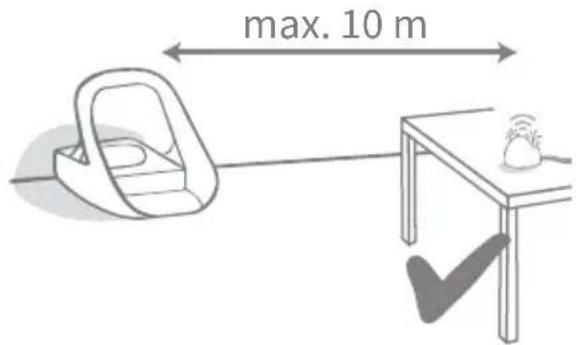
max. 10 mTry to position your Hub so that it is in line-of-sight of your Feeder and within a 10 metre radius.
natural_image
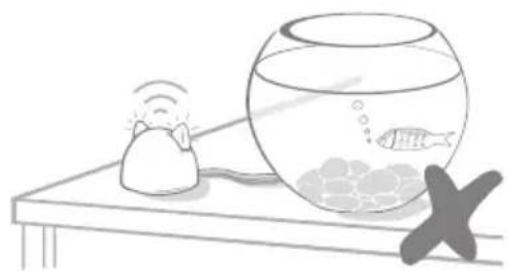
Illustration of a mouse, a fishbowl with a fish inside, and a cross symbol on a table (no text or symbols present)Avoid positioning your Hub near or in line of sight of any large amounts of water (i.e. fish tanks).
natural_image
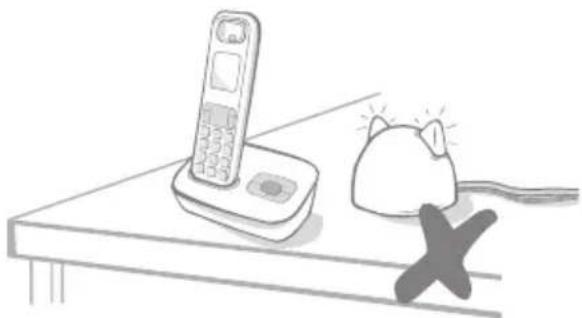
Illustration of a desk with a telephone, a cat, and a cross symbol (no text or labels)Keep your Hub as far away as possible from any potential sources of interference (i.e. digital cordless phones, baby monitors, etc).
natural_image
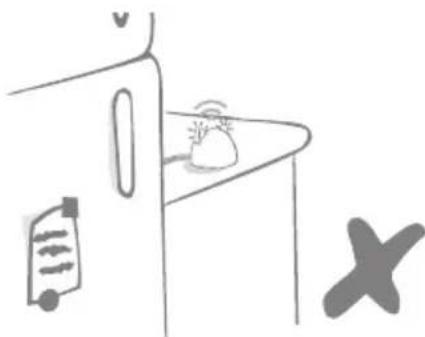
Simple line drawing of a kitchen counter with a bag and a cross symbol (no text or labels)Make sure the Hub isn't positioned next to any large metal objects (i.e. fridges).

natural_image
Simple line drawings of a shoe, a ladder, and a lamp (no text or symbols)Avoid thick walls between the Hub and the Feeder.

Occasionally your Hub may experience connection issues despite following these tips. For further advice on how to move your Hub closer to your Microchip Pet Feeder Connect, go to surepetcare.com/hub-connectivity

If your Hub loses internet connection for any reason, your Microchip Pet Feeder Connect will still function as normal and retain its settings.
Your Hub indicates its current state using the lights in its ears. Different coloured light sequences mean different things.
Setup lights
Every time the Hub powers up or is trying to connect to other elements of the system, you'll see the setup lights:
1 The ears will alternate red for a while,


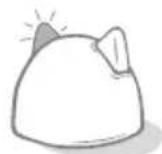
2 then they will alternate green,



3 once you see a flash of orange and the ears go solid green the Hub is connected.



Green ears
Green ears mean the Hub is working correctly. See below for the details of what each light sequence means.
Both ears are solid green – Your Hub is turned on, connected and working correctly.
Alternating green ears – Your Hub is re-connecting to our servers.
Red ears
Both ears are solid red – Your Hub is doing a software update. Be patient, your Hub will reboot and continue as normal shortly.
Both ears flashing red – Your Hub has lost connection with your Feeder and is trying to reconnect.
Alternating red ears – Your Hub is having difficulty connecting to the internet and/or the servers.
For more information on diagnosing these issues, see page 25.
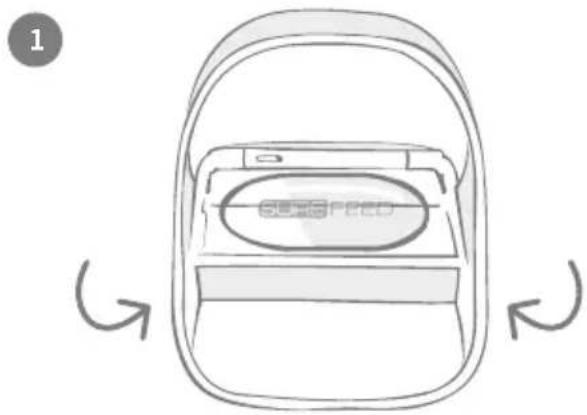
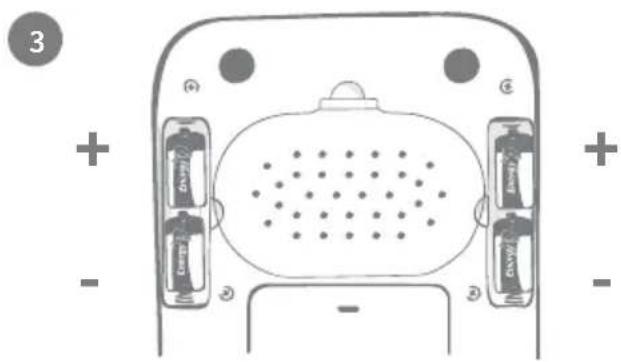
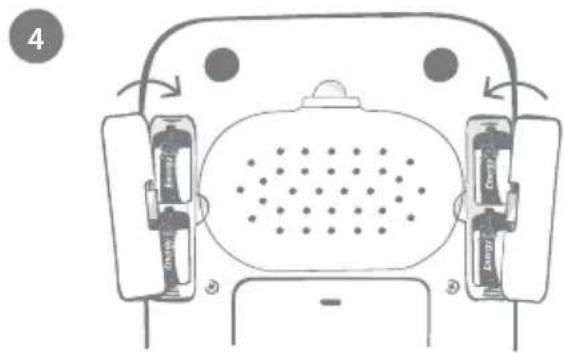
Always use 4 x good quality 1.5V alkaline C cell batteries. This will ensure the best performance of your Microchip Pet Feeder Connect. This product is NOT designed for use with rechargeable batteries. To insert or change the batteries please follow the steps below:
There is a light near the rear of the Feeder. If the batteries are low, or if there's a problem with how they've been inserted, this light will flash red every 5 seconds.
text_image
1 SPEEDTurn the Feeder upside down to access the battery compartments.

natural_image
Top-down schematic of a device with labeled ports and a central display (no text or symbols)Remove the battery covers.
text_image
3 + - + - +/-Insert the batteries. Ensure the +/- symbols on the batteries match the symbols on the Feeder itself.
text_image
4Replace the battery covers.

Once you program your pet's microchip ID into the Feeder it will be permanently stored in its memory. This means that even when you change the batteries, the Feeder will still recognise your authorised pet.
In order to complete the setup of your connected system, you need to connect your Feeder to your Household.
natural_image
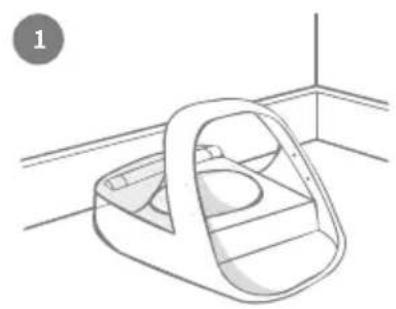
Line drawing of a small boat with a handle, placed inside a rectangular room (no text or symbols)Place your Feeder in its intended location. This is to ensure it can communicate with the Hub.
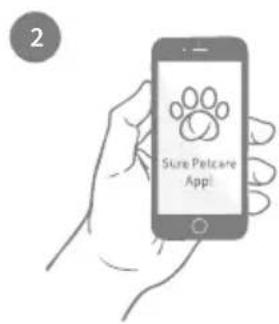
text_image
Sure Petcare App!On the Sure Petcare app, select 'Add product'.
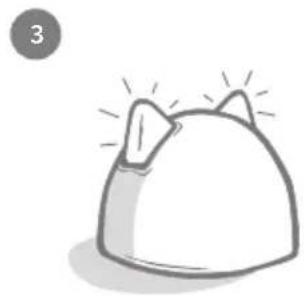
natural_image
Simple line drawing of a hat with two ears and radiating lines (no text or symbols)Your Hub will go into connecting mode and its ears will flash green.
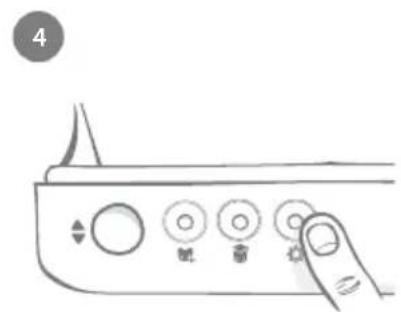
text_image
4Press the settings button (✿) on the Feeder once. The ear LED will illuminate green.
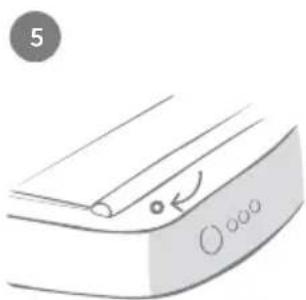
natural_image
Simple line drawing of a curved surface with a circular mark and arrow, no text or symbols presentOnce the Feeder is connected the LED will turn off and the Hub will stop flashing.
text_image
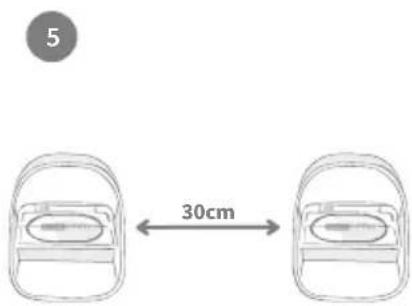
5 30cmIf you wish to connect more Feeders, you can do this easily from within the app.
Adding a Feeder to your current Household
You can add a Microchip Pet Feeder Connect to your existing Sure Petcare Household via the app. Go to the Household section and follow the instructions above.
You can also assign your pet's microchip ID remotely via the app. This means you won't have to add them manually. However, adding pets using treats can encourage them to use the new product. See page 15 for more information on adding pets.
Buttons
There are 5 buttons on the Feeder. These can be found at the rear of the product:

natural_image
Diagram of a control panel with four circular buttons and icons (no text or labels)
Open/close button - opens and closes the lid so you can access the bowl(s).

Add a pet button - used to add your pet's microchip ID into the Feeder - see page 15.

Training mode button - used to activate training mode which teaches your pet to use the Feeder - see page 19-20.

Settings button - used to connect the Feeder and the Hub - see page 12.

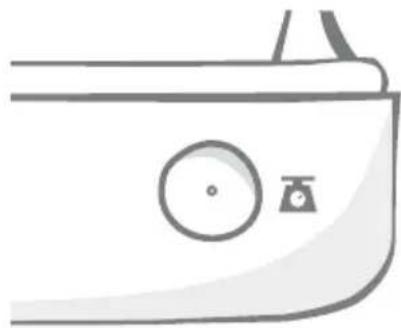
Zero button - used to calibrate the Feeder and ensure you are giving the correct amount of food - see page 17. This button will zero both sides of the Feeder, whether you're using a single bowl or half bowls.
natural_image
Simple line drawing of a car door with a circular dial and camera icon (no text or symbols)
When using half bowls, if you want to zero them independently you can do this using the Sure Petcare app.
Lid lock

Locked - this means you cannot pull and remove the lid from the Feeder.
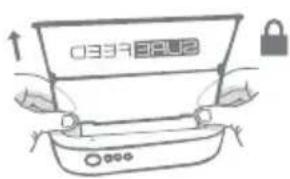
text_image
03391842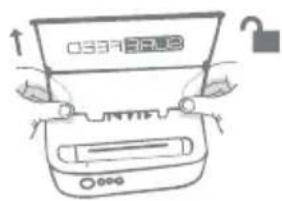
text_image
03378RUB
Unlocked - you are able to pull the lid when it's in the open position to remove it.
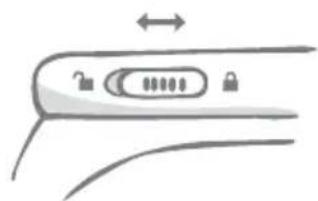
natural_image
Diagram of a car door handle with lock and adjustment knob (no text or symbols)The lid lock should remain locked at all times and only be unlocked when you want to remove the lid for cleaning. This is so you can stop very clever unauthorised pets from trying to remove the lid to access the food. Be aware that this doesn't prevent the lid from opening.
Rear LED
Solid green light. The green light will come on every time an authorised pet eats from the Feeder.
Flashing green light. The Feeder is in 'Add a pet' mode - see page 15. The light will continue to flash until a microchip is added or until you exit the mode.
Flashing orange light. The Feeder is in training mode - see page 19-20. The number of flashes relates to the stage of training.
Flashing red light. The batteries are running low.
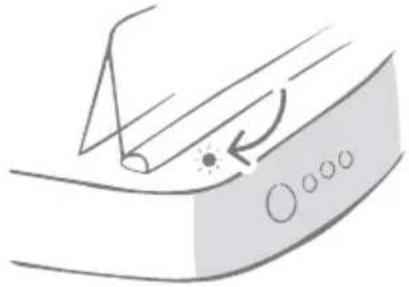
natural_image
Diagram of a curved surface with a pointed tool and circular indicators, showing motion or stress (no text or symbols)Portion indicator lights
If you've set a portion weight in the Sure Petcare app, the lights on the front of the Feeder will act as a guide when adding food.
The portion indicator lights will represent the amount of food you've added so you can ensure your pet is getting the correct portion.
For more information about the benefits of accurate portioning please see page 16.
text_image
FER 溶液溶液加氢气 溶液溶液加氢气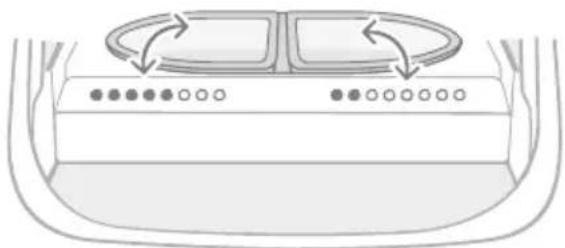
natural_image
Diagram of a car interior showing dashboard and seat compartments with circular indicators (no text or symbols)Using half bowls
The lights on the right-hand side of the Feeder correspond to the bowl on the right and it's the same for the left. The lights will illuminate when food is added to each side.
Using a single bowl
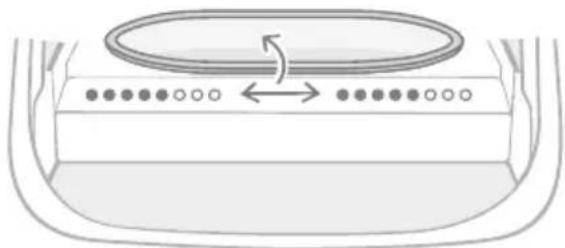
Both sets of lights will illuminate simultaneously when food is added to the single bowl.
natural_image
Diagram of a device with a circular component and directional arrows indicating rotation or movement (no text or symbols)
If you want to switch from half bowls to a single bowl and vice versa, you need to make the change via the Sure Petcare app.

If you haven't set a portion weight in the app, the lights will not illuminate when food is added to the Feeder.
Adding your pet to the Feeder
When adding your pet's microchip ID into the Microchip Pet Feeder Connect, make sure all other pets and any unrequired collar tags are kept out of the way.
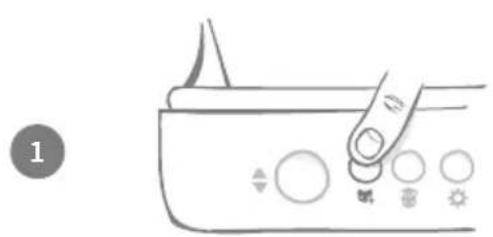
natural_image
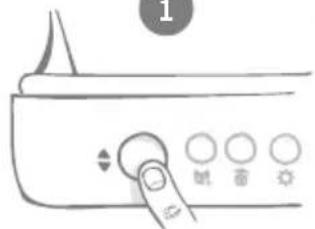
Line drawing of a hand pressing down on a control panel with buttons (no text or symbols)Press the 'Add a pet' (_) button found at the rear of the Feeder.
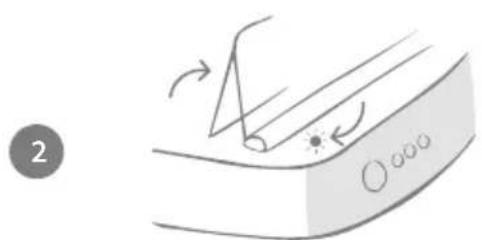
natural_image
Diagram showing a curved surface with arrows indicating direction and a small circle labeled '2' at the bottom (no text or symbols on the main diagram)The lid will open and the rear LED will flash green once every second.
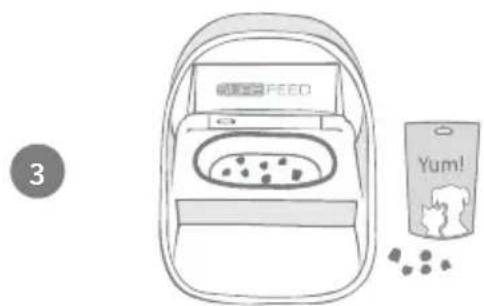
text_image
FEED Yum!Put some food/treats into the bowl and place the Feeder where you would normally feed your pet.
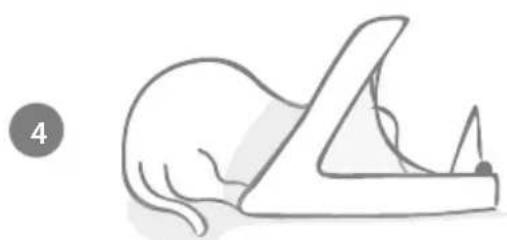
natural_image
Simple line drawing of a cat lying down with a fork (no text or symbols)Whilst your pet eats, the Feeder scans their microchip ID. Once the ID has been added, the LED will stop flashing (but remain on).
natural_image
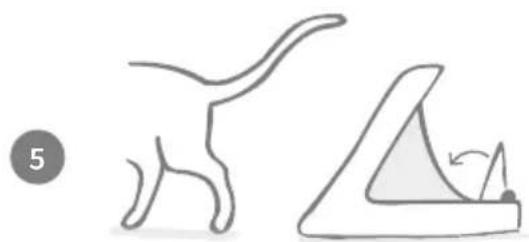
Simple line drawings of a cat and a slide (no text or symbols)When your pet moves away, the lid will close and the green LED will turn off. Their microchip ID is now permanently stored.
natural_image
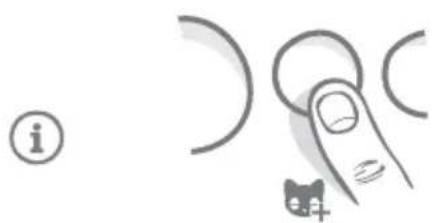
Illustration of a finger pressing down on curved lines with a cat icon and a question mark (no text or symbols)If you need to, you can cancel the 'Add a pet' mode at any time with a second press of the 'Add a pet' button.

To program a pet's microchip ID, sensors located in the hoop of the Feeder must detect the pet's presence. Therefore it's important to ensure your pet places their head through the hoop to eat.

To program a Sure Petcare RFID Collar Tag, simply follow the steps above but hold the collar tag inside the hoop. Make sure you are not wearing any metal jewellery when programming a collar tag.

If you already have a pet in your Sure Petcare household, it is possible to assign them to the Feeder. Go to the Household section of the app. If you add the wrong pet by mistake you can always correct it here.
The Microchip Pet Feeder Connect not only monitors when and what your pet has been eating, it can also help you to provide accurate portions each time you feed your pet.
Why should you portion your pet's food?
Could your pet benefit from losing a few pounds? By setting a portion weight you can ensure you're not accidentally giving them too much food every day. It all adds up!
The ability to weigh out portions of food directly into the Feeder makes it quicker, easier and more convenient to ensure your pet is eating the correct amount.
text_image
ng a ing them Feeder our pet is
natural_image
Stethoscope icon illustration (no text or symbols)How much should you feed your pet?
It can be difficult to know how much is the right amount for your pet, especially when there is so much choice. We recommend consulting your vet or animal health advisor to see what they recommend.
Alternatively, stick to the guidelines provided on the packaging by the pet food manufacturer. This information is normally a good guide for average, healthy pets.
How to set the portion weight in the app
You can set the portion weight in the Sure Petcare app. Once set, this amount is sent to the Feeder so it knows how much food you want to give your pet per serving.
The portion indicator lights on the Feeder will then guide you as food is added, to ensure the correct portion is given. The lights represent the amount of food added, see page 18 for more information.
text_image
Sure Petcare App!It is important to change your pet's food on a daily basis, not only to ensure your pet stays happy and healthy, but also to keep the Feeder clean and in working order.
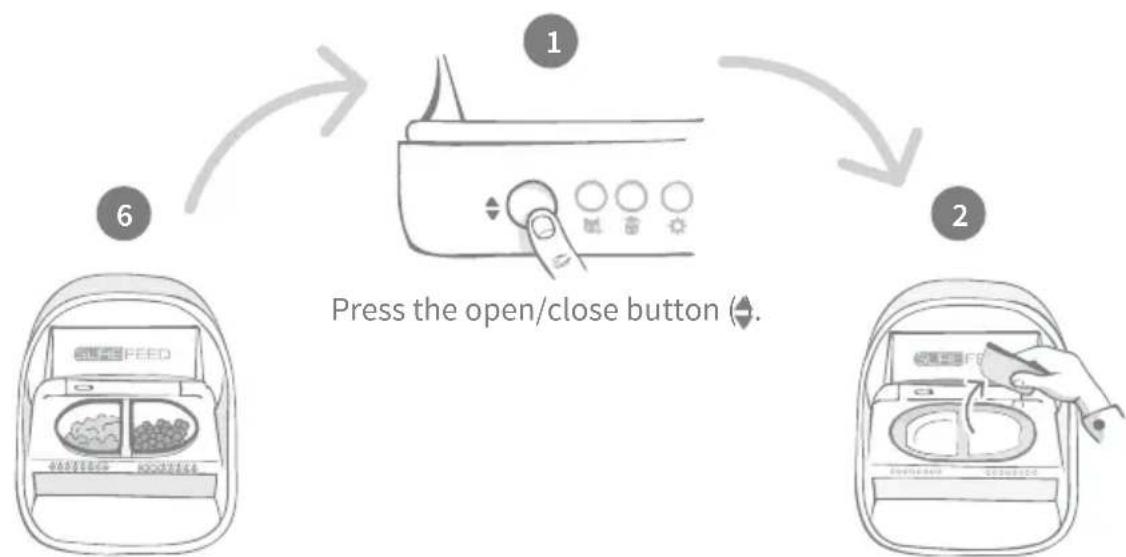
flowchart
graph TD
    A["1: Press the open/close button"] --> B["2: Cover in a bowl with brush"]
    B --> C["3: Cover in a bowl with food and brush"]
    C --> D["4: Cover in a bowl with food and brush"]
    D --> E["5: Cover in a bowl with food and brush"]
    E --> F["6: Cover in a bowl with food and brush"]
When all the lights are flashing green you have filled the bowls with the full portion.
Remove the dirty bowls and any debris. Clean them or replace with fresh ones.
text_image
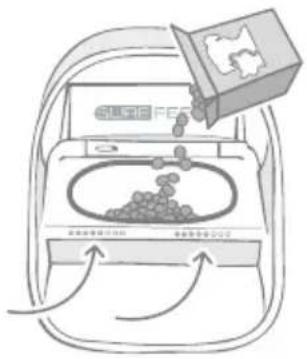
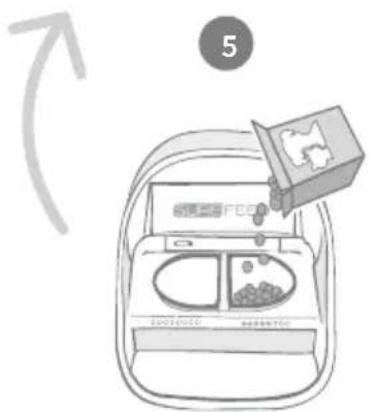
5 2023/01/01 BEEF BEEF BEEFAfter the zeroing light sequence, start filling the bowls. The portion indicator lights will illuminate to show the amount of food in each bowl - see next page.
natural_image
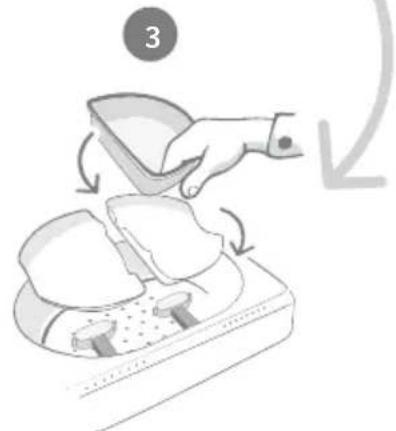
Illustration of a hand placing a small container onto a food processor with arrows indicating rotation (no text or symbols)Make sure the appropriate single or half bowl supports are correctly sitting on the weighing arms and place an empty bowl on top.

natural_image
Simple line drawing of a hand pressing down on a device with curved arrows indicating rotation (no text or symbols)Press the zero button, before filling the bowls, to ensure you are giving a full portion to your pet. Remember that pressing this button will zero both sides of the Feeder - see page 13.
Portion indicator lights
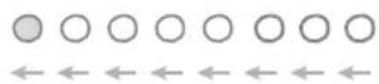
Zeroing light sequence:
Descending green lights from right to left appear when you press the zero button.

Adding food:
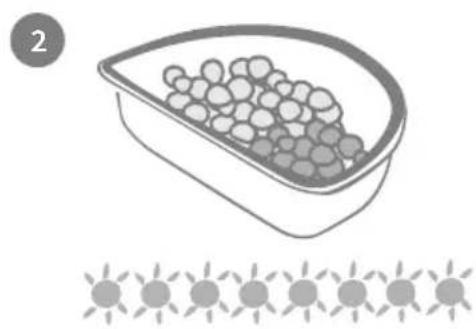
As food is added, the portion indicator lights will light up green, increasing from left to right. The lights correspond to the amount of food in the bowl. You need to keep adding food until all the lights flash.

Reaching the portion weight:
When you are within +/- 1 g of the portion weight, the lights will flash green. If the lights aren't flashing, it is not quite a full portion.

Overfilling:
If you add more than the portion weight to the bowl, the red lights will warn you how much you've overfilled. Simply remove some of the food until you see the flashing green lights.

Please be aware if you haven't set a portion weight in the app, the portion indicator lights will not illuminate when food is added to the Feeder.
Food still left in the bowl?
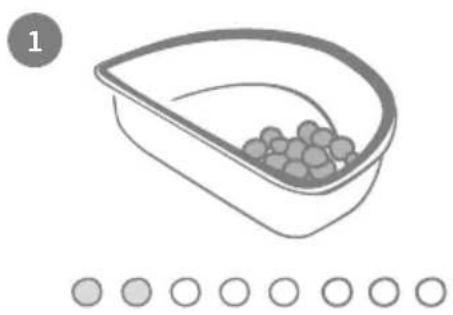
If there is food still left in the bowl when it comes to dinner time, no need to press the zero button, simply add more food to the feeder and the feeder will let you add a new portion on top of existing food in the bowl. The portion indicator light will allow for a full portion amount to be added and indicate as such.
natural_image
Simple line drawing of a bowl containing berries, with six empty circles below (no text or symbols)When you open the lid, some lights will momentarily flash on to indicate that the feeder knows there is some food left in the bowl. All lights will then disappear to allow you to add a new fresh portion on top of the remaining food.
natural_image
Illustration of a container filled with granular material, accompanied by a row of five sun icons below (no text or symbols)Fill the bowl until all the portion indicator lights are flashing green.
Training mode (teaching your pet to use the Feeder)

When opened by the open/close button, the orange training light will flash red to help you identify that the open/ close button has been pressed and it is in open mode. The training light will return to orange when the open /close button is pressed once you have added the food portion. If the Open/Close button isn't pressed the portion indicator lights will not activate and the system won't be able to identify you adding food.
PART 1 - Introducing your pet to the Feeder
Some pets may need some time to get used to the Feeder. The training mode allows you to slowly introduce more and more movement to the lid meaning your pet can grow in confidence using their new bowl. This can take a little time but be patient, and do not move on to PART 2 until your pet seems comfortable.
1

natural_image
Line drawing of a control panel with buttons and a pointer (no text or symbols)With the lid closed press the 'Training mode' button once on the rear of the Feeder. The lid will open and the rear LED will flash orange (once every few seconds).
2
Fill the bowl with your pet's favourite food and place the unit in your pet's normal eating spot or somewhere they feel comfortable eating.
3
natural_image
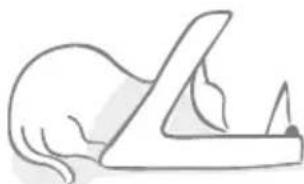
Simple line drawing of a hand pressing down on a flat surface (no text or symbols)During this first stage of training your pet to use the Feeder, the lid will not close after they have finished eating.
!
Remember to take your time and let your pet get used to their new bowl. Once they are happy proceed to PART 2.
PART 2 - Increasing the lid movement
Slowly increasing the lid movement allows your pet to get used to it in three stages. Once again, for the best results and a happy pet, it is important to be patient and not rush this process. The amount of time required at each stage will vary for each pet (days/weeks) but we recommend taking a few days for each one.
4
natural_image
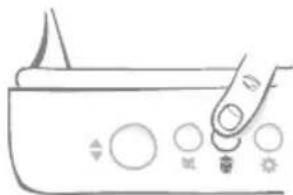
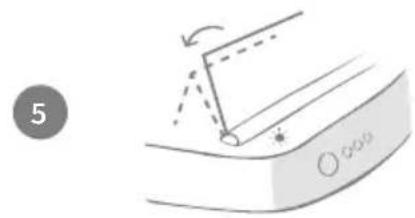
Hand pressing a button on a control panel with switches and indicators (no text or symbols visible)Start to increase the motion of the lid by pressing the 'Training mode' button once again. The lid will close a small amount and the rear LED will flash orange twice.
natural_image
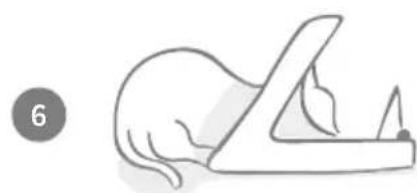
Diagram showing a mechanical or fluidic component with an arrow indicating direction, no text or symbols presentNow when your pet eats from the bowl there will be some movement as the lid opens fully. When they finish eating, it will close slightly.
natural_image
Simple line drawing of a cat lying on a wooden plank, no text or symbols presentAllow your pet time to get used to the new lid movement. When you need to replace their food do so as normal - see page 17. After replacing the food, ensure you press the open/close button (◀) to close the lid to its training position.
Remember to take your time. Do not proceed to the next stage until your pet is confident with this amount of lid movement.
natural_image
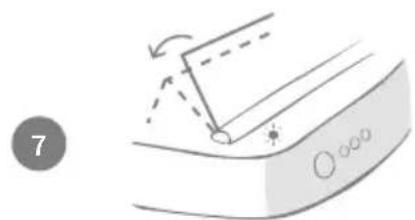
Diagram showing a mechanical or fluidic component with an arrow indicating direction, no text or symbols presentOnce your pet is happy with the movement, press the 'Training mode' button (again). The lid will close to the next position and the rear LED will now flash orange 3 times.
Again, continue to use the Feeder normally and do not proceed to the next stage until your pet is confident with this motion.
natural_image
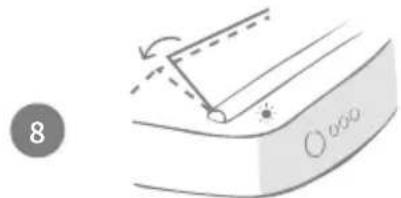
Diagram showing a mechanical component with an arrow indicating rotation, labeled '8' and 'O ooo' (no text or symbols beyond labels)Your pet should be happy with the lid movement now so this final stage of training has the lid closed even further. As before, press the 'Training mode' button (again). The lid will close to its final position and the rear LED will now flash orange 4 times.
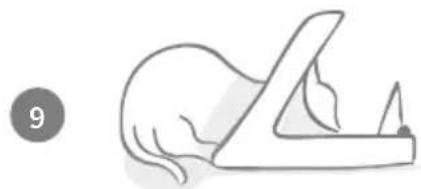
natural_image
Simple line drawing of a hand pressing down on a flat surface, no text or symbols presentOnce your pet is happy with this final position, press 📂again. The lid will close fully and the rear LED will no longer flash. The Feeder is now sealed and in daily use mode.
You can end the training mode at any time by pressing and holding the 'Training mode' button (for 5 seconds.

If you need to go back a step, follow the tip above. This takes the Feeder out of training mode and you can then start the process from the beginning.

If your pet appears nervous of the lid closing after they have backed away, on the Sure Petcare app you can adjust the length of time before the lid closes.
Introducing a cautious pet to the feeder
In some cases you may find your pet will need a bit more time to become comfortable with their new feeder, even during training mode. If this is the case it is important to let them get used to the changes in their feeding environment gradually. This can take several weeks but is well worth the effort.

natural_image
Simple line drawing of a bowl containing a textured food item, labeled with number 1 (no text or symbols on the object itself)Start by replacing your pet's normal bowl with the SureFeed bowl. Take the batteries out of the feeder and remove it from their feeding environment completely.
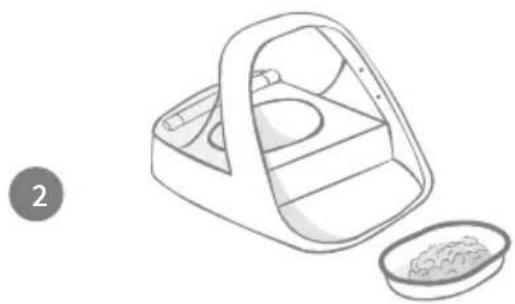
natural_image
Illustration of a food delivery box with a side dish containing rice (no text or symbols)Once your pet seems comfortable with the new bowl (this could be days), reintroduce the feeder into their environment. Make sure the batteries are still removed.
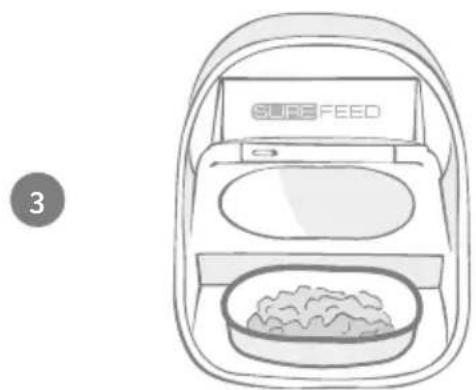
natural_image
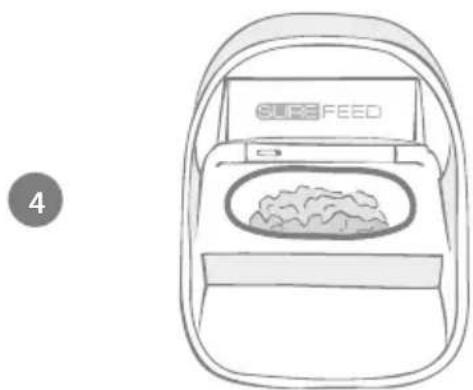
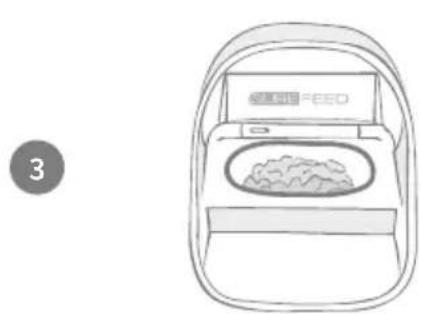
Line drawing of a rice cooker with a bowl of rice and a labeled 'SURE FEED' on the lid (no text beyond label)Once your pet is comfortable with the feeder being in the environment, move the bowl onto the feeder mat.
natural_image
Line drawing of a rice cooker with a labeled 'SURE FEED' screen (no additional text or symbols)When they are happy, reinsert the batteries and move the bowl into the feeder with the lid open. Do this by either pressing the open/close button or by selecting the first stage of training mode.

natural_image
Gray graduation cap icon with circular arrow and letter 5, no text or symbols presentYou can now work through the training process, ensuring that your pet is happy with the lid movements at each stage.
natural_image
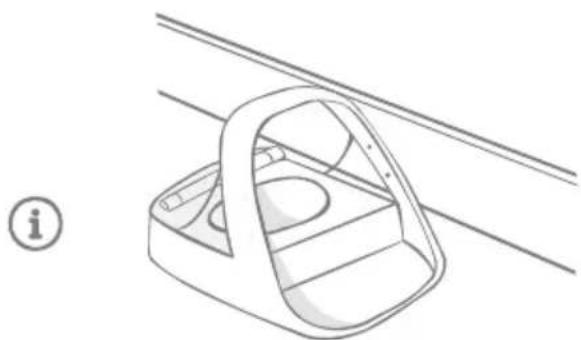
Line drawing of a mechanical component with a handle and internal structure, no text or symbols presentWatch how your pet approaches the feeder. If it is always in a certain direction, don't be afraid to change the feeder position to help them.
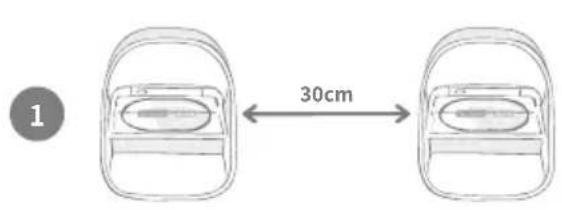
Each pet will require their own feeder to allow for the correct monitoring and control of individual diets. If you are trying to train multiple pets to use their feeders please be aware that, because the lid will be left slightly open, they will be able to access each other's food until the later stages of training mode. During this time continue to monitor and manage your pet's food intake.
text_image
1 30cmThe feeders should be placed at least 30 cm apart so that they don't interfere with each other.
natural_image
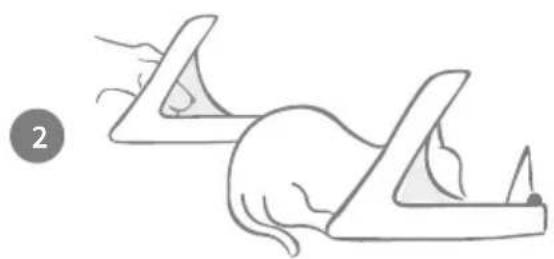
Illustration of two hand positions on a flat surface, one with a triangular handle and the other with a curved handle (no text or symbols)Placing the feeders apart also means you can remember whose feeder is whose. Using different coloured bowls can also help with this.
natural_image
Line drawing of a rice cooker with a plate and lid, no text or symbols presentMake sure that all pets get used to eating from the feeder when in the open position before starting the training modes.
natural_image
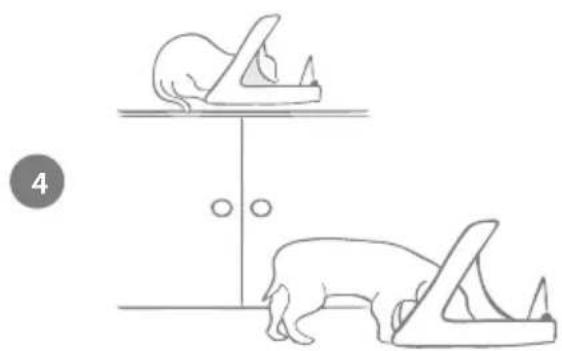
Simple line drawing of two animals on a cabinet, one lying flat and one standing upright (no text or symbols)At this point pets can eat from all feeders. If you are trying to keep a dog from eating your cat's food, it may help to keep your cat's feeder off the floor or contact customer support about custom settings.
natural_image
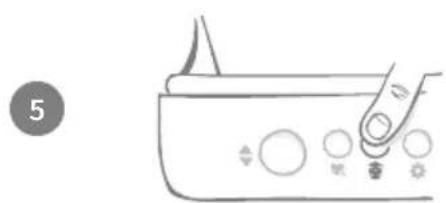
Line drawing of a hand pressing down on a control panel with buttons (no text or symbols)When you start using the training mode remember to only move to the next stage once your pet is used to the movement of the lid.

natural_image
Illustration of two hand positions on a flatbed surface, one with checkmark indicating correct posture (no text or symbols)As you progress through the training modes, your pets will also learn which feeder is theirs because it will open only for them.
Cleaning & maintenance
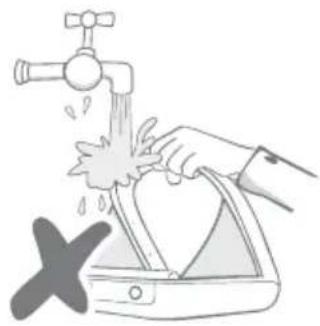
It is important to keep your Microchip Pet Feeder Connect clean to ensure it functions reliably. Do NOT submerge the whole unit into water or place it under a running tap! Water can cause damage to the Feeder and its electronics.
natural_image
Illustration of a hand washing a washing machine with a faucet, no text or symbols present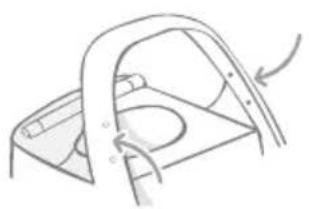
natural_image
Simple line drawing of a car interior frame with a curved handle and arrow indicating rotation (no text or symbols)Ensure the four black dots on the hoop are kept clean at all times. The mat can be wiped clean using a damp cloth. Do not put items in the dishwasher. Hand-wash only.
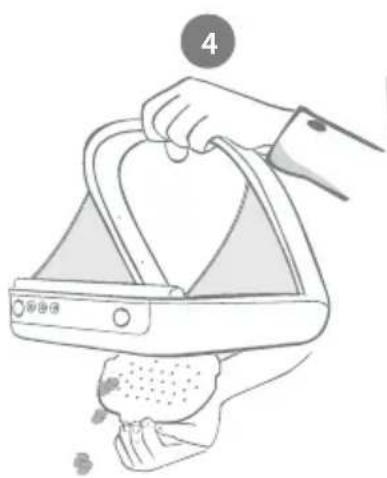
The Microchip Pet Feeder Connect includes a cleaning access cover on its base to make it easier to remove crumbs or debris.
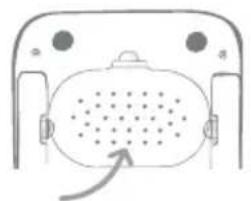
natural_image
Diagram of a device with a central speaker and two circular ports, showing an arrow pointing to the speaker (no text or symbols present)How to remove the lid for cleaning
natural_image
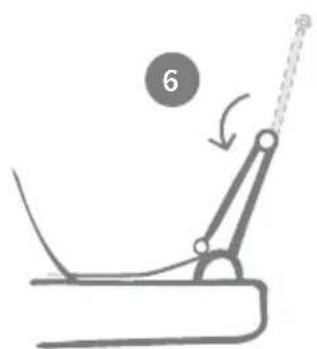
Diagram of a mechanical lever mechanism with a numbered circle and rotation arrow (no text or symbols)Now flip the top half of the lid back over so it is resting on the lid guides.
text_image
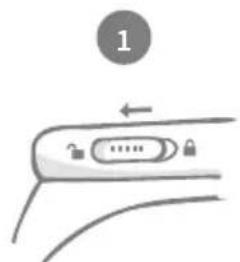
1Move the lid lock slider to the unlocked position.
text_image
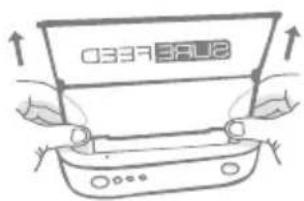
03373812Press the (◆button. Once the lid is open, pull it upwards.
text_image
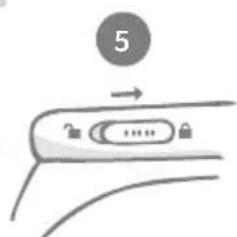
5Move the lid lock slider back to the locked position.
text_image
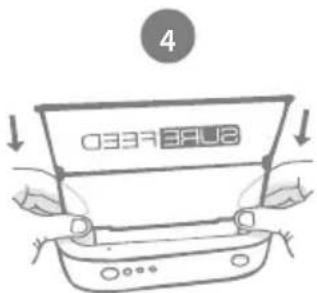
4 SAFEAfter cleaning, replace the lid keeping both halves vertical. Make sure it is securely fitted.

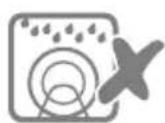
Hand-wash only. Do not put it in a dishwasher.
How to ensure your Feeder is kept clean
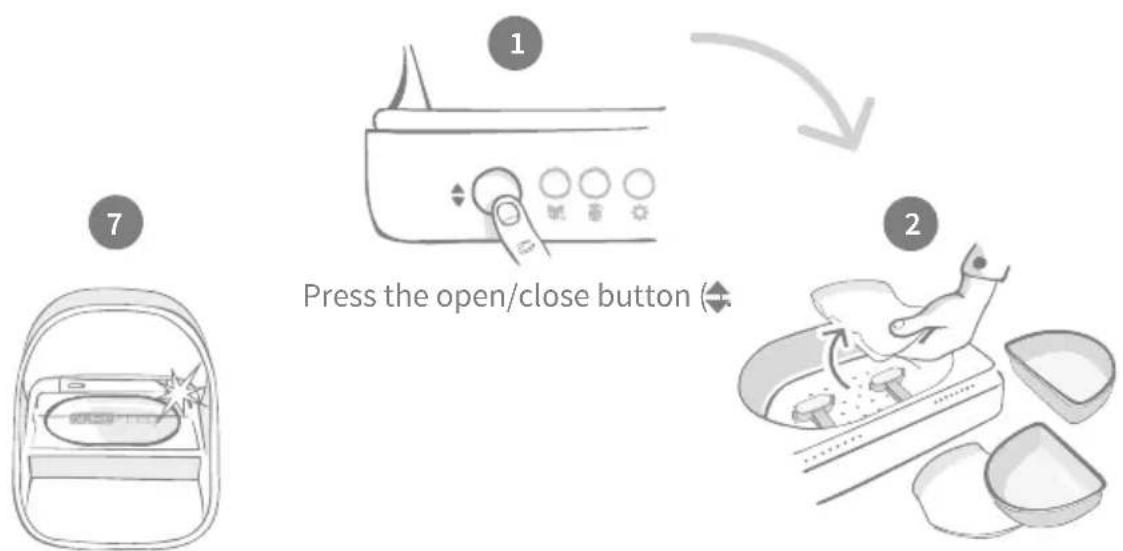
Reattach all of the parts, making sure to attach the cleaning access cover first.
natural_image
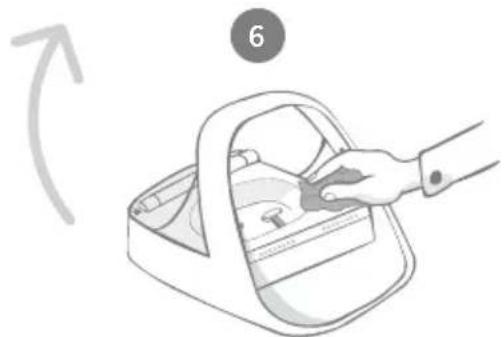
Illustration of a hand placing a small object into a rectangular box with a handle, no text or symbols presentUse a damp cloth to ensure that all the surfaces of the Feeder are clean. Do not use any abrasive cleaning products.
flowchart
graph TD
    A["Raw Materials"] --> B["Processed CPE LEED"]
    B --> C["Finished CPE LEED with Powder"]
    C --> D["Finished CPE LEED with Powder"]
    D --> E["Finished CPE LEED with Powder"]
    style A fill:#f9f,stroke:#333
    style B fill:#ccf,stroke:#333
    style C fill:#cfc,stroke:#333
    style D fill:#fcc,stroke:#333
    style E fill:#cff,stroke:#333
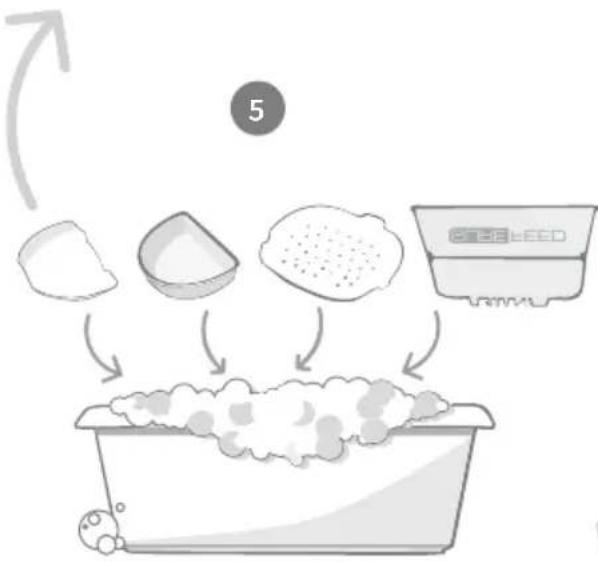
Hand-wash all the removable parts.
Do not put them in a dishwasher.
Remove the bowls, bowl supports and the lid - see previous page.
natural_image
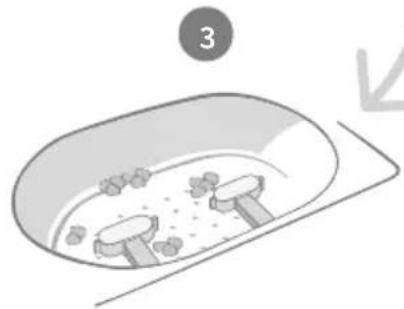
Simple line drawing of a bathtub with mushrooms inside (no text or symbols)Debris stuck around the weighing arms can affect the performance of the Feeder, so it is very important to keep it clean. Do not use any abrasive sponges as they can damage the Feeder and cause it not to work properly.
natural_image
Illustration of a hand cleaning a kitchen appliance with a cloth (no text or symbols)Hold the Feeder above the bin, remove the cleaning access cover and let the debris fall out.
Custom settings
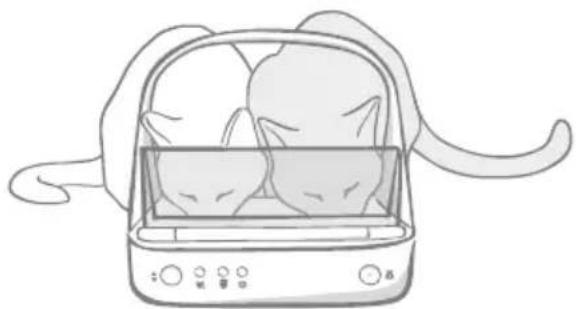
We understand that not all pets behave in the same way, so we've designed the Microchip Pet Feeder Connect to accommodate this. The Feeder contains a variety of custom settings designed to help if your pets use the Feeder in unexpected or unusual ways. Below are just a few examples of animal behaviour which the custom settings can overcome:
natural_image
Line drawing of a hand holding a steamer with two cats inside (no text or symbols)Does your unauthorised pet push their way in to eat at the same time as your authorised pet?
We have a custom setting for that!
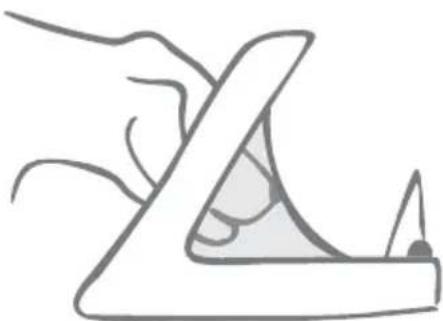
Does your unauthorised pet like to steal food from another pet's Feeder whilst it's in training mode?
We have a custom setting for that!
natural_image
Simple line drawing of a hand using a tool to cut or spread a triangular object (no text or symbols)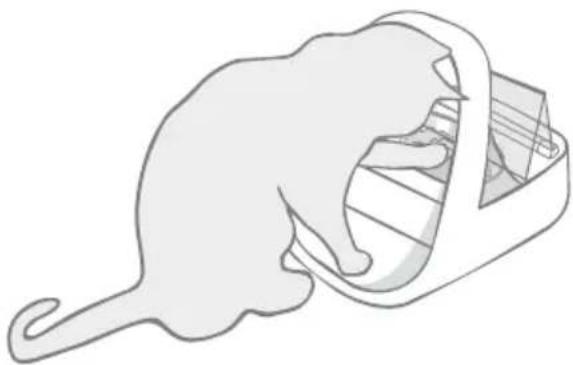
natural_image
Illustration of a cat emerging from a box (no text or symbols)Has your clever unauthorised pet worked out how to stop the lid closing?
We have a custom setting for that!
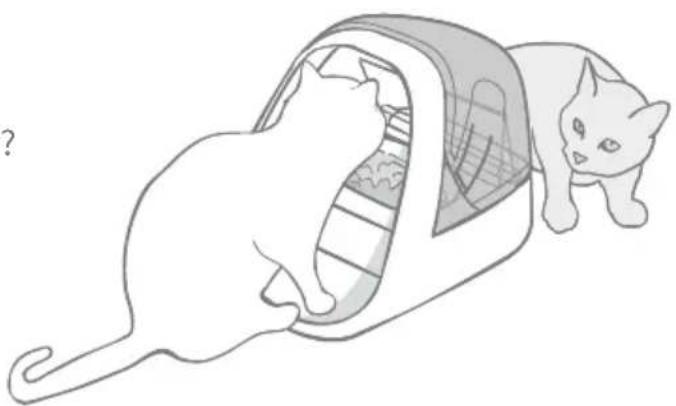
Does your unauthorised pet try to steal food from the rear of the Feeder?
We have an accessory for that!
Go to surepetcare.com/accessories and look for the Rear Cover.
natural_image
Illustration of a cat inside a transparent container with a cat emerging from its side (no text or symbols)Please contact our customer care team to discuss custom settings - see the back cover for details. They'll be able to recommend the most appropriate custom setting for your situation and set it up for you remotely.
The Hub
Red flashing ears
Your Hub has lost connection with the Microchip Pet Feeder Connect.
- If you are seeing both ears flashing red during setup, please perform a factory reset by pressing the button on the base of your Hub for 10 seconds.
- If you are seeing both ears flashing red for prolonged periods after setup, try power cycling your Hub. Switch the power off at the socket, leave it for 30 seconds, and then turn it back on. If the ears remain solid green for a few minutes, the Hub has reconnected.
- You can also try relocating your Hub following the advice given on page 9. If that doesn't work, you will need to move your Hub closer to the Feeder - read below.
- In order to move your Hub closer try connecting it to your router using a longer Ethernet cable.
- If the above doesn't work, we recommend purchasing an ‘Ethernet over power adapter’. This will plug into a normal power socket and allow you to connect your Hub to the internet closer to your feeder.
Alternating flashing ears (red or green)
Your Hub is having problems connecting to the Sure Petcare servers. This could be because of an unreliable internet connection.
- Try power cycling your Hub by switching the power off at the socket, leaving it for 30 seconds, and then turning it back on. If the ears remain solid green for a few minutes, the Hub has reconnected.
- If the above doesn't work, make sure your internet router is turned on and that your internet connection is working correctly with other devices.
- If it isn't working with other devices, try switching your router off, leaving it for 30 seconds, and then turning it back on.
- If your router is working with other devices, try re-connecting the Ethernet cable into the router and the Hub. Make sure it is pushed in all the way, as it can appear connected when it isn't.
If you keep having connectivity issues please visit: surepetcare.com/hub-connectivity
Solid red ears
Your Hub is undergoing a firmware update. Be patient and wait for the Hub ears to turn green. This shouldn't take longer than 2 minutes. Once the firmware update is complete the Hub will need to reboot. At this point you will see the setup light sequence - see page 10.
Slow notifications
If you find some messages are slow to appear on your app, this is likely because your Hub is having to work hard to connect to your Microchip Pet Feeder Connect. To improve the speed of messages, try moving your Hub to a better location following the advice given on page 9.
Microchip Pet Feeder Connect
If there are any mechanical issues with your Feeder, please do not try and fix these yourself. Instead, contact our friendly customer service team - see back cover for contact details.
The Feeder won't open for my pet
- Ensure the 4 x sensors inside the hoop are clean - see page 23.
- Check that you used good quality alkaline batteries and that they are not running low. Ensure the + and - of the batteries are in the correct orientation - see page 11.
- Move the Feeder away from any metallic or electrical appliances. If the Feeder still won't open for your authorised pet, continue reading.
- Check that there are no obvious sources of electrical noise in the area i.e. faulty flickering lights, etc. If you suspect there are, please call our customer care team - see the back cover for details.
- If the above doesn't work, check with your vet to ensure that your pet's microchip is working and that it is located in the normal place. If it has moved significantly, it will have become hard to read. In the meantime you could use the Sure Petcare RFID Collar Tag provided. Attach the collar tag to your pet's collar and repeat the 'Add a pet' process - see pages 15.
My pet is not happy using the Feeder
- Repeat the training process allowing more time for your pet to feel comfortable between each step - see page 19-20.
- If your pet is still very cautious of the Feeder then try following the steps on page 21 ensuring you don't try to force your pet to feed at any point.
- Assess your pet's feeding environment. Do they always approach their bowl from a set angle? Are they worried about having their back to the door? There is no set orientation that the Feeder must be placed in so, if you can, change it to help your pet feel more comfortable.
- If the time delay for the lid to close (after your pet has finished eating and stepped back) is not right for them, you can increase/decrease the time it takes to close in the Sure Petcare app.
The Feeder lid is not closing all the way
- This could be caused by food debris getting caught under the lid or in the mechanism. To ensure that the lid continues to close correctly it is important to clear food debris from the surfaces of the Feeder - see page 23-24.
- Make sure you are not in a training mode, visit page 19 to learn more about training mode behaviour.
Portion indicator lights are on but the bowl is empty
If when you open the Feeder some of the portion indicator lights are green, even though there is no food left in the bowls, it highlights the need for zeroing. To solve this, make sure to always press the zero button before replacing your pet's food - see page 17-18.
The portion indicator lights are not responding
- Please be aware that if you haven't set a portion weight on the Sure Petcare app, the portion indicator lights will not illuminate when adding your pet's food.
- Also, debris stuck around the weighing arms can affect the performance of the Feeder, so please make sure that this area is clean - see page 23-24.
Other pets are stealing food
- If greedy pets are trying to steal food from an open Feeder, you can try reducing the time it takes for the lid to close after the pet has finished eating via the Sure Petcare app.
- There may be a custom setting that will help solve your specific problem. Please contact our customer care team to discuss your situation - see back cover for contact details.
- Alternatively, if greedy pets are managing to steal food by going around the back or the side of the Feeder (when the lid is open and the authorised pet is eating) then we have created a rear cover that will help stop such clever and determined behaviour. For more information go to surepetcare.com/accessories
Short battery life
- Ensure your Feeder is clean and there is no dirt obscuring the sensors - see page 23.
- Ensure you have used good quality batteries and that they are fitted correctly - see page 11.
- Check there are no obvious sources of electrical noise in the area (i.e. faulty flickering lights, etc). If you suspect there are, please call our customer care team. See back cover for details.
Multiple Feeders in one household
- If you find that you or your pets get confused by which Feeder is theirs, try using different coloured bowls as well as more distinctly separate feeding locations. This should help with this. Different coloured bowls and mats are sold separately. For more information go to surepetcare.com/accessories
Still in need of assistance?
- If you keep having connectivity issues please visit: surepetcare.com/hub-connectivity
- For more guidance, videos and customer help forums visit: surepetcare.com/support
- If you're having issues with your Sure Petcare app please visit: surepetcare.com/apphelp
- If you keep having connectivity issues please visit: surepetcare.com/hub-connectivity - For more guidance, videos and customer help forums visit: surepetcare.com/support - If you're having issues with your Sure Petcare app please visit: surepetcare.com/apphelp
Or you can contact our friendly customer care team. Please see the back cover for details.
Warranty: The SureFeed Microchip Pet Feeder Connect carries a 3-year warranty from the date of purchase, subject to proof of purchase date. The warranty is restricted to any fault caused by defective materials, components or manufacture. This warranty does not apply to products whose defect has been caused by normal wear and tear, misuse, neglect or intentional damage. In the event of a part failure due to faulty parts or workmanship, the part will be replaced free of charge during the warranty period only. At the manufacturer's discretion, a replacement product may be provided free of charge in the case of a more serious malfunction. Your statutory rights are not affected.
Disclaimer: The Microchip Pet Feeder Connect and app report pet food consumption by detecting a pet's microchip ID and then measuring the weight of the bowl before and after they finish eating. In most cases this will give reliable pet food consumption data, however unexpected or unusual use of the Feeder (i.e. a pet removing the bowl or playing with food) may lead to unreliable information. Sure Petcare cannot accept liability for any damage, harm or inconvenience which may be incurred as a result of incorrect reporting of pet food consumption.
The SureFeed Microchip Pet Feeder Connect incorporates selective access features which have been designed to minimise the risk of pets eating each other's food. However, it is not possible to fully guarantee the exclusion of all other pets in all circumstances. In the rare event of an unauthorised pet gaining access to the Feeder, Sure Petcare cannot accept liability for any damage or inconvenience which may be incurred.

Disposal of Products and used Batteries: This icon indicates products that are subject to the following legislation:
The Waste Electrical and Electronic Equipment Directive 2012/19/EU (WEEE Directive) & The Battery Directive 2006/66/EC and Amendment 2013/56/EU places an obligation on households to dispose of the waste batteries and products that have reached the end of their life in an environmentally responsible manner as this will reduce the impact the waste will have on the environment, therefore these cannot be placed in household waste bins and should be recycled at an appropriate recycling facility. Further information on recycling can be found at: www.recycle-more.co.uk
Ensure batteries are replaced before the expiry date shown on the packaging or battery itself, and disposed of safely and appropriately.
In case of battery leaks, wear appropriate protective clothing to protect yourself from any exposure to harmful chemicals before disposing of the batteries and cleaning any spillage. When cleaning a spillage, avoid contact with skin. Battery chemicals shouldn't be placed near the eyes or ingested. Contact a medical professional immediately if this should occur.
FCC compliance: This device complies with Part 15 of the FCC Rules. Operation is subject to the following two conditions:
(1) this device may not cause harmful interference, and
(2) this device must accept any interference received, including interference that may cause undesired operation.
Changes or modifications not expressly approved by the party responsible for compliance could void the user's authority to operate the equipment. This device has been designed and complies with the safety requirements for RF exposure in accordance with FCC rule part §2.1093 and KDB 447498 D01.
IC compliance: CAN ICES-3(B)/NMB-3(B): This device complies with Industry Canada license-exempt RSS standards. Operation is subject to the following two conditions:
(1) this device may not cause interference, and
(2) this device must accept any interference received, including interference that may cause undesired operation of the device.
To meet RF exposure guidelines, a separation distance of 200 mm should be maintained. This device complies with the safety requirements for RF exposure in accordance with RSS-102 Issue 5 for portable use conditions.
Trademarks: Google Play and the Google Play logo are trademarks of Google Inc. Apple, is a trademark of Apple Inc., registered in the U.S. and other countries. App Store is a service mark of Apple Inc., registered in the U.S. and other countries. IOS is a trademark or registered trademark of Cisco in the U.S. and other countries and is used under license.

natural_image
Simple line drawing of a paw print with no text or symbolsSURE
PETCARE
natural_image
Illustration of a sitting adult and a younger cat (no text or symbols)text_image
Diagram showing seven labeled parts of a food item, including a spoon and bowl with numbered annotations.
natural_image
Silhouette of a dog and a cat, no text or symbols presentnatural_image
Simple gray icon of a clock with a 'X' mark, no text or symbols presentnatural_image
Simple line drawing of a smiling baby face with a bow (no text or symbols)natural_image
Simple icon of a smiling baby face with a bow, enclosed in a shield shape (no text or symbols)natural_image
Illustration of a bag with arrows indicating motion or rotation (no text or symbols)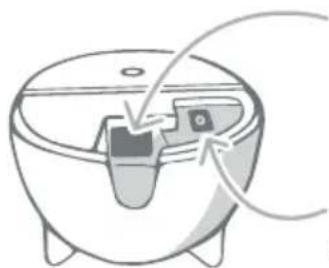
natural_image
Diagram of a kitchen appliance with a handle and control panel, no text or symbols presentnatural_image
Simple line drawing of three empty containers with lids, no text or symbols presentnatural_image
Simple line drawing of an oval bowl with a starburst on the rim (no text or symbols)natural_image
Diagram showing a connector inserted into a device with a cable, no text or symbols presentnatural_image
Diagram of a medical device with a plug inserted into a bowl, showing internal components and a cable (no text or labels)natural_image
Simple line drawing of a cat-shaped object with a string inserted, no text or symbols presenttext_image
4 Sure Petcare Applnatural_image
Illustration of a cat on a table with a checkmark and 1-meter scale indicator (no text or symbols on the cat or table)natural_image
Illustration of a mouse, a fishbowl with a fish inside, and a cross symbol on a table (no text or labels)natural_image
Illustration of a mobile phone on a desk with a cat and a cross symbol (no text or labels)natural_image
Simple line drawing of a kitchen counter with a bag and a door, no text or symbols presentnatural_image
Simple line drawings of a bag, a ladder, and a lamp (no text or symbols)natural_image
Top-down schematic of a device with labeled ports and central display (no text or symbols)natural_image
Top-down diagram of a car showing front and rear seats with battery plates (no text or symbols)natural_image
Line drawing of a small boat-shaped container in a corner, no text or symbols presenttext_image
Sure Petcare App!natural_image
Simple line drawing of a hat with radiating lines and a number 3 in the top-left corner (no text or symbols on the hat itself)natural_image
Simple line drawing of a folded paper or scroll with a circular button labeled '0' and '000' on the base (no text or symbols beyond labels)natural_image
Pure electrical circuit lines without any symbols
natural_image
Simple line drawing of a car door with a circular button and camera icon (no text or symbols)Deckelverriegelung

text_image
Diagram showing two steps of a device lock operation, with Chinese labels and directional arrows indicating movement.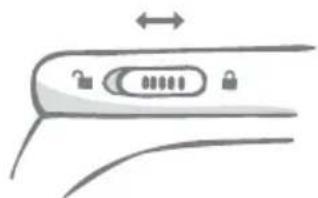
natural_image
Diagram of a car door handle with lock and adjustment knob (no text or symbols)natural_image
Diagram of a curved surface with a pointed tool and circular symbols, no readable text or labelsLED-Portionsanzeige
natural_image
Diagram of a car interior with two compartments and circular indicators on the backrest (no text or symbols)natural_image
Diagram of a device with a circular component and directional arrows indicating movement or rotation (no text or symbols)
natural_image
Line drawing of a hand pressing down on a control panel with switches (no text or symbols)natural_image
Diagram showing a curved surface with arrows indicating direction and a small circle labeled '2' at the bottom (no text or symbols on the main diagram)natural_image
Illustration of a food bag with food items and a snack bag (no text or symbols)natural_image
Simple line drawing of a hand pressing down on a flat surface, no text or symbols presentnatural_image
Simple line drawings of a cat and a slide with an arrow indicating rotation (no text or symbols)natural_image
Illustration of a finger pressing down on a curved surface with a cat icon and an 'i' mark (no text or symbols)text_image
Sure Petcare App!natural_image
Illustration of a hand using a knife to cut food items on a scale, with no visible text or symbols.natural_image
Close-up of a hand operating a device with a circular indicator labeled '4' (no text or symbols on the device itself)natural_image
Simple line drawing of a bowl containing berries, with six empty circles below (no text or symbols)natural_image
Illustration of a container filled with granular material and a row of circular patterns below (no text or symbols)natural_image
Line drawing of a control panel with buttons and a finger pointing to the right (no text or symbols)natural_image
Simple line drawing of a hand pressing down on a flat surface, no text or symbols presentnatural_image
Hand pressing down on a control panel with buttons and a triangular indicator (no text or symbols visible)natural_image
Diagram showing a mechanical or structural component with an arrow indicating direction, no text or symbols presentnatural_image
Simple line drawing of a cat lying on a flat surface, no text or symbols presentnatural_image
Diagram showing a curved surface with a dashed line and a circular mark labeled 'O ooo' (no text or symbols beyond label)natural_image
Diagram showing a mechanical component with an arrow indicating rotation, labeled '8' and 'O200' (no text or symbols on the diagram itself)natural_image
Simple line drawing of a cat lying down with a triangular head (no text or symbols)natural_image
Simple line drawing of a food item inside an oval bowl (no text or symbols)natural_image
Illustration of a food delivery container with a side dish containing rice (no text or symbols)natural_image
Line drawing of a food delivery box with a bowl of rice, labeled 'FEED' and number 3 (no text on the diagram itself)natural_image
Line drawing of a food delivery box with a rice dish inside, labeled 'FEED' on the cover (no other text or symbols)natural_image
Gray graduation cap icon with circular arrow and letter 5, no text or symbols presentnatural_image
Line drawing of a mechanical component with a handle and internal slots, connected to a diagonal line (no text or symbols)natural_image
Illustration of two hand positions on a flat surface, one with a triangular handle and the other with a curved handle (no text or symbols)natural_image
Line drawing of a rice cooker with a plate and lid, no text or symbols presentnatural_image
Simple line drawing of two animal figures on a table, one lying down and the other standing upright (no text or symbols)natural_image
Line drawing of a portable electronic device with control buttons and a knob (no text or symbols)natural_image
Illustration of two hand positions on a flatbed surface, one with a checkmark indicating a correct stance (no text or symbols present)natural_image
Illustration of a hand washing a car with a faucet and splashing water (no text or symbols)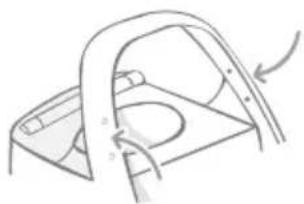
natural_image
Simple line drawing of a chair with a curved arm and seat, no text or symbols presentnatural_image
Diagram of a showerhead with control buttons and an arrow indicating direction (no text or symbols)natural_image
Simple line drawing of a mechanical lever mechanism with a numbered circle and arrow (no text or symbols)natural_image
Simple line drawing of a washing machine with a label '7' (no text or symbols on the diagram itself)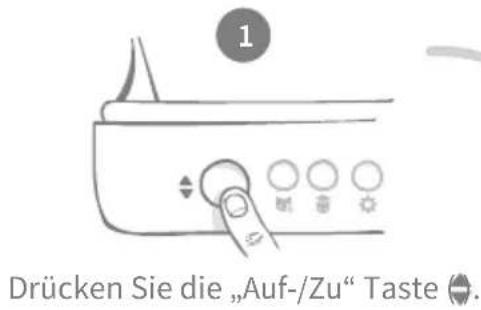
natural_image
Illustration of a hand cleaning food items in a tray with a tool, surrounded by smaller bowls (no text or symbols)natural_image
Illustration of a hand holding a small object into a plastic bag with a handle, no text or symbols presentnatural_image
Illustration of a bathtub with two small bowls and scattered items, no text or symbols presentflowchart
graph TD
    A["Raw food preparation"] --> B["Raw food with granular substance"]
    B --> C["Add granular substance into tank"]
    C --> D["Product packaging with 3D printing"]
    style A fill:#f9f,stroke:#333
    style D fill:#ccf,stroke:#333
natural_image
Illustration of a toaster oven with two cats inside, no text or symbols presentnatural_image
Simple line drawing of a hand using a tool to cut or spread a piece of paper (no text or symbols)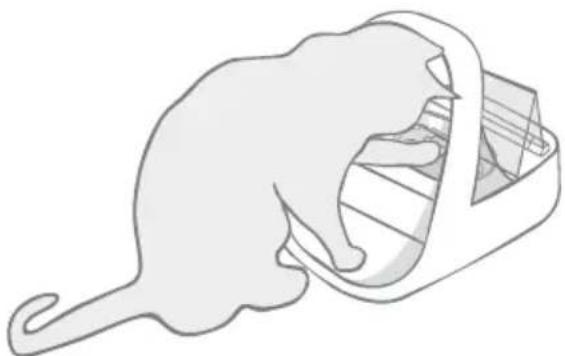
natural_image
Illustration of a cat emerging from a box (no text or symbols)natural_image
Illustration of a cat carrying a transparent container with mesh pattern (no text or symbols)surepetcare.com/hub-connectivity
natural_image
Line drawing of a 3D-printed device with a labeled base (SURE) and control panel, no text or symbols present.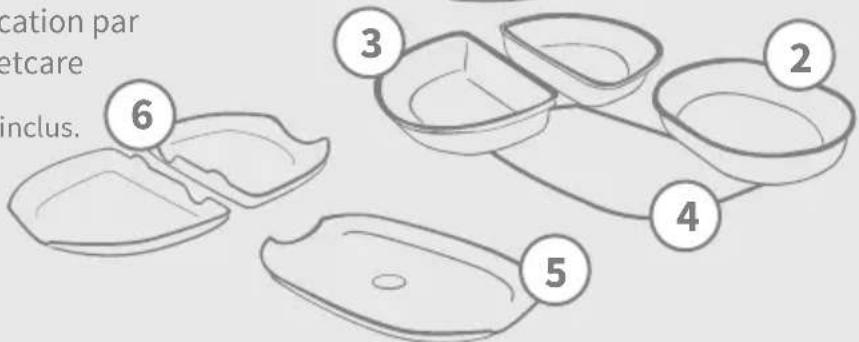
natural_image
Silhouette of a dog and a cat, no text or symbols presentnatural_image
Simple gray icon of a clock with a 'X' symbol, no text or numbers presentnatural_image
Simple gray line drawing of a smiling baby face with a bow (no text or symbols)natural_image
Simple icon of a smiling baby face inside a shield shape (no text or symbols)natural_image
Illustration of a bag with a handle and arrow indicating rotation or motion (no text or symbols)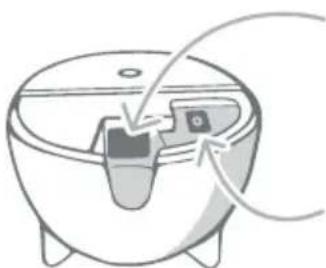
natural_image
Diagram of a kitchen appliance with a button and arrow indicating rotation (no text or symbols)natural_image
Simple line drawing of three stacked containers with one partially filled (no text or symbols)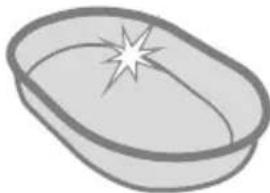
natural_image
Simple line drawing of an oval bowl with a starburst on top (no text or symbols)natural_image
Diagram showing a medical device connected to a patient's ear with an attached device (no text or symbols present)natural_image
Diagram of a medical device with a plug inserted into a bowl, showing internal components and wiring (no text or labels)natural_image
Simple line drawing of a cat-shaped object with a lit tail and a string attached to its neck (no text or symbols)text_image
4 Sure Petcare Applnatural_image
Illustration of a cat on a table with a checkmark and 1-meter scale indicator (no text or symbols)natural_image
Illustration of a fishbowl with a small dog, a mouse, and a fish inside (no text or symbols)natural_image
Illustration of a desk with a phone, a cat, and a mouse (no text or symbols)natural_image
Simple line drawing of a kitchen counter with a bag and a door, no text or symbols presentnatural_image
Simple line drawings of a box, a ladder, and a sleeping figure (no text or symbols)natural_image
Three identical cartoon-style cat head illustrations with radiating lines, no text or symbols presentnatural_image
Three identical cartoon-style cat head illustrations with radiating lines, no text or symbols presentnatural_image
Three cartoon cat head illustrations with different angles and shading, showing a drop in the rightmost (no text or symbols)natural_image
Top-down schematic of a device with labeled ports and a central display (no text or symbols)natural_image
Top-down diagram of a car interior showing front, rear, and side views with no text or symbolsnatural_image
Line drawing of a small boat-shaped container with side compartments, placed inside a corner (no text or symbols)text_image
Sure Petcare Applnatural_image
Simple line drawing of a hat with radiating lines and a number 3 in the top-left corner (no text or symbols on the hat itself)natural_image
Simple line drawing of a curved surface with a circular button labeled '000' and a page number '5' (no text or symbols beyond basic diagram)natural_image
Pure electrical control panel diagram without any text, numbers, or symbols
natural_image
Simple line drawing of a car door with a circular button and a camera (no text or symbols)natural_image
Simple line drawing of a car door handle with lock and question mark (no text or symbols)natural_image
Simple line drawing of a curved surface with a circular mark and directional arrows, no text or symbols present.natural_image
Diagram of a car front panel with circular buttons and directional arrows indicating rotation (no text or symbols)natural_image
Diagram of a device with a circular component and directional arrows indicating rotation or movement (no text or symbols)
natural_image
Diagram showing a curved surface with arrows indicating direction and circular symbols, no readable text or labels present.natural_image
Illustration of a food delivery box with food items and a Yum! packet, no text or symbols presentnatural_image
Simple line drawing of a cat's head and torso (no text or symbols)natural_image
Simple line drawings of a cat and a slide with a curved arrow (no text or symbols)natural_image
Illustration of a finger pressing down on a curved surface with an icon and cat symbol (no text or labels)natural_image
Simple line drawing of a sitting cat with no text or symbols
natural_image
Stethoscope icon illustration (no text or symbols)text_image
Sure Petcare App!natural_image
Illustration of a hand using a tool to lift or rotate a piece of bread into a tray, with no text or symbols present.natural_image
Simple line drawing of a finger pressing down on a device (no text or symbols)natural_image
Simple line drawing of a bowl containing berries, with circular symbols below (no text or labels)natural_image
Illustration of a container filled with granular material, accompanied by a row of star-shaped diagrams below (no text or symbols)natural_image
Line drawing of a hand pressing down on a control panel with buttons (no text or symbols)natural_image
Simple line drawing of a person lying on a chair with a triangular head (no text or symbols)natural_image
Line drawing of a hand pressing down on a control panel with buttons (no text or symbols)natural_image
Diagram showing a mechanical joint or bracket with an arrow indicating rotation, no text or symbols presentnatural_image
Simple line drawing of a cat sitting on a chair with legs raised (no text or symbols)natural_image
Simple line drawing of a mechanical component with no text or symbolsnatural_image
Diagram of a mechanical component with curved surfaces and a rotating arrow, no text or symbols presentnatural_image
Simple line drawing of a cat lying down with a triangular head (no text or symbols)natural_image
Simple line drawing of a bowl containing a textured food item, labeled with number 1 (no text or symbols on the object itself)natural_image
Illustration of a food delivery box with a side dish containing rice (no text or symbols)natural_image
Line drawing of a rice cooker with a bowl of food inside, no text or symbols presentnatural_image
Line drawing of a food delivery box with a tray labeled 'SUREFEED' and a circular badge showing number 4 (no text on main body)natural_image
Gray graduation cap icon with circular arrow symbol, no text or numbers presentnatural_image
Line drawing of a mechanical component with a handle and circular cutout, connected to a diagonal line (no text or symbols)natural_image
Illustration of two hand positions on a flat surface, one with a curved handle and the other with a triangular handle (no text or symbols)natural_image
Line drawing of a food delivery box with a tray labeled 'FEED' and an oval containing a food item (no text or symbols on the diagram itself)natural_image
Illustration of two animal figures on a table, one lying down and the other standing upright (no text or symbols)natural_image
Line drawing of a hand pressing down on a control panel with switches and buttons (no text or symbols)natural_image
Illustration of two hand positions on a flat surface, one with checkmark indicating correct posture (no text or symbols)natural_image
Illustration of a hand washing a washing machine with a faucet, showing water splashing from the drain (no text or symbols)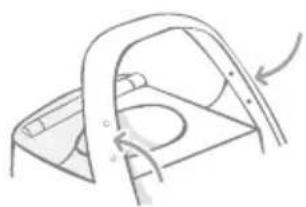
natural_image
Simple line drawing of a car seat frame with an arrow indicating direction (no text or symbols)natural_image
Diagram of a device with labeled ports and a dotted pattern inside, no readable text or symbolsnatural_image
Diagram of a mechanical lever mechanism with a numbered circle and rotation arrow (no text or symbols)text_image
0337 BHA2natural_image
Two gray icons: a hand washing in a basin with checkmark and a checkmark inside a square with circles and droplets (no text or symbols)natural_image
Simple line drawing of a car with a handle and window (no text or symbols)1
natural_image
Line drawing of a control panel with four buttons labeled 1 to 4 (no text or symbols on the panel itself)natural_image
Illustration of a hand cleaning food items in a bowl, with additional bowls nearby (no text or symbols)natural_image
Line drawing of a hand holding a small object inside a plastic bag (no text or symbols)natural_image
Simple line drawing of a bathtub with two small bowls and scattered debris (no text or symbols)text_image
Diagram illustrating food preparation steps with labeled ingredients and a soap bath setupnatural_image
Illustration of a hand using a cleaning tool to clean or wash a surface (no text or symbols)natural_image
Illustration of a hand holding a steamer with cat-shaped cutouts (no text or symbols)natural_image
Simple line drawing of a hand using a tool to cut or spread a triangular object (no text or symbols)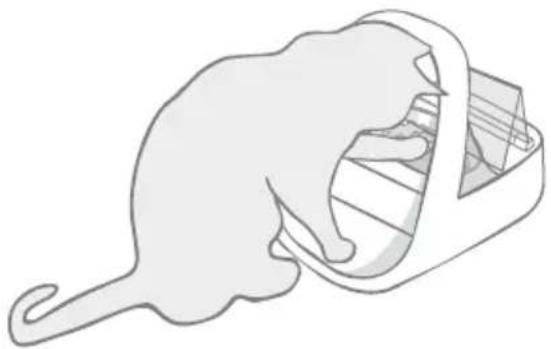
natural_image
Illustration of a cat emerging from a box (no text or symbols)natural_image
Illustration of a cat inside a transparent container with a cat peeking out (no text or symbols)IC compliance: CAN ICES-3(B)/NMB-3(B): This device complies with Industry Canada license-exempt RSS standards. Operation is subject to the following two conditions:
(1) this device may not cause interference, and (2) this device must accept any interference received, including interference that may cause undesired operation of the device.
To meet RF exposure guidelines, a separation distance of 200 mm should be maintained. This device complies with the safety requirements for RF exposure in accordance with RSS-102 Issue 5 for portable use conditions.
natural_image
Illustration of a large cat and a small cat sitting side by side, no text or symbols presentnatural_image
Line drawing of a 3D-rendered device with a labeled base and top panel, no text or symbols present.
text_image
enning egrepen. 6 3 2 4 5
natural_image
Silhouette of a dog and a cat, no text or symbols presentnatural_image
Simple gray icon of a clock with a 'X' mark, no text or symbols presentnatural_image
Simple gray line drawing of a smiling baby face with a bow (no text or symbols)natural_image
Gray shield icon with a smiling face and bow (no text or symbols)natural_image
Diagram of a bowl with a small object inside, showing internal components and arrows indicating flow or movement (no text or symbols)natural_image
Simple line drawing of three empty containers with no text or symbols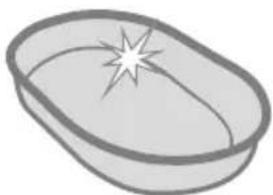
natural_image
Simple illustration of an oval-shaped bowl with a starburst on the rim (no text or symbols)Download in de App Store

natural_image
Diagram showing a medical device connected to a patient's ear with an attached device (no text or symbols present)natural_image
Diagram of a medical device with a plug inserted into a bowl, showing internal components and wiring (no text or labels)natural_image
Simple line drawing of a cat-shaped object with a lit tail and a handle, no text or symbols present.text_image
Sure Petcare Apptnatural_image
Illustration of a cat on a table with a checkmark and 1-meter scale indicator (no text or symbols)natural_image
Illustration of a cat, a fishbowl with a fish inside, and a cross symbol (no text or symbols present)natural_image
Illustration of a desk with a phone, a mouse, and a cat (no text or symbols)natural_image
Simple line drawing of a kitchen counter with a bag and a door, next to a cross symbol (no text or labels)natural_image
Simple line drawings of a car interior, a ladder, and a lamp (no text or symbols)natural_image
Top-down schematic of a device with labeled ports and central display (no text or symbols)natural_image
Diagram of a vehicle front view showing battery compartments and a central display panel (no text or symbols)natural_image
Simple line drawing of a small boat or platform in a corner, no text or symbols presenttext_image
Sure Petcare App!natural_image
Simple line drawing of a hat with radiating lines and a number 3 in the top-left corner (no text or symbols on the hat itself)natural_image
Simple line drawing of a folded paper or sheet with a circular arrow and label '5' (no text or symbols on the diagram itself)natural_image
Pure electrical control panel diagram without any text, numbers, or symbols
natural_image
Simple line drawing of a stylized object resembling a camera or device (no text or symbols)Dekselvergrendeling

natural_image
Diagram of a car air conditioner unit with directional arrows and control buttons (no text or symbols)natural_image
Simple line drawing of a curved surface with a diagonal line and a circular mark, no text or symbols present.text_image
Diagram showing a container with granular material being poured into a bag, labeled with Chinese text.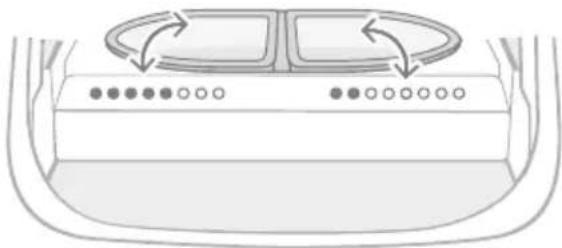
natural_image
Top-down view of a car's front panel with circular buttons and directional arrows indicating motion (no text or symbols)natural_image
Diagram of a device with a circular component and directional arrows indicating rotation or movement (no text or symbols)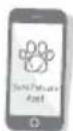
natural_image
Line drawing of a hand pressing down on a control panel with switches (no text or symbols)natural_image
Diagram showing a curved surface with arrows indicating direction and a small dot on the right, labeled '2' (no text or symbols beyond labels)natural_image
Illustration of a food bag with food items and a snack bag (no text or symbols)natural_image
Simple line drawing of a hand pressing down on a flat object, no text or symbols presentnatural_image
Simple line drawing of a cat and a slide with an arrow indicating rotation (no text or symbols)natural_image
Illustration of a finger pressing down on a curved surface, with a cat icon and an 'i' symbol nearby (no text or labels)natural_image
Simple line drawing of a stethoscope (no text or symbols)text_image
Sure Petcare App!flowchart
graph TD
    A["FEED"] --> B["Reactor"]
    B --> C["Shutter"]
    C --> D["Shutter with food and dipping into plate"]
    D --> E["Druk op de open/sluit-knop (✓)."]
natural_image
Illustration of a hand using a tool to cut or press food items on a plate, with no visible text or symbols.natural_image
Simple line drawing of a hand pressing down on a device handle (no text or symbols)natural_image
Simple line drawing of a bowl containing berries, with no text or symbols present.natural_image
Illustration of a bowl filled with granular material and a row of sun icons below (no text or symbols)natural_image
Line drawing of a hand pressing down on a control panel with buttons (no text or symbols)natural_image
Simple line drawing of a hand pressing down on a flat surface (no text or symbols)natural_image
Line drawing of a hand pressing down on a control panel with buttons (no text or symbols)natural_image
Diagram showing a mechanical or structural component with an arrow indicating motion, no text or symbols presentnatural_image
Simple line drawing of a hand pressing down on a flat surface, no text or symbols presentnatural_image
Diagram showing a mechanical or fluidic component with arrows indicating motion, no text or symbols presentnatural_image
Diagram of a mechanical component with a curved surface and rotation arrow, no text or symbols presentnatural_image
Simple line drawing of a hand pressing down on a flat surface, no text or symbols presentnatural_image
Simple line drawing of a bowl containing a textured food item, labeled with number 1 (no text or symbols on the object itself)natural_image
Illustration of a food delivery box with a side dish containing rice (no text or symbols)natural_image
Line drawing of a rice cooker with a plate of food inside (no text or symbols)natural_image
Line drawing of a food delivery box with a tray labeled 'FEED' and a bowl of rice (no text beyond label)natural_image
Gray graduation cap icon with circular arrow symbol, no text or numbers presentnatural_image
Line drawing of a mechanical component with a handle and base, connected to a diagonal line (no text or symbols)natural_image
Illustration of two hand positions on a board, one with a triangular head and the other with a flat blade (no text or symbols)natural_image
Line drawing of a rice cooker with a plate and lid, no text or symbols presentnatural_image
Simple line drawing of two animals on a table, one lying down and the other standing upright (no text or symbols)natural_image
Line drawing of a hand operating a portable electronic device with control buttons (no text or symbols)natural_image
Illustration of two hand positions on a flatbed surface, one with checkmark indicating correct posture (no text or symbols)natural_image
Illustration of a hand washing a car with a faucet and water splash (no text or symbols)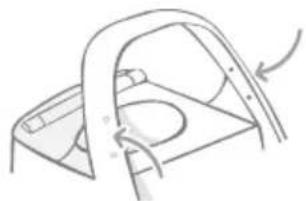
natural_image
Simple line drawing of a chair with a curved arm and seat, no text or symbols presentnatural_image
Diagram of a device with a circular component and dotted pattern, no text or symbols presentnatural_image
Diagram of a mechanical lever mechanism with a numbered circle and arrow indicating motion (no text or symbols)natural_image
Illustration of a cat-shaped toaster oven with two cats inside, no text or symbols presentnatural_image
Simple line drawing of a hand holding a triangular ruler or scale with a shaded triangular object inside (no text or symbols)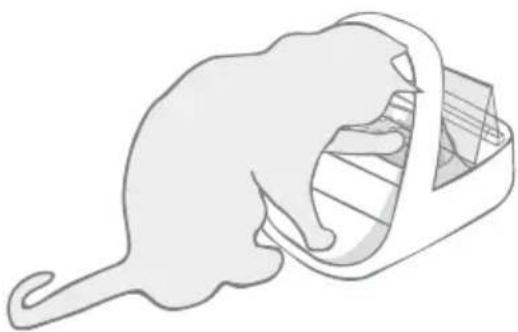
natural_image
Illustration of a cat emerging from a box (no text or symbols)OTHER COUNTRIES: +44(0)1954 211664 (Ext. 2) English speaking

surepetcare.com/support enquiries@surepetcare.com

facebook.com/surepetcare instagram.com/surepetcarepets

youtube.com/surepetcare twitter.com/surepetcare

SURE
PETCARE
Copyright © SureFlap Ltd, trading as Sure Petcare 7 The Irwin Centre, Scotland Road, Dry Drayton, Cambridge CB23 8AR United Kingdom
iMPF Aug 2019 01587-EU_03


Hereby, Sure Petcare as a trading name of SureFlap Ltd, declares that this Microchip Cat Flap Connect is in compliance with the essential requirements and other relevant provisions of EC Directives. The up-to-date Declaration of Conformity (DoC) may be consulted at surepetcare.com/ecdoc
RF Identification: 126 kHz & 133 kHz; Maximum Radio Frequency Power: 39.3 dB( A/m) Field strength at 10 m.
Proprietary Wireless Control: 2425 MHz - 2480 MHz ; Maximum Radio Frequency Power : 7.5 dBm