DEH-S120UBB - Car stereo PIONEER - Free user manual and instructions
Find the device manual for free DEH-S120UBB PIONEER in PDF.


User questions about DEH-S120UBB PIONEER
0 question about this device. Answer the ones you know or ask your own.
Ask a new question about this device
Download the instructions for your Car stereo in PDF format for free! Find your manual DEH-S120UBB - PIONEER and take your electronic device back in hand. On this page are published all the documents necessary for the use of your device. DEH-S120UBB by PIONEER.
USER MANUAL DEH-S120UBB PIONEER
Using Pioneer ARC APP 12
Settings 13
FUNCTION settings 14
AUDIO settings 15
SYSTEM settings.... 16
ILLUMINATION settings.... 17
Additional Information 18
About this manual:
- In the following instructions, a USB memory or USB audio player are referred to as "USB device".
Getting Started
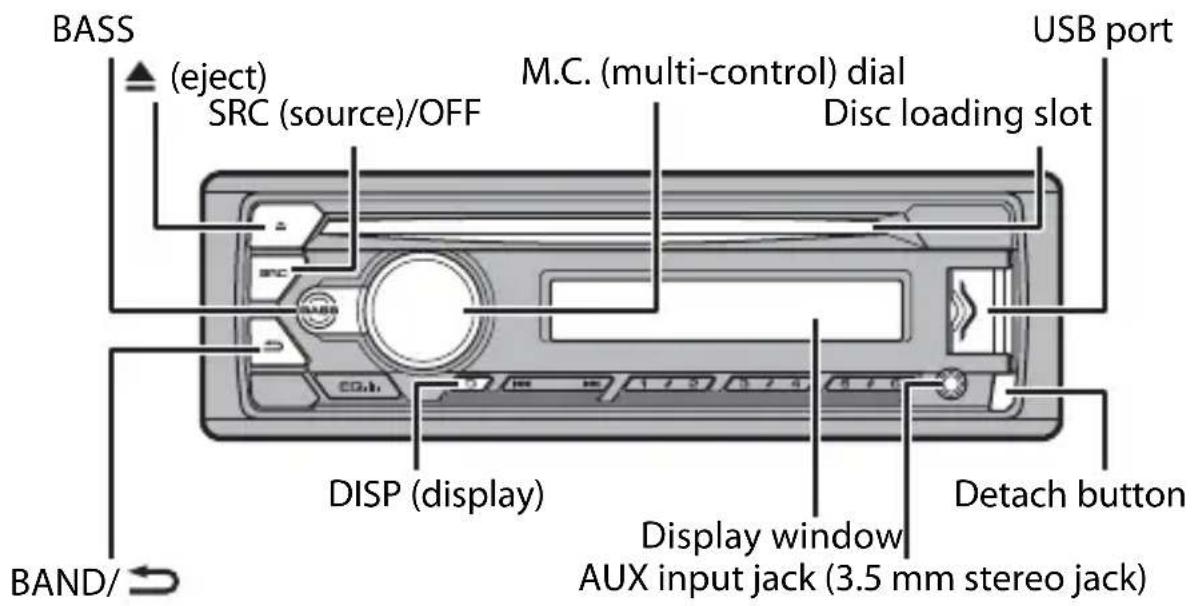
Basic operation
DEH-S120UB/S120UBA/S120UBG/S120UBB/S121UB/S121UBG/S12UB
text_image
BASS (eject) SRC (source)/OFF M.C. (multi-control) dial Disc loading slot USB port DISP (display) Display window Aux input jack (3.5 mm stereo jack) Detach button BAND/Remote Control
NOTE
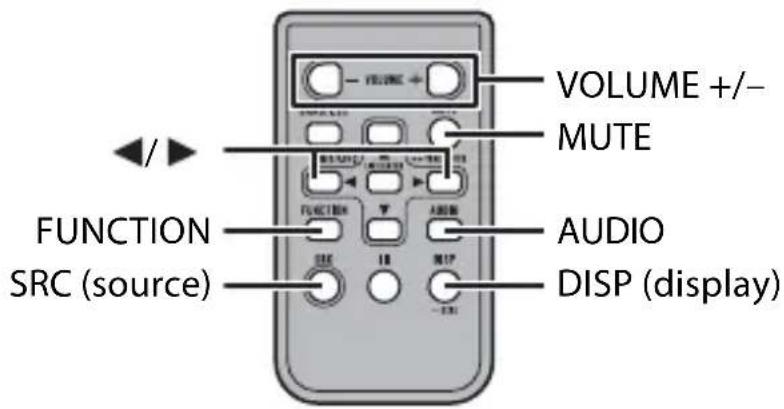
Remote control is supplied only for DEH-S121UB/S121UBG.
text_image
VOLUME +/- MUTE FUNCTION AUDIO SRC (source) DISP (display)Frequently used operations
| Purpose | Operation | |
| Head Unit Remote | Control | |
| Turn on the power* | Press SRC/OFF to turn on the power. Press and hold SRC/OFF to turn off the power. | Press SRC to turn on the power. Press and hold SRC to turn off the power. |
| Adjust the volume | Turn the M.C. dial. | Press VOLUME + or -. Press MUTE to mute the unit. Press MUTE again or press VOLUME + or - to unmute. |
| Select a source | Press SRC/OFF repeatedly. | Press SRC repeatedly. |
| Change the display information | Press DISP repeatedly. | Press DISP repeatedly. |
| Return to the previous display/list | Press BAND/Press / to select the next/previous folder. | |
| Return to the normal display from the menu | Press and hold BAND/ | |
| Boost the bass level Press BASS. | • You can select the bass level in [BASS BOOST] (page 15). | - |
* When this unit's blue/white lead is connected to the vehicle's auto-antenna relay control terminal, the vehicle's antenna extends when this unit's source is turned on. To retract the antenna, turn the source off.
Display indication
| Indication Description | |
| ▸ | Appears when a lower tier of the menu or folder exists. |
| ▸ | Appears when theBASSbutton is pressed and held. |
| LOC | Appears when the local seek tuning function is set (page 14). |
| TP | Appears when a traffic program is received. |
| TA | Appears when the TA (traffic announcements) function is set (page 14). |
| S.Rtrv | Appears when the sound retriever function is set (page 15). |
| ✕✕ | Appears when random play is set. |
| Appears when repeat play is set. | |
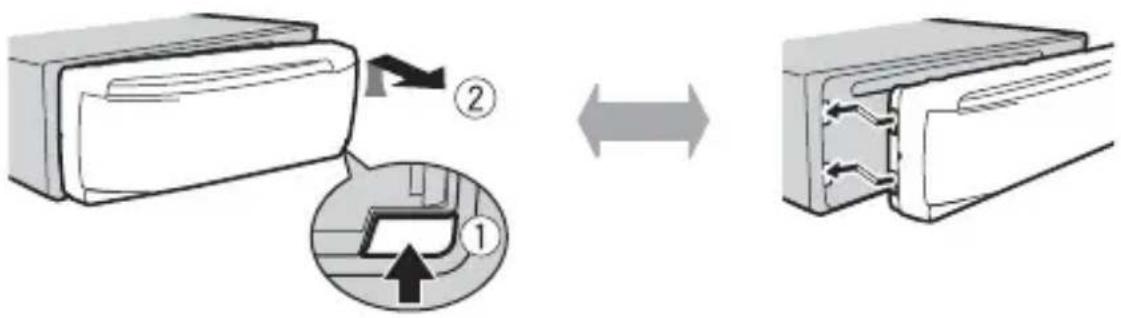
Detaching the front panel
Detach the front panel to prevent theft. Remove any cables and devices attached to the front panel and turn off the unit before detaching it.
Detach Attach
text_image
Diagram illustrating the process of air conditioner unit with labeled parts and directional arrows
Important
- Avoid subjecting the front panel to excessive shock.
- Keep the front panel out of direct sunlight and high temperatures.
• Always store the detached front panel in a protective case or bag.
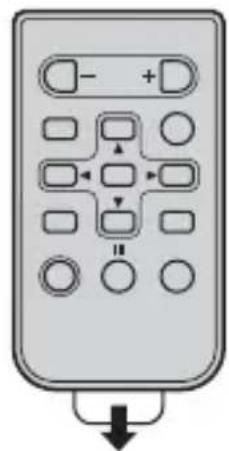
Preparing the remote control
Remove the insulation sheet before use.
flowchart
graph TD
    A["State"] --> B{Condition}
    B -->|Yes| C["State 1"]
    B -->|No| D["State 2"]
    C --> E["State 3"]
    D --> F["State 4"]
    E --> G["State 5"]
    F --> H["State 6"]
    G --> I["State 7"]
    H --> J["State 8"]
    I --> K["State 9"]
    J --> L["State 10"]
    K --> M["Down Arrow"]
    L --> M
    M --> N["End"]
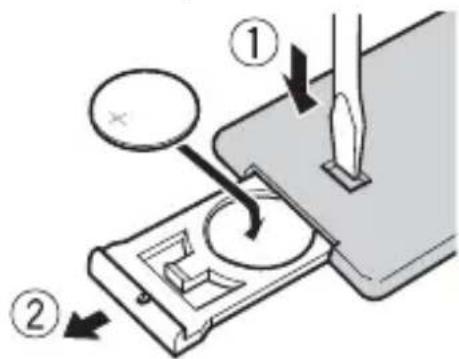
How to replace the battery
text_image
Diagram illustrating a sewing process with labeled steps ① and ②, showing a sewing machine's base and needle insertion.Insert the CR2025 (3 V) battery with the plus (+) and minus (−) poles orientated properly.

WARNING
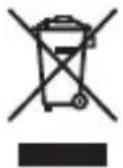
(Symbol for equipment)
(Symbol examples for batteries)
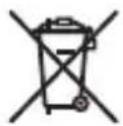
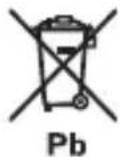
Information for users on collection and disposal of old equipment and used batteries
These symbols on the products, packaging, and/or accompanying documents mean that used electrical and electronic products and batteries should not be mixed with general household waste.
For proper treatment, recovery and recycling of old products and used batteries, please take them to applicable collection points in accordance with your national legislation.
By disposing of these products and batteries correctly, you will help to save valuable resources and prevent any potential negative effects on human health and the environment which could otherwise arise from inappropriate waste handling.
For more information about collection and recycling of old products and batteries, please contact your local municipality, your waste disposal service or the point of sale where you purchased the items.
These symbols are only valid in the European Union.
For countries outside the European Union:
If you wish to discard these items, please contact your local authorities or dealer and ask for the correct method of disposal.
- Do not ingest the battery, Chemical Burn Hazard.
(The remote control supplied with) This product contains a coin/button cell battery. If the coin/button cell battery is swallowed, it can cause severe internal burns in just 2 hours and can lead to death.
Keep new and used batteries away from children.
If the battery compartment does not close securely, stop using the product and keep it away from children.
If you think batteries might have been swallowed or placed inside any part of the body, seek immediate medical attention.
- Batteries (battery pack or batteries installed) must not be exposed to excessive heat such as sunshine, fire or the like.

CAUTION
- There is a danger of explosion if the battery is incorrectly replaced. Replace only with the same or equivalent type.
- Do not handle or store the battery with metallic tools or objects.
- If the battery leaks, remove the battery and wipe the remote control completely clean. Then install a new battery.
- When disposing of used batteries, please comply with governmental regulations or environmental public institution's rules that apply in your country/area.

Important
- Do not store the remote control in high temperatures or direct sunlight.
- Do not let the remote control fall onto the floor, where it may become jammed under the brake or accelerator pedal.
Setup menu
When you turn the ignition switch to ON after installation, [SET UP :YES] appears in the display.
1 Press the M.C. dial.
The setup menu disappears after 30 seconds of no operation. If you prefer not to set at this time, turn the M.C. dial to select [NO], then press to confirm.
2 Turn the M.C. dial to select the options, then press to confirm.
To proceed to the next menu option, you need to confirm your selection.
| Menu Item Description | |
| LANGUAGE Select the language to display the text information from a language to display the text information from a language to display the text information from a language to display the text information from a language to display the text information from a language to display the text information from a language to display the text information from a language to display the text information from a language to display the text information from a language to display the text information from a language to display the text information from a language to display the text information from a language to display the text information from a language to display 100 kHz or 50 kHz. | |
| [ENG](English), [PYC](Russian), [TUR](Turkish) | compressed audio file. |
| CLOCK SET Set the clock. | |
| FM STEP Select the FM tuning step from 100 kHz or 50 kHz. | |
| [100], [50] | |
3[QUIT :YES] appears when all the settings have been made.
To return to the first item of the setup menu, turn the M.C. dial to select [QUIT :NO], then press to confirm.
4 Press the M.C. dial to confirm the settings.
NOTES
- You can cancel the menu setting by pressing SRC/OFF.
• These settings can be made at any time from the SYSTEM settings (page 16) and INITIAL settings (page 8).
Canceling the demonstration display (DEMO OFF)
1 Press the M.C. dial to display the main menu.
2 Turn the M.C. dial to select [SYSTEM], then press to confirm.
3 Turn the M.C. dial to select [DEMO OFF], then press to confirm.
4 Turn the M.C. dial to select [YES], then press to confirm.
INITIAL settings
1 Press and hold SRC/OFF until the unit turns off.
2 Press and hold SRC/OFF to display the main menu.
3 Turn the M.C. dial to select [INITIAL], then press to confirm.
4 Turn the M.C. dial to select an option, then press to confirm.
NOTE
The options vary depending on the unit.
| Menu Item Description | |
| FM STEP Select the FM tuning step from 100 kHz or 50 kHz.[100], [50] | |
| SP-P/O MODE Select when there is a full-range speaker connected to the rear speaker output leads and there is a subwoofer connected to the RCA output. | |
| [REAR/SUB.W] Select when there is a passive subwoofer connected directly to the rear speaker output leads and there is a subwoofer connected to the RCA output. | |
| [REAR/REAR] Select when there are full-range speakers connected to the rear speaker output leads and RCA output. If there is a full-range speaker connected to the rear speaker output leads, and the RCA output is not used, you may select either [REAR/SUB.W] or [REAR/REAR]. | |
| S/W UPDATE Select to confirm the latest system information on the unit.[SYSTEM INFO] | |
| [SYSTEM UPDATE] Select to update the unit to the latest software and initialize the unit settings. For details on the latest software and updating, visit our website. | |
| SYSTEM RESET Select [YES] to initialize the unit settings. The unit will be restarted automatically.(Some of the settings may be retained even after resetting the unit.) | |
Radio
The tuner frequencies on this unit are allocated for use in Western Europe, Asia, the Middle East, Africa and Oceania. Use in other areas may result in poor reception. The RDS
(radio data system) function only works in areas that broadcast RDS signals for FM stations.
Receiving preset stations
1 Press SRC/OFF to select [RADIO].
2 Press BAND/ → to select the band from [FM1], [FM2], [FM3], [MW] or [LW].
3 Press a number button (1/∧ to 6/⇐).
TIP
The / buttons can be also used to select a preset station when [SEEK] is set to [PCH] in the FUNCTION settings (page 14).
Best stations memory (BSM)
The six strongest stations are stored on the number buttons (1/∧ to 6/⇐).
1 After selecting the band, press the M.C. dial to display the main menu.
2 Turn the M.C. dial to select [FUNCTION], then press to confirm.
3 Turn the M.C. dial to select [BSM], then press to confirm.
To seek a station manually
1 After selecting the band, press V to select a station. Press and hold V then release to seek an available station. Scanning stops when the unit receives a station. To cancel seek tuning, press V
NOTE
[SEEK] needs to be set to [MAN] in the FUNCTION settings (page 14).
To store stations manually
1 While receiving the station you want to store, press and hold one of the number buttons (1/∧ to 6/⇐) until it stops flashing.
Using PTY functions
The unit searches for a station by PTY (program type) information.
1 Press and hold BASS during FM reception.
2 Turn the M.C. dial to select a program type from [NEWS/INFO], [POPULAR], [CLASSICS] or [OTHERS].
3 Press the M.C. dial.
The unit begins to search for a station. When it is found, its program service name is displayed.
NOTES
• To cancel the search, press the M.C. dial.
- The program of some stations may differ from that indicated by the transmitted PTY.
- If no station is broadcasting the type of program you searched for, [NOT FOUND] is displayed for about two seconds and then the tuner returns to the original station.
CD/USB/AUX
Playing back
Disconnect headphones from the device before connecting it to the unit.
CD
1 Insert a disc into the disc loading slot with the label side up.
To eject a disc, stop playback first then press
USB devices (including Android™)
1 Open the USB port cover.
2 Plug in the USB device using an appropriate cable.
NOTE
To automatically switch to [USB] source when a USB device is connected to the unit, set [USB AUTO] to [ON] in the SYSTEM settings (page 17).
CAUTION
Use a USB cable (sold separately) to connect the USB device as any device connected directly to the unit will protrude out from the unit, which could be dangerous.
Before removing the device, stop playback.
AOA connections
For details on AOA connection, see page 12.
MTP connection
A device installed with Android OS 4.0 or most of later versions can be connected to the unit via MTP, using the cable supplied with the device. However, depending on the connected device, OS version or the numbers of the files in the device, audio files/songs may not be able to be played back via MTP. Note that MTP connection is not compatible with WAV and FLAC file formats.
NOTE
If you use an MTP connection, [ANDROID WIRED] needs to be set to [MEMORY] in the SYSTEM settings (page 17).
AUX
1 Insert the stereo mini plug into the AUX input jack.
2 Press SRC/OFF to select [AUX] as the source.
NOTE
If [AUX] is set to [OFF] in the SYSTEM settings, [AUX] cannot be selected as a source (page 16).
Operations
You can make various adjustments in the FUNCTION settings (page 14).
Note that the following operations do not work for an AUX device. To operate an AUX device, use the device itself.
*1 Compressed audio files only
*2 When you use the fast forward or reverse function while playing a VBR file, the playback time may be not correct.
| Purpose Operation | |
| Select a folder*1 | Press 1/ ∧ or 2/ √ . |
| Select a track/song Press or . | |◀◀ ▶▶▶| |
| Fast forward or reverse*2 Press and hold or . | |◀◀ ▶▶▶| |
| Search for a file from a list | 1 Press and hold BASS to display the list.2 Turn the M.C. dial to select the desired file (folder) name or category, then press to confirm.3 Turn the M.C. dial to select the desired file, then press to confirm.Playback starts. |
| View a list of the files in the selected folder/ category*1 | Press the M.C. dial when a folder/category is selected. |
| Play a song in the selected folder/ category*1 | Press and hold the M.C. dial when a folder/ category is selected. |
| Repeat play Press 6/ . | ↔ |
| Random play Press 5/ . | ×× |
| Pause/resume playback | Press 4/PAUSE. |
| Sound retriever*1 | Press 3/S.Rtrv.[1]: Effective for low compression rates[2]: Effective for high compression rates |
| Return to root folder (CD/USB only)*1 Press and hold 1/. ^ | |
| Switch between compressed audio and CD-DA (CD only) | Press BAND/. |
| Change drives in USB device(Devices that support the USB mass storage device class protocol only) | Press BAND/. |
Using Pioneer ARC APP
You can operate the unit from Pioneer ARC APP installed on an Android device. In some cases, you can control aspects of the application, such as source selection, pause, etc., by using the unit.
For details on what operations are available on the application, see the application's help section.

WARNING
Do not attempt to operate the application while driving. Make sure to pull off the road and park your vehicle in a safe location before attempting to use the controls on the application.
For Android device users
This function is compatible with a phone that runs Android 4.1 up to 7.1.2 and also supports AOA (Android Open Accessory) 2.0, but the compatibility depends on the smartphone.
You can download Pioneer ARC APP on Google Play™.
NOTE
Some Android devices connected via AOA 2.0 may not work properly or emit sounds due to their own software design, regardless of the OS version.
Making a connection with Pioneer ARC APP
1 Press the M.C. dial to display the main menu.
2 Turn the M.C. dial to select [SYSTEM], then press to confirm.
3 Turn the M.C. dial to select [ANDROID WIRED], then press to confirm.
4 Turn the M.C. dial to select [APP CONTROL], then press to confirm.
5 Turn the M.C. dial to select [P.APP AUTO ON], then press to confirm.
6 Turn the M.C. dial to select [ON], then press to confirm.
7 Connect this unit with the Android device via USB.
Pioneer ARC APP on the device starts automatically.
NOTE
If Pioneer ARC APP has not been installed on your Android device yet, a message that prompts you to install the application will appear on your Android device. Select [OFF] in [P.APP AUTO ON] to clear the message (page 17).
Listening to music on Android
1 Press SRC/OFF to select [ANDROID].
Basic operations
| Purpose Operation | |
| Select a track Press or . | |◀◀ ▶▶▶| |
| Fast forward or reverse Press and hold or . | |◀◀ ▶▶▶| |
| Pause/resume playback | Press 4/PAUSE. |
| Sound retriever | Press 3/S.Rtrv.[1]: Effective for low compression rates[2]: Effective for high compression rates |
Settings
You can adjust various settings in the main menu.
1 Press the M.C. dial to display the main menu.
2 Turn the M.C. dial to select one of the categories below, then press to confirm.
• FUNCTION settings (page 14)
• AUDIO settings (page 15)
• SYSTEM settings (page 16)
• ILLUMINATION settings (page 17)
3 Turn the M.C. dial to select the options, then press to confirm.
FUNCTION settings
The menu items vary according to the source.
| Menu Item Description | |||
| FM SETTING [TALK], [STANDARD], [MUSIC] Match the sound quality level with the broadcast signal conditions of the FM band signal. (Available only when FM band is selected.) | |||
| BSM RADIO Store the six strongest stations on the number buttons (1/ ∧ to 6/ ⇌) automatically. | |||
| REGIONAL RADIO [ON], [OFF] Limit the reception to the specific regional programs when AF (alternative frequencies search) is selected. (Available only when FM band is selected.) | |||
| LOCAL RADIO FM: [OFF], [LV1], [LV2], [LV3], [LV4] MW/LW: [OFF], [LV1], [LV2] | Restrict the tuning station according to the signal strength. | ||
| TA RADIO [ON], [OFF] Receive current traffic information if available. (Available only when FM band is selected.) | |||
| AF RADIO [ON], [OFF] Allow the unit to retune to a different frequency providing the same station. (Available only when FM band is selected.) | |||
| NEWS RADIO [ON], [OFF] Interrupt the currently selected source with news programs. (Available only when FM band is selected.) | |||
| SEEK RADIO [MAN], [PCH] Assign or buttons to seek the station▶▶ one by one (manual tuning) or select a station from the preset channels. | |||
| Menu Item Description | |||
| S.RTRV | CD | USB | ANDROID |
| [1] (effective for low compression rates), [2] (effective for high compression rates), [OFF] | Enhance compressed audio and restore rich sound. Not available when: • CD-DA/CD-TEXT is played back. • The FLAC file is played back. | ||
AUDIO settings
| Menu Item Description | |
| FADER*1 | Adjust the front and rear speaker balance. |
| BALANCE | Adjust the left and right speaker balance. |
| EQ SETTING | |
| [SUPER BASS], [POWERFUL], [DYNAMIC], [NATURAL], [VOCAL], [VIVID], [CUSTOM1], [CUSTOM2], [FLAT] | Select or customise the equalizer curve.[CUSTOM1] can be set separately for each source.However, each of the below combinations are set to the same setting automatically.[CUSTOM2] is a shared setting used for all sources. |
| Select an equalizer band and level for further customising. Equalizer band: [80HZ], [250HZ], [800HZ], [2.5KHZ], [8KHZ] | You can also switch the equalizer by pressing repeatedly. |
| Equalizer level: [+6] to [-6] | |
LOUDNESS
[OFF], [LOW], [MID], [HI] Compensate for clear sound at low volume.
SUB.W*2
[NOR], [REV], [OFF] Select the subwoofer phase.
SUB.W CTRL*2*3
| Cut-off frequency: [50HZ], [63HZ], [80HZ], [100HZ], [125HZ], [160HZ], [200HZ] | Only frequencies lower than those in the selected range are output from the subwoofer. |
| Output level: [-24] to [+6] | |
| Slope level: [-12], [-24] |
BASS BOOST
[0] to [+6] Select the bass boost level.
| Menu Item Description | |
| HPF SETTING | |
| Cut-off frequency: [OFF], [50HZ], [63HZ], [80HZ], [100HZ], [125HZ], [160HZ], [200HZ] | Only frequencies higher than the high-pass filter (HPF) cutoff are output from the speakers. |
| Slope level: [-12], [-24] | |
| SLA | |
| [+4] to [-4] Adjust the volume level for each source except FM. | |
*1 Not available when [SUB.W/SUB.W] is selected in [SP-P/O MODE] in the INITIAL settings (page 8).
*2 Not available when [REAR/REAR] is selected in [SP-P/O MODE] in the INITIAL settings (page 8).
*3 Not available when [OFF] is selected in [SUB.W].
SYSTEM settings
You can also access to these menus when the unit is turned off.
* [PW SAVE] is canceled if the vehicle battery is disconnected and will need to be turned back on once the battery is reconnected. When [PW SAVE] is off, depending on connection methods, the unit may continue to draw power from the battery if your vehicle's ignition does not have an ACC (accessory) position.
| Menu Item Description | |
| LANGUAGE[ENG](English), [PYC](Russian), [TUR](Turkish) | Select the language to display the text information from a compressed audio file. |
| CLOCK SETSet the clock (page 7). | |
| 12H/24H[12H], [24H] Select the time notation. | |
| SCROLL SET[ONCE], [LOOP], [OFF] Select the way to scroll the text in the display window. | |
| AUTO PI[ON], [OFF] Search for a different station with the same programming, even if using a preset station. | |
| AUX[ON], [OFF] Set to [ON] when using an auxiliary device connected to the unit. | |
| MUTE MODE[MUTE], [20dB ATT], [10dB ATT] Mute or attenuate sound automatically when a signal from equipment with a mute function is received. | |
| PW SAVE* | |
| [ON], [OFF] Reduce the battery power consumption.Turning on the source is the only operation allowed when this function is on. | |
| ANDROID WIRED | |
| [MEMORY], [APP CONTROL] Select the appropriate connection method for an Android device. | |
| P.APP AUTO ON | |
| [ON], [OFF] | Select [ON] to automatically launch Pioneer ARC APP when an Android device is connected to the unit via AOA. (Not available when [MEMORY] is selected in [ANDROID WIRED].) |
| USB AUTO | |
| [ON], [OFF] Select [ON] to automatically switch to [USB]source when a USB device is connected to the unit.Select [OFF] when a USB device is being connected to the unit just for charging. | |
ILLUMINATION settings
Menu Item Description
DIM SETTING
[SYNC CLOCK], [MANUAL] Select the way to change the display brightness.
BRIGHTNESS
[1] to [10] Change the display brightness.
The available setting ranges differ depending on [DIM SETTING].
Additional Information
Troubleshooting
The display automatically returns to the normal display.
→No operations have been made for about 30 seconds. -Perform an operation.
The repeat play range changes unexpectedly.
→Depending on the repeat play range, the selected range may change when another folder or track is being selected or during fast forwarding/reversing. –Select the repeat play range again.
A subfolder is not played back.
→Subfolders cannot be played when [FLD] (folder repeat) is selected. -Select another repeat play range.
The sound is intermittent.
→You are using a device, such as a cellular phone, that may cause audible interference. –Move electrical devices that may be causing the interference away from the unit.
Error messages
Common
AMP ERROR
→This unit fails to operate or the speaker connection is incorrect.
→The protective circuit is activated.
-Check the speaker connection.
–Turn the ignition switch OFF and back to ON again. If the message remains, contact your dealer or an authorized Pioneer Service Station for assistance.
NO XXXX (NO TITLE, for example)
→There is no embedded text information. - Switch the display or play another track/file.
CD player
ERROR-07, 11, 12, 17, 30
→The disc is dirty.
-Clean the disc.
→The disc is scratched.
-Replace the disc.
ERROR-07, 10, 11, 12, 15, 17, 30, A0
→There is an electrical or mechanical error. -Turn the ignition switch OFF and back to ON, or switch to a different source, then back to the CD player.
ERROR-15
→The inserted disc is blank. -Replace the disc.
ERROR-23
→Unsupported CD format. -Replace the disc.
FORMAT READ
→Sometimes there is a delay between the start of playback and when you start to hear any sound. –Wait until the message disappears and you hear sound.
NO AUDIO
→The inserted disc does not contain any playable files. –Replace the disc.
SKIPPED
→The inserted disc contains DRM protected files. –The protected files are skipped.
PROTECT
→All the files on the inserted disc are embedded with DRM.
-Replace the disc.
USB device
FORMAT READ
→Sometimes there is a delay between the start of playback and when you start to hear any sound.
- Wait until the message disappears and you hear sound.
NO AUDIO
→There are no songs.
- Transfer the audio files to the USB device and connect.
→The connected USB device has security enabled.
-Follow the USB device instructions to disable the security.
SKIPPED
→The connected USB device contains DRM protected files.
–The protected files are skipped.
PROTECT
→All the files on the connected USB device are embedded with DRM.
-Replace the USB device.
N/A USB
→The connected USB device is not supported by this unit.
- Disconnect your device and replace it with a compatible USB device.
HUB ERROR
→The USB device connected via a USB hub is not supported by this unit.
- Connect the USB device directly to this unit using a USB cable.
CHECK USB
→The USB connector or USB cable has short-circuited.
-Check that the USB connector or USB cable is not caught in something or damaged.
→The connected USB device consumes more than maximum allowable current.
- Disconnect the USB device and do not use it. Turn the ignition switch OFF and back to ACC or ON. Connect only compliant USB devices.
ERROR-19
→Communication failed.
-Perform one of the following operations, then return to the USB source.
- Disconnect the USB device.
- Change to a different source.
ERROR-23
→USB device was not formatted properly.
-Format the USB device with FAT12, FAT16 or FAT32.
Handling guidelines
Discs and player
- Use only discs that feature either of the following two logos.


- Use 12-cm discs.
- Use only conventional, fully circular discs.
- The following types of discs cannot be used with this unit:
-DualDiscs
- 8-cm discs: Attempts to use such discs with an adaptor may cause the unit to malfunction.
- Oddly shaped discs
- Discs other than CDs
– Damaged discs, including discs that are cracked, chipped or warped
- CD-R/RW discs that have not been finalized
- Do not write on or apply chemicals to the surface of the discs.
- To clean a CD, wipe the disc with a soft cloth outward from the center.
- Condensation may temporarily impair the player's performance. Let it rest for about one hour to adjust to a warmer temperature. Also, wipe any damp discs off with a soft cloth.
- When using discs that can be printed on label surfaces, check the instructions and the warnings of the discs. Depending on the discs, inserting and ejecting may not be possible. Using such discs may result in damage to this equipment.
- Do not attach commercially available labels or other materials to the discs.
- The discs may warp making the disc unplayable.
- The labels may come off during playback and prevent ejection of the discs, which may result in damage to the equipment.
USB storage device
- Connections via USB hubs are not supported.
- Firmly secure the USB storage device before driving. Do not let the USB storage device fall onto the floor, where it may become jammed under the brake or accelerator pedal.
- Depending on the USB storage device, the following problems may occur.
-Operations may vary.
- The storage device may not be recognized.
– Files may not be played back properly. - The device may cause audible interference when you are listening to the radio.
Compressed audio compatibility
- Only the first 32 characters can be displayed as a file name (including the file extension) or a folder name.
- The unit may not work properly depending on the application used to encode WMA files.
- There may be a slight delay at the start of the playback of audio files embedded with image data, or audio files stored on a USB device with numerous folder hierarchies.
-
Russian text to be displayed on this unit should be encoded in one of the following character sets:
-
Unicode (UTF-8, UTF-16)
- A character set other than Unicode that is used in a Windows environment and is set to Russian in the multi-language setting
CAUTION
- Pioneer cannot guarantee compatibility with all USB mass storage devices, and assumes no responsibility for any loss of data on media players, smartphones, or other devices while using this product.
- Do not leave discs or a USB storage device in any place that is subject to high temperatures.
WMA files
| File extension .wma | |
| Bit rate 48 kbps to 320 | kbps(CBR), 48 kbps to 384kbps (VBR) |
| Sampling frequency 32 | kHz, 44.1 kHz, 48kHz |
| Windows MediaTMAudio Professional, Lossless, Voice/DRM Stream/Stream with video | Not compatible |
MP3 files
| File extension .mp3 | |
| Bit rate 8 kbps to 320 kbps(CBR), VBR | |
| Sampling frequency 8 kHz to 48 kHz (32 kHz, 44.1 kHz, 48 kHz for emphasis) | |
| Compatible ID3 tag version | 1.0, 1.1, 2.2, 2.3, 2.4(ID3 tag Version 2.x is given priority over Version 1.x.) |
| M3u playlist Not compatible | |
| MP3i (MP3 interactive), mp3 PRO | Not compatible |
WAV files
- WAV file formats cannot be connected via MTP.
| File extension .wav | |
| Quantization bits 8 and | 16 (LPCM) |
| Sampling frequency 16 kHz to 48 kHz (LPCM) | |
FLAC files
- FLAC file formats cannot be connected via MTP.
- FLAC files may not be playable, depending on the encoder.
| File extension.flac | |
| Sampling frequency 8/1 | 1.025/12/16/22.05/24/32/44.1/48 kHz |
| Quantization bit rate 16 | bit |
| Channel mode 1/2 ch |
Disc
- Regardless of the length of the blank section between the songs from the original recording, compressed audio discs play with a short pause between songs.
| Playable folder hierarchy | Up to eight tiers (A practical hierarchy is less than two tiers.) |
| Playable folders Up to 99 | |
| Playable files Up to 999 | |
| File system ISO 9660 Level | 1 and2, Romeo, Joliet |
| Multi-session playback | Compatible |
| Packet write data transfer | Not compatible |
USB device
- There may be a slight delay when starting playback of audio files on a USB storage device with numerous folder hierarchies.
| Playable folder hierarchy | Up to eight tiers (A practical hierarchy is less than two tiers.) |
| Playable folders Up to 500 | |
| Playable files Up to 15000 | |
| Playback of copyright-protected files | Not compatible |
| Partitioned USB device | Only the first partition can be played. |
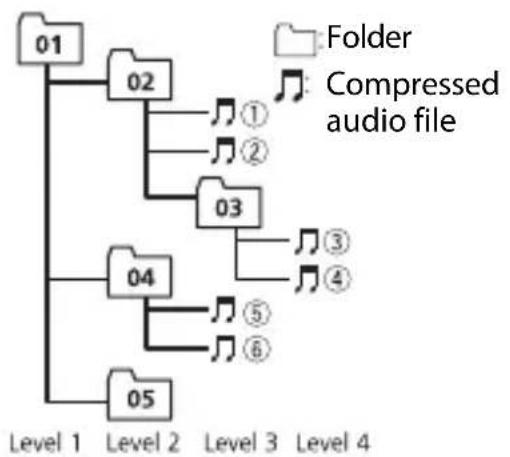
Sequence of audio files
The user cannot assign folder numbers and specify playback sequences with this unit. Sequence of audio file depends on the connected device.
Note that the hidden files in a USB device cannot be played back.
Example of a hierarchy
flowchart
graph TD
    A["01"] --> B["02"]
    B --> C["1"]
    B --> D["2"]
    B --> E["3"]
    B --> F["4"]
    B --> G["5"]
    B --> H["6"]
    B --> I["03"]
    I --> J["5"]
    I --> K["6"]
    I --> L["7"]
    L --> M["8"]
    L --> N["9"]
    L --> O["10"]
    O --> P["11"]
    O --> Q["12"]
    O --> R["13"]
    O --> S["14"]
    O --> T["15"]
    O --> U["16"]
    O --> V["17"]
    O --> W["18"]
    O --> X["19"]
    O --> Y["20"]
01 to 05: Folder number
① to :Playback sequence
Russian character chart
D: Display C: Character
Copyright and trademark
WMA
Windows Media is either a registered trademark or trademark of Microsoft Corporation in the United States and/or other countries.
This product includes technology owned by Microsoft Corporation and cannot be used or distributed without a license from Microsoft Licensing, Inc.
FLAC
Copyright © 2000-2009 Josh Coalson Copyright © 2011-2013 Xiph.Org Foundation
Redistribution and use in source and binary forms, with or without modification, are permitted provided that the following conditions are met:
- Redistributions of source code must retain the above copyright notice, this list of conditions and the following disclaimer.
-Redistributions in binary form must reproduce the above copyright notice, this list of conditions and the following disclaimer in the documentation and/or other materials provided with the distribution.
-Neither the name of the Xiph.org Foundation nor the names of its contributors may be used to endorse or promote products derived from this software without specific prior written permission.
THIS SOFTWARE IS PROVIDED BY THE COPYRIGHT HOLDERS AND CONTRIBUTORS "AS IS" AND ANY EXPRESS OR IMPLIED WARRANTIES, INCLUDING, BUT NOT LIMITED TO, THE IMPLIED WARRANTIES OF MERCHANTABILITY AND FITNESS FOR A PARTICULAR PURPOSE ARE DISCLAIMED. IN NO EVENT SHALL THE FOUNDATION OR CONTRIBUTORS BE LIABLE FOR ANY DIRECT, INDIRECT,
INCIDENTAL, SPECIAL, EXEMPLARY, OR CONSEQUENTIAL DAMAGES (INCLUDING, BUT NOT LIMITED TO, PROCUREMENT OF SUBSTITUTE GOODS OR SERVICES; LOSS OF USE, DATA, OR PROFITS; OR BUSINESS INTERRUPTION) HOWEVER CAUSED AND ON ANY THEORY OF LIABILITY, WHETHER IN CONTRACT, STRICT LIABILITY, OR TORT (INCLUDING NEGLIGENCE OR OTHERWISE) ARISING IN ANY WAY OUT OF THE USE OF THIS SOFTWARE, EVEN IF ADVISED OF THE POSSIBILITY OF SUCH DAMAGE.
Google™, Google Play, Android
Google, Google Play and Android are trademarks of Google LLC.
Specifications
General
Power source: 14.4 V DC (10.8 V to 15.1 V allowable)
Grounding system: Negative type
Maximum current consumption: 10.0 A
Dimensions (W × H × D): DIN
Chassis: 178 mm × 50 mm × 165 mm
Nose: 188 mm × 58 mm × 17 mm D
Chassis: 178 mm × 50 mm × 165 mm
Nose: 170 mm × 46 mm × 17 mm
Weight: 1 kg
Audio
Maximum power output:
- 50 ~W × 4 ch / 4 (for no subwoofer)
- 50 ~W × 2 ch / 4 + 70 ~W × 1 ch / 2 (for subwoofer)
Continuous power output:
22 W × 4 (50 Hz to 15 000 Hz, 5 %
THD, 4 Ω load, both channels driven)
Load impedance: 4 Ω (4 Ω to 8 Ω allowable)
Preout maximum output level: 2.0 V
Loudness contour: +10 dB (100 Hz), +6.5 dB (10 kHz) (volume: -30 dB)
Equalizer (5-Band Graphic Equalizer):
Frequency: 80 Hz/250 Hz/800 Hz/2.5 kHz/8 kHz
Equalization range: ±12 dB (2 dB step)
Subwoofer (mono):
Frequency: 50 Hz/63 Hz/80 Hz/100
Hz/125 Hz/160 Hz/200 Hz
Slope: -12 dB/oct, -24 dB/oct
Gain: +6 dB to -24 dB
Phase: Normal/Reverse
CD player
System: Compact disc audio system
Usable discs: Compact disc
Signal-to-noise ratio: 94 dB (1 kHz) (IEC-A network)
Number of channels: 2 (stereo)
MP3 decoding format: MPEG-1 & 2 Audio Layer 3
WMA decoding format: Ver. 7, 8, 9, 9.1, 9.2 (2 ch audio)
WAV signal format: Linear PCM (Non-compressed)
USB
USB standard specification: USB 2.0 full speed
Maximum current supply: 1 A
USB Protocol:
MSC (Mass Storage Class)
MTP (Media Transfer Protocol)
AOA (Android Open Accessory) 2.0
File system: FAT12, FAT16, FAT32
MP3 decoding format: MPEG-1 & 2 Audio Layer 3
WMA decoding format: Ver. 7, 8, 9, 9.1, 9.2 (2 ch audio)
FLAC decoding format: v1.3.0 (Free Lossless Audio Codec)
WAV signal format: Linear PCM (Non-compressed)
FM tuner
Frequency range: 87.5 MHz to 108.0 MHz
Usable sensitivity: 11 dBf (1.0 V/75 , mono, S/N: 30 dB)
Signal-to-noise ratio: 72 dB (IEC-A network)
MW tuner
Frequency range: 531 kHz to 1 602 kHz
Usable sensitivity: 25 μV (S/N: 20 dB)
Signal-to-noise ratio: 62 dB (IEC-A network)
LW tuner
Frequency range: 153 kHz to 281 kHz
Usable sensitivity: 28 μV (S/N: 20 dB)
Signal-to-noise ratio: 62 dB (IEC-A network)
NOTE
Specifications and the design are subject to modifications without notice.
Table des matières
Mise en route.... 3
Radio....9
CD/USB/AUX.... 11
Utilisation de Pioneer ARC APP 13
Réglages.... 14
Réglages FUNCTION 15
Réglages AUDIO 16
Réglages SYSTEM.... 18
Réglages ILLUMINATION.... 19
text_image
VOLUME +/- MUTE FUNCTION AUDIO SRC (source) DISP (affichage)text_image
Diagram illustrating the process of inserting air filters into a door panel, with labeled steps 1 and 2.
Important
text_image
Diagram illustrating a sewing process with labeled steps ① and ②, showing a sewing machine's base and needle insertion.MW/LW : [OFF], [LV1], [LV2]
| TA | RADIO |
ERROR-07, 10, 11, 12, 15, 17, 30, A0
Copyright © 2000-2009 Josh Coalson Copyright © 2011-2013 Xiph.Org Foundation
MSC (Mass Storage Class)
MTP (Media Transfer Protocol)
AOA (Android Open Accessory) 2.0
text_image
Diagram illustrating the process of inserting air conditioner into a door panel, with labeled steps ① and ②.
Importante
text_image
Diagram illustrating a sewing process with labeled steps ① and ②, showing a sewing machine's base and needle insertion.Best stations memory (BSM)
ERROR-07, 11, 12, 17, 30
ERROR-07, 10, 11, 12, 15, 17, 30, A0
Copyright © 2000-2009 Josh Coalson
Copyright © 2011-2013 Xiph.Org Foundation
Dimensioni (L × A × P): DIN
Telaio: 178 mm × 50 mm × 165 mm
Testata: 188 mm × 58 mm × 17 mm D
Telaio: 178 mm × 50 mm × 165 mm
Testata: 170 mm × 46 mm × 17 mm
Peso: 1 kg
Audio
Potenza massima:
- 50 W × 4 canali/4 Ω (senza subwoofer)
- 50 W × 2 canali/4 Ω + 70 W × 1 canale/2 Ω (per il subwoofer)
Potenza continua:
Pendenza: -12 dB/oct, -24 dB/oct
Specifica standard USB: USB 2.0 full speed
MSC (Mass Storage Class)
MTP (Media Transfer Protocol)
AOA (Android Open Accessory) 2.0
File system: FAT12, FAT16, FAT32
text_image
Diagram illustrating the process of inserting air conditioner into a refrigerator, with labeled steps 1 and 2.
Importante
natural_image
Diagram of a remote control device with multiple function keys and a downward arrow (no text or symbols)text_image
Diagram illustrating a sewing process with labeled steps ① and ②, showing a sewing machine's base and needle insertion.ERROR-07, 11, 12, 17, 30
ERROR-07, 10, 11, 12, 15, 17, 30, A0
Copyright © 2000-2009 Josh Coalson
Copyright © 2011-2013 Xiph.Org
Foundation
Curva: -12 dB/oct, -24 dB/oct
Ganancia: +6 dB a -24 dB
text_image
Diagram illustrating the process of inserting air conditioner into a refrigerator, with labeled steps 1 and 2.
Wichtig
text_image
Diagram illustrating a sewing process with labeled steps ① and ②, showing a sewing machine's base and needle insertion.ERROR-07, 11, 12, 17, 30
ERROR-07, 10, 11, 12, 15, 17, 30, A0
text_image
Diagram illustrating the process of inserting air conditioner into a door panel, with labeled steps ① and ②.
Belangrijk
flowchart
graph TD
    A["Input Port 1"] --> B["Control Unit 1"]
    C["Input Port 2"] --> D["Control Unit 2"]
    E["Input Port 3"] --> F["Control Unit 3"]
    G["Input Port 4"] --> H["Control Unit 4"]
    I["Input Port 5"] --> J["Control Unit 5"]
    K["Input Port 6"] --> L["Control Unit 6"]
    M["Input Port 7"] --> N["Control Unit 7"]
    O["Input Port 8"] --> P["Control Unit 8"]
    Q["Input Port 9"] --> R["Control Unit 9"]
    S["Input Port 10"] --> T["Control Unit 10"]
text_image
Diagram illustrating a sewing process with labeled steps ① and ②, showing a sewing machine's base and needle insertion.Best stations memory (BSM)
ERROR-07, 11, 12, 17, 30
ERROR-07, 10, 11, 12, 15, 17, 30, A0
AOA (Android Open Accessory) 2.0
Bestandsysteem: FAT12, FAT16, FAT32
MP3-decoderingsformaat: MPEG-1 & 2 Audio Layer 3
WMA decodeerformaat: Ver. 7, 8, 9, 9.1, 9.2 (2 kanaals geluid)
FLAC-decoderingsformaat: v1.3.0 (Free Lossless Audio Codec)
Pioneer CarStereo-Pass
Please fill out immediately after purchase.
28-8, Honkomagome 2-chome, Bunkyo-ku, Tokyo 113-0021, Japan
Корпорация Пайонир
PIONEER ELECTRONICS (USA) INC.
P.O. Box 1540, Long Beach, California 90801-1540, U.S.A. TEL: (800) 421-1404
PIONEER ELECTRONICS ASIACENTRE PTE. LTD.
2 Jalan Kilang Barat, #07-01, Singapore 159346 TEL: 65-6378-7888
PIONEER ELECTRONICS AUSTRALIA PTY. LTD.
5 Arco Lane, Heatherton, Victoria, 3202 Australia TEL: (03) 9586-6300
PIONEER ELECTRONICS DE MÉXICO S.A. DE C.V.
BND. Manuel Ávila Camacho 138, 10 piso Col.Lomas de Chapultepec, México, D.F. 11000 Tel: 52-55-9178-4270. Fax: 52-55-5202-3714
先鋒股份有限公司