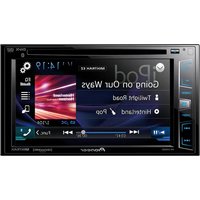
AVH-4100NEX - Car stereo PIONEER - Free user manual and instructions
Find the device manual for free AVH-4100NEX PIONEER in PDF.


User questions about AVH-4100NEX PIONEER
0 question about this device. Answer the ones you know or ask your own.
Ask a new question about this device
Download the instructions for your Car stereo in PDF format for free! Find your manual AVH-4100NEX - PIONEER and take your electronic device back in hand. On this page are published all the documents necessary for the use of your device. AVH-4100NEX by PIONEER.
USER MANUAL AVH-4100NEX PIONEER
This HD Radio receiver enables:
PSD)
HD2/HD3
Digital Sound
iTunes Tagging
Artist Experience)
((Siriusxm)) READY
Important (Serial number)
The serial number is located on the bottom of this unit. For your own security and convenience, be sure to record this number on the enclosed warranty card.
Thank you for buying this Pioneer product.
Please read through these instructions so you will know how to operate your model properly. After you have finished reading the instructions, keep this document in a safe place for
future reference.
Contents
Important
The screens shown in the examples may differ from actual screens, which may be changed without notice for performance and function improvements.
01 Precaution
Information to User 6
The Safety of Your Ears is in
Your Hands....6
ESTABLISH A SAFE LEVEL: 6
SURE TO OBSERVE THE
FOLLOWING GUIDELINES:......6
License, Warranty Disclaimer
& Limitation of Liability......6
SAFETY PROVISIONS 6
Important safety information ....7
Parking brake interlock....7
To ensure safe driving....7
When using a display con-
nected to V OUT....7
To avoid battery exhaustion....7
Rear view camera....7
Handling the SD card slot ....7
Handling the USB connector....8
Failure to operate....8
Visit our website....8
Protecting the LCD panel and
screen....8
Notes on internal memory....8
Before removing the vehicle battery ..... 8
Data subject to erasure....8
Resetting the microprocessor....8
About this manual 8
Use and care of the remote control .....8
Installing the battery....8
Using the remote control....8
02 Basic operation
Checking part names and
functions....9
Remote control....9
Protecting your product
against theft 9
Removing the front panel 10
Attaching the front panel....10
Notes on using the LCD panel....10
Adjusting the LCD panel angle .....10
Inserting/ejecting/connect-
ing media....10
Inserting and ejecting a disc....10
Inserting and ejecting an SD
memory card....10
Connecting and disconnecting
an iPod....11
Plugging and unplugging a
USB storage device.... 11
Startup and termination....11
On first-time startup 11
Regular startup 11
Turning off the display....11
When the Application screen is
available 11
When the Application screen is
not available....11
How to use the screens....12
Switching screens using the
touch panel keys 12
Switching screens using the
hardware buttons....12
Supported AV source 12
Displaying the AV operation screen....12
Selecting a front source on the
AV source selection screen....13
Selecting a front source on the
source list....13
Selecting a rear source....13
Turning off the AV source 13
Changing the display order
of source icons....13
Changing the display order
of source keys ......13
Using the touch panel....13
Using the common touch panel keys.....13
Operating list screens....13
Operating the time bar....14
Operating the on-screen keyboard ..... 14
03 Registering and con-
necting a Bluetooth device
Preparing communication devices.....14
Registering your Bluetooth devices ....14
Searching for nearby Bluetooth
devices....14
Pairing from your Bluetooth devices.....15
Connecting to a Bluetooth
device automatically....15
Deleting a registered device.... 15
Connecting a registered
Bluetooth device manually....15
Switching visibility 15
Entering the PIN code for
Bluetooth wireless connection .....16
Displaying the Bluetooth address .....16
Clearing the Bluetooth memory .....16
Updating Bluetooth software....16
Displaying the Bluetooth
software version 16
04 Using hands-free phoning
Displaying the phone menu .....16
Touch panel keys 16
Reading the screen....17
Making a phone call....17
Direct dialing....17
Calling a number in the phone book.....17
Dialing from the history....17
Using the preset dial lists....18
Receiving a phone call....18
Answering an incoming call 18
Minimizing the dial confirma-
tion screen....18
Changing the phone settings....18
Answering a call automatically 18
Switching the ring tone 18
Inverting names in the phone book.....19
Setting the private mode 19
Adjusting the other party's
listening volume....19
Using the voice recognition
function....19
Notes for hands-free phoning .....19
05 iPod / iPhone or
smartphone setup operation
The basic flow of iPod
Phone or smartphone setup......20
Setting the device connec-
tion method 20
iPod compatibility....20
Android™ device compatibility .....20
AppRadio Mode Compatibility......20
MirrorLink device compatibility....20
Information on the connec-
tions and functions for
each device....21
06 HD Radio™ reception
HD Radio stations....22
Using the touch panel keys....22
Reading the screen....22
Starting procedure....23
Selecting a band 23
Manual tuning....23
Seek tuning....23
Selecting a preset channel
from the preset channel list ......23
Storing broadcast frequencies......23
Storing the strongest broad-
cast frequencies 23
Tuning into strong frequencies....23
Switching the seek mode 24
Switching the reception mode....24
Storing song information to
an iPod (iTunes Tagging) ......24
Operating with the hardware
buttons....24
07 Playing a disc
Using the touch panel keys
(for audio) 24
Using the touch panel keys
(for video)....24
Reading the screen (for audio)......25
Reading the screen (for video)....25
Starting procedure....26
Selecting files from the file
name list......26
Playing tracks in random order....26
Setting a repeat play range....26
Switching the media file type....26
Searching for the part you
want to play 26
Operating the DVD menu 26
Switching the subtitle language.....26
Switching the audio language .....27
Frame-by-frame playback 27
Slow motion playback....27
Returning to a specified scene....27 Resuming playback (Bookmark) ....27
Operating the DVD menu using touch panel keys....27
Switching the multi-angle DVD display....27
Selecting the audio output 27
Operating with the hardware buttons....27
08 Playing compressed audio files
Using the touch panel keys .....28
Reading the screen....28
Starting procedure (for Disc) .....29
Starting procedure (for USB/SD).....29
Switching the browse mode......29
Selecting files from the file name list 29
Selecting a file from the list related to the song currently playing (link search)....29
Playing files in random order....29
Setting a repeat play range....29
Switching the media file type....30 Operating with the hardware buttons....30
09 Playing compressed video files
Using the touch panel keys ....30
Reading the screen....30
Starting procedure (for Disc) ......30
Starting procedure (for USB/SD)......30
Selecting files from the file name list....31
Setting a repeat play range....31
Frame-by-frame playback 31
Slow motion playback....31
Switching the media file type....31
Operating with the hardware buttons....31
10 Playing compressed still image files
Using the touch panel keys ....31
Reading the screen....32
Starting procedure....32
Selecting files from the file name list....32
Playing files in random order....32
Setting a repeat play range....32
Switching the media file type....32
Setting the slideshow interval ......32
Operating with the hardware buttons....32
⑪ Using an iPod
Using the touch panel keys (for audio) 33
Using the touch panel keys (for video)....33
Using the touch panel keys (for iTunes Radio) 33
Reading the screen (for audio)....33
Reading the screen (for video) ......33
Reading the screen (for iTunes Radio) 33
Starting procedure....34
Setting the shuffle play 34
Setting a repeat play range....34
Selecting song or video sources from the playlist screen....34
Using iTunes Radio....35 Playing back songs similar to
the current song 35
Setting the current song not to
be played back again ....35
Adding the current song to the wish list 35
Using this product's iPod function from your iPod ....35
Changing the speed of audio-
book playback 35
Displaying lists related to the song currently playing
(link search)......36
Operating with the hardware buttons....36
Playing back music from a music app other than
iPod music, as the iPod source.....36
Using the touch panel keys....36
Reading the screen.... 36
12 Playing music output from the Android
Auto-compatible device
Using the touch panel keys 36
Reading the screen....36
Starting procedure....37
13 Using your iPhone or smartphone applications
Using AppRadio Mode 37
Using the touch panel keys (App
control side bar) 37
Starting procedure 37
Using the keyboard 38
Adjusting the image size (For
smartphone users) 38
Displaying the Image of your application (iPhone with
application (iPhone with 30-pin connector) 39
Displaying the image of your
application (iPhone with
Lightning connector) 39
Displaying the image of your
application (smartphone).... 39
Using Android Auto....39
Starting procedure 39
Setting the driving position....40
Adjusting the volume....40 Using Mirror link mode....40
Using the touch panel keys (App
ng the touch panel here (rpp control side bar) 40
Starting procedure 40
Using the audio mix function .....40
14 Streaming Pandora®
Pandora operations 41
Using the touch panel keys ....41
Reading the screen....41
Starting procedure....41
For iPhone with a 30-pin connec-
tor users....41
For iPhone with a Lightning
connector users....41
For smartphone users 42
Selecting a Pandora station
from the list 42
Creating a station 42
Operating with the hardware
buttons....42
15 Using Aha Radio
Using the touch panel keys 42
Reading the screen....43
Starting procedure....43
For iPhone with a 30-pin connec-
r users....43
For iPhone with a Lightning
connector users....43
For smartphone users 43
Operating with the hardware
buttons....43
16 Using iDatalink
Activating iDatalink Maestro....44
Updating the iDatalink Maestro
module....44
Starting procedure....44
Hands-free phone 45
Setting Bluetooth 45
Phone Book screen 45
History list screen.... 45
Dial screen....45
Dial confirmation screen 45
17 Using a Bluetooth
audio player
Using the touch panel keys ....45
Reading the screen....46
Starting procedure....46
Selecting files from the file
name list 46
Playing files in random order....46
Setting a repeat play range....46
Operating with the hardware
buttons......46
18 Using the SiriusXM®
satellite radio
SiriusXM satellite radio operations .....46
Subscribing to the SiriusXM
Satellite Radio service....46
Using the touch panel keys 47
Reading the screen....47
Starting procedure....48
Manual tuning....48
Selecting a preset channel
from the preset channel list .....48
Storing broadcast channels .....48
Selecting a SiriusXM channel
directly 48
Selecting a channel from a
list of all channels....48
Selecting a channel from the category list....48
Switching the displayed list 49
Using the Replay™ function....49
Setting SiriusXM TuneStart™ ......49
Using TuneScan™ 49
Using category scan....49
Using TuneMix™ 49
Checking the update Traffic and Weather information....50 Registering the city....50
Setting parental lock....50 Setting the passcode....50 Locking the channel....50
Using the content alerts func- tion (such as Song Alerts, Artist Alerts and Game Alerts)......50 Memorizing the current contents......50
Setting the program you want to be alerted for ....51 Selecting teams for Game Alert....51
Setting the Featured Favorites function....51
Setting the update notification for Featured Favorites....51 Using the SportsFlash™ function....51
Selecting teams for SportsFlash......52
Restoring the SiriusXM set- tings to the default .....52
Storing song information to an iPod (iTunes Tagging)....52
Operating with the hardware buttons....52
19 Using an HDMI source Using the touch panel keys....52 Reading the screen....53 Starting procedure....53
20 Using an AUX source Using the touch panel keys ....53 Reading the screen....53
Starting procedure....53 Setting the video signal ....53
Switching the operation screen....53
21 Using AV input Using the touch panel keys ....54 Reading the screen ....54
Setting the video signal 54
22 Using MIXTRAX
Touch panel keys....54
Selecting an item to play songs....54
Selecting songs not to be played....55
Specifying the playback portion .....55
Setting the flash pattern 55
23 System settings
Activating the Bluetooth
audio source....55
Setting the ever scroll 55
Setting AV input....55
Setting the rear view camera....56
Setting rear view camera activation......56 Setting the polarity of the rear
view camera 56
Setting the reversed image
display for the rear view image.....56
Setting the camera for Camera View mode ....56
Displaying the parking assist guidelines....57
Setting guidelines on the rear view image....57
Setting the second camera input.....57
Setting the second camera activation .... 57
Setting the reversed image setting for the second camera input image....57
Turning off the demo screen....58
Selecting the system language....58
Setting the keyboard language with the application for iPhone 58
Setting the beep sound....58
Adjusting the response positions of the touch panel (touch panel calibration)....58
Setting the dimmer function .....58
Setting whether to activate the dimmer function....59
Setting the duration of time for the dimmer function to be active 59
Adjusting the picture....59
Displaying the firmware version......60
Updating firmware....60
Checking the connections of leads .....60
24 Audio adjustments
Using fader/balance adjustment .....60
Using balance adjustment....60
Switching sound muting/
attenuation 61
Adjusting source levels....61
Adjusting the filter....62
Adjusting the front and rear speaker output....62
Using the subwoofer output....62
Selecting the listening position .....63
Adjusting the speaker output
levels finely....63
Adjusting the time alignment .....63
Using the equalizer....64
Recalling equalizer curves 64
Customizing the equalizer curves ..... 64
Using the auto-adjusted equalizer ...... 64
Adjusting the equalizer curve
automatically (Auto EQ) ......65
Before operating the Auto EQ function .. 65
Performing Auto EQ 65
25 Theme menu
Selecting the background display.....66
Changing to the background display image stored on the external storage device (USB, SD).... 66
Setting the illumination color ....66
Selecting the color from the
preset colors ...... 66
Creating a user-defined color....66
Selecting the theme color....67
Selecting the clock image ......67
Changing the preinstalled
splash screen 67
Changing to the splash screen
stored on the external storage device (USB, SD) 67
Storage device (OSB, SD)....67 Replicating the settings 67
Replicating the settings....67 Exporting "Theme" settings 67
Exporting "Theme" settings......67
26 Setting up the video player
Setting the top-priority languages.....68
Setting the subtitle language....68
Setting the audio language....68
Setting the menu language....68
Setting the angle icon display....68
Setting the aspect ratio......68
Setting parental lock 69
Setting the code number and level ..... 69
Displaying your DivX VOD registration code....69
Displaying your DivX VOD deregistration code ....69
Automatic playback of DVDs ......69
Setting the video signal for the rear view camera....69
27 Favorite menu
Creating a shortcut....70
Selecting a shortcut....70
Removing a shortcut 70
28 Common operations
Setting the time and date ....70
Storing song information to an iPod (iTunes Tagging) 70
Setting the "Sound Retriever" function....71
Changing the wide screen mode .....71
29 Other functions
Selecting the video for the rear display....71
Setting the anti-theft function....71
Setting the password 71
Entering the password....72 Deleting the password....70
Deleting the password....72 Forgotten password....72
Restoring this product to the default settings....72 Restoring the default settings....72
30 Precautions
Your new product and this manual.....72
Important safeguards....72
31 Connection
Precautions before connecting the system....73
Before installing this product....73
To prevent damage....73 Notice for the blue/white lead....73
Connecting the power cord ....74
Connecting to separately sold power amp....75
Connecting an iPhone, iPod, Android device or a MirrorLink™ device....75
Connecting an iPhone with
Lightning connector....76
Connecting via the USB port 76
Connecting via the HDMI port....76
Connecting an iPhone with
30-pin connector....76
Connecting via the AUX input....76
Connecting via the RGB input 76
Connecting the Android ^™ device .....77
Connecting an Android device
with an HDMI port....77
Connecting an Android device
with an MHL port....77
Connecting the Android or
MirrorLink™ device....77
Securing the High Speed
HDMI® Cable....77
Connecting a rear view camera....77
Connecting the external
video component....78
Using AV input....78
Using an AUX input....78
Connecting an HDMI device ....78
Connecting the rear display ....79
When using a rear display
connected to rear video output.....79
32 Installation
Precautions before installation....79
Before installing....79
Installing this product....79
Installation notes....79
Installation using the screw
holes on the side of this product ..... 79
Fastening the front panel....80
Installing the microphone 80
Mounting on the sun visor....80
Installation on the steering column ..... 80
Adjusting the microphone angle....80
Appendix
Troubleshooting....81
Error messages 82
Handling and care of discs....86
Built-in drive and care....86
Ambient conditions for playing a disc .... 86
Playable discs 86
DVD-Video and CD 86
AVCHD recorded discs 86
Playing DualDisc....86
Dolby Digital 87
Detailed information for
playable media....87
Compatibility....87
Media compatibility chart 88
Bluetooth 90
SiriusXM® satellite radio....90
HD Radio™ Technology 90
SDHC....90
WMA/WMV....90
DivX 90
DNA 90
AAC 90
Google, Google Play,
Android™, and Android Auto .....90
orLink 91
MIXTRAX 91
Detailed information regard-
ing connected iPod devices .....91
iPod and iPhone....91
Lightning 91
App Store....91
iOS....91
iTunes....91
iTunes Radio....91
Using app-based connected
content......91
Pandora ^® 91
Aha Radio 91
HDMI 91
MHL....91
Notice regarding video viewing .....91
Notice regarding DVD-Video
viewing....91
Notice regarding MP3 file usage .....91
Notice regarding open source
licenses....92
Using the LCD screen correctly .....92
Handling the LCD screen 92
Liquid crystal display (LCD) screen ..... 92
Maintaining the LCD screen 92
LED (light-emitting diode) backlight.....92
Specifications 93
Chapter
01
Precaution
Information to User
Contains ICC ID: RKX C6000TS Contains IC ID: 5119A FC6000TS
- This device complies with Part 15 of FCC Rules and Industry Canada licence exempt RSS standard(s). Operation is subject to the following two conditions: (1) this device may not cause interference, and (2) this device must accept any interference, including interference that may cause undesired operation of this device.
● This transmitter must not be co-located or operated in conjunction with any other antenna or transmitter.
● The Bluetooth antenna cannot be removed (or replaced) by user.
This equipment complies with FCC/IC radiation exposure limits set forth for an uncontrolled environment and meets the FCC radio frequency (RF) Exposure Guidelines and RSS-102 of the IC radio frequency (RF) Exposure rules. This equipment has very low levels of RF energy that it deemed to comply without maximum permissive exposure evaluation (MPE). But it is desirable that it should be installed and operated keeping the radiator at least 20 cm or more away from person's body (excluding extremities: hands, wrists, feet and ankles). - Alteration or modifications carried out without appropriale authorization may invalidate the user's right to operate the equipment.
NOTE: This equipment has been tested and found to comply with the limits for a Class B digital device, pursuant to Part 15 of the FCC Rules. These limits are designed to provide reasonable protection against harmful interference in a residential installation. This equipment generates, uses and can radiate radio frequency energy and, if not installed and used in accordance with the instructions, may cause harmful interference to radio communications. However, there is no guarantee that interference will not occur in a particular installation. If this equipment does cause harmful interference to radio or television reception, which can be determined by turning the equipment off and on, the user is encouraged to try to correct the interference by one or more of the following measures: — Recrient or relocate the receiving antenna. — Increase the separation between the equipment and receiver. — Connect the equipment into an outlet on a circuit different from that to which the receiver is connected. — Consult the dealer or an experienced radio/TV technician for help.
CAUTION:
USE OF CONTROL OR ADJUSTMENT OR PERFORMANCE OF PROCEDURES OTHER THAN THOSE SPECIFIED HEREIN MAY RESULT IN HAZARDOUS RADIATION EXPOSURE CAUTION: THE USE OF OPTICAL INSTRUMENTS WITH THIS PRODUCT WILL INCREASE EYE HAZARD.
CAUTION
This product is a Class 1 laser product classified under the Safety of laser products, IEC 60825-1:2007, and contains a class 1M laser module. To ensure continued safety, do not remove any covers or attempt to gain access to the inside of the product. Refer all servicing to qualified personnel.
CLASS 1 LASER PRODUCT
CAUTION—CLASS 1M VISIBLE AND INVISIBLE LASER RADIATION WHEN OPEN, DO NOT VIEW DIRECTLY WITH OPTICAL INSTRUMENTS.
WARNING
This product contains chemicals known to the State of California and other governmental entities to cause cancer and birth defects or other reproductive harm. Wash hands after handling.
■ The Safety of Your Ears is in Your Hands
Get the most out of your equipment by playing it at a safe level—a level that lets the sound come through clearly without annoying blaring or distortion and, most importantly, without affecting your sensitive hearing. Sound can be deceiving. Over time, your hearing "comfort level" adapts to higher volumes of sound, so what sounds "normal" can actually be loud and harmful to your hearing. Guard against this by setting your equipment at a safe level BEFORE your hearing adapts.
■ ESTABLISH A SAFE LEVEL:
- Set your volume control at a low setting.
- Slowly increase the sound until you can hear it comfortably and clearly, without distortion.
- Once you have established a comfortable sound level, set the dial and leave it there.
■ BE SURE TO OBSERVE THE FOLLOWING GUIDELINES:
- Do not turn up the volume so high that you can't hear what's around you.
- Use caution or temporarily discontinue use in potentially hazardous situations.
- Do not use headphones while operating a motorized vehicle: the use of headphones may create a traffic hazard and is illegal in many areas.
License, Warranty Disclaimer & Limitation of Liability
■ SAFETY PROVISIONS
Disclaimer
THE WARRANTIES SET FORTH IN PIONEER'S LIMITED WARRANTY ARE THE ONLY WARRANTIES MADE BY PIONEER OR ANY OF ITS LICENSORS, AS APPLICABLE, PIONEER AND ITS LICENSORS EXPRESSLY DISCLAIM ALL OTHER WARRANTIES, EXPRESS OR IMPLIED, INCLUDING, WITHOUT LIMITATION, WARRANTIES OF MERCHANTABILITY AND FITNESS FOR A PARTICULAR PURPOSE.
■ Limitation of Liability
TO THE MAXIMUM EXTENT PERMISSIBLE UNDER APPLICABLE LAW, NEITHER PIONEER NOR ITS LICENSORS WILL BE LIABLE TO YOU OR TO ANY OTHER PARTY FOR ANY INDIRECT, CONSEQUENTIAL, INCIDENTAL, PUNITIVE, OR SPECIAL DAMAGES, REGARDLESS OF THE FORM OF ACTION, WHETHER IN CONTRACT OR IN TORT, INCLUDING NEGLIGENCE, EVEN IF SUCH PARTIES HAVE BEEN ADVISED OF THE POSSIBILITY OF SUCH DAMAGES. TO THE MAXIMUM EXTENT PERMISSIBLE UNDER APPLICABLE LAW, PIONEER'S, OR ITS LICENSORS', TOTAL LIABILITY OF ANY KIND ARISING OUT OF OR RELATED TO YOUR USE OF THE PRODUCTS, INCLUDING, BUT NOT LIMITED TO, ANY WARRANTY CLAIMS, OR ANY CLAIMS FOR PROPERTY DAMAGE, DEATH OR DISABILITY, REGARDLESS OF THE FORUM AND REGARDLESS OF WHICH ANY ACTION OR CLAIM IS BASED ON CONTRACT,
TORT, (INCLUDING NEGLIGENCE), STRICT PRODUCT LIABILITY, OR ANY OTHER LEGAL THEORY, WILL NOT EXCEED ONE THOUSAND DOLLARS (USD\$1 000). SOME JURISDICTIONS DO NOT ALLOW THE EXCLUSION OF DAMAGES OR LIMITATION OF LIABILITY, SO THE ABOVE EXCLUSIONS OR LIMITATIONS, TO THE EXTENT PROHIBITED BY APPLICABLE LAW, MAY NOT APPLY TO YOU. YOUR SPECIFIC RIGHTS MAY VARY FROM JURISDICTION TO JURISDICTION.
Important safety information
WARNING
- Do not attempt to install or service this product by yourself, installation or servicing of this product by persons without training and experience in electronic equipment and automotive accessories may be dangerous and could expose you to the risk of electric shock, injury or other hazards.
- Do not allow this product to come into contact with liquids. Electrical shock could result. Also, damage to the product, smoke, and overhealing could result from contact with liquids.
- If liquid or foreign matter should get inside this product, park your vehicle in a safe place, turn the ignition switch off (ACC OFF) immediately and consult your dealer or the nearest authorized Pioneer Service Station. Do not use this product in this condition because doing so may result in a fire, electric shock, or other failure.
- If you notice smoke, a strange noise or odor from this product, or any other abnormal signs on the LCD screen, turn off the power immediately and consult your dealer or the nearest authorized Pioneer Service Station. Using this product in this condition may result in permanent damage to the system.
- Do not disassemble or modify this product, as there are high-voltage components inside which may cause an electric shock. Be sure to consult your dealer or the nearest authorized Pioneer Service
Station for internal inspection, adjustments or repairs.
Before using this product, be sure to read and fully understand the following safety information:
- Do not operate this product, any applications, or the rear view camera option (if purchased) if doing so will divert your attention in any way from the safe operation of your vehicle. Always observe safe driving rules and follow all existing traffic regulations. If you experience difficulty in operating this product or reading the display, park your vehicle in a safe location and apply the parking brake before making the necessary adjustments.
● Never set the volume of this product so high that you cannot hear outside traffic and emergency vehicles.
● To promote safety, certain functions are disabled unless the vehicle is stopped and/or the parking brake is applied. - Keep this manual handy as a reference for operating procedures and safety information.
- Do not install this product where it may (i) obstruct the driver's vision, (ii) impair the performance of any of the vehicle's operating systems or safely features, including air bags or hazard lamp buttons or (iii) impair the driver's ability to safely operate the vehicle.
- Please remember to fasten your seat belt at all times while operating your vehicle. If you are ever in an accident, your injuries can be considerably more severe if your seat belt is not properly buckled.
● Never use headphones while driving.
Parking brake interlock
Certain functions (such as viewing of video image and certain touch panel key operations) offered by this product could be dangerous (possibly resulting in serious injury or death) and/or unlawful if used while driving. To prevent such functions from being used while the vehicle is in motion, there is an interlock system that senses when the parking brake is set and when the vehicle is moving. If you attempt to use the functions described above while driving,
They will become disabled until you stop the vehicle in a safe place, and (1) apply the parking brake. (2) release the parking brake, and then (3) apply the parking brake again. Please keep the brake pedal pushed down before releasing the parking brake.
■ To ensure safe driving WARNING
● LIGHT GREEN LEAD AT POWER CONNECTOR IS DESIGNED TO DETECT PARKED STATUS AND MUST BE CONNECTED TO THE POWER SUPPLY SIDE OF THE PARKING BRAKE SWITCH. IMPROPER CONNECTION OR USE OF THIS LEAD MAY VIOLATE APPLICABLE LAW AND MAY RESULT IN SERIOUS INJURY OR DAMAGE.
- Do not take any steps to tamper with or disable the parking brake interlock system which is in place for your protection. Tampering with or disabling the parking brake interlock system could result in serious injury or death.
● To avoid the risk of damage and injury and the potential violation of applicable laws, this product is not for use with a video image that is visible to the driver.
- In some countries the viewing of video image on a display inside a vehicle even by persons other than the driver may be illegal. Where such regulations apply, they must be obeyed.
If you attempt to watch video image while driving, the warning 'Viewing of front seat video source while driving is strictly prohibited.' will appear on the screen. To watch video image on this display, stop the vehicle in a safe place and apply the parking brake. Please keep the brake pedal pushed down before releasing the parking brake.
When using a display connected to V OUT
The video output terminal (V OUT) is for connection of a display to enable passengers in the rear seals to watch video images.
Chapter
WARNING
NEVER install the rear display in a location that enables the driver to watch video images while driving.
To avoid battery exhaustion
Be sure to run the vehicle engine while using this product. Using this product without running the engine can drain the battery.
WARNING
Do not install this product in a vehicle that does not have an ACC wire or circuitry available.
Rear view camera
With an optional rear view camera, you are able to use this product as an aid to keep an eye on trailers, or backing into a tight parking spot.
WARNING
- SCREEN IMAGE MAY APPEAR REVERSED
- USE INPUT ONLY FOR REVERSE OR MIRROR IMAGE REAR VIEW CAMERA. OTHER USE MAY RESULT IN INJURY OR DAMAGE.
CAUTION
- For safety reasons, the rear view camera function is not available until this product boots up completely.
● The rear view mode is to use this product as an aid to keep an eye on the trailers, or while backing up. Do not use this function for entertainment purposes.
Handling the SD card slot
CAUTION
- Keep the SD memory card out of the reach of small children to prevent them from accidentally swallowing it.
● To prevent data loss and damage to the storage device, never remove it from this product while data is being transferred. - If data loss or corruption occurs on the storage device for any reason, it is usually not possible to recover the data. Pioneer accepts no liability for damages.
Chapter
01
costs or expenses arising from data loss or corruption.
- Never insert or eject an \$D memory card while driving.
Handling the USB connector
CAUTION
● To prevent data loss and damage to the storage device, never remove it from this product while data is being transferred.
- Pioneer cannot guaranteed compatibility with all USB mass storage devices and assumes no responsibility for any loss of data on media players, iPhone, smartphone, or other devices while using this product.
Failure to operate
After-sales service for Pioneer products
Please contact the dealer or distributor from which you purchased the product for after-sales service (including warranty conditions) or any other information. In case the necessary information is not available, please contact the companies listed below. Please do not ship your product to the companies at the addresses listed below for repair without making advance contact.
-U.S.A
Pioneer Electronics (USA) Inc. CUSTOMER SUPPORT DIVISION P.O. Box 1760 Long Beach, CA 90501-1760 800-421-1404
- CANADA
Pioneer Electronics of Canada, Inc. CUSTOMER SATISITATION
DEPARTMENT
340 Ferrier Street, Unit 2, Markham.
Ontario L3R 2/5, Canada
1 877 283 5901
905-479-4411
For warranty information, please see the Limited Warranty sheet included with your product.
Visit our website
Visit us at the following site:
http://www.pioneerelectronics.com
In Canada
http://www.pioneerelectronics.ca
1 Register your product
2 Receive updates on the latest products and technologies.
3 Download owner's manuals, order product catalogs, research new products, and much more.
4 Receive notices of software upgrades and software updates.
Protecting the LCD panel and screen
Do not expose the LCD screen to direct sunlight when this product is not used. This may result in LCD screen malfunction due to the resulting high temperatures.
☐ When using a cellular phone, keep the antenna of the cellular phone away from the LCD screen to prevent disruption of the video in the form of spots, colored stripes, etc.
To protect the LCD screen from damage, be sure to touch the touch panel keys only with your finger and do so gently.
Notes on internal memory
■ Before removing the vehicle battery
☐ Some of the settings and recorded contents will not be reset.
■ Data subject to erasure
The information is erased by disconnecting the yellow lead from the battery (or removing the battery itself).
☐ Some of the settings and recorded contents will not be reset.
■ Resetting the microprocessor
CAUTION
Pressing the RESET button resets set- tings and recorded contents to the factory settings.
☐ Do not perform this operation when a device is connected to this product.
☐ Some of the sellings and recorded contents will not be reset.
The microprocessor must be reset under the following conditions:
- Prior to using this product for the first time after installation.
- If this product fails to operate properly.
- If there appears to be problems with the operation of the system.
1 Turn the ignition switch OFF.
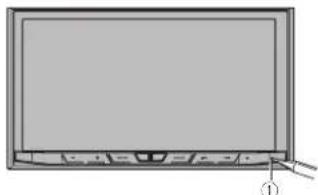
2 Press the RESET button with a pen tip or other pointed implement.
Settings and recorded contents are reset to the factory settings.
natural_image
Diagram of a flat-screen monitor with control buttons and a labeled pointer (no text or symbols on the screen)① RESET button
About this manual
This manual uses diagrams of actual screens to describe operations. However, the screens on some units may not match those shown in this manual depending on the model used.
Use and care of the remote control
■ Installing the battery
Slide the tray on the back of the remote control out and insert the battery with the plus (+) and minus (-) poles aligned properly.
- When using for the first time, pull out the film protruding from the tray.
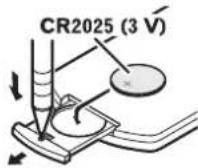
WARNING
- Keep the battery out of the reach of children. Should the battery be swallowed, consult a doctor immediately.
● Batteries (battery pack or batteries installed) must not be exposed to excessive heat such as sunshine, fire or the like.
CAUTION
- Remove the battery if the remote control is not used for a month or longer.
● There is a danger of explosion if the battery is incorrectly replaced. Replace only with the same or equivalent type. - Do not handle the battery with metallic tools.
- Do not store the battery with metallic objects.
- If the battery leaks, wipe the remote control completely clean and install a new battery.
- When disposing of used batteries, comply with governmental regulations or environmental public institutions' rules that apply in your country/area.
- "Perchlorate Material – special handling may apply.
See www.dtsc.ca.gov/hazardouswaste/perchlorate. (Applicable to California, U.S.A.)"
■ Using the remote control
Point the remote control in the direction of the front panel to operate.
● The remote control may not function properly in direct sunlight.
Important
- Do not store the remote control in high temperatures or direct sunlight.
- Do not let the remote control fall onto the floor, where it may become jammed under the brake or gas pedal.
Basic operation
Checking part names and functions
This chapter gives information about the names of the parts and the main features using the buttons.

text_image
①③②④ ⑤⑥⑦⑧⑨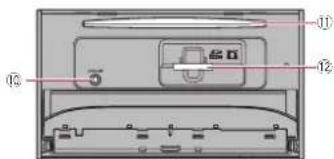
text_image
Diagram of a device rear panel with labeled ports and internal components① LCD screen
② Remote control sensor
③ VOL (+/-) button
Press to adjust the AV (Audio and Video) source volume.
④ MUTE button
Press to mute. Press again to unmute.
⑤ HOME button
- Press to display the Top menu screen. - For details of the operations, refer to How to use the screens on page 12.
- Press and hold to activate the voice recognition function.
For details, refer to Using the voice recognition function on page 19.
⑥ MODE button
- Press to switch between the Application screen and the AV operation screen.
☐ If the display cannot switch from the AV operation screen to the Application
screen when the MODE button is pressed, the display will turn off.
For details of the operations, refer to How to use the screens on page 12.
● Press and hold to turn the display off when the Application screen is available.
For details, refer to Turning off the display on page 11.
⑦ TRK button
Press to perform manual seek tuning, fast forward, reverse and track search controls.
⑧ button
⑨ RESET button
For details of the operations, refer to Reselling the microprocessor on page 8.
⑩ Auto EQ microphone input jack
Use to connect a microphone for acoustical measurement (sold separately).
⑪ Disc-loading slot
Insert a disc to play.
For details, refer to Inserting and ejecting a disc on page 10.
⑫ SD card slot
For details, refer to Inserting and ejecting an SD memory card on page 10.
Remote control
text_image
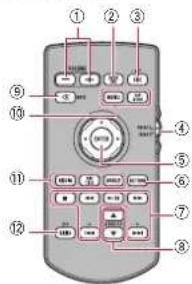
Diagram of a remote control with numbered buttons and function keys① VOLUME (+/-)
② REAR SRC
- Press to cycle through all the available rear sources.
- Press and hold to turn the rear source off.
③ SRC/OFF
- Press to cycle through all the available front sources.
- Press and hold to turn the front source off.
④ Source mode select switch
Use to switch the source mode between the front source and the rear source.
⑤ Thumb pad
Use to select a menu on the DVD menu.
⑥ RETURN
Returns to the specified point and starts playback from there.
⑦ ▶/II
Press to pause or resume playback.
◀
For audio
Press and hold to perform fast reverse.
For video
- Press to perform fast reverse.
- Press to change the fast reverse speed.
▶▶
For audio
Press and hold to perform fast forward.
For video
- Press to perform fast forward.
● Press to change the fast forward speed.
▶
Press to return to the previous track (chapter).
▶▶
Press to go to the next track (chapter).
■
Press to stop playback.
If you resume playback, playback will start from the point where you stopped. Touch the key again to stop playback completely.
® FOLDER/P.CH
- Press to select the next or previous disc or folder.
- Press to recall radio station frequencies assigned to preset channel keys.
⑨ MUTE
Press to mule. Press again to unmule.
10 MENU
Press to display the DVD menu during DVD playback.
TOP MENU
Press to return to the top menu during DVD playback.
Chapter
⑪ AUDIO
Press to change the audio language during DVD playback.
SUBTITLE
Press to change the subtitle language during DVD playback.
ANGLE
Press to change the viewing angle during DVD playback.
⑫ BAND/ESC
- Press to select the tuner band when tuner is selected as a source.
- Press to cancel the control mode of functions.
- Press to switch between media file types when playing the following types of data: —Disc
— External storage device (USB, SD)
Protecting your product against theft
CAUTION
- Do not attempt to detach the front panel while DISC/SD is in the eject position.
- Do not attempt to detach the front panel while data is being written to USB/SD. Doing so may cause the data to become corrupted.
● After the front panel has been detached, the attaching plate will move back to its original position automatically. Be careful not to let hands or other objects gel caught behind the monitor as it is moving back.
- Please make sure that the front panel is in its original position while the vehicle is in motion.
It is dangerous to drive with the front panel sticking out.
- Do not place beverages or other objects on top of the front panel while it is fully open.
Chapter
02
Important
- Handle the front panel with care when removing or attaching it.
● Avoid subjecting the front panel to excessive shock. - Keep the front panel out of direct sunlight and high temperatures.
- If removed, replace the front panel on the unit before starting up your vehicle.
■ Removing the front panel
1 Press the 🔊 button.
2 Touch the following key.
The front panel automatically slides toward you.
3 Slide the dial at the bottom of the front panel to the right, and lift up the front panel while pushing down on the dial.
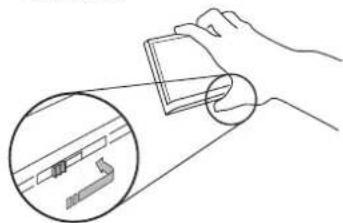
natural_image
Illustration of a hand holding a rectangular object with a magnified inset showing internal components (no text or symbols)4 Put the front panel into the provided protective case for safe keeping.
■ Attaching the front panel
1 Slide the front panel into the top of the unit and push it into place.
Slide the insertion on the front panel into the insertion slot on top of the unit and push it into place.

natural_image
Technical line drawing of a mechanical frame or bracket assembly (no text or symbols)2 Push on the bottom of the front panel until it clicks into place.
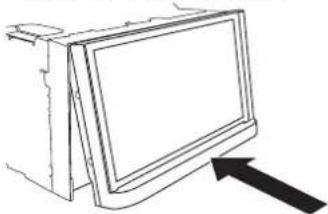
natural_image
Simple line drawing of a computer monitor with an arrow pointing to it (no text or symbols)Notes on using the LCD panel
WARNING
- Keep hands and fingers clear of this product when opening, closing, or adjusting the LCD panel. Be especially cautious of children's hands and fingers.
- Do not use with the LCD panel left open. If the LCD panel is left open, it may result in injury in the event of an accident.
CAUTION
- Do not open or close the LCD panel by force. This may cause a malfunction.
- Do not operate this product until the LCD panel has completely opened or closed. If this product is operated while the LCD panel is opening or closing, the LCD panel may stop at that angle for safety.
- Do not place a glass or can on the open LCD panel. Doing so may break this product.
Adjusting the LCD panel angle
1 Press the ▲utton.
2 Touch the following keys to adjust the angle of the LCD panel.
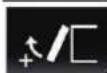
Laying the panel down,
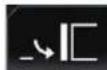
Returning the panel to the upright position.
3 Touch the following key.

Returns to the previous screen.
☐ The adjusted angle of the LCD panel will be memorized and the LCD panel will automatically return to that angle the next time the LCD panel is opened or closed.
Inserting/ejecting/connecting media
CAUTION
- Do not insert anything other than a disc into the disc-loading slot.
- Do not insert anything other than SD memory cards into the SD card slot.
- Ejecting an SD memory card during data transfer can damage the SD memory card. Be sure to eject the SD memory card by the procedure described in this manual.
- Do not press the button when an SD memory card is not fully inserted. Doing so may damage the card.
- Do not press the button before an SD memory card has been completely removed. Doing so may damage the card.
■ Inserting and ejecting a disc Inserting a disc
1 Press the 🔊 button.
2 Touch the following key.
Opens the LCD panel.
3 Insert a disc into the disc-loading slot.
The disc is loaded, and the LCD panel closes.
Ejecting a disc
1 Press the Button.
2 Touch the following key.
The LCD panel opens, and the disc is ejected.
3 Remove the disc, and press the ▲ button.
The LCD panel closes.
■ Inserting and ejecting an SD memory card
☐ This system is not compatible with the Multi Media Card (MMC).
- Compatibility with all SD memory cards is not guaranteed.
☐ This product may not achieve optimum performance with some SD memory cards.
Inserting an SD memory card
1 Press the Button.
2 Touch the following key.
Opens the LCD panel.
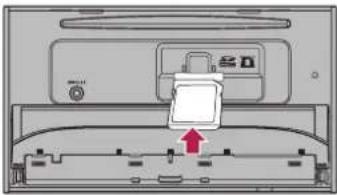
3 Insert an SD memory card into the SD card slot.
Insert it with the label surface face-up and press the card until it clicks and completely locks.
natural_image
Diagram of a device with a labeled component and directional arrow (no readable text or symbols)4 Press the 🔊 button.
The LCD panel closes.
Ejecting an SD memory card
1 Press the 🔊 button.
2 Touch the following key.
Opens the LCD panel.
3 Press the middle of the SD memory card gently until it clicks. The SD memory card is ejected.
4 Pull the SD memory card out straight.
5 Press the ▲utton.
The LCD panel closes.
■ Connecting and disconnecting an iPod
Connecting your iPod
For details, refer to Connecting an iPhone with Lightning connector on page 76.
For details, refer to Connecting an iPhone with 30-pin connector on page 76.
Disconnecting your iPod
● Pull out the cables after confirming that no data is being accessed.
■ Plugging and unplugging a US storage device
This product may not achieve optimum performance with some USB storage devices.
☐ Connection via a USB hub is not possible.
A USB cable is required for connection.
Plugging in a USB storage device
● Plug a USB storage device into the USB cable.
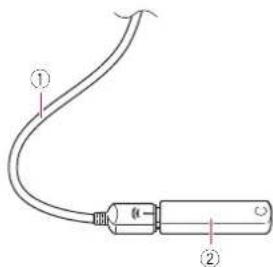
text_image
Diagram of a cable with labeled parts, showing two numbered components and a central connector.① USB cable
② USB storage device
Unplugging a USB storage device
● Pull out the USB storage device after checking that no data is being accessed.
Startup and termination
1 Start the engine to boot up the system.
After a short pause, the splash screen comes on for a few seconds.
2 Turn off the vehicle engine to terminate the system.
This product is also turned off.
On first-time startup
When you use this product for the first time, select the language that you want to use.
1 Start the engine to boot up the B system.
After a short pause, the splash screen comes on for a few seconds. The "Select Program Language" screen appears.
2 Touch the language that you want to use on screen.
3 Touch the following key.

Displays the "Smartphone Setup" screen.
4 Touch the item you want to set.
For details, refer to Information on the connections and functions for each device on page 21.
5 Touch the following key.

Displays the Top menu screen.
- If you touch ■e display returns to the previous screen.
Regular startup
● Start the engine to boot up the system.
After a short pause, the splash screen comes on for a few seconds.
The screen shown will differ depending on the previous conditions.
☐ Enter the password for the anti-theft function if the password entry screen appears.
Turning off the display
You can turn off the display at night or when the screen is too bright.
■ When the Application screen is available
● Press and hold the MODE button.
The display turns off.
☐ If you touch the screen when the display is off, it reverts to the original screen.
■ When the Application screen is not available
- Press the MODE button.
The display turns off,
If you touch the screen when the display is off, I reverts to the original screen.
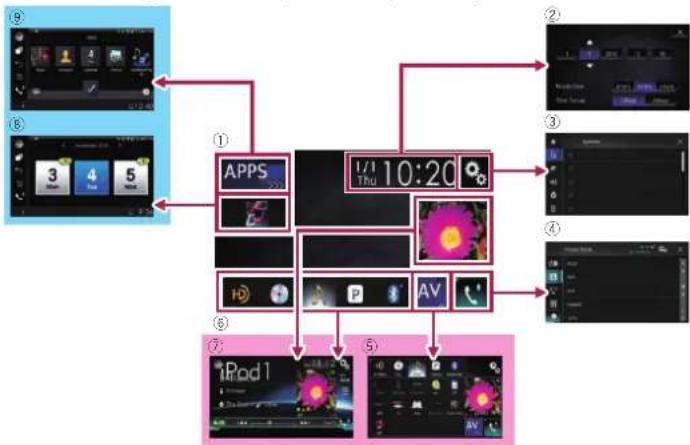
flowchart
graph TD
    A["App 1"] --> B["IPod 1"]
    C["Android 3"] --> D["Android 4"]
    E["Android 5"] --> F["Android 6"]
    G["Android 7"] --> H["Android 8"]
    I["Android 9"] --> J["Android 10"]
    K["Android 11"] --> L["Android 12"]
    M["Android 13"] --> N["Android 14"]
    O["Android 15"] --> P["Android 16"]
    Q["Android 17"] --> R["Android 18"]
    S["Android 19"] --> T["Android 20"]
    U["Android 21"] --> V["Android 22"]
    W["Android 23"] --> X["Android 24"]
    Y["Android 25"] --> Z["Android 26"]
    AA["Android 27"] --> AB["Android 28"]
    AC["Android 29"] --> AD["Android 30"]
    AE["Android 31"] --> AF["Android 32"]
    AG["Android 33"] --> AH["Android 34"]
    AI["Android 35"] --> AJ["Android 36"]
    AK["Android 37"] --> AL["Android 38"]
    AM["Android 39"] --> AN["Android 40"]
    AO["Android 41"] --> AP["Android 42"]
    AQ["Android 43"] --> AR["Android 44"]
    AS["Android 45"] --> AT["Android 46"]
    AU["Android 47"] --> AV["Android 48"]
    AW["Android 49"] --> AX["Android 50"]
    AY["Windows"] --> AZ["APPS"]
    BA["Battery"] --> BB["Pump Icon"]
    BC["Audio Icon"] --> BD["Pulse Icon"]
    BE["AV Icon"] --> BF["Syringe Icon"]
    BG["I/I 10:20 %"] --> BH["I/I 10:20 %"]
    BI["I/I 10:20 %"] --> BJ["I/I 10:20 %"]
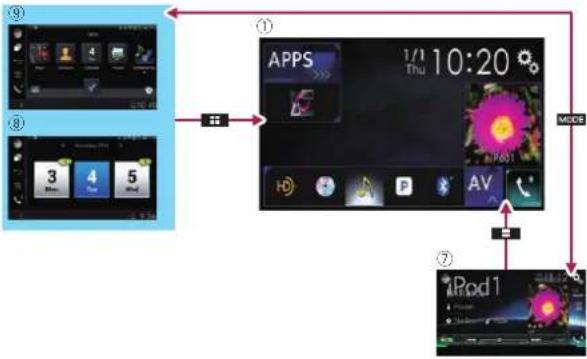
flowchart
graph TD
    A["App 1"] --> B["Mode"]
    B --> C["App 2"]
    C --> D["Mode"]
    D --> E["App 3"]
    E --> F["Mode"]
    F --> G["App 4"]
    G --> H["Mode"]
    H --> I["App 5"]
    I --> J["Mode"]
    J --> K["App 6"]
    K --> L["Mode"]
    L --> M["App 7"]
    M --> N["Mode"]
    N --> O["App 8"]
    O --> P["Mode"]
    P --> Q["App 9"]
    Q --> R["Mode"]
    R --> S["App 10"]
    S --> T["Mode"]
    T --> U["App 11"]
    U --> V["Mode"]
    V --> W["App 12"]
    W --> X["Mode"]
    X --> Y["App 13"]
    Y --> Z["Mode"]
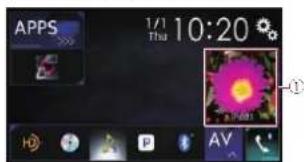
text_image
APPS 1/1 Thu 10:20 AV ①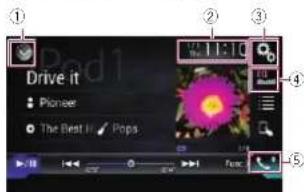
text_image
Drive it Pioneer The Best It Pops 1:11:00 10:00 4 5■ Selecting a front source on the
AV source selection screen
1 Press the HOME button to display the Top menu screen.
2 Touch the following key.

Displays the AV source selection screen.
3 Touch the source icon you want to select.
The AV operation screen of the selected source appears.
■ Selecting a front source on the source list
☐ This function is not available during a call via this product.
1 Press the HOME button to display the Top menu screen.
2 Touch the AV operation key.
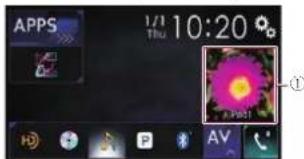
text_image
APPS 1/1 Thu 10:20 ° AV ①① AV operation key
The AV operation screen appears.
3 Touch the following key.

Displays the source list.
4 Touch the source key you want to select.
The AV operation screen of the selected source appears.
☐ "Camera View" is available only when "Back Camera Input" or "2nd Camera Input" is set to "On".
■ Selecting a rear source
You can select a source output to the rear display.
For details of the operations, refer to Selecting the video for the rear display on page 71.
Turning off the AV source
Turn off the AV source to stop playing or receiving the AV source.
1 Press the HOME button to display the Top menu screen.
2 Touch the following key.

Displays the AV source selection screen.
3 Touch [OFF].
The AV source is turned off.
Changing the display order of source icons
You can change the display order of source icons on the AV source selection screen.
This setting is available only when you stop your vehicle in a safe place and apply the parking brake.
☐ This function is not available during a call via this product.
1 Press the HOME button to display the Top menu screen.
2 Touch the following key.

Displays the AV source selection screen.
3 Touch and hold a source icon, and drag the icon to the desired position.
☐ If the source icon is moved, the order of the source list is also changed.
Changing the display order of source keys
You can change the display order of source keys on the source list.
☐ This setting is available only when you stop your vehicle in a safe place and apply the parking brake.
This function is not available during a call via this product.
1 Press the HOME button to display the Top menu screen.
2 Touch the AV operation key.
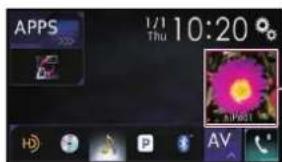
text_image
APPS 1/1 Thu 10:20 AV① AV operation key
The AV operation screen appears.
3 Touch the following key.

Displays the source list.
4 Touch the following key.
The source keys can be moved.
5 Drag the source key to the desired position.
6 Touch the following key.
Returns to the previous screen.
If the source key is moved, the source icons displayed on the Top menu screen and the AV source screen are also moved.
Chapter
Using the touch panel
You can operate this product by louching the marks and items (touch panel keys) displayed on the screen directly with your fingers.
☐ To protect the LCD screen from damage, be sure to touch the touch panel keys only with your finger and do so gently.
■ Using the common touch panel keys
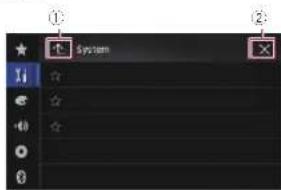
text_image
① System ②① Returns to the previous screen.
② Closes the screen.
■ Operating list screens
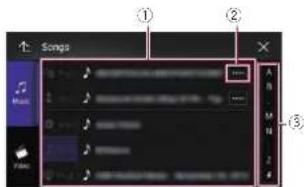
text_image
Songs ① ② ③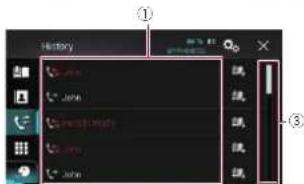
① Touching an item on the list selects the item or narrows down the options.
Chapter
03
② Appears when all characters are not displayed on the display area.
If you touch the key, the rest of the characters are scrolled for display.
③ Appears when items cannot be displayed on a single page only.
Drag the slider bar to view any hidden items.
Also, you can drag the list to view any hidden items.

Operating the time bar
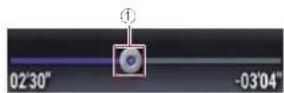
① You can change the playback point by dragging the key.
□ Playback time corresponding to the position of the key is displayed while dragging the key.
This function is not available when using iPod function with an iPhone 6 Plus, iPhone 6, iPhone 5s, iPhone 5c, iPhone 5, or iPod touch (5th generation).
☐ This function is not available for some media or sources.
■ Operating the on-screen keyboard
text_image
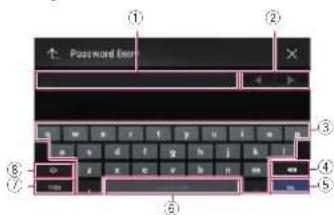
Password Enter ① ② ③ ④ ⑤ ⑥① Displays the characters that are entered. If there is no text in the box, an informative guide with text appears.
② Moves the cursor to the right or left for a number of characters equivalent to the number of touches:
③ Enters the characters in the text box.
④ Deletes the input text to the left of the cursor one letter at a time. Continuing to touch the key deletes all of the text.
⑤ Confirms the entry and proceeds to the next step.
⑥ Enters a space.
A space equivalent to the number of touches is inserted.
⑦ Switches between alphabet and numbers/symbols.
⑧ Switches between capital and lower case letters.
Registering and connecting a Bluetooth device
If your devices feature Bluetooth® technology, this product can be connected to your devices wirelessly. This section describes how to set up a Bluetooth connection.
For details about connectivity with the devices featuring Bluetooth wireless technology, refer to the information on our website.
The "Bluetooth" menu is available only when you stop your vehicle in a safe place and apply the parking brake.
Preparing communication devices
This product has a built-in function that enables to use devices featuring Bluetooth wireless technology.
For details, refer to Notes for hands-free phoning on page 19.
You can register and use devices that feature the following profiles with this product.
- HFP (Hands-Free Profile)
● A2DP (Advanced Audio Distribution Profile) - SPP (Serial Port Profile)
When this product is turned off, the Bluetooth connection is also disconnected. When the system restarts, the system automatically attempts to reconnect the previously-connected device. Even when the connection is severed for some reason, the system automatically reconnects the specified device (except
when the connection is severed due to device operation).
Registering your Bluetooth devices
You need to register your devices featuring Bluetooth wireless technology when you connect it to this product for the first time. A total of three devices can be registered. Two registration methods are available:
- Searching for nearby Bluetooth devices
- Pairing from your Bluetooth devices
☐ If three devices are already paired, "Memory Full" is displayed and pairing cannot be performed. In such cases, delete a paired device first.
For details, refer to Deleting a registered device on page 15.
■ Searching for nearby Bluetooth devices
The system searches for available Bluetooth devices near this product, displays them in a list, and registers them for connection.
When the device is already connected, this function is inactive.
1 Activate the Bluetooth wireless technology on your devices.
☐ For some Bluetooth devices, no specific action is necessary to activate Bluetooth wireless technology. For details, refer to the instruction manual of your devices.
☐ Set the device visible to other devices.
2 Press the HOME button to display the Top menu screen.
3 Touch the following keys in the following order.

The "Bluetooth" screen appears.
4 Touch [Connection].
5 Touch the following key.

Starts searching.
The system searches for Bluetooth devices waiting for a connection and displays them in the list if a device is found.
☐ Up to 20 devices will be listed in the order that the devices are found.
6 Wait until your Bluetooth device appears in the list.
☐ If you cannot find the Bluetooth device that you want to connect, check that the device is waiting for a Bluetooth wireless technology connection.
7 Touch the name of the Bluetooth device you want to register.
While connecting, "Pairing... Please wait." is displayed. If the connection is established, "Paired." is displayed.
☐ If your device supports SSP (Secure Simple Pairing), a six-digit number appears on the display of this product. Touch [Yes] to pairing the device.
☐ If the connection fails, "Error" is displayed. In such cases, try again from the beginning.
☐ The PIN code is set to "0000" as the default, but can be changed.
For details, refer to Entering the PIN code for Bluetooth wireless connection on page 16.
Once the connection is established, the device name is displayed. Touch the device name to disconnect.
After the device is successfully registered, a Bluetooth connection is established from the system.
The profile icons displayed on the registered device list screen light up as follows.

Lights up when your mobile device is successfully connected with the HFP (Hands-Free Profile).

Lights up when your audio device is successfully connected with the A2DP (Advanced Audio Distribution Profile)/AVRCP (Audio/Video Remote Control Profile).

Lights up when the Bluetooth connection is established with the SPP (Serial Port Profile).
☐ After pairing, the phone book registered in the device may be automatically transmitted to this product.
- If you touch the following key, you can switch the display between the device names and Bluetooth device addresses.

Switches between the device names and Bluetooth device addresses.
■ Pairing from your Bluetooth devices
You can register a Bluetooth device by selling this product to standby mode and requesting a connection from the Bluetooth device.
Before registration, make sure that "Visibility" in the "Bluetooth" menu is set to "On".
- For details, refer to Switching visibility on page 15.
1 Activate the Bluetooth wireless technology on your devices.
☐ For some Bluetooth devices, no specific action is necessary to activate Bluetooth wireless technology. For details, refer to the instruction manual of your devices.
2 Use the Bluetooth setting in the device to pair this product with the device.
☐ If a PIN code input is required, enter a PIN code. (The default PIN code is "0000".)
When the device is successfully registered, the connection settings are made from the device.
☐ If registration fails, repeat the procedure from the beginning.
■ Connecting to a Bluetooth device automatically
If this function is set to on, a connection between your Bluetooth device and this product will take place automatically as soon as the two devices are less than a few meters apart.
Initially, this function is set to on. ☐ If this function is set to on, a connection with the last connected Bluetooth device will be established automatically when the ignition switch is turned on.
1 Press the HOME button to display the Top menu screen.
2 Touch the following keys in the following order.

The "Bluetooth" screen appears.
3 Touch [Auto Connect] repeatedly until the desired setting appears.
● On (default): Turns the automatic connection on.
- Off:
Turns the automatic connection off. If your Bluetooth device is ready for a Bluetooth wireless connection, a connection to this product will automatically be established.
If connection fails, "Bluetooth auto connection failed. Retry?" appears.
Touch [Yes] to reconnect.
■ Deleting a registered device
When you have already registered three Bluetooth devices and you want to add another one, you must first delete one of the registered devices.
☐ If a registered phone is deleted, all the phone book entries and call history lists that correspond to the phone will be also cleared.
CAUTION
Never turn this product off while the paired Bluetooth device is being deleted.
1 Press the HOME button to display the Top menu screen.
2 Touch the following keys in the following order.

The "Bluetooth" screen appears.
3 Touch [Connection].
4 Touch the following key.

Deletes a paired device.
A confirmation message appears
5 Touch [Yes].
The device is deleted.
Connecting a registered Bluetooth device manually
Connect the Bluetooth device manually in the following cases:
● Two or more Bluetooth devices are registered, and you want to manually select the device to be used.
- You want to reconnect a disconnected Bluetooth device.
- Connection cannot be established automatically for some reason.
To start the connection manually, carry out the following procedure.
Chapter
03
English
1 Activate the Bluetooth wireless technology on your devices.
For some Bluetooth devices, no specific action is necessary to activate Bluetooth wireless technology. For details, refer to the instruction manual of your devices.
2 Press the HOME button to display the Top menu screen.
3 Touch the following keys in the following order.

The "Bluetooth" screen appears,
4 Touch [Connection].
5 Touch the name of the device that you want to connect.
Switching visibility
This function sets whether or not to make this product visible to other devices. Initially, this function is set to on.
1 Press the HOME button to display the Top menu screen.
2 Touch the following keys in the following order.

The "Bluetooth" screen appears.
3 Touch [Visibility] repeatedly until the desired setting appears.
- On (default):
Turns the visibility on.
Off
Turns the visibility off.
En
Chapter
04
Entering the PIN code for Bluetooth wireless connection
To connect your Bluetooth device to this product via Bluetooth wireless technology, you need to enter a PIN code on your Bluetooth device to verify the connection. ☐ The default code is "0000", but you can change it with this function.
1 Press the HOME button to display the Top menu screen.
2 Touch the following keys in the following order.


The "Bluetooth" screen appears.
3 Touch [PIN Code Input]. The "PIN Code" screen appears.
4 Touch [0] to [9] to input pin code (up to 8 digits).
5 Touch the following key.

Stores the PIN code in this product.
Displaying the Bluetooth address
You can check the Bluetooth address of this product.
1 Press the HOME button to display the Top menu screen.
2 Touch the following keys in the following order.


The "Bluetooth" screen appears.
3 Touch [Device Information]. The Bluetooth address is displayed.
16
En
Clearing the Bluetooth memory
CAUTION
Never turn this product off while the Bluetooth memory is being cleared.
1 Press the HOME button to display the Top menu screen.
2 Touch the following keys in the following order.


The "Bluetooth" screen appears.
3 Touch [Bluetooth Memory Clear].
4 Touch [Clear].
The confirmation screen appears.
5 Touch [OK].
The Bluetooth memory is cleared.
- If you do not want to clear the memory, touch [Cancel].
Updating Bluetooth software
This function is used to update this product with the latest Bluetooth software. For details on Bluetooth software and updating, refer to our website.
☐ The source is turned off and the Bluetooth connection is disconnected before the process starts.
CAUTION
Never turn this product off while the software is being updated.
1 Press the HOME button to display the Top menu screen.
2 Touch the following keys in the following order.


The "Bluetooth" screen appears.
3 Touch [BT Software Update].
4 Touch [Start].
The data transfer screen is displayed.
- Follow the on-screen instructions to finish updating the Bluetooth software.
Displaying the Bluetooth software version
If this product fails to operate properly, you may need to consult your dealer for repair. In such cases, you may be asked to specify the software version. Perform the following procedure to check the version on this unit:
1 Press the HOME button to display the Top menu screen.
2 Touch the following keys in the following order.


The "Bluetooth" screen appears.
3 Touch [Bluetooth Version Information].
The version of this product's Bluetooth module appears.
Using hands-free phoning
CAUTION
For your safety, avoid talking on the phone as much as possible while driving. If your cellular phone features Bluetooth technology, this product can be connected to your cellular phone wirelessly. Using this hands-free function, you can operate this product to make or receive phone calls. This section describes how to set up a Bluetooth connection and how to operate a cellular phone featuring Bluetooth technology on this product.
For details about connectivity with the devices featuring Bluetooth wireless technology, refer to the information on our website.
Displaying the phone menu
☐ Connect a cellular phone to this product for using hands-free phonings.
For details, refer to Chapter 3.
☐ The Phone icon is displayed on the following screens.
— Top menu screen
— AV operation screen
— On the App control side bar on the AppRadio Mode and MirrorLink mode screens
- Touch the following key.

Displays the Phone menu screen.
☐ The "Phone Book" screen appears when using this function for the first time. The screen of the last-used function appears from the next time.

Touch panel keys

text_image
Phone Book ① ② ③ ④ ⑤ Acy Bch Bch Edwert John ⑥ ⑦ ⑧① Displays the preset dial screen.
② Switches to the phone book list.
③ Switches to the missed, received and dialed call lists.
(4) Switches the mode to enter the phone number directly.
⑤ Switches to the voice recognition function.
⑥ Displays the Setting menu screen.
⑦ Closes the screen.
⑧ Displays entries in the list by the initial character.
- Reading the screen
text_image
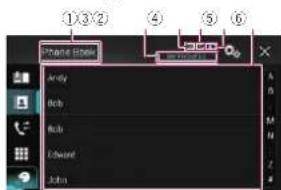
①③② Private Editor Andy Bob Bob Edward John① Menu title
② Name of the connected cellular phone
(3) Battery status of the cellular phone
④ Reception status of the cellular phone
⑤ Indicates that a Bluetooth telephone is connected.
The list number of the connected device is displayed.
⑥ List display area
Making a phone call
You can make a phone call in many different ways.
■ Direct dialing
1 Press the HOME button to display the Top menu screen.
2 Touch the following keys in the following order.

The "Dial" screen appears.
① ②
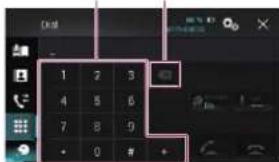
text_image
Digital 1 2 3 4 5 6 7 8 9 + 0 # +(1) Dial pad
(2) Deletes one digit. Touch and hold to delete all digits.
3 Touch the number keys to enter the phone number.
4 Touch the following key.

Makes a call.
5 Touch the following key.

Ends the call.
The call ends.
☐ You may hear a noise when you hang up the phone.
■ Calling a number in the phone book
After finding the number you want to call in the phone book, you can select the entry and make the call.
The contacts on your phone will normally be transferred to this product automatically when the phone is connected. If the contacts are not transferred automatically, you can transfer the contacts using the phone menu of the cellular phone.
To transfer the contacts using the phone menu of the cellular phone, set this product visible to other devices.
For details, refer to Switching visibility on page 15.
1 Press the HOME button to display the Top menu screen.
2 Touch the following keys in the following order.
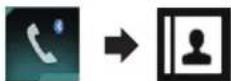
The "Phone Book" screen appears.
3 Touch the desired name on the list.
The details screen of the phone book
appears.
4 Touch the phone number you want to dial.
The dial screen appears.
5 Dialing starts.
To cancel the call, touch
6 Touch the following key.

Ends the call.
The call ends.
Selecting a number by alphabet search mode
If many phone numbers are registered in the phone book, you can search for phone numbers by alphabet search mode.
1 Press the HOME button to display the Top menu screen.
2 Touch the following keys in the following order.

The "Phone Book" screen appears.
3 Drag the Initial Search Bar to find an entry by the initial character of the name.
The alphabet corresponding to the current position on the Initial Search Bar is displayed.
4 Release the Initial Search Bar at the desired alphabet.
The "Phone Book" entries starting with that letter (e.g. "Ben", "Brian" and "Burt" when "B" is selected) will be displayed.
☐ To refine the search with a different letter, touch [Cancel].
5 Touch an entry to display the phone number list of the entry.
The details screen of the phone book appears.
6 Touch the phone number you want to dial.
The dial screen appears.
7 Dialing starts.
To cancel the call, touch
8 Touch the following key.

Ends the call.
The call ends.
■ Dialing from the history
The most recent calls made (dialled, received and missed) are stored in the call history list. You can browse the call history list and call numbers from it.
1 Press the HOME button to display the Top menu screen.
2 Touch the following keys in the following order.
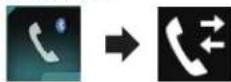
The "History" screen appears.
☐ Depending on the type of cellular phone, some calls may not be displayed in the call history.
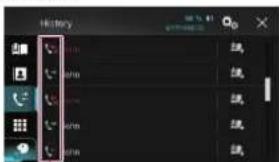
text_image
History one one one one one one①
Chapter
04
English
En
Chapter
04
① Type of call history

Received calls.

Daled calls.

Missed calls.
3 Touch the desired entry on the list to make a call.
The dial screen appears.
4 Dialing starts.
To cancel the call, touch
5 Touch the following key.

Ends the call.
The call ends.
■ Using the preset dial lists
You can dial a number from the preset dial list.
Registering a phone number
You can easily store up to six phone numbers per device as presels.
1 Press the HOME button to display the Top menu screen.
2 Touch the following keys in the following order.



The "Phone Book" or "History" screen appears.
3 Touch the following key.

Registers the phone number to the "Preset Dial" list.
Dialling from the preset dial list
1 Press the HOME button to display the Top menu screen.
2 Touch the following keys in the following order.

The "Preset Dial" screen appears.
3 Touch the desired entry on the list to make a call.
The dial screen appears.
4 Dialing starts.
To cancel the call, touch
5 Touch the following key.

Ends the call.
The call ends.
Deleting a phone number
1 Press the HOME button to display the Top menu screen.
2 Touch the following keys in the following order.

The "Preset Dial" screen appears.
3 Touch the following key.

Deletes the phone number.
Receiving a phone call
You can answer an incoming call to your cellular phone via this product.
■ Answering an incoming call
This product informs you that it is receiving a call by displaying a message and producing a ring sound.
☐ You can set the system to automatically answer incoming calls. If this product is not set to automatically answer incoming calls, answer the calls manually.
For details, refer to Answering a call automatically on page 18.
☐ The registered name appears if the phone number of the received call is already registered in "Phone Book".
1 Touch the following key.

Answers an incoming call.

Rejects an incoming call.
The rejected call is recorded in the missed call history list.
For details, refer to Dialing from the history on page 17.
2 Touch the following key.

Ends the call.
The call ends.
Minimizing the dial confirmation screen
The dial confirmation screen cannot be minimized on the AV operation screen.
☐ AV sources cannot be selected even if the dial confirm screen is minimized while talking on the phone.
1 Touch the following key.

The dial confirmation screen is minimized.
2 Touch the following key.

Displays the dial confirmation screen again.
Changing the phone settings
■ Answering a call automatically
This product automatically answers incoming calls to the connected cellular phone, so you can answer calls while driving without taking your hands off the steering wheel.
When "Auto Answer" is set to "On", an incoming call will be automatically answered in 5 seconds.
1 Press the HOME button to display the Top menu screen.
2 Touch the following keys in the following order.

The "Bluetooth" screen appears.
3 Touch [Auto Answer] repeatedly until the desired setting appears.
- Off (default):
Turns the automatic answering off.
On
Turns the automatic answering on.
■ Switching the ring tone
You can select whether or not to use this product's ring lone.
1 Press the HOME button to display the Top menu screen.
2 Touch the following keys in the following order.


The "Bluetooth" screen appears.
3 Touch [Ring Tone] repeatedly until the desired setting appears.
- On (default)
Turns the ring tone on.
- Off
Turns the ring tone off.
■ Inverting names in the phone book
When your device is connected to this product, the first and last names of your contacts may be registered to the phone book in reverse order.
You can use this function to change the order back. (Inverting the names in the phone book)
1 Press the HOME button to display the Top menu screen.
2 Touch the following keys in the following order.


The "Bluetooth" screen appears.
3 Touch [Invert Name].
The confirmation screen appears.
4 Touch [Yes].
If the inversion fails, "Invert Name Error" appears. In such cases, I try again from the beginning.
☐ Inverting the names of your contacts from this product does not affect the data on your cellular phone.
■ Setting the private mode
During a conversation, you can switch to private mode (talk directly on your cellular phone).
● Touch the following keys to turn private mode on or off.
Talk directly on your mobile device.
Hands-free phoning
■ Adjusting the other party's listening volume
To maintain good sound quality, this product can adjust the other party's listening volume.
If the volume is too loud or not loud enough, use this function.
● Touch the following key.

Switches between the three volume levels.
This function can be performed even while talking on the phone.
Settings can be stored for each device.
Using the voice recognition function
You can use the voice recognition function of iPhone or smartphone.
When an iPhone running iOS 6.1 or higher is used, Siri Eyes Free Mode is available with this product.
☐ For using this function with a smartphone, the device must be compatible with Android Auto and "Mode" in "Smartphone Setup" must be set to "Android Auto" beforehand.
- For details, refer to information on the connections and functions for each device on page 21.
1 Press the HOME button to display the Top menu screen.
2 Touch the following keys to start voice control.


The voice recognition function launches and the voice control screen appears. You can use the voice recognition function in the same way as using it on the iPhone or smartphone.
☐ You can also launch the voice recognition function by pressing and holding the HOME button.
Indicates that this product is on standby for your voice commands.

Cancels the voice recognition function.
Notes for hands-free phoning General notes
- Connection to all cellular phones featuring Bluetooth wireless technology is not guaranteed.
- The line-of-sight distance between this product and your cellular phone must be 10 meters or less when sending and receiving voice and data via Bluetooth technology. However, the actual transmission distance may be shorter than the estimated distance, depending on the usage environment.
- With some cellular phones, the ring sound may not be output from the speakers.
- If private mode is selected on the cellular phone, hands-free phoning may be disabled.
Registration and connection
- Cellular phone operations vary depending on the type of cellular phone. Refer to the instruction manual that came with your cellular phone for detailed instructions.
Chapter
04
English
- With cellular phones, phone book transfer may not work even though your phone is paired with this product. In that case, disconnect your phone, and then perform pairing again from your phone to this product.
Making and receiving calls
● You may hear a noise in the following situations:
— When you answer the phone using the button on the phone.
— When the person on the other end of the line hangs up the phone.
- If the person on the other end of the line cannot hear the conversation due to an echo, decrease the volume level for hands-free phoning. This may reduce the echo.
- With some cellular phones, even if you press the accept button on the cellular phone when a call comes in, hands-free phoning may not be performed.
- The registered name appears if the phone number of the received call is already registered in the phone book. When one phone number is registered under different names, only the phone number is displayed.
- If the phone number of the received call is not registered in the phone book, the phone number of the received call appears.
The received call and the dialed number histories
- You cannot make a call to the entry of an unknown user (no phone number) in the received call history.
- If calls are made by operating your cellular phone, no history data will be recorded in this product.
Phone book transfers
- If there are more than 800 phone book entries on your cellular phone, all entries may not be downloaded completely.
- With some cellular phones, it may not be possible to transfer all items in the phone book at one time. In this case, transfer items one by one from your cellular phone.
En
Chapter
05
- Depending on the cellular phone, this product may not display the phone book correctly. (Some characters may be garbled, or the order of first, and last names may be reversed.)
- If the phone book in the cellular phone contains image data, the phone book may not be transferred correctly. (Image data cannot be transferred from the cellular phone.)
● Depending on the cellular phone, phone book transfer may not be available.
iPod / iPhone or smart-phone setup operation
When using an iPod / iPhone or a smartphone with this product, configure the settings of this product according to the device to be connected. This section describes the settings required for each device.
The basic flow of iPod / iPhone or smartphone setup
(1) Select the method for connecting your device.
For details, refer to Setting the device connection method on page 20.
② Connect your device to this product.
For details of the connections, refer to Chapter 31.
③ If necessary, connect your device to this product via Bluetooth connection.
For details of the Bluetooth connection, refer to Chapter 3.
Setting the device connection method
If you want to use the application for iPhone or smartphone on this product, you must select the method for connecting your device.
Settings are required according to the connected device.
1 Press the HOME button to display the Top menu screen.
2 Touch the following keys in the following order.

The "System" screen appears.
3 Touch [Input/Output Settings].
4 Touch [Smartphone Setup].
The "Smartphone Setup" screen appears.
5 Configure the following settings.
● Device: Select the device to be connected.
- Connection: Select the connection method.
Configure the settings correctly according to the device to be connected and the connection method to be used.
For details, refer to information on the connections and functions for each device on page 21.
☐ If you change the setting, the confirmation screen appears.
Touch |OK|
The setting will change after the following processes are automatically executed.
— The source is turned off.
— AppRadio Mode or MirrorLink mode is exited.
— The smartphone connection (USB and Bluetooth) is disconnected.
To cancel, touch [Cancel]
The setting cannot be changed for a while after the setting is changed.
iPod compatibility
This product supports only the following iPod models and iPod software versions. Others may not work correctly. Made for
iPhone 6 Plus: iOS 8
- iPhone 6: iOS 8
- iPhone 5s: iOS 7.0.3
- iPhone 5c: iOS 7.0.3
iPhone 5: iOS 7.0.3
iPhone 4s: iOS 7.0.3
- iPhone 4: iOS 7.0.3
- iPhone 3GS: iOS 6.0.1
- iPod touch (5th generation): iOS 6.0.1
- iPod touch (4th generation): iOS 6.0.1
- iPod touch (3rd generation): iOS 5.1.1
- iPod touch (2nd generation): iOS 4.2.1
- iPod classic 160GB (2009); Ver. 2.0.4
- iPod classic 160GB (2008): Ver. 2.0.1
- iPod classic 80GB: Ver. 1.1.2
- iPod nano (7th generation)
- iPod nano (6th generation): Ver. 1.2
- iPod nano (5th generation): Ver. 1.0.2
- iPod nano (4th generation): Ver. 1.0.4
- iPod nano (3rd generation): Ver. 1.1.3
☐ You can connect and control an iPod compatible with this product by using separately sold connector cables.
☐ Operation methods may vary depending on the iPod model and the software version of the iPod.
☐ Depending on the software version of the iPod, it may not be compatible with this product.
For details about iPod compatibility with this product, refer to the information on our website.
This manual applies to the following iPod models.
iPod with 30-pin connector
iPhone 4s
iPhone 4
- iPhone 3GS
- iPod touch 4th generation
- iPod touch 3rd generation
- iPod touch 2nd generation
- iPod classic 160GB
- iPod classic 80GB
- iPod nano 6th generation
- iPod nano 5th generation
- iPod nano 4th generation
- iPod nano 3rd generation
iPod with Lightning connector
iPhone 6 Plus
iPhone 6
iPhone 5s
iPhone 5c
iPhone 5
- iPod touch 5th generation
- iPod nano 7th generation
Android™ device compatibility
☐ Operation methods may vary depending on the Android device and the software version of the Android OS.
☐ Depending on the version of the Android OS, it may not be compatible with this product.
- Compatibility with all Android devices is not guaranteed.
For details about Android device compatibility with this product, refer to the information on our website.
AppRadio Mode Compatibility
iPod with 30-pin connector
- iPhone 4s
iPhone 4 - iPod touch 4th generation
iPod with Lightning connector
- iPhone 6 Plus
iPhone 6 - iPhone 5s
iPhone 5c
iPhone 5 - iPod touch 5th generation
For details about Android device compatibility with this product, refer to the information on our website.
MirrorLink device compatibility
☐ This product is compatible with MirrorLink version 1.0.
- Compatibility with all MirrorLink devices is not guaranteed.
For details about MirrorLink device compatibility with this product, refer to the information on our website.
MirrorLink device compatibility
[Non-Text]
Information on the connections and functions for each device
The settings and cables required for connecting each device, and the available sources are as follows.
| iPod / iPhone with a 30-pin connector | ||||
| Required cable (sold separately) | Cable connection is not required. | CD-IU201V CD-IU201S | ||
| Smartphone Setup | Device iPhone/iConnection Bluetooth USB USB | Pod iPhone/iPod | iPhone/iPod | |
| Bluetooth connection | Bluetooth connection is required. | — | — | |
| Connection requirement — | Connect to USB port 1 for using aha or Pandora. | Connect to USB port 1 for using aha, Pandora, or AppRadio Mode. | ||
| Available source | iPod (audio) — | √ | √ | |
| iPod (video) — | √ | √ | ||
| aha | √ | √ | √ | |
| Pandora | √ | √ | √ | |
| AppRadio Mode | — | — | √ | |
| iPod / iPhone with a Lightning connector | ||||
| Required cable (sold separately) | Cable connection is not required. | CD-IU52 | CD-IH202CD-IU52Lightning Digital AV Adapter | |
| Smartphone Setup | Device iPhone/i | Pod iPhone/iPod | iPhone/iPod | |
| Connection Bluetooth USB | Digital AV adapter | |||
| Bluetooth connection | Bluetooth connection is required. | — | Bluetooth connection is required. | |
| Connection requirement — | Connect to USB port 1 for using aha or Pandora. | — | ||
| Available source | iPod (audio) — — (*1) | √ | ||
| iPod (video) — — (*1) | ||||
| aha | √ | √ | √ | |
| Pandora | √ | √ | √ | |
| AppRadio Mode | — | — | √ | |
(*1) Use AppRadio Mode to play music or videos on an iPod. For using AppRadio Mode, install the CarMediaPlayer app on your iPod.
For details about the CarMediaPlayer, refer to the information on our website. Refer to the CarMediaPlayer manual for more information.
| Android, MirrorLink | ||||
| Required cable (sold separately) | Cable connection is not required. | CD-MU200 CD-AI | 200 | |
| Smartphone Setup | Device Others Others | Others | ||
| Connection Bluetooth USB HDMI | ||||
| Mode — | Android Auto/MirrorLink/Off | — | ||
| Bluetooth connection | Bluetooth connection is required. | Bluetooth connection is required for using aha, Pandora, or Android Auto. | Bluetooth connection is required. | |
| Connection requirement — | Connect to USB port 2 for using MirrorLink or Android Auto. | — | ||
| Available source | aha | √ | √ | √ |
| Pandora | √ | √ | √ | |
| AppRadio Mode | — | — | √ | |
| MirrorLink — — | √ | |||
| Android Auto | — | √ (*1) | — | |
| Remarks | — | ● Select “Android Auto” for “Mode” for using Android Auto.● Select “MirrorLink” for “Mode” for using MirrorLink mode. | — | |
| (*1) Available only when an Android Auto-compatible device is connected. | ||||
Chapter
Chapter
06
HD Radio™ reception
HD2/HD3
HD Radio stations
HD Radio stations offer high quality audio and data services. HD Radio stations are brought to you by your local FM or AM stations.
HD Radio stations feature the following:
● High quality audio
• FM multicasting
Data service
AM band
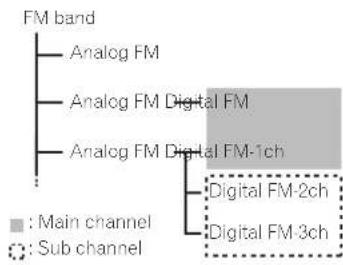
flowchart
graph TD
    A["FM band"] --> B["Analog FM"]
    A --> C["Analog FM Digital FM"]
    A --> D["Analog FM Digital FM-1ch"]
    D --> E["Main channel"]
    D --> F["Sub channel"]
    E --> G["Digital FM-2ch"]
    F --> H["Digital FM-3ch"]
Digital Sound
Digital, CD-quality sound. HD Radio Technology enables local radio stations to broadcast a clean digital signal. AM sounds like today's FM and FM sounds like a CD.
PSD
Program Service Data: Contributes to the superior user experience of HD Radio Technology. Presents song name, artist, station IDs. HD2/HD3 Channel Guide, and other relevant data streams.
22
En
Adjacent to traditional main stations are extra local FM channels. These HD2/HD3 Channels provide new, original music as well as deep cuts into traditional genre.
iTunes' Tagging
iTunes® Tagging provides you the opportunity to discover a wide range of content and the means to "tag" that content for later review and purchase from the iTunes® Store.
Artist Experience
Visual information related to content being played on your HD Radio receiver, such as Album Art, historical photographs, still art from live broadcasts, among other related content.
Using the touch panel keys
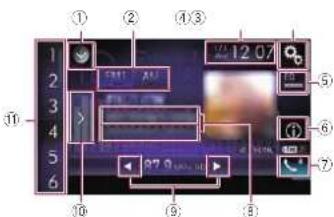
text_image
Camera LCD screen interface with numbered UI elements and status bar indicators① Displays the source list.
For details, refer to Selecting a front source on the source list on page 13.
② Selects a band.
- For details, refer to Selecting a band on page 23.
③ Displays the Time and date setting screen.
For details, refer to Setting the time and date on page 70.
④ Displays the Setting menu screen.
⑤ Recalls equalizer curves.
For details, refer to Using the equalizer on page 64.
⑥ Switches the text display between the main channel and multicast channels.
For details, refer to Reading the screen on page 22.
⑦ Displays the Phone menu screen.
For details, refer to Displaying the phone menu on page 16.
⑧ Stores song information to an iPod.
For details, refer to Storing song information to an iPod (iTunes Tagging) on page 70.
⑨ Performs manual tuning or seek tuning.
For details, refer to Manual tuning on page 23.
For details, refer to Seek tuning on page 23.
⑩ Displays the preset channels.
For details, refer to Selecting a preset channel from the presel channel list on page 23.
⑪ Recalls the preset channel stored to a key from memory with a single touch of the key.
Stores the current broadcast frequency to a key for later recall by continuing to touch the key.
For details, refer to Storing broadcast frequencies on page 23.
Reading the screen
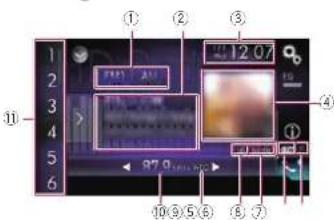
text_image
1 2 3 4 5 6 7 8 9 10 11 12 13 14 15 16 17 18 19 20 21 22 23 24 25 26 27 28 29 30 31 32 33 34 35 36 37 38 39 40 41 42 43 44 45 46 47 48 49 50 51 52 53 54 55 56 57 58 59 60 61 62 63 64 65 66 67 68 69 70① Band indicator
Shows the lured band: FM1, FM2, FM3 or AM.
② Detailed information
Main channel
- Call sign, program service or frequency
Shows the call sign, the program service or the frequency of the broadcast station currently being received. - Song title
Shows the title of the current song (when available).
• Artist (performer) name
Shows the artist (performer) name for the song currently playing (when available). Multicast channels
● Multicast channel number and song title
Shows the numbers of multicast channels and the song titles.
☐ The information is not displayed if there is no corresponding information.
The currently tuned multicast channel is displayed at the top of the list.
③ Current time and date
④ Album artwork
Shows the artwork for the current song (when available).
If the album artwork cannot be acquired, the station logo is displayed. If the station logo cannot be acquired either, a preinstalled image is displayed.
⑤ iTunes ^® lagging song status indicator Shows the status of the song information stored in this product.
The icon is displayed on all operation screens of AV sources.
Indicator

Appears when the song information tag is stored in this product.

Appears when the song information lag is being transferred to an iPod.
⑥ iTunes ^® lagging indicator
Indicates songs that are capable of iTunes tagging.
☐ The icon is displayed on all operation screens of AV sources.
Indicator
Meaning

Appears when this product receives an iTunes song tag that can be stored and then downloaded to an iPod for later purchase. Flashes when this product is storing song tag information.
⑦ Signal type indicator
Shows the type of signal currently being received. If a digital broadcast is being received, DIGITAL. Otherwise.
ANALOG appears
⑧ HD Radio indicator
Shows that HD Radio station information is being received.
⑨ Multicasting indicator
Shows the number of multicast channels in the current frequency.
⑩ Frequency indicator
⑪ Preset number indicator
Shows the selected presel item.
Starting procedure
1 Display the AV source selection screen.
For details of the operations, refer to Displaying the AV operation screen on page 12.
2 Touch [HD Radio] on the AV source selection screen.
The "HD Radio" screen appears
3 Use the touch panel keys on the screen to control the radio.
- For details, refer to Using the touch panel keys on page 22.
Selecting a band
- Touch the following key.

Switches between the following FM bands: FM1, FM2 and FM3.

Switches to AM band.
This function is convenient for preparing different preset lists for each band.
Manual tuning
● Touch the following keys to tune manually.

Moves down one step at a time.
Moves up one step at a time.

☐ This function is convenient for preparing different preset lists for each band.
Seek tuning
● Touch and hold one of the following keys for about one second and then release.

Scans frequencies until it finds a broadcast strong enough for good reception. You can cancel seek tuning by touching either key briefly. If you keep holding either key, you can skip broadcasting frequencies. Sock tuning will start when you release the key.
☐ When an analog station is being received, only analog broadcasts can be tuned up or down.
If a digital broadcast is not being received yet, tuning up or down seeks the next or previous analog station.
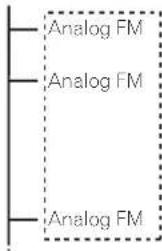
text_image
Analog FM Analog FM Analog FM
Selecting a preset channel from the preset channel list
Once you have stored broadcast channels, you can easily recall presel channels from memory with a single touch of a key.
For details, refer to Storing broadcast frequencies on page 23.
1 Touch the preset channel list display key.
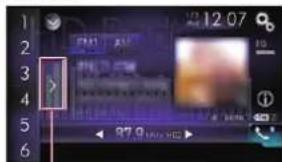
text_image
12.07 57:11 AM 97.9 MHz①
① Preset channel list display key
2 Touch the item on the list ("1" to "6") to switch to a channel registered as a preset channel.
☐ If you touch the preset channel list display key while the preset channel list is displayed, the list disappears and the preset tuning keys are displayed.
Storing broadcast frequencies
With a touch of any of the presel tuning keys
("1" to "6"), you can easily store up to six broadcast channels for later recall (also with the touch of a key).
Chapter
1 Select a frequency that you want to store in memory.
2 Touch and hold a preset tuning key [1] to [6].
The selected radio station is stored in memory.
The next time you touch the same preset tuning key "1" to "6", the service component is recalled from memory.
☐ Up to 18 FM stations, six for each of the three FM bands, as well as six AM stations, can be stored in memory.
Storing the strongest broadcast frequencies
The BSM (best stations memory) function automatically stores the six strongest broadcast frequencies under the preset tuning
keys "1" to "6" and, once stored there, you can lure into them with the touch of a key
□ Storing broadcast frequencies with BSM may replace broadcast frequencies you have already saved.
☐ Previously stored broadcast frequencies may remain stored if the number of strong broadcast frequencies stored has not reached the limit.
1 Touch the preset channel list display key.
The presol channel list appears.
2 Touch [BSM] to start a search.
A message appears. While the message is displayed. The six strongest broadcast frequencies will be stored under the preset tuning keys "1" to "6" in the order of their signal strength. When this is complete, the message will disappear.
- If you touch [Cancel], the storage process is canceled.
Tuning into strong
frequencies
Local sock tuning allows you to only tune into those radio stations with sufficiently strong signals for good reception.
17 This setting is available only when "HD Radio" is selected as the source.
Chapter
07 1 Press the HOME button to display the Top menu screen.
2 Touch the following keys in the following order.

The "System" screen appears.
3 Touch [AV Source Settings].
4 Touch [Radio Settings].
5 Touch [Local].
The pop-up menu appears.
6 Touch the item you want to set.
FM
Off (default):
Turns the seek tuning setting off.
Level1
Sets the level of sensitivity for FM to level
Level2:
Sets the level of sensitivity for FM to level
Level3:
Sets the level of sensitivity for FM to level
3
Level4
Sets the level of sensitivity for FM to level
4
AM
Off (default):
Turns the seek tuning setting off.
Level1
Sets the level of sensitivity for AM to level
m = 311
Level2:
Sets the level of sensitivity for AM to level
2
☐ The FM "Level4" (AM "Level2") setting allows reception of only stations with the strongest signals, while lower settings allow reception of those with weaker signals.
Switching the seek mode
You can select the method of seek tuning.
This setting is available only when "HD Radio" is selected as the source.
1 Press the HOME button to display the Top menu screen.
2 Touch the following keys in the following order.

The "System" screen appears.
3 Touch [AV Source Settings].
4 Touch [Radio Settings].
5 Touch [Seek] repeatedly until the desired setting appears.
- Seek All (default):
Seeks stations from both analog and
digital broadcasting
- Seek HD
Only seeks stations from digital
[Non-Text]
Switching the reception mode
If reception of a digital broadcast becomes weak, the tuner automatically switches to the analog broadcast of the same frequency level by default. If you want to avoid frequent automatic switching, change this setting to "Off".
This setting is available only when "HD Radio" is selected as the source.
1 Press the HOME button to display the Top menu screen.
2 Touch the following keys in the following order.

The "System" screen appears.
3 Touch [AV Source Settings].
4 Touch [Radio Settings].
5 Touch [Blending] repeatedly until the desired setting appears.
- On (default):
Switches to the analog broadcast of the same frequency automatically.
Off
Does not switch to the analog broadcast of the same frequency automatically.
Storing song information to an iPod (iTunes Tagging)
For details, refer to Storing song information to an iPod (iTunes Tagging) on page 70.
Operating with the hardware buttons
Press the TRK button.
You can move up or down the preset channels.
Press and hold the TRK button.
You can perform seek tuning.
Playing a disc
You can play a normal music CD, Video-CD or DVD-Video using the built-in drive of this product. This section describes these operations.
CAUTION
For safety reasons, video images cannot be viewed while your vehicle is in motion. To view video images, you must stop in a safe place and apply the parking brake.
Using the touch panel keys (for audio)
Example: CD
Playback screen (page 1)
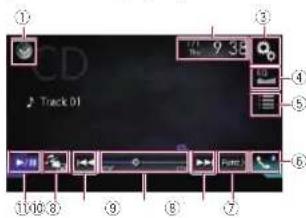
Using the touch panel keys (for video)
Example: DVD
Playback screen (page 1)
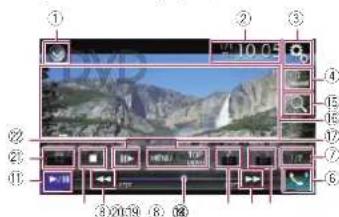
text_image
Screenshot of a video editing interface with numbered UI elements and a preview window showing a mountain landscape.Playback screen (page 2)
text_image
10.05 23/24/14① Displays the source list.
For details, refer to Selecting a front source on the source list on page 13.
② Displays the Time and date setting screen.
For details, refer to Setting the time and date on page 70.
③ Displays the Setting menu screen.
④ Recalls equalizer curves.
- For details, refer to Using the equalizer on page 64.
⑤ Selects a track from the list.
For details, refer to Selecting files from the file name list on page 26.
⑥ Displays the Phone menu screen.
For details, refer to Displaying the phone menu on page 16.
⑦ Switches to the next or previous page of touch panel keys.
⑧ Skips files forward or backward.
⑨ Changes the playback point by dragging the key.
- For details, refer to Operating the time bar on page 14.
⑩ Switches the media file type.
For details, refer to Switching the media file type on page 26.
⑪ Switches between playback and pause.
⑫ Uses "Sound Retriever" function.
For details, refer to Setting the "Sound Retriever" function on page 71.
⑬ Plays files in random order.
For details, refer to Playing tracks in random order on page 26.
⑭ Sets a repeat play range.
For details, refer to Setting a repeat play range on page 26.
⑮ Searches for the part you want to play.
For details, refer to Searching for the part you want to play on page 26.
⑯ Hides the touch panel keys.
Touching this area hides the touch panel keys.
☐ Touch anywhere on the LCD screen to display the touch panel keys again.
⑰ Displays the DVD menu.
For details, refer to Operating the DVD menu on page 26.
18 Switches the subtitle language.
For details, refer to Switching the subtitle language on page 26.
⑲ Switches the audio language.
For details, refer to Switching the audio language on page 27.
20 Stops playback.
② Changes the wide screen mode.
For details, refer to Changing the wide screen mode on page 71.
22 Moves ahead one frame (frame-by-frame playback) or slows down playback speed (slow-motion playback).
For details, refer to Frame-by-frame play-back on page 27.
For details, refer to Slow motion playback on page 27.
② Performs an operation (such as
resuming) that is stored on the disc.
For details, refer to Returning to a specified scene on page 27.
⑳ Resumes playback (Bookmark).
For details, refer to Resuming playback (Bookmark) on page 27.
25 Displays the DVD menu keypad.
For details, refer to Operating the DVD menu using touch panel keys on page 27.
26 Changes the viewing angle (Multi-angle).
For details, refer to Switching the multi-angle DVD display on page 27.
② Selects the audio output.
For details, refer to Selecting the audio output on page 27.
Reading the screen (for audio)
Example: CD
text_image
CD Track 01 9.38 ① ② ③ ④Reading the screen (for video)
Example: DVD
text_image
① 10.05 ② ③ ④ ⑤ ⑥ ⑦ ⑧ ⑨ ⑩ ⑪ ⑫ ⑬ ⑭ ⑮ ⑯ ⑰ ⑱ ⑲ ⑳ ⑴ ⑵ ⑶ ⑷ ⑸ ⑹ ⑺ ② ③ ④ ⑤ ⑥ ⑦ ⑧ ⑨ ⑩ ⑪ ⑫ ⑬ ⑭ ⑮ ⑯ ⑰ ⑱ ⑲ ⑳ ㉑ ㉒ ㉓ ㉔ ㉕ ㉖ ㉗ ㉘ ㉙ ㉚ ㉛ ㉜ ㉝ ㉞ ㉟ ㉳ ㉟ ㉟a ㉟b ㉟c ㉟d ㉟e ㉟f ㉟g ㉟h ㉟i ㉟j ㉟k ㉟l ㉟m ㉟n ㉟o ㉟p ㉟q ㉟r ㉟s ㉟t ㉟u ㉟v ㉟w ㉟x ㉟y ㉟zExample: Video-CD
text_image
10:27 Video CD ① ② ③ ④ ⑤① Current time and date
② Playback condition indicator
Indicates the current playback condition.
Chapter
Playing tracks in random order
Indicator Meaning
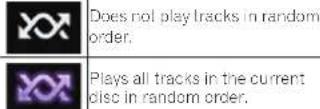
Setting a repeat play range
Indicator Meaning
| Repeats just the current track. |
| Repeats the current disc. |
| Repeats just the current chapter. |
| Repeats just the current title. |
③ Play time indicator
Shows the elapsed playing time within the current file.
④ Track number indicator
Shows the number of the track currently playing (when available).
⑤ Audio channel indicator
Shows the current audio channel type, such as "Mch" (Multi-channel).
⑥ Digital sound format indicator
Shows which digital sound format (surround sound format) has been selected.
⑦ Sampling frequency indicator
Shows the sampling frequency currently playing.
⑧ Title number indicator
Shows the title number currently playing.
⑨ Chapter number indicator
Shows the chapter number currently playing.
⑩ PBC ON indicator
Indicates that a disc with PBC On is being played.
Chapter
07
Starting procedure
1 Display the AV source selection screen.
- For details of the operations, refer to Displaying the AV operation screen on page 12.
2 Insert the disc you want to play into the disc-loading slot.
The source changes and then playback will start.
For details, refer to Inserting and ejecting a disc on page 10.
☐ If the disc is already set, touch [Disc] on the source list or on the AV source selection screen.
For details, refer to Selecting a front source on the source list on page 13.
For details, refer to Selecting a front source on the AV source selection screen on page 13.
3 Use the touch panel keys on the screen to control the disc.
- For details, refer to Using the touch panel keys (for audio) on page 24.
For details, refer to Using the touch panel keys (for video) on page 24.
Selecting files from the file name list
You can select tracks to play back using the track title list which is a list of the tracks recorded on a disc.
1 Touch the following key.

Displays a list of the tracks recorded on the disc.
2 Touch a track on the list to play back.
Playing tracks in random order
26
All tracks on the disc can be played at random by only touching a single key.
En
● Touch the following key repeatedly until the desired setting appears.

Turns random play on or off.
- default)
Does not play tracks in random order.
●
Plays all tracks in the current repeat play range in random order.
☐ If you turn random play on when the repeat play range is set to the current track, the repeat play range changes to the whole of the current disc automatically.
Setting a repeat play range
The repeat play range can be changed by only touching a single key.
● Touch the following key repeatedly until the desired setting appears.

Changes the repeal play range.
Audio
- default):
Repeats the current disc.
•
Repeals just the current track.
☐ If you turn random play on when the repeat play range is set to the current track. The repeat play range changes to the whole of the current disc automatically.
If you change the repeat play range from the whole of the current disc to the current track when random play is turned on, the random play turns off automatically.
Video
default):
Repeats all files.
•
Repeats just the current chapter.
.
Repeals just the current title.
Switching the media file type
When playing a digital media containing a mixture of various media file types, you can switch between media file types to play.
1 Touch the following key.

Displays the pop-up menu for selecting a media file type to play on the disc.
2 Touch the item you want to set.
Music
Switches the media file type to music (compressed audio).
- Video
Switches the media file type to video.
CD-DA:
Switches the media file type to CD (audio data (CD-DA)).
Searching for the part you want to play
You can use the search function to find the part you want to play.
For DVD Videos, you can select Title (title). Chapter (chapter) or 10Key (numeric keypad).
For Video-CDs, you can select Track (track) or 10Key (numeric keypad).
10Key (numeric keypad) is available for Video-CDs featuring PBC (playback control) only.
☐ Chapter search and time search are not available when disc playback has been stopped.
1 Touch the following key.

Displays the screen for direct number search.
2 Touch [Title] (title), [Chapter] (chapter), [10Key] (numeric keypad), or [Track] (track).
3 Touch [0] to [9] to input the desired number.
☐ To cancel an input number, touch [C]. To cancel the input numbers, touch and hold [C].
4 Touch the following key.

Registers the numbers and starts playback.
Operating the DVD menu
You can operate the DVD menu by touching the menu item on the screen directly.
☐ This function may not work properly with some DVD disc content. In that case, use touch panel keys to operate the DVD menu.
1 Touch the screen to display the touch panel keys.
2 Touch the following key.

Displays the touch panel keys to operate the DVD menu.

3 Touch the desired menu item.
Switching the subtitle language
You can switch the subllle language while a disc is playing when the disc has multilingual data (multi-subtitle).
● Touch the following key repeatedly until the desired setting appears.
Changes the subtitle language. You can specify the desired language as the default sublille language.
For details, refer to Setting the top-priority languages on page 68.
Switching the audio language
You can switch the audio language while a disc is playing when the disc has multilingual data (multi-audio).
● Touch the following key repeatedly until the desired setting appears.
Changes the audio language. You can specify the desired language as the default audio language. For details, refer to Setting the top-priority languages on page 68.
Frame-by-frame playback
This lets you move ahead one frame at a time during pause.
- Touch [1] during pause.
The video advances one frame each time is touched.
To return to normal playback, touch
☐ With some discs, images may be unclear during frame-by-frame playback.
Slow motion playback
This lets you slow down the playback speed.
1 Touch and hold [] until an arrow icon is displayed during playback.
The arrow icon is displayed, and forward slow motion playback starts.
To return to normal playback, touch
2 Touch [1] No adjust playback speed during slow motion playback.
Each time you touch J▶ the speed changes in four steps in the following order: 1/16 → 1/8 → 1/4 → 1/2
☐ There is no sound during slow motion playback.
With some discs, images may be unclear during slow motion playback.
Reversed slow motion playback is not possible.
Returning to a specified scene
When using a disc that has a point recorded that indicates where to return to, the disc returns to the specified point and starts playback from there.
This function cannot be used if a specified scene has not been preprogrammed on the disc.
This function is available for DVD-Video and Video-CDs featuring PBC (playback control) only.
● Touch the following key.
Returns to the specified point and starts playback from there.
The specified point differs depending on the disc.
Resuming playback (Bookmark)
The Bookmark function lets you resume playback from a selected scene the next time the disc is loaded.
- Touch the following key.

Bookmarks one point for each of up to five discs.
If you try to memorize another point for the same disc, the older bookmark will be overwritten by the new one.
To clear the bookmark on a disc, touch and hold this key.
☐ The oldest bookmark is replaced by the new one.
Operating the DVD menu using touch panel keys
If items on the DVD menu appear, the touch panel keys may overlay them. If so, select an item using those touch panel keys.
1 Touch the following keys to select the desired menu item.

Selects the left menu item.

Selects the right menu item.

Selects the upper menu item.

Selects the lower menu item.
☐ If the touch panel keys for DVD menu selection disappear, touch anywhere on the screen, and then touch 📄 the touch panel keys are displayed again.
2 Touch the following key.

Confirms the selected item.
☐ The way to display the menu differs depending on the disc.
- If you touch the touch panel keys disappear and the on is displayed.
Switching the multi-angle DVD display
With DVDs featuring multi-angle recordings (scenes shot from multiple angles), you can switch among viewing angles during playback.
Chapter
● Touch the following key repeatedly until the desired setting appears.
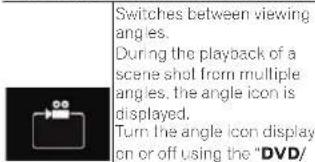
text_image
Switches between viewing angles. During the playback of a scene shot from multiple angles, the angle icon is displayed. Turn the angle icon display on or off using the "DVD/Switches between viewing angles.
During the playback of a scene shot from multiple angles, the angle icon is displayed.
Turn the angle icon display on or off using the "DVD/
DivX Setup" menu. For details, refer to Selling the angle icon display on page 68.
Selecting the audio output
When playing DVDs recorded with LPCM audio, you can switch the audio output.
● Touch the following key repeatedly until the desired setting appears.
Changes the audio output selling.
- L+R: Left and right
- Left: Left
- Right: Right
● Mix: Mixing left and right
This function is not available when disc playback has been stopped.
☐ The appearance of this key changes according to the current selling.
Operating with the hardware buttons
Press the TRK button.
You can skip tracks or chaplers forward or backward.
Press and hold the TRK button.
You can perform fast reverse or fast forward.
Chapter
08
Playing compressed audio files
You can play compressed audio files stored in a disc or an external storage device (USB, SD) using the built-in drive of this product. This section describes how.
For details, refer to Media compatibility chart on page 88.
Using the touch panel keys
Example: USB
Playback screen (page 1)
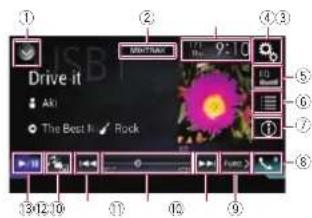
text_image
Drive it Aki The Best It RockPlayback screen (page 2)
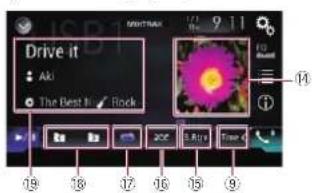
text_image
Drive it Aki The Best It / Rock 19 18 17 16 15 ⑨① Displays the source list.
For details, refer to Selecting a front source on the source list on page 13.
② Displays the MIXTRAX screen.
For details, refer to Chapter 22.
③ Displays the Time and date setting screen.
For details, refer to Setting the time and date on page 70.
④ Displays the Setting menu screen.
⑤ Recalls equalizer curves.
For details, refer to Using the equalizer on page 64.
⑥ Selects a file from the list.
For details, refer to Selecting files from the file name list on page 29.
Displays a list related to the song currently playing (link search).
For details, refer to Selecting a file from the list related to the song currently playing (link search) on page 29.
⑦ Switches the text display between tag information and file/folder information.
For details, refer to Reading the screen on page 28.
For details, refer to Switching the browse mode on page 29.
⑧ Displays the Phone menu screen.
For details, refer to Displaying the phone menu on page 16.
③ Switches to the next or previous page of touch panel keys.
⑩ Skips files forward or backward.
⑪ Changes the playback point by dragging the key.
For details, refer to Operating the time bar on page 14.
⑫ Switches the media file type.
For details, refer to Switching the media file type on page 30.
⑬ Switches between playback and pause.
⑭ Displays the album list.
This function is available only when playing files in an external storage device (USB, SD) in the Music Browse mode.
⑯ Uses "Sound Retriever" function.
For details, refer to Setting the "Sound Retriever" function on page 71.
⑯ Plays files in random order.
For details, refer to Playing files in random order on page 29.
⑰ Sets a repeat play range.
For details, refer to Setting a repeat play range on page 29.
⑱ Selects the previous folder or the next folder.
⑲ Displays the category list including the selected item.
This function is available only when playing files in an external storage device (USB, SD) in the Music Browse mode.
Reading the screen
Example: USB
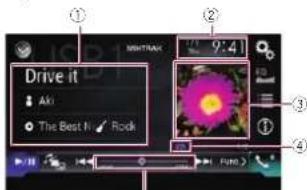
text_image
Drive it Aki The Best N Rock⑤
① Current file information
Music Browse mode
- Song title/File name
Shows the title of the song currently playing (when available). If the title of a song is not available, the file name appears.
• :artist name
Shows the artist name for the song currently playing (when available). "No Name" is displayed if there is no corresponding information.
• :4Album title/Folder name
Shows the title of the album of the current file (when available). If the title of the album is not available, the folder name appears.
• :genre
Shows the genre of the current file (when available), "No Genre" is displayed if there is no corresponding information.
☐ Nothing is displayed if the song currently playing is in a format which does not support these functions.
Folder Browse mode
• :File name
Shows the name of the file currently playing.
• :Folder name
Shows the name of the folder containing the file currently playing.
② Current time and date
③ Album artwork
Album art of the current song is displayed if it is available.
④ Playback condition indicator
Indicates the current playback condition.
Playing files in random order
Indicator Meaning

Does not play files in random order.

Plays all files within the repeat range in random order.
Setting a repeat play range (for Disc)
Indicator Meaning

Repeats just the current file.

Repeats just the current folder.

Repeats all compressed audio files.
Setting a repeat play range (for Music Browse mode)
Indicator Meaning

Repeats just the current file.

Repeats all compressed audio files.
Setting a repeat play range (for Folder Browse mode)
Indicator Meaning

Repeats just the current file.

Repeats just the current folder.

Repeats all compressed audio files.
⑤ Play time indicator
Shows the elapsed playing time within the current file.
Starting procedure (for Disc)
1 Display the AV source selection screen.
For details of the operations, refer to Displaying the AV operation screen on page 12.
2 Insert the disc you want to play into the disc-loading slot.
The source changes and then playback will start.
For details, refer to Inserting and ejecting a disc on page 10.
☐ If the disc is already set, touch [Disc] on the source list or on the AV source selection screen.
For details, refer to Selecting a front source on the source list on page 13.
For details, refer to Selecting a front source on the AV source selection screen on page 13.
3 Use the touch panel keys on the screen to control the disc.
- For details, refer to Using the touch panel keys on page 28.
Starting procedure (for USB/SD)
1 Display the AV source selection screen.
For details of the operations, refer to Displaying the AV operation screen on page 12.
2 Insert the SD memory card into the SD card slot or plug the USB storage device into the USB connector.
For details, refer to Plugging in a USB storage device on page 11.
- For details, refer to Inserting and ejecting an SD memory card on page 10.
3 Touch [USB] or [SD] on the AV source selection screen.
The source changes and then playback will start.
4 Use the touch panel keys on the screen to control the external storage device (USB, SD).
- For details, refer to Using the touch panel keys on page 28.
□ Playback is performed in order of folder numbers. Folders are skipped if they contain no playable files. If there are no playable files in folder 01 (root folder), playback starts from folder 02.
Switching the browse mode
This product supports two types of browse modes: Folder Browse mode and Music Browse mode.
☐ The browse modes are available only for the external storage device (USB, SD).
Music Browse mode
Displays a song title, artist name, album title and genre in the current file information display area on the AV operation screen. Select when you want to play music files narrowed down by a category of song title, artist name, album title or genre.
If connecting an external storage device (USB, SD), this product accesses the database of music files with tag information and switches to the Music Browse mode automatically.
Folder Browse mode
Displays a folder name and file name in the current file information display area on the AV operation screen. Select when you want to search for folders or music files on the list screen.
☐ You can switch between the browse modes for file search by touching the labs and selecting a file on the list screen.
● Touch the following key repeatedly until the desired setting appears.

Switches the display information between the lag information (title, artist name, album title etc.) and the file/folder name information.
Selecting files from the file name list
You can find files to play back using the list of the files and folders stored on a disc or in an external storage device (USB, SD).
1 Touch the following key.

Displays the list of the files or folders stored on a disc or in the external storage device (USB, SD).
☐ Touch the "File" tab to display the file/folder list for an external storage device (USB, SD).
2 Touch a file on the list to play back.
- Files are played back in file number order.
- Touching a folder on the list shows its contents. You can play a file on the list by touching it.
Selecting a file from the list related to the song currently playing (link search)
You can select files to play back using the category list for the files in an external storage device (USB, SD).
☐ This function is available for the external storage device (USB, SD) only.
1 Touch the following key.

Displays the list of the files or folders stored in the external storage device (USB, SD).
If the "File" list is displayed, touch the "Tag" tab to display the category list.
2 Touch the desired category to display the file list.
The list screen appears.
3 Touch the item that you want to refine.
Refine the item until the desired song title or file name is displayed on the list.
☑ Touching [All] on the list includes all options in the current list. For example, if you touch [All] after touching [Artists].
you can proceed to the next screen with all artists in the list selected.
After you select "Artists", "Albums" or "Genres", touch one of the lists to start playing the first song in the selected list or display the next options.
4 Touch the desired song title or file name to play back.
Playing files in random order
All files on the disc or in the external storage device (USB, SD) can be played at random by only touching a single key.
● Touch the following key repeatedly until the desired setting appears.

Turns random play on or off.
- default:
Does not play files in random order.
•
Plays all audio files in the current repeat play range in random order.
☐ If you turn random play on when the repeat play range is set to the current file in the Music Browse mode, the repeat play range changes to the current folder in the current disc or external storage device (USB, SD) automatically.
If you turn random play on when the repeat play range is set to the current file in the Folder Browse mode, the repeat play range changes to the whole of the current disc or external storage device (USB, SD) automatically.
Setting a repeat play range
The repeat play range can be changed by only touching a single key.
● Touch the following key repeatedly until the desired setting appears.

Changes the repeat play range.
Disc
- default:
Repeats all compressed audio files.
Chapter
Chapter
09
•
Repeats just the current folder.
.
Repeals just the current file.
Music Browse mode
- fault:
Repeals all files.
•
Repeats just the current file.
Folder Browse mode
- (fault):
Repeats all files.
•
Repeats the current folder.
•
Repeats just the current file.
Switching the media file type
When playing a digital media containing a mixture of various media file types, you can switch between media file types to play.
1 Touch the following key.

Displays the pop-up menu for selecting a media file type to play on the disc or in the external storage device (USB, SD).
2 Touch the item you want to set.
Music
Switches the media file type to music (compressed audio).
- Video
Switches the media file type to video.
CD-DA
Switches the media file type to CD (audio data (CD-DA)).
- Photo
Switches the media file type to still image (JPEG data).
Operating with the hardware buttons
Press the TRK button.
You can skip files forward or backward.
Press and hold the TRK button.
You can perform fast reverse or fast forward.
Playing compressed video files
You can play compressed video files stored on a disc or in an external storage device (USB, SD) using the built-in drive of this product. This section describes how.
For details, refer to Media compatibility chart on page 88.
CAUTION
For safety reasons, video images cannot be viewed while your vehicle is in motion. To view video images, you must stop in a safe place and apply the parking brake.
Using the touch panel keys
Example: Disc
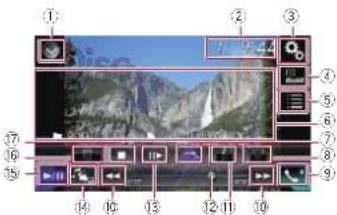
text_image
Screenshot of a media player interface with numbered UI elements for recording or viewing controls① Displays the source list.
For details, refer to Selecting a front source on the source list on page 13
② Displays the Time and date setting screen.
For details, refer to Setting the time and date on page 70.
③ Displays the Setting menu screen.
④ Recalls equalizer curves.
For details, refer to Using the equalizer on page 64.
⑤ Selects a file from the list.
For details, refer to Selecting files from the file name list on page 31.
⑥ Hides the touch panel keys.
Touching this area hides the touch panel keys.
- Touch anywhere on the LCD screen to display the touch panel keys again.
⑦ Sets a repeat play range.
For details, refer to Setting a repeat play range on page 31.
⑧ Switches the subtitle language.
With DivX featuring multi-subtitle recordings, you can switch between subllle languages during playback.
⑨ Displays the Phone menu screen.
For details, refer to Displaying the phone menu on page 16.
⑩ Skips files forward or backward.
⑪ Switches the audio language.
With DivX files that provide audio play-back in different languages and different audio systems (Dolby Digital, DTS, etc.), you can switch between languages or audio systems during playback.
⑫ Changes the playback point by dragging the key.
- For details, refer to Operating the time bar on page 14.
⑬ Moves ahead one frame (frame-by-frame playback) or slows down playback speed (slow-motion playback).
For details, refer to Frame-by-Frame play-back on page 31.
For details, refer to Slow motion playback on page 31.
⑭ Switches the media file type.
For details, refer to Switching the media file type on page 31.
⑮ Switches between playback and pause.
⑯ Changes the wide screen mode.
For details, refer to Changing the wide screen mode on page 71.
⑰ Stops playback.
Reading the screen
Example: Disc
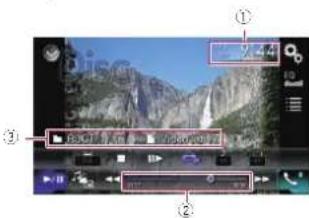
text_image
Screenshot of a video editing interface showing a landscape preview with numbered UI elements and playback controls① Current time and date
② Play time indicator
Shows the elapsed playing time within the current file.
③ Current file information
• B le name
Shows the name of the file currently playing.
- Folder name
Shows the name of the folder containing the file currently playing.
Starting procedure (for Disc)
1 Display the AV source selection screen.
For details of the operations, refer to Displaying the AV operation screen on page 12.
2 Insert the disc you want to play into the disc-loading slot.
The source changes and then playback will start.
For details, refer to Inserting and ejecting a disc on page 10.
☐ If the disc is already set, touch [Disc] on the source list or on the AV source selection screen.
For details, refer to Selecting a front source on the source list on page 13
- For details, refer to Selecting a front source on the AV source selection screen on page 13.
3 Use the touch panel keys on the screen to control the disc.
For details, refer to Using the touch panel keys on page 30.
Starting procedure (for USB/SD)
1 Display the AV source selection screen.
For details of the operations, refer to Displaying the AV operation screen on page 12.
2 Insert the SD memory card into the SD card slot or plug the USB storage device into the USB connector.
For details, refer to Plugging in a USB storage device on page 11.
- For details, refer to Inserting and ejecting an SD memory card on page 10.
3 Touch [USB] or [SD] on the AV source selection screen.
The image is displayed on the screen.
4 Use the touch panel keys on the screen to control the external storage device (USB, SD).
- For details, refer to Using the touch panel keys on page 30.
□ Playback is performed in order of folder numbers. Folders are skipped if they contain no playable files. If there are no playable files in folder 01 (root folder), playback starts from folder 02.
Selecting files from the file name list
You can select files to view using the file name list of the files stored on a disc or in the external storage device (USB, SD).
1 Touch the following key.

Displays the list of the files or folders stored on a disc or in the external storage device (USB, SD).
2 Touch a file on the list to play back.
- Files are played back in file number order and folders are skipped if they contain no files. (If folder 01 (root folder) contains no files, playback commences with folder 02.)
□ Touching a folder on the list shows its contents. You can play a file on the list by touching it.
- Touch the playback sign of the thumbnail to preview the file.
Setting a repeat play range
The repeat play range can be changed by only touching a single key.
● Touch the following key repeatedly until the desired setting appears.

Changes the repeal play range.
- (default):
Repeats all files.
•
Repeats just the current folder.
.
Repeats just the current file.
Frame-by-frame playback
This lets you move ahead one frame at a time during pause.
☐ This function is available while a compressed video file stored on a disc is being played.
- Touch 10 during pause.
The video advances one frame each time ▶ louched.
To return to normal playback, touch
With some discs, images may be unclear during frame-by-frame playback.
Slow motion playback
This lets you slow down the playback speed.
● Touch 10 (external storage device (USB, SD)) or touch and hold [] (disc) during playback.
The arrow icon is displayed, and forward slow motion playback starts.
☐ There is no sound during slow motion playback.
7 With some discs and external storage devices (USB, SD), images may be unclear during slow motion playback.
To return to normal playback, touch
- Reversed slow motion playback is not possible.
Switching the media file type
When playing a digital media containing a mixture of various media file types, you can switch between media file types to play.
1 Touch the following key.

Displays the pop-up menu for selecting a media file type to play on the disc or in the external storage device (USB, SD).
2 Touch the item you want to set. ● Music:
Switches the media file type to music (compressed audio).
- Video
Switches the media file type to video.
● Photo:
Switches the media file type to still image (JPEG data).
CD-DA
Switches the media file type to CD (audio data (CD-DA)).
Operating with the hardware buttons
Press the TRK button.
You can skip files forward or backward.
Press and hold the TRK button.
You can perform fast reverse or fast forward.
Playing compressed still image files
You can view still images (JPEG images) stored in an external storage device (USB, SD) using the built-in drive of this product. This section describes how.
Using the touch panel keys Example: USB
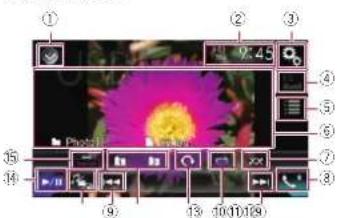
text_image
Screenshot of a photo editing interface with numbered UI elements and a flower image preview① Displays the source list.
Chapter
For details, refer to Selecting a front source on the source list on page 15.
② Displays the Time and date setting screen.
For details, refer to Setting the time and date on page 70.
③ Displays the Setting menu screen.
④ Recalls equalizer curves.
☐ This key is not available while you are viewing still images stored in an external storage device (USB, SD).
⑤ Selects a file from the list.
For details, refer to Selecting files from the file name list on page 32.
⑥ Hides the touch panel keys. Touching this area hides the touch panel keys.
☐ Touch anywhere on the LCD screen to display the touch panel keys again.
⑦ Plays files in random order.
- For details, refer to Playing files in random order on page 32.
⑧ Displays the Phone menu screen.
For details, refer to Displaying the phone menu on page 16.
⑨ Skips files forward or backward.
⑩ Sets a repeat play range.
For details, refer to Setting a repeat play range on page 32.
⑪ Rotates the displayed picture 90° clockwise.
⑫ Selects the previous folder or the next folder.
⑬ Switches the media file type.
For details, refer to Switching the media file type on page 32.
⑭ Switches between playback and pause.
⑮ Changes the wide screen mode.
For details, refer to Changing the wide screen mode on page 71.
Chapter
11
Reading the screen
Example: USB

②
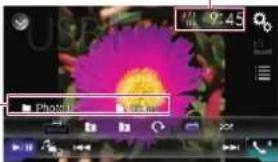
text_image
9:45 Photo 16① Current time and date
② Current file information
- Bile name
Shows the name of the file currently playing.
- Holder name
Shows the name of the folder containing the file currently playing.
Starting procedure
1 Display the AV source selection screen.
For details of the operations, refer to Displaying the AV operation screen on page 12.
2 Insert the SD memory card into the SD card slot or plug the USB storage device into the USB connector.
For details, refer to Plugging in a USB storage device on page 11.
For details, refer to Inserting and ejecting an SD memory card on page 10.
3 Touch [USB] or [SD] on the AV source selection screen.
The image is displayed on the screen.
4 Use the touch panel keys on the screen to control the external storage device (USB, SD).
- For details, refer to Using the touch panel keys on page 31.
Playback is performed in order of folder numbers. Folders are skipped if they contain no playable files. If there are no playable files in folder 01 (root folder), playback starts from folder 02.
Selecting files from the file name list
You can select files to view using the file name list of the files stored in the external storage device (USB, SD).
1 Touch the following key.

Displays the list of the files stored in the external storage device (USB, SD).
2 Touch a file on the list to play back.
Files are played back in file number order and folders are skipped if they contain no files. (If folder 01 (root folder) contains no files, playback commences with folder 02.)
Touching a folder on the list shows its contents. You can play a file on the list by touching it.
Playing files in random order
All files in the external storage device (USB, SD) can be played at random by only touching a single key.
● Touch the following key repeatedly until the desired setting appears.

Turns random play on or off.
Default
Does not play files in random order.
•
Plays all files in the current repeal play range in random order.
Setting a repeat play range
The repeat play range can be changed by only touching a single key.
● Touch the following key repeatedly until the desired setting appears.

Changes the repeat play range.
- fault):
Repeats all files.
•
Repeats the current folder.
Switching the media file type
When playing a digital media containing a mixture of various media file types, you can switch between media file types to play.
1 Touch the following key.

Displays the pop-up menu for selecting a media file type to play in the external storage device (USB, SD).
2 Touch the item you want to set.
Music:
Switches the media file type to music (compressed audio).
- Video
Switches the media file type to video.
- Photo:
Switches the media file type to still image (JPEG data).
Setting the slideshow interval
JPEG files can be viewed as a slideshow on this product. In this setting, the interval between each image can be set.
This setting is available during playback of the JPEG files.
1 Press the HOME button to display the Top menu screen.
2 Touch the following keys in the following order.


The "Video Setup" screen appears.
3 Touch [Time Per Photo Slide]. The pop-up menu appears.
4 Touch the item you want to set.
- 10sec (default):
JPEG images switch at intervals of 10 seconds.
5sec
JPEG images switch at intervals of 5 seconds.
15sec:
JPEG images switch at intervals of 15 seconds.
- Manual
JPEG images can be switched manually.
Operating with the hardware buttons
Press the TRK button.
You can skip files forward or backward.
Press and hold the TRK button.
You can search 10 JPEG files at a time.
☐ If the number of files in the folder (from the file currently being played to the first or last file) is fewer than 10, the first or last file in the folder is automatically played.
☐ If the file currently being played is the first or last file in the folder, the search is not performed.
Using an iPod
For iPod with a 30-pin connector users
Depending on your iPod, there may not be any output unless you use a USB interface cable for iPod / iPhone (CD-IU201S/ CD-IU201V) (sold separately). Be sure to use a USB interface cable for iPod / iPhone (CD-IU201S/CD-IU201V) (sold separately) to connect your iPod. iPod audio and/or video sources are enabled if either of the cables is connected.
For details, refer to Connecting an iPhone with 30-pin connector on page 76.
For iPod / iPhone with a Lightning connector users
To use iPod audio source, you must connect your iPod to this product using a USB interface cable for iPod / iPhone (CD-IU52) (sold separately).
However, functions related to iPod video files and AppRadio Mode are not available.
☐ iPod audio and/or video sources are not available when an iPod with a Lightning
connector is connected to this product with a interface cable (CD-IH202) (sold separately).
For details, refer to Connecting an iPhone with Lightning connector on page 76. When you want to play audio and/or video files on your iPod with a Lightning connector, first install CarMediaPlayer on your iPod with a Lightning connector and then launch CarMediaPlayer while in
AppRadio Mode
For details about the CarMediaPlayer, refer to the information on our website.
CAUTION
For safety reasons, video images cannot be viewed while your vehicle is in motion. To view video images, you must stop in a safe place and apply the parking brake.
Using the touch panel keys (for audio)
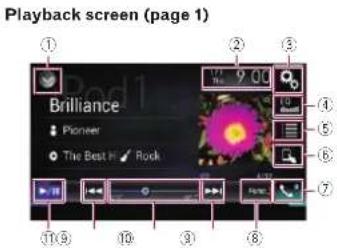
text_image
Playback screen (page 1) Brilliance Pioneer The Best H RockPlayback screen (page 2)
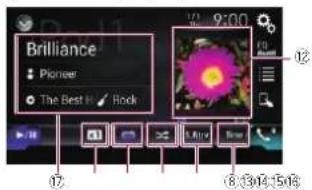
text_image
Brilliance Pioneer The Best V RockUsing the touch panel keys (for video)
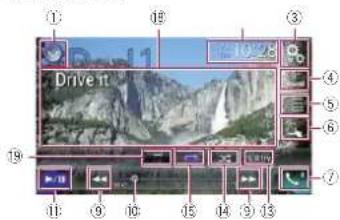
text_image
① ② ③ Drive it ④ ⑤ ⑥ ⑦ ⑧ ⑨ ⑩ ⑪ ⑫ ⑬ ⑭ ⑮ ⑯ ⑰ ⑱ ⑲ ⑳ ㉑ ㉒ ㉓ ㉔ ㉕ ㉖ ㉗ ㉘ ㉙ ㉚ ㉛ ㉜ ㉝ ㉞ ㉟ ㉳ ㉟o 28Using the touch panel keys (for iTunes Radio)
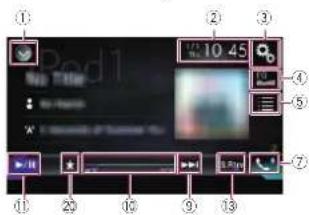
text_image
① ② ③ ④ ⑤ ⑥ ⑦ ① ② ⑩ ⑪ ⑫ ⑬ ⑭ ⑮ ⑯ ⑰ ⑱ ⑲ ⑳ ⑴ ⑵ ⑶ Pod1 No Title 1/2 10.45 Play Play Play① Displays the source list.
For details, refer to Selecting a front source on the source list on page 13.
② Displays the Time and date setting screen.
For details, refer to Setting the time and date on page 70.
③ Displays the Setting menu screen.
④ Recalls equalizer curves.
- For details, refer to Using the equalizer on page 64.
⑤ Selects a track from the list.
For details, refer to Selecting song or video sources from the play list screen on page 34.
⑥ Switches the control mode to "App Mode".
For details, refer to Using this product's iPod function from your iPod on page 35.
⑦ Displays the Phone menu screen.
For details, refer to Displaying the phone menu on page 16.
⑧ Switches to the next or previous page of touch panel keys.
⑨ Skips files forward or backward.
☐ Availability of the skip-forward function while playing iTunes Radio depends on the iPod.
☐ The skip-back key is not available while playing iTunes Radio.
⑩ Changes the playback point.
For details, refer to Operating the time bar on page 14.
⑪ Switches between playback and pause.
⑫ Displays the song list of the album currently playing.
For details, refer to Displaying lists related to the song currently playing (link search) on page 36.
⑬ Uses "Sound Retriever" function.
For details, refer to Selling the "Sound Retriever" function on page 71.
⑭ Plays files in random order.
For details, refer to Selling the shuffle play on page 34.
⑮ Sets a repeat play range.
For details, refer to Selling a repeal play range on page 34.
⑮ Changes the audiobook speed.
For details, refer to Changing the speed of audiobook playback on page 35.
⑰ Displays the category list including the selected item.
⑩ Hides the touch panel keys.
Touching this area hides the touch panel keys.
☐ Touch anywhere on the LCD screen to display the touch panel keys again.
⑬ Changes the wide screen mode.
For details, refer to Changing the wide screen mode on page 71.
20 Displays the pop-up menu for iTunes Radio.
Reading the screen (for audio)
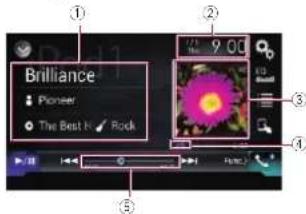
text_image
① Brilliance Pioneer The Best It Rock ② 9:00 ③ ④ ⑤Chapter
11

Reading the screen (for video)
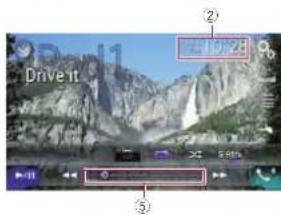
text_image
Drive it ② 40% 24 ③Reading the screen (for iTunes Radio)
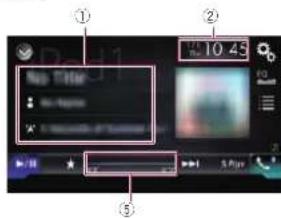
text_image
① ② 10:45 No Title ③ ⑤① Current track information
- Song title
Shows the title of the song currently being played (when available). "No Title" is displayed if there is no corresponding information.
• Artist name
Shows the artist name for the song currently being played (when available). "No Name" is displayed if there is no corresponding information.
- Album title
Shows the title of the album of the current file (when available). "No Title" is displayed if there is no corresponding information.
☐ This information is not available while playing iTunes Radio.
• Genre
Shows the genre of the current file (when available). "No Genre" is displayed if there is no corresponding information.
☐ This information is not available while playing iTunes Radio.
- Station
Shows the station name of the song currently being played.
This information is available while playing iTunes Radio.
② Current time and date
③ Album artwork
Album art of the current song is displayed if it is available.
④ Playback condition indicator
Indicates the current playback condition. Setting the shuffle play
Indicator Meaning
Plays back songs or videos in random order within the selected list.
Selects an album randomly, and then plays back all songs in that album in order
Setting a repeat play range
Indicator Meaning
Repeats all songs or videos in the selected list.
Repeats just the current song or video.
⑤ Play time indicator
Shows the elapsed playing time within the current file.
Starting procedure
When connecting an iPod to this product, you must select the method for connecting your device. Settings are required according to the connected device.
For details, refer to Chapter 5.
1 Display the AV source selection screen.
For details of the operations, refer to Displaying the AV operation screen on page 12.
2 Connect your iPod.
☐ If connecting an iPhone or iPod touch, quit applications before connecting.
If an iPhone 6 Plus, iPhone 6, iPhone 5s, iPhone bc, iPhone b, or iPod touch (5th generation) is connected, the media library (song information) will be imported from the connected device and saved to this product. Wait until the process completes. The media library will not be imported if an updated media library of the connected device has been imported or the memory of this product is full.
3 Touch [iPod] on the AV source selection screen.
4 Use the touch panel keys on the screen to control your iPod.
For details, refer to Using the touch panel keys (for audio) on page 33.
For details, refer to Using the touch panel keys (for video) on page 33.
☐ The video image of the iPod may have noise if the rear display outputs the video image. When noise is produced in the video image of the iPod, turn off the output setting of the rear display.
For details of the operations, refer to Selecting the video for the rear display on page 71.
Setting the shuffle play
This function shuffles songs, albums or videos and plays them in random order.
This function is not available while playing iTunes Radio
● Touch the following key repeatedly until the desired setting appears.

Turns random play on or off.
●
Plays back songs or videos in random order within the selected list.
•
Selects an album randomly, and then plays back all songs in that album in order.
☐ This icon may not be displayed when an iPhone 6 Plus, iPhone 6, iPhone 5s, iPhone 5c, iPhone 5, or iPod touch (5th generation) is used.
Setting a repeat play range
The repeat play range can be changed by only touching a single key.
This function is not available while playing iTunes Radio.
● Touch the following key repeatedly until the desired setting appears.

Changes the repeat play range.
•
Repeals all songs or videos in the selected list.
●
Repeats just the current song or video.
☐ The repeat setting can be turned off when an iPhone 6 Plus, iPhone 6, iPhone 5s, iPhone 5c, iPhone 5, or iPod touch (5th generation) is used.
Selecting song or video sources from the playlist screen
You can search for the song, video, or radio stations you want to play from the playlist screen.
1 Touch the following key.

Displays the list of the category.
The "ROOT" screen appears.
2 Touch the following keys to switch the music or video category list.

Switches to the music category list.

Switches to the video category list.
☐ The video category list icon is not available when using iPod function with an iPhone 6 Plus, iPhone 6, iPhone 5s, iPhone 5c, iPhone 5, or iPod touch (5th generation).
3 Touch the category you want to search for.
Category lists (for music):
• Radio (iTunes Radio)
- Playlists
• Artists
Albums
Songs
Songs
● Eodes
- Podcasts
- Genes
• Derivés
• Composers
- Audiobooks
Category lists (for video):
- Video Playlists
Movies
Music Videos
TV Shows
- Video Podcasts
☐ Category items that do not correspond to the connected iPod are not displayed.
☐ "Radio" is displayed only if iTunes Radio is available on the iPod.
4 Drag the Initial Search Bar to find a file by the initial character of the file name.
The alphabet corresponding to the current position on the Initial Search Bar is displayed and the list scrolls as the bar is slid.
☐ The Initial Search Bar is not displayed in the top category list or the song list.
5 Release the Initial Search Bar at the desired alphabet.
The items whose initial character is the selected alphabet are displayed.
6 Touch the title of the list that you want to play.
Repeat this operation until you find the desired song or video.
7 Start playback of the selected list.
☐ Depending on the generation or version of the iPod, some functions may not be available.
☐ You can play playlists created with the MusicSphere application. The application is available on our website.
Playlists that you created with the MusicSphere application are displayed in abbreviated form.
Using iTunes Radio
☐ This function is only available when using iPod function with an iPhone 6 Plus, iPhone 6, iPhone 5s, iPhone 5c, iPhone 5, or iPod touch (5th generation).
1 Touch the following keys in the following order.

2 Touch [Radio].
3 Use the touch panel keys on the screen to control your iPod.
For details, refer to Using the touch panel keys (for iTunes Radio) on page 33.
■ Playing back songs similar to the current song
You can listen to songs similar to the song currently being played.
1 Touch the following key.

Displays the pop-up menu.
2 Touch [Play More Like This].
The display of the menu item indicates as follows:
— When the menu item is active, the function can be turned on.
— When the menu item is highlighted, the function is turned on.
— When the menu item is not active, the function is not available for the current song.
If you touch [Play More Like This] when the menu item is active, songs similar to the current song will be played back.
☐ If you touch [Play More Like This] when the menu item is highlighted, the function will turn off.
☐ The operation result depends on the iPod.
■ Setting the current song not be played back again
You can set the current song not to be played back again.
1 Touch the following key.

Displays the pop-up menu.
2 Touch [Never Play This Song].
☐ The display of the menu item indicates as follows:
— When the menu item is active, the function can be turned on.
— When the menu item is highlighted, the function is turned on.
— When the menu item is not active, the function is not available for the current song.
☐ If you touch [Never Play This Song] when the menu item is active, the song will not be played back again.
☐ If you touch [Never Play This Song] when the menu item is highlighted, the function will turn off.
The operation result depends on the iPod.
■ Adding the current song to the _2 wish list
You can add the current song to the wish list for easy access to the song later.
1 Touch the following key.

Displays the pop-up menu.
2 Touch [Add to iTunes Wish List]. The song will be added to the wish list.
☐ If the song is already in the wish list, [Remove from iTunes Wish List] is displayed instead of [Add to iTunes Wish List]. If you touch [Remove from iTunes Wish List], the song will be removed from the wish list.
☐ The operation result depends on the iPod.
Using this product's iPod function from your iPod
You can control this product's iPod function from the connected iPod if the control mode is set to "App Mode". The application screen of the iPod can be displayed on this product, and the music files and video files in the iPod can be played back with this product.
☐ This function is not available when using iPod function with an iPhone 6 Plus, iPhone 6, iPhone 5s, iPhone 5c, iPhone 5, or iPod touch (5th generation).
☐ While this function is in use, the iPod will not turn off even if the ignition key is turned off. Operate the iPod to turn off the power.
1 Touch the following key.
☐ The control mode switches to "App Mode". The icon changes to
2 Operate the connected iPod to select a video or song and play
☐ The following functions are still accessible from this product even if the control mode is set to "App Mode". However, the operation will depend on your applications.
— Playing/pausing
— Fast forwarding/reversing
— Tracking up/down
— Moving up/down to a chapter
3 Touch the following key.

Switches the control mode, to control iPod functions from this product.
Changing the speed of audio-book playback
The playback speed can be changed while playing an audiobook.
- Touch the following key.

Changes the playback speed.
- default):
Plays back in normal speed.
• x2
Plays back faster than normal speed.
●
Plays back slower than normal speed.
The icon does not change when using this function with an iPhone 6 Plus, iPhone 6, iPhone 5s, iPhone 5c, iPhone 5, or iPod touch (5th generation). The setting changes as follows when the icon is touched, even though the icon does not change.
Faster → Slower → Normal → Faster...
Chapter
11
Switches the control mode.
L
English
En
Chapter
12
Displaying lists related to the song currently playing (link search)
☐ This function is not available while playing iTunes Radio.
1 Touch the artwork to open a list of the names of songs on the album currently playing.
2 Touch the name of the song you want to play to start playing that song.
☐ If part of the recorded information is not displayed, a scroll key appears on the right side of list. Touch the scroll key to scroll.
Operating with the hardware buttons
Press the TRK button.
You can skip songs or videos forward or backward.
☐ The skip-back key is not available while playing iTunes Radio.
When a song or video with chapters is played, you can skip a chapter forward or backward.
Press and hold the TRK button.
You can perform fast reverse or fast forward.
Playing back music from a music app other than iPod music, as the iPod source
The app name and the song information are also displayed.
■ Using the touch panel keys
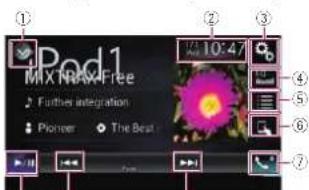
text_image
iPod1 MiX NMX Free Further integration Pioneer The Beat 10:47 ① ② ③ ④ ⑤ ⑥ ⑦⑨⑧⑩
① Displays the source list.
For details, refer to Selecting a front source on the source list on page 13.
② Displays the Time and date setting screen.
For details, refer to Setting the time and date on page 70.
③ Displays the Setting menu screen.
④ Recalls equalizer curves.
For details, refer to Using the equalizer on page 64.
⑤ Selects a track from the list.
- For details, refer to Selecting song or video sources from the playlist screen on page 34.
⑤ Switches the control mode to "App Mode".
- For details, refer to Using this product's iPod function from your iPod on page 35.
⑦ Displays the Phone menu screen.
- For details, refer to Displaying the phone menu on page 16.
⑧ Skips files forward or backward.
⑨ Switches between playback and pause.
- Reading the screen
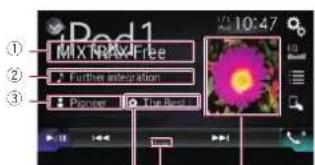
text_image
iPod1 ① MIX NMX Free ② Further insertion ③ Popraw Top Boost Vol 10:47④ ⑤ ⑥
① App name
Shows the App name of the currently playing.
② Song title
Shows the title of the song currently being played (when available). "No Title" is displayed if there is no corresponding information.
③ Artist name
Shows the artist name for the song currently being played (when available). "No Name" is displayed if there is no corresponding information.
④ Album title
Shows the title of the album of the current file (when available). "No Title" is displayed if there is no corresponding information.
⑤ Pause Indicator
⑥ Album artwork
Album art of the current song is displayed. If it is available.
Playing music output from the Android Auto-compatible device
If an Android Auto-compatible device is connected to this product, you can listen to the music output from the Android device with this product, and control the playback directly from this product.
This function is available only when
Android Auto is turned on. Start the Android Auto before using this function.
For details, refer to Using Android Auto on page 39.
Using the touch panel keys
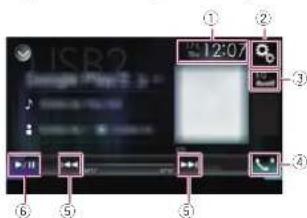
text_image
12:07 ISR2 Google Play 3.4 ① ② ③ ④ ⑤ ⑥ ⑤① Displays the Time and date setting screen.
For details, refer to Selling the time and date on page 70.
② Displays the Setting menu screen.
③ Recalls equalizer curves.
For details, refer to Using the equalizer on page 64.
④ Displays the Phone menu screen.
For details, refer to Displaying the phone menu on page 16.
⑤ Skips files forward or backward.
☐ Operations may vary depending on the application used on the Android Auto-compatible device.
⑥ Switches between playback and pause.
Reading the screen
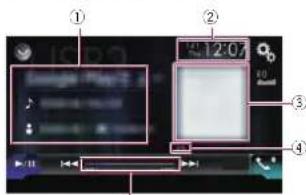
text_image
① ② 12:07 ③ ④⑤
① Current track information
- Application name
Shows the application name (when available). "No Name" is displayed if there is no corresponding information.
- Song title
Shows the title of the song currently playing (when available). "No Title" is displayed if there is no corresponding information.
• Artist name
Shows the artist name for the song currently being played (when available). "No Name" is displayed if there is no corresponding information.
- Album title
Shows the title of the album of the current file (when available). "No Title" is displayed if there is no corresponding information.
② Current time and date
③ Album artwork
A burn art of the current song is displayed if it is available.
④ Playback condition indicator
Indicates the current playback condition.
Setting the shuffle play
Indicator Meaning

Plays all files in the current
repeat play range in random order.
Setting a repeat play range
Indicator Meaning

Repeats all songs in the
selected list

Repeals just the current
song.
■ Playback condition indicators may not be displayed depending on the Android device.
⑤ Play time indicator
Shows the elapsed playing time within the current file.
Starting procedure
1 Start up Android Auto.
For details, refer to Using Android Auto on page 39.
2 Press the HOME button to display the Top menu screen.
3 Touch [USB2] on the AV source selection screen.
4 Use the touch panel keys on the screen to control the playback.
For details, refer to Using the touch panel keys on page 36.
☐ The Android Auto function may not operate properly if the Bluetooth connection with the Android Auto-compatible device is terminated.
Using your iPhone or smartphone applications
WARNING
Certain uses of an iPhone or a smartphone may not be legal while driving in your jurisdiction, so you must be aware of and obey any such restrictions.
If in doubt as to a particular function, only perform it while the car is parked.
No feature should be used unless it is safe to do so under the driving conditions you are experiencing.
Using AppRadio Mode
You can control applications for an iPhone or a smartphone directly from the screen
(AppRadio Mode)
In AppRadio Mode, you can operate applications with finger gestures such as tapping, dragging, scrolling or flicking on the screen of this product.
For details of AppRadio Mode compatible devices, refer to AppRadio Mode Compatibility on page 20.
☐ In this chapter, iPhone and iPod touch will be referred to as "iPhone".
☐ The compatible finger gestures vary depending on the application for an iPhone or a smartphone.
☐ When an application not compatible with AppRadio Mode is started, depending on the application, you can see an image of the application on the screen of this product. However, you will not be able to operate the application.
To use AppRadio Mode, install the AppRadio app on the iPhone or smartphone beforehand to enable launching of the application on this product. For details about the AppRadio app, visit the following site:
For U.S.A.
http://www.pioneerelectronics.com/AppRadioMode
For Canada
http://www.pioneerelectronics.ca/AppRadioMode
Be sure to read Using app-based connected content before you perform this operation.
For details, refer to Using app-based connected content on page 91.
- Content and functionality of compatible applications are the responsibility of the App providers.
- In AppRadio Mode, usage is limited while driving, with availability of functions and content determined by the App providers.
- AppRadio Mode allows access to applications other than those listed, subject to limitations while driving.
● PIONEER IS NOT RESPONSIBLE AND DISCLAIMS LIABILITY FOR THIRD PARTY (NON-PIONEER) APPS AND CONTENT, INCLUDING WITHOUT LIMITATION ANY INACCURACIES OR INCOMPLETE INFORMATION.
■ Using the touch panel keys (App control side bar)
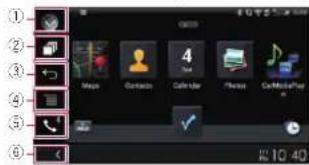
text_image
Screenshot of a mobile app home screen showing app icons and status bar with 'OK'/'Cancel' buttonsDisplays the source list.
For details, refer to Selecting a front source on the source list on page 13.
② Displays the launcher application screen.
③ Displays the previous screen.
□ When you use an iPhone, this key is not available.
④ Displays the menu screen.
□ When you use an iPhone, this key is not available.
⑤ Displays the Phone menu screen.
- For details, refer to Displaying the phone menu on page 16.
⑤ Displays the current source.
In AppRadio Mode, App control side bar will appear.
☐ If you press the HOME button twice, the App control side bar will disappear. Press the HOME button twice again, and the App control side bar will appear.
■ Starting procedure
When connecting an iPhone or smartphone to this product, you must select the method for connecting your device. Settings are required according to the connected device. For details, refer to Chapter 5.
The procedure varies depending on the type of device.
For iPhone with a 30-pin connector users
1 Connect your iPhone.
For details, refer to Connecting an iPhone with 30-pin connector on page 76.
2 Press the HOME button to display the Top menu screen.
3 Touch [APPS].
A message, which notifies you that your iPhone can launch the application, appears on the screen.
A message, which asks you whether you want to launch your application, appears on your iPhone.
4 Use your iPhone to launch the application.
The AppRadio app is launched.
5 Touch [OK] on the screen of this product.
The AppRadio Mode screen (Application menu screen) appears.
☐ If you connect your device while an AppRadio Mode-compatible application is already running, the application operation screen will appear on this product.
6 Touch the desired application icon. The desired application is launched, and the application operation screen appears.
7 Operate the application.
Chapter
Chapter
13 8 Press the HOME button to go back to the Top menu screen.
For iPhone with a Lightning connector users
1 Register your iPhone and connect it to this product via Bluetooth wireless technology.
The registered device must be selected as the priority device.
For details, refer to Registering your Bluetooth devices on page 14.
2 Unlock your iPhone.
3 Connect your iPhone.
The cable connection method varies depending on your device.
For details, refer to Connecting an iPhone with Lightning connector on page 76.
4 Press the HOME button to display the Top menu screen.
5 Touch [APPS].
The AppRadio app is launched, and the AppRadio Mode screen (Application menu screen) appears.
☐ If you connect your device while an AppRadio Mode-compatible application is already running, the application operation screen will appear on this product.
6 Touch the desired application icon. The desired application is launched, and the application operation screen appears.
7 Operate the application.
8 Press the HOME button to go back to the Top menu screen.
For smartphone users
1 Register your smartphone and connect it to this product via Bluetooth wireless technology.
The registered device must be selected as the priority device.
For details, refer to Registering your Bluetooth devices on page 14.
2 Unlock your smartphone.
3 Connect your smartphone to this product via the separately sold App Connectivity Kit (CD-AH200).
☐ The cable connection method varies depending on your device.
For details, refer to Connecting the Android™ device on page 77.
4 Press the HOME button to display the Top menu screen.
5 Touch [APPS].
The AppRadio app is launched, and the AppRadio Mode screen (Application menu screen) appears.
☐ If you connect your device while an AppRadio Mode-compatible application is already running, the application operation screen will appear on this product.
6 Touch the desired application icon. The desired application is launched, and the application operation screen appears.
7 Operate the application.
8 Press the HOME button to go back to the Top menu screen.
■ Using the keyboard
CAUTION
For your safety, the keyboard functionality is only available when the vehicle is stopped and the parking brake is engaged.
This function is only available in AppRadio Mode on the iPhone.
This function may not be available depending on your iPhone.
When you tap the text input area of an application for iPhone, a keyboard will be displayed on the screen. You can input the desired text directly from this product.
☐ The language preference for the keyboard of this product should be same as the setting on your iPhone. If the sellings for this product and the iPhone are different, you may be unable to enter characters properly.
1 Set the keyboard language.
For details of the operations, refer to Setting the keyboard language with the application for iPhone on page 58.
2 Start up the AppRadio Mode.
For details, refer to Starting procedure on page 37.
3 Touch the text input area on the application operation screen.
A keyboard for entering text appears.
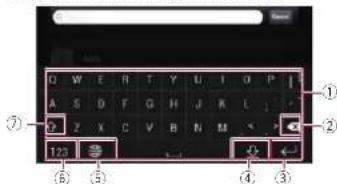
text_image
Q W E R T Y U I O P A S D F G H J K L Z X C V B N M 123 ⑦ ① ② ⑥ ⑤ ④ ③① Enters the characters.
② Deletes the entered text one letter at a time, beginning at the end of the text.
③ Confirms the entry and allows you to proceed to the next step.
④ Hides the keyboard and the text can now be entered using the keyboard of the iPhone.
⑤ Changes the iPhone keyboard layout.
☐ The iPhone keyboard layouts that can be selected by tapping 📋spends on the setting for Hardware Keyboard Layout set on your iPhone.
⑥ Switches to a keyboard offering numeric characters and symbols.
⑦ Converts the case of the keyboard characters.
■ Adjusting the image size (For smartphone users)
Black dots may appear on the screen when using AppRadio Mode with an Android device connected to this product.
CAUTION
This setting is available only when you stop your vehicle in a safe place and apply the parking brake.
☐ This function can be set under the following conditions:
— When an Android device is connected to this product using CD-AH200 (sold separately), and when AppRadio Mode is available after a Bluetooth connection
using SPP (Serial Port Profile) has been established.
If this selling has not been sell, the selling screen automatically appears in the following cases:
— When entering AppRadio Mode after a Bluetooth connection using SPP (Serial Port Profile) has been established.
— When a Bluetooth connection using SPP (Serial Port Profile) has been established in AppRadio Mode.
1 Press the HOME button to display the Top menu screen.
2 Touch the following keys in the following order.

The "System" screen appears.
3 Touch [Input/Output Settings].
4 Touch [AppRadio Video Adjustment].
The confirmation screen appears.
5 Touch [OK].
6 Touch the following keys to adjust the line to fit smartphone image size.
| Moves the line to the left. | |
| Moves the line to the right. | |
| Moves the line upward. | |
| Moves the line downward. |
7 Touch [Preview].
☐ Confirm that the whole image fills the screen.
8 Touch [OK].
☐ If you want to adjust the setting again from the beginning, touch [RESET].
■ Displaying the image of your application (iPhone with 30-pin connector)
You can set an image of an application for iPhone, which is not compatible with
AppRadio Mode, to be shown on the screen.
☐ Depending on the type of application, you may not be able to see the image on the screen.
☐ You can only control the application on the connected device.
□ When you touch the display in this function, "Don't Touch" mark appears on the upper right corner of the screen.
1 Connect your iPhone.
For details, refer to Connecting an iPhone with 30-pin connector on page 76.
2 Press the HOME button to display the Top menu screen.
3 Touch [APPS].
A message, which notifies you that your iPhone can launch the application, appears on the screen.
A message, which asks you whether you want to launch your application, appears on your iPhone.
4 Use your iPhone to refuse to launch the application.
5 Touch [OK] on the screen of this product.
The black screen appears.
6 Launch an application on your iPhone.
An image of the application appears on the screen.
7 Press the HOME button to return to the Top menu screen.
■ Displaying the image of your application (iPhone with Lightning connector)
You can set an image of an application for smartphone, which is not compatible
with AppRadio Mode, to be shown on the screen.
Depending on the type of application, you may not be able to see the image on the screen.
☐ When you use this function, do not connect other devices via Bluetooth wireless technology. Be sure to disconnect your Bluetooth device before using this function.
☐ You can only control the application on the connected device.
☐ When you touch the display in this function, "Don't Touch" mark appears on the upper right corner of the screen.
1 Connect your iPhone.
☐ The cable connection method varies depending on your device.
For details, refer to Connecting an iPhone with Lightning connector on page 76.
2 Press the HOME button to display the Top menu screen.
3 Touch [APPS].
The image in your iPhone appears on the screen.
4 Launch an application on your iPhone.
An image of the application appears on the screen.
5 Press the HOME button to return to the Top menu screen.
■ Displaying the image of your application (smartphone)
You can set an image of an application for smartphone, which is not compatible with AppRadio Mode, to be shown on the screen.
- Compatibility with all smartphones is not guaranteed.
☐ When you use this function, do not connect other devices via Bluetooth wireless technology. Be sure to disconnect your Bluetooth device before using this function.
- You can only control the application on the connected device.
When you touch the display in this function, "Don't Touch" mark appears on the upper right corner of the screen.
1 Connect your smartphone to this product via the separately sold App Connectivity Kit (CD-AH200).
The cable connection method varies depending on your device.
For details, refer to Connecting the Android ^™ device on page 77.
2 Press the HOME button to display the Top menu screen.
3 Touch [APPS].
The image in your smartphone appears on the screen.
4 Launch an application on your smartphone.
An image of the application appears on the screen.
5 Press the HOME button to return to the Top menu screen.
Using Android Auto
You can control applications for a smart-phone directly from the screen (Android Auto).
In Android Auto, you can operate applications with finger gestures such as lapping, dragging, scrolling or flicking on the screen of this product.
☐ Android Auto may not be available in your country or region. For details about Android Auto, please refer to the Google support site: http://support.google.com/androidauto
☐ This function is available for the Android Auto-compatible device only.
The compatible finger gestures vary depending on the application for a smartphone.
To use Android Auto, set "Mode" in "Smartphone Setup" to "Android Auto" beforehand.
For details, refer to Selling the device connection method on page 20.
Chapter
- Content and functionality of compatible applications are the responsibility of the App providers.
- In Android Auto, usage is limited while driving, with availability of functions and content determined by the App providers.
● Android Auto allows access to applications other than those listed, subject to limitations while driving.
● PIONEER IS NOT RESPONSIBLE AND DISCLAIM'S LIABILITY FOR THIRD PARTY (NON-PIONEER) APPS AND CONTENT, INCLUDING WITHOUT LIMITATION ANY INACCURACIES OR INCOMPLETE INFORMATION.
Starting procedure
When connecting an Android Auto-compatible device to this product, you must select the method for connecting your device. Settings are required according to the connected device.
For details, refer to Chapter 5.
☐ To achieve optimum usability of Android Auto, set the driving position setting correctly according to the vehicle.
For details, refer to Setting the driving position on page 40.
1 Connect an Android Auto-compatible device to this product via the separately sold USB interface cable for use with Android devices (CD-MU200).
For details, refer to Connecting the Android or MirrorLink™ device on page 77.
2 Press the HOME button to display the Top menu screen.
3 Touch [Android Auto].
The Bluetooth connection with the Android Auto-compatible device will automatically be established.
☐ If Android Auto is turned on during a call on a cellular phone other than the Android Auto-compatible device, the Bluetooth connection will be terminated after the call ends.
Chapter
14
4 Operate the application.
- For details on adjusting the volume, refer to Adjusting the volume on page 40.
☐ The Android Auto function may not operate properly if the Bluetooth connection with the Android Auto compatible device is terminated.
Setting the driving position
To achieve optimum usability of Android Auto, set the driving position setting correctly according to the vehicle.
1 Touch the HOME button to display the Top menu screen.
2 Touch the following keys in the following order.


The "System" screen appears.
3 Touch [Driving Position].
4 Touch the item you want to set.
- Left (default):
Select for a left-hand drive vehicle.
Right:
Select for a right-hand drive vehicle. The setting will be applied the next time an Android Auto-compatible device is connected to this product.
■ Adjusting the volume
You can adjust the guidance volume/alert sound volume separately from the main sound volume when Android Auto is used.
● Touch the VOL (+/-) button.
① Touch to mule. Touch again to unmule.
② Displays the main sound volume.
③ Adjusts the guidance volume/alert sound volume.
Each touch of [+] or [-] increases or decreases the volume level.
You cannot adjust the volume of the main sound on the screen. Touch the VOL (+/-) button to adjust the volume of the main sound.
☐ The volume menu is displayed for four seconds. If the screen disappears, touch the VOL (+/-) button again. The screen reappears.
Using MirrorLink mode
When you connect a MirrorLink device with compatible applications installed, you can control the applications for the mobile device directly from this product
(MirrorLink mode).
You can view and operate the compatible applications via the display with multi-touch gestures like tapping, dragging, scrolling, and flicking.
Multi-touch gestures may be a sabled depending on the MirrorLink device that is connected.
■ Using the touch panel keys (App control side bar)
text_image
Screenshot of a macOS desktop with numbered UI elements and icons, showing status bar and navigation buttons① Displays the source list.
For details, refer to Selecting a front source on the source list on page 13.
② Displays the launcher application screen.
③ Displays the previous screen.
☐ Depending on the type of MirrorLink device, this key is not available.
④ Displays the menu screen.
☐ Depending on the type of MirrorLink device, this key is not available.
⑤ Displays the Phone menu screen.
For details, refer to Displaying the phone menu on page 16.
⑥ Displays the current source.
7 In MirrorLink mode, App control side bar will appear.
☐ If you press the HOME button twice, the App control side bar will disappear. Press the HOME button twice again, and the App control side bar will appear.
■ Starting procedure
When connecting a MirrorLink device to this product, you must select the method for connecting your device. Settings are required according to the connected device. For details, refer to Chapter 5.
1 Unlock your MirrorLink device.
2 Connect your MirrorLink device to this product via the separately sold USB interface cable for use with MirrorLink devices (CD-MU200).
For details, refer to Connecting the Android or MirrorLink™ device on page 77.
3 Press the HOME button to display the Top menu screen.
Touch [APPS].
If the launcher application is installed in the MirrorLink device, the application launches. If not, the Application menu screen will appear.
5 Touch the desired application icon. The desired application is launched, and the application operation screen appears.
☐ Some applications may not launch depending on the state of the connected device. If it does not launch, launch the application according to the application startup message.
6 Operate the application.
7 Press the HOME button to go back to the Top menu screen.
Using the audio mix function
You can output audio mixing AV source and an application for iPhone or smartphone when the AppRadio Mode or MirrorLink mode is used.
1 Start up the AppRadio Mode or MirrorLink mode.
2 Press the VOL (+/-) button.
The audio mix menu will be displayed on the screen.
text_image
1 2 3(1) Touch to mute. Touch again to unmute.
② Sets whether to switch the sound mix function on or off.
● Left tab: The audio mix function is enabled (mix on). The App volume is displayed. If you touch the App volume, the volume keys will be displayed.
● Right tab: The audio mix function is disabled (mix off).
③ Adjusts the application audio volume. Each touch of [+] or [-] increases or decreases the volume level.
☐ The AV operation screen and the Application screen can be switched by pressing the MODE button.
☐ The right tab is not displayed on the AV operation screen.
☐ You cannot adjust the volume of the main sound on the screen. Press the VOL (+/-) button to adjust the volume of the main sound.
The audio mix menu is displayed for four seconds. If the screen disappears, press the VOL (+/-) button again. The screen reappears.
Streaming Pandora®
WARNING
Certain uses of an iPhone or a smartphone may not be legal while driving in your jurisdiction, so you must be aware of and obey any such restrictions. If in doubt as to a particular function, only perform it while the car is parked. No feature should be used unless it is safe to do so under the driving conditions you are experiencing.
Pandora operations
You can enjoy Pandora by connecting an iPhone or a smartphone that has the Pandora application installed.
Important
- Requirements to access Pandora using Pioneer car audio/video products:
For details, refer to Chapter 5. - Please update the firmware of the Pandora application to the latest version before use.
● The latest version of the Pandora application can be downloaded from the iTunes App Store or Google Play. - Create a free or a paid account online. You can create the account in the Pandora application from your iPhone or from the website (http://www.pandora.com/register).
- If the Data Plan for your iPhone does not provide for unlimited data usage, additional charges from your carrier may apply for accessing the Pandora service via 3G. EDGE and/or LTE (4G) networks.
- You need to connect to the Internet via 3G, EDGE, LTE (4G) or Wi-Fi network to use the Pandora service.
Limitations:
● Depending on the availability of the Internet, you may not be able to receive the Pandora service.
● The Pandora service is subject to change without notice.
The service could be affected by any of the following: firmware version of the iPhone, firmware version of the Pandora application, changes to the Pandora music service.
- Certain functions of the Pandora service are not available when accessing the service through Pioneer car audio/video products.
They include, but are not limited to the following: sending information about current stations, buying tracks from iTunes, viewing additional text information, ogging in to Pandora, adjusting Cell Network Audio Quality.
Notes
- Pandora internet radio is a music service not affiliated with Pioneer. More information is available at http://www.pandora.com
● The Pandora mobile application is available for iPhone and smartphone, please visit www.pandora.com/everywhere/mobile for the latest compatibility information.
Using the touch panel keys
Playback screen (page 1)

text_image
PANDORA 12.20 1 2 3 4 5 6 7 8 9 10 11 12Playback screen (page 2)
text_image
Pandora 12:29 13 14 15 16 17 18 19 20 21 22 23 24 25 26 27 28 29 30 31 32 33 34 35 36 37 38 39 40 41 42 43 44 45 46 47 48 49 50 51 52 53 54 55 56 57 58 59 60 61 62 63 64 65 66 67 68 69 70 71 72 73 74 75 76 77 78 79 80 81 82 83 84 85 86 87 88 89 90 91 92 93 94 95 96 97 98 99 100① Displays the source list.
For details, refer to Selecting a front source on the source list on page 13.
② Displays the Time and date setting screen.
For details, refer to Setting the time and date on page 70.
③ Displays the Setting menu screen.
④ Recalls equalizer curves.
For details, refer to Using the equalizer on page 64.
⑤ Touching the key displays the list of your Pandora stations.
For details, refer to Selecting a Pandora station from the list on page 42.
⑤ Displays the Phone menu screen.
For details, refer to Displaying the phone menu on page 16.
⑦ Switches to the next or previous page of touch panel keys.
⑧ Touching the key gives a "Thumbs Down" to the track currently playing and skips to the next track.
☐ This function is not available when using a shared station.
⑨ Touching the key gives a "Thumbs Up" to the track currently playing.
☐ This function is not available when using a shared station.
⑩ Switches between playback and pause.
⑪ Uses "Sound Retriever" function.
For details, refer to Setting the "Sound Retriever" function on page 71.
⑫ Adds information for the track currently playing to bookmarks.
☐ Songs added to bookmarks cannot be viewed from this product.
⑬ Creates a new station.
For details, refer to Creating a station on page 42.
Reading the screen
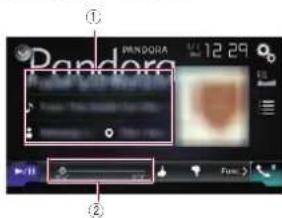
text_image
PANDORA 12.29 ① ②① Current track information
● Shows the Pandora station name the tuner is currently tuned in to.
- :Track title
Shows the little of the current track.
• Artist name
Shows the artist name for the track currently playing.
Chapter
- Album title
Shows the title of the album of the current track.
☐ The information is not displayed if there is no corresponding information.
② Play time indicator
Shows the elapsed time, remaining time and time bar of the current track.
Starting procedure
When connecting an iPhone or smartphone to this product, you must select the method for connecting your device. Settings are required according to the connected device.
For details, refer to Chapter 5.
■ For iPhone with a 30-pin connector users
1 Unlock your iPhone.
2 Connect your iPhone.
□ Connect via USB or Bluetooth.
For details of the Bluetooth connection, refer to Registering your Bluetooth devices on page 14.
3 Display the AV source selection screen.
For details of the operations, refer to Displaying the AV operation screen on page 12.
4 Touch [Pandora] on the AV source selection screen.
5 Use the touch panel keys on the screen to control the Pandora application.
- For details, refer to Using the touch panel keys on page 41.
■ For iPhone with a Lightning connector users
1 Unlock your iPhone.
2 Connect your iPhone.
□ Connect via USB, Bluetooth, or HDMI and Bluetooth.
For details of the Bluetooth connection, refer to Registering your Bluetooth devices on page 14.
Chapter
15
The cable connection method varies depending on your device.
For details, refer to Connecting an iPhone with Lightning connector on page 76.
3 Display the AV source selection screen.
For details of the operations, refer to Displaying the AV operation screen on page 12.
4 Touch [Pandora] on the AV source selection screen.
When you touch [Pandora], this product will start establishing a Bluetooth connection. After the connection is successfully established, the touch panel key on the "Pandora" screen is activated.
5 Use the touch panel keys on the screen to control the Pandora application.
- For details, refer to Using the touch panel keys on page 41.
For smartphone users
1 Unlock your smartphone.
2 Connect your smartphone.
Connect via Bluetooth, or HDMI and Bluetooth.
For details of the Bluetooth connection, refer to Registering your Bluetooth devices on page 14.
☐ The cable connection method varies depending on your device.
For details, refer to Connecting the Android™ device on page 77.
3 Display the AV source selection screen.
For details of the operations, refer to Displaying The AV operation screen on page 12.
4 Touch [Pandora] on the AV source selection screen.
When you touch [Pandora], this product will start establishing a Bluetooth connection. After the connection is successfully established, the touch panel key on the "Pandora" screen is activated.
5 Use the touch panel keys on the screen to control the Pandora application.
- For details, refer to Using the touch panel keys on page 41.
Selecting a Pandora station from the list
● Touch the following key.

Displays the list of Pandora stations.
- Touch ✗ to switch to the station list.
Touch to switch to the genre list.
Touching ✗ lays only one track based on particular musical characteristics, one at a time, from several shuffled stations.
□ Stations indicated by ■re shared stations.
When you touch [A-Z] or [Date]. The list items can be sorted.
A-Z: Sorts the items in the list alphabetically.
Date: Sorts the items in the list in the
order of the dates the items were created.
☐ If you touch the station will be deleted.
A message prompting you to delete the station appears.
Touch [Yes]. The station will be deleted. To cancel, touch [No].
Creating a station
You can create up to 100 stations by a song or an artist.
☐ You can also create a station by selecting a station in the genre list.
□ Stations cannot be created in the following cases:
— There is no response for 15 seconds
— The number of created stations reaches 100.
1 Touch the following key.

Displays the pop-up menu.
2 Touch the desired item.
- Track
Create a station by the song currently being played. - Artist
Create a station by the artist of the song currently being played. - To cancel creating a new station, touch [Cancel].
Operating with the hardware buttons
Press the ▶TRK button.
You can skip songs forward.
Using Aha Radio
WARNING
Certain uses of an iPhone or a smartphone may not be legal while driving in your jurisdiction, so you must be aware of and obey any such restrictions. If in doubt as to a particular function, only perform it while the car is parked. No feature should be used unless it is safe to do so under the driving conditions you are experiencing.
When you connect an iPhone or a smartphone with the Aha Radio installed, you can control, view, and/or listen to Aha Radio content from this product.
☐ In this chapter, iPhone and iPod touch will be referred to as "iPhone".
For details concerning operations, refer to the Help and Tips section within the Aha Radio application.
Aha Radio stations may require initial setup or sign in before the station can be accessed.
Be sure to read Using app-based connected content before you perform this operation.
For details, refer to Using app-based connected content on page 91.
Notes:
- Certain functionality of the Aha Radio service may not be available when accessing the service through this product, including, but not limited to, creating new Aha stations, deleting Aha
stations, recording 'shouls' by voice, adjusting Ana Radio App settings, logging into Facebook, creating a Facebook account, logging into Twiller, or creating a Twitter account.
● Aha Radio is a service not affiliated with Pioneer. More information is available at http://www.aharadio.com/.
● A specific version of the Aha Radio application must be installed on your iPhone or smartphone to enjoy Aha Radio content on this product.
Because the application for the iPhone or smartphone is not provided by Pioneer, the required version of the application may not yet be available at the time of purchase of this product. Availability: version and update information can be found at http://www.pioneerelectronics.com/aharadio
Using the touch panel keys
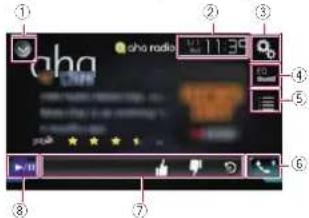
text_image
① ② ③ ④ ⑤ ⑥ ⑦ ⑧ aha radio 11:30 10 10 10 10 10 10① Displays the source list.
For details, refer to Selecting a front source on the source list on page 13.
② Displays the Time and date setting screen.
For details, refer to Selling the time and date on page 70.
③ Displays the Setting menu screen.
④ Recalls equalizer curves.
- For details, refer to Using the equalizer on page 64.
⑤ Selects an Aha Radio station from the list.
Touching this key displays the list of the available Aha Radio stations. Touch the
desired Aha Radio station to change Aha Radio sources.
⑥ Displays the Phone menu screen.
For details, refer to Displaying the phone menu on page 16.
⑦ Performs additional functions of each station or content currently playing.
☐ The icons displayed vary depending on each station or content.
Indicator Meaning
Touching the key retweets the selected tweets with your Twitter account.
Touching the key performs fast reverse of the current content for 30 seconds.
Touching the key "dislikes" the current content.
☐ Depending on the content, touching 🔥 cancels "dislikes".
Touching the key "likes" the current content.
Depending on the content, touching 🤅 cancels "likes".
Touching the key lets you make a call to a phone number registered in the current content using the hands-free function.
⑧ Switches between playback and pause.
Reading the screen
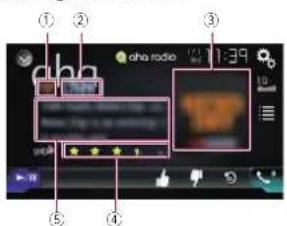
text_image
① ② ③ ohra radio 11:39 ⑤ ④① Station mark
② Station name
Shows the name of the Aha Radio station to which this product is currently tuned.
③ Content image
Displays an image of the current content if available.
④ Rating information
Shows the rated value of the current content displayed if available.
⑤ Current station information
Shows information on the content currently being played.
☐ The item is blank if there is no corresponding information.
Starting procedure
When connecting an iPhone or smartphone to this product, you must select the method for connecting your device. Settings are
required according to the connected device. For details, refer to Chapter 5.
■ For iPhone with a 30-pin connec- Use the touch panel keys on the tor users screen to control Aha Radio.
1 Unlock your iPhone.
2 Connect your iPhone.
Connect via USB or Bluetooth.
For details of the Bluetooth connection, refer to Registering your Bluetooth devices on page 14.
3 Display the AV source selection screen.
For details of the operations, refer to Displaying the AV operation screen on page 12.
4 Touch [aha] on the AV source selection screen.
5 Use the touch panel keys on the screen to control Aha Radio.
For details, refer to Using the touch panel keys on page 42.
■ For iPhone with a Lightning connector users 4. Touch [ph] on the AV source
1 Unlock your iPhone.
2 Connect your iPhone.
□ Connect via USB, Bluetooth, or HDMI and Bluetooth.
For details of the Bluetooth connection, refer to Registering your Bluetooth devices on page 14.
☐ The cable connection method varies depending on your device.
For details, refer to Connecting an iPhone with Lightning connector on page 76.
3 Display the AV source selection screen.
For details of the operations, refer to Displaying the AV operation screen on page 12.
4 Touch [aha] on the AV source selection screen.
When you touch [aha], this product will start establishing a Bluetooth connection. After the connection is successfully established, the touch panel key on the "aha" screen is activated.
Use the touch panel keys on the screen to control Aha Radio.
For details, refer to Using the touch panel keys on page 42.
For smartphone users
1 Unlock your smartphone.
2 Connect your smartphone.
- Connect via Bluetooth, or HDMI and Bluetooth.
For details of the Bluetooth connection, refer to Registering your Bluetooth devices on page 14.
☐ The cable connection method varies depending on your device.
For details, refer to Connecting the Android™ device on page 77.
3 Display the AV source selection
screen.
For details of the operations, refer to Displaying the AV operation screen on page 12.
4 Touch [aha] on the AV source selection screen.
When you touch [aha], this product will start establishing a Bluetooth connection.
After the connection is successfully established, the touch panel key on the "aha" screen is activated.
5 Use the touch panel keys on the screen to control Aha Radio.
For details, refer to Using the touch panel keys on page 42.
Operating with the hardware buttons
Press the TRK button.
You can skip contents forward or backward.
Using iDatalink
By connecting the optional iDatalink adapter, you can access the satellite radio source provided for the vehicle and the vehicle information can be displayed on this product.
Important
- For information on installing the iData-link adapter, refer to the operating manual of the iDataLink adapter.
● After installing the iDatalink adapter, be sure to check the operations. - For details about vehicle models that are compatible with the iDatalink adapter, refer to the information on our website.
● Functions and displays vary depending on the vehicle model. For details of the functions available for each model, refer to the information on our website.
● The iDatalink list screen can be scrolled up or down by page. - Please note that the device number of this product and a computer with internet access are required to program your Macstro RR module. For troubleshooting information about "iDatalink" functions, visit www.idatalinkmaestro.com/support or call iDatalink Macstro Technical Support toll-free at 877.212.6169 ext 7900.
Chapter
Chapter
16
Activating iDatalink Maestro
Before using and/or connecting the iDataLink Maestro adapter, you will need to first flash the Maestro module with the appropriate vehicle and head unit firmware.
■ Updating the iDatalink Maestro ^4 module
1 Find the last six numbers (device number) on the label on the packaging of this product or on this product itself.
☐ Device number input is required for updating the iDalalink MAESTRO module. Take a note of the device number as necessary.
☐ You can also check the device number on the "Firmware Information" screen of this product.
For details, refer to Displaying the firmware version on page 60.
2 Access the Automotive Data Solutions Inc. website (www.idata-linkmaestro.com/) and follow the on-screen directions to configure the desired firmware.
☐ When the serial number input is required, please input the device number of this product.
3 Install the vehicle/head unit specific firmware on your iDatalink Maestro module.
For details, please refer to Automotive Data Solutions Inc. website.
4 Connect this product to iDatalink Maestro, and then install this product to the vehicle.
The iDatalink function will be active.
Starting procedure
1 Display the AV source selection screen.
For details of the operations, refer to Displaying the AV operation screen on page 12.
44
En
2 Touch [My Vehicle] on the AV source selection screen.
3 Touch [USB/iPod], [SiriusXM] or [Bluetooth Audio] when you want to operate iDatalink.
4 Use the touch panel keys on the screen to control the OEM feature.
USB/iPod (Media player)
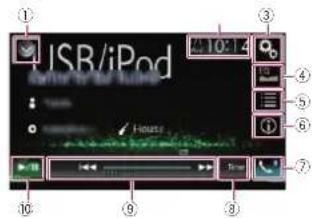
text_image
ISR/iPod 10:1① Displays the source list.
For details, refer to Selecting a front source on the source list on page 13
② Displays the Time and date setting screen.
For details, refer to Setting the time and date on page 70.
③ Displays the Setting menu screen.
④ Recalls equalizer curves.
For details, refer to Using the equalizer on page 64.
⑤ Selects a track from the list.
⑤ Switches the text display between tag information and file/folder information.
⑦ Displays the Phone menu screen.
For details, refer to Displaying the phone menu on page 16.
⑧ Switches to the next or previous page of touch panel keys.
⑨ Functions and displays vary depending on the connected type of iDatalink adapter and the vehicle model.
⑩ Switches between playback and pause.
Satellite Radio
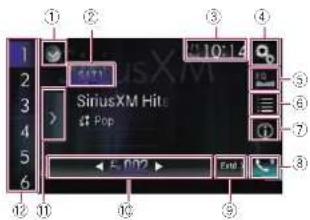
text_image
1 2 3 4 5 6 SIRIUSXM Hit Pop 10:14 ① ② ③ ④ ⑤ ⑥ ⑦ ⑧ ⑨ ⑩ ⑪ ⑫ ⑬ ⑭ ⑮ ⑯① Displays the source list.
For details, refer to Selecting a front source on the source list on page 13.
② Selects a band.
③ Displays the Time and date setting screen.
For details, refer to Setting the time and date on page 70.
④ Displays the Setting menu screen. ⑤ Recalls equalizer curves.
For details, refer to Using the equalizer on page 64.
⑧ Selects a channel from the list.
⑦ Switches the text display between the current channel information and the current content information.
⑧ Displays the Phone menu screen.
For details, refer to Displaying the phone menu on page 16.
⑨ Switches to the next or previous page of touch panel keys.
⑩ Functions and displays vary depending on the connected type of iDatalink adapter and the vehicle model.
⑩ Displays the preset channels.
⑫ Selects a preset channel.
Selecting a preset channel from the preset channel list

text_image
1 SirusXM Hits 2 20 on 20 3 40s on 4 4 50s on 5 5 (20s on 6) 6 70s on 7 SiriusXM HitsPop
← F:002 → Exit > 10:14① ②
① Preset tuning keys
② Preset channel list display key
Selecting a SiriusXM channel directly
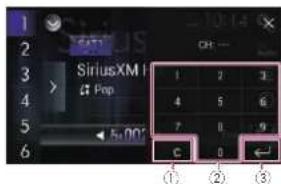
text_image
1 2 3 SiriusXM IPop
5,00' C 0 ← ① ② ③① Clear key
② Numeric keys
③ Enter key
Bluetooth Audio
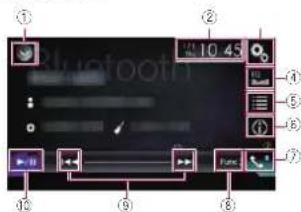
text_image
① ② 10 45 ④ ⑤ ⑥ ⑦ ⑧ ⑨ ⑩① Displays the source list.
- For details, refer to Selecting a front source on the source list on page 13.
② Displays the Time and date setting screen.
For details, refer to Selling the time and date on page 70.
③ Displays the Setting menu screen.
④ Recalls equalizer curves.
For details, refer to Using the equalizer on page 64.
⑤ Selects a track from the list.
⑥ Switches the text display between tag information and file/folder information.
⑦ Displays the Phone menu screen.
For details, refer to Displaying the phone menu on page 16.
⑧ Switches to the next or previous page of touch panel keys.
⑨ Skips files forward or backward.
⑩ Switches between playback and pause.
Hands-free phone
By connecting this product to the vehicle bus system using an iDataLink adapter (sold separately), this product can access the hands-free phone for the vehicle.
☐ This function is not available during a call via this product or while using the voice recognition function.
Setting Bluetooth
1 Press the HOME button to display the Top menu screen.
2 Touch the following keys in the following order.


The "System" screen appears.
3 Touch [OEM Setting].
☐ Functions and displays vary depending on the connected type of iDalalink adapter and the vehicle model.
■ Phone Book screen
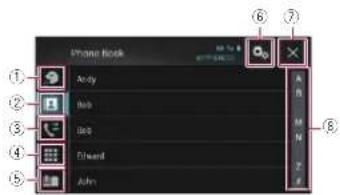
text_image
Phone Book ① ② ③ ④ ⑤ Andy Help Help Edward John A B M N F E① Switches to the voice recognition function.
② Switches to the phone book list.
③ Switches to the missed, received and dialed call lists.
④ Switches the mode to enter the phone number directly.
⑤ Functions and displays vary depending on the connected type of iDatalink adapter and the vehicle model.
⑥ Displays the Setting menu screen.
The [Connection] and [Bluetooth
Settings] menus are displayed. The available functions and displays for the menus vary depending on the connected type of iDatalink adapter and the vehicle model.
⑦ Closes the screen.
③ Displays entries in the list by the initial character.
■ History list screen
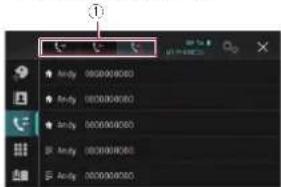
text_image
Audio 000000000 Audio 000000000 Audio 000000000 Audio 000000000 Audio 000000000① Switches to call history.
■ Dial screen
①②③
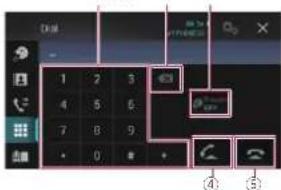
text_image
1 2 3 4 5 6 7 8 9 0 ④ ⑤① Dial pad
② Deletes one digit. Touch and hold to delete all digits.
③ Turns private mode on or off.
④ Makes a phone call, when a phone number is selected.
Switches between callers on hold.
⑤ Ends a call.
Rejects an incoming call.
Cancels call waiting.
■ Dial confirmation screen
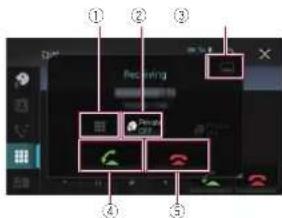
text_image
① ② ③ Recording ④ ⑤① Switches the mode to enter the phone number directly.
② Turns private mode on or off.
③ Minimizes the dial confirmation screen.
④ Accepts an incoming call.
⑤ Ends a call.
Using a Bluetooth audio player
You can control a Bluetooth audio player.
Before using the Bluetooth audio player, you must register and connect the device to this product.
For details, refer to Registering your Bluetooth devices on page 14.
☐ Operations may vary depending on the Bluetooth audio player.
☐ Depending on the Bluetooth audio player connected to this product, the available operations with this product may be limited to the following two levels:
— A2DP (Advanced Audio Distribution Profile): Only playing back songs on your audio player is possible.
— A2DP and AVRCP (Audio/Video Remote Control Profile): Playing back, pausing, selecting songs, etc., are possible.
☐ Since a number of Bluetooth audio players are available on the market, operations with your Bluetooth audio player using this product vary considerably in range. Please refer to the instruction manual that came with your Bluetooth audio player as well as this manual while operating your player on this product.
While you are listening to songs on your Bluetooth audio player, please refrain
Chapter
From operating your cellular phone as much as possible. If you try operating your cellular phone, the signal may cause noise for song playback.
□ Even if you switch to another source while listening to a song on your Bluetooth audio player, song playback may continue.
☐ Depending on the Bluetooth audio player you connected to this product, operations on this product to control the player may differ from those explained in this manual.
☐ When you are talking on a cellular phone connected to this product via Bluetooth wireless technology, song playback from your Bluetooth audio player connected to this product may be paused.
You cannot use Bluetooth audio player when the connecting cable for using AppRadio Mode is connected.
Using the touch panel keys
Playback screen (page 1)
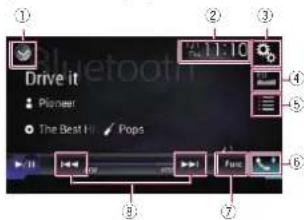
text_image
Drive it Pioneer The Best Hit PopsPlayback screen (page 2)
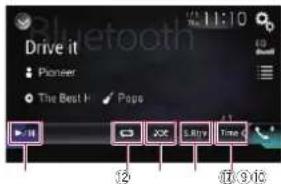
text_image
Drive it Pioneer The Best H Page 12 20 500 Time 9:10① Displays the source list.
For details, refer to Selecting a front source on the source list on page 13.
Chapter
18
② Displays the Time and date setting screen.
For details, refer to Setting the lime and date on page 70.
③ Displays the Setting menu screen.
④ Recalls equalizer curves.
- For details, refer to Using the equalizer on page 64.
⑤ Selects a file from the list.
For details, refer to Selecting files from the file name list on page 46.
⑥ Displays the Phone menu screen.
- For details, refer to Displaying the phone menu on page 16.
⑦ Switches to the next or previous page of touch panel keys.
⑧ Skips files forward or backward.
⑨ Uses "Sound Retriever
For details, refer to Setting the "Sound Retriever" function on page 71.
⑩ Plays files in random order.
For details, refer to Playing files in random order on page 46.
⑪ Sets a repeat play range.
For details, refer to Setting a repeat play range on page 46.
⑫ Switches between playback and pause.
Reading the screen

text_image
Drive it Pioneer The Best It: ✓ Pops① Current time and date
② File number indicator
Shows the file number currently playing (when available).
③ Play time indicator
Shows the elapsed playing time within the current file (when available).
④ Current file information
If the connected Bluetooth audio player features AVRCP 1.3, the following file information will be displayed.
Track title
Shows the title of the track currently
playing (when available).
• Artist name
Shows the name of the artist for the track currently playing (when available).
- Album title
Shows the title of the album of the current file (when available).
• Genre
Shows the genre of the current file (when available).
In the following cases, file information will only be displayed after a file starts or resumes playing:
— Bluetooth audio player compatible with AVRCP1.3 is connected, and the playback is slarled by the operation on the device.
— Another file is selected while playback is paused.
Starting procedure
1 Press the HOME button to display the Top menu screen.
2 Touch the following keys in the following order.

The "System" screen appears.
3 Touch [AV Source Settings].
4 Confirm that "Bluetooth Audio" is turned on.
The default setting is "On"
5 Display the AV source selection screen.
For details of the operations, refer to Displaying the AV operation screen on page 12.
6 Touch [Bluetooth Audio] on the AV source selection screen.
The "Bluetooth" screen appears.
7 Use the touch panel keys on the screen to control the Bluetooth audio player.
- For details, refer to Using the touch panel keys on page 45.
Selecting files from the file name list
The file name list lets you see the list of track titles for the Bluetooth audio player and lets you select one of them to play back.
This function is only available when the connected Bluetooth audio player supports AWRCP 1.4.
1 Touch the following key.

Displays the file name list.
2 Touch a file on the list to play back.
□ Touching a folder on the list shows its contents. You can play a file on the list by touching it.
Playing files in random order
All of the files within the repeat play range can be played at random by only touching a single key.
☐ This function is only available when the connected Bluetooth audio player supports AVRCP 1.3.
● Touch the following key repeatedly until the desired setting appears.

Turns random play on or off.
Setting a repeat play range
The repeat play range can be changed by only touching a single key.
☐ This function is only available when the connected Bluetooth audio player supports AVRCP 1.3.
● Touch the following key repeatedly until the desired setting appears.

Changes the repeat play range between the current file and all audio files in the Bluetooth audio player.
Operating with the hardware buttons
Press the TRK button.
You can skip files forward or backward.
Press and hold the TRK button.
You can perform fast reverse or fast forward.
Using the SiriusXM® satellite radio
SiriusXM satellite radio operations
You can use this product to control a SiriusXM Connect Vehicle Tuner (sold separately).
For information on how to install the SiriusXM Connect Vehicle Tuner, consult the installation guide included with the tuner. Only SiriusXM® brings you more of what you level to listen to all in one place. Get over 140 channels, including commercial-free music plus the best sports, news, talk, comedy and entertainment. Welcome to the world of satellite radio. A SiriusXM Vehicle Tuner and Subscription are required. For more information, visit www.siriusxm.com,
■ Subscribing to the SiriusXM Satellite Radio service
1 Select SiriusXM as the source.
You should be able to tune in to Channel 1. If you cannot get Channel 1, ensure that your SiriusXM Connect Vehicle Tuner is installed correctly as described in the tuner installation guide.
2 Switch to Channel 0 and check the Radio ID.
The SiriusXM Radio ID can be found by tuning in to Channel 0. The Radio ID can also be
found at the bottom of the SiriusXM Connect Vehicle Tuner screen. Note that the SiriusXM Radio ID does not include the letters I, O, S or F. You will need this number to activate your subscription.
3 Activate the service either online or by phone.
In the USA, you can activate online or by calling SiriusXM Listener care:
- Visit www.sinusxm.com/activatenow
Call SiriusXM Listener Care al 1-866 635-2349
For Canadian Subscriptions, please contact:
- Visit www.siriusxm.ca/activalexm
● Call XM customer Care al 1-877-438-9677
● The SiriusXM satellites will send an activation message to your luner. When the luner has received the message,
"Subscription Updated" is displayed.
Once you have subscribed, SiriusXM salechilos will send an activation message to your tuner.
The activation process usually takes 10 to 15 minutes but may take up to an hour in some cases. Do not turn off this product while the activation message is displayed.
Using the touch panel keys
Live display
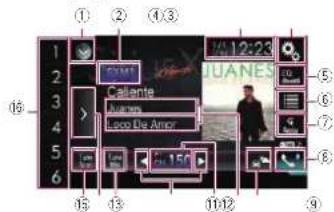
text_image
1 2 3 4 5 6 1/4 12:23 JUANES Callente Journey Loco Die Amor 10 11 12 13 14 15 ⑤ ⑥ ⑦ ⑧Replay display
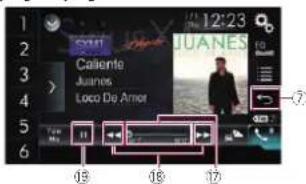
text_image
12:23 Juanes Caiente Juanes Loco De Amer ⑦ ⑧ ⑨ ⑩ ⑪ ⑫ ⑬ ⑭ ⑮ ⑯ ⑰ ⑱ ⑲ ⑳ ㉑ ㉒ ㉓ ㉔ ㉕ ㉖ ㉗ ㉘ ㉙ ㉚ ㉛ ㉜ ㉝ ㉞ ㉟ ㉳ ㉟ ㉟ ㉟ ㉟ ㉟ ㉟ ㉟ ㉟ ㉟ ㉟ ㉟ ㉟ ㉟ ㉟ ㉟ ㉟ ㉟ ㉟ ㉟ ㉟ ㉟ ㉟ ㉟ ㉟ ㉟ ㉟ ㉟ ㉟ ㉟ ㉟ ㉟ ㉟ ㉟ ㉟① Displays the source list.
For details, refer to Selecting a front source on the source list on page 13.
② Selects a band.
③ Displays the Time and date setting screen.
For details, refer to Setting the time and date on page 70.
④ Displays the Setting menu screen.
⑤ Recalls equalizer curves.
For details, refer to Using the equalizer on page 64.
⑥ Selects a channel from the list.
For details, refer to Selecting a channel from a list of all channels on page 48.
For details, refer to Selecting a channel from the category list on page 48.
⑦ Switches between the Live screen and the Replay screen.
For details, refer to Using the Replay™ function on page 49.
⑧ Displays the Phone menu screen.
For details, refer to Displaying the phone menu on page 16.
⑨ Switches to the channel broadcasting the traffic and weather information for the selected city.
For details, refer to Checking the update Traffic and Weather information on page 50.
⑩ Memorizes the current channel.
- For details, refer to Memorizing the current contents on page 50.
Stores song information to an iPod.
For details, refer to Storing song information to an iPod (iTunes Tagging) on page 70.
⑪ Selects a channel directly.
For details, refer to Selecting a SiriusXM channel directly on page 48.
⑫ Performs manual tuning.
For details, refer to Manual tuning on page 48.
⑬ Plays back the songs from the music channels stored as presets in the current band.
For details, refer to Using TuneMix™ on page 49.
⑭ Displays the preset channels.
For details, refer to Selecting a preset channel from the preset channel list on page 48.
⑮ Scans all the songs for the music channels found in the current preset band.
For details, refer to Using TuneScan™ on page 49.
⑯ Recalls the preset channel stored to a key from memory with a single touch of the key.
Stores the current broadcast frequency to a key for later recall by continuing to touch the key.
For details, refer to Storing broadcast channels on page 48.
⑰ Changes the playback point by dragging the key.
For details, refer to Operating the time bar on page 14.
⑯ Skips files forward or backward with a single touch of the key.
Fast forwards or fast reverses by touching and holding the key.
⑲ Switches between playback and pause.
Reading the screen
Live display
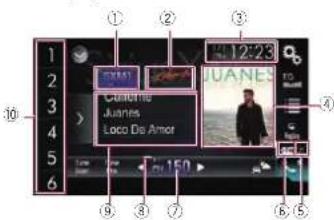
text_image
1 2 3 4 5 6 7 8 9 10 SOMY Cachado Juanes Loco De Amor 12:23 JUANES TOL G R GND 150 ① ② ③ ④Replay display
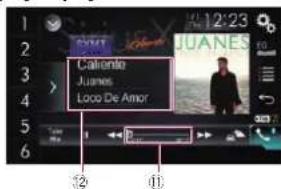
text_image
Calomilo Junes Loco De AmorChapter
① Band Indicator
② Channel name logo
③ Current time and date
Shows the tuned band: SXM1, SXM2, SXM3 or Featured.
- "Featured" is available only when
- "Featured Favorites" is set to "On".
Shows the name logo of the channel currently being tuned into.
④ Album artwork
Shows the artwork for the current song (when available).
☐ If the album artwork is not available, the SiriusXM Logo image will be displayed.
⑤ iTunes ^® lagging song status indicator Shows the status of the song information stored in this product.
☐ The icon is displayed on all operation screens of AV sources.
Indicator

Meaning
Appears when the song information tag is stored in this product.

Appears when the song information lag is being transferred to an iPod.
⑥ iTunes ^® lagging indicator
Indicates songs that are capable of iTunes lagging.
Chapter
18
The icon is displayed on all operation screens of AV sources.
Indicator Meaning
| Tag | Appears when this product receives an iTunes song tag that can be stored and then downloaded to an iPod for later purchase. |
| Flashes when this product is storing song tag information. |
⑦ Channel number indicator
Shows the channel number to which the tuner is currently tuned.
⑧ Signal level indicator
⑨ Current channel information
Shows the detailed information of the broadcast channel currently being received.
● Channel name/Channel number
Shows the channel name or channel number of the channel currently being tuned into.
"RADIO ID" is displayed when Channel 0 is selected.
• Artist (performer) name
Shows the artist (performer) name for the current song (when available).
• Song title (program name)
Shows the title of the current song (program).
⑩ Preset number indicator
Highlights the selected preset item.
⑪ Play time indicator
Shows the elapsed playing time within the stored broadcast.
⑫ Current content information
Shows the detailed information on the content currently being played.
- Channel name/Channel number
Shows the channel name or channel number of the channel currently being tuned into.
☐ "RADIO ID" is displayed when Channel 0 is selected.
• Artist (performer) name
Shows the artist (performer) name for the current song (when available).
• Song title (program name)
Shows the title of the current song (program).
48
En
Starting procedure
1 Display the AV source selection screen.
For details of the operations, refer to Displaying the AV operation screen on page 12.
2 Touch [SiriusXM] on the AV source selection screen.
The "SiriusXM" screen appears.
3 Use the touch panel keys on the screen to control the radio.
For details, refer to Using the touch panel keys on page 47.
Manual tuning
● Touch the following keys to tune manually.

Moves down one channel at a time.

Moves up one channel at a time.
If you keep holding ▶, y▶ can skip broadcasting channels.
Selecting a preset channel from the preset channel list
Once you have stored broadcast channels, you can easily recall preset channels from memory with a single touch of a key.
For details, refer to Storing broadcast frequencies on page 23.
1 Touch the preset channel list display key.
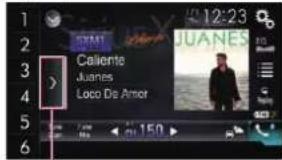
text_image
12:23 JUANES Callente Juanes Loco De Amor①
① Preset channel list display key
2 Touch the item on the list ("1" to "6") to switch to a channel registered as a preset channel.
☐ If you touch the preset channel list display key while the preset channel list is displayed, the list disappears and the preset tuning keys are displayed.
Storing broadcast channels
With a touch of any of the preset tuning keys ("1" to "6"), you can easily store up to six broadcast channels for later recall (also with the touch of a key).
☐ The broadcast channel may not be stored depending on the broadcast channel.
☐ This function is not available in Featured band.
1 Select the channel that you want to store in memory.
2 Touch and hold a preset tuning key [1] to [6].
The selected channel is memorized.
The next time you touch the same preset
luring key "1" to "6". The channel is recalled
from memory.
☐ Up to 18 channels, six for each of the three SiriusXM bands, can be memorized.
Selecting a SiriusXM channel directly
You can select a broadcast channel directly by entering the desired channel number.
1 Touch the channel number on the "SiriusXM" screen.
2 Touch [0] to [9] to input the desired channel number.
To delete the entered numbers one by one, touch [C].
3 Touch the following key.

Selects the SiriusXM channel of the entered number,
4 Touch the following key.

Returns to the previous screen.
Selecting a channel from a list of all channels
You can select a channel from any of the available channels.
☐ It may take time to display the channel list depending on the SiriusXM reception condition.
1 Touch the following key.

Displays the list screen.
2 Select the list of all channels.
3 Touch the desired channel.
4 Touch the following key.

Closes the screen.
Selecting a channel from the category list
You can select a channel from the available categories.
The types of categories available depend on the types of channels available.
☐ It may take time to display the channel list depending on the SiriusXM reception condition.
1 Touch the following key.

Displays the list screen.
2 Touch the category name you want. The category in the hierarchy under the selected channel list is displayed.
3 Touch the desired channel.
4 Touch the following key.

Closes the screen.
Switching the displayed list
You can switch between list types when a list is displayed.
1 Touch the following key.

Displays the list screen.
2 Touch the following key.

Switches between list types.
The displayed list switches in the following order. Channel Name—Artist Name—Song Title—Content Info
Using the Replay™ function
You can pause, skip contents, fast reverse, fast forward or replay the channel you are currently listening to.
1 Touch the following key.

Switches to the time bar display.
2 Touch the following keys or buttons to control the radio.

Switches between playback and pause.

Returns to the beginning of the current program. Press again to skip back to the previous program. Press and hold to fast reverse scan through the content.

Jumps to the next program. Press and hold to fast forward scan through the content.

Exits Replay mode and tunes into the current live broadcast.
Time bar
Changes the playback point by dragging the key.
Setting SiriusXM TuneStart™
Automatically start songs from the beginning when you tune to one of your preset channels in the current preset band when TuneStart is turned on.
This function is available only when "SiriusXM" is selected as the source.
1 Press the HOME button to display the Top menu screen.
2 Touch the following keys in the following order.

The "System" screen appears.
3 Touch [AV Source Settings].
4 Touch [SiriusXM Settings]
5 Touch [Tune Start] repeatedly until the desired setting appears.
● On (default): Activates the TuneStart function.
● Off: Deactivates the TuneStart function.
Using TuneScan™
When you activate the TuneScan™ feature, you will hear a few seconds of the songs, which have not been listened to, from each of the music channels stored as prosels on the current band.
☐ This function is available only when the channel that is tuned in to supports the TuneScan function.
☐ If fewer than two music channels are stored as presets in the current band, the message, "No Content" is displayed, and you cannot perform scan tuning. Add more music channels as presets.
☐ TuneScan may take a few minutes to become available after the unit is turned on or the preset band is changed.
1 Touch the preset channel list display key.
The preset channel list appears.
2 Touch the following key.

Scans music channels in the current band for songs, plays a found song for a few seconds, and then continues to scan another song. Each song on the current channel plays for a few seconds at a time.
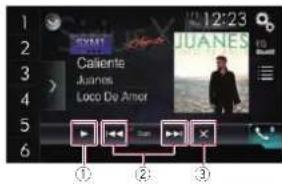
text_image
12:23 SVM JUANES Caliente Juanes Loco De Amor ① ② ③① Continues playing the current scanning song or channel.
☐ You can stop the TuneScan feature to listen to the current song and remain listening to the channel it is on.
② Skips forward or backward.
Touching [] to the previous song during TuneScan or to the previous channel during category scan.
Chapter
Touching [] ▶▶▶ to the next song during TuneScan or to the next channel during category scan.
③ Cancels scan play and returns to the original channel.
Using category scan
You can scan each channel in the selected category.
1 Touch the following key.

Displays the list screen.
2 Touch the desired category.
3 Touch the following key.

Performs scan tuning in the selected category. The live broadcast for each channel in the current category plays for six seconds at a time.
Using TuneMix™
TuneMix™ plays a unique blend of songs from music channels stored in the current SiriusXM Preset Band.
☐ SXV300 or later SiriusXM Connect vehicle tuner (sold separately) is required to use this function.
If fewer than two music channels are stored as presets in the current band, the message, "No qualified TuneMix music channels in this band." is displayed, and you cannot use TuneMix™. Add more music channels to presets,
☐ TuneMix may take a few minutes to become available after the unit is turned on or the preset band is changed.
☐ If the same channels are stored in the preset channel list, the channels are counted as one.
☐ The channels that parental lock is applied to cannot be played back by the TuneMix function.
Checking the update Traffic and Weather information
Traffic & Weather Now™ allows you to access the latest report ready for you whenever you want to hear it. Set up your favorite traffic & weather city from the set up menu and then when you press the Traffic & Weather Now button you will be able to hear the latest report and it will start from the beginning.
SXV300 or later SiriusXM Connect vehicle tuner (sold separately) is required to use this function.
To use this function, register the desired city in advance.
For details, refer to Registering the city on page 50.
● Touch the following key.

Switches to the channel broadcasting the traffic and weather information for the selected city.
☐ The icon display indicates as follows.
— Grayed out: Traffic & Weather broadcast for your market is not yet available.
— With green dot: latest report available but not listened to yet.
— White: latesl report available to hear again.
☐ If the key is touched when a target city is not registered, the "City" screen is displayed.
- You can return to the original channel by pressing while listening to the traffic and weather channel.
● The channel automatically returns to the original channel after the broadcast reaches the end of the traffic and weather information.
■ Registering the city
☐ SXV300 or later SiriusXM Connect vehicle luner (sold separately) is required to use this function.
This function is available only when "SiriusXM" is selected as the source.
1 Press the HOME button to display the Top menu screen.
2 Touch the following keys in the following order.

The "System" screen appears.
3 Touch [AV Source Settings].
4 Touch [SiriusXM Settings].
5 Touch [City Setting].
The "City" screen appears.
6 Touch the desired city.
☐ A check mark appears for the selected item.
- If you touch [No City Selected], the check mark will be removed from the selected city.
- If you remove the check mark from the selected city, a check mark automatically appears for "No City Selected".
Setting parental lock
The SiriusXM Parental Control feature allows you to control access to channels that you consider inappropriate for younger listeners. When enabled, the Parental Control feature requires you to enter a passcode to tune into the locked channels.
Setting the passcode
This function is available only when "SiriusXM" is selected as the source.
1 Press the HOME button to display the Top menu screen.
2 Touch the following keys in the following order.

The "System" screen appears.
3 Touch [AV Source Settings].
4 Touch [SiriusXM Settings].
5 Touch [Parental Control].
The "Parental Control" screen appears.
6 Enter the passcode.
The default passcode is "0000".
7 Touch the following key.

Displays the "Locked Channel" screen.
8 Touch [Edit Code].
The "Edit Code" screen appears.
9 Enter the passcode you want to set.
☐ To delete the entered numbers one by one, touch [C].
10 Touch the following key.

Displays the "Locked Channel" screen.
■ Locking the channel
☐ This function is available only when "SiriusXM" is selected as the source.
1 Press the HOME button to display the Top menu screen.
2 Touch the following keys in the following order.

The "System" screen appears.
3 Touch [AV Source Settings].
4 Touch [SiriusXM Settings].
5 Touch [Parental Control].
The "Parental Control" screen appears.
6 Enter the current passcode.
7 Touch the following key.

Displays the "Locked Channel" screen.
8 Touch the channel you want to lock.
n appears and the channel is locked.
If you touch a locked channel, the icon switches to and the channel is unlocked.
☐ If you touch [Clear All], all locked channels are unlocked.
Using the content alerts function (such as Song Alerts, Artist Alerts and Game Alerts)
While listening to SiriusXM Satellite Radio, you can be alerted when your favorite songs, artists or games involving your favor to sports teams are playing on other channels. The radio will display an alert message when a matching artist, song or team is found on another channel. Then you can choose if you want to tune into that favorite or you can ignore it and stay on your current channel. Information on setting up the Artist, Song and Game Alerts is described below.
■ Memorizing the current
contents
The song titles, artist names, and your favorite sport teams to which you are listening can be memorized to an alert list.
1 On the current channel content information area, touch the item for which you want an alert.
For details, refer to Using the touch panel keys on page 47.
A confirmation message appears.
2 Touch [Set Alert] for artist or song, or touch [Team1] or [Team2] for game.
The song, artist, or game is memorized to an alert list.
When a program that matches a keyword memorized to the alert list is broadcast, a beep sounds and a message is displayed.
3 Touch [Jump] to switch to the channel.
You can listen to the track.
☐ You can enable or disable alerts by selling the alert function.
□ Notification may not be provided depending on the status of this product.
- If you touch [Stay], the channel will not switch.
Setting the program you want to be alerted for
1 Press the HOME button to display the Top menu screen.
2 Touch the following keys in the following order.

The "System" screen appears.
3 Touch [AV Source Settings].
4 Touch [SiriusXM Settings].
5 Touch [Alert List].
The "Alert List" screen appears.
6 Touch the artist name, song title or team you want to be alerted for when available.
The alert indicator is highlighted, and the alert setting is enabled.
If you touch the indicator highlighted, the alert setting is canceled.
☐ If you touch and hold the list item, you can delete the item from the list.
☐ You can register up to 50 keywords in the alert list.
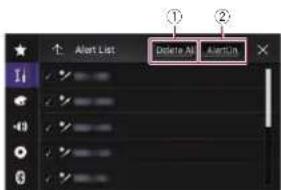
text_image
Alert List Delete All AlertWin ① ②① Delete All
Deletes all items memorized to the alert list.
② Alert On/Alert Off
Changes the settings in the following order each time you touch the key.
- Alert On (default):
Activates the alert function.
- Alert Off
Deactivates the alert function.
Selecting teams for Game Alert
This product can notify you when games involving your favorite sports teams are about to start. To use this function, you need to store the teams you want to follow in advance.
1 Press the HOME button to display the Top menu screen.
2 Touch the following keys in the following order.

The "System" screen appears.
3 Touch [AV Source Settings].
4 Touch [SiriusXM Settings].
5 Touch [Team Settings].
The "League" screen app
6 Touch the desired league.
7 Touch the desired team.
The team settings are enabled.
Setting the Featured Favorites function
Featured Favorites are groups of channels that are created by the SiriusXM Programming department allowing you to discover new channels. Featured Favorite channels are dynamic and can change often, allowing you to discover new channels.
☐ This function is available only when "SiriusXM" is selected as the source
☐ If this function is turned on, "Featured" will be available as a band selection.
☐ The featured seasonal theme will be automatically updated. You can set whether to be notified of the update.
For details, refer to Setting the update notification for Featured Favorites on page 51.
1 Press the HOME button to display the Top menu screen.
2 Touch the following keys in the following order.

The "System" screen appears.
3 Touch [AV Source Settings].
4 Touch [SiriusXM Settings].
5 Touch [Featured Favorites] repeatedly until the desired setting appears.
● On (default): Activates the Featured Favorite function.
● Off
Deactivates the Featured Favorite function.
If the setting is charged to "Off" while listening to the channel in Featured band, the channel does not change and the band display on the screen changes to "SXM1".
Chapter
Setting the update notification for Featured Favorites
You can set whether to be notified when the featured seasonal theme is updated.
☐ This function is available only when "SiriusXM" is selected as the source and "Featured Favorites" is set to "On".
For details, refer to Setting the Featured Favorites function on page 51.
1 Press the HOME button to display the Top menu screen.
2 Touch the following keys in the following order.

The "System" screen appears.
3 Touch [AV Source Settings].
4 Touch [SiriusXM Settings].
5 Touch [Featured Band Update Messages] repeatedly until the desired setting appears.
- On (default):
Activates the update notification function.
• Off
Deactivales the update notification function.
Using the SportsFlash™ function
The SportsFlash function notifies you with a pop-up message if a notable event occurs in the game of your favorite sports teams even if you are listening to another channel. By touching .Play] on the pop-up message displayed on the screen, the radio switches to the channel broadcasting the game and starts playback about 30 seconds before the notable event occurred allowing you to hear it unfold as if you listened to it live. If you return to the original channel after listening to the highlight of the game, the radio plays back from the time that the channel was switched. You will not miss either the
Chapter
19
hIGHLIGHT of the game or the contents of the channel you were originally listening to.
SXV300 or later SiriusXM Connect vehicle luner (sold separately) is required to use this function.
☐ This function is available only when "SiriusXM" is selected as the source.
☐ To use this function, before the game starts select the teams you want to follow.
For details, refer to Selecting Iams for SportsFlash on page 52.
Touch [Play] to listen to the notified channel. To return to the original channel, touch ← thin five minutes after the channel is switched.
☐ Touch [Ignore] to stay tuned to the current channel.
☐ Touch [Cancel] to cancel notifications regarding the game.
Notification messages will not be displayed while you are listening to the channel that is the target of SportsFlash or while the Radio ID is displayed.
1 Press the HOME button to display the Top menu screen.
2 Touch the following keys in the following order.

The "System" screen appears.
3 Touch [AV Source Settings].
4 Touch [SiriusXM Settings].
5 Touch [SportsFlash] repeatedly until the desired setting appears.
● On (default):
Activates the SportsFlash function.
- Off
Deactivates the SportsFlash function.
Selecting teams for SportsFlash
This function is available only when "SiriusXM" is selected as the source and "SportsFlash" is set to "On".
For details, refer to Using the SportsFlash™ function on page 61.
Up to 50 teams can be registered as the target of SportsFlash.
☐ If five prioritized teams are registered, notification messages for the teams other than the prioritized teams may not be displayed.
1 Press the HOME button to display the Top menu screen.
2 Touch the following keys in the following order.

The "System" screen appears.
3 Touch [AV Source Settings].
4 Touch [SiriusXM Settings].
5 Touch [SportsFlash List].
The "SportsFlash List" screen appears.
6 Touch [Edit List].
Available leagues and teams are displayed.
- Touch a league to narrow down the options as necessary.
7 Touch the teams to register to the SportsFlash List.
A check mark appears for the selected item.
- Touch [Clear All] to cancel all the selections.
8 Touch [Prioritize] to register the selected teams as the prioritized teams.
☐ You can select up to five prioritized teams for SportsFlash.
☐ [Prioritize] is not available if not more than five teams are registered in the SportsFlash list. The teams are automatically registered as the prioritized teams.
If five teams are already registered as the prioritized teams, remove a check mark from one of the teams in the list on the "Prioritize List" screen before adding another team.
Restoring the SiriusXM settings to the default
You can restore the SiriusXM settings to the default.
☐ This setting is available only when you stop your vehicle in a safe place and apply the parking brake.
CAUTION
Do not turn off the engine while restoring the settings.
1 Press the HOME button to display the Top menu screen.
2 Touch the following keys in the following order.

The "System" screen appears.
3 Touch [AV Source Settings].
4 Touch [SiriusXM Settings].
5 Touch [SiriusXM Reset].
The "SiriusXM Reset" screen appears.
6 Touch [Restore].
The settings are restored to the default.
☐ The source is turned off and the Bluetooth connection is disconnected before the process starts.
Storing song information to an iPod (iTunes Tagging)
For details, refer to Storing song information to an iPod (iTunes Tagging) on page 70.
Operating with the hardware buttons
Press the TRK button.
You can move up or down the preset channels when the current channel is displayed. You can skip files forward or backward when the play time indicator is displayed.
Press and hold the TRK button.
You can move up or down channels by holding down the button when the current channel is displayed.
You can perform fast reverse or fast forward by holding down the button when the play time indicator is displayed.
Using an HDMI source
You can display the video image output by the device connected to this product. This section describes operations for an HDMI source.
☐ A High Speed HDMI® Cable (sold separately) is required for connection.
For details, refer to Connecting an HDMI device on page 78.
CAUTION
For safety reasons, video images cannot be viewed while your vehicle is in motion. To view video images, you must stop in a safe place and apply the parking brake.
Using the touch panel keys
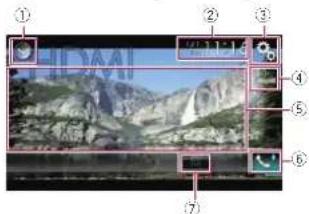
text_image
Screenshot of a photo editing interface with numbered UI elements and a landscape preview① Displays the source list.
For details, refer to Selecting a front source on the source list on page 13.
② Displays the Time and date setting screen.
For details, refer to Setting the time and date on page 70.
③ Displays the Setting menu screen.
④ Recalls equalizer curves.
For details, refer to Using the equalizer on page 64.
⑤ Hides the touch panel keys.
Touching this area hides the touch panel keys.
☐ Touch anywhere on the LCD screen to display the touch panel keys again.
⑥ Displays the Phone menu screen.
For details, refer to Displaying the phone menu on page 16.
⑦ Changes the wide screen mode.
For details, refer to Changing the wide screen mode on page 71.
Reading the screen
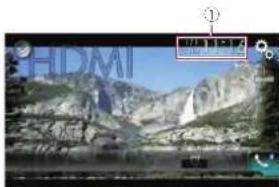
text_image
HDMI① Current time and date
Starting procedure
1 Display the AV source selection screen.
- For details of the operations, refer to Displaying the AV operation screen on page 12.
2 Touch [HDMI] on the AV source selection screen.
The image is displayed on the screen.
3 Use the touch panel keys on the screen to control the external ur
For details, refer to Using the touch panel keys on page 52.
Using an AUX source
You can display the video image output by the device connected to this product. This section describes operations for an AUX source.
A Mini-jack AV cable (CD-RM10) (sold separately) is required for connection.
- For details, refer to Connecting the external video component on page 78.
CAUTION
For safety reasons, video images cannot be viewed while your vehicle is in motion. To view video images, you must stop in a safe place and apply the parking brake.
Using the touch panel keys
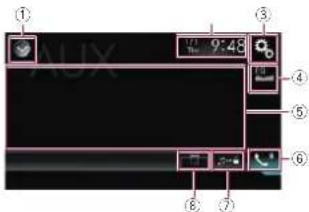
text_image
9:48 Time ① ③ ④ ⑤ ⑥ ⑦ ⑧① Displays the source list.
For details, refer to Selecting a front source on the source list on page 13.
② Displays the Time and date setting screen.
For details, refer to Setting the time and date on page 70.
③ Displays the Setting menu screen.
④ Recalls equalizer curves.
For details, refer to Using the equalizer on page 64.
⑤ Hides the touch panel keys.
Touching this area hides the touch panel keys.
- Touch anywhere on the LCD screen to display the touch panel keys again.
⑥ Displays the Phone menu screen.
For details, refer to Displaying the phone menu on page 16.
⑦ Switches the operation screen.
- For details, refer to Switching the operation screen on page 53.
⑧ Changes the wide screen mode.
- For details, refer to Changing the wide screen mode on page 71.
Reading the screen
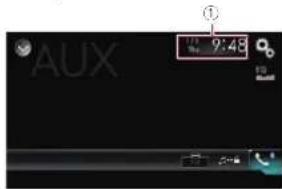
text_image
AUX 9:43① Current time and date
Starting procedure
You can display the video image output by the device connected to video input.
1 Press the HOME button to display the Top menu screen.
2 Touch the following keys in the following order.

The "System" screen appears.
3 Touch [Input/Output Settings].
4 Confirm that "AUX Input" is turned on.
☐ The default setting is "On".
5 Display the AV source selection screen.
For details of the operations, refer to Displaying the AV operation screen on page 12.
6 Touch [AUX] on the AV source selection screen.
The image is displayed on the screen.
7 Use the touch panel keys on the screen to control the external unit.
For details, refer to Using the touch panel keys on page 53.
Setting the video signal
When you connect this product to an AUX equipment, select the suitable video signal setting.
☐ You can operate this function only for the video signal input into the AUX input.
1 Press the HOME button to display the Top menu screen.
2 Touch the following keys in the following order.

The "Video Setup" screen appears.
3 Touch [Video Signal Setting].
4 Touch [AUX].
The pop-up menu appears.
5 Touch the item you want to set.
● Auto (default):
Adjusts the video signal setting automatically.
PAL:
Sets the video signal to PAL.
• NTSC:
Sets the video signal to NTSC.
PAL-M
● PAL-M: Sets the video signal to PAL-M.
PAL-N
Sets the video signal to PAL-N.
SECAM
Sets the video signal to SECAM
Switching the operation
screen
You can switch between the screen to operate music files and that to operate video files.
● Touch the following key.

Switches between the screen to operate video files and that to operate music files.
Chapter
Chapter
21/22
Using AV input
You can display the video image output by the device connected to this product.
For details, refer to Connecting the external video component on page 78.
CAUTION
For safety reasons, video images cannot be viewed while your vehicle is in motion. To view video images, you must stop in a safe place and apply the parking brake.
Using the touch panel keys
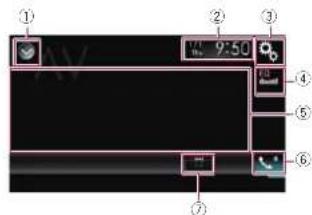
text_image
① ② ③ 17:30 9:50 ④ ⑤ ⑥ ⑦① Displays the source list.
- For details, refer to Selecting a front source on the source list on page 13.
② Displays the Time and date setting screen.
For details, refer to Setting the time and date on page 70.
③ Displays the Setting menu screen.
④ Recalls equalizer curves.
- For details, refer to Using the equalizer on page 64.
⑤ Hides the touch panel keys.
Touching this area hides the touch panel keys.
☐ Touch anywhere on the LCD screen to display the touch panel keys again.
⑥ Displays the Phone menu screen.
For details, refer to Displaying the phone menu on page 16.
⑦ Changes the wide screen mode.
For details, refer to Changing the wide screen mode on page 71.
Reading the screen
text_image
AV 9:50 17 10 Mobile① Current time and date
Starting procedure
You can display the video image output by the device connected to video input.
1 Press the HOME button to display the Top menu screen.
2 Touch the following keys in the following order.

The "System" screen appears.
3 Touch [Input/Output Settings].
4 Touch [AV Input].
The pop-up menu appears.
5 Touch [Source].
The video image output by the connected external device can be displayed.
7 If "Source" is selected, "2nd Camera Input" is automatically set to "Off".
6 Display the AV source selection
screen.
For details of the operations, refer to Displaying the AV operation screen on page 12.
7 Touch [AV] on the AV source selection screen.
The image is displayed on the screen.
8 Use the touch panel keys on the screen to control the external unit.
For details, refer to Using the touch panel keys on page 54.
Setting the video signal
When you connect this product to an AV equipment, select the suitable video signal setting.
☐ You can operate this function only for the video signal input into the AV input.
1 Press the HOME button to display the Top menu screen.
2 Touch the following keys in the following order.

The "Video Setup" screen appears.
3 Touch [Video Signal Setting].
4 Touch [AV].
The pop-up menu appears.
5 Touch the item you want to set.
- Auto (default)
Adjusts the video signal selling automatically.
PAL
Sets the video signal to PAL.
• NTSC
Sets the video signal to NTSC.
PAL-M
Sets the video signal to PAL-M.
PAL-N
Sets the video signal to PAL-N.
SECAM:
Sets the video signal to SECAM.
Using MIXTRAX
MIXTRAX is original technology for creating non-stop mixes of selections from your audio library, complete with DJ effects that make them sound as if a DJ is right there with you playing the music.
☐ You can turn MIXTRAX on by touching [MIXTRAX] on the playback screen of compressed audio files.
- For details, refer to Using the touch panel keys on page 28.
Touch panel keys
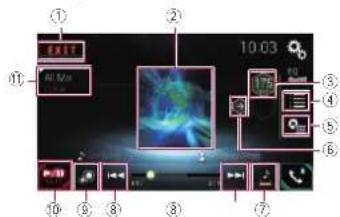
text_image
Screenshot of a digital audio workstation interface with labeled buttons and media controls① Exits the MIXTRAX screen.
② Displays the LinkGate screen.
Touch the desired item. Songs related to the selected item are played.
③ Specifies the BPM.
The original BPM is not displayed during playback.
④ Displays the item selection screen.
For details of the operations, refer to Selecting an item to play songs on page 54.
⑤ Displays the playback list screen.
For details of the operations, refer to Selecting songs not to be played on page 55.
⑥ Sets to the original BPM (Beats Per Minute).
⑦ Specifies the playback portion.
For details of the operations, refer to Specifying the playback portion on page 55.
⑧ Touch to select a track.
Touch and hold to fast forward or rewind.
⑨ Turns on or off the MIXTRAX original visual display.
10 Pauses and starts playback.
⑪ Displays the item selected on the LinkGate screen or item selection screen.
Selecting an item to play songs
You can specify an item to play songs related to it.
1 Touch the following key.

Displays the item selection screen.
2 Touch the following keys to select the item.

Displays the MIX pattern list.

Displays the tag list.

Displays the file list.
3 Select an item in the list. Songs related to the selected item are played.
Selecting songs not to be played
You can select items or songs not to be played.
1 Touch the following key.

Displays the playback list screen.
2 Touch the following key.

Displays the "Playback not allowed" screen.
3 Touch [Songs], [Artists] or [Albums].
4 Touch the box on the left of the item or song that you do not want to play.
An icon is displayed. Items displayed with the icon will not be played.
- If you touch [Unselect All], all the selections are canceled.
- If you touch [Select All], all the items are selected.
Specifying the playback portion
You can specify the playback portion.
● Touch the following key repeatedly until the desired setting appears.
Changes the playback portion.
- default):
Plays back a middle portion.
- Plays back a long portion.
- Plays back a short portion.
The most suitable sound effect is automatically applied when switching to the next song.
Setting the flash pattern
The flashing color changes with the changes in the sound and bass levels.
1 Press the HOME button to display the Top menu screen.
2 Touch the following keys in the following order.

The "System" screen appears.
3 Touch [AV Source Settings].
4 Touch [MIXTRAX Settings].
5 Touch [Flash Pattern].
The pop-up menu appears.
6 Touch the item you want to set.
● Sound1 (default) to Sound6
The flash pattern changes according to the sound level. Select a desired mode.
● L-Pass1 to L-Pass6
The flash pattern changes according to the bass level. Select a desired mode.
- Random1
The flash pattern changes randomly according to the sound level mode and low pass mode.
- Random2
The flash pattern changes randomly according to the sound level mode.
- Random3
The flash pattern changes randomly according to the low pass mode.
• Off
The flash pattern does not flash.
System settings
Activating the Bluetooth audio source
You need to activate the Bluetooth audio source in order to use a Bluetooth audio player.
1 Press the HOME button to display the Top menu screen.
2 Touch the following keys in the following order.

The "System" screen appears.
3 Touch [AV Source Settings].
4 Touch [Bluetooth Audio] repeatedly until the desired setting appears.
● On (default): Activates the Bluetooth audio source.
- Off:
Deactivates the Bluetooth audio source.
Chapter
Setting the ever scroll
When "Ever Scroll" is set to "On", recorded text information scrolls continuously in the display. Set to "Off" if you prefer the information to scroll just once.
1 Press the HOME button to display the Top menu screen.
2 Touch the following keys in the following order.

The "System" screen appears.
3 Touch [Ever Scroll] repeatedly until the desired setting appears.
- Off (default): Turns the ever scroll setting off.
● On: Turns the ever scroll setting on.
Setting AV input
You can use external video equipment such as portable players connected to this product with this setting.
1 Press the HOME button to display the Top menu screen.
2 Touch the following keys in the following order.

The "System" screen appears.
3 Touch [Input/Output Settings].
4 Touch [AV Input].
The pop-up menu appears.
5 Touch the item you want to set.
● Off (default): Deactivates the AV source.
Source:
Displays the video image output by the connected external device.
Chapter
23
- Camera:
Displays the image output by the connected external camera.
☐ If "Camera" is selected, "2nd Camera Input" is automatically set to "On".
If "Off" or "Source" is selected, "2nd Camera Input" is automatically set to "Off".
Setting the rear view camera
The following two functions are available. A separately sold rear view camera (e.g. ND-BC6) is required for utilizing the rear view camera function. (For details, consult your dealer.)
Rear view camera
This product features a function that automatically switches to the full-screen image of the rear view camera installed on your vehicle. When the shift lever is in the REVERSE (R) position, the screen automatically switches to full-screen rear view camera image.
☐ If the shift lever is aligned to the REVERSE (R) position immediately after the system of this product is started up, only the camera image will be displayed and the parking assist guidelines will not be displayed. The parking assist guidelines will be displayed on the camera image after a little while. Be sure to check the conditions around the vehicle even before the guidelines and the message are displayed.
Camera for Camera View mode
Camera View can be displayed at all times (e.g. when monitoring an attached trailer, etc.). Please note that with this setting, the camera image is not resized to fit, and that a portion of what is seen by the camera is not viewable.
CAUTION
Check to make sure settings for rear view camera displays a mirror reversed image.
☐ Immediately verify whether the display changes to a rear view camera image when the shift lever is aligned to REVERSE (R) from another position.
When the screen changes to full-screen rear view camera image during normal driving, switch to the opposite setting in "Reverse Gear Setting".
■ Setting rear view camera activation
To view images of the rear view camera on the screen of this product, "Back Camera Input" needs to be set to "On".
1 Press the HOME button to display the Top menu screen.
2 Touch the following keys in the following order.

The "System" screen appears.
3 Touch [Camera settings].
4 Touch [Back Camera Input] repeatedly until the desired setting appears.
● Off (default):
Turns the back camera input setting off.
● On:
Tums the back camera input setting on.
■ Setting the polarity of the rear view camera
1 Press the HOME button to display the Top menu screen.
2 Touch the following keys in the following order.

The "System" screen appears.
3 Touch [Camera settings].
4 Touch [Reverse Gear Setting] repeatedly until the desired setting appears.
● Battery (default): When the polarity of the connected lead is positive while the shift lever is in the REVERSE (R) position.
Ground:
When the polarity of the connected lead is negative while the shift lever is in the REVERSE (R) position.
When the shift lever is aligned to the REVERSE (R) position after setting the rear view camera, the rear view image appears.
■ Setting the reversed image display for the rear view image
Rear view camera images are displayed reversed (as mirror images) on the front screen except when a rear view camera that can output images in the correct direction is used. You can set whether to reverse the rear view camera images to be displayed on the front screen.
☐ This setting is available only when you stop your vehicle in a safe place and apply the parking brake.
☐ This function is available only when "Back Camera Input" is "On".
For details, refer to Setting rear view camera activation on page 56.
1 Press the HOME button to display the Top menu screen.
2 Touch the following keys in the following order.

The "System" screen appears.
3 Touch [Camera settings].
4 Touch [Back Camera: Reverse Video] repeatedly until the desired setting appears.
- Off (default):
Does not reverse the rear view camera images.
● On:
Reverses the rear view camera images.
Setting the camera for Camera View mode
To display Camera View at all times, "Camera View" needs to be set to "On".
☐ To set the rear view camera for Camera View mode, "Back Camera Input" needs to be set to "On".
For details, refer to Setting rear view camera activation on page 56.
☐ To set the second camera for Camera
View mode, set "AV Input" to "Camera" or set "2nd Camera Input" to "On".
For details, refer to Setting AV input on page 55.
For details, refer to Selling the second camera input on page 57.
☐ You can also turn this function on by touching [Camera View] on the AV source selection screen or in the source list.
1 Press the HOME button to display the Top menu screen.
2 Touch the following keys in the following order.

The "System" screen appears.
3 Touch [Camera settings].
4 Touch [Camera View] repeatedly until the desired setting appears.
● Off (default):
Turns the camera view setting off.
• On
Turns the camera view setting on. If no operations are performed for seven seconds after the AV operation screen is displayed, the camera view will appear automatically.
If you touch the screen while the camera view is displayed, the displayed image will turn off temporarily.
When the camera view of both rear view camera and second camera are available, the key to switch the display appears.
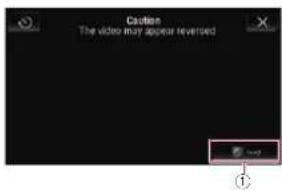
text_image
Custion The video may appear reversed Load(1) Switches the display between rear view image and second camera image.
Displaying the parking assist guidelines
1 Press the HOME button to display the Top menu screen.
2 Touch the following keys in the following order.


The "System" screen appears.
3 Touch [Camera settings].
4 Touch [Parking Assist Guide] repeatedly until the desired setting appears.
- Off (default):
Hides the guidelines.
On
Displays the guidelines.
When the shift lever is aligned to the
REVERSE (R) position after selling the rear
view camera, the rearview image appears
If you press and hold the MUTE button, the rear view image disappears.
Setting guidelines on the rear view image
CAUTION
- When adjusting the guidelines, be sure to park the vehicle in a safe place and apply the parking brake.
● Before gelling out of the car to place the markings, be sure to turn the ignition switch off (ACC OFF).
- The range projected by the rear view camera is limited. Also, the vehicle width and distance guidelines displayed on the rear view camera image may differ from the actual vehicle width and distance. (The guidelines are straight lines.)
● The image quality may deteriorate depending on the usage environment, such as at night or in dark surroundings.
1 Park your vehicle in a safe place and apply the parking brake.
2 Using packing tape or similar, place markings approximately 25 cm (9-7/8 in.) from each side of the vehicle, and approximately 50 cm (1 ft. 8 in.) and 2 m (6 ft. 7 in.) from the rear bumper.
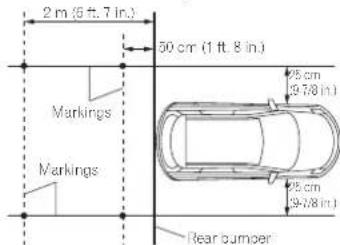
text_image
2 m (5 ft. 7 in.) 50 cm (1 ft. 8 in.) Markings Markings 25 cm (9-78 in.) 25 cm (9-78 in.) Rear bumper3 Press the HOME button to display the Top menu screen.
4 Touch the following keys in the following order.


The "System" screen appears.
5 Touch [Camera settings].
6 Touch [Parking Assist Guide Adjust].
7 Set the guidelines by dragging the four points.
8 Touch the following keys to adjust the position of the point if necessary.

Moves the point to the left.

Moves the point to the right.

Moves the point upward.

Moves the point downward.

Extends the line to the left and right from the current center point of the distance guideline. The adjustment points on the lateral coordinates at both ends will also move.

Shortens the line from the left and right to the current center point of the distance guideline. The adjustment points on the lateral coordinates at both ends
Default
Resets the settings of the distance and vehicle width guidelines and adjustment points to the default.
When a point is moved, the distance from the initial value is displayed at the bottom of the screen.
Setting the second camera input
You can view images of the second camera (a front camera etc.) on the screen of this product.
■ Setting the second camera activation
To view images of the second camera on the screen of this product, "2nd Camera Input" needs to be set to "On".
1 Press the HOME button to display the Top menu screen.
2 Touch the following keys in the following order.


The "System" screen appears.
3 Touch [Camera settings].
4 Touch [2nd Camera Input] repeatedly until the desired setting appears.
● Off (default):
Turns the second camera input setting off
● On:
Turns the second camera input setting on.
The confirmation message appears if setting "2nd Camera Input" to "On" while the AV source is on. The AV source will turn off if "Yes" is selected, and "2nd Camera Input" will be set to "On". Select No" to cancel selling "2nd Camera Input" to "On".
☐ If "On" is selected, "AV Input" is automatically set to "Camera".
☐ If "Off" is selected, "AV Input" is automatically set to "Off".
■ Setting the reversed image setting for the second camera input image
Second camera images are displayed reversed (as mirror images) on the front screen except when a second view camera that can output images in the correct direction is used. You can set whether to reverse the second camera images to be displayed on the front screen.
This setting is available only when you stop your vehicle in a safe place and apply the parking brake.
☐ This function is available when "2nd Camera Input" is "On" or "AV Input" is set to "Camera".
Chapter
Chapter
23 1 Press the HOME button to display the Top menu screen.
2 Touch the following keys in the following order.

The "System" screen appears.
3 Touch [Camera settings].
4 Touch [2nd Camera: Reverse video] repeatedly until the desired setting appears.
- Off (default):
Does not reverse the second camera images.
● On: Reverses the second camera images.
Turning off the demo screen
If the demo screen appears, perform the following procedure to turn off the demo screen.
1 Press the HOME button to display the Top menu screen.
2 Touch the following keys in the following order.

The "System" screen appears.
3 Touch [Demo Mode] repeatedly until the desired setting appears.
● On (default): Displays the demo screen.
Off:
- Hides the demo screen.
- You can also turn off the demo screen by pressing and holding the MUTE button.
Selecting the system language
The system language can be selected.
● The language can be changed for the following:
— The "Audio" screen
— The "System" screen
— The "Video Setup" screen
— The "Bluetooth" screen
— Language for messages
Some operations on this product are prohibited from use while driving or require careful attention when operated. In such cases, a caution message will appear on the display. You can change the language for caution messages with this setting.
- if the embedded language and the selected language setting are not the same, text information may not display properly.
● Some characters may not be displayed properly.
1 Press the HOME button to display the Top menu screen.
2 Touch the following keys in the following order.

The "System" screen appears.
3 Touch [System Language].
The pop-up menu appears.
4 Touch the desired language.
After the language is selected, the previous screen returns.
Setting the keyboard language with the application for iPhone
You can use the keyboard in AppRadio
Mode by setting the language of the keyboard for iPhone.
This function is only available in AppRadio Mode on the iPhone
1 Press the HOME button to display the Top menu screen.
2 Touch the following keys in the following order.

The "System" screen appears.
3 Touch [Keyboard].
The "Keyboard" screen appears.
4 Touch the desired language.
After the language is selected, the previous screen returns.
Setting the beep sound
1 Press the HOME button to display the Top menu screen.
2 Touch the following keys in the following order.

The "System" screen appears.
3 Touch [Beep Tone] repeatedly until the desired setting appears.
- On (default):
Sounds a beep
- Off
Does not sound a beep.
Adjusting the response positions of the touch panel (touch panel calibration)
If you feel that the touch panel keys on the screen deviate from the actual positions that respond to your touch, adjust the response positions of the touch panel screen.
☐ This setting is available only when you stop your vehicle in a safe place and apply the parking brake.
☐ Do not use sharp pointed tools such as a ball point or mechanical pen, which could damage the screen.
☐ Do not turn off the engine while saving the adjusted position data.
1 Press the HOME button to display the Top menu screen.
2 Touch the following keys in the following order.

The "System" screen appears.
3 Touch [Touch Panel Calibration].
The touch panel adjustment screen appears.
4 Touch two corners of the screen along the arrows, and then touch the centers of two + marks at the same time twice.
5 Press the HOME button.
The adjustment results are saved.
6 Press the HOME button once again.
Proceed to 16-point adjustment.
- If you press and hold the HOME button, the adjustment is canceled.
7 Gently touch the center of the + mark displayed on the screen.
The target indicates the order. After you touch all marks, the adjusted position data is saved.
- If you press the HOME button, the previous adjustment position returns.
- If you press and hold the HOME button, the adjustment is canceled.
8 Press and hold the HOME button.
The adjustment results are saved.
Setting the dimmer function
You can specify the timing that the dimmer function is to be turned on.
1 Press the HOME button to display the Top menu screen.
2 Touch the following keys in the following order.

The "System" screen appears.
3 Touch [Dimmer Settings].
4 Touch [Dimmer Trigger].
The pop-up menu appears
5 Touch the item you want to set.
● Auto (default):
Activales the dimmer function when the vehicle's headlights are on (nighttime).
- Manual
Enables to set whether to activate the dimmer function.
• Time:
Enables to set the duration of time for the dimmer function to be active.
☐ If "Manual" is selected, sel whether to activate the dimmer function.
For details, refer to Setting whether to activate the dimmer function on page 59.
☐ If "Time" is selected, specify the duration for the dimmer function to be active.
For details, refer to Setting the duration of time for the dimmer function to be active on page 59.
Setting whether to activate the dimmer function
You can sel whether to activate the dimmer function at nighttime.
☐ This function is available only when "Dimmer Trigger" is set to "Manual".
- For details, refer to Setting the dimmer function on page 58.
1 Press the HOME button to display the Top menu screen.
2 Touch the following keys in the following order.

The "System" screen appears.
3 Touch [Dimmer Settings].
4 Touch [Day/Night].
The pop-up menu appears.
5 Touch the item you want to set.
Day (default):
Deactivates the dimmer function.
- Night
Activales the dimmer function.
Setting the duration of time for the dimmer function to be active
You can set the duration of time for the dimmer function to be active.
This function is available only when
"Dimmer Trigger" is set to "Time".
For details, refer to Setting the dimmer function on page 58.
1 Press the HOME button to display the Top menu screen.
2 Touch the following keys in the following order.

The "System" screen appears.
3 Touch [Dimmer Settings].
4 Touch [Dimmer Duration]. The duration setting bar appears.
5 Touch the desired points on the duration setting bar, or slide the cursors to specify the start time and the end time, respectively.
The time display format depends on the "Time Format" setting.
☐ The value displayed at the center of the duration selling bar ("12" for 12-hour format and "00" for 24-hour format) indicates midnight. The values to the left of the value at the center are for the afternoon, and the values to the right of value at the center are for the morning.
☐ The default values are "18:00" (start time) and "6:00" (end time).
☐ The value can be changed in 15-minute steps.
Adjusting the picture
You can adjust the picture for each source, the Application screen, and rear view camera.
CAUTION
For safety reasons, you cannot use some of these functions while your vehicle is in motion. To enable these functions, you must stop in a safe place and apply the parking brake.
1 Display the screen you wish to adjust.
2 Press the HOME button to display the Top menu screen.
3 Touch the following keys in the following order.

The "System" screen appears
4 Touch [Picture Adjustment].
5 Touch any of the following keys to select the function to be adjusted.
Picture adjustment items are displayed.
- Brightness:
Adjusts the black intensity.
- Contrast:
Adjusts the contrast.
● Color:
Adjusts the color saturation.
• Hue
Adjusts the lone of color (which color is emphasized, red or green).
- Dimmer Level
Adjusts the brightness of the display.
- Temperature:
Adjusts the color temperature, resulting in a better white balance.
☐ You can adjust Hue only when the color system is set to NTSC.
- If you touch [Rear View] or [2nd
Camera], the mode changes to the selected camera mode. By touching
[Source], [Navi] or [Apps], you can return to the selected mode.
6 Touch the following keys to adjust the selected item.
| Decreases the level of the selected item. | |
| Increases the level of the selected item. | |
| Selects the adjustable previous item. | |
| Selects the adjustable next item. |
Chapter
Each time you touch the key, the level of the selected item increases or decreases.
☐ "Brightness", "Contrast", "Color" and "Hue" can be adjusted from "-24" to "+24".
☐ "Dimmer Level" can be adjusted from "+1" to "+48".
☐ "Temperature" can be adjusted from "-3" to "+3".
☐ The adjustments of "Brightness", "Contrast", and "Dimmer Level" are stored separately for the On/Off status of the dimmer function. These are switched automatically depending on whether the dimmer function is on or off.
For details on setting the dimmer function, refer to Setting the dimmer function on page 58.
☐ The picture adjustment may not be available with some rear view cameras.
☐ The setting contents can be memorized separately for the following screens and video images.
— DVD. Video-CD and Disc
— AV and external camera
— USB (Video) and USB (JPEG)
— SD (Video) and SD (JPEG)
— iPod (iPod with a 30-pin connector)
— iPod (Video) and AppRadio Mode (iPod with a 30-pin connector)
— HDMI and AppRadio Mode (HDMI)
— Android Auto
— MirrorLink
— AUX
Chapter
24
MIXTRAX, images output from the external device
Rear view camera
Displaying the firmware version
1 Press the HOME button to display the Top menu screen.
2 Touch the following keys in the following order.


The "System" screen appears.
3 Touch [System Information].
4 Touch [Firmware Information]. The "Firmware Information" screen appears.
☐ You can check the open source licenses of the functions that this product is equipped with under "License" on the "Firmware Information" screen.
Updating firmware
CAUTION
● Never turn this product off, eject the SD memory card or disconnect the USB storage device while the firmware is being updated.
- You can only update the firmware when the vehicle is stopped and the parking brake is engaged.
Use the USB port1 to update the firmware using a USB storage device.
1 Download the firmware update files.
2 Connect a blank (formatted) SD memory card or USB storage device to your computer, and then locate the correct update file and copy it onto the SD memory card or USB storage device.
3 Turn the source off.
For details, refer to Turning off the AV source on page 13.
4 Press the HOME button to display the Top menu screen.
5 Touch the following keys in the following order.


The "System" screen appears.
6 Touch [System Information].
7 Touch [Firmware Update].
The "Firmware Update" screen appears.
8 Touch [Continue] to display the data transfer mode.
☐ Follow the on-screen instructions to finish updating the firmware.
This product will reset automatically after the firmware update is completed if the update is successful.
7 When the firmware update starts, the source is turned off and the Bluetooth connection is disconnected.
☐ If an error message appears on the screen, touch [Continue] to proceed and start the recovery sequence.
Checking the connections of leads
Check that the leads are properly connected between this product and vehicle. Also check whether they are connected in the correct positions.
1 Press the HOME button to display the Top menu screen.
2 Touch the following keys in the following order.


The "System" screen appears.
3 Touch [System Information].
4 Touch [Connection Status].
The "Connection Status" screen appears.
- Illumination
When the headlights or small lamps of the vehicle are on, "ON" is displayed. When the small lamps of the vehicle are off, "OFF" is displayed. (If the orange/while lead is not connected, "OFF" appears.)
- iDatalink
When the optional iDataLink adapter is connected and the protocol version matches, "OK" is displayed. If the version does not match, "Unsupported Version" is displayed, if the optional DataLink adapter is not connected, "NOK" is displayed.
Audio adjustments
Using fader/balance adjustment
You can select a facer/balance setting that provides an ideal listening environment in all occupied seals.
☐ This function is available only when main audio is available.
☐ This function is available only when "Rear Speaker" is set to "On".
For details, refer to Adjusting the front and rear speaker output on page 62.
1 Press the HOME button to display the Top menu screen.
2 Touch the following keys in the following order.


The "Audio" screen appears.
3 Touch [Fader/Balance].
The "Fader/Balance" screen appears.
4 Touch the following keys to adjust the front/rear speaker balance.
Moves towards the front.
Moves towards the rear.
Each time you touch the keys, the front/rear speaker balance moves towards the front or rear.
☐ "Front25" to "Rear25" is displayed as the front/rear speaker balance moves from the front to rear.
☐ The default setting is "F/R 0 L/R 0".
☐ Sel "Front" and "Rear" to "0" when using a dual speaker system.
5 Touch the following keys to adjust the left/right speaker balance.

Moves towards the left.
Moves towards the right.
Each time you touch the keys, the left/right speaker balance moves towards the left or right.
"Left25" to "Right25" is displayed as the left/right speaker balance moves from the left to right.
☐ The default setting is "L/R 0"
☐ You can also set the fader/balance by dragging the point on the displayed table.
Using balance adjustment
You can adjust the balance between right/left sound output.
☐ This function is available only when main audio is available.
☐ This function is available only when "Rear Speaker" is set to "Off".
For details, refer to Adjusting the front and rear speaker output on page 62.
1 Press the HOME button to display the Top menu screen.
2 Touch the following keys in the following order.


The "Audio" screen appears.
3 Touch [Balance].
The "Fader/Balance" screen appears.
4 Touch the following keys to adjust the left/right speaker balance.

Moves towards the left.

Moves towards the right.
Each time you touch the keys, the left/right speaker balance moves towards the left or right.
- "Left25" to "Right25" is displayed as the left/right speaker balance moves from the left to right.
☐ The default setting is "L/R 0".
☐ You can also set the lader/balance by dragging the point on the displayed table.
Switching sound muting/attenuation
Sound from this system is automatically muted or attenuated when a signal from equipment with a mute function is received.
1 Press the HOME button to display the Top menu screen.
2 Touch the following keys in the following order.


The "Audio" screen appears.
3 Touch [Mute Level].
The pop-up menu appears.
4 Touch the item you want to set.
- ATT (default):
The volume becomes 1/10.
- Mute
The volume becomes 0.
Off:
The volume does not change.
Adjusting source levels
The SLA (source level adjustment) function adjusts the volume level of each source to prevent radical changes in volume when switching between sources.
This function is available only when main audio is available.
Settings are based on the FM tuner volume level, which remains unchanged.
☐ This function is not available when the FM luner is selected as the AV source.
1 Compare the FM tuner volume level with the level of the source you want to adjust.
2 Press the HOME button to display the Top menu screen.
3 Touch the following keys in the following order.


The "Audio" screen appears.
4 Touch [Source Level Adjuster].
The "Source Level Adjuster" screen appears.
5 Touch the following keys to adjust the source volume.

Increases the source volume.

Decreases the source volume.
If you directly touch the area where the cursor can be moved, the SLA setting will be changed to the value of the touched point.
☐ “+4” to “-4” is displayed as the source volume is increased or decreased.
☐ The default setting is "0".
Chapter
24
The following AV sources are set to the same source level adjustment volume automatically.
| Required cable (sold separately) | Smartphone Setup | AV sources | ||
| Device Connection | ||||
| iPod / iPhone with a 30-pin connector | CD-IU201V iPhone/iPod USB | USB1 iPod1 aha Pandora | ||
| CD-IU201S iPhone/iPod USB | USB1 aha Pandora | |||
| iPod1 AppRadio Mode | ||||
| iPod / iPhone with a Lightning connector | CD-IH202CD-IU52Lightning Digital AV Adapter | iPhone/iPod | Digital AV adapter | aha Pandora AppRadio Mode HDMI |
| CD-IU52 iPhone/iPod USB | iPod1 aha Pandora | |||
| Android device | CD-MU200 Others USB | Android Auto MirrorLink | ||
| CD-AH200 | Others HDMI | aha Pandora AppRadio Mode HDMI | ||
☐ When a USB storage device is connected to USB port 1 or USB port 2, the source level adjustment volume is automatically set to the same level as the USB port to which the device is connected. The source level adjustment volume that is automatically set varies depending on whether the device is connected to USB port 1 or USB port 2.
When an iPod / iPhone with a Lightning connector is connected to USB port 1 or USB port 2 using a USB interface cable for iPod / iPhone (CD-IU52) (sold separately), the source level adjustment volume is automatically set to the same level as the USB port to which the iPod / iPhone with a Lightning connector is connected. The source level adjustment volume that is automatically set varies
depending on whether the iPod / iPhone with a Lightning connector is connected to USB port 1 or USB port 2.
When an Android Auto-compatible device or a MirrorLink device is connected to USB port 2, the source level adjustment volume is automatically set to the same level as USB port 2.
Adjusting the filter
The following adjustments can be made during filler adjustments. Make the appropriate adjustments for the reproduced frequency band and characteristics of the connected speaker unit.
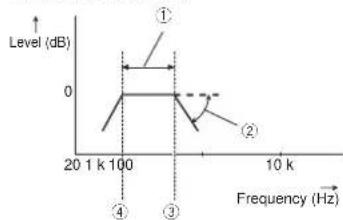
line
| Frequency (Hz) | Level (dB) | |---|---| | 201k | -1.5 | | 100 | 0 | | 3 | -0.5 | | 10k | -1.0 |① Reproduced frequency band
② Slope adjustment
③ Cut-off frequency of the LPF
④ Cut-off frequency of the HPF
■ Adjusting the front and rear speaker output
You can set the frequency range for the sound output from the front and rear speakers.
☐ This function is available only when main audio is available.
1 Press the HOME button to display the Top menu screen.
2 Touch the following keys in the following order.

The "Audio" screen appears.
3 Confirm that "Rear Speaker" is set to "On".
☐ The default setting is "On".
4 Touch [Crossover].
The "Cutoff" screen appears.
5 Touch the following keys to select "Front" or "Rear".

Selects the adjustable previous speaker.

Selects the adjustable next speaker.
6 Touch [HPF] to turn on.
7 Drag the line graph horizontally to adjust the range of cut-off frequency from "50" Hz to "200" Hz.
The default setting is "100" Hz.
8 Drag the tip of the slope to adjust the range of level between “-6” dB/oct and “-18” dB/oct.
The default setting is "-12" dB/oct.
■ Using the subwoofer output
This product is equipped with a subwoofer output mechanism, which can be turned on or off.
☐ This function is available only when main audio is available.
1 Press the HOME button to display the Top menu screen.
2 Touch the following keys in the following order.

The "Audio" screen appears.
3 Touch [Subwoofer] to set the subwoofer output "On".
☐ The default setting is "Off"
4 Touch [Subwoofer].
The "Cutoff" screen appears.
5 Touch the following keys to select "Subwoofer".

Selects the adjustable previous speaker.

Selects the adjustable next speaker.
6 Touch [LPF] to turn on.
7 Touch the following keys to select the phase of subwoofer output.

Sets the phase of subwoofer output to normal.

Sets the phase of subwoofer output to reverse.
8 Drag the line graph horizontally to adjust the range of cut-off frequency from "50" Hz to "200" Hz.
☐ The default setting is "100" Hz.
9 Drag the tip of the slope to adjust the range of level between “-6” dB/oct and “-18” dB/oct.
☐ The default setting is "-18" dB/oct.
Selecting the listening position
You can select a listening position that you want to make as the center of sound effects. This function is available only when main audio is available.
1 Press the HOME button to display the Top menu screen.
2 Touch the following keys in the following order.


The "Audio" screen appears.
3 Touch [Listening Position].
The "Listening Position" screen appears.
4 Touch the desired position.
- Off (default):
Changes the listening position setting to off.
- Front
Changes the listening position setting to front.
- Front-L:
Changes the listening position setting to front left.
- Front-R
Changes the listening position setting to front right.
• All
Changes the listening position setting to all.
Adjusting the speaker output levels finely
Fine adjustments of the speaker output level can be made by listening to audio output.
☐ This function is available only when main audio is available.
This function is available only when "Rear Speaker" is set to "On".
For details, refer to Adjusting the front and rear speaker output on page 62.
☐ This function is available only when "Subwoofer" is set to "On".
For details, refer to Using the subwoofer output on page 62.
1 Press the HOME button to display the Top menu screen.
2 Touch the following keys in the following order.


The "Audio" screen appears.
3 Touch [Speaker Level].
The "Speaker Level" screen appears.
4 Touch the following keys to select the listening position if necessary.

Selects the listening position.

- Off
Changes the listening position selling to off.
- Front Left:
Changes the listening position selling to front left.
- Front Right
Changes the listening position selling to front right.
Front:
Changes the listening position setting to front.
All
Changes the listening position setting to all.
☐ If you change the listening position setting, the output levels of all the speakers will change in conjunction with the setting.
5 Touch the following keys to adjust the speaker output level.

Decreases the speaker level.

Increases the speaker level.
- “-24” dB to “10” dB is displayed as the distance to be corrected is increased or decreased.
Front Left:
Changes the speaker level of the front left speaker.
Front Right:
Changes the speaker level of the front right speaker.
- Rear Left
Changes the speaker level of the rear left speaker.
- Rear Right
Subwoofer
Changes the speaker level of the rear right speaker.
Changes the speaker level of the sub-
woofer speaker.
- If you touch [Apply Auto EQ], the result of "A-EQ&TA Measurement" will be applied to the speaker level setting.
To use this function, the vehicle's acoustics must be measured in advance.
Adjusting the time alignment
By adjusting the distance from each speaker to the listening position, time alignment is able to correct the time required for sound to reach the listening position.
☐ This function is available only when main audio is available.
☐ This function is available only when "Rear Speaker" is set to "On".
For details, refer to Adjusting the front and rear speaker output on page 62.
☐ This function is available only when "Subwoofer" is set to "On".
- For details, refer to Using the subwoofer output on page 62.
This function is available only when the listening position setting is set to "Front Left" or "Front Right".
For details, refer to Selecting the listening position on page 63.
1 Measure the distance between the head of the listener and each speaker unit.
2 Press the HOME button to display the Top menu screen.
3 Touch the following keys in the following order.


The "Audio" screen appears.
Chapter
Chapter
24
4 Touch [Time Alignment].
The "Time Alignment" screen appears.
5 Touch the following keys to select the listening position if necessary.

Selects the listening position.
• Off:
Changes the listening position setting to off.
- Front Left
Changes the listening position setting to front left.
- Front Right
Changes the listening position setting to front right.
- Front
Changes the listening position setting to front.
All:
Changes the listening position setting to all.
☐ If you change the listening position setting, the output levels of all the speakers will change in conjunction with the setting.
6 Touch the following keys to input the distance between the selected speaker and the listening position.

Decreases the distance between the selected speaker and the selected listening position.
Increases the distance between the selected speaker and the selected listening position.
☐ "0.0" inch to "200.0" inch is displayed as the distance to be corrected is increased or decreased.
- Front Left:
Changes the distance between the front left speaker and the selected listening position.
- Front Right
Changes the distance between the front right speaker and the selected listening position.
- Rear Left:
Changes the distance between the rear left speaker and the selected listening position.
- Rear Right:
Changes the distance between the rear right speaker and the selected listening position.
Subwoofer
Changes the distance between the sub-woofer speaker and the selected listening position.
- If you touch [TA On], the time alignment is turned off.
- If you touch [Apply Auto EQ], the result of "A-EQ&TA Measurement" will be applied to the lime alignment setting.
To use this function, the vehicle's acoustics must be measured in advance.
Using the equalizer
The equalizer lets you adjust equalization to match the vehicle interior acoustic characteristics as desired.

Recalling equalizer curves
There are seven stored equalizer curves that you can easily recall at any time. Here is a list of the equalizer curves:
Equalizer curve
S.Bass is a curve in which only low-pitched sound is boosted.
Powerful is a curve in which low- and high-pitched sounds are boosted.
Natural is a curve in which low- and high-pitched sounds are slightly boosted.
Vocal is a curve in which the midrange, which is the human vocal range, is boosted
Flat is a flat curve in which nothing is boosted.
Custom1 is an adjusted equalizer curve that you create. If you select this curve, the effect is applied to all AV sources.
Custom2 is an adjusted equalizer curve that you create. If you select this curve, the effect is applied to all AV sources.
☐ This function is available only when main audio is available.
☐ The default setting is "Powerful"
☐ When "Flat" is selected, no supplement or correction is made to the sound. This is useful to check the effect of the equalizer curves by switching alternatively between "Flat" and a set equalizer curve.
1 Press the HOME button to display the Top menu screen.
2 Touch the following keys in the following order.

The "Audio" screen appears.
3 Touch [Graphic EQ].
The "Graphic EQ" screen appears.
4 Touch the equalizer you want.
■ Customizing the equalizer curves
You can adjust the currently selected equalizer curve setting as desired. Adjustments can be made with a 13 band graphic equalizer.
☐ This function is available only when main audio is available.
☐ If you make adjustments when a curve "S.Bass", "Powerful", "Natural", "Vocal", or "Flat" is selected, the equalizer curve settings will be changed to "Custom1" automatically.
☐ If you make adjustments when the "Custom2" curve is selected for example, the "Custom2" curve will be updated.
☐ "Custom1" and "Custom2" curves can be created common to all sources.
1 Press the HOME button to display the Top menu screen.
2 Touch the following keys in the following order.

The "Audio" screen appears.
3 Touch [Graphic EQ].
The "Graphic EQ" screen appears.
4 Touch one of the keys to select a curve that you want to use as the basis of customizing.
5 Touch the frequency for which you want to adjust the level.
☐ If you trail a finger across the bars of multiple equalizer bands, the equalizer curve settings will be set to the value of the touched point on each bar.
■ Using the auto-adjusted equalizer
You can set the auto-adjusted equalizer to suit the vehicle's acoustics. To use this function, the vehicle's acoustics must be measured in advance.
For details of the operations, refer to Adjusting the equalizer curve automatically (Auto EQ) on page 65.
☐ To manually adjust the equalizer curve, set "Auto EQ&TA" to "Off".
1 Press the HOME button to display the Top menu screen.
2 Touch the following keys in the following order.

The "Audio" screen appears.
3 Touch [Auto EQ&TA] repeatedly until the desired setting appears.
- Off (default): Turns the Auto EQ&TA setting off.
● On: Turns the Auto EQ&TA selling on.
Adjusting the equalizer curve automatically (Auto EQ)
By measuring the vehicle's acoustics, the equalizer curve can be adjusted automatically to suit the vehicle interior.
WARNING
A loud lone (noise) may be emilled from the speakers when measuring the vehicle's acoustics. Never perform Auto EQ measurement while driving.
CAUTION
● Thoroughly check the conditions before performing Auto EQ, as the speakers may be damaged if this is performed under the following conditions:
—When the speakers are incorrectly connected. (For example, when a rear speaker is connected as a subwoofer output.)
— When a speaker is connected to a power amp delivering output higher than the speaker's maximum input power capability.
- If a microphone for acoustical measurement (sold separately) is not placed in an appropriate location, the measurement
lone may become loud and measurement may take a long time, resulting in battery drainage. Be sure to place the microphone in the specified location.
■ Before operating the Auto EQ function
- Perform Auto EQ in as quiet a place as possible, with the vehicle engine and air conditioning switched off. Also, cut power to car phones or cellular phones in the vehicle, or remove them from the vehicle before performing Auto EQ. Sounds other than the measurement tone (surrounding sounds, engine sound, telephones ringing, etc.) may prevent correct measurement of the vehicle's acoustics.
- Be sure to perform Auto EQ using the microphone for acoustical measurement (sold separately). Using another microphone may prevent measurement, or result in incorrect measurement of the vehicle's acoustics.
● To perform Auto EQ, the front speakers must be connected. - When this product is connected to a power amp with input level control, Auto EQ may be impossible if the power amp's input level is set below the standard level.
- When this product is connected to a power amp with an LPF (low pass filter), turn the LPF off before performing Auto EQ. Also, sell the cut-off frequency for the built-in LPF of an active subwoofer to the highest frequency.
- The distance has been calculated by a computer to provide optimum delay to ensure accurate results. Do not change this value.
— The reflected sound within the vehicle is strong and delays occur.
— The LPF on active subwooters or external amps delay the lower sounds. - If an error occurs during measurement, a message appears and measurement is canceled. Check the following before measuring the vehicle's acoustics.
— Front speakers (left/right)
— Rear speakers (left/right) — Noise
— Microphone for acoustical measurement (sold separately)
— Low battery
Performing Auto EQ
☐ Auto EQ changes the audio settings as follows:
— "Auto EQ&TA" is set to "On"
For details, refer to Using the auto-adjusted equalizer on page 64.
— The fader/balance settings return to the center position.
For details, refer to Using balance adjustment on page 60.
— The equalizer curve switches to "Flat"
For details, refer to Using the equalizer on page 64.
— The front and rear speakers will automatically be adjusted to a high pass filter setting.
☐ Previous settings for Auto EQ will be overwritten.
☐ Do not press the ▲ button to open or close the panel when you are using the microphone.
CAUTION
Do not turn off the engine while the measurement is in progress.
1 Stop the vehicle in a quiet place, close all the doors, windows and sun roof, and then turn the engine off.
If the engine is left running, engine noise may prevent correct Auto EQ.
☐ If driving restrictions are detected during measurement, measurement is canceled.
2 Fix the microphone for acoustical measurement (sold separately) in the center of the headrest of the driver's seat, facing forward.
The Auto EQ may differ depending on where you place the microphone. If desired, place the microphone on the front passenger seal and perform Auto EQ.
3 Disconnect the iPhone or smartphone device.
4 Turn on the ignition switch (ACC ON).
If the vehicle's air conditioner or heater is turned on, turn it off. Noise from the fan in the air conditioner or heater may prevent correct Auto EQ.
5 Switch the AV source to "OFF".
- For details of the operations, refer to Displaying the AV operation screen on page 12.
6 Press the HOME button to display the Top menu screen.
7 Touch the following keys in the following order.

The "Audio" screen appears.
8 Touch [A-EQ&TA Measurement]. The "A-EQ&TA Measurement" screen appears.
9 Connect the microphone for acoustical measurement (sold separately) with this product.
Plug the microphone into the microphone input jack on this product.
10 Touch [Front Left] or [Front Right] to select the current listening position.
11 Touch [Start].
A 10-second countdown starts.
☐ The Bluetooth connection is disconnected before the process starts.
12 Exit the vehicle and keep the doors closed until the countdown finishes.
When the countdown finishes, a measurement tone (noise) is emitted from the speakers and the Auto EQ measurement begins.
13 Wait until the measurement is completed.
When Auto EQ is completed, a message is displayed indicating that the measurement is completed.
Chapter
Chapter
25
If the vehicle's acoustics cannot be measured correctly, an error message will be displayed.
The measurement time varies depending on the type of vehicle.
To stop the measurement, touch [Stop].
14 Store the microphone carefully in the glove compartment or another safe place.
If the microphone is subjected to direct sunlight for an extended period, high temperatures may cause distortion, color change or malfunction.
Theme menu
Selecting the background display
The background display can be selected from 8 different preset displays for the AV operation screen and 5 different preset displays for the Top menu screen. Furthermore, you can change the background display to other images imported from an external storage device (USB, SD).
1 Press the HOME button to display the Top menu screen.
2 Touch the following keys in the following order.


The "Theme" screen appears.
3 Touch [Background].
☐ You can also change the screen for settings by touching [Illumination]. [Theme] or [Clock] on this screen.
4 Touch [Home] or [AV] to switch the screen displays.
The selling contents can be memorized separately for the AV operation screen and the Top menu screen.
5 Touch the item you want to set.
- Preset displays:
Selects the desired preset background display. - [R:slom]:
Displays the background display image imported from the external storage device (USB, SD).
For details, refer to Changing to the background display image stored on the external storage device (USB, SD) on page 66. - Hides the background display.
■ Changing to the background display image stored on the external storage device (USB, SD)
You can change the background display image to an image imported from the external storage device (USB, SD).
7 Background display image must be used within the following formats.
— JPEG image files (.jpg or .jpeg)
— Allowable data size is 10 MB or smaller
— Allowable image size is 4 000 pixels × 4 000 pixels or smaller
CAUTION
Do not turn off the engine while importing an image from the external storage device (USB, SD).
1 Press the HOME button to display the Top menu screen.
2 Touch the following keys in the following order.


The "Theme" screen appears.
3 Touch [Background].
☐ You can also change the screen for sellings by touching [Illumination], [Theme] or [Clock] on this screen.
4 Touch the following key.

Displays the list of the background display images stored on the external storage device (USB, SD).
5 Touch the desired external storage device (USB, SD).
6 Touch the image to use as the background display from the list.
The image is set as the background display.
☐ You can delete the imported image and restore the setting for the background display to the default by touching and holding the custom key.
Setting the illumination color
The illumination color can be selected from 5 different colors. Furthermore, the illumination can be switched between these 5 colors in order.

Selecting the color from the set colors
You can select an illumination color from the color list.
1 Press the HOME button to display the Top menu screen.
2 Touch the following keys in the following order.


The "Theme" screen appears.
3 Touch [Illumination].
☐ You can also change the screen for settings by touching [Theme], [Background] or [Clock] on this screen.
4 Touch the color you want.
Colored keys:
Selects the desired preset color.
- custom): Displays the screen to customize the illumination color.
For details, refer to Creating a user-defined color on page 66.
• (rainbow)
Shifts through the rainbow of colors gradationally.
☐ You can preview the Top menu screen or the AV operation screen by touching [Home] or [AV] respectively.
■ Creating a user-defined color
You can create a user-defined color. The created color is stored, and you can select the color when setting the illumination color the next time.
1 Press the HOME button to display the Top menu screen.
2 Touch the following keys in the following order.


The "Theme" screen appears.
3 Touch [Illumination].
☐ You can also change the screen for settings by touching [Theme], [Background] or [Clock] on this screen.
4 Touch the following key.

Displays the screen to create a user-defined color and store it to memory.
5 Touch the following keys.

Adjusts the brightness and the level of red, green and blue to create a favorite color.

create a favorite color.
☐ You can also adjust the color tone by dragging the color bar.
6 Touch and hold [Memo] to store the customized color in the memory.
The customized color is stored in the memory.
The sel color will be recalled from the memory the next time you touch the same key.
Selecting the theme color
A theme color can be selected from 5 different colors.
1 Press the HOME button to display the Top menu screen.
2 Touch the following keys in the following order.

The "Theme" screen appears.
3 Touch [Theme].
☐ You can also change the screen for settings by touching [Illumination], [Background] or [Clock] on this screen.
4 Touch the color you want.
☐ You can preview the Top menu screen or the AV operation screen by touching [Home] or [AV] respectively.
Selecting the clock image
The clock on the AV operation screen and the Top menu screen can be selected from 3 different images.
1 Press the HOME button to display the Top menu screen.
2 Touch the following keys in the following order.

The "Theme" screen appears.
3 Touch [Clock].
☐ You can also change the screen for settings by touching [Illumination] [Theme] or [Background] on this screen.
4 Touch the item you want to set. - Preset images:
Selects the desired preset clock image.
● Hides the clock display.
☐ You can preview the Top menu screen or the AV operation screen by touching [Home] or [AV] respectively.
Changing the preinstalled splash screen
You can change the splash screen to other images preinstalled in this product.
1 Press the HOME button to display the Top menu screen.
2 Touch the following keys in the following order.

The "Theme" screen appears.
3 Touch [Splash Screen].
4 Touch the item you want to set.
- Preset images
Selects the desired preset splash screen image.
• Rstom):
Displays the splash screen image imported from the external storage device (USB, SD).
For details, refer to Changing to the splash screen stored on the external storage device (USB, SD) on page 67
■ Changing to the splash screen stored on the external storage device (USB, SD)
You can change the splash screen to other images imported from the external storage device (USB, SD).
CAUTION
Do not turn off the engine while importing an image from the external storage device (USB, SD).
1 Press the HOME button to display the Top menu screen.
2 Touch the following keys in the following order.

The "Theme" screen appears.
3 Touch [Splash Screen].
4 Touch the following key.
Displays the list of the splash screens stored on the external storage device (USB, SD).
5 Touch the desired external storage device (USB, SD).
6 Touch the image to use as the splash screen from the list.
The image is set as the splash screen.
☐ You can delete the imported image and restore the setting on the splash screen to the default by touching and holding the custom key.
Replicating the settings
Exporting "Theme" settings
You can export settings you have made on the "Theme" screen to an external storage device (USB, SD). These settings can be exported separately.
☐ This setting is available only when you stop your vehicle in a safe place and apply the parking brake.
☐ If multiple external storage devices are connected to this product, the order of priority for the targets that the "Theme" settings are exported to is as follows:
① SD memory card
② USB storage device that is connected to USB port
③ USB storage device that is connected to USB port 2
CAUTION
Do not turn off the engine while exporting the settings.
Chapter
1 Insert the SD memory card into the SD card slot or plug the USB storage device into the USB connector.
For details, refer to Plugging in a USB storage device on page 11.
For details, refer to Inserting and ejecting an SD memory card on page 10.
2 Press the HOME button to display the Top menu screen.
3 Touch the following keys in the following order.

The "Theme" screen appears.
4 Touch [Export].
The "Settings Export" screen appears.
5 Touch the desired item.
- Illumination:
Selects the illumination color setting
- Splash Screen
Selects the splash screen setting.
- Select All
Selects all settings.
6 Touch [Export].
Data export starts. After the data is exported, a completion message appears.
☐ The source is turned off and the Bluetooth connection is disconnected before the process starts.
- Importing "Theme" settings
The settings made on the "Theme" screen that were exported to an external storage device (USB, SD) can be imported.
☐ This setting is available only when you stop your vehicle in a safe place and apply the parking brake.
☐ If multiple external storage devices that include available data are connected to this product, the order of priority for the targets that the "Theme" settings are imported from is as follows:
① SD memory card
② USB storage device that is connected to USB port 1
Chapter
26
③ USB storage device that is connected to USB port 2
CAUTION
- Do not turn off the engine while importing the settings.
● To prevent data loss and damage to the SD memory card, never edit the data exported to the SD memory card.
1 Insert the SD memory card into the SD card slot or plug the USB storage device into the USB connector.
For details, refer to Plugging in a USB storage device on page 11.
For details, refer to Inserting and ejecting an SD memory card on page 10.
A message confirming whether to import the stored setting data appears.
2 Touch [Import].
Data import starts.
When the data is successfully imported, an import complete message is displayed.
☐ The source is turned off and the Bluetooth connection is disconnected before the process starts.
Setting up the video player
Setting the top-priority languages
You can assign the top-priority language to the top-priority sublllc, audio and menu in initial playback. If the selected language is recorded on the disc, subtitles, audio and menu are displayed or output in that language.
This selling is available only when "Disc" is selected as the source.
Setting the subtitle language
You can set a desired subtitle language. When available, the subtitles will be displayed in the selected language.
1 Press the HOME button to display the Top menu screen.
2 Touch the following keys in the following order.

The "Video Setup" screen appears.
3 Touch [DVD/DivX Setup].
4 Touch [Subtitle Language].
The pop-up menu appears
5 Touch the desired language.
When you select "Others", a language code input screen is shown. Input the four-digit code of the desired language then touch The subtitle language is set.
☐ If the selected language is not available, the language specified on the disc is displayed.
☐ You can switch the subtitle language by touching the sublille language switching key during playback.
☐ The setting made here will not be affected even if the sublille language is switched during playback using the sublille language switching key.
Setting the audio language
You can set the preferred audio language.
1 Press the HOME button to display the Top menu screen.
2 Touch the following keys in the following order.

The "Video Setup" screen appears.
3 Touch [DVD/DivX Setup].
4 Touch [Audio Language].
The pop-up menu appears.
5 Touch the desired language.
When you select "Others", a language code input screen is shown. Input the four-digit code of the desired language then touch The audio language is set.
If the selected language is not available, the language specified on the disc is applied.
☐ You can switch the audio language by touching the audio language switching key during playback.
The selling made here will not be affected even if the audio language is switched during playback using the audio language switching key.
Setting the menu language
You can sel the preferred language in which the menus recorded on a disc are displayed.
1 Press the HOME button to display the Top menu screen.
2 Touch the following keys in the following order.

The "Video Setup" screen appears.
3 Touch [DVD/DivX Setup].
4 Touch [Menu Language].
The pop-up menu appears.
5 Touch the desired language.
When you select "Others", a language code input screen is shown. Input the four-digit code of the desired language then touch The menu language is set.
If the selected language is not available, the language specified on the disc is displayed.
Setting the angle icon display
You can set whether to display the angle icon on the scenes where the angle can be switched.
This setting is available only when "Disc" is selected as the source.
1 Press the HOME button to display the Top menu screen.
2 Touch the following keys in the following order.

The "Video Setup" screen appears.
3 Touch [DVD/DivX Setup].
4 Touch [Multi Angle] repeatedly until the desired setting appears.
- On (default):
Turns the multi-angle setting on.
- Off
Turns the multi-angle setting off.
Setting the aspect ratio
There are two kinds of displays. A wide screen display has a width-to-height ratio (TV aspect) of 16:9, while a regular display has a TV aspect of 4:3. If you use a regular rear display with a TV aspect of 4:3, you can set the aspect ratio suitable for your rear display. (We recommend use of this function only when you want to fit the aspect ratio to the rear display.)
☐ When using a regular display, select either "Letter Box" or "Pan Scan". Selecting "16:9" may result in an unnatural image.
☐ If you select the TV aspect ratio, this product's display will change to the same setting.
☐ This setting is available only when "Disc" is selected as the source.
1 Press the HOME button to display the Top menu screen.
2 Touch the following keys in the following order.

The "Video Setup" screen appears.
3 Touch [DVD/DivX Setup].
4 Touch [TV Aspect].
The pop-up menu appears.
5 Touch the item you want to set.
16:9 (default)
Displays the wide screen image (16:9) as it is (initial setting).
Letter Box
Makes the image in the shape of a letterbox with black bands on the top and bottom of the screen.
Pan Scan
Cuts the image short on the right and left sides of the screen.
☐ When playing discs that do not have a panscan system, the disc is played back with "Letter Box" even if you select the "Pan Scan" setting. Confirm whether the disc package bears the
☐ The TV aspect ratio cannot be changed for some discs. For details, refer to the disc's instructions.
Setting parental lock
Some DVD-Video discs let you use parental lock to set restrictions so that children cannot watch violent or adult-oriented scenes. You can set the parental lock level in steps as desired.
☐ This setting is available only when "Disc" is selected as the source.
When you set a parental lock level and then play a disc featuring parental lock, code number input indications may be displayed. In this case, playback will start when the correct code number is input.
■ Setting the code number and level
When you first use this function, register your code number. If you do not register a code number, the parental lock will not operate.
1 Press the HOME button to display the Top menu screen.
2 Touch the following keys in the following order.

The "Video Setup" screen appears.
3 Touch [DVD/DivX Setup].
4 Touch [Parental].
The "Parental" screen appears.
5 Touch [0] to [9] to input a four-digit code number.
6 While the input number is displayed, touch the following key.

Registers the code number.
7 Touch any number between [1] to [8] to select the desired level.
8
Enables playback of the entire disc (initial selling).
- 7 to 2:
Enables playback of discs for children and non-adult oriented discs.
• 1
Enables only playback of discs for children.
8 While the input number is displayed, touch the following key.

Sets the parental lock level.
☐ We recommend that you keep a record of your code number in case you forget it.
☐ The parental lock level is recorded on the disc. You can confirm it by looking at the disc package, the included literature or the disc itself. You cannot use parental lock with discs that do not feature a recorded parental lock level.
☐ With some discs, parental lock operates to skip certain scenes only, after which normal playback resumes. For details, refer to the disc's instructions.
Displaying your DivX VOD registration code
If you want to play DivX VOD (video on demand) content on this product, you must
First register this product with your DivX VOD content provider. You do this by generating a DivX VOD registration code, which you submit to your provider.
- Keep a record of the code as you will need it when you register this product to the DivX VOD provider.
This selling is available only when "Disc" is selected as the source.
1 Press the HOME button to display the Top menu screen.
2 Touch the following keys in the following order.

The "Video Setup" screen appears.
3 Touch [DVD/DivX Setup].
4 Touch [DivX® VOD].
The "DivX® VOD" screen appears.
☐ If a registration code has already been activated, it cannot be displayed.
5 Touch [Registration Code].
Your 10-digit registration code is displayed.
☐ Make a note of the code as you will need it when you register with a DivX VOD provider.
Displaying your DivX VOD deregistration code
A registration code registered with a deregis- tration code can be deleted.
☐ This setting is available only when "Disc" is selected as the source.
1 Press the HOME button to display the Top menu screen.
2 Touch the following keys in the following order.

The "Video Setup" screen appears.
3 Touch [DVD/DivX Setup].
4 Touch [DivX® VOD].
The "DivX® VOD" screen appears.
5 Touch [Deregistration Code]. Your eight-digit deregistration code is displayed.
Make a note of the code as you will need it when you deregister from a DivX VOD provider.
Automatic playback of DVDs
When a DVD disc with a DVD menu is inserted, this product will cancel the menu automatically and start playback from the first chapter of the first title,
Some DVDs may not operate properly. If this function is not fully operable, turn this function off and start playback.
☐ This setting is available only when "Disc" is selected as the source.
1 Press the HOME button to display the Top menu screen.
2 Touch the following keys in the following order.

The "Video Setup" screen appears
3 Touch [DVD/DivX Setup].
4 Touch [DVD Auto Play] repeatedly until the desired setting appears.
- Off (default)
Turns the DVD Auto Play setting off.
On
Turns the DVD Auto Play setting on.
Setting the video signal for the rear view camera
When you connect a rear view camera to this product, select the suitable video signal setting.
☐ You can operate this function only for the video signal input into the AV input.
1 Press the HOME button to display the Top menu screen.
oter
Chapter
27/28
2 Touch the following keys in the following order.


The "Video Setup" screen appears.
3 Touch [Video Signal Setting].
4 Touch [Camera].
The pop-up menu appears.
5 Touch the item you want to set.
● Auto (default):
Adjusts the video signal setting automatically.
PAL:
Sets the video signal to PAL.
• NTSC
Sets the video signal to NTSC.
PAL-M
Sets the video signal to PAL-M.
PAL-N:
Sets the video signal to PAL-N.
SECAM
Sets the video signal to SECAM.
Favorite menu
Registering your favorite menu items in shortcuts allows you to quickly jump to the registered menu screen by a simple touch on the "Favorites" screen.
☐ Up to 12 menu items can be registered in the favorite menu.
Creating a shortcut
1 Touch the HOME button to display the Top menu screen.
2 Touch the following key.

Displays the Setting menu screen.
3 Touch the star icon of the menu item that you want to add to the favorite menu.
70 in
En
- To cancel the registration, touch the star icon in the menu column again.
Selecting a shortcut
1 Press the HOME button to display the Top menu screen.
2 Touch the following keys in the following order.


The "Favorites" screen appears.
3 Touch the desired item.
Removing a shortcut
1 Press the HOME button to display the Top menu screen.
2 Touch the following keys in the following order.


The "Favorites" screen appears.
3 Touch and hold the star icon of the favorite menu you want to remove.
The selected menu is removed from the "Favorites" screen.
Common operations
Setting the time and date
1 Touch the current time on the screen to display the Time and date setting screen.
2 Touch ▲ or▼ to set the correct time and date.
On this screen, you can operate the following items.
Month/Date
• m/d/v (default):
Changes the date display formal to month/date/year.
d/m/y
Changes the date display format to date/month/year.
y/m/d
Changes the date display format to year/month/date.
Time Format
- 12hour (default):
Changes the display to 12-hour format with am/pm.
24hour
Changes the display to 24-hour format.
Storing song information to an iPod (iTunes Tagging)
You can store song information to the iPod when this product receives song information. The songs will appear in a playlist called "Tagged playlist" in iTunes the next time you synchronize your iPod. You can directly buy the songs via this product.
Depending on when the song information is stored, information for the previous song or the song after the current song may also be stored. Be sure to confirm the song before you purchase it.
The iTunes Tagging function is available when the song information is available.
☐ This function is available for the following iPod models:
iPhone 4s
iPhone 4
iPhone 3GS
iPhone 3G
iPhone
- iPod touch 5th generation
- iPod touch 4th generation
- iPod touch 3rd generation
- iPod touch 2nd generation
- iPod touch 1st generation
- iPod classic
- iPod nano 6th generation
- iPod nano 5th generation
- iPod nano 4th generation
- iPod nano 3rd generation
☐ The version of iTunes must be 7.4 or higher.
1 Press the HOME button to display the Top menu screen.
2 Touch the following keys in the following order.


The "System" screen appears,
3 Touch [AV Source Settings].
4 Touch [Tag Forwarding] repeatedly until the desired setting appears.
USB1 (default):
Transfers the song information to your iPod which is connected to USB port 1.
USB2
Transfers the song information to your iPod which is connected to USB port 2.
5 Tune into a broadcast station.
When the song information is received, Tag is displayed while the desired song is being broadcast, and the touch panel key becomes active.
HD Radio
For details, refer to iTunes ^® tagging indicator on page 22.
For details, refer to Using the touch panel keys on page 22.
SiriusXM
For details, refer to iTunes® tagging indicator on page 47.
For details, refer to Using the touch panel keys on page 47.
6 Touch the following key.
HD Radio
The touch panel key on which the song title or artist name is displayed
SiriusXM
The touch panel key on which the artist name, song title, category name or content text is displayed
The information on the song on air is stored in this product.
While the information is being acquired, Tag is displayed.
When it is completed, Tag is off and is displayed.
☐ The song information for up to 50 songs can be stored in this product.
Depending on when the song information
is stored, information for the previous
song or the song after the current song may also be stored.
7 Connect your iPod.
The song information is transferred to your iPod.
☐ If the iPod is already connected, the song information will be transferred to your iPod every time you touch the touch panel key on which song information is displayed.
When the song information transfer to your iPod is completed, 📄 disappears.
When the song information transfer is completed, the information stored in this product will be automatically deleted.
If you turn off this product or disconnect the iPod while transferring song information, the transfer may not successfully complete.
☐ While this product is storing song information, transfer to an iPod is not possible.
Setting the "Sound Retriever" function
The "Sound Retriever" function automatically enhances compressed audio and restores rich sound.
● Touch the following key repeatedly until the desired setting appears on the AV operation screen.
S.Rtrv
Sets the "Sound Retriever" function.
- 14ode1 (default)
Activates the "Sound Retriever" function. - code2).
Activates the "Sound Retriever" function. - Deactivates the "Sound Retriever" function.
☐ Mode2 has a stronger effect than Mode1.
Changing the wide screen mode
You can set the screen size for the video and JPEG images.
☐ This setting is available only when you stop your vehicle in a safe place and apply the parking brake.
☐ The default setting is "Full" for video, and "Normal" for JPEG images.
1 Touch the following key.

Displays the setting screen to select the appropriate screen ratio for the playback video.
☐ The appearance of this key changes according to the current setting.
2 Touch the desired mode.
Full
A 4:3 picture is enlarged in the horizontal direction only, enabling you to enjoy a 4:3 TV picture (normal picture) without any omissions.
This selling is for video only.
- Zoom
A 4:3 picture is enlarged in the same proportion both vertically and horizontally; ideal for a wide screen picture.
This setting is for video only.
Normal
A 4:3 picture is displayed normally, giving you no sense of disparity since its proportions are the same as those of the normal picture.
- Trimming
An image is displayed across the entire screen with the horizontal-to-vertical ratio left as is. If the horizontal-to-vertical ratio differs between the display and the image, the image may be displayed partly cut off either at the top/bottom or sides.
This setting is for JPEG images only.
- Different sellings can be stored for each video source.
☐ When a video is viewed in a wide screen mode that does not match its original aspect ratio, it may appear different.
☐ The video image will appear coarser when viewed in "Zoom" mode.
Other functions
Selecting the video for the rear display
You can choose either to show the same image as the front screen or to show the selected source on the rear display.
This function is not available during a call via this product or while using the voice recognition function.
1 Press the HOME button to display the Top menu screen.
2 Touch the following key.

Displays the AV source selection screen.
3 Touch [Rear].
The "Rear" screen appears.
4 Touch the source you want to show on the rear display.
The source you can select is as follows.
- Mirror
The video on the front screen of this product is output to the rear display
— Not all videos or sounds can be output to the rear display.
• DVD/CD
The video and sound of DVDs are output to the rear display.
— Compatible file types are DVD-V, Video-CD, DivX, MPEG-1, MPEG-2, and MPEG-4 only.
- USB/iPod
The video and sound of the USB storage device or iPod are output to the rear display.
— The port that supports the rear display will only be USB port 1.
— Compatible file types are MPEG-4, H.264, WMV, MKV, and FLV only.
SD
The video and sound of the SD memory caros are output to the rear display.
— Compatible file types are MPLG-4, 11.264.
WMV, MKV, and FLV only.
Chapter
AV
The video and sound of the AV input are output to the rear display.
— The video image and sound are output only when "AV" has both video and sound.
— The video image and sound are output only when "AV Input" is set to "Source"
For details, refer to Setting AV input on page 55.
- OFF
Nothing is output to the rear display.
● Touch the following key.

Closes the "Rear" screen.
- You can also select "Rear" on the source list.
For details, refer to Selecting a front source on the source list on page 13.
☐ Video files on the external storage device (USB, SD) are not available as a source for the rear display when Android Auto is on.
Setting the anti-theft function
You can set a password for this product. If the back-up lead is cut after the password is set, this product prompts for the password at the time of next boot up.
Setting the password
1 Press the HOME button to display the Top menu screen.
2 Touch the following keys in the following order.

The "System" screen appears.
Chapter
30
3 Touch Area1, followed by Area2, and then touch and hold Area3.
Area1 Area2 Area3
text_image
Systems AV Source Settings Event Select Input/Output settings Camera settingsThe "Anti-theft Setting Menu" screen appears,
4 Touch [Set Password].
The "Password Entry" screen appears.
5 Enter the password you want to set.
5 to 16 characters can be entered for a password.
6 Touch [Go].
The "Hint Entry" screen appears.
7 Enter a password hint.
Up to 40 characters can be entered for a hint.
8 Touch [Go].
The "Password Confirmation" screen appears,
☐ If you want to change the password currently set, enter the current password and then enter the new one.
9 Check the password, and then touch [OK].
The "Anti-theft Setting Menu" screen appears.
■ Entering the password
On the password input screen, you must enter the current password.
1 Enter the password.
2 Touch [Go].
When the correct password is entered, this product will be unlocked.
■ Deleting the password
The current password and password hint can be deleted.
72
En
1 Press the HOME button to display the Top menu screen.
2 Touch the following keys in the following order.

The "System" screen appears.
3 Touch Area1, followed by Area2, and then touch and hold Area3.
Area1 Area2 Area3
text_image
System AP Source Settings User Sound Input/Output settings Camera settingsThe "Anti-theft Setting Menu" screen appears.
4 Touch [Clear Password].
A message confirming whether to delete the password appears.
5 Touch [Yes].
The password selling screen appears. A message confirming a password hint appears.
6 Touch [OK].
The "Password Entry" screen appears.
7 Enter the current password.
8 Touch [Go].
A message indicating that the security setting is canceled appears.
Forgotten password
Contact the nearest authorized Pioneer Service Station.
Restoring this product to the default settings
You can restore settings or recorded content to the default settings. Various methods are used to clear user data.
Method 1: Remove the vehicle battery
Resets various settings registered to this product.
Method 2: Touch the item you want to initialize on the "System" screen
For details, refer to Restoring the default settings on page 72.
Method 3: Press the RESET button
For details of the operations, refer to Resetting the microprocessor on page 8.
Some of the sellings and recorded contents will not be reset.
■ Restoring the default settings
Resets various settings registered to this product to the default settings.
☐ This setting is available only when you stop your vehicle in a safe place and apply the parking brake.
CAUTION
Do not turn off the engine while restoring the settings.
1 Press the HOME button to display the Top menu screen.
2 Touch the following keys in the following order.

The "System" screen appears.
4 Touch the item you want to initialize.
All Settings
• Audio Settings
This setting is available when the source is turned off.
- Theme Settings
- Bluetooth Settings
A message confirming whether to initialize the settings appears.
If you want to return sellings or recorded content to the default, touch [All Settings].
Some of the settings configured on the "Theme" selling will not be reset.
The settings for My Vehicle are not reset
5 Touch [Restore].
When the selected item is successfully initialized, a completion message appears.
The source is turned off and the Bluetooth connection is disconnected before the process starts.
Precautions
Your new product and this manual
- Do not operate this product, any applications, or the rear view camera option (if purchased) if doing so will divert your attention in any way from the safe operation of your vehicle. Always observe safe driving rules and follow all existing traffic regulations. If you experience difficulty in operating this product or reading the display, park your vehicle in a safe location and apply the parking brake before making the necessary adjustments.
- Do not install this product where it may (i) obstruct the driver's vision, (ii) impair the performance of any of the vehicle's operating systems of safety features, including airbags, hazard lamp buttons, or (iii) impair the driver's ability to safely operate the vehicle. In some cases, it may not be possible to install this product because of the vehicle type or the shape of the vehicle interior.
Important safeguards
WARNING
Pioneer does not recommend that you install this product yourself. This product is designed for professional installation only. We recommend that only authorized Pioneer service personnel, who have special training and experience in mobile electronics, set up and install this product. NEVER SERVICE
THIS PRODUCT YOURSELF. Installing or servicing this product and its connecting cables may expose you to the risk of electric shock or other hazards, and can cause damage to this product that is not covered by warranty.
Connection
Precautions before connecting the system
WARNING
Do not take any steps to tamper with or disable the parking brake interlock system which is in place for your protection. Tampering with or disabling the parking brake interlock system could result in serious injury or death.
CAUTION
- Secure all wiring with cable clamps or electrical tape. Do not allow any bare wiring to remain exposed.
- Do not directly connect the yellow lead of this product to the vehicle battery. If the lead is directly connected to the battery, engine vibration may eventually cause the insulation to fail at the point where the wire passes from the passenger compartment into the engine compartment. If the yellow lead's insulation tears as a result of contact with metal parts, short-circuiting can occur, resulting in considerable danger.
- It is extremely dangerous to allow cables to become wound around the steering column or shift lever. Be sure to install this product, its cables, and wiring away in such so that they will not obstruct or hinder driving.
- Make sure that the cables and wires will not interfere with or become caught in any of the vehicle's moving parts, especially the steering wheel, shift lever, parking brake, sliding seat tracks, doors, or any of the vehicle's controls.
- Do not route wires where they will be exposed to high temperatures. If
the insulation heats up, wires may become damaged, resulting in a short circuit or malfunction and permanent damage to the product.
- Do not shorten any leads. If you do, the protection circuit (fuse holder, fuse resistor or filter, etc.) may fail to work properly.
● Never feed power to other electronic products by cutting the insulation of the power supply lead of this product and tapping into the lead. The current capacity of the lead will be exceeded, causing overheating.
Before installing this product
- Use this unit with a 12-volt battery and negative grounding only. Failure to do so may result in a fire or malfunction.
- To avoid shorts in the electrical system, be sure to disconnect the (-) battery cable before installation.
To prevent damage
WARNING
- Use speakers over 50 W (output value) and between 4 Ω to 8 Ω (impedance value). Do not use 1 Ω to 3 Ω speakers for this unit.
- The black cable is ground. When installing this unit or power amp (sold separately), make sure to connect the ground wire first. Ensure that the ground wire is properly connected to metal parts of the car's body. The ground wire of the power amp and the one of this unit or any other device must be connected to the car separately with different screws. If the screw for the ground wire loosens or falls out, it could result in fire generation of smoke or malfunction.
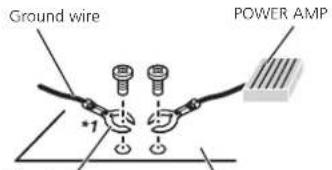
text_image
Ground wire *1 POWER AMPOther devices (Another electronic device in the car) Metal parts of car's body
\*1 Non supplied for this unit
- When replacing the fuse, be sure to only use a fuse of the rating prescribed on this product.
● This product cannot be installed in a vehicle without ACC (accessory) position on the ignition switch.
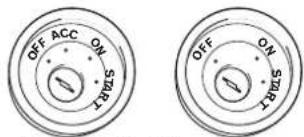
text_image
OFF ACC ON SIZE OFF ON SIZEACC position No ACC position
● To avoid short-circuiting, cover the disconnected lead with insulating tape. It is especially important to insulate all unused speaker leads, which if left uncovered may cause a short circuit.
- For connecting a power amp or other devices to this product, refer to the manual for the product to be connected.
Notice for the blue/white lead
- When the ignition switch is turned on (ACC ON), a control signal is output through the blue/white lead. Connect to an external power amp's system remote control terminal, the auto-antenna relay control terminal, or the antenna booster power control terminal (max. 300 mA 12 V DC). The control signal is output through the blue/white lead, even if the audio source is switched off.
Connecting the power cord
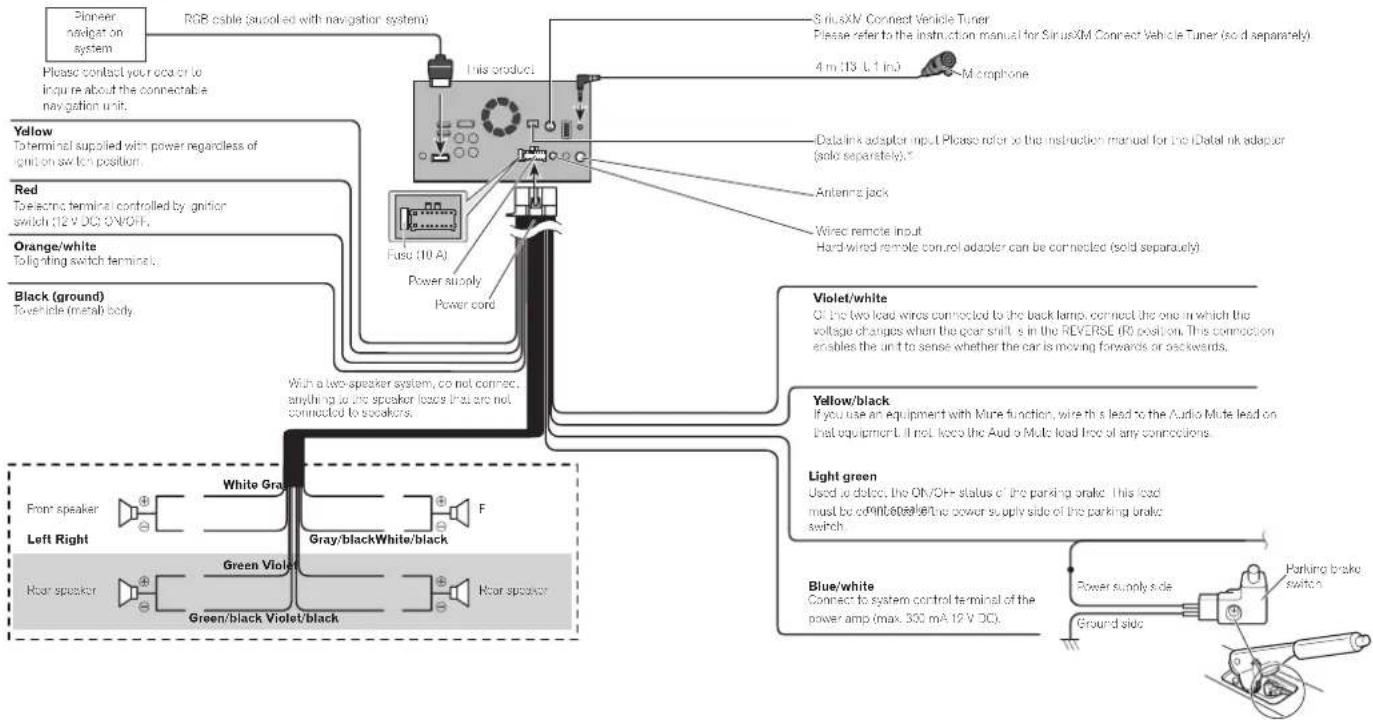
flowchart
graph TD
    A["Pioneer navigation system"] --> B["RGB cable (supplied with navigation system)"]
    B --> C["This product"]
    C --> D["SinusXM Connect Vehicle Tuner"]
    D --> E["Please refer to the instruction manual for SiriusXM Connect Vehicle Tuner (sold separately)"]
    E --> F["4 m (13 L-1 in)"]
    F --> G["Microphone"]
    H["Yellow To terminal supplied with power regardless of ignition switch position"] --> I["Fuse (10 A)"]
    I --> J["Power supply"]
    J --> K["Power cord"]
    L["Red To electric terminal controlled by ignition switch (12 V DC ON/OFF)"] --> M["Orange/white Tolling switch terminal"]
    N["Black (ground) Towericle (metal body)"] --> O["White Gray"]
    O --> P["Gray/black/white/black"]
    Q["Front speaker"] --> R["Green Violet"]
    S["Left Right"] --> T["Green Violet"]
    U["Rear speaker"] --> V["Green/black Violet/black"]
    W["Violet/white Of the two load winds connected to the back lamp, connect the one in which the voltage changes when the gear shift is in the REVERSE IR position. This connection enables the unit to sense whether the car is moving forwards or backwards."] --> X["Yellow/black If you use an equipment with Mure function, wire this lead to the Audio Mute lead on that equipment. It not keeps the Audio Mute load line of any connections."] --> Y["Light green Used to detect, the ON/OFF status of the parking brake. This load must be combined with the power supply side of the parking brake switch."] --> Z["Blue/white Connect to system control terminal of the power amp (max. 350 mA 12 V DC)."]
    AA["Parking brake switch"] --> AB["Ground side"]
    AC["Power supply side"] --> AD["Parking brake switch"]
Notes
* Before using and/or connecting the iDatalink Maestro adapter, you will need to first flash the Maestro module with the appropriate vehicle and head unit firmware. You can find the device number that is required for the activation on the followings (refer to Updating the iDatalink Maestro module on page 44):
— the label on the packaging of this product
— the label on this product
—the "Firmware Information" screen
● Make sure to connect the microphone supplied with this product when using Android Auto
Connecting to separately sold power amp
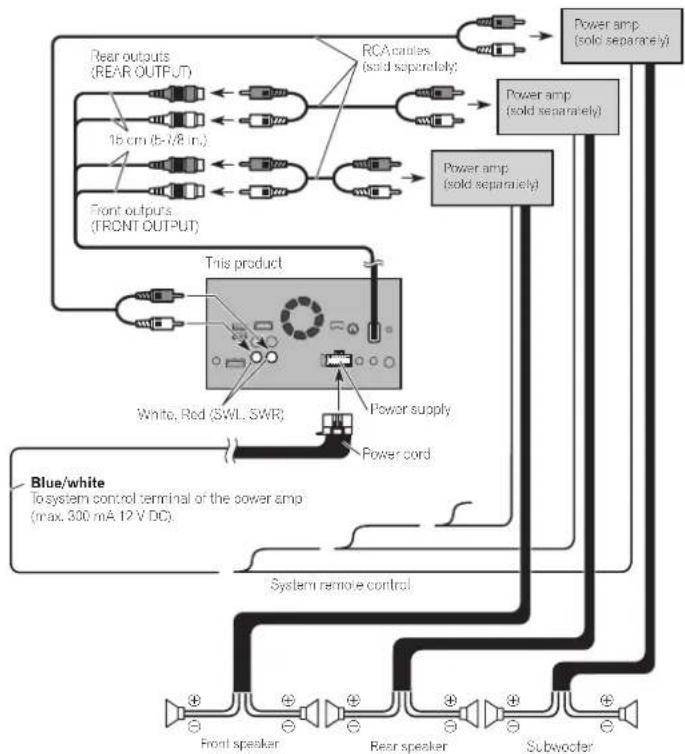
flowchart
graph TD
    A["Power amp (solid separately)"] --> B["RCA cables (solid separately)"]
    B --> C["1b cm (b-7/8 in)"]
    B --> D["Front outputs (FRONT OUTPUT)"]
    C --> E["This product"]
    D --> E
    E --> F["White, Red (SWL, SWR)"]
    E --> G["Power supply"]
    E --> H["Power cord"]
    E --> I["System remote control"]
    I --> J["Front speaker"]
    I --> K["Rear speaker"]
    I --> L["Subwoofer"]
    J --> M["Blue/white To-system control terminal of the power amp (max. 300 mA 12 V DC)"]
    K --> M
    L --> M
    M --> N["Power amp (solid separately)"]
    N --> O["Power cord"]

Notes
- You can change the RCA output of the subwoofer depending on your subwoofer system.
- The subwoofer output of this product is monaural.
Chapter
Connecting an iPhone, iPod, Android device or a MirrorLink™ device
Find your device and the function you want to operate from the list below, and refer to the page for the connection.
iPhone 6 Plus/iPhone 6/iPhone 5s/iPhone 5c/iPhone 5
iPod (audio) Refer to Connecting via the USB port on page 76.
AppRadio Mode Refer to Connecting via the HDMI port on page 76.
Note
Any connections mentioned above are available to use aha and Pandora
iPhone 3GS/iPod touch (2nd and 3rd generation)/iPod classic 160GB/iPod classic 80GB/iPod nano (3rd, 4th, 5th, and 6th generation)
Refer to Connecting via the AUX input on page 76
iPhone 4s/iPhone 4/iPod touch (4th generation)
Refer to Connecting via the RGB input on page 76.
iPod touch (5th generation)
iPod (audio) Refer to Connecting via the USB port on page 76.
AppRadio Mode Refer to Connecting via the HDMI port on page 76.
iPod nano (7th generation)
Refer to Connecting via the USB port on page 76.
Android device
| AppRadio Mode | HDMI portRefer to Connecting an Android device with an HDMI port on page 77. |
| MHL portRefer to Connecting an Android device with an MHL port on page 77. | |
| Android Auto | Refer to Connecting the Android or MirrorLinkTM device on page 77. |
Note
Any connections mentioned above are available to use aha and Pandora
MirrorLink device
Refer to Connecting the Android or MirrorLink™ device on page 77.
Chapter
31
Connecting an iPhone with Lightning connector
Notes
- For details on how to connect an external device using a separately sold cable, refer to the manual for the cable.
- For details concerning the connection, operations and compatibility of iPhone, refer to Chapter 5.
■ Connecting via the USB port
The USB interface cable for iPod / iPhone (CD-IUo2) (sold separately) is required for the connection.
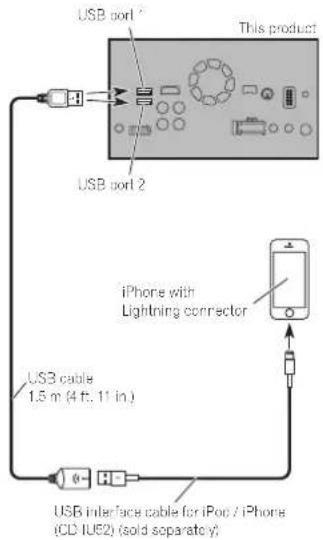
text_image
USB port 2 This product USB port 2 USB cable 1.5 m (4 ft, 11 in.) iPhone with Lightning connector USB interface cable for iPod / iPhone (CD IUS2) (sold separately)● Lightning Digital AV Adapter (Apple Inc. products) (sold separately)
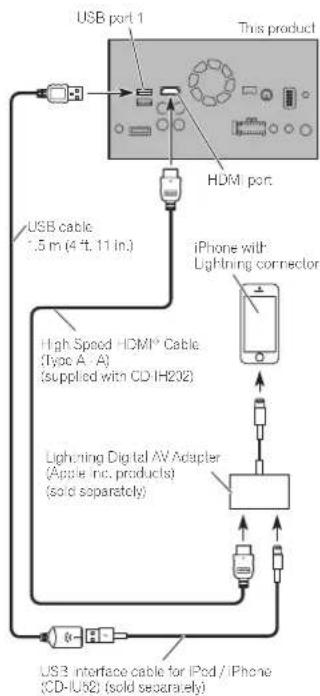
flowchart
graph TD
    A["USB port 1"] --> B["This product"]
    B --> C["HDMI port"]
    C --> D["USB cable: 1.5 m (4 ft, 11 in)"]
    D --> E["High Speed HDMI Cable (Type A, A) (supplied with CD-IH202)"]
    E --> F["Lightning Digital AV Adapter (Apple, Inc. products) (sold separately)"]
    F --> G["USB interface cable for iPod / iPhone (CD-IU62) (sold separately)"]
    G --> H["iPhone with Lightning connector"]
Note
When you connect the High Speed HDMI® Cable, use the lock tie to fix it securely.
For details, refer to Securing the High Speed HDMI Cable on page 77.
■ Connecting via the HDMI port
The following cables are required for the connection.
- HDMI interface cable for iPod / iPhone (CD-IH202) (sold separately)
USB Interface cable for iPod / iPhone (CD-IU52) (sold separately)
76
En
Connecting an iPhone with 30-pin connector
Notes
- For details on how to connect an external device using a separately sold cable, refer to the manual for the cable.
- For details concerning the connection, operations and compatibility of iPhone, refer to Chapter 5.
■ Connecting via the AUX input
The USB interface cable for iPod / iPhone (CD-IU201V) (sold separately) is required for the connection.
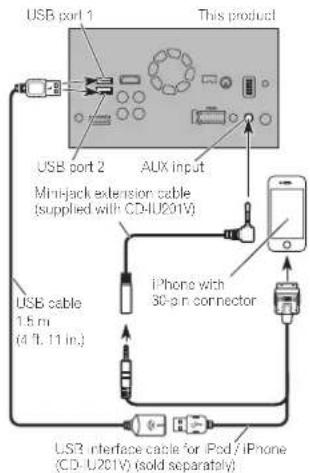
text_image
USB port 1 This product USB port 2 AUX input Mini-jack extension cable (supplied with CD-U201V) USB cable 1.5 m (4 ft. 11 in.) iPhone with 30-pn connector USB interface cable for iPod / iPhone (CD - U201V) (sold separately)Note
Connect the USB cable to USB port 1 when using "aha" or "Pandora" as the source.
■ Connecting via the RGB input
The USB interface cable for iPod / iPhone (CD-IU201S) (sold separately) is required for the connection.
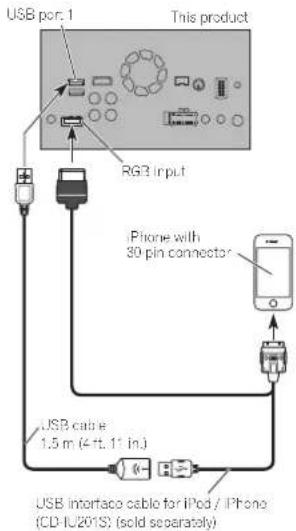
flowchart
graph TD
    A["USB port 1"] --> B["RG3 input"]
    B --> C["Device with 30-pin connector"]
    C --> D["USB cable 1.5 m (4 ft, 1" in)."]
    D --> E["USB importao cable for iPod / iPhone (CD-IU201S) (sold separately)"]
Connecting the Android™ device
App Connectivity Kit (CD-AH200) (sold separately) is required for the connection.
Notes
- For details on how to connect an external device using a separately sold cable, refer to the manual for the cable.
- For details concerning the connection and operations of Android device, refer to Chapter 5.
- When you connect the High Speed HDMI® Cable, use the lock tie to fix it securely.
For details, refer to Securing the High Speed HDMI® Cable on page 77.
■ Connecting an Android device with an HDMI port
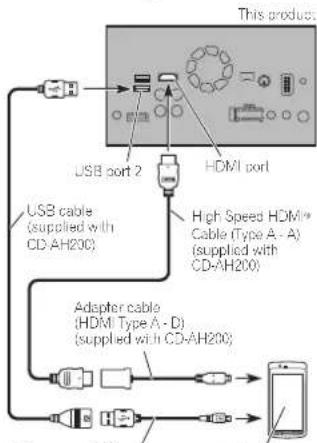
flowchart
graph TD
    A["USB port 2"] --> B["High Speed HDMI Cable (Type A - A) (supplied with CD-AH200)"]
    A --> C["USB cable (supplied with CD-AH200)"]
    A --> D["Adaptor cable (HDMI Type A - D) (supplied with CD-AH200)"]
    B --> E["Smartphone"]
    C --> F["Smartphone"]
    D --> G["Smartphone"]
USB - micro USB cable (Type USB A - micro USB B) (supplied with CD-AH200)
■ Connecting an Android device with an MHL port
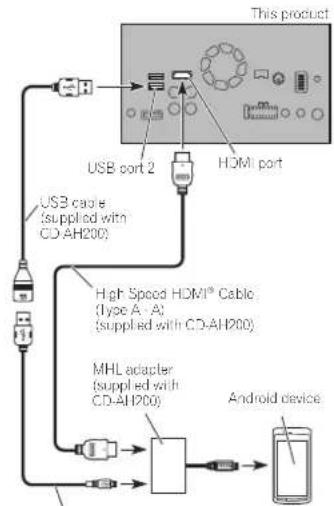
flowchart
graph TD
    A["USB port 2"] --> B["High Speed HDMI® Cable (Type A - A) (supplied with CD-AH200)"]
    A --> C["MHL adapter (supplied with CD-AH200)"]
    A --> D["Android device"]
    B --> E["This product"]
    C --> E
    D --> E
USB - micro USB cable (Type USB A - micro USB B) (supplied with CD-AH200)
Connecting the Android or MirrorLink™ device
The USB interface cable for use with Android or MirrorLink™ devices (CD-MU200) (sold separately) is required for the connection.
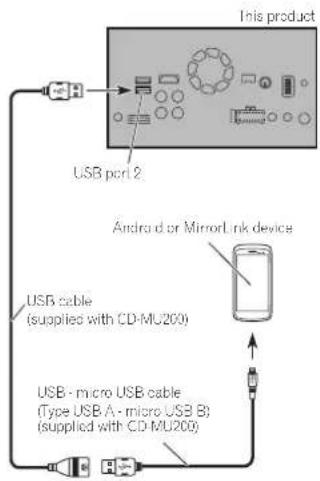
text_image
This product USB port 2 Android or MirrorLink device USB cable (supplied with CD-MU200) USB - micro USB cable (Type USB A - micro USB B) (supplied with CD-MU200)Note
For details on how to connect an external device using a separately sold cable, refer to the manual for the cable.
Securing the High Speed HDMI® Cable
Be sure to fix the High Speed HDMI® Cable with the lock tie, when you connect the external device with The High Speed HDMI® Cable.
1 Insert the High Speed HDMI * Cable into the HDMI port.
Chapter
2 Wrap the lock tie around the hook above the HDMI port and the High Speed HDMI ^® Cable, and then tighten it to secure the High Speed HDMI ^® Cable.
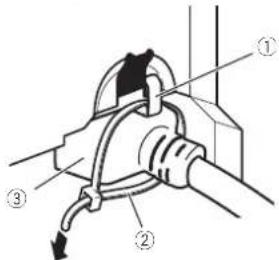
text_image
Technical diagram of a mechanical device with numbered components and directional arrows indicating motion or flow.① Hook
② Lock tie
③ High Speed HDMI* Cable
Do not tighten up the lock tie more than necessary.
Connecting a rear view
camera
When this product is used with a rear view camera, it is possible to automatically switch from the video to rear view image when the shift lever is moved to REVERSE
(R). Camera View mode also allows you to check what is behind you while driving.
WARNING
USE INPUT ONLY FOR REVERSE OR MIRROR IMAGE REAR VIEW CAMERA. OTHER USE MAY RESULT IN INJURY OR DAMAGE.
CAUTION
● The screen image may appear reversed.
● The rear view camera is used as an aid to keep an eye on trailers, or backing into a tight parking spot. Do not use this function for entertainment purposes.
- Objects in rear view may appear closer or more distant than in reality.
Chapter
31
Please note that the image area shown by the rear view camera may differ slightly when full-screen images are displayed when backing and when checking the rear of the vehicle while moving forward.
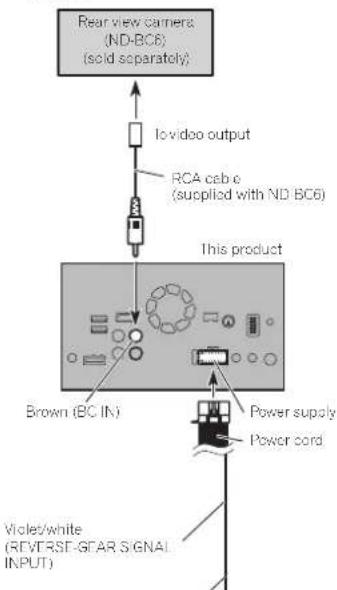
text_image
Rear view cameras (ND-BC6) (sold separately) to video output RCA cable (supplied with ND BC6) This product Brown (BC IN) Power supply Power cord Violet/white (REVERSE-GEAR SIGNAL INPUT)For more details about the wiring, refer to Connecting the power cord on page 74.
Notes
- This mode is available when the rear view camera setting is set to "On".
For details, refer to Setting rear view camera activation on page 56. - Connect this product to the rear view camera only. Do not connect to any other equipment.
Connecting the external video component
■ Using AV input
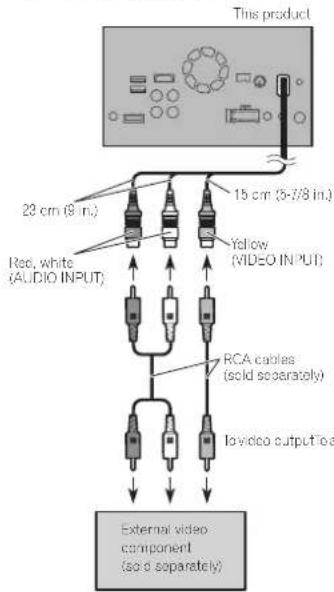
text_image
This product 23 cm (8 in.) Red, white (AUDIO INPUT) 15 cm (5-7/8 in.) Yellow (VIDEO INPUT) RCA cables (sold separately) Iovideo output to a External video component (so d separately)Note
This mode is available when the setting of AV input is set to "On".
For details, refer to Setting AV input on page 55.
■ Using an AUX input
This product
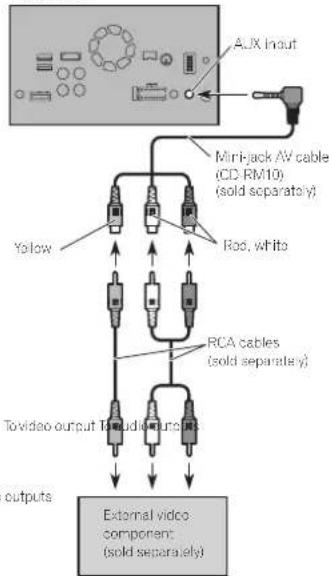
flowchart
graph TD
    A["AUX Input"] --> B["Miri-jack AV cable (CD-RM10) (sold separately)"]
    B --> C["Yellow"]
    B --> D["Rac, white"]
    B --> E["RCA cables (sold separately)"]
    E --> F["Tovideo output Tovideo outputs"]
    F --> G["External video component (sold separately)"]
    G --> H["outputs"]
Notes
- This mode is available when the selling of AUX input is set to "On".
For details, refer to Starting procedure on page 53. - When connecting an external video component using a mini-jack AV cable, use a separately sold AUX extension cable as necessary.
CAUTION
Be sure to use a mini-jack AV cable (CD-RM10) (sold separately) for wiring. If you use other cables, the wiring position might differ resulting in disturbed images and sounds.
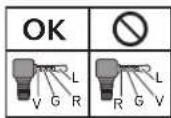
L: Left audio (White)
R: Right audio (Red)
V: Video (Yellow)
G: Ground
Connecting an HDMI device
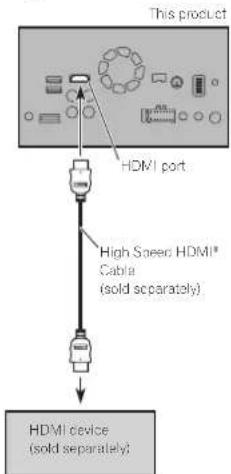
text_image
This product HDMI port High Speed HDMI® Cable (sold separately) HDMI device (sold separately)Notes
● For details concerning the operations of HDMI device, refer to Chapter 19.
- When you connect the High Speed HDMI® Cable, use the lock tie to fix it securely.
For details, refer to Securing the High Speed HDMI® Cable on page 77.
Connecting the rear display
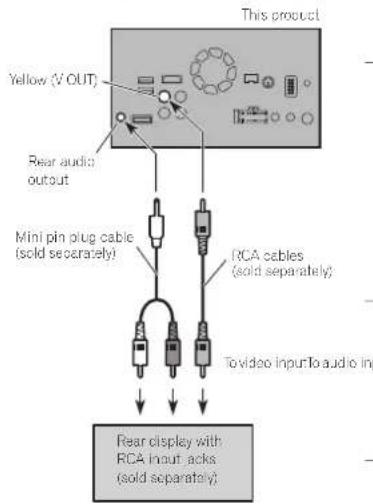
text_image
This product Yellow (V OUT) Rear audio output Mini pin plug cable (sold separately) RCA cables (sold separately) To video input to audio in Rear display with RCA input acks (sold separately)■ When using a rear display connected to rear video output
WARNING
NEVER install the rear display in a location that enables the driver to watch the video source while driving.
This product's rear video output is for connection of a display to enable passengers in the rear seats to watch the video source.
Installation
Precautions before installation
CAUTION
Never install this product in places where, or in a manner that:
— Could injure the driver or passengers if the vehicle stops suddenly.
— May interfere with the driver's operation of the vehicle, such as on the floor in front of the driver's seat, or close to the steering wheel or shift lever.
— To ensure proper installation, be sure to use the supplied parts in the manner specified. If any parts are not supplied with this product, use compatible parts in the manner specified after you have the parts' compatibility checked by your dealer. If parts other than supplied or compatible ones are used, they may damage internal parts of this product or they may work loose and the product may become detached.
- Do not install this product where it may (i) obstruct the driver's vision, (ii) impair the performance of any of the vehicle's operating systems or safety features, including airbags, hazard lamp buttons or (iii) impair the driver's ability to safely operate the vehicle.
— Never install this product in front of or next to the place in the dashboard, door, or pillar from which one of your vehicle's airbags would deploy. Please refer to your vehicle's owner's manual for reference to the deployment area of the frontal airbags.
Before installing
- Consult with your nearest dealer if installation requires drilling holes or other modifications of the vehicle.
- Before making a final installation of this product, temporarily connect the wiring to confirm that the connections are correct and the system works properly.
- Do not install this product in a position where the opening of the LCD panel is obstructed by any obstacles, such as the shift lever. Before installing this product, be sure to leave sufficient space so that the LCD panel does not obstruct the shift lever when it is fully opened. This may cause interference with the shift lever, or a malfunction of the mechanism of this product.
Installing this product
Installation notes
- Do not install this product in places subject to high temperatures or humidity, such as:
- Places close to a healer, vent or air conditioner.
- Places exposed to direct sunlight, such as on top of the dashboard.
- Places that may be exposed to rain, such as close to the door or on the vehicle's floor.
- Install this product horizontally on a surface within 0 to 30 degrees tolerance (within 5 degrees to the left or right). Improper installation of the unit with the surface filled more than those tolerances increases the potential for errors in the vehicle's location display, and might otherwise cause reduced display performance.
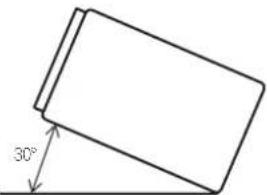
text_image
30°- When installing, to ensure proper heat dispersal when using this unit, make sure you leave ample space behind the rear panel and wrap any loose cables so they are not blocking the vents.
Leave ample space
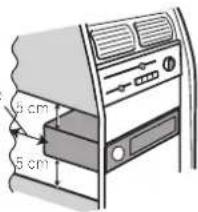
text_image
5 cm 5 cmChapter
■ Installation using the screw holes on the side of this product
● Fastening this product to the factory radio-mounting bracket.
Position this product so that its screw holes are aligned with the screw holes of the bracket, and tighten the screws at three locations on each side.
Use either the truss head screws (5 mm × 8 mm) or flush surface screws (5 mm
× 9 mm), depending on the shape of the bracket's screw holes.

natural_image
Simple diagram of six circles arranged in two groups, no text or symbols presentIf the paw/interferes with installation you may bend it down out of the way.
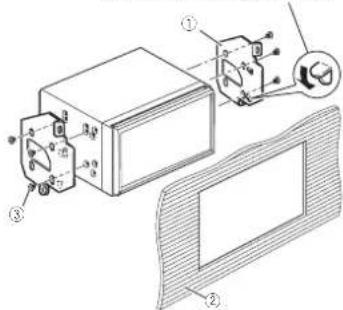
text_image
Technical diagram of a device with labeled components and exploded view, showing internal components and assembly.① Factory radio-mounting bracket
② Dashboard or console
③ Truss head screw or flush surface screw
Be sure to use the screws supplied with this product.
Chapter
32
■ Fastening the front panel If you do not plan to detach the front panel, the front panel can be fastened with supplied screw.
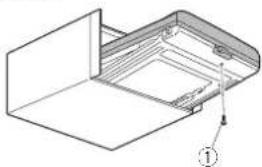
natural_image
Technical line drawing of a mechanical assembly with no visible text or symbols(1) Screw (2 mm × 6 mm)
Installing the microphone
- Install the microphone in a place where its direction and distance from the driver make it easiest to pick up the driver's voice.
- Be sure to turn off (ACC OFF) the product before connecting the microphone.
■ Mounting on the sun visor
1 Fit the microphone lead into the groove.
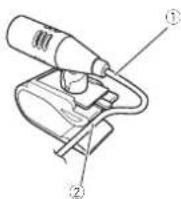
(1) Microphone lead
② Groove
2 Attach the microphone clip to the sun visor.
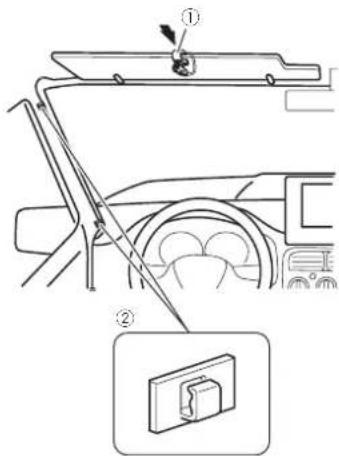
text_image
Diagram showing car interior and dashboard assembly with labeled parts and a close-up inset of the dashboard panel.① Microphone clip
② Clamps
Use separately sold clamps to secure the lead where necessary inside the vehicle. Install the microphone on the sun visor when it is in the up position. It cannot recognize the driver's voice if the sun visor is in the down position.
■ Installation on the steering column
1 Detach the microphone base from the microphone clip by sliding the microphone base while pressing the tab.
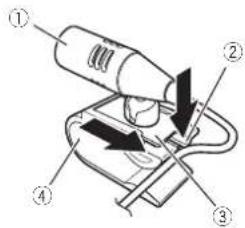
text_image
Diagram of a handheld device with labeled parts including a tool and directional arrows indicating movement or operation.① Microphone
② Tab
③ Microphone base
④ Microphone clio
2 Mount the microphone on the steering column.
Install the microphone on the steering column, keeping it away from the steering wheel.
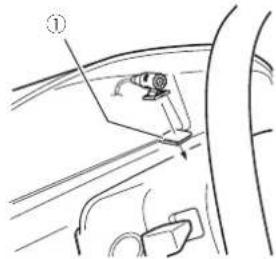
text_image
Diagram showing a car seatbelt buckle with labeled component (①)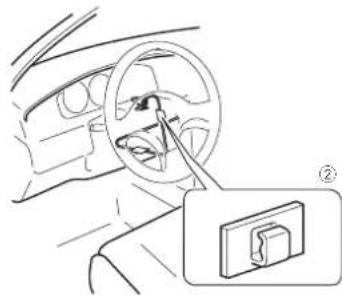
natural_image
Line drawing of a car interior showing steering wheel and dashboard, with a close-up inset of the dashboard (no text or symbols)① Double-sided tape
② Clamps
Use separately sold clamps to secure the lead where necessary inside the vehicle.
■ Adjusting the microphone angle
The microphone angle can be adjusted.
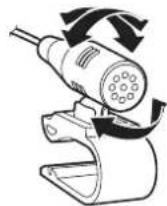
Appendix
Troubleshooting
If you have problems operating this product, refer to this section. The most common problems are listed below, along with likely causes and solutions. If a solution to your problem cannot be found here, contact your dealer or the nearest authorized Pioneer service facility.
Problems with the AV screen
| Symptom Cause | Action | Reference |
| CD or DVD playback is not possible. | The disc is inserted upside down. | Insert the disc with the label upward. |
| The disc is dirty. Clean the disc. | ||
| The disc is cracked or otherwise damaged. | Insert a normal, round disc. | |
| The files on the disc are in an irregular file format. | Check the file format. | |
| The disc format cannot be played back. | Replace the disc. | |
| The loaded disc is a type this product cannot play. | Check whal type of disc it is page 87 | |
| The screen is covered by a caution message and the video cannot be shown. | The parking brake lead is not connected or applied. | Connect the parking brake lead correctly, and apply the parking brake. |
| The parking brake interlock is activated. | Park your vehicle in a safe place and apply the parking brake. | |
| No video output from the connected equipment. | The "AV Input" setting is incorrect. | Correct the settings page 60 |
| The audio or video skips. | This product is not firmly secured. | Secure this product firmly. |
| No sounds are produced. The volume level will not rise. | Cables are not connected correctly. | Connect the cables correctly. |
| The system is performing still, slow motion, or frame-by-frame playback with DVD-Video. | There is no sound during still, slow motion, or frame-by-frame playback with DVD-Video. | |
| The system is paused or performing, fast reverse or forward during the disc playback. | For the media other than music CD (CD-DA), there is no sound on fast reverse or forward. | |
| The icon S displayed, and operation is impossible. | The operation is not compatible with the video configuration. | This operation is not possible. (For example, the DVD playing does not feature that angle, audio system, subllie language, etc.) |
| The picture slops (pauses) and this product cannot be operated. | The reading of data is impossible during disc playback. | Stop playback once, then restart. |
Appendix
| Symptom Cause | Action | Reference |
| The picture is stretched, with an incorrect aspect ratio. | The aspect selling is incorrect for the display. | Select the appropriate setting for that image, page 68 |
| A parental lock message is displayed and DVD playback is not possible. | The parental lock is on. | Turn the parental lock off or change the level, page 69 |
| The parental lock for DVD playback cannot be canceled. | The code number is incorrect. | Input the correct code number, page 69 |
| Playback is not with the audio language and sub-tilla language settings selected in "DVD/DivX Setup". | The DVD playing does not feature dialog or subtles in the language selected in "DVD/DivX Setup". | Switching to a selected language is not possible if the language selected in "DVD/DivX Setup" is not recorded on the disc, page 68 |
| The picture is extremely unclear/dislorted and dark during playback. | The disc features a signal to prohibit copying. (Some discs may have this.) | Since this product is compatible with the copy guard analog copy protect system, the picture may suffer from horizontal stripes or other imperfections when a disc with that kind of protection signal is viewed on some displays. This is not a malfunction. |
| iPod cannot be operated. | The iPod is frozen. | Reconnect the iPod with the USB interface cable for iPod / iPhone. |
| Update the iPod software version. | ||
| An error has occurred. | Reconnect the iPod with the USB interface cable for iPod / iPhone. | |
| Park your vehicle in a safe place, and then turn off the ignition switch (ACC OFF). Subsequently, turn the ignition switch to on (ACC ON) again. | ||
| Update the iPod software version. | ||
| Cables are not connected correctly. | Connect the cables correctly. | |
| Sound from the iPod cannot be heard. | The audio output direction may switch automatically when the Bluetooth and USB connections are used at the same time. | Use the iPod to change the audio output direction. |
Appendix
Problems with the phone screen
| Symptom Cause | Action | |
| Dialing is impossible because the touch panel keys for dialing are inactive. | Your phone is out of range for service. | Retry after re-entering the range for service. |
| The connection between the cellular phone and this product cannot be established now. | Perform the connection process. |
Problems with the Application screen
| Symptom Cause | Action | |
| A black screen is disolayed. | While operating an appli-cation, the application was ended on the smartphone side. | Press the HOME button to display the Top menu screen. |
| The smartphone OS may be awaiting screen operation. | Stop the vehicle in a safe place and check the screen on the smartphone. | |
| The screen is displayed, but operation does not work at all. | An error has occurred. | Park your vehicle in a safe place, and then turn off the ignition switch (ACC OFF). Subsequently, turn the ignition switch to on (ACC ON) again. |
| When an Android device is con- nected, disconnect the Bluetooth connection from this product and then reconnect it. | ||
| The smartphone was not charged. | Charging stopped because the temperature of the smartphone rose due to prolonged use of the smart-phone during charging. | Disconnect the smartphone from the cable, and wait until the smart-phone cools down. |
| More battery power was consumed than was gained from charging. | This problem may be resolved by stooping any unnecessary services on the smartphone. |
Error messages
When problems occur with this product, an error message appears on the display. Refer to the table below to identify the problem, then take the suggested corrective action. If the error persists, record the error message and contact your dealer or your nearest Pioneer service center.
Common
| Message Cause | Action | |
| AMP Error | This product fails to operate or the speaker connection is incorrect; the protective circuit is activated. | Check the speaker connection.If the message fails to disappear even after the engine is switched off/on, contact your dealer or an authorized Pioneer Service Station for assistance. |
| TEMP | The temperature of this product is outside the normal operating range. | Wait until this product returns to a temperature within the normal operating limits. |
| Product overheat.System will be shut down automatically in 1 minute. Restart the product by ACC-Off/ On may fix this problem. If this message keeps showing up, it is possible that some problem occurred in the product. | The temperature is too high for this product to operate. | Follow the instructions displayed on the screen. If this does not solve the problem, contact your dealer or an authorized Pioneer Station for assistance. |
Pandora
| Message Cause | Action | |
| Communication error occurred. | iPod failure. | Disconnect the cable from the iPod. Once the iPod's main menu is displayed, reconnect the iPod and rescl it. |
| Error-19 Communication failed. | Disconnect the cable from the iPod. Once the iPod's main menu is displayed, reconnect the iPod and rescl it. | |
| Skip limit reached. | Skip limit reached. | Do not exceed the skip limit. |
| Due to music licensing restrictions, Pandora limits the total number of skips per hour. | ||
| Check Device | Device error message displayed in Pandora application. | Please check your connected device. |
| Incompatible USB | The connected USB storage device is not supported by this product. | Disconnect your device and replace it with a compatible USB storage device. |
| Check USB | The USB connector or USB cable has short-circuiled. | Check that the USB connector or USB cable is not caught in something or damaged. |
| The connected USB storage device consumes more than maximum allowable current. | Disconnect the USB storage device and do not use it. Turn the ignition switch to OFF, then to ACC or ON and then connect a compliant USB storage device. | |
Aha Radio
| Message Cause | Action | |
| Communication Error iPod failure. | Disconnect the cable from the iPod. Once the iPod's main menu is displayed, reconnect the iPod and reset it. | |
| Error-02-6X iPod failure. | Disconnect the cable from the iPod. Once the iPod's main menu is displayed, reconnect the iPod and reset it. | |
SiriusXM Satellite Radio
| Message Cause | Action | Reference |
| Check Antenna | The antenna connection is incorrect. | Check the antenna connection. If the message fails to disappear even after the engine is switched off/on, contact your dealer or the nearest authorized Pioneer service center for assistance. |
| Check Tuner | The SiriusXM Connect Vehicle Tuner connection is incorrect. | Check the tuner connection and battery voltage. If the message fails to disappear even after the engine is switched off/on, contact your dealer or the nearest authorized Pioneer service center for assistance. |
Appendix
| Message Cause | Action | Reference |
| No Signal | The SiriusXM Connect Vehicle Tuner is having difficulty receiving the SiriusXM satellite signal. | Verify that your vehicle is outdoors with a clear view of the southern sky. |
| Verify that the SiriusXM magnetic mount antenna is mounted on a metal surface on the outside the vehicle. | ||
| Move the SiriusXM antenna away from any obstructions. | ||
| No Content TuneScan is not available. | Perform the operation with another preset channel. | |
| Channel Not Available | The channel that you have requested is not a valid SiriusXM channel. | Check the SiriusXM channel Inoup. |
| Subscription Updated Press Enter to Continue | This product has detected a change in your SiriusXM subscription status. | Touch [Enter] to clear the message. |
| Channel Not Subscribed. Call Sirius XM to Subscribe. | The channel that you have requested is not included in your SiriusXM subscription package. | Check the content of your SiriusXM subscription package. |
| Channel Locked Please Enter the Lock Code | Locked by the radio Parental Control feature. | Release the channel lock. |
| Artist Unavailable | The alert memo function is not available. | Perform the operation with another channel. |
| Song Unavailable | The alert memo function is not available. | Perform the operation with another channel. |
| Team Unavailable | The alert memo function is not available. | Perform the operation with another channel. |
| Alert Memory Full You can manage alert memory in the alert list | The memory is full. | Clear the alert list, page 52 |
| Memory Full | The memory has become full while playback was paused. | Resume playback. |
| Memory Nearly Full | The memory has become nearly full while playback was paused. | Resume playback. |
Appendix Disc
| Message Cause | Action | Reference |
| Error-02-XX/FF-FF | The disc is dirty. Clean the disc. | |
| The disc is scratched. Replace the disc. | ||
| The disc is loaded upside down. | Check that the disc is loaded correctly. | |
| There is an electrical or mechanical error. | Press the RESET button, page 8 | |
| Different Region Disc | The disc does not have the same region number as this product. | Replace the DVD with one bearing the correct region number. |
| Unplayable Disc | This type of disc cannot be played on this product. | Replace the disc with one that can be played on this product. |
| Unplayable File | This type of file cannot be played on this product. | Select a file that can be played, page 88, page 93 |
| Skipped | The inserted disc contains DRM protected files. | The protected files are skipped. |
| Protect | All the files on the inserted disc are embedded with DRM. | Replace the disc. |
| This DivX rental has expired. | The inserted disc contains expired DivX VOD content. | Select a file that can be played. |
| Video resolution not supported | Files that cannot be played on this product are included in the file. | Select a file that can be played, page 88, page 93 |
| Unable to write to flash memory. | The playback history for VOD contents cannot be saved for some reason. | Retry. |
| If the message appears frequently, consult your dealer. | ||
| Your device is not authorized to play this DivX protected video. | This product's DivX registration code has not been authorized by the DivX VOD contents provider. | Register this product to the DivX VOD contents provider. |
| Video frame rate not supported | DivX file's frame rate is more than 30 fps. | Select a file that can be played. |
| Audio Format not supported | This type of file is not supported on this product. | Select a file that can be played, page 88, page 93 |
External storage device (USB, SD)
| Message Cause | Action | Reference |
| Error-02-9X/-DX Communication failed. | Turn the ignition switch OFF and back ON. | |
| Disconnect the USB storage device. | ||
| Change to a different source. Then, return to the USB storage device. | ||
| Message Cause | Action | Reference |
| Unplayable File | This type of file cannot be played on this product. | Select a file that can be played, page 88, page 93 |
| Security for the connected external storage device (USB, SD) is enabled. | Follow the external storage device, (USB, SD) instructions to disable security. | |
| Skipped | The connected external storage device (USB, SD) contains DRM protected files. | The protected files are skipped. |
| Protect | All the files on the connected external storage device (USB, SD) are embedded with DRM. | Replace the external storage device (USB, SD). |
| Incompatible USB | The connected USB storage device is not supported by this product. | Disconnect your device and replace it with a compatible USB storage device. |
| Incompatible SD | The SD memory card is not supported by this product. | Remove your device and replace it with a compatible SD memory card, page 87 |
| Formal the SD memory card. It is recommended that you use SD Formatter for formatting SD memory cards, page 87 | ||
| Check USB | The USB connector or USB cable is short-circuited. | Check that the USB connector or USB cable is not caught in something or damaged. |
| The connected USB storage device consumes more than maximum allowable current. | Disconnect the USB storage device and do not use it. Turn the ignition switch to OFF, then to ACC or ON and then connect a compliant USB storage device. | |
| Video resolution not supported | Files that cannot be played on this product are included in the file. | Select a file that can be played, page 88, page 93 |
| USB1 was disconnected for device protection. Do not re-insert this USB memory into the unit. Press reset to restart USB memory. USB2 was disconnected for device protection. Do not re-insert this USB memory into the unit. Press reset to restart USB memory. | The USB connector or USB cable is short-circuited. | Check that the USB connector or USB cable is not caught in something or damaged. |
| The connected USB storage device consumes more than maximum allowable current. | Disconnect the USB storage device and do not use it. Turn the ignition switch to OFF, then to ACC or ON and then connect a compliant USB storage device. | |
| The USB interface cable for iPod / iPhone is short-circuited. | Confirm that the USB interface cable for iPod / iPhone or USB cable is not caught in something or damaged. | |
| Audio Format not supported | This type of file is not supported on this product. | Select a file that can be played, page 88, page 93 |
iPod
| Message Cause | Action | |
| Error-02-6X/-9X/-DX iPod failure. | Disconnect the cable from the iPod. Once the iPod's main menu is displayed, reconnect the iPod and reset it. | |
| Error-02-67 | The iPod firmware version is old. | Update the iPod version. |
iTunes tagging
| Message Cause | Action | |
| Error-8D | Built-in FLASH ROM encountered an error. | Turn the ignition switch to OFF and then to ON. |
| Tag store failed. | Tag information cannot be stored in this product. | Try again. |
| Already stored. | This tag information is already stored in memory. | Tag information can only be saved once for any given song. Tag information cannot be saved for the same song more than once. |
| Memory full. Connect iPod. | The tag information is successfully stored. The flash memory of this product has become full. | The tag information on this product is transferred to the iPod automatically when an iPod is connected. |
| Memory full. Tags not stored. Connect iPod. | This product's flash memory used as the temporary storage area is full. | The tag information on this product is transferred to the iPod automatically when an iPod is connected. |
| iPod full. Tags not transferred. | Memory used for tag information on the iPod is full. | Synchronize the iPod with iTunes and clean up the lagged playlist. |
Appendix
| Message Cause | Action | |
| Tag transfer failed. Reconnect your iPod. | This product's tag information cannot transfer to the iPod. | Check the iPod and try again. |
Bluetooth
| Message Cause | Action | |
| Error-10 | The power failed for the Bluetooth module of this product. | Turn the ignition switch to OFF and then to ON.If the error message is still displayed after performing the above action, please contact your dealer or an authorized Pioneer Service Station. |
Android Auto
| Message Cause | Action | Reference |
| Android Auto has stopped. | The connected device is not compatible with Android Auto. | Check if the device is compatible with Android Auto. |
| The startup of Android Auto failed for some reasons. | Disconnect the cable from the smartphone, and then connect the smartphone again after a few seconds. | |
| Restart the smartphone. | ||
| Turn the ignition switch to OFF and then to ON.If the error message is still displayed after performing the above action, please contact your dealer or an authorized Pioneer Service Station. | ||
| The time set in this product is not correct. | Check if the time is correctly set. | |
| Bluetooth pairing failed. Please pair your Android phone manually. | The Bluetooth pairing failed for some reasons. | Pair this product with the device manually.page 14, page 15 |
Appendix
MirrorLink
| Message Cause | Action | |
| The application list could not be read out. | Failed to load the application list. | Disconnect the cable from the smartphone, and then connect the smartphone again after a few seconds.Turn the ignition switch to OFF and then to ON.If the error message is still displayed after performing the above action, reset the smartphone.If the error message is still displayed after performing the above action, please contact your dealer or an authorized Pioneer Service Station. |
| There is no supported application on your MirrorLink device. | No supported applications can be found. | Install MirrorLink compliant applications to your MirrorLink device. |
| Communication error occurred. | There was a communication error. | Disconnect the cable from the smartphone, and then connect the smartphone again after a few seconds.Turn the ignition switch to OFF and then to ON.If the error message is still displayed after performing the above action, reset the smartphone.If the error message is still displayed after performing the above action, please contact your dealer or an authorized Pioneer Service Station. |
| Launching the application failed. | Failed to launch the application. | Try again. |
| Failed to display the screen of your device because of irregular resolution. | The image size is too large. | The size of the images transferred from the device exceeds 800 × 480 . |
| If your MirrorLink device is locked, please unlock it when it is safe and lawful for you to do so. | The MirrorLink device is locked. | Unlock the MirrorLink device. |
Handling and care of discs
Some basic precautions are necessary when handling your discs.
Built-in drive and care
- Use only conventional, fully circular discs. Do not use shaped discs.
- Do not use cracked, chipped, warped, or otherwise damaged discs as they may damage the built-in drive.
- Use 12-cm discs. Do not use 8-cm discs or an adapter for 8-cm discs.
- When using discs that can be printed on label surfaces, check the instructions and the warnings of the discs. Depending on the discs, inserting and ejecting may not be possible. Using such discs may result in damage to this equipment.
- Do not attach labels, write on or apply chemicals to the surface of the discs.
- Do not attach commercially available labels or other materials to the discs.
- Condensation may temporarily impair the built-in drive's performance.
- Playback of discs may not be possible because of disc characteristics, disc format, recorded application, playback environment, storage conditions and so on.
● Road shocks may interrupt disc playback. - Read the precautions for discs before using them.
■ Ambient conditions for playing a disc
● At extremely high temperatures, a temperature cutout protects this product by switching it off automatically.
- Despite our careful design of the product, small scratches that do not affect actual operation may appear on the disc surface as a result of mechanical wear, ambient conditions for use or handling of the disc. This is not a sign of the malfunction of this product. Consider it to be normal wear and tear.
playable discs
DVD-Video and CD
DVD-Video

CD

□ DVD trademark of DVD Format/Logo Licensing Corporation.
It is not possible to play DVD-Audio discs. This DVD drive may not be able to play all discs bearing the marks shown above.
AVCHD recorded discs
This unit is not compatible with discs recorded in AVCHD (Advanced Video Codec High Definition) format. Do not insert AVCHD discs. If inserted, the disc may not be ejected.
Playing DualDisc
- DualDiscs are two-sided discs that have a recordable CD for audio on one side and a recordable DVD for video on the other.
- Playback of the DVD side is possible with this product. However, since the CD side of DualDiscs is not physically compatible with the general CD standard, it may not be possible to play the CD side with this product.
-
Frequent loading and ejecting of a DualDisc may result in scratches to the disc.
-
Serious scratches can lead to playback problems on this product. In some cases, a DualDisc may become stuck in the disc-loading slot and will not eject. To prevent this, we recommend you refrain from using DualDisc with this product.
- Please refer to the manufacturer for more detailed information about DualDiscs.
Dolby Digital
This product will down-mix Dolby Digital signals internally and the sound will be output in stereo.
☐ Manufactured under license from Dolby Laboratories. Dolby and the double-D symbol are trademarks of Dolby Laboratories.

DOLBY. DIGITAL
Detailed information for play-able media
Compatibility
Common notes about disc compatibility
● Certain functions of this product may not be available for some discs.
- Compatibility with all discs is not guaranteed.
- It is not possible to playback DVD-ROM/DVD-RAM discs.
- Playback of discs may become impossible with direct exposure to sunlight, high temperatures, or depending on the storage conditions in the vehicle.
DVD-Video discs
- DVD-Video discs that have incompatible region numbers cannot be played on this DVD drive. The region number of the player can be found on this product's chassis.
DVD-R/DVD-RW/DVD-R SL (Single Layer)/DVD-R DL (Dual Layer) discs
● Unfinalized discs which have been recorded with the Video formal (video mode) cannot be played back.
● Discs which have been recorded with the Video Recording format (VR mode) cannot be played back.
● DVD-R DL (Dual Layer) discs which have been recorded with Layer Jump recording cannot be played back.
- For detailed information about recording mode, please contact the manufacturer of media, recorders, or writing software.
CD-R/CD-RW discs
● Unfinalized discs cannot be played back.
- It may not be possible to playback CD-R/CD-RW discs recorded on a music CD recorder or a computer because of disc characteristics, scratches or dirt on the disc. or dirt, scratches or condensation on the lens of the built-in drive.
● Playback of discs recorded on a computer may not be possible, depending on the recording device, writing software, their settings, and other environmental factors.
- Please record with the correct format. (For details, please contact manufacturer of media, recorders, or writing software.)
- Titles and other text information recorded on a CD-R/CD-RW disc may not be displayed by this product (in the case of audio data (CD-DA)).
- Read the precautions with CD-R/CD-RW discs before using them.
Common notes about the external storage device (USB, SD)
- Do not leave the external storage device (USB, SD) in any location with high temperatures.
- Depending on the kind of the external storage device (USB, SD) you use, this product may not recognize the storage device or files may not be played back properly.
● The text information of some audio and video files may not be correctly displayed.
● File extensions must be used properly.
● There may be a slight delay when starting playback of files on an external storage device (USB, SD) with complex folder hierarchies.
● Operations may vary depending on the kind of an external storage device (USB, SD).
- It may not be possible to play some music files from SD or USB because of file characteristics, file format, recorded application, playback environment, storage conditions, and so on.
Notes on SD memory cards
- Some SD memory cards may not be recognized by this unit even if the SD memory cards can be recognized by a computer. Formatting the SD memory cards using a dedicated formatter may resolve the problem. SD memory cards formatted using the standard formatting function on a computer do not comply with the SD standard. Problems such as that those cards cannot be read or written could occur. It is recommended that you use a dedicated formatter to avoid such problems. All of the data stored on an SD memory card will be deleted when the card is formatted. Back up any needed data beforehand as necessary. A dedicated formatter for SD memory cards can be obtained from the following site. https://www.sdcard.org/
USB storage device compatibility
For details about USB storage device compatibility with this product, refer to Specifications on page 93.
- Protocol: bulk
- You cannot connect a USB storage device to this product via a USB hub.
● Partitioned USB storage device is not compatible with this product. - Firmly secure the USB storage device when driving. Do not let the USB storage device fall onto the floor, where it may become jammed under the brake or gas pedal.
● There may be a slight delay when starting playback of audio files encoded with image data.
Appendix
- Some USB storage devices connected to this product may generate noise on the radio.
- Do not connect anything other than the USB storage device.
The sequence of audio files on USB storage device
For USB storage device, the sequence is different from that of USB storage device.
SD memory card and SDHC mem- ory card
For details about SD memory card compatibility with this product, refer to Specifications on page 93.
Handling guidelines and supplemental information
● This product is not compatible with the Multi Media Card (MMC).
● Copyright protected files cannot be played back.
Notes specific to DivX files
- Only DivX files downloaded from DivX partner sites are guaranteed for proper operation. Unauthorized DivX files may not operate properly.
● DRM rental files cannot be operated until playing back is started.
● This product corresponds to a DivX file display of up to 1590 minutes 43 seconds. Search operations beyond this time limit are prohibited.
● DivX VOD file playback requires supplying the ID code of this product to the DivX VOD provider. Regarding the ID code, refer to Displaying your DivX VOD registration code on page 69.
● Plays all versions of DivX video, except for DivX 7 with standard playback of DivX media files. - For more details about DivX, visit the following site:
http://www.divx.com/
DivX subtitle files
- Srt format subtitle files with the extension ".srt" can be used.
- Only one subtitle file can be used for each DivX file. Multiple subtitle files cannot be associated.
Appendix
- Subtile files that are named with the same character string as the DivX file before the extension are associated with the DivX file. The character strings before the extension must be exactly the same. However, if there is only one DivX file and one subtile file in a single folder, the files are associated even if the file names are not the same.
- The subllle file must be stored in the same folder as the DivX file.
- Up to 255 subtitle files may be used. Any more subtitle files will not be recognized.
- Up to 64 characters can be used for the name of the subtitle file, including the extension. If more than 64 characters are used for the file name, the subtitle file may not be recognized.
● The character code for the subtitle file should comply with ISO-8859-1. Using characters other than ISO-8859-1 may cause the characters to be displayed incorrectly.
● The subtitles may not be displayed correctly if the displayed characters in the subtitle file include control code. - For materials that use a high transfer rate, the sublilies and video may not be completely synchronized.
- If multiple subtitles are programmed to display within a very short time frame, such as 0.1 seconds, the subtitles may not be displayed at the correct time.
■ Media compatibility chart
General
| Media CD-R/-RW | DVD-R/-R SL/-R DL/ DVD-RW | USB storage device | SD memory card | |
| File system | ISO9660 level 1ISO9660 level 2Romeo, JolielUDF 1.02/ 1.50/2.00/ 2.01/2.50 | ISO9660 level 1ISO9660 level 2Romeo, JolielUDF 1.02/ 1.50/2.00/ 2.01/2.50 | TAT16/TAT32/NTFS | |
| Maximum number of folders | 700 1 500 | |||
| Maximum number of files | 999 3 500 15 000 | |||
| Playable file types | MP3, WMA, AAC, DivX, MPEG-1, MPEG-2, MPEG-4 | MP3, WMA, AAC, WAV, FLAC, II.284, MPEG-2, MPEG-4, WMV, FLV, MKV, JPEG | ||
| Notes:● Maximum playback time of audio file stored in the disc: 60 h● Maximum playback time of audio file stored on an external storage device (USB, SD): 7.5 h (450 minutes) | ||||
MP3 compatibility
| Media CD-R/-RW | DVD-R/-R SL/-R DL/ DVD-RW | USB storage device | SD memory card |
| File extension ,mp3, mp2, .mp3, .m2a, .mka | |||
| Bit rate 8 kbps to 320 kbps (CBR), VBR | |||
| Sampling frequency | 16 kHz to 48 kHz (32 kHz, 44.1 kHz, 48 kHz for emphasis) | 8 kHz to 48 kHz | |
| ID3 tag ID3 tag Ver. 1,0, 1.1, 2.2, 2.3 ID3 tag Ver. 1,0, 1.1, 2.2, 2.3, 2.4 | |||
| Notes:Ver, 2x of ID3 tag is prioritized when both Ver, 1.x and Ver, 2.x exist.This product is not compatible with the following:MP3i (MP3 interactive), mp3 PRO, m3u playlist | |||
WMA compatibility
| Media CD-R/-RW | DVD-R/-R SL/-R DL/ DVD-RW | USB storage device | SD memory card |
| File extension wma | |||
| Bit rate 5 kbps to 320 kbps (CBR), VBR | |||
| Sampling frequency 8 kHz to 48 kHz | |||
| Note:This product is not compatible with the following:Windows MediaTM Audio 9 Professional, Lossless, Voice | |||
WAV compatibility
| Media CD-R/-RW | DVD-R/-R SL/-R DL/ DVD-RW | USB storage device | SD memory card |
| File extension | WAV files on the CD-R/RW. DVD-R/RW/R SL/R DL cannot be played. | .wav | |
| Formal Linear PCM (PCM) | |||
| Sampling frequency 16 kHz to 48 kHz | |||
| Quantization pits 8 bits and 16 bits | |||
| Note:The sampling frequency shown in the display may be rounded. | |||
AAC compatibility
| Media CD-R/-RW | DVD-R/-R SL/-R DL/ DVD-RW | USB storage device | SD memory card |
| File extension .m4a, .aac, .adls, .mka, .m4a | |||
| Bil rate 8 kbps to 320 kbps (CBR) | |||
| Sampling frequency 8 kHz to 44.1 kHz 8 kHz to 48 kHz | |||
| Note:This product plays back AAC files encoded by iTunes. | |||
DivX compatibility
| Media CD-R/-RW | DVD-R/-R SL/-R DL/ DVD-RW | USB storage device | SD memory card |
| Flic extension .av/.divx | DivX files on the external storage device (USB, SD) cannot be played. | ||
| Profile (DivX version) | Home Theater Ver. 3.11/Ver. 4.x/ Ver. 5.x/Ver. 6.x | ||
| Compatible audio codec | MP3, Dolby Digital | ||
| Bit rate (MP3) 8 kbps | to 320 kbps (CBR), VBR | ||
| Sampling frequency (MP3) | 16 kHz to 48 kHz (32 kHz, 44.1 kHz, 48 kHz for emphasis) | ||
| Maximum image size | 720 pixels × 5/6 pixels | ||
| Maximum file size 4 GB | |||
| Notes:This product is not compatible with the following:DivX Ultra format, DivX files without video data, DivX files encoded with LPCM (Linear PCM) audio codecDepending on the file information composition, such as the number of audio streams, there may be a slight delay in the start of playback on discs.If a file contains more than 4 GB, playback stops before the end.Some special operations may be prohibited because of the composition of DivX files.Files with high transfer rates may not be played back correctly. The standard transfer rate is 4 Mbps for CDs and 10.08 Mbps for DVDs. | |||
Appendix

Appendix
Video files compatibility (USB, SD)
| File extension | avi .mkv .mov .f4v .mp4 | ||||
| Compatible video codec | MPEG 4, H.264, H.263, Xvid | MPEG 4, H.264, VC-1, Xvid | MPEG-4, H.264, H.263 | H.264, H.263 | MPEG-4, H.264, H.263 |
| Compatible audio codec | MP3, AAC, LPCM | MP3, AAC, Vorbis | MP3, AAC MP8 | AAC MP3, AAC | |
| Maximum frame rate | 30 fps | ||||
| Maximum file size | 4 GB | ||||
| Maximum playback time | 150 minutes | ||||
| File extension | 3gp .wmv .asf .flv .vob | ||||
| Compatible video codec | MPEG-4, H.264, H.263 | WMV. VC-1 WM | MV. VC-1 H.264 | H.264, MPLG-2 | |
| Compatible audio codec | AAC WMA WMA MP3, AAC | MP3, AAC, LPCM | |||
| Maximum frame rate | 30 fps | ||||
| Maximum file size | 4 GB | ||||
| Maximum playback time | 150 minutes | ||||
Common notes
- Files may not be played back properly depending on the environment in which the file was created or on the contents of the file.
● This product may not play back files, depending on the application used to encode the files.
● This product may not operate correctly, depending on the application used to encode WMA files. - Depending on the version of Windows Media™ Player used to encode WMA files, album names and other text information may not be correctly displayed.
- There may be a slight delay when starting playback of audio files encoded with image data.
● This product is not compatible with packet write data transfer.
● This product can recognize up to 32 characters, beginning with the first character, including extension for the file and
folder name. Depending on the display area, this product may try to display them with a reduced font size. However, the maximum number of the characters that you can display varies according to the width of each character, and of the display area.
- Folder selection sequence or other operations may be altered, depending on the encoding or writing software.
● Regardless of the length of blank section between the songs of original recording, compressed audio discs play with a short pause between songs.
Example of a hierarchy
Note
This product assigns folder numbers. The user cannot assign folder numbers.
Bluetooth

Bluetooth®
- The Bluetooth® word mark and logos are registered trademarks owned by Bluelcoth SIG, Inc. and any use of such marks by PIONEER CORPORATION is under license. Other trademarks and trade names are those of their respective owners.
SiriusXM® satellite radio
● Sirius, XM and all related marks and logos are trademarks of Sirius XM Radio, Inc. All rights reserved.
HD Radio™ Technology
- HD Radio Technology manufactured under license from IB quity Digital Corporation, U.S. and Foreign Patents, HD Radio™ and the HD, HD Radio, and "Arc" logos are proprietary trademarks of IB quity Digital Corp.
SDHC

SDHC Logo is a trademark of SD-3C, LLC.
WMA/WMV
Windows Media is either a registered trademark or trademark of Microsoft Corporation in the United States and/or other countries. This product includes technology owned by Microsoft Corporation and cannot be used or distributed without a license from Microsoft Licensing, Inc.
DivX
DIVX.
DivX Certified ^® devices have been tested for high-quality DivX ^® (divx, avi) video playback. When you see the DivX logo, you know you have the freedom to play your favorite DivX movies.
DivX® DivX Certified® and associated logos are trademarks of DivX, LLC and are used under license.
This DivX Certified device has passed rigorous testing to ensure it plays DivX videos. To play purchased DivX movies, first register your device all vod.divx.com. Find your registration code in the DivX VOD section of your device setup menu.
For details, refer to Displaying your DivX VOD registration code on page 69.
AAC
AAC is short for Advanced Audio Coding and refers to an audio compression technology standard used with MPEG-2 and MPEG-4. Several applications can be used to encode AAC files, but file formats and extensions differ depending on the application which is used to encode. This unit plays back AAC tiles encoded by iTunes.
Google, Google Play,
Android™, and Android Auto

Google, Google Play, Android, Android Auto and other marks are trademarks of Google Inc.
MirrorLink
MirrorLink Certified™, the Design Only™ Certification Logo, MirrorLink™ and the MirrorLink™ Logo are certification marks and trademarks of the Car Connectivity Consortium LLC. Unauthorized use is strictly prohibited.
MIXTRAX
MIXTRAX is a trademark of the PIONEER CORPORATION.
Detailed information regarding connected iPod devices
CAUTION
- Pioneer accepts no responsibility for data lost from an iPod, even if that data is lost while using this product. Please back up your iPod data regularly.
- Do not leave the iPod in direct sunlight for extended amounts of time. Extended exposure to direct sunlight can result in iPod malfunction due to the resulting high temperature.
- Do not leave the iPod in any location with high temperatures.
- Firmly secure the iPod when driving. Do not let the iPod fall onto the floor, where it may become jammed under the brake or gas pedal.
For details, refer to the iPod manuals.
■ iPod and iPhone
Made for

iPod

iPhone
"Made for iPod" and "Made for iPhone" mean that an electronic accessory has been designed to connect specifically to iPod or iPhone, respectively, and has been certified by the developer to meet Apple performance standards.
Apple is not responsible for the operation of this device or its compliance with safety and regulatory standards.
Please note that the use of this accessory with iPod or iPhone may affect wireless performance.
iPhone, iPod, iPod classic, iPod nano, and iPod touch are trademarks of Apple Inc., registered in the U.S. and other countries.
Lightning
Lightning is a trademark of Apple Inc.
App Store
App Store is a service mark of Apple Inc.
ios
OS is a trademark on which Cisco holds the trademark right in the US and certain other countries.
iTunes
Tunes is a trademark of Apple Inc., registered in the U.S. and other countries.
iTunes Radio
iTunes Radio is a service mark of Apple Inc.
Using app-based connected content
IMPORTANT
Requirements to access app-based connected content services using this product:
- Latest version of the Pioneer compatible connected content application(s) for the smartphone, available from the service provider, downloaded to your smartphone.
● A current account with the content service provider.
● Smartphone Data Plan.
Note: If the Data Plan for your smartphone does not provide for unlimited data usage, additional charges from your carrier may apply for accessing app-based connected content via 3G, EDGE and/or LTE (4G) networks.
● Connection to the Internet via 3G, LDGE, LTE (4G) or Wi-Fi network.
- Optional Pioneer adapter cable connecting your iPhone to this product.
Limitations:
- Access to app-based connected content will depend on the availability of cellular and/or Wi-Fi network coverage for the purpose of allowing your smartphone to connect to the Internet.
● Service availability may be geographically limited to the region. Consult the connected content service provider for additional information. - Ability of this product to access connected content is subject to change without notice and could be affected by any of the following: compatibility issues with future firmware versions of smartphone; compatibility issues with future versions of the connected content application(s) for the smartphone; changes to or discontinuation of the connected Content application(s) or service by its provider.
- Pioneer is not liable for any issues that may arise from incorrect or flawed app-based content.
● The content and functionality of the supported applications are the responsibility of the App providers. - In AppRadio Mode and Android Auto, functionality through the product is limited while driving, with available functions determined by the App providers.
● Availability of AppRadio Mode and Android Auto functionalities is determined by the App provider, and not determined by Pioneer. - AppRadio Mode and Android Auto allow access to applications other than those listed (subject to limitations while driving), but the extent to which content can be used is determined by the App providers.
Pandora
Pandora, the Pandora logo, and the Pandora trade dress are trademarks or registered trademarks of Pandora Media, Inc. Used with permission.
Pandora is currently available in the United States, Australia, and New Zealand.
Aha Radio
Aha, Aha Radio and the Aha and Aha Radio logos are either the trademarks
Appendix
or the registered trademarks of Harman International Industries, Incorporated.
HDMI

HIGH-DEFINITION MULTIMEDIA INTERFACE
The terms HDMI and HDMI High-Definition Multimedia Interface, and the HDMI Logo are trademarks or registered trademarks of HDMI Licensing, LLC in the United States and other countries.
MHL
MHL, the MHL Logo, and Mobile High-Definition Link are trademarks or registered trademarks of MHL, LLC in the United States and other countries.
Notice regarding video viewing
Remember that use of this system for commercial or public viewing purposes may constitute an infringement on the author's rights as protected by the Copyright Law.
Notice regarding DVD-Video viewing
This item incorporates copy protection technology that is protected by U.S. patents and other intellectual property rights of Rovi Corporation. Reverse engineering and disassembly are prohibited.
Notice regarding MP3 file usage
Supply of this product only conveys a license for private, non-commercial use and does not convey a license nor imply any right to use this product in any commercial (i.e. revenue-generating) real time broadcasting
Appendix
(terrestrial, satellite, cable and/or any other media), broadcasting/streaming via internet, intranels and/or other networks or in other electronic content distribution systems, such as pay-audio or audio-on-demand applications. An independent license for such use is required. For details, please visit http://www.mp3licensing.com.
Notice regarding open source licenses
For details about the open source licenses for the functions that this product is equipped with, please visit http://www.oss-pioneer.com/car/multimedia/
Using the LCD screen correctly
■ Handling the LCD screen
- When the LCD screen is subjected to direct sunlight for a long period of time, it will become very hot, resulting in possible damage to the LCD screen. When not using this product, avoid exposing it to direct sunlight as much as possible.
● The LCD screen should be used within the temperature ranges shown in Specifications. - Do not use the LCD screen at temperatures higher or lower than the operating temperature range, because the LCD screen may not operate normally and could be damaged.
● The LCD screen is exposed in order to increase its visibility within the vehicle. Please do not press strongly on it as this may damage it. - Do not push the LCD screen with excessive force as this may scratch it.
● Never touch the LCD screen with anything besides your finger when operating the touch panel functions. The LCD screen can scratch easily.
■ Liquid crystal display (LCD) screen
- If the LCD screen is near the vent of an air conditioner, make sure that air from the air conditioner is not blowing on it. Heat from the heater may break the LCD
screen, and cool air from the cooler may cause moisture to form inside this product, resulting in possible damage.
- Small black dots or while dots (bright dots) may appear on the LCD screen. These are due to the characteristics of the LCD screen and do not indicate a malfunction.
● The LCD screen will be difficult to see if it is exposed to direct sunlight. - When using a cellular phone, keep the antenna of the cellular phone away from the LCD screen to prevent disruption of the video in the form of disturbances such as spots or colored stripes.
■ Maintaining the LCD screen
- When removing dust from or cleaning the LCD screen, first turn this product off and then wipe the screen with a soft dry cloth.
- When wiping the LCD screen, take care not to scratch the surface. Do not use harsh or abrasive chemical cleaners.
■ LED (light-emitting diode) backlight
A light emitting diode is used inside the display to illuminate the LCD screen.
- At low temperatures, using the LED backlight may increase image lag and degrade the image quality because of the characteristics of the LCD screen. Image quality will improve with an increase in temperature.
● The product lifetime of the LED backlight is more than 10 000 hours. However, it may decrease if used in high temperatures. - If the LED backlight reaches the end of its product lifetime, the screen will become dimmer and the image will no longer be visible. In that case, please consult your dealer or the nearest authorized Pioneer Service Station.
Specifications
General
Rated power source....14.4 V DC (allowable voltage range: 10.8 V to 15.1 V DC)
Grounding system .... Negative type Maximum current consumption 10.0 A Dimensions (W × H × D):
Chassis....178 mm × 100 mm × 164 mm (7 in. × 3-7/8 in. × 6-1/2 in.)
Nose....171 mm × 97 mm × 20 mm (6-3/4 in. × 3-7/8 in. × 3/4 in.)
Weight 2.2 kg (4.9 lbs)
- Display
Screen size/aspect ratio....6.95 inch wide/16:9
(effective display area: 156.6 mm × 81.6 mm) (6-1/8 in. × 3-1/4 in.)
Pixels....1 152 000 (2 400 × 480)
Display method...... TFT Active matrix driving
Color system....PAL/NTSC/PAL-M/PAL-N/SECAM compatible Tolerable temperature range:
Power off....-4 °F to +176 °F
Audio
Maximum power output.....50 W × 4
Continuous power output.....22 W × 4 (50 Hz to 15 kHz, 5 %THD, 4 Ω LOAD, Both Channels Driven)
Load impedance....4 Ω (4 Ω to 8 Ω allowable)
Preout output level (max) .... 4.0 V Equalizer (13-Band Graphic Equalizer):
Frequency .... 50 Hz/80 Hz/125 Hz/200 Hz/315 Hz/500 Hz/800 Hz/1.25 kHz/2 kHz/3.15 kHz/5 kHz/8 kHz/12.5 kHz
Gain ....±12 dB HPF:
Frequency 50 Hz/63 Hz/80 Hz/100 Hz/125 Hz/160 Hz/200 Hz
Slope ....-6 dB/oct, -12 dB/oct, -18 dB/oct
Subwoofer (mono):
Frequency .... 50 Hz/63 Hz/80 Hz/100 Hz/125 Hz/160 Hz/200 Hz
Slope ....-6 dB/oct, -12 dB/oct, -18 dB/oct
Gain ....-24 dB to +10 dB Phase.....Normal/Reverse
Time alignment....0 to 200 step (1 inch/step)
DVD drive
System ...... DVD-Video, VCD, CD, MP3, WMA, AAC, DivX, MPEG player Region number ......1
Usable discs......DVD-VIDEO, VIDEO-CD, CD, CD-R, CD-RW,
DVD-R, DVD-RW, DVD-RDL
Frequency response .... 5 Hz to 44 000 Hz (with DVD, at sampling frequency 96 kHz) Signal-to-noise ratio .....96 dB (1 kHz) (IHF-A network) (RCA level)
Output level:
Video....1.0 Vp-p/75 Ω (±0.2 V)
Number of channels....2 (stereo) MP3 decoding format....MPEG-1, 2 & 2.5
Audio Layer 3
WMA decoding format......Ver.7, 8, 9 (2 ch audio) (Windows Media Player)
AAC decoding format......MPEG-4 AAC (only encoded by iTunes): .m4a (Ver.11 and earlier)
DivX decoding format.....Home Theater Ver.3.11, Ver.4.X, Ver.5.X, Ver.6.X : .avi, .divx
MPEG video decoding format ....MPEG-1: mpg, mpeg, dat MPEG-2 PS: mpg, mpeg
MPEG-4 Part2 (Visual), MS MPEG-4 Ver.3: avi
USB
USB standard spec.....USB1.1, USB2.0 High Speed
Max current supply....1.6 A
USB Class....MSC (Mass Storage Class) device, iPod (AudioClass, HID Class) device
File system....FAT16, FAT32, NTFS
MP3 decoding format...MPEG-1/Layer 1,
MPEG-1/Layer 2, MPEG-1/Layer 3
MPEG-2/Layer 2, MPEG-3/Layer 2
MPEG-2/Layer 3 MPEG-2.5/Layer 3
WMA decoding format......WMA10 Std,
WMA10 Pro, WMA9 Lossless
AAC decoding format..MPEG-2 AAC-LC,
MPEG-4 AAC-LC
WAVE signal format ....Linear-PCM H.264 video decoding format
......BaseLine Profile, Main Profile, High Profile
WMV video decoding format.... VC-1 SP/MP/AP, WMV 7/8
MPEG4 video decoding format ......SimpleProfile,
AdvancedSimpleProfile
(except GMC)
JPEG decoding format ...... JPEG
SD
Compatible physical format ....Version 2.0
File system.....FAT16, FAT32,
NTFS
MP3 decoding format...MPEG-1/Layer 1,
MPEG-1/Layer 2, MPEG-1/Layer 3
MPEG-2/Layer 1, MPEG-2/Layer 2,
MPEG-2/Layer 3
MPEG-2.5/Layer 3
WMA decoding format...... WMA10 Std, WMA10 Pro, WMA9 Lossless
AAC decoding format..MPEG-2 AAC-LC,
MPEG-4 AAC-LC
WAVE signal format ....Linear-PCM
H.264 video decoding format
......BaseLine Profile, Main Profile,
High Profile
WMV video decoding format......VC-1 SP/MP/AP, WMV 7/8
MPEG4 video decoding format
......SimpleProfile,
AdvancedSimpleProfile
(except GMC)
JPEG decoding format ...... JPEG
Appendix
Bluetooth
Version Bluetooth 3.0
+EDR certified
Output power.....+4 dBm Max.
(Power class 2)
● FM tuner
Frequency range 87.9 MHz to 107.9 MHz
Usable sensitivity....11 dBf
(0.8 μV/75 Ω, mono, S/N: 30 dB)
Signal-to-noise ratio
......80 dB (digital broadcasting)
(IHF-A network)
72 dB (analog broadcasting)
(IHF-A network)
● AM tuner
Frequency range 530 kHz to
1 710 kHz
Usable sensitivity....25 V
(S/N: 20 dB)
Signal-to-noise ratio
......80 dB (digital broadcasting)
(IHF-A network)
62 dB (analog broadcasting)
(IHF-A network)
CEA2006 Specifications

Power output...14 W RMS × 4 Channels
(4 Ω and ≤ 1 % THD+N)
S/N ratio....91 dBA
(reference: 1 W into 4 Ω)
Note
Specifications and design are subject to possible modifications without notice due to improvements.
Insertion/éjection/connexion
d'un support....11
reconnaissance vocale .....20
Informations relatives aux
SiriusXM satellite radio operations .....51
340 Ferrier Street, Unit 2, Markham, Ontario L3R 275, Canada 1-877-283-5901 90b-479-4411
http://www.pioneerelectronics.com Au Canada
http://www.pioneerelectronics.ca
natural_image
Line drawing of a flat-screen monitor with buttons and a pointer (no text or symbols)① Bouton RESET
text_image
Technical diagram of a device rear panel with labeled components and internal structure① Écran LCD
text_image
Diagram of a remote control device with numbered buttons and function keysChapitre
① VOLUME (+/-)
② REAR SRC
natural_image
Illustration of a hand holding a small electronic device with an inset close-up showing internal components (no text or symbols)natural_image
Technical line drawing of a mechanical assembly with no visible text or symbolsnatural_image
Simple line drawing of a computer monitor with an arrow pointing to it (no text or symbols)text_image
Diagram of a cable with labeled parts, showing two numbered components and a connector symbol.text_image
APPS 1/1 Thu 10:20 AVtext_image
① Drive it Pioneer The Best It Pops 17:11:00 ② ③ ④ ⑤text_image
APPS 1/1 Thu 10:20 ①text_image
APPS 1/1 Thu 10:20 AV①
text_image
① System ②text_image
Password Enter ① ② ③ ④ ⑤ ⑥ ⑦ ⑧text_image
Prize Book Andy Bob Bob Edward Johntext_image
Screenshot of a video editing interface with labeled UI elements and a preview window showing a landscape photo.text_image
V:10.05 23:45:46:07text_image
CD Track 01 9:38 ① ② ③ ④text_image
Drive it Aku The Best It Rocktext_image
Drive it Aki The Best H Rocktext_image
Screenshot of a video editing interface with numbered UI elements for image processing or playback controlstext_image
入4.4 ① ② ③ ④text_image
Screenshot of a digital camera interface with labeled UI elements and a flower imagetext_image
① Brilliance Pioneer The Best in Rock 12/9 9:00 ② ③ ④ ⑤ ⑥ ⑦ ⑪ ⑨ ⑩ ⑨ ⑧text_image
Brilliance Pioneer The Best Hi Rock 12 9:13:14:15:16text_image
① Brilliance Pioneer The Best R Rock ② 9:00 ③ ④text_image
Drive it ② ③ ④ ⑤text_image
① ② ③ ④ ⑤ ⑥ ⑦ ⑧ ⑨ ⑩ Pioneer The Best! Pod1 MIXTRAX Free Further integration Pioneer The Besthttp://www.pioneerelectronics.com/AppRadioMode
Pour le Canada
http://www.pioneerelectronics.ca/AppRadioMode
text_image
Screenshot of a mobile app home screen showing navigation menu with icons and status bar7 Commandez l'application.
7 Commandez l'application.
text_image
Q W E R T Y U I O P I A S D F G H J K L : . Z X C V B N M . . 120 ⑦ ① ② ③ ④ ⑤ ⑥text_image
Screenshot of a mobile app interface with numbered UI elements and status bar iconsnatural_image
Video player interface showing a green field with two vertical frames and a control panel (no readable text or symbols)http://www.pioneerelectronics.com/aharadio
text_image
① ② ③ sha radio 12:11:39 ④ ⑤ ⑥① Repère de station
② Nom de la station
text_image
1 2 20s on 20 3 40s on 4 4 50s on 5 5 60s on 6 6 70s on 7 SiriusXM Hit:Pop
① ② 10:14 F0 R ③ ④ +002 Endtext_image
① ② ③ Receiving ④ ⑤text_image
Drive it Pioneer The Best Hi Pops 17:11:10 12:11:10 15:11:10 16:11:10 17:11:10 18:11:10 19:11:10 20:11:10 21:11:10 22:11:10 23:11:10 24:11:10 25:11:10 26:11:10 27:11:10 28:11:10 29:11:10 30:11:10 31:11:10 32:11:10 33:11:10 34:11:10 35:11:10 36:11:10 37:11:10 38:11:10 39:11:10 40:11:10 41:11:10 42:11:10 43:11:10 44:11:10 45:11:10 46:11:10 47:11:10 48:11:10 49:11:10 50:11:10 51:11:10 52:11:10 53:11:10 54:11:10 55:11:10 56:11:10 57:11:10 58:11:10 59:11:10 60:11:10 61:11:10 62:11:10 63:11:10 64:11:10 65:11:10 66:11:10 67:11:10 68:11:10 69:11:10 70:11:10 71:11:10 72:11:10 73: 74 75 76 77 78 79 80 81 82 83 84 85 86 87 88 89 90 91 92 93 94 95 96 97 98 99 00 :text_image
Drive it Pioneer The Best It Pops 1:11:10 7:3:10:102text_image
Drive it Pioneer The Best H PopsUsing the SiriusXM® satellite radio
SiriusXM satellite radio operations
text_image
Alert List Delete All AlertOn ① ②① Suppr.tt
text_image
Screenshot of a video editing interface with numbered UI elements and a landscape previewnatural_image
Scenic mountain landscape with water and greenery, no visible text or symbolstext_image
AUX 9:43 10text_image
Caudition The video may appear reversed— DVD. Video-CD at Disc
3 Désactivez la source.
text_image
System AV Source Settings Inner Sound Input Output Settings Camera Settingstext_image
System Air Source Settings Free Load InputOutput settings Camera settingstext_image
Technical diagram of a mechanical clamp or connector with numbered parts labeled ①, ②, and ③.natural_image
Simple diagram of six circles arranged in two groups, no text or symbols presentChapitre
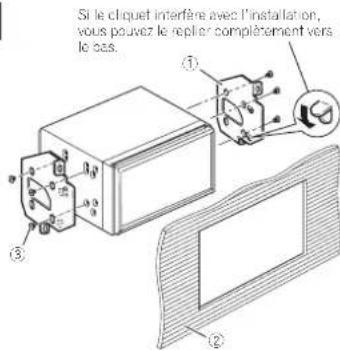
natural_image
Technical line drawing of a mechanical housing or enclosure with internal components and a labeled component (no text or symbols present)① Vis (2 mm × 6 mm)
Installation du microphone
text_image
Diagram showing car interior and dashboard components with labeled parts, including a switch and device insettext_image
Diagram of a device with numbered parts and directional arrows indicating motion or operationtext_image
Diagram showing a car's seatbelt switch with labeled component (①)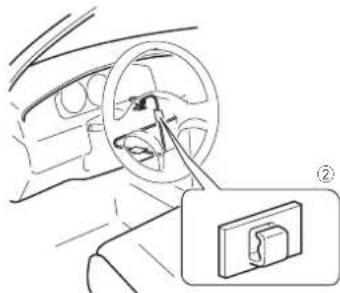
natural_image
Line drawing of a car interior showing steering wheel and dashboard, with a close-up inset of the dashboard (no text or symbols)10.0 A Dimensions (L x H x P) :
Châssis ....178 mm × 100 mm × 164 mm
Partie avant.....171 mm × 97 mm × 20 mm
Poids....2.2 kg
- Affichage
Pente ....-6 dB/oct, -12 dB/oct, -18 dB/oct
Pente ....-6 dB/oct, -12 dB/oct, -18 dB/oct
Gain ....-24 dB à +10 dB Phase.....Normale/Inversée
Alignment temporel
......BaseLine Profile, Main Profile, High Profile
Annexe
Pioneer Electronics (USA) Inc. CUSTOMER SUPPORT DIVISION
P.O. Box 1760 Long Beach, CA 90801-1760
800-421-1404
CANADA
Pioneer Electronics of Canada, Inc. CUSTOMER SATISFACTION
DEPARTMENT
340 Ferrier Street, Unit 2, Markham.
Ontario L3R 2Z5, Canada
1-877-283-5901
905-479-4411
http://www.pioneerelectronics.ca
natural_image
Diagram of a flat-screen monitor with labeled ports and a numbered indicator (no text or symbols on the screen itself)① Botón RESET
text_image
Technical diagram of a device rear panel with labeled ports and internal components① Pantalla LCD
text_image
Diagram of a remote control with numbered buttons and function keys① VOLUME (+/-)
② REAR SRC
natural_image
Illustration of a hand holding a small electronic device with an inset close-up showing internal components (no text or symbols)natural_image
Technical line drawing of a mechanical assembly with no visible text or symbolsnatural_image
Simple line drawing of a computer monitor with an arrow pointing to it (no text or symbols)text_image
Diagram showing a device with a red arrow pointing to a component labeled 'S0' on a device casing.text_image
Diagram of a cable with labeled parts, showing two numbered components and a central connector.flowchart
graph TD
    A["App 1"] --> B["Time: 3, 4, 5"]
    B --> C["Mode: 1/1 Thu 10:20"]
    C --> D["App 2"]
    D --> E["Mode: AV"]
    E --> F["Mode: iPod 1"]
    F --> G["Mode: 7"]
text_image
APPS 1/1 Thu 10:20 AVtext_image
Drive it Pioneer The Best It Popstext_image
Songs ① ② ③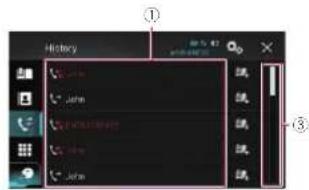
text_image
History ① ② ③text_image
Password from ① ② ③ ④ ⑤ ⑥ ⑦text_image
Brand Book ① ② ③ ④ ⑤ A B C D E F G H I J K L M N O P Q R S T U V W X Y Z A B C D E F G H I J K L M N O P Q R Stext_image
Screenshot of a video editing interface with labeled UI elements and a preview window showing a mountain landscape.text_image
V:10.05 23:45:46:07text_image
Drive it Aki The Best N Rocktext_image
Drive it Aki The Best It Rock 9:40 1 2 3 4 5text_image
Screenshot of a desktop media player interface with numbered UI elements for image processing or navigationtext_image
Screenshot of a digital camera interface with labeled UI elements and a flower imagetext_image
① 11 9.4 ② Phototext_image
Brilliance Pioneer The Best Hi Rocktext_image
Brilliance Pioneer The Best Hi Rocktext_image
Drive it ② ⑤text_image
ISDO 12:07 ① ② ③ ④ ⑤http://www.pioneerelectronics.com/AppRadioMode
Para Canadá
http://www.pioneerelectronics.ca/AppRadioMode
text_image
Screenshot of a macOS home screen showing app icons and status bar with 'OK'/'Cancel' buttonstext_image
Q W E R T V U I D P 1 A S D F G H J K L Z X C V B N M * ⑦ ② 128text_image
Screenshot of a mobile app interface with numbered UI elements and status bar iconshttp://www.pioneerelectronics.com/aharadio
text_image
ISR/iPod 10:12 Housetext_image
1 Star 00/7 2 20 on 20 3 40s on 4 4 50s on 5 5 60s on 6 6 70s on 7 SiriusXM Hit: Pop ① ② 10:14 q 10 ③ ④ A:002 Fam.1text_image
Phone Book ① ② ③ ④ ⑤ A B C D E F G H I J K L M N O P Qtext_image
Screenshot of a mobile phone interface with labeled buttons and status indicatorstext_image
Drive it Pioneer The Best hit Pops 1:10 4 5 6 7 8text_image
Drive it Pioneer The Best It Pops 7:0:10:12text_image
Drive it Pioneer The Beat It Poststext_image
Alert List Delete All AllToin① Bor. todo
text_image
Screenshot of a video editing interface with numbered UI elements and a landscape previewtext_image
AUX 9:43 10 ①text_image
Diagram of a smart home control panel with labeled buttons and display screen showing 10:03 timetext_image
Caution The video may appear reversedtext_image
System AV Source Settings Over Scroll Input Output settings Camera settingstext_image
System AV Source Settings Input/Output settings Camera settingstext_image
Technical diagram of a mechanical device with numbered components and directional arrow indicating motion or force① Gancho
natural_image
Simple diagram of six circles arranged in two groups, no text or symbols presentnatural_image
Technical line drawing of a mechanical assembly with no visible text or symbols86 (1) Tornillo (2 mm × 6 mm)
Es
text_image
Diagram showing car interior and dashboard assembly with labeled parts, including a switch and lock mechanismtext_image
Diagram of a handheld device with numbered parts indicating assembly or operation steps① Micrófono
② Lenguela
text_image
Technical diagram showing a car's side panel with labeled component (①)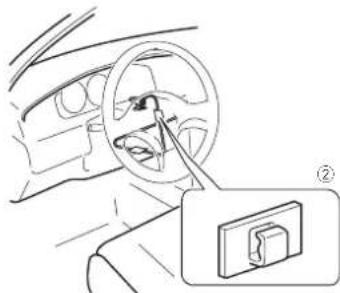
natural_image
Line drawing of a car interior showing steering wheel and dashboard (no text or symbols)https://www.sdcard.org/
PAL/NTSC/PAL-M/PAL-N/SECAM
Margen de temperatura tolerable:
3.15 kHz/5 kHz/8 kHz/12.5 kHz
Ganancia....±12 dB
HPF:
Frecuencia .... 50 Hz/63 Hz/80 Hz/100 Hz/
125 Hz/160 Hz/200 Hz
Pendiente....-6 dB/oct, -12 dB/oct,
-18 dB/oct
Altavoz de subgraves (mono):
Frecuencia .... 50 Hz/63 Hz/80 Hz/100 Hz/
125 Hz/160 Hz/200 Hz
Pendiente....-6 dB/oct, -12 dB/oct,
-18 dB/oct
Ganancia.....de -24 dB a +10 dB
(Windows Media Player)
(Mass Storage Class),
iPod (AudioClass, HID Class)
WMA10 Std, WMA10 Pro,
WMA9 Lossless
WMA10 Std, WMA10 Pro,
WMA9 Lossless
......BaseLine Profile, Main Profile,
High Profile
Register your product at
http://www.pioneerelectronics.com
in Canada
au Canada
en Canadá
http://www.pioneerelectronics.ca
© 2015 PIONEER CORPORATION. All rights reserved.
< KYTZ15A >
PIONEER CORPORATION
1-1, Shin-ogura, Saiwai-ku, Kawasaki-shi,
Kanagawa 212-0031, JAPAN
PIONEER ELECTRONICS (USA) INC.
P.O. Box 1540, Long Beach, California 90801-1540, U.S.A.
TEL: (800) 421-1404
PIONEER ELECTRONICS OF CANADA, INC.
340 Ferrier Street, Unit 2, Markham, Ontario L3R 2Z5, Canada
TEL: 1-877-283-5901
TEL: 905-479-4411
PIONEER EUROPE NV
Haven 1087, Keetberglaan 1, B-9120 Melsele, Belgium/Belgique
TEL: (0) 3/570.05.11
PIONEER ELECTRONICS ASIACENTRE PTE. LTD.
253 Alexandra Road, #04-01, Singapore 159936
TEL: 65-6472-7555
PIONEER ELECTRONICS AUSTRALIA PTY. LTD.
5 Arco Lane, Heatherton, Victoria, 3202, Australia
TEL: (03) 9586-6300
PIONEER ELECTRONICS DE MEXICO, S.A. de C.V.
Blvd.Manuel Avila Camacho 138 10 piso
Col.Lomas de Chapultepec, Mexico, D.F. 11000
TEL: 55-9178-4270
先鋒股份有限公司
台北市內湖區瑞光路 407號 8樓
電話:886-(0)2-2657-3588
先鋒電子(香港)有限公司
香港九龍長沙灣道 909號 5樓
電話:852-2848-6488