
KG320 - Cellphone LG - Free user manual and instructions
Find the device manual for free KG320 LG in PDF.



| Product Type | Mobile phone |
| Brand | LG |
| Model | KG320 |
| Dimensions (approx.) | 100 x 45 x 15 mm |
| Weight | approx. 80 g |
| Power supply | Li-Ion 800 mAh battery, mains charger |
| Display | 1.8-inch TFT color display, 128x160 pixels |
| Camera | VGA (0.3 MP) |
| Memory | Internal memory 128 MB, expandable via microSD |
| Connectivity | Bluetooth, GPRS, EDGE |
| Main functions | Calls, SMS, phonebook, FM radio, MP3 player, camera, game |
| Care and cleaning | Clean with a soft, dry cloth. Avoid moisture and extreme temperatures. |
| Safety | Do not use while driving. Keep away from pacemakers. Follow restricted areas (aircraft, hospital). |
| Spare parts and repairability | Battery and charger replaceable. Other parts available through authorized service. |
| Manual languages | French, English, Indonesian, Malay, Vietnamese, Chinese |
Frequently Asked Questions - KG320 LG
User questions about KG320 LG
0 question about this device. Answer the ones you know or ask your own.
Ask a new question about this device
Download the instructions for your Cellphone in PDF format for free! Find your manual KG320 - LG and take your electronic device back in hand. On this page are published all the documents necessary for the use of your device. KG320 by LG.
USER MANUAL KG320 LG
This manual may differ from the phone depending on the phone software version and service provider used.
KG320
USERGUIDE
This manual may differ from the phone depending on the phone software version and service provider used.

CONTENTS
SINELNNO
FOR YOUR SAFETY 4
GUIDELINES FOR SAFE AND EFFICIENT USE 5
KG320 FEATURES 9
Part of the phone 9
On-Screen Icons 11
INSTALLATION 12
Installing the SIM card and the handset battery 12
Charging the Battery 13
Disconnecting the charger 13
GENERAL FUNCTIONS 14
Making a Call 14
Answering a Call 14
Entering Text 15
MENUTREE 18
GAMES & APPS 19
Games & Apps [Menu 1-1] 19
Profiles [Menu 1-2] 19
CONTACTS 20
Search [Menu 2-1] 20
Add new [Menu 2-2] 20
Caller groups [Menu 2-3] 20
Speed dial [Menu 2-4] 20
Own number [Menu 2-5] 20
My business card [Menu 2-6] 20
Settings [Menu 2-7] 20
ORGANISER 22
Calendar [Menu 3-1] 22
Memo [Menu 3-2] 22
MULTIMEDIA 23
Camera [Menu 4-1] 23
Video camera [Menu 4-2] 24
Voice recorder [Menu 4-3] 25
MP3 [Menu 4-4] 25
Photo album [Menu 4-5] 27
Video album [Menu 4-6] 27
MESSAGEs 28
New message [Menu 5-1] 28
Inbox [Menu 5-2] 30
Drafts [Menu 5-3] 30
Outbox [Menu 5-4] 30
Listen to voice mail [Menu 5-5] 30
Info message[Menu 5-6] 30
Templates [Menu 5-7] 31
Settings [Menu 5-8] 31
MY STUFF 34
Videos [Menu 6-1] 34
Photos [Menu 6-2] 34
Images [Menu 6-3] 35
Music [Menu 6-4] 35
Sounds [Menu 6-5] 35
Text [Menu 6-6] 35
Games & Apps [Menu 6-7] 36
Others [Menu 6-8] 36
DISPLAY 37
Wallpaper [Menu 7-1] 37
Menu Colour [Menu 7-2] 37
Standby text [Menu 7-3] 37
Backlight timer [Menu 7-4] 37
Brightness [Menu 7-5] 37
Network name [Menu 7-6] 37
Home Screen Shortcut [Menu 7-7] 37
Dial font colour [Menu 7-8] 37
PROFILES 38
Activate [Menu 8-X-1] 38
Personalise [Menu 8-X-2] 38
Rename [Menu 8-X-3] 38
TOOLS 39
Favourites [Menu 9-1] 39
Alarm clock [Menu 9-2] 39
Bluetooth [Menu 9-3] 39
Modem [Menu 9-4] 40
Calculator [Menu 9-5] 40
Unit converter [Menu 9-6] 40
World time [Menu 9-7] 40
SIM Service [Menu 9-8] 40
BROWSER 41
Home [Menu *1] 41
Bookmarks [Menu *2] 41
Go to URL [Menu *-3] 41
Settings [Menu *4] 41
CALL REGISTER 42
Missed calls [Menu 0-1] 42
Received calls [Menu 0-2] 42
Dialled calls [Menu 0-3] 42
All calls [Menu 0-4] 42
Delete recent calls [Menu 0-5] 42
Call charges [Menu 0-6] 42
GPRS information [Menu 0-7] 43
SETTING 44
Date & Time [Menu #-1] 44
Power saving [Menu #-2] 44
Language [Menu #-3] 44
Call [Menu#-4] 44
Security [Menu # -5] 46
Network [Menu#-6] 48
GPRS Attach [Menu#-7] 48
Memory status [Menu#-8] 49
Reset settings [Menu #-9] 49
ACCESSIONS 50
TECHNICAL DATA 51
FOR YOUR SAFETY
Warning
- Mobile Phones must be switched off at all times in aircrafts.
- Do not hold the phone in your hand while driving.
- Do not use your phone near petrol stations, fuel depots, chemical plants or blasting operations.
- For your safety, use ONLY specified ORIGINAL batteries and chargers.
- Do not handle the phone with wet hands while it is being charged. It may cause an electric shock or seriously damage your phone.
- Keep the phone in a safe place out of small children's reach. It includes small parts which, if detached, may cause a choking hazard.
Caution
- Switch off the phone in any area where required by special regulations. For example, do not use your phone in hospitals or it may affect sensitive medical equipment.
- Emergency calls may not be available under all mobile networks. Therefore, you should never depend solely on your mobile phone for emergency calls.
- Only use ORIGINAL accessories to avoid damage to your phone.
- All radio transmitters carry risks of interference with electronics in close proximity. Minor interference may affect TVs, radios, PCs, etc.
- Batteries should be disposed of in accordance with relevant legislation.
- Do not dismantle the phone or battery.
GUIDELINES FOR SAFE AND EFFICIENT USE
Please read these simple guidelines. Not following these guidelines may be dangerous or illegal. Further detailed information is given in this manual.
Exposure to radio frequency energy
Radio wave exposure and Specific Absorption Rate (SAR) information
This mobile phone model KG320 has been designed to comply with applicable safety requirements for exposure to radio waves. This requirement is based on scientific guidelines that include safety margins designed to assure the safety of all persons, regardless of age and health.
- The radio wave exposure guidelines employ a unit of measurement known as the Specific Absorption Rate, or SAR. Tests for SAR are conducted using standardised methods with the phone transmitting at its highest certified power level in all used frequency bands.
- While there may be differences between the SAR levels of various LG phone models, they are all designed to meet the relevant guidelines for exposure to radio waves.
-
The SAR limit recommended by the International Commission on Non-Ionizing Radiation Protection (ICNIRP) is 2W/kg averaged over ten (10) gram of tissue.
-
The highest SAR value for this model phone tested by DASY4 for use at the ear is 0.129W / kg (10g).
- SAR data information for residents in countries/regions that have adopted the SAR limit recommended by the Institute of Electrical and Electronics Engineers (IEEE), which is 1.6 W/kg averaged over one (1) gram of tissue (for example USA, Canada, Australia and Taiwan).
Product care and maintenance
WARNING! Only use batteries, chargers and accessories approved for use with this particular phone model. The use of any other types may invalidate any approval or warranty applying to the phone, and may be dangerous.
- Do not disassemble this unit. Take it to a qualified service technician when repair work is required.
- Keep away from electrical appliances such as a TV's, radios or personal computers.
- The unit should be kept away from heat sources such as radiators or cookers.
- Never place your phone in a microwave oven as it will cause battery to explode.
GUIDELINES FOR SAFE AND EFFICIENT USE
- Do not drop.
- Do not subject this unit to mechanical vibration or shock.
- The coating of the phone may be damaged if covered with wrap or vinyl wrapper.
- Do not use harsh chemicals (such as alcohol, benzene, thinners, etc.) or detergents to clean your phone. There is a risk of this causing a fire.
- Do not subject this unit to excessive smoke or dust.
- Do not keep the phone next to credit cards or transport tickets; it can affect the information on the magnetic strips.
- Do not tap the screen with a sharp object as it may damage the phone.
- Do not expose the phone to liquid or moisture.
- Use accessories, such as earphones and headsets, with caution. Ensure that cables are tucked away safely and do not touch the antenna unnecessarily.
- Please remove the data cable before powering on the handset.
Efficient phone operation
To enjoy optimum performance with minimum power consumption please:
- Do not hold the antenna when the phone is in use. If you hold it, it can affect call quality, it may also cause the phone to operate at a higher power level than needed and shorten talk and standby times.
Electronic devices
All mobile phones may get interference, which could affect performance.
- Do not use your mobile phone near medical equipment without requesting permission. Avoid placing the phone over pacemakers (i.e. in your breast pocket.)
- Some hearing aids might be disturbed by mobile phones.
- Minor interference may affect TVs, radios, PCs, etc.
Road safety
Check the laws and regulations on the use of mobile phones in the areas when you drive.
- Do not use a hand-held phone while driving.
- Give full attention to driving.
- Use a hands-free kit, if available.
-
Pull off the road and park before making or answering a call if driving conditions so require.
-
RF energy may affect some electronic systems in your motor vehicle such as a car stereo or safety equipment.
- If your vehicle is equipped with an air bag, do not obstruct it with installed or portable wireless equipment. It can cause serious injury due to improper performance.
If you are listening to music whilst out and about, please ensure that the volume is at a reasonable level so that you are aware of your surroundings. This is particularly imperative when attempting to cross the street.
Avoid damage to your hearing
Damage to your hearing can occur if you are exposed to loud sound for long periods of time. We therefore recommend that you do not turn on or off the handset close to your ear.
We also recommend that music and call volumes are set to a reasonable level.
Blasting area
Do not use the phone where blasting is in progress. Observe restrictions, and follow any regulations or rules.
Potentially explosive atmospheres
- Do not use the phone at a refuelling point. Don't use near fuel or chemicals.
- Do not transport or store flammable gas, liquid, or explosives in the compartment of your vehicle, which contains your mobile phone and accessories.
In aircraft
Wireless devices can cause interference in aircraft.
- Turn off your mobile phone before boarding any aircraft.
- Do not use it on the ground without crew permission.
Children
Keep the phone in a safe place out of small children's reach. It includes small parts which if detached may cause a choking hazard.
Emergency calls
Emergency calls may not be available under all mobile networks. Therefore, you should never depend solely on your mobile phone for emergency calls. Check with your local service provider.
GUIDELINES FOR SAFE AND EFFICIENT USE
Battery information and care
- You do not need to completely discharge the battery before recharging. Unlike other battery systems, there is no memory effect that could compromise the battery's performance.
- Use only LG batteries and chargers. LG chargers are designed to maximize the battery life.
- Do not disassemble or short-circuit the battery pack.
- Keep the metal contacts of the battery pack clean.
- Replace the battery when it no longer provides acceptable performance. The battery pack may be recharged hundreds of times until it needs replacing.
- Recharge the battery if it has not been used for a long time to maximize usability.
- Do not expose the battery charger to direct sunlight or use it in high humidity, such as the bathroom.
- Do not leave the battery in hot or cold places, this may deteriorate the battery performance.
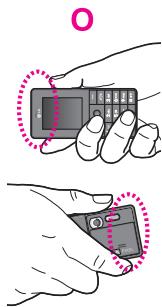
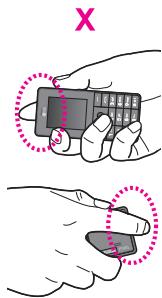
For optimal call performance, please do not obstruct the internal antenna.
KG320 FEATURES
Part of the phone
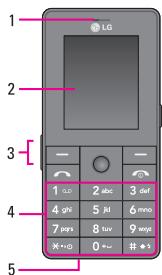
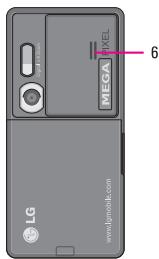
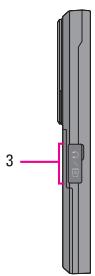
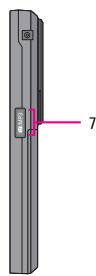
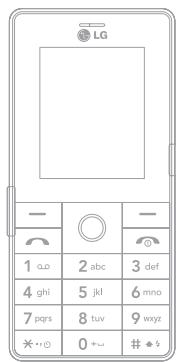
- Earpiece
-
Display screen
-
Top: Icons showing signal strength, battery level and various other functions.
-
Bottom: Soft key indications
-
Cable Connector/ Battery Charging Connector
Note
Please ensure phone is powered on and in idle mode before connecting the USB cable.
-
Alpha numeric keys
-
In standby mode: Input numbers to dial
Hold down:
0- -International calls
1- Dial Voice mail centre.
2abc to 9wep -Speed dials
- Activate Timer in Take picture mode.
-
Enables the flash light in the camera mode. While keying in a phone number, you can pause the function by pressing this key for a long time.
-
In editing mode: Enter numbers & characters
-
Microphone
- Internal loudspeaker Listen to MP3 player without headphones
- Camera and Multimedia hot key Activates the camera (long press) and Multimedia menu (short press) directly.
KG320 FEATURES
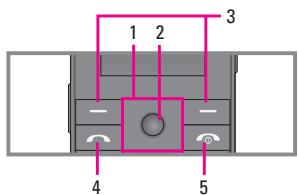
- Navigation key
In standby mode:
Briefly: List of Favourites
Briefly: List of Contacts
Briefly: List of Messages
Briefly: List of Profiles Hold down: Activate/Deactivate Vibrate mode
-
In menu: scroll up & down
-
Confirm key
If you press this key shortly, you can view top menu.
- Soft keys
These keys perform the function Indicated in the bottom of the display.
-
Send key
-
Dial a phone number and answer a call.
-
In standby mode: shows a history of calls made, received, and missed.
-
End key
-
Switch on/off (hold down)
- End or reject a call.
The screen displays several icons. These are described below.
On-Screen Icons
| Icon | Description |
| Y. | Tells you the strength of the network signal. * |
| \ | Call is connected. |
| G. | You can use GPRS service. |
| R | Shows that you are using a roaming service. |
- The quality of the conversation may change depending on network coverage. When the signal strength is below 2 bars, you may experience muted, call drop and poor audio. Please refer to this signal as an indicator for your calls. When there are no bars, that means that there is no network coverage: in this case, you won't be able to access the network for any service (call, messages and so on).
| Icon | Description |
| The alarm has been set and is on. | |
| Tells you the status of the battery. | |
| You have received a text message. | |
| You have received a voice message. | |
| Vibrate only menu in profile. | |
| General menu in profile. | |
| Loud menu in profile. | |
| Silent menu in profile. | |
| Headset menu in profile. | |
| You can divert a call. | |
| Indicates that the phone is accessing the WAP. | |
| Indicates that you are using GPRS. | |
| You have activated Bluetooth menu. |
INSTALLATION
Installing the SIM card and the handset battery
Make sure the power is off before you remove the battery.
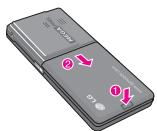
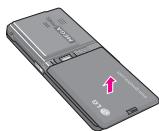
- Remove the battery cover.
Press and slide the battery cover toward the bottom of the phone, and remove the battery cover.
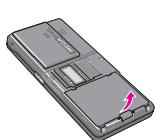
- Remove the battery.
Hold the bottom edge of the battery and lift the battery from the battery compartment.
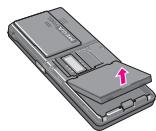
- Install the SIM card.
Insert the SIM card into the holder. Slide the SIM card into the SIM card holder. Make sure that the SIM card is inserted properly and that the gold contact area on the card is facing downwards. To remove the SIM card, press down lightly and pull it in the reverse direction.
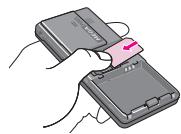
To insert the SIM card
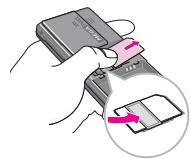
To remove the SIM card
Note
The metal contact of the SIM card can be easily damaged by scratches. Pay special attention to the SIM card while handling. Follow the instructions supplied with the SIM card.
Warning
When inserting/removing the SIM card, you should turn off the phone. Otherwise, the information or data of SIM card can be damaged.
- Install the battery.
Insert the top of the battery first into the top edge of the battery compartment. Push down the bottom of the battery until it snaps into space.
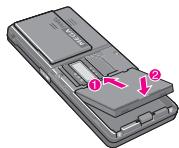
Caution
When you install or remove the battery, you should be careful of the sharp edge of battery cover.
Charging the Battery
Before connecting the travel adapter to the phone you must first install the battery.
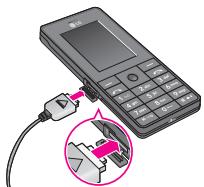
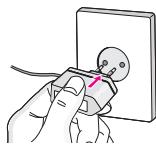
- Ensure the battery is fully charged before using the phone for the first time.
-
With the arrow facing you as shown in the diagram push the plug on the battery adapter into the socket on the side of the phone until it clicks into place.
-
Connect the other end of the travel adapter to the mains socket. Use only the charger included in the box.
- The moving bars of battery icon will stop after charging is complete.
Caution
- Do not force the connector as this may damage the phone and/or the travel adapter.
- If you use the battery pack charger out of your own country, use an attachment plug adaptor for the proper configuration.
- Do not remove your battery or the SIM card while charging.
Warning
- Unplug the power cord and charger during lightning storms to avoid electric shock or fire.
- Make sure that no sharp-edged items such as animal teeth or nails, come into contact with the battery. There is a risk of this causing a fire.
- Do not place or answer calls while charging the phone as it may short-circuit the phone and/or cause electric shock or fire.
- When inserting/removing the SIM card, you should turn off the phone.
Disconnecting the charger
Disconnect the travel adapter from the phone by pressing its side buttons as shown in the diagram.
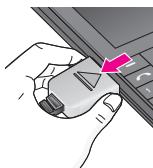
GENERAL FUNCTIONS
Making a Call
- Make sure your phone is powered on.
- Enter a phone number including the area code.
- Press the key to call.
- When you want to finish, press the key.
Making a call from the call history list.
- Press the key, and the most recent incoming, outgoing and missed phone numbers will be displayed.
- Select the desired number by using the navigation keys.
- Press the key.
Making International Calls
- Press and hold the 0 key for the international prefix. The '+ character can be replaced with the international access code.
- Enter the country code, area code, and the phone number.
- Press the key.
Ending a Call
When you have finished a call, press the key.
Making a Call From the Contact list
You can store names and phone numbers dialled frequently in the SIM card as well as the phone memory known as the Contact list.
You can dial a number by simply looking up a name in the contact list. For more details on the Contacts feature, please refer to page 20.
Answering a Call
When you receive a call, the phone rings and the flashing phone icon appears on the screen. If the caller can be identified, the caller's phone number (or name/photo, if stored in your Address Book) is displayed.
- Press the key or the left soft key to answer an incoming call. If the Any Key menu option (Menu #4-2), see p. 45, has been set, any key press will answer a call except for the key or the right soft key.
- End the call by pressing the key.
Note
You can answer a call while using the Address Book or other menu features. In case phone is connected with PC via USB cable, incoming call will be rejected, but after disconnecting phone from PC you can see Missed call window.
Vibrate Mode (Quick)
Vibrate Mode can be activated by pressing and holding the left navigation key.
Signal Strength
If you are inside a building, being near a window may give you better reception. You can see the strength of your signal by the signal indicator (Y) on your phone's display screen.
Entering Text
You can enter alphanumeric characters by using the phone's keypad. For example, storing names in the Address Book, writing a message, creating scheduling events in the calendar all require entering text. The following text input methods are available in the phone.
Note
Some fields may allow only one text input mode (e.g. telephone number in address book fields).
T9 Mode
This mode allows you to enter words with only one keystroke per letter. Each key on the keypad has more than one letter. The T9 mode automatically compares your keystrokes with an internal linguistic dictionary to determine the correct word, thus requiring far fewer keystrokes than the traditional ABC mode.
BC Mode
This mode allows you to enter letters by pressing the key labeled with the required letter once, twice, three or four times until the letter is displayed.
123 Mode (Numbers Mode)
Type numbers using one keystroke per number. To change to 123 mode in a text entry field, press # + + key until 123 mode is displayed.
Symbolic Mode
This mode allows you to enter special characters.
Changing the Text Input Mode
-
When you are in a field that allows characters to be entered, you will notice the text input mode indicator in the upper right corner of the display.
-
If you want to change modes, press The available modes are changed.
GENERAL FUNCTIONS
Using the T9 Mode
The T9 predictive text input mode allows you to enter words easily with a minimum number of key presses. As you press each key, the phone begins to display the characters that it thinks you are typing based on a built-in dictionary. As new letters are added, the word changes to reflect the most likely candidate from the dictionary.
Note
You can select a different T9 language from the menu option by holding down the key. The default setting on the phone is T9 enabled.
-
When you are in the T9 predictive text input mode, start entering a word by pressing keys 2 = to 9 = . Press one key per letter.
-
The word changes as letters are typed – ignore what's on the screen until the word is typed completely.
- If the word is still incorrect after typing completely, press the down navigation key once or more to cycle through the other word options.
Example: Press 4_gh 6_mm 6_mm 3_at to type Good.
Press 4 sh 6 mo 6 mo 3 out [down navigation key] to type Home.
- If the desired word is missing from the word choices list, add it by using the ABC mode.
- Enter the whole word before editing or deleting any keystrokes.
3.Complete each word with a space by pressing the key 0 orkey.
Note
To exit the text input mode without saving your input, press 回 . The phone returns to the idle screen.
Using the ABC Mode
Use the 2abc to 9 way keys to enter your text.
-
Press the key labeled with the required letter:
-
Once for the first letter.
- Twice for the second letter.
-
And so on.
-
To insert a space, press the 0 key once.
Note
Refer to the table below for more information on the characters available using the keys.
| Key | Characters in the order display | |
| Upper Case | Lower Case | |
| 1ω0 | , /? !:-' 1@ | , /? !:-' 1@ |
| 2ω0 | ABC2 | a b c 2 |
| 3ω1 | DEF3 | d e f 3 |
| 4ω1 | GHI4 | g h i 4 |
| 5ω1 | JKL5 | j k l 5 |
| 6ω0 | M N O 6 | m n o 6 |
| 7ω1 | P Q R S 7 | p q r s 7 |
| 8ω1 | T U V 8 | t u v 8 |
| 9ω0 | W X Y Z 9 | w x y z 9 |
| 0ω0 | Space 0 | Space 0 |
Using the 123 (Numbers) Mode
The 123 Mode enables you to enter numbers in a text message (a telephone number, for example).
Press the keys corresponding to the required digits before manually switching back to the appropriate text entry mode.
Using the Symbol Mode
The Symbol Mod e enables you to enter various symbols or special characters.
To enter a symbol, press the key. Use the navigation keys to select the desired symbol and press the [OK] key.
MENUTREE
1 GAMES & APPS
1 Games & Apps
2 Profiles
4 MP3
5 Photo album
6 Video album
2 CONTACTS
1 Search
2 Add new
3 Caller groups
4 Speed dial
5 Own number
6 My business card
7 Settings
5 MESSAGES
1 New message
2 Inbox
3 Drafts
4 Outbox
5 Listen to voice mail
6 Info message
7 Templates
8 Settings
3 ORGANISER
1 Calendar
2 Memo
6 MY STUFF
1 Videos
2 Photos
3 Images
4 Music
5 Sounds
6 Text
7 Games & Apps
8 Others
7 DISPLAY
1 Wallpaper
2 Menu Colour
3 Standby text
4 Backlight timer
5 Brightness
6 Network name
7 Home Screen Shortcut
8 Dial font colour
8 PROFILES
1 General
2 Silent
3 Vibrate only
4 Loud
5 Headset
9 TOOLS
1 Favourites
2 Alarm clock
3 Bluetooth
4 Modem
5 Calculator
6 Unit converter
7 World time
8 SIM Services
* BROWSER
1 Home
2 Bookmarks
3 Go to URL
4 Settings
0CALLREGISTER
1 Missed calls
2 Received calls
3 Dialled calls
4 All calls
5 Delete recent calls
6 Call charges
7 GPRS information
# SETTINGS
1 Date & Time
2 Power saving
3 Language
4 Call
5 Security
6 Network
7 GPRS Attach
8 Memory status
9 Reset settings
GAMES & APPS
Games & Apps
[Menu 1-1]
Default Games: In this menu, you can manage the Java applications installed in your phone. You can play or delete downloaded applications, or set the connect option. The downloaded applications are organised in folders.
- Open: You can see the stored games.
- New folder: Create a new folder.
Profiles
[Menu 1-2]
A profiles is the network information used to connect to the Internet.
Java™, is a technology developed by Sun Microsystems. Similar to the way you would download the Java Applet using the standard MS Internet Explorer browsers, Java MIDlet can be downloaded using a WAP enabled phone. Depending on the service provider, all Java based programs such as Java games can be downloaded and run on a phone. Once downloaded, the Java program can be viewed in the My games & more menu where you can select, execute, or delete. The Java program files saved in the phone are in .JAD or .JAR format.
Note
- The JAR file is a compressed format of the Java program and the JAD file is a description file that includes all detailed information. From the network, prior to download, you can view all detailed file descriptions from the JAD file.
- While being based on a standard language (J2ME), not all Java applications are compatible with all handsets on sale insofar as specific libraries may be used for a telephone model. The software may be blocked or switch itself on when Java applications not specifically developed for the phone this manual refers to are downloaded, making it necessary to "restart" the handset. We would like to point out that these problems are caused by incompatible applications and are not a product fault.
Caution
Only J2ME (Java 2 Micro Edition) based programs will run in a phone environment. The J2SE (Java 2 Standard Edition) based programs will only run in a PC environment.
CONTACTS
Search
[Menu 2-1]
- Select Search menu.
- Enter the name that you want to search.
Note
Instant searching is available by inputting the initial letter of the name or number you want to search.
3. If you want to edit, delete or copy an entry, select the left soft key [Options]. The following menu will be displayed.
Add new
[Menu 2-2]
You can add a phonebook entry by using this function. Phone memory capacity is 1000 entries. SIM card memory capacity depends on the cellular service provider. You can also save 20 characters of name in The Phone memory, and save characters in the SIM card. The number of characters is a SIM dependent feature.
Note
Maximum stored name and number length depends on SIMcard type.
Caller groups
[Menu 2-3]
You can add up to 20 members per group, with up to a maximum of 7 groups in total.
Speed dial
[Menu 2-4]
Assign contacts to any of the keys 2_dec to 9_eq .
You can then call that contact by pressing the corresponding number key.
Own number
[Menu 2-5]
(Sim dependent)
You can save and check your own number in SIM card.
My business card
[Menu 2-6]
This option allows you to create your own business card featuring Name and an mobile phone number. To create a new business card, press the left soft key [Add] and enter the information into the fields.
Settings
[Menu 2-7]
Scroll to Settings, then press the left soft key [OK].
-
Default memory
-
If you select Always ask, when adding entry, the phone will ask where to store.
- If you select SIM or Phone, the phone will store an entry to SIM or phone.
View options
- Name only: Set the phonebook list by displaying the name only.
- Name & number: Set the phonebook list by displaying the name and number.
-
With pictures: Set the phonebook list with the information and picture of contact.
-
Copy/Move all
-
SIM to Phone: You can copy/move the entries from SIM Card to Phone memory.
- Phone to SIM: You can copy/move the entries from Phone memory to SIM Card.
Memory in use
This feature allows you to see how many entries are in use, or free in your phonebook.
Clear contacts
You can delete all the entries in the SIM and Phone. This function requires the Security code.
Service dial number
Use this function to access a particular list of services provided by your network operator (if supported by the SIM card).
ORGANISER
Calendar
[Menu 3-1]
When you enter this menu a calendar will be displayed. The month and year are shown at the top of the screen. Whenever you the change the date under the Settings menu, the calender will update automatically.
To change the day, month, and year.
| Key | Description | Key | Description |
| 1ω3ω | Yearly | ω | Weekly |
| ω···ω### | Monthly | ◇ | Daily |
In the scheduler mode, press left soft key [Options] as follows;
Add new
[Menu 3-1-1]
Allows you to add new schedule for the chosen day. You can store up to 20 notes.
View daily schedules
[Menu 3-1-2]
View all schedules for the chosen day. Use , to browse through the note lists. If you set alarm for the note, the alarm icon is displayed.
If you want to view the note in detail, press the left soft key [OK]. Press left soft key [Options] to delete, edit the note you selected.
Delete past
[Menu 3-1-3]
You can delete the past schedule that you have already been notified of.
Delete all
[Menu 3-1-4]
You can delete all the notes.
Go to date
[Menu 3-1-5]
You can go the chosen date directly.
Set alarm tone
[Menu 3-1-6]
You can set the alarm tone of each chosen date.
Memo
[Menu 3-2]
- Select the Memo by pressing the left soft key [—] [OK].
- If the entry is empty, press the left soft key [Write].
- Input the memo and then press the left soft key [OK].
Note
If you want to change the text input mode, press the # - in order.
MULTIMEDIA
You can enjoy your multimedia functions such as camera, voice recorder, MP3 for your fun and convenience.
Note
- When a low battery indication is given, the Camera or Multimedia function may not operate.
- The battery level indication may appear lower when using the Multimedia functions, due to high current consumption.
Camera
[Menu 4-1]
- Press the left soft key [—] [Menu], and then navigate and select Multimedia. Select Camera and the screen will now become the viewfinder. If you want to reach this menu directly, press for a few seconds.
- Focus on the subject to capture the image, and then press the key.
-
If you want to save it, press the left soft key - or the key.
Mode [ ]: Allows to take multishot photos successively. -
Still shot: 72x72, 220x176, 320x240, 640x480, 1280x960
-
multishot: 320x240, 640x480
-frameshot:176x220 -
Effect [ ]: 5 settings are available: Colour, Night, sepia, Black & white, Negative
- Flash [ ]: Allows you to set the flash when you take a photo in dark surroundings.
- Zoom []: Allows you to set the zooming value from x1, x2, x3 and x4 depending on the resolution.
- Brightness [ ]: Use the right/left navigation keys to adjust lighting. 5 lighting levels are available: -2, -1, 0, 1, 2.
- Size [ ]: Allows you to set the image size to one of Hi (1280x360), Med (640x480), Low (320x240), (176x220), (72x72) LCD screen. Frame shots are only available with the 176x220 pixel resolution.
- Timer [ ]: Allows you to select the time delay (Off, 3 Seconds, 5 Seconds or 10 seconds). Then the phone takes a photo after the specified time.
- Quality [ ]: Allows you to set the image quality from Normal, Fine and Superfine.
- White Balance [WB]: Allows you to change the settings according to the environment.
MULTIMEDIA
- Frame Shot [ ]: Allows you to take a picture with a frame. This menu is available in 220x176.
- Shutter Sound [D]: Allows to set the shutter sound when you take a picture.
- Auto save [ ]: If you set this menu, the picture is saved automatically without asking to save it.
- Album [ ]: Allow you to see photos saved in your phone.
Note
In My album you may only view pictures taken by the handset's camera.
- Exit [ ]: Back to the screen mode to take photos.
In Camera capture mode, you can adjust the brightness by pressing the Up/Down navigation keys.
To take a picture with a side camera key
- Press and hold [B] for a few seconds.
- You can enter to camera capture mode directly.
Video camera
[Menu 4-2]
- Select Video camera menu.
-
Brightness [ ]: Allows to adjust the value of brightness.
-
Size [ ]: You may select following resolution: 128x96, 176x144 and 208x160.
- Timer [ ]: Allows you to select the time delay (Off, 3 Seconds, 5 Seconds or 10 seconds). Then the phone takes a photo after the specified time.
- Quality [ ]: Allows you to set the image quality from Normal, Fine and Superfine.
- White Balance [WB]: Allows you to change the settings according to the environment.
- Record time [ ]: You may select recording time from the list: 1 min, 5 min, 30 min, 90 min and unlimited.
- Exit [ ]: Back to the screen mode to take photos.
- Effect [ ]: 4 settings are available: Colour, Sepia, Black & White, Negative.
- Flash [ ]: Allows you to set the flash when you take a photo in dark surroundings.
- Zoom [ ]: Allows you to set the zooming value from x1, x2, x3 and x4 depending on the resolution.
- To start recording press ⑤ . As soon as it starts to record a timer will be displayed.
- Press the to end the recording and this will now be saved.
Voice recorder [Menu 4-3]
With the voice memo feature you can record up to 10 voice messages and each memo can be up to 20 seconds long.
MP3 [Menu 4-4]
The KG320 has an integrated MP3 player. You can enjoy listening to MP3 music files on your phone memory using a compatible headset or via the internal loudspeaker.
Note
Because of the small dimension of the speaker, in some cases the audio could be distorted, especially at maximum volume and when there are lots of bass sounds. Therefore, we recommend you to use the stereo headset in order to appreciate the high quality of your music.
The music player supports:
- MPEG-1 Layer III, MPEG-2 Layer III, MPEG-2.5 Layer III: Sampling frequency up from 8KHz to 48KHz. Bit rate up to 320Kbps, stereo.
- AAC: ADIF, ADTS formats (Sampling frequency from 8KHz to 48KHz)
- AAC+: V1: (Bit rate 16~128Kbps) V2: (Bit rate 16~48Kbps) (Sampling frequency from 8KHz to 48KHz)
MP4, M4A: Sampling frequency up from 8KHz to 48KHz, Bit rate up to 320Kbps, stereo.
WMA: Sampling frequency up from 8KHz to 48KHz, Bit rate up to 320Kbps, stereo.
Note
KG320 doesn't support the variable bit rate of all mentioned file types. Therefore, you can't change the file from MP3 format to AAC.
You can transfer MP3 files from a compatible PC to the memory in your phone using the MASS STORAGE Function.
Note
- MASS STORAGE function works in only IDLE mode.
- You should copy MP3 files to only Music folder in My media. If you copy them to another folder, you cannot view MP3 files.
- Mass Storage Function can be operated in Windows 2000 and Windows XP.
- Please do not remove the cable during downloading the files. After that, you click "window HW safely remove" on PC and then disconnect the cable.
- If you received a call during activating the mass storage menu, the call will be rejected. If you remove the cable, you can view the list of missed call.
MULTIMEDIA
MP3 player
[Menu 4-4-1]
The following screen is shown up.
![LG KG320 - [Menu 4-4-1] - 1](/content/2025/01/70071/images/1bfe86a219871fc6ab6468edcd9a780131b76155fc145bea12e2412792d6376c.jpg)
| Repeat | Area repeat |
| Play all | A→B A→B |
| Repeat all | |
| Repeat once |
Note
In case that any invalid file is included in the playlist, an error message will be popped up and go back to the prior screen.
- Press MP3 menu, and then select MP3 player.
- Press the left soft key [Options] to access the following menus.
View playlist: You can select another MP3 file you wish to play.
- Area repeat: The special area part of the current music is repeated when you select ON of the menu.
- Set as ringtone: You can set an MP3 file as a ringtone.
- Settings: There are 4 settings under this menu, which are explained in more detail on the next page.
Playlist
[Menu 4-4-2]
This menu allows you to view the whole play list. You can move through the tracks by pressing the navigation key. In addition, once you have selected the track, you can delete the file or view its information via the options menu.
Settings
[Menu 4-4-3]
Equalizer
This phone has 5 preset equalizer settings. When you enter this menu, you can view and change the settings as desired.
- Playmode
This menu allows you to set the play mode: Play all, Repeat all, Repeat one.
- Set shuffle
If you select the ON option, then your saved tracks will be played in a random order.
Visual effect
This menu allows you to change the visual background of the main and sub LCD on the phone whilst an MP3 is playing: Light, Bounce, Guitarist
Note
Music is copyright protected in international treaties and national copyright laws. It may be necessary to obtain permission or a license to reproduce or copy music. In some countries national law prohibits private copying of copyrighted material. Please check the national legislation of the applicable country concerning the use of such material.
Photo album
[Menu 4-5]
You can view and send a picture. In addition, you can set the picture as a wallpaper.
Note
The Photo Album will only display pictures taken by the handsets camera.
Video album
[Menu 4-6]
You can view videos which have been saved in the memory.
MESSAGE
New message
[Menu 5-1]
This menu includes functions related to SMS (Short Message Service), MMS (Multimedia Message Service), voice mail, as well as the network's service messages.
Write text message
[Menu 5-1-1]
You can write and edit text message, checking the number of message pages.
Options
-
Send: Sends text messages.
-
Enter numbers of recipient.
- Press key to add more recipients.
- You can add phone numbers in the address book.
- Once the numbers have been entered, press the left soft key to send the message.
All messages will automatically be saved in the outbox folder, even after a sending failure.
-
Insert
-
Images: You can insert the Default graphics or graphics in My pictures that are available for short messages.
-
Sounds: You can insert sounds that are available for short messages.
- Text templates: You can use Text templates already set in the phone.
- Contacts: You can add phone numbers or e-mail addresses in the address book.
- Symbol: You can add special characters.
-
My business card: You can add your Business card to the message.
-
Save to drafts: Stores messages in the Drafts folder.
- Font & Alignment: You can select the Size and Style of font, and the Alignment of text.
Colour: You can also set the Colour of the text (foreground) and the background. - Add T9 dictionary: You can add your own words. This menu will only be shown when the edit mode has been set to T9ABC/T9Abc/T9abc.
- T9 languages: Select the desired language for T9 input mode. You can also deactivate the T9 input mode by selecting 'T9 off'.
- Exit: If you press Exit whilst writing a message, you will be taken back to the message menu. Also the written message will not have been saved.
Note
This phone supports EMS release 5, so is available to send colour pictures, sounds, text styles, etc.. If the other parties handsets do not support such options, the pictures, sounds or texts sent may not be displayed correctly on their phones.
Write multimedia message [Menu 5-1-2]
A multimedia message can contain text, images, and/or sound clips. This feature can be used only if it is supported by your network operator or service provider. Only devices that offer compatible multimedia message or e-mail features can receive and send multimedia messages.
Options
- Send: You can send multimedia messages to multiple recipients, as well as save it to send at a later time.
- Insert: You can add photos, images, sounds, contacts, symbol, new photo, new sound, text templates and my business card.
Note
All messages will be automatically saved in the outbox folder, even after a sending failure.
Preview: You can preview multimedia messages you have created.
- Save: You can save multimedia messages To drafts or As template.
- Edit subject: Allows you to modify the multimedia message you have chosen.
- Add slide: You can add a slide before or after current slide.
- Move to slide: You can move to previous or next slide.
- Delete slide: You can delete current slides.
- Set slide format
- Set timer: You can set a timer for slide, text, picture and sound.
-
Swap text and picture: You can switch the position of picture and text of the message.
-
Remove media: You can remove picture or sound in the slide.
- Add T9 dictionary: You can add your own words. This menu will only be shown when the edit mode has been set to T9ABC/T9Abc/T9abc.
- T9 languages: Select the desired language for T9 input mode. You can also deactivate T9 input mode by selecting 'T9 off'.
- Exit Will take you back to the Message menu.
Note
When creating a multimedia message, if you upload a picture (50K) you may find that whilst the picture is loading you will not be able to carry out any other actions until the picture has competed loading.
MESSAGE
Inbox [Menu 5-2]
You will be alerted when you have received a message. They will be stored in the Inbox.
If the phone shows 'No space for SIM message', you only have to delete the SIM messages from the Inbox. If the phone displays 'No space for message', you will then need to delete messages, media or applications to free up space.
- SIM message
SIM message means that the message is exceptionally stored in the SIM card. You can move this message to the phone.
Drafts [Menu 5-3]
Using this menu, you can preset up to five multimedia messages that you use most frequently. This menu shows the preset multimedia message list.
Outbox [Menu 5-4]
This menu allows you to view the messages which you have sent, those that are currently sending or messages that have failed sending previously.
Listen to voice mail [Menu 5-5]
Once this menu has been selected, simply press the left soft key [OK] to listen to voice mail. You can also hold down the key in standby mode to listen to voice mail.
Note
When you receive a voice mail, your phone will display an icon and you will hear an alert. Please check with your network provider for details of their service in order to configure the handset correctly.
Info message [Menu 5-6]
(Dependent to network and subscription)
Info service messages are text messages delivered by the network to your handset. They provide general information such as weather reports, traffic news, taxis, pharmacies, and stock prices. When you receive an info service message, you will see a popup message show you that or the info service message is directly displayed. To view the message again follow the sequence shown below;
Read [Menu 5-6-1]
When you have received an info service message and select Read to view the message, it will be displayed on the screen. You can read another message by scrolling [ ], [ ] or left soft key [Next].
Topics [Menu 5-6-2] (Dependent to network and subscription)
- Add new: You can add Info service message numbers in the Phone memory with its nickname.
View list: You can see Info service message numbers which you have added. If you press left soft key [ ] [Options], you can edit and delete info message categories which you have added.
Active list: You can select info service message numbers in the active list. if you activate an info service number, you can receive messages sent from the number.
Templates [Menu 5-7]
Text templates [Menu 5-7-1]
You use 6 text templates preinstalled in phone.
Multimedia templates [Menu 5-7-2]
After you have saved a new template, you can use the following options.
View: You can see multimedia templates.
- Delete: You can delete multimedia templates.
- Add new: Allows you to add new multimedia templates.
Write messages: You can write and send multimedia messages.
- Edit: You can edit multimedia templates.
- Delete all: Allows you to delete all multimedia messages.
Settings [Menu 5-8]
Text message [Menu 5-8-1]
- Message types: Text, Voice, Fax, Natl. paging, X.400, Email, ERMES
Usually, the type of message is set to Text. You can convert your text into alternative formats. Contact your service provider for the availability of this function.
- Validity period: This network service allows you to set how long your multimedia message or message will be stored at the message centre.
MESSAGE
- Delivery report: If you set to Yes, you can check whether your message is sent successfully.
- Reply charging: When a message is sent, it allows the recipients to reply and charge the cost of the reply to your telephone bill.
- SMS centre: If you want to send the text message, you can receive the address of SMS centre through this menu.
Multimedia message
[Menu 5-8-2]
- Priority: You can set the priority of the message you choose.
- Validity period: This network service allows you to set how long your multimedia message or message will be stored at the message centre.
- Subject: You can enter multimedia messages subject when this menu is on.
- Delivery report: If it is set to Yes in this menu, you can check whether your message is sent successfully.
- Auto retrieve: If you select On, you receive multimedia messages automatically. If you select Off, you receive only notification message in the inbox and then you can check this notification.
If you select Home network only, you receive multimedia messages depends on Home network.
Network settings: If you select multimedia message server, you can set URL for multimedia message server.
- Permitted message types
[Menu 5-8-3]
You can receive the voicemail if your network service provider supports this feature. When a new voicemail has arrived, the symbol will be displayed on the screen. Please check with your network service provider for details of their service in order to configure the phone accordingly.
[Menu 5-8-4]
Receive
If you select Yes, your phone will receive Info service messages.
- Alert
Your phone will beep when you have received Info service message numbers.
Voice mailbox number
Info message
- Languages
You can select the language you want by pressing [On/Off]. Then, the info service message will be shown in the language that you selected.
Push messages
[Menu 5-8-5]
You can set the option whether you will receive the message or not.
MY STUFF
Note
Do not change the default folder name, or it does not work properly.
Videos
[Menu 6-1]
Show the list of 3GP, 3G2, MP4 (up to 208x160) files at My media\Videos in Multimedia memory.
- Play: You can play the video file by pressing the OK key or selecting Play from the Option menu.
- Send via Bluetooth: Send the selected file to another device via Bluetooth.
- Rename: change the file name of the selected file. The maximum length of characters is 200. And You can not change the extension of file.
Warning
The following characters, /: ?^ < > | can not be used.
- Delete: Delete a file.
- Delete all: Deletes all the files in the list
Information: Shows the file information.
Photos
[Menu 6-2]
Shows the list of JPG files at My mediaPhotos in Multimedia memory.
View: You can see the JPG file by pressing the OK key or selecting View from the Option menu.
Note
The maximum size of JPG file you can see is 460Kbytes.
- Send via multimedia message: You can send the multimedia message with a photo.
- Send via Bluetooth: Send the selected file to another device via Bluetooth.
- Rename: Change the file name of selected file. The maximum length of characters is 34. And You can not change the extension of file.
- Delete: Delete a file.
- Delete all: Deletes all the files in the list
Information: Shows the file information.
Images
[Menu 6-3]
After selecting a image, press the left soft key [View] and then you can check the options as follow:
- Set as wallpaper: Currently selected image can be set as a wallpaper.
- Write messages: The images downloaded from the network can be sent by Multimedia. Maximum message size is 100 kb for MMS message.
- Send via Bluetooth: The sound downloaded from network can be sent by Bluetooth.
Music
[Menu 6-4]
Shows the list of MP3, MP4, AAC, M4A, WMA files at My media\Music in Multimedia memory.
- Play: You can play the MP3 file by pressing the OK key or selecting Play from the Option menu.
- Send via Bluetooth: Send the selected file to another device via Bluetooth.
-
Rename: change the file name of selected file. The maximum length of characters is 34. And You can not change the extension of file.
-
Delete: Delete a file.
- Delete all: Deletes all files in the list
Information: Shows the file information.
Sounds
[Menu 6-5]
After selecting a sound, press the left soft key [Options]. You can check the options as follow:
- Set as ringtone: Currently selected sound can be set as a ringtone.
- Write messages: The sound downloaded from network can be sent by SMS or MMS. Maximum MMS message is 100kb .
- Send via Bluetooth: The sound downloaded from network can be sent by Bluetooth.
Text
[Menu 6-6]
Show the list of TXT files at My media\Text in Multimedia memory.
View: You can see the TXT file by pressing the OK key or selecting View from the Option menu.
Note
The maximum size of TXT file you can see is 460Kbytes.
MY STUFF
- Send via Bluetooth: Send the selected file to another device via Bluetooth.
- Rename: change the file name of selected file. The maximum length of characters is 34. And You can not change the extension of file.
- Delete: Delete a file.
- Delete all: Delete all files in the list
Information: Show the file information.
Games & Apps
[Menu 6-7]
In this menu, you can manage the Java applications installed on your phone. You can play or delete downloaded applications, or set the connect option. This menu will connect to the [Menu 1-1], see p. 19.
Others
[Menu 6-8]
Shows the list of files at My media\Others in Multimedia memory.
View: You can see a file if it is one of the following types; JPG, GIF, WBMP, PNG and TXT.
- Send via Bluetooth: Send the selected file to another device via Bluetooth.
DISPLAY
You can set functions relating to the phone.
Wallpaper [Menu 7-1]
You can select the background pictures in standby mode.
Default [Menu 7-1-1]
You can select a picture or an animation of wallpaper by pressing , , , .
My folder [Menu 7-1-2]
You can select a picture or an animation as wallpaper.
Menu Colour [Menu 7-2]
Your phone provides you with 4 menu colour themes. Set the menu colour by scrolling and pressing the left soft key [—] [OK].
Standby text [Menu 7-3]
If you select On, you can edit the text which is displayed in standby mode.
Backlight timer [Menu 7-4]
You can set the light-up duration of the display.
Brightness [Menu 7-5]
You can control the brightness of display by selecting the value: 100% , 80% , 60% , 40%
Network name [Menu 7-6]
If this function is activated, network name will be displayed on main LCD.
Home Screen Shortcut [Menu 7-7]
If you select On, you can view the functions of four navigation keys and menu key as pictures in the middle of idle window.
Dial font colour [Menu 7-8]
You can set the colour of displayed number when pressing the number keys in standby mode to connect a call.
PROFILES
In Profiles, you can adjust and customise the phone tones for different events, environments, or caller groups.
Activate
[Menu 8-X-1]
- A list of profiles is displayed.
- In the Profiles list, scroll to the profile you want to activate and press the left soft key [OK] or OK key.
- Then, select Activate.
Personalise
[Menu 8-X-2]
Scroll to the desired profile in the Profile list. After pressing the left soft key = or the OK key, select Personalise. The profile setting option opens. Set the option as required.
- Call alert type: Set the alert type for incoming calls.
- Ring tone: Select the desired ring tone from the list.
- Ring volume: Set the volume of the ringing tone.
- Message alert type: Set the alert type for messages.
- Message tone: Select the alert tone for messages.
- Keypad tone: Select the desired keypad tone.
- Keypad volume: Set the volume of keypad tone.
-
Effect sound volume: Set the volume of effect sound.
-
Power on/off volume: Set the volume of the ringing tone when switching the phone on/off.
- Auto answer: This function will be activated only when your phone is connected to the handsfree kit.
Rename
[Menu 8-X-3]
You can rename a profile and give it any name you choose to.
Note
Vibrate only, Silent and Headset profiles cannot be renamed.
TOOLS
Favourites [Menu 9-1]
This option allows you to add your own favourites to the list already provided. Once you create your own menu, you can access the desired function quickly in the idle screen by pressing the up navigation key.
Note
The menu of SMS, MMS and MP3 is already provided in your own favourites.
Alarm clock [Menu 9-2]
You can set up to 5 alarm clocks to go off at a specified time.
- Select On and enter the alarm time you want.
- Select the repeat period: Once, Mon~Fri, Mon~Sat, Everyday.
- Select the alarm tone you want and press left soft key [OK].
- Edit the alarm name and press left soft key [—] [OK].
Bluetooth [Menu 9-3]
Bluetooth enables compatible mobile devices, peripherals and computers that are in close proximity to communicate directly with each other without wires. This handset supports built-in Bluetooth connectivity, which makes it possible to connect them with compatible Bluetooth headsets, computer applications and so on.
Paired devices [Menu 9-3-1]
You can view all devices which are compatible with Bluetooth phone.
Note
Due to a compatibility problem, some devices may not support this function.
Handsfree devices [Menu 9-3-2]
You can view the list of handsfree devices which is compatible with Bluetooth phone.
If you have entered Paired devices or Handsfree devices, you will see the following options in both those menus.
- Connect/Disconnect: Allows you to connect to other Bluetooth devices.
- Add new: Allows you to search for new Bluetooth device.
- Assign name: Allows you to change the name of Bluetooth device and how its displayed on the handset.
- Set as authorised/Set as unauthorised: Allows you to set the authorised connection between each Bluetooth devices.
- All service: Allows you to view all services which are supported by a Bluetooth device.
- Delete: Allows you to delete the Bluetooth device.
- Delete all: Allows you to delete all Bluetooth devices.
TOOLS
Settings [Menu 9-3-3]
You can register a new device which is compatible with Bluetooth. If you already have added the device, you can search it after entering a password.
Supported services [Menu 9-3-4]
You can see the Bluetooth service list, like a File transfer, Image printing, PC sync and so on.
Modem [Menu 9-4]
You can access the network services through the Modem. If you want to use PCsync, Contents banks, Internet Cube, you should access the menu and activate the modem and then plug in the USB cable.
Calculator [Menu 9-5]
This contains the standard functions such as +, -, x, ÷ : Addition, Subtraction, Multiplication, and Division.
Furthermore, you can use the various functions of calculator such as + / - , sin,cos,tan,log,in,exp,sqrt.
Unit converter [Menu 9-6]
This converts any measurement into a unit you want. There are 9 types that can be converted into units: Currency, Surface, Length, Weight, Temperature, Volume, Velocity, Shoes and Clothes.
World time [Menu 9-7]
You can view clocks of the world's major cities.
-
Select the city belonged to the time zone by pressing , , , key.
-
You can set the current time to the city time you select by pressing the left soft key [Set].
SIM Service [Menu 9-8]
This menu depends on SIM and the network services.
Note
-
In case the SIM card support SAT (i.e. SIM Application Toolkit) services, this menu will be the operator specific service name stored on the SIM card.
-
In case the SIM card does not support SAT services, this menu will be Profiles.
BROWSER
You can access various WAP (Wireless Application Protocol) services such as banking, news, weather reports and flight information. These services are specially designed for mobile phones and they are maintained by WAP service providers.
Check the availability of WAP services, pricing and tariffs with your network operator and/or the service provider whose service you wish to use. Service providers will also give you instructions on how to use their services.
Once connected, the homepage is displayed. The content depends on the service provider. To exit the browser at any time, press the (40) key. The phone will return to the idle menu.
Using the phone keys
When surfing the Internet, the phone keys function differently to phone mode.
| Key | Description |
| ←→ | Scrolls each line of the content area |
| ◎ | Selects options and confirms actions |
Note
The WAP browser menus may vary, depending on your browser version.
Home [Menu \*-1]
Connects to a homepage. The homepage will be the site which is defined in the activated profile. It will be defined by the service provider if you have not defined it in the activated profile.
Bookmarks [Menu \*2]
This menu allows you to store the URL of favourite web pages for easy access at a later time.
Go to URL [Menu \*-3]
You can connect directly to the site you want. After entering a specific URL, press the OK key.
Settings [Menu \*4]
You can set the profile, cache, cookie and security related to internet service.
CALL REGISTER
You can check the record of missed, received, and dialled calls only if the network supports the Calling Line Identification (CLI) within the service area.
The number and name (if available) are displayed together with the date and time at which the call was made. You can also view call times.
Missed calls [Menu 0-1]
This option lets you view the last 10 unanswered calls.
Received calls [Menu 0-2]
This option lets you view the last 10 incoming calls.
Dialled calls [Menu 0-3]
This option lets you view the last 20 outgoing calls (called or attempted).
All calls [Menu 0-4]
You can view all lists of outgoing or incoming calls.
Delete recent calls [Menu 0-5]
Allows you to delete Missed calls and Received calls lists. You can delete Dialled calls and All calls lists at one time.
Call charges [Menu 0-6]
Call duration [Menu 0-6-1]
Allows you to view the duration of your incoming and outgoing calls. You can also reset the call times.
Call costs [Menu 0-6-2]
Allows you to check the cost of your last call, all calls, remaining and reset the cost. To reset the cost, you need to know your PIN2 code.
Settings [Menu 0-6-3]
(SIM Dependent)
-
Set tariff: You can set the currency type and the unit price. Contact your service providers to obtain charging unit prices. To select the currency or unit in this menu, you need the PIN2 code.
-
Set credit: This network allows you to limit the cost of your calls by selected charging units. If you select Read, the number of remaining unit is shown. If you select Change, you can change your change limit.
- Auto display: This network service allows you to see automatically the cost of your last calls. If set to On, you can see the last cost when the call is released.
GPRS information [Menu 0-7]
You can check the amount of data transferred over the network through the GPRS information option. In addition, you can also view how much time you are online.
SETTINGS
Date & Time [Menu #-1]
You can set functions relating to the date and time.
Date [Menu #-1-1]
- Set date
You can enter the current date.
- Date format
You can set the Date format such as DD/MM/YYYY, MM/DD/YYYY,YYYY/MM/DD.
(D: Day / M: Month / Y: Year)
Time [Menu #-1-2]
- Set time
You can enter the current time.
Time format
Your can set the time format between 24-hour and 12-hour.
Power saving [Menu #-2]
If you set On, you can save the power when you don't use the phone.
Language [Menu #3]
You can change the language for the display texts in your phone. This change will also affect the Language Input mode.
Call [Menu #-4]
You can set the menu relevant to a call by pressing [OK] in the Setting menu.
Call divert [Menu#-4-1]
The Call divert service allows you to divert incoming voice calls, fax calls, and data calls to another number. For details, contact your service provider.
- All voice calls
Diverts voice calls unconditionally.
If busy
Diverts voice calls when the phone is in use.
If no reply
Diverts voice calls which you do not answer.
If out of reach
Diverts voice calls when the phone is switched off or out of coverage.
All data calls
Diverts to a number with a PC connection unconditionally.
- All fax calls
Diverts to a number with a fax connection unconditionally.
- Cancel all
Cancels all call divert service.
The submenus
Call divert menus have the submenus shown below.
Activate
Activate the corresponding service.
To voice mail centre
Forwards to message centre. This function is not shown at All data calls and All fax calls menus.
To other number
Inputs the number for diverting.
To favourite number
You can check recent 5 diverted numbers.
- Cancel
Deactivate the corresponding service.
View status
View the status of the corresponding service.
Answer mode
[Menu #-4-2]
- Any key
If you select this menu, you can receive a call by pressing any key except [End] key.
- Send key only
If you select this menu, you can receive a call by only pressing [Send] key.
Send my number
[Menu#4-3]
(network and subscription dependent)
- Set by network
If you select this, you can send your phone number depending on two line service such as line 1 or line 2.
On
You can send your phone number to another party. Your phone number will be shown on the receiver's phone.
- Off
Your phone number will not be shown.
SETTINGS
Call waiting (network dependent)
[Menu #4-4]
Activate
If you select Activate, you can accept a waiting (receiving) call.
- Cancel
If you select Cancel, you cannot recognize the waiting (receiving) call.
View status
Shows the status of Call waiting.
Minute minder
[Menu #4-5]
If you select On, you can check the call duration by a beep sound given every minute during a call.
Auto radial
[Menu#-4-6]
When this function is activated, the phone will automatically try to radial in the case of failure to connect a call.
Security
[Menu#-5]
PIN code request
[Menu #-5-1]
In this menu, you can set the phone to ask for the PIN code of your SIM card when the phone is switched on.
If this function is activated, you'll be requested to enter the PIN code.
Handset lock
[Menu#-5-2]
You can use a security code to avoid unauthorized use of the phone. Whenever you switch on the phone, the phone will request security code if you set phone lock to When switch on. If you set phone lock to When SIM changed, your phone will request security code only when you change your SIM card.
Auto key lock timeout
[Menu#-5-3]
When you enable Automatic key lock, keypad will be lock automatically on an idle screen depending on the setting without any key requesting: Off, 10 secs, 15 secs, 30 secs, 45 secs, Backlight off
Call barring
[Menu #5-4]
The Call barring service prevents your phone from making or receiving certain category of calls. This function requires the call barring password. You can view the following submenus.
- All outgoing calls
The barring service for all outgoing calls.
Outgoing international
The barring service for all outgoing international calls.
- Outgoing international when roaming
The barring service for all international outgoing calls except home network.
All incoming
The barring service for all incoming calls.
- Incoming when roaming
The barring service for all incoming calls when roaming.
- Cancel all
You can cancel all barring services.
- Change password
You can change the password for Call Barring Service.
The submenus:
Activate
Allows to request the network to set call restriction on.
- Cancel
Set the selected call restriction off.
View status
View the status whether the calls are barred or not.
Fixed dial number
[Menu #-5-5]
(SIM dependent)
You can restrict your outgoing calls to selected phone numbers. The numbers are protected by your PIN2 code.
- Enable
You can restrict your outgoing calls to selected phone numbers.
- Disable
You can cancel fixed dialling function.
Number list
You can view the number list saved as Fixed dial number.
SETTINGS
Change codes [Menu #-5-6]
PIN is an abbreviation of Personal Identification Number to prevent use by unauthorized person.
You can change the access codes: Security code, PIN code, PIN2 code.
Network [Menu #-6]
You can select a network which will be registered either automatically or manually. Usually, the network selection is set to Automatic.
Network selection [Menu#-6-1]
Automatic
If you select Automatic mode, the phone will automatically search for and select a network for you. Once you have selected "Automatic", the phone will be set to "Automatic" even though the power is off and on.
- Manual
The phone will find the list of available networks and show you them. Then you can select the network which you want to use if this network has a roaming agreement with your home network operator. The phone let you select another network if the phone fails to access the selected network.
- Preferred
You can set a list of preferred networks and the phone attempts to register with first, before attempting to register to any other networks. This list is set from the phone's predefined list of known networks.
Band selection [Menu #-6-2]
EGSM/DCS
According to depending on Network situation, you can select EGSM/DCS.
PCS only
According to depending on Network situation, you can select PCS only.
GPRS Attach [Menu #7]
You can set GPRS service depending on various situations.
Switch on [Menu #-7-1]
If you select this menu, the phone is automatically registered to a GPRS network when you switch the phone on. Starting a WAP or PC dial-up application created the connection between phone and network and data transfer is possible. When you end the application, GPRS connection is ended but the registration to the GPRS network remains.
When needed [Menu#-7-2]
If you select this menu, the GPRS connection is established when you connect a WAP service and closed when you end the WAP connection.
Memory status [Menu #-8]
You can check free space and memory usage of each repository, Internal memory, and Multimedia memory. You can go to each repository menu.
Reset settings [Menu #-9]
You can initialize all factory defaults. You need Security code to activate this function.
ACCESSORIES
There are various accessories for your mobile phone. You can select these options according to your personal communication requirements.
Standard Battery
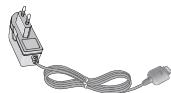
Travel Adapter
This charger allows you to charge the battery while away from home or your office.
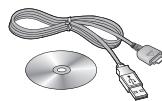
Data cable/CD
You can connect your phone to PC to exchange the data between them.
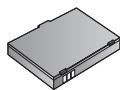
Hands free ear-microphone and music player controller combo
- Stereo headset
- Controller: Answer & End button, music player control, volume control, Hold button and microphone.
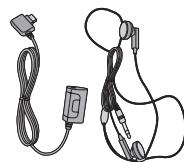
After connecting the headset and the controller, plug the end of controller into the headset jack on the left side of the phone.
Note
Always use genuine LG accessories.
- Failure to do this may invalidate your warranty.
- Accessories may be different in different regions; please check with our regional service company or agent for further inquiries.
TECHNICAL DATA
General
Product name:KG320
System: GSM 900/DCS 1800/PCS 1900
Ambient Temperatures
Max: +55°C
Min: -10°C
Declaration of Conformity

LG Electronics
Suppliers Details
Name
LG Electronics Inc.
Address
: LG Twin Tower 20,Yeoudo-dong, Yeongdeungpo-gu Seoul, Korea 150-721
Product Details
Product Name
E-GSM 900/DCS 1800/PCS 1900 Tri Band Terminal Equipment
Model Name
KG320
Trade Name
LG

Applicable Standards Details
R&TTE Directive 1999/5/EC
EN301489-01v1.6.1/EN301489-07v1.3.1/EN301489-17v.1.2.1
EN300328V1.6.1
EN 60950-1:2001
EN50360/EN50381:2001
3GPP TS 51.010-1, EN 301 511 V9.0.2
Supplementary Information
The conformity to above standards is verified by BABT.
Declaration
I hereby declare under our sole responsibility that the product mentioned above to which this declaration relates complies with the above mentioned standards and Directives
LG Electronics Inc. Amsterdam Office
Veluwezoom 15, 1327 AE Almere, The Netherlands
Tel: +31-36-547-8940, e-mail: seokdm@lge.com
Name
Issued Date
Jin Seog, Kim / Director
27.Feb. 2006

Signature of representative
MEMO
KG320 用户手册
Declaration of Conformity

LG Electronics
Suppliers Details
Name
LG Electronics Inc.
Address
: LG Twin Tower 20, Yeouido-dong, Yeongdeungpo-gu Seoul, Korea 150-721
Product Details
Product Name
E-GSM 900/DCS 1800/PCS 1900 Tri Band Terminal Equipment
Model Name
KG320
Trade Name
LG

Applicable Standards Details
R&TTEDirective1999/5/EC
EN301489-01v1.6.1/EN301489-07v1.3.1/EN301489-17v1.2.1
EN300328V1.6.1
EN 60950-1:2001
EN 50380/EN 50361:2001
3GPP TS 51.010-1, EN 301 511 V9.0.2
Supplementary Information
The conformity to above standards is verified by BABT.
Declaration
I hereby declare under our sole responsibility that the product mentioned above to which this declaration relates complies with the above mentioned standards and Directives
LG Electronics Inc. Amsterdam Office
Veluwezoom 15, 1327 AE Almere, The Netherlands
Tel: +31-36-547-8940, e-mail: seokdm@lge.com
Name
Jin Seog, Kim / Director
Issued Date
27.Feb. 2006

Signature of representative

备忘录
KG320
PANDUAN PENGUNA
KITA HENDAKLAH MEMBERITAHU PENGGUNA BAHAWA
MANUAL INI MUNGKIN TERDAPAT PERBEZAAN ANTARA
TELEFON BERTANG TUNG KEPADA PERISIAN DAN
PEMBEKAL KHIDMAT TELEON.

KANDUNGAN
NAGNDNA
UNTUK KESELMATAN ANDA......4
GARIS PANDUAN BAGI PENGGUNAAN YANG SELMAT DAN CEKAP 5
CIRI-CIRI KG320 9
Bahagian Telefon 9
Ikon Pada Skrin 11
PEMASANGAN 12
Memasang kad SIM dan bateri Telefon 12
Mengecas Bateri 13
Memutuskan pengecas 13
FUNGSI-FUNGSI UMUM 14
Membuat Panggilan 14
Menjawab Panggilan 14
Memasukkan Teks 15
MENU POKOK 18
PEMAINAN KU & LAGI 19
Pemainan ku & lagi [Menu 1-1] 19
Profil [Menu 1-2] 19
SENARAI KENALAN 20
Cari [Menu 2-1] 20
Tambah Baru [Menu 2-2] 20
Kumpulan Pemanggil [Menu 2-3] 20
Dail Cepat [Menu 2-4] 20
Nombor Sendiri [Menu 2-5] 20
Kad bisnes [Menu 2-6] 20
Aturan [Menu 2-7] 20
PENYELENGGARA 22
Kalender [Menu 3-1] 22
Memo [Menu 3-2] 22
MULTIMEDIA 23
Ambil foto [Menu 4-1] 23
Kamera video [Menu 4-2] 24
Perakam Suara [Menu 4-3] 25
MP3 [Menu 4-4] 25
Album foto [Menu 4-5] 27
Video sua [Menu 4-6] 27
MESEJ 28
Pesananbaru [Menu 5-1] 28
Peti Masuk [Menu 5-2] 30
Draf [Menu 5-3] 30
Peti Keluar [Menu 5-4] 30
Dengar Mel Suara [Menu 5-5] 30
Mesej maklumat [Menu 5-6] 30
Templat [Menu 5-7] 31
Tetapan [Menu 5-8] 31
MILIK SAYA 34
Video [Menu 6-1] 34
Foto [Menu 6-2] 34
Imej [Menu 6-3] 35
Muzik [Menu 6-4] 35
Bunyi [Menu 6-5] 35
Teks [Menu 6-6] 35
Pemainan ku & lagi [Menu 6-7] 36
Lain-lain [Menu 6-8] 36
PAPARAN 37
Kertas Hias Dinding [Menu 7-1] 37
Aturan tema [Menu 7-2] 37
Nota Ucapan [Menu 7-3] 37
Pemasalampulatar[Menu7-4] 37
Kecerahan [Menu 7-5] 37
UNTUK KESELMATAN ANDA
Amaran
Kertas Hias Dinding [Menu 7-1]
Folder saysa [Menu 7-1-2]
Declaration of Conformity

LG Electronics
Suppliers Details
Name
LG Electronics Inc.
Address
: LG Twin Tower 20, Yeouldo-dong, Yeongdeungpo-gu Seoul, Korea 150-721
Product Details
Product Name
E-GSM 900/DCS 1800/PCS 1900 Tri Band Terminal Equipment
Model Name
KG320
Trade Name
LG

Applicable Standards Details
R&TTE Directive 1999/5/EC
EN301489-01v1.6.1/EN301489-07v1.3.1/EN301489-17v1.2.1
EN300328V1.6.1
EN 60950-1:2001
EN50360/EN50381:2001
3GPP TS 51.010-1, EN 301 511 V9.0.2
Supplementary Information
The conformity to above standards is verified by BABT.
Declaration
I hereby declare under our sole responsibility that the product mentioned above to which this declaration relates complies with the above mentioned standards and Directives
LG Electronics Inc. Amsterdam Office
Veluwezoom 15, 1327 AE Almere, The Netherlands
Tel: +31-36-547-8940, e-mail: seokdm@lge.com
Name
Issued Date
Jin Seog, Kim / Director
27.Feb. 2006

Signature of representative
MEMO
KG320
PETUNJUK PENGGUNAAN
KAMI PERLU MEMBERITAHU PENGGUNA BAHWA BUKU PETUNJUK INI DAPAT BERBEDA DENGAN PONSEL TERGANTUNG PADA PERANGKAT LUNAK PONSEL DAN PENYEDIA LAYANAN.
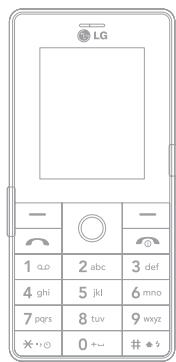

INDEKS
SHEONI
DEMI KESELMATAN ANDA....4
PEDOMAN UNTUK PENGGUNAAN YANG AMAN DAN EFISIEN......5
FITUR KG320 9
Setting [Menu 2-7] 20
AGENDA 22
Kalendar [Menu 3-1] 22
Memo [Menu 3-2] 22
MULTIMEDIA 23
Ambil gambar [Menu 4-1] 23
Ambil video [Menu 4-2] 24
Perekam suara [Menu 4-3] 25
MP3 [Menu 4-4] 25
Album [Menu 4-5] 27
Videoku [Menu 4-6] 27
PESAN 28
Pesanbaru [Menu 5-1] 28
Kotak masuk [Menu 5-2] 30
Draft [Menu 5-3] 30
Setting [Menu 5-8] 32
MILIK SAYA 34
Video [Menu 6-1] 34
Foto [Menu 6-2] 34
Gambar [Menu 6-3] 35
Musik [Menu 6-4] 35
Suara [Menu 6-5] 35
Teks [Menu 6-6] 35
Permainan & Apliki [Menu 6-7] 36
Lain-lain [Menu 6-8] 36
TAMPILAN 37
Wallpaper [Menu 7-1] 37
Skema warna [Menu 7-2] 37
Teks salam [Menu 7-3] 37
Timer lampu latar [Menu 7-4] 37
Brightness [Menu 7-5] 37
Nama jaringan [Menu 7-6] 37
JIn pintas lays utama [Menu 7-7] 37
Warna huruf [Menu 7-8] 37
PROFIL 38
Aktifkan [Menu 8-X-1] 38
Rubah [Menu 8-X-2] 38
Namai ulang [Menu 8-X-3] 38
PIRANTI 39
Favorit [Menu 9-1] 39
Jam alarm [Menu 9-2] 39
Bluetooth [Menu 9-3] 39
Modem [Menu 9-4] 40
Kalkulator [Menu 9-5] 40
Unit konversi [Menu 9-6] 40
Waktu dunia [Menu 9-7] 40
Layanan SIM [Menu 9-8] 40
BROWSER 41
Rumah [Menu *1] 41
Bookmark [Menu *-2] 41
Kunjungi URL [Menu*-3] 41
Setting [Menu *4] 41
DAFTAR PANGGLIAN 42
In case that any invalid file is included in the playlist, an error message will be popped up and go back to the prior screen.
Psn Multimedia [Menu 5-8-2]
Wallpaper [Menu 7-1]
Brightness [Menu 7-5]
Setting [Menu 0-6-3]
(Tergantung SIM)
Declaration of Conformity

LG Electronics
Suppliers Details
Name
LG Electronics Inc.
Address
: LG Twin Tower 20, Yeouldo-dong, Yeongdeungpo-gu Seoul, Korea 150-721
Product Details
Product Name
E-GSM 900/DCS 1800/PCS 1900 Tri Band Terminal Equipment
Model Name
KG320
Trade Name
LG

Applicable Standards Details
R&TTE Directive 1999/5/EC
EN301489-01v1.6.1/EN301489-07v1.3.1/EN301489-17v1.2.1
EN300328V1.6.1
EN 60950-1:2001
EN50360/EN50381:2001
3GPP TS 51.010-1, EN 301 511 V9.0.2
Supplementary Information
The conformity to above standards is verified by BABT.
Declaration
I hereby declare under our sole responsibility that the product mentioned above to which this declaration relates complies with the above mentioned standards and Directives
LG Electronics Inc. Amsterdam Office
Veluwazoom 15, 1327 AE Almere, The Netherlands
Tel: +31-36-547-8940, e-mail: seokdm@lge.com
Name
Issued Date
Jin Seog, Kim / Director
27.Feb. 2006

Signature of representative
MEMO
KG320
Loi chao [Muc 7-3] 37
Den nen [Muc 7-4] 37
Dó sang [Muc 7-5] 37
Ten mang [Muc 7-6] 37
Biéu truong truy cap nong [Muc 7-7]37
Mau nhap so goi di. [Muc 7-8] 37
CAU HINH 38
Kich hoat [Muc 8-X-1] 38
Cai dát riéng [Muc 8-X-2] 38
Doi tien [Muc 8-X-3] 38
CONG CU. 39
Ua thich [Muc 9-1] 39
Báo thuc [Muc 9-2] 39
Bluetooth [Muc 9-3] 39
Modem [Muc 9-4] 40
Maytinh [Muc 9-5] 40
Boi don vi do [Muc 9-6] 40
Gioquc te [Muc 9-7] 40
Dich vu SIM [Muc 9-8] 40
TRINHDUYET 41
Trang chu [Muc*-1] 41
Cac chi muc [Muc *2] 41
Truy cap URL [Muc *-3] 41
Cai dát [Muc*4] 41
NHAT KY CUOC GOI 42
Cuoc goi bjnh [Muc 0-1] 42
THONG SO KY THUAT 51
1 May anh
2 Quay phim
3Ghi am
6 THU MUC RIENG
1 Phim
2 Anh
3 Hinh
4 Nhac
5 Am thanh
6 Vān bān
7 Tro Choi & Ung Dung
8 Khac
7 HIEN THI
1 Hinh nèn
2 Mau nèn
3 Lòi chào
4 Den nèn
5 Do sang
6 Ten mang
7 Bièu truong truy cap nong
8 Mau nhap so goi di.
8 CÁU HINH
1 Thong thuong
2 Im lang
3 Chi rung
4 Tiéng to
5 Tai nghe
9 CONG CU
1 Ua thich
2 Bao thuc
3 Bluetooth
4 Modem
5 May tinh
6 Dài don vi do
7 Giocque
8 Dijh vu SIM
* TRINH DUYET
1 Trang chu
2 Cac chi muc
3 Truyp cap URL
4 Cai dāt
0 NHAT KY CUOC GOI
1 Cuoc go bi hho
2 Cuoc goi dā nhàn
3 Só dā goi
4 Moi cuoc goi
5 Xóa cuó gòi gàn dāy
6 Cuoc cuoc goi
7 Thong tin GPRS
CAI DAT
1 Ngay & Giò
2 Tiét kiem dien
3 Ngông ngu
4 Cuoc goi
5 Bao mát
6 Mang
7 Két Nói GPRS
8 Tinh trang bónhó
9 Vécai dát goc
TRÖ CHOI & ÜNG DUNG
Trò Choi & Üng Dùng [Muc 1-1]
Tro Choi Mac Dinh: Trong menu nay, ban co the quan ly cac ung dung Java duoc cai trong dien thoi qua ban. Ban co the chay hoac xoa cac ung dung da duoc tai xuong, hoac dat lva chon két noi. Cac ung dung duoc tai xuong duoc sap xep trong cac thu mcu.
- Mo: Ban có the nhin thay nh ngtro choi da duoc luu.
- Thu muc moi: Tao mòt Thu muc mi.
Cáu hinh [Muc 1-2]
Cáu先进技术 in the context of the technology, such as the use of computers and the development of new technologies.
Java™ làMZ cóng néghuoc phat trien boi Sun Microsystems. Tuyong tu nuh cach ban tāi xuong Java Applet su dung trinh duyet Netscape haoc MS Internet Explorer chuan, Java MIDlet co the duoc tāi xuong sut dung dien thoi co hó tro WAP. Tuy thuoc vao nha cung cap djch vu, tát cac chuong trinh duy trén nèn tang Java nhu la tro choi Java co the duoc tāi xuong va chay trén dien thoi. Sau khi duoc tāi xuong, chuong trinh Java co the duoc xem tong menu Tro chi va ung dung, o day ban co the chon, chay, hoac xoa. Cac tep chuong trinh Java duoc luu dong dien thoi duovi dang.JAD va.JAR.
Lupuy
- Tep JAR là tep ñi dāng nén cua chuong trinh Java vá tep JAD lá mò tep mò tā bao gōm tát ca thǒng ti chì tiét. Tú máng, trucó khi tái xuǒng, ban co the xēm tát ca cac mo tā chi tiét tú tep JAD.
Mác du ducr dura trén mot ngon ngu chuan (J2ME), khong phai tát cac ung dung Jaza deu tong thoi vot tá cac dien thoi cam tay dang ducr ban vic cach thu vien cu the chte ducr sur dung cho mi kiéu din thoi. Phan mem co the bi khoa hao tu bāt khi cac ung dung Java khong ducr phat trien riéng cho dien thoi ma sàch huong dan nay dé cap tiú ducr tai xuong, can phai "khong dai" dien thoi. Chung toi muon chi ra ngung van de nay gay ra bi nhung ung dung khong tung trich va khong phai la tloi cua san pham.
Canh bao
Chi cac churong trinh co sò J2ME (Java 2 Micro Edition) se chay trén miǒ truǒng dièn thoài. Càc churong trinh co sò J2SE (Java 2 Standard Edition) se chay trén miǒ truǒng mayiún.
DANH BA
Tim kiém [Muc 2-1]
- Vào menu Tim kiém.
- Nháp ten ban muón tim.
Luvy
Tim nhan bang cach nhap ky t' dau tien cua ten hoac so dien thoi ma ban muon tim.
3. Néu ban muón chinh sùa, xóa hay sao chép môt muc trong dansh ba, chon mem bèn lái [T.chon]. Menu sau sé duoc hién thi.
Thème moyen [Muc 2-2]
Ban có the them vao môs dien thoa mi o bang cach su dung chuc nang nay. Dung luong bo nhoc dien thoa co the chu ta tio da 1000 so dien thoa.
Dung luong bo nhô the SIM tuy tuoc nhà cag dich vu mang. Ban cuo co the luu 20 ky tu cho moi tén trong Bô nó dien thoa iac dong the SIM. Só ky tu có the luu long the SIM phu tuoc vao tung loai the SIM
Luvy
D dai cua tén va so trong dang ba phuoc vao tung loai the SIM cua nhacung capdich vu.
Nhόm nguòi goi [Muc 2-3]
Bancothe lap danchsachtoid20 thanvithnongmnotnhom. Banco the lap danchsachtoid7nhom.
Quay sô nhanh [Muc 2-4]
Ban co the gan cho moi phim tu 2abc den 9exp mot lien lac luu.
trong danb ba.
Thu muc rieng [Muc 7-1-2]
Ban co the chon môt hinh nèn hay hinh dōng cua ban lam hinh nèn.
Mau nèn [Muc 7-2]
Dien thoai cua ban cung cap cho ban 4 chu de mau menu. Datin muu menu bang cach cuon va nhan phim mem ben thai [OK].
Lài chào [Muc 7-3]
Bancothecaidtioi gian sangdenamhinhbentrong.
Dó sáng [Muc 7-5]
Ban co the thay do dai sang hi cua man hinh bang cach chon moutrnc cacgia tri sau: 100% 80% 60% 40%
Tén mang [Muc 7-6]
Néu chuc nang nay duoc kich hoat, tén mang sè duoc hièn thi tren LCD chinh.
Bancothekiemtra5soducchuyu hongganday.
Huy bo
Huy kich hoat dich vu turong ung.
Xem trang thai
Xem trang thai hiên tai cua dich vu tuong ung.
Kieu trà lòi
[Muc #-4-2]
- Phimbat khy
Néu chon menu nay, ban co the nhán cuc goi bang cach nhán bát ky phim nao ngoai tru phim [Két thuc].
- Chi phim Gui
Declaration of Conformity

LG Electronics
Suppliers Details
Name
LG Electronics Inc.
Address
: LG Twin Tower 20, Yeouldo-dong, Yeongdeungpo-gu Seoul, Korea 150-721
Product Details
Product Name
E-GSM 900/DCS 1800/PCS 1900 Tri Band Terminal Equipment
Model Name
KG320
Trade Name
LG

Applicable Standards Details
R&TTE Directive 1999/5/EC
EN301489-01v1.6.1/EN301489-07v1.3.1/EN301489-17v1.2.1
EN300328V1.6.1
EN 60950-1:2001
EN50360/EN50381:2001
3GPP TS 51.010-1, EN 301 511 V9.0.2
Supplementary Information
The conformity to above standards is verified by BABT.
Declaration
I hereby declare under our sole responsibility that the product mentioned above to which this declaration relates complies with the above mentioned standards and Directives
LG Electronics Inc. Amsterdam Office
Veluwezoom 15, 1327 AE Almere, The Netherlands
Tel: +31-36-547-8940, e-mail: seokdm@lge.com
Name
Jin Seog, Kim / Director
Issued Date
27.Feb. 2006

Signature of representative