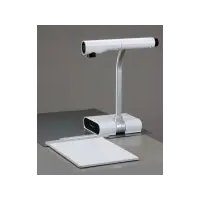
HV-110U - Document camera Elmo - Free user manual and instructions
Find the device manual for free HV-110U Elmo in PDF.


| Product Type | Document Camera (Visual Presenter) |
| Brand | Elmo |
| Model | HV-110U |
| Dimensions (unfolded) | 412 x 338 x 308 mm (W x D x H) |
| Dimensions (folded) | 58 x 338 x 186 mm |
| Weight (main unit) | Approximately 1.9 kg |
| Power Supply | 12 V DC via AC adapter (100-240 V AC) |
| Power Consumption | 7 W (adapter included) |
| Image Pickup Element | DCC 1/3" sensor, approx. 850,000 pixels |
| Effective Resolution | 1024 x 768 pixels (XGA) |
| Frame Rate | 20 frames/second |
| Lens | Fixed focal length f=3mm, F4.0 |
| Digital Zoom | 8x |
| Lighting | White LED lamp |
| Connectivity | Analog RGB output/input (D-SUB 15-pin), USB 2.0 (type B) |
| Storage | SD card (up to 2048 images) |
| Display Modes | Text, graphics |
| Maintenance | Unplug before cleaning, use a damp cloth, avoid solvents |
| Operating Temperature | 0 °C to 40 °C |
| Operating Humidity | 30% to 85% (without condensation) |
| Safety | Do not open the device, risk of electric shock, use an authorized repairer |
| Included Accessories | AC adapter, RGB cable, USB cable, anti-glare film, strap, software CD |
Frequently Asked Questions - HV-110U Elmo
User questions about HV-110U Elmo
0 question about this device. Answer the ones you know or ask your own.
Ask a new question about this device
Download the instructions for your Document camera in PDF format for free! Find your manual HV-110U - Elmo and take your electronic device back in hand. On this page are published all the documents necessary for the use of your device. HV-110U by Elmo.
USER MANUAL HV-110U Elmo
Please read this instruction manual carefully before using this product and keep it for future reference.

IMPORTANT SAFEGUARDS
- Read Instructions All the safety and operating instructions should be read before the appliance is operated.
■ Retain Instructions The safety and operating instructions should be retained for future reference.
■ Heed Warnings All warnings on the product and in the operating instructions should be adhered to.
■ Follow Instructions All operating and use instructions should be followed.
■ Cleaning Unplug this product from the wall outlet before cleaning. Do not use liquid cleaners or aerosol cleaners. Use a damp cloth for cleaning.
■ Attachments Do not use attachments not recommended by the product manufacturer as they may cause hazards.
■ Water and Moisture Do not use this product near water - for example, near a bath tub, wash bowl, kitchen sink, or laundry tub, in a wet basement, or near a swimming pool, and the like.
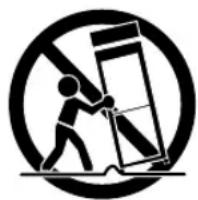
■ Placement Do not place this product on an unstable cart, stand, tripod, bracket, or table. The product may fall, causing serious injury to a child or adult, and serious damage to the product. Use only with a cart, stand, tripod, bracket, or table recommended by the manufacturer, or sold with the product. Any mounting of the product should follow the manufacturer's instructions,
and should use a mounting accessory recommended by the manufacturer.
■ Ventilation Slots and openings in the cabinet are provided for ventilation and to ensure reliable operation of the product and to protect it from overheating, and these openings must not be blocked or covered. The openings should never be blocked by placing the product on a bed, sofa, rug, or other similar surface. This product should not be placed in a built-in installation such as a bookcase or rack unless proper ventilation is provided or the manufacturer's instructions have been adhered to.
■ Power Sources This product should be operated only from the type of power source indicated on the marking label. If you are not sure of the type of power supply to your home consult your appliance dealer or local power company. For products intended to operate from battery power, or other sources, refer to the operating instructions.
■ Grounding or Polarization This product may be equipped with either a polarized 2-wire AC line plug (a plug having one blade wider than the other) or a 3-wire grounding type plug, a plug having a third (grounding) pin. The 2-wire polarized plug will fit into the power outlet only one way. This is a safety feature. If you are unable to insert the plug fully into the outlet, try reversing the plug. If the plug still fails to fit, contact your electrician to replace your obsolete outlet. Do not defeat the safety purpose of the polarized plug. The 3-wire grounding type plug will fit into a grounding type power outlet. This is a safety feature. If you are unable to insert the plug into the outlet, contact your electrician to replace your obsolete outlet. Do not defeat the safety purpose of the grounding type plug.
■ Power-Cord Protection Power-supply cords should be routed so that they are not likely to be walked on or pinched by items placed upon or against them, paying particular attention to cords at plugs, convenience receptacles, and the point where they exit from the product.
■ Lightning For added protection for this product during a lightning storm, or when it is left unattended and unused for long periods of time, unplug it from the wall outlet and disconnect the antenna or cable system. This will prevent damage to the product due to lightning and
power-line surges.
■ Overloading Do not overload wall outlets, extension cords, or integral convenience receptacles as this can result in a risk of fire or electric shock.
■ A product and cart combination should be moved with care. Quick stops, excessive force, and uneven surfaces may cause the pr combination to ov
■ Object and Liquid Entry Never push objects of any kind into this product through openings as they may touch dangerous voltage points or short-out parts that could result in a fire or electric shock. Never spill liquid of any kind on the product.
■ Servicing Do not attempt to service this product yourself as opening or removing covers may expose you to dangerous voltage or other hazards. Refer all servicing to qualified service personnel.
natural_image
Symbolic icon of a person pushing a large object through a circular frame (no text or symbols)English
■ Damage Requiring Service Unplug this product from the wall outlet and refer servicing to qualified service personnel under the following conditions:
- When the power-supply cord or plug is damaged.
- If liquid has been spilled, or objects have fallen into the product.
- If the product has been exposed to rain or water.
- If the product does not operate normally by following the operating instructions. Adjust only those controls that are covered by the operating instructions as an improper adjustment of other controls may result in damage and will often require extensive work by a qualified technician to restore the product to its normal operation.
- If the product has been dropped or damaged in any way.
- When the product exhibits a distinct change in performance - this indicates a need for service.
■ Replacement Parts When replacement parts are required, be sure the service technician has used replacement parts specified by the manufacturer or have the same characteristics as the original part. Unauthorized substitutions may result in fire, electric shock or other hazards.
■ Safety Check Upon completion of any service or repairs to this product, ask the service technician to perform safety checks to determine that the product is in proper operating condition.
■ Heat The product should be situated away from heat sources such as radiators, heat registers, stoves, or other products (including amplifiers) that produce heat.

text_image
CAUTION RISK OF ELECTRIC SHOCK DO NOT OPEN CAUTION: TO REDUCE THE RISK OF ELECTRIC SHOCK, DO NOT REMOVE COVER (OR BACK). NO USER-SERVICEABLE PARTS INSIDE. REFER SERVICING TO QUALIFIED SERVICE PERSONNEL.
SA 1965
The lightning flash with arrowhead symbol, within an equilateral triangle, is intended to alert the user to the presence of uninsulated "dangerous voltage" within the product's enclosure that may be of sufficient magnitude to constitute a risk of electric shock to persons. This marking is located at the bottom of product.

SA 1966
The exclamation point within an equilateral triangle is intended to alert the user to the presence of important operating and maintenance (servicing) instructions in the literature accompanying the product.
WARNING:
TO REDUCE THE RISK OF FIRE OR ELECTRIC SHOCK, DO NOT EXPOSE THIS PRODUCT TO RAIN OR MOISTURE.
The connection of a non-shielded equipment interface cable to this equipment will invalidate the FCC Certification or Declaration of this device and may cause interference levels which exceed the limits established by the FCC for this equipment. It is the responsibility of the user to obtain and use a shielded equipment interface cable with this device. If this equipment has more than one interface connector, do not leave cables connected to unused interfaces. Changes or modifications not expressly approved by the manufacturer could void the user's authority to operate the equipment.
FOR UNITED STATES USERS: INFORMATION
This equipment has been tested and found to comply with the limits for a Class B digital device, pursuant to Part 15 of the FCC Rules. These limits are designed to provide reasonable protection against harmful interference in a residential installation. This equipment generates, uses, and can radiate radio frequency energy and, if not installed and used in accordance with the instructions, may cause harmful interference to radio or television reception. However, there is no guarantee that interference will not occur in a particular installation. If this equipment does cause interference to radio and television reception, which can be determined by turning the equipment off and on, the user is encouraged to try to correct the interference by one or more of the following measures.
- Reorient or relocate the receiving antenna.
- Increase the separation between the equipment and receiver.
- Connect the equipment into an outlet on a circuit different from that to which the receiver is connected.
- Consult the dealer or an experienced radio/TV technician for help.
USER-INSTALLER
CAUTION:
Your authority to operate this FCC verified equipment could be voided if you make changes or modifications not expressly approved by the party responsible for compliance to Part 15 of the FCC rules.
BEFORE YOU USE
■ Use the product under the rated electrical conditions. The power cord applicable to the local power specifications is attached. Be sure to use the power cord applicable to your local power specifications.
■ Do not leave this product under direct sunlight or by heaters, or it may be discolored, deformed or damaged.
■ Do not keep this product in any humid, dusty, salt bearing wind or vibrating location. Use it under the following environmental conditions:
Temperature: 0°C - 40°C (32°F - 104°F)
Humidity: 30% - 85% (No condensation)
■ Use a soft, dry cloth for cleaning. Do not use any volatile solvents such as thinner and benzene.
■ Do not point the camera lens directly into the sun, or the camera may be damaged.
■ Luminescent and Black Spots: There may be some pixels that do not properly operate due to the use of CCD Area Image Sensors made-up of many pixels. Though luminescent or black spots may be found on the screen, it is a phenomenon peculiar to the Sensors and is not a malfunction.
■ Follow the guidelines below to prevent the unit from dropping or overturning:
- Use this product on a stable base, desk or table. Do not place this product on unstable base or slant place.
- Place or wire this product to prevent the AC adapter cord or video cable from pulling.
- Carry this product holding the lower part of the main unit held in your both hands. Never hold this product by the column or the camera head.
English
■ Use (including set-up and storage) or transfer this product with your closest attention to prevent the camera head from shocking.
■ Do not look directly into the illumination lamp. If you look directly into it at point-blank range, your eyes may be hurt.
■ Transfer the data from the SD card into a device such as PC to save a backup copy. Malfunction of this product or repairs to it may cause the data saved in the SD card to be deleted.
If this product is used for longer than the warranty period, its performance and quality may deteriorate due to the lifetime of its parts. In this case, we will replace the parts for a charge. Consult the seller from whom you have purchased this product or out branch/office near your location.
English
CONTENTS
PART NAMES AND FUNCTIONS
SETTING UP AND STORING
OPERATION PROCEDURE
TROUBLE SHOOTING
SPECIFICATIONS
IMPORTANT SAFEGUARDS .... 2 BEFORE YOU USE .... 6
CONTENTS 8
- PART NAMES AND FUNCTIONS 9
Appearance....9
Front 9
Camera Head 10
Top....10
Side 10
Front 11
Base Unit 12
Right 12
Left 12
Rear 13
2.SETTING UP AND STORING 14
Setting Up 14
Storing 16
Connecting....18
Presentation using printed materials etc. (Camera Mode) 20
Changing the size of an object (Manual Zoom) 20
Changing the size of an object (Digital Zoom) 21
Turning the lamp ON / OFF 22
Correcting the white balance (White Balance) 23
Adjusting the brightness (Brightness) 23
Presentation using an optional SD card (SD Mode) 24
Inserting/removing the SD card 24
Displaying the image in the SD card 25
Saving the image in the SD card 26
Deleting the image in the SD card, and formatting the SD card 27
Deleting the image in the SD card (Currently-displayed image) .....28
Deleting the images in the SD card (Deletion of all images at the same time) 30
Formatting the SD card 32
Presentation using the PC (USB-connected) 34
Displaying the PC screens using the specific software 34
4.Trouble Shooting 35
Symptoms and Confirmation 35
5.SPECIFICATIONS....36
General 36
Main Camera 36
Supplied Accessories 37
1 PART NAMES AND FUNCTIONS
Appearance
Front

text_image
(1) (2) (3) (4) (5) (6)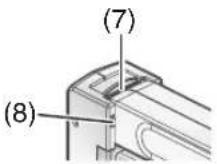

text_image
(11) (12) (13) (10) (14)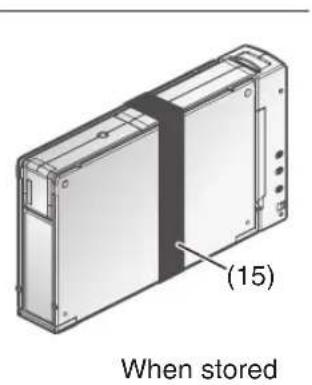
text_image
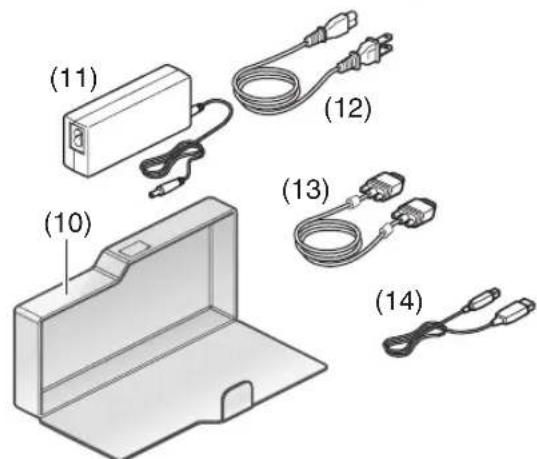
(15) When stored| No. | Name No. Name |
| (1) | Camera Head P.10 |
| (2) | Arm (10) Accessory Case |
| (3) | Base Unit P.12 |
| (4) | SD Cap (12) AC Cord |
| (5) | Stage (13) Analog RGB Cable |
| (6) | Anti-glare Sheet P.21 |
| (7) | Stage Open Lever P.14 |
| (8) | Lock P.17 |
| (9) Illumination lamp P.22 | |
| (11) AC Adapter | |
| (14) USB Cable | |
| (15) Main Unit Belt P.17 | |
English
Camera Head
Top
text_image
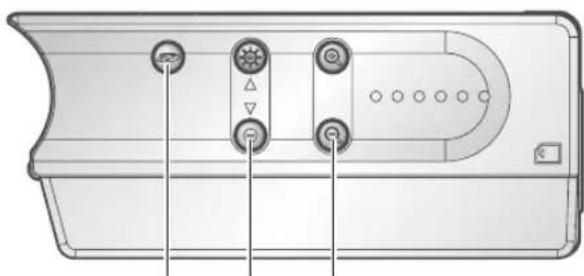
(1) @6Side
natural_image
Technical diagram of a device rear panel with labeled buttons and ports (no text or symbols)(4) (3)
(2)
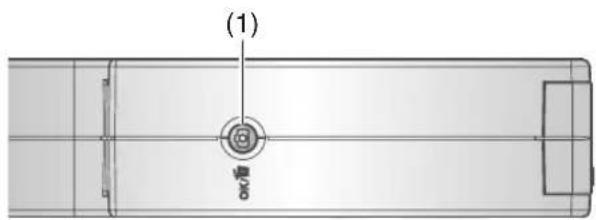
| No. | Name Function | |
| (1) |  (Image Save Button) (Image Save Button) | Camera mode: To save the image in the SD card.  |
| OK / [Y60Z] | SD mode: To decide the selected menu.  | |
| (2) |   (Digital Zoom Buttons) (Digital Zoom Buttons) | To operate the digital zoom.  |
| (3) | (Brightness Buttons)  | Camera mode: To adjust image brightness.  |
  | SD mode: To change the displayed image to the next/previous image or to move the cursor. P25 | |
| (4) | (SD Mode Button) | To switch the output image to the SD mode  |
(Image Save Button)
Camera mode: To save the image in the SD card. P26
SD mode: To decide the selected menu.
To operate the digital zoom.
Camera mode: To adjust image brightness.
SD mode: To change the displayed image to the next/previous image or to move the cursor. P25
To switch the output image to the SD mode.
English
Front

text_image
(6) (5)PART NAMES AND FUNCTIONS
| No. | Name Function | |
| (5) | (SD Card Slot) | To insert an SD card into the SD card slot. Push the card again to remove the SD card. |
| (6) | Status Display LED | To display the power supply and status in each mode.Camera mode (normal): green lightingCamera mode (zoom): blue, green lighting or blinkingSD mode: blue lighting |
Base Unit
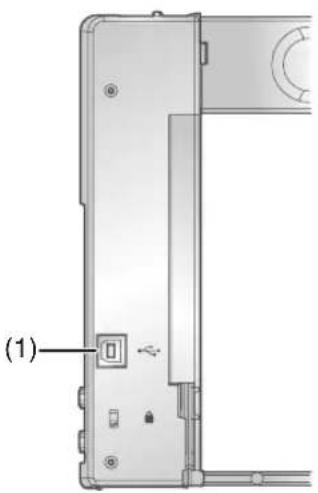
Right
text_image
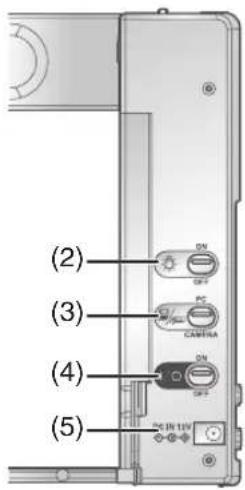
(1)Left
text_image
(2) (3) (4) (5)| No. | Name Function | |
| (1) |  USB (2.0 compliant) USB (2.0 compliant) | To transfer images or control the main unit using the software contained in the supplied Utility Software CD-ROM by connecting the main unit with the PC. |
| (2) |  J/OFF](Lamp Switch) J/OFF](Lamp Switch) | To turn the illumination lamp [ON / OFF].  |
| (3) |  [PC/CAMERA](Image Input Selection Switch) [PC/CAMERA](Image Input Selection Switch) | To switch the image from the RGB output terminal [RGB OUT].[PC]: To output the image input to [RGB IN] terminal from RGB output terminal.[CAMERA]: To turn on when the camera image is selected as the output image. |
| (4) | I/O [ON/OFF](Power Switch) | To turn the power [ON / OFF]. |
| (5) | DC IN 12V(Power Terminal) | The AC adapter is inserted into this terminal. |
Rear

text_image
(1) (2) (3) (4) (5)| No. | Name Function | |
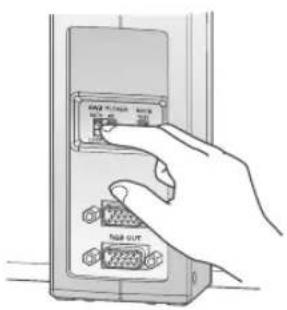
| (1) | AWB [AUTO/LOCK](Auto White Balance Switch) | To change the auto white balance operation.[AUTO]: To set the white balance to auto-correcting.[LOCK]: To set the white balance to fi xing. |
| (2) | FLICKER [60/50](Flickerless Switch) | To change the flicker rate according to the local power frequency.[60]: 60Hz regions[50]: 50Hz regions |
| (3) | MODE [TEXT/GRAPHICS](Mode Switch) | To switch the image mode.[TEXT]: To sharpen B&W characters and lines in documents.[GRAPHICS]: To show color images such as color drawings and photos vividly. |
| (4) | RGB IN(Analog RGB Input Terminal) | To output the input image from the analog RGB output terminal to this terminal when [PC] is selected by the image input selection switch.P:18 |
| (5) | RGB OUT(Analog RGB Output Terminal) | To output analog video signal to the projector, the PC monitor or other RGB input devices.P:18 |
2 SETTING UP AND STORING
Setting Up
1 Slide the stage open lever at the top of the main unit.
The stage is unlocked and unfolded to the right and left.
Note
- When the accessory case is housed inside, be careful not to drop it.

natural_image
Illustration of a hand holding a flatboard device with directional arrows indicating rotation (no text or symbols)
natural_image
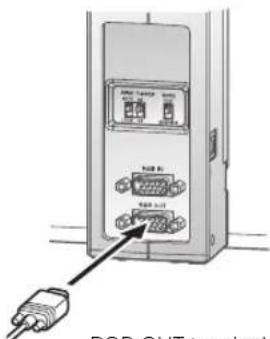
Illustration of a hand pressing down on a mechanical device with an arrow indicating force (no text or symbols present)2 Connect the analog RGB cable to the analog RGB output terminal [RGB OUT].
Connect the cable to the unit equipped with the analog RGB input terminal (e.g. the projector or monitor).
![Elmo HV-110U - Connect the analog RGB cable to the analog RGB output terminal [RGB OUT]. - 1](/content/2026/04/699908/images/5767a0c1d37a5ccbb95420c352f99bf014e8c02d337ef6fb4f6b0a2c1c0915b0.jpg)
Note
- Hold the plug of cable to connect each cable.
- Before starting connection, turn OFF the power supply to each unit.
text_image
PGR OUT terminalRGB OUT terminal
- To projector
- To PC monitor

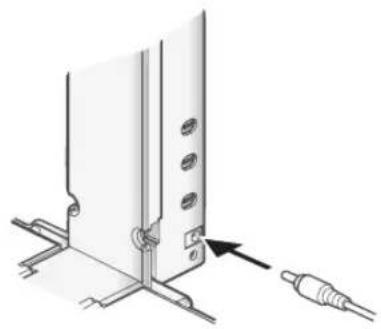
Connect the DC plug of AC adapter to the power terminal [DC IN 12V].
natural_image
Diagram of a device mounting bracket with a cable inserted, showing no text or symbolsSETTING UP AND STORING

Turn [I] (Power Switch) ON
The status display LED lights in green, and the image is displayed.
![Elmo HV-110U - Turn [I] (Power Switch) ON - 1](/content/2026/04/699908/images/f9f6541d86d5c9e027c00920c9d63dc690d879cb79b2a706cd41cf725502dd92.jpg)
natural_image
Line drawing of a hand inserting a component into a metal bracket (no text or symbols)Note
- The image may be affected by unsightly shadows caused from other lights in the room or from the outside. This effect can usually be eliminated or reduced by repositioning this product being mindful of the ambient lights or by turning around it.
Storing
1 Turn [I] (Power Switch) OFF.
The status display LED goes out.
![Elmo HV-110U - Turn [I] (Power Switch) OFF. - 1](/content/2026/04/699908/images/ee04b1fb610324865c0f648e75f56ee201136b7e605bc09dfc9450dcd67423b3.jpg)
natural_image
Line drawing of a hand inserting a component into a metal panel (no text or symbols)SETTING UP AND STORING
2 Unplug the AC adapter and the analog RGB cable from the main unit.

natural_image
Diagram of a device panel with connectors and a cable, showing no text or symbols3
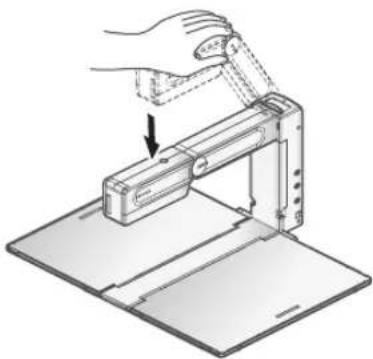
Push the camera head down to be in line with the arm horizontally.
natural_image
Illustration of a hand using a tool to lift a mechanical component, with an arrow indicating the motion (no text or symbols present)SETTING UP AND STORING
4
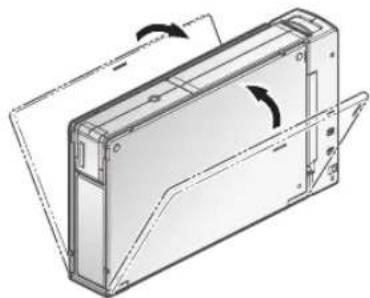
House the accessory case inside the stage, and then fold the stage until the lock clicks.
Folding the right and left stage.
When folding both the right and left stages, make sure that the concave part of the stage and the concave part of the side of the stage are put back to the convex part of the side of the arm and the lock part of the base unit respectively.

natural_image
Illustration of a hand pressing down on a mechanical device with an arrow indicating force or movement (no text or symbols present)
Note
- Make sure that the accessory case is closed firmly.
• Take care not to pinch your hands, etc. with the stages, when you fold them.
natural_image
Technical line drawing of a mechanical component with directional arrows indicating rotation (no text or symbols)About the main unit belt
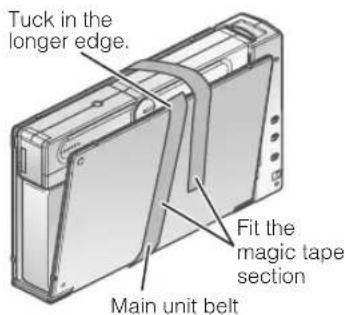
A main unit belt is provided to prevent the stage opening unexpectedly when being stored.
Wrap it around the main unit as shown in the illustration on the right.
text_image
Tuck in the longer edge. Fit the magic tape section Main unit beltConnecting
text_image
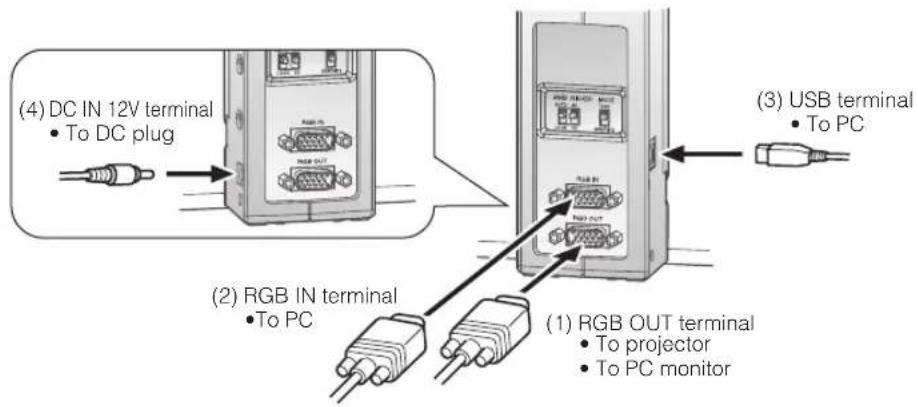
(4) DC IN 12V terminal • To DC plug (2) RGB IN terminal • To PC (1) RGB OUT terminal • To projector • To PC monitor (3) USB terminal • To PC(1) Connecting to the unit equipped with analog RGB input terminal
Connect the supplied analog RGB cable to the [RGB OUT] terminal on the rear panel.
- The display position may be displaced from the center of the screen. In such case, adjust the horizontal and vertical positions manually from the connected device.
- Vertical strips may appear on the projector or PC monitor screen. This can be mitigated by manually adjusting the dot clock from the connected device.
(2) Connecting to the unit equipped with analog RGB output terminal
Connect the supplied or separately-sold analog RGB cable to the [RGB IN] terminal on the rear panel.
Note
- When using a laptop PC with an external output mode switching, set the laptop PC side to the external output mode after pushing the manual operation button [PC] of this equipment.
- When the power switch is turned to [OFF], the image that has been input into the [RGB IN] terminal will be output from the [RGB OUT] terminal, regardless of the position of the Image Input Selection Switch.
■ Specifications of the analog RGB input terminal of this product
Signal allocation
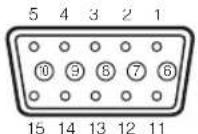
DSUB 15P shrink terminal (Female)
Video signal: Analog 0.7V(p-p) with 75Ω terminated
Horizontal synchronized signal : TTL level (Positive/negative polarity)
Vertical synchronized signal : TTL level (Positive/negative polarity)
Pin assignment
| Pin No. | Name Pin No. | Name Pin No. | Name |
| 1 | Video signal (Red) | 6 GND | (Red) 11 GND |
| 2 | Video signal (Green) | 7 GND | (Green) 12 N.C |
| 3 | Video signal (Blue) | 8 GND | (Blue) 13 |
| 4 | N.C | 9 | N.C |
| 5 GND | 10 GND | 15 N.C | |
| Horizontal sync. signal | |
| 14 | Vertical sync. signal |
(3) Connecting to the PC with a USB cable.
Connect a USB cable to the [USB] terminal on the side of the base unit.
Note
- The USB2.0 compliant cable is recommended.
- If you plug a USB cable with the power supply to this product and the PC on, the PC may not recognize this product.
- Depending on the USB environment of PC or the USB2.0 compliant cable is recommended. Peripheral units, the image transfer may be disturbed.
- This does not guarantee operations in any environment.
(4) Connecting the AC adapter
Connect the DC plug of the supplied AC adapter to the [DC IN 12V] terminal on the side of the main unit before inserting the AC adapter into an outlet.
Note
- To protect this product and peripheral devices, unplug the power plug of the AC adapter and turn OFF the power switches on all other devices before connecting the video cable.
- Hold the plug of the cable to plug in/unplug the power plug of the AC adapter or the video cable.
Presentation using printed materials etc. (Camera Mode)
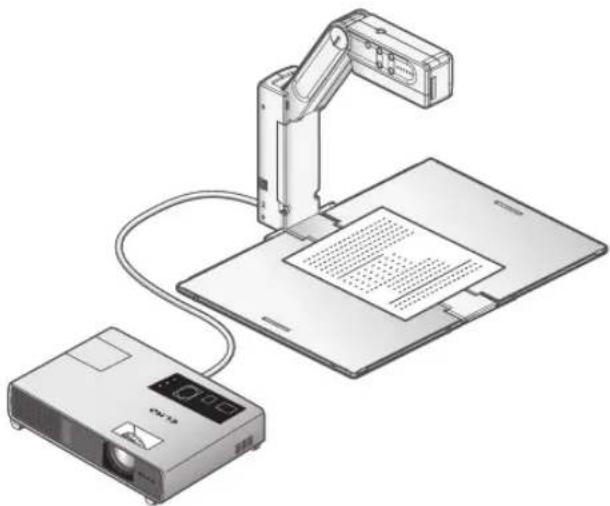
natural_image
Illustration of an electronic device with a mounted arm and a digital projector, no text or symbols present.■ Changing the size of an object (Manual Zoom)
By pushing the camera head up/down, the object in display on the monitor screen can be zoomed in/out. Pushing the camera head down : To enlarge the object Pushing the camera head up : To minify the object.
To enlarge the object in display on the monitor screen even larger than when the camera head is in the lowest horizontal position (object enlarged at the highest level), use the digital zoom functions (refer to page 21).
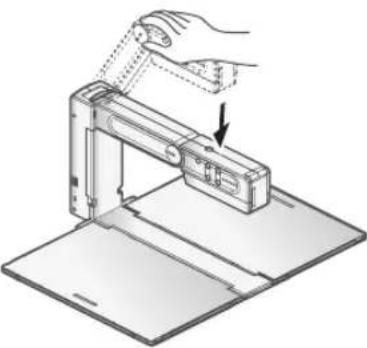
natural_image
Illustration of a hand using a handheld device to lift a component, with no visible text or symbols.
Note
- For best results, we recommend LCD projectors over DLP projectors to be used with HV-110u. A better image may be produced by selecting "Graphics" mode with DLP projector.

Note
- When shooting glossy documents, etc., the images may be hard to see due to glare, etc. In such cases, place the anti-glare sheet, supplied, over the area where glare is occurring. This will reduce glare and the images will become easier to see.
■ Changing the size of an object (Digital Zoom)
When you need to zoom in the object in display on the monitor screen even larger than when the camera head is in the lowest horizontal position (object enlarged at the highest level), press the [ 🔒 ] and [ 🔒 ] buttons (Digital Zoom Buttons) to operate the digital zoom.
[+] button : To zoom in the object.
[Q] button : To zoom out the object.
The status display LED is in green/blue while the digital zoom is in operation. Holding down the [ 🔒 ] and [ 🔒 ] buttons at the same time for several seconds turns the status display LED back to green and restores the zoom ratio to its factory setting.
When the zoom ratio is changed from the factory setting by pressing the [ 🔒 ] button (Digital Zoom Button), the 🔒 icon is displayed for a while in the center of the screen. If you move the object while the
- icon is displayed, and shift the area you want to enlarge to under the - icon, you can move the area to be enlarged to the center of the screen easily.

natural_image
Illustration of a hand using a sewing machine to press or install a printed document on a flat surface (no text or symbols visible)
text_image
Diagram illustrating hand gesture interacting with a screen showing an apple and a plus symbol, likely illustrating a basic computer interface or instructional material.
Note
- You can use the digital zoom regardless of the height of the arm.
- The digital zoom degrades the image quality.
- By turning the [I/O] (power switch) to [OFF], the setting for the digital zoom can be canceled (restored to its factory setting).
• The max Digital zoom ratio is 8x.
English
■ Turning the lamp ON / OFF
1 Set the [ ] switch to [ON].
The illumination lamp lights.
![Elmo HV-110U - Set the [ ] switch to [ON]. - 1](/content/2026/04/699908/images/698473f51edd092382f353212235a465f0259972f6d531ac3980b3d270d636d2.jpg)
- Do not look into the illumination lamp.
- Do not touch the illumination lamp while it is ON. Its temperature may be higher.
![Elmo HV-110U - Set the [ ] switch to [ON]. - 2](/content/2026/04/699908/images/94606b9c4c3cc8b9530208ec44c03897ef389182581c261f9be2c7755c347670.jpg)
natural_image
Hand inserting a component into a metal bracket (no text or symbols visible)Note
- This product is equipped with a high-brightness LED lamp. You can safely use the lamp to light objects. However, its brightness will gradually degrade with long-term usage. This is not a malfunction of the lamp, but a feature of the LED performance.
English
■ Correcting the white balance (White Balance)
Set [AWB] (Auto White Balance Switch) to [AUTO] to correct the white balance automatically.
text_image
USB FLEX USB FLEX USB FLEX USB FLEXNote
- If the accurate auto-adjusting is disabled for some objects or the source of light, shoot a white object to adjust the white balance automatically, and then set [AWB] (Auto White Balance Switch) to [LOCK] to fix the white balance.
■ Adjusting the brightness (Brightness)
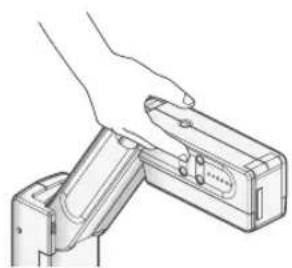
Press the [◦] or [ ] buttons (Brightness buttons) to adjust the image brightness.
[☀️△] button : To brighten the image.
[●▽] button : To darken the image.
Holding down the [☀️] and [●] buttons at the same time for several seconds restores the brightness value to its factory setting.
natural_image
Line drawing of a hand inserting a small component into a mechanical device (no text or symbols)Presentation using an optional SD card (SD Mode)
■ Inserting/removing the SD card

natural_image
Diagram of an armillary device mounted on a laptop, showing a component and screen setup (no text or symbols present)Before starting the operation, take the SD cap off and insert an optional SD card into the SD slot on the front of the camera head.
2 Push the card again to remove the SD card.
Note
- When loading or unloading the SD card or the power switch is turned OFF, be sure to confirm that the output image has been turned to the camera image or the PC image beforehand. If you load or unload the SD card while the mode is set to the SD mode, the SD card contents could be destroyed or failure could be caused to this product.
- Insert the SD card with the labeled side facing the left side of the front of the main unit. Forcing it in the wrong way may cause a malfunction.
- An SD card is composed of parts vulnerable to static electricity. Therefore, due to static electricity, the SD card could malfunction or its contents could be destroyed. When handling the SD card, take care to avoid static electricity.
- The image data viewable on this product is limited to the image data saved in this product and the image data converted using the conversion function of the software attached to this product.
- If you try displaying the image data whose format is not compatible with this product, a black or gray image will be displayed.
- If you try displaying the image data in the SD card without inserting the SD card, a black image will be displayed. (The message "NO CARD" will appear on the screen.)
• After using the SD card, do not leave it inside this product, but be sure to remove it. - Panasonic SD card (256MB or 512MB) is recommended. The resolution of the image to be stored is 1024 × 768 (XGA output). This product can store images up to 2048 pcs.
- ELMO is not liable for any damage caused by the loss of the data in the SD card or passive damage.
- This product is not compatible with SDHC cards. Use an SD card recommended for this product.
- When the SD mode is selected, the specific software supplied with this prouct can not be used.
■ Displaying the image in the SD card

Press the [S] Button (SD Mode Button).
The mode is switched to the SD mode, and the image most recently saved in the SD card is displayed.
The status display LED lights in blue during the SD mode.
![Elmo HV-110U - Press the [S] Button (SD Mode Button). - 1](/content/2026/04/699908/images/4789130c6d258eed09f070303deb6367189aa9ebeb27b8116edfbfd845f8f88a.jpg)
natural_image
Illustration of a hand inserting a component into a device (no text or symbols visible)By pressing the [Button (SD Mode Button) again, the SD mode can be canceled.
![Elmo HV-110U - Press the [S] Button (SD Mode Button). - 2](/content/2026/04/699908/images/263729559ac03298d3b5769e308bc56b927998ecb52f381c34acdf269fac6ab8.jpg)
natural_image
Blank white image with no visible content, text, or symbols![Elmo HV-110U - Press the [S] Button (SD Mode Button). - 3](/content/2026/04/699908/images/aa29859a39910eda786e8c9e5b75c33ac9096c93f2237e65dbcd73b305109848.jpg)
To change the displayed image to the next/previous image, use the [ ◎△ ] and [ ●]▼ buttons (Brightness Buttons).
[ ] button : To display the next image (Hold it down for several seconds : Fast forward)
[●▽] button : To display the previous image (Hold it down for several seconds : Fast backward)
![Elmo HV-110U - To change the displayed image to the next/previous image, use the [ ◎△ ] and [ ●]▼ buttons (Brightness Buttons). - 1](/content/2026/04/699908/images/a82c313be20c73c1134569d9f7afb0578b22024601fc859af6bd629ede89df95.jpg)
natural_image
Line drawing of a hand inserting a device into a device (no text or symbols)![Elmo HV-110U - To change the displayed image to the next/previous image, use the [ ◎△ ] and [ ●]▼ buttons (Brightness Buttons). - 2](/content/2026/04/699908/images/92526e02fda9f9986db2b1bb430ed5ff0458811c083d5ae98d63ef7a8be5b38e.jpg)
Display images can be digitally-zoomed by pushing the [ 🔒 ] button or the [ 🔒] button (Digital Zoom Buttons).
[ 🔒] button : To zoom in [ 🔒 ] button : To zoom out
When both the [ ⊙] and [ ⏻buttons are pressed and held simultaneously, the zoom ratio returns to the factory setting.
English
■ Saving the image in the SD card
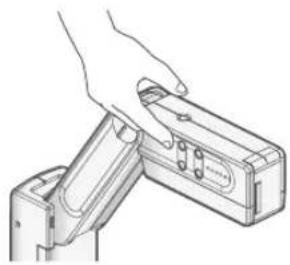
1 Press the [button (Image Save Button) while in the camera mode.
natural_image
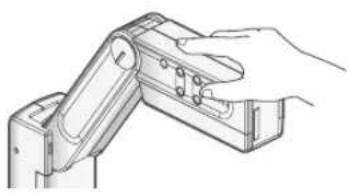
Line drawing of a hand inserting a device into a rectangular device (no text or symbols)When the SD mode is selected, press the [SD] button (SD Mode Button) to switch the mode to the camera mode, then press the [SD] button (Image Save Button). Move the [SB] switch (Image Input selection switch) to the [CAMERA] side if it is on the [PC] side.
natural_image
Line drawing of a hand operating a mechanical bracket or clamp (no text or symbols present)Note
- When an image is saved during digital zooming, the digital zooming operation is canceled and the image is saved at the factory setting zoom ratio.
- The correct date/time is not saved on the image files.
- Be sure to try shooting and confirm the normal saving of the image beforehand. If the image cannot be saved normally due to some problem with this product or the SD card, ELMO is not liable to compensate for such failure.
- When the SD card is write-protected, the image cannot be saved in the SD card.
- When the capacity of the SD card becomes full and no more images can be saved, delete unwanted images or use a new SD card.
- When the SD card is in the read/write mode, do not remove the SD card, or failure could occur with this product.
Deleting the image in the SD card, and formatting the SD card
To delete the image in the SD card and format the SD card, perform operations on the [MEDIA MENU] screen.
When the [ OK/ button (Image Save Button) for operation is pressed in the SD mode, the MEDIA MENU appears on the monitor screen.
Using the [ ◎△ ] or [ ●] buttons (Brightness buttons), move to the item to be set, and press the [ OK/ button (Image Save Button) to decide the setting.
| MEDIA MENU |
| Exit |
| Delete Current File |
| Delete All Files |
| Format Media |
| The top hierarchy The 2nd hierarchy Function | ||
| Exit Exit Menu | (To select Yes/No.) | To remove the MEDIA MENU display from the screen. |
| Delete Current File Delete | Current File(To select No/Yes.) | To delete the currently-displayed image in the SD card. P.28 |
| Delete All Files Delete All | Files(To select No/Yes.) | To delete all the images in the SD card. P.30 |
| Format Media | Format Media(To select No/Yes.) | To format the SD card. P.32 |
English
■ Deleting the image in the SD card (Currently-displayed image)
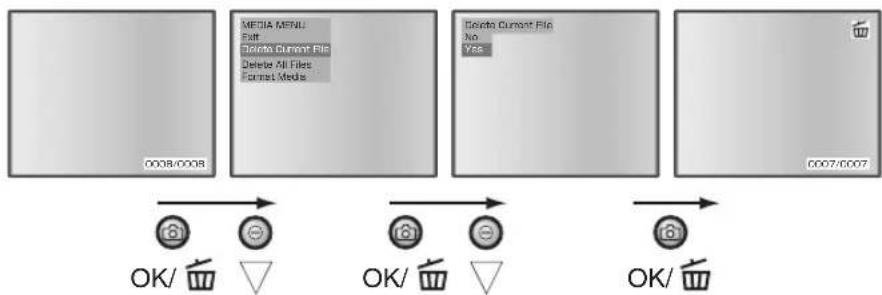
flowchart
graph LR
    A["0038/0008"] --> B["MEDIA MENU: Exit, Toronto Current File, Delete All Files, Format Media"]
    B --> C["Delete Current File No: Yes"]
    C --> D["OK/ Cancel"]
    D --> E["OK/ Cancel"]
    E --> F["OK/ Cancel"]

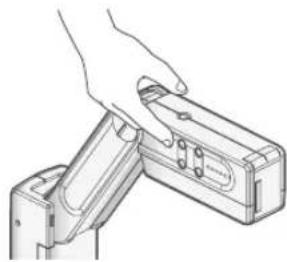
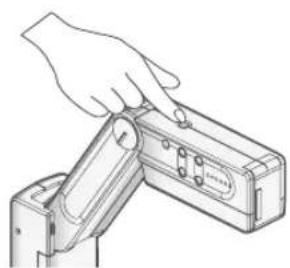
Press the [SButton (SD Mode Button).
The mode is switched to the SD mode.
natural_image
Line drawing of a hand inserting a device into a rectangular device (no text or symbols)
Display the image to be deleted by using the [☀️] and [●] buttons (Brightness Buttons).
[💡] button : To display the next image. (Hold it down for several seconds : Fast forward)

natural_image
Line drawing of a hand holding a device with a rectangular component (no text or symbols)[●▽] button : To display the previous image. (Hold it down for several seconds : Fast backward)

Press the [OK/ button (Image Save button).
The [MEDIA MENU] screen is displayed.
natural_image
Line drawing of a hand inserting a device into a rectangular device (no text or symbols)| MEDIA MENU |
| Exit |
| Delete Current File |
| Delete All Files |
| Format Media |
English

Set the cursor to [Delete Current File] by operating the [☀️ △ ] and [●] buttons (Brightness Buttons).
To delete only the image in display, select [Delete Current File] of the MENU.
| MEDIA MENU |
| Exit |
| Delete Current File |
| Delete All Files |
| Format Media |

Press the [OK/ button (Image Save button).
The MENU display is changed.
| Delete Current File | |
| No | |
| Yes | |

Set the cursor to [Yes] by operating the [💡] and [◀] buttons (Brightness Buttons).
| Delete Current File | |
| No | |
| Yes | |

Press the [OK/button (Image Save button).
After the deletion of the selected image, the [图标] icon is displayed on the screen.

- By selecting [NO] and then pressing the [OK/ button (Image Save button), the image cannot be deleted.
English
■ Deleting the images in the SD card (Deletion of all images at the same time)
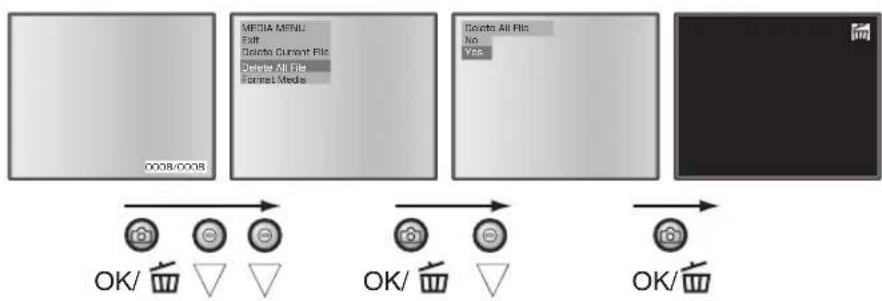
flowchart
graph LR
    A["0038/0008"] --> B["MEDIA MENU: Exit"]
    B --> C["Delete Current File"]
    C --> D["Delete All File"]
    D --> E["Format Media"]
    E --> F["Delete All File: No"]
    F --> G["Yes"]
    G --> H["OK/ Cancel"]
    H --> I["OK/ Cancel"]
    I --> J["OK/ Cancel"]

Press the [S] Button (SD Mode Button).
The mode is switched to the SD mode.

natural_image
Line drawing of a hand inserting a device into a rectangular device (no text or symbols)
Press the [OK] button (Image Save button).
The [MEDIA MENU] screen is displayed.
| MEDIA MENU |
| Exit |
| Delete Current File |
| Delete All Files |
| Format Media |

Set the cursor to [Delete All Files] by operating the [💡△] and [●] buttons (Brightness Buttons).
| MEDIA MENU |
| Exit |
| Delete Current File |
| Delete All Files |
| Format Media |
English

Press the [OK/ button (Image Save button).
The MENU display is changed.
| Delete All Files | |
| No | |
| Yes | |

Set the cursor to [Yes] by operating the [☀️△] and [●]buttons (Brightness Buttons).
| Delete All Files | |
| No | |
| Yes | |

Press the [OK/] button (Image Save button).
After the deletion of all the images, the [icon is displayed on the screen.
- By selecting [NO] and then pressing the [OK/ In button (Image Save button), the images cannot be deleted.
English
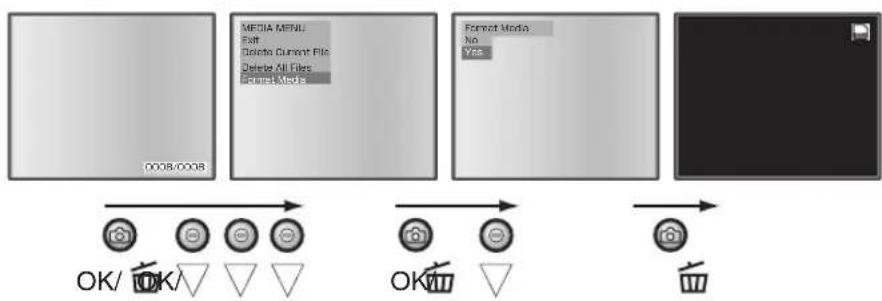
■ Formatting the SD card
flowchart
graph LR
    A["0008:0008"] --> B["MEDIA MENU: Exit"]
    B --> C["Delete Current File"]
    C --> D["Delete All Files"]
    D --> E["Format Media: No Yes"]
    E --> F["OK/ OK/ ▼ ▼ ▼ ▼ ▼ ▼ ▼ ▼ ▼ ▼ ▼ ▼ ▼ ▼ ▼ ▼ ▼ ▼ ▼ ▼ ▼ ▼ ▼ ▼ ▼ ▼ ▼ ▼ ▼ ▼ ▼ ▼ ▼ ▼ ▼ ▼ ▼ ▼ ▼ ▼ ▼ ▼ ▼ ▼ ▼ ▼ ▼ ▼ ▼ ▼ ▽"]
1 Insert the SD card into the SD card slot.
2 Press the [SB] button (SD Mode Button).
The mode is switched to the SD mode.
Press the [ OK/ button (Image Save button).
The [MEDIA MENU] screen is displayed.

natural_image
Line drawing of a hand inserting a device into a rectangular device (no text or symbols)3 Select [Format Media] by operating the [☀️ △ ] and [●] buttons (Brightness button).
| MEDIA MENU |
| Exit |
| Delete Current File |
| Delete All Files |
| Format Media |
4 Press the [OK/ button (Image Save button).
The MENU display is changed.
| Format Media | |
| No | |
| Yes | |
English

Set the cursor to [Yes] by operating the [☀️ △ ] and [●]buttons (Brightness Buttons).
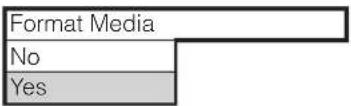

Press the [OK/ button (Image Save button).
After formatting the SD card, the [☐] icon is displayed on the screen.

Note
- All data in the SD card is deleted.
- By selecting [NO] and then pressing the [OK/ button (Image Save button), the SD card cannot be formatted.
Presentation using the PC (USB-connected)

natural_image
Illustration of an open laptop connected to a mounted digital camera arm (no text or symbols present)■ Displaying the PC screens using the specific software
"Utility Software" is in the supplied CD-ROM. "Utility Software" contains the PC link software "Image Mate for Presentation" and the TWAIN driver "ELMO TWAIN DS (VHP)" for the following operations:
• Transfer of moving/still images to the PC
• Operations of this product by using the PC
For details on the operating environment for the connected PC such as the Operating System (OS) and how to use the PC link software etc., refer to the "Utility Software" Installation Manual and the "HELP Folder" in the CD-ROM.

Note
- When the SD mode is selected, the specific software supplied with this product can not be used. Do not switch to the SD mode during operations using the specific software, as this may cause a malfunction.
- When the operating buttons are in operation, do not connect/disconnect the USB cable, or malfunction will be caused to this product.
- The USB2.0 compliant cable is recommended.
- Depending on the USB environment used by the PC or the peripheral units, the image transfer could be disturbed.
• This does not guarantee operations in any environment.
4 Trouble Shooting
Symptoms and Confirmation
Check the following items, and then consult the seller from whom you have purchased this product or our branch/office near your location if any abnormality is found.
| Symptom Possible cause / counter measure | |
| No image is displayed. | The cable is not connected correctly.The AC adapter is disconnected from the wall outlet.The AC adapter is disconnected from the power terminal on this product.The power switch is not turned ON.(The status display LED is not lit.)The image input selection switch is set to [PC]. (When image data are output with the switch on the [PC] side, input analog RGB signal into the analog RGB input terminal.)Turning ON the power switch immediately after turning OFF may not start this product. Wait for several seconds after turning OFF the power switch, and then turn it ON. |
| No image is displayed from the USB. | The USB cable is not connected correctly.The specific software is not installed correctly. |
| The image is out of focus. | The document (object) is too close to the lens. |
| The image is too dark. | The intensity of the lighting is insufficient. Adjust brightness by operating the brightness buttons. |
| The image is striped. | This may be an interference fringe between dots of printed matter and TV scanning lines or CCD pixels. Changing the projection range may mitigate the trouble.Vertical stripes may appear on an LCD projector image. Manually adjusting dot clock on the projector side may mitigate the trouble. |
| The image is not moved. | The mode is set to the SD mode. |
About the lamp (LED lighting)
The brightness of the lamp with which this product is equipped will degrade with long-term usage. If its brightness has been degraded greatly, we will replace the part for a charge. Consult the seller from whom you have purchased this product or one of our branch/offi ces near your location.
About the long-term usage of this product
If this product is used for longer than the warranty period, its performance and quality may deteriorate due to the lifetime of its parts. In this case, we will replace the parts for a charge. Consult the seller from whom you have purchased this product or our branch/offi ce near your location.
5 SPECIFICATIONS
General
| Item Specifi | cations |
| Power voltage 12VDC | (AC adapter AC100 - 240V) |
| Power consumption 7W | (AC adapter included) |
| Outside dimensions | W412xD338xH308mm (W16.2xD13.3xH12 in) (Maximum size when set up) |
| W58xD338xH186mm (W2.3xD13.3xH7 in) (When folded) | |
| Weight Approx. 1.9kg | (4.2 lbs) (Main body only) |
| Input selection Main/External | |
| Output terminal RGB output Mini Dsub 15P connector, female x 1 | |
| Input terminal RGB input Mini Dsub 15P connector, female x 1 | |
| Ext. control terminal USB (2.0 compliant) Type B receptacle x 1 | |
| Memory interface SD card slot x 1 | |
| Illumination lamp White LED | |
Main Camera
| Item Specifi cations | ||
| Lens f = 3mm Fixed-focus F4.0 | ||
| Frame rate Max. 20 frames/sec. | ||
| Shooting area | Max. 401x300mm (15.8x11.8 in) Min. 221x165mm (8.7x6.5 in) | |
| Limit of focus adjustment | 50mm - ∞ from lens top | |
| Digital zoom | 8x | |
| Image pick-up element | 1/3” CCD | |
| Total pixels | Horizontal 1077, Vertical 788 ... Approx. 850,000 pixels | |
| Effective pixels | Horizontal 1024, Vertical 768 | |
| Synchronized signal | Internal | |
| Resolution | Horizontal 600TV lines or more, Vertical 600TV lines or more | |
| Analog RGB output | Analog RGB output 0.7 V(p-p) 75 Ω unbalancedSync. signal: Negative polarity | XGA Horizontal frequency 48.363 kHz, Vertical frequency 60.004 Hz, Compliant with VESA |
| White balance | Full auto/Fixed | |
| Brightness control | Auto (level control provided) | |
| Mode | Text/Graphics | |
| Flickerless mode | 60Hz/50Hz | |
| Image storage | Provided (SD card) | |
Supplied Accessories
| Name Quantity | |
| Accessory case 1 | |
| AC adapter 1 | |
| AC cord 1 | |
| Analog RGB cable (Dsub 15P connector) (2m) 1 | |
| Main unit belt 1 | |
| Anti-glare fi lm 1 | |
| Instruction Manual 1 | |
| Warranty card 1 | |
| Utility Software CD-ROM 1 | |
| Utility Software Installation Manual 1 | |
| USB cable (1.8m) 1 |
Trademark
ELMO is a trademark of ELMO Co., Ltd.
VESA is the registered trademarks of Video Electronics Standards Association.
XGA is the trademark/registered trademark of International Business Machines Corporation.
SD : SD card is a trademark.
All other company/products names described in this manual are trademarks/registered trademarks of respective companies.


ELMO
DOCUMENT CAMERA CAMÉRA DE SUPPORTS VISUELS
HV-110u
MODE D'EMPLOI
natural_image
Symbolic icon of a person pushing a large object through a circular frame (no text or symbols)The connection of a non-shielded equipment interface cable to this equipment will invalidate the FCC Certification or Declaration of this device and may cause interference levels which exceed the limits established by the FCC for this equipment. It is the responsibility of the user to obtain and use a shielded equipment interface cable with this device. If this equipment has more than one interface connector, do not leave cables connected to unused interfaces. Changes or modifications not expressly approved by the manufacturer could void the user's authority to operate the equipment.
FOR UNITED STATES USERS: INFORMATION
This equipment has been tested and found to comply with the limits for a Class B digital device, pursuant to Part 15 of the FCC Rules. These limits are designed to provide reasonable protection against harmful interference in a residential installation. This equipment generates, uses, and can radiate radio frequency energy and, if not installed and used in accordance with the instructions, may cause harmful interference to radio or television reception. However, there is no guarantee that interference will not occur in a particular installation. If this equipment does cause interference to radio and television reception, which can be determined by turning the equipment off and on, the user is encouraged to try to correct the interference by one or more of the following measures.
- Reorient or relocate the receiving antenna.
- Increase the separation between the equipment and receiver.
- Connect the equipment into an outlet on a circuit different from that to which the receiver is connected.
- Consult the dealer or an experienced radio/TV technician for help.
USER-INSTALLER CAUTION:
Your authority to operate this FCC verified equipment could be voided if you make changes or modifications not expressly approved by the party responsible for compliance to Part 15 of the FCC rules.
AVANT L'EMPLOI
natural_image
3D diagram of a rectangular electronic device with a black band and labeled part (15), no text or symbols present.En stockage
natural_image
Technical diagram of a device rear panel with three labeled buttons and a central control knob (no text or symbols present)(4) (3)
(2)
natural_image
Illustration of a hand holding a device with rotating arrows indicating rotation (no text or symbols)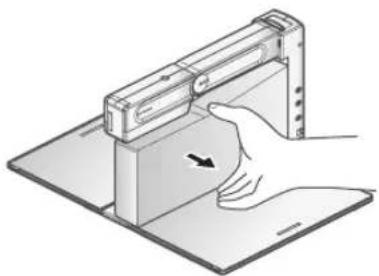
natural_image
Illustration of a hand pressing down on a mechanical device with an arrow indicating force (no text or symbols present)natural_image
Diagram of a cable connector with a plug inserted, showing mounting bracket and mounting holes (no text or symbols)natural_image
Hand inserting a component into a metal bracket (no text or symbols visible)Remarque
natural_image
Line drawing of a hand inserting a component into a metal panel (no text or symbols)natural_image
Diagram of a device panel with connectors and a cable, showing no text or symbolsFrançais
3
natural_image
Illustration of a hand using a tool to lift a mechanical component, with no visible text or symbols.natural_image
Illustration of a hand pressing down on a mechanical device with an arrow indicating force or movement (no text or symbols present)Remarque
natural_image
Technical line drawing of a rectangular electronic device with internal components and directional arrows indicating rotation (no text or symbols)natural_image
Illustration of an electronic device connected to a laptop and a mechanical arm, with no visible text or symbols.PROCÉDURES DE FONCTIONNEMENT
natural_image
Illustration of a hand using a handheld device to lift a tray (no text or symbols visible)Remarque
natural_image
Illustration of a hand using a mechanical device to press or install a grid on a flat surface (no text or symbols visible)
text_image
Diagram illustrating hand gesture with a finger pointing to an apple, next to a small icon and a plus symbol on a document.
Remarque
natural_image
Hand inserting a component into a panel, showing alignment and mounting bracket (no text or symbols)Remarque
natural_image
Line drawing of a hand inserting a small component into a mechanical device (no text or symbols)natural_image
Diagram of an armillary device with a device inside, showing internal components and a separate panel (no text or symbols present)1
natural_image
Illustration of a hand inserting a device into a rectangular device (no text or symbols visible)natural_image
Blank white image with no visible content, text, or symbols
natural_image
Illustration of a hand holding a tool interacting with a mechanical component (no text or symbols visible)
natural_image
Illustration of a hand inserting a device into a rectangular device (no text or symbols visible)natural_image
Line drawing of a hand operating a mechanical arm joint (no text or symbols)Remarque
| MEDIA MENU |
| Exit |
| Delete Current File |
| Delete All Files |
| Format Media |
flowchart
graph LR
    A["0008/0008"] --> B["MEDIA MENU: Exit, Delete Current File, Delete All Files, Cancel Media"]
    B --> C["Delete Current File: No, Yes"]
    C --> D["OK/ 📄 → OK/ 📄 → OK/ 📄"]
    D --> E["OK/ 📄 → OK/ 📄"]
PROCÉDURES DE FONCTIONNEMENT
natural_image
Line drawing of a hand inserting a device into a rectangular device (no text or symbols)natural_image
Line drawing of a hand inserting a device into a device housing (no text or symbols)natural_image
Line drawing of a hand inserting a device into a device housing (no text or symbols)| MEDIA MENU |
| Exit |
| Delete Current File |
| Delete All Files |
| Format Media |
Français

| MEDIA MENU |
| Exit |
| Delete Current File |
| Delete All Files |
| Format Media |

| Delete Current File | |
| No | |
| Yes | |

| Delete Current File | |
| No | |
| Yes | |

flowchart
graph LR
    A["0038/0008"] --> B["MEDIA MENU: Exit"]
    B --> C["Delete Current File"]
    C --> D["Delete All File"]
    D --> E["Format Media"]
    E --> F["Delete All File: No"]
    F --> G["Yes"]
    G --> H["OK/ Cancel"]
    H --> I["OK/ Cancel"]
    I --> J["OK/ Cancel"]
PROCÉDURES DE FONCTIONNEMENT
1
natural_image
Line drawing of a hand inserting a device into a rectangular device (no text or symbols)2
| MEDIA MENU |
| Exit |
| Delete Current File |
| Delete All Files |
| Format Media |
3
| MEDIA MENU |
| Exit |
| Delete Current File |
| Delete All Files |
| Format Media |
Français

| Delete All Files | |
| No | |
| Yes | |

| Delete All Files | |
| No | |
| Yes | |

natural_image
Line drawing of a hand inserting a device into a rectangular device (no text or symbols)| MEDIA MENU |
| Exit |
| Delete Current File |
| Delete All Files |
| Format Media |