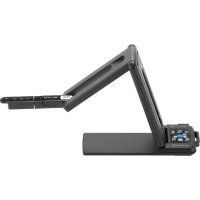
MX1 - Document camera Elmo - Free user manual and instructions
Find the device manual for free MX1 Elmo in PDF.


| Product Type | Document Camera |
| Brand | Elmo |
| Model | MX1 |
| Dimensions (folded) | 74.8 × 241.2 × 21.3 mm |
| Dimensions (installed) | 74.8 × 293.2 × 302.1 mm |
| Weight | 470 g (main body) |
| Power Supply | DC 5 V (USB bus) |
| Power Consumption | 3.2 W |
| Sensor | CMOS 1/3.1 inch, 13 megapixels |
| Maximum Resolution | 4160 × 3120 pixels |
| Maximum Frame Rate | 60 fps at 1920 × 1080 (USB 3.0) |
| Focus | Auto (one press) or manual |
| Zoom | Digital up to 8x |
| Lighting | Built-in white LED |
| Connections | USB 3.0 microB, Extension terminal |
| Main Functions | Zoom, AF, pause, 180° image rotation, brightness adjustment |
| Provided Software | Image Mate 4 (downloadable) |
| Cleaning | Soft dry cloth, unplug before cleaning |
| Safety | Do not look directly at the LED, avoid humidity, follow instructions |
| Spare Parts | Available for 3 years after product discontinuation |
| Warranty | See dealer conditions |
Frequently Asked Questions - MX1 Elmo
User questions about MX1 Elmo
0 question about this device. Answer the ones you know or ask your own.
Ask a new question about this device
Download the instructions for your Document camera in PDF format for free! Find your manual MX1 - Elmo and take your electronic device back in hand. On this page are published all the documents necessary for the use of your device. MX1 by Elmo.
USER MANUAL MX1 Elmo
Please read this instruction manual carefully before using this product.
MANUEL D'INSTRUCTIONS
⑤ Image Mate 4 [1] 17
推奨動作環境 17
18
All the safety and operating instructions should be read before the appliance is operated.
Retain Instructions
The safety and operating instructions should be retained for future reference.
HeedWarnings
All warnings on the product and in the operating instructions should be adhered to.
Follow Instructions
All operating and use instructions should be followed.
Cleaning
Unplug this product from the wall outlet before cleaning. Do not use liquid cleaners or aerosol cleaners. Use a damp cloth for cleaning.
- Attachments
Do not use attachments not recommended by the product manufacturer as they may cause hazards.
Water and Moisture
Do not use this product near water - for example, near a bath tub, wash bowl, kitchen sink, or laundry tub, in a wet basement, or near a swimming pool, and the like.
■ Placement
Do not place this product on an unstable cart, stand, tripod, bracket, or table. The product may fall, causing serious injury to a child or adult, and serious damage to the product. Use only with a cart, stand, tripod, bracket, or table recommended by the manufacturer, or sold with the product. Any mounting of the product should follow the manufacturer's instructions, and should use a mounting accessory recommended by the manufacturer.
Ventilation
Slots and openings in the cabinet are provided for ventilation and to ensure reliable operation of the product and to protect it from overheating, and these openings must not be blocked or covered. The openings should never be blocked by placing the product on a bed, sofa, rug, or other similar surface. This product should not be placed in a built-in installation such as a bookcase or rack unless proper ventilation is provided or the manufacturer's instructions have been adhered to.
Power Sources
This product should be operated only from the type of power source indicated on the marking label. If you are not sure of the type of power supply to your home consult your appliance dealer or local power company. For products intended to operate from battery power, or other sources, refer to the operating instructions.
Grounding or Polarization
This product may be equipped with either a polarized 2-wire AC line plug (a plug having one
blade wider than the other) or a 3-wire grounding type plug, a plug having a third (grounding) pin. The 2-wire polarized plug will outlet, try reversing the plug. If the plug still fails to fit, contact your electrician to replace your obsolete outlet. Do not defeat the safety purpose of the polarized plug. The 3-wire grounding type plug will fit into a grounding type power outlet. This is a safety feature. If you are unable to insert the plug into the outlet, contact your electrician to replace your obsolete outlet. Do not defeat the safety purpose of the grounding type plug.
Power-Cord Protection
Power-supply cords should be routed so that they are not likely to be walked on or pinched by items placed upon or against them, paying particular attention to cords at plugs, convenience receptacles, and the point where they exit from the product.
Lightning
For added protection for this product during a lightning storm, or when it is left unattended and unused for long periods of time, unplug it from the wall outlet and disconnect the antenna or cable system. This will prevent damage to the product due to lightning and power-line surges.
Overloading
Do not overload wall outlets, extension cords, or integral convenience receptacles as this can result in a risk of fire or electric shock.
A product and cart combination should be moved with care. Quick stops, excessive force, and uneven surfaces may cause the product and cart combination to overturn.

Object and Liquid Entry
Never push objects of any kind into this product through openings as they may touch dangerous voltage points or short-out parts that could result in a fire or electric shock. Never spill liquid of any kind on the product.
Servicing
Do not attempt to service this product yourself as opening or removing covers may expose you to dangerous voltage or other hazards. Refer all servicing to qualified service personnel.
Damage Requiring Service
Unplug this product from the wall outlet and refer servicing to qualified service personnel under the following conditions:
- When the power-supply cord or plug is damaged.
- If liquid has been spilled, or objects have fallen into the product.
- If the product has been exposed to rain or water.
- If the product does not operate normally by following the operating instructions. Adjust only those controls that are covered by the operating instructions as an improper adjustment of other controls may result in damage and will often require extensive work by a qualified technician to restore the product to its normal operation.
-
If the product has been dropped or damaged in any way.
-
When the product exhibits a distinct change in performance - this indicates a need for service.
Replacement Parts
When replacement parts are required, be sure the service technician has used replacement parts specified by the manufacturer or have the same characteristics as the original part. Unauthorized substitutions may result in fire, electric shock or other hazards.
Safety Check
Upon completion of any service or repairs to this product, ask the service technician to perform safety checks to determine that the product is in proper operating condition.
Heat
The product should be situated away from heat sources such as radiators, heat registers, stoves, or other products (including amplifiers) that produce heat.
This product includes a Fluorescent Lamps component that contains mercury. Please consult your state and local regarding proper disposal or recycling, and do not place in the trash.
SA 1965
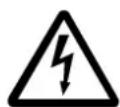
The lightning flash with arrowhead symbol, within an equilateral triangle, is intended to alert the user to the presence of uninsulated "dangerous voltage" within the product's enclosure that may be of sufficient magnitude to constitute a risk of electric shock to persons.

SA 1966
The exclamation point within an equilateral triangle is intended to alert the user to the presence of important operating and maintenance (servicing) instructions in the literature

This symbol [crossed-out wheeled bin WEEE Annex IV] indicates separate collection of waste electrical and electronic equipment in the EU countries.
Please do not throw the equipment into the domestic refuse.
Please use the return and collection systems available in your country for the disposal of this product.
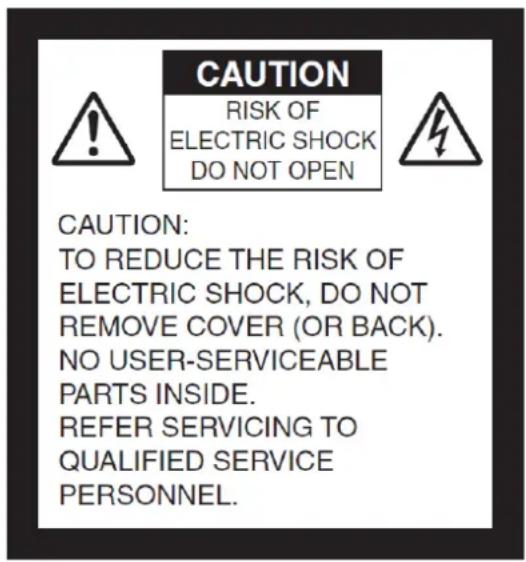
WARNING
TO REDUCE THE RISK OF FIRE OR ELECTRIC SHOCK, DO NOT EXPOSE THIS PRODUCT TO RAIN OR MOISTURE.
The connection of a non-shielded equipment interface cable to this equipment will invalidate the FCC Certification or Declaration of this device and may cause interference levels which exceed the limits established by the FCC for this equipment. It is the responsibility of the user to obtain and use a shielded equipment interface cable with this device. If this equipment has more than one interface connector, do not leave cables connected to unused interfaces. Changes or modifications not expressly approved by the manufacturer could void the user's authority to operate the equipment.
FOR UNITED STATES USERS:
INFORMATION
This equipment has been tested and found to comply with the limits for a Class A digital device, pursuant to Part 15 of the FCC Rules. These limits are designed to provide reasonable protection against harmful interference when the equipment is operated in a commercial environment.
This equipment generates, uses, and can radiate radio frequency energy and, if not installed and used in accordance with the instruction manual, may cause harmful interference to radio communications. Operation of this equipment in a residential area is likely to cause harmful interference in which case the user will be required to correct the interference at his own expense.
USER-INSTALLER
CAUTION:
Your authority to operate this FCC verified equipment could be voided if you make changes or modifications not expressly approved by the party responsible for compliance to Part 15 of the FCC rules.
BEFORE YOU USE
■ Be sure to use the USB cable supplied with the product.
The supplied USB cable is designed to be used for the MX-1 only. Do not use it for other products.
■ When storing the product, do not leave it under direct sunlight or by heaters. It may be discolored, deformed, or damaged.
- Do not place this product in any humid, dusty, salt bearing wind, or vibrating locations. Use it under the following environmental conditions:
Temperature: 0^ - 40^
Humidity: 30% - 85% (No condensation)
Use a soft, dry cloth for cleaning.
Do not use any volatile solvent such as thinner or benzene.
Luminescent and Black Spots
There may be some pixels that do not properly operate due to the use of CMOS Area Image Sensors made-up of many pixels.
Though luminescent or black spots may be found on the screen, it is a phenomenon peculiar to the CMOS Area Image Sensors and is not a malfunction.
Follow the guidelines below to prevent the unit from dropping or overturning.
- Use the product on a stable base, desk, or table. Do not place the product on an unstable base or slanted location.
- Place or wire the product to prevent the USB cable from pulling.
Do not point the lens directly to the sun. It could degrade the imaging capability.
- Do not look directly into the LED light. If you look directly into it at pointblank range, your eyes may be injured.
If this product is used for longer than the warranty period, its performance and quality may deteriorate due to the lifetime of its parts. For parts replacement (on chargeable basis), consult the dealer from whom you purchased this product or our branch/office near your location.
Copyright
Unless used for personal use, it is prohibited strictly under copyright law to use any photo files without the prior consent of the copyright holder. Even if using for personal use, be careful that there could be a situation where video or audio recording is restricted or illegal.
The contents of this document are subject to change without notice. The latest version can be obtained from the following MX-1 Official Website:
https://www.elmousa.com/
It is prohibited under copyright law to use or copy any part or the whole of this document without our prior written consent.
ELMO shall not be liable for any claim for damage or loss of earnings or any claim raised by a third person due to the use, malfunction or repair of this product.
HANDLING PRECAUTIONS
The followings are special precautions against mishandling of the product, which may cause serious damages to the product. Pay close attention to them.
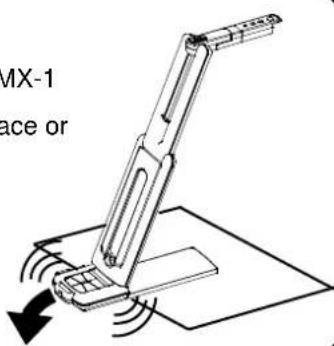
① Installation
Do not place the MX-1 on an unstable place or slanted surface.
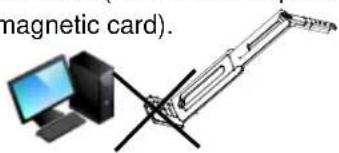
② Magnet in the bottom
A magnet is in the bottom of the MX-1. Keep the bottom of the MX-1 away from devices and objects that could be damaged by strong magnetic fields (such as a computer, monitor, and magnetic card).
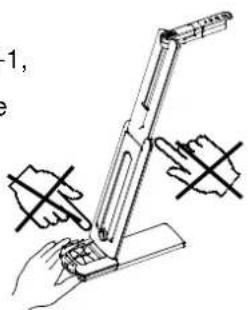
③ Setting up
When setting up the MX-1, hold the body around the
Operating panel.
Be careful not to pinch your fingers.
④ Carrying the MX-1
Carry the MX-1 by folding the arm so as not to damage the camera. Do not carry by holding the arm or camera head.
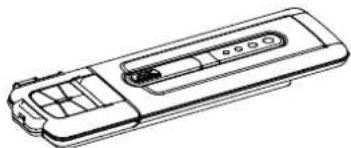
(5)Stage
There is a magnet inside the bottom of the MX-1.
By removing 2 screws in the bottom, you can move the position of the MX-1 within the stage.
Do not attach the MX-1 to a metal object such as a steel cabinet. The stage may fall and get broken.
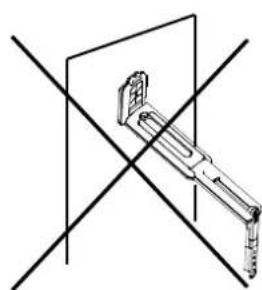
TABLE OF CONTENTS
IMPORTANT SAFEGUARDS 24
BEFORE YOU USE 28
HANDLING PRECAUTIONS 29
TABLE OF CONTENTS 30
1 PACKAGE CONTENTS 31
2 PART NAMES AND FUNCTIONS 32
THE NAME OF EACH PART 32
■ OPERATING PANEL 33
SIDE PANEL AND CABLE CONNECTION 35
RESOLUTION/FRAME RATE 35
ABOUT MX-1 CONNECT BOX 36
SIZE OF THE OUTPUT IMAGE 36
3 PREPARATION AND CONNECTION 37
■ SETTING UP THE MX-1 37
■MOVING PARTS OF THE MX-1 38
CONNECTING TO A COMPUTER 39
CONNECTING TO A PROJECTOR OR MONITOR 39
4 SHOOTING IMAGES 40
ADJUSTING THE SIZE 40
ADJUSTING THE BRIGHTNESS 40
ADJUSTIMG THE FOCUS 40
PAUSING THE IMAGE 40
ROTATING THE IMAGE 40
■TURNING THE LED LIGHTING ON/OFF 40
⑤ ABOUT IMAGE MATE4 41
SYSTEM REQUIREMENTS 41
■INSTALLING IMAGE MATE 4 42
6 TROUBLE SHOOTING 43
SYMPTOMS AND CONFIRMATION 43
7 SPECIFICATIONS 45
■MAINCAMERA 45
FUNCTIONAL SPECIFICATION 45
ILLUMINATION DEVICE 46
TRADEMARKS AND LICENSES 47
1 PACKAGE CONTENTS
The items below are included with this product. If any item is missing, contact the dealer from whom you purchased this product.
| Document Camera (MX-1) | ||
| USB3.0 cable | Instruction manual | Warranty card (Only Japan and North America) |
| Instruction manual | Warranty card | |

PART NAMES AND FUNCTIONS
THE NAME OF EACH PART
Operation of the main unit: P.37
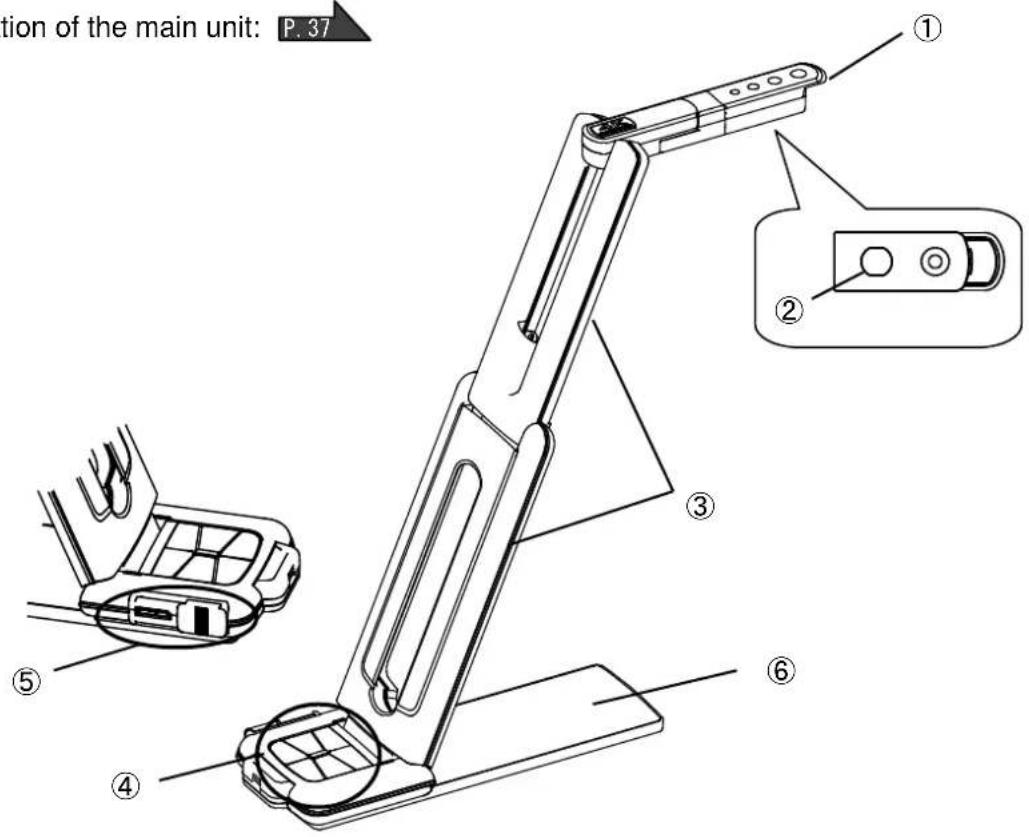
| Name | |
| ① | Camera head |
| ② | LED lighting |
| ③ | Arm |
| ④ | Operating panel |
| ⑤ | Side panel |
| ⑥ | Stage |
OPERATING PANEL
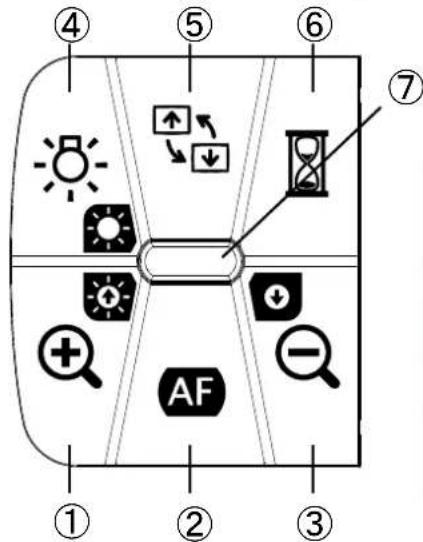
⑦LED display
| LED color | On/Off | Operation status | Connection status | |
| Off | Off | Power OFF | - | |
| Blue | On | Zoom mode | USB3.0 | |
| Green | On | Zoom mode | USB2.0 | |
| Purple | On | Brightness adjustment mode | - | |
※ Select the mode according to the application. (4 long press)
- Zoom mode ... To enlarge or shrink the image, to On or Off the LED lighting.
- Brightness adjustment mode ... To brighten or darken the image.
| Mode | Button | Function | Description |
| Zoom mode (blue or green) | ① | ZOOM-IN | To enlarge the image. |
| ② | One-Push AF | To focus automatically. | |
| ③ | ZOOM-OUT | To shrink the image. | |
| ④ (Short press) | LED lighting | On / Off | |
| ④ (Long press) | Brightness adjustment mode selection | To use ① and ③ buttons to adjust the brightness. | |
| ⑤ | Image rotation | To rotate the image. (0°/180°) | |
| ⑥ | Freeze | To pause or restart the image. | |
| Brightness adjustment mode (purple) | ① | Brightness+ | To brighten the image |
| ② | One-push AF | To focus automatically. | |
| ③ | Brightness- | To darken the image | |
| ④ | Zoom mode selection | To use ① and ③ buttons to adjust the zoom. | |
| ⑤ | Image rotation | To rotate the image. (0°/180°) | |
| ⑥ | Freeze | To pause or restart the image. | |
| ①+③ | Initialization of the brightness | To initialize the brightness level. |
The Zoom function and Freeze function may not be used when a commercially available software is used.
SIDE PANEL AND CABLE CONNECTION
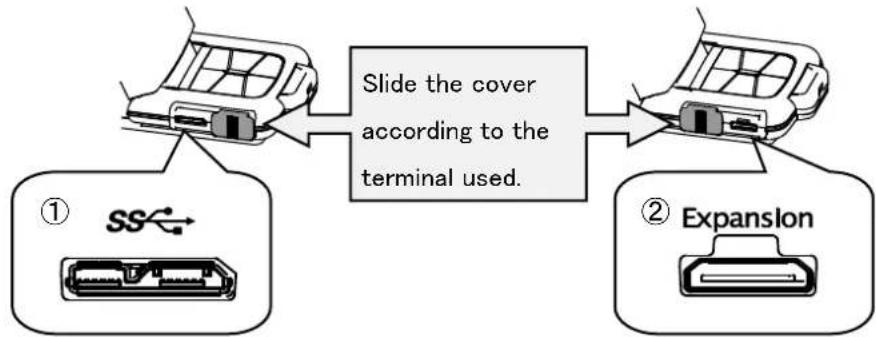
| Mark | Function | |
| ① | SSC | To connect to a computer to save image data, etc. (USB3.0 cable is included.) |
| ② | Expansion | To connect the MX-1 CONNECT BOX to display to a monitor or projector without using a computer. (Expansion cable is include to MX-1 CONNECT BOX.) Max. resolution 4:3 UXGA1600×1200 16:9 1920×1080p |
Note
Depending on the computer's USB environment or the peripheral equipment, image transfer may be disrupted. We do not guarantee the operation of all types of devices with the MX-1.
■ RESOLUTION/FRAME RATE
There is no difference in resolution between USB3.0 connection and USB2.0 connection. The frame rate may be lower than the specification in the following conditions:
- A low-spec computer is used.
- YUV is selected.
| Resolution | USB3.0 | USB2.0 | ||
| MJPEG[fps] | YUV[fps] | MJPEG[fps] | YUV[fps] | |
| 4160x3120 | 21 | 6 | - | - |
| 3840x2160 | 30 | 15 | - | - |
| 2048x1536 | 30 | 20 | 18 | 3 |
| 1920x1080 | 60 | 60 | 30 | 5 |
| 1280x960 | 30 | 30 | 30 | 10 |
| 1280x720 | 60 | 60 | 30 | 5 |
| 1024x768 | 30 | 30 | 30 | 20 |
| 640x480 | 30 | 30 | 30 | 30 |
ABOUT MX-1 CONNECTBOX
The MX-1 can be connected to a projector or a monitor through HDMI or RGB using the MX-1 CONNECT BOX.
For details of the MX-1 CONNECT BOX, refer to the instruction manual included in the MX-1 CONNECT BOX.
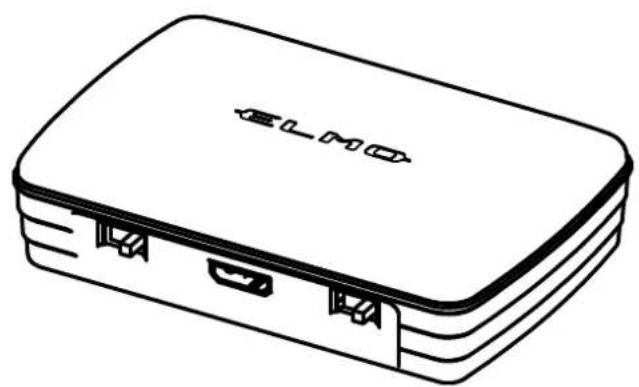
Note
The MX-1 CONNECT BOX is not included when you purchase the MX-1 only.
SIZE OF THE OUTPUT IMAGE
The output image varies depending on the setting of the Resolution/Output mode and whether the MX-1 CONNECT BOX is used or not.
For details of the size of the output image, refer to the instruction manual included in the MX-1 CONNECT BOX.

PREPARATION AND CONNECTION

SETTING UP THE MX-1
① Raise the body while holding the operating panel.
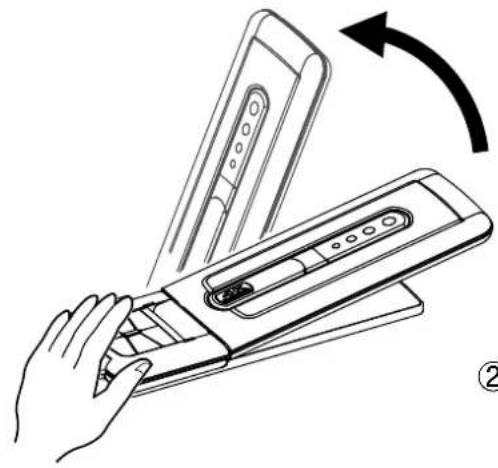
② Raise the arm as indicated by an arrow.
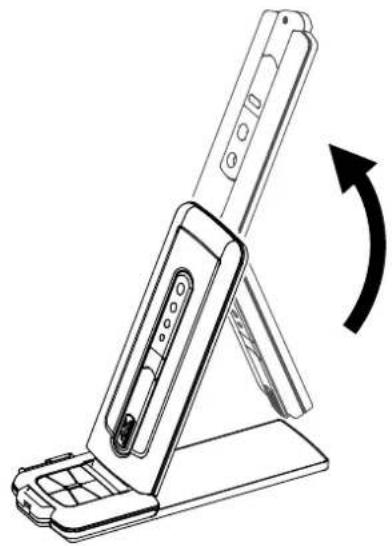
③ Raise the camera head. Set it horizontally.
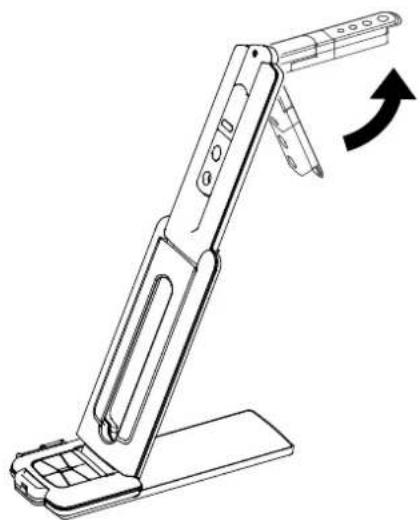
Caution
- Be careful not to pinch your fingers when moving the arm.
- Do not hold the arm or camera head when carrying the MX-1.
- Be careful not to give an impact to the camera head.
■MOVING PARTS OF THE MX-1
The MX-1 can be moved as shown below.
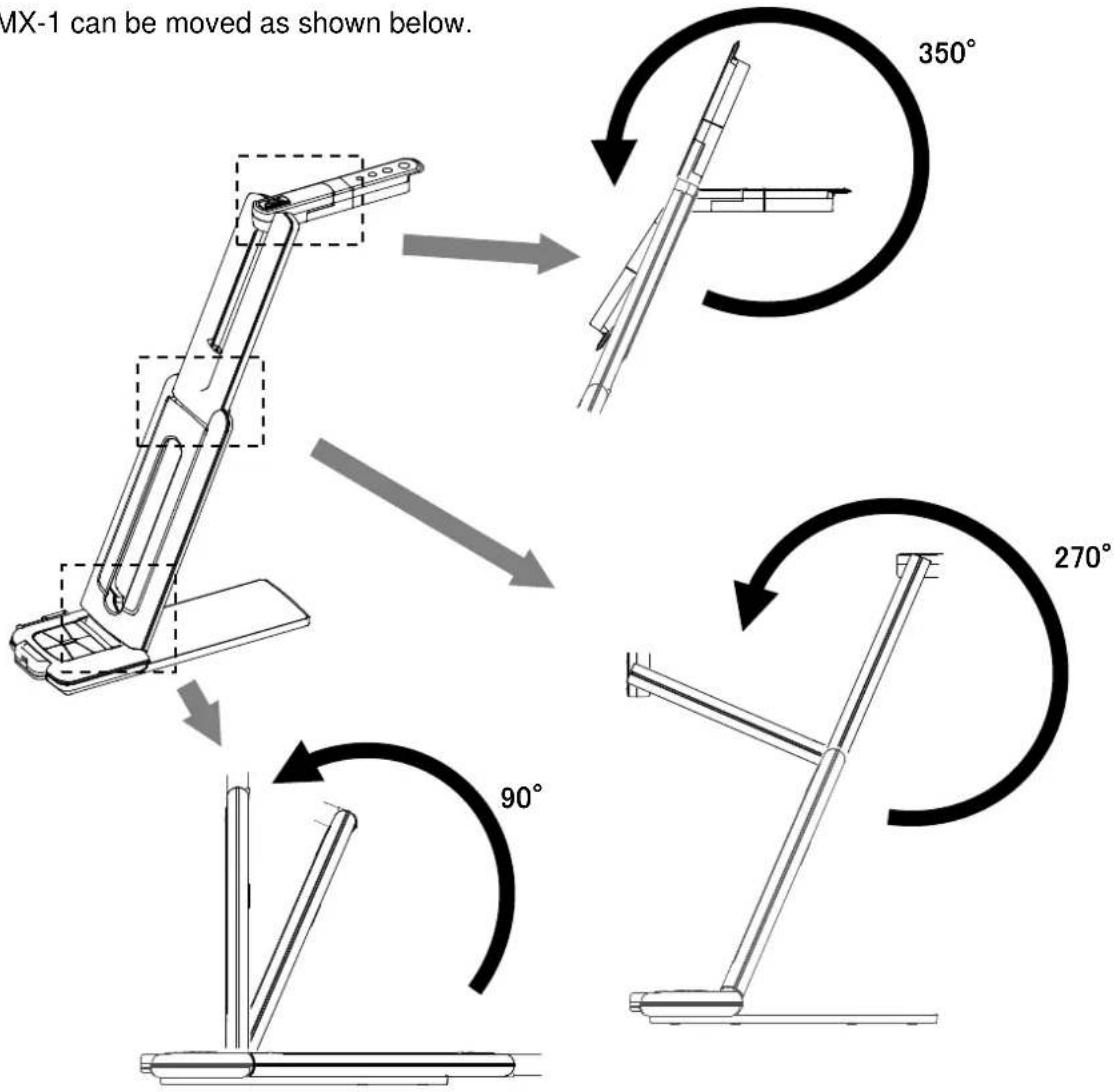
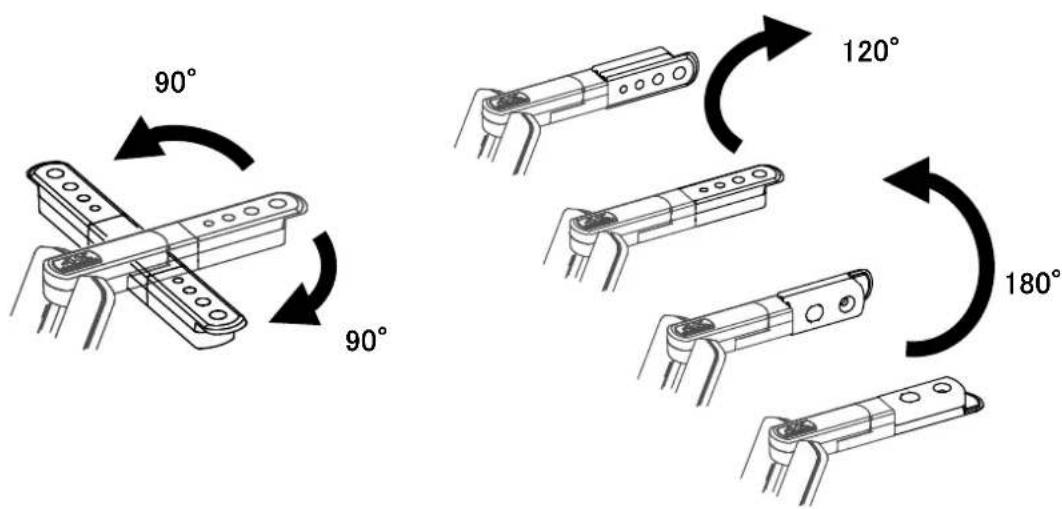
Camera head
CONNECTING TO A COMPUTER
The MX-1 is compliant to uvc (video class) standard. You can transfer the image via USB by connecting the MX-1 to a computer using the USB3.0 cable (bus power).
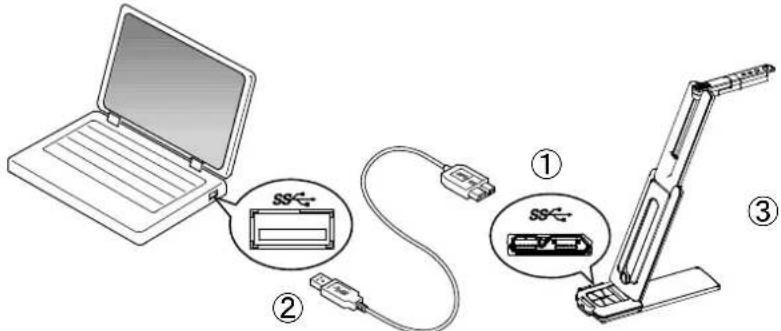
① Connect the microB connector terminal of the USB3.0 cable to SS connector in the side of the MX-1.
② Connect the typeA terminal of the USB3.0 cable to the USB port of your running computer.
③ The MX-1 will be turned on after the connection is established.
Caution
- When connecting to the USB2.0 port, the frame rate may be decreased depending on the output resolution.
- The frame rate may be decreased depending on the computer used.
CONNECTING TO A PROJECTOR OR MONITOR
By using the MX-1 CONNECT BOX, you can connect the MX-1 to a projector or monitor without using a computer.
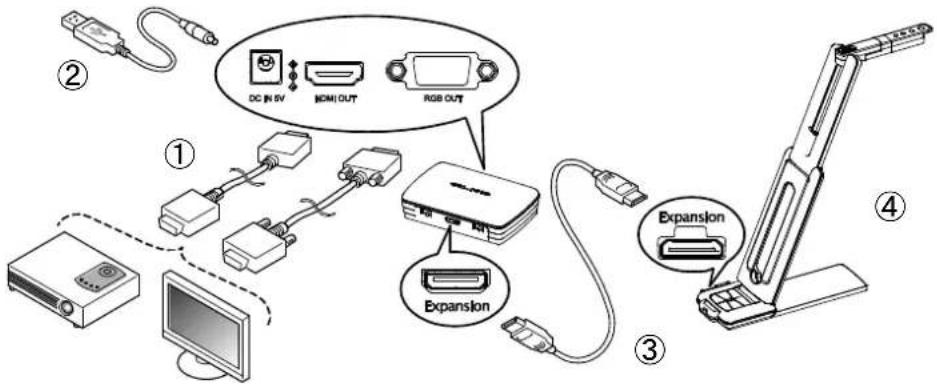
① Connect a projector or monitor to the MX-1 CONNECT BOX via the HDMI cable or RGB cable.
②Connect the supplied DC power cable to . Connect the USB plug to the AC adapter. Then connect it to a wall outlet.
③Connect the MX-1 to the MX-1 CONNECT BOX via the supplied Expansion cable.
④The MX-1 and MX-1 CONNECT BOX will be powered on. (MX-1 of LED: blue)
4 SHOOTING IMAGES
ADJUSTING THE SIZE
The image size can be adjusted using [+ / -] buttons on the Operating panel in the Zoom mode (LED: blue/green). If the MX-1 is in the Brightness adjustment mode (LED: purple), change the mode to the Zoom mode.
Note
The maximum zoom ration is 8× (digital zoom). The image quality will be degraded when using the digital zoom.
The brightness of the image can be adjusted using [+2] buttons on the Operating panel in the Brightness adjustment mode (LED: purple). The brightness does not change automatically according to the brightness of the shooting environment. If the MX-1 is in the Zoom mode (LED: blue/green), change the mode to the Brightness adjustment mode.
ADJUSTIMG THE FOCUS
Press the AF button on the Operating panel to automatically focus on an object.
■ PAUSING THE IMAGE
Press the button to pause the camera image. Press the button again to restart. (This function can be used in both the Zoom mode and Brightness adjustment mode.) P.33
ROTATING THE IMAGE
The image rotates by 180^ by pressing the button on the Operating panel. (This function can be used in both the Zoom mode and Brightness adjustment mode.)
The LED lighting can be turned ON/OFF by pressing button on the Operating panel in the Zoom mode (LED: blue/green). If the MX-1 is in the Brightness adjustment mode (LED:
purple), change the mode to the Zoom mode. P.33
Caution
- To take shots of people, turn the LED lighting OFF.
- Make sure that the light from the LED lighting does not shine directly into your eyes.
- This product is equipped with a high-brightness LED. You can safely use it to light up the object. The brightness will gradually decrease with long-term use. This is not a malfunction but a characteristic of the LED.
- Do not touch the LED lighting while it is on as it may become very hot.
ABOUT IMAGE MATE4
The following operations can be performed by connecting the MX-1 to a computer with Image
Mate 4 installed via the USB cable:

- Save live video streaming or still images to a computer
- Operate the MX-1 from a computer, etc.
If Image Mate 4 is already installed in your computer, update the version of Image Mate 4.
※You can view the camera image with a commercially available software. With Image Mate
4, you can also use other functions such as zoom and freeze.
This instruction manual explains the downloading/installation procedure of Image Mate 4 and its instruction manual.
For further details, refer to the instruction manual of Image Mate 4. You can download the instruction manual of Image Mate 4 from the following website:
http://www.elmousa.com
SYSTEM REQUIREMENTS
The Image Mate 4 can be used in the following computer environments.
| OS | Win10 64bit |
| CPU | Core i7(3840x2160@30fps) Core i5 or higher (1920x1080@60fps) |
| Memory | 16GB(3840x2160@30fps) 4GB or more (1920x1080@60fps) |
| Screen resolution | 3840x2160(3840x2160@30fps) 1920x1080 or higher (1920x1080@60fps) |
| Graphic board | Should be able to output 3840x2160 |
| USB | USB3.0 |
Note
If your computer does not meet these requirements or depending on the performance of your computer, the recording frame rate may be decreased.

INSTALLING IMAGE MATE 4
Install Image Mate 4 to your computer.
※Image Mate 4 can be downloaded from Elmo official website.
If Image Mate 4 is already installed in your computer, update the version of Image Mate 4.
- Access the following Elmo official website.
http://www.elmousa.com - Choose Image Mate 4.
- Click "Download" and read the "Precautions on the handling of the downloaded data". Click "Agree".
- Downloading will start.
- Run the downloaded file (ImageMate4Setup.msi) after the downloading is completed. Follow the instructions displayed on the screen to install Image Mate 4.
- The icon IM will be created on the desktop after the installation is completed.
Caution
- Do not connect/disconnect the USB cable while operating the MX-1. It may cause malfunction.
- We recommend using the supplied USB cable.
- It may take some time to display the image after the resolution is changed via UVC (with the USB cable). Do not turn off the power of the MX-1 or disconnect the USB cable before the image is displayed.
- The displayed image may pause for a brief second when the object moves quickly. This is not a malfunction.
- The displayed image may be distorted depending on the object. Reducing the resolution or frame rate may improve the distortion of the image.
Note
- Depending on the computer's USB environment or the peripheral equipment, image transfer may be disrupted.
- We do not guarantee the operation of all types of devices with the MX-1.

TROUBLE SHOOTING
■SYMPTOMS AND CONFIRMATION
Check the following items. If any abnormality is found, consult the dealer from whom you purchased this product or our nearest branch/office.
| Symptom | Possible cause/ remedy |
| No image is displayed. | ·The cable is not correctly connected. ·Zoom is set at the TELE side, displaying only the white or black part of the document. ·If you turn the power ON immediately after turning it OFF the unit may not start. Wait for several seconds after turning the power OFF, and then turn it back ON. ·The USB cable is disconnected. ·The switch in the side panel is set to the left. Make sure that the switch is set to the right. |
| No image is displayed. | ·Image Mate 4 is not started correctly. Restart Image Mate 4 and try to connect again. ·The MX-1 is not selected in the setting of Image Mate 4. |
| The image is out of focus. | ·The document (object) is too close to the lens. Move the document (object) slightly away from the lens. |
| The image is too dark. | ·The intensity of the lighting is insufficient. Press the button on the operating panel to adjust the brightness. Or press the button to turn on the LED lighting. |
| The image does not move. | ·The "Freeze" function is selected by pressing button on the Operating panel. Cancel the freeze status by pressing button again. ·The "Freeze" function is selected by Image Mate 4. Cancel the freeze status to resume the live image feed. ·Please reconnect all the cables |
| The image is striped. | ·This may be interference fringes between dots of printed matter and TV scanning lines or CMOS pixels. Changing the shooting range may improve the problem. ·The image may be distorted when shooting a monit screen while the live image feed is displayed. |
| The UVC video stream is upside down. | ·Verify that the graphic driver and other device drivers of your computer are the latest version. You can download the latest version of device drivers from the official website of the manufacturer of your computer. |
| Other image than the camera image overlaps on the UVC video stream. | ·Depending on your software, OS or the connection status, other images than the camera image may be overlapped on the camera image. This can be solved by reconnecting the MX-1 or restarting the software. |
| No UVC video stream is displayed. (An error message appears.) | ·The software may recognize it as error when it takes time to prepare the image output. Restart the MX-1 and reconnect it to the computer. Then restart the software. |
| Fails to output the UVC video stream. | ·Disconnect the USB cable and restart the software. Then connect the USB cable again. |
| The UVC video stream sometimes freezes. | ·The displayed image may pause for a brief second when the object moves quickly. In that case, adjusting the brightness manually may improve the problem. P.33 |
| There is a distortion of the image. | ·Use a high-spec computer. Also, reducing the resolution or frame rate may improve the distortion of the image. |
| 4K image cannot be displayed. | ·The system requirements to display 4K image are as follows:CPU: Intel® Core™ i7 or higherMemory: 16GBGraphic board: GeForce GTX750 or higher |
About the light (LED lighting)
The brightness of the LED lighting will diminish with long-term use. If its brightness has significantly diminished, consult the dealer from whom you purchased this product or our nearest branch/office for replacement (subject to charge).
About long-term usage of this product
Due to the lifetime of its parts, if this product is used for longer than the warranty period, its performance and quality may deteriorate. In this case, we will replace the parts for a charge. Consult the dealer from whom you purchased this product or our nearest branch/office.
About using the MX-1 without the stage
We do not recommend using the MX-1 without the stage. We cannot be held responsible for any damages caused by the use of the MX-1 without the stage even if still within the warranty period.

SPECIFICATIONS
MAIN CAMERA
| Item | Specifications |
| Power source | DC5V※Power supply by the USB bus power |
| Power consumption | 3.2W |
| Outside dimensions | D 74.8 xW 293.2 xH 302.1[mm](When setup) |
| D 74.8 xW 241.2 xH 21.3[mm](When folded) | |
| Weight | Approx. 470g (Main body only) |
| Ext. control terminal | USB3.0 type microB × 1 |
| Expansion terminal(Exclusive) × 1※The expansion terminal connects with MX-1 CONNECT BOX. | |
| Lens | F=2.0 |
| Frame rate | 60fps (in high frame rate mode at 1080P) |
| Focus working range | From lens surface:100mm ~ ∞ |
| Focus | Auto (One-push) |
| Image pick-up element | 1/3.1 inch CMOS 13,000,000 pixels |
| Effective pixels | H: 4160, V: 3120 |
| Sync. signal | Internal |
| Imaging area | 374mm×281mm (Height:286mm) 4:3 |
※The MX-1 CONNECT BOX is required to output in RGB and HDMI
FUNCTIONAL SPECIFICATION
| Item | Content | Operation panel | IM4 | Application |
| Brightness | Auto (Set value 0~12) | ✓ | ||
| Image rotation | 0°/180°(Camera video) | ✓ | ||
| LED lighting | ON/OFF | ✓ | ✓ | |
| AF | Auto (One-push) | ✓ | ||
| Zoom | Possible | ✓ | ||
| Video still | Possible | ✓ | ||
| Resolution | Manual | ✓ | ||
| Flicker | 60Hz / 50Hz | ✓ | ||
| Contrast | Possible (Set value 0~20) | ✓ | ||
| Hue | Possible (Set value -180~180) | ✓ | ||
| Saturation | Possible (Set value 0~31) | ✓ | ||
| Definition | Possible (Set value 5~15) | ✓ | ||
| Gamma | Possible (Set value 100~200) | ✓ | ||
| WhiteBalance | Auto/Manual ( Set value 2000 ~ 8000) | ✓ | ||
| Backlight | ON/OFF | ✓ | ||
| Focus | Auto/Manual(Set value 100~3000) | ✓ | ||
| Exposure | Auto/Manual(Set value -10~1) | ✓ | ||
| Low-light | Auto/Manual | ✓ | ||
| Color Mode | Normal/Gray/Negative /Black-and-White | ✓ | ||
| Scene Mode | Normal/Document | ✓ | ||
| Priority Mode | Binned/Resized | ✓ | ||
| NoiseReduction | Auto/Manual(Set value 0~10) | ✓ | ||
| MaxFramerate | Auto/Manual(Set value 3~30) | ✓ | ||
| Factory setting | Possible | ✓ | ||
■ILLUMINATION DEVICE
| Item | Specifications |
| Illumination | White LED |
■TRADEMARKS AND LICENSES
ELMO、Image Mate are the registered trademarks of ELMO Co., Ltd. HDMI、High-Definition Multimedia interface are trademarks or registered trademarks of HDMI Licensing LLC.
All other company/product names described in this manual are trademarks or registered trademarks of their respective companies. This product is licensed under the AVC Visual Patent Portfolio License (AVC Video) for the personal and non-commercial use of a consumer to (i) play AVC Video that was recorded by a consumer engaged in a personal and a non-commercial activity and/or, (ii) play AVC Video that was obtained from a video provider licensed from MPEG-LA, LLC. Additional information including that relating to promotional and commercial uses may be obtained from MPEG-LA, LLC
ATTENTION
- Unless used for personal use, it is prohibited by copyright law to record slides, books and photos without the prior consent of copyright holder.
- This product is designed to be used in industrial environment. If it is used in a residential area or in an adjacent area thereto, harmful interference to radio or television reception may occur.
- Repair parts
- Repair parts are the items which are needed to maintain product functionality. The holding period of such repair parts is 3 years after the product discontinuation, which is equal to the repair period we will accept.
- Any image, which is obtained by this product, and which can be identified, is considered to be private information. Be forewarned that the person who makes use of such images shall be liable for disclosing of such images.
PRECAUTIONS IMPORTANTES
Lecture des instructions
1478 Old Country Road
Plainview, NY 11803, U.S.A.
Tel. (516) 501-1400
Fax.(516) 501-0429
E-mail: elmo@elmousa.com
Web:http://www.elmousa.com
□West Coast Branch
5555 Garden Grove Boulevard.
Suite 375
Westminster, CA 92683
Tel. (714) 828-8457
Fax. (714) 828-8429
ELMO Europe SAS
Headquarters
40549 Dusseldorf Germany
Tel. 49 (0) 211 544756 40
Fax. 49 (0) 211 544756 60
Middle East Branch
5WA-129, Dubai Airport Free Zone
P.O.Box 371556Dubai
United Arab Emirates
Tel. +971-(0)4-260-2390
Fax. +971-(0)4-260-2392
ELMO CO., LTD.
6-14, Meizen-cho, Mizuho-ku
Nagoya, 467-8567, Japan