Go - Loudspeaker EarFun - Free user manual and instructions
Find the device manual for free Go EarFun in PDF.


| Product type | Portable Bluetooth speaker |
| Brand | EarFun |
| Model | Go |
| Bluetooth version | 5.0 |
| Bluetooth profiles | A2DP, AVRCP, HFP, HSP |
| Speakers | 2 x 45 mm |
| Power | 2 x 12 W |
| Signal-to-noise ratio | ≥ 80 dB |
| Battery | 7.4 V, 2200 mAh (Lithium-ion) |
| Battery life | Up to 16 hours (depends on volume and content) |
| Charging time | Approximately 4 hours |
| Charging input | 5 V / 2 A (USB-C) |
| Dimensions | 166.5 x 88 x 88 mm |
| Weight | 585 g |
| Main functions | Music playback, hands-free calls, wireless stereo connection (TWS), AUX 3.5 mm input |
| Maintenance and cleaning | Clean with a soft, dry cloth. Do not use abrasive products. |
| Safety | Do not expose to water or moisture. Use only the provided charger. |
| Spare parts and repairability | USB-C cable, AUX 3.5 mm audio cable. Reset possible (see manual). |
| General information | LED indicator for battery and connection. Bluetooth range: approximately 10 m. |
Frequently Asked Questions - Go EarFun
User questions about Go EarFun
0 question about this device. Answer the ones you know or ask your own.
Ask a new question about this device
Download the instructions for your Loudspeaker in PDF format for free! Find your manual Go - EarFun and take your electronic device back in hand. On this page are published all the documents necessary for the use of your device. Go by EarFun.
USER MANUAL Go EarFun
Portable Bluetooth Speaker
English 01
日本語 07
Deutsch 16
Français 22
Español 28

What's in the Box
EarFun Go
User Manual

natural_image
Simple line drawing of three open bookshelves (no text or symbols)Type-C USB Cable

natural_image
Simple line drawing of a USB cable with two ports (no text or symbols)
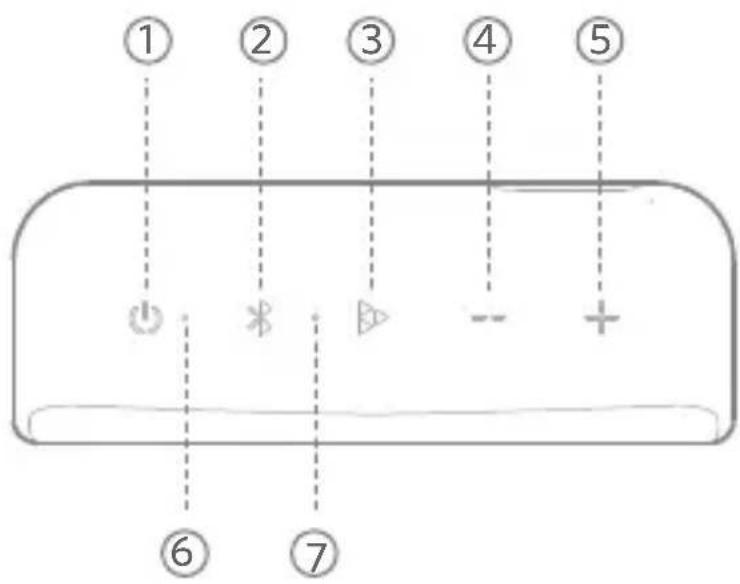
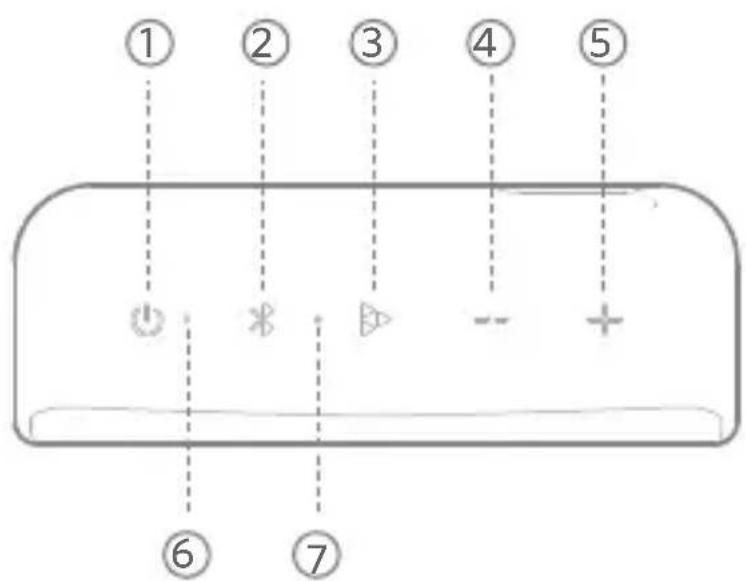
Buttons & Indicators
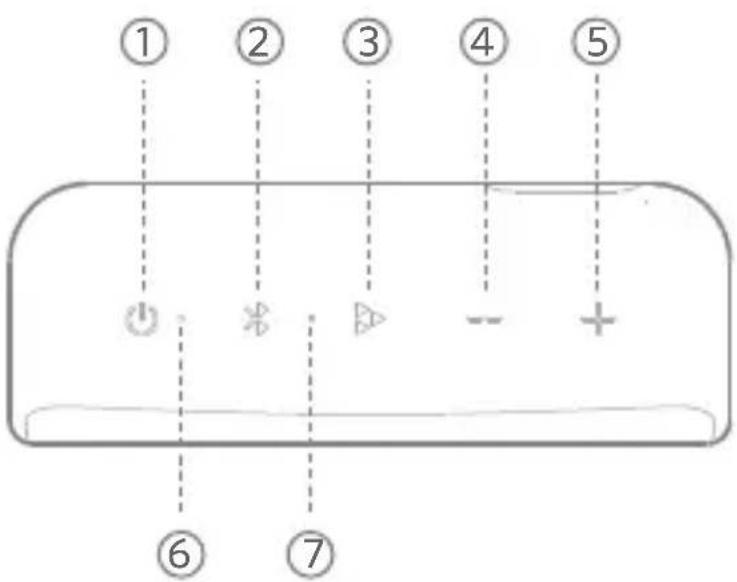
① Power Button Bluetooth Button
③ Multi-function Button
④ Volume- Button Volume+ Button
⑥ Speaker LED Indicator
⑦ Microphone
3
Connections
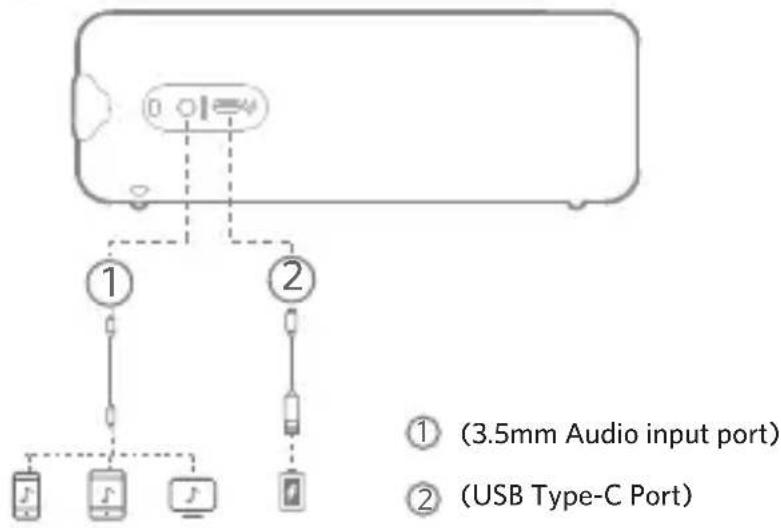
flowchart
graph TD
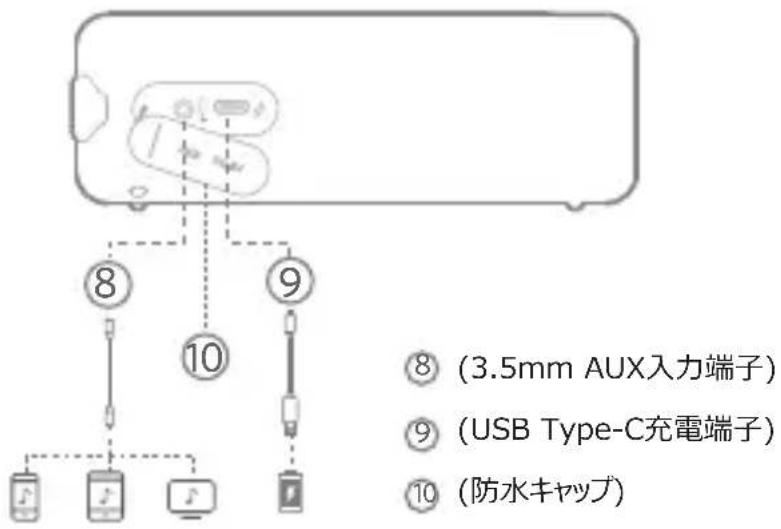
    A["Device"] --> B["Port ① (3.5mm Audio input port)"]
    A --> C["Port ② (USB Type-C Port)"]
Note:
- Plugging in an audio cable will automatically switch from Bluetooth mode to AUX mode. When using AUX mode, control audio playback via the connected device.
- To preserve battery lifespan, fully charge at least once in every 45 days.
4
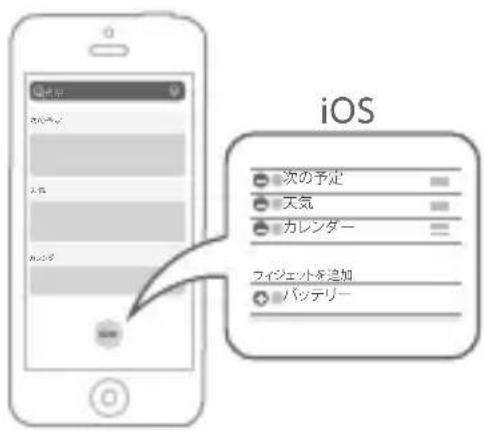
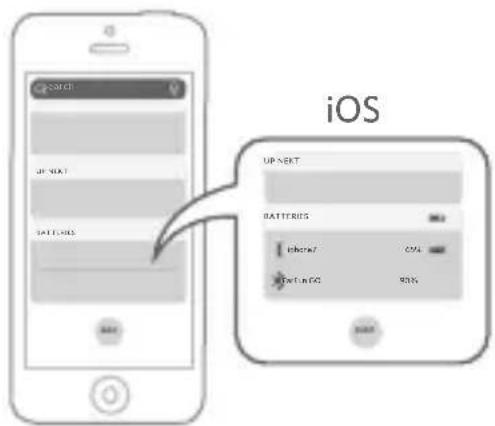
Battery Indicator
You can check the speaker battery level on the device that is paired with:
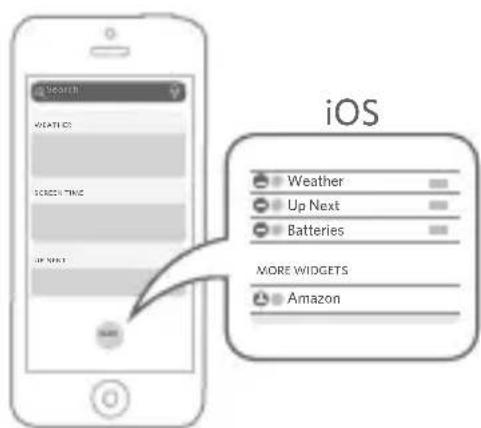
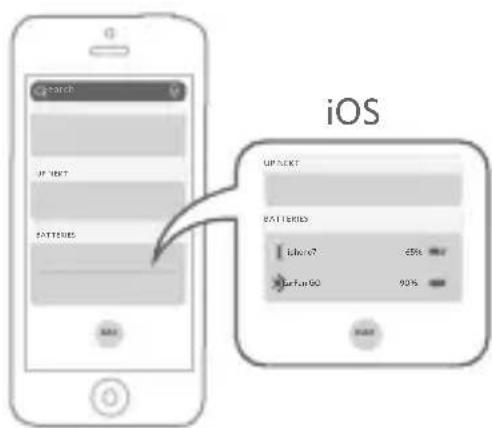
• For iOS (Support iOS 9 or higher):
Step1:
Click the 'Edit' and add the 'Batteries' widget, then click 'Done'.
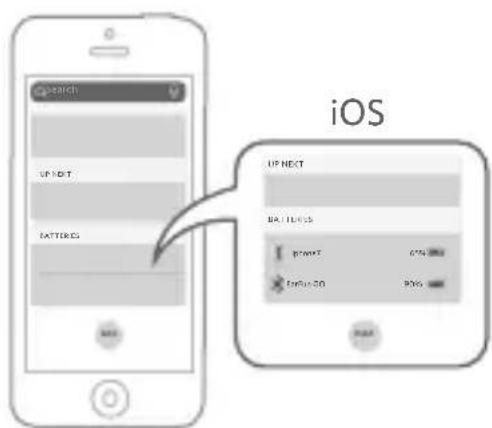
Step2:
The battery level has been shown on your device.
- For Android (Support Android 8.0 or higher):
It varies from the Android device, please refer to the instruction manual of your device.

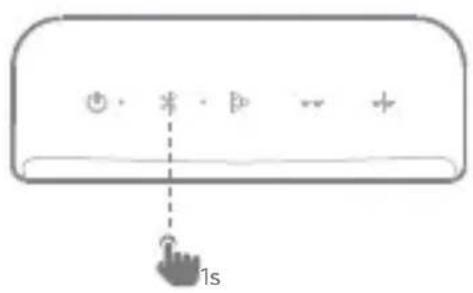
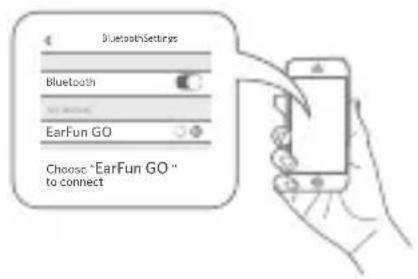
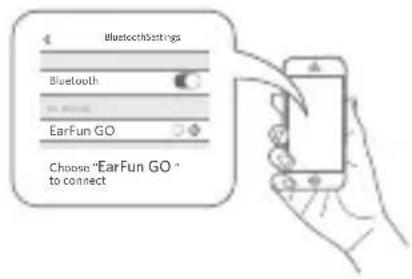
Bluetooth Pairing
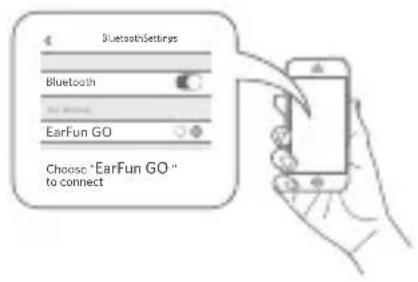
Note:
- When turned on, Go will automatically connect to the last connected device if available. If not, Go will enter paring mode.
- If the speaker didn't pair with any device and no-operation in 30 minutes, it will shut down automatically.

Speaker LED Indicator
| Flashing Blue | Bluetooth Pairing Mode. |
| Solid Blue | Connected to a device. |
| Charging | Indicator stays on red. |
| Battery Level | Battery Level < 15%: indicator stays on redBattery Level <2%: Indicator flashes red for 8 seconds, then the speaker turns off. |
| Fully Charged | Indicator stays on white. |

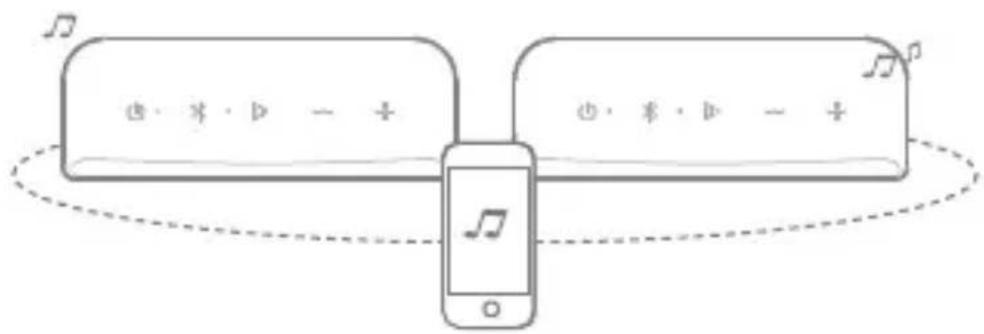
True Wireless Stereo Connection with Two EarFun Gos
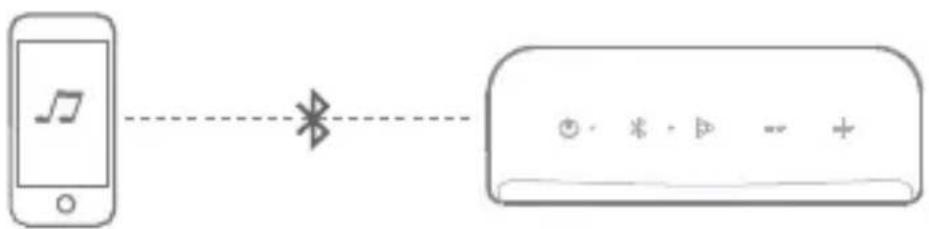
Step1: Pair and connect Go A to your Bluetooth device.
flowchart
graph LR
    A["手机"] -->|播放| B["手机"]
    style A fill:#f9f,stroke:#333
    style B fill:#bbf,stroke:#333
EarFun Go A(L)
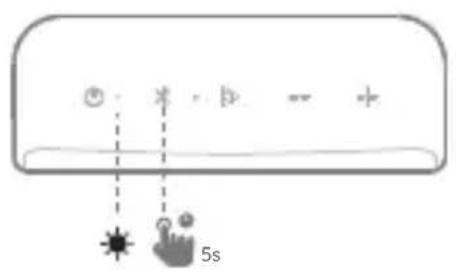
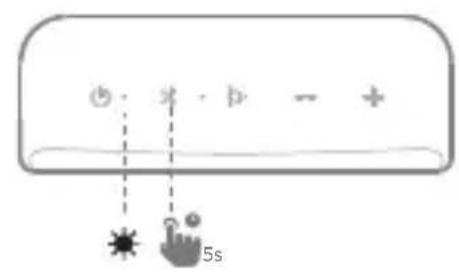
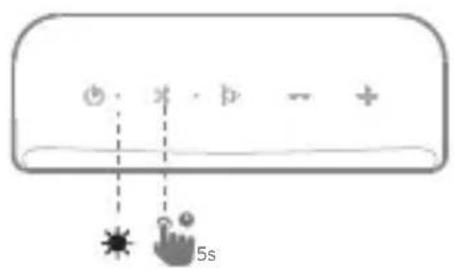
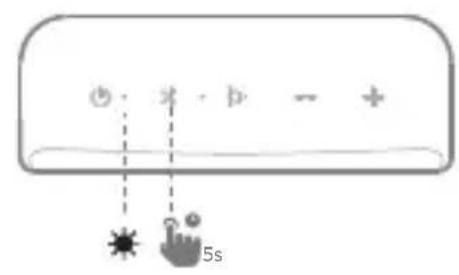
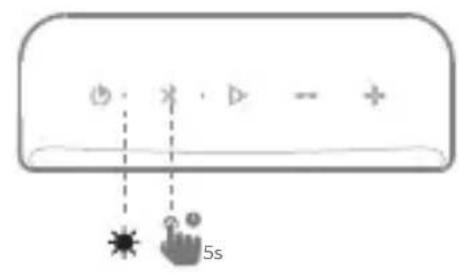
Step 2: Power on Go B, and press the Bluetooth buttons of the two speakers simultaneously for 5 seconds.
EarFun Go A(L)
EarFun Go B(R)
Step3: The two indicators stay blue, and the speakers enter True Wireless Stereo Mode.
Note:
- Once the two GOs have entered wireless stereo pairing mode before, you don't need to pair them as the first pairing. Simply power on the two GOs and they will connect to each other automatically.
- While in TWS mode, you can use one of the buttons to control both Gos at will.
- Tap the Bluetooth button twice quickly to change the left and right channel.

Functions
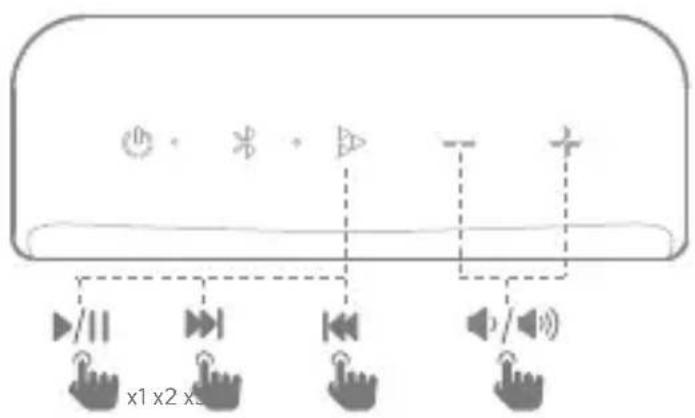
- Playing Music
flowchart
graph TD
    A["Input Prompt"] --> B["Feedback Loop"]
    C["Input Prompt"] --> D["Feedback Loop"]
    E["Input Prompt"] --> F["Feedback Loop"]
    G["Input Prompt"] --> H["Feedback Loop"]
    I["Input Prompt"] --> J["Feedback Loop"]
    K["Input Prompt"] --> L["Feedback Loop"]
    M["Input Prompt"] --> N["Feedback Loop"]
    O["Input Prompt"] --> P["Feedback Loop"]
    Q["Input Prompt"] --> R["Feedback Loop"]
    S["Input Prompt"] --> T["Feedback Loop"]
    U["Input Prompt"] --> V["Feedback Loop"]
    W["Input Prompt"] --> X["Feedback Loop"]
    Y["Input Prompt"] --> Z["Feedback Loop"]
    AA["Input Prompt"] --> AB["Feedback Loop"]
    AC["Input Prompt"] --> AD["Feedback Loop"]
    AE["Input Prompt"] --> AF["Feedback Loop"]
    AG["Input Prompt"] --> AH["Feedback Loop"]
    AI["Input Prompt"] --> AJ["Feedback Loop"]
    AK["Input Prompt"] --> AL["Feedback Loop"]
    AM["Input Prompt"] --> AN["Feedback Loop"]
    AO["Input Prompt"] --> AP["Feedback Loop"]
    AQ["Input Prompt"] --> AR["Feedback Loop"]
    AS["Input Prompt"] --> AT["Feedback Loop"]
    AU["Input Prompt"] --> AV["Feedback Loop"]
    AW["Input Prompt"] --> AX["Feedback Loop"]
    AY["Input Prompt"] --> AZ["Feedback Loop"]
    BA["x1 x2 x3"]
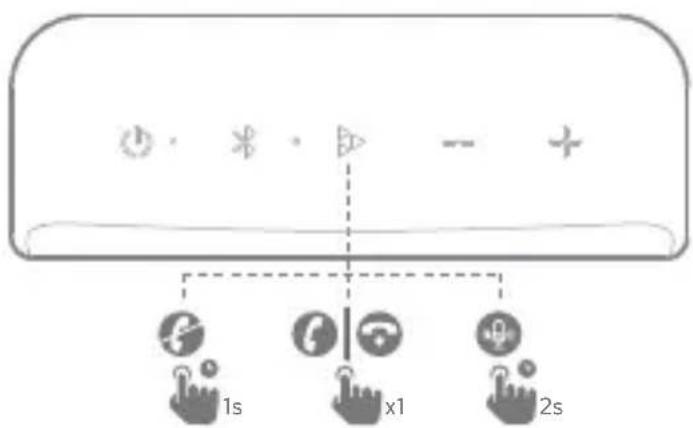
- Speakerphone
flowchart
graph TD
    A["Input Device"] --> B["Processing Unit"]
    C["Input Device 1s"] --> B
    D["Input Device x1"] --> B
    E["Input Device 2s"] --> B

Reset and Reconnect
If this speaker becomes disconnected or has another connecting problem, you can press and hold "Volume +" and "Volume -" buttons simultaneously for 5s at least to clear the pairing of speaker and remove the old pairing in your Bluetooth device, and then pair again.
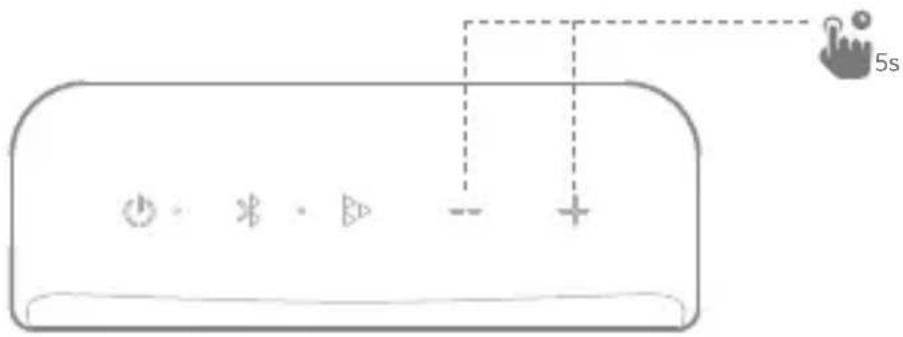
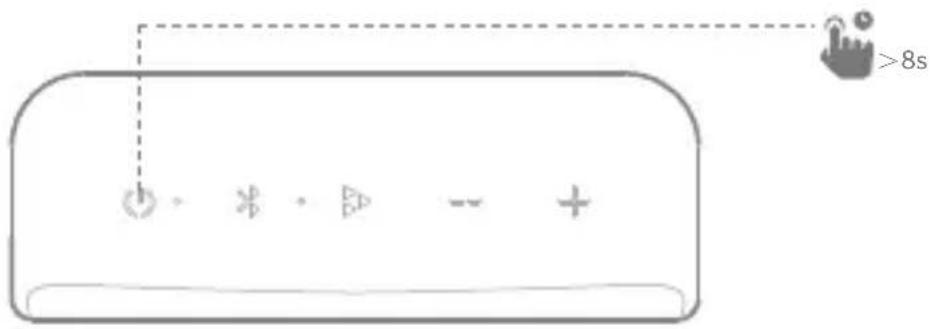
If this speaker becomes out of control and can't be powered off, you can press and hold power button for 8s at least to reboot.
Specifications
- Bluetooth Version: V5.0
- Bluetooth Profile: A2DP, AVRCP, HFP, HSP
- Transducer: 2 x 40mm
- Output Power: 2 x 6W
- Signal-to-noise Ratio: ≥ 80dB
- Battery: (7.4V, 2200mAh)
- Play Time: Up to 24 hours
(varies by volume level and audio content) - Charging Time: About 4 hours
- Input Power: 5V/2A
- Dimensions : 58 x 171 x 62 (mm)
- Weight: 430g
Customer Service
● 18-month Limited Warranty
- For FAQs and more information, please email to: service@myearfun.com www.myearfun.com


パッケージ内容
EarFun Goスピーカー本体
ユーザーマニュアル

natural_image
Simple line drawing of three open rectangular panels arranged in a V-shape (no text or symbols)USB Type-Cケーブル

natural_image
Simple line drawing of a USB cable with two connectors (no text or symbols)
各部の名前
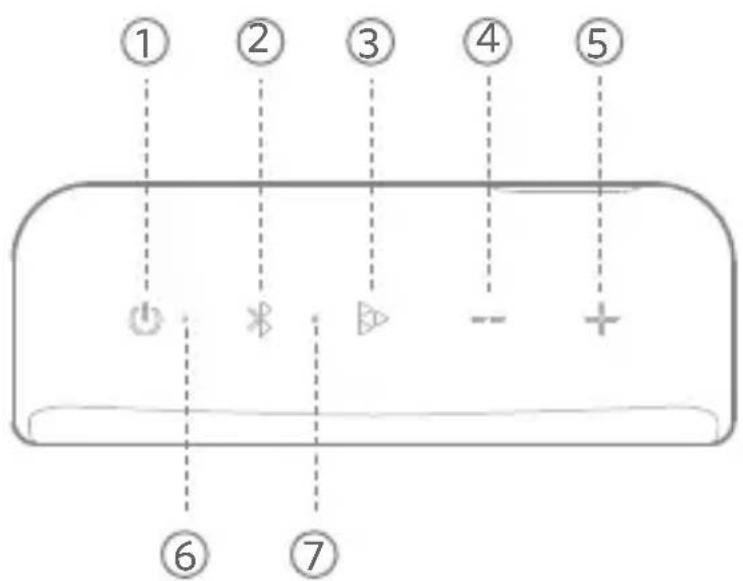
① 電源ボタン
② Bluetoothボタン
再生/通話ボタン
④ 音量-ボタン 音量+ボタン
⑥ ランプ
⑦ マイク
③ 充電する
flowchart
graph TD
    A["User Interface"] --> B["Control Icon 1s"]
    A --> C["Control Icon x1"]
    A --> D["Control Icon 2s"]
電話を受ける/切る
通話ボタンを押します。
音声アシスト機能を使う
通話ボタンを2秒間長押しします。
着信拒否
通話ボタンを1秒間長押しします。

電池残量を確認する
iPhoneの場合(iOS 9以降)
ステップ 1:
flowchart
graph LR
    A["手机"] -->|NOT| B["Device with battery icons: +, -, -, >, --"]
〈リセット〉

natural_image
Simple line drawing of three open rectangular panels arranged in a V-shape (no text or symbols)Typ-C USB-Kabel

natural_image
Simple line drawing of a USB cable with two connectors (no text or symbols)
Tasten & Anzeigen
① Netzschalter
② Bluetooth-Taste
Hinweis:
EarFun Go A(L)
EarFun Go B(R)

Dans la boîte
EarFun Go
Guide utilisateur

natural_image
Simple line drawing of three open rectangular panels arranged in a V-shape (no text or symbols)Câble USB Type-C

natural_image
Simple line drawing of a USB cable with two ports (no text or symbols)
Buttons & Indicators
Remarque:
EarFun Go A(L)
EarFun Go B(R)
flowchart
graph TD
    A["Input Symbol"] --> B["Arrow to x1"]
    C["Input Symbol"] --> D["Arrow to x2"]
    E["Input Symbol"] --> F["Arrow to x3"]
    G["Input Symbol"] --> H["Arrow to x4"]


natural_image
Simple line drawing of three open rectangular panels arranged in a V-shape (no text or symbols)Cable USB Tipo C

natural_image
Simple line drawing of a USB cable with two ports (no text or symbols)
- Para Android (Compatible con Android 8.0 o superior):
Nota:
EarFun Go A(L)
EarFun Go B(R)
FCC Statement
Changes or modifications not expressly approved by the party responsible for compliance could void the user's authority to operate the equipment.
This equipment has been tested and found to comply with the limits for a Class B digital device, pursuant to Part 15 of the FCC Rules. These limits are designed to provide reasonable protection against harmful interference in a residential installation. This equipment generates uses and can radiate radio frequency energy and, if not installed and used in accordance with the instructions, may cause harmful interference to radio communications. However, there is no guarantee that interference will not occur in a particular installation. If this equipment does cause harmful interference to radio or television reception, which can be determined by turning the equipment off and on, the user is encouraged to try to correct the interference by one or more of the following measures:
-- Reorient or relocate the receiving antenna.
-- Increase the separation between the equipment and receiver.
-- Connect the equipment into an outlet on a circuit different from that to which the receiver is connected.
-- Consult the dealer or an experienced radio/TV technician for help.
This device complies with part 15 of the FCC rules. Operation is subject to the following two conditions:
(1) This device may not cause harmful interference.
(2) This device must accept any interference received, including interference that may cause undesired operation.
CAUTION
There's danger of explosion if battery is incorrectly replaced.
Replace only with the same or equivalent type of battery.
The battery shall not be exposed to excessive heat such as sunshine, fire or the like.
EU Declaration of Conformity
Shenzhen Earfun Technology Co., Ltd. hereby declares that this equipment is in compliance with the essential requirements and other relevant provisions of Directive 2014/53/EU and RoHS 2011/65/EU Directive.
The declaration of conformity may be consulted in the support section of our Web site, accessible from www.myearfun.com
Bluetooth
The Bluetooth® word mark and logos are registered trademarks owned by Bluetooth SIG, Inc. and any use of such marks by Shenzhen Earfun Technology Co., Ltd. is under license.
Other trademarks and trade names are those of their respective owners.



- What's in the Box
- Buttons & Indicators
- Note:
- Step1:
- Step2:
- Bluetooth Pairing
- Speaker LED Indicator
- True Wireless Stereo Connection with Two EarFun Gos
- Functions
- Reset and Reconnect
- Specifications
- Customer Service
- パッケージ内容
- 各部の名前
- ③ 充電する
- 電話を受ける/切る
- 音声アシスト機能を使う
- 着信拒否
- 電池残量を確認する
- ステップ 1:
- Tasten & Anzeigen
- Hinweis:
- Dans la boîte
- Remarque:
- Nota:
- FCC Statement
- CAUTION
- EU Declaration of Conformity
- Bluetooth
Brand : EarFun
Model : Go
Category : Loudspeaker