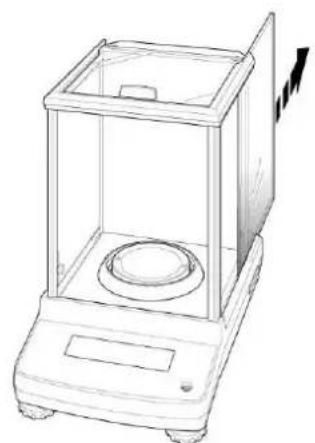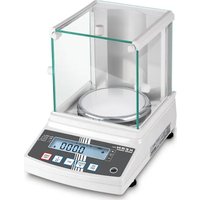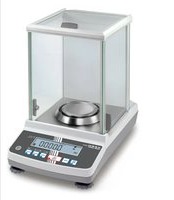
ABJ 320-4NM - Scale Kern - Free user manual and instructions
Find the device manual for free ABJ 320-4NM Kern in PDF.


| Brand | Kern |
| Model | ABJ 320-4NM |
| Product type | Precision balance |
| Readability (d) | 0.1 mg |
| Weighing range (max) | 320 g |
| Minimum load (Min) | 10 mg |
| Calibration class | I |
| Reproducibility | 0.2 mg |
| Linearity | ±0.3 mg |
| Stabilization time | 3 s |
| Internal adjustment | Yes (automatic via PSC) |
| Weighing units | g, mg, ct |
| Weighing pan | Stainless steel, Ø 91 mm |
| Case dimensions (L x W x H) | 210 x 340 x 325 mm |
| Weighing chamber (draft shield) | 174 x 162 x 227 mm |
| Net weight | 6 kg |
| Power supply | AC adapter 100-240 V, 50/60 Hz; Balance DC 12 V, 1.25 A |
| Interface | RS-232C |
| Main functions | Simple weighing, taring, parts counting, percentage determination, recipe mode, checkweighing, target weighing, automatic and manual adjustment |
| Operating conditions | Indoor, +10°C to +30°C, humidity 20–85% non-condensing |
| Maintenance and cleaning | Clean with a damp cloth and mild detergent; remove glass doors for cleaning |
| Safety | Use only indoors; avoid overloads, vibrations, electromagnetic fields, and excessive humidity |
| Supplied accessories | Balance, weighing pan, glass draft shield, AC adapter, instruction manual, menu overview |
| Repairability | Opening and repair reserved for personnel authorized by Kern |
Frequently Asked Questions - ABJ 320-4NM Kern
User questions about ABJ 320-4NM Kern
0 question about this device. Answer the ones you know or ask your own.
Ask a new question about this device
Download the instructions for your Scale in PDF format for free! Find your manual ABJ 320-4NM - Kern and take your electronic device back in hand. On this page are published all the documents necessary for the use of your device. ABJ 320-4NM by Kern.
USER MANUAL ABJ 320-4NM Kern
natural_image
Digital laboratory balance with digital display and control buttons (no visible text or symbols on main body)D
Weitere Sprachversionen finden Sie online unter www.kern-sohn.com/manuals
CZ
Další jazykové verze najdete na webu pod adresou www.kern-sohn.com/manuals
DK
Yderligere sprogversioner finder de online på www.kern-sohn.com/manuals
E
Más versiones de idiomas se encuentran online bajowww.kern-sohn.com/manuals
EST
Rohkem keeli internetis aadressil www.kern-sohn.com/manuals
F
Vous trouverez d'autres versions de langue online sous www.kern-sohn.com/manuals
GB
Further language versions you will find online under www.kern-sohn.com/manuals
H
A használati utasítás egyéb nyelveken a www.kern-sohn.com/manuals címröl tölthető le
①
Trovate altre versioni di lingue online inwww.kern-sohn.com/manuals
N
Ytterligere språkversjoner finner du online under www.kern-sohn.com/manuals
NL
Bijkomende taalversies vindt u online op www.kern-sohn.com/manuals
P
Encontram-se online mais versões de línguas em www.kern-sohn.com/manuals
PL
Inne wersje językowe znajdą Państwo na stroniewww.kern-sohn.com/manuals
S
Ytterligare språkversioner finns online under www.kern-sohn.com/manuals
SF
Muita kieliversioita löydät osoitteesta www.kern-sohn.com/manuals
SLO
Ostale jezikovne različice boste našli online na www.kern-sohn.com/manuals
TR
Diğer lisan versiyonlarını internetten www.kern-sohn.com/manuals adresinden temin edeblirsiniz

KERN ABS-N\_ABJ-NM
Version 1.5 08/2017
Betriebsanleitung
Analysenwaage
Inhaltsverzeichnis
15.1 Checkweighing 68
15.2 Target mode....72
16 Datenausgang 75
16.1 Pinbelegung 75
Im Menü:
natural_image
Line drawing of a hand holding a transparent laboratory balance with a circular sample on the side (no text or symbols)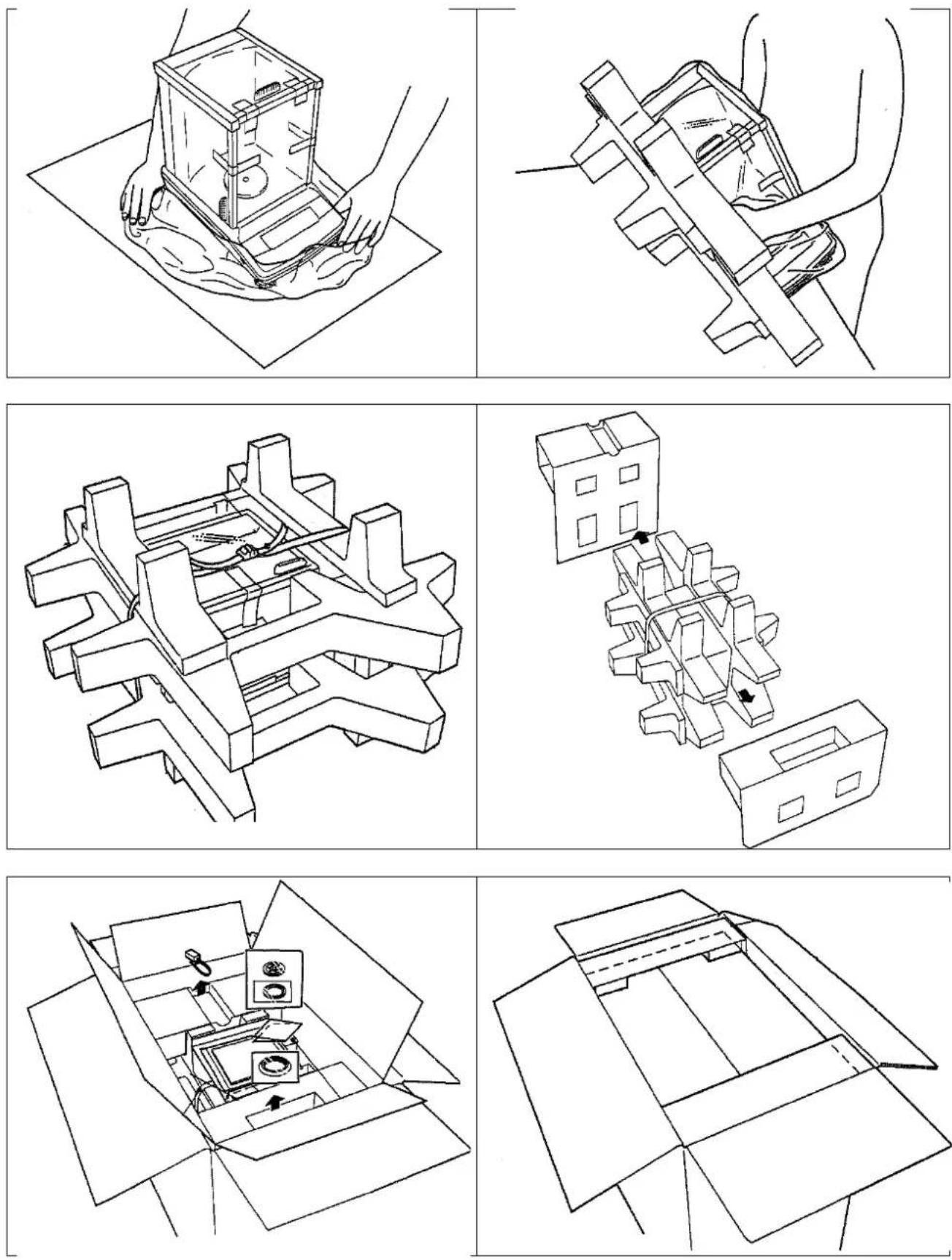
flowchart
graph TD
    A["Wheel"] --> B["Wheel with Rotation Arrow"]
    C["Wheel"] --> D["Wheel with Rotation Arrow"]
    E["Wheel"] --> F["Wheel with Rotation Arrow"]
    G["Wheel"] --> H["Wheel with Rotation Arrow"]
    I["Wheel"] --> J["Wheel with Rotation Arrow"]
    K["Wheel"] --> L["Wheel with Rotation Arrow"]
m = 311

B.9600
图
m = 311
m = 311
N
Abb. 1: Waage reinigen
natural_image
Line drawing of a laboratory balance scale with an attached circular component (no text or symbols)natural_image
Line drawing of a hand holding a tool, no text or symbols presentnatural_image
Line drawing of an analog laboratory balance with a circular base and lid, showing internal components and a downward arrow indicating motion (no text or symbols)Operating instructions
Analytical balance
Table of Contents
1 Technical Specifications .... 4
2 Declaration of conformity....7
3 Appliance overview....8
3.1 Keyboard overview....9
3.1.1 Numeric entry 10
3.2 Overview of displays....11
4 Basic Information (General)....12
4.1 Proper use 12
4.2 Improper Use....12
4.3 Warranty 12
4.4 Monitoring of Test Resources....13
5 Basic Safety Precautions....13
5.1 Pay attention to the instructions in the Operation Manual 13
5.2 Personnel training 13
6 Transportation & Storage....13
6.1 Testing upon acceptance 13
6.2 Packaging / return transport 14
7 Unpacking, Setup and Commissioning.... 16
7.1 Installation Site, Location of Use 16
7.2 Unpacking and checking 16
7.2.1 Scope of delivery / serial accessories 17
7.2.2 Placing....18
7.3 Mains connection 19
7.3.1 Turning On the Power.... 19
7.4 Initial Commissioning 19
7.5 Connection of peripheral devices....19
8 Adjustment 20
8.1 Automatic adjustment by PSC (Perfect Self Calibration), only models ABJ....20
8.2 Menu settings „I.CAL“ / „E.CAL“ 23
8.2.1 Adjustment with internal weight (KERN ABJ) 24
8.2.2 Adjustment with external weight (KERN ABS) 25
8.3 Adjustment log....26
8.4 Balance identification no....27
9 Verification 28
10 Weighing....30
10.1 Switch-on balance / call-up weighing mode....30
10.2 Switch off the balance....30
10.3 Set the start display....31
10.4 Auto Power-Off function (automatic switch-off function) 33
10.5 Simple weighing 34
10.6 Taring 35
10.7 Switch-over weighing unit 36
10.7.1 Freely programmable weighing unit 37
10.7.2 Change position of decimal dot for freely programmable weighing unit 38
10.7.3 Input minimum weight for freely programmable weighing unit....38
10.8 Change readability (1D/10D).... 39
10.9 Display decimal dot as point or comma.... 40
11 Menu 41
11.1 Menu symbol....41
11.2 Navigation in the menu 42
11.3 Menu overview 43
11.4 Resetting the menu 44
11.5 Menu Lock 45
11.5.1 Change password 46
11.6 Log menu settings....47
12 Zero / tare menu (zeroing and taring functions)...... 48
12.1 Zero tracking function....49
12.2 Auto zero function....50
12.3 Auto Tare function....51
12.4 Zero / tare timing change function 52
13 Settings for Stability and Response.... 53
13.1 Stability and reaction settings via „Easy Setting display“ (without invoking menu) ..... 53
13.2 Selection weighing / dosing mode 54
13.3 Standstill width 55
14 Application Functions 57
14.1 Parts counting 57
14.2 Percent determination....60
14.2.1 Reference weight = 100 %....61
14.2.2 User-defined reference 62
14.2.3 Percent determination....63
14.3 Formula mode....64
14.3.1 Enable edition „component no.“ 66
14.3.2 Enable issue „TOTAL“ 67
15 Check weighing and target mode (check and target weighing).... 68
15.1 Check weighing 68
15.2 Target mode....72
16 Data output....75
16.1 Pin connection....75
16.2 Issue functions 76
16.2.1 Automatic data output / Auto Print function....76
16.2.2 Continuous Output function....78
16.2.3 Output Timing Change function 80
16.2.4 GLP Output function / balance identification number 81
16.3 Communication parameters....82
16.3.1 Selection of a standard setting „MODE 1 - MODE 5“ 83
16.3.2 User-defined settings „MODE U“ / setting for KERN -YKB-01N 84
16.4 Data Formats......88
16.5 Remote control instructions 92
17 Service, maintenance, disposal....93
17.1 Cleaning 93
17.2 Service, maintenance....95
17.3 Disposal....95
18 Instant help....95
18.1 Error messages 96
1 Technical Specifications
| KERN ABJ | 80-4NM | ABJ 120-4NM | ABJ 220-4NM | ABJ 320-4NM | |
| Readability (d) | 0.1 mg | 0.1 mg | 0.1 mg | 0.1 mg | |
| Weighing range (max) | 82 g | 120 g | 220 g | 320 g | |
| Minimum load (Min) | 10 mg | 10 mg | 10 mg | 10 mg | |
| Verification value (e) | 1 mg | 1 mg | 1 mg | 1 mg | |
| Verification class | I | I | I | I | |
| Reproducibility | 0.2 mg | 0.2 mg | 0.2 mg | 0.2 mg | |
| Linearity | ± 0.3 mg | ± 0.3 mg | ± 0.3 mg | ± 0.3 mg | |
| Stabilization time | 3 sec. | ||||
| Adjustment weight | internal | ||||
| Warm-up time | 4 h | 8 h | 8 h | 8 h | |
| Weighing Units | mg, g | mg, g, ct | |||
| Smallest part weight for piece counting | 1 mg | ||||
| Reference quantities at piece counting | 5, 10, 20, 50,100 | ||||
| Weighing plate, stainless steel | ø 91mm | ||||
| Dimensions of the housing (B x D x H) [mm] | 210 x 340 x 325 | ||||
| Dimensions Glass wind screen [mm] | 174 x 162 x 227 (weighing space) | ||||
| Net weight (kg) | 6 | ||||
| Permissible ambient condition | +10°C bis +30°C | ||||
| Humidity of air | 20 ~ 85 % relative (not condensing) | ||||
| AC adapter (Primary) | AC 100 -240 V, 400 mA 50/60Hz | ||||
| Rated electric power supply | DC 12 V, 1.25 A | ||||
| Pollution Degree 2 | |||||
| Overvoltage Category | Category II | ||||
| Altitude | Up to 2000 m | ||||
| Installation Site | device may only be used indoors | ||||
| KERN ABS 80-4N ABS 120-4N | |||||
| Readability (d) | 0.1 mg | 0.1 mg | |||
| Weighing range (max) 82 g | 120 g | ||||
| Reproducibility | 0.2 mg | 0.2 mg | |||
| Linearity | ± 0.3 mg | ± 0.3 mg | |||
| Recommended adjusting weight not supplied (class) | 80 g (E2) 100 g (E2) | ||||
| Warm-up time | 4 h | 8 h | |||
| Stabilization time | 3 sec. | ||||
| Weighing Units | mg, g | mg, g, ct | |||
| Smallest part weight for piece counting | 1 mg | ||||
| Reference quantities at piece counting | 5, 10, 20, 50,100 | ||||
| Weighing plate, stainless steel | ø 91mm | ||||
| Dimensions of the housing (B x D x H) [mm] | 210 x 340 x 325 | ||||
| Dimensions Glass wind screen [mm] | 174 x 162 x 227 (weighing space) | ||||
| Net weight (kg) | 6 | ||||
| Permissible ambient condition | +5°C to +40°C | ||||
| Humidity of air | 20 ~ 85 % relative (not condensing) | ||||
| AC adapter (Primary) | AC 100 -240 V, 400 mA 50/60Hz | ||||
| Rated electric power supply | DC 12 V, 1.25 A | ||||
| Pollution Degree | 2 | ||||
| Overvoltage Category | Category II | ||||
| Altitude | Up to 2000 m | ||||
| Installation Site | device may only be used indoors | ||||
| KERN ABS 220-4N ABS 320-4N | |||||
| Readability (d) | 0.1 mg | 0.1 mg | |||
| Weighing range (max) | 220 g | 320 g | |||
| Reproducibility | 0.2 mg | 0.2 mg | |||
| Linearity | ± 0.3 mg | ± 0.3 mg | |||
| Recommended adjusting weight not supplied (class) | 200 g (E2) 300 g (E2) | ||||
| Stabilization time 3 sec. | |||||
| Warm-up time 8 h | |||||
| Weighing Units | mg, g, ct | ||||
| Smallest part weight for piece counting | 1 mg | ||||
| Reference quantities at piece counting | 5, 10, 20, 50,100 | ||||
| Weighing plate, stainless steel | ø 91mm | ||||
| Dimensions of the housing (B x D x H) [mm] | 210 x 340 x 325 | ||||
| Dimensions Glass wind screen [mm] | 174 x 162 x 227 (weighing space) | ||||
| Net weight (kg) 6 | |||||
| Permissible ambient condition | +5°C to +40°C | ||||
| Humidity of air | 20 ~ 85 % relative (not condensing) | ||||
| AC adapter (Primary) | AC 100 -240 V, 400 mA 50/60Hz | ||||
| Rated electric power supply | DC 12 V, 1.25 A | ||||
| Pollution Degree | 2 | ||||
| Overvoltage Category | Category II | ||||
| Altitude | Up to 2000 m | ||||
| Installation Site | device may only be used indoors | ||||
2 Declaration of conformity
To view the current EC/EU Declaration of Conformity go to:
www.kern-sohn.com/ce
i The scope of delivery for verified weighing balances (= conformity-rated weighing balances) includes a Declaration of Conformity.
3 Appliance overview
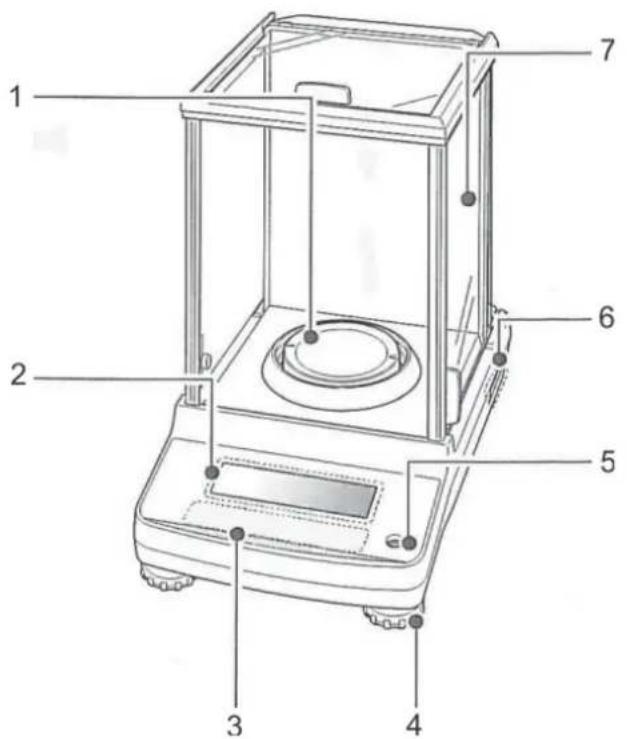
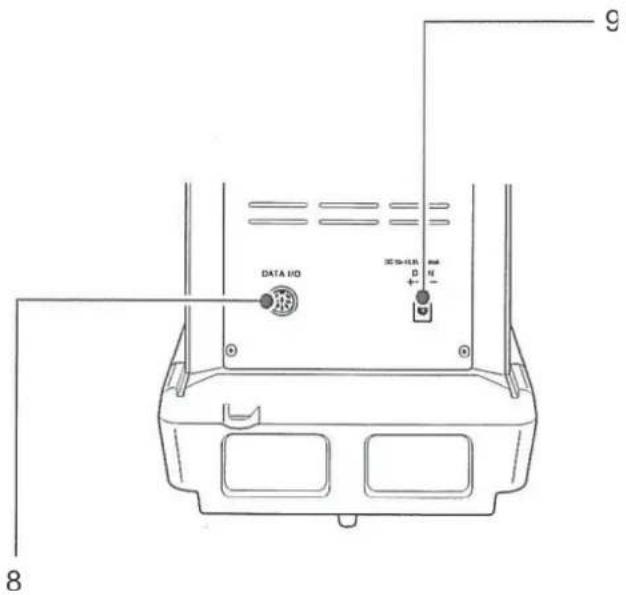
- Weighing plate
- Display
- Keyboard
- Levelling screw
- Bubble level
- Name plate
- Wind protection
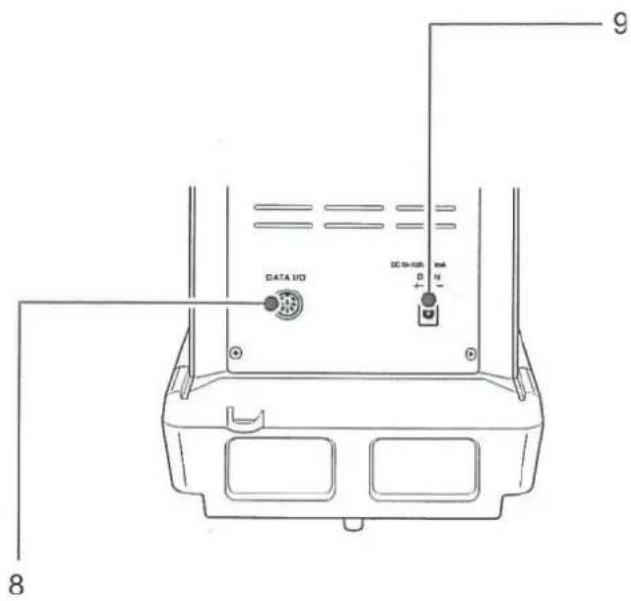
- Appliance interface
- Mains adapter connection
3.1 Keyboard overview
![KERN ABJ-NM Max 120 g [600 ct] Min 0.01 g [0.1 ct] e = 0.001 g [0.01 ct] d = 0.1 mg [0.001 ct] ON R S OFF CAL →0← ESC UNIT MENU PRINT → TARE](/content/2026/04/698073/images/b461acd0e6ab57cb43aab4f51ed8908f80ff1317545f85a44e8e3fbce27ef13e.jpg)
In menu:
| Key Designation: | Function | |||
| Pressed once and released | Keep pressed for about 3 seconds | In menu | ||
 | ON/OFF | Switches between the operation and standby modes. | - | Menu item back.Return to weighing mode:Press ON/OFF repeatedly or for 3 s.Cancel procedure |
 | CAL | Start adjustment | Invoke calibration menu | - |
 | TARE | Tare or set weight display to zero | Invoke zero / tare menu | Confirm entry |
 | UNIT | Switch-over weighing unit.Display stored reference weight (PCS, %). | Invoke unit setting menu. | Scroll forward in menu |
| Navigation key ↑ | ||||
 | MENU | Switch over weighing mode / application mode | Invoke main menu (press twice)Scroll backwards in menu | |
| Navigation key ↓ | ||||
 | Calculate weighing data via interface | Invoke Data Output menu | Select next menu item. | |
| Navigation key → | ||||
3.1.1 Numeric entry
| Key | Designation: | Function |
 | Navigation key ↑ | Increase flashing digitShift flashing decimal dot to the left |
 | Navigation key ↓ | Decrease flashing digitShift flashing decimal dot to the right |
 | Navigation key → | Digit selection to the right |
 | Navigation key ←Confirm entry | |
 | ESC Cancel input |

With numerical input the indicator [#] appears.
3.2 Overview of displays
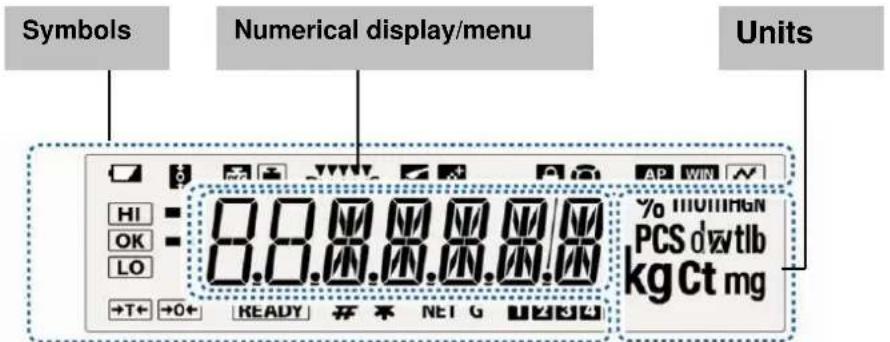
| Display | Description | see chpt. |
| Battery symbol | ||
| Zero tracking function active | + Chpt.12.1 | |
| Displays adjustment | + Chpt. 8.2.1 | |
| Flashes prior to start of automatic adjustment, only models ABJ | + Chpt. 8.1 | |
| Stability and reaction settings via „Easy Setting display“ | + Chpt.13.1 | |
| Balance is in dosing mode (pouring mode) | + Chpt. 13.2 | |
| Balance is in formula mode | + Chpt. 14.3 | |
| Menu lock active | + Chpt. 11.5 | |
| Menu symbol | + Chpt. 11.2 | |
| Auto Print function active | + Chpt. 16.2.1 | |
| Not documented | ||
| Log menu settings | ||
| Tolerance marks in check weighing and target mode | + Chpt. 15 | |
| The stability display indicates that the weighing value is stable. Highlights current setting in the menu. | ||
| Negative weighed value | ||
| Stand-by mode | + Chpt. 10.2 | |
| Ready for start formulation | + Chpt. 14.3 | |
| Ready for start continuous data output („MANU ON“) | + Chpt. 16.5.2 | |
| Indicates numeric value entry. | + Chpt. 3.1.1 | |
| Shows the stored reference in piece number or percent determination mode. | + Chpt.14.1+ Chpt.14.2.3 | |
| Net weight in formula mode | + Chpt. 14.3 | |
| Total weight (TOTAL) of all components in formula mode | + Chpt. 14.3 | |
| Memory space piece weight | + Chpt.14.1 | |
| Change position decimal dot for freely programmable weighing unit | + Chpt.10.7.2 | |
| Balance is in piece counting mode | + Chpt.14.1 | |
| Balance is in percent determination mode with user-defined reference weight | + Chpt.14.2.1 | |
| Balance is in percent determination mode, reference weight =100% | + Chpt.14.2.2 |
4 Basic Information (General)
4.1 Proper use
The balance you purchased is intended to determine the weighing value of material to be weighed. It is intended to be used as a “non-automatic” balance, i.e. the material to be weighed is manually and carefully placed in the centre of the weighing plate. As soon as a stable weighing value is reached the weighing value can be read.
4.2 Improper Use
Do not use balance for dynamic add-on weighing procedures, if small amounts of goods to be weighed are removed or added. The “stability compensation” installed in the balance may result in displaying an incorrect measuring value! (Example: Slowly draining fluids from a container on the balance.)
Do not leave permanent load on the weighing plate. This may damage the measuring system.
Impacts and overloading exceeding the stated maximum load (max) of the balance, minus a possibly existing tare load, must be strictly avoided. Balance may be damage by this.
Never operate balance in explosive environment. The serial version is not explosion protected.
The structure of the balance may not be modified. This may lead to incorrect weighing results, safety-related faults and destruction of the balance.
The balance may only be used according to the described conditions. Other areas of use must be released by KERN in writing.
4.3 Warranty
Warranty claims shall be voided in case
• Our conditions in the operation manual are ignored
- The appliance is used outside the described use
• The appliance is modified or opened
• Mechanical damage or damage by media, liquids, natural wear and tear
- The appliance is improperly set up or incorrectly electrically connected
• The measuring system is overloaded
4.4 Monitoring of Test Resources
In the framework of quality assurance the measuring-related properties of the balance and, if applicable, the testing weight, must be checked regularly. The responsible user must define a suitable interval as well as type and scope of this test. Information is available on KERN's home page (www.kern-sohn.com with regard to the monitoring of balance test substances and the test weights required for this. In KERN's accredited DKD calibration laboratory test weights and balances may be calibrated (return to the national standard) fast and at moderate cost.
5 Basic Safety Precautions
5.1 Pay attention to the instructions in the Operation Manual
Carefully read this operation manual before setup and commissioning, even if you are already familiar with KERN balances.
5.2 Personnel training
The appliance may only be operated and maintained by trained personnel.
6 Transportation & Storage
6.1 Testing upon acceptance
When receiving the appliance, please check packaging immediately, and the appliance itself when unpacking for possible visible damage.
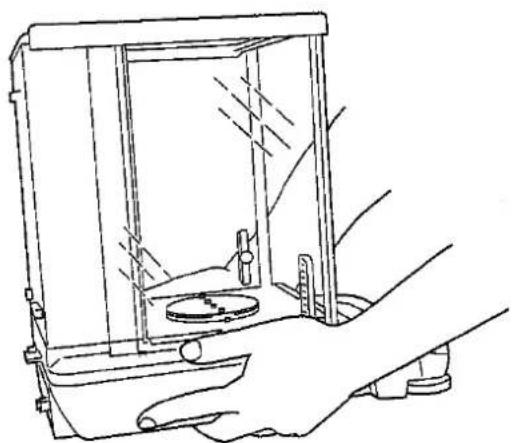
6.2 Packaging / return transport

→ Keep all parts of the original packaging for a possibly required return.
→ Only use original packaging for returning.
→ Prior to dispatch disconnect all cables and remove loose/mobile parts.
→ Reattach possibly supplied transport securing devices.
⇒ Secure all parts such as the glass wind screen, the weighing platform, power unit etc. against shifting and damage.
natural_image
Line drawing of a hand holding a transparent laboratory balance with a circular sample inside (no text or symbols)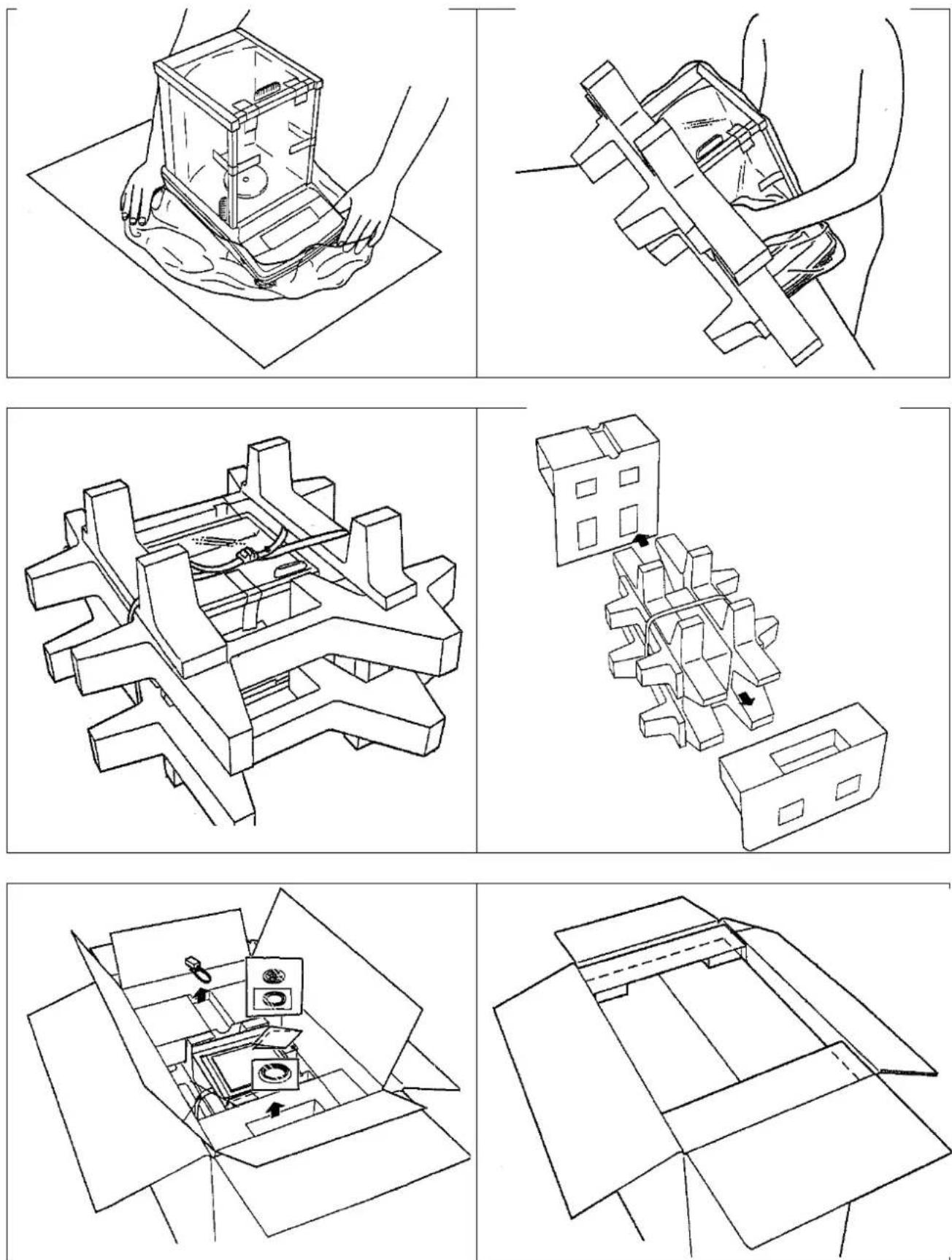
7 Unpacking, Setup and Commissioning
7.1 Installation Site, Location of Use
The balances are designed in a way that reliable weighing results are achieved in common conditions of use.
You will work accurately and fast, if you select the right location for your balance.
Therefore, observe the following for the installation site:
- Operate the device only indoors.
- Place the balance on a firm, level surface;
- Avoid extreme heat as well as temperature fluctuation caused by installing next to a radiator or in the direct sunlight;
- Protect the balance against direct draughts due to open windows and doors;
- Avoid jarring during weighing;
- Protect the balance against high humidity, vapours and dust;
- Do not expose the device to extreme dampness for longer periods of time. Non-permitted condensation (condensation of air humidity on the appliance) may occur if a cold appliance is taken to a considerably warmer environment. In this case, acclimatize the disconnected appliance for ca. 2 hours at room temperature.
- Avoid static charge of goods to be weighed or weighing container.
If electro-magnetic fields or static charge occur, or if the power supply is unstable major deviations on the display (incorrect weighing results) are possible. In that case, the location must be changed.
7.2 Unpacking and checking
Open package, take out the appliance and accessories. Verify that there has been no damage and that all packing items are present.
7.2.1 Scope of delivery / serial accessories
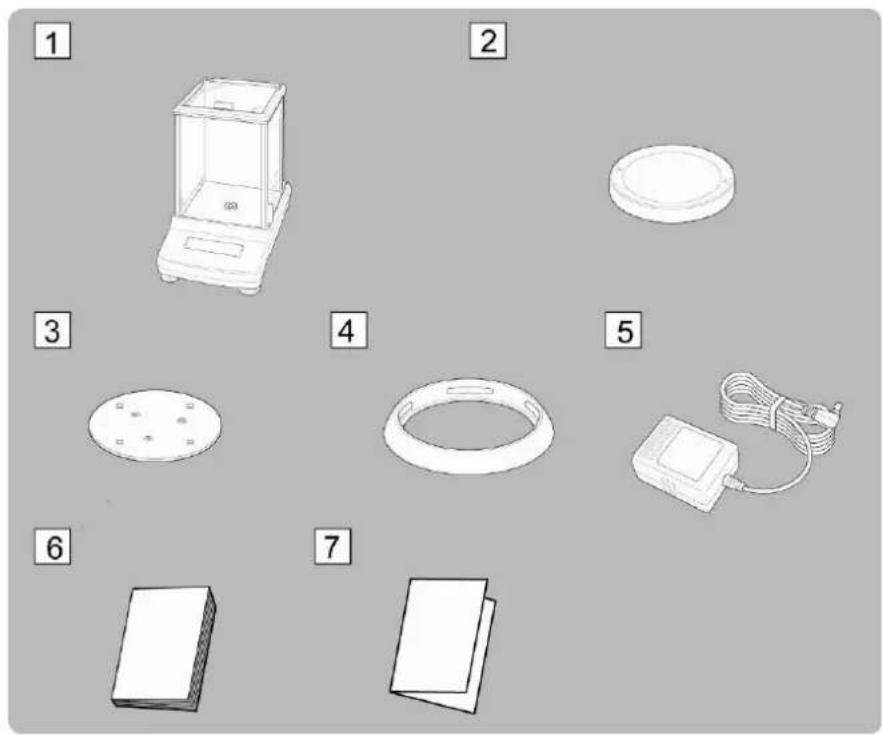
- Balance
- Weighing plate
- Carrier weighing plate
- Screening ring
- Mains adapter
- Operating instructions
- Menu overview
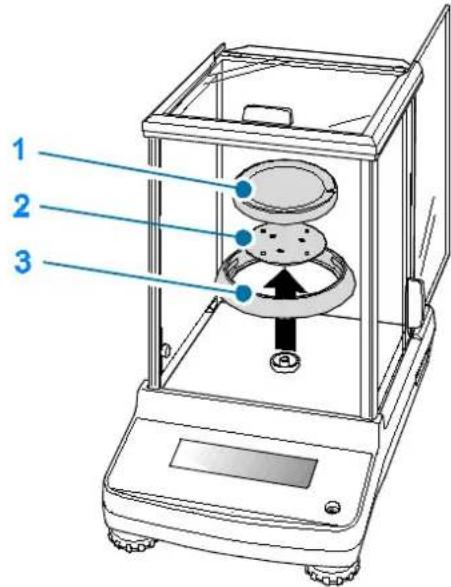
7.2.2 Placing
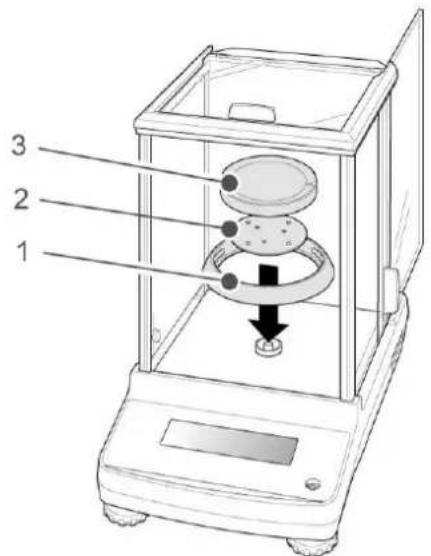
Attach circular screen, carrier of weighing plate and weighing plate in order.
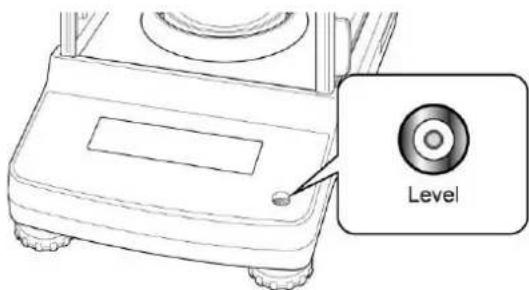
→ Level balance with foot screws until the air bubble of the water balance is in the prescribed circle.
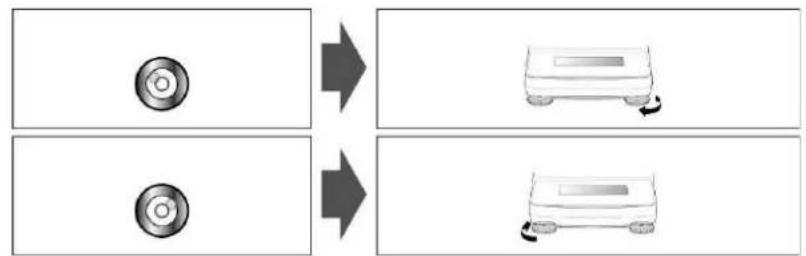
flowchart
graph LR
    A["Circle Component"] --> B["Device with Rotation Arrow"]
    C["Circle Component"] --> D["Device with Rotation Arrow"]
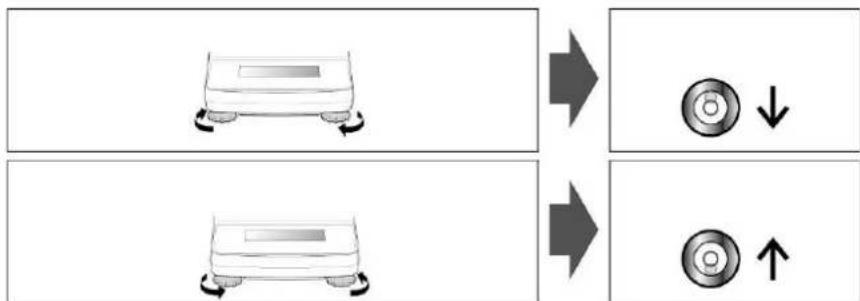
flowchart
graph TD
    A["Top Component"] --> B["Downward Rotation Arrow"]
    C["Bottom Component"] --> D["Upward Rotation Arrow"]
    style A fill:#f9f,stroke:#333
    style C fill:#f9f,stroke:#333
→ Check levelling regularly
7.3 Mains connection
Power is supplied via the external mains adapter. The stated voltage value must be the same as the local voltage.
Only use original KERN mains adapters. Using other makes requires consent by KERN.
7.3.1 Turning On the Power
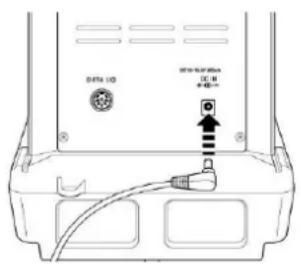
⇒ Supply power to balance via mains adapter. The display lights up and the balance carries out a selftest. In the ABJ models an automatic adjustment takes place.
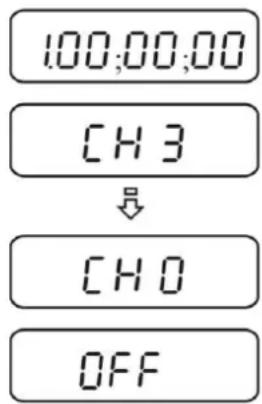
⇒ The selftest is completed when „OFF“ appears on the display.
7.4 Initial Commissioning
In order to obtain exact results with the electronic balances, your balance must have reached the operating temperature (see warming up time chpt. 1). During this warming up time the balance must be connected to the power supply (mains, accumulator or battery).
The accuracy of the balance depends on the local acceleration of gravity. Strictly observe hints in chapter Adjustment.
7.5 Connection of peripheral devices
Before connecting or disconnecting of additional devices (printer, PC) to the data interface, always disconnect the balance from the power supply.
With your balance, only use accessories and peripheral devices by KERN, as they are ideally tuned to your balance.
8 Adjustment
As the acceleration value due to gravity is not the same at every location on earth, each balance must be coordinated - in compliance with the underlying physical weighing principle - to the existing acceleration due to gravity at its place of location (only if the balance has not already been adjusted to the location in the factory). This adjustment process must be carried out for the first commissioning, after each change of location as well as in case of fluctuating environment temperature. To receive accurate measuring values it is also recommended to adjust the balance periodically in weighing operation. Observe stable environmental conditions. A warming up time (see chapter 1) is required for stabilization. Ensure that there are no objects on the weighing plate.
8.1 Automatic adjustment by PSC (Perfect Self Calibration), only models ABJ
The default setting for balances of the series ABJ prompts automatic adjustment via the PSC function (cannot be switched off).
The moment a change in temperature is detected this function uses the internal tare weight to carry out fully-automatic adjustment with the help of a temperature sensor. Adjustment in weighing mode is carried out automatically under the following conditions:
(1) When there is a change in the surrounding temperature ( t 2°C)
(2) When about four hours has passed since the previous calibration.
(3) When the balance is switched from standby status to weighing mode and condition (1) or (2) has been met.
If one of the above conditions was met in weighing mode, the weight symbol flashes for about two minutes in order to notify the pending adjustment;
Case 1: The load on the weighing plate is near zero.
The weight symbol PSC flashes for approx. two minutes, followed by „PSC.RUN“. After that the internal adjustment is started automatically. In order to ensure proper PSC operation, prevent vibrations and air flow.
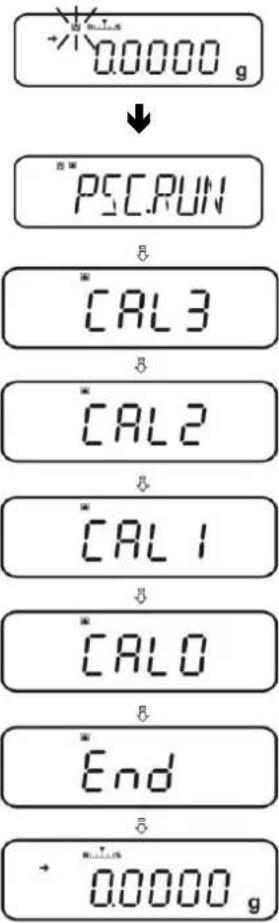
As soon as the display in grams reappears after completing adjustment via PSC, the balance returns to weighing mode.
Case 2: Weighing plate loaded
The gram display flashes for two minutes, followed by „PLS.CAL“.
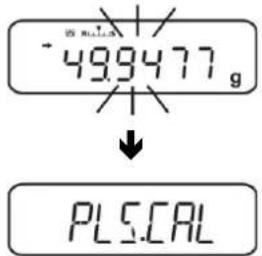
Unload weighing plate. The gram display flashes again for 2 minutes; after that the internal adjustment is started automatically. In order to ensure proper PSC operation, prevent vibrations and air flow.
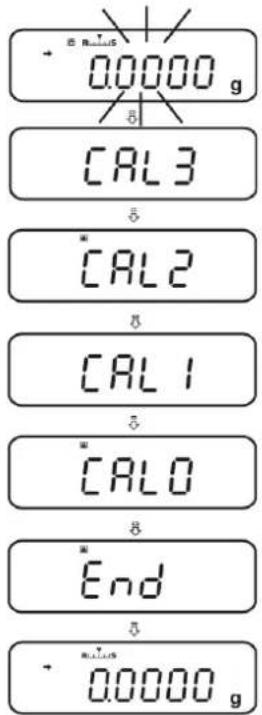
As soon as the display in grams reappears after completing adjustment via PSC, the balance returns to weighing mode.

To prevent a start-up of adjustment during a measuring process, actuate the ON/OFF button as soon as „PLS.CAL“ is displayed. The gram display flashes again for two minutes, followed by „PLS.CAL“.
8.2 Menu settings „I.CAL“ / „E.CAL“
⇒ To invoke the adjustment function in weighing mode, press CAL for 3 sec.
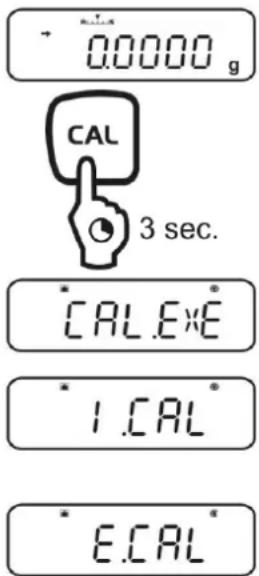
Acknowledge using PRINT, the current setting is displayed.
⇒ Select the desired adjustment using the navigation keys (↓ ↑)
I.CAL: Adjustment with internal weight (see chpt. 8.1)
E.CAL: Adjustment with external weight (see chpt. 8.2)
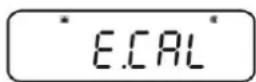
→ Confirm with TARE
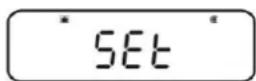
⇒ Press ON/OFF repeatedly or 3 sec., the balance will return into weighing mode
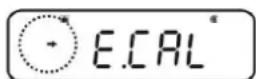
i The saved adjustment (I.CAL or E.CAL) can now directly be invoked via the CAL button.
8.2.1 Adjustment with internal weight (KERN ABJ)
With the internal adjustment weight, the weighing accuracy can be checked and re-adjusted at any time.

• Condition: Menu setting „I.CAL“.
- When an optional printer is connected and the GLP function activated, while starting the adjustment log „WAIT“ will be displayed. After the printout the adjustment will be continued automatically.
- Adjustment may be interrupted with ON/OFF, „ABORT“ is displayed.
⇒ Press the CAL-button and adjustment will take place automatically.
The indicator will be shown.
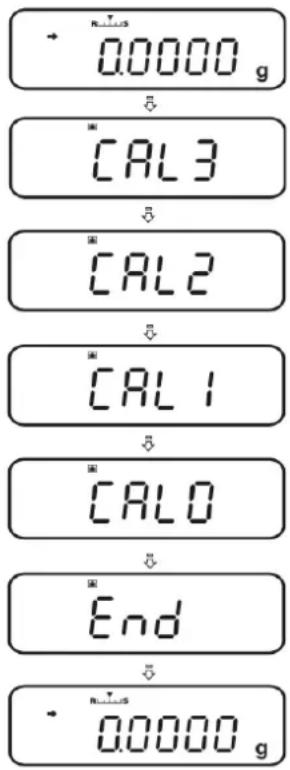
⇒ After successful adjustment the balance automatically returns to weighing mode.
In case of an adjustment error (e.g. objects on the weighing plate) the display will show an error message, repeat adjustment.
When an optional printer is connected and the GLP function is connected, the adjustment log will be edited, see chpt. 8.3.
8.2.2 Adjustment with external weight (KERN ABS)

• Condition: Menu setting „E.CAL“.
- The weight to be used depends on the capacity of the scale. Carry out adjustment as near as possible to the balance's maximum weight (recommended adjustment weight see chpt. 1). Weights of different nominal values or tolerance classes may be used for adjustment but are not optimal for technical measuring. The accuracy of the adjustment weight must correspond approximately to or, if possible, be better than, the readability of the balance.
Minimum weight „Adjustment weight“:
ABS 80-4N / ABS 120-4N : 50 g
ABS 220-4N / ABS 320-4N:100 g
Information about test weights you will find in the internet under:
http://www.kern-sohn.com
- When an optional printer is connected and the GLP function activated, while starting the adjustment log „WAIT“ will be displayed. After the printout the adjustment process will be continued automatically.
- If during the adjustment process within 60 s no operation is carried out, „ERR C“ will be displayed. Press ON/OFF a restart.
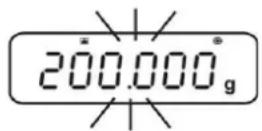
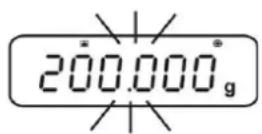
In weighing mode press CAL. The weight value of the recommended adjustment weight (see chpt. 1) appears flashing. The indicator will be shown.
If the value shall be changed, press MENU, the active digit flashes.
Carry out the desired setting using navigation buttons (see chapter 3.1.1 „Numeric input“).
With flashing adjustment weight display, place the adjustment weight carefully on the center of the weighing plate within 60 s. Close wind screen doors completely.
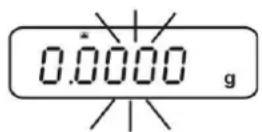
→ Wait until the zero display flashes.
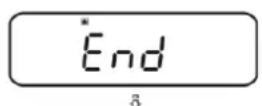
⇒ Take away the adjustment weight and close the wind screen doors. After successful adjustment the balance automatically returns to weighing mode. In case of an adjustment error (e.g. objects on the weighing plate) the display will show an error message, repeat adjustment.
When an optional printer is connected and the GLP function is connected, the adjustment log will be edited, see chpt. 8.3.
8.3 Adjustment log
This function enables automatic log issue after each adjustment. These logs may be issued by using an optional printer.
Printout example (KERN YKB-01N):
CAL-EXTERNAL
KERN & Sohn GmbH
TYPE ABJ 220-4NM
SN WBIAB000I
ID 1234
REF 200.0000g
BFR 200.0001g
AFT 200.0000g
-COMPLETE
-SIGNATURE-
Mode of adjustment
Company
Model
Serial no.
Balance identification no. (see chpt. 8.4)
Used adjustment weight
Before adjustment
After adjustment
prepared by

Make sure that the communication parameter of balance and printer are the same.
Call function
In weighing mode press the CAL key for 3 sec.
⇒ Use the navigation buttons (↓↑) to select „GLP.OUT“. The current setting is marked by the stability display (→
With stability display (→ Function activated
Without stability display (→ Function disabled
CAL.ExE
GLP.OUT
GLP.OUT
GLP.OUT
How to change settings
→ Press TARE
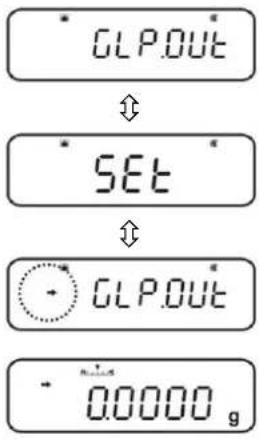
⇒ Press ON/OFF repeatedly or for 3 sec., the balance will return into weighing mode
8.4 Balance identification no.
This setting is for the balance ID number that is output along with the adjustment report.
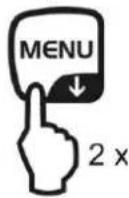
Call up menu
In weighing mode press the MENU button twice
Select menu item
⇒ Press the navigation buttons (↓↑) repeatedly until „TOOLS“ is displayed.
→ Confirm with PRINT
⇒ Press the navigation buttons (↓ ↑) repeatedly until „SYSTEM“ is displayed.
→ Confirm with PRINT
⇒ Press the navigation buttons (↓↑) repeatedly until „BAL.ID“ is displayed.
⇒ Press TARE, the currently set ID no. is displayed (factory setting 0000).
Enter balance identification no. (max. 4 characters)
⇒ Enter the desired ID no. using navigation buttons (see chapter 3.1.1 „Numeric input“).
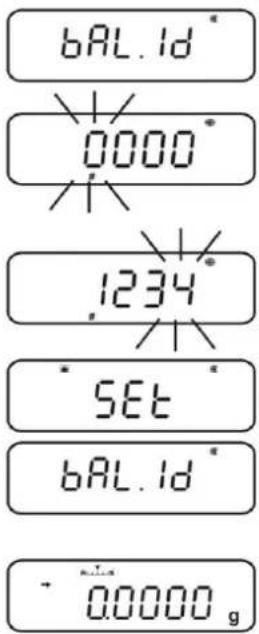
⇒ Press ON/OFF repeatedly or 3 sec., the balance will return into weighing mode
9 Verification
General introduction:
According to EU directive 90/384/EEC or 2009/23EG balances must be officially verified if they are used as follows (legally controlled area):
a) For commercial transactions if the price of goods is determined by weighing.
b) For the production of medicines in pharmacies as well as for analyses in the medical and pharmaceutical laboratory.
c) For official purposes
d) For manufacturing final packages
In cases of doubt, please contact your local trade in standard.
Verification notes:
An EU type approval exists for balances described in their technical data as verifiable. If a balance is used where obligation to verify exists as described above, it must be verified and re-verified at regular intervals.
Re-verification of a balance is carried out according to the respective national regulations. The validity for verification of balances in Germany is e.g. 2 years.
The legal regulation of the country where the balance is used must be observed!
Verification of the balance is invalid without the seal.
The seal marks attached on verified balances point out that the balance may only be opened and serviced by trained and authorised specialist staff. If the seal mark is destroyed, verification looses its validity. Please observe all national laws and legal regulations. In Germany a re-verification will be necessary.
Position of seals
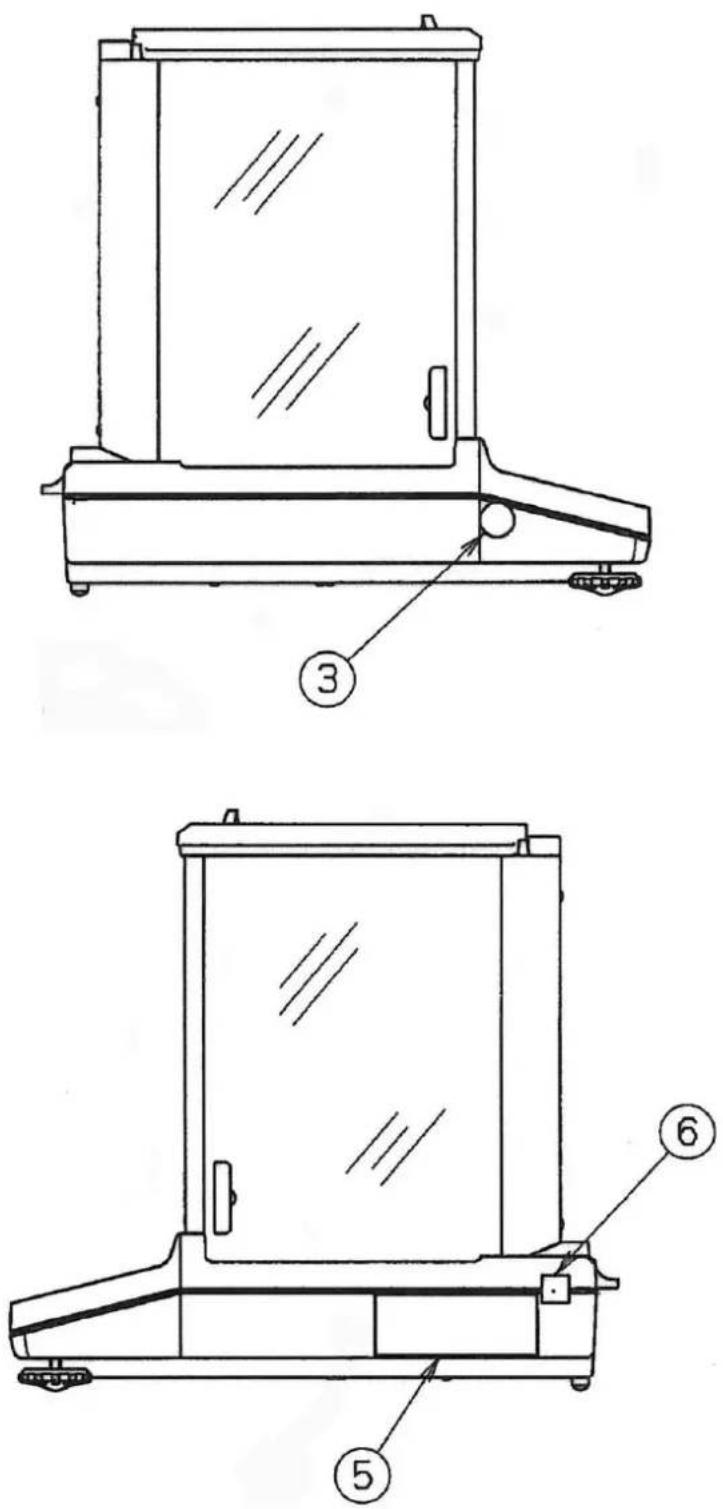
③ Seal
⑤ Data plate
⑥ Seal
10 Weighing
10.1 Switch-on balance / call-up weighing mode
| Status balance | Call-up weighing mode |
| Display switched off | Press ON/OFF.After display press any key |
| Display OFF | Press any key |
| Display READY | |
| All segments light up | |
| Balance is in menu | Press ON/OFF repeatedly or for 3 sec. |
| After numeric input |
10.2 Switch off the balance
⇒ Press ON/OFF. The balance is in standby mode, that means that the balance is now in state ready-for-operation. Immediately after switching-on it is ready for operation (press any key) without warm-up time.
⇒ To switch-off the balance completely, separate balance from power supply.

If [WAIT] or [SET] are displayed, do not separate the balance from power supply.
10.3 Set the start display
For the start display you can choose between three types.
| Start display | Explanation | Menu setting |
1. Weighing mode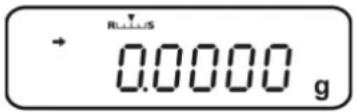 | After connection to the power supply the balance will start in weighing mode. |  |
2. Display OFF | After connection to the power supply the balance displays OFF After pressing a certain key the balance will carry out a segment test and start in weighing mode automatically. | 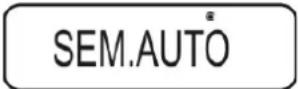 |
3. All segments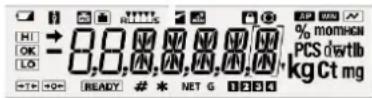 | After connection to the power supply the balance displays OFF After pressing any key the balance will carry out a segment test. Only after having pressed TARE the weighing mode will start. | 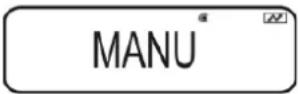 |
Call up menu
→ In weighing mode press the MENU button twice
Select menu item
⇒ Press the navigation buttons (↓↑) repeatedly until „TOOLS“ is displayed.
→ Confirm with PRINT
⇒ Press the navigation buttons (↓ ↑) repeatedly until „SYSTEM“ is displayed.
→ Confirm with PRINT
⇒ Press the navigation buttons (↓ ↑) repeatedly until „START“ is displayed. The current setting is marked by the stability display (→).
Set display type
Acknowledge using PRINT, the current setting is displayed.
⇒ Use the navigation buttons (↓↑) to select the desired setting, e.g. „SEM.AUTO“.
Weighing mode
OFF display
All segments
→ Confirm with TARE. The current setting is marked by the stability display (→)
Return to weighing mode
⇒ Press ON/OFF repeatedly or for 3 sec.
START°
AUTO
SEM.AUTO
MANU
SET
SEM.AUTO
0.0000g
10.4 Auto Power-Off function (automatic switch-off function)
To save battery when function is enabled backlight of display will automatically switch off after a defined time during which there was no change of load or activity.
1. Call up menu
In weighing mode press the MENU button twice
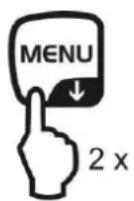
2. Select function
⇒ Press the navigation buttons (↓↑) repeatedly until „TOOLS“ is displayed.
→ Confirm with PRINT
⇒ Press the navigation buttons (↓ ↑) repeatedly until „SYSTEM“ is displayed.
→ Confirm with PRINT
⇒ Press the navigation buttons (↓↑) repeatedly until „AUTO.OFF“ is displayed. The current setting is marked by the stability display (→).
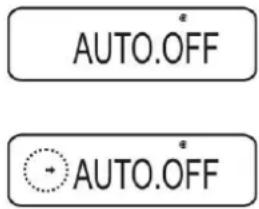
Further steps depend on the desired setting:
| Stability display (→) | Function | set/update | cancel | |
| yesAUTO.OFF | ON | → | PressPRINTand continue with step 3. | PressTAREand continue with step 4. |
| noAUTO.OFF | off | → | PressTAREand continue with step 3. | continue with step 4. |
3. Set time, after which the display has to switch off
Use the navigation key ( ) to enter the desired time in minutes (max. 99 min.), "Numeric input". see chpt. 3.1.1.
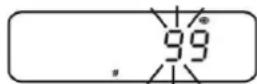
→ Confirm with TARE.
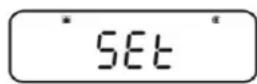
4. Return to weighing mode
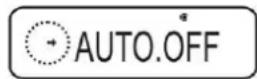
⇒ Press ON/OFF repeatedly or for 3 sec.
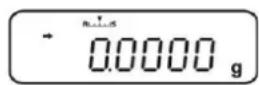
10.5 Simple weighing

A warm-up time is required for stabilisation (see chpt. 1).
→ Wait for zero display, reset to zero using TARE.
→ Place the goods to be weighed and close the wind screen doors
→ Wait until the stability display appears [→].
→ Read weighing result.
When an optional printer is connected, the weighing value can be edited.
Print-out example with enabled GLP function (see chpt. 8.3):
Balance identification no. (see chpt. 8.4)
Measuring Value
prepared by
Print-out example with disabled GLP function (see chpt. 8.3):
50.0010 g
Measuring Value
10.6 Taring
The dead weight of any weighing container may be tared away by pressing a button, so that the following weighings show the net weight of the goods to be weighed.
⇒ Put vessel of goods to be weighed on weighing plate and close the wind screen doors.
Wait until the stability display appears () , then press TARE. The weight of the container is now internally saved.
→ Weigh the goods to be weighed and close the wind screen doors.
→ Wait until the stability display appears (→).
→ Read net weight.
Note:
i
- The balance is able to only store one taring value at a time.
- When the balance is unloaded the saved taring value is displayed with negative sign.
- To delete the stored tare value, remove load from weighing pan and press TARE.
- The taring process can be repeated any number of times. The limit is reached when the whole weighing range is exhausted.
10.7 Switch-over weighing unit
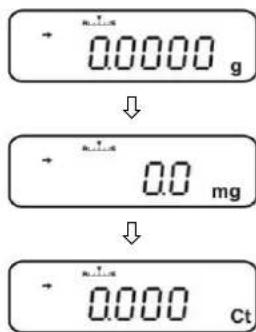
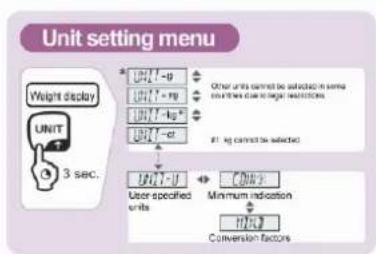
By pressing the UNIT key, the display can be switched over to the units enabled before in the menu.
Call up menu
In weighing mode press the UNIT key for 3 sec. The current setting is marked by the stability display (→).
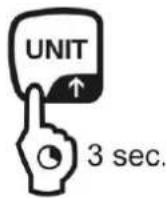
With stability display (→ Unit enabled
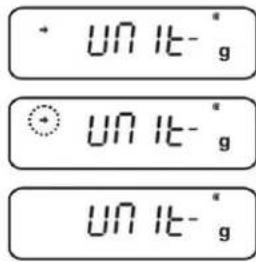
Without stability display (→ Unit disabled
Enable/disable units
→ Press TARE
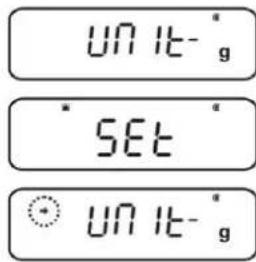
Use the navigation buttons (↓↑) to select more units and to enable/disable them as described before.
⇒ Press ON/OFF repeatedly or for 3 sec., the balance will return into weighing mode
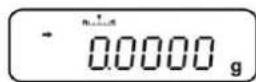
How to change weighing units
⇒ To return to the previously enabled weighing units go to weighing mode by UNIT.

When switching-on the balance, the unit in which the balance has been switched off, will be displayed.
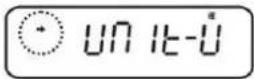
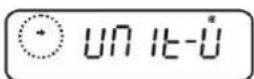
10.7.1 Freely programmable weighing unit
Call up menu
In weighing mode press the UNIT key for 3 sec. Use the navigation buttons (↓↑) to select „UNIT.U“. The current setting is marked by the stability display (→).
With stability display (→ Unit enabled
Without stability display (→ Unit disabled
if necessary enable units
→ Press TARE
Enter conversion factor
- Press TARE and current setting will be displayed.
- Use the navigation buttons to enter the desired conversion factor (see chapter 3.1.1 „Numeric input“).
- Press ON/OFF repeatedly or for 3 sec., the balance will return into weighing mode
How to change weighing units
To return to the previously enabled weighing units go to weighing mode by UNIT.

- With a numeric input of the conversion factor, the position of the decimal dot can be changed, see chpt. 10.7.2
- For the freely programmable weighing unit, no unit symbol will appear in the display.
3 sec.
UN IT-Ü
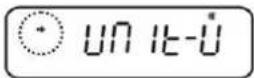
UN IT-Ü
UN 16-0
SET
CONV.K
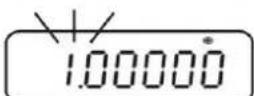
SET
CONV.K
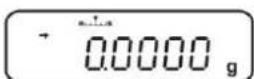
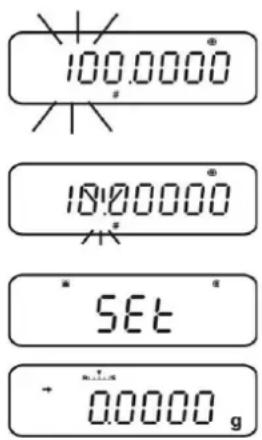
10.7.2 Change position of decimal dot for freely programmable weighing unit The position of the decimal dot can only be changed by a numeric input of the conversion factor (see chpt. 9.7.1, step 2).
When the first cipher flashes, press PRINT repeatedly until the decimal dot flashes.
Select the desired position using the navigation keys ( ) . If no decimal dot shall be set, press MENU repeatedly until the display symbol appears.
→ Confirm with TARE.
⇒ Press ON/OFF repeatedly or for 3 sec., the balance will return into weighing mode
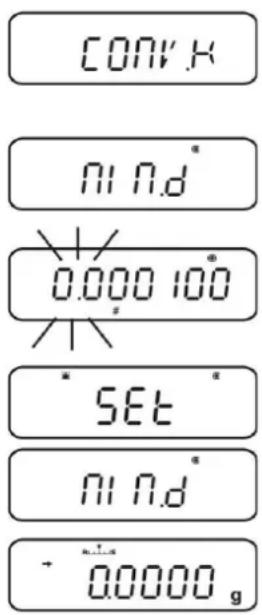
10.7.3 Input minimum weight for freely programmable weighing unit
Call up menu
In the menu item „CONV.K“ (see chpt. 9.7.1) use the navigation buttons to select (↓↑) „MIN.D“.
→ Press TARE and current setting will be displayed.
Use the navigation buttons to enter the desired minimum weight, see chapter 3.1.1 „Numeric input“.
⇒ Press ON/OFF repeatedly or for 3 sec., the balance will return into weighing mode
10.8 Change readability (1D/10D)
Call up menu
In weighing mode press the MENU button twice
Select menu item
⇒ Press the navigation buttons (↓ ↑) repeatedly until "TOOLS" is displayed.
→ Confirm with PRINT
⇒ Press the navigation buttons (↓ ↑) repeatedly until „TARGET“ is displayed.
→ Confirm with PRINT
⇒ Press the navigation buttons (↓ ↑) repeatedly until „PARAM.W“ is displayed.
→ Confirm with PRINT
⇒ Press the navigation buttons (↓ ↑) repeatedly until „CHG.MIN“ is displayed.
→ Confirm with PRINT
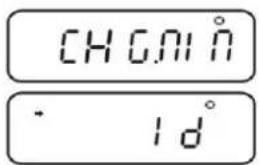
Change readability from 1D to 10 D
- Use the navigation buttons (↓↑) to select „10 D“.
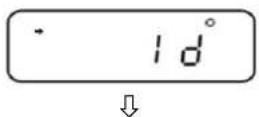
- Confirm with TARE. The current setting is marked by the stability display (→)
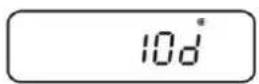
- Press ON/OFF repeatedly or for 3 sec., the balance will return into weighing mode
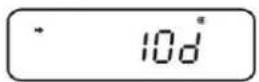
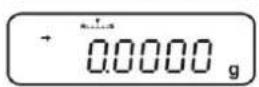

In order to reset readability to 1D, repeat step 1 - 3 accordingly for 1D.
10.9 Display decimal dot as point or comma
Call up menu
→ In weighing mode press the MENU button twice
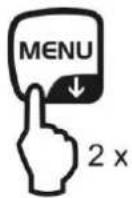
Select menu item
⇒ Press the navigation buttons (↓↑) repeatedly until „TOOLS“ is displayed.
→ Confirm with PRINT
⇒ Press the navigation buttons (↓ ↑) repeatedly until „SYSTEM“ is displayed.
→ Confirm with PRINT
⇒ Press the navigation buttons (↓ ↑) repeatedly until „POINT“ is displayed.
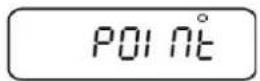
Selection point/comma
Acknowledge using PRINT, the current setting is displayed.
Select the desired adjustment using the navigation keys ( )
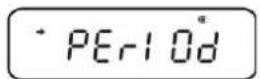
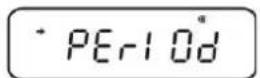
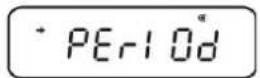
PERIOD: Decimal dot is displayed as a point
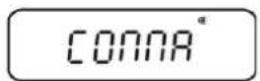
COMMA Decimal dot is displayed as a comma
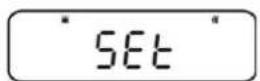
→ Confirm with TARE. The current setting is marked by the stability display (→)
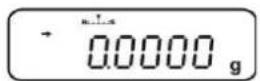
Return to weighing mode
⇒ Press ON/OFF repeatedly or for 3 sec.
11 Menu
To adapt the behaviour of the balance to your requirements, go to the menu. Usually the default setting of the menu is such that you do not need to make any changes. If you encounter special conditions of use, go to the menu in order to set your balance according to your individual requirements.
Menu structure:
| Menu designation | Invoke menu | Explanation |
| Main Menu | 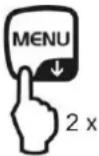 | Main menu |
| Calibration Menu | 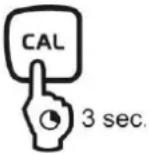 | Adjustment |
| Zero / tare Menu |  | Set to zero/taring |
| Data Output Menu |  | Data output |
| Unit setting Menu |  | Weighing Units |
11.1 Menu symbol
After invoking the menu, the menu symbol [💡] will appear. The arrangement depends on the navigation in the menu.
| Symbol arrangement Explanation | |
| Arrangement filled inside | Shows the current setting |
| Circular arch left/right | Higher or lower menu level selectable |
| Circular arch top / bottom Further selectable menu settings | |
11.2 Navigation in the menu
• How to invoke a menu, see chpt. 11
- Menu structure
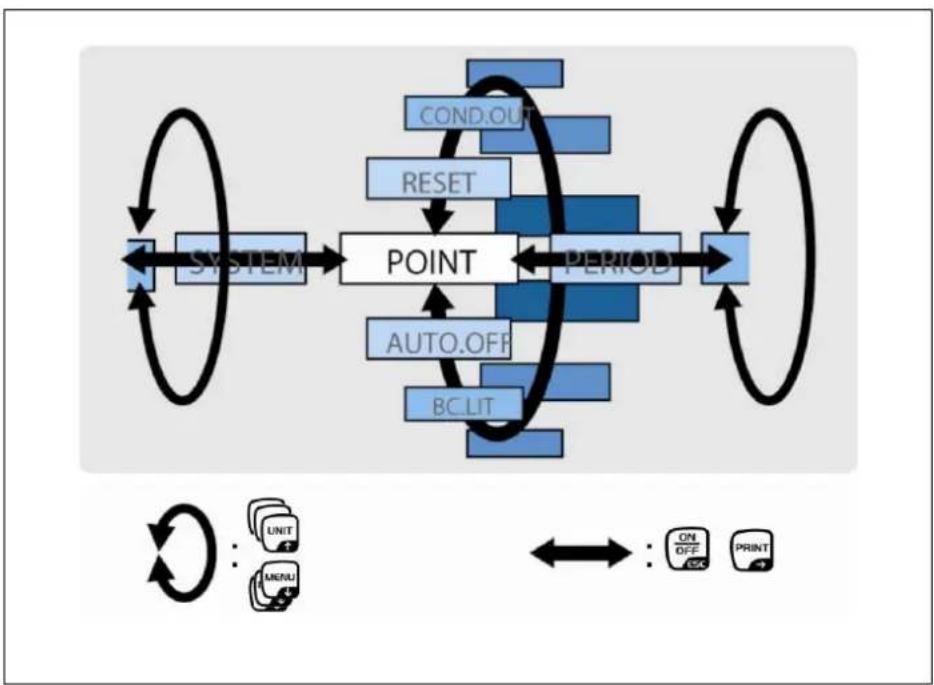
flowchart
graph LR
    A["SYSTEM"] --> B["POINT"]
    B --> C["PERIOD"]
    C --> D["OUTPUT"]
    B --> E["AUTO.OFF"]
    B --> F["BCLIT"]
    B --> G["RESET"]
    G --> H["COND.OUT"]
    style A fill:#cce5ff,stroke:#333
    style B fill:#66ccff,stroke:#333
    style C fill:#99ccff,stroke:#333
    style D fill:#ffcccc,stroke:#333
    style E fill:#cce5ff,stroke:#333
    style F fill:#cce5ff,stroke:#333
    style G fill:#cce5ff,stroke:#333
    style H fill:#cce5ff,stroke:#333
 | Select and pass through menu items to bottom (↓).Select setting within one function |
 | Select and pass through menu items to top (↑).Select setting within one function |
 | After selecting the function in the display via the navigation buttons (↓↑), the change is invoked by pressing the TARE key.Confirm and store the setting momentarily appearing on the display by actuating the TARE key. The stability display → shows the present setting for the function. |
 | Selecting a menu item to the right (→). |
 | Selecting a menu item to the left.Leaving the functionPress shortly the ON/OFF key:Back to previous menu.Long actuation of ON/OFF key:Back to weighing mode. |
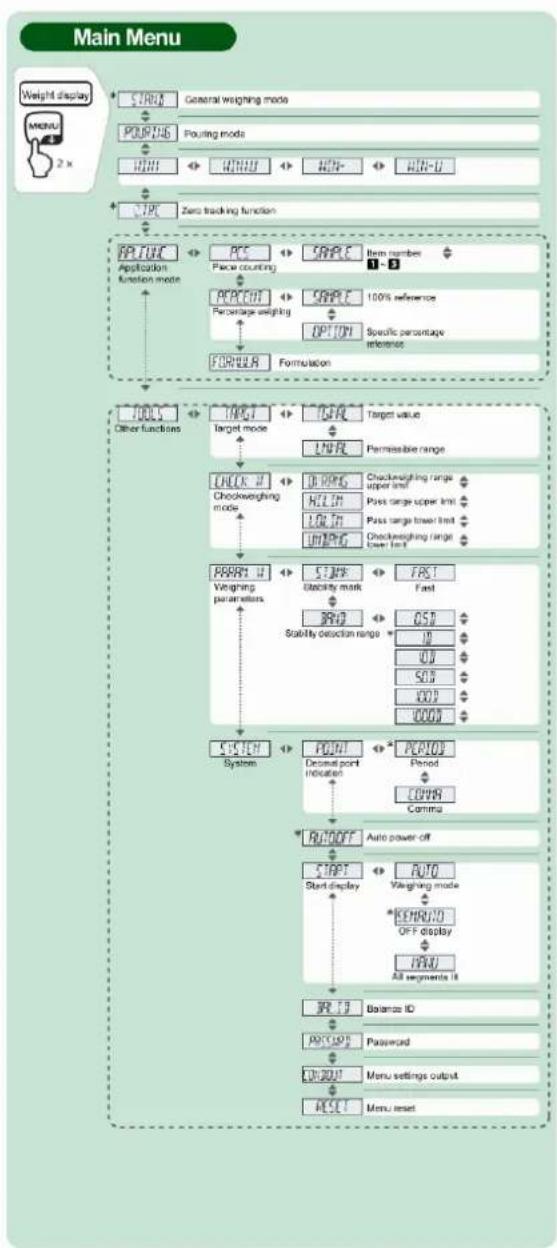
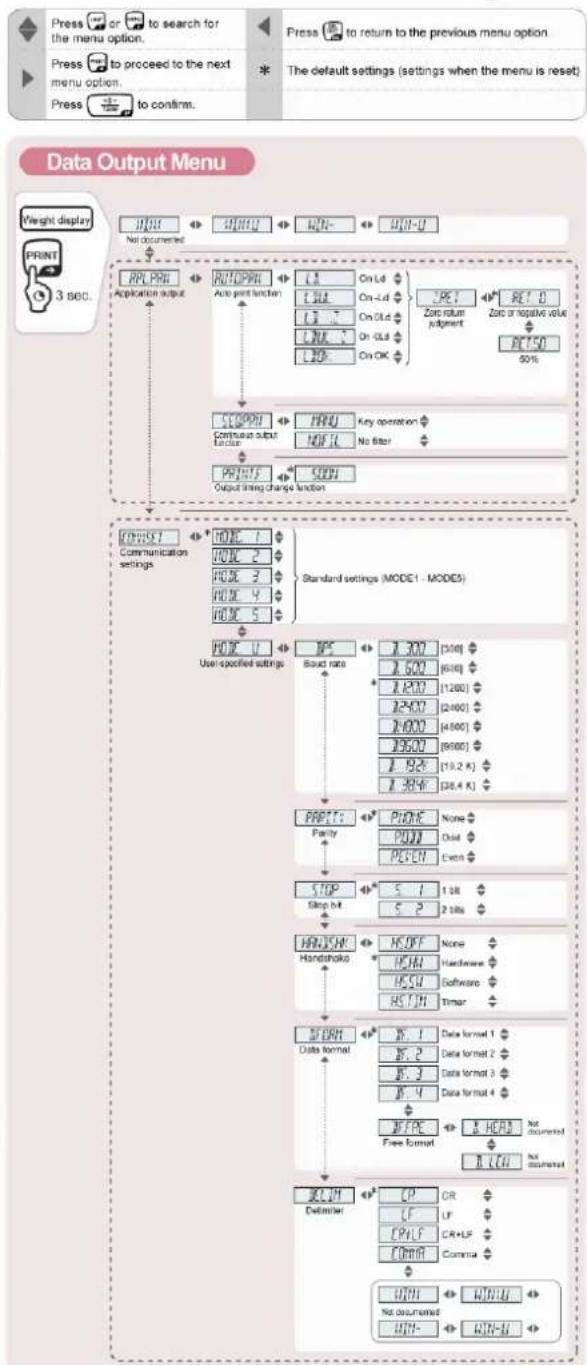
11.3 Menu overview
+ See also the attached menu map
Menu Map Sheet
flowchart
graph TD
    A["Weight display"] --> B["START General weighing mode"]
    B --> C["PORFING Pouring mode"]
    C --> D["MIN MIN MIN MIN MIN MIN MIN MIN MIN MIN MIN MIN MIN MIN MIN MIN MIN MIN MIN MIN MIN MIN MIN MIN MIN MIN MIN MIN MIN MIN MIN MIN MIN MIN MIN MIN MIN MIN MIN MIN MIN MIN MIN MIN MIN MIN MIN MIN MIN MIN MIN MIN MIN MIN MIN MIN MIN MIN MIN MIN MIN MIN MIN MIN MIN MIN MIN MIN MIN MIN MIN MIN MIN MIN MIN MIN MIN MIN MIN MIN MIN MIN MIN MIN MIN MIN MIN MIN MIN MIN MIN MIN MIN MIN MIN MIN MIN MIN MIN MIN MIN INFER<br>    A --> E[STOP Zero tracking function"]
    E --> F["PATCH Application Function Mode"]
    F --> G["PCS Place counting"]
    G --> H["PERCENT Percentage weighting"]
    H --> I["FORMULA Formulation"]
    I --> J["TOOLS Other functions"]
    J --> K["TRIGHT Target mode"]
    K --> L["CHECK # Checkweighting mode"]
    L --> M["PERCENT Weighting parameters"]
    M --> N["SYSTEM System"]
    N --> O["POST Decimal point indication"]
    O --> P["POST Auto power-off"]
    P --> Q["START Start display"]
    Q --> R["Balance ID Password Window Output"]
    R --> S["SET Menu reset"]
flowchart
graph TD
    A["Press or to search for the menu option."] --> B["Press to proceed to the next menu option."]
    B --> C["Press to confirm."]
    D["Press to return to the previous menu option."] --> E["The default settings (settings when the menu is reset)."]
    F["Weight display"] --> G["No documented"]
    G --> H["PRINT 3860."]
    H --> I["APP.PPI"]
    I --> J["Application output"]
    J --> K["RUTFPRI"]
    K --> L["Auto print function"]
    L --> M["L1 On L4 On-2d On-1d On-0.5 On OK"]
    M --> N["L2 L3 On L4 On-0.5 On OK"]
    N --> O["L4 L5 On OK"]
    O --> P["CCOPRI"]
    P --> Q["Continuous subtable factor"]
    Q --> R["PPRTF"]
    R --> S["OUTPUT"]
    S --> T["Output strong change function"]
    T --> U["CONVEI1 Communication settings"]
    U --> V["MODE 1"]
    V --> W["MODE 2"]
    W --> X["MODE 3"]
    X --> Y["MODE 4"]
    Y --> Z["MODE 5"]
    Z --> AA["HOFC 0"]
    AA --> AB["User specified settings"]
    AB --> AC["PS Box rate"]
    AC --> AD["1.300 [300"] 2.500["600"] 1.200["1200"] 2.500["2400"] 2.000["4500"] 3.500["6500"] 1.925["19.2 K"] 1.984 (38.4 K)]
    AD --> AE["POST"]
    AE --> AF["Skip hit"]
    AF --> AG["HANDSHK Handshoko"]
    AG --> AH["STOP Data format"]
    AH --> AI["SCLM Definiter"]
    AI --> AJ["CP CR LF CR+LF COMMA"]
    AJ --> AK["CPLIF CWM"]
    AK --> AL["WHI NOT documented WHI NOT-dwg"]
flowchart
graph TD
    A["Weight display"] --> B["UNIT"]
    B --> C["3 sec."]
    C --> D["User specified units"]
    D --> E["Minimum indication"]
    E --> F["Conversion factors"]
    G["Other units cannot be selected in some cases due to target recommendations"] --> H["100% - 0"]
    H --> I["100% - kg"]
    I --> J["100% - kg^2"]
    J --> K["100% - c"]
    K --> L["100% - d"]
    L --> M["100% - e"]
    M --> N["100% - f"]
    N --> O["100% - g"]
    O --> P["100% - h"]
    P --> Q["100% - i"]
    Q --> R["100% - j"]
    R --> S["100% - k"]
    S --> T["100% - l"]
    T --> U["100% - m"]
    U --> V["100% - n"]
    V --> W["100% - o"]
    W --> X["100% - p"]
    X --> Y["100% - q"]
    Y --> Z["100% - r"]
    Z --> AA["100% - s"]
    AA --> AB["100% - t"]
    AB --> AC["100% - u"]
    AC --> AD["100% - v"]
    AD --> AE["100% - w"]
    AE --> AF["100% - x"]
    AF --> AG["100% - y"]
    AG --> AH["100% - z"]
    AH --> AI["100% - a"]
    AI --> AJ["100% - b"]
    AJ --> AK["100% - c"]
    AK --> AL["100% - d"]
    AL --> AM["100% - e"]
    AM --> AN["100% - f"]
    AN --> AO["100% - g"]
    AO --> AP["100% - h"]
    AP --> AQ["100% - i"]
    AQ --> AR["100% - j"]
    AR --> AS["100% - k"]
    AS --> AT["100% - l"]
    AT --> AU["100% - m"]
    AU --> AV["100% - n"]
    AV --> AW["100% - o"]
    AW --> AX["100% - v"]
    AX --> AY["100% - w"]
    AY --> AZ["100% - x"]
    AZ --> BA["100% - y"]
    BA --> BB["100% - z"]
    BB --> BC["100% - a"]
    BC --> BD["100% - b"]
    BD --> BE["100% - c"]
    BE --> BF["100% - d"]
    BF --> BG["100% - e"]
    BG --> BH["100% - f"]
    BH --> BI["100% - g"]
    BI --> BJ["100% - h"]
    BJ --> BK["100% - i"]
    BK --> BL["100% - j"]
    BL --> BM["100% - k"]
    BM --> BN["100% - l"]
    BN --> BO["100% - m"]
    BO --> BP["100% - v"]
    BP --> BQ["100% - w"]
    BQ --> BR["100% - x"]
    BR --> BS["100% - y"]
    BS --> BT["100% - z"]
    BT --> BU["100% - a"]
    BU --> BV["100% - b"]
    BV --> BW["100% - c"]
    BW --> BX["100% - d"]
    BX --> BY["100% - e"]
    BY --> BZ["100% - f"]
    BZ --> CA["100% - g"]
    CA --> CB["100% - h"]
    CB --> CC["100% - i"]
    CC --> CD["100% - j"]
    CD --> CE["100% - k"]
    CE --> CF["100% - l"]
    CF --> CG["100% - m"]
    CG --> CH["100% - v"]
    CH --> CI["100% - x"]
    CI --> CJ["100% - y"]
    CJ --> CK["100% - z"]

flowchart
graph TD
    A["Weight display"] --> B["CAL"]
    B --> C["3 sec."]
    C --> D["CREATE"]
    D --> E["CAL"]
    E --> F["Calibration"]
    F --> G["ICRL"]
    G --> H["GLP output function"]
    H --> I["PLR"]
    I --> J["Not documented"]
11.4 Resetting the menu
This will return all the settings to factory setting. The reference value stored in previous use of piece counting or percentage conversion will also be cleared. Factory settings are marked by a “*” in the menu oversight.
Call up menu
In weighing mode press the MENU button twice
Select menu item
⇒ Press the navigation buttons (↓↑) repeatedly until „TOOLS“ is displayed.
→ Confirm with PRINT
⇒ Press the navigation buttons (↓ ↑) repeatedly until „SYSTEM“ is displayed.
→ Confirm with PRINT
⇒ Press the navigation buttons (↓ ↑) repeatedly until „RESET“ is displayed.
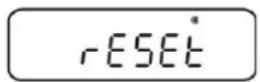
Resetting the menu
→ Confirm with TARE.
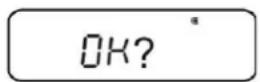
→ Confirm OK inquiry by pressing TARE, the password inquiry will be shown.
Use the navigation keys ( ) to enter the password see chpt. 3.1.1 „Numeric input“.
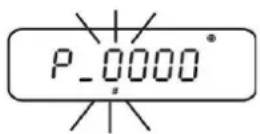
- Standard password (factory setting): „9999“.
- Change password see chpt. 11.5.1
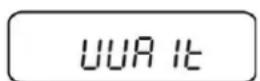
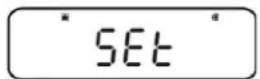
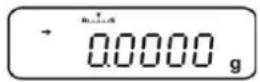
→ Confirm with TARE. The balance will be reset to factory setting and automatically returns into the weighing mode.
11.5 Menu Lock
The menu setting operations can be locked so that the settings cannot be inadvertently changed. This menu lock is set with the following procedure.
Either
→ Switch-on power supply of the balance and wait until „OFF“ is displayed
or
→ Set balance into stand-by mode, see chpt. 10.2
Select menu item
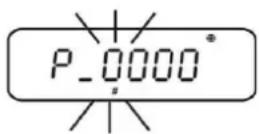
- Press MENU for 3 sec., the password inquiry appears.
-
Use the navigation keys (↓↑) to enter the password see chpt. 3.1.1 „Numeric input“.
-
Standard password (factory setting): „9999“.
- Change password, see following chapter
-
If a wrong password is entered, „ERR N“ will appear. Restart with step 1.
-
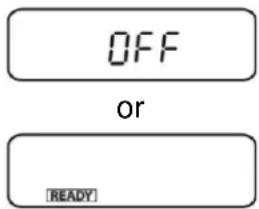
Confirm with TARE. The menu lock is enabled, the symbol 🔒 is activated. This is followed by a reappearance of "oFF" or READY
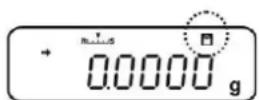
⇒ In weighing mode the symbol 🔒 shows the menu lock.
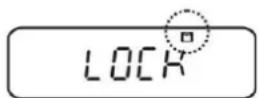
If a menu item selection is attempted in locked status, the message "LOCKED" appears and the menu selection is not allowed. To deactivate menu disabled, follow the sequence of operations below:
Remove the menu lock
With indication "oFF" or „READY“, repeat step 1-3
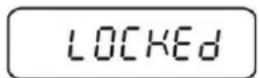
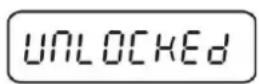
11.5.1 Change password

Standard password (factory setting): „9999“
Call up menu
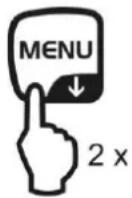
In weighing mode press the MENU button twice
Select menu item
⇒ Press the navigation buttons (↓ ↑) repeatedly until „TOOLS“ is displayed.
→ Confirm with PRINT
⇒ Press the navigation buttons (↓ ↑) repeatedly until „SYSTEM“ is displayed.
→ Confirm with PRINT
⇒ Press the navigation buttons (↓ ↑) repeatedly until „PASS.WRD“ is displayed.
PASS.WRD
Change password
→ Confirm with TARE.
⇒ Use the navigation keys (↓↑) to enter the currently set password
see chpt. 3.1.1 „Numeric input“.
⇒ Confirm with TARE. When „OK“ appears, the password input has been correct, if „ERR N“ appears, it was wrong. In this case repeat the input with the correct password.
P-0000
P-9999
OK
P-1234
OK?
SET
PASS.WRD
⇒ Use the navigation keys (↓↑) to enter the new password „Numeric input“ see chpt. 3.1.1.
→ Confirm with TARE.
→ Confirm again with TARE (or discard by ON/OFF).
Return to weighing mode
⇒ Press ON/OFF repeatedly or for 3 sec.
0.0000
11.6 Log menu settings
When an optional printer is connected, a list of the current menu settings can be printed out.
+ Data output, see chpt. 16
Call up menu
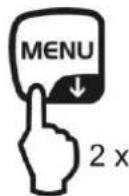
In weighing mode press the MENU button twice
Select menu item
⇒ Press the navigation buttons (↓↑) repeatedly until „TOOLS“ is displayed.
→ Confirm with PRINT
⇒ Press the navigation buttons (↓ ↑) repeatedly until „SYSTEM“ is displayed.
→ Confirm with PRINT
⇒ Press the navigation buttons (↓ ↑) repeatedly until „COND.OUT“ is displayed.
Activate menu item
→ Confirm with TARE.
→ Confirm OK inquiry using TARE.
→ Confirm with TARE. The printout is started, the symbol □ is displayed.
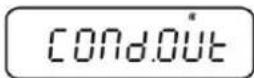
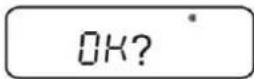
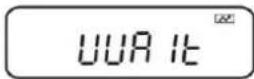
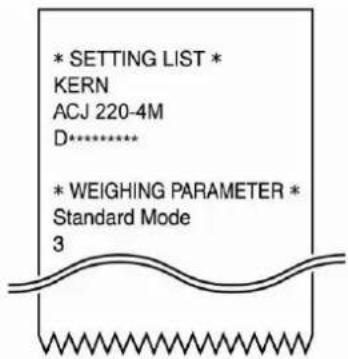
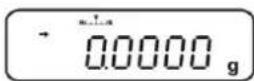
The balance returns automatically into weighing mode.
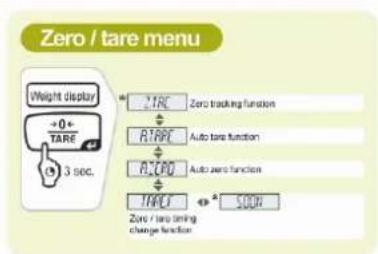
12 Zero / tare menu (zeroing and taring functions)
Selectable functions:
1. Zero tracking function
+ see chpt 12.1
This function is used to correct automatically small weight variations which appear directly after switching-on.
In the event that small quantities are removed or added to the material to be weighed, incorrect weighing results can be displayed due to the "stability compensation" in the balance. (e.g. slow flow of liquids from a container placed on the balance, evaporating processes). When apportioning involves small variations of weight, it is advisable to switch off this function.
2. Auto zero function
+ see chpt 12.2
This function is used to correct automatically small weight variations which appear after a measurement (e.g. soiled weighing plate) after the stability display.
3. Auto tare function
+ see chpt 12.3
After data output an automatic taring is carried out
4. Zero / tare timing change function
+ see chpt 12.4
Selectable if the balance tares or gets set to zero before or after indication of the stability mark.
12.1 Zero tracking function

The zero tracking function „A.ZERO“ is turned-on by factory.
1. Check menu setting
| Zero tracking symbol Zero tracking function | |
| is displayed | switched on |
| is not displayed | switched off |
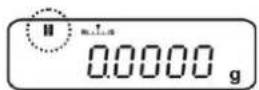
2. Call function
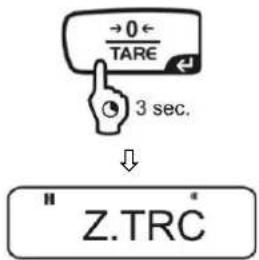
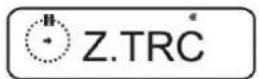
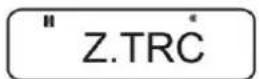
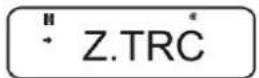
In weighing mode press TARE for 3 sec. and if necessary press repeatedly the navigation buttons (↓↑). until „Z.TRC“ is displayed. The current setting is marked by the stability display (→).
With stability display (→) Function turned on Without stability display (→) Function switched off
3. Enable/disable function
→ Press TARE
4. Return to weighing mode
⇒ Press ON/OFF repeatedly or for 3 sec.
12.2 Auto zero function
i The auto zero function is not available when formula mode is enabled (see chapter 14.3).
1. Call up menu
→ Press TARE for 3 sec. in weighing mode.
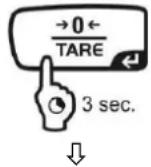
" Z.TRČ
2. Select function
⇒ Press the navigation buttons (↓↑) repeatedly until „A.ZERO“ is displayed. The current setting is marked by the stability display (→).
A.ZERO
Further steps depend on the desired setting:
Stability di  | Function | set/update | cancel | |
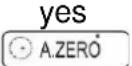 | ON | Press PRINT and continue with step 3. | Press TARE and continue with step 4. | |
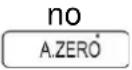 | off | Press TARE and continue with step 3. | continue with step 4. |
3. Define zero range
→ Press TARE
Use the navigation keys ( ) to enter the zero range see chpt. 3.1.1 „Numeric input“.
4. Return to weighing mode
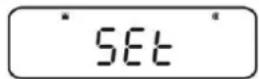
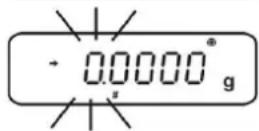
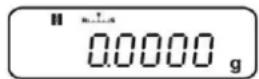
⇒ Press ON/OFF repeatedly or for 3 sec.
When entering the zero range observe the currently set weighing unit. If the weighing unit is changed at a later moment, the zero range must be adapted to the new weighing unit (step 3.).
Upper limit zero range: 99 d (in the displayed weighing unit) Lower limit zero range: 1d (in the displayed weighing unit)
Example for a balance d = 0.0001 g
| Unit | Lower limit | Upper limit |
| g | 0.0001 g | 0.0099 g |
| ct | 0.001 ct | 0.099 ct |
12.3 Auto Tare function
1. Call up menu
⇒ Press TARE for 3 sec. in weighing mode.
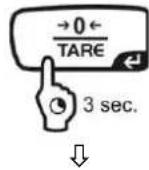
Z.TRC
2. Select function
⇒ Press the navigation buttons (↓↑) repeatedly until „A.TARE“ is displayed. The current setting is marked by the stability display (→).
With stability display (→)
Function turned on
Without stability display (→ Function switched off
A.TARE
A.TARE
SET
A.TARE
0.0000
3. Enable/disable function
→ Press TARE
4. Return to weighing mode
⇒ Press ON/OFF repeatedly or for 3 sec.
12.4 Zero / tare timing change function
The zero / tare timing change function can be switched-on, when the „Auto zero“ and the „Auto tare“ function are enabled.
1. Call up menu
→ Press TARE for 3 sec. in weighing mode.
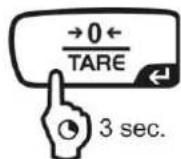
↓
" Z.TRČ
2. Select function
⇒ Press the navigation buttons (↓↑) repeatedly until „TARE.F“ is displayed.
Confirm with PRINT. The current setting is marked by the stability display (→)
With stability display ( )
Function turned on
Without stability display (→ Function switched off
* 5000
5000
3. Enable/disable function
→ Press TARE
SET
4. Return to weighing mode
⇒ Press ON/OFF repeatedly or for 3 sec.
0.0000 g
13 Settings for Stability and Response
Exists the possibility to tune the stability of the display and the degree of reaction of the balance to the requirements of certain applications or the environmental conditions.
Most measurements can be carried out using default settings, that is, standard mode. In standard weighing mode, stability and reaction have the same priority. For certain applications such as e.g. dosage do use the dosing mode (pouring mode). In dosing mode the reaction degree has the higher priority.
Beside the selection standard / dosing mode the stability of the display and the reaction degree of the balance can additionally adapted in the menu.
Please note that data processing for greater stability generally slows the response and processing for higher response reduces stability.
13.1 Stability and reaction settings via „Easy Setting display“ (without invoking menu)
☐ In weighing mode press MENU shortly. The easy setting display [R] flashes.
☐ When the display is flashing, set stability or reaction via UNIT or PRINT as described in the following.
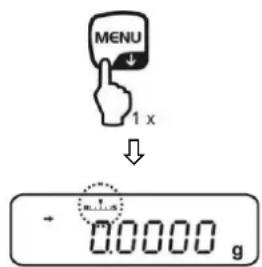
Priority on reaction
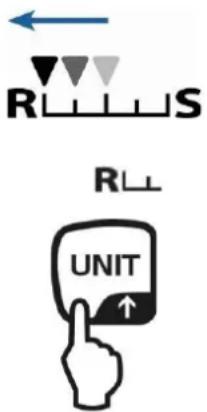
Every time the button is hit, reaction will increase
Easy setting display
Operation
Priority on stability
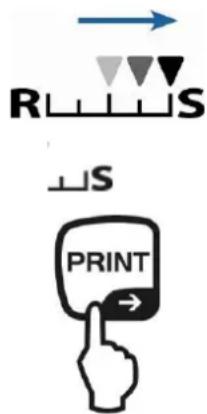
Every time the button is hit, stability will increase
The easy setting display flashes for a short time. Inputs are only possible within this time. Using ON/OFF the flashing Easy setting display can be switched off.
13.2 Selection weighing / dosing mode
Call-up weighing mode:
This is the default setting. Use this mode, when neither stability nor reaction time must be increased or reduced.
Call up menu
In weighing mode press the MENU button twice
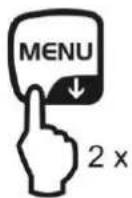
Select menu item
⇒ Press the navigation buttons (↓ ↑) repeatedly until „STAND“ is displayed.
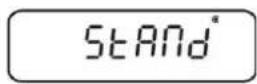
→ Confirm with TARE. The balance returns automatically into weighing mode.
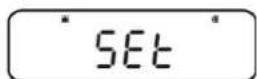
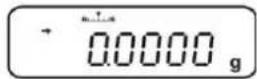
Call-up dosing mode:
Use this function if you wish to increase display speed, e.g. during apportioning. However, please note that the balance is very susceptible to ambience conditions.
Call up menu
→ In weighing mode press the MENU button twice
Select menu item
⇒ Press the navigation buttons (↓ ↑) repeatedly until „POURING“ is displayed.
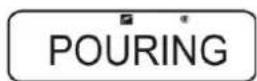
Confirm with TARE. From here on the balance is in dosing mode (pouring mode), symbolised by the indicator
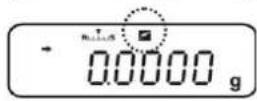
13.3 Standstill width
If the stability display lights up (→), the weighing result will be stable within the range indicated by the standstill width.
Set range for stability determination:
Call up menu
In weighing mode press the MENU button twice
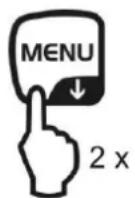
Select menu item
⇒ Press the navigation buttons (↓ ↑) repeatedly until „TOOLS“ is displayed.
→ Confirm with PRINT
⇒ Press the navigation buttons (↓ ↑) repeatedly until „PARAMW“ is displayed.
→ Confirm with PRINT
⇒ Press the navigation buttons (↓ ↑) repeatedly until „BAND“ is displayed.
BAND
Set range
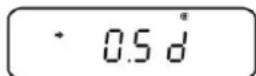
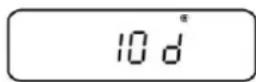
⇒ Acknowledge using PRINT, the current setting is displayed.
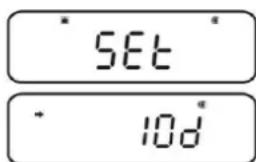
⇒ Use the navigation buttons (↓↑) to select the desired setting (0.5d, 1d, 10d, 50d, 100d, 1000d can be selected).
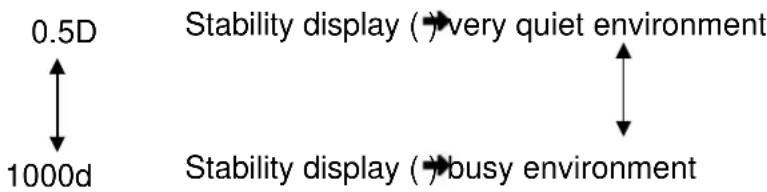
flowchart
graph TD
    A["0.5D"] --> B["Stability display (→very quiet environment)"]
    C["1000d"] --> D["Stability display (→busy environment)"]
    B <--> D
→ Confirm with TARE. The current setting is marked by the stability display (→)
Return to weighing mode
⇒ Press ON/OFF repeatedly or for 3 sec.
Set reaction time:
Call up menu
→ In weighing mode press the MENU button twice
Select menu item
⇒ Press the navigation buttons (↓ ↑) repeatedly until „TOOLS“ is displayed.
→ Confirm with PRINT
⇒ Press the navigation buttons (↓ ↑) repeatedly until „PARAMW“ is displayed.
→ Confirm with PRINT
⇒ Press the navigation buttons (↓ ↑) repeatedly until „STB.Mk“ is displayed.
STB.MK
Set reaction time
→ Confirm with PRINT. The current setting is marked by the stability display (→).
with (→)
Stability display appears faster, but with less exactness.
without ( ) Default
Confirm with TARE. The current setting is marked by the stability display (→)
FAST
FAST
SET
FAST
0.0000 g
Return to weighing mode
⇒ Press ON/OFF repeatedly or for 3 sec.
14 Application Functions

- The application functions can be combined with the check weighing or target function (see chpt. 14).
- The balance starts in the mode, in which it has been switched off.
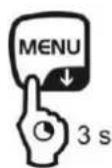
- For switching over between application and weighing mode, press MENU for 3 sec.
14.1 Parts counting
With parts counting you can either count parts into a container or remove parts from a container. To count a greater number of parts the average weight per part has to be determined with a small quantity (reference quantity). The larger the reference quantity, the higher the counting exactness. High reference must be selected for small parts or parts with considerably different sizes.
1. Enable function and set reference
Call up menu
In weighing mode press the MENU button twice
Select piece counting mode
⇒ Press the navigation buttons (↓↑) repeatedly until „APL.FUNC“ is displayed.
→ Confirm with PRINT
⇒ Press the navigation buttons (↓ ↑) repeatedly until „PCS“ is displayed.
⇒ Press TARE. The display shows the currently set memory location.
Enter memory location for reference
⇒ The balance offers the possibility to store five different piece weights at the same time.
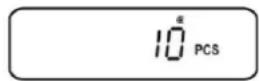
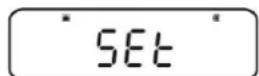
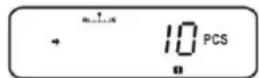
⇒ Press the navigation buttons (↓↑) repeatedly until the desired memory location ■ ■ ■ ▲ played, then press TARE.
Display, if no piece weight is stored
Display, if a piece weight is stored
RPL.FUNC
PCS ^® PCS
SET
↓
* SAMPLE PCS
SET
PCS o
PCS
Set reference
⇒ Place an empty container on the balance and tare it by pressing TARE.
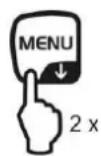
→ Press MENU twice.
⇒ Press the navigation buttons (↓↑) repeatedly until the desired reference quantity is displayed (possible reference quantities 5, 10, 20, 50, 100).
Use MENU to scroll forward.
Use UNIT to scroll backward.
⇒ Fill number of pieces into the container according to the selected reference quantity.
→ Wait for the stability display (→), then confirm by pressing TARE. The balance determines the average piece weight.
From here on the appliance is in piece counting mode and counts all pieces which are on the weighing plate.
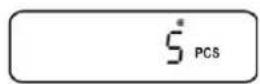
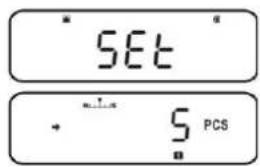
2. Switching over between piece counting and weighing mode
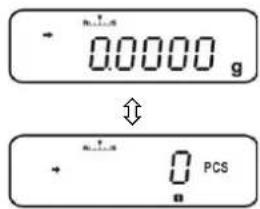
3. Count the items
Call-up the piece weight stored in piece counting mode
⇒ Every time UNIT is pressed (approx. for 3 sec.), the next memory location [1]2346led up.
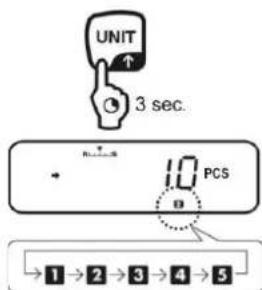
If under the indicated memory location no reference is stored, [- - - ] will be displayed.
⇒ Place an empty container on the balance and tare it by pressing TARE.
⇒ Fill weighing goods into the container and read the piece quantity.
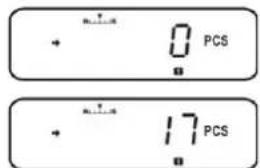
⇒ Or count more pieces
or
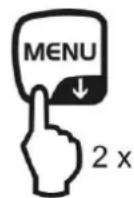
The menu item to change the stored reference is called up, the currently set reference quantity is displayed.
+ see „4. Change or add piece weight“
The stored piece weight is displayed in grams, marked by the symbol *. Using PRINT the reference weight (UW= Unit weight) can be edited when a printer is connected.
e.g.: UW = 1.0001
To go back to piece counting display press UNIT anew.
Switching over between piece counting and weighing mode
4. Change or add piece weight
In piece counting mode call-up the desired memory location
⇒ Every time UNIT is pressed (approx. for 3 sec.), the next memory location [1]2s4led up.
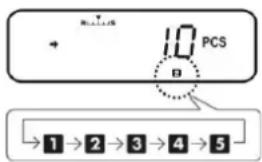
Change or add piece weight
⇒ Place an empty container on the balance and tare it by pressing TARE.
⇒ Press MENU twice, the currently set reference quantity is displayed.
⇒ Press the navigation buttons (↓↑) repeatedly until the desired reference quantity is displayed (possible reference quantities 5, 10, 20, 50, 100).
Use MENU to scroll forward.
Use UNIT to scroll backward.
⇒ Fill number of pieces into the container according to the selected reference quantity.
Wait for the stability display () , then confirm by pressing TARE.
The balance is now in parts counting mode and counts all units on the weighing plate.
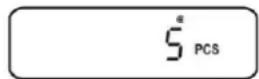
14.2 Percent determination
Percent weighing allows to display weight in percent, in relation to a reference weight.
The balance offers two possibilities:
- Reference = 100 %
- Reference = defined by user
Call up menu
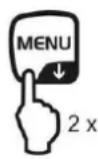
In weighing mode press the MENU button twice
Select percent weighing mode
⇒ Press the navigation buttons (↓ ↑) repeatedly until „APL.FUNC“ is displayed.
→ Confirm with PRINT
⇒ Press the navigation buttons (↓ ↑) repeatedly until „PERCENT“ is displayed.
APL.FUNC
PERCENT %
Further steps:
- Reference weight = 100 %, see chpt. 14.2.1
- Reference weight = XX %, see chpt. 14.2.2
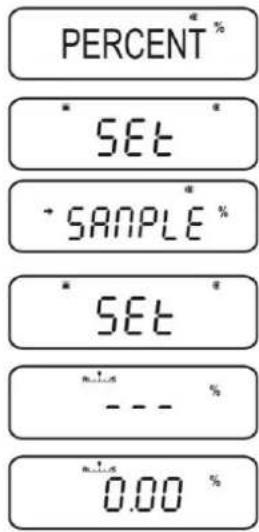
14.2.1 Reference weight = 100 %
Select percent weighing mode, see chpt. 14.2
→ Press TARE.
⇒ If necessary, press the navigation buttons (↓↑) repeatedly until „SAMPLE“ is displayed.
→ Press TARE.
Display, if no reference weight is stored
Display, if a reference weight is stored
Set reference
⇒ If necessary, place an empty container on the balance and tare it by pressing TARE.
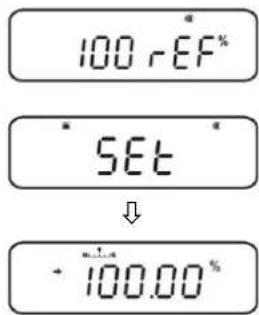
→ Press MENU twice.
Put a reference weight which corresponds to 100 %.
(Minimum weight: Readability d x 100)
→ Wait for the stability display (→), then confirm by pressing TARE.
From here on the weight of the sample is displayed in percentage in terms of the reference weight, see chpt. 13.2.3.
14.2.2 User-defined reference
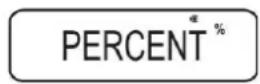
→ Select percent weighing mode, see chpt. 13.2
→ Press TARE.
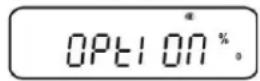
⇒ If necessary, press the navigation buttons (↓↑) repeatedly until „OPTION“ is displayed.
→ Press TARE.
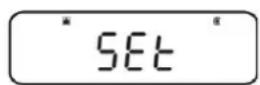
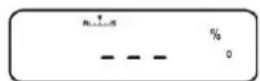
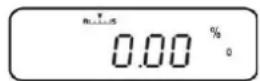
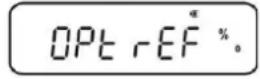
Display, if no reference is stored
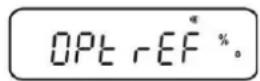
Display, if a reference is stored
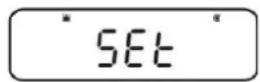
Set reference
⇒ If necessary, place an empty container on the balance and tare it by pressing TARE.
→ Press MENU twice.
⇒ Press PRINT and current setting will be displayed. Enter a percentage of your choice via the navigation buttons, see chpt. 3.1.1 „Numeric input“
⇒ Put a reference weight which corresponds to the entered percent value.
Wait for the stability display () , then confirm by pressing TARE.
The display symbol [ ^95] characterises the percentage determination with user-defined reference value.
From here on the weight of the sample is displayed in percentage in terms of the reference weight, see chpt. 14.2.3.
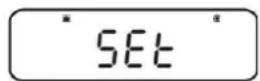
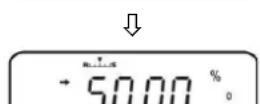
14.2.3 Percent determination
In weighing mode press MENU for 3 sec., the currently set percentage determination mode is displayed.
→ Place an empty container on the balance and tare it by pressing TARE.
Place goods to be weighed on balance. The weight of the sample is displayed in percentage in terms of the reference weight.
⇒ Either carry out more percent weighing
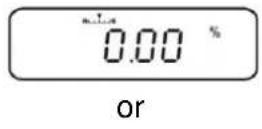
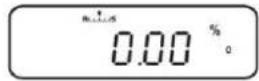
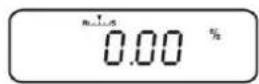
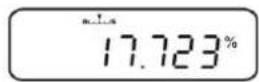
or
The menu item to change the stored reference appears.
+ see chpt. 14.2.2 / 14.2.3 „Set reference“
The stored reference weight is displayed in grams, marked by the symbol *. Use PRINT to edit the weight value of the reference value when a printer is connected.
Back to percent display, press UNIT anew.
Switching over between percentage determination and weighing mode
14.3 Formula mode
The formula function allows to add on various components of a mixture. For check purpose, the weight of all components (CMP001, (CMP002 etc.), as well as the total weight (TOTAL) can be printed out. The balance works with a separated memory for the weight of the weighing container and of the formula components.

In formula mode the „Auto zero“ function is not active (see chpt. 12.2).
- Connect printer (see chpt. 15 „Data output“)
- Call up menu
In weighing mode press the MENU button twice
- Select formula mode
Press the navigation buttons ( ) repeatedly until „APL.FUNC“ is displayed.
Confirm with PRINT
Press the navigation buttons ( ) repeatedly until „FORMULA“ is displayed. The formula symbol [ ] appears.
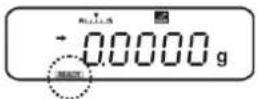
Press TARE. The indicator READY is displayed, from here on the balance is in formula mode.
Enable the edition „component no.“(see chpt. 14.3.1) and „Total“ (see chpt. 14.3.2).
- Weighing components
☐ If necessary, place an empty container on the balance and tare it by pressing TARE.
Press PRINT, the symbol READY goes out.
When the GLP function (see chpt. 8.3) is activated, the headline will be printed.
Weigh first component.
Press PRINT.
When standstill control (→) is completed, the weighing value of the first component (CMP001) is issued to the optional printer. The displayed value is added into the total adding memory. This is followed by the automatic taring, the symbol [NET] displayed.
APL.FUNC
FORMULA
SET
-0.0000g
^* 0.3250g
+ 0.0000 g
→ Weigh further components in the same way
i During formulation weighing can be displayed at any time by pressing MENU (for 3 sec.).
5. Complete formulation process
⇒ Press ON/OFF. When the symbol [G] is displayed, the total weight (TOTAL) of all components is displayed and edited to the printer.
When the symbol READY is displayed, the balance is ready for further measurements.
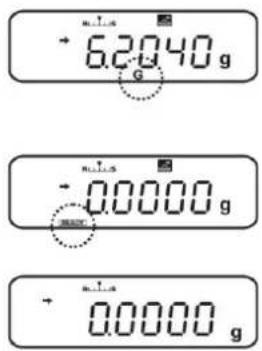
6. Return to weighing mode
→ Press ON/OFF for 3 sec.
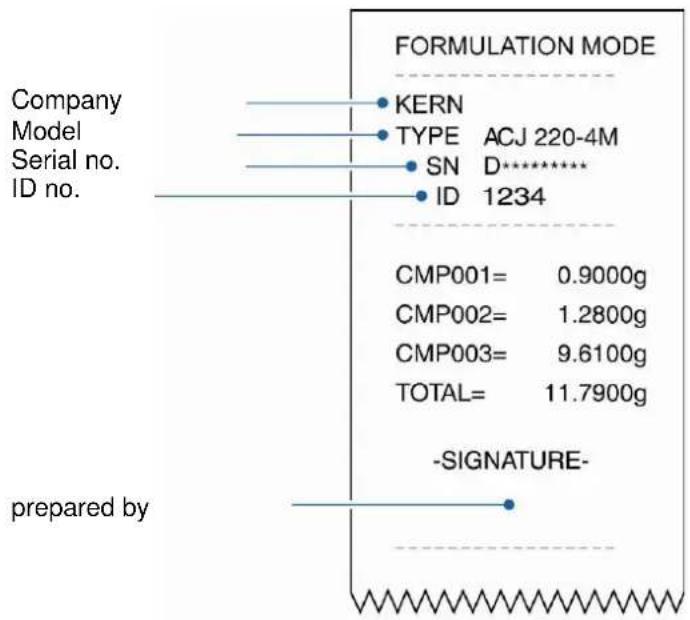
Printout example „GLP ON“ (KERN YKB-01N):
other
FORMULATION MODE | Company Model Serial no. ID no. | KERN | TYPE ACJ 220-4M | SN D********** | ID 1234 | |---|---|---|---|---| | CMP001 | 0.9000g | | | | | CMP002 | 1.2800g | | | | | CMP003 | 9.6100g | | | | | TOTAL | 11.7900g | | | | | -SIGNATURE- prepared by14.3.1 Enable edition „component no.“
Select formula mode, see chpt. 14.3
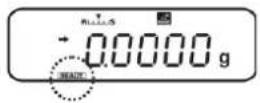
When the symbol READY appears, press the MENU button twice.
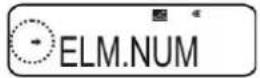
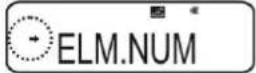
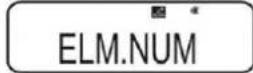
⇒ Press the navigation buttons (↓ ↑) repeatedly until „ELM.NUM“ is displayed.
→ Confirm with PRINT. The current setting is marked by the stability display (→).
with (→)
Edition „component no.“ (e.g. CMP001)
without (→ No edition „component no.“)
→ Change using TARE.
Back to formula mode
→ Press ON/OFF repeatedly or for 3 sec.
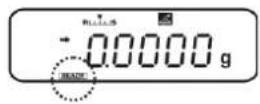
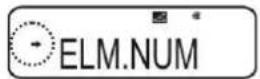
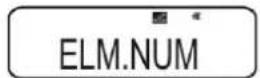
Printout examples (KERN YKB-01N):
Function ELM.NUM enabled
FORMULATION MODE
CMP001= 0.5361 g
CMP002= 0.5422 g
CMP003= 0.4488 g
TOTAL= 1.5271 g
Function ELM.NUM disabled
FORMULATION MODE
0.5361 g
0.5422 g
0.4488 g
TOTAL= 1.5271 g
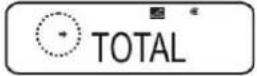
14.3.2 Enable issue „TOTAL“
Select formula mode, see chpt. 14.3
When the symbol READY appears, press the MENU button twice.
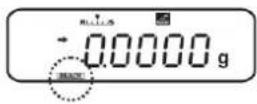
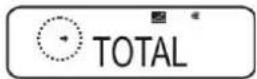
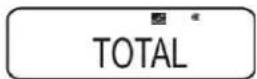
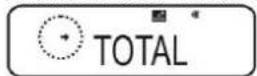
⇒ Press the navigation buttons (↓ ↑) repeatedly until „TOTAL“ is displayed.
→ Confirm with PRINT. The current setting is marked by the stability display (→).
with (→) Issue „TOTAL“
without (→ No issue „TOTAL“
→ Change using TARE.
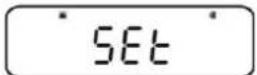
Back to formula mode
→ Press ON/OFF repeatedly or for 3 sec.
Printout examples (KERN YKB-01N):
Function TOTAL enabled
FORMULATION MODE
CMP001= 0.5361 g
CMP002= 0.5422 g
CMP003= 0.4488 g
TOTAL 1.5271 g
Function TOTAL disabled
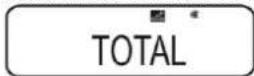
FORMULATION MODE
CMP001= 0.5361 g
CMP002= 0.5422 g
CMP003= 0.4488 g
15 Check weighing and target mode (check and target weighing)

- The check weighing or target mode can be applied for the application functions (see chpt. 14).
- The balance starts in the mode, in which it has been switched off.
15.1 Check weighing
In many cases not the nominal value of the weighed goods is the decisive parameter, but the deviation from this nominal value. Such applications are for example the weight check of equivalent packages or the process check of parts in a fabrication process.
The indicators HI, OK or LO in the display show, where the weighed goods are located within the tolerance range.
These indicators are only functioning in check weighing or in target mode, otherwise they cannot be seen.
The indicators provide the following information
| Condition Grading Indicator | ||
| OVR.RNG < sample weight | Beyond tolerance limit | No indicator |
| HI.LIM < sample weight ≤ OVR.RNG | Upper tolerance limit | HI |
| LO.LIM ≤ sample weight ≤ HI.LM | Inside tolerance range | OK |
| UND.RG ≤ sample weight < LO.LIM | Lower tolerance limit | LO |
| Sample weight < UND.RG | Beyond tolerance limit | No indicator |
0. Call up menu
In weighing mode press the MENU button twice
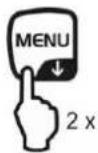
1. Select function
⇒ Press the navigation buttons (↓↑) repeatedly until "TOOLS" is displayed.
→ Confirm with PRINT
⇒ Press the navigation buttons (↓↑) repeatedly until „CHECK.W“ is displayed. The current setting is marked by the stability display (→).
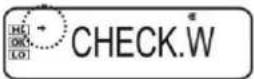
Further steps depend on the desired setting:
| Stability display (→) | Function | set/update | cancel | |
ves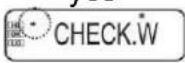 | ON | → | Press PRINT and continue with step 3. | Press TARE and continue with step 4. |
no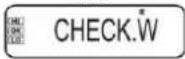 | off | → | Press TARE and continue with step 3. | continue with step 4. |
2. Set limit values
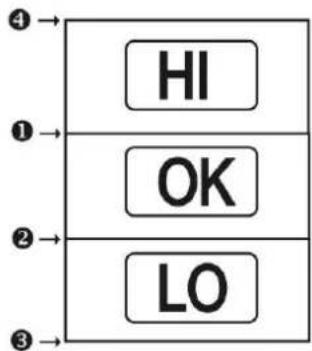
flowchart
graph TD
    A["HI"] --> B["OK"]
    B --> C["LO"]

When entering the limit values ensure that the values match logically one with another, i.e. the lower limit value must not be greater than the upper one.
If not considered, the balance will adapt the limit values automatically.
① Press the navigation buttons (↓↑) repeatedly until „HI.LIM“ is displayed.
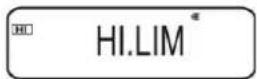
→ Press TARE. The current setting will be displayed.
⇒ Use the navigation buttons (↓↑) to enter the desired value, see chpt. 3.1.1 „Numeric input“.
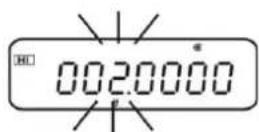
→ Confirm with TARE.
② Press the navigation buttons (↓↑) repeatedly until „LO.LIM“ is displayed.
→ Press TARE. The current setting will be displayed.
⇒ Use the navigation buttons (↓↑) to enter the desired value, see chpt. 3.1.1 „Numeric input“.
→ Confirm with TARE.
③ Press the navigation buttons (↓↑) repeatedly until „UND.RNG“ is displayed.
→ Press TARE. The current setting will be displayed.
⇒ Use the navigation buttons (↓↑) to enter the desired value, see chpt. 3.1.1 „Numeric input“.
→ Confirm with TARE.
④ Press the navigation buttons (↓↑) repeatedly until „OVR.RNG“ is displayed.
→ Press TARE. The current setting will be displayed.
⇒ Use the navigation buttons (↓↑) to enter the desired value, see chpt. 3.1.1 „Numeric input“.
→ Confirm with TARE.

3. Return to weighing mode
→ Press ON/OFF repeatedly or for 3 sec.
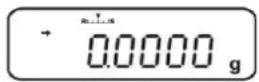
4. Start tolerance control
If necessary, place an empty container on the balance and tare it by pressing TARE.
Place weighed goods and wait until the indicator HI, OK or LO appears. With the help of the indicator check if the weighed goods are under, inside or over the default tolerance
Example of entry:
| 1 HI.LIM | 7.0000 g |
| 2 LO.LIM | 6.0000 g |
| 3 UND.RNG | 5.0000 g |
| 4 OVR.RNG | 8.0000 g |
| Sample weight < UND.RG(sample weight < 5.0000g) | 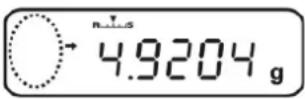 | No indicator is displayed |
| UND.RG ≤ sample weight < LO.LIM(sample weight 5.0000g - 5.9999g) | 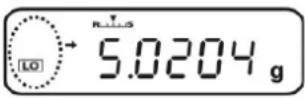 | LO is displayed |
| LO.LIM ≤ sample weight ≤ HI.LM(sample weight 6.0000g - 7.000g) | 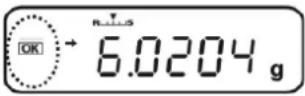 | OK is displayed |
| HI.LIM < sample weight ≤ OVR.RNG(sample weight 7.0001g - 8.0000g) | 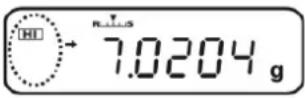 | HI is displayed |
| Sample weight >OVR.RNG(sample weight >8.0000 g) | 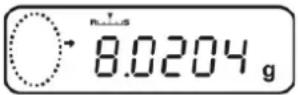 | No indicator is displayed |
15.2 Target mode
This mode e.g. is used for weighing constant liquid quantities or for assessment of missing quantities or excess quantities.
The target value is the numeric value which corresponds to the nominal quantity of the used unit. Beside the target value a tolerance value is entered. This is a numerical value which is plus/minus over or under the acceptable target value.
The indicators HI, OK or LO advise, when the target value is reached.
These indicators are only functioning in check weighing or in target mode, otherwise they cannot be seen.
The indicators provide the following information:
| Condition Grading Indicator | ||
| Weight more than the nominal weight and above the upper tolerance | Great difference to target value | HI flashes slowly |
| Small difference to target value | HI flashes fast | |
| Weight within tolerance (target value ± tolerance) | Target value accepted | OK |
| Weight less than nominal weight and below the lower tolerance | Small difference to target value | LO flashes fast |
| Great difference to target value | LO flashes fast |
1. Call up menu
In weighing mode press the MENU button twice
2. Select function
⇒ Press the navigation buttons (↓↑) repeatedly until „TOOLS“ is displayed.
→ Confirm with PRINT
⇒ Press the navigation buttons (↓↑) repeatedly until „TARGT“ is displayed. The current setting is marked by the stability display (→).
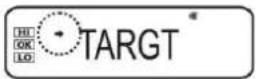
Further steps depend on the desired setting:
| Stability display(→) | Function | set/update | cancel | |
ves | ON | Press PRINT andcontinue with step 3. | Press TARE andcontinue with step 4. | |
no | off | Press TARE andcontinue with step 3. | continue with step 4. |
3. Set target value and tolerance
⇒ Press the navigation buttons (↓↑) repeatedly until the display to enter the target value „TG.VAL“ appears.
→ Press TARE. The current setting will be displayed.
⇒ Use the navigation buttons (↓↑) to enter the desired value, see chpt. 3.1.1 „Numeric input“.
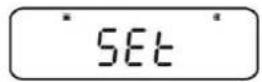
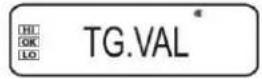
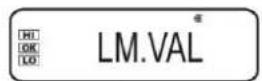
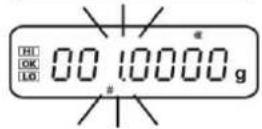
→ Confirm with TARE.
⇒ Press the navigation buttons (↓↑) repeatedly until the display to enter the target value „LM.VAL“ appears.
→ Press TARE. The current setting will be displayed.
Use the navigation buttons (↓↑) to enter the desired value, see chpt. 3.1.1 „Numeric input“.
→ Confirm with TARE.
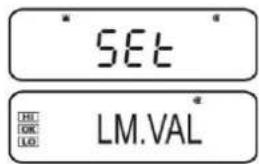
4. Return to weighing mode
→ Press ON/OFF repeatedly or for 3 sec.
5. Start tolerance control
If necessary, place an empty container on the balance and tare it by pressing TARE.
Place weighed goods and wait until the indicator HI, OK or LO appears. With the help of the indicator check if the weighed goods are under, inside or over the default tolerance
Example of entry: TG.VAL 100.0000 g
LM.VAL 10.0000 g
| Weight less than nominal weight and below the lower tolerance | 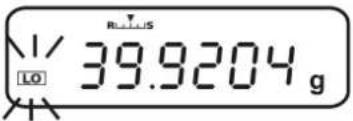 | LOflashes slowly |
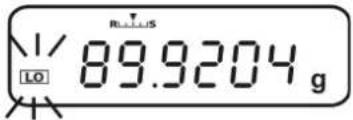 | LOflashes fast | |
| Weight within tolerance [target value ± tolerance](90.0000g – 110.000g) | 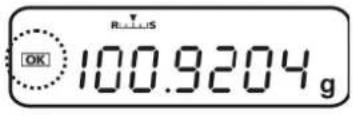 | OK |
| Weight more than the nominal weight and above the upper tolerance | 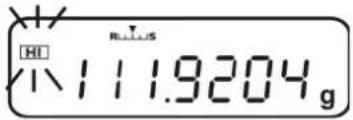 | HIflashes fast |
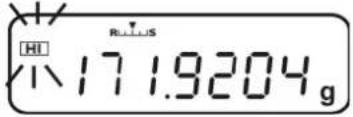 | HIflashes slowly |
16 Data output
The appliance interface allows a bi-directional data exchange from the balance to external devices. This data exchange is asynchronous using ASCII - Code.
The following conditions must be met to provide successful communication between the weighing balance and the printer.
- Use a suitable cable to connect the weighing balance to the interface of the printer/PC.
Faultless operation requires an adequate KERN interface cable (optional).
- Communication parameters (baud rate, bits and parity) of balance and printer must match.
16.1 Pin connection
Due to connection of an optional KERN interface cable the balance is equipped with a RS232C interface.
| Balance (RS-232C) | |
| 3 TXD | |
| 2 RXD | |
| 6 DSR | |
| 5 SG | |
| 4 DTR | |
| 7 CTS | |
| 8 RTS | |
16.2 Issue functions
16.2.1 Automatic data output / Auto Print function
Data output ensues automatically without pressing PRINT, as soon as the respective output condition is fulfilled. This is defined by the menu setting.
Tab. 1:
| stable / positive | stable / negative | Stabilisation / zero display | Check weighing | ||
| LD. . | √ | -- | - | Output for stable and positive weighing value | |
| LD.UL. | √ √ | -- | Output for stable and positive or negative weighing value. | ||
| LD. .Z | √ | - | √ | - | Output for stable and positive weighing value. New output only after zero display and stabilisation |
| LD.UL.Z | √ √ √ | - | Output for stable and positive or negative weighing value. New output only after zero display and stabilisation. | ||
| LD.OK . | -- | - | √ | If the Auto Print function is connected to the check weighing function, data of stable weighing values are output with indicator display OK. |
Enable Auto Print function:
1. Invoke Data Output menu
⇒ Press PRINT for 3 sec. in weighing mode.
2. Select function
⇒ Press the navigation buttons (↓ ↑) repeatedly until „APL.PRN“ is displayed.
→ Confirm with PRINT
⇒ Press the navigation buttons (↓↑) repeatedly until „AUTO.PRN“ is displayed. The current setting is marked by the stability display (→).
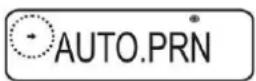
Further steps depend on the desired setting:
| Stability display (→) | Function |
| yesAUTO.PRN | ON |
| noAUTO.PRN | off |
| set/update | cancel |
| Press PRINT and continue with step 3. | Press TARE and continue with step 5. |
| Press TARE and continue with step 3. | continue with step 5. |
3. Set output condition
⇒ Use the navigation buttons (↓↑) to select the desired mode, e.g. Mode 3 (details see Tab. 1)
→ Confirm with TARE
4. If necessary, set condition for zero display
→ Press PRINT
⇒ Select the desired adjustment using the navigation keys (↓↑)
RET.0 An other output when the display goes back to zero.
RET.50% An other output when the display goes back to 50% of the previous weighing value.
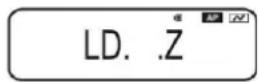
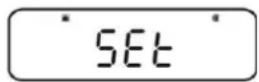
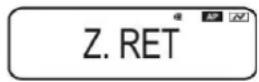
With selection „RET.0“
→ Confirm with TARE
5. Return to weighing mode
⇒ Press ON/OFF repeatedly or for 3 s. From here on the Auto Print function is active, the indicator AP displayed.
5. Place goods to be weighed on balance
⇒ If necessary, place an empty container on the balance and tare it by pressing TARE.
Place weighed goods and wait until the stability display () appears. The weighing value is issued automatically.
6. Remove the weighed good.
Wait until the stability () / zero display appears. The weighing value is issued automatically.
16.2.2 Continuous Output function (only models ABS-N)
1. Invoke Data Output menu
→ Press PRINT for 3 sec. in weighing mode.
2. Select function
⇒ Press the navigation buttons (↓↑) repeatedly until „APL.PRN“ is displayed.
→ Confirm with PRINT
⇒ Press the navigation buttons (↓↑) repeatedly until „SEQ.PRN“ is displayed. The current setting is marked by the stability display (→).
with (→ on
without (→ off
→ Change using TARE.
3. Set start/end of the continuous issue manually or automatically
→ Press PRINT
⇒ Press the navigation buttons (↓ ↑) repeatedly until „MANU“ is displayed. The current setting is marked by the stability display (→).
with (→)
The continuous data output starts after pressing of PRINT and ends by pressing ON-OFF
without (→)
The continuous data output starts automatically
→ Change using TARE
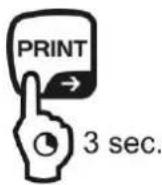
SEQ.PRN
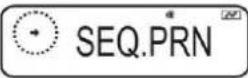
SEQ.PRN
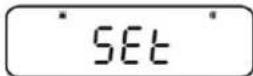
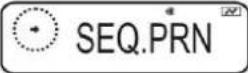
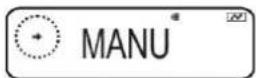
4. Connect filter
⇒ Press the navigation buttons (↓ ↑) repeatedly until „NO.FIL“ is displayed. The current setting is marked by the stability display (→).
with ( ) Weighing value is filtered
without (→ Weighing value is not filtered
→ Change using TARE
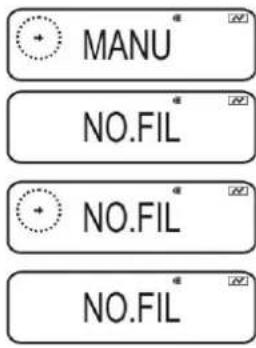
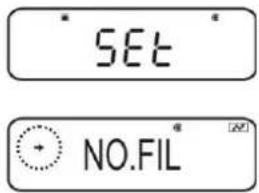
5. Return to weighing mode
→ Press ON/OFF repeatedly or for 3 s.
With activated menu setting „MANU“ (see step 3, with →) the indicator will appear.
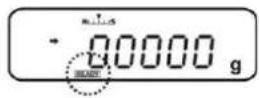
With deactivated menu setting „MANU“ (see step 3, without → starts the continuous data output automatically, step 7 is not applied.
6. Tare weighing container
If necessary, place an empty container on the balance and tare it by pressing TARE.
Place weighed goods and wait until the stability display () appears. The weighing value is issued automatically.
- Press PRINT (only with menu setting „MANU ON“)
⇒ The continuous data output starts, the indicator READY goes out.
- Place goods to be weighed on balance
⇒ Every display change is continuously issued, (data issue interval approx. 100 msec).
i Interrupt continuous data output ON-OFF = interrupt PRINT = restart
16.2.3 Output Timing Change function
This function allows to select if the data output shall ensue with stable or instable weighing value after pressing PRINT.
1. Invoke Data Output menu
→ Press PRINT for 3 sec. in weighing mode.
2. Select function
⇒ Press the navigation buttons (↓ ↑) repeatedly until „APL.PRN“ is displayed.
→ Confirm with PRINT
⇒ Press the navigation buttons (↓↑) repeatedly until „PRINT.F“ is displayed.
→ Confirm with PRINT. The current setting is marked by the stability display (→)
with (→)
Instantaneous data output without waiting until the stability display appears
without (→ Data output only after stability display
→ Change using TARE.
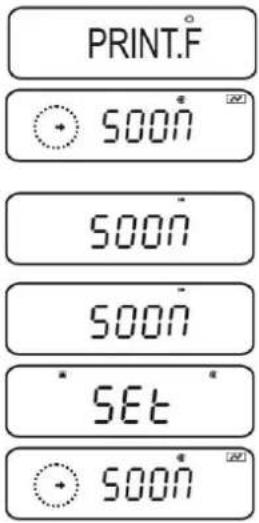
3. Return to weighing mode
→ Press ON/OFF repeatedly or for 3 s.
16.2.4 GLP Output function / balance identification number
With the GLP Output function the printouts of weighing results are completed with a bottom row and a head line. Contents of the headline and bottom row see following printout example.
- Enable GLP Output function, see chpt. 8.3
- Enter balance identification number, see chpt. 8.4
Printout example:
KERN & Sohn GmbH
TYPE ABJ 220-4NM
SN WBIIAB000I
ID 1234
200.0000g
-SIGNATURE-
Company
Model
Serial no.
Balance identification no. (see chpt. 8.4)
Weighing result
prepared by

In the ABS/ABJ_N series it is not possible to state date and time.
16.3 Communication parameters
By calling-up a standard setting „MODE 1 - MODE 5“ all communication parameters are already preset (see chpt. 16.3.1).
The subsequent standard setting must be selected according to the printer (details see the following table).
In the menu item „MODE U“ all parameters can be set defined by user (see chpt. 16.3.2).
| Standard setting 1 | Standard setting 2 | Standard setting 3 | Standard setting 4 | Standard setting 5 | User-defined settings | Setting for KERN – YKB-01N | |
| Menu selection | MODE 1 | MODE 2 | MODE 3 | MODE 4 | MODE 5 | MODE U | MODE U |
| Manufacturer | Shimadzu (Standard) | Shimadzu * | Mettler Sartorius A-D - | - | |||
| Baud Rate | 1200 | 1200 | 2400 | 1200 | 2400 | user-defined | 1200 |
| Parity | None (8) | None (8) | Even (7) | Odd (7) | Even (7) | user-defined | None (8) |
| Stop bit 1 | 2 2 2 | user-defined | 1 | ||||
| Hand-shake | Hardware | Hardware | off | Hardware | off | user-defined | off |
| Data format | Shimadzu Standard | Shimadzu Standard | Mettler Standard | Sartorius Standard | A-D Standard | user-defined | DF.1 |
| Separator | C/R | C/R | C/R + L/F | C/R + L/F | C/R + L/F | user-defined | C/R |
*only if the balance can send a feedback to the PC (without error: OK [C/R], at error NG [C/R]).
16.3.1 Selection of a standard setting „MODE 1 - MODE 5“
1. Invoke Data Output menu
→ Press PRINT for 3 sec. in weighing mode.
2. Select function
→ Press the navigation buttons (↓ ↑) repeatedly until „COMM.SET“ is displayed.
→ Confirm with PRINT
→ Press the navigation buttons (↓↑) repeatedly until the desired mode „MODE 1 - MODE 5“ is displayed. The current setting is marked by the stability display (→).
with (→ on
without (→ off
→ Change using TARE.
3 sec.
COMM.SET
MODE.2
MODE.2
MODE.2
SET
MODE.2
3. Return to weighing mode
→ Press ON/OFF repeatedly or for 3 s.
16.3.2 User-defined settings „MODE U“ / setting for KERN -YKB-01N
In the menu item „MODE U“ every communication parameter can be set individually.
1. Invoke Data Output menu
→ Press PRINT for 3 sec. in weighing mode.
2. Select function
⇒ Press the navigation buttons (↓ ↑) repeatedly until „COMM.SET“ is displayed.
→ Confirm with PRINT
→ Press the navigation buttons (↓↑) repeatedly until the desired mode „MODE 1 - MODE 5“ is displayed. The current setting is marked by the stability display (→).
with (→ on
without (→ off
→ Change using TARE.
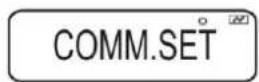
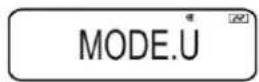
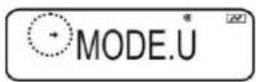
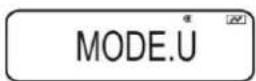
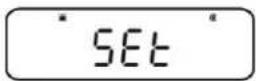
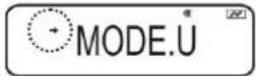
3. Set the communication speed (Baud rate)
→ Press PRINT
⇒ Press the navigation buttons (↓ ↑) repeatedly until „START“ is displayed.
⇒ Press PRINT. The current setting is marked by the stability display (→).
⇒ Press the navigation buttons (↓↑) repeatedly until the desired setting (e.g. 9600 bps) appears.
→ Press TARE.
BPS
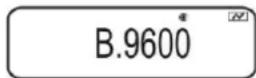
B.9600
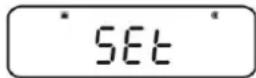
SET
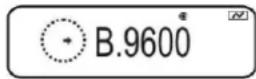
Selectable settings:
| Display | B0.300 | B0.600 | B0.1200 | B0.2400 | B0.4800 | B0.9600 B | 19.2k B.38.4k | |
| Baud rate | 300bps | 600bps | 1200bps | 2400bps | 4800bps | 9600bps | 19.2k bps | 38.4k bps |
4. Set parity
→ Use ON/OFF to return to menu
⇒ Press the navigation buttons (↓ ↑) repeatedly until „PARITY“ is displayed.
⇒ Press PRINT. The current setting is marked by the stability display (→).
⇒ Press the navigation buttons (↓↑) repeatedly until the desired setting (e.g. P.NONE) appears.
→ Press TARE.
PARITY
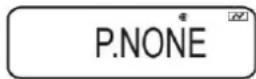
SET
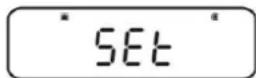
P.NONE
Selectable settings:
| Display | P.NONE | P.ODD | P.EVEN |
| Parity | Small parity, 8 bit | Odd parity, 7 bit | Straight parity, 7 bit |
5. Stop bit settings
→ Use ON/OFF to return to menu
⇒ Press the navigation buttons (↓ ↑) repeatedly until „STOP“ is displayed.
⇒ Press PRINT. The current setting is marked by the stability display (→)
⇒ Press the navigation buttons (↓↑) repeatedly until the desired setting (e.g. S. 1) appears.
→ Press TARE.
STOP
5.1
SET

5.1
Selectable settings:
| Display S. | 1 S. 2 | |
| Stop bit 1 bit 2 bit | ||
6. Set handshake
→ Use ON/OFF to return to menu
⇒ Press the navigation buttons (↓ ↑) repeatedly until „HAND.SHK“ is displayed.
→ Press PRINT. The current setting is marked by the stability display (→)
⇒ Press the navigation buttons (↓↑) repeatedly until the desired setting (e.g. HS.HW) appears.
→ Press TARE.
HAND.SHK
HS.HW
SET

HS.HW
图
Selectable settings:
| Display | HS.OFF | HS.HW | HS.SW | HS.TiM |
| Hand-shake | No handshake | Hardware handshake | Software handshake | Timer handshake |
7. Set data format
→ Use ON/OFF to return to menu
⇒ Press the navigation buttons (↓ ↑) repeatedly until „D.FORM“ is displayed.
⇒ Press PRINT. The current setting is marked by the stability display (→).
⇒ Press the navigation buttons (↓↑) repeatedly until the desired setting (e.g. DF.1) appears.
→ Press TARE.
D.FORM
DF. 1
#
SET

DF. 1
N
Selectable settings (details see chpt. 15.4):
| Display | DF.1 | DF.2 | DF.3 | DF.4 | DF.FREE |
| Data format | Shimadzu Standard | Shimadzu Standard | Mettler Standard | Sartorius Standard | Options:Head byte 1 -17, Data length 8 -2 |
8. Set separator
→ Use ON/OFF to return to menu
⇒ Press the navigation buttons (↓ ↑) repeatedly until „DELIM“ is displayed.
⇒ Press PRINT. The current setting is marked by the stability display (→).
⇒ Press the navigation buttons (↓↑) repeatedly until the desired setting (e.g. DF.1) appears.
→ Press TARE.
DELIM
DF. 1
2
SET

DF. 1
N
Selectable settings:
| Display | CR | LF | CR+LF | COMMA | WINI |
| Separator | CR | LF | CR+LF | COMMA | not documented |
9. Return to weighing mode
⇒ Press ON/OFF repeatedly or for 3 s.
16.4 Data Formats
In the menu item „D.FORM“ four data formats „DF.1-DF.4“ are available.
+ Menu setting, see chpt. 16.3.2, step 7 „Setting data format“.
1. Data format 1 „DF.1“
Example 9.9949 g:
| Position | data | ASCII code | Explanation |
| 1 20H | Positive weighing value = space character 20HNegative weighing value = minus sign 2DH | ||
| 2 | 20H | Numeric weighing value is displayed in 8 positions.Not required positions = space character 20HWhere necessary, Overload is displayed in 2 positions with O L | |
| 3 | 20H | ||
| 4 | 9 | 39H | |
| 5 | . | 2EH | |
| 6 | 9 | 39H | |
| 7 | 9 | 39H | |
| 8 | 4 | 34H | |
| 9 | 9 | 39H | |
| 10 | g | 67H | Weighing unit |
| 11 | 20H | ||
| 12 C/R | 0DH | Separator C/R = 0DH, L/F = 0AHAt CR+LF data length will be increased |
Printout examples KERN YKB-01N
9.9949g
Stable or instable/positive weighing value
-9.9949g
Stable or instable/negative weighing value
2. Data format 2 „DF.2“
Example 9.9949 g:
| Position | Data | ASCII code | Explanation |
| 1 | 20H | Positive weighing value = space character 20HNegative weighing value = minus sign 2DHStable weighing value = S (stable) 53HUnstable weighing value = U (unstable) 55H | |
| 2 | 20H | ||
| 3 | U | 55H | |
| 4 | 20H | ||
| 5 | 20H | ||
| 6 | 20H | ||
| 7 | 20H | Numeric weighing value is displayed in 8 positions.Not required positions = space character 20HWhere necessary, Overload is displayed in 2 positions with O L | |
| 8 | 20H | ||
| 9 | 9 | 39H | |
| 10 | . | 2EH | |
| 11 | 9 | 39H | |
| 12 | 9 | 39H | |
| 13 | 4 | 34H | |
| 14 | 9 | 39H | |
| 15 | 20H | Weighing unit | |
| 16 | g | 67H | |
| 17 C/R | 0DH | Separator C/R = 0DH, L/F = 0AHAt CR+LF data length will be increased |
Printout examples KERN YKB-01N
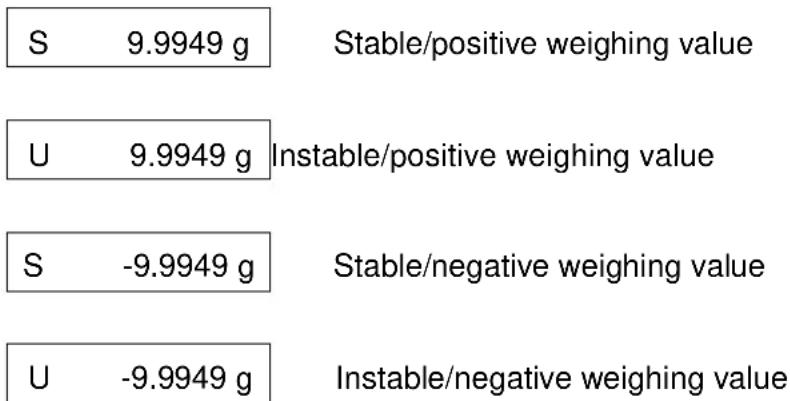
3. Data format 3 „DF.3“
Example 9.9949 g:
| Position | Data | ASCII code | Explanation |
| 1 | + | 2BH | Positive weighing value = plus sign 2BHNegative weighing value = minus sign 2DH |
| 2 | 20H | ||
| 3 | 20H | Numeric weighing value is displayed in 8 positions.Not required positions = space character 20HWhere necessary, Overload is displayed in 2 positions with O L | |
| 4 | 20H | ||
| 5 | 9 | 39H | |
| 6 | . | 2EH | |
| 7 | 9 | 39H | |
| 8 | 9 | 39H | |
| 9 | 4 | 34H | |
| 10 | 9 | 39H | |
| 11 | 20H | Weighing unit | |
| 12 | g | 67H | |
| 13 | 20H | ||
| 14 | 20H | ||
| 15 C/R | 0DH | Separator C/R = 0DH, L/F = 0AHAt CR+LF data length will be increased |
Printout examples KERN YKB-01N
+9.9949 g
Stable or instable/positive weighing value
-9.9949 g
Stable or instable/negative weighing value
4. Data format 4 „DF.4“
Example 9.9949 g:
| Position | Data | ASCII code | Explanation |
| 1 | S | 53H | Stable weighing value = S (stable) 53HUnstable weighing value = U (unstable) 55HPositive weighing value = plus sign 2BHNegative weighing value = minus sign 2DH |
| 2 | 20H | ||
| 3 | 20H | ||
| 4 | 2BH | ||
| 5 | 20H | Numeric weighing value is displayed in 8 positions.Not required positions = space character 20HWhere necessary, Overload is displayed in 2 positions with O L | |
| 6 | + | 2BH | |
| 7 | 9 | 39H | |
| 8 | . | 2EH | |
| 9 | 9 | 39H | |
| 10 | 9 | 39H | |
| 11 | 4 | 34H | |
| 12 | 9 | 39H | |
| 13 | 20H | Weighing unit | |
| 14 | 20H | ||
| 15 | g | 67H | |
| 16 C/R | 0DH | Separator C/R = 0DH, L/F = 0AHAt CR+LF data length will be increased |
Printout examples KERN YKB-01N
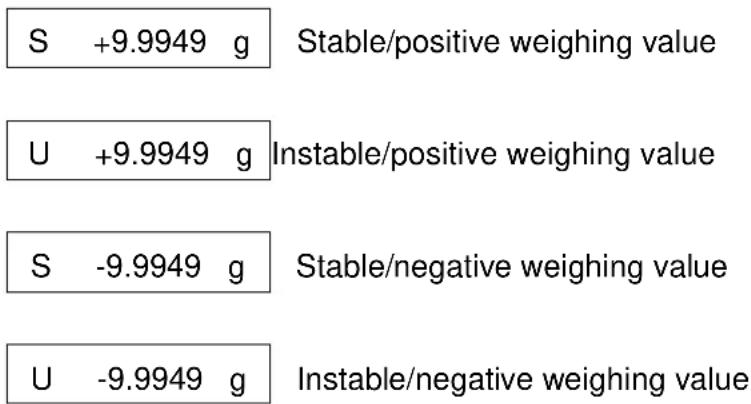
16.5 Remote control instructions
| Command Function | ||
| D01 Continuous data output | ||
| D02 | Continuous data output of stable weighing values | |
| D03 | Status of stability display is attached to the data in the continuous output.U: instableS: stable | |
| D05 Single output | ||
| D06 Automatic output | ||
| D07 | Single output. Status of stability display is attached to the data in the output.U instable (only models ABS-N)S: stable | |
| D08 | Single output with stable weighing value | |
| D09 Cancel output | ||
| BREAK | Function assee chpt. 3.1 | |
| Q | ||
| CAL | Function assee chpt. 3.1 | |
| TARE | Function assee chpt. 3.1 | |
| T | ||
| Function assee chpt. 3.1 | ||
17 Service, maintenance, disposal
17.1 Cleaning

Before cleaning, disconnect the appliance from the operating voltage.
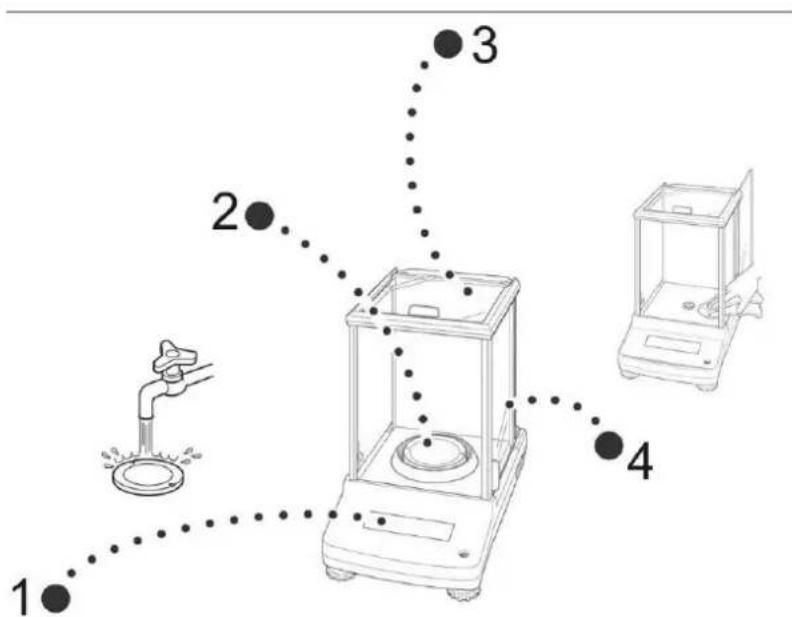
Fig. 1: Clean the balance
- Display Please do not use aggressive cleaning agents (solvents or similar agents), but a cloth dampened with mild soap suds.
- Weighing Plate Remove weighing plate, clean it wet and dry it before installation
- casing, housing, case, box Please do not use aggressive cleaning agents (solvents or similar agents), but a cloth dampened with mild soap suds. Take care that the device is not penetrated by fluids and polish it with a dry soft cloth.
Loose residue sample/powder can be removed carefully with a brush or manual vacuum cleaner.
Spilled weighing goods must be removed immediately.
- Glass doors These can be removed as described in the following. After that clean with a commercially available glass cleaner.

Handle glass doors with care.
Attention: Risk of breakage
Risk of cuts.
Keep away your hands/fingers from the running rail.
-
Remove, screening ring, weighing plate and carrier of weighing plate
-
Remove the plastic handle by turning.

Do no touch the support of the weighing plate. This could cause damage to the balance.
- Remove glass door carefully acc. to fig.
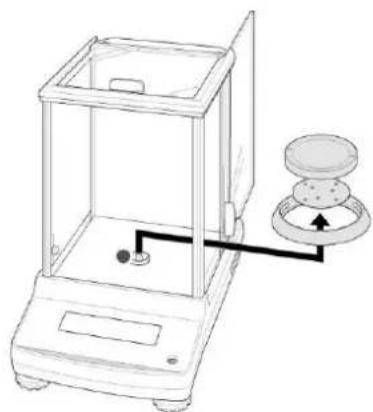
natural_image
Line drawing of a laboratory balance scale with an attached circular component (no text or symbols)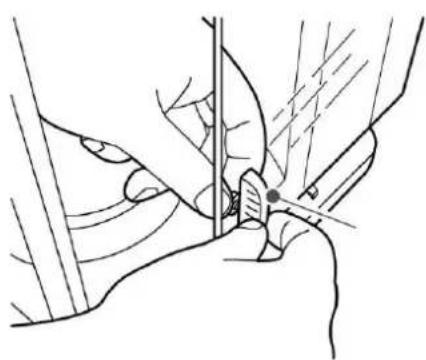
natural_image
Line drawing of a hand holding a tool with a circular mark, no text or symbols present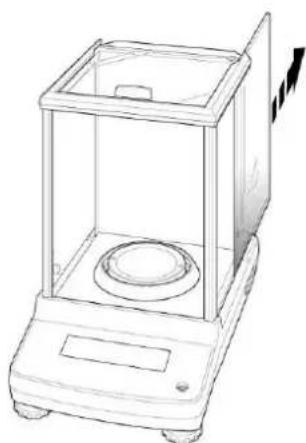
natural_image
Line drawing of an analog laboratory balance with a circular base and pointer (no text or symbols)Fig. 2: Remove the glass doors
- Re-install the glass door in reverse order.

To secure the glass door always reattach the plastic handle.
17.2 Service, maintenance
The appliance may only be opened by trained service technicians who are authorized by KERN. Before opening, disconnect from power supply.
17.3 Disposal
Disposal of packaging and appliance must be carried out by operator according to valid national or regional law of the location where the appliance is used.
18 Instant help
Possible causes of errors:
In case of an error in the program process, briefly turn off the balance and disconnect from power supply. The weighing process must then be restarted from the beginning.
Fault Possible cause
The displayed weight does not appear
The displayed weight is permanently changing
The weighing result is obviously incorrect
The desired weighing unit cannot be called by UNIT key.
Automatic adjustment carried out frequently.
No data transfer between printer and balance.
The menu settings cannot be changed.
- The balance is not switched on.
- The mains supply connection has been interrupted (mains cable not plugged in/faulty).
• Power supply interrupted.
- Draught/air movement
- Glass doors not closed
• Table/floor vibrations
- Weighing plate has contact with other objects.
- Electromagnetic fields / static charging (choose different location/switch off interfering device if possible)
• The display of the balance is not at zero
- Adjustment is no longer correct.
• The balance is on an uneven surface.
• Great fluctuations in temperature.
- Electromagnetic fields / static charging (choose different location/switch off interfering device if possible)
• Unit was not activated beforehand.
- Severe temperature variations in the room or the instrument
- Communication settings are wrong.
- The menu is locked Remove the menu lock.
18.1 Error messages
| Error message | Explication | Remedy |
| ERR H Hardware error | Switch balance off and on again. If the error message remains inform manufacturer. | |
| ERR C | High zero point shift during adjustment | Use ON/OFF to return into weighing mode. Restart adjustment process. |
| Objects present on weighing plate. | ||
| Missing weighing plate | ||
| CAL D Display instable | Check ambient conditions (draught, vibrations etc.) Use ON/OFF to return into weighing mode. Restart adjustment process. | |
| ERR N | Error at numerical input (e.g. wrong password) | Correct input |
| ERR W Wrong application | The balance changes to the previous state. Correct application. | |
| COM ERR | Wrong remote control order. | The balance changes to the previous state. Correct remote control order. |
| - OL | Missing weighing plate | Install weighing plate correctly |
| OL | Overload | Reduce load |
| ABORT Process cancelled | ||
| WAIT | Wait for process | |
| BUSY | When adjustment was started objects were present on weighing plate | Remove object and continue adjustment |
Should other error messages occur, switch balance off and then on again. If the error message remains inform manufacturer.
KERN ABS-N\_ABJ-NM
Version 1.5 08/2017
Mode d'emploi
Balance analytique
Inhaltsverzeichnis
15.1 Checkweighing 68
15.2 Target mode....72
dans le menu:
natural_image
Line drawing of a hand holding a transparent analytical balance with a circular component inside (no text or symbols)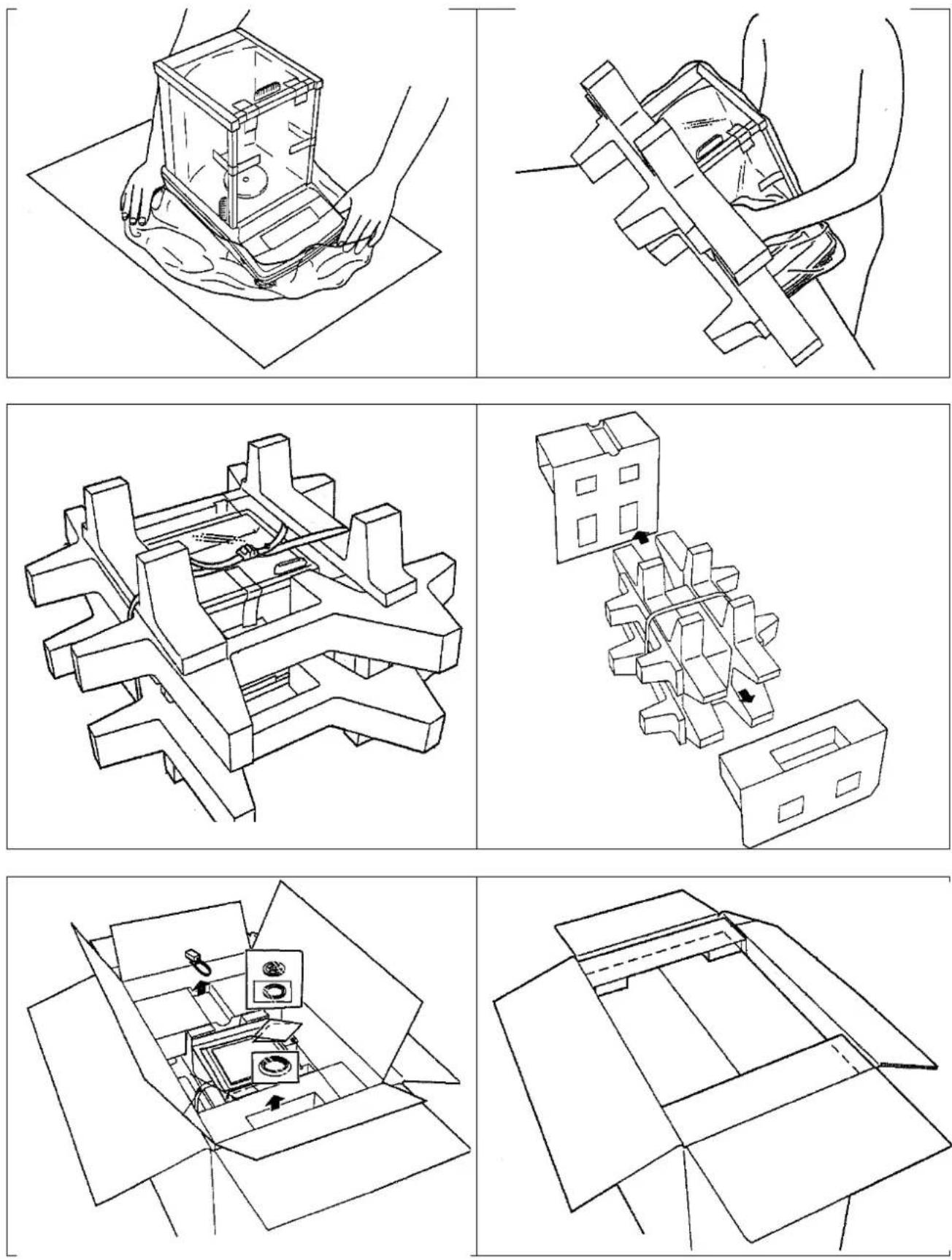
flowchart
graph TD
    A["Weight display"] --> B["STRAW General weighing mode"]
    B --> C["POUNTING Pouring mode"]
    C --> D["MINI MINI MINI MINI"]
    D --> E["TPC Zero tracking function"]
    E --> F["PPFUR Application Function mode"]
    F --> G["PCS Capture Item number 1-8"]
    G --> H["PCRCH Target value 100% reference"]
    H --> I["Percentage weighting OPTION Specific percentage inferred"]
    I --> J["FORMULA Formulation"]
    J --> K["TOOLS Other functions"]
    K --> L["TAPUT Target value"]
    L --> M["Target mode"]
    M --> N["LMPA Permissible range"]
    N --> O["CHECK IF Checkweighting range upper limit"]
    O --> P["HLM Pass range upper limit"]
    P --> Q["LNGTH Pass range lower limit"]
    Q --> R["UHPS Checkweighting range lower limit"]
    R --> S["PPRAM IF Weighting parameters"]
    S --> T["STRAW FAST Fast"]
    T --> U["BAD Stability detection range"]
    U --> V["OSB 0.5"]
    V --> W["IO 0.7"]
    W --> X["OLT 5.0"]
    X --> Y["VOO 0.03"]
    Y --> Z["SYSTEM System"]
    Z --> AA["PONT Decimal point indication"]
    AA --> AB["*PERIOD Period COMMA Period"]
    AB --> AC["LOWA Comma"]
    AC --> AD["RUTFOFF Auto power-off"]
    AD --> AE["START AUTO Start display"]
    AE --> AF["*KEMRIO OFF display"]
    AF --> AG["All segments 0.6"]
    AG --> AH["RFL Balance ID"]
    AH --> AI["POST Password"]
    AI --> AJ["OHOUT Menu settings output"]
    AJ --> AK["MSET Menu reset"]
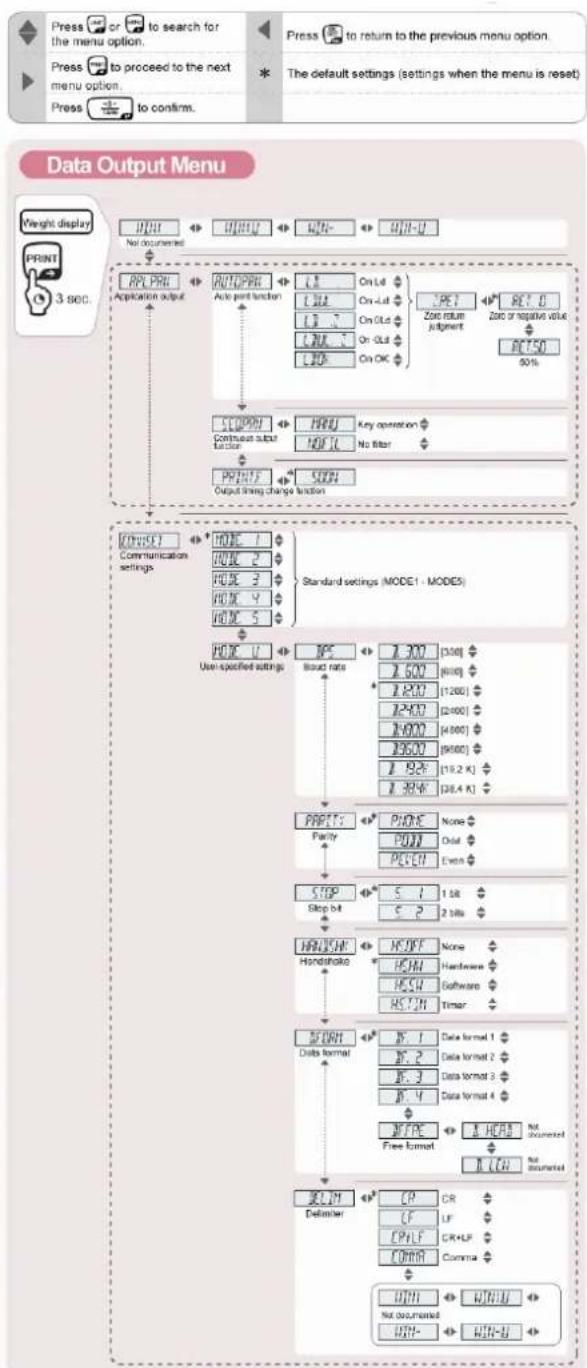
flowchart
graph TD
    A["Press or to search for the menu option."] --> B["Press to proceed to the next menu option."]
    B --> C["Press to confirm."]
    D["Press to return to the previous menu option."] --> E["The default settings (settings when the menu is reset)."]
    F["Weight display"] --> G["No documented"]
    G --> H["Application output"]
    H --> I["Auto port function"]
    I --> J{On L4 On L5 On OL On OL On OK}
    J --> K["Zoz return judgment"]
    K --> L["RET 0 Zone or negative value RET50 50%"]
    M["STOP"] --> N["Manual"]
    N --> O["Continuous subt factor"]
    O --> P["Output string change function"]
    P --> Q["Communication settings"]
    Q --> R{MODE 1 MODE 2 MODE 3 MODE 4 MODE 5}
    R --> S["Standard settings (MODE 1 - MODEs)"]
    S --> T["User-specified settings"]
    T --> U["Type"]
    U --> V["Bound rate"]
    V --> W["STOP"]
    W --> X["Step bit"]
    X --> Y["Handshake"]
    Y --> Z["Balance format"]
    Z --> AA["CP"]
    AA --> AB["Counter"]
    AB --> AC["CP"]
    AC --> AD["CP"]
    AD --> AE["CP"]
    AE --> AF["CP"]
    AF --> AG["CP"]
    AG --> AH["CP"]
    AH --> AI["CP"]
    AI --> AJ["CP"]
    AJ --> AK["CP"]
    AK --> AL["CP"]
    AL --> AM["CP"]
    AM --> AN["CP"]
    AN --> AO["CP"]
    AO --> AP["CP"]
    AP --> AQ["CP"]
    AQ --> AR["CP"]
    AR --> AS["CP"]
    AS --> AT["CP"]
    AT --> AU["CP"]
    AU --> AV["CP"]
    AV --> AW["CP"]
    AW --> AX["CP"]
    AX --> AY["CP"]
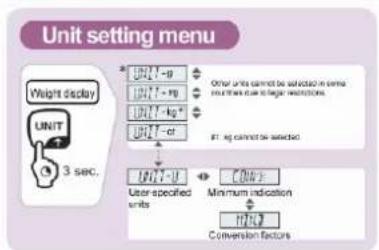
flowchart
graph TD
    A["Weight display"] --> B["3 sec."]
    B --> C["User specified units"]
    C --> D["Conversion factors"]
    E["Other units cannot be selected in terms of weight display due to larger selections"] --> F["1 mg cannot be selected"]
    G["Minimum indication"] --> H["100%"]
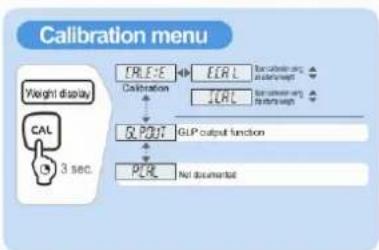
flowchart
graph TD
    A["Weight display"] --> B["CAL"]
    B --> C["3 sec."]
    B --> D["ORLE:5"]
    D --> E["ECAL"]
    E --> F["Calculation and measurement"]
    D --> G["Calibration"]
    G --> H["ICAL"]
    H --> I["Calculation and measurement"]
    D --> J["Q POST"]
    J --> K["GLP output function"]
    K --> L["PLR"]
    L --> M["Not documented"]
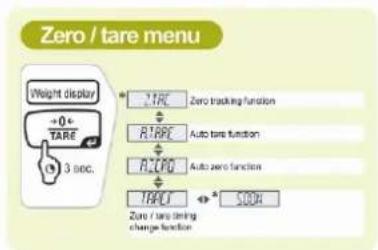
11.4 RAZ du menu
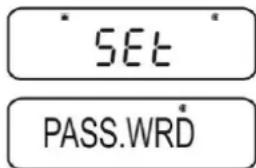
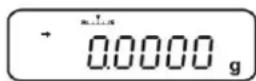
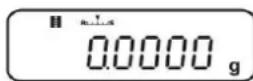
sans (→ Réglage standard
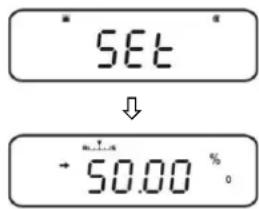
natural_image
Line drawing of a laboratory balance scale with a rotating knob and pointer (no text or symbols)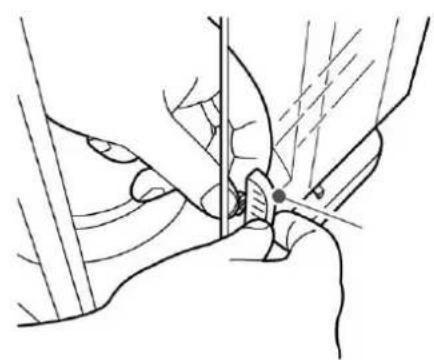
natural_image
Line drawing of a hand holding a tool or object with a circular mark, no text or symbols present