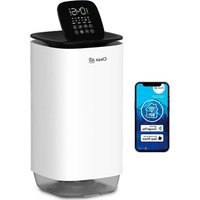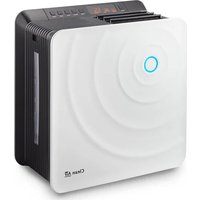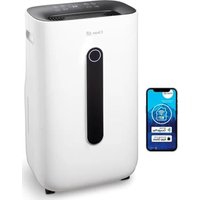
CA-705 Smart - Humidifier Clean Air Optima - Free user manual and instructions
Find the device manual for free CA-705 Smart Clean Air Optima in PDF.


| Product type | 2-in-1 Dehumidifier and Air Purifier |
| Brand and model | Clean Air Optima CA-705 Smart |
| Dimensions (W x D x H) | 340 x 240 x 570 mm |
| Weight | 12 kg |
| Power supply | 220-240 V, 50 Hz |
| Rated power consumption | 240 W |
| Dehumidification capacity | 16 L/day at 30 °C and 80% RH |
| Water tank | 6.5 L |
| Coverage area | Up to 50 m² / 125 m³ |
| Filters | Pre-filter, activated carbon filter, True HEPA H13 filter |
| UV-C lamp | Integrated for sterilization |
| Ionizer | > 3,000,000 ions/cm³, continuous operation |
| Noise level | < 30 dB(A) on low speed, 48 dB(A) on high speed |
| Refrigerant | R290 (propane), 55 g |
| Connectivity | WiFi 2.4 GHz, CleanAirOptima app (iOS/Android) |
| Operating modes | Normal, Continuous, Turbo, Drying clothes, Continuous air purification |
| Additional functions | Timer 0-24h, sleep mode, child lock, auto defrost |
| Drain hose | 1.5 m included for continuous drainage |
| Warranty | 2 years |
| Maintenance and cleaning | Clean the pre-filter once a month; replace the activated carbon and HEPA filters every 3 to 6 months |
| Spare parts and repairability | Replaceable filters available on the Clean Air Optima website; permanent pre-filter; customer service intervention for repairs |
Frequently Asked Questions - CA-705 Smart Clean Air Optima
User questions about CA-705 Smart Clean Air Optima
0 question about this device. Answer the ones you know or ask your own.
Ask a new question about this device
Download the instructions for your Humidifier in PDF format for free! Find your manual CA-705 Smart - Clean Air Optima and take your electronic device back in hand. On this page are published all the documents necessary for the use of your device. CA-705 Smart by Clean Air Optima.
USER MANUAL CA-705 Smart Clean Air Optima
Clean Air Optima® 2in1: Dehumidifier & Air Purifier
Model: CA-705 Smart / CA-706 Smart / CA-708 Smart
(EN) User manual
(DE) Gebrauchsanweisung
(NL) Gebruiksaanwijzing
(FR) Mode d'emploi
(ES) Manual del usuario
(PL) Instrukcja obsługi
(CZ) Uživatelská příručka
(RO) Manual de utilizare
(LT) Naudotojo vadovas
(EE) Kasutusjuhend
(LV) Lietošanas pamācība
(RU) Руководство
пользователя
(MK) Прирачник за
користење
Find more languages on: www.cleanairoptima.com/info/manuals
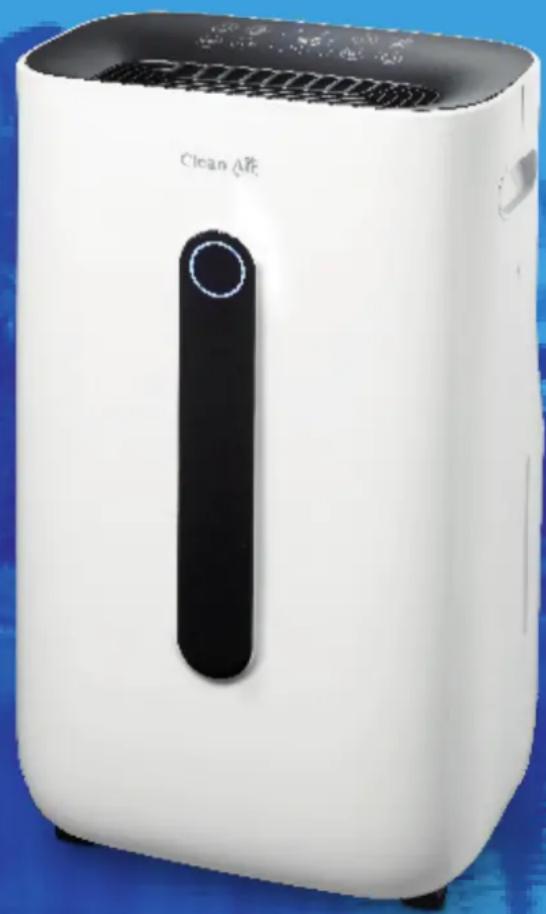
natural_image
White clean air purifier device with black lid and ventilation grille (no visible text or symbols)Read these instructions carefully before you start using this Clean Air Optima ^® device and keep the manual for future reference..
Clean Air Optima®
Table of contents Page
| English | 3 | |
| German | 20 | |
| Dutch | 37 | |
| French | 54 | |
| Spanish | 71 | |
| Polish | 88 | |
| Czech | 105 | |
| Romanian | 122 | |
| Lithuanian | 139 | |
| Estonian | 156 | |
| Latvian | 173 | |
| Russian | 190 | |
| Macedonian | 207 |
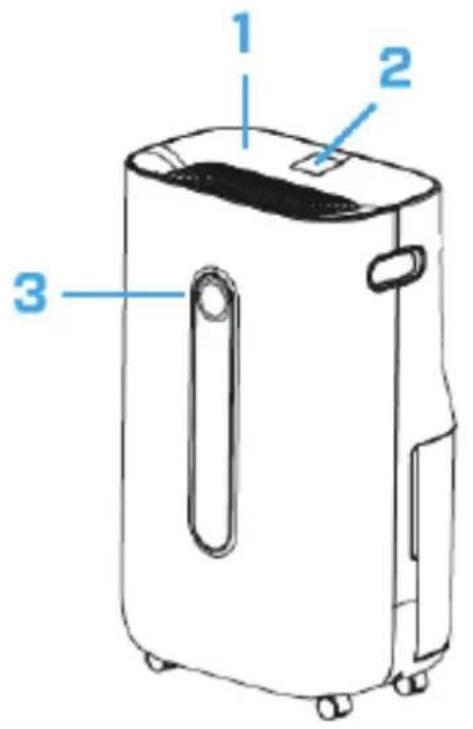
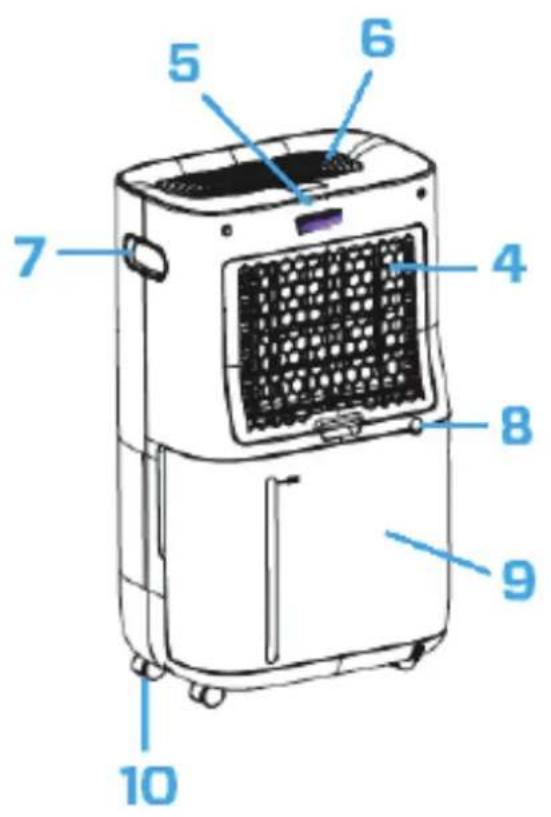
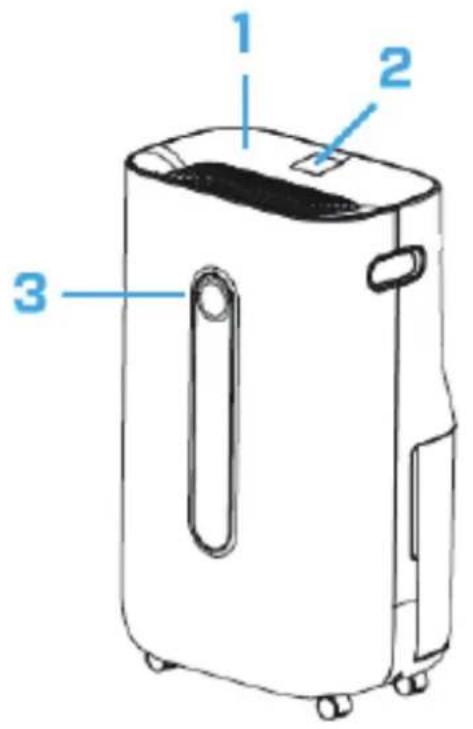
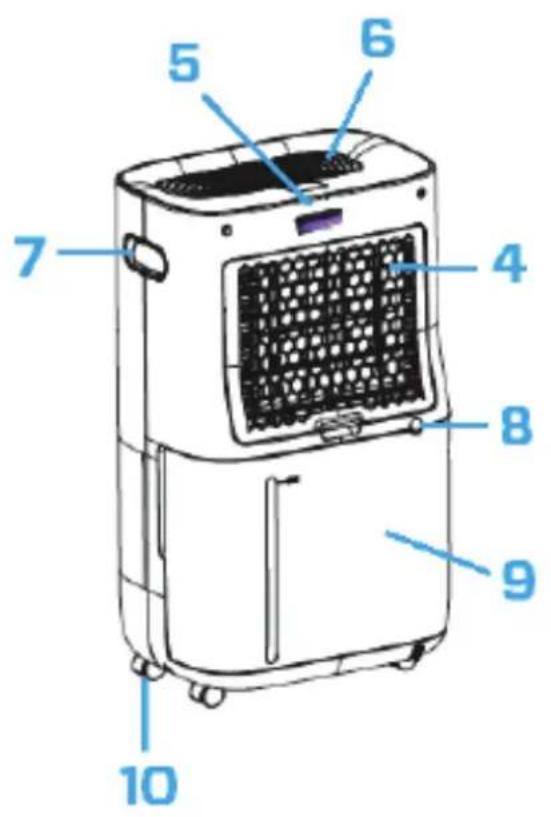
CA-705 Smart / CA-706 Smart / CA-708 Smart Main unit
English
Thank you for purchasing the Clean Air Optima® 2in1: Dehumidifier & Air Purifier CA-705 Smart / CA-706 Smart / CA-708 Smart.
We wish you many years of healthy indoor air with this efficient and effective product. Ensure that all safety precautions are followed when using this electrical appliance for the proper operation of the device. These instructions describe the safety precautions to be observed during operation. They are meant to prevent injuries and to avoid damaging the device.
Description
This Clean Air Optima ^® device consists of the following main components:
- Control panel
- Digital display indicates relative humidity in %, WiFi and function settings
- Color LED monitor indicates relative humidity in blue (below 53%), green (between 53% - 68%) and red (above 68%)
- Air inlet and filter frame compartment, includes: Pre-filter, Activated Carbon Filter, True HEPA H13 Filter
- UV-C lamp position
- Air outlet and lonizer position
- Handle
- Continuous drainage (water drain, hose connection) Drain hose 1.5 meter included
- Water tank
- Caster wheels
Safety warnings
This device may only be used in accordance with this safety instructions. Take the following steps to minimize the risk of personal injury caused by for example electric shocks or fire.
- Leave the device to stand for at least two hours before use, especially after transportation.
- Only for indoor use. Do not use or store outdoors.
- Use proper voltage: AC 220V - 240V, 50/60Hz.
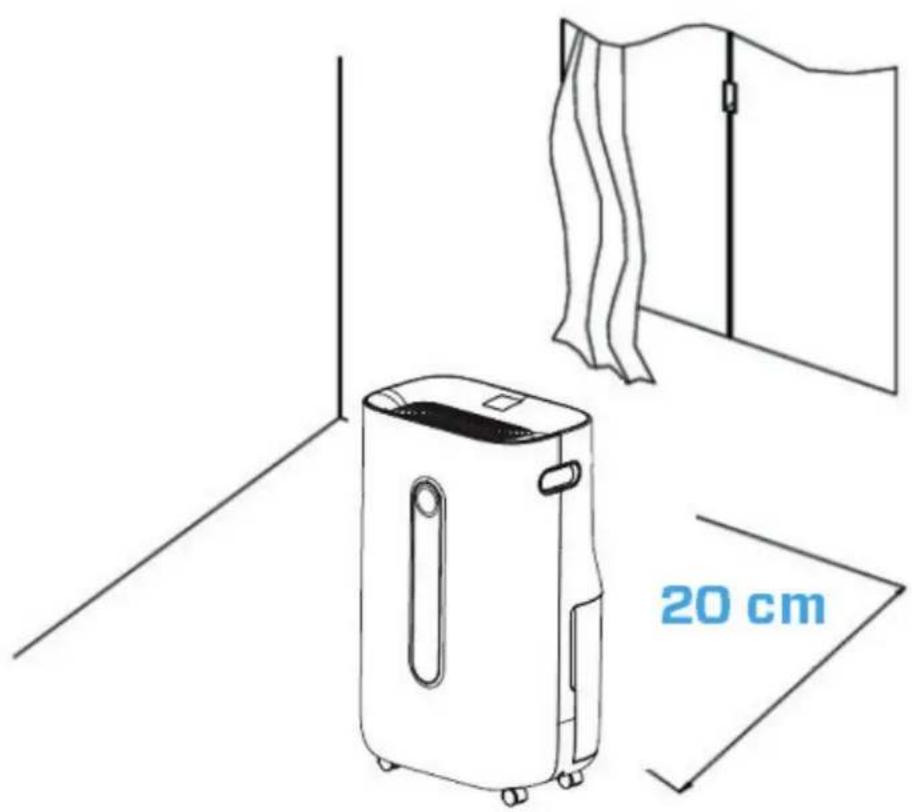
- Allow a free space of min. 20 cm around the air inlet and air outlet of the device.
- The appliance is not intended to be used by children or persons with reduced physical, sensory or mental capabilities, unless they are supervised by a person responsible for their safety.
- Do not use the device when there is visible damage on the electrical cord or on the device itself. Do not repair the device yourself in case of damage. Never pull the device by its cord. If the power cord is damaged, then it must be replaced by an authorized service person to prevent electric shock or fire.
- Repairs may only performed by authorized service personal. Do not try to repair the device yourself to prevent electric shock or fire.
- Do not touch the power cord and plug with wet hands.
- Always switch off the device before disconnecting the plug.
- Never attempt to turn of the device by disconnecting the plug.
- Pull the plug when you do not use the device or when you clean internal or external parts of it.
- For safety use put the device in a steady, horizontal position. Do not move while using.
- Refrigerant: R290. This refrigerant complies with European environmental regulations. No part of the cooling circuit may be perforated.
- Do not use the device in rooms where inflammable liquids, gases are stored or close to heat sources like radiator, fire place or heat-generating devices like ceramic heater.
- Never insert any other object into the body to avoid breakdown.
- Never cover the air inlet and air outlet grid.
- Never dissemble or replace the device's inner parts.
- Use and store the device not under 0°C or above 40°C.
- Do not tip the unit to any side when the water tank is full.
- Do not put heavy objects on the unit.
- Please avoid places with direct sunlight. There is a risk that the device discolors.
- Never immerse the device in water or other liquids.
- Empty the water tank regularly. In extreme conditions the water tank may be full after a few hours operation.
- Clean the Pre-filter regularly, if the Pre-filter is saturated with dust, it will lead to poor purifying and dehumidifying effect. The power consumption will increase, it can cause failure.
- Replace the Activated Carbon Filter and True HEPA H13 Filter every 3 – 6 months, if the Activated Carbon Filter and True HEPA H13 Filter are saturated, it will lead to poor purifying and dehumidifying effect. The power consumption will increase, it can cause failure.
- Use, maintain and clean the device as described in this manual.
Clean Air Optima®
Installation
Make sure that the distance from the device is 20 cm away from walls and furniture, see the illustration below.
Control panel / Operation instruction


Power
Press the Power Button to activate the device. Press the Power Button again, the device turns off.

MODE
Press the MODE Button to select one of four desired programs:

flowchart
graph LR
    A["1"] --> B["2"]
    B --> C["3"]
    C --> D["4"]
- Normal dehumidification (adjustable fan speed and humidity setting) Icon with name in App: Normal
- Continuous dehumidification (low fan speed, humidity setting not adjustable) Icon with name in App: Continuous
- Strong dehumidification (high fan speed, fan speed and humidity setting not adjustable) Icon with name in App: Strong
- Dry clothes mode (high fan speed, fan speed and humidity setting not adjustable) Icon with name in App: Dry clothes

Humidity setting (Only for MODE program: Normal dehumidification)
By pressing the Humidity Button, you can select the desired humidity level by pressing this button repeatedly until the required humidity level is displayed (from 30% to 80% in increments of 5%).
Once you select your desired humidity level, simply stop pressing the button and your humidity level will be set. When the humidity level in the room reaches the set humidity level, the device will go into automatic sleep state and stops dehumidifying and air purifying. When the room's actual humidity level increases again above your set humidity level, then the device will start dehumidifying and air purifying again. If the desired humidity level is reached at a constant level, you can switch with the air purification button for continuous air purification.
Clean Air Optima®

Continuous Air Purification, icon with name in App: Air Clean
By pressing the Air Purification Button you can use the device as an air purifier.

Fan Speed
(Only for MODE program: Normal dehumidification and Continuous air purification) By pressing the Fan Speed Button, you can change the fan speed level. The 2 fan speeds offer individual air flow.

Timer
Press the Timer Button to set 0-24 hours timing. Press the button one time, the timer will increase with one hour. When the device is operating, the timer that is set indicates when the device switches off. If the device is in stand-by mode, the timer that is set is to instruct the device when to turn on.

Sleep
Press the Sleep Button and the sleep mode is activated, the display will turn of. Press the Sleep Button again to switch back in the settings before.

Child Lock, icon with name in App: Lock
Child Lock is switched on / off by pressing the Child Lock Button for ca. 3 seconds. Child Lock protects from unwanted use of the device.

Water Tank Full Indicator Light
When the water tank is full, the device will stop automatically. The Water Tank Full Indicator Light turns on and lights up. Do not immediately remove the water tank, but wait 10 minutes. The water must first drain from the compressor. Drain the water tank, and return the water tank to the body of the device, the Water Tank Full Indicator Light will turn off. The device will work automatically again.
Negative Ion
In the four MODE program and Continuous Air Purification function the Negative Ion function will be automatically be activated. The negative ion generator has a total capacity of >3.000.000 negative ions / cm² that are spread through out the entire room and thereby neutralize pollutants and smells. Negative ions attach onto dust particles, microorganisms and other unwanted particles in the air and connect them to each other. This way, the particles become heavier than air and fall onto the ground so that you can no longer breathe them in.
Negative ions are most found in the forest, mountains and by the sea. Negative ions ensures fresh and healthy air.
Attention: The ionization function runs continuously and can't be turned off.

Defrosting Indicator Light
The evaporator in the dehumidifier may defrost automatically if it is operated with a room temperature less than 18 °C. The defrosting device in the dehumidifier my start up and operate for some time (about 5 minutes) automatically every 25 minutes or even longer.
- During the defrosting operation, the dehumidification function and air purification function may intermit.
- Don't turn of the power or pull out the power plug of the device during the defrosting operation.
Room temperature increases during operation
The Clean Air Optima® dehumidifier doesn't have a cooling function. The device will produce heat during operation and increase the room temperature between 1 °C to 4 °C.
Dehumidifying capacity
The illustration below shows the dehumidifying capacity of the Clean Air Optima® dehumidifier. By different temperatures and relative humidity, the dehumidifier may have different dehumidifying capacities.
Dehumidifying capacity
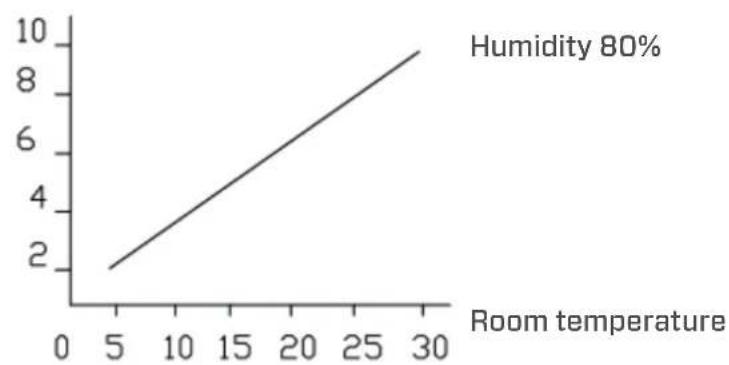
line
| Room temperature | Humidity | | ---------------- | -------- | | 5 | 2 | | 30 | 9 |Operation with Clean Air Optima® App
Connectivity
Compatibility with smartphone and tablet:
iPhone, iPad and Android devices
Device connets via WiFi with App:
CleanAirOptima
Attention: The router must be set to the 2.4 GHz broadband. If the router is set to the 5.0 GHz, it is impossible to establish a connection.
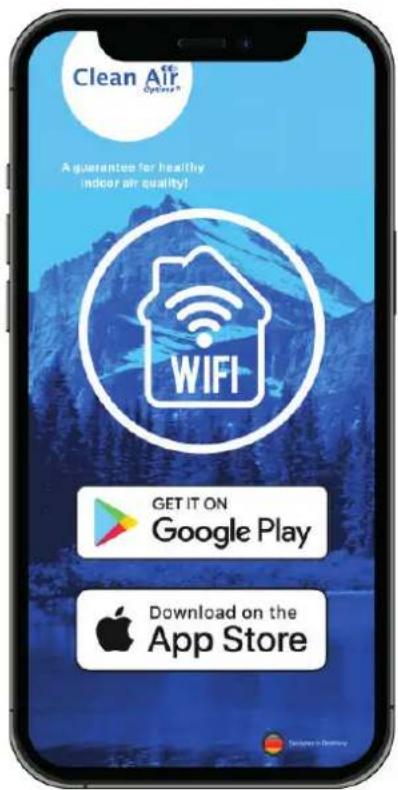
Set up WiFi connection
-
Download and install the "CleanAirOptima" App in the App Store or Google Play Store.
-
Make an account and log in.
-
The router must be set to the 2.4 GHz broadband. If the router is set to the 5.0 GHz, no connection can be established.
-
Make sure Bluetooth is enabled on your smartphone.
-
Plug the device into the power socket and switch it on. The WiFi indicator will blink. If the WiFi light does not blink, press the MODE button for 5 seconds. Then the WIFI light will flash quickly. If the WIFI light blinks quickly, the device is ready to connect.
-
Make sure that your smartphone or tablet is successfully connected to your WiFi network.
-
Open the 'CleanAirOptima' App and click on 'Add device'. Your device is listed and you can select it. If not choose 'Auto Scan'. Follow the on-screen instructions to connect the device to your network.
-
Choose to add the Clean Air Optima device on the App, follow the instructions in the App.
-
When the device is paired, the WiFi indicator light stays on constantly.
-
After the configuration is successful, you can use the Clean Air Optima® App to operate the device.
Note:
- If your default network has changed, reset the WiFi connection, follow step 1 to 9 in the 'Set up WiFi connection' section.
- If you want to pair multiple devices to your smartphone or tablet, you have to do this one after the other.
- Make sure that the distance between your smartphone or tablet and the device is less than 5 meters and there are no obstacles. Also make sure you are in the same room as the device.
Reset the WiFi function:
- The device must be switched off.
- Reset the WiFi by pressing the 'Mode' button for 5 seconds, the indicator light of the WiFi will blink rapidly.
Turn off WiFi function:
- The device must be switched off.
- Reset the WiFi by pressing the 'Mode' button for 5 seconds, the indicator light of the WiFi will blink rapidly.
- Turn of the WiFi by pressing the 'Mode' button for another 5 seconds, the indicator light of the WiFi will go out.
Connect devices to multiple phones
Note: First the other person needs to install the Clean Air Optima® App on his/her phone and create a new account.
Share the device with limited access:
You can choose to share 1 device with several persons.
This person will then have access, but will not be able to manage all the settings.
Follow the instructions below to share the device with several persons:
- Go to the relevant device.
- Go to the pencil or three dots in the top right.
- Select 'Share device.'
- Choose 'Add sharing'.
- Choose the sharing method e.g. via email, whatsapp, sms etc. and continue.
- The device will automatically appear in the Clean Air Optima® App with the other account.
Share device with full access:
You can add a person or several persons to your home management.
That person will then have access to all your devices that are already linked and has full rights and permissions. You will always remain the main administrator.
Follow the instructions below to add someone to your home management:
- Open the Clean Air Optima® App and go to 'Me'.
- Then choose 'Home Management'.
- Choose 'Create a home'.
- Select the relevant 'Home' and 'Add member'.
- Choose the sharing method e.g. via email, whatsapp, sms etc. and continue.
- The corresponding 'Home' will automatically appear in the Clean Air Optima® App of the person with whom you have shared your 'Home'.
- On the other account:
Go to the home screen from the Clean Air Optima® App. Go to the top left and select the 'Home'.
Clean Air Optima®
Water Drainage
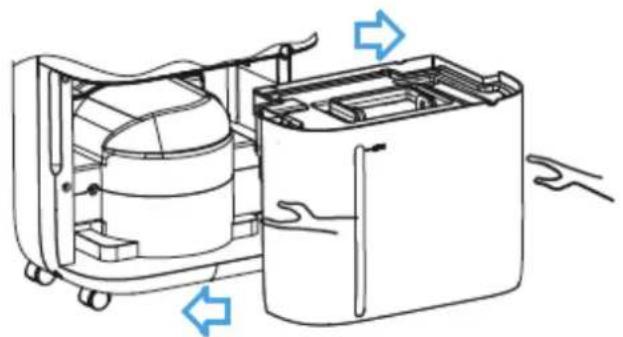
The Water Tank Full Indicator Light will light up when the water tank is full. Do not immediately remove the water tank, but wait 10 minutes. Take out the water tank and empty the water inside. Then put the water tank back into the dehumidifier correctly, see the illustration below.
natural_image
Technical line drawing of a mechanical device with internal components and directional arrows indicating flow or movement (no text or symbols)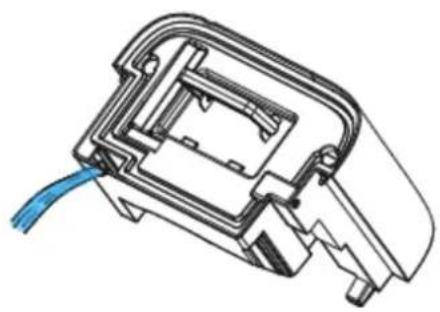
natural_image
Technical line drawing of a mechanical component with a blue cable inserted (no text or symbols)Continuous Drainage
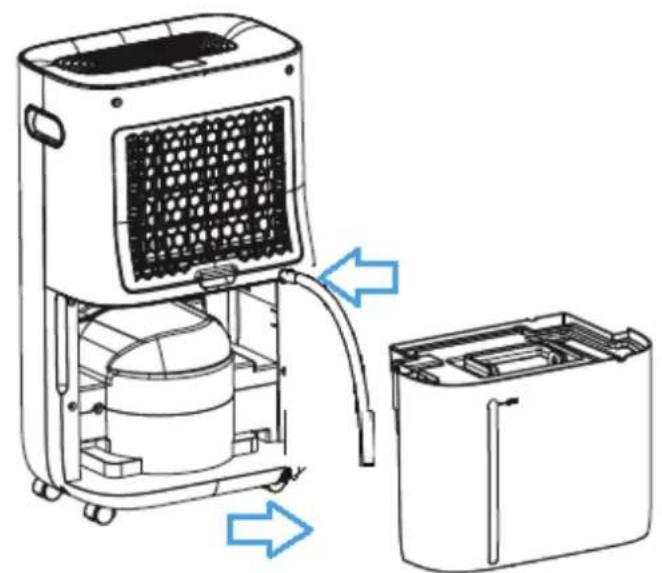
For continuous operation you can use the drain hose of 1.5 meter long that is included. Remove the water tank and install the hose to the water drain hose connection correctly, see the illustration below. Make sure the water tank is put back into the device.
natural_image
Technical line drawing of a portable air conditioner unit with internal components and airflow direction arrows (no text or symbols)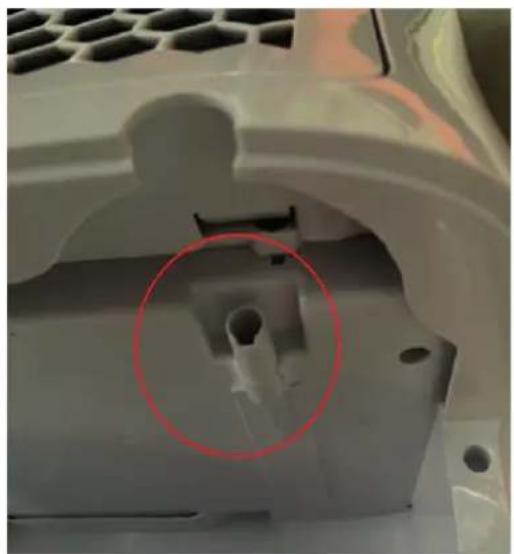
natural_image
Close-up of a mechanical component with a red-circled feature, no visible text or symbolsReplacing the Clean Air Optima® True HEPA H13 Filter and Activated Carbon Filter
The Clean Air Optima® CA-705 Smart/ CA-706 Smart/ CA-708 Smart Dehumidifier & Air Purifier is equipped with a filter lifespan surveillance mechanism that signals that the filters have to be replaced after 1000 working hours. To show that the filters needs to be replaced, the dehu-
midifier emits a double zero indicator light in the display.
Reset the timer for the filter replacement by pressing and holding the Power button for about 3 seconds. If the indicator light goes out, the timer has been successfully reset and the dehumidifier is ready for use again.
Maintenance
Cleaning the housing of the Clean Air Optima® dehumidifier
- Switch off the device and pull the plug.
- Use a soft and humid piece of cloth to clean the device. Do not use chemical solvent such as benzene, alcohol or gasoline.
- Make sure that no water gets into the device, do not sprinkle with water.
Replacing of filters
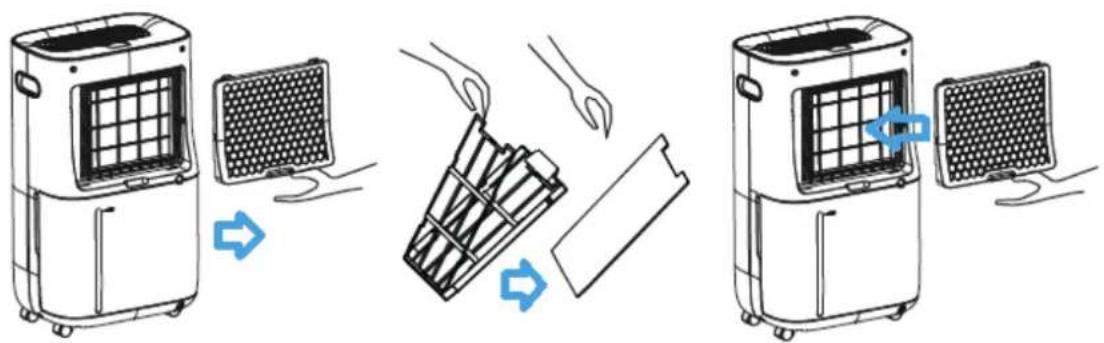
Depending on the use, the Activated Carbon Filter and True HEPA H13 Filter has a lifespan of approx. 3 – 6 months. The Pre-filter and UV-C lamp are permanent, no replacement needed.
Take out the filters from the filter frame compartment. After filter replacement or filter cleaning reinstall the filters back into the filter frame compartment and assemble back to the device, see the illustration below.
Filter cleaning
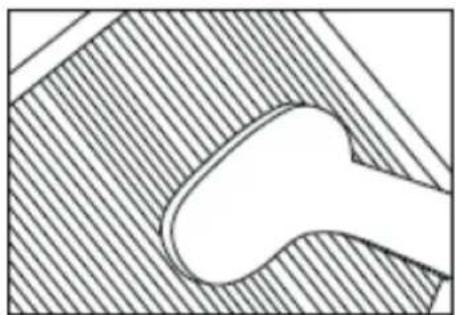
The best effect for a longer lifespan of the Filters is reached by cleaning the filters once a month. If indoor air is extremely polluted, we advice to clean the filters more often ca. once per two weeks.
natural_image
Abstract geometric diagram with diagonal hatching and a central oval shape (no text or symbols)Clean the Pre-filter, Activated Carbon Filter and True HEPA H13 Filter carefully with a brush or your vacuum cleaner. That way bigger dust particles like lint, hair, dust and dander of pets can be removed from the filters.
Clean Air Optima®
Warning!
Do not damage the filters, the filters must not be cracked. Damaged filters needs to be replaced.
Never wet or rinse the filters (Only for Activated Carbon Filter and True HEPA H13 Filter)
with water. Filters that are rinsed with water needs to be replaced.
Signs for used up filters that needs to be replaced
(Only for Activated Carbon Filter and True HEPA H13 Filter)
Increased sound, reduced air flow, congested filters, rising presence of smells. Filters needs also to be replaced by new ones when the True HEPA H13 Filter changes its color from white to grey or black. If the True HEPA H13 Filter remains white, there is NO need to replace the filters.
How to order filters:
Contact Clean Air Optima® Customer Service tel. + 31 (0) 742670145 or visit our webshop:
https://www.cleanairoptima.com/accessoires/mg/44/
Clean Air Optima® dehumidifier storage
If the dehumidifier will not be used for an extended period of time:
-
Drain the water tank completely and make sure that there is no water stocked inside the water tank.
-
Unplug the device and fold up the power supply cord.
-
Remove and clean the filters. After cleaning reinstall the filters back into the device.
-
Store the dehumidifier in a cool, dry location, away from direct sunlight, extreme temperature and excessive dust.
Troubleshooting
The following is a troubling shooting guide to help you solve any issues that you may have using the Clean Air Optima® dehumidifier CA-705 Smart / CA-706 Smart / CA-708 Smart.
| Problem Possible Cause Solution | ||
| Device does not switch onInefficiency dehumidification | The power cord does not connect correctlyThe water tank is full or water tank is not in the correct positionThe filters are blocked by dustThe air inlet and outlet have a blockageThe setting humidity is higher than environmental humidityThe dehumidifier is inContinuous air purification MODE | Connect the power plug and power socket correctlyDrain the water tank and replace the water tank to the correct position. Once the drainage hose has been installed, the water tank must be placed back in the device.Clean or replace the filtersClean the blockage from the air inlet and outletSet the humidity at least 5% lower than environmental humidityChange the operation MODE |
| Noise | The device is installed askewThe filters are blocked | Make sure the device is installed uprightlyClean or replace the filters |
| Operation stops during spot dehumidifying | The room temperature is higher than the usable operating temperature | The dehumidifying operation will be started automatically when the temperature lowers |
| Washed clothes are not dried | The room temperature is to low Wa | Washed clothes are hard to be dried under low temperature conditions |
| Operation with Clean Air Optima® App does not work | Smartphone or tablet is not connected to WiFi networkThe device has no connection to the network | Switch off the device and reset the WiFi on the device by pressing the Mode button for 5 seconds, the indicator light of the WiFi will blink rapidly. Than follow step 4 to 8 from chapterOperation with Clean Air Optima® App |
Clean Air Optima®
WARNING!
If the above recommended solutions do not work, please contact Clean Air Optima® technical support at the telephone number for your region. Do not attempt to disassemble, reassemble, or repair the device as this may void the warranty.
Specifications CA-705 Smart
Model CA-705 Smart
For rooms up to 50m² / 125m³ / 540ft²
Rated voltage 220V - 240V, 50Hz
Rated power 240W
Fan capacity 195 m³/h
Dehumidifying capacity 16 liters per day at 30°C and 80%RH
Working temperature range 5°C - 32°C
Water tank 6,5 liter
Air purification with: Pre-Filter, Activated Carbon Filter, True HEPA H13 Filter, UV-C lamp, Ionizer
Filter performance 99,97%, Sterilization rate 99.9%
Negative ion >3.000.000 ions/cm²
Sound level Silent fan < 30dB(A) Low / 48dB(A) High
Drain hose 1.5 meter
Dimensions 340 x 240 x 570mm
Weight 12kg
Colour White / black
Refrigerant R290 / 55g
Complies with EU regulations CE / WEEE / RoHS
Specifications CA-706 Smart
Model CA-706 Smart
For rooms up to 70m^2/175m^3/750ft^2
Rated voltage 220V - 240V, 50Hz
Rated power 320W
Fan capacity 195 m³/h
Dehumidifying capacity 20 liters per day at 30°C and 80%RH
Working temperature range 5°C - 32°C
Water tank 6,5 liter
Air purification with: Pre-Filter, Activated Carbon Filter, True HEPA H13 Filter,
UV-C lamp, Ionizer
Filter performance 99,97%, Sterilization rate 99.9%
Negative ion >3.000.000 ions/cm²
Sound level Silent fan < 30dB(A) Low / 48dB(A) High
Drain hose 1.5 meter
Dimensions 340 x 240 x 570mm
Weight 12.2kg
Colour White / black
Refrigerant R290 / 60g
Complies with EU regulations CE / WEEE / RoHS
Specifications CA-708 Smart
Model
CA-708
Smart
For rooms up to
90m² / 225m³ / 965ft²
Rated voltage 220V - 240V, 50Hz
Rated power 330W
Fan capacity 195 m³/h
Dehumidifying capacity 25 liters per day at 30°C and 80%RH
Working temperature range 5°C - 32°C
Water tank
6,5
liter
Air purification with: Pre-Filter, Activated Carbon Filter, True HEPA H13 Filter,
UV-C lamp, Ionizer
Filter performance 99,97%, Sterilization rate 99.9%
Negative ion >3.000.000 ions/cm²
Sound level Silent fan < 30dB(A) Low / 48dB(A) High
Drain hose 1.5 meter
Dimensions 340 x 240 x 570mm
Weight 14.5kg
Colour White / black
Refrigerant R290 / 60g
Complies with EU regulations CE / WEEE / RoHS
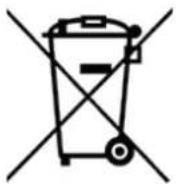
Ask your retailer or your municipality for updated information regarding the disposal of the packaging and of the device.
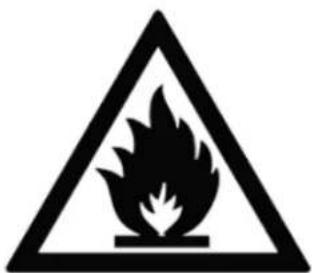
R290
Danger
Natural refrigerant propane (R290)!
Clean Air Optima®
Service
Warranty Certificate for the Clean Air Optima® Dehumidifier CA-705 Smart / CA-706 Smart / CA-708 Smart.
Date of purchase: ..... Customers name: ..... Address: ..... Telephone: ..... Email: ..... Seller's name: ..... Address: ....
- Please fill in completely this Warranty Certificate. Send it with the invoice and the unit, postage pre-paid and using the original packing box, to your distributor. Make sure to include the appropriate return postage for the package.
- Please enclose a short description of the damage, fault or malfunction, and the circumstances under which these problems arose.
The Clean Air Optima® Dehumidifier CA-705 Smart / CA-706 Smart / CA-708 Smart is subjected to strict testing procedures before leaving the factory. If within two years from the date of purchase the product does not perform according to the specifications, because of factory defects, the purchaser is entitled to free repairs or replacement of parts upon presentation of this warranty (provided that the malfunction or damage to the device and/or parts occurred under normal operating conditions). What is covered: All parts defective in material and workmanship. For how long: two years from purchase date. What we will do: Repair or replace any defective parts.
Other Conditions
The provisions of this warranty are in lieu of any other written warranty whether express or implied, written or oral, including any warranty of merchantability or fitness for a particular purpose. The manufacturer's maximum liability shall not exceed the actual purchase price paid by you for the product. In no event shall the manufacturer be liable for special, incidental, consequential, or indirect damages. This warranty does not cover a defect that has resulted from improper or unreasonable use or maintenance, faulty assembly, accident, natural catastrophes, improper packing, or unauthorized tampering, alteration, or modification as determined solely by us. This warranty is void if the label bearing the serial number has been removed or defaced.
Thank you for reading!

Share your feedback about the Clean Air Optima®
Dehumidifier CA-705 Smart / CA-706 Smart / CA-708 Smart on:
www.cleanairoptima.com

For frequently asked questions about the CA-705 Smart / CA-706 Smart / 8 Smart go to: www.cleanairoptima.com
and search for the CA-705 Smart / CA-706 Smart / CA-708 Smart

Download PDF instruction manual on: leanairoptima.com/info/manuals

Watch all Clean Air Optima® Product video's on:
www.youtube.com
Clean Air Optima International B.V. | David Ricardostraat 9-7 / 9-9 | 7559 SH Hengelo (ov) The Netherlands | Phone: +31 (0) 74 - 2670145
Clean Air Optima Germany GmbH | Enschedestraße 14 | 48529 Nordhorn | Germany Phone: +49 (0) 5921 879-121
E-mail: info@cleanairoptima.com
Internet: www.cleanairoptima.com
natural_image
Technical line drawing of a mechanical device with internal components and directional arrows indicating flow or movement (no text or symbols)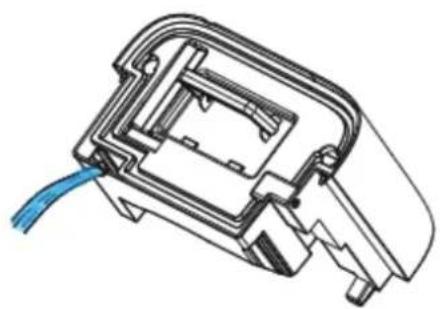
natural_image
Technical line drawing of a mechanical component with a blue cable inserted (no text or symbols)natural_image
Diagram of a portable air purifier with internal components and airflow direction arrows (no text or symbols)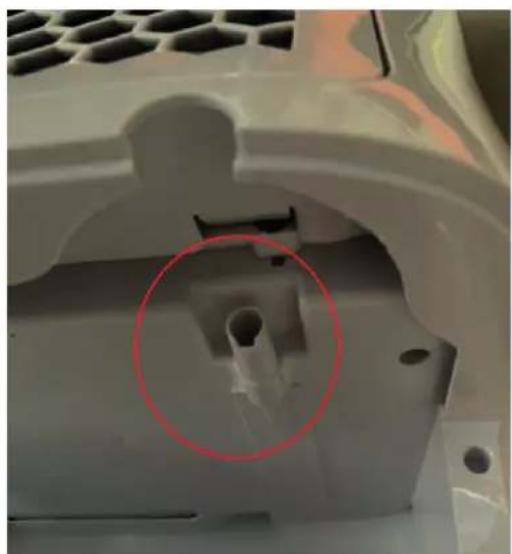
natural_image
Close-up of a mechanical component with a red-circled feature, no visible text or symbolsFilterreinigung
natural_image
Abstract geometric diagram with diagonal hatching and a central oval shape (no text or symbols)Negatives lon >3.000.000 lonen/cm²
natural_image
Warning symbol of a flame inside a triangle (no text or numbers)R290
Gefahr
WiFi-verbinding opzetten
natural_image
Technical line drawing of a mechanical device with internal components and directional arrows indicating flow or movement (no text or symbols)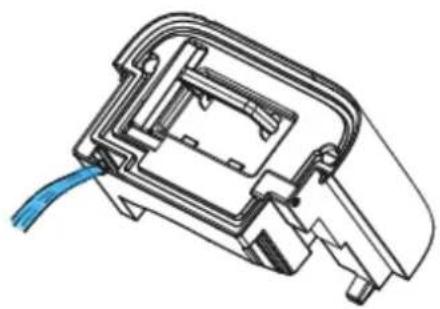
natural_image
Technical line drawing of a mechanical component with a blue cable inserted (no text or symbols)Doorlopende afvoer
natural_image
Diagram of a portable air purifier with internal components and airflow direction arrows (no text or symbols)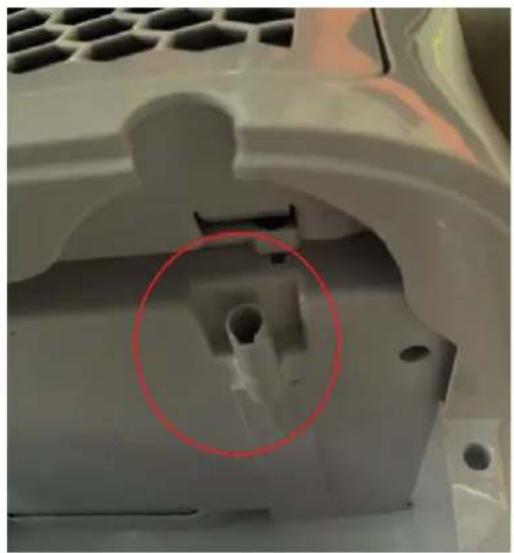
natural_image
Close-up of a mechanical component with a red-circled feature, no visible text or symbolsFilters schoonmaken
natural_image
Abstract geometric diagram with diagonal hatching and a central oval shape (no text or symbols)natural_image
Warning symbol of a flame inside a triangle (no text or numbers)R290
Gevaar
Configurer la connexion wifi
natural_image
Technical line drawing of a mechanical device with internal components and directional arrows indicating flow or movement (no text or symbols)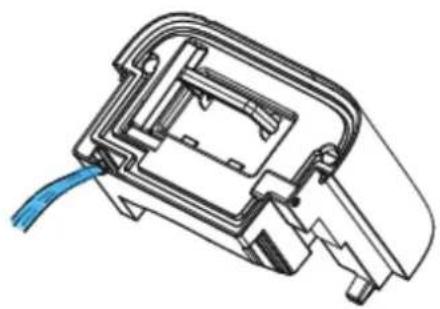
natural_image
Technical line drawing of a mechanical component with a blue cable inserted (no text or symbols)Vidange en continu
natural_image
Technical line drawing of a portable air conditioner unit with internal components and airflow direction arrows (no text or symbols)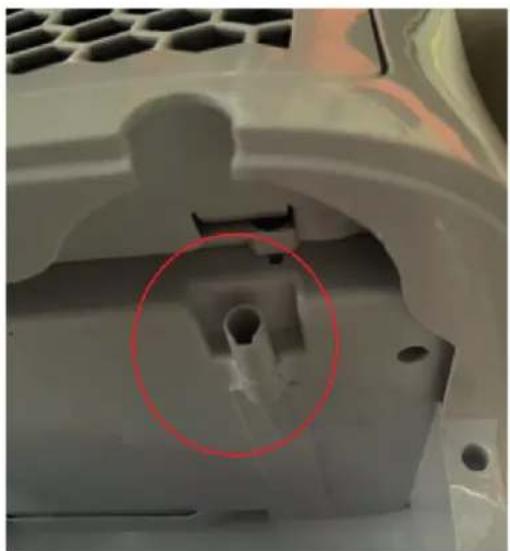
natural_image
Close-up of a mechanical component with a red-circled feature, no visible text or symbolsnatural_image
Pure technical diagram of a mechanical part with hatched background and no visible text or symbolsnatural_image
Warning symbol of a flame inside a triangle (no text or numbers)R290
Danger
natural_image
Technical line drawing of a mechanical device with internal components and directional arrows indicating flow or movement (no text or symbols)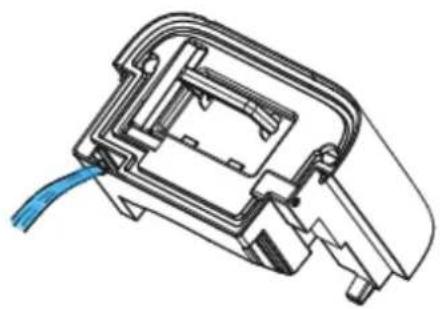
natural_image
Technical line drawing of a mechanical component with a blue cable inserted (no text or symbols)Vaciado continuo
natural_image
Technical line drawing of a portable air purifier with internal components and airflow direction arrows (no text or symbols)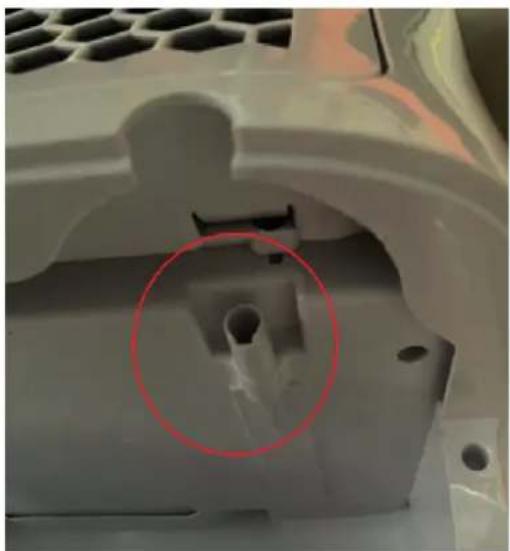
natural_image
Close-up of a mechanical component with a red-circled feature, no visible text or symbolsnatural_image
Abstract geometric pattern with diagonal hatching and a central oval shape (no text or symbols)natural_image
Warning symbol of a flame inside a triangle (no text or numbers)R290
Peligro
natural_image
Technical line drawing of a mechanical device with internal components and directional arrows indicating flow or movement (no text or symbols)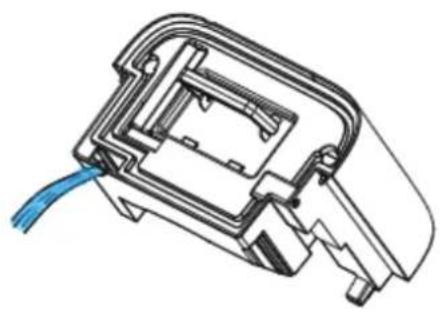
natural_image
Technical line drawing of a mechanical component with blue cable (no text or symbols)natural_image
Technical line drawing of a portable air conditioner unit with internal components and airflow direction arrows (no text or symbols)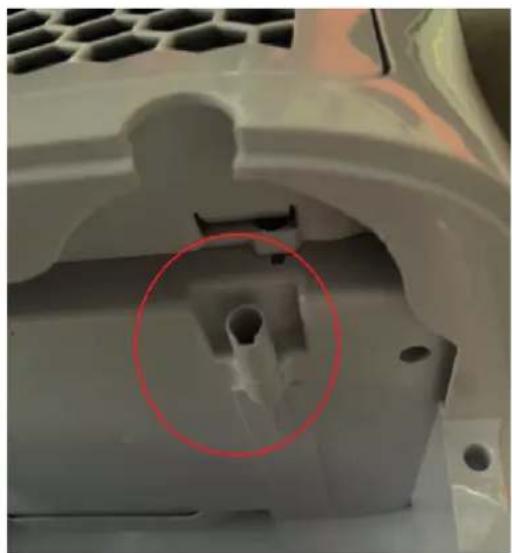
natural_image
Close-up of a mechanical component with a red-circled feature, no visible text or symbolsCzyszczenie filtrów
natural_image
Pure technical diagram of a mechanical component with hatched background and no visible text or symbolsnatural_image
Warning symbol of a flame inside a triangle (no text or numbers)R290
Zagrożenie
natural_image
Technical line drawing of a mechanical device with internal components and directional arrows indicating flow or movement (no text or symbols)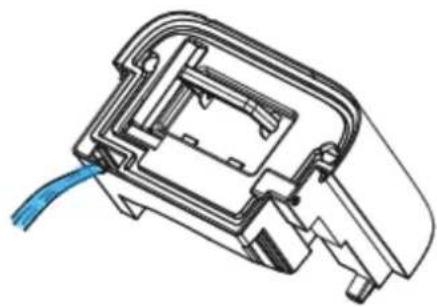
natural_image
Technical line drawing of a mechanical component with a blue cable inserted (no text or symbols)natural_image
Diagram of a portable air conditioner unit with internal components and airflow direction arrows (no text or symbols)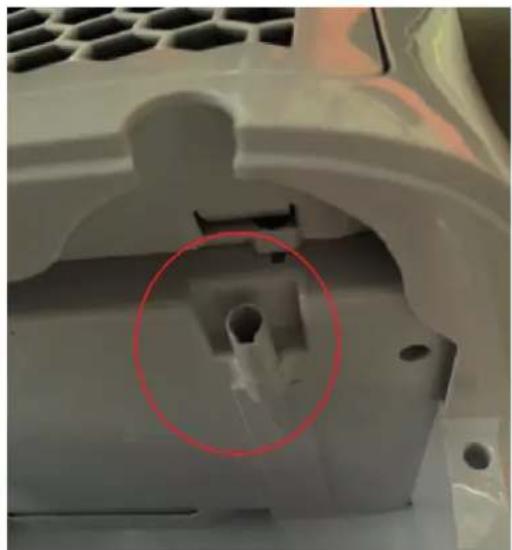
natural_image
Close-up of a mechanical component with a red-circled feature, no visible text or symbolsČištění filtru
natural_image
Abstract geometric diagram with diagonal hatching and a central oval shape (no text or symbols)natural_image
Warning symbol of a flame inside a triangle (no text or numbers)R290
Nebezpečí
natural_image
Technical line drawing of a mechanical device with internal components and directional arrows indicating flow or movement (no text or symbols)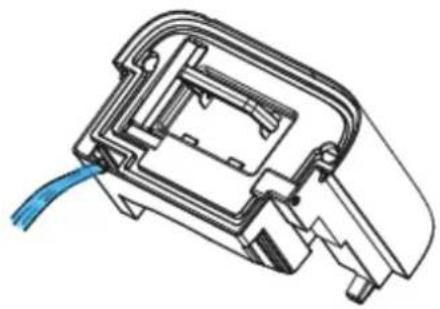
natural_image
Technical line drawing of a mechanical component with blue cable (no text or symbols)Golire continuă
natural_image
Diagram of an air purifier with cooling unit and internal components, showing airflow direction (no text or labels)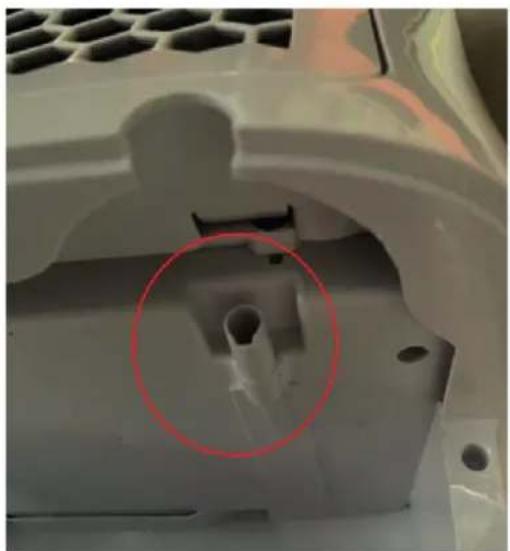
natural_image
Close-up of a mechanical component with a red circle highlighting a specific feature (no text or symbols visible)Curățarea filtrului
natural_image
Abstract geometric diagram with diagonal hatching and a central oval shape (no text or symbols)natural_image
Warning symbol of a flame inside a triangle (no text or numbers)R290
Pericol
Agent frigorific natural propan (R290)!
Service
natural_image
Technical line drawing of a mechanical device with internal components and directional arrows indicating flow or movement (no text or symbols)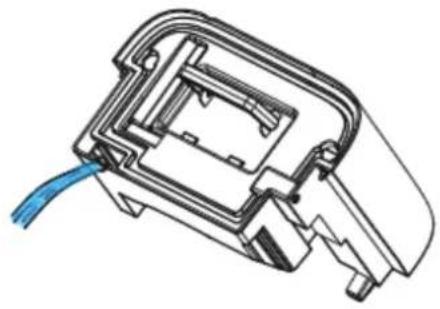
natural_image
Technical line drawing of a mechanical component with blue cable (no text or symbols)Nuolatinis vandens nuleidimas
natural_image
Technical line drawing of an air conditioner unit with internal components and airflow direction indicators (no text or symbols)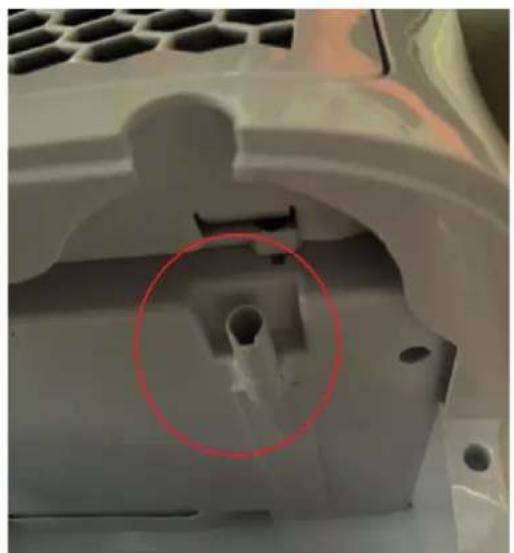
natural_image
Close-up of a mechanical component with a red-circled feature, no visible text or symbols„Clean Air Optima® True HEPA H13 filtro ir aktyvuotos anglies filtro keitimas,,
Filtrų valymas
natural_image
Pure technical diagram of a mechanical component with hatched background (no text or symbols)natural_image
Warning symbol of a flame inside a triangle (no text or numbers)R290
Pavojus
Seadistage WiFi-ühendus
natural_image
Technical line drawing of a mechanical device with internal components and directional arrows indicating flow or movement (no text or symbols)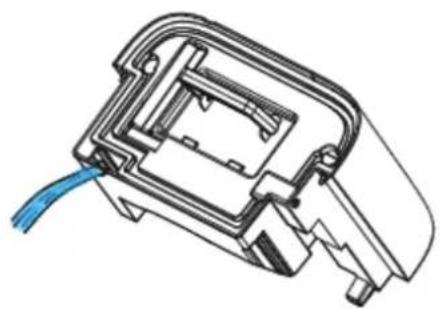
natural_image
Technical line drawing of a mechanical component with a blue cable inserted (no text or symbols)Pidev väljalase
natural_image
Diagram of a portable air conditioner unit with internal components and airflow direction arrows (no text or symbols)
natural_image
Close-up of a mechanical component with a red-circled feature, no visible text or symbolsFiltrite puhastamine
natural_image
Pure technical diagram showing a curved pipe or channel within a hatched rectangular area, without any text, numbers, or symbols.natural_image
Warning symbol of a flame inside a triangle (no text or numbers)R290
Oht
WiFi savienojuma izveide
natural_image
Technical line drawing of a mechanical device with internal components and directional arrows indicating flow or movement (no text or symbols)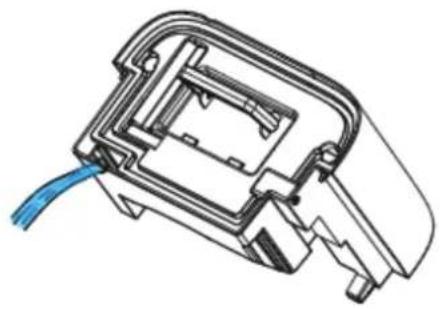
natural_image
Technical line drawing of a mechanical component with a blue cable inserted (no text or symbols)natural_image
Diagram of a portable air conditioner unit with internal components and airflow direction arrows (no text or symbols)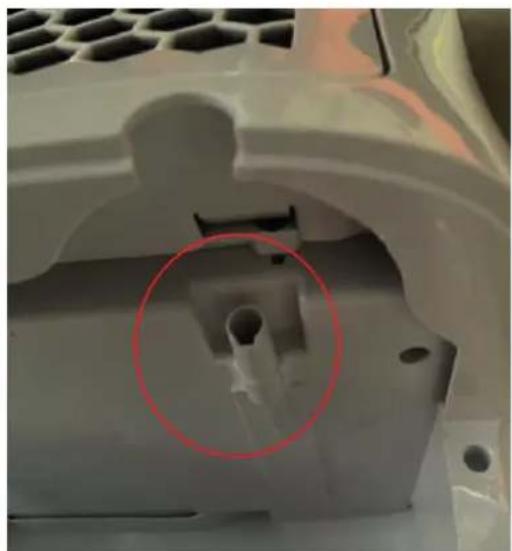
natural_image
Close-up of a mechanical component with a red-circled feature, no visible text or symbolsClean Air Optima® True HEPA H13 filtra un aktivās ogles filtra no-maina
Filtra tīrīšana
natural_image
Abstract geometric diagram with diagonal hatching and a central oval shape (no text or symbols)natural_image
Warning symbol of a flame inside a triangle (no text or numbers)R290
Bīstamība
E-pasts: info@cleanairoptima.com
Tīmekļa vietne: www.cleanairoptima.com
Clean Air Optima®
Основной блок
CA-705 Smart / CA-706 Smart / CA-708 Smart
Русский
Clean Air Optima®
Отключение Wi-Fi:
natural_image
Technical line drawing of a mechanical device with internal components and directional arrows indicating flow or movement (no text or symbols)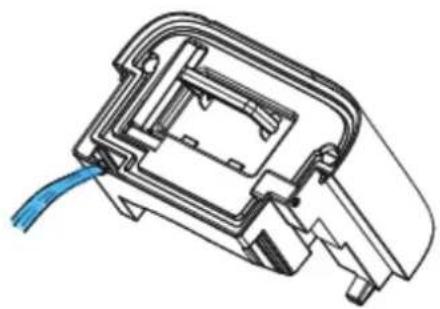
natural_image
Technical line drawing of a mechanical component with a blue cable inserted (no text or symbols)Непрерывный слив
natural_image
Diagram of a portable air purifier with internal components and airflow direction arrows (no text or symbols)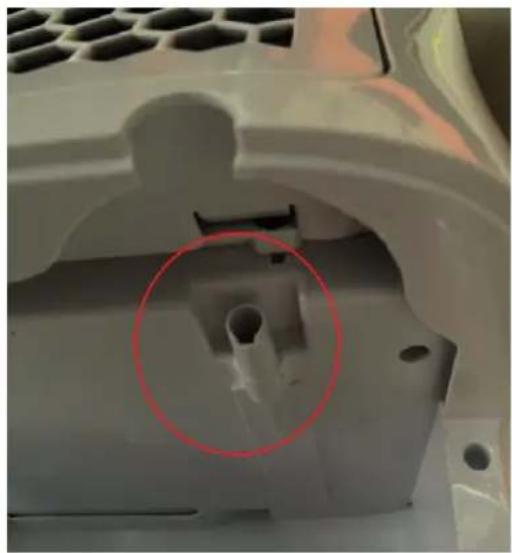
natural_image
Close-up of a white plastic mechanical component with a red-circled hole and mounting holes (no text or symbols visible)Очистка фильтра
natural_image
Abstract geometric pattern with diagonal hatching and a central curved shape (no text or symbols)natural_image
Warning symbol of a flame inside a triangle (no text or numbers)R290
Опасно!
natural_image
Technical line drawing of a mechanical device with internal components and directional arrows indicating flow or movement (no text or symbols)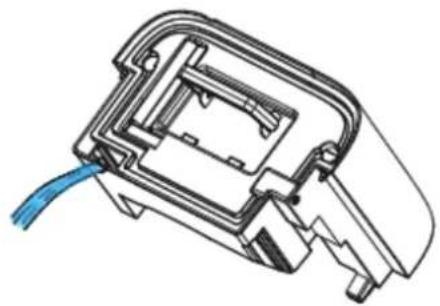
natural_image
Technical line drawing of a mechanical component with blue cable (no text or symbols)Постојано празнење
natural_image
Technical line drawing of an air purifier with internal components and airflow direction arrows (no text or symbols)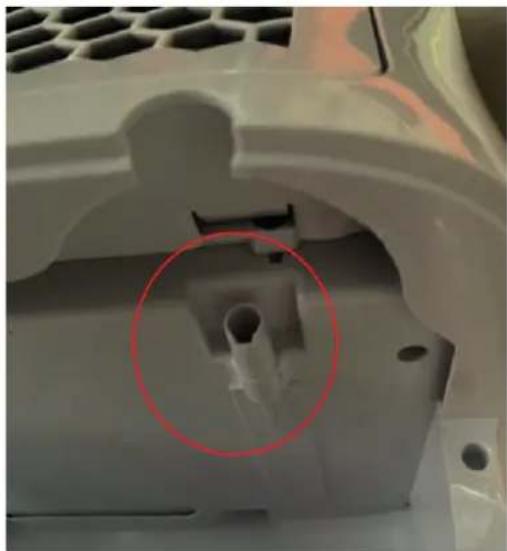
natural_image
Close-up of a mechanical component with a red-circled feature, no visible text or symbolsЧистење филтер
natural_image
Pure technical diagram of a curved pipe or channel with diagonal hatching, no text or symbols presentnatural_image
Warning symbol of a flame inside a triangle (no text or numbers)R290
Опасност