Optimus Pro - Smartphone LG - Free user manual and instructions
Find the device manual for free Optimus Pro LG in PDF.


User questions about Optimus Pro LG
0 question about this device. Answer the ones you know or ask your own.
Ask a new question about this device
Download the instructions for your Smartphone in PDF format for free! Find your manual Optimus Pro - LG and take your electronic device back in hand. On this page are published all the documents necessary for the use of your device. Optimus Pro by LG.
USER MANUAL Optimus Pro LG
4 Adepele street, Computer Village, Lagos, Nigeria
Bluetooth QD ID B017971
This guide helps you to get started using your phone. If you need more information, please visit www.lg.com.
- Some of the contents present in this manual may not apply to your phone and it depends on your phone's software or your service provider.
- This handset is not recommended for the visually impaired because of its touch-screen keypad.
- Copyright © LG Electronics, Inc. All rights reserved. LG and the LG logo are registered trademarks of LG Group and its related entities. All other trademarks are the property of their respective owners.
- Google Search, Maps, Gmail, YouTube, Talk and Market are trademarks of Google, Inc.
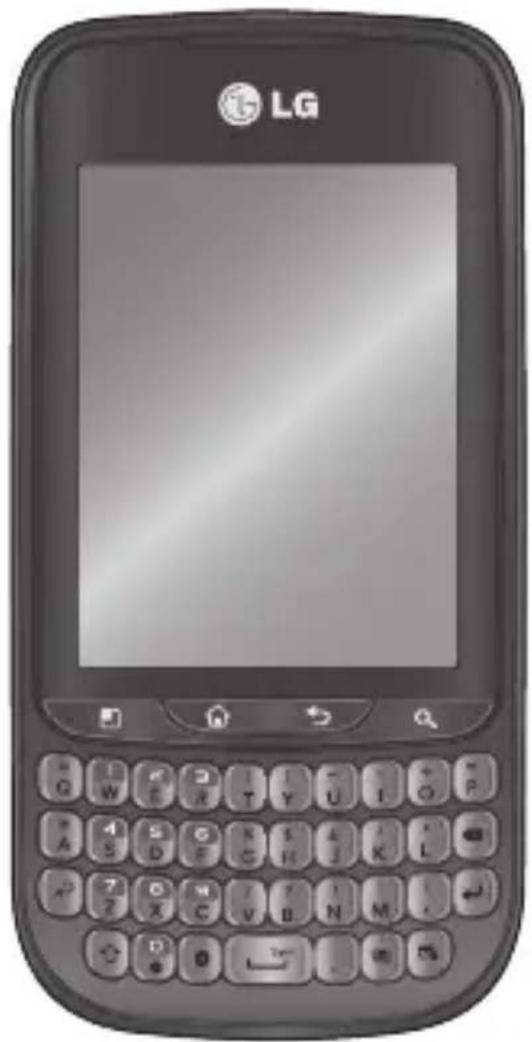
natural_image
Front view of a LG portable mobile phone with keyboard and display screen (no visible text or symbols on main body)Contents
Guidelines for safe and effi cient use....6
Important notice ....13
Before using the mobile phone, fi rst read! ......22
Getting to know your phone 25
Installing the SIM card and battery 27
Charging your phone .....28
Installing the memory card ...29
Formatting the memory card ....30
Your home screen ....31
Touch-screen tips ....31
Lock your phone ....31
Unlock screen ....32
Home 32
Adding widgets to your home screen....33
Returning to recently used applications ....34
Notification drawer ....34
Viewing the status bar .....34
Entering text ......35
Entering accented letters .....36
Entering numbers......36
Google account setup ......37
Creating your Google account 37
Signing in to your Google account....37
Calls....39
Making a call ....39
Calling your contacts .....39
Answering and rejecting a call ....39
Adjusting call volume .....39
Making a second call ......39
Viewing your call logs .....40
Call settings ....40
Contacts......41
Searching for a contact .....41
Adding a new contact .....41
Favourite contacts ....41
Messaging/email ....42
Messaging......42
Sending a message ......42
Threaded box 43
Using emoticons ....43
Changing your message
settings....43
Setting up your email .....43
Microsoft Exchange email
account......43
Other (POP3, IMAP) email
account......44
Composing and sending email
......45
Working with account folders
......46
Adding and editing email
accounts 46
Camera 48
Getting to know the viewfinder
......48
Taking a quick photo .....49
Once you've taken the photo
49
Using the advanced settings
......50
Viewing your saved photos ...51
Video camera ....52
Contents
Getting to know the viewfi nder ....52
Shooting a quick video .....53
After shooting a video .....53
Using the advanced settings 53
Watching your saved videos 54
Your photos and videos .....55
Adjusting the volume when viewing a video ....55
Setting a photo as wallpaper 55
Multimedia....56
View model ....56
Timeline view ....56
My Images options menu .....56
Sending a photo ....56
Sending a video ....57
Using an image .....57
Creating a slideshow ....57
Checking your photo .....57
Transferring fi les using USB mass storage devices .....57
Music....58
Playing a song 58
Using the radio .....59
Searching for stations .....59
Resetting channels .....59
Listening to the radio ......60
Utilities......61
Setting your alarm ......61
Using your calculator ......61
Adding an event to your calendar....61
Changing your calendar view 62
Polaris Viewer 62
Voice recorder 63
Recording a sound or voice ...63
Sending the voice recording 63
The Web ......64
Browser....64
Using options ......64
Adding and accessing bookmarks ......65
Changing Web browser settings 65
Settings ......66
Wireless & Networks ......66
Call settings ......66
Sound 66
Display 66
Location & Security ......66
Applications......67
Accounts & Sync 68
Privacy 68
Storage 68
Search 68
Language and keyboard .....68
Voice Input & Output ......68
Accessibility......68
Date & Time......68
About Phone 68
Wi-Fi 69
Turning on Wi-Fi 69
Connecting to Wi-Fi ......69
USB tethering ....69
Wi-Fi tethering 70
Software update ....71
Phone Software update .....71
DivX Mobile DIVX ....72
Accessories 73
Technical data....74
Troubleshooting....75
Guidelines for safe and efficient use
Please read these simple guidelines. Not following these guidelines may be dangerous or illegal.
Exposure to radio frequency energy
Radio wave exposure and Specific Absorption Rate (SAR) information. This mobile phone model LG-C660 has been designed to comply with applicable safety requirements for exposure to radio waves. These requirements are based on scientific guidelines that include safety margins designed to assure the safety of all persons, regardless of age and health.
- The radio wave exposure guidelines employ a unit of measurement known as the Specific Absorption Rate, or SAR. Tests for SAR are conducted using standardised methods with the phone transmitting at its highest certified power level in all used frequency bands.
- While there may be differences between the SAR levels of various LG phone models, they are all designed to meet the relevant guidelines for exposure to radio waves.
- The SAR limit recommended by the International Commission on Non-Ionizing Radiation Protection (ICNIRP) is 2W/kg averaged over 10g of tissue.
The highest SAR value for this model phone tested by DASY4 for use at the ear is 1.28 W/kg (10 g) and when worn on the body is 1.12 W/kg(10 g).
- SAR data information for residents in countries/regions that have adopted the SAR limit recommended by the Institute of Electrical and Electronics Engineers (IEEE), which is 1.6 W/kg averaged over 1g of tissue.
Product care and maintenance

WARNING
Only use batteries, chargers and accessories approved for use with this particular phone model. The use of any other types may invalidate any approval or warranty applying to the phone, and may be dangerous.
Do not disassemble this unit. Take it to a qualified service technician when repair work is required.
- Repairs under warranty, at LG's option, may include replacement parts or boards that are either new or reconditioned, provided that they have functionality equal to that of the parts being replaced.
- Keep away from electrical appliances such as TVs, radios, and personal computers.
- The unit should be kept away from heat sources such as radiators or cookers.
- Do not drop. Do not subject this unit to mechanical vibration or shock.
Guidelines for safe and efficient use
Switch off the phone in any area where you are required by special regulations. For example, do not use your phone in hospitals as it may affect sensitive medical equipment.
- Do not handle the phone with wet hands while it is being charged. It may cause an electric shock and can seriously damage your phone.
- Do not charge a handset near flammable material as the handset can become hot and create a fire hazard.
- Use a dry cloth to clean the exterior of the unit (do not use solvents such as benzene, thinner or alcohol).
- Do not charge the phone when it is on soft furnishings.
- The phone should be charged in a well ventilated area.
-
Do not subject this unit to excessive smoke or dust.
-
Do not keep the phone next to credit cards or transport tickets; it can affect the information on the magnetic strips.
- Do not tap the screen with a sharp object as it may damage the phone.
- Do not expose the phone to liquid or moisture.
- Use the accessories like earphones cautiously. Do not touch the antenna unnecessarily.
- Your phone is an electronic device that generates heat during normal operation. Extremely prolonged, direct skin contact in the absence of adequate ventilation may result in discomfort or minor burns. Therefore, use care when handling your phone during or immediately after operation.
Efficient phone operation Electronics devices
All mobile phones may get interference, which could affect performance.
- Do not use your mobile phone near medical equipment without requesting permission. Avoid placing the phone over pacemakers, for example, in your breast pocket.
• Some hearing aids might be disturbed by mobile phones. - Minor interference may affect TVs, radios, PCs, etc.
Road safety
Check the laws and regulations on the use of mobile phones in the area when you drive.
- Do not use a hand-held phone while driving.
- Give full attention to driving.
Pull off the road and park • before making or answering a call if driving conditions so require.
- RF energy may affect some electronic systems in your vehicle such as car stereos and safety equipment.
- When your vehicle is equipped with an air bag, do not obstruct with installed or portable wireless equipment. It can cause the air bag to fail or cause serious injury due to improper performance.
- If you are listening to music whilst out and about, please ensure that the volume is at a reasonable level so that you are aware of your surroundings. This is particularly imperative when near roads.
Guidelines for safe and efficient use
Avoid damage to your hearing
Damage to your hearing can occur if you are exposed to loud sound for long periods of time. We therefore recommend that you do not turn on or off the handset close to your ear. We also recommend that music and call volumes are set to a reasonable level.
NOTE: Excessive sound pressure from earphones can cause hearing loss.
Glass Parts
Some parts of your mobile device are made of glass. This glass could break if your mobile device is dropped on a hard surface or receives a substantial impact. If the glass breaks, do not touch or attempt to remove. Stop using your mobile device until the glass is replaced by an authorised service provider.
Blasting area
Do not use the phone where blasting is in progress. Observe restrictions, and follow any regulations or rules.
Potentially explosive atmospheres
Do not use the phone at a • refueling point.
- Do not use near fuel or chemicals.
- Do not transport or store flammable gas, liquid, or explosives in the same compartment of your vehicle as your mobile phone and accessories.
In aircraft
Wireless devices can cause interference in aircraft.
- Turn your mobile phone off before boarding any aircraft.
- Do not use it on the ground without permission from the crew.
Children
Keep the phone in a safe place out of the reach of small children. It includes small parts which may cause a choking hazard if detached.
Emergency calls
Emergency calls may not be available under all mobile networks. Therefore, you should never depend solely on the phone for emergency calls. Check with your local service provider.
Battery information and care
You do not need to completely discharge the battery before recharging. Unlike other battery systems, there is no memory effect that could compromise the battery's performance.
- Use only LG batteries and chargers. LG chargers are designed to maximise the battery life.
- Do not disassemble or short-circuit the battery.
- Keep the metal contacts of the battery clean.
- Replace the battery when it no longer provides acceptable performance. The battery maybe recharged hundreds of times until it needs replacing.
Guidelines for safe and efficient use
Recharge the battery if it has not been used for a long time to maximise usability.
- Do not expose the battery charger to direct sunlight or use it in high humidity, such as in the bathroom.
- Do not leave the battery in hot or cold places, this may deteriorate the battery performance.
- There is risk of explosion if the battery is replaced by an incorrect type.
- Dispose of used batteries according to the manufacturer's instructions. Please recycle when possible. Do not dispose as household waste.
- If you need to replace the battery, take it to the nearest authorised LG Electronics service point or dealer for assistance.
• Always unplug the charger from the wall socket after the phone is fully charged to save unnecessary power consumption of the charger.
- Actual battery life will depend on network configuration, product settings, usage patterns, battery and environmental conditions.
Important notice
Please check to see whether any problems you encountered with your phone are described in this section before taking the phone in for service or calling a service representative.
1. Phone memory
When available space in your phone memory is less than 10%, your phone can not receive new messages. You need to check your phone memory and delete some data, such as applications or messages, to make more memory available.
Managing applications
1 On the home screen, touch the Applications tab, then select Settings >Applications >Manage applications.
2 Once all applications appear, scroll to and select the application you want to uninstall.
3 Tap Uninstall, then touch OK to uninstall the application you selected.
2. Optimising battery life
Extend your battery's life between charges by turning off features you don't need to run constantly in the background. You can monitor how applications and system resources consume battery power.
Extending your battery's life
Turn off radio communications • you are not using. If you are not using Wi-Fi, Bluetooth or GPS, turn them off.
- Reduce screen brightness, and set a shorter screen timeout.
- Turn off automatic syncing for Google Mail™, Calendar, Contacts and other applications.
Important notice
Some applications you • downloaded may cause your battery’s life to be reduced.
Checking the battery charge level
On the home screen, touch 1 the Applications tab, then select Settings > About phone > Status.
2 The battery status (Charging, Not charging) and level (percentage of fully charged) are displayed at the top of the screen.
Monitoring and controlling what uses the battery
On the home screen, touch 1 the Applications tab, then select Settings > About phone > Battery Use.
The top of the screen displays 2 battery usage time. It tells you how long it has been since you last connected to a power source or, if connected to a power source, how long you were last running on battery power. The body of the screen lists applications or services using battery power, from greatest amount to least.
3. Installing an open source operating system
If you install and use an open source operating system (OS) on your phone rather than using the OS provided by the manufacturer, your phone may malfunction.
WARNING: If you install and use an OS other than the one provided by the manufacturer, your phone is no longer covered by the warranty.
WARNING: To protect your phone and personal data, only download applications from trusted sources, such as Android Market™. If there are improperly installed applications on your phone, your phone may not work normally or a serious error may occur. You must uninstall those applications and all their data and settings from the phone.
4. Using unlock pattern
Set unlock pattern to secure your phone. This opens a set of screens that guide you through how to draw a screen unlock pattern.
Caution: Create a Gmail account before setting an unlock pattern.
WARNING: Precautions to take when using pattern lock.
It is very important to remember the unlock pattern you set. You will not be able to access your phone if you use an incorrect pattern 5 times. You have 5 opportunities to enter your unlock pattern, PIN or password. If you have used all 5 opportunities, you can try again after 30 seconds.
When you can't recall your unlock Pattern, PIN, or Password:
If you logged in to your Google 1 account on the phone but failed to enter the correct pattern 5 times, tap the Forgot Pattern button. You are then required to log in with your Google account to unlock your phone. If you have not created a Google account on the phone or you forgot it, you have to perform a Hard reset.
Important notice
If you forgot your PIN or 2 Password, you need to do Hard Reset.
5. Using hard reset
If it does not restore to the original condition, use Hard Reset to initialise your phone.
When the phone is turned off, Press and hold Home key + Volume down key + Power key for over ten seconds. When screen shows LG logo, release power key.
After screen shows hard reset screen, release other keys.
Leave you phone over a minute while it performs hard reset, then your phone will be turned on.
Caution: If you perform a Hard reset, all user applications and user data are deleted. This cannot be reversed. Remember to back up any important data before performing a hard reset.
6. Connecting to Wi-Fi networks
To use Wi-Fi on your phone, access a wireless access point, or “hotspot.” Some access points are open and you can simply connect to them. Others are hidden or use security features; you must configure your phone to be able to connect to them. Turn off Wi-Fi when you're not using it to extend the life of your battery.
Turning Wi-Fi on and connecting to a Wi-Fi network
On the home screen, touch 1 the Applications tab, then select Settings > Wireless & Networks > Wi-Fi Settings
2 TouchWi-Fi to turn it on and begin scanning for available Wi-Fi networks.
- A list of available Wi-Fi networks is displayed. Secured networks are indicated by a lock icon.
Touch a network to connect 3 to it.
- If the network is open, you are asked to confirm that you want to connect to that network by touching Connect.
- If the network is secure, you're asked to enter a password or other credentials. (Ask your network administrator for details.)
4 The status bar displays icons that indicate Wi-Fi status.
7. Using a microSD card
Pictures, along with music and video files, can only be saved to external memory.
Before using the built-in camera, you first need to insert a microSD memory card into your phone.
Without inserting a memory card, you cannot save the pictures and video you take with the camera.

WARNING:
Do not insert or remove the memory card when the phone is on. Doing so may damage the memory card as well as your phone, and the data stored on the memory card may be corrupted. To remove the memory card safely, select Applications > Settings > Storage > Unmount SD Card.
8. Opening and switching applications
Multitasking is easy with Android because you can keep more than one application running at the same time. There’s no need to quit an application before opening another. Use and switch between several open applications. Android manages each application, stopping and starting them as needed to ensure that idle applications don’t consume resources unnecessarily.
Important notice
Stopping applications
On the home screen, 1 touch the Applications tab, then select Settings > Applications > Manage applications.
2 Scroll to the desired application and touch Force Stop to stop it.
TIP Returning to recent apps
Press and hold the Home key. A screen then displays a list of the applications you used recently.
9. Copying LG PC Suite from SD card
LG PC Suite IV is a program that helps you connect your mobile phone to a PC using a USB data communication cable. Once connected, you can use the functions of the mobile phone on your PC.
Major functions of LG PC Suite IV
Create, edit and delete phone • data with ease
- Synchronise mobile phone data with PC data (contacts, calendar, SMS messages, bookmarks).
- Easily transfer multimedia files (photos, videos, music) by simply dragging and dropping between a PC and your phone
• Transfer the SMS messages from your phone to a PC - Software update without loosing your data
Installing LG PC Suite from your microSD memory card
Insert your microSD memory 1 card into your phone. (It may already be inserted.)
Before connecting the USB 2 data cable, make sure that Mass storage only mode is enabled on your phone. (In the applications menu, choose Settings, Storage then select the Mass Storage Only box.)
3 Use the USB data cable to connect your phone to the PC.
•4 In the status bar, drag the USB icon.
- Choose USB Connected and Turn On USB Storage.
- You can view the mass storage content on your PC and transfer files.
- 5 Copy the LG PC Suite IV folder in mass storage to your PC.
- Run the LGInstaller.exe file on your PC and follow the instructions.
* When LG PC Suite IV installation is completed, disable Mass Storage Only mode to run LG PC Suite IV.
NOTE: Do not remove or delete other program files installed on your memory card. This may damage your preinstalled applications.
10. Connecting your phone to a computer using USB
NOTE: To synchronise your phone with your PC using the USB cable, you need to install LG PC Suite onto your PC. Download the program from the LG website (www.lg.com). Go to www.lg.com and select your region, country and language. For more information, visit the various pages of the site. Since PC Suite is on the SD card, you can simply copy it to your PC.
LG-C660 does not support:
- LG Air Sync (Web Sync, R-Click)
- OSP (On Screen Phone)
- To-do in Calendar
- Memo
- Java application
Important notice
After installing PC Suite IV, you can find its user guide in the Help menu.
1 Use the USB cable to connect your phone to a USB port on your computer. Once connected, you receive notification that a USB connection has been made.
2 Open the Notification drawer and touch USB Connected.
3 Touch Turn On USB Storage to confirm that you want to transfer files between your phone's microSD card and the computer.
You receive notification when the phone connects as USB storage. Your phone's microSD card is mounted as a drive on your computer. You can now copy files to and from the microSD card.
11. Unlocking the screen when using a data connection
Your display goes dark if untouched for a period of time when using a data connection. To turn on your LCD screen, just press unlock key.
Note: When uninstalling PC Suite IV, USB and Bluetooth drivers are not automatically removed. Therefore, you must uninstall them manually.
TIP! To use a microSD card on Your phone again, you need to open the Notification drawer and touch Turn Off USB Storage.
During this time, you can't access the microSD card from your phone, so you can't use applications that rely on the microSD card, such as Camera, Gallery and Music.
To disconnect your phone from the computer, carefully follow your computer's instructions for properly disconnecting USB devices to avoid losing information on the card.
Safely disconnect the USB 1 device from your computer.
2 Open the Notification drawer and touch Turn Off USB Storage.
3 Touch Turn Off in the dialog that opens.
12. Hold your phone straight up
Hold your mobile phone straight up, as you would a regular phone.
While making/receiving calls or sending/receiving data, avoid holding the lower part of the phone where the antenna is located. Doing so may affect call quality.
- When the screen freezes
If the screen freezes or the phone does not respond when you try to operate it:
Remove the battery, reinsert it, then turn the phone on. If it still does not work, please contact the service centre.
- Do not connect your phone when you turn on/off your PC.
Make sure to disconnect the data cable between your phone and PC; leaving it connected might cause errors on your PC.
Before using the mobile phone, fi rst read!
How to save music/video files to your phone
Connect your phone to the PC using the USB cable.
On the home screen, touch and drag the status bar down. Select USB Connected > Turn On USB Storage > Open Folder To View Files.
If you didn't install LG Android Platform Driver onto your PC, you must set it manually.
For more information, refer to Transferring Files Using USB Mass Storage Devices.
Save music or video files from the PC to the phone's removable storage.
You can copy or move files • from your PC to your phone's removable storage using a card reader.
- If there is a video file with a subtitle file (*.smi or *.srt file with the same name as the video file), place it in the same folder to display subtitles automatically when playing the video file.
- When downloading music or video files, copyrights must be secured. Note that corrupted files or files with incorrect extensions may damage your phone.
Moving contacts from your old phone to your new phone
Export your contacts as a CSV file from your old phone to your PC using a PC sync program.
Download PC Suite IV at 1 www.lg.com and install it in the PC. Run the program and connect your Android mobile phone to the PC using the USB cable.
Select the Contacts icon. Go to Menu > More > Import / Export and select the CSV file saved to your PC.
3 If the fields in the imported CSV file are different from those in PC Suite IV, you need to map the fields. After mapping the fields, click OK. The contacts are then added to PC Suite IV.
4 If PC Suite IV detects the connection of your LG-C660 phone (using the USB cable), click Sync or Sync Contacts to synchronise the contacts saved to your PC with your phone.
Sending data from your phone using Bluetooth
Sending data using Bluetooth:
You can use Bluetooth to send data by running a corresponding application, not from the Bluetooth menu as in regular mobile phones.
* Sending pictures: Run the Gallery application, then select Picture > Menu. Click Share, then select Bluetooth. Check whether Bluetooth is turned on, then select Scan For Devices. Choose the device you want to send data to from the list.
* Exporting contacts: Run the Contacts application. Touch the address you want to export to. Press Menu and select Share > Bluetooth. Check whether Bluetooth is turned on, then select Scan For Devices. Choose the device you want to send data to from the list.
Before using the mobile phone, fi rst read!
* Sending multi-selected contacts: Run the Contacts application. To select more than one contact, press the Menu key and touch Multiselect. Select the contacts you want to send or press the Menu key and touch Select All > Share > Bluetooth. Check whether Bluetooth is turned on, then select Scan For Devices. Choose the device you want to send data to from the list.
* Connecting to FTP (only the FTP server is supported on this handset): Select Settings > Wireless & Networks > Bluetooth Settings. Select the Discoverable box; now, you can search for your phone from other devices. Find the FTP service and connect to the FTP server.
- If you want to search for this phone from other devices, go to Settings > Wireless & Networks > Bluetooth settings.
Select the Discoverable box. The box is cleared after 120 seconds.
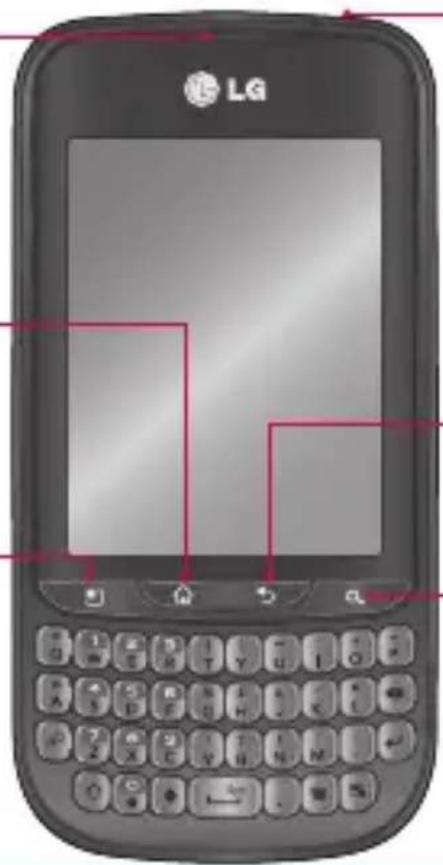
Getting to know your phone
To turn on your phone, press and hold the Power key for 3 seconds. To turn off the phone, press the Power key for 3 seconds, then touch Power Off.
Earpiece
Home key
- Returns to home screen from any screen.
Menu key
- Check what options are available.
text_image
LGPower/Lock key
- Turns your phone on/off when you press and hold the key. - Turns off the screen and locks.
Back key
- Returns to the previous screen.
Search key
- Search the Web and contents in your phone.

WARNING: Placing a heavy object on the phone or sitting on n damage its LCD and the touch screen functionalities. This cause the sensor to malfunction.
TIP! Press the Menu key whenever you tap an application to check what options are available.
TIP! The LG-C660 does not support video calls.
TIP! If your LG-C660 has errors or you cannot turn it on, remove the battery, reinsert it, then turn it on after 5 seconds.
Getting to know your phone
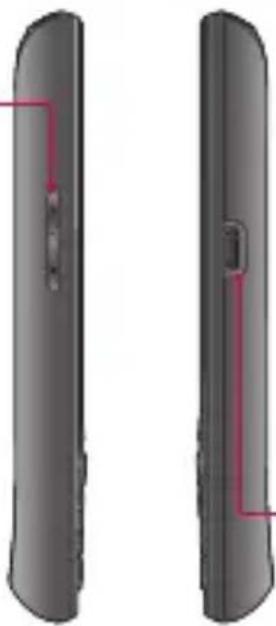
Stereo earphone connector
Volume keys
- On the home screen: Controls ringer volume.
- During a call: Controls your earpiece volume.
- When playing a track: Controls volume continuously.
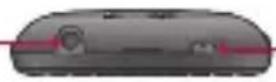
Power/Lock key
- Turns your phone on/off when you press and hold the key.
- Turns the screen off and locks the phone.
natural_image
Two black cylindrical devices with red outline annotations, one side showing a button and the other a handle (no text or symbols)Charger, micro USB cable connector
Microphone
text_image
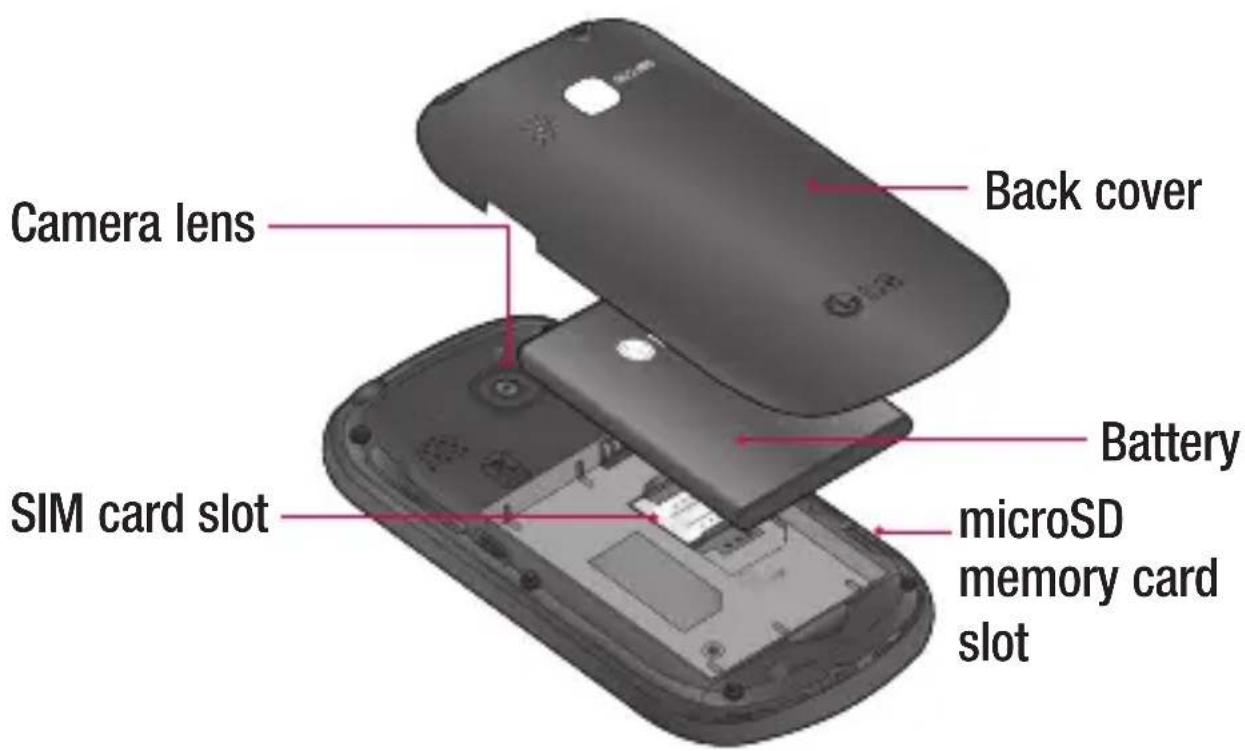
Back cover Camera lens Battery microSD memory card slot SIM card slotInstalling the SIM card and battery
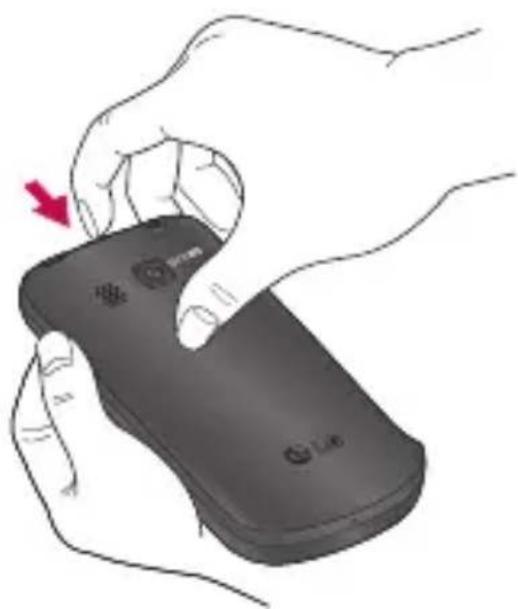
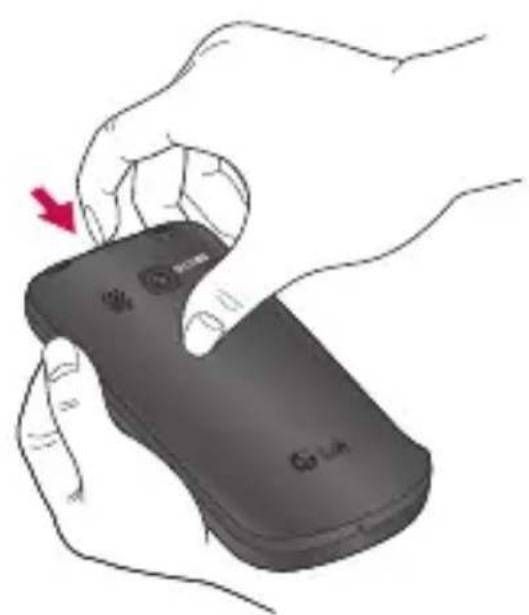
To remove the back cover, 1 hold the phone in your hand firmly. With the other hand, firmly press your thumb on the back cover. Now lift off the back cover.
natural_image
Illustration of a hand holding a black remote control device with a red arrow indicating the left side (no text or symbols present)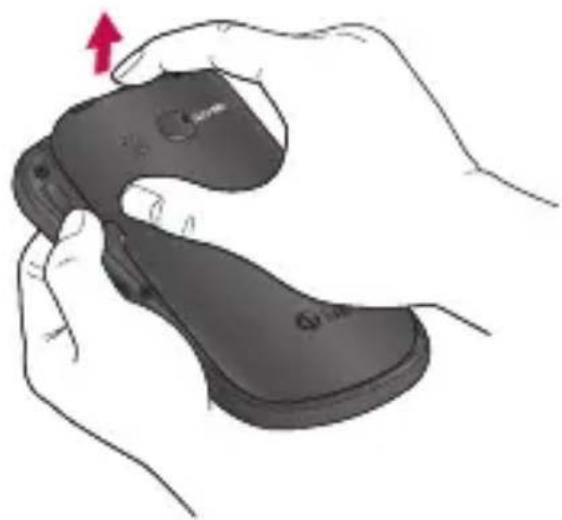
natural_image
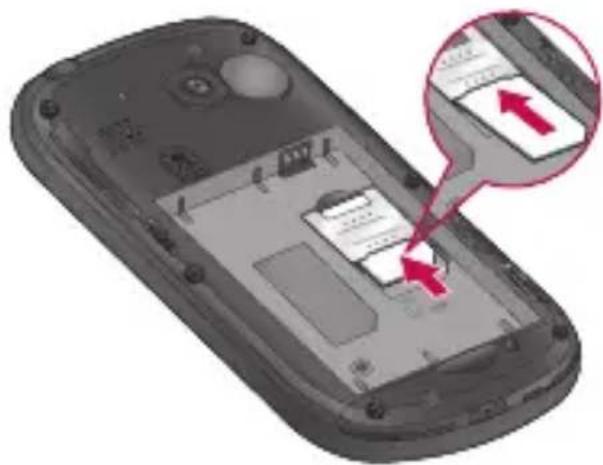
Illustration of hands holding a black flip-flop with a red arrow indicating compression (no text or symbols)Slide the SIM card into the 2 SIM card slot. Make sure the gold contact area on the card is facing downwards.
natural_image
3D model of a mobile phone showing internal components and a close-up of the screen with red arrows indicating action (no text or symbols present)Getting to know your phone
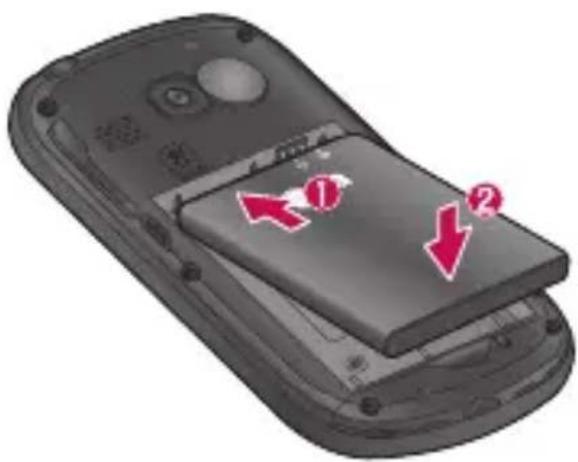
Insert the battery into place 3 by aligning the gold contacts on the phone and the battery.
natural_image
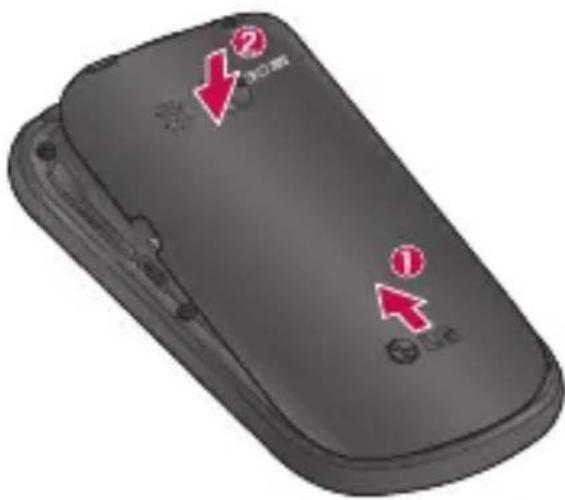
Illustration of a mobile phone with two red arrows indicating moves (no text or symbols present)Replace the back cover of the 4 phone.
text_image
Diagram of a black remote device with labeled buttons and arrows indicating navigation or function points.Charging your phone
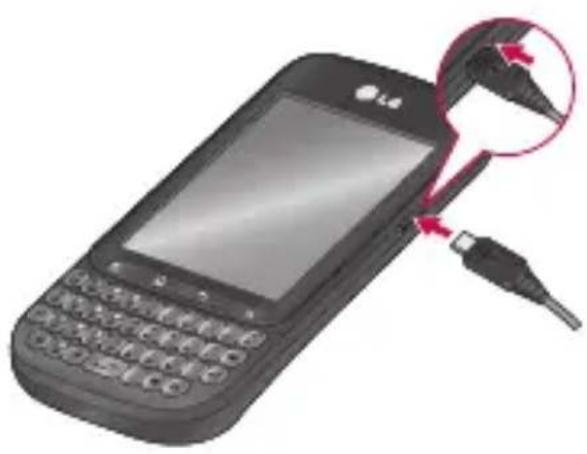
Insert the charger in the charger connector on the side of the phone, then plug it into an electrical outlet. Your LG-C660 must be charged before you see 📄.
natural_image
Illustration of a mobile phone with a cable inserted, showing the screen and keypad (no text or symbols)NOTE: The battery must be fully charged initially to improve battery lifetime.
NOTE: The LG-C660 has an internal antenna. Be careful not to scratch or damage this rear area, as that causes loss of performance.
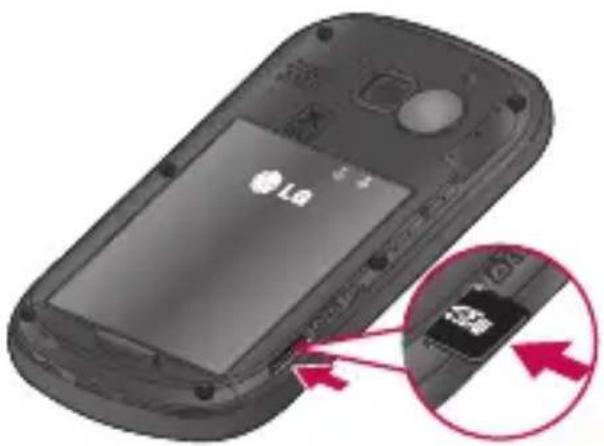
Installing the memory card
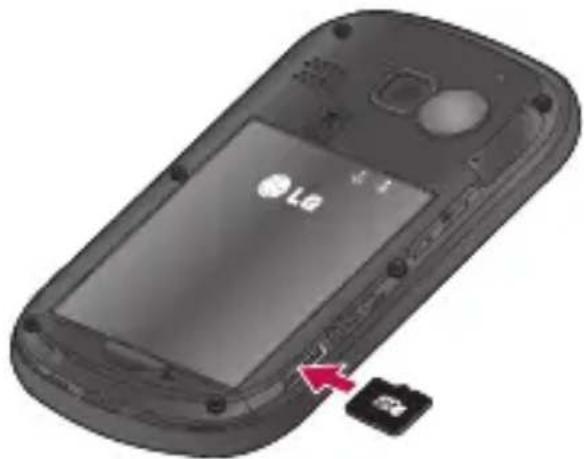
To store multimedia files, such as images captured using the built-in camera, you must insert a memory card into your phone. To insert a memory card:
NOTE: The LG-C660 supports memory cards up to 32 GB.
1 Turn the phone off before inserting or removing a memory card. Remove the back cover.
natural_image
Illustration of a hand holding a black remote control device with a red arrow indicating the action (no text or symbols present)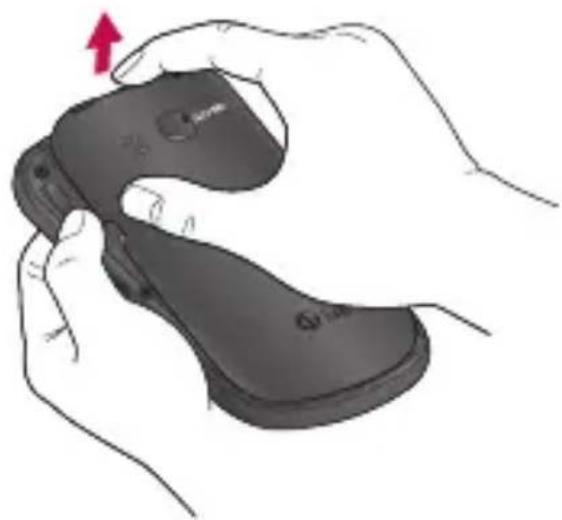
natural_image
Illustration of hands holding a black flip-flop with a red arrow indicating rotation (no text or symbols)Insert the memory card 2 into the slot. Make sure the gold contact area is facing downwards.
natural_image
Close-up of a black LG phone with a small black USB flash drive, showing no text or symbols on the device itself.Getting to know your phone
natural_image
Close-up of a mobile phone showing the screen with 'LG' logo and a close-up of its internal component (no text or symbols visible)Close the back cover. 3

WARNING!
Do not insert or remove the memory card when the phone is on. Doing so may damage the memory card as well as your phone, and the data stored on the memory card may be corrupted.
Formatting the memory card
Your memory card may already be formatted. If it isn't, you must format it before you can use it.
NOTE: All files on the card are deleted when you format the card.
On the home screen, touch 1 the Applications tab to open the Applications menu.
2 Scroll to and touch Settings > Storage, then select Mass Storage Only.
3 Unmount the SD card. If you set a pattern lock, input 4 the pattern lock, then select Erase SD card. The card is then formatted and ready to use.
NOTE: If there is content on your memory card, the folder structure may be different after formatting since all the files will have been deleted.
Your home screen
Touch-screen tips
Here are some tips on how to navigate around your phone.
Touch – To choose a menu/option or to open an application, touch it.
Touch and hold – To open an options menu or grab an object you want to move, touch and hold it.
Drag – To scroll through a list or move slowly, drag across the touch screen.
Flick – To scroll through a list or move quickly, flick across the touch screen (drag quickly and release).
Note
- To select an item, touch the centre of the icon.
- Do not to press too hard; the touch screen is sensitive enough to pick up a light, firm touch.
- Use the tip of your finger to touch the option you want. Be careful not to touch any other keys.
Lock your phone
When you are not using the LG-C660, press the power key to lock your phone. This helps prevent accidental presses and saves battery power.
Also, if you do not use the phone for a while, the home screen or other screen you are viewing is replaced with the lock screen to conserve battery power.
- If there are any programs running when you set the pattern, they may be still running in Lock mode. It is recommended to exit all programs before entering Lock mode to avoid unnecessary charges (e.g., phone calls, Web access and data communications).
Setting unlock pattern: You can draw your own unlock pattern by connecting dots.
If you set a pattern, the phone's screen locks. To unlock the phone, draw the pattern you set on the screen.
Your home screen
Caution: When you set an unlock pattern, you need to create your Gmail account first.
Caution: Precautions to take when using the Pattern Lock. It is very important that you remember the unlock pattern you set. You have 5 opportunities to enter your unlock Pattern, PIN or Password. If you have used all 5 opportunities, you may attempt again after 30 seconds.
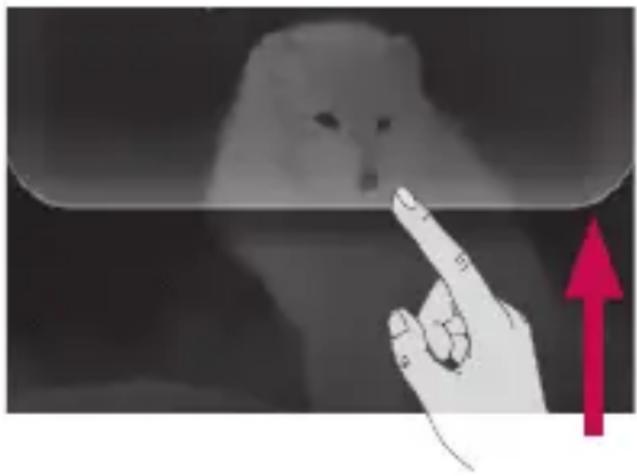
Unlock screen
Whenever your LG-C660 is not in use, it returns to the lock screen. Drag your finger from bottom to top to unlock the screen.
natural_image
Illustration of a hand pointing at a blurred cat face, with a red upward arrow and arrow symbol (no text or symbols present)Silent mode
In the Notification drawer, touch to change to silent mode.
Home
Simply swipe your finger to the left or right to view the panels. You can customise each panel with widgets, shortcuts (to your favourite applications), folders and wallpaper.
NOTE: Some screen images may be different depending on your phone provider.
On your LG home screen, you can view quick keys at the bottom of the screen. Quick keys provide easy, one-touch access to the functions you use the most.
Touch the Phone icon to bring up the touch-dial pad to make a call.
Touch to open contacts.

Touch the Message icon to less the messaging menu.
This is where you can create a new message.

Touch the Applications tab at the bottom of the screen. You can then view all your installed applications.
Adding widgets to your home screen
You can customise your home screen by adding shortcuts, widgets or folders to it. For more convenience using your phone, add your favourite widgets to the home screen.
1 On the home screen, touch the Menu key and select Add. Or touch and hold the empty part of the home screen.
2 On the Add To Home Screen menu, touch the type of item you want to add.
3 For example, select Folders from the list and tap it.
4 You then see a new folder's icon on the home screen. Drag it to the desired location on the desired panel, then take your finger off the screen.
TIP! To add an application icon to the home screen from the Applications menu, touch and hold the application you want to add.
TIP! To remove an application icon from the home screen, touch and hold the icon you want to remove, then drag it to
TIP! You cannot delete preloaded applications. (Only their icons can be deleted from the screen.)
Your home screen
Returning to recently used applications
Press and hold the Home key. The screen displays a pop-up with icons of applications you used recently.
2 Touch an icon to open its application. Or, touch the Back key to return to the current application.
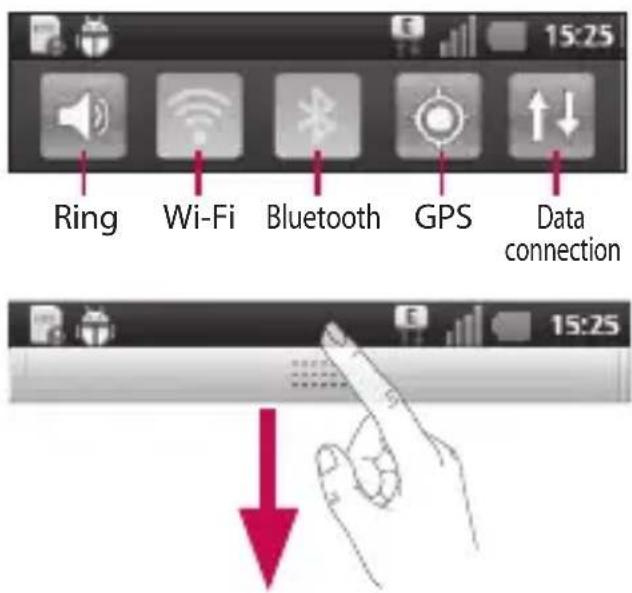
Notification drawer
The notification drawer runs across the top of your screen.
text_image
Ring Wi-Fi Bluetooth GPS Data connectionTouch and slide the Notification drawer down with your finger.
Viewing the status bar
The status bar uses different icons to display phone information, such as signal strength, new messages, battery life and active Bluetooth and data connections.
Below is a table explaining the meaning of icons you're likely to see in the status bar.

[Status bar]
| Icon Description | |
| No SIM card | |
| No signal | |
| Wi-Fi is on and connected | |
| Wired headset | |
| Call forward | |
| Call hold | |
| Speakerphone | |
| Call mute | |
 | Missed call |
 | Bluetooth on |
 | Bluetooth connected |
 | System warning |
 | Alarm |
 | New voicemail |
 | Airplane mode |
 | Silent |
 | Vibrate |
 | No SD card |
 | Battery fully charged |
| [T2BY] | Battery is charging |
 | Data in |
 | Data out |
 | Data in and out |
 | USB to PC |
 | Download |
| Icon Description | |
 | Upload |
| [HW23] | GPS is acquiring |
| [HZZK] | GPS is on |
Entering text
Qwerty keyboard
Shift key – Press once to capitalise the next letter you type. Double-press for All Caps.
Number and Symbols
key – Press to change between character and number/symbol input.
Enter key
Delete key
Language key – Press and hold to change the writing language.
Calendar key – Goes to the calendar.
Email key – Goes to email.
Your home screen
Virtual keyboard
Use the virtual keyboard by holding your phone horizontally. To display the keyboard, touch a text field.

Tap to change between acter and number/symbol e.

Tap to toggle between ercase and uppercase. To at one capital letter, tap e. If you tap this key twice, ercase is locked.

Touch to change the writing usage. Touch and hold to ct multiple writing language.

Use to enter a space.
This key works as the tab

Use to delete text.
Entering accented letters
To enter accented letters:
Virtual keyboard: • Touch and hold the corresponding letter; you then see the special character.
• Qwestykeyboard:
same key repeatedly until you see the special character you want.
Entering numbers
Press to add one number. If you want to add numbers in a row, press twice. To return to text mode, press again.
Google account setup
The first time you open the Google application on your phone, you are required to sign in with your existing Google account. If you do not have a Google account, you are asked to create one.
Creating your Google account
On the home screen, touch 1 the Applications tab open the Applications menu.
Tap2Gmail, then tap Next > Create to start the Gmail™ setup wizard.
3 Enter your name and username for your Google account.
4 Tap Next. Your phone is now communicating with Google servers and checking username availability.
5 Enter and re-enter your password. Follow the instructions and enter the required and optional information about your account. Wait while the server creates your account.
Signing in to your Google account
Enter your email address and 1 password, then tap Sign In. Wait while the system signs you in.
2 After signing in, you can use Gmail™ and take advantage of Google services on your phone.
3 Once you have set up your Google account on your phone, your phone automatically synchronises with your Google account on the Web. (This depends on your synchronisation settings.)
After signing in, you can use other Google services on your phone.
Google account setup
IMPORTANT
Some applications, such as Calendar, work only with the first Google Account you add. If you plan to use more than one Google Account on your phone, be sure to sign in to the one you want to use with such applications first. When you sign in, your contacts, Gmail messages, Calendar events and other information from these applications and services on the Web are synchronised with your phone. If you do not sign in to a Google account during setup, you are asked to sign in or create a Google account the first time you start an application that requires one, such as Gmail or Android Market™.
- If you have an enterprise account through your company or other organisation, your IT department may have special instructions on how to sign in to that account.
Calls
Making a call
Touch 1 to open the keypad.
2 Enter the number using the keypad. To delete a digit,
touch the Clear icon
3 Touch the Call icon to make a call.
4 To end a call, touch and drag left the End icon
TIP! To enter “+” to make international calls, touch and hold 0+.
Calling your contacts
Touch 1 to open your contacts.
2 Scroll through the contact list or enter the first letter(s) of the contact you want to call by touching Search.
3 In the list, touch the contact you want to call.
4 Touch the contact from info tab.
Answering and rejecting a call
When your phone rings, drag the Answer icon to the right.
Drag the Decline icon to the left to reject an incoming call. Drag the Excuse Message bar from the bottom if you want to send one.
Adjusting call volume
To adjust the in-call volume during a call, use the Volume Up and Down key on the left side of the phone.
Making a second call
During your initial call, touch 1
Then, select the number you want to call.
2 Dial the number, or search your contacts.
3 Touch the Call icon to connect the call.
Calls
Both calls are displayed on 4 the call screen. Your initial call is locked and put on hold.
5 Toutoggle between calls. Or touch 🤒 to make a conference call.
6 To end active calls, touch End Call. If there is no active call, it ends the Hold Call. To end all calls at the same time, press the Menu key and select End All Calls.
NOTE: You are charged for each call you make.
Viewing your call logs
On the home screen, touch and choose the Call Log tab

View a complete list of all dialled, received and missed voice calls.
TIP! Touch any single call log entry to view the date, time and duration of the call.
TIP! Press the Menu key, then touch Clear Call Log to delete all the recorded items.
Call settings
You can configure phone call settings, such as call forwarding and other special features offered by your carrier.
1 From Applications scroll and touch Settings.
2 Tap Call Settings.
Contacts
Add contacts to your phone and synchronise them with the contacts in your Google account or other accounts that support contact syncing.
Searching for a contact
On the home screen
1 Touch to open your contacts.
2 Search and enter the contact name using the keypad.
Adding a new contact
Touch 1, enter the new contact's number, then press the Menu key. Now, touch Add To Contacts and then Create New Contact.
2 If you want to add a picture to the new contact, touch . Choose from Take a Picture or Pick from Gallery.
3 Select the contact type by touching
4 Touch a category of contact information and enter the details about your contact.
Touch Save.
Favourite contacts
You can classify frequently called contacts as favourites.
Adding a contact to your favourites
Touch1 to open your contacts.
2 Touch a contact to view its details.
3 Touch the star at the right of the contact's name. The star turns blue.
Removing a contact from your favourites list
Touch 1 to open your contacts.
2 Touch the Favourites tab and choose a contact to view its details.
3 Touch the blue star at the right of the contact's name. The star turns grey and the contact is removed from your favourites.
Messaging/email
Messaging
Your LG-C660 combines SMS and MMS into one intuitive, easy-to-use menu.
Sending a message
Touch the 1 icon, then touch New Message.
2 Enter a contact name or number into the To field. As you enter the contact name, matching contacts appear. Touch a suggested recipient. You can add multiple contacts.
NOTE: You are charged for one text message for every person you send the message to.
3 Touch Type To Compose below to start entering your message.
4 Press the Menu key to open the Options menu. Choose from Add Subject, Attach, Insert Smiley, All Threads.
5 Touch Send to send your message.
6 Responses appear on the screen. As you view and send additional messages, a message thread is created.
WARNING: The 160-character limit may vary from country to country depending on the language and how the SMS is coded.
WARNING: If an image, video or audio file is added to an SMS message, it is automatically converted into an MMS message, and you are charged accordingly.
NOTE: When you get an SMS during a call, you receive a notification.
Threaded box
Messages (SMS, MMS) exchanged with another party can be displayed in chronological order so that you can conveniently see an overview of your conversation.
Using emoticons
When writing a new message, press the Menu key, then choose Insert Smiley.
Changing your message settings
Your LG-C660 message settings are predefined so you can send messages immediately. You can change the settings based on your preferences.
Setting up your email
Touch the Applications tab and select Email. If the email account is not set up, you need to start the email setup wizard.
TIP! If an email account is already set up, the wizard is not activated.
You can select the mailbox type between MS Exchange and Others.
Microsoft Exchange email account
Email Address – Enter the email address.
User Name – Enter the account's user name.
Password – Enter the account's password.
Domain – Enter the account's domain (optional).
Server Address – Enter the server address.
Messaging/email
Use SSL – Choose whether to use SSL for Microsoft Exchange.
Sync Contacts – Choose whether to synchronize Contacts of the Microsoft Exchange account.
Sync Calendar – Choose whether to synchronize Calendar of the Microsoft Exchange account.
Touch the Next button to connect to the server.
The Setup Complete screen appears and you need to enter “name” for account display and your name.
Now the account appears in the list of accounts.
Other (POP3, IMAP) email account
Email Address – Enter the email address.
Password – Enter the account's password.
Choose whether to enable push email. Once enabled, it immediately connects to the server.
The Setup Complete screen appears and you need to enter a “name”.
Now the account appears in the list of accounts.
Accounts screen
The Accounts screen lists your combined Inbox and each of your email accounts.
- Touch the Application tab and select Email. The Account list screen appears.
TIP! If you want to move the account icon to your home screen, click the Add To Home Screen menu after touching and holding an email account in the account lists. Touch the icon to go to the Inbox directly.
You can touch an account to view its Inbox. The account from which you send email by default is indicated with a checkmark.
Composing and sending email
To compose and send an email While in the Email application, touch the Menu key and then Compose.
2 Enter an address for the message's recipient. As you enter text, matching addresses are offered from your contacts. Separate multiple addresses with commas.
3 Touch the Menu key and Add Cc/Bcc to Cc or Bcc other contacts/email addresses.
4 Enter the text of the message body.
5 Touch Attach to attach a file you want to send with your message.
6 Touch Send.
If you're not ready to send the message, touch the Menu key and then Save As Draft to save it to a Drafts folder. Touch the draft message in the Drafts folder to resume working on it. Your message is also saved as a draft if you touch the Back key before sending it. If you aren't connected to a network, the messages you send are stored in your Outbox folder until you connect to a network. If it contains any pending messages, the Outbox is displayed on the Accounts screen.
5 Touch Attach to attach a file you want to send with your message.
6 Touch Send.
If you're not ready to send the message, touch the Menu key and then Save As Draft to save it to a Drafts folder. Touch the draft message in the Drafts folder to resume working on it. Your message is also saved as a draft if you touch the Back key before sending it. If you aren't connected to a network, the messages you send are stored in your Outbox folder until you connect to a network. If it contains any pending messages, the Outbox is displayed on the Accounts screen.
Messaging/email
Please note that messages sent using an Exchange account are not located on the phone; they are located on the Exchange server itself.
If you want to see your sent messages in the Sent folder (or with the Sent label), you often need to open the Sent folder/label and select Refresh from the Options menu.
TIP! When a new email arrives in the Inbox, you receive notification by sound or vibration. Tap the email notification to stop notification.
Working with account folders
Each account has Inbox, Outbox, Sent and Drafts folders. Depending on the features supported by your account's service provider, you may have additional folders.
Adding and editing email accounts
To add an email account:
Touch the Applications tab, then select Email.
2 Messu key > Select Add account.
Enter the information for 3 adding the account. (Refer to Setting Up Your Email.)
4 Enter a name to set how you want your name to appear in outgoing mail, then touch Done.
To change account settings:
Open Email, Select Menu key > Settings.
To change individual account settings select the account you want to edit.
Incoming Server – Enter the incoming email server address.
Port Number – Displays incoming server port number.
Secure Type – Choose from TLS, SSL and Off.
Outgoing Server – Enter the outgoing email server address.
Port Number – Displays outgoing server port number.
SMTP Secure Type – Choose from TLS, SSL and Off.
To delete an email account
Open Email, touch and hold the account you want to delete. Select delete in the menu that opens, touch yes confirm delete.
Camera
Getting to know the viewfinder
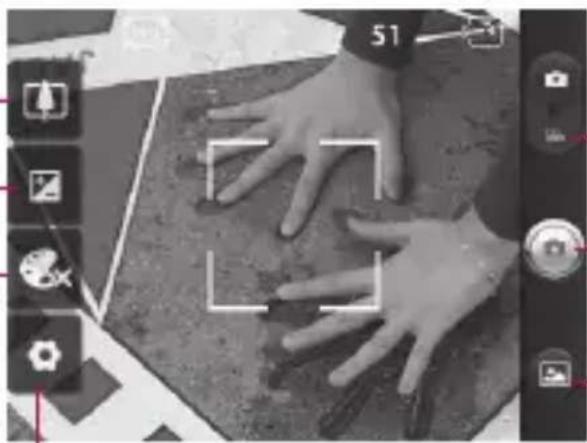
Brightness – This defines and controls the amount of light entering the image. Slide the brightness indicator along the bar towards “-” for less brightness, or towards “+” for more brightness.
Zoom – Zoom in or zoom out. Alternatively, you can use the side volume keys.
natural_image
Top-down view of hands on a textured surface with camera interface elements (no readable text or symbols)Video mode – Slide this icon down to switch to Video mode.
Taking a photo
Gallery – This allows you to access your saved photos while in Camera mode. Simply touch, and your gallery appears on the screen.
Settings – Touch this icon to open the Settings menu. See Using The Advanced Settings.
Colour effect – Choose from Off, Mono, Negative, Solarize, Sepia, and Aqua.
NOTE: You need to insert a memory card first to take a picture. Without inserting a memory card, you cannot take a picture or save the picture you took.
TIP! Close all shortcut options to give a clearer viewfinder screen. Touch the centre of the viewfinder once. To display the options, touch the screen again.
Taking a quick photo
Open the Camera application.1 Holding the phone 2 horizontally, and point the lens towards the subject you want to photograph.
3 Tap in the center of the screen; a focus box then appears in the centre of the viewfinder screen.
4 Position the phone so you can see the subject in the focus box.
5 Press the Capture button.
Once you've taken the photo
Your captured photo appears on the screen.
Share
Touch to share your photo using Bluetooth, Email, Facebook, Gmail, Messaging, Picasa or Twitter.
Set As
Touch to use the image as a contact icon or wallpaper.
Rename
Touch to edit the name of the selected picture.

Touch to delete the image.

Touch to take another photo immediately. Your current photo is saved.

Touch to view a gallery of your saved photos.
Camera
Using the advanced settings
In the viewfinder, touch open all advanced optio

Change camera settings by scrolling the list. After selecting the option, touch the Back key.
Image size – Touch to set the size (in pixels) of the picture you take. Select a pixel value from the numerical options: 3M (2048 x 1536), 2M (1600 x 1200), 1M (1280 x 960), VGA (640 x 480), QVGA (320 x 240).
ISO – The ISO rating determines the sensitivity of the camera's light sensor. The higher the ISO, the more sensitive the camera is. This is useful under darker conditions when you cannot use the flash. Select from ISO values of Auto, 400, 200 and 100.
White Balance – Choose from Auto, Incandescent, Sunny, Fluorescent, and Cloudy.
Timer – The self-timer allows you to set a delay after the shutter is pressed. Select Off, 3 Seconds, 5 Seconds, or 10 Seconds. This is ideal if you want to be in the photo.
Image Quality – Choose from Super Fine, Fine, and Normal.
The finer the quality, the sharper the photo. However, the file size increases as a result, which means you can store fewer photos in the memory.
Auto Review – If you set Auto Review on, it automatically shows you the picture you just took.
Shutter Sound — Select one of four shutter sounds.
Tag Location – Activate to use your phone’s location-based services. Take pictures wherever you are and tag them with the location. If you upload tagged pictures to a blog that supports geotagging, you can see the pictures displayed on a map.
NOTE: This function is only available when GPS is active.
Reset 📋 Restore all camera default settings.
? — Touch whenever you want to know how this function operates. This provides you with a quick guide.
TIP! When you exit the camera, all settings return to their defaults, except image size, image quality, ISO and Shutter sound. Any non-default settings must be reset, such as colour tone. Check these before you take your next photo.
TIP! The settings menu is superimposed over the viewfinder, so when you change elements of the image colour or quality, you see a preview of the image change behind the settings menu.
Viewing your saved photos
Access your saved photos 1 while in Camera mode. Just touch 📋 and touch on any photo. You then see Slideshow and Menu.
TIP! Flick left or right to view other photos or videos.
- Touch to see a slideshow. - Touch to share the contents or delete.
Touch More for more options.
Details – Check information on the content.
Set As – Set as a contact icon or wallpaper.
Crop – Crop your photo. Move your finger across the screen to select the area.
Rotate left - Rotates the image to left.
Rotate right - Rotates the image to right.
Video camera
Getting to know the viewfinder
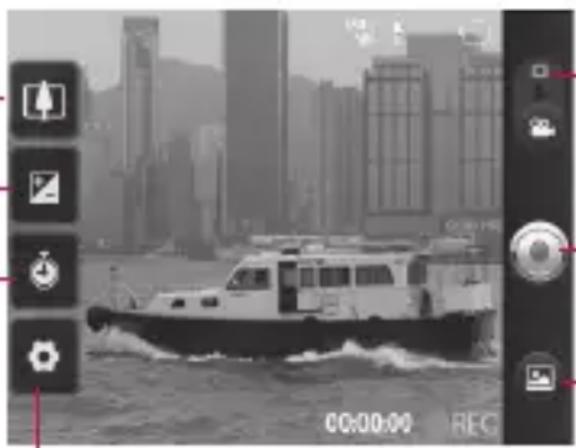
Brightness – This defines and controls the amount of light entering the video. Slide the brightness indicator along the bar towards “-” for less brightness, or towards “+” for more brightness.
Zoom – Zoom in or out. Alternatively, you can use the side volume keys. Before shooting a video, you can use the zoom function. You cannot control the zoom function while shooting.
natural_image
Black-and-white photo of a boat on water with city skyline in background, no visible text or symbolsSettings – Touch this icon to open the Settings menu. See Using The Advanced Settings.
Camera mode – Slide this icon to switch to Camera mode.
Start shooting
Gallery – This allows you to access your saved photos and videos while in Camera mode. Simply touch, and your gallery appears on the screen.
Duration – Set a duration limit for your video. Choose between Normal and MMS to limit the maximum size if you send it in an MMS message.
TIP! When choosing MMS duration, the video quality is set to QCIF and you can shoot shorter videos only.
Shooting a quick video
Slide the Camera mode 1 button down and the icon changes to 🔒.
2 The video camera's viewfinder appears on the screen.
3 Holding the phone horizontally, point the lens towards the subject you want to in your video.
4 Press the Capture button once to start recording. REC turns to red at the bottom 5 of the viewfinder with a timer showing the length of the video.
Touch 6 on the screen to stop recording.
After shooting a video
A still image representing your video appears on the screen.
Play
Share
Touch to play the video.
Touch to share your video using Bluetooth, Email, Gmail™, MMS or YouTube™.
Rename
Touch to edit the name of the selected video.

Touch to shoot another video right away. Your current video is saved.

Touch to delete the video you just made, and confirm by touching 0k. The viewfinder reappears.

Touch to view a gallery of your saved videos.
Using the advanced settings

Using the viewfinder, touch to open all the advanced options. Adjust the video camera setting by scrolling the list. After selecting the option, touch the Back key.
Video Size — Touch to set the size (in pixels) of the video you shoot. Choose your video image size.
White Balance – White balance ensures that the white areas in your video are realistic. To
Video camera
enable your camera to adjust the white balance correctly, you may need to determine the light conditions. Choose from Auto, Incandescent, Sunny, Fluorescent and Cloudy.
Colour effect – Choose a colour tone to use for your new view.
Video Quality – Choose from Super Fine, Fine and Normal.
Audio Recording – Choose Mute to record a video without sound.
Auto Review – Auto
Review automatically shows you the video you just recorded.
Reset 📄 Restore all video camera default settings.
? — Touch whenever you want to know how this function operates. This provides you with a quick guide.
2 Your gallery appears on the screen.
3 Touch a video once to bring it to the front of the gallery. It starts playing automatically.
Watching your saved videos
In the viewfinder, touch 1.
Your photos and videos
Adjusting the volume when viewing a video
To adjust the volume of a video while it is playing, use the volume keys on the left side of the phone.
Setting a photo as wallpaper
Touch the photo you want to 1 set as wallpaper to open it.
2 Touch the screen to open the Options menu.
3 Toenu, then touch more, then touch, Set As then touch wallpaper.
4 Adjust the size of the wallpaper you want to set, then touch save.
Multimedia
You can store multimedia files to a memory card to have easy access to all your image and video files.
Touch the Applications tab, then select Gallery. Open a list of catalogue bars that store all your multimedia files.
NOTE: Make sure you install a memory card into the phone to save photos and access all your pictures. Without a memory card, the phone does not display photos or videos without Picasa images, which are in your Picasa album.
View model
Touch Gallery and Folder view is displayed.
Touch any folder and it turns to Grid View mode. If you tap a photo, it changes into Full View mode.
Timeline view
LG-C660 Gallery provides a timeline view of your photos and videos. In Grid View mode, drag
to the right and the date you took your photos is displayed starting with the latest.
My Images options menu
Select a photo, then press the Menu key to see the available options.
Sending a photo
To send a photo, touch and 1 hold the photo you want.
2 Select Share Choose from Bluetooth, Email, Gmail™, Messaging, SNS or Picasa.
When you choose Email, Gmail™ or Messaging, your photo is attached to a message; you then write and send the message normally.
TIP! If you have an SNS account and set it up on your phone, you can share your photo with the SNS community.
Sending a video
To send a video, touch and 1 hold the video you want.
2 Select Share. Choose from Bluetooth, Email, Gmail™, Messaging or YouTube™.
3 When you choose Email, Gmail™ or Messaging, your video is attached to a message; you then write and send the message normally.
Using an image
Choose images to use as wallpaper or to identify callers.
1 Touch and hold, then select Set As from More menu.
2 Choose from Contact Icon, or Wallpaper.
Creating a slideshow
In Full View mode, you can watch a slideshow so you don't have to open and close each image.
1 Touch and open a photo, then select Slideshow.
Checking your photo
You can view a photo's detailed information, such as Name, Date, Time, Size and Type.
Touch Menu > More > Details.
Transferring files using USB mass storage devices
To transfer files using USB devices:
1 Connect the LG-C660 to a PC using a USB cable.
2 If you haven't installed LG Android Platform Driver on your PC, you need to change the settings manually. Choose Settings > Storage, then select Mass Storage Only.
Multimedia
3 Touch Turn on USB Storage.
4 You can view the mass storage contents on your PC and transfer the files.
NOTE: You need to install a SD card first. Without a SD card, you cannot use USB mass storage.
NOTE: If you installed LG Android Platform Driver, you immediately see a pop-up with Turn On USB Storage.
Music
Your LG-C660 has a built-in music player that lets you play all your favourite tracks. To access the music player, touch Music.
Playing a song
On the home screen, touch 1 the Applications tab and select Music.
2 Touch Songs.
3 Select the song you want to play.
4 Touclause the song.
5 Touskip to the next song.
6 Tough back to the first part of the song. Touch twice to return to the previous song.
To change the volume while listening to music, press the up and down volume keys on the left side of the phone.
Touch and hold any song in the list. It displays Play, Add To Playlist, Use As Phone Ringtone, Delete, Details, and Search as options.
NOTE: Music file copyrights may be protected by international treaties and national copyright laws.
Therefore, it may be necessary to obtain permission or a licence to reproduce or copy music. In some countries, national laws prohibit private copying of copyrighted material. Before downloading or copying the file, check the national laws of the relevant country concerning the use of such material.
Using the radio
Your LG-C660 has a built-in FM radio so you can tune in to your favourite stations and listen on the go.
NOTE: You must attach your headphones to listen to the radio. Insert them into the headphone jack.
Searching for stations
You can tune in to radio stations by searching for them manually or automatically. They are then saved to specific channel numbers, so you don't have to find them again.
You can store up to 48 channels on your phone.
Tuning in automatically
1 On the home screen, touch the Applications tab and select FM radio.
2 Press the Menu key, then touch Auto Scan
3 If there are preset channels, you see a pop-up asking "Reset all channels and start auto scan?". If you choose OK, all the preset channels are deleted and Auto Scan starts.
4 During auto scanning, touch Stop if you want to stop scanning. Only scanned channels before you stop scanning are saved.
NOTE: You can also manually tune in to a station using the displayed wheel.
Resetting channels
Press the Menu key and choose Reset to reset all the channels.
Multimedia
Listening to the radio
Touch the speaker Icon which 1 is at the left top in the radio screen to listen to radio via speaker.
TIP! To improve radio reception, extend the headset cord, which functions as the radio antenna.

WARNING:
If you connect a headset not specifically made for radio reception, radio reception may be poor.
Utilities
Setting your alarm
On the home screen, touch 1 the Applications tab and select Clock.
2 If you want to add a new alarm, touch 📋 then touch add alarm.
3 Input the desired time, then touch set. Touch to turn on/off the alarm. After you set the time, the LG-C660 lets you know how much time is left before the alarm sounds.
4 Set Repeat, Ringtone or Vibrate, then add a label to name the alarm. Touch Done.
5 Press the Menu key to add an alarm, or adjust the snooze duration or alarm volume from Settings.
Using your calculator
On the home screen, touch 1 the Applications tab and select Calculator.
2 Touch the number keys to enter numbers.
3 For simple calculations, touch the function you want (+, -, x or ÷), followed by =.
4 For more complex calculations, press the Menu key, touch the Advanced panel, then choose Sin, Cos, Tan, Log and so on.
Adding an event to your calendar
On the 1 home screen, touch the Applications tab and select Calendar.
2 First, you must create a Google account to use Calendar.
3 To check the event, touch the date. Touch and hold if you want to add a new event. Now touch New Event.
4 Touch What, then enter the event name. Check the date and enter the time you want your event to begin and finish.
5 Also, touch Where, then enter the location.
Utilities
If you want to add a note to 6 your event, touch Description and enter the details.
7 If you want to repeat the alarm, set Repetition, and set Reminders, if necessary.
8 Touch Done to save the event to the calendar. A coloured square in the calendar marks all days that have saved events. An alarm sounds at the event start time to help you stay organised.
Changing your calendar view
On the home screen, touch 1 the Applications tab and select Calendar.
2 Select the calendar view for a particular day, week or month.
Polaris Viewer
Polaris Viewer is a professional mobile office solution that lets users conveniently view various types of office documents, including Word, Excel and PowerPoint files, anywhere, anytime, using their mobile devices.
Managing files
Polaris Viewer provides mobile users with convenient file management features, including copying, cutting and pasting, and deleting files and folders right on the device.
Viewing files
Mobile users can now easily view a wide variety of file types, including Microsoft Office documents and Adobe PDF, right on their mobile devices. When viewing documents using Polaris Viewer, the objects and layout remain the same as in their original documents.
Voice recorder
Use the voice recorder to record voice memos or other audio files.
Recording a sound or voice
On the home screen, touch 1 the Applications tab and select Voice Recorder.
2 Toadbegin recording.
3 Touchnd recording.
4 Press the Menu key and select Use As ringtone to set the recording as the Phone ringtone.
NOTE: Touch Go To List to access your album. You can listen to the saved recording.
Sending the voice recording
Once you have finished 1 recording, you can send the audio clip by touching the Menu key and Share.
2 Choose from Bluetooth, Email, Gmail™ and Messaging. When you select Email, Gmail™ and Messaging, the voice recording is added to the message, then you write and send the message normally.
The Web
Browser
Browser gives you a fast, full-colour world of games, music, news, sports, entertainment and much more, right on your mobile phone. Wherever you are and whatever you enjoy.
NOTE: Additional charges apply when connecting to these services and downloading content. Check data charges with your network provider.
Using options
Press the Menu key to view options.

New Window – Open a new window.

Bookmark – Add/Show Bookmark and show Most Visited Site and History.

Window – Show all your open windows.

Refresh – Touch to refresh the Web page.

Forward – Goes to the page you connected to after the current page. This is the opposite of what happens when you press the Back key, which goes to the previous page.

More
- AddBookmark current Web page as a bookmark.
- FindyOn Page enter a letter or word, all instances on the Web page are marked.
- SelectText and select the lines you want to copy. Long touch any input box, then paste it.
• Page on the Web page information.
• Share Page Web page. - Downloads download history.
- Settingsowser settings.
TIP! To return to the previous Web page, press the Back key.
Adding and accessing bookmarks
Press the Menu key, then select Bookmarks.
2 Touch the first item, Add, then enter a name for the bookmark followed by its URL
3 To access the bookmark, simply touch it. You are then connected to the bookmarked page.
Changing Web browser settings
Press the Menu key, then select More > Settings.
Settings
Wireless & Networks
Here, you can manage Wi-Fi and Bluetooth. You can share your phone's mobile data connection via USB or as a portable Wi-Fi hotspot, set up Virtual Private Network. Also, you can set mobile networks and Airplane mode.
Airplane mode – After setting Airplane mode, all wireless connections are disabled.
Call settings
Change call settings, Call forwarding, call divert, call barring, call waiting, voicemail, FDN, etc.
Sound
Adjust sound, notification default settings and vibrate mode. You can also manage audible and haptic feedback.
Display
Brightness – Adjust the screen brightness.
Auto-Rotate Screen – Set to switch orientation automatically when you rotate the phone.
Animation – Set to display an animation.
Screen Timeout – Set the time for screen timeout.
Location & Security
Use Wireless Networks – If you select Use Wireless Networks, your phone determines your approximate location using Wi-Fi and mobile networks. When you select this option, you’re asked whether you consent to allowing Google to use your location when providing these services.
Use GPS Satellites – If you select Enable GPS Satellites, your phone determines your location to street-level accuracy.
Set Up Screen Lock – Set an unlock pattern to secure your phone. Opens a set of screens that guide you through drawing a screen unlock pattern. You can set PIN or Password instead of Pattern or leave it as None.
When you turn on your phone or wake up the screen, you're asked to draw your unlock pattern to unlock the screen.
Set up SIM/RUIM card lock — Set up SIM card lock or change the SIM PIN.
Visible Passwords – Select to show passwords as you type them or deselect to hide passwords as you type them.
Select Device Administrators – Add one or more administrators.
Use Secure Credentials – Allows you to access secure certificates.
Install From SD Card – Choose to install encrypted certificates from your SD card.
Set Password – Set or change the credential storage password. Clear Storage – Clear credentials for all content and reset password.
Applications
You can manage applications and set up quick launch shortcuts.
Unknown Sources – Default setting to install non-Market applications.
Quick launch- Set keyboard shortcuts to launch application.
Manage Applications — Manage and remove installed applications.
Running Services – Check currently running services.
Development — Set options for application development.
Storage Use – View storage used by applications.
Battery Use – See what has been using the battery.
Settings
Accounts & Sync
Activate Background data synchronisation or Auto-sync. Check or add accounts.
Privacy
You can reset the phone to factory data settings. Be careful, as this deletes all your data.
Storage
Change USB connection mode. Check Total / available SD card space. Touch Unmount SD Card for safe removal. Erase SD Card if you want to delete all data from the SD card.
Search
Touch Google Search to adjust Google search settings.
Adjust Searched Items so you get the information you want effectively. Choose from Web, Apps, Contacts, Messaging, Music, Twitter and Voice Search.
Language and keyboard
Set local language and region as well as keyboard settings.
Voice Input & Output
Use the Text-to-Speech settings to configure the Android text-to-speech synthesiser for applications to use it.
Accessibility
Use the Accessibility settings to configure accessibility plug-ins you installed on your phone.
Note: Requires additional plugins to become selectable.
Date & Time
Set date, time, time zone and formats.
About Phone
View legal information, and check phone status and software version.
Wi-Fi
With Wi-Fi, you can use high-speed Internet access within the coverage of the wireless access point (AP).
Enjoy wireless Internet using Wi-Fi, without extra charges.
Turning on Wi-Fi
From the home screen, open the Notification drawer and touch

From Menu, choose Settings > Wireless & networks > Wi-Fi

Connecting to Wi-Fi
Choose the Wi-Fi network you want to connect to. If you see 📞, you need to enter a password to connect.
TIP!
If you are outside the Wi-Fi coverage area and choose 3G connection, additional charges may apply.
TIP!
If your phone goes into Sleep mode when connected to Wi-Fi, the Wi-Fi connection is automatically disabled.
In this case, if your phone has access to 3G data, it may connect to the 3G network automatically, and additional charges may apply.
USB tethering
You can share your phone's Internet connection with your computer.
Tether your phone to your computer with a USB cable.
Settings > Wireless & networks
Tethering & Portable Hotspot USB Tethering.
For more information regarding USB tethering, click Help.
TIP!
To use USB tethering, you first need to install PC Suite onto your PC.
Wi-Fi
Wi-Fi tethering
Use your LG-C660 as portable Wi-Fi hotspot.
Settings > Wireless & networks
Tethering & Portable Hotspot
Portable Wi-Fi Hotspot.
NOTE: The LG-C660 supports WEP, WPA/WPA2-PSK and 802.1x EAP security. If your Wi-Fi service provider or network administrator sets encryption for network security, enter the key into the pop-up window. If encryption is not set, this pop-up window is not shown. Obtain the key from your Wi-Fi service provider or network administrator.
Software update
Phone Software update
LG Mobile Phone Software update from internet.
For more information on using this function, please visit the http://update.lgmobile.com or http://www.lg.com/common/index.jsp → select country and language.
This feature allows you to update the firmware of your phone to the newer version conveniently from the internet without the need to visit a service centre. This feature is only available if and when LG makes the newer version of the firmware available for your device.
As the mobile phone firmware update requires the user's full attention for the duration of the update process, please make sure to check all instructions and notes that appear at each step before proceeding. Please note that removing the USB data cable or battery during the upgrade may seriously damage your mobile phone.
NOTE: LG reserves the right to make firmware updates available only for selective models at its own discretion and does not guarantee the availability of the newer version of the firmware for all handset models.
LG Mobile Phone Software update via Over-the-Air (OTA).
This feature allows you to update the firmware of your phone to the newer version conveniently via OTA without connecting the USB data cable.
This feature is only available if and when LG makes the newer version of the firmware available for your device.
First, you can check the software version on your mobile phone:
Settings > About phone > Software update > Software update check.
Software update
DivX Mobile DIVX
ABOUT DIVX VIDEO: DivX® is a digital video format created by DivX, LLC, a subsidiary of Rovi Corporation. This is an official DivX Certified® device that plays DivX video. Visit divx.com for more information and software tools to convert your files into DivX videos.
ABOUT DIVX VIDEO-ON-DEMAND: This DivX Certified® device must be registered in order to play purchased DivX Video-on-Demand (VOD) movies. To obtain your registration code, locate the DivX VOD section in your device setup menu. Go to vod.divx.com for more information on how to complete your registration.
DivX Certified® to play DivX® video up to 320x240. DivX®, DivX Certified® and associated logos are trademarks of Rovi Corporation or its subsidiaries and are used under license.
Notice!
Open Source Software
To obtain the corresponding source code under GPL, LGPL, MPL and other open source licences, please visit http://opensource.lge.com/ All referred licence terms, disclaimers and notices are available for download with the source code.
Accessories
These Accessories are available for use with the LG-C660.
(Items described below may be optional.)
Travel Adapter
natural_image
3D rendering of a black rectangular electronic component with two terminal pins (no text or symbols visible)Data cable
Connect your LG-C660 and PC.
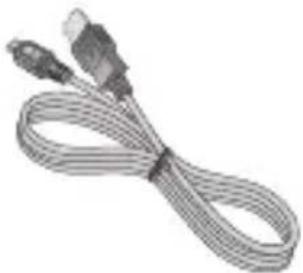
natural_image
Coiled cable with two connectors (no text or symbols visible)Battery User Guide
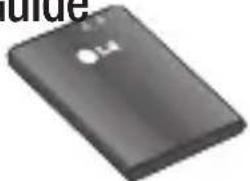
natural_image
Close-up of a black electronic device with a white logo on the cover (no readable text or symbols)Learn more about your LG-C660.
natural_image
Exterior view of a silver rectangular electronic device (no visible text or symbols)Stereo headset
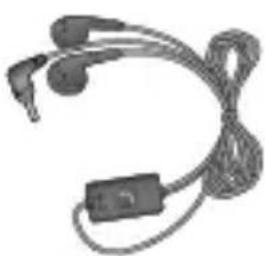
natural_image
Coiled black electronic device with earplugs and a rectangular connector (no visible text or symbols)NOTE:
Always use genuine LG accessories.
Failure to do this may void your warranty.
Accessories may vary in different regions.
Technical data
Ambient Temperatures
Max: +55°C (discharging), +45°C (charging)
Min: -10^ C
Declaration of Conformity

LG Electronics
Suppliers Details
Name
LG Electronics Inc
Address
LG Electronics Inc. LG Twin Towers 20, Yeouido-dong, Yeongdeungpo-gu, Seoul, Korea 150-721
Product Details
Product Name
GSM 850 / E-GSM 900 / DCS 1800 / PCS 1900 Quad Band and WCDMA Terminal Equipment
Model Name
LG-C660
Trade Name
LG
CE0168①
Applicable Standards Details
R&TTE Directive 1999/5/EC
EN 301 489-01 V1.8.1, EN 301 489-07 V1.3.1
EN 301 489-17 V2.1.1, EN 301 489-19 V1.2.1, EN 301 489-24 V1.5.1
EN 301 511 V9.0.2
EN 301 908-1 V4.2.1 EN 301 908-2 V4.2.1,
EN 300 328 V1.7.1
EN 50360:2001, EN62209-1:2006, EN62209-2:2010
EN 60950-1:2006+A11:2009
Supplementary Information
The conformity to above standards is verified by the following Notified Body(BABT)
BABT, Forsyth House, Churchfield Road, Walton-on-Thames, Surrey, KT12 2TD, United Kingdom Notified Body Identification Number: 0168
Declaration
I hereby declare under our sole responsibility that the product mentioned above to which this declaration relates complies with the above mentioned standards, regulation and directives
LG Electronics Inc. – EU Representative Veluwezoom 15, 1327 AE Almere, The Netherlands
Name
Doo Haeng Lee / Director
Issued Date
Jun.03.2011
Signature of representative
Troubleshooting
This chapter lists some problems you might encounter while using your phone. Some problems require you to call your service provider, but most are easy to correct yourself.
Message Possible causes Possible Corrective Measures
| USIM error | There is no USIM card in the phone or it is inserted incorrectly. | Make sure that the SIM card is correctly inserted. |
| No network connection/Loosing network | Weak Signal outside of GSM network area. Operator applied new services | Move towards a window or into an open area. Check the Network Operator coverage map.See if the SIM card is older than 6~12month.If so, change your SIM at the office of your network provider. |
| Codes do not match | To change a security code, you will need to confirm the new code by entering it again.The two codes you have entered do not match. | The default code is [0000]. If you forget the code, contact your Service Provider. |
| Any application cannot be set | Not supported by Service Provider or registration required | Contact your Service Provider. |
Troubleshooting
Message Possible causes Possible Corrective Measures
| Calls not available | Dialing error New SIM card inserted Prepaid Charge limit reached | New network not authorised.Check for new restrictions.Contact Service Provider or reset limit with PIN 2. |
| Phone cannot be switched on | On/Off key pressed long enoughBattery is not charged Battery contacts are dirty | Press the On/Off key down for at least two seconds.Keep charger attached for a longer time Clean the contacts.Take out the battery and insert again. |
| Charging error | Battery is not charged.Outside Temperature is too hot or coldContact problemNo voltageCharger defectiveWrong charger Battery defective | Charge battery.Make sure phone is charging under normal temperatures.Check the charger and connection to the phone. Check the battery contacts and clean them if necessary.Plug into a different socket.If the charger does not warm up, replace it.Only use original LG accessories.Replace battery. |
| Number not permitted | The Fixed Dial Number function is on. | Check call settings. |
Message Possible causes Possible Corrective Measures
| Impossible to receive/ send SMS & Picture | Memory Full | Delete some existing messages in the phone. |
| Files not open | Unsupported file format | Check the file format that can be supported |
| SD Card not working | FAT 16 file system supported only | Check SD card file system via card reader Or format SD card using phone |
| No Sound | Vibration or manner mode | Check the setting status of sound menu to make sure you are not in vibrate or silent mode. |
| Hang up or freeze | Intermittent software problem | Take out the battery and insert battery. Turn on the phone. Try to do software update service via WEB site. |
| If the phone is locked and does not work, press and hold the Power/Lock key for 10 seconds to turn it off. Then, press the Power/Lock key again for 3 seconds to reboot the phone. |

Appareil photo ....56
Polaris Viewer ....74
Dictaphone 74
natural_image
Two black cylindrical devices with red outline annotations, no visible text or symbols
natural_image
Hand holding a black remote control device with a red arrow indicating the left side (no text or symbols on device)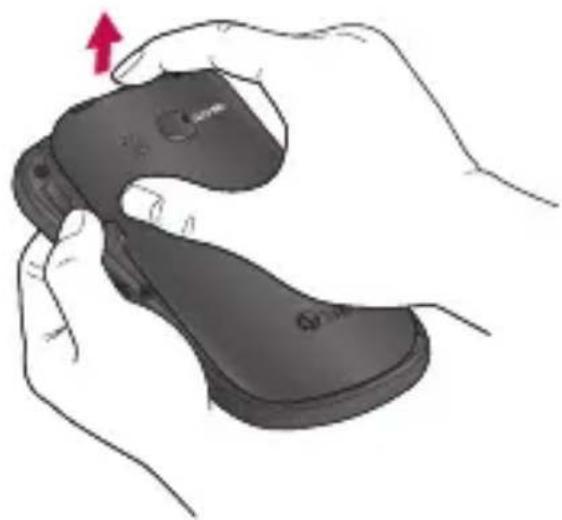
natural_image
Illustration of hands holding a black flip-flop with a red arrow indicating compression (no text or symbols)natural_image
Close-up of a mobile phone showing internal components and a red arrow pointing to a document (no text or symbols visible)text_image
Diagram of a mobile phone showing two labeled buttons (① and ②) with arrows pointing to the screen area.text_image
Diagram of a mobile phone case with labeled buttons and directional arrows indicating action or movement.natural_image
Illustration of a mobile phone with a USB cable inserted, showing the screen and keypad (no text or symbols present)natural_image
Close-up of a black LG phone with a small black USB flash drive, showing no text or symbols on the device itself.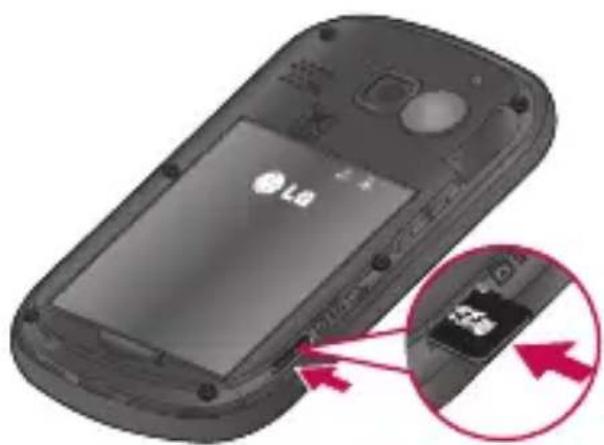
natural_image
Close-up of a black LG phone with a close-up inset showing the internal components (no text or symbols visible)natural_image
Illustration of a hand pointing at a blurred cat face, with a red upward arrow and circular graphic elements (no text or symbols)text_image
Screenshot of a mobile app status bar showing time, battery, and notification icons with '15:25' label[Barre d'état]
natural_image
Black-and-white photo of hands on a textured surface with camera interface buttons visible (no readable text or symbols)natural_image
Black-and-white photo of a boat on water with city skyline in background, no visible text or symbolsnatural_image
3D rendering of a gray electronic component with two terminal pins (no text or symbols visible)Câble de données
natural_image
Coiled network cable with two connectors (no text or symbols visible)Batterie Guide de
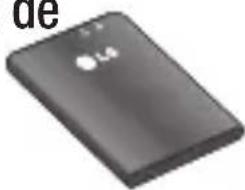
text_image
de L4l'utilisateur
natural_image
Exterior view of a silver rectangular electronic device (no visible text or symbols)Casque stéréo
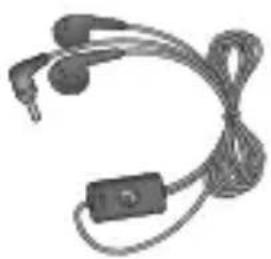
natural_image
Coiled black electronic device with earplugs and a small rectangular connector (no visible text or symbols)REMARQUE:
LG Electronics Inc. LG Twin Towers 20, Yeouido-dong, Yeongdeungpo-gu, Seoul, Korea 150-721
Détails du produit
Nom du produit
GSM 850 / E-GSM 900 / DCS 1800 / PCS 1900 Quad Band and WCDMA Terminal Equipment
Medèle
LG-C660
Nom commercial
LG
CE0168①
Normes applicables
R&TTE Directive 1999/5/EC
EN 301 489-01 V1.8.1, EN 301 489-07 V1.3.1
EN 301 489-17 V2.1.1, EN 301 489-19 V1.2.1, EN 301 489-24 V1.5.1
EN 301 511 V9.0.2
EN 301 908-1 V4.2.1 EN 301 908-2 V4.2.1,
EN 300 328 V1.7.1
EN 50360:2001, EN62209-1:2006, EN62209-2:2010
EN 60950-1:2006 + A11:2009
BABT, Forsyth House, Churchfi eld Road, Walton-on-Thames, Surrey, KT12 2TD, United Kingdom Notifi ed Body Identifi cation Number : 0168
Déclaration
Message Causes possibles Actions correctives possibles
Message Causes possibles Actions correctives possibles
Message Causes possibles Actions correctives possibles
Message Causes possibles Actions correctives possibles
Verifi car as suas fotografi as 65
Polaris Viewer ....70
natural_image
Diagram of a three-view device with labeled components, showing front, side, and top views (no text or symbols present)Tecla Ligar/Desligar/Bloquear
natural_image
Hand holding a black remote control device with a red arrow indicating the change (no text or symbols present)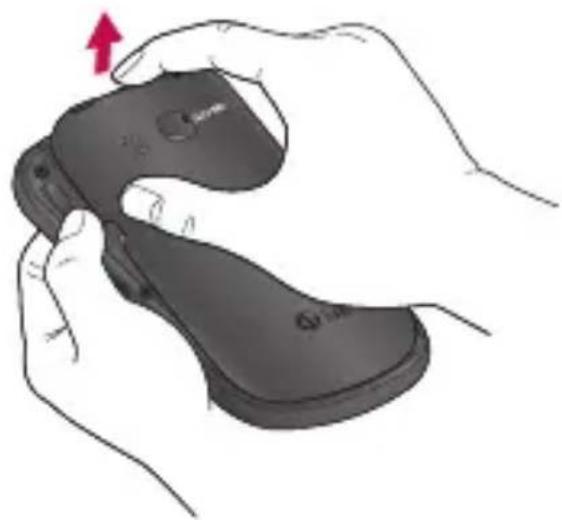
natural_image
Illustration of hands holding a black flip-flop with a red arrow indicating compression (no text or symbols)text_image
Diagram of a mobile phone showing internal components with red arrows indicating movement or change, likely illustrating a device's internal structure.text_image
Diagram of a mobile phone showing two labeled arrows pointing to the screen, with numbered annotations ① and ②.text_image
Diagram of a mobile phone case with labeled buttons and arrows indicating navigation or movement points.natural_image
Illustration of a mobile phone with a USB cable inserted, showing the screen and keypad (no text or symbols present)natural_image
Hand holding a smartphone with a red arrow indicating the change (no text or symbols visible)
natural_image
Illustration of hands holding a black flip-flop with a red arrow indicating rotation (no text or symbols)natural_image
Close-up of a black flip phone with a screen displaying 'LG' and a small black chip inserted (no visible text or symbols)natural_image
Close-up of a black flip phone with a display screen and a close-up inset showing a small electronic component (no visible text or symbols)Fecha a tampa da ranhura. 3

AVISO!
natural_image
Illustration of a hand pointing upward with a red arrow, against a blurred background (no text or symbols)Modo silencioso
natural_image
Top-down view of two hands resting on a textured surface, surrounded by camera interface elements (no readable text or symbols)natural_image
Black-and-white photo of a boat on water with city skyline in background (no visible text or symbols)natural_image
3D rendering of a black rectangular electronic component with two terminal pins (no text or symbols visible)Cabo de dados
Ligue o LG-C660 e o PC.
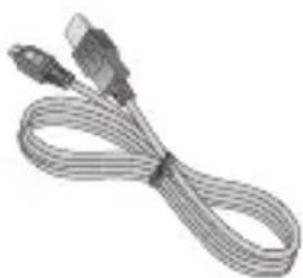
natural_image
Coiled cable with two connectors (no text or symbols visible)Bateria Guia do
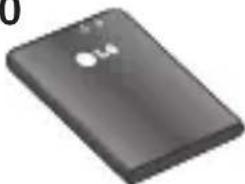
natural_image
Black rectangular electronic device with two small circular features on top (no visible text or symbols)Utilizador
natural_image
Exterior view of a silver rectangular electronic device (no visible text or symbols)Auricular estéreo
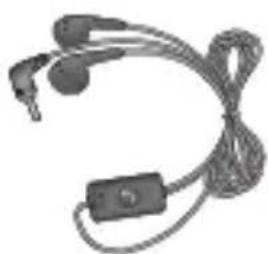
natural_image
Coiled medical or electronic device with earplugs and a small rectangular component (no visible text or symbols)NOTA:
LG Electronics Inc. LG Twin Towers 20,
Yeouido-dong, Yeongdeungpo-gu, Seoul, Korea 150-721
Dados do produto
Nome do produto
GSM 850 / E-GSM 900 / DCS 1800 / PCS 1900 Quad Band and WCDMA Terminal Equipment
Nome do modelo
LG-C660
Nome da marca
LG
CE0168①
R&TTE Directive 1999/5/EC
EN 301 489-01 V1.8.1, EN 301 489-07 V1.3.1
EN 301 489-17 V2.1.1, EN 301 489-19 V1.2.1, EN 301 489-24 V1.5.1
EN 301 511 V9.0.2
EN 301 908-1 V4.2.1 EN 301 908-2 V4.2.1,
EN 300 328 V1.7.1
EN 50360:2001, EN62209-1:2006, EN62209-2:2010
EN 60950-1:2006+A11:2009
BABT, ForsythHouse, Churchfi eld Road, Walton-on-Thames, Surrey, KT12 2TD, United Kingdom Notifi ed Body Identifi cation Number : 0168
Declaração
LG Electronics Inc. – EU Representative
Veluwezoom 15, 1327 AE Almere, The Netherlands
Nome
Doo Haeng Lee/ Director
Data de emissão
Jun.03.2011

4 Adepele street, Computer Village, Lagos, Nigeria
Bluetooth QD ID B017971