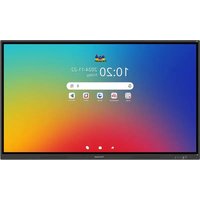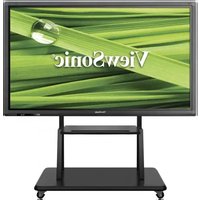
IFP6560 - Monitor VIEWSONIC - Free user manual and instructions
Find the device manual for free IFP6560 VIEWSONIC in PDF.


User questions about IFP6560 VIEWSONIC
0 question about this device. Answer the ones you know or ask your own.
Ask a new question about this device
Download the instructions for your Monitor in PDF format for free! Find your manual IFP6560 - VIEWSONIC and take your electronic device back in hand. On this page are published all the documents necessary for the use of your device. IFP6560 by VIEWSONIC.
USER MANUAL IFP6560 VIEWSONIC
Commercial Touch Display
ModelNo.VS17302/VS17303
| Substance | Concentration maximale proposée | Concentration réelle |
| Lead (Pb) 0.1% < 0.1% | ||
| Mercury (Hg) 0.1% < 0.1% | ||
| Cadmium (Cd) 0.01% < 0.01% | ||
| Hexavalent Chromium ( Cr^6+ ) 0.1% < 0.1% | ||
| Polybrominated biphenyls (PBB) 0.1% < 0.1% | ||
| Polybrominated diphenyl ethers (PBDE) 0.1% < 0.1% | ||
| Bis (2-ethylhexyl) phthalate (DEHP) 0.1% < 0.1% | ||
| Butyl benzyl phthalate (BBP) 0.1% < 0.1% | ||
| Dibutyl phthalate (DBP) 0.1% < 0.1% | ||
| Diisobutyl phthalate (DIBP) 0.1% < 0.1% |
Europe : http://www.viewsoniceurope.com/eu/support/call-desk/
Taiwan : https://recycle.epa.gov.tw/
1. Démarrage
text_image
Diagram showing various electronic components and a product display panel with labeled parts X1, X2, X4, and 1.5V battery.text_image
Technical diagram showing a cross-section with a red X mark and a vertical pipe or column, indicating a mechanical or structural condition.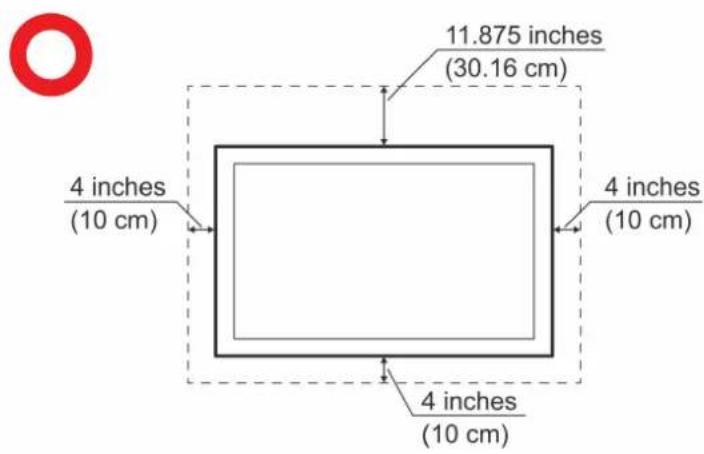
text_image
11.875 inches (30.16 cm) 4 inches (10 cm) 4 inches (10 cm) 4 inches (10 cm)natural_image
Close-up of a black control panel with a power button and a separate square button, labeled 9, 10, and 11 below (no additional text or symbols)text_image
Device Manager File Action View Help DESKTOP-CAAOKM9 Audio inputs and outputs Biometric devices TouchChip Fingerprint Coprocessor (WBF advanced mode) Other devices Biometric Coprocessor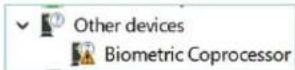
text_image
Diagram of a device rear panel with labeled ports and connectors, numbered 1 to 8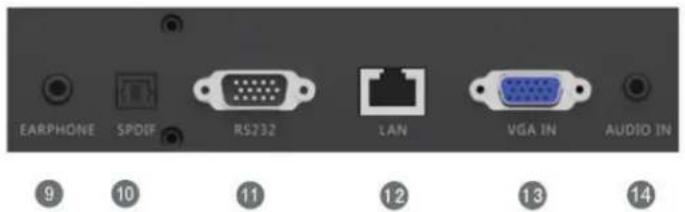
text_image
EARPHONE SPDIF RS232 LAN VGA IN AUDIO IN 9 10 11 12 13 14natural_image
Illustration of a hand holding a smartphone with a small object inside (no text or symbols)(1)
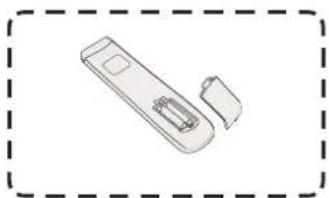
natural_image
Simple line drawing of a handheld device with a handle and internal components, enclosed in a dashed border (no text or symbols)(2)
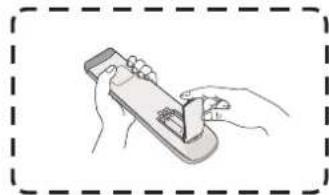
natural_image
Illustration of hands holding a handheld device with a small object inside (no text or symbols)(3)
natural_image
Interior view of a computer monitor case with ventilation grilles and a control panel (no text or symbols visible)IFP7560
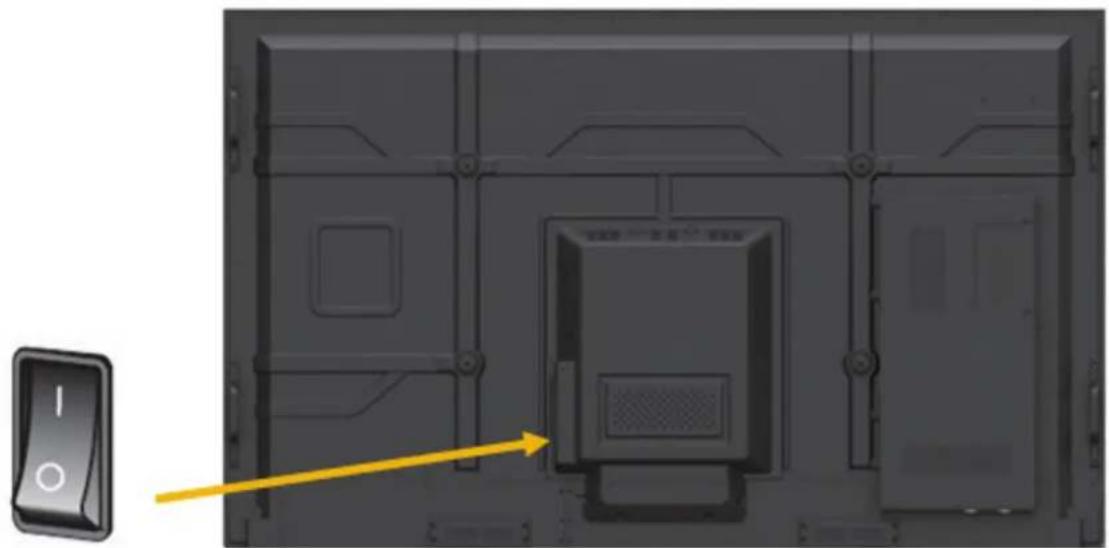
natural_image
Interior view of a computer monitor case with a yellow indicator button and control panel (no text or symbols)
natural_image
Autumn landscape with colorful trees reflected in a calm lake under a blue sky with scattered clouds (no text or symbols visible)text_image
Welcome Select your language and tap Next. Deutsch English Españoltext_image
Ethernet To verify LAN connected and then tap Next Ethernet Local Network Setting DHCP Static IP Back < > Next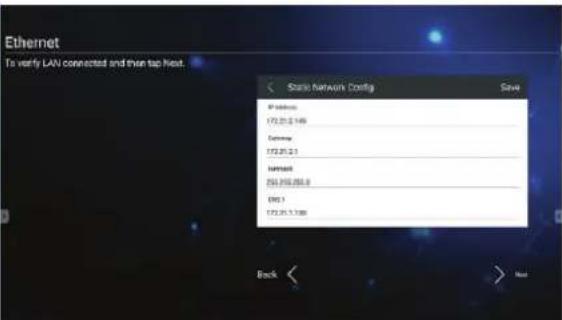
text_image
Ethernet To verify LAN connected and then tap host. < Start Network Config Save IP address 172.25.2.149 Ethernet 172.25.2.1 Internet 263.262.262.8 DNS 172.25.2.1380 Back Nexttext_image
Date & Time Select the appropriate time zone to set the date and time and then tap Next. Date & Time Use network praviled time Set time 3:45:00 PM Set time 4:31 PM Select time zone GMT-6:00 China Standard Time Use 24 Hour format 1:00 PM Back Nexttext_image
02:27 Welcome Connect and Collaboratetext_image
Welcome Connect and Collaborate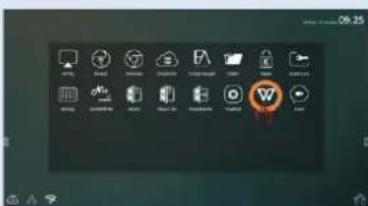
text_image
Screenshot of a desktop application interface with icons and a highlighted 'W' button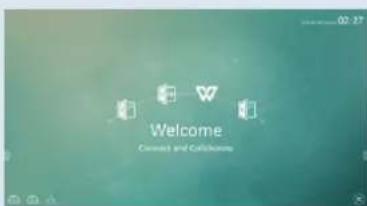
text_image
02:37 Welcome Connect and Callawaytext_image
02:27 Welcome Connect and Collaboratetext_image
Screenshot of a legacy software interface with folder icons, file/folder icons, and a dropdown menu showing '0' option.text_image
Style Shape Canceltext_image
Style Shape Cancel
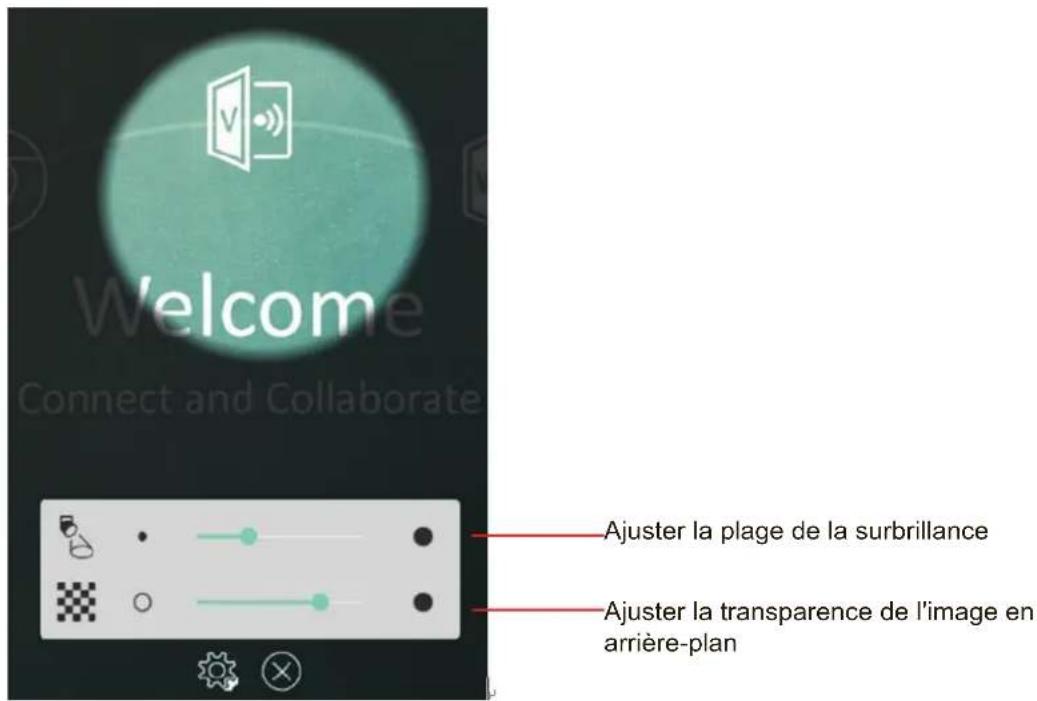
Outil Spotlight (Surbrillance)
text_image
Welcome Connect and Collaborate Ajuster la plage de la surbrillance Ajuster la transparence de l'image en arrière-plantext_image
INPUT P,MODE SJMODE 1 2 3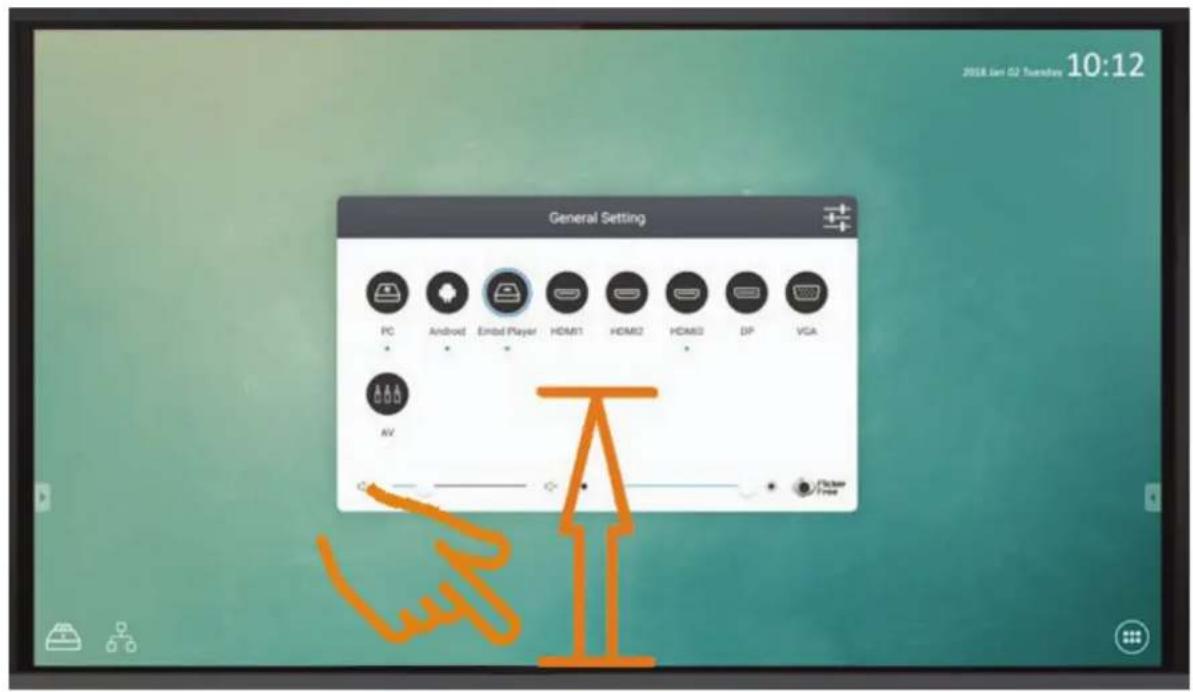
text_image
General Setting PC Android Embed Player HDMI1 HDMI2 HDMI3 DIP VGA AV Pickover Free 2018 Lien 02 Tuesday 10:12text_image
General Setting Embed Player OPS SDM HDMI1 HDMI2 HDMI3 DP VGAnatural_image
Simple diagram with a circle connected by a horizontal line and a speaker icon (no text or labels)Réglage du volume :
text_image
General Setting Embed Player OPS SDM HDMI1 HDMI2 HDMI3 DP VGA Flicker Freebar
| Category | Value | |---|---| | AUDIO | 50 | | SCREEN | 80 | | DISPLAY | 80 | | ADJUST | 30 | The chart displays a single numerical value for each category (Brightness, Contrast, Saturation, Sharpness) with an associated icon below. The bottom row includes a speedometer-style indicator labeled '73' with a plus sign.text_image
General Setting Embed Player OPS SDM HDMI1 HDMI2 HDMI3 DP VGAtext_image
Settings Wireless & networks Wi-Fi Ethernet Wireless Hotspot Moretext_image
Wi-Fi On VSaccess VS-Voice Add network Saved networks Refresh Advancedtext_image
Wireless hotspot Portable Wi-Fi hotspot Portable hotspot AndroidAP active Set up Wi-Fi hotspot AndroidAP WPA2 PSK portable Wi-Fi hotspot Set up Wi-Fi hotspot Network name AndroidAP Security WPA2 PSK Password ****** The password must have at least 8 characters. Show password CANCEL SAVEtext_image
SAMBA Service SAMBA start login setting UserName user Use password for protection protect share when enable password passwordtext_image
IFP Ethernet On Static IP IP address 172.18.96.117 Client to ping IFP Command Prompt Microsoft Windows [Version 10.0.15063] (c) 2017 Microsoft Corporation. All rights reserved. C:\Users\yugang ping 172.18.96.117 Pinging 172.18.96.117 with 32 bytes of data: Reply from 172.18.96.117: bytes=32 time=1102ms TTL=63 Reply from 172.18.96.117: bytes=32 time=2ms TTL=63 Reply from 172.18.96.117: bytes=32 time=3ms TTL=63 Reply from 172.18.96.117: bytes=32 time=1988ms TTL=63 Ping statistics for 172.18.96.117: Packets: Sent = 4, Received = 4, Lost = 0 (0% loss), Approximate round trip times in milli-seconds: Minimum = 2ms, Maximum = 1988ms, Average = 773mstext_image
Run Type the name of a program, folder, document, or Internet resource, and Windows will open it for you. Open: \\172.18.96.117 OK Cancel Browse...text_image
Windows Security Enter network credentials Enter your credentials to connect to: 172.18.101.248 admin ...... Remember my credentials The user name or password is incorrect. OK CancelNetwork >.172.18.96.117| > share

text_image
Name asec obb sdcard secure shell Date modified 11/6/2017 5:15 AM Type File folder File folder File folder File folder File foldertext_image
Home vLauncher Education Corporate vBoardtext_image
Welcome Connect and Collaboratetext_image
03/22/2018 18:46Display (Affichage):
text_image
Hot wallpaperbar
| Category | Value | |---|---| | Internal storage | 3.39GB | | Total space | 3.39GB | | Available | 3.00GB | | Apps (app data & media content) | 5.11MB | | Cached data | 5.24MB | | /usr/sda1 | 7.86GB | | Total space | 29.52GB | | Available | 26.49GB |Apps (Applications) :
text_image
English Keyboard You are English Keyboard release 4:10:58:29 FORCE STOP UnINSTALL Show test functions STORAGE: Total 14.06MB App 14.85MB USB storage app 0.00B Data 304KB USB storage data 0.00B MOVE TO USE STORAGE CLEAR DATA CACHE: Cache 45.00KB CLEAR CACHE LAUNCH BY ORDER: No default to exittext_image
Apps Reset app preferences? This will reset all preferences for. • Disabled apps • Disabled app notifications • Default applications for actions • Background data restrictions for apps • Any permission restrictions You will not lose any app data CANCEL RESET APPS Sort by size Sort by name Reset app preferences• Personal (Personnel)
Startup and shutdown

Language & input

Password
text_image
Security Credential storage Trusted credentials Display trusted CA certificates Install from storage Install certificates from storage Unknown sources install Unknown sources Allow installation of apps from unknown sources Folder 1. System files LOST.DIR System Volume Information rotation-8.9.4-free-www.apksum.com.apk MstarUpgrade.bin Girls Aloud-Love Machine_720P_AAC_180M.mp4text_image
Security Credential storage Trusted credentials Display trusted CA certificates Install from storage Install certificates from storage Clear credentials Unknown sources install Unknown sources Allow installation of apps from unknown sourcestext_image
Security Credential storage Trusted credentials Display trusted CA certificates Install from storage Install certificates from storage Clear credentials Unknown sources install Unknown sources Allow installation of apps from unknown sourcestext_image
Startup and shutdown FULRR2 Startup and shutdown option Startup channel ● Last shutdown channel ○ Default startup channel OPS Built-in PC startup option ● Boot up when source switch to OPS/SDM channel ○ Boot up when display powers on Standby Mode ● Hibemate ○ Sleep Standby after startup (black screen) Timer switch Close power off reminder Add taskLast shutdown channel

Default startup channel
Embd Player OPS
HDMI1
HDMI2
HDMI3
Built-in PC startup option

Boot up when source switch to OPS/SDM channel

Boot
DP
powers on
Power Standby mode (Mode veille alimentation) :
text_image
Boot time Add task Boot time 10 59 11 00 AM 12 01 PM Off time 10 59 11 00 AM 12 01 PM Sun Mon Tue Wed Thu Fri Sat Everyday Working day Off time Sun Mon Tue Wed Thu Fri Sat Everyday Working daytext_image
Boot time 7 49 8 : 50 AM 9 51 PM Off time 7 59 AM 8 : 00 PM 9 01 Sun Mon Tue Wed Thu Fri Sat Everyday Working day Sun Mon Tue Wed Thu Fri Sat Everyday Working daytext_image
Password Screen lock password Set Input Password Input 4 digit password Confirm Password Please enter the password again OK Cancel| Input Setting | |
| Input Alias Switch | |
| Embed Player | Embed Player |
| HDMI1 | HDMI1 |
| HDMI2 | HDMI2 |
| HDMI3 | HDMI3 |
| OPS | OPS |
| DP | DP |
| VGA | VGA |
| Wake Up by Active Source | |
| Signal Auto Search | |
| Signal Auto Switch When plug-in a New Source | |
| No Signal Auto Off | |
| 09 | |
| Set no signal auto-off to 10 minutes. | |
| 11 | |
| HDMI CEC | |
| Player off then display off | |
| Display off then player off | |
| Player on then display on | |
| Display on then player on | |
text_image
Other Settings Side Toolbar Channel Setting Available in all channels Available in Player Available in all channels except PC Disable in all channels vBoard Writing Single Touch Multi-Touch Notification bar On Off Eco Mode On Off Reset Devicetext_image
Other Settings 3:50 PM Wednesday, May 16 Available in Player Available in all channels except PC Disable in all channels vBoard Writing Single Touch AirPlay 2:58 PM Service is running vCastReceiver 2:51 PM PULQUUAutomatic date & time Use network-provided time

text_image
Set date 2018/01/09 Set time 11:31 AM Dec Jan Feb 2018 January 2018 S M T W T F S 1 2 3 4 5 6 7 8 9 10 11 12 13 14 15 16 17 18 19 20 21 22 23 24 25 26 27 28 29 30 31 February 2018 S M T W T F S 1 2 3 CANCEL OKtext_image
System updates Your system is up-to-date Last update check 2017/12/28 11:30 CHECK UPDATE ViewSonic System Update ViewSonic System Update Your system is up-to-date Last update check 2018/01/09 15:33 Download progress: 1 % CANCEL UPDATE ViewSonic System Update ViewSonic System Update New firmware is detected. would you like to download? New firmware feature:text_image
03/22/2018 18:46text_image
Brightness Background Volume Settings About Cancelnatural_image
Simple diagram with a horizontal black line and two white sun icons on the left (no text or symbols)natural_image
Color palette grid with solid and dashed squares for grayscale, red, yellow, green, blue, black, gray, white, plus symbol (no text or labels)natural_image
Simple horizontal line with speaker icons at top and bottom (no text or symbols)text_image
Wireless & networks Wi-Fi Ethernet Wireless hotspot BT More(5) Informations "à propos" de ce vBoard.
text_image
Style Shape Cancel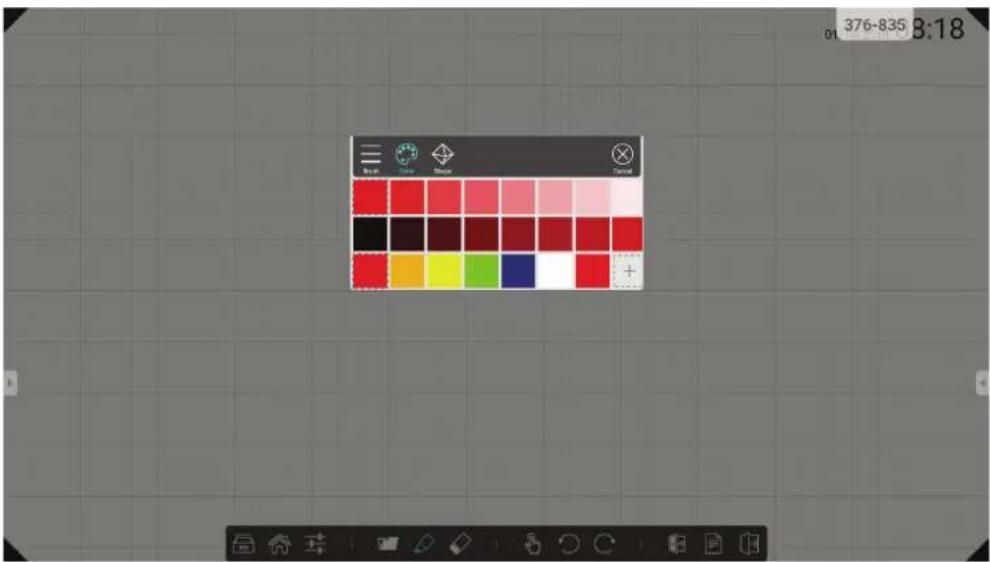
text_image
376-835 8:18 01
natural_image
Five simple geometric shapes: square, circle, ellipse, triangle, and hexagon arranged horizontally (no text or symbols)text_image
DIR Doc Video Music Image Cancel Internal Storage sda4text_image
User interface buttons including refresh, audio speaker, plus/minus function, and numeric input field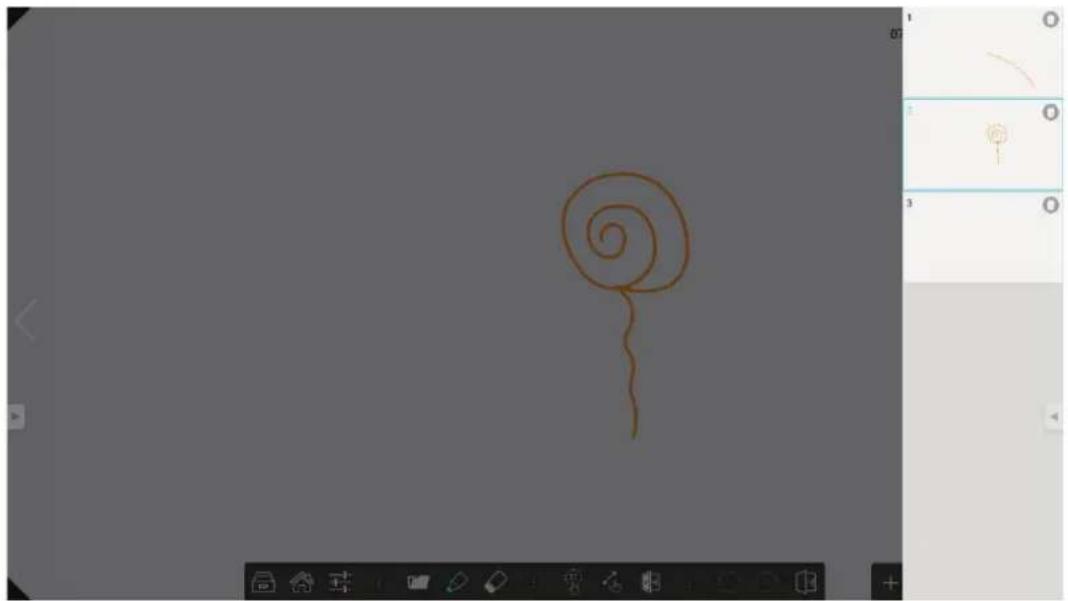
natural_image
Simple hand-drawn spiral shape on a gray background, no text or symbols present
text_image
ViewSonic ViewBoard® Cast Connect & Collaborate 0 0 0 0 0 0 Please enter the pin code on your device. Setup 1 2 3 Mac Windows Chrome Connect Network Download Application Launch Cast Help care your device is connected to the same network with the device. Network not connectedflowchart
graph TD
    A["iOS"] --> B["Make sure your device is connected to the same network with the device."]
    B --> C["Slide up at the bottom enter the quick set Open AirPlay. Or scan the QR-Code to download the client(or input "http://192.168.0.208:8000" in browser)"]
    C --> D["Select the device Enter password: 961608"]
    E["Android"] --> F["Make sure your device is connected to the same network with the device."]
    F --> G["Scan the QR-Code to download the client(or input "http://192.168.0.208:8000" in browser)"]
    G --> H["Open the Cast client Enter password: 961608"]
iOS
text_image
ViewSonic 511-151 511 1 1 51 Please enter the pin code on your device. Setup 1 2 3 Mac Windows Connect Network Download Application Launch Make any user device connected to the same network with the device http://192.168.1988000* with with browser to download application Launch-Cast and other www. ViewBoard® Cast Connect & Collaboratetext_image
zoom Group Messaging & Mobile Meetings 1 Sign In 2 Sign Up Join a Meeting Cancel Sign In Email Address Password Sign In Forgot password? OR, SIGN IN WITH Google Facebook SSO SSOtext_image
Jump to chat... Join a Meeting Schedule or Host a Meeting Join a Meeting If you received an invitation link, tap on the link to join the meeting. Meeting ID Join with a personal link name Jane Doe Join MeetingBy using this application, you agree to Chrome's Terms of Service and Privacy Notice.
□ Help make Chrome better by sending usage statistics and crash reports to Google.
ACCEPT & CONTINUE
text_image
Search or type web address Google C C G G Pls. Chirngans, OK, New York, F G C C Postack Quick Flag Designer MyBlocknatural_image
Illustration of a hand pressing down on a computer monitor (no text or symbols visible)8.2 Mode HDMI1/2/3/OPS/SDM
This document describes the hardware interface spec and software protocols of RS232 interface communication between ViewSonic LFD and PC or other control unit with RS232 protocol.
The protocol contains three sections command:
- Set-Function
- Get-Function
- Remote control pass-through mode
※ In the document below, "PC" represents all the control units that can sent or receive the RS232 protocol command.
10.2 Description
10.2.1 Hardware specification
ViewSonic LFD communication port on the rear side
(1) Connector type: DSUB 9-Pin Male (or 3.5mm barrel connector)
(2) Pin Assignment
(3) Use of crossover (null modem) cable for connection
Male DSUB 9-Pin
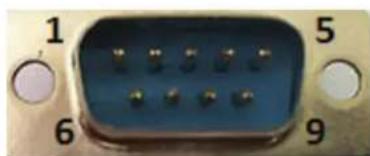
natural_image
Close-up of a blue electronic component with numbered pins (1, 5, 6, 9) and circular connectors at the ends (no text or symbols on body)| Pin # | Signal | Remark |
| 1 NC | ||
| 2 RXD | Input to Display | |
| 3 TXD | Output from Display | |
| 4 NC | ||
| 5 GND | ||
| 6 NC | ||
| 7 NC | ||
| 8 NC | ||
| 9 NC | ||
| frame | GND | |
3.5mm barrel connector (alternative for limited space)
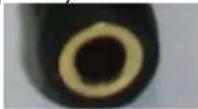
| Pin # Signal Remark | |
| Tip TXD Output from Display | |
| Ring RXD Input to Display | |
| Sleeve GND | |
10.2.2 LAN Hardware Specification
ViewSonic LFD communication port on the rear side
(1) Connector type: 8P8C RJ45
(2) Pin Assignment
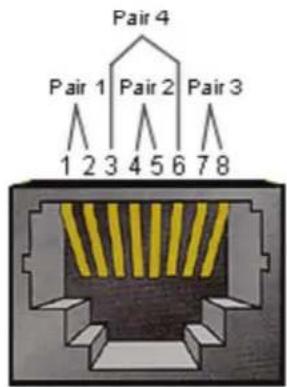
text_image
Pair 4 Pair 1 Pair 2 Pair 3 1 2 3 4 5 6 7 8| Pin # | Signal | Remark |
| 1 | TX+ | Output from Display |
| 2 | TX- | Output from Display |
| 3 | RX+ | Input to Display |
| 4 | BI_D | 3+ For 1G case |
| 5 | BI_D | 3- For 1G case |
| 6 | RX- | Input to Display |
| 7 | BI_D | 4+ For 1G case |
| 8 | BI_D | 4- For 1G case |
| frame | GND |
10.2.3 RS232 Communication Setting
- Baud Rate Select: 9600bps (fixed)
- Data bits: 8 bits (fixed)
- Parity: None (fixed)
- Stop Bits: 1(fixed)
10.2.4 LAN Communication Setting
- Type: Ethernet
- Protocol: TCP/IP
- Port: 5000 (fixed)
- Cross subnet: No
- Logon Credentials: No
10.2.5 Command Message Reference
PC sends to LFD command packet followed by "CR". Every time PC sends control command to Display, the Display shall respond as follows:
- If the message is received correctly it will send “+” (02Bh) followed by “CR” (00Dh)
- If the message is received incorrectly it will send “-” (02Dh) followed by “CR” (00Dh)
10.3 Protocol
10.3.1 Set-Function Listing
The PC can control the Display for specific actions. The Set-Function command allows you to control the Display behavior in a remote site through the RS232 port. The Set-Function packet format consists of 9 bytes.
Set-Function description:
Length: Total Byte of Message excluding "CR"
LFD ID Identification for each of Display (01\~98; default is 01)
ID "99" means to apply the set command for all connected displays. Under such circumstances, only ID#1 display has to reply.
The LFD ID can be set via the OSD menu for each Display.
Command Type Identify command type,
"s" (0x73h): Set Command
“+” (0x2Bh): Valid command Reply
“-” (0x2Dh): Invalid command Reply
Command: Function command code: One byte ASCII code.
Value[1\~3]: Three bytes ASCII that defines the value.
CR 0x0D
Set-Function format
Send: (Command Type="s")
Reply: (Command Type="+" or "-"')
- When PC applies command to all displays (ID=99), only the #1 set needs to reply by the name of ID=1.
Example1: Set Brightness as 76 for Display (#02) and this command is valid Send (Hex Format)
| Name | Length ID | Command Type | Command | Value1 | Value2 | Value3 | CR |
| Hex | 0x38 | 0x30 | 0x73 | 0x24 | 0x30 | 0x37 | 0x36 |
| 0x32 |
Reply (Hex Format)
| Name | Length | ID | Command Type | CR |
| Hex | 0x34 | 0x300x32 | 0x2B | 0x0D |
Example2: Set Brightness as 75 for Display (#02) and this command is NOT valid
| Name | Length ID | Command Type | Command | Value1 | Value2 | Value3 | CR |
| Hex | 0x38 | 0x30 | 0x73 | 0x24 | 0x30 | 0x37 | 0x35 |
| 0x32 |
Reply (Hex Format)
| Name | Length ID | Command | Type | CR |
| Hex | 0x34 0x30_0x32 | 0x2D 0x0D | _ | |
Set-function table
A. Basic function
| Set Function | Length | ID | Command Command | Command Value Range Comments | |||
| Type (ASCII) | Code (ASCII) | Code (Hex) | (Three ASCII bytes) | ||||
| Power on/off (standby) | 8 s ! | 21 000 | : STBY | 001: ON | The Power-on via LAN control may works only under specific mode. To see display UG for details. *3.1.1 | ||
| Input Select 8 | s | * 22 000: TV | 001: AV002: S-Video003: YPbPr004: HDMI1014: HDMI2024: HDMI3034: HDMI4005: DVI006: VGA1016: VGA2026: VGA3007: Slot-in PC (OPS/SDM)/HDBT008: Internal memory009: DP00A: Embedded/ Main (Android) | 1. No need for USB2. For the case of two more same sources, the 2nd digital is used to indicate the extension.3. The HEX of 00A is 30 30 41. | |||
| Brightness | 8 s | $ | 24 000 ~ | 100 | 900: Bright down (-1)901: Bright up (+1) *3.1.1 | ||
| Power lock | 8 s | 4 | 34 000: Unlock | 001: Lock | *See note in details | ||
| Volume | 8 s | 5 | 35 000 ~ | 100 | 900: Volume down(-1)901:Volume up(+1) | ||
| Mute | 8 s | 6 | 36 000: OFF | 001: ON (mute) | |||
| Button lock | 8 s | 8 | 38 000: Unlock | 001: Lock | *See note in details | ||
| Menu lock | 8 | s | >000: Unlock001: Lock | *See note in details | |||
| Number *3.1.1 8 | s @ 40 | 000~009 | |||||
| Key Pad *3.1.1 8 | s A 41 | 000: UP | 001: DOWN002: LEFT003: RIGHT004: ENTER005: INPUT006: MENU/(EXIT)007: EXIT | ||||
| Remote Control | 8 s B | 42 000: Disable | 001: Enable002: Pass through | Disable: RCU will be no functionEnabled: RCU controls normallyPass through: Display will bypass the RC code to connected device via the RS232 port, but not react itself. | |||
| Restore default | 8 s ~ | 7E 000 Recover to factory set- | ting | ||||
NOTE:
1. Behavior at lock modes
| Lock Mode Behavior | |
| Button Lock 1. | Lock all buttons on the front panel and RCU, except for “Power”2. All the SET functions should be workable via RS32, even the ones with according hot key in RCU like Mute,...etc. |
| MENU Lock 1. | Lock “MENU’ key of front panel and RCU2. The Factory and Hospitality modes should not be blocked for the model using MENU-combined key to enter these two modes. Alternative approach will be indicated separately if any limitation by model. |
| POWER Lock 1. | Lock “POWER” key on the front and RCU.2. The SET_POWER on/off should be workable via RS232, but does not mean the POWER lock will be released under this case.3. Can not be unlocked by reset in OSD setting4. Will auto AC power-on in power-lock5. Under power-lock, the set will not enter power saving when no PC signal and neither not turn off when no other video signals after 15min. |
| Remote control disable | Lock the RCU keys, but keep the front panel buttons workable. |
B. Optional function
| Set Function | Length | ID | Command Com Type (ASCII) | Command Value Range Comments | |||
| Code (ASCII) | Code (Hex) | (Three ASCII bytes) | |||||
| Contrast 8 s # | 23 000 | ~ 100 | |||||
| Sharpness 8 s % | 25 000 | ~ 100 | |||||
| Color 8 s & 26 | 000 ~ 100 | ||||||
| Tint | 8 s | ‘ | 27 000 ~ | 100 | |||
| Color mode | 8 s | ) 29 000: Normal | 001: Warm002: Cold003: Personal | ||||
| Surround sound | 8 s | - | 2D | 000: OFF | 001: ON | ||
| Bass | 8 s | . 2E | 000 ~ 100 | ||||
| Treble | 8 | S | / 2F | 000 ~ 100 | |||
| Balance | 8 | s | 0 | 30 | 000 ~ 100 | 050 is central | |
| Picture Size | 8 s 1 | 31 | 000: FULL (16:9) | 001: NORMAL (4:3)002: REAL (1:1)*3.1.0 | |||
| OSD language | 8 s 2 | 32 | 000: English | 001: French002: Spanish | Could be extended for more supported languages by model | ||
| PIP-Mode | 8 s 9 | 39 | 000: OFF | 001: PIP(POP)002: PBP | |||
| PIP-Sound select | 8 s | : 3A | 000: Main | 001: Sub | |||
| PIP-Position | 8 s | ; 3B | 000: Up | 001: Down002: Left003: Right | |||
| PIP-Input | 8 s 7 | 37 | *2.9 | 000: TV001: AV002: S-Video003: YPbPr004: HDMI1014: HDMI2024: HDMI3034: HDMI4005: DVI006: VGA1016: VGA2026: VGA3007: Slot-in PC (OPS/SDM)/HDBT008: Internal memory009: DP00A: Embedded/Main (Android) | Value range is same as SET-Input select | ||
| Tiling-Mode 8 | s P 50 00 | 0: OFF | 001: ON | (for video wall) | ||
| Tiling-Compensation | 8 s Q | 51 00 | 00: OFF | 001: ON | (for video wall)Bezel width compensation | |
| Tiling-H by V Monitors | 8 s R | 52 01 | x~09x: H | 0x1~0x9: V | (for video wall)1. 2nd digital for H monitors2. 3rd digital for V monitors | |
| Tiling-Position | 8 s S | 53 00 | 01~025 (for Video wall) | Copy the screen of Position# to identified display | ||
| Date: Year 8 | s V 56 Y | 17~Y9 | 9 Last 2 digits | (20)17~(20)99 | ||
| Date: Month 8 | s V 56 M | 01~M | 12 2 digits | |||
| Date: Day 8 s | V 56 D01 | ~D31 | 2 digits | |||
| Time: Hour 8 s | W 57 H | 00~H | 23 24-hr format. 2 digits. | |||
| Time: Min | 8 s W | 57 M | 00~M59 2 digits | |||
| Time: Sec | 8 s W | 57 S | 00~S59 2 digits |
Note:
1. Tiling definition of H Monitors/ V Monitors/ and Position
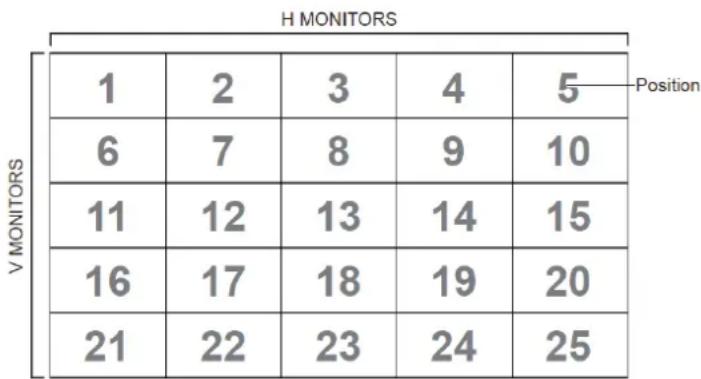
heatmap
H MONITORS | Position | 1 | 2 | 3 | 4 | 5 | | :--- | :--- | :--- | :--- | :--- | :--- | | V MONITORS | 6 | 7 | 8 | 9 | 10 | | V MONITORS | 11 | 12 | 13 | 14 | 15 | | V MONITORS | 16 | 17 | 18 | 19 | 20 | | V MONITORS | 21 | 22 | 23 | 24 | 25 |2. Set Date example
Date: 2017-3/15
Send: 0x 38 30 31 73 56 59 31 37 0D ("Y17")
Send: 0x 38 30 31 73 56 4D 30 33 0D ("M03")
Send: 0x 38 30 31 73 56 44 31 35 0D ("D15")
3. Set Time example
Time: 16:27:59
Send: 0x 38 30 31 73 57 48 31 36 0D ("H16")
Send: 0x 38 30 31 73 57 4D 32 37 0D ("M27")
Send: 0x 38 30 31 73 57 53 35 39 0D ("S59")
10.3.2 Get-Function Listing
The PC can interrogate the LFD for specific information. The Get-Function packet format consists of 9 bytes which is similar to the Set-Function packet structure. Note that the "Value" byte is always = 000
Get-Function description:
Length: Total Byte of Message excluding "CR".
TV/DS ID Identification for each of TV/DS (01\~98; default is 01).
Command Type Identify command type,
"g" (0x67h) : Get Command
"r" (0x72h) : Valid command Reply
“-” (0x2Dh) : Invalid command Reply
Command: Function command code: One byte ASCII code.
Value[1\~3]: Three bytes ASCII that defines the value.
CR 0x0D
Get-Function format
Send: (Command Type="g")
Reply: (Command Type="r" or "--")
If the Command is valid, Command Type = "r"
If the Command is Not valid, Command Type="-"
Example1: Get Brightness from TV-05 and this command is valid.
The Brightness value is 67.
Send (Hex Format)
| Name | Length ID | Command Type | Command | Value1 | Value2 | Value3 | CR |
| Hex | 0x38 0x30 0x35 | 0x67 0x62 | 0x30 0x30 | 0x30 0x0D____ | ____ | ____ | ____ |
Reply (Hex Format)
| Name | Length ID | Command Type | Command | Value1 | Value2 | Value3 | CR |
| Hex | 0x38 0x30 0x35 | 0x72 0x6 | 2 0x30 0x36 | 0x37 0x0 | D____ | ____ | ____ |
Example2: Get Color from Display (#05), but the Color command is not supported by this model.
Send (Hex Format)
| Name | Length ID | Command Type | Command | Value1 | Value2 | Value3 | CR |
| Hex | 0x38 0x30 0x35 | 0x67 | 0X26 | 0x30 0x30 0x30 | 0x0D |
Reply (Hex Format)
| Name | Length ID | Command Type | CR |
| Hex | 0x34 0x30 0x35 | 0x2D | 0x0D |
Get-Function table
A. Basic function
| Get Function | Length | ID | Command Type(ASCII) Code (ASCII) | Command Response Range Comments | |||
| Code (Hex) (Three ASCII bytes) | |||||||
| Get-Brightness | 8 g b | 62 000 ~ 100 | |||||
| Get-Volume | 8 g f 66 000 ~ 100 | ||||||
| Get-Mute 8 g | g 67 000: Off | 001: On (muted) | |||||
| Get-Input select | 8 g | j 6A | 000~ | 100~ | 1. 1st digit for signal detection: 0 means “no signal”; 1 means “signal detected”2. 2nd &3rd digit: See Set-function table | ||
| Get-Power status: ON/STBY | 8 g | I | 6C 001: ON | 000: STBY | |||
| Get-Remote control | S | g n | 6E | 000: Disable | 001: Enable002: Pass through | Get RCU mode status | |
| Get-Power lock | 8 g o | 6F 000: Unlock | 001: Lock | ||||
| Get-Button lock | 8 g p | 70 000: Unlock | 001: Lock | ||||
| Get-Menu lock | 8 g | I | 6C 000: Unlock | 001: Lock | |||
| Get-ACK | 8 | g | z | 7A | 000 | This command is used to test the communication link | |
| Get-Thermal | 8 g 0 30 000~100: | 0~+100 deg C-01~-99:-1~-99 deg C | |||||
| Get-Operation time-3.1.0 | 8 g 1 | 31 000 | 1. Accumulated | hours in 8-digit integer (00,000,001~99,999,999)2. Could be reset when FW update and Factory initiation3. Reply in 4 strings | |||
| Get-Device name | 8 g 4 | 34 000 | Reply in 6 strings | (max. 12 characters)*3.1.0 | |||
| Get-MAC address | 8 g 5 | 35 000 | (for the model with | LAN)Reply in 6strings.*3.1.0 | |||
NOTE:
1. Get Operation time example
Assumed the accumulated operation time is 00,123,456 hrs
Send: 0x 38 30 31 67 31 30 30 30 0D (Get Operation time)
Reply:
1 0x 38 30 31 72 31 31 30 30 0D ("00")
2 0x 38 30 31 72 31 32 31 32 0D ("12")
3 0x 38 30 31 72 31 33 33 34 0D ("34")
4 0x 38 30 31 72 31 34 35 36 0D ("56")
2. Get Device Name example
Assumed the device name is CDE-5500
Send: 0x 38 30 31 67 34 30 30 30 0D (Get Device Name)
Reply:
1 0x 38 30 31 72 34 31 43 44 0D ("C" "D")
2 0x 38 30 31 72 34 32 45 2D 0D ("E" "-"
3 0x 38 30 31 72 34 33 35 35 0D ("5" "5")
4 0x 38 30 31 72 34 34 30 30 0D ("0" "0")
5 0x 38 30 31 72 34 35 00 00 0D ("(NULL)" "(NULL)")
6 0x 38 30 31 72 34 36 00 00 0D ("(NULL)" "(NULL)")
Assumed the device name is "NMP-302#1"
Send: 0x 38 30 31 67 34 30 30 30 0D (Get Device Name)
Reply:
1 0x 38 30 31 72 34 31 4E 4D 0D ("N" "M")
2 0x 38 30 31 72 34 32 50 2D 0D ("P" "-"
3 0x 38 30 31 72 34 33 33 30 0D ("3" "0")
4 0x 38 30 31 72 34 34 32 23 0D ("2" "#")
5 0x 38 30 31 72 34 35 31 00 0D ("1" "(NULL)")
6 0x 38 30 31 72 34 36 00 00 0D ("(NULL)" "(NULL)")
3. Get MAC address example
Assumed the MAC address is 00:11:22:aa:bb:cc
Send: 0x 38 30 31 67 35 30 30 30 0D (Get MAC add)
Reply:
1 0x 38 30 31 72 35 31 30 30 0D ("00")
2 0x 38 30 31 72 35 32 31 31 0D ("11")
3 0x 38 30 31 72 35 33 32 32 0D ("22")
4 0x 38 30 31 72 35 34 61 61 0D ("aa")
5 0x 38 30 31 72 35 35 62 62 0D ("bb")
6 0x 38 30 31 72 35 36 63 63 0D ("cc")
B. Optional function
| Get Function | Length | ID | Command Type (ASCII) Code | Command Response Range Comments | |||
| Code (ASCII) Code (Hex) (Three ASCII bytes) | |||||||
| Get-Contrast | 8 g a 61 | 000 ~ | 100 | ||||
| Get-Sharpness | 8 g c | 63 000 ~ 100 | |||||
| Get-Color 8 g | d 64 000 | ~ 100 | |||||
| Get-Tint | 8 g e | 65 000 ~ 100 | |||||
| Get-PIP mode | 8 g | t | 74 000: OFF | 001: PIP (POP)002: PBP | |||
| Get-PIP input | 8 g u 75 | 000 ~ | See Set-input select | ||||
| Get-Tiling Mode | 8 g v | 76 000: OFF | 001: ON | (for Video wall) | |||
| Get-Tiling Compensation | 8 g | w | 77 000: OFF | 001: ON | (for Video wall)Bezel width compensation | ||
| Get-Tiling H by V monitors | 8 g x | 78 01x~09x: H moni- | tors0x1~0x9: V moni-tors | (for Video wall)1. 2nd digital for H monitors2. 3rd digital for V monitors | |||
| Get-Tiling position | 8 g y | 79 000: OFF | 001~025 | (for Video wall)Copy the screen of Position# to identified display | |||
| Get-Date: Year | 8 g 2 | 32 Y00~Y00 | Last 2 digits | (20)17~(20)99 | |||
| Get-Date: Month | 8 g 2 | 32 M00~M00 | 2 digits | ||||
| Get-Date: Day | 8 g 2 | 32 D00~M00 | 2 digits | ||||
| Get-Time: Hour | 8 g 3 | 33 H00~H00 | 24-hr format. 2 digits | ||||
| Get-Time: Min | 8 g 3 | 33 M00~M00 | 2 digits | ||||
| Get-Time: Sec | 8 g 3 | 33 S00~S00 | 2 digits | ||||
| Get-RS232 version | 8 g 6 | 36 001~ Version 0.0.1~9.9.9 | |||||
NOTE:
1. Get Date example
Assumed the current date of display#01 as below
Date: 2017-3/15
Send: 0x 38 30 31 67 32 59 30 30 0D (Get Date:Year)
Reply: 0x 38 30 31 72 32 59 31 37 0D ("Y17")
Send: 0x 38 30 31 67 32 4D 30 30 0D (Get Date:Month)
Reply: 0x 38 30 31 72 32 4D 30 33 0D ("M03")
Send: 0x 38 30 31 67 32 44 30 30 0D (Get Date:Day)
Reply: 0x 38 30 31 72 32 44 31 35 0D ("D15")
2. Get Time example
Assumed the current time of display#01 as below
Time: 16:27:59
Send: 0x 38 30 31 67 33 48 30 30 0D (Get Time:Hour)
Reply: 0x 38 30 31 72 33 48 31 36 0D ("H16")
Send: 0x 38 30 31 67 33 4D 30 30 0D (Get Time:Min)
Reply: 0x 38 30 31 72 33 4D 32 37 0D ("M27")
Send: 0x 38 30 31 67 33 53 30 30 0D (Get Time:Sec)
Reply: 0x 38 30 31 72 33 53 35 39 0D ("S59")
3. Get MAC address example
Assumed the version is 3.0.1
Send: 0x 38 30 31 67 36 30 30 30 0D (Get RS232 version)
Reply: 0x 38 30 31 72 36 33 30 31 0D ("301")
10.3.3 Remote Control Pass-through mode
When PC sets the Display to Remote Control Pass through mode, the Display shall send a 7-byte packet (followed by "CR") in response to RCU button activation. In this mode the RCU shall have no effect on the Display function. For example: "Volume+" will not change the volume in the Display but only sends "Volume+" code to PC over the RS232 port.
IR Pass Through-Function format
Reply: (Command Type="p")
Example1: Remote Control pass-through when "VOL+" key is pressed for Display (#5)
Send (Hex Format)
| Name | Length ID | Command | Type | RCU Code1 (MSB) | RCU Code2 (LSB) | CR |
| Hex | 0x36 | 0x30 | 0x70 0x31 | 0x30 0x0D | — | — |
| Key Code (HEX) | Basic *3.1.1 | Optional *3.1.1 | |
| 1 | 01 V | ||
| 2 | 02 V | ||
| 3 | 03 V | ||
| 4 | 04 V | ||
| 5 | 05 V | ||
| 6 | 06 V | ||
| 7 | 07 V | ||
| 8 | 08 V | ||
| 9 | 09 V | ||
| 0 | 0A | V | |
| - | 0B | V | |
| RECALL (LAST) | 0C | V | |
| INFO (DISPLAY) | 0D | V | |
| 0E | |||
| ASPECT (ZOOM, SIZE) | 0F | V | |
| VOLUME UP (+) | 10 V | ||
| VOLUME DOWN (-) | 11 | V | |
| MUTE | 12 V | ||
| CHANNEL/PAGE UP (+)/BRIGHTNESS+ | 13 | V | |
| CHANNEL/PAGE DOWN (-)/BRIGHTNESS- | 14 | V | |
| POWER 15 V | |||
| SOURCES (INPUTS) 16 V | |||
| 17 | |||
| 18 | |||
| SLEEP 19 V | |||
| MENU 1A V | |||
| UP 1B V | |||
| DOWN 1C V | |||
| LEFT (-) 1D V | |||
| RIGHT (+) 1E V | |||
| OK (ENTER, SET) 1F V | |||
| EXIT 20 V | |||
| 21 | |||
| 22 | |||
| 23 | |||
| 24 | |||
| 25 | |||
| 26 | |||
| 27 | |||
| 28 | |||
| 29 | |||
| 2A | |||
| 2B | |||
| RED■ (F1) 2C V | |||
| GREEN■ (F2) 2D V | |||
| YELLOW■ (F3) 2E | V | ||
| BLUE■ (F4) | 2F V | ||
| CHANNEL/PAGE DOWN (-)/BRIGHTNESS- | 14 | ||
| POWER 15 | |||
| SOURCES (INPUTS) 16 | |||
| 17 | |||
| 18 | |||
| SLEEP 19 | |||
| MENU 1A | |||
| UP | 1B | ||
| DOWN | 1C | ||
| LEFT (-) 1D | |||
| RIGHT (+) 1E | |||
| OK (ENTER, SET) 1F | |||
| EXIT 20 | |||
| 21 | |||
| 22 | |||
| 23 | |||
| 24 | |||
| 25 | |||
| 26 | |||
| 27 | |||
| 28 | |||
| 29 | |||
| 2A | |||
| 2B | |||
| RED ■ (F1) 2C | |||
| GREEN ■ (F2) 2D | |||
| YELLOW ■ (F3) 2E | |||
| BLUE ■ (F4) 2F |
NOTE:
- This IR-pass-through code is different from the RCU key code.
- Special control sequence for POWER key under IR-pass through mode.
2-1. When Display is OFF and receives the IR POWER code: Display will turn itself on, then forward the POWER code to the host via RS232.
2-2. When Display is ON and receives the IR POWER code: Display will forward the POWER code to the host via RS232, then turn off itself.
2-3. When SET-POWER LOCK is enabled, the Display will not respond to POWER key pressing. - The VOLUME UP and VOLUME DOWN code will repeatedly output when you press and hold the keys.
Autres informations
Service clientèle
Smart White Board Warranty Term Template In UG
VSC_TEMP_2013

natural_image
Three colorful bird illustrations perched on a branch against a red background (no text or symbols)ViewSonic®