304969 - Speaker Bearware - Free user manual and instructions
Find the device manual for free 304969 Bearware in PDF.


| Product type | WiFi Smart Plug |
| Brand | Bearware |
| Model | 304969 |
| Input voltage | 250 V ~, 50 Hz |
| Output voltage | 250 V ~, 50 Hz |
| Max rated current | 16 A |
| Max power | 3600 W |
| WiFi frequency range | 2412 - 2472 MHz |
| Max transmission power | 15.73 dBm (EIRP) |
| Protection rating | IP44 (with Schuko IP44 socket) |
| OS compatibility | Apple iOS 8.0+, Google Android 4.1+ |
| Dimensions (approx.) | 6 x 4 x 7 cm |
| Weight (approx.) | 100 g |
| Main functions | Remote control via app, timer, schedule, scenes, voice assistant (Alexa) |
| Maintenance and cleaning | Wipe with a dry, soft cloth. Do not use abrasive products or water. |
| Safety | Do not daisy chain, disconnect before servicing, use only with properly installed socket. |
| Spare parts and repairability | No user-serviceable parts. Any opening voids the warranty. |
Frequently Asked Questions - 304969 Bearware
User questions about 304969 Bearware
0 question about this device. Answer the ones you know or ask your own.
Ask a new question about this device
Download the instructions for your Speaker in PDF format for free! Find your manual 304969 - Bearware and take your electronic device back in hand. On this page are published all the documents necessary for the use of your device. 304969 by Bearware.
USER MANUAL 304969 Bearware
ENG: Current drivers, user manuals and other relevant documents for this product can be found on our homepage.
Thank you for choosing a BEARWARE product. Please read the following user manual carefully so that you can enjoy your purchased product for a long time. Before using the product, first check that the delivered item is complete, accurate and undamaged.
1. Scope of delivery
- WiFi Smart socket
- User manual
2. Technical data
| Input voltage 250 V ~ (AC) / 50 Hz | |
| Output voltage 250 V ~ (AC) / 50 Hz, max. 16 A | |
| Power consumption max. | 3600 W |
| Frequency range 2412-2472 MHz | |
| Maximum transmission power (EIRP) | max. 15.73 dBm |
| Protection category IP44 | (in combination with an IP44 Schuko plug) |
| Compatible operating systems | Apple iOS V 8.0 or higher, Google Android V 4.1 or higher |
| Usage Smart-home compatible | |
3. Important safety guidelines for this device

Caution! Updates to the software or the operating system can alter the functioning and the application of the device!
Caution!

- Do not connect in series!
- Disconnected only if the plug is removed!
4. Additional instructions for this device
The following devices should not be connected to the wireless sockets:
• devices whose technical parameters do not match those of the wireless sockets
• devices with integrated motor capacitor (e.g. refrigerator)
- devices which, when switched on, may inadvertently cause a fire or other damage (e.g. clothes iron)
• televisions with integrated picture tube
- The wireless sockets should be easily accessible so that they can be quickly removed from the socket in the event of emergency or danger
5. Additional safety instructions
- Disconnected only when the plug is removed
- Please do not connect in series
- Splash-water proof (Protection class IP44 in combination with a IP44 Schuko plug)
- The wireless socket should be connected only to a properly installed wall socket. Please ensure that the voltage on the specification plate matches that of your domestic power supply
- Never connect the wireless socket to a power strip or extension box under any circumstances
- The range of the remote control can be affected by many factors (e.g. reinforced concrete or electrical sources of interference). If necessary, remove the source of interference
- Please do not insert any metallic objects into the socket
- CAUTION! Not suitable for children under the age of 3 years as the small parts pose a choking hazard if swallowed!
6. Initial use
Take the device out of the package and remove all the packaging material. Connect the WiFi socket to a properly installed power outlet.
The following chapter describes how to set up the socket correctly using the App.
Notes: Ensure that the device to be connected is switched on. Otherwise it cannot be operated wirelessly. The socket used should be connected to the mains, otherwise the wireless socket cannot connect.
If you use the device with a voice assistant (e.g., Amazon Alexa), you have to enable the skill "Smart life", then start the device search and connect the socket to the voice assistant. For more information, please refer to the corresponding device manual.

IMPORTANT: When plugging in the wireless socket, ensure that the socket is inserted correctly and the longer element is pointing downwards. Otherwise splash-water protection is not guaranteed. The splash-water protection is guaranteed only if IP44 safety contact plugs are used by the connected load.
7. Setup via the App
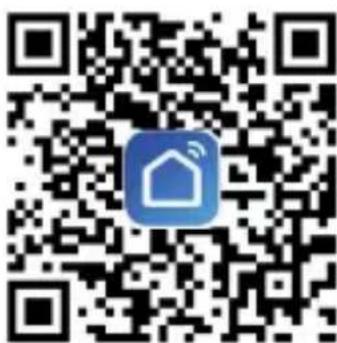
Open the Appstore from the mobile device (e.g., Smartphone or Tablet PC) with which you want to connect the socket. Search for the "Smart life" app in the Appstore and install it.
Alternatively, you can locate the App using the following QR code:
After this, it is necessary to create an account in the App. To do this, press the "Register" button. To receive the verification code, enter your country and your mobile phone number or email address.
Press "Next" again. Once the registration is complete, you can log in to the App using the details previously provided.
If you are logged in, a list of the currently connected WiFi devices is displayed. You can add new devices by opening the menu at the top right of the screen ("+" symbol). To do so, select the correct category.
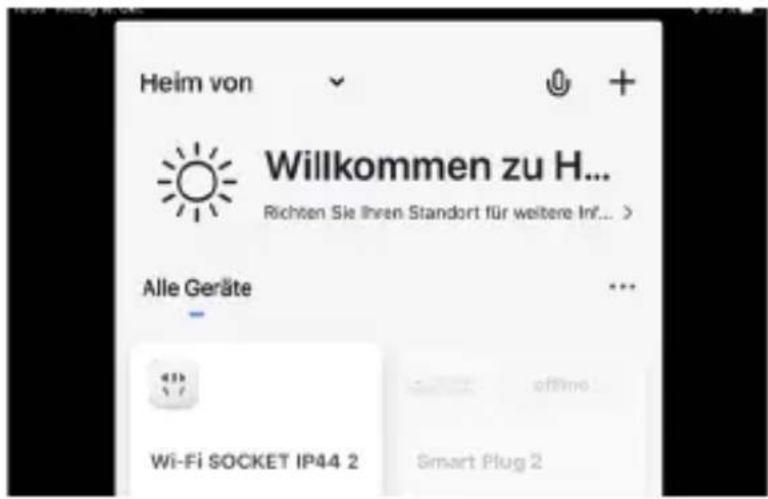
Put the unit into pairing mode by plugging it into the wall socket. If the unit has already been connected, press and hold the ON/OFF button for approx. 5-10 seconds to start the pairing mode.
As soon as the green WLAN status LED (power button) on the side of the socket flashes (approx. 2x per second), the device is in search mode.
Now enter your WiFi details into the App. The App is then connected with the socket. Once the process is complete, the App shows that the device has been successfully added.
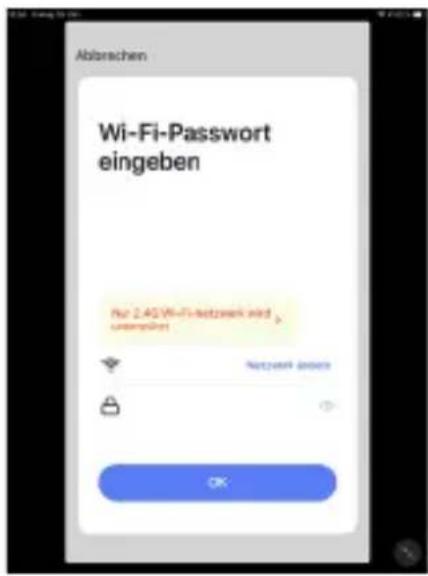
Note: If you use both a 2.4 GHz and a 5 GHz network (or any other guest networks), please temporarily disable all the networks except the 2.4 GHz network. Make this visible, since the IP socket is addressed and connected via the network.
8. Advanced settings for the App
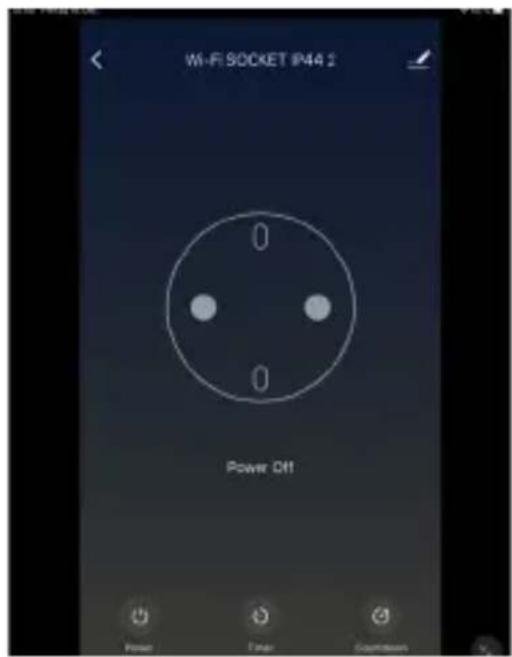
To use the advanced features of the socket, such as the timer function and rejection mode, it is necessary to click on the icon of the connected socket in the menu. An advanced setting menu is displayed:
You can switch the socket on and off using the "POWER" button.
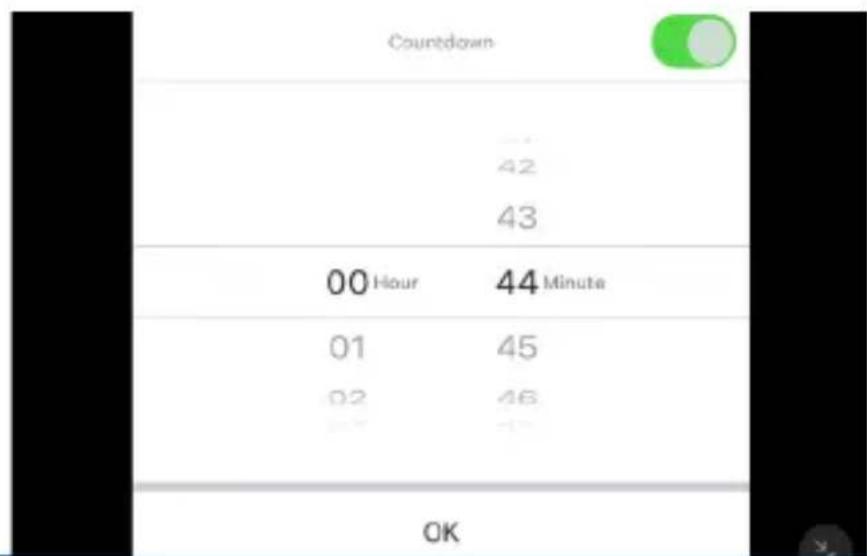
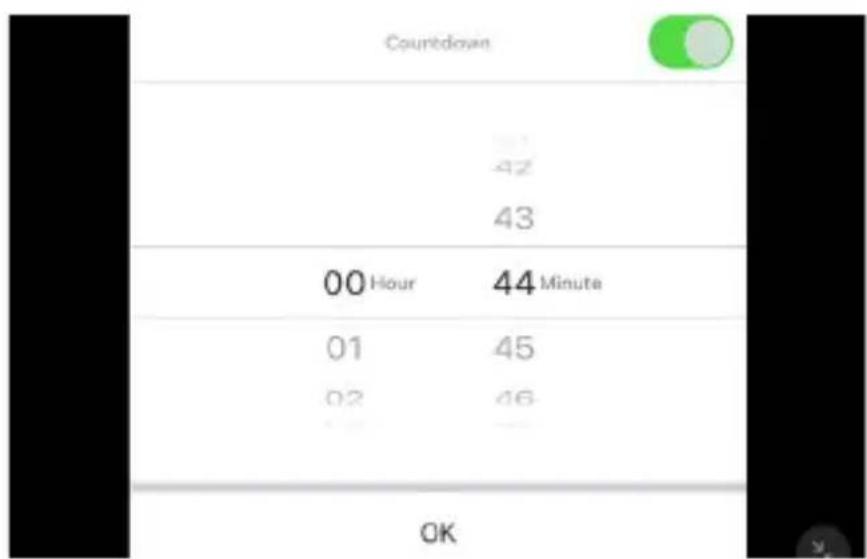
Countdown timer:
Press the "Timer" icon. The "Timer" menu is then displayed. You can set any time at which the device should be switched to the other state.
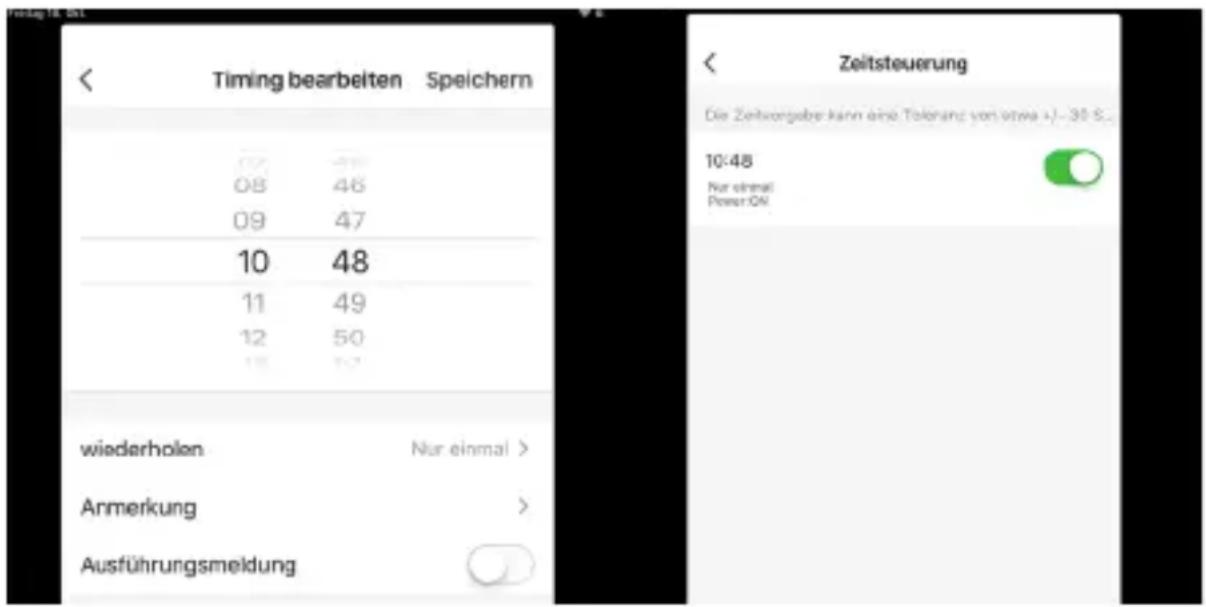
Scheduling mode:
The scheduling mode allows you to set various on and off times on different days of the week. Set the corresponding time and the desired days of the week, as well as the "POWER" status (on or off), and press "Save".
9. Settings
There are three dots at the top right in the main menu. Press these dots to
open the settings. In this menu you can, for example, set the name of the device and view the IP address.
SMART settings
With the "SMART" settings, you can control various devices and actions simultaneously via a scene. To do this, open for the "SMART" settings and press the "+" symbol in the upper right corner to add a scene. Then select the name of the scene and the corresponding actions which are to take place in the scene. Press the "SAVE" button to save the scene.
PROFILE settings
Press the "PROFILE" button to access your own profile.
12. Troubleshooting
| Error Troubleshooting | |
| The WiFi device is not displayed in the App | Check your router connectionCheck the status of the WiFi device |
| The App is not connecting | Several WiFi networks are enabled. Use the 2.4 GHz network only. |
13. Safety instructions and disclaimer
Never try to open the device to repair or make modifications. Avoid contact with the mains voltage. Do not short-circuit the product. Route the connecting cable safely so that it is not damaged. Use only cables that are approved for outdoor use. Secure the connection from moisture.
Do not expose the device to sudden changes in temperature or strong vibrations, as this could damage the electronic components. Check the device for any damage before using it. The device should not be used if it was subject to impact or has been damaged in some other manner. Please comply with the local regulations and restrictions. Do not use the device for purposes other than those described in the user manual. This product is not a toy. Keep it out of the reach of children or mentally disabled persons.
Any repair or modifications to the device, which is not carried out by the original supplier will void any warranty and guarantee claims. The device should only be used by those who have read and understood this user manual. The specifications of the device may be changed without prior intimation.
14. Disposal instructions
In line with the European WEEE directive, electrical and electronic devices should not be disposed of along with domestic waste. Their components have to be separately sent for recycling or disposal, because improper disposal of toxic and dangerous components may permanently damage the environment. According to the Electrical and Electronic Equipment Act (ElektroG), you are obliged (as a consumer) to return (free of charge) all electrical and electronic devices to the manufacturer, the point of sale, or public collection points at the end of their service life. The relevant local laws regulate the details in this regard. The symbol displayed on the product, in the user manual or/and on the packaging refers to these regulations. With this manner of sorting, recycling and disposal of used devices, you make an important contribution towards protecting our environment.

WEEE directive 2012/19/EU
WEEE Register no.: DE 67896761
The company WD Plus GmbH hereby certifies that the device 304969 complies with the fundamental requirements and all other relevant stipulations of the guideline 2014/53/EC. A complete conformity statement can be obtained from: WD Plus GmbH, Wohlenbergstraße 16, 30179 Hannover, or from the following Internet address: https://model.ganzeinfach.de/304969
MO-FR 9:30am - 18pm CET

downloads.ganzeinfach.de
WD Plus GmbH
- Scope of delivery
- Technical data
- Important safety guidelines for this device
- Caution!
- Additional instructions for this device
- Additional safety instructions
- Initial use
- Setup via the App
- Advanced settings for the App
- Countdown timer:
- Scheduling mode:
- Settings
- SMART settings
- PROFILE settings
- Troubleshooting
- Safety instructions and disclaimer
- Disposal instructions
Brand : Bearware
Model : 304969
Category : Speaker