303984 - Mouse Titanwolf - Free user manual and instructions
Find the device manual for free 303984 Titanwolf in PDF.


User questions about 303984 Titanwolf
0 question about this device. Answer the ones you know or ask your own.
Ask a new question about this device
Download the instructions for your Mouse in PDF format for free! Find your manual 303984 - Titanwolf and take your electronic device back in hand. On this page are published all the documents necessary for the use of your device. 303984 by Titanwolf.
USER MANUAL 303984 Titanwolf
text_image
TITANWOLF® User Manual MEGALITH Gaming MouseTITANWOLF®
User Manual
MEGALITH Gaming Mouse
Mod.-No.: 303984/20191101SZ232
Table of contents
- Deutsch .... 3
- English 12
- Français 21
- Italiano .... 30
- Español....39
ENG: Latest information, drivers, user manuals and data sheets can be found at www.ganzeinfach.de in our download area.
text_image
Profile Profile1 Driver version: 1.0.4 Export profile Import profile Export key solution Import key solution Rename5.2.1 Allgemein
text_image
Office Mode | Game Mode Left Button Middle Button Right Button Forward Back DF1 Loop Volume-up Volume down Previous New Play+Pause Macos Editor Shooting Editor Profile Profile1 + - - - - - - - - - - - - - - - - - - - - - - - - - - - - - - - - - - - - - - - - - - - - - - - - - - - - - - - - - - - - - - - - - - - - - - - - - - - - - - - - - - - - - - - - - - - - - - - - - - - - -text_image
Left Button Left Button Right Button Middle Button Forward Back Scroll Up Scroll Down Three Click Fire Key Key Combination Macos Disable M * C Q E Locking ALT DPI Multimedia DPI Lock
text_image
Macro list Key list Start record Automatic insert delay Cycle until the key released Cycle until any key pressed Specified cycle times 1 ~ 255 Insert event New macro Delete Modify DeleteThank you for choosing a TITANWOLF product. Please read the following user manual carefully so as to get the most from the product you have purchased.
1. Scope of delivery
• MEGALITH Gaming Mouse
- User manual
- Software CD
2. Specifications
- Ideally designed to meet the needs of gamers. Up to 4800 DPI, variable polling rate up to 1000 Hz
- PixArt 3212 sensor ensures accurate gaming and a more thrilling gaming experience in conjunction with the HUANO mouse buttons
- 11 programmable buttons, setting profiles that can be saved, configurable LED lighting
• Office and gaming mode - 5 DPI levels
- Durable gliding pads, 3 side buttons, 4 way D-pad, ergonomically designed vertical shape for right-handed users
3. System requirements
- Operating system: Microsoft® Windows® 10 (32/64bit), Windows® 8.1, Windows® 8 (32/64bit), Windows® 7 (32/64bit), Windows®
- Hard disk: approx. 20 MB of free disk space is required
4. Installation
Connect the device to a free USB port on your computer.
Installation is necessary to use the gaming mouse that you have purchased. For this purpose, insert the driver CD into your drive. The automatic playback opens.
Click on "Run autorun.exe" to start the installation. If you have to install the software manually, open the contents of the software CD and then run the "Titanwolf_MEGALITH.exe"

Titanwolf\_MEGALITH
A confirmation prompt is displayed that must be accepted with "Yes".

Now follow the instructions of the installation wizard to carry out the installation properly.
Once the process is completed, you can stop the installation program by clicking on "Finish". The software is now fully installed and can be used immediately.
5. Software settings
You can carry out many settings in the configuration software of the gaming mouse. Freely configurable profiles are available, which you can select using the software under the menu item "Profiles". Additional information about the profile-related and profile-independent settings, as well as information on how to create macros, is given below.
5.1 General profile settings
- Reset All: You can reset the settings of the current profile back to the factory settings using the "Restore" button.
5.2 Configuring the profiles
The options, which are explained in detail below, can be individually configured and saved for each of the profiles. Select a profile using the mouse in the "Profiles" menu (bottom left of the software) or create a new profile.
To configure a new profile, click on "+" and select a profile name by editing the profile. Make the desired profile settings and confirm using the "Apply" button.
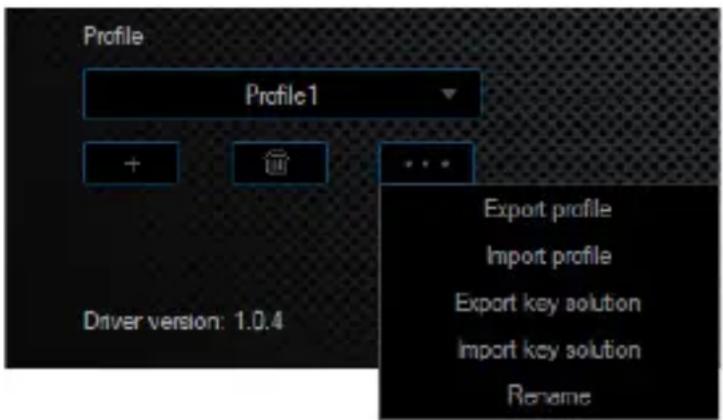
To change profiles, click on the Dropdown menu and then click on the desired profile. To import or export a profile or to rename it, click on the three dots in the "Profile" menu item.
text_image
Profile Profile1 + ... Driver version: 1.0.4 Export profile Import profile Export key solution Import key solution Rename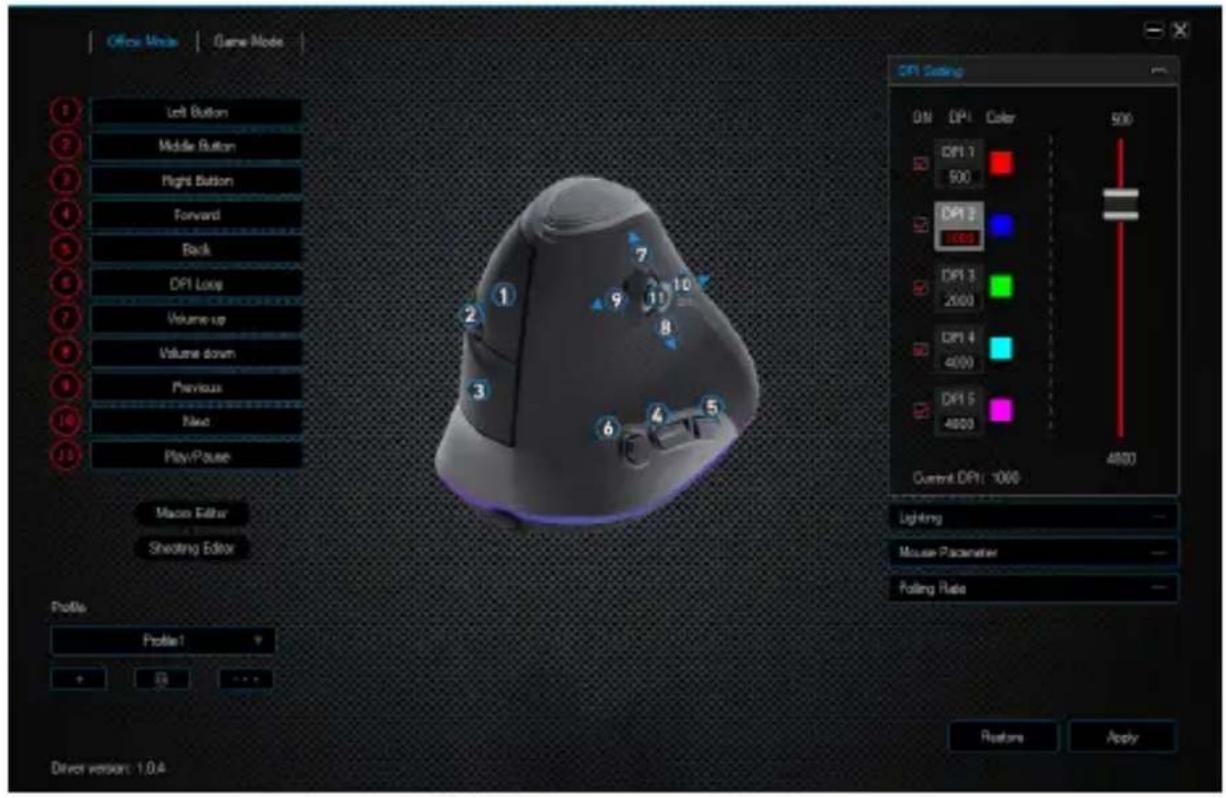
text_image
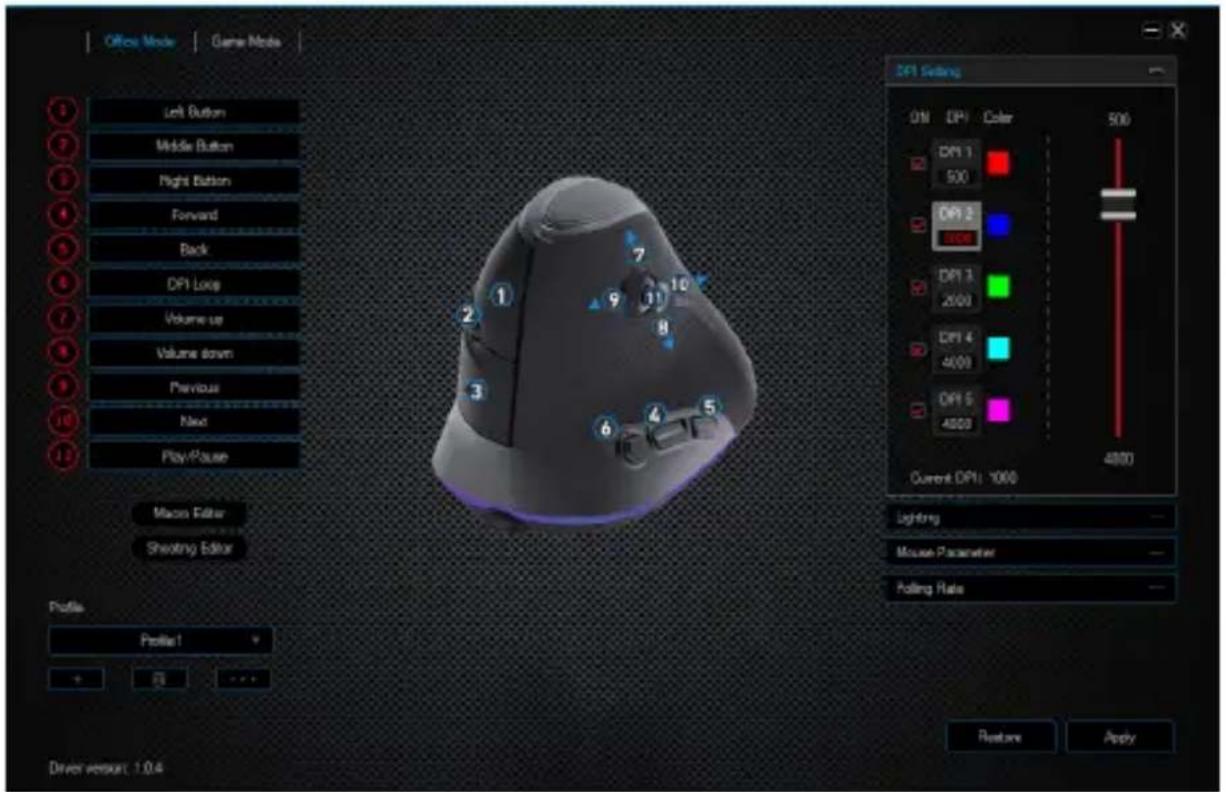
Office Mode | Game Mode Left Button Middle Button Right Button Forward Back DPI Loop Volume-up Volume down Previous Next Play-Pause Macro Editor Shooting Editor Profile Profile1 7 10 9 8 6 5 1 2 3 4 5 DFI Setting DN DPI Color 500 DP1.1 500 DP1.3 1000 DP1.3 2000 DP1.4 4000 DP1.5 4000 Current DP1: -1000 4800 Lighting Mouse Parameter Polling Rate + - ... - Apply Restore Apply Driver version: 1.0.45.2.1 General
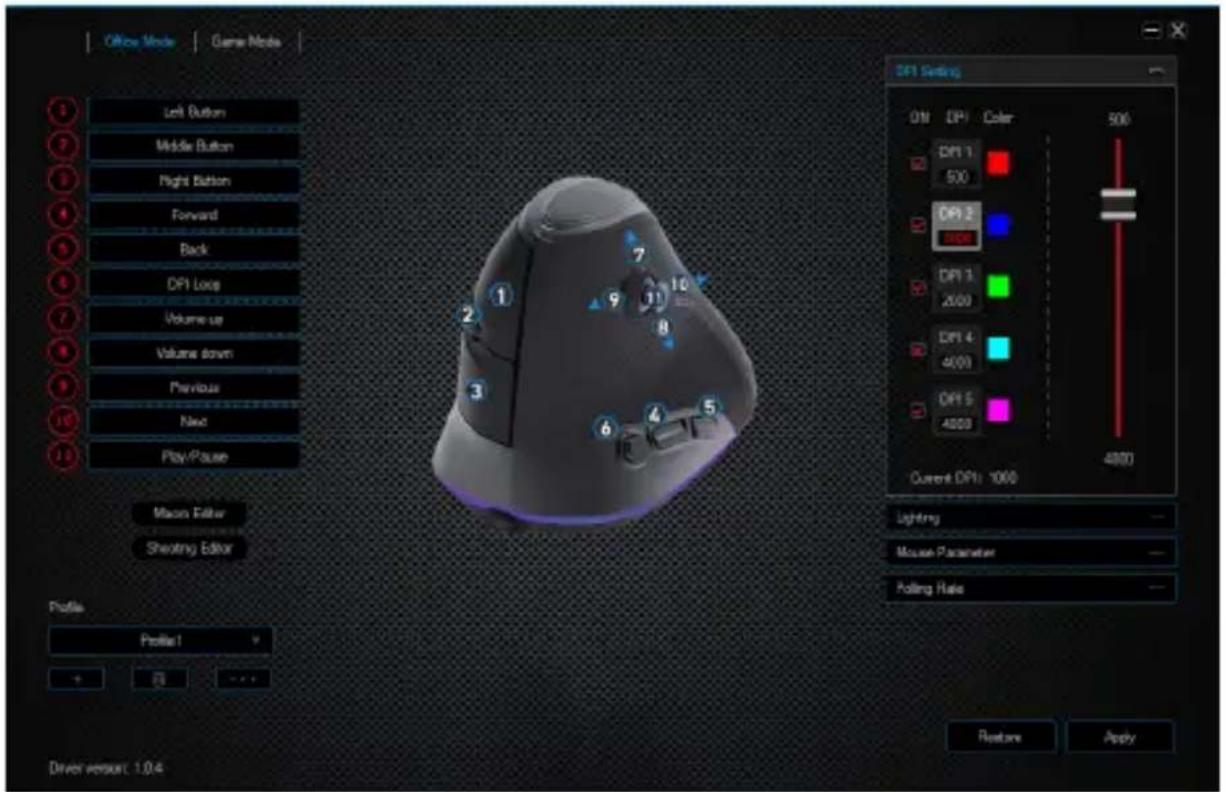
- Office Mode and Gaming Mode: You can configure two separate modes for office and gaming and save them accordingly. Select the desired mode and carry out the desired settings.
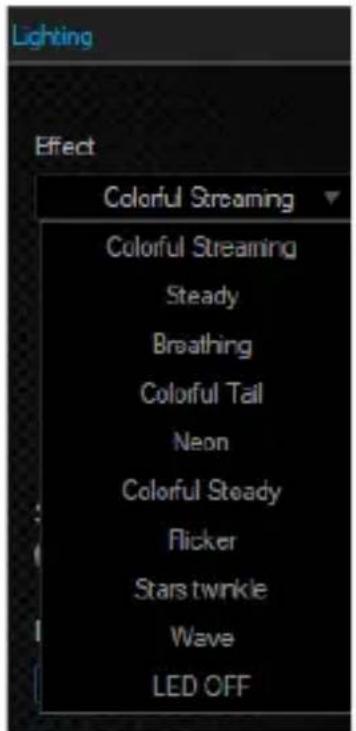
- Lighting: You can configure the light effects individually in the "Lightning" menu item. You can choose between continuous light (Steady), flashing light (Breathing) or a colour changing mode (Colourful Streaming) and configure it according to your needs.
- USB report rate (polling rate): Select your preferred polling rate to define the intervals at which the mouse sends the position data to the computer. A polling rate of 1000 Hz means that data is sent 1000 times per second.
- Double Click Speed: The double-click speed defines the maximum time between two clicks, so that it can be registered as a double click and not two individual clicks.
- Scrolling Speed: The scrolling speed of the mouse wheel can be configured here.
- Mouse Sensitivity: In this menu item, you can adjust the sensitivity of the
mouse, for example, to improve the accuracy of the pointer.
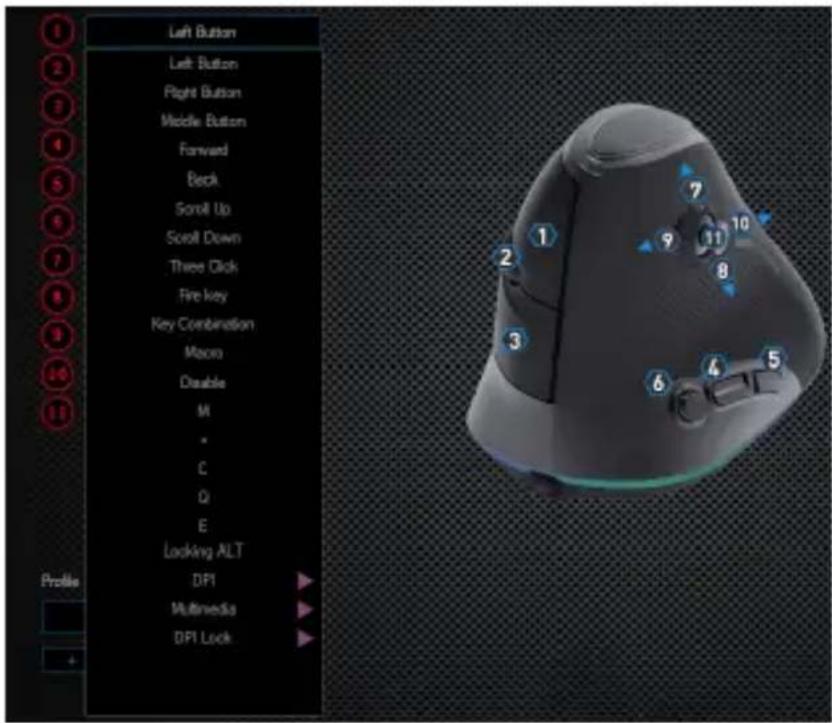
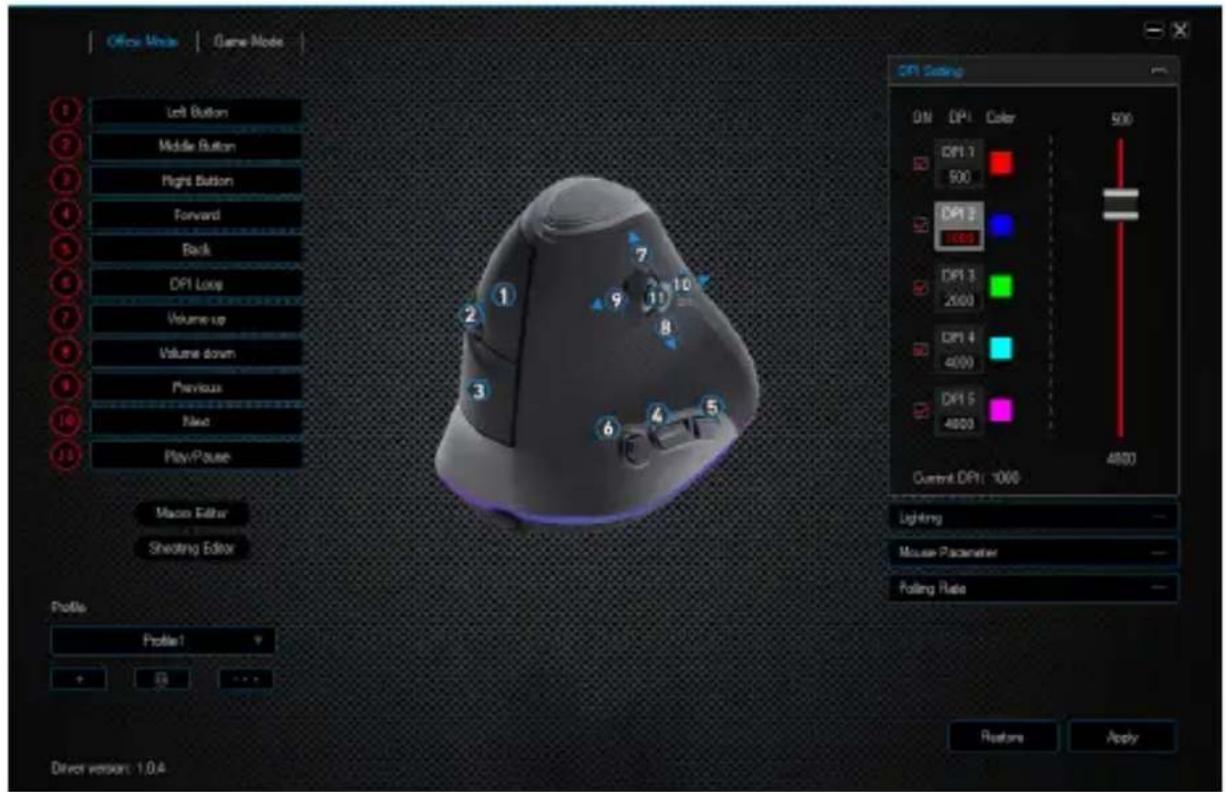
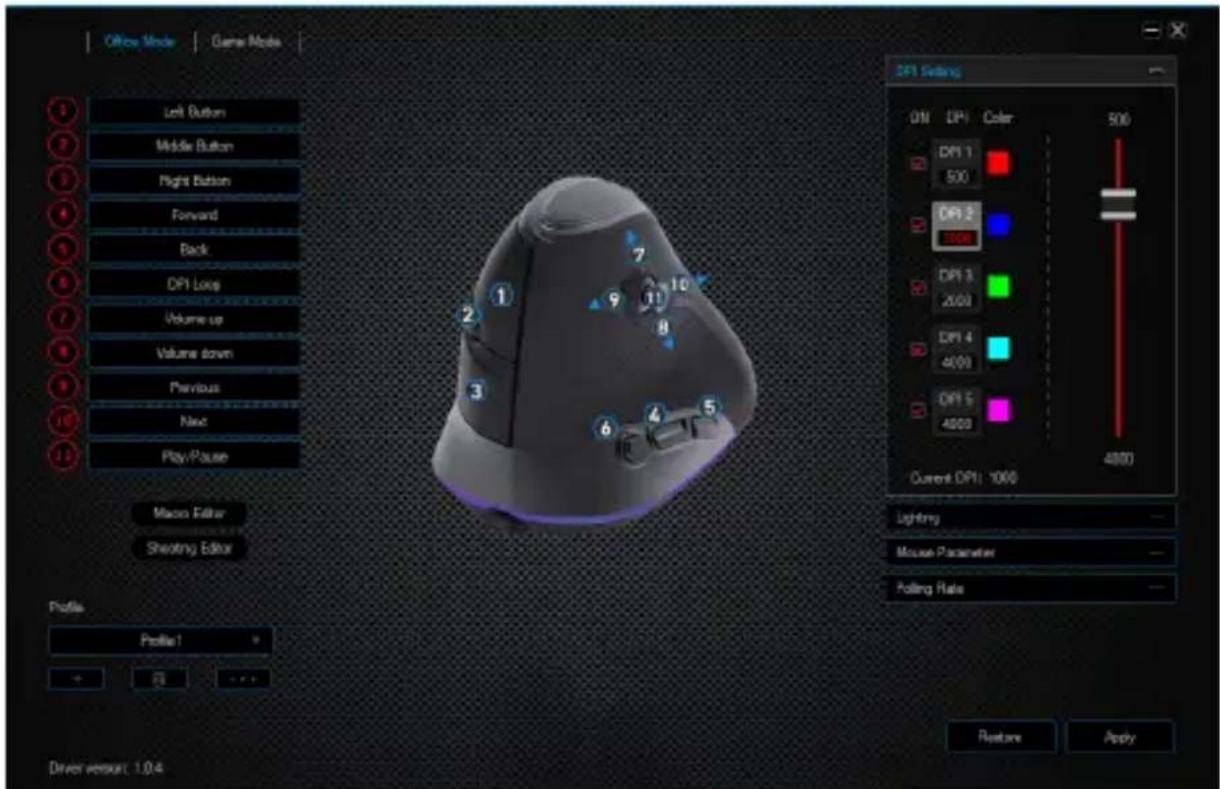
- Configuring the mouse buttons: The buttons at the top of the mouse as well as those at the side and the D-pad can be freely configured.
- To reconfigure a button, click on the number corresponding to the desired button in the list on the left of the mouse diagram.
- The mapping of numbers and buttons is shown in the diagram. You not only can choose from preconfigured options, but can also make individual settings.
A special feature is the option of creating macros, which is explained later in section 5.3. in detail.
text_image
Left Button Left Button Right Button Middle Button Forward Beck Scroll Up Scroll Down Three Click Fire key Key Combination Macro Double M * C Q E Locking ALT DFI Multimedia DFI Lock
Note: Please note that the "Z" and "Y" buttons may be reversed. To configure, use the letter other than the one desired to get the proper result.

text_image
DPI Setting ON DPI Color DPI 1 500 DPI 2 1000 DPI 3 2000 DPI 4 4000 DPI 5 4800 500 4900 Current DPI: 10005.2.2 DPI
In the DPI settings, you have the option of configuring 5 individual DPI levels or disabling them if desired. You can choose different DPI values between 500 and 4800 DPI as desired using the 5 DPI levels.
Note: When changing the profile and if the "DPI setting" window is open, it may happen that the DPI values displayed cannot be edited directly on the profile DPI. In such cases, close and open the "DPI settings" once. To update the display of the DPI bar, close and open the Software once.

5.2.3 LED
You can adjust the LED light of the device accordingly. You can select the colour, brightness and speed as desired to customise the appearance. Various light modes can be selected.
text_image
Lighting Effect Colorful Streaming Colorful Streaming Steady Breathing Colorful Tail Neon Colorful Steady Flicker Stars twinkle Wave LED OFF| LED effect Description | |
| Colorful Streaming Colour change | |
| Steady Custom: One colour continuously | |
| Breathing Custom: Pulsating mode | |
| Colorful Tail Custom: Running light | |
| Neon Colour sequence | |
| Colourful Steady Custom: Several colours continuously | |
| Flicker Custom: 2 colours flashing | |
| Stars twinkle Stars twinkling | |
| Wave | Wave mode |
| LED OFF | LED off |
5.3 Creating macros
Macros are recordings of specific key sequences, which can be run by pressing a single mouse button depending on the configuration. This can, for example, be keystrokes or mouse commands. To define a macro, click the "Macro Manager" button in the left section of the software.
To start recording a new macro, first click on "New macro". Then, define a name by double clicking on the macro. The recording can be started using the "Start record" button and stopped using the "Stop record" button. Additional options are available on the right side of the Macro Manager for recording the steps. In this way, you can define whether the time between pressing the individual buttons and the stop times are measured and recorded, so that the recorded macro is executed several times when the mouse button is pressed. You can edit the entry by right-clicking on the button or the time in the "Key list" field. This can be, for example, a change in the delay between the desired keystrokes. You can edit the individual recorded steps subsequently as often as you want.

Note: Please remember that the "Z" and "Y" keys are reversed. To configure, use the letter other than the one desired to obtain the right result. Special characters and the numpad cannot be used as a macro.

text_image
Macro list Key list Start record Automatic insert delay Cycle until the key released Cycle until any key pressed Specified cycle times 1 ~ 255 Insert event New macro Delete Modify Delete7. Resetting to factory settings
It is possible to reset the settings of the current profile back to the factory settings using the "Restore" button at the bottom of the software.

8. Safety instructions and disclaimer
Never try to open the device to repair or make modifications. Avoid contact with the mains voltage. Do not short-circuit the product. The device is not waterproof, hence please use it only in dry surroundings. Protect it from high humidity, water and snow. Do not expose the device to high temperatures. Do not expose the device to sudden changes in temperature or strong vibrations, as this could damage the electronic components.
Check the device for any damage before using it. The device should not be used if it was subject to impact or has been damaged in some other manner. Please comply with the local regulations and restrictions. Do not use the device for purposes other than those described in the user manual. This product is not a toy. Keep it out of the reach of children or mentally disabled persons. Any repair or modification to the device, which is not carried out by the original supplier, will void any warranty and guarantee claims.
The device should only be used by those who have read and understood this user manual. The specifications of the device may be changed without prior notice.

9. Disposal instructions
In line with the European WEEE directive, electrical and electronic devices should not be disposed of along with domestic waste. Their components have to be separately sent for recycling or disposal, because improper disposal of toxic and dangerous components may permanently damage the environment. According to the electrical and electronic equipment act (ElektroG), you are obliged (as a consumer) to return (free of charge) electrical and electronic devices to the manufacturer, the point of sale or public collection points at the end of their service life. The relevant local laws regulate the details in this regard. The symbol displayed on the product,
in the user manual or/and on the packaging refers to these regulations. With this manner of sorting, recycling and disposal of used devices, you make an important contribution towards protecting our environment.

WEEE directive: 2012/19/EU WEEE Register no.: DE 67896761
The company WD Plus GmbH hereby certifies that the device 303984/20191101SZ232 complies with the fundamental requirements and all other relevant stipulations. A complete conformity statement can be obtained from: WD Plus GmbH, Wohlenbergstraße 16, 30179 Hanover
text_image
Profile Profile1 + ... Driver version: 1.0.4 Export profile Import profile Export key solution Import key solution Rename5.2.1 Généralités
text_image
Office Mode | Game Mode Left Button Middle Button Right Button Forward Back DF1 Loop Volume-up Volume down Previous New Play/Power Macos Editor Shooting Editor Profile Profile1 + - - - - - - - - - - - - - - - - - - - - - - - - - - - - - - - - - - - - - - - - - - - - - - - - - - - - - - - - - - - - - - - - - - - - - - - - - - - - - - - - - - - - - - - - - - - - - - - - - - - - -text_image
Left Button Left Button Right Button Middle Button Forward Back Scroll Up Scroll Down Three Click Fire Key Key Combination Macro Double M * C Q E Locking ALT DPI Multimedia DPI Lock
text_image
Macro list Key list Start record Automatic insert delay Cycle until the key released Cycle until any key pressed Specified cycle times 1 ~ 255 Insert event New macro Delete Modify Deletetext_image
Profile Profile 1 + ... Driver version: 1.0.4 Export profile Import profile Export key solution Import key solution Rename5.2.1 In generale
text_image
Officer Mode | Game Mode Left Button Middle Button Right Button Forward Back DPI Loop Volume up Volume down Previous New PlayPause Macron Editor Shooting Editor Profile Profile1 + - 7 10 8 6 5 1 2 3 4 5 DFI Siding ON DPI Color 500 DFI 1 500 DFI 3 1000 DFI 3 2000 DFI 4 4000 DFI 5 4800 Current DPI: 1000 4800 Lighting Mouse Parameter Folding Rate Features Apply Direct version: 1.0.4text_image
Left Button Left Button Right Button Middle Button Forward Beck Scroll Up Scroll Down Three Click Fire key Key Combination Micro Disable M * C Q E Locking ALT DFI Multimedia DFI Lock
text_image
Macro list Key list Start record Automatic insert delay Cycle until the key released Cycle until any key pressed Specified cycle times 1 ~ 255 Insert event New macro Delete Modify Deletetext_image
Profile Profile1 + ... Driver version: 1.0.4 Export profile Import profile Export key solution Import key solution Rename5.2.1 General
text_image
Officer Mode | Game Mode Left Button Middle Button Right Button Forward Back DP1 Loop Volume up Volume down Previous Next Play/Pause Macro Editor Shooting Editor Profile Profile1 Driver version: 1.04 DP1 Setting ON DP1 Color 500 DP1 1 500 DP1 2 700 DP1 3 2000 DP1 4 4000 DP1 5 4000 Current DP1: 1000 Lighting Mouse Parameter Polling Rate Restore Applytext_image
Left Button Left Button Right Button Middle Button Forward Back Scroll Up Scroll Down Three Click Fine Key Key Combination Macra Disable M * C Q E Locking ALT DPI Multimedia DPI Lock