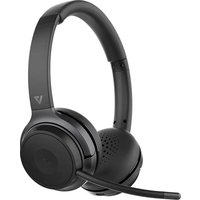
HB600S - Headphones V7 - Free user manual and instructions
Find the device manual for free HB600S V7 in PDF.


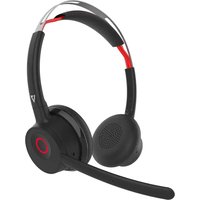
| Product Type | Wireless stereo headset |
| Brand | V7 |
| Model | HB600S |
| Bluetooth Technology | Bluetooth 5.0 |
| Bluetooth Profiles | A2DP v1.3.1, AVRCP v1.6, HFP v1.7, HSP v1.2, SPP v1.2, DID v1.3, HID v1.1, PXP v1.0.1, FMP v1.0, BAS v1.0 |
| Operating Frequency | 2.402 GHz to 2.480 GHz |
| Frequency Response | 99 ± 3 dB |
| Reception Sensitivity | >-89 dBm |
| Battery Type | Lithium polymer |
| Battery Capacity | 410 mAh |
| DC Input Voltage | 5 V / 500 mA |
| Charging Time | Approximately 3 hours |
| Talk Time | Up to 18 hours |
| Standby Time | Approximately 175 hours |
| Bluetooth Range | Up to 30 meters |
| Earpiece Size | 30 mm |
| Microphone Sensitivity | -42 ± 3 dB |
| Compatibility | Windows 10, macOS, iOS, Android |
| Care and Cleaning | Clean with a soft, dry cloth. Do not use abrasive products. |
| Safety | Do not expose to water or moisture. Do not attempt to repair yourself. Use at moderate volume to protect hearing. |
| Box Contents | Headset, removable external microphone, USB Bluetooth dongle, 3.5mm audio cable, USB-C charging cable, storage pouch, user guide, warranty and compliance |
Frequently Asked Questions - HB600S V7
User questions about HB600S V7
0 question about this device. Answer the ones you know or ask your own.
Ask a new question about this device
Download the instructions for your Headphones in PDF format for free! Find your manual HB600S - V7 and take your electronic device back in hand. On this page are published all the documents necessary for the use of your device. HB600S by V7.
USER MANUAL HB600S V7
WIRELESS STEREO HEADSET
USER GUIDE

Bluetooth®
natural_image
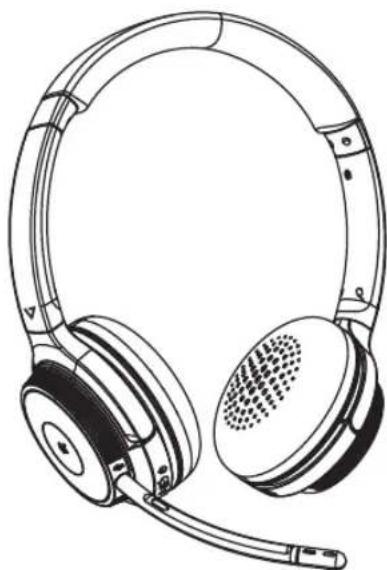
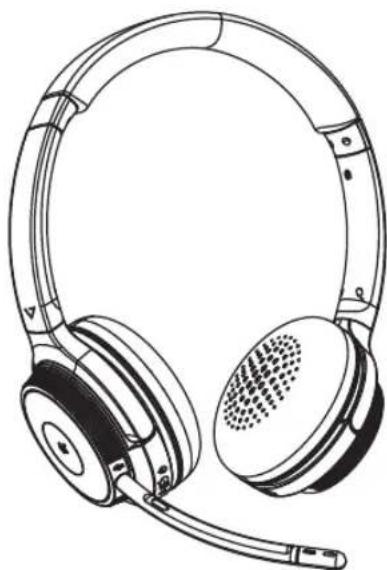
Line drawing of a pair of hardcover headsets with earphones and microphone (no text or symbols)In the Box
HB600S
Stereo Headset
V7 Link Bluetooth
Dongle
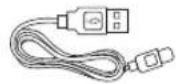
Type-C Charging Cable
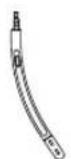
Boom Mic
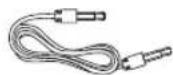
3.5mm Audio Cable

Storage Bag
User Guide
Warranty & Compliance
Overview
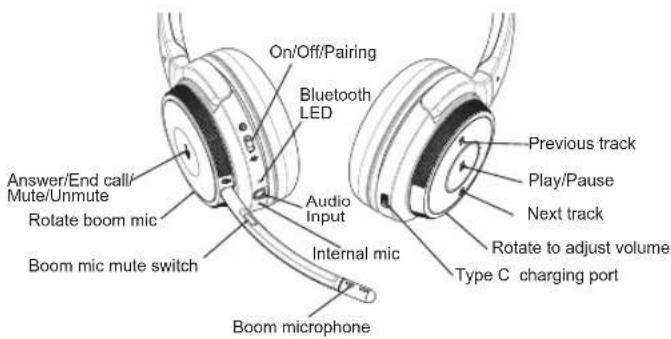
How to Wear
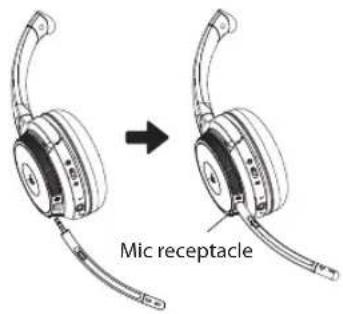
- Insert the detachable Boom Microphone into the 2.5mm receptacle located on the headset.
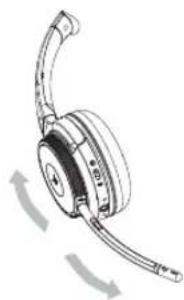
- The boom microphone can move to accommodate a user's preference for right side or left side wear.
natural_image
Line drawing of a pair of headphones with curved leads and a scroll wheel, showing motion arrows (no text or symbols)- Position the microphone to your preference.
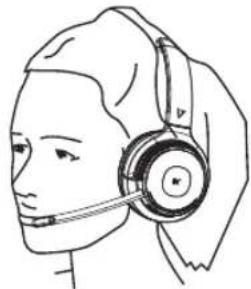
natural_image
Line drawing of a person wearing a headset (no text or symbols)Operation
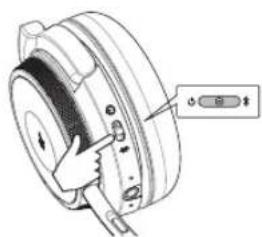
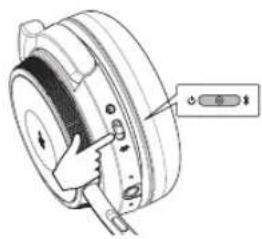
Power On
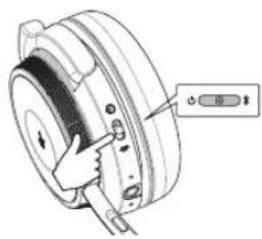
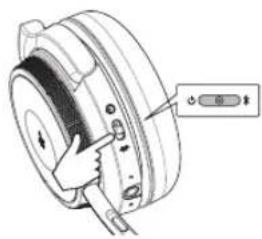
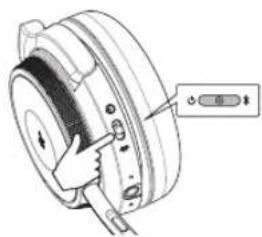
Slide the switch to the CENTER position
Power Off

Slide the switch to the ⏻ position
Connecting to a PC
PC (W/V7's Bluetooth Dongle)
The V7 USB dongle and headset are pre-paired and ready for use. Plug in the USB dongle and power on the headset to enjoy voice and audio performance range of up to 30 meters (100') line-of-sight. If using the PC's integrated Bluetooth, your range may be limited to 10 meters (33') and you may need to select 'V7 HB600S' for the audio playback device in the operating system's settings.
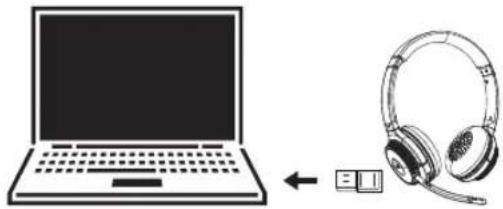
natural_image
Line drawing of a laptop and headphones with an arrow indicating connection (no text or symbols)Connecting
How to connect with the first Bluetooth device.
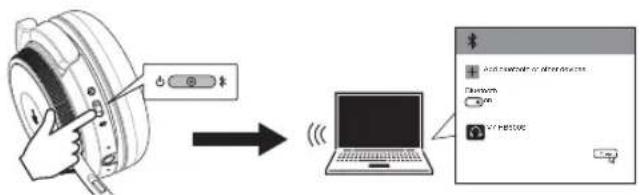
Slide the power switch to the "CENTER" position. The LED will flash red and blue when ready to connect.
Windows 10 PCs and Macs will automatically recognize and install drivers.
Connecting to the second Bluetooth device.
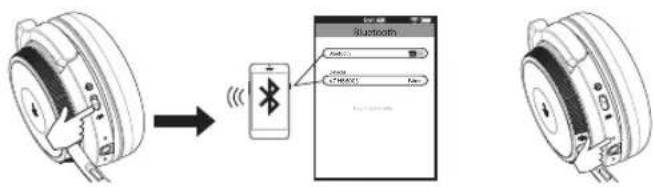
Slide the power switch to the “*” position and hold until 'pairing' heard or the pairing LED flashes, then select "V7 HB600S".
Activate "Bluetooth" in your device's settings and select "V7 HB600S".
The LED will flash blue to indicate the headphone is connected, and 'connected' is heard.
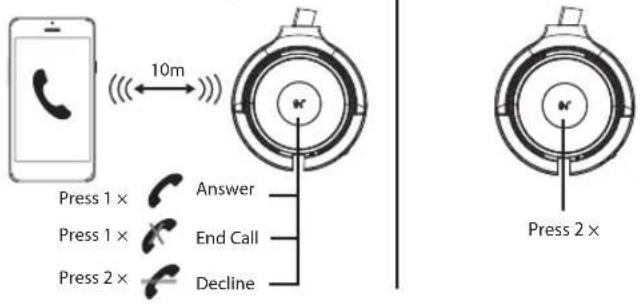
Calls with a Smartphone
Calls with a Smartphone Siri/Cortana/Assistance
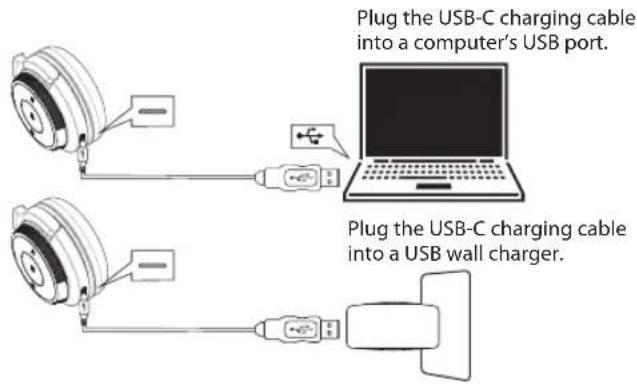
Charging the Headset
During charging the red LED will light. When fully charged, the LED will turn off. The headset remains on during charging.
To power off, the headset's power switch must be slid to the off position.
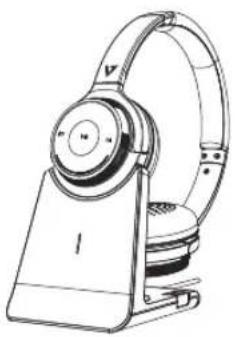
Using the charging stand
Plug the optional charging stand into a powered USB port on your PC, docking station or USB wall charger and then dock the headset. It takes approximately 3 hours to fully charge the headset.
natural_image
Line drawing of a white hardcover with adjustable arm and base (no text or symbols)Other Operations
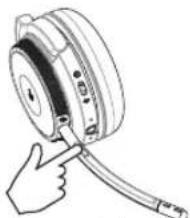
Muting the Boom Mic: Depress and hold the button for 2 seconds.
natural_image
Hand inserting a cable into a spool of tape (no text or symbols visible)Muting the internal Mic: (When boom mic is not in use) Depress and hold the call key 2 seconds.
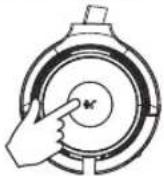
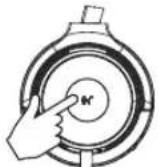
Battery Status: After the headset is powered on, press the call button briefly to hear the current battery status 100% -75%-50%-25%.
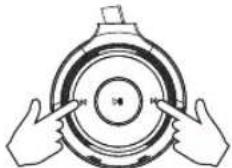
Clearing the pairing: While the headset is powered on, press and hold the previous and next track buttons simultaneously for 10 seconds. A pink LED will light for 2 seconds and the headset will then enter pairing mode.
natural_image
Illustration of two hands holding a circular mechanical component with concentric rings (no text or symbols)Product Specifications
Bluetooth version: Bluetooth V5.0
Bluetooth Profile: A2DPv1.3.1; AVRCPv1.6; HFPv1.7;
HSPv1.2; SPP v1.2; DID v1.3; HID v1.1; PXP v1.0.1;
FMP v1.0; BAS v1.0
Working Frequency: 2.402GHz-2.480GHz
Frequency Response: 99±3dB
Receiving sensitivity: >-89dBm
Battery type: Lithium polymer
Mic type and sensitivity: Virtual Microphone -42±3dB
Headphone Driver Size: 30mm
Battery capacity: 410mAh
DC Input: 5V_500MA
FCC ID: 2AKI8-19BF18
Charging voltage: 5V/2A
Bluetooth working range: Up to 30m
Talk time: Up to 18 hours
Charging time: Approximately 3 hours
Standby time: Approximately 175 hours
Compatibility: Windows 10, mac OS, iOS and Android
WARNING
Headsets can deliver sounds at loud volumes and high-pitched tones. Avoid prolonged use of the headset at excessive sound pressure levels. Please read the safety guidelines below prior to using this headset.
Safety information
Use of a headset will impair your ability to hear other sounds. Use caution while using your headset when you are engaging in any activity that requires your full attention. This package contains small parts that may be hazardous to children and should be kept out of reach from children.
Do not attempt: To dismantle or service the product as this may cause a short circuits or other malfunction which could result in a fire or electric shock.
Avoid exposing your product to rain, moisture or other liquids to avoid damage to the product or injury to you. Keep all products, cords, and cables away from operating machinery. Avoid use while operating a motor vehicle.
Built-in battery care: Please observe the following if the product contains a battery. Your product is powered by a rechargeable battery.
The full performance of a new battery is achieved only after two or three complete charge and discharge cycles. The battery can be charged and discharged hundreds of times but will eventually wear out.
Always try to keep the battery between 15^ C and 25^ C ( 59^ F and 77^ F). A product with a hot or cold battery may not work temporarily, even when the battery is fully charged. Battery performance is particularly limited in temperatures well below freezing.
Battery warning!
CAUTION – The battery used in this product may present a risk of fire or chemical burn if mistreated. Do not attempt to open the product or replace the battery. This will void the warranty.
Troubleshooting & Support
Headphones will not power on:
- Be sure the headphones are fully charged.
My mobile device is unable to find the Bluetooth headphones
- Confirm the headphones are in pairing mode (blue/red indicator lights flashing).
- Remove "V7 HB600S" from your phone's Bluetooth device list and try again.
- If the model still does not appear, restart the headset and phone, then try again.
After successfully pairing, the headphones disconnect
- Be sure the battery has adequate power and recharge.
• Headphones must be within 10m of most mobile devices. - Connections may be affected by obstructions such as walls or other electronic devices. Try moving closer to the device you are connected to.
The sound is distorted when listening to music or there is no sound when receiving or making calls through my PC
- Press Call Answer twice or turn off the headset, remove and reinsert the Bluetooth dongle and turn on the headset.
When answering a call, I cannot hear anything
- Ensure the mobile device is connected to the V7 HB600S headphones and not on phone's speaker or other audio option.
- Increase the volume on your mobile device.
There is no sound when listening to music
- Increase the volume on your headphones or the mobile device.
- Reestablish the Bluetooth wireless connection between the headphones and your mobile device.
- Check if the audio app has paused or stopped playback.
Headphones will not charge
- Confirm that the charging cable is operational or undamaged.
- Ensure that the USB charging cable is fully seated in the headphones and wall charger ports.
- Confirm that the USB port is outputting power. Some USB ports shut off when the PC is off.
Find support for the V7 HB600S at v7world.com
7SEVEN
HB600S
WIRELESS STEREO-HEADSET
GEBRAUCHSANLEITUNG

Bluetooth®
natural_image
Line drawing of a pair of hardcover headsets with earphones and microphone (no text or symbols)Lieferumfang
HB600S
Stereo-Headset
V7 Link
Bluetooth-Dongle USB-C-Ladekabel
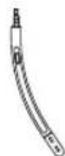
Bügel-
mikrofon
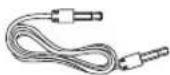
3,5 mm-
Audiokabel
natural_image
Line drawing of a pair of headphones with curved arm and scroll, showing head rotation arrows (no text or symbols)natural_image
Line drawing of a person wearing a headset (no text or symbols)Betrieb
Einschalten
natural_image
Technical diagram of a mechanical component with a labeled button (no text or symbols present)natural_image
Line drawing of a laptop and a pair of headphones connected by an arrow (no text or symbols)natural_image
Line drawing of a pair of hardcover headphones with adjustable armrests (no text or symbols)Weitere Funktionen
natural_image
Hand inserting a cable into a mechanical component (no text or symbols visible)natural_image
Diagram of two hands holding a circular mechanical component with arrows indicating direction (no text or symbols)Technische Daten
Bluetooth-Version: Bluetooth V5.0
Bluetooth-Profil: A2DPv1.3.1; AVRCPv1.6; HFPv1.7;
HSPv1.2; SPP v1.2; DID v1.3; HID v1.1; PXP v1.0.1;
FMP v1.0; BAS v1.0
natural_image
Line drawing of a pair of hardcover headsets with earphones and microphone (no text or symbols)natural_image
Line drawing of a pair of headphones with curved arm and scroll wheel (no text or symbols)natural_image
Line drawing of a person wearing a headset (no text or symbols)Funcionamiento
Encendido
natural_image
Technical illustration of a mechanical component with a finger pointing to a button (no text or symbols present)natural_image
Technical diagram of a mechanical component with a handle and adjustment knob (no text or symbols)natural_image
Line drawing of a laptop and a headset with an arrow indicating connection (no text or symbols)Conexión
natural_image
Line drawing of a portable electronic device with a circular head and adjustable arm (no text or symbols)Otras operaciones
natural_image
Hand inserting a cable into a mechanical component (no text or symbols visible)natural_image
Diagram of two hands holding a circular mechanical component with a central knob (no text or symbols)natural_image
Line drawing of a pair of hardcover headsets with earphones and microphone (no text or symbols)Contenu de la boîte
natural_image
Line drawing of a pair of headphones with curved leads and directional arrows indicating rotation (no text or symbols)natural_image
Line drawing of a person wearing a headset (no text or symbols)Fonctionnement
Allumer
natural_image
Diagram of a mechanical component with a finger pointing to a button (no text or symbols present)natural_image
Technical diagram of a mechanical component with a labeled button (no text or symbols present)natural_image
Illustration of a laptop connected to an earheart with a USB cable (no text or symbols)Connexion
natural_image
Line drawing of a portable electronic device with a circular head and front-mounted base (no text or symbols)natural_image
Hand inserting a cable into a circular device (no text or symbols visible)natural_image
Illustration of two hands holding a circular mechanical component with concentric rings and central hole (no text or symbols)natural_image
Line drawing of a pair of hardcover headsets with earphones and microphone (no text or symbols)natural_image
Line drawing of a pair of hardcover headphones with curved arm and scroll wheel (no text or symbols)natural_image
Line drawing of a person wearing a headset (no text or symbols)Utilizzo
Attivazione
natural_image
Illustration of a laptop connected to an ear headphones with a small icon, no text or symbols present.Connessione
natural_image
Line drawing of a portable electronic device with earbuds and front-mounted base (no text or symbols)Altre operazioni
natural_image
Hand inserting a cable into a CD tape reel (no text or symbols visible)natural_image
Diagram of two hands holding a circular mechanical component with a central hole (no text or symbols)Durata in standby: circa 175 ore
- In the Box
- Overview
- How to Wear
- Operation
- Connecting to a PC
- Connecting
- Calls with a Smartphone
- Charging the Headset
- Using the charging stand
- Other Operations
- Product Specifications
- WARNING
- Safety information
- Battery warning!
- Troubleshooting & Support
- Headphones will not power on:
- My mobile device is unable to find the Bluetooth headphones
- After successfully pairing, the headphones disconnect
- The sound is distorted when listening to music or there is no sound when receiving or making calls through my PC
- When answering a call, I cannot hear anything
- There is no sound when listening to music
- Headphones will not charge
- Find support for the V7 HB600S at v7world.com
- 7SEVEN
- Lieferumfang
- Betrieb
- Weitere Funktionen
- Technische Daten
- Funcionamiento
- Conexión
- Otras operaciones
- Contenu de la boîte
- Fonctionnement
- Connexion
- Utilizzo
- Connessione
- Altre operazioni
Brand : V7
Model : HB600S
Category : Headphones