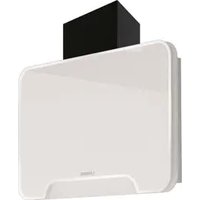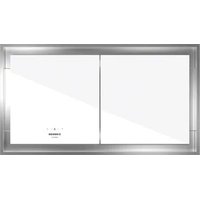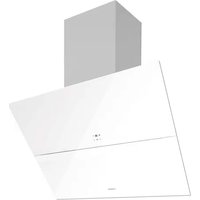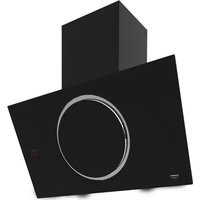
NorBreeze CIRCUM 90 DB NMOTION - Basket NODOR - Free user manual and instructions
Find the device manual for free NorBreeze CIRCUM 90 DB NMOTION NODOR in PDF.


User questions about NorBreeze CIRCUM 90 DB NMOTION NODOR
0 question about this device. Answer the ones you know or ask your own.
Ask a new question about this device
Download the instructions for your Basket in PDF format for free! Find your manual NorBreeze CIRCUM 90 DB NMOTION - NODOR and take your electronic device back in hand. On this page are published all the documents necessary for the use of your device. NorBreeze CIRCUM 90 DB NMOTION by NODOR.
USER MANUAL NorBreeze CIRCUM 90 DB NMOTION NODOR
natural_image
Black and white photo of a modern kitchen appliance with a circular recessed opening, no visible text or symbols.
NODOR
always innovating
ES MANUALADEDENISFURCICIONES
EN INSTRACTIONISORRISE
FR MAMNELED'D'UTILISATION
PT MANUALADDENSTRUCÕES
DE GEBRAACISASWEISISUGIG

text_image
Warning icon showing warning symbols and an open book with a hand pointing to itEN IMPORTANT - Please read carefully the separate safety guide before use.
natural_image
3D diagram showing a hammer and wrench next to a mechanical part with a circular hole, alongside a circular symbol labeled 'x2' (no text or symbols on the main elements)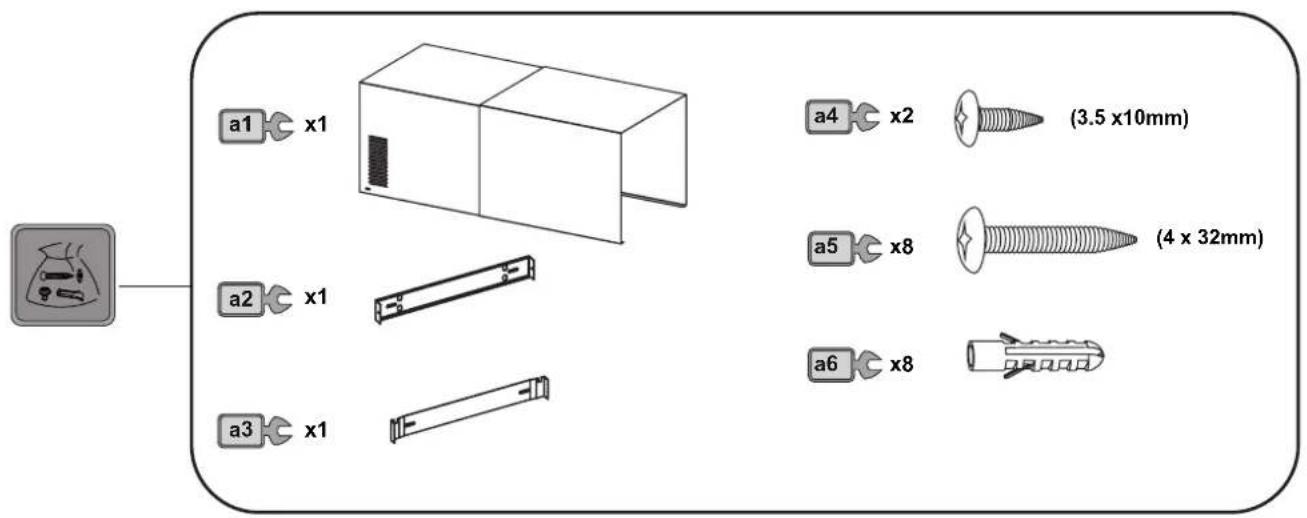
text_image
Diagram illustrating the installation of a tool with labeled components including a hand, tape, screwdriver, drill, and ruler.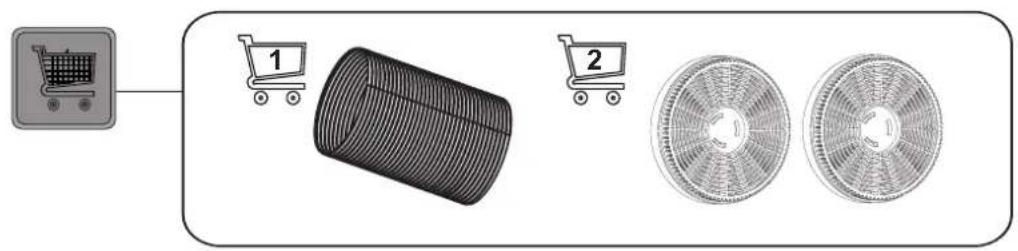
flowchart
graph LR
    A["Shopping Cart"] --> B["Shopping Cart 1"]
    B --> C["Shopping Cart 2"]
    C --> D["Two Circular Boxes"]
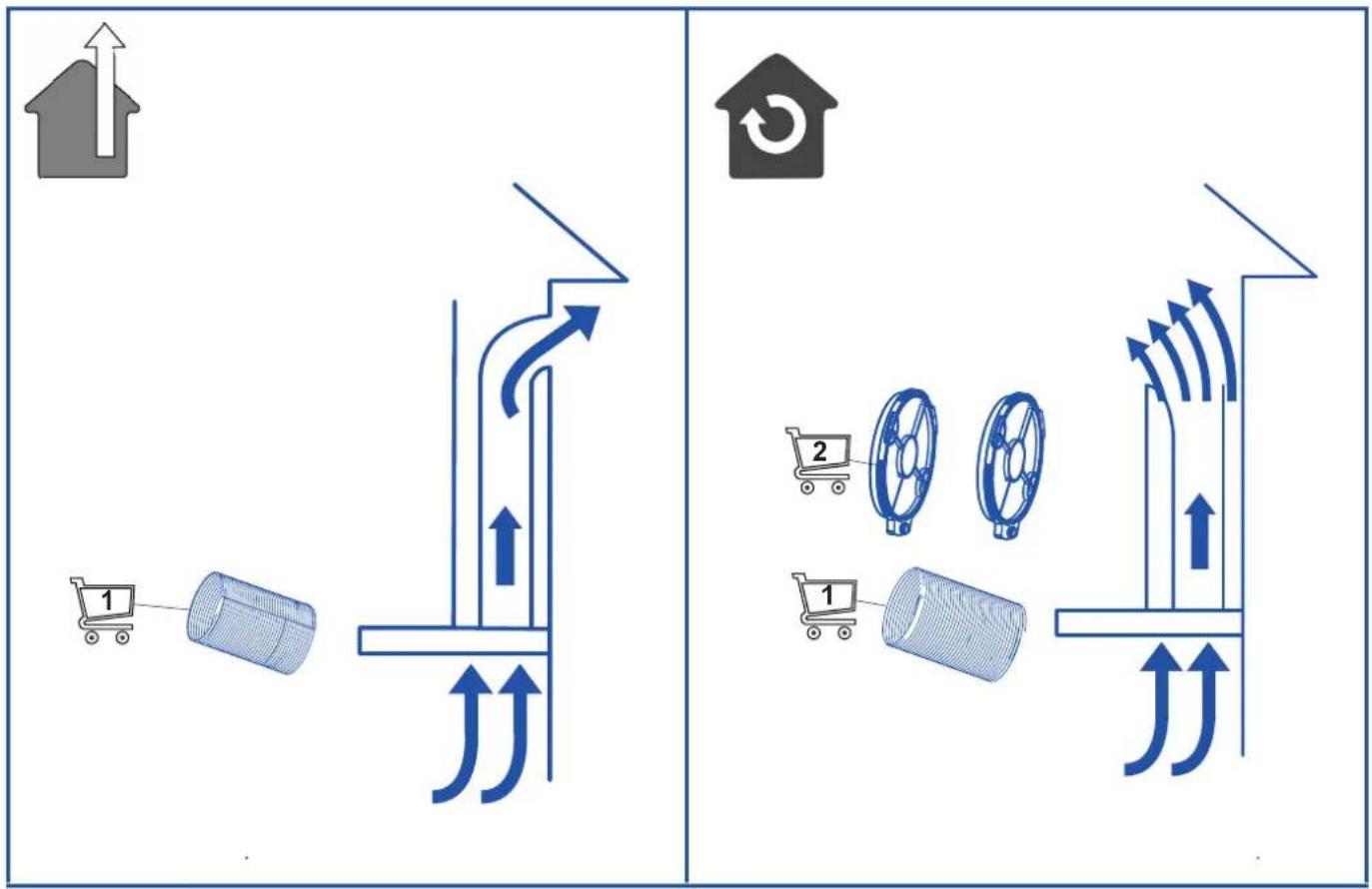
flowchart
graph TD
    A["Transportation Unit"] --> B["Recycle symbol"]
    B --> C["Storage unit with two wheels"]
    D["Recycle symbol"] --> E["Recycle symbol with two wheels"]
    F["Recycle symbol"] --> G["Recycle symbol with one cart"]
01
text_image
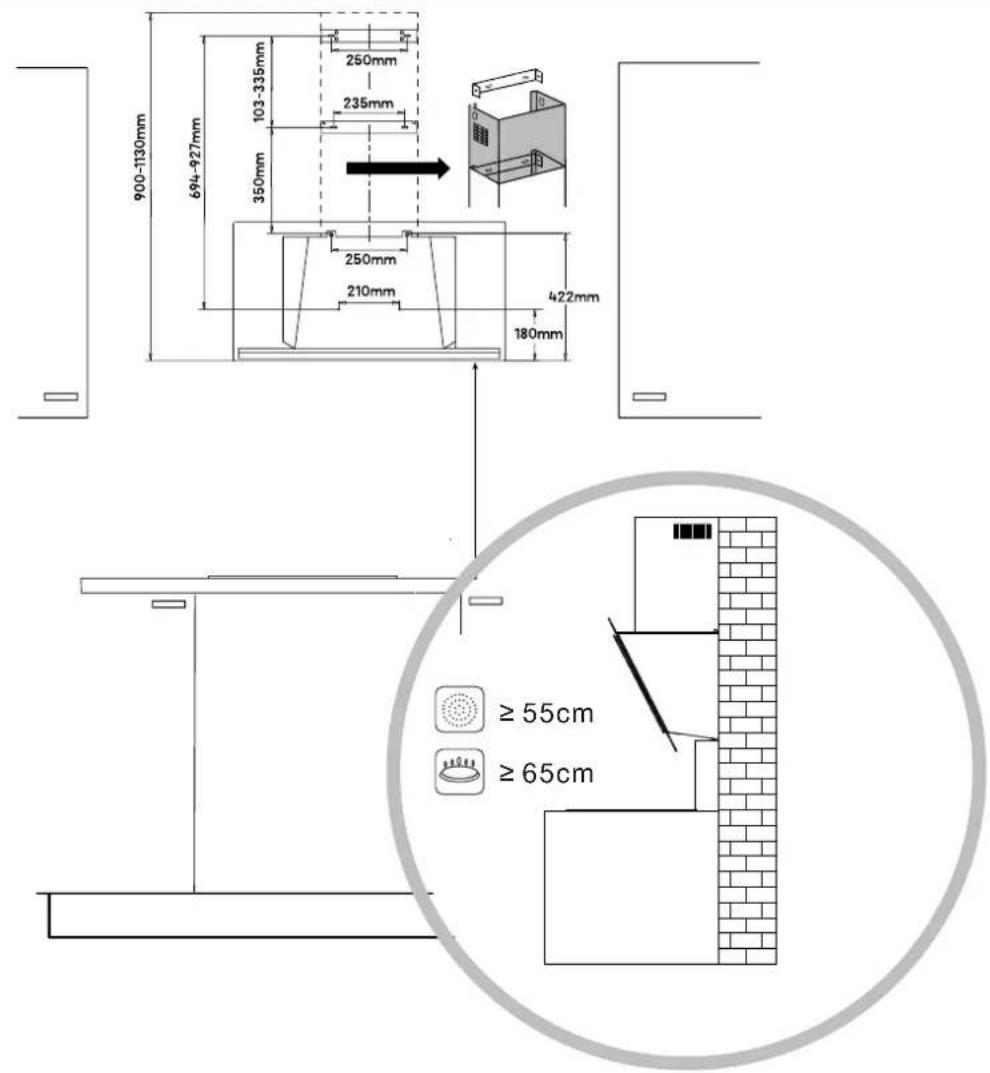
900-1130mm 694-927mm 103-335mm 250mm 235mm 350mm 250mm 210mm 422mm 180mm ≥ 55cm ≥ 65cm02
text_image
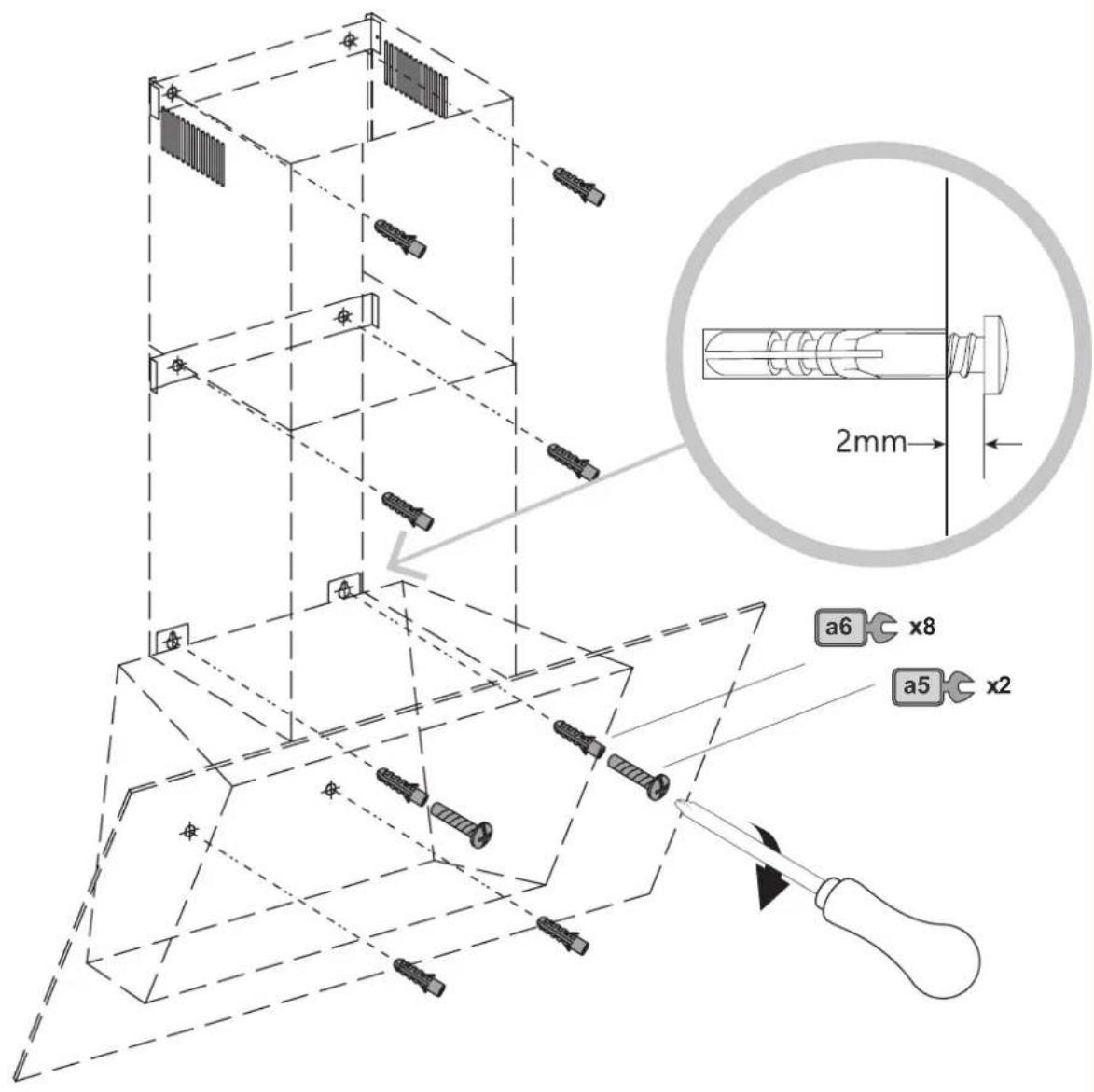
Technical diagram showing mechanical assembly with labeled components and a magnified detail view of a lock mechanism.04
text_image
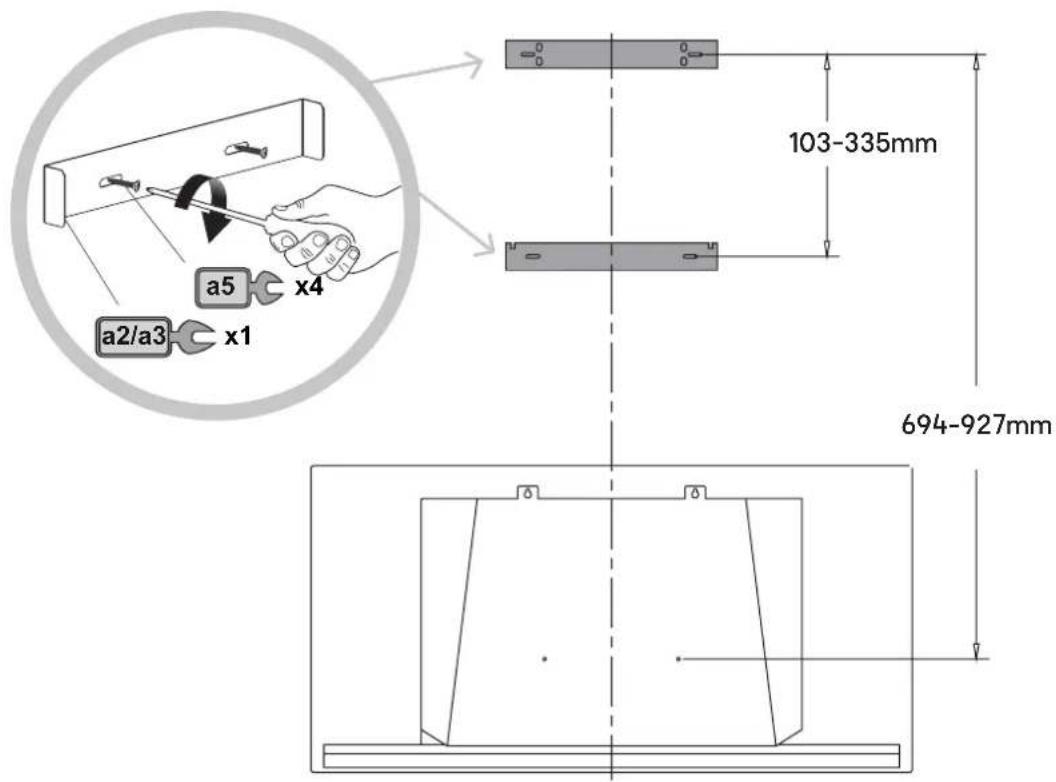
a5 x4 a2/a3 x1 103-335mm 694-927mm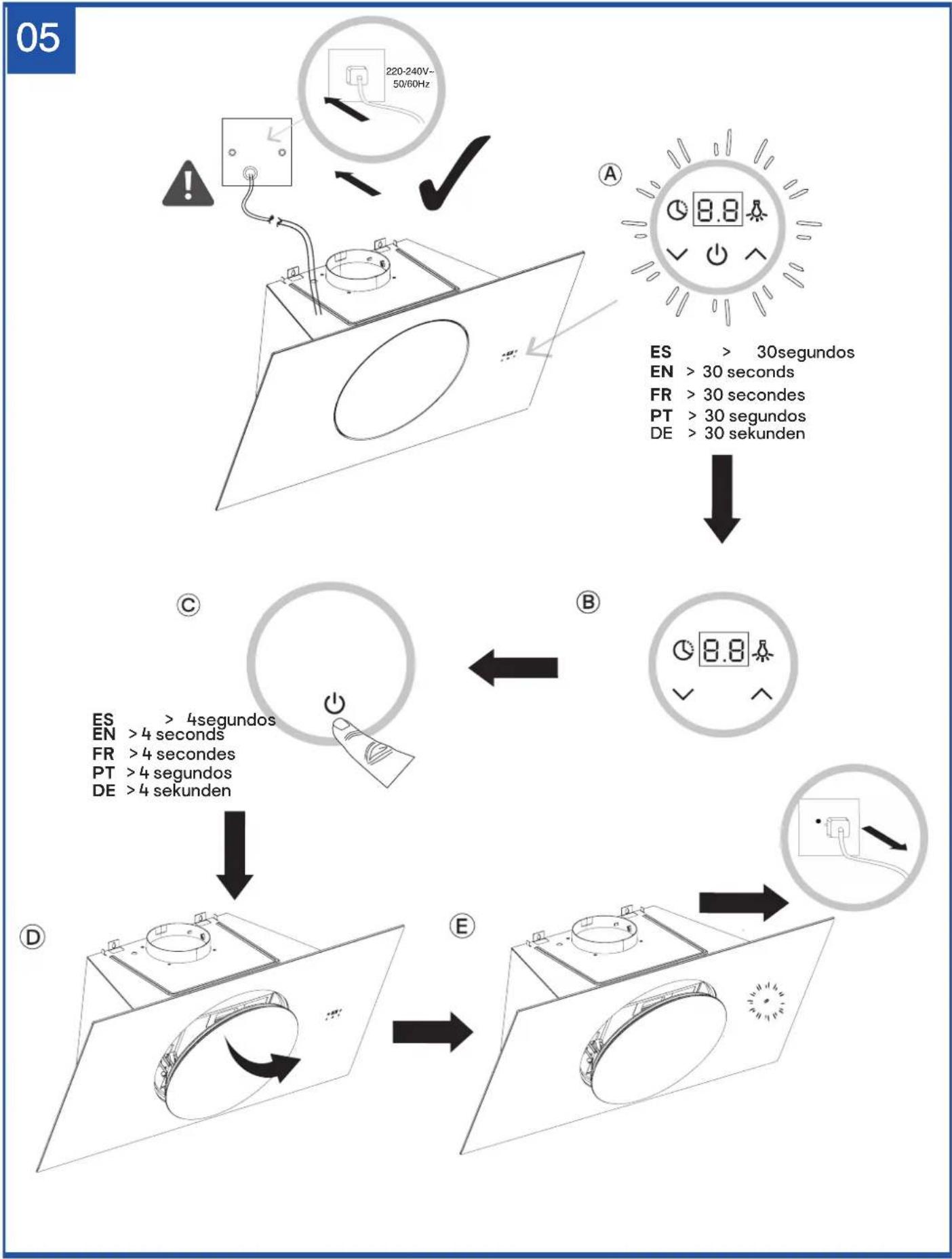
flowchart
graph TD
    A["220-240V-50/60Hz"] --> B["ES > 30segundos"]
    B --> C["EN > 30 seconds"]
    C --> D["FR > 30 seconds"]
    D --> E["PT > 30 segundos"]
    E --> F["DE > 30 sekunden"]
    F --> G["ES > 4segundos"]
    G --> H["EN > 4 seconds"]
    H --> I["FR > 4 seconds"]
    I --> J["PT > 4 segundos"]
    J --> K["DE > 4 sekunden"]
    K --> L["ES > 4segundos"]
    L --> M["EN > 4 seconds"]
    M --> N["FR > 4 seconds"]
    N --> O["PT > 4 segundos"]
    O --> P["DE > 4 sekunden"]
06
flowchart
graph TD
    A["① Solar Panel with Component ②"] --> B["180° Circular Display"]
    B --> C["② Screen with ✓"]
    C --> D["Bottom Panel with Screen"]
    D --> E["Bottom Panel with Down Arrow"]
text_image
a5 x207
text_image
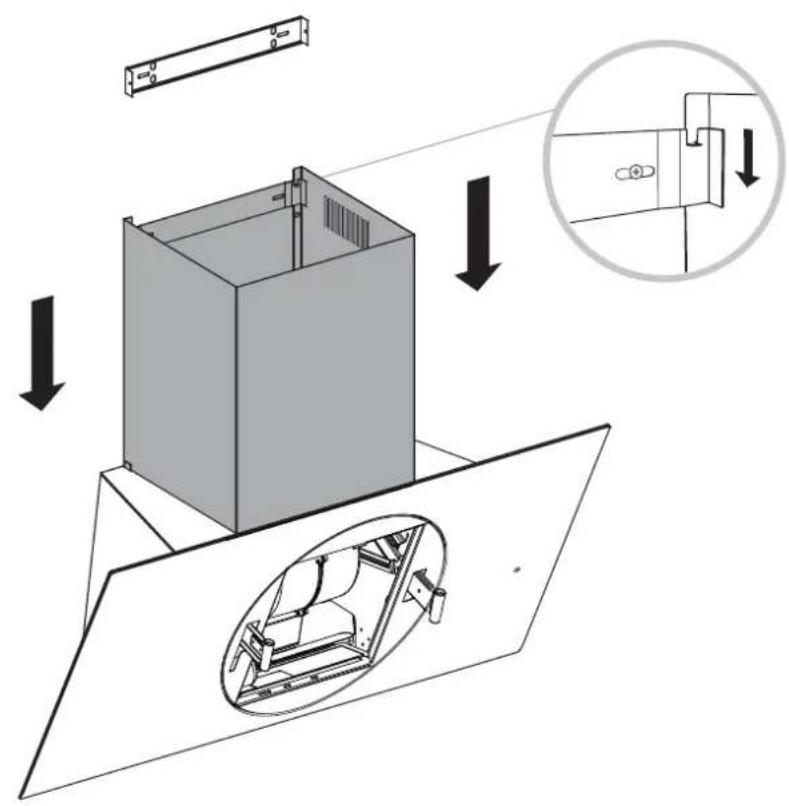
Technical diagram of a mechanical assembly with labeled components and a shopping cart icon08
text_image
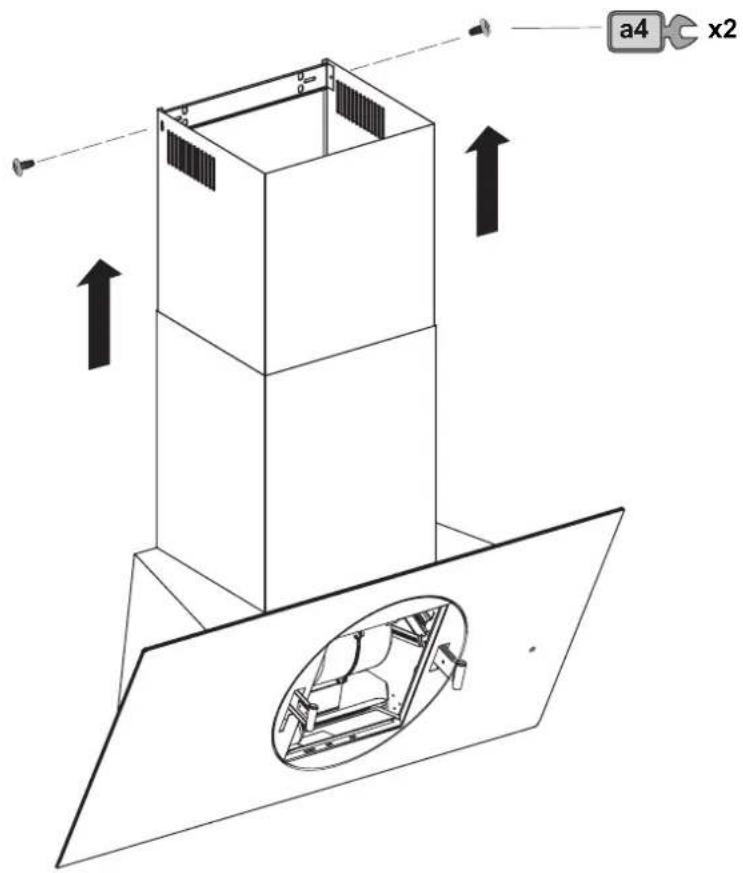
Technical diagram showing a mechanical assembly with labeled components and directional arrows indicating assembly steps.09
text_image
a4 x210

text_image
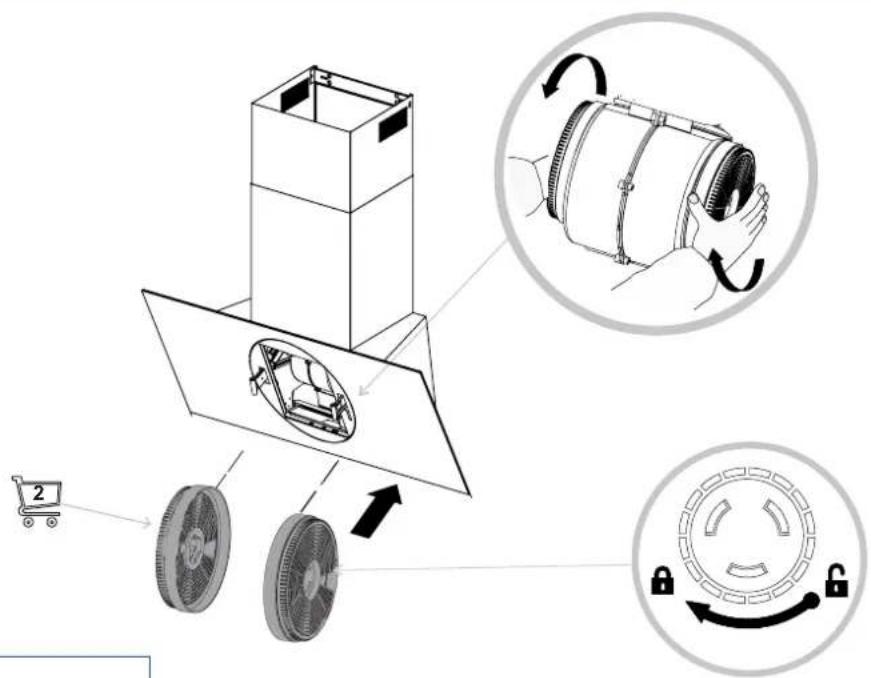
Diagram illustrating car air conditioning process with labeled components and directional arrows3 MESES
3 MONTHS
3 MOIS
3 MESES
3 MONATE
text_image
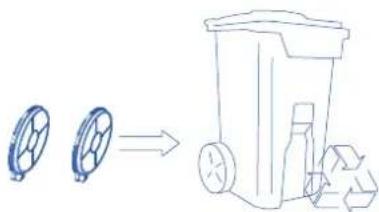
Diagram showing a recycling bin with two wheel rim designs and a recycling symbol, illustrating the process.11

natural_image
Diagram showing a device with a lid and a stack of boxes, illustrating assembly or installation (no text or symbols present)12
text_image
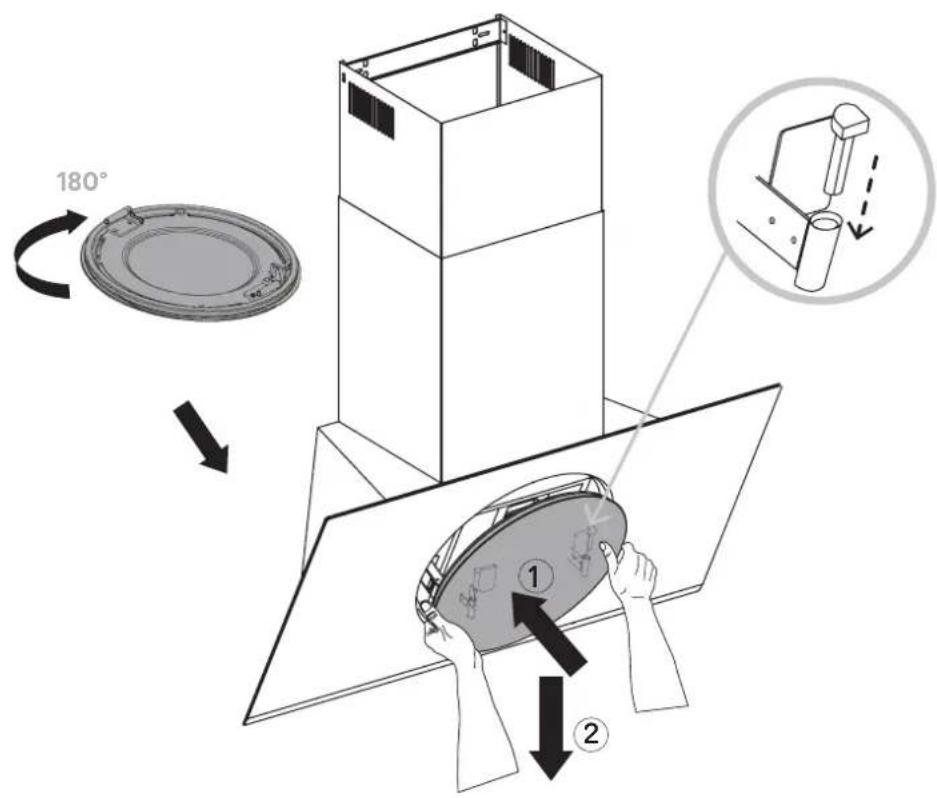
180° ① ②13
text_image
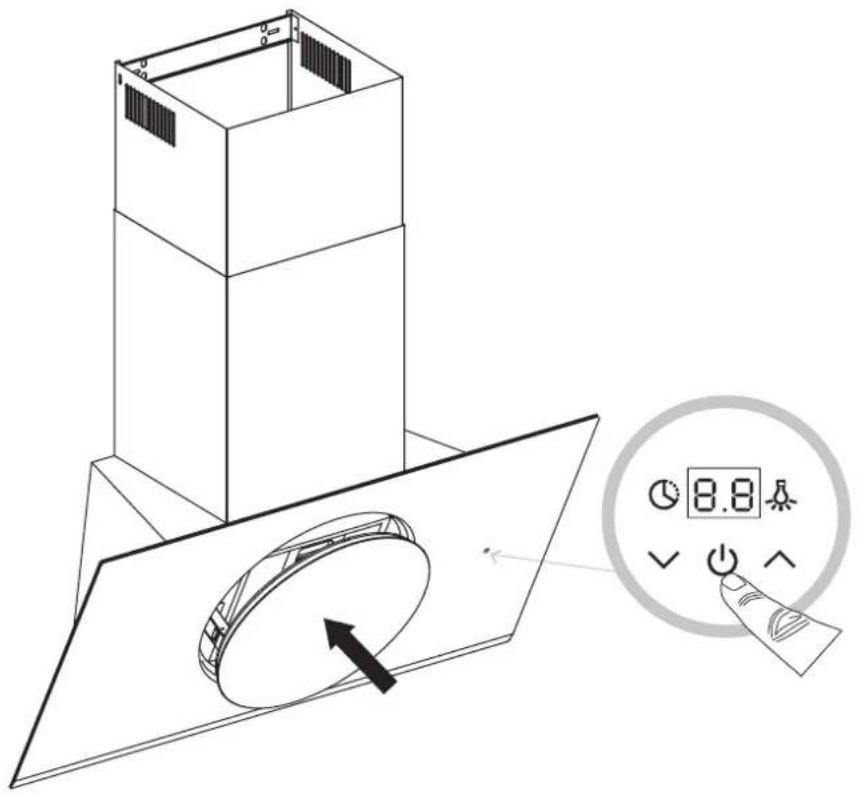
Technical diagram showing a 3D box assembly with a circular component and a control panel displaying a numeric display.14
natural_image
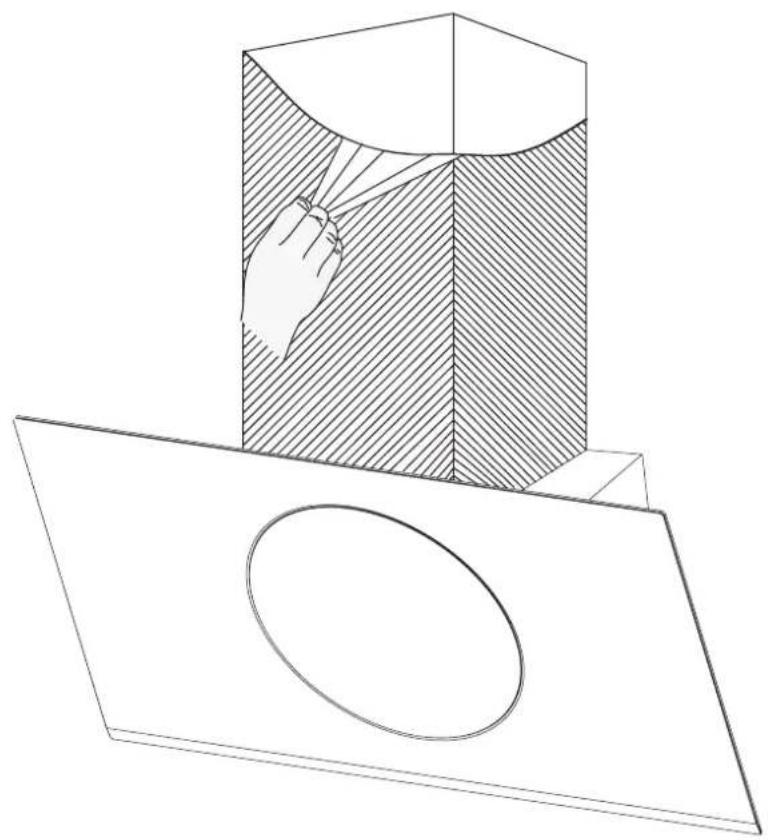
Technical line drawing of a 3D geometric shape with a shaded cross-section and an oval cutout, no text or symbols present.
flowchart
graph TD
    A["Refrigerator"] --> B["Refrigerator with fan"]
    B --> C["Washing Machine"]
    C --> D["≤ 65°C"]
WARNING: Read the instructions before using the appliance.
FUNCTIONS & SETTINGS
Control panel
To obtain the best results from your cooker hood it is recommended that you leave it switched on for a short time after you have finished cooking.
| Timer | 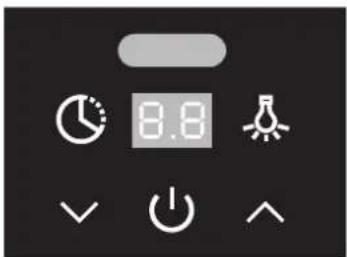 | |
| Fan Boost Function and Speed Increase | ||
| Hood On/Off | ||
| 8.8 | LED Display | |
| Fan Speed Reduction | ||
| Light On/Off | ||
| Movement Sensor |
To Set Up For First Time Use
Once you have turned on the appliance at the switched fused connection unit, all the icons will start to blink white. The hood is now in settings mode.
If you do not want to set up the hood at this stage it can be turned off by pressing the Hood On/Off Icon ☐ or alternatively, it will switch off automatically after 30 seconds.

IMPORTANT: Once in settings mode, you can adjust the recirculation, lighting or sensor options in any order. However, all actions must be completed within two minutes.
Setting the Ducted or Recirculation mode
Turn off the power first and within 30 seconds of turning on the mains power again, press the Timer Icon and the Timer Icon ⏻ will turn red. The LED display will show the current Ducted or Recirculation mode.
Ducted mode -- the default setting to extract air to the outside.
Recirculation mode the setting to recirculate the air with carbon filters installed.
To change this option press either ∧ or ∨ to select the correct mode and then press
Timer Icon to accept the change.
Setting the Lighting mode
Within 30 seconds of turning on the mains power, press the Light Icon ⚙ and the Light Icon will turn red. The LED display will show the current lighting mode.
Ambient light enabled R. Default setting, all lights are enabled.
Ambient light disabled ⒽOptional, down lights only are enabled.
Cool light L--Default setting for all lights.
Warm light ⊆ Optional setting for all lights.
To change these settings press ∧ or ∨ and press the Light Icon ⚙ to accept the change.
Setting the Movement Sensor
Within 30 seconds of turning on the mains power, press the Timer and Light Icons together ⏻ for 2 seconds to adjust the Movement Sensor. Repeat this process to alter the sensor setting if required. The LED display will show the selected mode.
Sensor enabled [.] the display will flash for 5 seconds - default setting.
Sensor disabled[.] the display will remain solid for 5 seconds.
Note: To change any of these settings at a later time, you must switch off the power at the mains outlet first. Wait a few seconds, turn on the power again and adjust as required.
GENERAL USE
On/Off
- Touch the Hood On/Off Icon ⏻ and the glass panel of the cooker hood will open. The fan will turn on at speed 1 and the light will come on at the last setting used. All icons will be white apart from the Light Icon ⚠ which will be red if the light was already on.
- Press the On/Off Icon again to turn off the cooker hood; the glass panel will close and the fan will switch off. The light will also turn off automatically after 5 minutes. If you wish to leave the light on for an extended time, manually switch on at the control panel.
Movement Sensor (if enabled)
You can switch on the cooker hood by passing your hand in front of the Movement Sensor. Note you cannot turn off the cooker hood using the Movement Sensor, you must touch the Hood On/Off ⏻ Icon instead.
Light On/Off
- Touch the Light Icon to turn on the downlight and also the ambient light (if enabled).
- To change the brightness of the downlight, touch and hold the Light Icon 🎨 until the display shows the brightness sequence. Remove your finger from the Light Icon when the desired brightness is achieved. The sequence runs from L1 to L5 and back to L1 in steps. The selected brightness will flash for a few seconds and revert to the fan speed display.
Fan On/Off and Speed Reduction
- If the fan motor is set at speeds 2, 3, 4, 5 or P, pressing the Fan Decrease Icon ∨ will reduce the speed by one level at a time. If you press the Fan Decrease Icon ∨ for more than two seconds, the speed will drop to speed 1 from any other level.
- If the fan motor is set at speed 1, pressing the Fan Decrease Icon will result in the motor switching off. However the downlight will remain on (if enabled) and the display will show the current brightness level.
Boost Function and Speed Increase ^
If the fan motor is set at speeds 1, 2, 3, 4 or 5, pressing the Fan Increase Icon ∧ will increase the speed by one level at a time. If you press the Fan Increase Icon ∧ for more than two seconds, the speed will increase to full power from any level and the display will flash ‘P’.
NOTE: Full power or Boost (P) only operates for five minutes maximum to conserve energy and the fan speed will automatically drop to speed level 5 after this time.
Setting the Timer
- When the fan motor is on and the Timer Icon ⏻ is pressed the icon will flash red and the display will show the current fan speed.
- The chosen speed level will remain in use for five minutes before dropping down to the next lowest speed. This speed will remain in operation for two minutes before dropping down again. This will be repeated every two minutes unless the speed is already at level 1 and then the fan will turn off. If the light is already on, this will also be turned off.
- Pressing the Fan Decrease Icon ∨ or Fan Increase Icon ∧ during a current timer program will restart the countdown process again with the first five minute cycle.
- If the Timer Icon Ⓐ is pressed again during a current timer program, the cycle will be cancelled. The Timer Icon Ⓐ will revert to white and the current fan speed will remain on indefinitely.
- The maximum timer program cycle is 15 minutes: 5 minutes on P and then 2 minutes each on speed 5 down to speed 1.

Warning: always switch off the electricity supply before carrying out maintenance work on the hood. In the event of a fault, contact an official distributor or authorised dealer.
Cleaning the outside: use liquid, non-corrosive detergent and avoid using abrasive cleaning products and solvents. Do not use high-pressure or steam cleaning devices.

Important: increase the filter cleaning/replacement frequency if the hood is used for more than 2 hours a day. Always use genuine filters from the manufacturer.
Grease cleaning
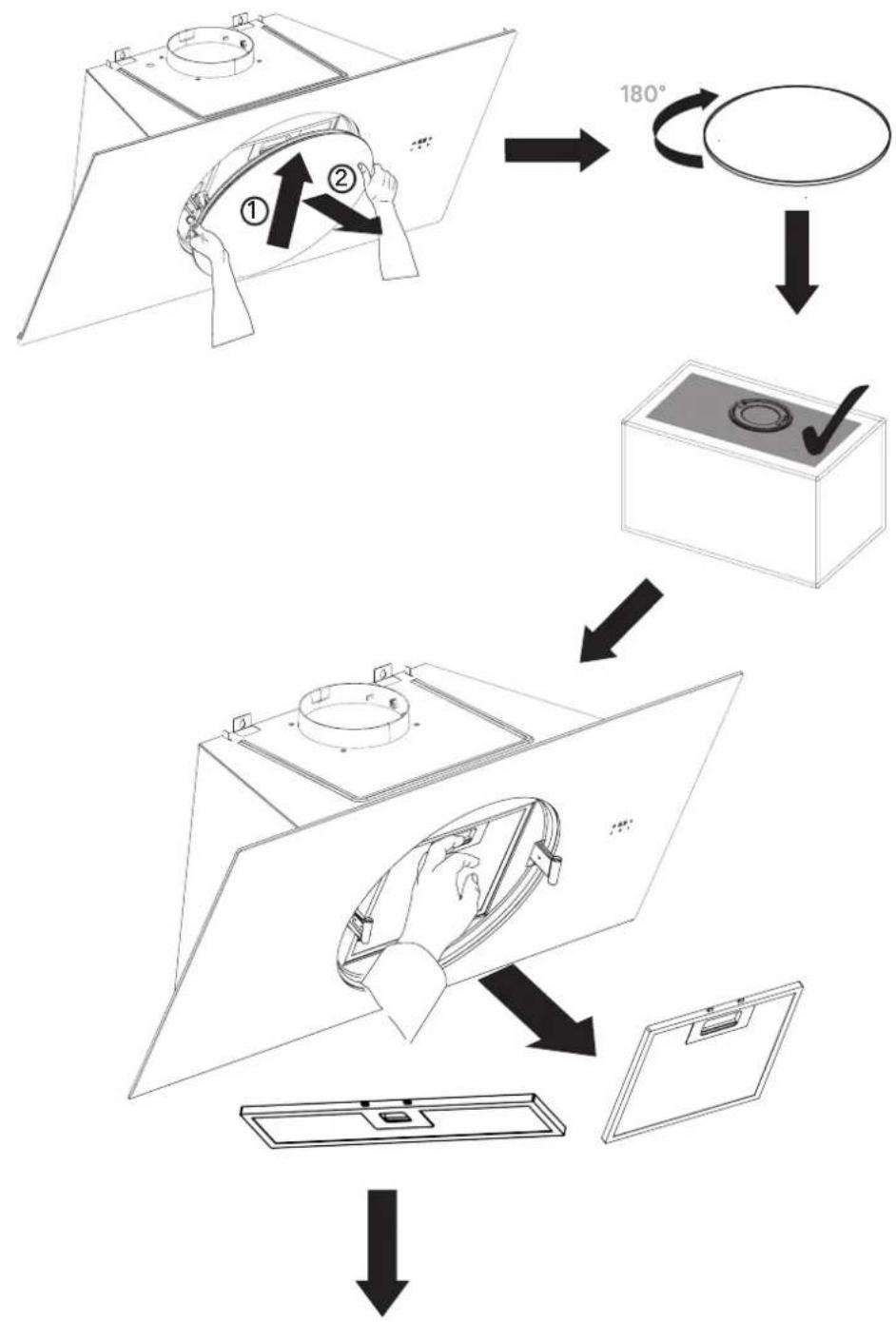
To avoid fires, clean thoroughly once a month or whenever the display pilot light indicates as such. To do so, remove the filters and wash with hot water and detergent. If using a dishwasher (metal parts may turn black without this affecting their functional capacity), load the filters vertically to avoid solid residue from being deposited.
1 month
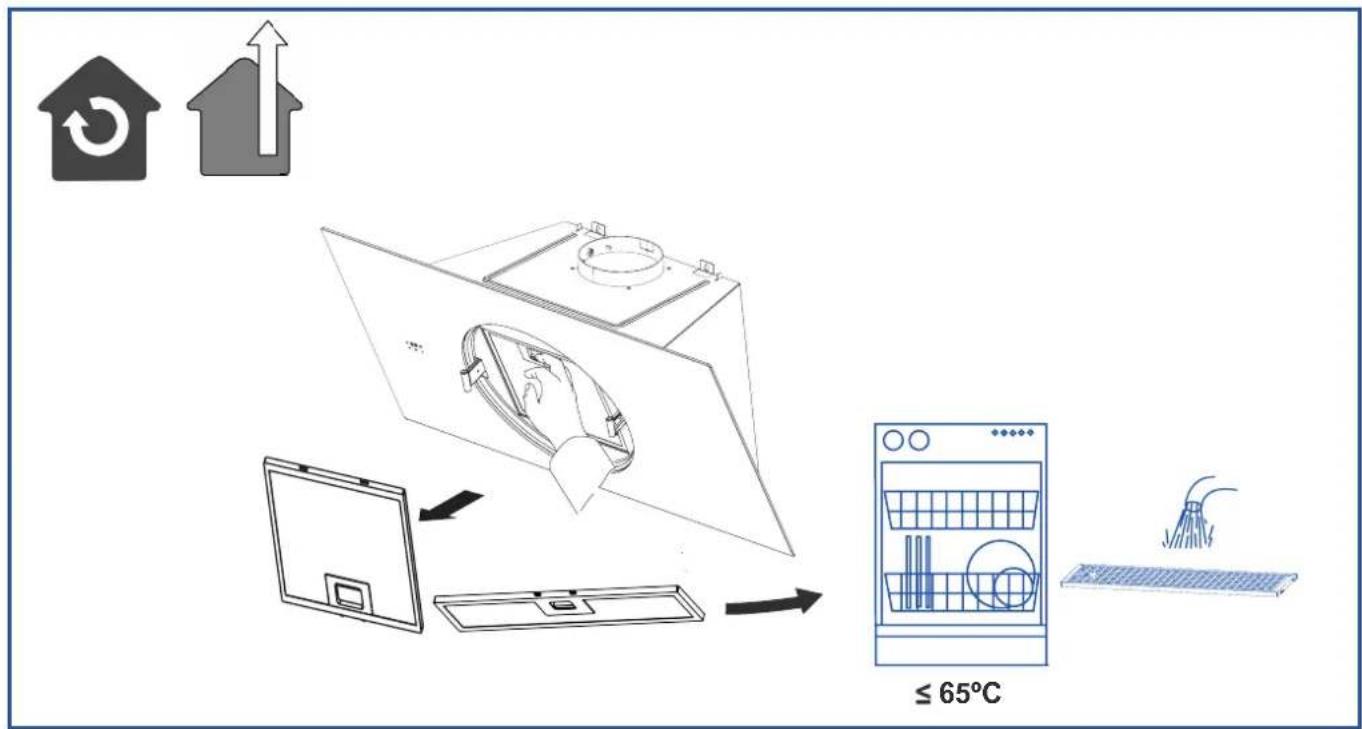
text_image
≤ 65°C| Problem Possible cause Solution | ||
| Excessive vibration. | The appliance is not installed properly on the brackets. | Take down the appliance and check it is properly fixed. |
| The fan blade is damaged. | Switch off the appliance. Repair to be carried out by qualified service personnel only. | |
| The fan motor is not fixed tightly. | ||
| The light is on, but the fan does not work. | The fan blade is jammed. | |
| The motor is damaged. | ||
| Both the light and motor do not work. | Light bulb blown. | Contact Customer Services on. |
| Power connection loose. Check power supply. | ||
| Suction performance reduced. | Speed may be too low. Select a higher speed. | |
| Aluminium filters are dirty. Clean the aluminium filters. (See Care and maintenance section). | ||
| Top vent might be obstructed. | Clear any obstruction. | |
| Optional vent kit might be twisted. Ensure that the vent kit is fitted according to the manufacturer's instructions. | ||
| The installation may not comply with the manufacturers instructions. | The vent hose should be correct diameter throughout with no reductions or restriction.(See installation section). | |
| Works normally but cooking smells linger. | Carbon filter is not fitted in recirculation mode or is full of grease. | Fit carbon filter or replace the carbon filter (See Care and maintenance section). |
| The hood does not work | Check that the hood is connected to power. Check that the fuses or automatic have not jumped. | |
| The hood still does not work | If, after having checked the points mentioned above, your problem has not yet been solved, contact the technical service or your distributor. | |