BM1000AVRLCD - Uninterruptible power supply Bxterra - Free user manual and instructions
Find the device manual for free BM1000AVRLCD Bxterra in PDF.


User questions about BM1000AVRLCD Bxterra
0 question about this device. Answer the ones you know or ask your own.
Ask a new question about this device
Download the instructions for your Uninterruptible power supply in PDF format for free! Find your manual BM1000AVRLCD - Bxterra and take your electronic device back in hand. On this page are published all the documents necessary for the use of your device. BM1000AVRLCD by Bxterra.
USER MANUAL BM1000AVRLCD Bxterra
PRODUCT OVERVIEW...... 5
BATTERY REPLACEMENT...... 6
BATTERY REPLACEMENT PROCEDURE...... 6
LCD DISPLAY.... 7
FAULT CODES...... 8
TROUBLESHOOTING...... 8
TECHNICAL SPECIFICATIONS.... 9-10
CERTIFICATIONS.... 11
WARRANTY INFORMATION...... 11
TECHNICAL SUPPORT...... 12
CONSIGNES DE SÉCURITÉ.... 13 - 14
REMPLACEMENT DE LA BATTERIE.... 14
INFORMATIONS DE GARANTIE...... 14
This bXterra product is constructed to provide unmatched power protection, quality and performance for the duration of its lifetime. Please take a few minutes to register your product at www.bXterra.com/registration. Registration certifies your product's warranty, confirms your ownership in the event of a product loss or theft and entitles you to free technical support. Please register your product now to receive the benefits of bXterra ownership.
SAFETY INSTRUCTIONS
SAVE THESE INSTRUCTIONS: This manual contains important instructions that should be followed during installation and maintenance of the UPS and its batteries.
- This unit is intended for installation in a controlled environment (a temperature-controlled and indoor area free of conductive contaminants). Please avoid installing the UPS in locations where there is standing or running water, dust, direct sunlight or excessive humidity.
- This UPS utilizes voltage that may be hazardous. Do not attempt to disassemble the unit. The unit contains no user-replaceable parts inside the UPS, except for the battery. Only factory service personnel may perform repairs.
- Connect your UPS directly to a properly-grounded AC power outlet with fuse or circuit breaker protection. Do not plug the unit into an outlet that is not grounded. Turn off and unplug the unit if you need to de-energize it.
- Not for use in a computer room as defined in the Standard for the Protection of Electronic Computer/Data Processing Equipment, ANSI/NFPA 75.
-
To reduce the risk of fire, connect only to a circuit provided with 20 amperes maximum branch circuit overcurrent protection in accordance with the National Electric Code, ANSI/NFPA 70.
-
For best performance, keep the indoor temperature around the unit between 32^ F and 104^ F ( 0^ C and 40^ C).
- Do not attach medical equipment or non-computer related items, such as life-support equipment, microwave ovens, or vacuum cleaners to the UPS. bXterra does not sell equipment meant for life-support or medical applications. Visit our website for more information about devices appropriate to plug into this UPS.
- Only stand or set up the UPS in the direction specified in the Installation and Operation section of this manual. Do not block fans and leave adequate space around all sides of the UPS for proper ventilation. Do not expose the unit to direct sunlight and do not install the unit near heat-emitting appliances such as a space heater or furnace. This could negatively impact the unit's internal cooling system and cause product damage not covered under warranty.
- Do not plug the UPS input into its own output. Do not attach a power strip or surge protector to the UPS.
- Do not modify the UPS's plug and do not use an adapter that would eliminate the UPS's ground connection.
- Do not use extension cords to connect the UPS to an AC outlet.
SAFETY INSTRUCTIONS CONTINUED
- If the UPS receives power from a motor-powered AC generator, the generator must provide clean, filtered, computer-grade output. Consult your generator's manual to see if it meets these specifications.
- The main power outlet that supplies the UPS should be easily accessible and near the UPS.
- To reduce the risk of fire or electric shock, do not use the unit on any transportation such as airplanes or ships. The effect of shock or vibration caused during transit and the damp environment can cause the unit to short out.
BATTERY WARNINGS:
Batteries can carry a risk of electric shock and burn from high short-circuit current. There are no user-serviceable parts inside the UPS except for the battery.
- Do not open the UPS except to perform battery replacement.
- Do not open batteries.
- Do not short or bridge the battery terminals with any object.
- Unplug and turn off the UPS before performing battery replacement.
- Use tools with insulated handles.
Battery replacement should be performed following all safety precautions and using the same number and type of batteries (sealed lead-acid).
Do not dispose of batteries in a fire. Please recycle your batteries. Refer to local regulations for disposal requirements or if you are in the USA please call 1-877-723-1297 or visit www.call2recycle.org for more information about recycling your batteries.
Thank for choosing a bXterra Uninterruptible Power Supply. This UPS system is Energy Star® certified and uses our GreenTech™ Bypass Design to consume less power, reduce heat and improve UPS operation.
INSPECTION
Inspect your UPS upon purchase. The following items should be inside:
- UPS system - User manual - USB A+B cable
Remove the UPS from its package and inspect it for damage that may have occurred during shipping. If any damage is discovered, re-pack the unit and return it to the place of purchase.
OVERVIEW
The BM850AVRLCD/BM1000AVRLCD/BM1350AVRLCD/BM1500AVRLCD provides protection from utility power that may
not always be safe for your devices. The BM850AVRLCD/BM1000AVRLCD feature 1,080 Joules and the BM1350/1500AVRLCD feature 1,500 Joules of surge protection. This UPS provides battery backup during power disruptions using maintenance-free batteries. Each model of UPS ensures consistent power to your computer or other critical devices and includes access to software that allows you to monitor the UPS from a personal computer.
AUTOMATIC VOLTAGE REGULATOR
The BM850AVRLCD/BM1000AVRLCD/BM1350AVRLCD/BM1500AVRLCD adjusts inconsistent utility power voltage to normal levels that are safe for your equipment. The Automatic Voltage Regulation(AVR) feature of this device can take erratic incoming utility power and correct it to safe levels. AVR automatically increases utility power that is too low or decreases utility power that is too high to a consistent 110 or 120 volts.
CONNECT TO UTILITY POWER
Make sure the UPS is stood up vertically on a flat surface. Connect the AC power cord to a 2-pole, 3-wire grounded receptacle (wall outlet). Make sure the wall branch outlet is protected by a fuse or circuit breaker and does not also provide power to service equipment demanding large amounts of power (e.g. air conditioner, copier, etc.). The UPS will start to charge its internal battery. The UPS will not turn on automatically when plugged in. For best results, charge the battery for eight hours prior to initial use.
DETERMINE THE POWER REQUIREMENTS OF YOUR EQUIPMENT
- To determine the power requirements of your equipment, ensure that the equipment plugged into the outlet does not exceed the UPS's rated capacity. If the rated capacity of the unit is exceeded, the UPS may overload and shut down or the circuit breaker may trip.
- There are many factors that can affect the amount of power that your equipment will require. We suggest that the load placed on the battery outlets not exceed 80% of the UPS's capacity.
PLUG IN EQUIPMENT
Note: Before plugging in equipment, make sure the UPS is turned off and unplugged. Do not plug a laser printer, paper shredder, copier, space heater, vacuum cleaner, sump pump or other large electrical device into the UPS. The power requirements of these devices will overload and possibly damage the UPS.
Battery Backup Outlets
With the UPS turned off and unplugged, connect equipment requiring battery backup to the "Battery Backup" outlets. These outlets provide battery backup, EMI filtering, line conditioning, and surge protection. Battery power is automatically provided in case of power failure.
Surge Protected Outlets
Connect other devices requiring surge protection to the "Surge Protected" outlets. These outlets do not provide power during power failure.
Connect Modem/Phone Line
This UPS protects a single line (1 in/1 out) phone, modem, or fax machine from surges. To protect a fax machine, phone or modem, connect a telephone or network cable from the wall jack outlet to the IN jack of the UPS. Connect a telephone cable or network cable from the OUT jack of the UPS to a fax machine, telephone, modem or network device.
TURN THE UPS ON
To turn on the UPS unit, press the power switch for at least two seconds. The LCD display will light up. If an overload is detected, the UPS alarm will go off and the unit will beep continuously every 0.5 seconds. To fix this, turn the UPS off and unplug at least one piece of equipment from the battery-power supplied outlets. Make sure the Circuit Breaker button is depressed and turn the UPS on again. For optimal battery charge, always leave the UPS plugged into the AC outlet. To turn off the UPS unit, press the power switch again. The LCD display will turn off.
INSTALL SOFTWARE
Connect one end of the USB cable to a PC and the other end to the USB port at the rear of the UPS. Download the latest version of PowerFrame™ software from www.bxterra.com to your hard drive. Follow on-screen instructions to complete the software installation.
DEVICE STORAGE
To store the UPS for an extended period, cover the unit and fully charge the battery before disconnecting from AC power. While in storage, recharge the battery every three months to prolong optimal battery life.
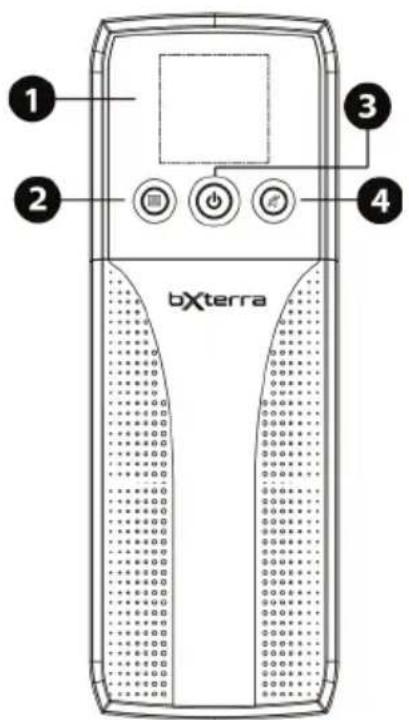
text_image
1 2 3 4 bXterra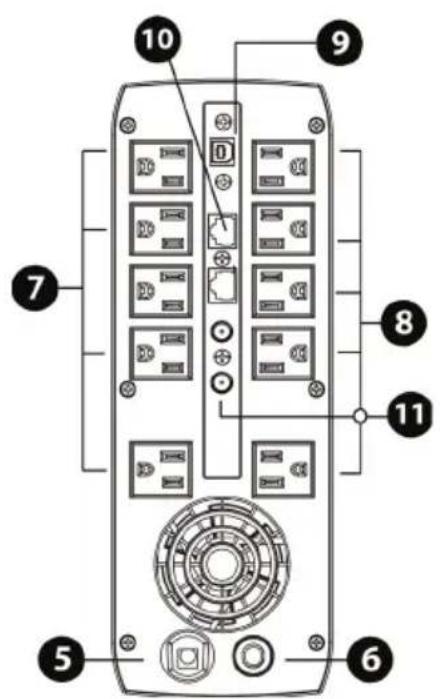
text_image
Diagram of a device rear panel with numbered labels pointing to various ports and modules.- LCD display (Please check LCD section for details) This display shows modes and operating conditions from the UPS, as well as error messages.
2. Select button
Use this to cycle through messages and options on the LCD display.
3. Power button
Used as the master on/off switch for the UPS as well as for equipment connected to the battery power supplied outlets.
4. Mute button
Hold this button for one second to place the unit in silent mode or silence the alarm.
5. AC input
Connect the main power cord of the UPS here.
6. Circuit breaker
This breaker provides overload and fault protection. If it trips, remove some of the load then reset it by pressing it in.
7. Surge protected outlets
These outlets protect connected equipment in case of a power surge.
8. Battery-backup outlets
These outlets provide battery backup power to connected devices.
9. USB port
This port can connect the UPS to any computer to install the UPS-monitoring software, PowerFrame™. Instructions for this procedure can be found in the Installation and Operation section of this manual.
10. Modem/phone/network surge protection
These ports protect equipment from surges over a single phone line or network connection.
11. Coax surge protection
These ports protect equipment from surges over a coaxial line.
BATTERY REPLACEMENT
When changing the battery, be sure to install the same number and same type of battery.
Do not attempt to dispose of batteries by burning them. This could cause an explosion.
Do not open or destroy batteries. Escaping chemicals can cause injury to the skin and eyes. It may be toxic.
Batteries may cause electric shock and have a high short-circuit current. Please take the precautionary measures specified below and any other measures necessary when working with batteries:
1) Remove wristwatches, rings and other metal objects
2) Use only tools with insulated grips and handles
3) Wear rubber gloves and boots
4) Do not lay tools or metal parts on top of batteries
5) Disconnect power cable of UPS from wall prior to installing or maintaining the battery
6) Remove battery grounds during installation and maintenance to reduce likelihood of shock
Internal battery voltage is 12VDC. It is a sealed, lead-acid, 6-cell battery.
Servicing of batteries should be performed or supervised by personnel knowledgeable of batteries and the required precautions. Keep unauthorized personnel away from batteries.
This UPS can be hazardous due to electric shock. When disconnecting this UPS from power, hazardous voltage may still be flowing through the battery. The battery supply should be disconnected from the positive and negative terminals of the battery before maintenance inside the UPS is performed. There are no user-serviceable parts inside this UPS except for the battery.
BATTERY REPLACEMENT PROCEDURE:
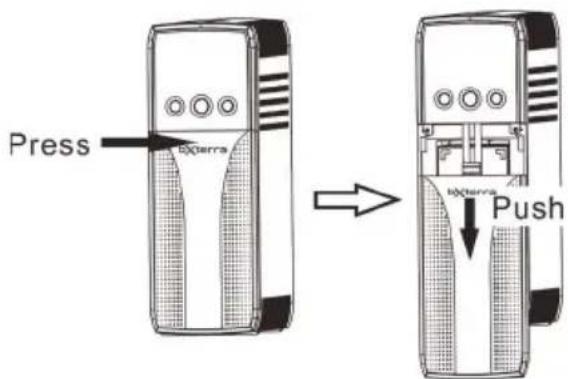
text_image
Press berra berra PushTurn off and unplug all connected equipment.
Turn the UPS off and unplug it from the AC power source.
REMINDER: Batteries are considered hazardous waste and must be disposed of properly. bXterra asks to please find a local retailer or hazardous waste disposal location where you can properly recycle your used battery.
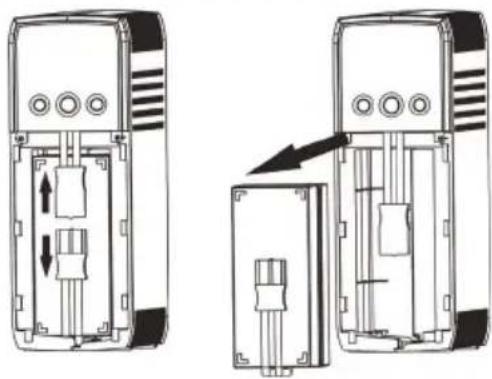
natural_image
Technical line drawing of two mechanical device components with internal mechanisms and directional arrows indicating movement (no text or symbols)Press and slide the battery compartment cover completely off the unit.
Disconnect the battery wires and remove the battery.
Replace with a battery that matches the specifications of the original battery.
Recharge the UPS for 8-16 hours to fully charge the battery.
MODE DISPLAY DESCRIPTION MODE DISPLAY DESCRIPTION
| Turning on the UPS | 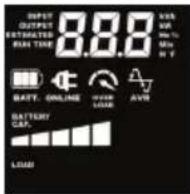 | When the UPS starts up, these icons will illuminate for 3 seconds. |
| Standby Mode | 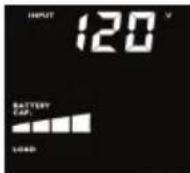 | Display will show the input voltage. |
| Site wiring fault in Standby Mode | 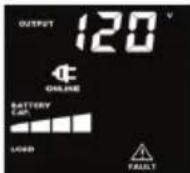 | indicator will show.indicator will flash. |
| AC Mode | 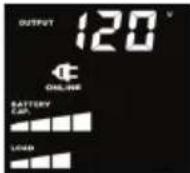  | Press SELECT button to switch displayed information.1. Output voltage2. Output frequency3. Input voltage4. Input frequency5. Output power in W6. Output power in VA7. Estimated backup time |
| Overload in AC Mode | 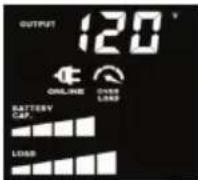  | When an overload occurs, the alarm will beep every 0.5 seconds. |
| Site wiring fault in AC mode Wire Fault | 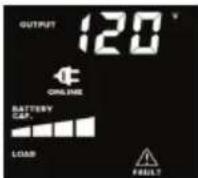 | indicator will show.indicator will flash. |
| Battery Mode | 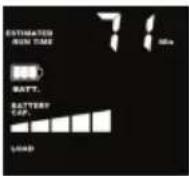 | Alarm will beep every 10 seconds and LCD information will be displayed in the following order when pressing  button.1. Estimated backup time2. Output voltage3. Output frequency4. Input voltage5. Input frequency6. Output power in W7. Output power in VAIf is pressed ,alarm will be mutedand icon will show. button.1. Estimated backup time2. Output voltage3. Output frequency4. Input voltage5. Input frequency6. Output power in W7. Output power in VAIf is pressed ,alarm will be mutedand icon will show. |
| When battery level is low,icon will flash. | The alarm will beep every second and cannot be muted. | |
| Overload in Battery Mode | 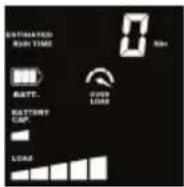 [4H5S]icon will flash [4H5S]icon will flash | When an overload occurs, the alarm will beep every 0.5 seconds. |
FAULT CODES
Output Short Circuited
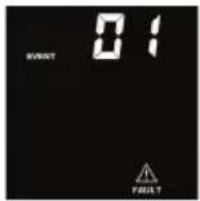
text_image
EVENT 0:1 FAULTDisconnect short-circuited loads and restart the UPS.
Overcharge
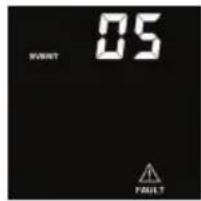
text_image
05 POCKET PRODUITCall for service immediately.
Overload Fault
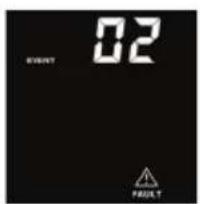
text_image
02 PASSIVE PASSIVE, TTurn off the UPS. Disconnect all loads and restart the UPS. Plug in equipment one at a time and make sure not to exceed the UPS rating for load capacity.
Low Battery Fault
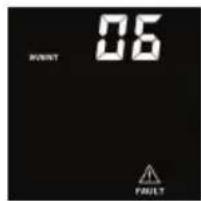
text_image
06 FAULTCharge the UPS for at least 12 hours or replace the battery.
Inverter/Output failure
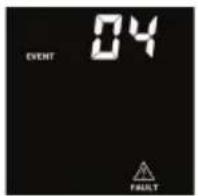
Call for service immediately.
TROUBLESHOOTING
PROBLEM POSSIBLE CAUSE SOLUTION
| Nothing is displayed on the LCD panel | The UPS is not on | Press the power button to turn the UPS on |
| The battery voltage is too low | Charge the battery for at least 6 hours | |
| The battery is faulty Replace the battery | ||
| The UPS is always on Battery Mode | The power cord is loose | Check that the power cord is plugged in properly |
| The UPS beeps continuously Please check the LED indicator table on Page 5 for details | ||
| Battery backup time is too short | The battery voltage is too low | Charge the battery for at least 6 hours |
| There is an overload | Unplug some noncritical devices. Please verify that the load matches the UPS capabilities. | |
| The battery is defective | Contact support@bxterra.com for assistance | |
| The circuit breaker button is projecting from the back of the unit | The circuit breaker has tripped from an overload | Turn the UPS off and unplug one piece of equipment. Wait 10 seconds, reset the circuit breaker then turn the UPS on again. |
If any abnormal situations occur that are not listed above, please contact bXterra support for help.
| MODEL BM1500AVRLCD BM1350AVRLCD BM1000AVRLCD BM850AVRLCD | ||||
| Topology | Line Interactive | |||
| INPUT | ||||
| Voltage | 120V | |||
| Frequency Range | 50/60 Hz ± 5 Hz (auto-sensing) | |||
| Input Voltage Range | 86 - 140 V | |||
| Plug Type | NEMA 5-15P | |||
| Plug Style | Right Angle, 45° Offset | |||
| Power Cord | 6 ft | |||
| OUTPUT | ||||
| VA/W | 1500VA/900W 1350VA/810W 1000VA/600W 850VA/480W | |||
| Automatic Voltage Regulation | Boost +15% | |||
| On Battery Voltage | 120 VAC ± 5% | |||
| On Battery Frequency | 50/60 Hz ± 1 Hz | |||
| On Battery Waveform | Simulated Sine Wave | |||
| Outlet Type | NEMA 5-15R | |||
| Outlets - Total | 10 | |||
| Battery & Surge | 5 | |||
| Surge-Only | 5 | |||
| Overload Protection | Internal Circuitry Limiting/Circuit Breaker | |||
| Transfer Time | 4ms Typical | |||
| BATTERY | ||||
| Runtime at Half Load (min) | 11 11 7 9 | |||
| Runtime at Full Load (min) | 3 3 2 2 | |||
| Circuit Breaker | 15A 125/250 VAC | |||
| Battery Type | Leakproof Sealed Lead-Acid | |||
| Battery Size | 12V/9AH | |||
| Battery Quantity | 2 2 1 1 | |||
| Battery Model | DJW12-9.0/MS9-12 | |||
| User Replaceable | Yes | |||
| Recharge Time | 6-8 hours | |||
| SURGE PROTECTION & FILTERING | ||||
| Surge Suppression | 1,500 Joules 1080 Joules | |||
| Phone RJ11/ Ethernet RJ45 | RJ45 10/100 Base-T Ethernet protection | |||
| Coax Protection RG6 | 1-In, 1-Out | |||
| EMI/RFI Filtration | Yes | |||
| MODEL BM1500 | AVRLCD BM1350AVRLCD | BM1000AVRLCD | BM850AVRLCD | |
| MANAGEMENT & COMMUNICATIONS | ||||
| Multifunction LCD Panel | Input/Output Voltage, Input/Output Frequency, Load Level, Battery Capacity, Estimated Remaining Runtime, Site Wiring Fault, Other Device Faults, Mute | |||
| HID Compliant USB Port | Yes | |||
| Management Cable | USB Cable | |||
| Audible Alarms | On Battery, Low Battery, Overload, Fault | |||
| Software | PowerFrameTM Personal UPS management software | |||
| PHYSICAL | ||||
| Form Factor | Mini-Tower | |||
| Dimensions (in) | 3.9 x 11 x 16.2 3.9 x 11 x 11.3 | |||
| Weight (lbs) | 26.4 lbs 25.52 | Ibs 18.7 Ibs 17.16 Ibs | ||
| CERTIFICATIONS | ||||
| Safety | cTUV us (UL1778 Standard & CSA), FCC Part 15 Class B, ENERGY STAR® Qualified | |||
| Environmental RoHS Compliant | ||||
| WARRANTY | ||||
| Product Warranty 3 Year | Limited | |||
| Directly Connected Equipment Guarantee | 400,000300,000 | |||
Product specifications are subject to change without prior notice
CERTIFICATIONS
FCC COMPLIANCE
NOTE: This equipment has been tested and found to comply with the limits for a Class B digital device, pursuant to Part 15 of the FCC Rules. These limits are designed to provide reasonable protection against harmful interference in a residential installation. This equipment generates uses and can radiate radio frequency energy and, if not installed and used in accordance with the instructions, may cause harmful interference to radio communications. However, there is no guarantee that interference will not occur in an installation. If this equipment does cause harmful interference to radio or television reception, which can be determined by turning the equipment off and on, the user is encouraged to try to correct the interference by one or more of the following measures:
-Reorient or relocate the receiving antenna
-Increase the separation between the equipment and receiver
-Connect the equipment to an outlet on a different circuit than the one to which the receiver is connected
-Consult an experienced radio/TV technician for help
WARNING: Changes or modifications not expressly approved by the party responsible for compliance could void the user's authority to operate the equipment.





GreenTech™ UPS BYPASS DESIGN
A high-efficiency UPS can reduce your environmental impact and save you money. By implementing leading-edge components and design, the bXterra line of GreenTech™ UPS systems strive to deliver better operating performance while reducing cost of operation. The technology inside a bXterra UPS allows current to bypass the transformer and automatic voltage regulation (AVR) when utility power is running normally, reducing energy consumption.
RoHS DIRECTIVE
We at bXterra want you to know that you're not only protecting your devices and equipment when purchasing a bXterra product, but you're protecting the environment as well. Aside from being Energy Star® compliant, we are committed to and supporters of the Restriction of Hazardous Substances (RoHS) directive, which strictly limits the use of six hazardous substances (lead, mercury, cadmium, hexavalent chromium, polybrominated biphenyls (PBBs) and polybrominated diphenyl ether (PBDE)) in electrical equipment.
WARRANTY INFORMATION
Your bXterra product comes with a Limited 3-Year Warranty. bXterra warrants this product, if used appropriately and in full accordance with all applicable instructions, to be free from original defects in material and workmanship for 3 years from the date of initial purchase. If the product can be proven defective in material or workmanship during that 3-year period, bXterra will, subject to the full terms and limitations of the product's Limited Warranty available on our website, repair or replace that product. bXterra will act on its own discretion as the sole remedy for bXterra's breach of its Limited Warranty. Full details of this Limited Warranty and bXterra's Directly Connected Equipment Guarantee can be found on our website at www.bxterra.com/warranty or at the individual product's page on our website. Please register your product at www.bxterra.com/registration to certify your product's warranty.
TECHNICAL SUPPORT
Contact bXterra technical support for installation support, troubleshooting or general questions by emailing us at support@bxterra.com or visit our website at bxterra.com.
CONSIGNES DE SÉCURITÉ
INFORMATIONS DE GARANTIE
All content is owned by Bxterra Power Technology. All Rights Reserved. Reproduction is prohibited without permission. www.bxterra.com