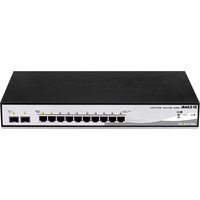
DGS-1210-10P - Switch D-LINK - Free user manual and instructions
Find the device manual for free DGS-1210-10P D-LINK in PDF.


| Product type | Switch |
| Model | DGS-1210-10P |
| Brand | D-Link |
| Category | Switch |
| Dimensions (W x D x H) | 440 x 210 x 44 mm |
| Weight | Approximately 2.5 kg |
| Power supply | AC 100-240 V, 50-60 Hz |
| Key features | 8 PoE+ ports (802.3af/at), 2 SFP ports, Web management, SmartConsole, Telnet, SNMP |
| Maintenance and cleaning | Clean with a dry, lint-free cloth. Avoid liquids. |
| Safety | Install in a well-ventilated area, do not block ventilation grilles, use a grounded outlet. |
| Spare parts and repairability | No user-serviceable parts available. Contact D-Link support. |
| General information | Managed smart switch, suitable for SMBs. Limited warranty. |
Frequently Asked Questions - DGS-1210-10P D-LINK
User questions about DGS-1210-10P D-LINK
0 question about this device. Answer the ones you know or ask your own.
Ask a new question about this device
Download the instructions for your Switch in PDF format for free! Find your manual DGS-1210-10P - D-LINK and take your electronic device back in hand. On this page are published all the documents necessary for the use of your device. DGS-1210-10P by D-LINK.
USER MANUAL DGS-1210-10P D-LINK
Getting Started Guide For D-Link Web Smart Switch
natural_image
Diagram of a network switch device showing multiple Ethernet ports and connections (no text or labels)Getting Started Guide
Erste Schritte
Guide de démarrage
Guida introduttiva
This guide gives step-by-step instructions for setting up all D-Link Web Smart switches. Please note that the model you have purchased may appear slightly different from those shown in the illustrations.
For more detailed information about your switch, its components, making network connections, and technical specifications, please refer to the User's Guide included with your switch.
Step 1 – Unpacking
Open the shipping carton and carefully unpack its contents. Please consult the packing list located in the User Guide to make sure all items are present and undamaged. If any item is missing or damaged, please contact your local D-Link reseller for replacement.
- One D-Link Web Smart Switch
- Rack mounting bracket
- Power cord
- User's Guide CD with SmartConsole Utility program
- One multilingual Getting Started Guide
Step 2 – Switch Installation
For safe switch installation and operation, it is recommended that you:
- Visually inspect the power cord to see that it is secured fully to the AC power connector
◆ Make sure that there is proper heat dissipation and adequate ventilation around the switch
♦ Do not place heavy objects on the switch
Desktop or Shelf Installation
When installing the switch on a desktop or shelf, the rubber feet included with the device must be attached on the bottom at each corner of the device's base. Allow enough ventilation space between the device and the objects around it.
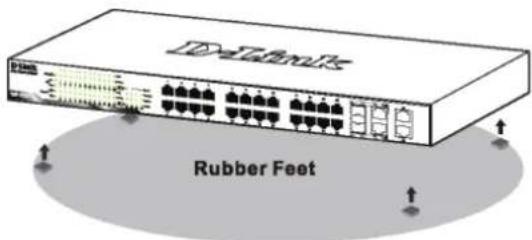
Figure 1. Attaching the rubber feet
Rack Installation
The switch can be mounted in an EIA standard size 19-inch rack, which can be placed in a wiring closet with other equipment. To install, attach the mounting brackets to the switch's side panels (one on each side) and secure them with the screws provided.
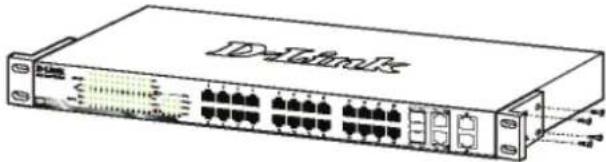
Figure 2. Attaching the mounting brackets
Then, use the screws provided with the equipment rack to mount the switch in the rack.
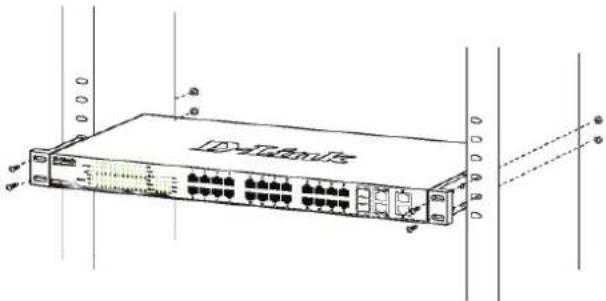
Figure 3. Installing the switch in a standard-sized equipment rack
Step 3 – Plugging in the AC Power Cord
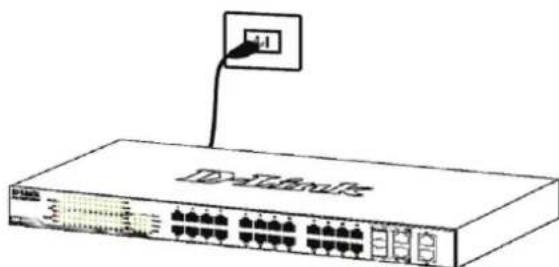
You can now connect the AC power cord into the rear of the switch and to an electrical outlet (preferably one that is grounded and surge protected).
natural_image
Line drawing of a network switch device with ports and an attached cable (no text or symbols)Figure 4. Plugging the switch into an outlet
Power Failure
As a precaution, the switch should be unplugged in case of power failure. When power is resumed, plug the switch back in.
Management Options
The D-Link Web Smart Switch can be managed in-band by using Telnet. The user may also choose the Web-based Management, accessible through a web browser or through any PC using the SmartConsole Utility.
If you want to manage only one D-Link Web Smart Switch, the Web-Based Management is the better option. Each switch must be assigned its own IP Address, which is used for communication with Web-Based Management or an SNMP network manager and the PC should have an IP address in the same range as the switch.
However, if you want to manage multiple D-Link Web Smart Switches, the SmartConsole Utility is the better option. Using the SmartConsole Utility, you don't need to change the IP address of your PC and it is easy to start the initial setting of multiple Smart Switches. Please refer to the following detailed installation instructions for the Web-Based Management, SmartConsole Utility, Telnet Management and SNMP-Based Management.
Web-based Management Interface
After a successful physical installation, you can configure the switch, monitor the LED panel, and display statistics graphically using a web browser, such as Netscape Navigator (version 6.2 and higher) or Microsoft® Internet Explorer (version 5.0 and higher).
You need the following equipment to begin the web configuration of your device:
• A PC with a RJ-45 Ethernet connection
• A standard Ethernet cable
Step 1
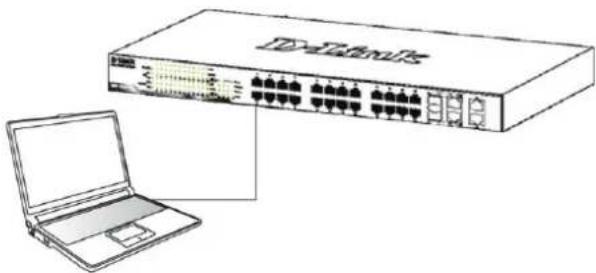
Connect the Ethernet cable to any of the ports on the front panel of the switch and to the Ethernet port on the PC.
natural_image
Line drawing of a network switch device connected to a laptop (no text or symbols present)Figure 6. Connected Ethernet cable
Step 2
In order to login and configure the switch via an Ethernet connection, the PC must have an IP address in the same range as the switch. For example, if the switch has an IP address of 10.90.90.90, the PC should have an IP address of 10.x.y.z (where x/y is a number between 0 \~ 254 and z is a number between 1 \~254), and a subnet mask of 255.0.0.0.
Open your web browser and enter http://10.90.90.90 (the factory-default IP address) in the address box. Then press

Figure 7. Enter the IP address 10.90.90.90 in the web browser
The web configuration can also be accessed through the SmartConsole Utility. Open the SmartConsole Utility and double-click the switch as it appears in the Device List. This will automatically load the web configuration in your web browser.

NOTE: The switch's factory default IP address is 10.90.90.90 with a subnet mask of 255.0.0.0 and a default gateway of 0.0.0.0
Step 3
When the following logon box appears, enter "admin" for the password. Press OK to enter the main configuration window.
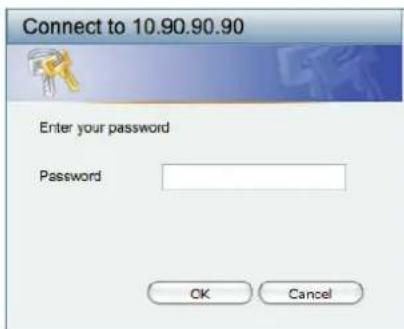
Figure 8. User authentication window
Step 4
Before entering the Web-based Management, the Smart Wizard will guide you to quickly configure some functions, such as Password Settings, SNMP Settings, and System Settings. If you don't plan to change anything, click Exit to exit the Wizard and enter the Web-based Management. For a detailed look at the Smart Wizard's functions, please refer to the Smart Wizard introduction in the user manual.
SmartConsole Utility
The SmartConsole Utility included on the installation CD is a program for discovering Smart Switches with the same L2 network segment connected to your PC. This tool is only for computers running Windows 2000, Windows XP, and Windows Vista x64/86 operating systems. There are two options for the installation of SmartConsole Utility, one is through the autorun program on the installation CD and the other is manual installation.
Note: Please be sure to remove any existing SmartConsole Utility from your PC before installing the latest SmartConsole Utility.
Option 1: Follow these steps to install the SmartConsole Utility via the autorun program on the installation CD.
- Insert the Utility CD into your CD-Rom Drive.
- The autorun program will pop up automatically
- Simply click on the "Install SmartConsole Utility" button and an installation wizard will guide you through the process.
- After successfully installing the SmartConsole Utility, you can open the utility by clicking Start > Programs > D-Link SmartConsole Utility.
- Just connect the Smart Switch to the same L2 network segment of your PC and use the SmartConsole Utility to discover the Smart Switches.
Option 2: Follow these steps to install the SmartConsole Utility manually.
- Insert the Utility CD into your CD-Rom Drive.
- From the Start menu on the Windows desktop, choose Run.
- In the Run dialog box, type D:\D-Link SmartConsole Utility\setup.exe (where D:\represents the drive letter of your CD-Rom) and click OK.
- Follow the on-screen instructions to install the utility.
-
Upon completion, go to Start > Programs > D-Link SmartConsole Utility and open the SmartConsole Utility.
-
Just connect the Smart Switch to the same L2 network segment of your PC and use the SmartConsole Utility to discover the Smart Switches.
For a detailed look at SmartConsole's functions, please refer to the SmartConsole Utility introduction in the user manual.
Telnet Management
Users may also access the switch through Telnet using your PC's Command Prompt. To access it from your computer, users must first ensure that a valid connection is made through the Ethernet port of the Switch and your PC, and then click Start > Programs > Accessories > Command Prompt on your computer. Once the console window opens, enter the command telnet 10.90.90.90 (depending on configured IP address) and press Enter on your keyboard. You should be directed to the opening console screen for the Command Line Interface of the switch, enter the "admin" for the default user name and password for the Switch and press the Enter key.
SNMP-Based Management
You can manage the Switch with D-Link D-View or any SNMP-compatible program. The SNMP function is default Disabled for D-Link Web Smart switches.
Additional Information
If you are encountering problems setting up your network, please refer to the user manual that came with the switch. It contains many more rules, charts, explanations, and examples to help you get your network up and running.
Additional help is available through our offices listed at the back of the user manual or online. To find out more about D-Link products or marketing information, please visit the website http://www.dlink.com.tw; for any support issue, please visit the website http://support.dlink.com.tw, which will re-direct you to appropriate local D-Link website.
Notes
natural_image
Diagram of a D-Telms rack with multiple ports and connectors (no text or labels)natural_image
Line drawing of a network switch device with ports and connectors (no text or symbols)natural_image
Line drawing of a network switch device with ports and an attached cable (no text or symbols)natural_image
Line drawing of a network switch device connected to a laptop (no text or symbols present)natural_image
Line drawing of a network switch device with ports and connectors (no text or symbols)natural_image
Line drawing of a network switch device with ports and an attached indicator (no text or symbols)natural_image
Line drawing of a network switch device with ports and connectors (no text or symbols)natural_image
Line drawing of a network switch device with ports and an attached cable (no text or symbols)natural_image
Line drawing of a network switch device with ports and connectors (no text or symbols)natural_image
Line drawing of a network switch device connected to a laptop (no text or symbols present)SmartConsole Utility
natural_image
Line drawing of a network switch device with ports and connectors (no text or symbols)natural_image
Line drawing of a network switch device with ports and an attached cable (no text or symbols)natural_image
Line drawing of a network switch device connected to a laptop (no text or symbols visible)圖 3. 安裝交換器到標準尺寸的機架
步驟3-將AC電源線連接至交換器
natural_image
Line drawing of a network switch device with an attached port (no text or symbols)圖 4. 將交換器電源插上牆壁插座
電源中斷
natural_image
Line drawing of a network switch device connected to a laptop (no text or symbols present)圖 6. 連接乙太網路線
步驟2
圖 8. 使用者認證視窗
步驟 4
SmartConsole Utility
natural_image
Line drawing of a network switch device with ports and connectors (no text or symbols)natural_image
Line drawing of a network switch device with ports and an attached cable (no text or symbols)natural_image
Line drawing of a network switch device connected to a laptop (no text or symbols present)Figura 6. Conecte o cabo Ethernet.
Etapa 2
SmartConsole Utility
natural_image
Line drawing of a network switch device with ports and ventilation grilles (no text or symbols)natural_image
Line drawing of a network switch device with ports and an attached indicator (no text or symbols)Gambar 4. Mencolokkan switch ke colokan listrik
Pemadaman Listrik
natural_image
Line drawing of a network switch device connected to a laptop (no text or symbols present)Gambar 6. Kabel Ethernet yang sudah terhubung
Langkah 2 :
Gambar 8. Jendela autentikasi user
Langkah 4 :
SmartConsole Utility
図3 スイッチをラックに取り付ける
3—電源ケーブルの接続
natural_image
Line drawing of a network switch device with an attached port (no text or symbols)図4 電源ケーブルの接続
停電の際には
natural_image
Line drawing of a network switch device connected to a laptop (no text or symbols present)図6 イーサネットケーブルの接続
ステップ2
図8 ログインダイアログ