SAMSUNG T23C350MA - Monitor

T23C350MA - Monitor SAMSUNG - Free user manual and instructions

Find the device manual for free T23C350MA SAMSUNG in PDF.
📄 58 pages English EN Download 💬 AI Question
Notice SAMSUNG T23C350MA - page 2
Pick your language and provide your email: we'll send you a specifically translated version.

User questions about T23C350MA SAMSUNG

0 question about this device. Answer the ones you know or ask your own.

Ask a new question about this device

The email remains private: it is only used to notify you if someone responds to your question.

No questions yet. Be the first to ask one.

Download the instructions for your Monitor in PDF format for free! Find your manual T23C350MA - SAMSUNG and take your electronic device back in hand. On this page are published all the documents necessary for the use of your device. T23C350MA by SAMSUNG.

USER MANUAL T23C350MA SAMSUNG

Contact SAMSUNG WORLD WIDE
If you have any questions or comments relating to Samsung products, please contact the SAMSUNG customer care centre.

Country Customer Care Centre Web Site
AUSTRALIA 1306 362 634 www.sci.org.com
NEW ZEALAND 0800 SAMSUNG (0800 735 785) www.samsung.com
CHINA 400 810 5838 www.samsung.com
HONG KONG (850) 3598-4058 www.samsung.com/ink (Chinese)www.samsung.com/nk or (English)
INDA 1800 3608 82821800 298 8282www.samsung.com/n
INDONESIA 9008-112-5856021-6950-7777www.samsung.com/d
JAPAN 0170-027-587 www.napan.com
MALAYSIA 1000-05-0588 www.saiung.com/ny
PHILIPPINES1400-04SAMSUNG(726-7861) for FLDT1400-05SAMSUNG(726-7861) for Digital1-800 8 SAMSUNG(726 7864) for Globe02-501-5777www.samsung.com/n
SINGAPORE1800-04SAMSUNG(726-7861)www.samsung.com
THAILAND 1800-25-033200-501-0332www.samsung.com/n
TAIWAN0800-8704-009096-096-068www.samsung.com
VIETNAM1 800 088 888www.samsung.com
GEORGIA 0418-055-565www.samsung.com
ASIMENA2-800-05-005www.samsung.com
AFERRARIAN081-65-65-655www.samsung.com
UZEBKISTAN 8-10-800-030-05-030www.samsung.com
KYNDY2STAY00-801-65-65-650www.samsung.com
TADUKISTAN 8-10-800-05-05-900www.samsung.com
MONGOLIA7-700-665-6565www.samsung.com
BEIJARUS 510-800-208-25-200www.samsung.com
MX DOYA 5800-618-40www.samsung.com

© 2013 Samsung Electronics Co., Ltd. All rights reserved.
SAMSUNG T23C350MA - 1

BN68-D4796L-01

SAMSUNG T23C350MA - 2

SAMSUNG T23C350MA - 3

text_image SERIES 31TC350 LED TV MONITOR (MFM TV) QUICK SETUP GUIDE

Thank you for purchasing this Samsung product.

To receive more complete service, please register

your product at

www.samsung.com/register

SAMSUNG T23C350MA - 4

SAMSUNG T23C350MA - 5

The Supplied Accessories

Please make sure the following items are included with your LED Display.

The product colour and shape may vary depending on the model.

☐ Remote Control & Batteries (AAA x 2)

□ Warranty Card / Safety Guide / Quick Setup Guide

Power Cord

□S/W Driver CD

SAMSUNG T23C350MA - The Supplied Accessories - 1
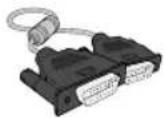
D-Sub Cable

SAMSUNG T23C350MA - The Supplied Accessories - 2
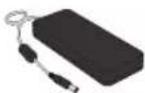
Adapter

SAMSUNG T23C350MA - The Supplied Accessories - 3
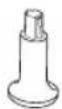
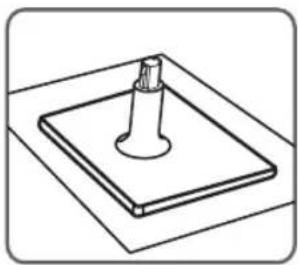
Stand Base

SAMSUNG T23C350MA - The Supplied Accessories - 4
Stand Connector

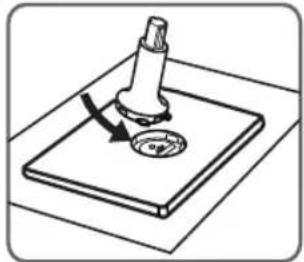
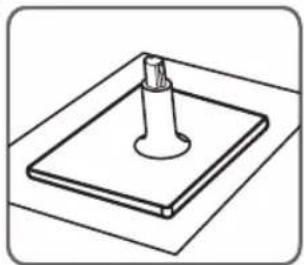
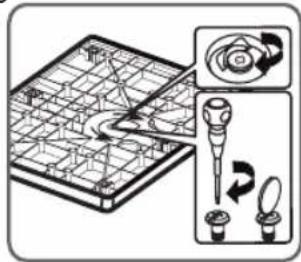
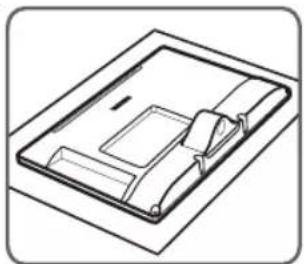
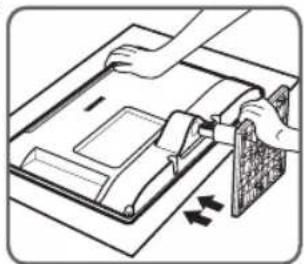
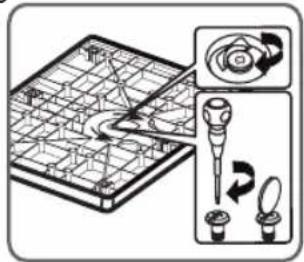
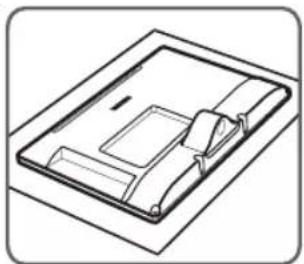
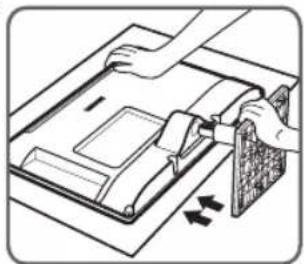
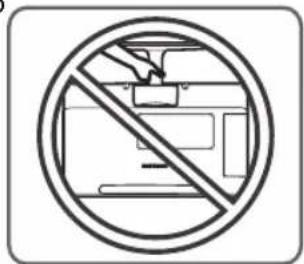
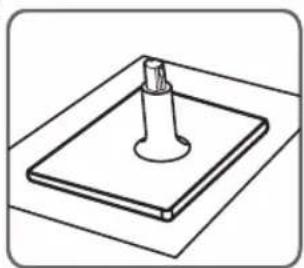
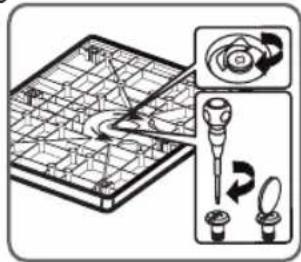
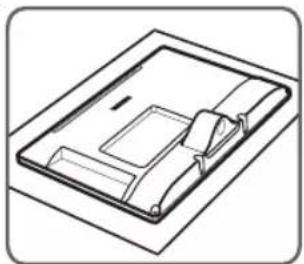
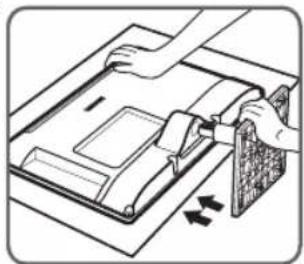
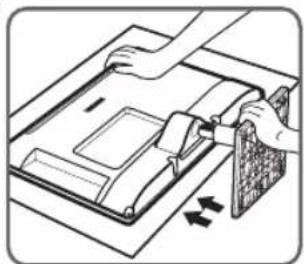
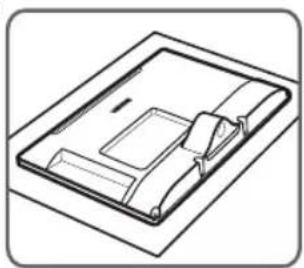
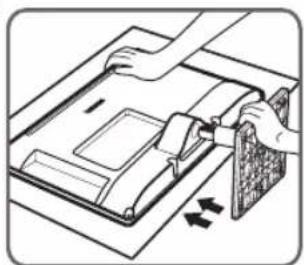
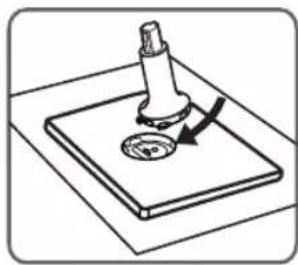
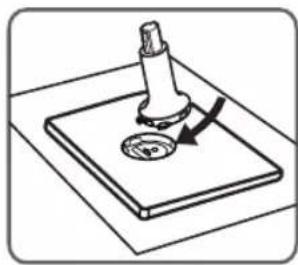
Installing the Stand

1
SAMSUNG T23C350MA - Installing the Stand - 1

natural_image Diagram of a mechanical component with a rotating shaft and base plate (no text or symbols)

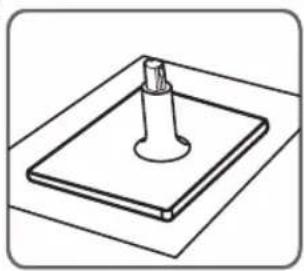
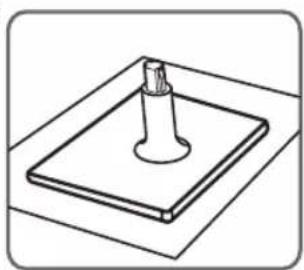
2
SAMSUNG T23C350MA - Installing the Stand - 2

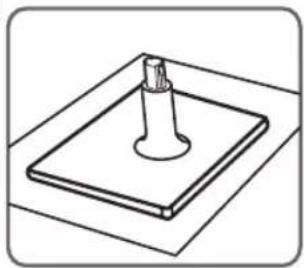
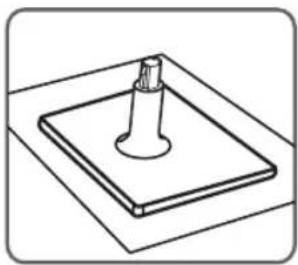
natural_image Simple line drawing of a mechanical component with a cylindrical pin and base plate (no text or symbols)

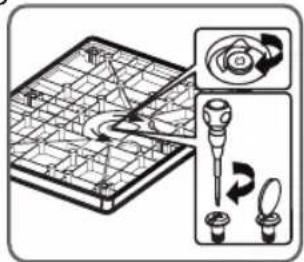
3
SAMSUNG T23C350MA - Installing the Stand - 3

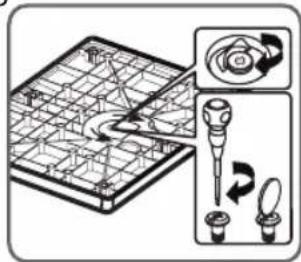
text_image Diagram illustrating a medical or laboratory procedure with labeled components and directional arrows indicating workflow steps.

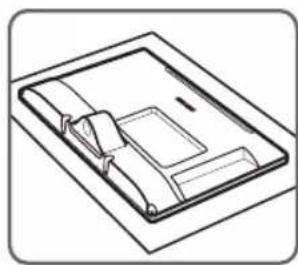
4
SAMSUNG T23C350MA - Installing the Stand - 4

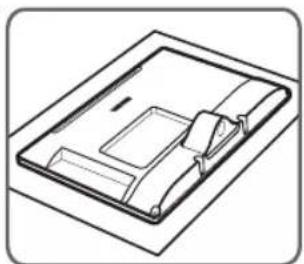
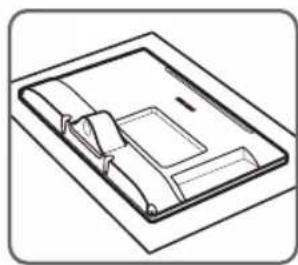
natural_image Line drawing of a rectangular electronic device with internal components (no text or symbols)

5
SAMSUNG T23C350MA - Installing the Stand - 5

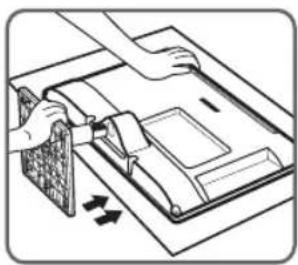
natural_image Diagram of hands operating a device with a grid and directional arrows indicating movement (no text or symbols)

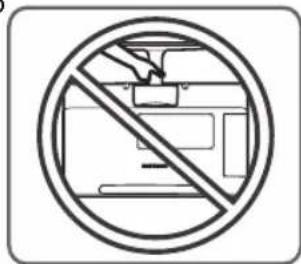
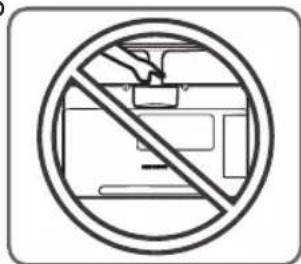
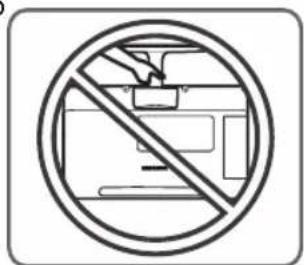
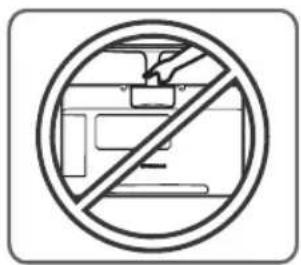
6
SAMSUNG T23C350MA - Installing the Stand - 6

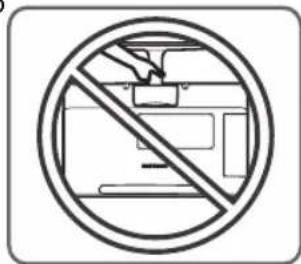
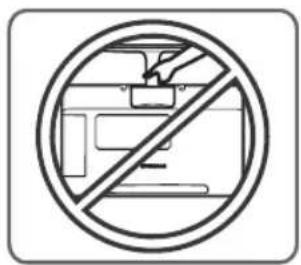
text_image Prohibition sign with crossed-out hand and vehicle diagram inside circle

English

Connecting to an AV Device

The product colour and shape may vary depending on the model.

SAMSUNG T23C350MA - Connecting to an AV Device - 1

flowchart
graph TD
    A["USB"] --> B["HD/LED"]
    B --> C["USB/LED"]
    C --> D["HD/LED"]
    D --> E["HD/LED"]
    E --> F["HD/LED"]
    F --> G["HD/LED"]
    G --> H["HD/LED"]
    H --> I["HD/LED"]
    I --> J["HD/LED"]
    J --> K["HD/LED"]
    K --> L["HD/LED"]
    L --> M["HD/LED"]
    M --> N["HD/LED"]
    N --> O["HD/LED"]
    O --> P["HD/LED"]
    P --> Q["HD/LED"]
    Q --> R["HD/LED"]
    R --> S["HD/LED"]
    S --> T["HD/LED"]
    T --> U["HD/LED"]
    U --> V["HD/LED"]
    V --> W["HD/LED"]
    W --> X["HD/LED"]
    X --> Y["HD/LED"]
    Y --> Z["HD/LED"]

SAMSUNG T23C350MA - Connecting to an AV Device - 2

flowchart
graph TD
    A["Device"] --> B["Component Out"]
    B --> C["Audio OUT"]
    B --> D["Component Out"]
    B --> E["Audio OUT"]
    B --> F["Audio OUT"]
    B --> G["Audio OUT"]
    B --> H["Audio OUT"]
    B --> I["Audio OUT"]
    B --> J["Audio OUT"]
    B --> K["Audio OUT"]
    B --> L["Audio OUT"]
    B --> M["Audio OUT"]
    B --> N["Audio OUT"]
    B --> O["Audio OUT"]
    B --> P["Audio OUT"]
    B --> Q["Audio OUT"]
    B --> R["Audio OUT"]
    B --> S["Audio OUT"]
    B --> T["Audio OUT"]
    B --> U["Audio OUT"]
    B --> V["Audio OUT"]
    B --> W["Audio OUT"]
    B --> X["Audio OUT"]
    B --> Y["Audio OUT"]
    B --> Z["Audio OUT"]
    B --> AA["Audio OUT"]
    B --> AB["Audio OUT"]
    B --> AC["Audio OUT"]
    B --> AD["Audio OUT"]
    B --> AE["Audio OUT"]
    B --> AF["Audio OUT"]
    B --> AG["Audio OUT"]
    B --> AH["Audio OUT"]
    B --> AI["Audio OUT"]
    B --> AJ["Audio OUT"]
    B --> AK["Audio OUT"]
    B --> AL["Audio OUT"]
    B --> AM["Audio OUT"]
    B --> AN["Audio OUT"]
    B --> AO["Audio OUT"]
    B --> AP["Audio OUT"]
    B --> AQ["Audio OUT"]
    B --> AR["Audio OUT"]
    B --> AS["Audio OUT"]
    B --> AT["Audio OUT"]
    B --> AU["Audio OUT"]
    B --> AV["Audio OUT"]
    B --> AW["Audio OUT"]
    B --> AX["Audio OUT"]
    B --> AY["Audio OUT"]
    B --> AZ["Audio OUT"]
    B --> BA["Audio OUT"]
    B --> BB["Audio OUT"]
    B --> BC["Audio OUT"]
    B --> BD["Audio OUT"]
    B --> BE["Audio OUT"]
    B --> BF["Audio OUT"]
    B --> BG["Audio OUT"]
    B --> BH["Audio OUT"]
    B --> BI["Audio OUT"]
    B --> BJ["Audio OUT"]
    B --> BK["Audio OUT"]
    B --> BL["Audio OUT"]
    B --> BM["Audio OUT"]
    B --> BN["Audio OUT"]
    B --> BO["Audio OUT"]
    B --> BP["Audio OUT"]
    B --> BQ["Audio OUT"]
    B --> BR["Audio OUT"]
    B --> BS["Audio OUT"]
    B --> BT["Audio OUT"]
    B --> BU["Audio OUT"]
    B --> BV["Audio OUT"]
    B --> BW["Audio OUT"]
    B --> BX["Audio OUT"]
    B --> BY["Audio OUT"]

English

Connecting to a PC

The product colour and shape may vary depending on the model.

SAMSUNG T23C350MA - Connecting to a PC - 1

flowchart
graph TD
    A[" Stereo Cable (Not Supplied)"] --> B[" HDMI to DVI Cable (Not Supplied) "]
    C[" HDMI OUT"] --> D[" HDMI Cable (Not Supplied) "]
    E[" T-Sun Cable (Supplied) "] --> F[" USB Interface "]
    G[" Stereo Cable (Not Supplied) "] --> H[" USB Interface "]
    I[" HDMI NT-2.5V"] --> J[" USB Interface "]
    K[" P-8"] --> L[" USB Interface "]
    M[" P-10"] --> N[" USB Interface "]
    O[" USB Interface "] --> P[" USB Interface "]
    Q[" USB Interface "] --> R[" USB Interface "]
    S[" USB Interface "] --> T[" USB Interface "]
    U[" USB Interface "] --> V[" USB Interface "]
    W[" USB Interface "] --> X[" USB Interface "]
    Y[" USB Interface "] --> Z[" USB Interface "]
    AA[" USB Interface "] --> AB[" USB Interface "]
    AC[" USB Interface "] --> AD[" USB Interface "]
    AE[" USB Interface "] --> AF[" USB Interface "]
    AG[" USB Interface "] --> AH[" USB Interface "]
    AI[" USB Interface "] --> AJ[" USB Interface "]
    AK[" USB Interface "] --> AL[" USB Interface "]
    AM[" USB Interface "] --> AN[" USB Interface "]
    AO[" USB Interface "] --> AP[" USB Interface "]
    AQ[" USB Interface "] --> AR[" USB Interface "]
    AS[" USB Interface "] --> AT[" USB Interface "]
    AU[" USB Interface "] --> AV[" USB Interface "]
    AW[" USB Interface "] --> AX[" USB Interface "]
    AY[" Stereo Cable (Not Supplied) "] --> B
    AZ[" Stereo Cable (Not Supplied) "] --> D
    BA[" Stereo Cable (Not Supplied) "] --> F
    BB[" Stereo Cable (Not Supplied) "] --> H
    BC[" Stereo Cable (Not Supplied) "] --> I
    BD[" Stereo Cable (Not Supplied) "] --> J
    BE[" Stereo Cable (Not Supplied) "] --> K
    BF[" Stereo Cable (Not Supplied) "] --> L
    BG[" Stereo Cable (Not Supplied) "] --> H
    BH[" Stereo Cable (Not Supplied) "] --> I
    BI[" Stereo Cable (Not Supplied) "] --> J
    BJ[" Stereo Cable (Not Supplied) "] --> K
    BK[" Stereo Cable (Not Supplied) "] --> L
    BL[" Stereo Cable (Not Supplied) "] --> M
    BM[" Stereo Cable (Not Supplied) "] --> AN
    BN[" Stereo Cable (Not Supplied) "] --> AO
    BO[" Stereo Cable (Not Supplied) "] --> AP
    BP[" Stereo Cable (Not Supplied) "] --> AQ

Connecting to an Antenna

When the LED display is initially powered on, basic settings proceed automatically.

☑ Preset: Connecting the mains and antenna.

SAMSUNG T23C350MA - Connecting to an Antenna - 1

flowchart
graph LR
    A["AntIN"] --> B["Aerial Cable (Not Supplied)"]
    B --> C["ANT OUT"]

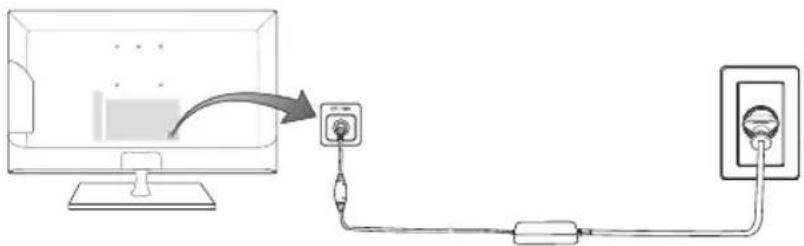
Connecting the Power

② The picture may vary depending on the model.
SAMSUNG T23C350MA - Connecting the Power - 1

natural_image Diagram showing connection between a monitor and a power outlet with cable (no text or symbols)

English

Viewing the Control panel

The product colour and shape may vary depending on the model.

Function menu

四 5

[NO TEXT]

Down (Front)

Remote control sensor

Left

Right

TV Controller

Up (Rear)

Power on Tum the TV on by pressing the Controller when the TV is in standby mode.

Adjusting the volumeAdjusts the volume by moving the controller from side to side when the power is on.
Selecting a channelSelect a channel by moving the Controller backwards and forwards when the power is on.
Using the function menuTo view and use the Function menu, press and release the Controller when the power is on. To close the Function menu, press and release the Controller again.
Selecting the MENU With the Function menu visible, select the MENU by moving the Controller to the left. The OSD (On Screen Display) Menu appears. Select an option by moving the Controller to the right. Move the Controller to the right or left, or backwards and forwards to make additional selections. To change a parameter, select it, and then press the Controller.
Selecting the MEDIA.PWith the Function menu visible, select MEDIA.P by moving the Controller backwards. The MEDIA.P main screen appears. Select an application by moving the Controller, and then pressing the Controller.
Selecting the Source With the Function menu visible, open the Source by pushing the Controller to the right. The Source screen appears. To select a source, move the Controller back and forth. When the source you want is highlighted, press the Controller.
Power off () With the Function menu visible, select Power off () by pulling the Controller forwards, and then press the Controller.

To close the Menu, MEDIA.P or Source, press the Controller for more than 1 second.
When selecting the function by moving the controller to the forwards/backwards/left/right directions, be sure not to press the controller. If you press it first, you cannot operate it to move the forwards/backwards/left/right directions.

Setup

The initial setup dialog appears when the TV is first activated.

Follow the on-screen instructions to finish the initial setup process, including menu language choice, country choice, channel source choice, channel scan, and more.

At each step, either make a choice or skip the step.

Users can manually perform this process at a later time under the System > Setup menu.

SAMSUNG T23C350MA - Setup - 1

English

Changing the Input Source

Source

When you are watching product and you want to watch a movie on your DVD player or Blu-ray player or switch to your cable box or STB satellite receiver, you need to change the Source.

TV / PC / HDMI1/DVI / HDMI2 / AV / Component

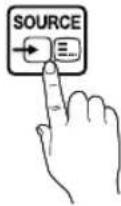
  1. Press the SOURCE button on your remote. The Source screen appears.

  2. Select a desired external input source.

Alternatively, you can access the Source screen by selecting the SOURCE button on your remote.

You can only choose external devices that are connected to the product. In the displayed Source list, connected inputs are highlighted.

In the Source, TV, and PC are always stays activated.

How to Use Edit Name

Edit Name lets you associate a device name to an input source. To access Edit Name, open the Tools menu when the Source list is displayed. The following selections appear under Edit Name:

VCR / DVD / Cable STB / Satellite STB / PVR STB / AV Receiver / Game / Camcorder / PC / DVI PC / DVI Devices / TV / IPTV / Blu-ray / HD DVD / DMA: Select an input jack, and then select the name of the device connected to that jack from the list that appears.

You connect a PC to the HDMI IN 1 (DVI) port with an HDMI cable, assign PC to HDMI1/DVI in Edit Name.

If you connect a PC to the HDMI IN 1 (DVI) port with an HDMI to DVI cable, assign DVI PC to HDMI1/DVI in Edit Name.

*Byou connect an AV device to the HDMI IN 1 (DVI) port with an HDMI to DVI cable, assign DVI Devices to HDMI1/DVI in Edit Name.

Information

You can see detailed information about the channel on TV or the selected external device.

Refresh

If the external devices are not displayed in the Source list, open the Tools menu, and then select Refresh, and then search for the connected devices.

This function is only available if Anynet+ function is turned on.
SAMSUNG T23C350MA - Refresh - 1

English

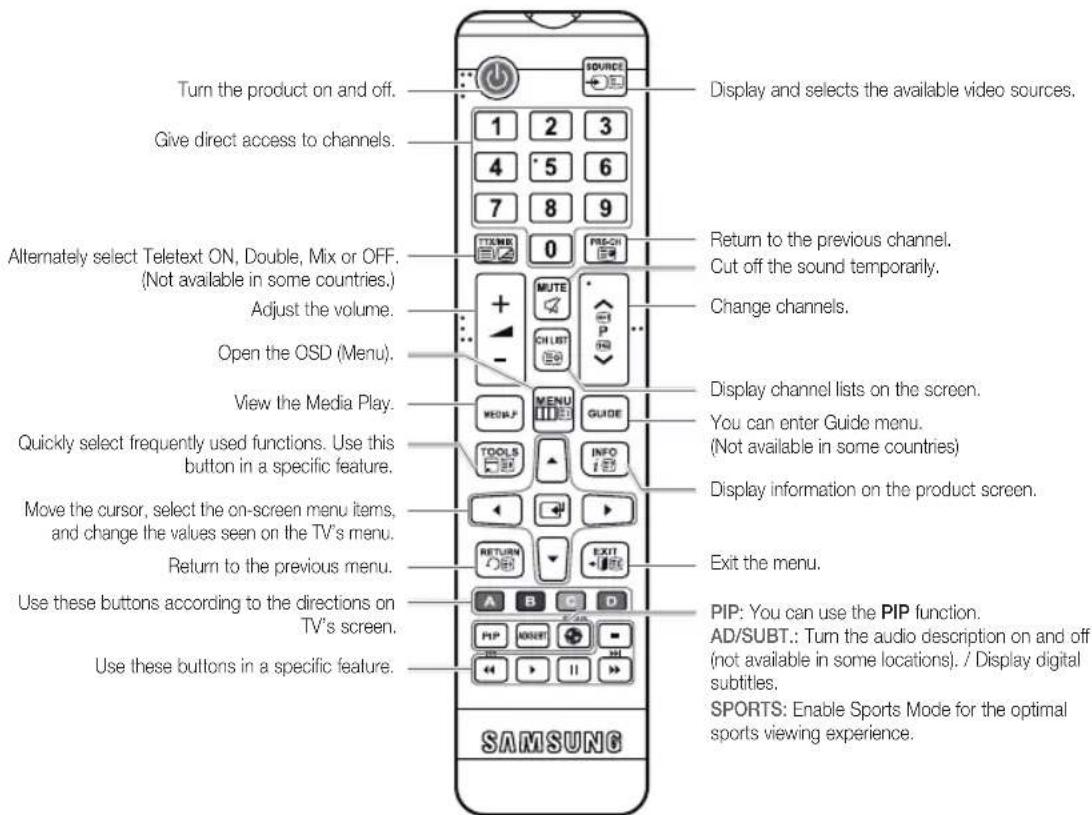
Viewing the Remote Control

This is a special remote control for the visually impaired and has Braille points on the Channel and Number buttons.
SAMSUNG T23C350MA - Viewing the Remote Control - 1

text_image Turn the product on and off. Give direct access to channels. Alternate select Teletext ON, Double, Mix or OFF. (Not available in some countries.) Adjust the volume. Open the OSD (Menu). View the Media Play. Quickly select frequently used functions. Use this button in a specific feature. Move the cursor, select the on-screen menu items, and change the values seen on the TV's menu. Return to the previous menu. Use these buttons according to the directions on TV's screen. Use these buttons in a specific feature. SOURCE 1 2 3 4 5 6 7 8 9 TOMO 0 FRECH MUTE CH LIST Display and selects the available video sources. Return to the previous channel. Cut off the sound temporarily. Change channels. Display channel lists on the screen. You can enter Guide menu. (Not available in some countries) Display information on the product screen. Exit the menu. PIP: You can use the PIP function. AD/SUBT.: Turn the audio description on and off (not available in some locations). / Display digital subtitles. SPORTS: Enable Sports Mode for the optimal sports viewing experience. SAMSUNG

Installing batteries (Battery size: AAA)
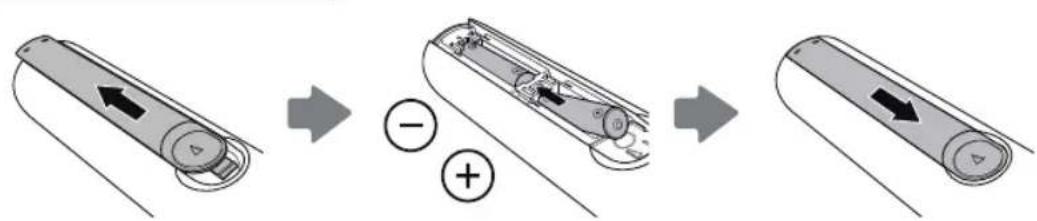
SAMSUNG T23C350MA - Viewing the Remote Control - 2

text_image Diagram illustrating battery charging process with labeled components and polarity indicators

English

Troubleshooting

If you have any questions about the LED Display, first refer to this list. If none of these troubleshooting tips apply, please visit "www.samsung.com," then click on Support, or contact the call centre listed on the back-cover of this manual.

Issues Solutions and Explanations
The product won't turn on.Make sure the AC power cord is securely plugged in to the wall outlet and the product.Make sure the wall outlet is working.Try pressing the button on the product to make sure the problem is not the remote. If the product turns on, refer to “Remote control does not work” below.
There is no picture/video.Check the cable connections. Remove and reconnect all cables connected to the product and external devices.Set the video outputs of your external devices (Cable/Sat Box, DVD, Blu-ray etc) to match the product's input connections. For example, if an external device's output is HDMI, it should be connected to an HDMI input on the product.Make sure your connected devices are powered on.Be sure to select the correct input source.Reboot the connected device by unplugging it, and then reconnecting the device's power cable.
The remote control does not work.Replace the remote control batteries. Make sure the batteries are installed with their poles (+/-) in the correct direction.Clean the sensor's transmission window on the remote.Try pointing the remote directly at the product from 5~6 feet away.
The cable/set top box remote control doesn't turn the product on or off, or adjust the volume.Programme the Cable/Set remote control to operate the product. Refer to the Cable/Set-Top-Box user manual for the SAMSUNG product code.
  • You can keep your LED display as optimum condition to upgrade the latest firmware on web site (samsung.com → Support → Downloads) by USB.

This page is intentionally left blank.
□ Remote Control & Bateral (AAA x 2)

natural_image Diagram of a mechanical component with a lever and base, showing motion direction (no text or symbols)

2
SAMSUNG T23C350MA - This page is intentionally left blank. - 1

natural_image Simple line drawing of a mechanical component with a cylindrical pin and base plate (no text or symbols)

3
SAMSUNG T23C350MA - This page is intentionally left blank. - 2

text_image Diagram illustrating a mechanical or electrical component with labeled parts and directional arrows indicating motion or assembly.

4
SAMSUNG T23C350MA - This page is intentionally left blank. - 3

natural_image Line drawing of a rectangular electronic device with internal components and mounting base (no text or symbols)

5
SAMSUNG T23C350MA - This page is intentionally left blank. - 4

natural_image Diagram of hands operating a device with a grid and directional arrows indicating movement (no text or symbols)

6
SAMSUNG T23C350MA - This page is intentionally left blank. - 5

text_image Prohibition sign with crossed-out arrow and circular outline, indicating no restriction or absence of vehicle use.

Bahasa Indonesia

text_image Diagram showing connection between a monitor and a power outlet, with cable routing and a switch labeled 'DC 100'.

Bahasa Indonesia

Melihat Panel kontrol

text_image Diagram illustrating the process of battery charging with polarity indicators and circuit breakers

Bahasa Indonesia

Mengatasi Masalah

This page is intentionally left blank.

Accessoires fournis

natural_image Diagram of a mechanical component with a rotating shaft and base plate (no text or symbols)

2
SAMSUNG T23C350MA - Accessoires fournis - 1

natural_image Isometric line drawing of a mechanical component with a cylindrical pin and base plate (no text or symbols)

3
SAMSUNG T23C350MA - Accessoires fournis - 2

text_image Diagram illustrating a medical or laboratory procedure with labeled components and directional arrows indicating workflow steps.

4
SAMSUNG T23C350MA - Accessoires fournis - 3

natural_image Line drawing of a rectangular electronic device with internal components (no text or symbols)

5
SAMSUNG T23C350MA - Accessoires fournis - 4

natural_image Illustration of hands operating a device with a grid and directional arrows indicating movement (no text or symbols)

6
SAMSUNG T23C350MA - Accessoires fournis - 5

text_image Prohibition sign with crossed-out hand and vehicle diagram inside circle

Français

flowchart
graph TD
    A["Server"] --> B["Cable stereo (non fourm)"]
    A --> C["Cable HDMI/DMI (non fourm)"]
    A --> D["Cable HDMI (non fourm)"]
    A --> E["CD/DVD Interface"]
    E --> F["Server"]
    G["CD/DVD Interface"] --> H["Port 1"]
    I["CD/DVD Interface"] --> J["Port 2"]
    K["CD/DVD Interface"] --> L["Port 3"]
    M["CD/DVD Interface"] --> N["Port 4"]
    O["CD/DVD Interface"] --> P["Port 5"]
    Q["CD/DVD Interface"] --> R["Port 6"]
    S["CD/DVD Interface"] --> T["Port 7"]
    U["CD/DVD Interface"] --> V["Port 8"]
    W["CD/DVD Interface"] --> X["Port 9"]
    Y["CD/DVD Interface"] --> Z["Port 10"]
flowchart
graph LR
    A["Monitor"] --> B["AntIN"]
    B --> C["Cable serial (non-round)"]
    C --> D["Ant OUT"]
natural_image Diagram showing connection between a monitor and a power outlet, with no text or symbols present.

Français

text_image Diagram illustrating battery charging process with directional arrows and polarity indicators

Français

This page is intentionally left blank.

Phụ kiện kèm theo

natural_image Diagram of a mechanical component with a rotating shaft and base plate (no text or symbols)

2
SAMSUNG T23C350MA - Phụ kiện kèm theo - 1

natural_image Simple line drawing of a mechanical component with a cylindrical shaft and base plate (no text or symbols)

3
SAMSUNG T23C350MA - Phụ kiện kèm theo - 2

text_image Diagram illustrating a medical procedure with labeled components and directional arrows indicating steps of injection or dissection.

4
SAMSUNG T23C350MA - Phụ kiện kèm theo - 3

natural_image Line drawing of a rectangular electronic device with a handle and internal components (no text or symbols)

5
SAMSUNG T23C350MA - Phụ kiện kèm theo - 4

natural_image Illustration of hands installing or adjusting a device component with arrows indicating motion (no text or symbols)

6
SAMSUNG T23C350MA - Phụ kiện kèm theo - 5

text_image Prohibition sign with crossed-out arrow and circular background, indicating no liability or prohibition

Tiếng Việt

text_image Diagram showing cable connection between a monitor and a power outlet, with Chinese label '电源连接' (Power Connection) on the device.

Tiếng Việt

text_image Diagram illustrating the process of battery charging with positive and negative charges, showing stages from external to internal charge.

Tiếng Việt

Xù lý sự cố

This page is intentionally left blank.

natural_image Diagram of a mechanical component with a lever and base, showing a circular feature on a flat surface (no text or symbols)

2
SAMSUNG T23C350MA - This page is intentionally left blank. - 1

natural_image Isometric line drawing of a mechanical component with a cylindrical shaft and base plate (no text or symbols)

3
SAMSUNG T23C350MA - This page is intentionally left blank. - 2

text_image Diagram illustrating a mechanical assembly with labeled components and directional arrows indicating motion or assembly.

4
SAMSUNG T23C350MA - This page is intentionally left blank. - 3

natural_image Line drawing of a rectangular electronic device with a handle and mounting bracket (no text or symbols)

5
SAMSUNG T23C350MA - This page is intentionally left blank. - 4

natural_image Diagram of hands operating a device with a grid and directional arrows indicating movement (no text or symbols)

6
SAMSUNG T23C350MA - This page is intentionally left blank. - 5

text_image Prohibition sign with a circular absence of crossed-out electrical circuit lines, indicating no protection or disapproval.

Русский

flowchart
graph TD
    A["Component 1/2/3"] --> B["Audio OUT"]
    A --> C["Component 1/2/3"]
    A --> D["Audio OUT"]
    A --> E["Audio OUT"]
    F["Video OUT"] --> G["Audio OUT"]
    H["Audio OUT"] --> I["Audio OUT"]
    J["Audio OUT"] --> K["Audio OUT"]
    L["Audio OUT"] --> M["Audio OUT"]
    N["Audio OUT"] --> O["Audio OUT"]
    P["Audio OUT"] --> Q["Audio OUT"]
    R["Audio OUT"] --> S["Audio OUT"]
    T["Audio OUT"] --> U["Audio OUT"]
    V["Audio OUT"] --> W["Audio OUT"]
    X["Audio OUT"] --> Y["Audio OUT"]
    Z["Audio OUT"] --> AA["Audio OUT"]
    AB["Audio OUT"] --> AC["Audio OUT"]
    AD["Audio OUT"] --> AE["Audio OUT"]
    AF["Audio OUT"] --> AG["Audio OUT"]
    AH["Audio OUT"] --> AI["Audio OUT"]
    AJ["Audio OUT"] --> AK["Audio OUT"]
    AL["Audio OUT"] --> AM["Audio OUT"]
    AN["Audio OUT"] --> AO["Audio OUT"]
    AP["Audio OUT"] --> AQ["Audio OUT"]
    AR["Audio OUT"] --> AS["Audio OUT"]
    AT["Audio OUT"] --> AU["Audio OUT"]
    AV["Audio OUT"] --> AW["Audio OUT"]
    AX["Audio OUT"] --> AY["Audio OUT"]

Русский

natural_image Diagram showing a computer monitor connected to a cable via a plug, with a separate electrical outlet (no text or symbols present)

Русский

text_image Diagram illustrating the process of battery charging with directional arrows and polarity indicators

Русский

This page is intentionally left blank.

text_image Diagram illustrating a mechanical assembly or installation process with labeled components and directional arrows indicating motion.

SAMSUNG T23C350MA - This page is intentionally left blank. - 1

natural_image Simple line drawing of a mechanical component with a cylindrical pin and base plate (no text or symbols)

2

SAMSUNG T23C350MA - This page is intentionally left blank. - 2

natural_image Diagram of a mechanical component with a rotating knob and base plate (no text or symbols)

1

6
SAMSUNG T23C350MA - This page is intentionally left blank. - 3

text_image Prohibition sign indicating no car stop or parking, featuring a circular outline with diagonal lines and a vehicle inside.

SAMSUNG T23C350MA - This page is intentionally left blank. - 4

natural_image Diagram of hands operating a mechanical device with arrows indicating motion (no text or symbols)

5

SAMSUNG T23C350MA - This page is intentionally left blank. - 5

natural_image Line drawing of a rectangular electronic device with a handle and mounting bracket (no text or symbols)

4

العربية

2

AV التوصيل بجهاز

text_image Diagram showing cable connection between a monitor and a power outlet, with labeled components and directional arrow

العربية

استعراض لوحة التحكم

text_image Diagram illustrating battery charging process with labeled components and polarity indicators

العربية

This page is intentionally left blank.

תְקַרָה בְּרָה

text_image Diagram illustrating a mechanical assembly or cleaning process with labeled components and directional arrows indicating steps.

3

SAMSUNG T23C350MA - תְקַרָה בְּרָה - 1

natural_image Simple line drawing of a mechanical component with a cylindrical pin and base plate (no text or symbols)

2

SAMSUNG T23C350MA - תְקַרָה בְּרָה - 2

natural_image Diagram of a mechanical component with a rotating knob and base plate (no text or symbols)

1

SAMSUNG T23C350MA - תְקַרָה בְּרָה - 3

text_image Prohibition sign indicating no car stop or parking, featuring a diagonal line through a vehicle interior.

6

SAMSUNG T23C350MA - תְקַרָה בְּרָה - 4

natural_image Diagram of hands operating a device with a grid pattern, showing mechanical components and directional arrows (no text or symbols)

5

SAMSUNG T23C350MA - תְקַרָה בְּרָה - 5

natural_image Line drawing of a rectangular electronic device with a handle and mounting bracket (no text or symbols)

4

תְרָבִי

2

AV

flowchart
graph TD
    A["ACM1: HDMI"] --> B["DVI: HDMI"]
    B --> C["HDMI: HDMI"]
    C --> D["Internal Control Panel"]
    D --> E["Internal Control Panel"]
    E --> F["Internal Control Panel"]
    F --> G["Internal Control Panel"]
    G --> H["Internal Control Panel"]
    H --> I["Internal Control Panel"]
    I --> J["Internal Control Panel"]
    J --> K["Internal Control Panel"]
    K --> L["Internal Control Panel"]
    L --> M["Internal Control Panel"]
    M --> N["Internal Control Panel"]
    N --> O["Internal Control Panel"]
    O --> P["Internal Control Panel"]
    P --> Q["Internal Control Panel"]
    Q --> R["Internal Control Panel"]
    R --> S["Internal Control Panel"]
    S --> T["Internal Control Panel"]
    T --> U["Internal Control Panel"]
    U --> V["Internal Control Panel"]
    V --> W["Internal Control Panel"]
    W --> X["Internal Control Panel"]
    X --> Y["Internal Control Panel"]
    Y --> Z["Internal Control Panel"]

תְבָרִי בְּרַעֹת

natural_image Diagram showing a computer monitor connected to an audio jack via cable, with a separate plug inserted (no text or symbols present)

תְרָה

תְקָרִי אַלְאָה

text_image Diagram illustrating battery charging process with directional arrows and polarity indicators

תְרָבִי

הכלה

Manual assistant
Powered by Anthropic
Waiting for your message
Product information

Brand : SAMSUNG

Model : T23C350MA

Category : Monitor