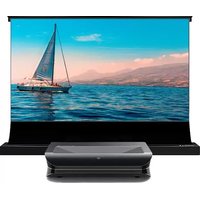
LTV-3500 - Projector AWOL Vision - Free user manual and instructions
Find the device manual for free LTV-3500 AWOL Vision in PDF.


User questions about LTV-3500 AWOL Vision
0 question about this device. Answer the ones you know or ask your own.
Ask a new question about this device
Download the instructions for your Projector in PDF format for free! Find your manual LTV-3500 - AWOL Vision and take your electronic device back in hand. On this page are published all the documents necessary for the use of your device. LTV-3500 by AWOL Vision.
USER MANUAL LTV-3500 AWOL Vision
natural_image
Exterior view of a modern office building (no signage)4K TRI-CHROMA LASER PROJECTOR
USER MANUAL
(LTV-3500/LTV-2500)
English 01
Français 32
Deutsch 63
Español 94
To Users
Thank you for choosing the AWOL VISION 4K TriChroma Ultra Short Throw Laser. For your security and interest, please read this manual carefully before using the product. To ensure safe and correct use of this product, always comply with the following precautions to avoid dangerous situations and damage to your unit:

The lightning flash with an arrowhead symbol within an equilateral triangle is intended to alert the user to the presence of dangerous voltage within the product's enclosure. The dangerous voltage may be of sufficient magnitude to constitute a risk of electric shock.

The exclamation point within an equilateral triangle is intended to alert the user to the presence of important operating and maintenance (servicing) instructions in the literature accompanying the appliance.
Illustrations of the product, accessories, and user interface in the user manual are for reference purposes only. Actual product and functions may vary due to product enhancements.
Compatibility with 3rd party products, software and services are not guaranteed. We cannot be held liable for any damage or loss suffered while operating, using or connecting to incompatible devices or apps.
The recording and playback of content on this device may require permission from the owner of the copyright or other such rights in that content. It is your responsibility to ensure that your use of this device complies with applicable copyright legislation in your country.
Safety Instructions
Ambient Conditions for this Device
This device must be used in a home or office environment. It must not be used in rooms with high levels of humidity or dust concentration.

WARNING
High humidity and dust concentration may lead to current leaks in the device. To reduce the risk of fire or electrical shock:
- Do not expose this unit to rain, moisture, dripping or splashing water, and do not place objects filled with liquids, such as vases, cups, etc. on or over the unit.
- Do not touch the device with wet hands.
- Do not expose the device to direct air-conditioning and keep candles or other flames away from the device at all times.
- If used outside, make sure it is protected from moisture.
Installation
Never place a AWOL VISION 4K TriChroma Laser in an unstable location. The product set may fall, causing serious personal injury or death. Many injuries, particularly to children, can be avoided by taking simple precautions such as:

WARNING
- Using cabinets or stands recommended by AWOL VISION.
- Only using furniture that can safely support the product set.
- Ensuring the product set is not overhanging the edge of the supporting furniture.
- Not placing the product set on tall furniture (for example, cupboards or bookcases) without anchoring both the furniture and product set to a suitablesupport.
- Not placing the product set on cloth or other materials that may be located between the product set and supporting furniture.
- Educating children about the dangers of climbing on furniture to reach the product set or its controls.
If your existing product set is being retained and relocated, the same considerations as above should be applied.
Power Supply
Incorrect voltages can damage the device. Only connect this unit to a power supply with the correct voltage and frequency noted on the type plate, using the supplied power cable.

WARNING
- Do not overload the power outlets by connecting too many appliances to the same outlet. Overloaded wall outlets, extension cords, etc. are dangerous and can result in electric shock and fire.
- By means of a power cord connected to a socket-outlet with earthing connection.
- Do not touch the power plug with wet hands.
- Do not place heavy objects on the power cable. Route the cable so that it is not kinked or laid over sharp edges, walked on or exposed to chemicals. A power cable with damaged insulation can cause electric shock and fire.
- Pull the power plug, NOT on the cable when disconnecting. The cable can become damaged and cause a short circuit if pulled on.
- Do not place the power cable near a high temperature object.
- Do not use a damaged or loose power cable, or a damaged socket outlet.
- As long as the power plug is connected to a live socket outlet, the device will consume power even in standby mode. The power plug should be disconnected during long periods of absence.
Air Ventilation and High Temperatures
Install your device only where there is proper ventilation, and ensure that there is at least 7.8 inch(20 cm) of free space on the sides and 5.9 inch(15 cm) of free space on the back of the unit for air circulation. Excessive heat and obstruction of ventilation could lead to fire or early failure of some electric components.

WARNING
- Do not block any ventilation openings with newspapers, tablecloths, curtains, etc.
- Do not touch the ventilation openings, they may become hot
- Do not insert foreign objects into the device through the vents..
Cleaning and Care
Clean the device, the screen, and the remote control with a soft, moist, clean and natural cloth only, do not use any chemicals.

WARNING
- Unplug the power cord prior to cleaning the device.
- Do not use insect repellent, solvent, thinner or other volatile substances on the surface of the AWOL VISION 4K TriChroma Laser. This may degrade the
- surfacequality. Do not spray water or other liquids directly on the device. Liquid inside the device could lead to product failure.
Service and Repair
Risk of electric shock when opening the device.

WARNING
- Never remove the cover/back of the device, there are no user serviceable parts inside.
- Refer all service to qualified service personnel.
- Do not attempt to modify this product in any way. Unauthorized modification could void the warranty of this unit or cause electric shock and fires.
- If this device requires a repair, please wear laser eye protection with an optical density OD that is 4 or higher and has a wavelength of 459-651nm.
Remote Control Batteries
Incorrect installation may cause battery leakage, corrosion, and explosion.

WARNING
- Replace only with the same or equivalent type, do not mix old and new batteries.
- Do not mix different battery types.
- Do no use rechargeable batteries.
- Do not burn or break up batteries.
- Discard batteries in a designated disposal area.
- Do not expose batteries to excessive heat such as sunshine, fire, or the like.
- If you do not intend to use the remote control for a long time, then remove the batteries.
Laser
You risk being exposed to laser radiation if you manipulate or alter the product in a way not specified in the user manual. Do not look directly at the lens when this device is on because the laser light may damage your eyes.

WARNING
- This product comes with a laser module. Do not tear or modify this device in any manner; otherwise, it may result in personal injury.
As with any bright light source, DO NOT STARE INTO THE BEAM
= 459 471nm / 519 531nm / 635 651nm
Wavelength 459\~471nm/519\~531nm/635\~651nm
CLASS 1 LASER PRODUCT
Complies with IEC 60825-1: 2014 and IEC 62471-5: 2015
- The Device complies with US FDA performance standards in 21 CFR 1040.10 and 1040.11 except for conformance as a Risk Group [0,1 or 2-Select appropriate RG] LIP as defined in IEC 62471-5: Ed.1.0. For more information see Laser Notice No.57, dated May 8, 2019.
- If this device requires a repair, please wear laser eye protection with an optical density OD that is 4 or higher and has a wavelength of 459-651nm.
Certification and Compliance
FCC Notice
This device has been tested and found to comply with the limits for a Class B digital device pursuant to Part 15 of the FCC Rules.
These limits are designed to provide reasonable protection against harmful interference in a residential installation. This device generates, uses, and can radiate radio frequency energy and, if not installed and used in accordance with the instructions, may cause harmful interference to radio communications.
However, there is no guarantee that interference will not occur in a particular installation. If this device does cause harmful interference to radio or television reception, which can be determined by turning the device off and on, the user is encouraged to try to correct the interference by one or more of the following measures:
- Reorient or relocate the receiving antenna.
- Increase the separation between the device and receiver.
- Connect the device into an outlet on a circuit different from that to which the receiver is connected.
- Consult the dealer or an experienced radio/projector technician for help.
FCC Radiation Exposure Statement
The radiated output power of this device meets the limits of FCC/IC radio frequency exposure limits. This device should be operated with a minimum separation distance of 20cm (8 inches) between the equipment and a person's body
IC Notice
This device contains licence-exempt transmitter(s)/receiver(s) that comply with Innovation, Science and Economic Development Canada's licence-exempt RSS(s). Operation is subject to the following two conditions: (1) This device may not cause interference.(2) This device must accept any interference, including interference that may cause undesired operation of the device.
Avis IC
Declaration of FCC Conformity
Trade Name: AWOL VISION
Model: LTV-3500 and LTV-2500
Responsible Party: ELEVATION TECHNOLOGY PARTNERS LLC
Address: 6574 N State Rd 7, Coconut Creek, FL, USA
Email: customersupport@awolvision.com
This device complies with Part 15 of the FCC Rules. Operation is subject to the following two conditions:
(1) this device may not cause harmful interference, and
(2) this device must accept any interference received, including interference that may cause undesired operation.
Declaration of Environmental and Packaging Directives
Trade Name: AWOL VISION
Model: LTV-3500 and LTV-2500
Responsible Party: ELEVATION TECHNOLOGY PARTNERS LLC
Address: 6574 N State Rd 7, Coconut Creek, FL, USA
Email: customersupport@awolvision.com
We guarantee/declare the product(s) above comply with the directives and regulations, which including but not limited to:
(1) EU RoHS Directive (2011/65/EU)
(2) California Prop 65 (Safe Drinking Water and Toxic Enforcement Act of 1986)
(3) EU REACH Regulation (Registration, Evaluation, Authorization and Restriction of Chemical)
(4) TPCH packaging (Toxics in Packaging Clearinghouse Model Legislation)
(5) Packaging and packaging waste (94/62/EC)
We understand the importance of hazardous substance compliance and guarantee that all related documentation, including but not limited to any material composition data, and any reporting we submitted to be valid and accurate.
Dolby Atmos
Manufactured under license from Dolby Laboratories.
Dolby, Dolby Atmos, and the double-D symbol are registered trademarks of Dolby Laboratories Licensing Corporation. Confidential unpublished works. Copyright © 2012–2020 Dolby Laboratories. All rights reserved.


Manufactured under license from DTS, Inc. (for companies headquartered in the U.S./Japan/Taiwan) or under license from DTS Licensing Limited (for all other companies). For DTS patents, see http://patents.dts.com.
DTS, DTS-HD Master Audio, DTS-HD, Virtual:X, and the DTS-HD logo are registered trademarks or trademarks of DTS, Inc. in the United States and other countries. © 2020 DTS, Inc. ALL RIGHTS RESERVED.

The terms HDMI and HDMI High-Definition Multimedia Interface, and the HDMI Logo are trademarks or registered trademarks of HDMI Licensing Administrator, Inc. in the United States and other countries.

Bluetooth®
Manufactured under license from Bluetooth SIG, Inc.
The Bluetooth® word mark and logos are registered trademarks owned by Bluetooth SIG, Inc.
Content
PACKAGE CONTENTS 10
PRODUCT DIAGRAM 11
PROJECTOR 11
REMOTE CONTROL 13
THROW DISTANCE CHART 14
OPERATION GUIDE 15
POWER ON/OFF 15
HOME PAGE OVERVIEW 15
ADJUST THE DISPLAY IMAGE AND THE SCREEN 16
KEY STONE CORRECTION 22
ELECTRIC FOCUS ADJUSTMENT 23
CONNECTION WITH PERIPHERALS 24
STREAMING STICK POCKET SETUP 25
BLUETOOTH 26
SYSTEM UPGRADE 26
SPECIFICATION 27
MAINTENANCE 29
TROUBLE SHOOTING 29
Package Contents
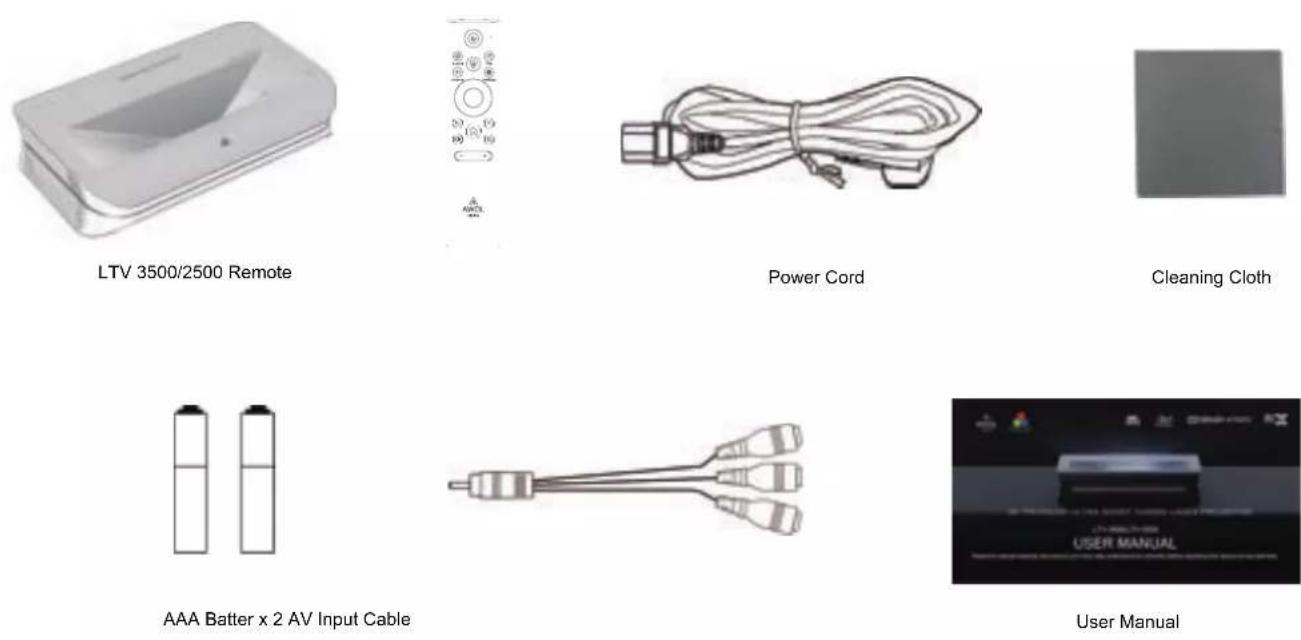

Please keep the original package in case of needed transportation in the future. Only use attachments/accessories specified by the manufacturer.
Product Diagram
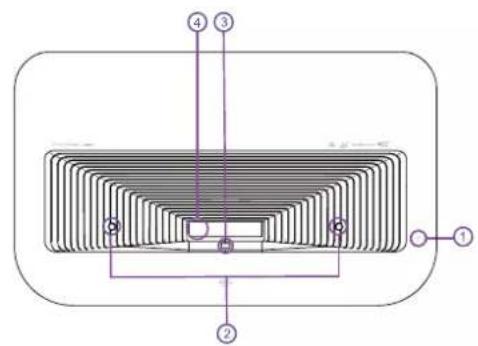
TriChroma Laser
Top
Front
Side
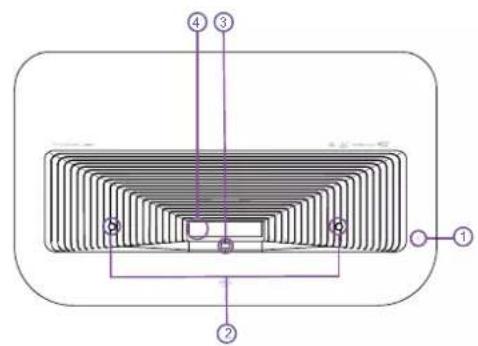
text_image
Technical diagram of a heat exchanger or cooling device with numbered components and internal structure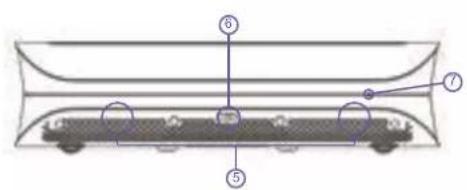
text_image
Diagram of a train inside a container with numbered parts labeled 5, 6, and 7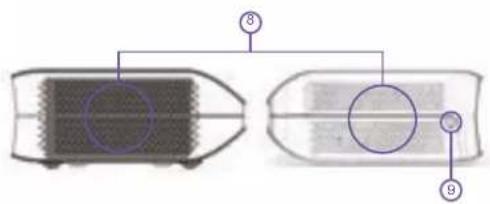
text_image
Diagram showing two labeled components with numbered annotations, likely illustrating a process or assembly.1.Power On/Off
-
PIR Sensor for Eye Protection
-
Laser Outlet Blocked Sensor
4.Lens
5.Speakers
- Remote IR Receiver and Ambient Light Sensor
7.LED Status Indicator
- Heat Dissipation Vents
9.USB 2
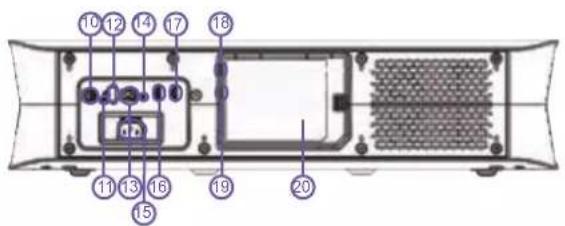
Back
Bottom
text_image
Technical diagram of a device rear panel with numbered components and labeled parts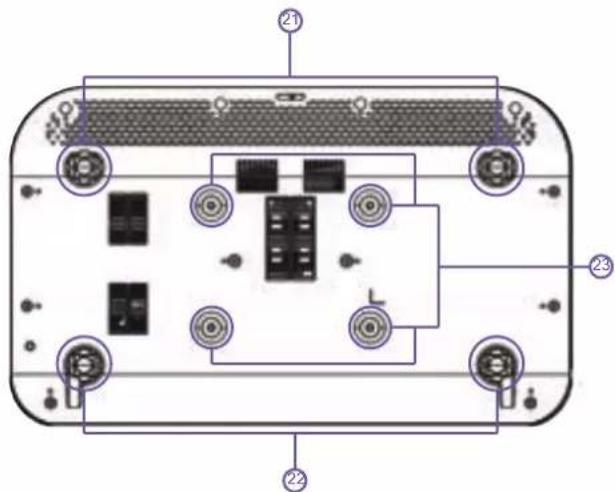
text_image
Diagram of a device rear panel with labeled components and connectors-
Optical S/PDIF
-
Micro USB (Debug)
12.USB 1
13.RJ-45 (LAN)
14.AV Input
15.Power Port
16.HDMI 2 (eARC)
17.HDMI 3
18.USB 3 (Only power)
19.HDMI 1
- Patented TV Stick Compartment
21.Front Foot
22.Rear Foot
- Mount Hole M6*15mm
Remote Control

text_image
1 2 5 8 9 12 13 Sound Source Setting 15 3 4 6 7 10 11 - + 14 AWOL VISION1.Power
2.Sound
3.File
4.Cast
5.Source
-
Setting
-
Directional Button
-
Select
-
Return
10.Menu
11.Home
12.Mute
13.Light Mode
14.Volume
15.LED indicator

1) Hold down the [Menu] button on the remote control to start pairing.
2) (2) AAA batteries are required for the remote control.
3) The red LED means the remote works in IR mode and the blue LED means the remote works in BT mode.
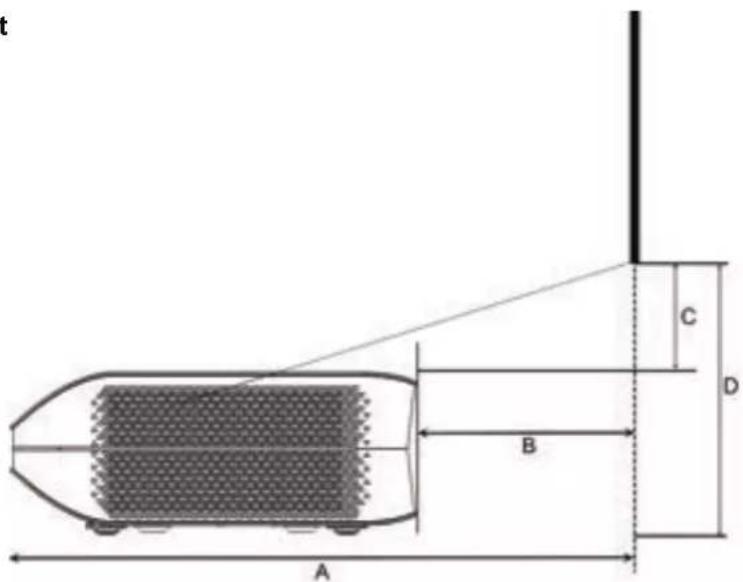
Throw Distance Chart
text_image
t C D B A| 4K16:9 TR=0.25 | ImageSize (diagonal) | Image Width | Image Height | A (Image to front) | B (Image to rear) | C (Image to top) | D (Image to foot) |
| 80 | 69.7 | 39.2 | 19.9 | 6 | 7.2 | 12.9 | |
| 100 | 87.2 | 49 | 23.7 | 9.8 | 9.4 | 15.1 | |
| 120 | 104.6 | 58.8 | 27.5 | 13.6 | 11.3 | 17 | |
| 150 | 130.7 | 73.5 | 34.1 | 20.2 | 13.3 | 19 |
OPERATION GUIDE
POWER ON/OFF
Connect the AWOL VISION 4K TriChroma Laser to power, press the [Power] button on the TriChroma laser or the remote control to power it on/off.
Home Page Overview
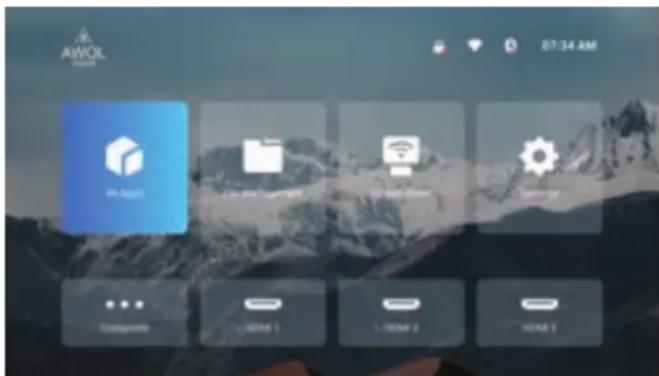
There are 3 sections on the home page.
On the upper right corner, you can monitor the External USB storage device, Network, Bluetooth and Time status, you can change these settings with the remote control if needed.
The middle 4 main menus on the home page, including All App, File Management, Screen Shared, and Settings for further operation and management. In the meanwhile, the bottom HDMI and AV input source status is intuitive and convenient for your operation.
Additionally, the homepage background picture changes dynamically.
text_image
AWOL 07:34 AM All Apps Compsys - COMS 1 - COMS 2 - COMS 3Adjust the Display Image and the Screen
text_image
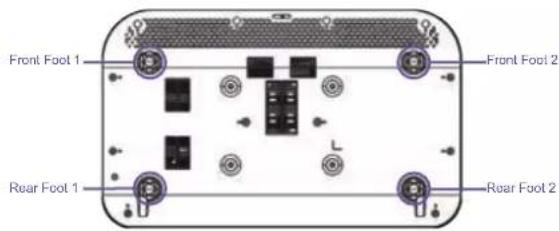
Front Foot 1 Rear Foot 1 Front Foot 2 Rear Foot 21. Parallel The Bottom of The Image with The Screen
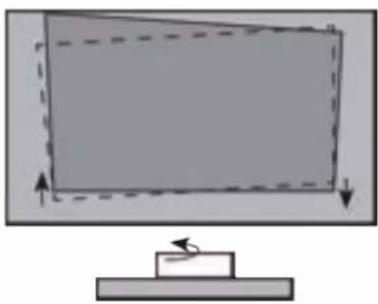
If the bottom of the image is lower on the left and higher on the right, rotate the device counterclockwise.
natural_image
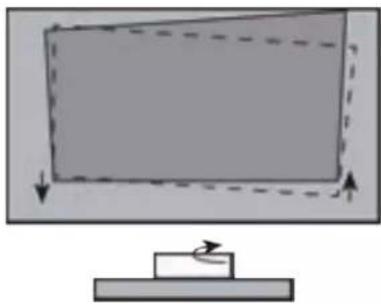
Simple line drawing of a monitor with arrows indicating motion, no text or symbols presentIf the bottom of the image is lower on the right and higher on the left, rotate the device clockwise.
natural_image
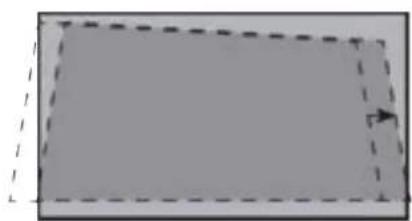
Simple diagram showing a rectangular block with dashed lines and arrows, mounted on a base with a small object below (no text or symbols)- Fit The Bottom of The Image to The Screen
If the image shifts to the left side, then move the AWOL VISION 4K TriChroma laser to the right.
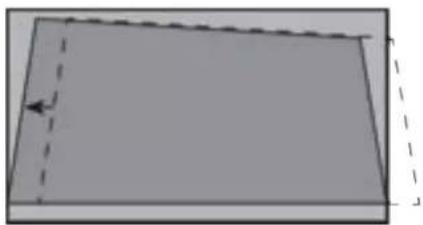
natural_image
Simple gray rectangle with dashed border and a small arrow on the right side (no text or symbols)If the image shifts to the right side, then move the AWOL VISION 4K TriChroma laser to the left.
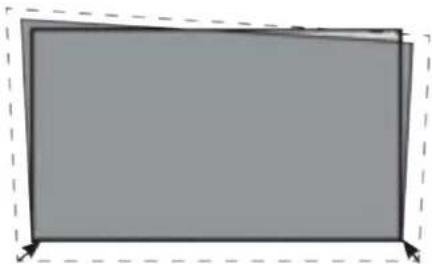
natural_image
Simple 3D diagram of a rectangular prism with dashed lines indicating hidden edges and an arrow pointing to one corner (no text or symbols)If the bottom of the image is wider than the screen, then move the AWOL VISION 4K TriChroma closer to the screen.
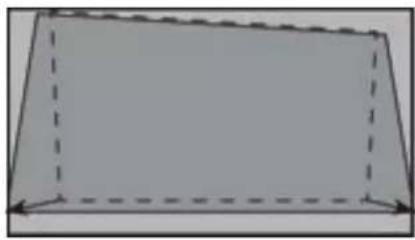
natural_image
Simple gray rectangular frame with dashed border, no text or symbols presentIf the bottom of the image is narrower than the screen, then move the AWOL VISION 4K TriChroma farther from the screen.
natural_image
Simple 3D rectangular prism diagram with dashed lines indicating hidden edges (no text or symbols)NOTE: Make sure the bottom of the image always stays parallel with the screen. If not, rotate the AWOL VISION 4K TriChroma following previous instructions.
3. Adjust The Upper-Right Corner of The Imagine
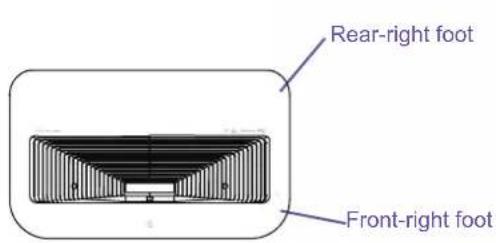
If the top of the image is lower on the left and higher on the right, then rotate the front-right foot and the back-right foot clockwise to the same height.
text_image
Rear-right foot Front-right foot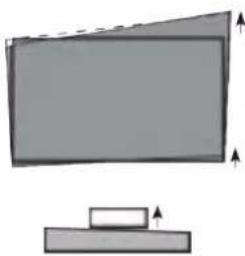
natural_image
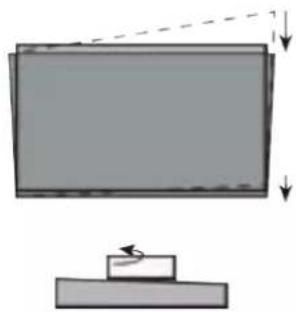
Simple diagram of a monitor with an upward arrow and a base, no text or symbols present.Now, rotate the AWOL VISION 4K TriChroma laser clockwise so that the bottom of the image is parallel with the screen.
natural_image
Simple diagram showing a rectangular block with downward arrows and a small rectangular object below, no text or symbols present.Repeat the steps above until the top of the image is parallel with the screen.
If the upper-right corner is inside the screen after adjusting, rotate the front-right foot and the back right foot counterclockwise to the same height, and rotate the AWOL VISION 4K TriChroma laser clockwise, to make the image parallel with the screen.
4. Adjust The Upper-Left Corner of The Image
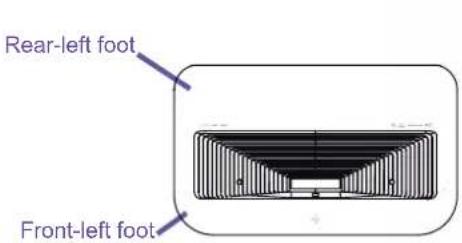
If the top of the image is higher on the left and lower on the right, then rotate the front-left foot and the back-left foot of the AWOL VISION 4K TriChroma clockwise to the same height.
text_image
Rear-left foot Front-left foot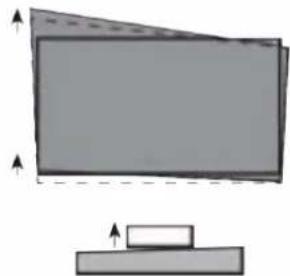
natural_image
Simple diagram showing a monitor with an upward arrow and a base, no text or symbols present.Now, rotate the AWOL VISION 4K TriChroma laser clockwise so that the bottom of the image is parallel with the screen.
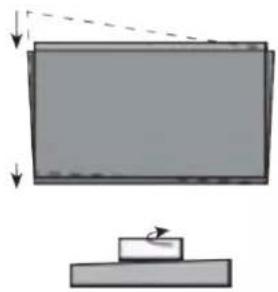
natural_image
Simple diagram showing a rectangular object with downward arrows and a small block on top, no text or symbols present.Repeat the steps above until the top of the image is parallel with the screen.
If the upper-left corner is inside the screen after adjusting, rotate the front-left feet and the back left foot counterclockwise to the same height, and rotate the AWOL VISION 4K TriChroma laser counterclockwise, to make the image parallel with the screen.
5. Fill The Top of The Image to The Screen
If the top of the image is wider than the screen, then rotate the left- and right-front feet of the AWOL VISION 4K TriChroma laser clockwise.
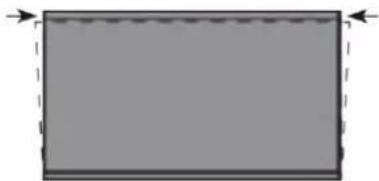
natural_image
Simple gray rectangle with dashed border and arrows pointing left (no text or symbols)If the top of the image is narrower than the screen, then rotate the left- and right-back feet of the AWOL VISION 4K TriChroma clockwise, until the left and right borders of the image are parallel with the screen borders.
Next, move the AWOL VISION 4K TriChroma laser further from the screen to fill the image to screen width.
If the back feet are already at their maximum height, rotate the left- and right-front feet counterclockwise.
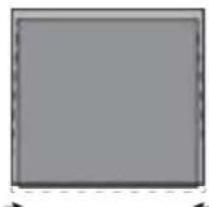
natural_image
Blank gray rectangular frame with no text, symbols, or markingsRotate the back feet clockwise

natural_image
Simple gray square with a dashed border and arrow arrows on the top (no text or symbols)Rotate the front feet counterclockwise
Keystone Correction
Besides adjusting the physical position of the device to match the display image and the screen (Refer to [Adjust the Display Image and the Screen] section), you can use the keystone correction feature to improve performance details.
You can open the function following the menu path: [Settings] -> [Light] -> [Manual Correction]:
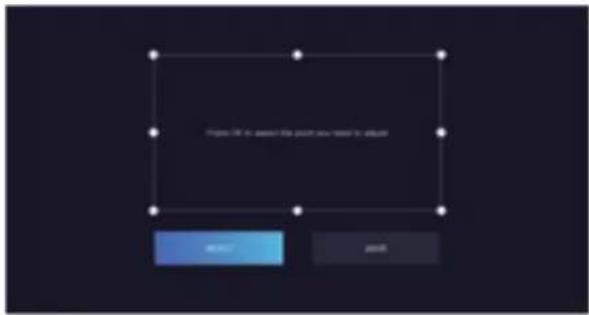
text_image
Figure 10 is saved this point now saved it to account OK Cancel
The physical adjustment method described previously in [Adjust the Display Image and the Screen] is preferred since the keystone correction functionis changing the actual image using the software,which may decrease clarity as a result.
Electric Focus Adjustment
There is no Fixed Focus design in AWOL VISION 4K TriChroma laser, which allows you to focus your image quality with different screen sizes for better image quality.
You can use the [Up/Down] button on the remote to get the clearest image by the electric focus adjustment feature.
You can open the function following the menu path: [Settings] -> [Light] -> [Focus]:
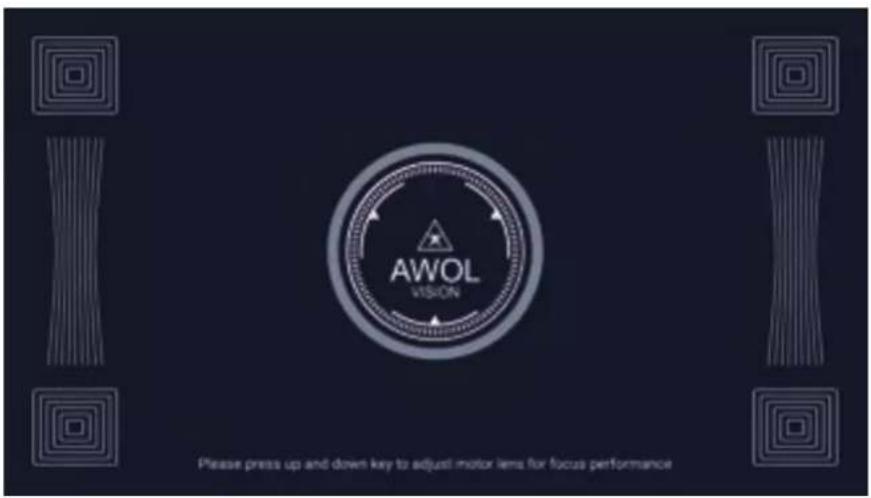
text_image
AWOL VISION Please press up and down key to adjust motor liens for focus performanceConnection with Peripherals
You may connect PS5 game console, ROKU TV, Fire Stick, Apple TV, and computer, etc., via the HDMI port; connect DVD devices via the AV In port; connect USB device via the USB port; and connect professional audio via HDMI 2 with eARC feature or S/PDIF optical port.
1. Source Input
Choose the corresponding signal source for the device connected, including HDMI1, HDMI2, HDMI3, AV In ports and USB.
Homepage access
Remote short cuts: [Source] button

text_image
Composite HDMI 1 HDMI 2 HDMI 3 USB2. Audio Output
In addition to built-in 36w stereo speakers with Dolby Atmos and DTS Virtual X performance, the AWOL VISION projector can also be connected to external speakers with HDMI (eARC) cable, S/PDIF cable or Bluetooth pairing. When connecting different audio equipment, you need to select the corresponding audio output path you want on the setting menu. Menu path: [Settings] -> [Sound] -> [Output Device]
Remote short cuts: [Sound] button

text_image
Google Bluetooth HCM ARC L/PDM3. Digital Output
Only can be configured when Audio output path is Optical or HDMI eARC mode, there are RAW and PCM modes that can be set.
PCM: All formats will be converted to PCM for output.
RAW: No processing for the source audio.

text_image
Auto PCM SystemStreaming Stick Pocket Setup
In the patented TV stick pocket design in the AWOL VISION 4K TriChroma laser's rear, there is one designated HDMI 1 and additional USB power supply ports inside the pocket, you can hide the TV stick inside to stay tidy and there is no need for an extra TV stick AC adapter.
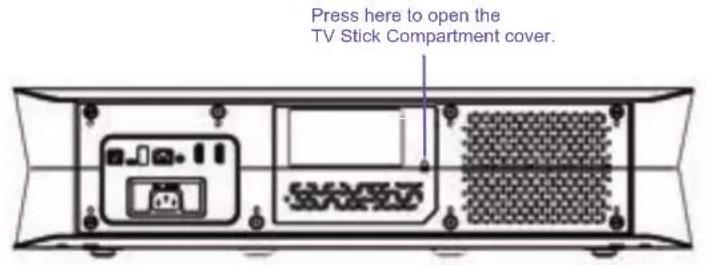
text_image
Press here to open the TV Stick Compartment cover.Stick Pocket Design up to 120*100*20mm size
Amazon Fire Stick
Roku Streaming Stick+

natural_image
Technical diagram of a server rack with internal components and ventilation slots (no text or labels)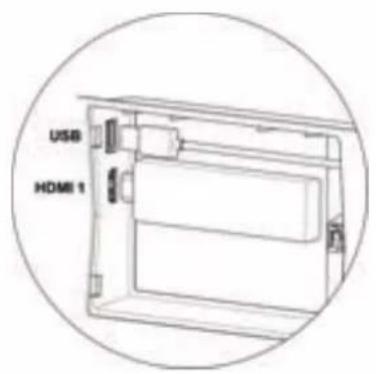
text_image
USB HDMI 1Bluetooth
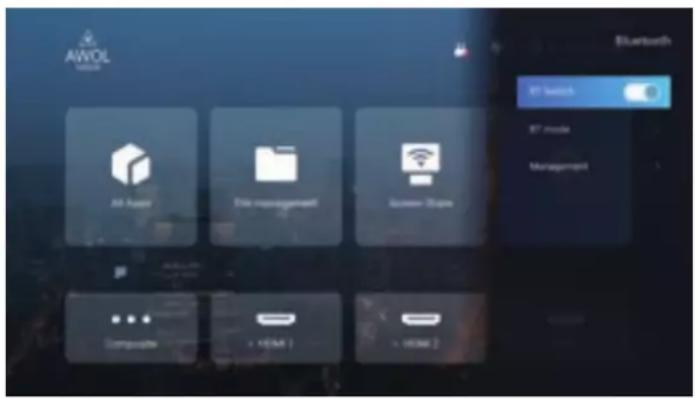
You can set the Bluetooth function by selecting the Bluetooth icon at the top right corner of the Homepage or following the menu path: [Settings] -> [Bluetooth] The AWOL VISION projector supports both To Mobile mode and To BT Speaker Bluetooth modes:
1. To Mobile Mode
text_image
AWOL Bluetooth MT switch MT mode Management AI App Store File management License Tools Composite > HDMI > > HDMI 2Used as a Bluetooth speaker, turn on the feature, select Bluetooth devices in the AWOL VISION 4K TriChroma laser Menu, and select the AWOL VISION 4K TriChroma laser model on the device to pair Bluetooth devices (phone or laptop) and then you can play audio on your Bluetooth devices (phone or laptop) via the built-in speaker of the AWOL VISION 4K TriChroma laser after pairing successfully.
2. To BT Speaker Mode
Can be paired with other audio devices, find and select the audio device you want to pair (Bluetooth earphone or speaker) under Searched Devices, and the pairing will start automatically. The paired Bluetooth device will appear under Paired Devices. Then the AWOL VISION 4K TriChroma laser's audio will be passed to the paired audio device (Bluetooth earphone or speaker).
In the meanwhile, an AWOL VISION 4K TriChroma laser can be paired with other devices such as Bluetooth controller, keyboard, mouse, remote, etc., just select Search Devices, and then the device under Searched Devices to pair.
System upgrade
You can upgrade your AWOL VISION 4K TriChroma laser by OTA (on the air) or local USB driver with updated software. We suggest you contact our technical support, customersupport@awolvision.com, for software upgrades if needed.
Specification
| Model LTV-2500 LTV-3500 | |||
| Platform | Display Technology TI 0.47-inch 4K UHD DMD TI 0.47-inch 4K UHD DMD | ||
| Light Source TriChroma Pure Laser TriChroma Pure Laser | |||
| Laser Life 25,000+ hours 25,000+ hours | |||
| Software OS Android 9.0 Android 9.0 | |||
| RAM/EMMC 3G/128G 3G/128G | |||
| Projection | Projection Size 80-150 inch 80-150 inch | ||
| Brightness 2000 lumen 3500 lumen | |||
| Resolution | 4K@60Hz | 4K@60Hz | |
| Throw Ratio | 0.25: 1 | 0.25: 1 | |
| Electric Focus | Yes | Yes | |
| Keystone Correction | 8 points | 8 points | |
| Color Space | 107% BT.2020 | 107% BT.2020 | |
| Contrast Ratio | 1,000,000:1(dynamic) | 1,000,000:1(dynamic) | |
| HDR | HDR 10+, HDR10, HLG | HDR 10+, HDR10, HLG | |
| MEMC | Yes | Yes | |
| HDCP | HDCP2.2, HDCP1.4 | HDCP2.2, HDCP1.4 | |
| HDMI ARC | eARC | eARC | |
| Auto Brightness Adjustment | Yes | Yes | |
| Laser Outlet Blocked Detection | Yes | Yes | |
| Eye Safety | Yes | Yes | |
| Pantented Ty Stick Compartment | Yes | Yes | |
| Audio & Noise | Audio Output Power | 36W (Stereo) | 36W (Stereo) |
| Audio Performance | Dolby Atmos, DTS Virtual X | Dolby Atmos, DTS Virtual X | |
| Noise | ≤27dB | ≤30dB | |
| Connectivity | HDMI | 3*HDMI 2.0b(eARC on HDMI 2) | 3*HDMI 2.0b(eARC on HDMI 2) |
| USB | 2* USB 2.0 2* USB 2.0 | ||
| Ethernet 1*LAN 1*LAN | |||
| Digital Audio Output 1*S/PDIF | 1*S/PDIF | ||
| Analog Video Input | 1* AV In | 1* AV In | |
| TV Stick Pocket | 1 | 1 | |
| Wi-Fi | Yes, 802.11a/b/g/n/ac (Dual-Band) | Yes, 802.11a/b/g/n/ac (Dual-Band) | |
| Bluetooth Yes Yes | |||
| Power | Power Supply | 100 -240 V@ 50-60Hz | 100 -240 V@ 50-60Hz |
| Power Consumption 175 W 320 W | |||
| Standby Mode | 0.5 W 0.5 W | ||
| Accessories | Remote Control | Yes, IR & Bluetooth dual mode Yes, IR & Bluetooth dual mode | |
| Manual | Yes Yes | ||
| Power Cord | Yes Yes | ||
| AV Input Cable | Yes Yes | ||
| General | Dimensions | 23.6*13.9*5.7 inch599*353*145 mm | 23.6*13.9*5.7 inch599*353*145 mm |
| Weight | 21 lbs/9.5 kg | 23.8 lbs / 10.8 kg | |
| Packaged Dimensions | 29.0*19.5*12.1inch738*495*307 mm | 29.0*19.5*12.1 inch738*495*307 mm | |
| Packaged Weight | 28.9lbs / 13.1 kg | 31.7 lbs / 14.4 kg | |
| Working Temperature | 41-104°F / 5 - 40°C | 41-104°F / 5 - 40°C | |
| Humidity | 20% - 80% RH | 20% - 80% RH | |
| Atmospheric Pressure | 86-106 kpa | 86-106 kpa | |
Disclaimer : All products, product specifications, and data are subject to change without notice fo improve reliability, function , design or otherwise.
Maintenance
- Do not wipe this device with oil because it may deteriorate the exterior or damage the paint. Contact with rubber or ethylene products for a long time may cause stains on this device.
- If the outside of the AWOL VISION 4K TriChroma laser is dirty, turn off the projector and wipe with a damped soft cloth.
- Do not touch the lens with your hands.
- Do not touch or wipe the lens with an ordinary cleaning cloth. Use a dust blower to remove the dust on the lens. Grease, dirt and fingerprints should be cleaned carefully by using an optical cleaning cloth, lens wiping paper or professional cleaning solutions to avoid destroying the optical filming and affecting the image quality.
- To turn off this device, press the [Power] button on the remote control. Do not cut off the power directly when the device is working.
Troubleshooting
Please check the following table to see if you can find the cause of the failure you encountered.
When you are convinced that you have followed these instructions and still cannot fix the problem, you may consider contacting a professional service provider for repair.
| Problem Solution | |
| The light output of the TriChroma laser is disabled. | In this case, if the power indicator illuminates a red light 5 times, please check whether the foreign object detection window is covered or dirtied. If so, uncover or carefully clean the foreign object detection window. |
| No sound or picture | 1. Check if the power cord is plugged into a powered AC outlet.2. Press the Power button on the remote control to activate the unit from 'Standby' mode.3. Check to see if the LED light is on or not. If it is, then the TriChroma laser is receiving power. |
| The picture is normal but there is no sound | 1. Check the volume settings.2. Check if 'Mule' mode is set to On.3. Check the sound output setting status (Speaker, Bluetooth, HDMI (eARC) or S/PDIF). |
| The sound and/or picture is distorted or appears wavy | 1. An electric appliance may be affecting the projector. Turn off any appliances that are nearby and move it farther away from the TriChroma laser.2. Insert the power plug of the TriChroma laser set into another power outlet. |
| The remote control does not work | 1. Confirm that TriChroma laser still has power and is operational.2. Change the batteries in the remote control.3. Check if the batteries are correctly installed. |
| Android system not working | Power off the device, unplug the power cord. Plug it again after 1 minute and power on the device. |
| The system prompts a message of high temperature and the device shuts off automatically | Make sure the device is working in a proper ambient temperature (within the device's working temperature range) and that the vents are not blocked. Restart the device. |
© 2021 Elevation Technology Partners LLC. All Rights Reserved.
All material in this User Manual is the property of Elevation Technology Partners LLC. and its subsidiaries, and is protected under US and International copyright and/or other intellectual property laws. Reproduction or transmission of the materials, in whole or in part, in any manner, electronic, print, or otherwise, without the prior written consent of Elevation Technology Partners LLC. is a violation of Elevation Technology Partners LLC. rights under the aforementioned laws. No part of this publication may be stored, reproduced, transmitted or distributed, in whole or in part, in any manner, electronic or otherwise, whether or not for a charge or other consideration, without the prior written permission of Elevation Technology Partners LLC.
trademarks of Elevation Technology Partners LLC. and its subsidiaries. All other trademarks are the property of their respective holders.
text_image
SCAN TO JOINwww.awolvision.com
support@awolvision.com
Elevation Technology Partners LLC
6574 N State Rd 7
Coconut Creek
FL
USA
Pour l'Utilisateur
PRODUIT LASER DE CLASSE 1
Adresse : 6574 N State Rd 7, Coconut Creek, FL, USA
E-mail: customersupport@awolvision.com
Adresse: 6574 N State Rd 7, Coconut Creek, FL, USA
E-mail: customersupport@awolvision.com
CARATERISTIQUES....58
ENTRTIEN....60
DÉPANNAGE....60
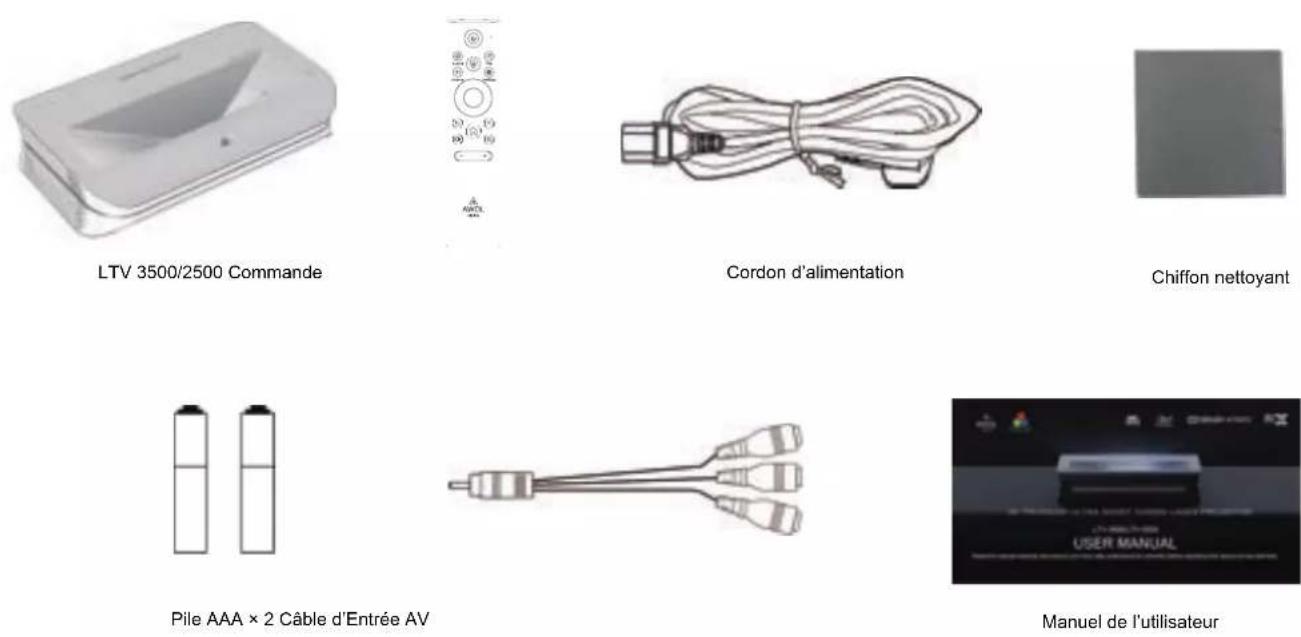
Contenu du paquet

text_image
Technical diagram of a heat exchanger or cooling device with numbered components and internal structure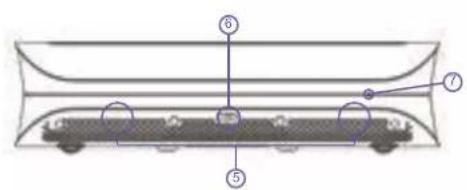
text_image
Diagram of a train inside a container with numbered parts labeled 5, 6, and 7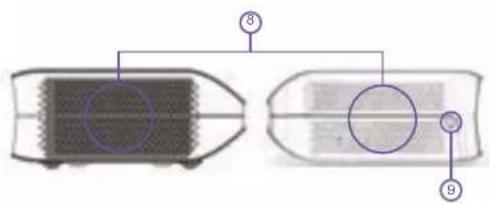
text_image
Diagram showing two labeled components with numbered annotations, likely illustrating a process or assembly.text_image
Technical diagram of a device rear panel with numbered components and labeled partstext_image
Diagram of a device rear panel with labeled components and numbered partsnatural_image
Simple diagram of a monitor with directional arrows indicating motion, no text or symbols presentnatural_image
Simple diagram showing a rectangular block with dashed lines and arrows, mounted on a base with a small object below (no text or symbols)natural_image
Simple gray rectangle with dashed border and a small arrow on the right side (no text or symbols)natural_image
Simple 3D diagram of a rectangular prism with dashed lines indicating hidden edges (no text or symbols)natural_image
Simple gray rectangular frame with dashed border, no text or symbols presentnatural_image
Simple 3D rectangular prism diagram with dashed lines indicating hidden edges (no text or symbols)natural_image
Simple diagram of a monitor with an upward arrow and a base, no text or symbols present.natural_image
Simple diagram showing a rectangular block with dashed lines and arrows indicating direction, next to a stack of blocks (no text or symbols)natural_image
Simple diagram showing a monitor with an upward arrow and a base, no text or symbols present.natural_image
Simple diagram showing a rectangular object with downward arrows and a small block on top, no text or symbols present.natural_image
Simple gray rectangle with dashed border and arrows pointing left (no text or symbols)natural_image
Simple gray square with a dashed border and arrow arrows on the top (no text or symbols)text_image
Auto PCM RepairConfiguration de la Manette de Streaming
natural_image
Technical diagram of a server rack with internal components and ventilation slots (no text or labels)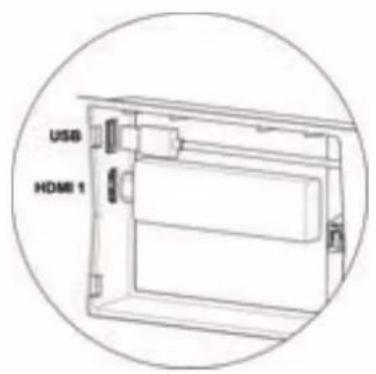
text_image
USB HDMI 1Bluetooth
text_image
AVOL AVOL AI Audio File management Gazoo Store Bluetooth 32 MHz 32 mHz Management Computer + HPSK 1 + Wi-Fisupport@awolvision.com
Elevation Technology Partners LLC
6574 N State Rd 7
Coconut Creek
FL
États-Unis
Für die Benutzer
LASERPRODUKT DER KLASSE 1
(4) TPCH-Verpackungen (Toxics in Packaging Clearinghouse Mode Legislation)
text_image
Technical diagram of a heat exchanger or cooling device with numbered components and internal structure
text_image
Diagram of a vehicle chassis with numbered components, likely illustrating a structural or mechanical assembly.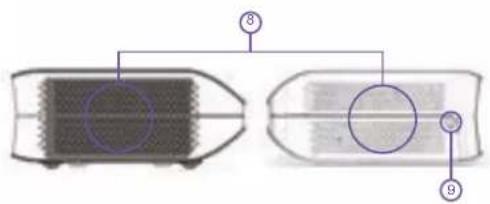
text_image
Diagram showing two labeled components with numbered annotations, likely illustrating a process or assembly.text_image
Technical diagram of a device rear panel with numbered components and labeled partstext_image
Diagram of a device rear panel with labeled components and connectorsnatural_image
Simple diagram of a monitor with directional arrows indicating motion, no text or symbols presentnatural_image
Simple diagram showing a rectangular block with dashed lines and arrows, mounted on a base (no text or symbols)natural_image
Simple gray rectangle with dashed border and a small arrow on the right side (no text or symbols)natural_image
Simple 3D diagram of a rectangular prism with dashed lines indicating hidden edges (no text or symbols)natural_image
Simple gray rectangular frame with dashed border, no text or symbols presentnatural_image
Simple 3D rectangular prism diagram with dashed lines indicating hidden edges (no text or symbols)natural_image
Simple diagram of a monitor with an upward arrow and a base, no text or symbols present.natural_image
Simple diagram showing a rectangular block with dashed lines and arrows, and a small object on a base (no text or symbols)natural_image
Simple diagram showing a monitor with an upward arrow and a base, no text or symbols present.natural_image
Simple diagram showing a monitor with an arrow pointing to it and a base with a curved arrow, no text or symbols present.natural_image
Simple gray rectangle with dashed border and arrows indicating width (no text or symbols)natural_image
Blank gray rectangular frame with dashed border (no text or symbols)natural_image
Simple gray square with a dashed border and arrow arrows on the top (no text or symbols)natural_image
Technical diagram of a computer chassis showing front panel, internal components, and ventilation grille (no text or labels)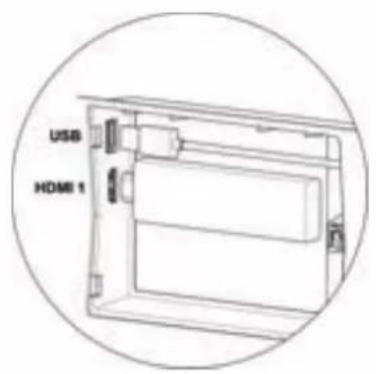
text_image
USB HDMI 1Bluetooth
support@awolvision.com
Elevation Technology Partners LLC
Parte responsible: ELEVATION TECHNOLOGY PARTNERS LLC
Email: customersupport@awolvision.com
Parte responsible: ELEVATION TECHNOLOGY PARTNERS LLC
Email: customersupport@awolvision.com
DIAGRAMA DEL PRODUCTO
Láser Trichroma
Superior
Frontal
lateral
text_image
Technical diagram of a heat exchanger or cooling device with numbered components and internal structure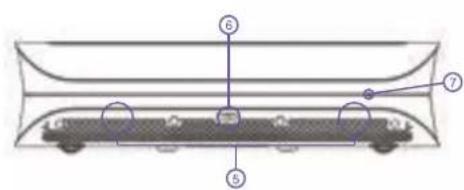
text_image
Diagram of a train car with numbered components, likely illustrating a track or suspension system.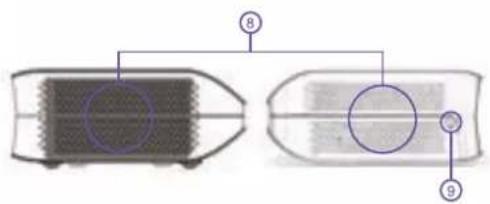
text_image
⑧ ⑨text_image
Technical diagram of a device rear panel with numbered components and labeled parts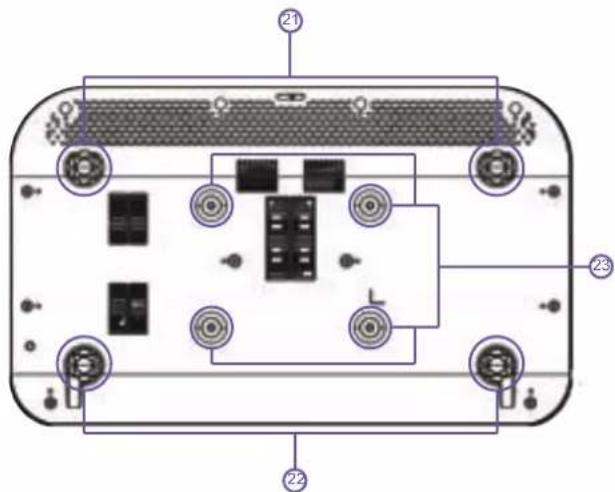
text_image
Diagram of a device rear panel with labeled ports and internal components, showing numbered annotations for identification.text_image
AMOL HOME 07:34 AM Air-Appur Air Appur Air Appur Air Appur Air Appur Air Appur Air Appur Air Appur Air Appur Air Appur Air Appur Air Appur Air Appur Air Appur Air Appur Air Appur Air Appur Air Appur Air Appur Air Appur Air Appur Air Appur Air Appur Air Appur Air Appur Air Appur Air Air 1 Air Air 2 Air Air 3natural_image
Simple line drawing of a monitor with arrows indicating motion, no text or symbols presentnatural_image
Simple diagram showing a rectangular block with dashed lines and arrows, mounted on a base (no text or symbols)natural_image
Simple gray rectangle with dashed border and a small arrow on the right side (no text or symbols)natural_image
Simple 3D diagram of a rectangular prism with dashed lines indicating hidden edges (no text or symbols)natural_image
Simple gray rectangular frame with dashed border, no text or symbols presentnatural_image
Simple 3D rectangular prism diagram with dashed lines indicating hidden edges (no text or symbols)natural_image
Simple diagram of a monitor with an upward arrow and a base, no text or symbols present.natural_image
Simple diagram showing a rectangular block with dashed lines and arrows, above a base with a small object (no text or symbols)natural_image
Simple diagram showing a rectangular object with downward arrows and a small block on top, no text or symbols present.natural_image
Simple gray rectangle with dashed border and arrows pointing left (no text or symbols)natural_image
Technical diagram of a device rear panel with internal components and ventilation slots (no text or labels)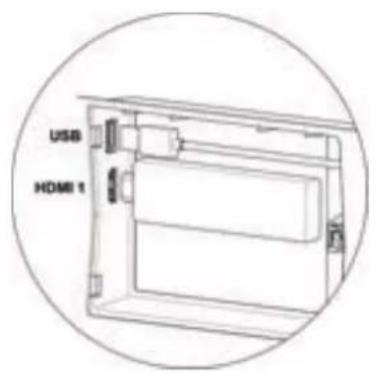
text_image
USB HDMI 1Bluetooth
text_image
AVOL BMW Bluetooth AI Audio AI mode Management AI Audio AI mode BMWsupport@awolvision.com
Elevation Technology Partners LLC
6574 N State Rd 7
Coconut Creek
FL
USA

AWOL
VISION
www.awolvision.com
support@awolvision.com