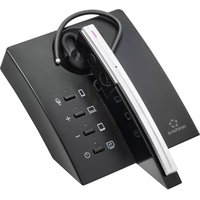
RF-WE-510 - Earplug Renkforce - Free user manual and instructions
Find the device manual for free RF-WE-510 Renkforce in PDF.


| Product type | Bluetooth headset with charging station |
| Brand | Renkforce |
| Model | RF-WE-510 |
| Dimensions (headset) | 12 x 110 x 28 mm |
| Dimensions (charging station) | 86 x 46 x 118 mm |
| Weight (headset) | 9.4 g |
| Weight (charging station) | 97 g |
| Power supply (headset) | Lithium battery 3.7 V, 55 mAh |
| Power supply (charging station) | Lithium battery 3.7 V, 650 mAh |
| Battery life in conversation/music | 4 to 5 hours (volume < 50%) |
| Standby time | 190 hours max |
| Charging time (headset) | Approximately 1.5 hours |
| Charging time (station) | Approximately 2 hours |
| Bluetooth version | Headset: V5.1; Station: V4.2 |
| Bluetooth profiles | A2DP V1.3, AVRCP V1.6, HFP V1.7, HSP V1.2 |
| Maximum number of pairable devices | 4 simultaneously |
| Frequency response | 20 Hz - 20 kHz |
| Signal-to-noise ratio | 87 dB |
| Total harmonic distortion | < 5% (< 1% at 150 mV peak-to-peak) |
| Speaker impedance | 32 Ω |
| Microphone type | Two omnidirectional |
| Microphone frequency response | 100 Hz - 10 kHz |
| Operating/storage conditions | -10°C to +45°C, 10% to 90% RH non-condensing |
| Package contents | Headset, USB-C cable, charging station, user manual |
| Maintenance and cleaning | Clean with a dry lint-free cloth |
| Safety | Do not expose to moisture, do not use outdoors |
| Spare parts and repairability | Supplied USB-C cable; repair by professional |
Frequently Asked Questions - RF-WE-510 Renkforce
User questions about RF-WE-510 Renkforce
0 question about this device. Answer the ones you know or ask your own.
Ask a new question about this device
Download the instructions for your Earplug in PDF format for free! Find your manual RF-WE-510 - Renkforce and take your electronic device back in hand. On this page are published all the documents necessary for the use of your device. RF-WE-510 by Renkforce.
USER MANUAL RF-WE-510 Renkforce
natural_image
Two identical illustrations of a human ear with a metallic rod inserted, showing no text or symbols.Copyright 2021 by Conrad Electronic SE.
*2377497_v2_1021_02_DS_m_4L_(1)
GB Operating Instructions
Bluetooth headset with charging station
Item No. 2377497
Intended use
This business headset uses ENC technology for dual microphone noise cancellation and features a charging station that gives the unit a total standby time of up to 190 hours. It can be paired with up to 4 devices.
It is intended for indoor use only. Do not use it outdoors. Contact with moisture, e.g. in bathrooms, must be avoided under all circumstances.
For safety and approval purposes, you must not rebuild and/or modify this product. If you use the product for purposes other than those described, the product may be damaged. In addition, improper use can result in short circuits, fires, electric shocks or other hazards. Read the instructions carefully and store them in a safe place. Make this product available to third parties only together with its operating instructions.
This product complies with the statutory national and European requirements. All company names and product names are trademarks of their respective owners. All rights reserved.
Delivery content
- Headset
- USB-C cable
- Charging station
- Operating instructions
Up-to-date operating instructions
Download the latest operating instructions at www.conrad.com/downloads or scan the QR code shown. Follow the instructions on the website.
Explanation of symbols

The symbol with the lightning in the triangle is used if there is a risk to your health, e.g. due to an electric shock.

The symbol with the exclamation mark in the triangle is used to indicate important information in these operating instructions. Always read this information carefully.

The arrow symbol indicates special information and advice on operation.
Safety instructions

Read the operating instructions carefully and especially observe the safety information. If you do not follow the safety instructions and information on proper handling in this manual, we assume no liability for any resulting personal injury or damage to property. Such cases will invalidate the warranty/guarantee.

a) General information
• The device is not a toy. Keep it out of the reach of children and pets.
- Do not leave the packaging material lying around carelessly. This may become dangerous playing material for children.
- Protect the appliance from extreme temperatures, direct sunlight, strong jolts, high humidity, moisture, flammable gases, steam, and solvents.
- Do not place the product under any mechanical stress.
- If it is no longer possible to operate the product safely, take it out of operation and protect it from any accidental use. Safe operation can no longer be guaranteed if the product:
- is visibly damaged,
- is no longer working properly,
- has been stored for extended periods in poor ambient conditions or
- has been subjected to any serious transport-related stress.
- Please handle the product carefully. Jolts, impacts, or a fall, even from a low height, can cause damage to the product.
- Consult an expert when in doubt about the operation, safety, or connection of the appliance.
- Maintenance, modifications, and repairs must only be completed by a technician or an authorised repair centre.
- If you have questions that remain unanswered by these operating instructions, contact our technical support service or other technical personnel.
Caution:
- To avoid damaging the components, do not attempt to open or repair the product without professional guidance.
- The operating range may be affected by environmental factors and nearby sources of interference.
• Proper use helps to prolong the lifespan of the product.
Operating elements
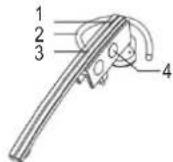
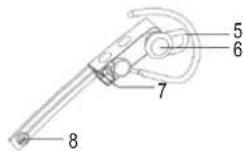
1 LED indicator (blue, red)
2 Earhook
3 Secondary microphone
4 MFB button
5 Earbud
6 Speaker
7 Headphone charging contacts
8 Microphone
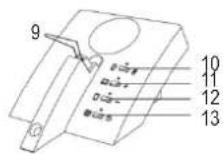
9 Charging station metal spring contacts
10 Call mute button
11 Volume +
12 Volume -
13 Charge station power/play/pause button
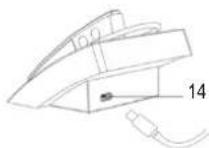
14 Charging station USB-C charging port
Operation
Remove the protective sticker from the headset before use
a) Charging the headset
During use, if the red light flashes slowly twice every 10 seconds, this indicates that the battery is low and the headset needs charging.
- Put the headset into the charging station and ensure that it is properly connected. The red LED will indicate when the headset is charging.
Red light on: Charging
Red light off: Charging complete
- A full charge takes approximately 1.5 hours.
Note:
- When the charging station is not charging the headset, the indicator light will be white or off-white. After taking the headset out of the charging station, the charging station indicator will turn on. If the charging station is not used for a long time, it will enter sleep mode.
- If you do not use the headset and charging station for a long time, it is recommended to charge the unit every 3 months to avoid battery damage.
b) Charging the charging station
When you place the headset onto the charging station, if the red indicator light flashes once every 2 seconds, this indicates that the battery level of the charging station is low. In addition, if the indicator light on the charging station is off, this means that the charging station cannot charge the headset and the battery in the charging station is empty.
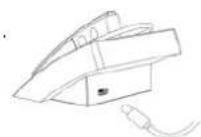
- Plug the type C charging cable into the charging jack on the charging station.
- Plug the USB cable into a computer USB port or a 5 V USB charger.
Red LED on = charging
Red LED off = Charging complete
- A full charge takes approximately 2 hours.
- If the headset is in the charging station, the headset will charge while the charging station is charging.
Note:
- The battery is recyclable.
- Batteries (battery pack or installed batteries) should not be exposed to excessive heat, such as direct sunlight or fire.
- Make sure the charging jack is dry before use.
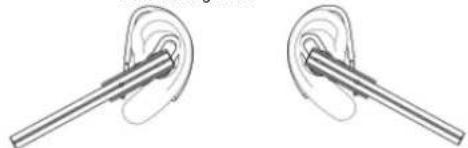
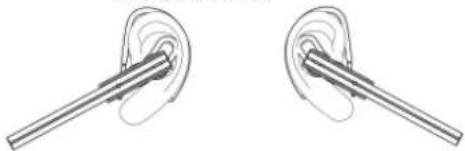
Left ear Right ear
natural_image
Two identical illustrations of a human ear with a metallic rod inserted, showing the ear and ear (no text or symbols)c) Connecting the headset to Bluetooth devices (Paired with 1 device only)
Each headset can be worn singly as a Bluetooth headset.
- Power on
- The business headset will turn on automatically when removed from the charging station.
- If the headset is powered off, press the MFB press button for about 3 seconds until the blue LED flashes and "Power on" is played through the headset.
- Pairing
- Press and hold the MFB button for about 5 seconds in the off state and release it when you see the red and blue lights flash alternately. A "Pairing" voice prompt will also be played through the headset.
- Connecting
When the headset is in pairing mode, search for the corresponding Bluetooth device name (see below) from the Bluetooth device list and connect. "Connected" will be played through the headset after the devices have been paired.
Bluetooth device name: RF-WE-510
- Powering off
- The headset powers off automatically once connected to the charging station.
- Press the MFB button for about 5 seconds and release it when the red LED lights up. "Power off" will play through the headset.
Note:
• Each business headset will automatically switch to standby mode if disconnected from the device (the blue LED will flash once every 2 seconds) and will power off automatically after 5 minutes to save power.
- Pairing mode is enabled for 2 minutes. If the headset does not pair with a device within 2 minutes, it will power off automatically.
d) Connecting the charging station to Bluetooth devices (Paired with up to 4 devices)
- Connection method
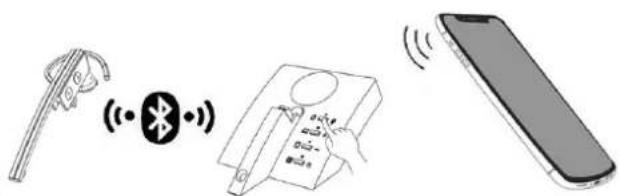
Turn on the headset and take it off the charging station, and then enable pairing mode on the charging station. If you want to connect multiple bluetooth devices, press and hold button (10) / (11) / (12) / (13) on the station for about 3 seconds. When the white light flashes, release the button, the station will into pairing mode.
- Switching devices
When multiple Bluetooth devices have been connected to the charging station, you can switch between them. Press and hold the button corresponding to the Bluetooth device you want to switch for 2 seconds. The white light will light up, indicating that the Bluetooth device has been switched.
e) Pairing the headset with the charging station (if not automatically paired)
-
Turn on the headset and the station separately.
-
Clear the pairing list
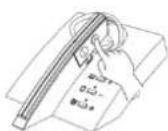
Put the headset into the station to charge (so the headset is charging) and quickly press the headset function button 5 times. The red and blue lights on the headset will flash quickly and the 4 lights on the station will flash at the same time. The headset and the station will automatically connect.
- Connecting the headset to a new station
Quickly press the first function key on the station 5 times. The 4 indicator lights on the station will flash at the same time. Then turn on the headset and press the function key 5 times. The indicator light will flash red and blue and the new station will automatically connect.
Note:
- The headset is paired with the station before shipping. Under normal circumstances, you only need to take the headset out of the charging station and it will automatically connect.
- If the headset does not automatically connect after being taken out of the charging station, follow the above steps to re-establish the connection between the headset and the station.
f) Headset functions
- Music
| Function Headset status | Headset operation | Charging station operation | Prompt tone | |
| Play Paused music | Press the MFB (4) button | Press the Power (13) button | Beep | |
| Pause Playing music | Press the MFB (4) button | Press the Power (13) button | Beep | |
| Previous track | Playing music N/A | N/A N/A | ||
| Next track Playing music N/A | N/A N/A | |||
| Volume + Playing music N/A | Press the + button | N/A | ||
| Volume - | Playing music N/A | Press the - button | N/A | |
| Voice assistant | Connected to device | Triple-press MFB (4) button | N/A | Beep |
- Calling
| Function Headset status | Headset operation | Charging station operation | Prompt tone | |
| Cancel call Calling | Press the MFB (4) button | N/A | Beep | |
| Reject call | Incoming call ringing | Double-press the MFB (4) button | N/A | Rising tone |
| Answer call | Incoming call ringing | Press the MFB (4) button | Press the Power (13) button | Falling tone |
| End call | During a call | Press the MFB (4) button | Press the Power (13) button | Beep |
| Switch voice to phone | Calling | N/A | N/A | N/A |
| Switch voice to headset | Calling | N/A | N/A | N/A |
| Volume + | During a call | N/A | Press the + button | beep |
| Volume - | During a call | N/A | Press the - button | beep |
g) Battery display
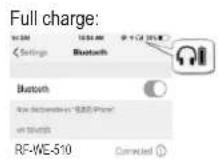
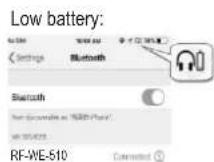
When the headset is connected to an iOS device, the headset battery level will be displayed on the device. When the headset is low on power, the battery indicator will turn red and show a depleted battery icon. An audio prompt will also be given to remind you to charge your headset.
h) Indicator light
| Headset | Indicator light Status | |
| Red and blue LED flash quickly alternately | Pairing with Bluetooth device | |
| Red and blue LED flash quickly alternately | Pairing with station (very short duration) | |
| Blue LED flashes once every 5 seconds Not connected | ||
| Blue LED flashes twice every 10 seconds Connected | ||
| Red LED flashes twice every 10 seconds Low battery | ||
| Charging station | When the charger is not connected and the headset is not on the station, the power indicator on the charging station is gray and white. | Idle state |
| The station is connected to a Bluetooth device and the power button LED is white. | Connected to a Bluetooth device | |
| The headset is connected to a Bluetooth device, and the white light on the power button flashes slowly. | Connected to the headset, but the station is not connected to a Bluetooth device | |
| The charging station has no indicator light when the headset is placed on the station. | The headset is charging | |
| The red light is on during the charging process. | The station is charging | |
| The red light goes off after charging is complete. | The station is fully charged | |
| The white LED indicator on the mute button is flashing. | The mute function is on | |
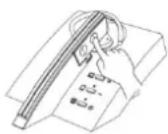
i) Factory reset
Put the headset into the station for charging and quickly press the headset MFB button 5 times. The headset's red and blue lights will flash quickly and the station's 4 lights will flash at the same time.
Press the headset MFB button 5 times.
Note:
- After a factory reset, the paired list of Bluetooth devices will be deleted, and the headset will not automatically reconnect to any previously connected Bluetooth device.
- After a factory reset, when the headset turns on again, it will automatically enter pairing mode (red and blue lights flash fast).
j) Care and maintenance
Read the following recommendations carefully before using the unit.
- Use and store the unit in a dry environment to prevent the internal circuit from becoming damaged. Do not wear the headset during exercise to avoid damage from sweat.
- Clean the headset before putting it into the charging station to prevent sweat from corroding the product.
- Keep the product away from direct sunlight or hot conditions. High temperatures may shorten the life of the device, destroy the battery or distort certain plastic parts.
- Do not expose the product to cold conditions.
- Do not attempt to disassemble the product.
- Do not let the product fall onto the floor or other hard surfaces.
- Do not use abrasive chemical products or detergents to clean the product.
- Do not scratch the surface of the product with sharp items.
If the product does not function properly, contact your retailer for assistance.
k) Troubleshooting
- What does it mean when the LED flashes slowly in red twice every 10 seconds?
The battery is low and needs to be charged. - Why is the red LED off during the charging process?
a) The charging station may not have enough battery power to charge the headset and needs to be charged.
b) Make sure the metal contacts on the headset and charging station are free of obstacles.
c) The battery may need to be charged. Charge the battery for 30 minutes, after which the red LED should be on. - Why can't I hear sound through the headset?
a) Make sure the volume is not too low or muted.
b) Make sure the headset is properly connected to the Bluetooth device.
c) Make sure the headset and the Bluetooth device are within range.
4. Why can't I hear sound clearly on the headset?
a) Make sure the Bluetooth device is within range.
b) Make sure the headset is within range and there are no obstacles in the way.
5. Why do the pause/play functions not work when playing music?
Make sure your Bluetooth device supports AVRCP (Audio/Video Remote Control profile).
Care and cleaning
- Disconnect the product from the mains before cleaning.
- Do not use any aggressive cleaning agents, rubbing alcohol, or other chemical solutions as they can cause damage to the housing and functioning of the product.
- Clean the product with a dry, fibre-free cloth.
Disposal
Product

Electronic devices are recyclable waste and must not be disposed of in household waste. At the end of its service life, dispose of the product in accordance with applicable regulatory guidelines.
You thus fulfill your statutory obligations and contribute to the protection of the environment.
Technical data
Chipset QCC3020 (headset)
BLE (charging station)
Bluetooth version....V5.1(headset)
V4.2 (charging station)
Bluetooth profile.....A2DP V1.3,AVRCP V1.6,HFP V1.7,HSP V1.2
Bluetooth name .....RF-WE-510
Paired Bluetooth devices.....Max. 4 simultaneously
Bluetooth transmission frequency .....2.402-2.480 GHz, 2.4G ISM Band
Frequency Response 20-20KHz
87 dB SNR
< 5% [< 1%(150 mV pk-pk Input)] THD
Drive unit of the speaker.....D10 mm/32 Ω/3 mW
Talk/Music time....4-5 hours (volume <50%)
Standby time....Max. 190 hours
Mono headset battery....3.7 V, 55 mAh
Charging station battery ....3.7 V, 650 mAh
Charging time (headset).....Approx. 1.5 hours
Charging time (station) ....Approx. 2 hours
Speaker impedance....32 Ω
Distortion ....../< 5% [< 1%(150 mV pk-pk Input)]
Transmitted power for transmitter.....4 dBm
Microphone type.....Two Omnidirectional
Microphone frequency response ..... 100-10,000 Hz
Microphone sensitivity ....-42±2 dB
Operating/storage conditions.... -10 °C to +45 °C
10 % to 90 % RH (non-condensing)
Dimensions (W x H x D) 12 x 110 x 28 mm (headset)
86 x 46 x 118 mm (charging station)
Weight 97g (charging station)
9.4g (headset)
This is a publication by Conrad Electronic SE, Klaus-Conrad-Str. 1, D-92240 Hirschau (www.conrad.com). All rights including translation reserved. Reproduction by any method, e.g. photocopy, microfilming, or the capture in electronic data processing systems require the prior written approval by the editor. Reprinting, also in part, is prohibited. This publication represents the technical status at the time of printing.
Copyright 2021 by Conrad Electronic SE.
*2377497_v2_1021_02_DS_m_4L_(1)
F Mode d'emploi
natural_image
Two identical illustrations of a human ear with a metallic rod inserted, showing no text or symbols.Copyright 2021 Conrad Electronic SE.
*2377497_v2_1021_02_DS_m_4L_(1)
Linkeroor Rechteroor
natural_image
Two identical illustrations of a human ear with a metallic rod inserted, shown from different angles (no text or symbols)- Van apparaat wisselen
Chipset ....QCC3020 (headset) BLE (laadstation)
Bluetooth versie....V5.1(headset) V4.2 (laadstation)
Bluetooth-profiel ......A2DP V1.3,AVRCP V1.6,HFP V1.7,HSP V1.2
Bluetooth naam....RF-WE-510
Copyright 2021 by Conrad Electronic SE. *2377497_v2_1021_02_DS_m_4L_(1)


- GB Operating Instructions
- Bluetooth headset with charging station
- Intended use
- Delivery content
- Up-to-date operating instructions
- Explanation of symbols
- Safety instructions
- a) General information
- Caution:
- Operating elements
- Operation
- Remove the protective sticker from the headset before use
- a) Charging the headset
- Note:
- b) Charging the charging station
- c) Connecting the headset to Bluetooth devices (Paired with 1 device only)
- d) Connecting the charging station to Bluetooth devices (Paired with up to 4 devices)
- e) Pairing the headset with the charging station (if not automatically paired)
- f) Headset functions
- g) Battery display
- i) Factory reset
- j) Care and maintenance
- k) Troubleshooting
- Care and cleaning
- Disposal
- Product
- Technical data
- F Mode d'emploi
Brand : Renkforce
Model : RF-WE-510
Category : Earplug