FX110 - Scale AVERY BERKEL - Free user manual and instructions
Find the device manual for free FX110 AVERY BERKEL in PDF.



| Product type | Counter scale |
| Brand | Avery Berkel |
| Model | FX110 |
| Maximum capacity | 15 kg (division 5 g) |
| Power supply | Mains (adapter) and internal rechargeable battery |
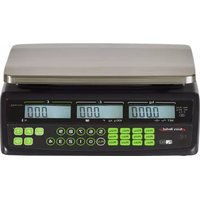
| Display | Backlit seller display and customer display |
| Keyboard | Numeric keys, 12 direct PLU keys, 38 indirect PLU keys, tare, zero, Fix/Save keys, weight units |
| Weighing functions | Individual weighing, weighing with known/unknown tare, proportional tare, direct/indirect PLU, multiplication by 2 and 4 (USA/Canada version) |
| Backlight mode | ON, OFF, AUTO (adjustable) |
| Automatic shutdown | Adjustable: 1 min, 5 min, 30 min or disabled |
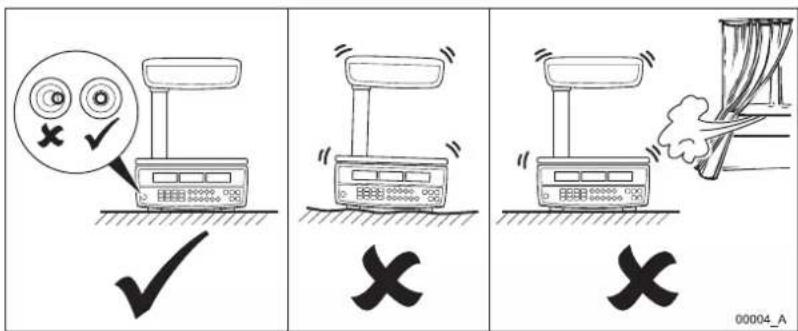
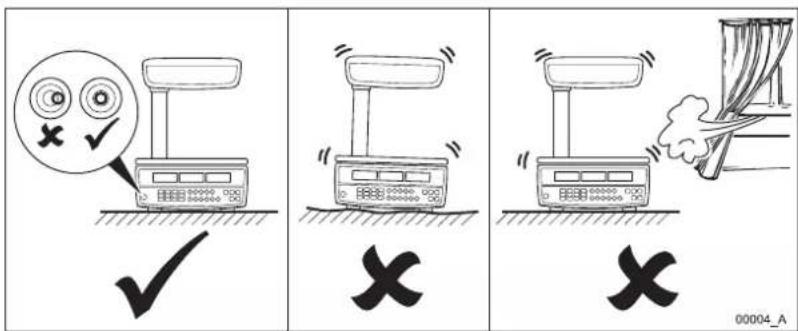
| Leveling | Adjustable feet and level bubble |
| Cleaning | Damp cloth with mild detergent; do not use solvents or abrasives |
| Safety | Comply with local standards for transactions; cut power before maintenance |
| Battery | Rechargeable; full charge before first use; recharge every 3 to 6 months if unused |
| Error codes | Err4 (zero overload), Err5 (keyboard short circuit), Err6 (A/D converter) |
Frequently Asked Questions - FX110 AVERY BERKEL
User questions about FX110 AVERY BERKEL
0 question about this device. Answer the ones you know or ask your own.
Ask a new question about this device
Download the instructions for your Scale in PDF format for free! Find your manual FX110 - AVERY BERKEL and take your electronic device back in hand. On this page are published all the documents necessary for the use of your device. FX110 by AVERY BERKEL.
USER MANUAL FX110 AVERY BERKEL
natural_image
Two digital balance scales with gold and black plates, one displaying a 0.000 digital display and the other a black stand labeled 'Aure Berkel' (no visible text on scale or background)User Instructions
FX50 User.book Page 2 Thursday, August 23, 2007 2:31 PM










ENGLISH
© Avery Berkel Limited 2007. All rights reserved.
The information contained herein is the property of Avery Berkel Limited and is supplied without liability for errors or omissions. No part may be reproduced or used except as authorised by contract or other written permission. The copyright and the foregoing restriction on reproduction and use extend to all media in which the information may be embodied.
Trademarks and acknowledgements
Avery, Avery Berkel and Avery Weigh-Tronix are registered trademarks in certain jurisdictions and owned and registered by companies within the Avery Weigh-Tronix Group.
All brands and product names used within this document are trademarks or registered trademarks of their respective holders.
IMPORTANT
When programming or configuring the equipment you must ensure that you comply with all relevant standards and legislation. The example settings given in this book may not be legal for trade with the public.
ESPANOL
FX50 User.book Page iv Thursday, August 23, 2007 2:31 PM









Contents
1. Warnings and cautions 5
1.1 Installing the scale safely 5
1.2 Cautions for using the scale safely 5
1.3 Cleaning the scale 7
2. Main parts, keyboard and display 9
2.1 Main parts 9
2.2 Keyboard variants ..... 11
3. Installing the scale 17
3.1 Assembling the tower variant ..... 17
3.2 Levelling the scale 18
3.3 Charging the battery 19
3.4 Changing the display backlight mode 19
3.5 Setting the auto power off mode 20
3.6 Changing the battery 21
4. Operating the scale 23
4.1 Key to symbols used ..... 23
4.2 Switching on and setting up the scale 25
4.3 Weighing individual items 26
4.4 Weighing items of the same unit price 27
4.5 Weighing using known tares 28
4.6 Weighing using unknown tares 30
4.7 Using proportional tares 31
4.8 Multiplying a unit price 33
4.9 Programming direct PLUs 34
4.10 Weighing using direct PLUs 35
FX 50 User Instructions 1
natural_image
Pure geometric crosshair symbols without any text or labels
natural_image
Pure geometric diagram with intersecting lines and a central circular pattern (no text or symbols)

FX50 User.book Page 2 Thursday, August 23, 2007 2:31 PM

Contents
4.11 Programming indirect PLUs 36
4.12 Weighing using indirect PLUs .....37
5. Error codes
39
2 FX 50 User Instructions




Thank you for choosing this Avery Berkel product.
Please read these safety and user instructions before you use this product.
Please read all the sections of this document that have Danger, Warning and Caution symbols and notices.

WARNING! This is a Warning symbol. Warnings mean that failure to follow specific practices and procedures may have major consequences such as injury to personnel or serious corruption to data or loss of data.

DANGER! This is a Danger symbol. Danger means that failure to follow specific practices or procedures may result in an electrical shock that could cause personal injury or death.

CAUTION! This is a Caution symbol. Cautions give information about procedures that, if not observed, could result in damage to equipment or corruption to and loss of data.

NOTE: This is a Note symbol. Notes give additional and important information, hints and tips that help you to use your product.





FX50 User.book Page 4 Thursday, August 23, 2007 2:31 PM









1.1 Installing the scale safely
1. Warnings and cautions
1.1 Installing the scale safely

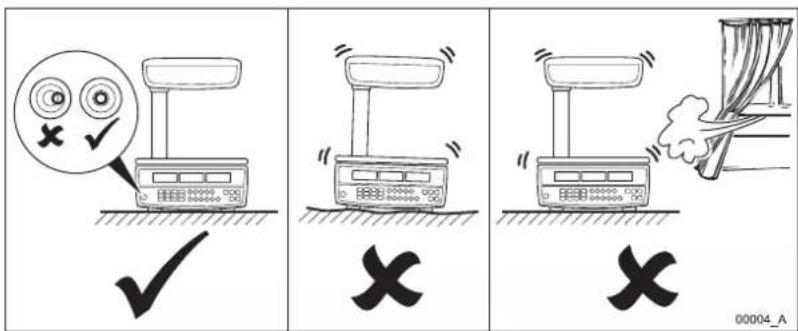
WARNING: You must install pluggable equipment near to an easily accessible socket outlet. The electrical supply to the outlet must give over-current protection of an appropriate rating.

WARNING: If in doubt, ask a qualified electrician for advice.
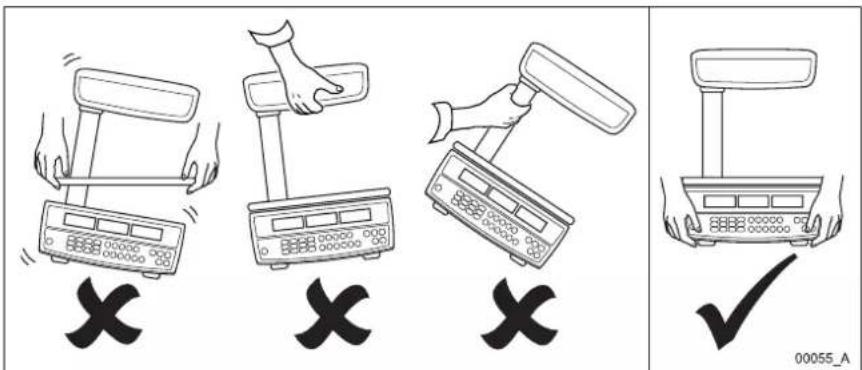
1.2 Cautions for using the scale safely
text_image
Illustration showing four different hand positions (X) of a balance scale with a checkmark indicating cancellation.Fig 1-1. Picking up the scale correctly
natural_image
Pure geometric crosshair symbols without any text or labelsFX 50 User Instructions 5



FX50 User.book Page 6 Thursday, August 23, 2007 2:31 PM
1. Warnings and cautions
text_image
Illustration showing three scenarios of a weather control device with checkmarks and X marks indicating failure or rejection.
text_image
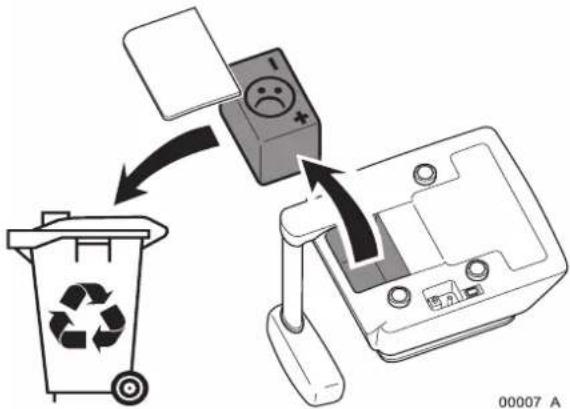
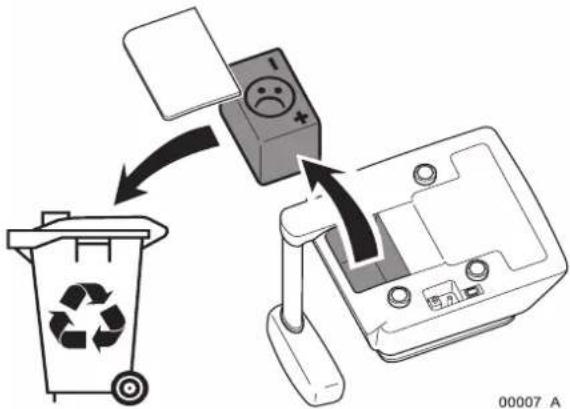
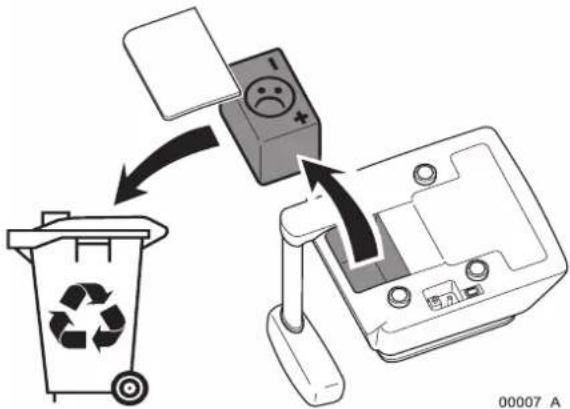
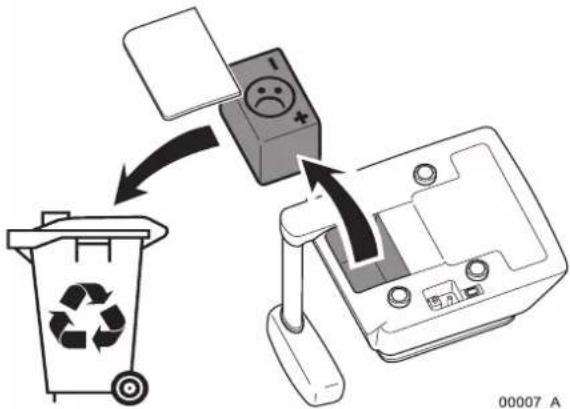
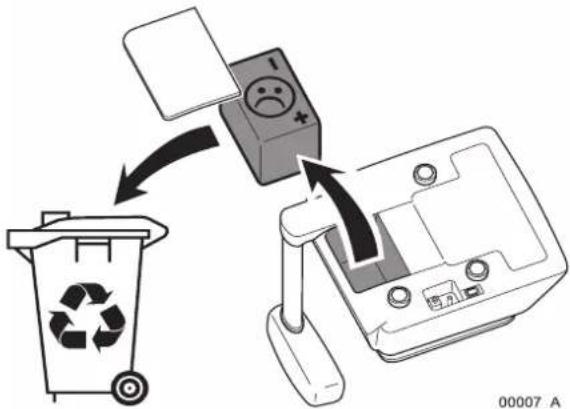
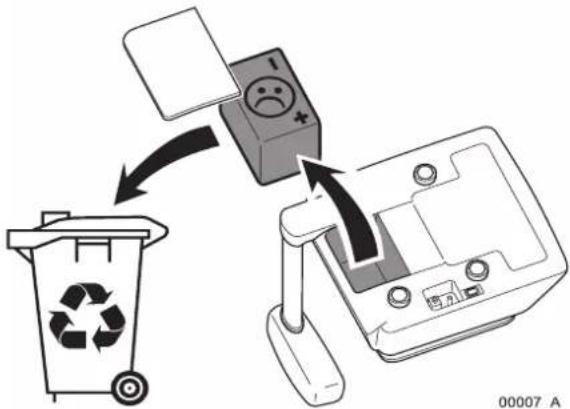
Diagram illustrating a recycling process with labeled components including a trash bin, sad face icon, and computer interface.00007_A
text_image
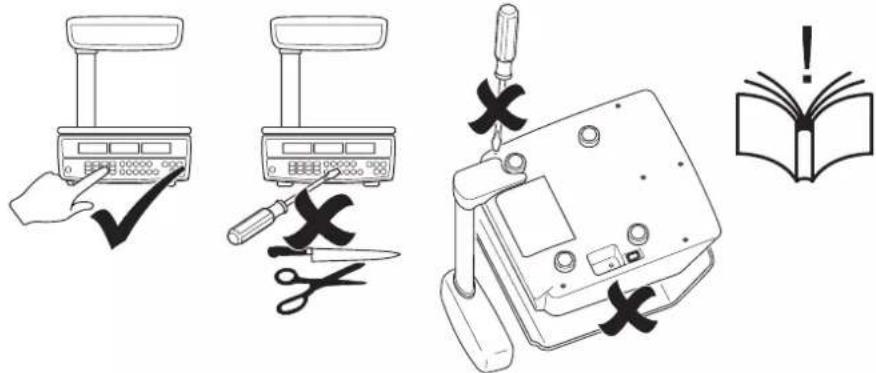
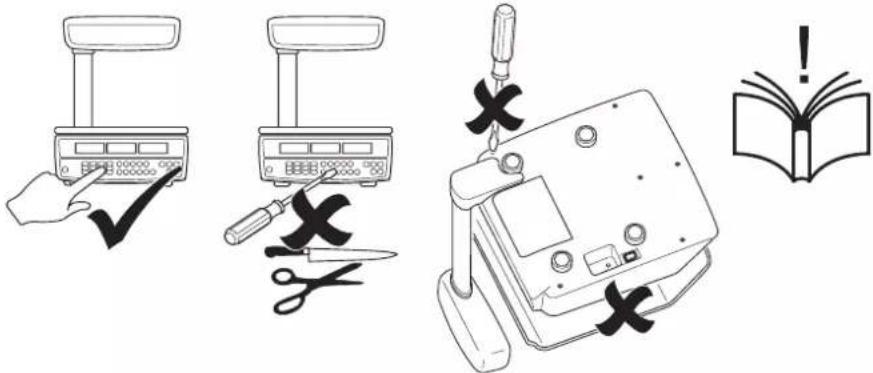
Illustration showing five different tools and a warning symbol: a hand using a scale, a toolbar with scissors, a switch, a device with X marks, and an open book with an exclamation mark.Fig 1-2. Cautions for using the scale
6 FX 50 User Instructions






1.3 Cleaning the scale

CAUTION: Do not use harsh abrasives, solvents, scouring cleaners and alkaline cleaning solutions, such as washing soda, to clean the outside of the scale.
English

natural_image
Illustration of cleaning products including spray bottles, a container with star patterns, and a bottle with a water drop (no text or symbols)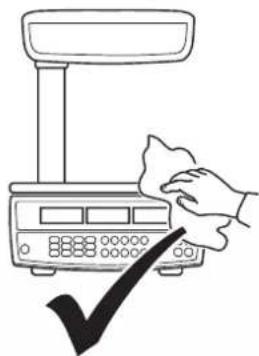
natural_image
Line drawing of a hand cleaning a digital scale with a checkmark (no text or symbols)Fig 1-3. Cleaning the scale
To clean the outside of the scale, wipe it down with a clean cloth moistened with water containing a small amount of mild detergent or unscented washing-up liquid.


FX50 User.book Page 8 Thursday, August 23, 2007 2:31 PM









2. Main parts, keyboard and display
2.1 Main parts
text_image
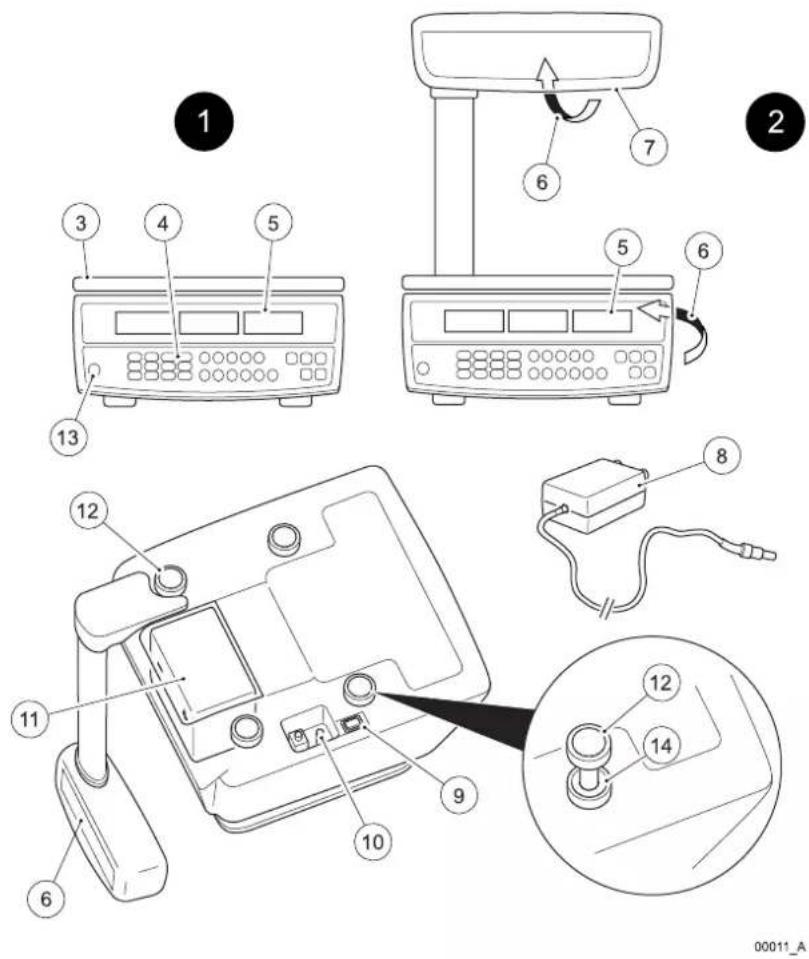
Technical diagram showing labeled components of a device with numbered parts and an inset view of the device's internal structure.Fig 2-1. Main parts of the FX 50 monoblock & tower variants
- Main parts, keyboard and display
| Item Part Item Part | ||
| 1 Monoblock variant 8 AC adaptor | ||
| 2 Tower variant 9 On/Off switch | ||
| 3 Stainless steel weigh pan 10 AC adaptor socket | ||
| 4 Keyboard 11 Rechargeable battery | ||
| 5 Operator display 12 Levelling feet | ||
| 6 Customer display 13 Levelling bubble | ||
| 7 Tower assembly 14 Locknut for levelling feet | ||




2.2 Keyboard variants
text_image
Avery Berkel PLU9 PLU10 PLU11 PLU12 PLU5 PLU6 PLU7 PLU8 PLU1 PLU2 PLU3 PLU4 1 2 8 4 5 X2 Save -T- PLU 0 I 2 3 4 X4 C -O- 11 10 9 7 6 Avery Berkel PLU9 PLU10 PLU11 PLU12 PLU5 PLU6 PLU7 PLU8 PLU1 PLU2 PLU3 PLU4 5 6 7 8 9 PLU 0 I 2 3 4 kg/ IOOg F -T- C -O-English
00012_A
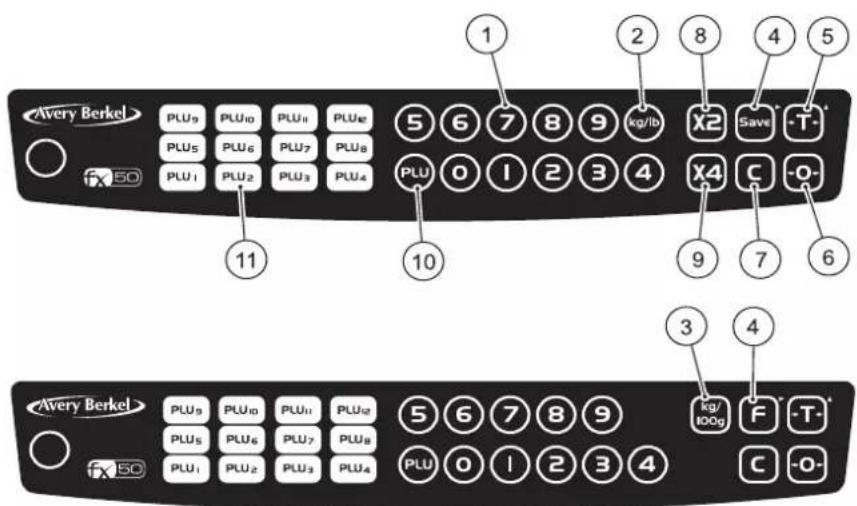
Fig 2-2. USA & Canada keyboard (above) and Europe & Rest of the World (RoW) keyboard (below)
2. Main parts, keyboard and display
| No. | Key | Key name | Press this key to ... |
| 1 Numeric keys Enter individual unit prices, unit pricesfor direct PLUs and indirect PLUs,known tares and proportional tares. | |||
2 Units of Weight | key (USA &Canada option) | Switch between kilogram and poundunits of weight. An arrow ▼ appears inthe display above the units youselected. | |
3 Price Base | Selection key(UK, Europe &RoW option) | Switch between a price per kilogramand a price per 100 grams price base.An arrow ▼ appears in the displayabove the price base you selected. | |
4 Fix key (UK,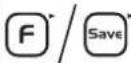 | Europe & RoW) orSave key (USA &Canada). AlsoMenu Navigationkey (▶). | Fix or save a weight or price youentered until you cancel it. You alsopress this key (▶) to scroll through themenu options. | |
5 Tare key. Also | Select MenuOption key (▲). | Enter and clear tare weights such asitem containers and wrappers. Thescale subtracts the tare weight whenitems are packaged for weighing. Youalso press this key (▲) to select anoption from the menu. | |
6 Zero key Manually | zero the scale and return theunit price and total weight displays tozeros. | ||
| 7 Clear key Clear incorrect entries and errorconditions. | |||
8 Multiply by 2 key | (USA & Canadaonly) | Multiply the total price by two. | |
2.2 Keyboard variants
| No. | Key | Key name | Press this key to ... |
| 9 Multiply by 4 keyX4 | (USA & Canada only) | Multiply the total price by four. | |
| 10 Indirect PLU keyPLU | Recall and set up prices against up to38 indirect Price Look-Up (PLU) keys. | ||
| 11 Direct PLU keysPLU1 - PLU12 | Recall and set up prices against up to12 direct Price Look-Up (PLU) keys. |
English


FX50 User.book Page 14 Thursday, August 23, 2007 2:31 PM
2. Main parts, keyboard and display
text_image
Capacity 85 kg x 0.005 kg / 30 lb / 0.01 lb Unit Price $ 0000000 0000000 Total Price $ 0000000 NET ~ -O- kg lb Save 6 5 11 10 9 7 6 4 00026_AFig 2-3. USA & Canada display
text_image
kg Max 5 kg Min 100 g €=5 g III NET ~ -0- £/ 100 g kg F £ 000000 £/ 000000 000000 000000 8 6 00027_AFig 2-4. UK display
text_image
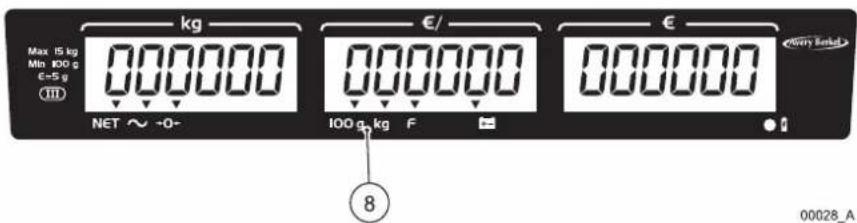
kg Max 15 kg Min 100 g E=5 g NET ~ +0- €/ 100 g, kg F € 8 00028_AFig 2-5. Europe & Rest of the World (RoW) display
14 FX 50 User Instructions







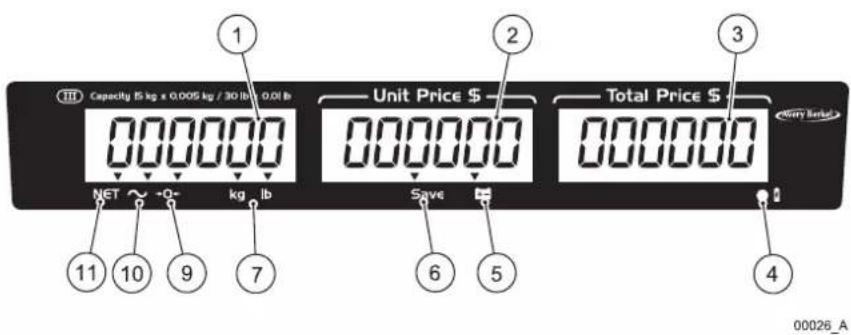
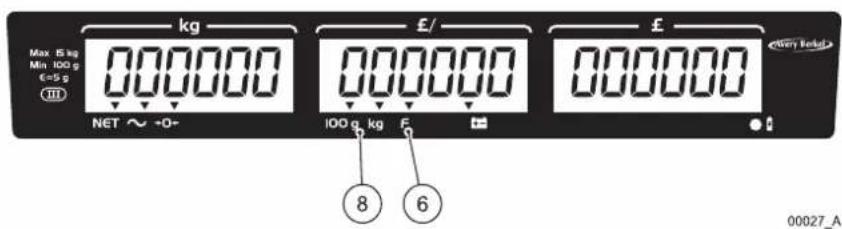
| Item Name & Symbol Purpose | ||
| 1 Weight display Shows the gross or net weight of the item. | ||
| 2 Unit price display Shows the unit price of the item. | ||
| 3 Total price display Shows the total price of the item. | ||
| 4 | Battery is charging indicator | A red light shows that the battery is charging.A green light shows that the battery is fully charged. |
| 5 | Battery charge is low indicator | A light comes on to show that the battery charge is low so you must recharge it immediately. |
| 6 | F / Save Fix or Save indicator | An arrow▼shows you pressed the F / Save key before any operation to stop the weight display and the unit price display from clearing automatically. |
| 7 Units of weight indicator | An arrow▼shows that the units of weight you selected is either kilograms or pounds (USA/Canada variant only). | |
| 8 Price-based selection indicator | An arrow▼shows that the price base you selected is either price per 100 grams or price per kilogram (UK/Europe/RoW variant only).NOTE: The Australian variant is fixed to kilogram only. | |
| 9 | -0-Zero indicator | An arrow▼shows that the scale is at gross zero (there is no tare weight). Arrows above both NET and -0- show that the scale is at net zero (includes a tare weight). |
| 10 | ~ Stable indicator | An arrow▼shows that the item weight is stable. |
| 11 | NET Net weight indicator | An arrow▼shows that a tare weight is set and the displayed weight is a net weight (the displayed weight excludes the tare weight). |


FX50 User.book Page 16 Thursday, August 23, 2007 2:31 PM









3. Installing the scale
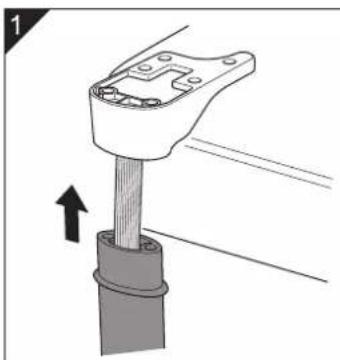
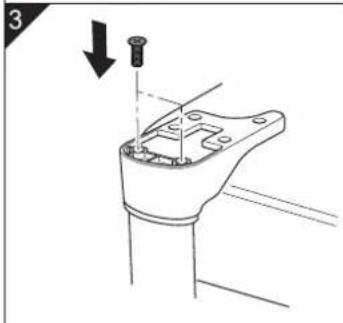
3.1 Assembling the tower variant
natural_image
Mechanical assembly diagram showing a clamping tool interacting with a cylindrical component (no text or symbols)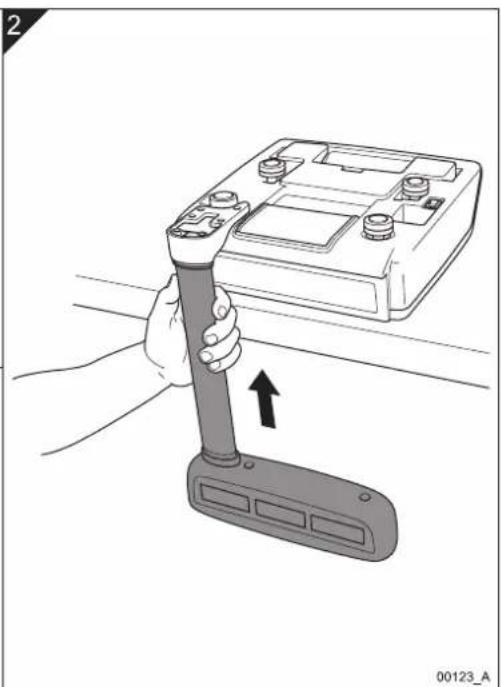
natural_image
Illustration of a hand holding a flashlight next to a battery pack, with an upward arrow indicating motion (no text or symbols)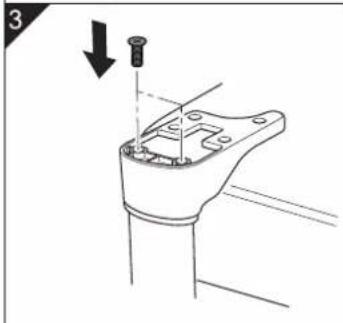
natural_image
Technical line drawing of a mechanical component with a downward arrow indicating direction (no text or symbols)Fig 3-1. Assembling and installing the tower variant
natural_image
Pure geometric crosshair symbols without any text or labels



FX50 User.book Page 18 Thursday, August 23, 2007 2:31 PM

3. Installing the scale
3.2 Levelling the scale
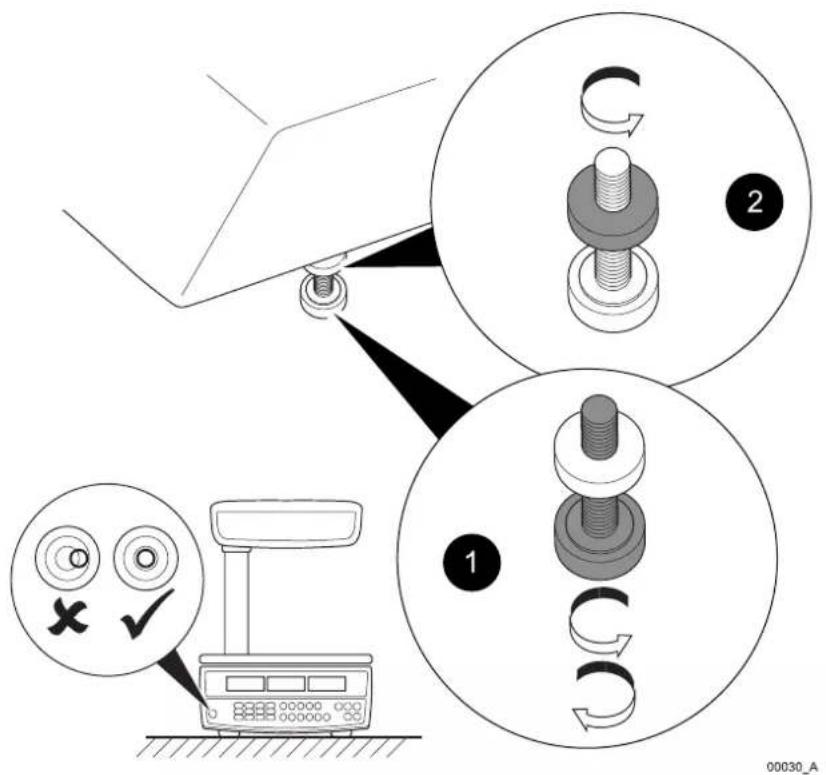
text_image
Diagram illustrating mechanical adjustment steps with labeled circular diagrams and icons for inspection and reassembly.Fig 3-2. Levelling the scale
18 FX 50 User Instructions



3.3 Charging the battery
You can power and operate the scale using:
- mains power supply from the AC adaptor (with the rechargeable battery fitted); or
- a re-chargeable battery located inside the scale.
When you connect the scale to the mains power supply using the AC adaptor the battery charging indicator comes on to show that the power is connected and the battery is charging.
- Red battery charging indicator = Battery needs charging.
- Green battery charging indicator = Battery is fully charged.
You need to fully charge the battery before the first time that you use the scale.
If you do not use the scale over a long period of time, you need to charge the battery every three to six months to maintain its performance.
3.4 Changing the display backlight mode
You can set the backlights for the operator and customer displays to operate in one of these three different modes:
- ON = always on.
- OFF = always off.
• AUTO = the backlight comes on when you start to use the scale.
To change the display backlight mode do the steps as follows:
- Press the On switch to turn the scale on. The scale makes the first beep.
- Press and hold down the key and release it when you hear a second beep and the display comes on.
- Press the key to scroll through the three backlight modes (ON, OFF and AUTO) that the scale displays in the total price display.

NOTE: To cancel changing the backlight mode and return to weighing press the key.
- Press the key to save the backlight mode you selected and return to weighing.
FX 50 User Instructions 19


3. Installing the scale

NOTE: If you have the backlight ON all the time or set to AUTO it reduces the life of the battery in between charges.
3.5 Setting the auto power off mode
You can change the auto power off mode so that the scale stays on all the time or it automatically turns off after a pre-set amount of inactivity of 1, 5 or 30 minutes.
Do the steps as follows to set the auto power off mode:
- Press the On switch to turn the scale on.
-
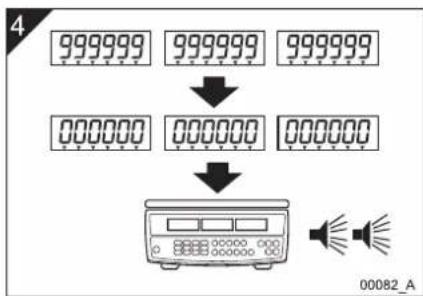
While the scale is checking itself (when all the numbers on the scale's three displays count down from all zeros to all nines), press the F / Save key. The total price display shows the current power off mode.
-
Press the key to scroll through the following auto power off modes:
-
0 = Scale stays on (as the auto power mode is disabled).
- 1 = Scale turns off after 1 minute of inactivity.
- 5 = Scale turns off after 5 minutes of inactivity.
-
30 = Scale turns off after 30 minutes of inactivity.
-
Press the key to save the auto power off mode you selected and return to weighing.
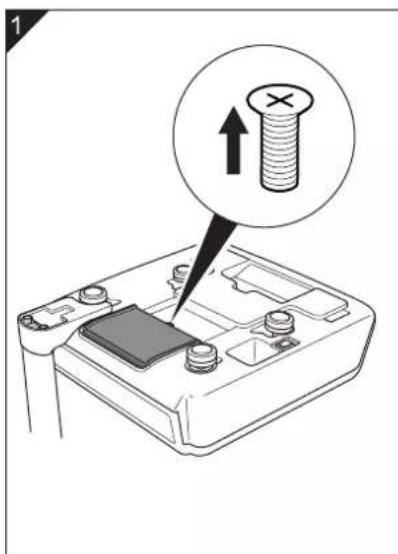
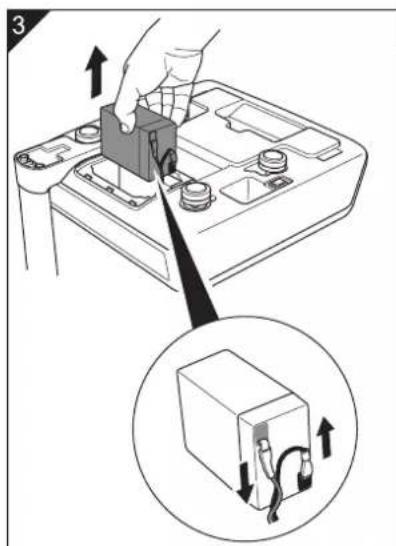
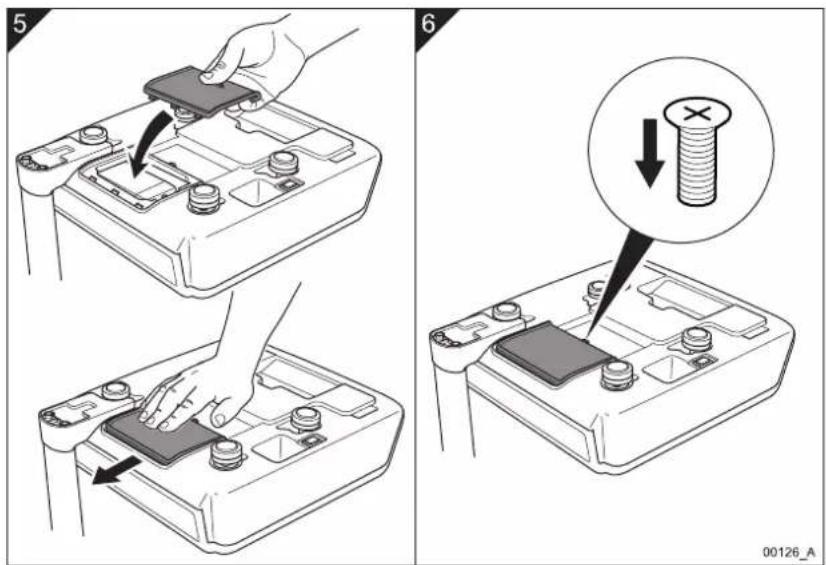
3.6 Changing the battery
text_image
1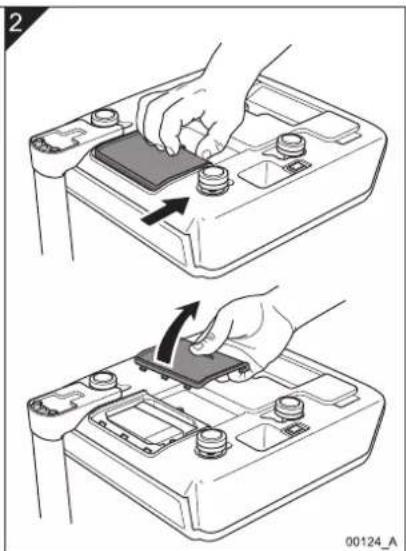
natural_image
Two-step diagram showing hand pressing a component on a battery cover, with an arrow indicating the motion (no text or symbols present)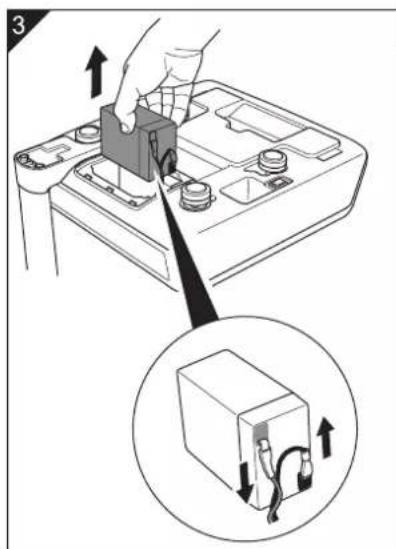
text_image
Diagram showing battery charging process with hand inserting a component and magnified view of internal components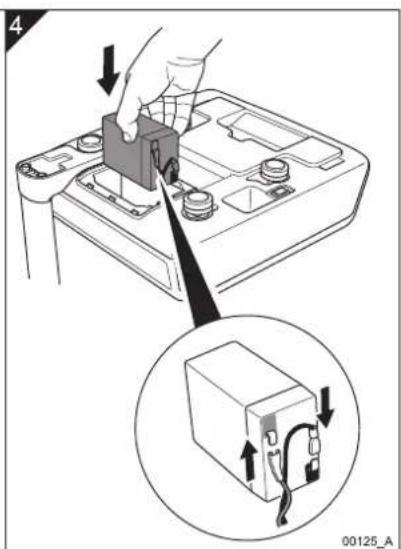
text_image
4 00125_AFig 3-3. Changing the battery


FX50 User.book Page 22 Thursday, August 23, 2007 2:31 PM
3. Installing the scale
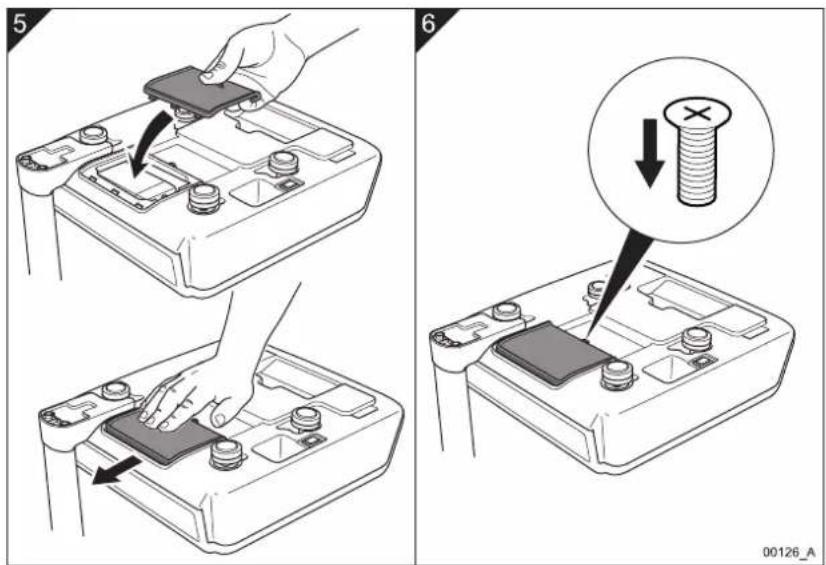
text_image
Diagram illustrating battery mounting process with labeled steps and magnified detail showing bolt disassemblyFig 3-4. Changing the battery (continued)
22 FX 50 User Instructions




natural_image
Pure geometric diagram with intersecting lines and a central circular pattern (no text or symbols)4. Operating the scale
4.1 Key to symbols used
| Symbol Action | |
 | Press the On/Off switch below the scale to turn the scale on or off. |
 | Press the Price Base Selection key to select the price base for the item you want to weigh.NOTE: This key is for the UK, Europe and the Rest of the World (RoW) variants only.NOTE: The Australian variant is Kg only. |
 | Press the Units of Weight key to select the units of weight for the item you want to weigh.NOTE: This key is for the USA and Canada variant only. |
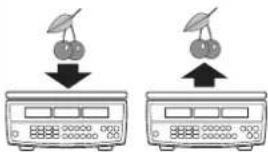 | Put an item without a container or wrapping on the weigh pan ↓. Remove the item ↑. |
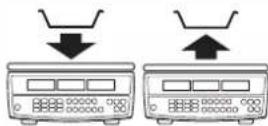 | Put an empty container or wrapping (or another type of tare weight) on the weigh pan ↓. Remove the container ↑. |
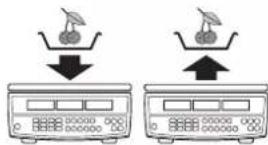 | Put the item in a container or wrapping (or another type of tare weight) on the weigh pan ↓. Remove the item and the container ↑. |
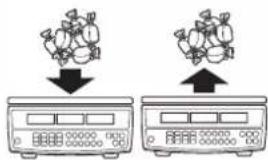 | Put items of the same unit price on the weigh pan ↓ such as ‘pick and mix’ sweets. Remove the items ↑. |
4. Operating the scale
| Symbol Action | |
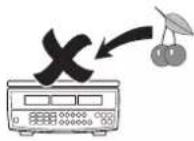 | Do not put any items on the weigh pan. |
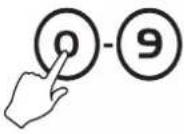 | Depending on the functional mode of the scale, either press the keyboard numbers to enter the unit price of an item or press the keyboard numbers to type the unit prices for direct and indirect PLUs, known tare weights and proportional tares. |
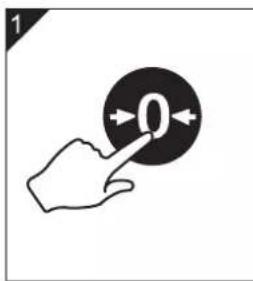
 | If necessary, with no item on the weigh pan, press the Zero key to zero the scale. |
 | Clear the unit price you entered. |
 | Multiplies the total net price of the item the scale has weighed by either two or four.NOTE: These keys are for the USA and Canada variant only. |
 | Select a Direct PLU key. |
 | Select the Indirect PLU key. |
 | Repeat the numbered steps shown. |
4.2 Switching on and setting up the scale
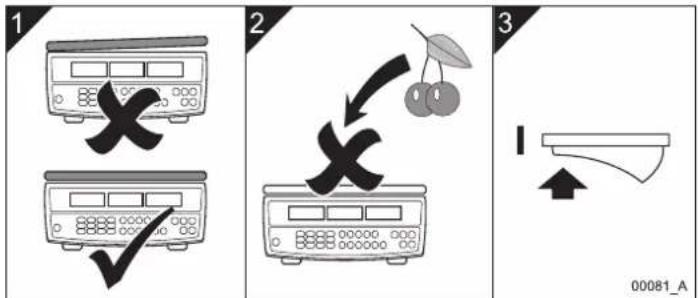
To switch on and set up the scale so that it is ready to use do the steps as follows:
text_image
1 2 3 00081_AEnglish
flowchart
graph TD
    A["999999"] --> B["000000"]
    C["999999"] --> D["000000"]
    E["999999"] --> F["000000"]
    G["000000"] --> H["Display Unit"]
    I["Speaker Output"] --> J["Output"]
Fig 4-1. Switching on and setting up the scale


FX50 User.book Page 26 Thursday, August 23, 2007 2:31 PM

4. Operating the scale
4.3 Weighing individual items
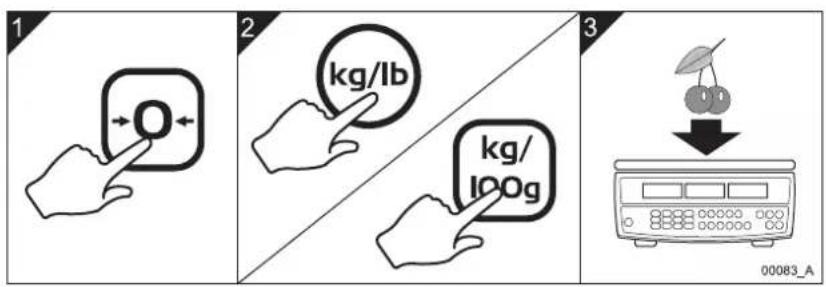
Do these steps to weigh items that have different weights and different unit prices:
text_image
1 2 3 00083_A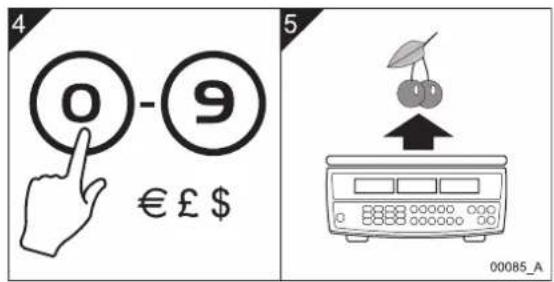
text_image
4 0 - 9 € £ $ 5 00085_AFig 4-2. Weighing individual items
26 FX 50 User Instructions


natural_image
Pure geometric diagram with intersecting lines and a central circular pattern (no text or symbols)4.4 Weighing items of the same unit price
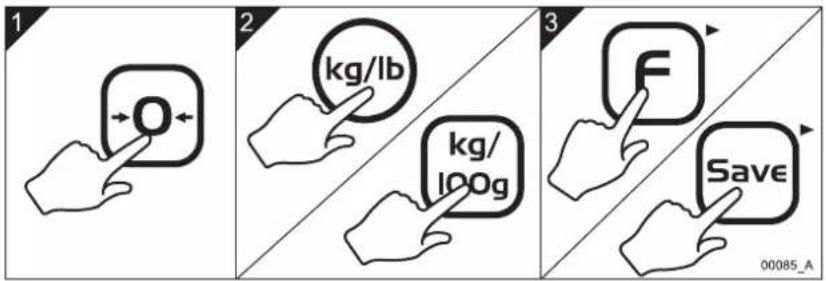
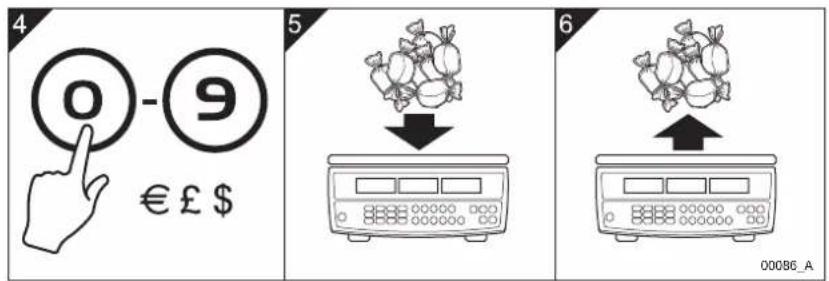
You can weigh the same type of items or different items that have the same unit price without the need to keep keying the unit price into the scale. To do this you enter and save the unit price in the scale until you decide to either change or cancel the price.
To weigh items of the same unit price do the steps as follows:
text_image
1 2 3 00085_A
text_image
4 0 -⑨ € £ $ 5 6 00086_A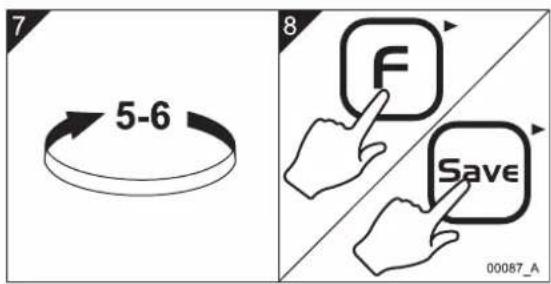
text_image
7 5-6 8 00087_AFig 4-3. Weighing items of the same unit price

text_image
FX 50 User Instructions 274. Operating the scale

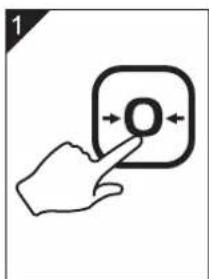
NOTE: You can change the unit price that the scale has saved. To do this, retype the price and the scale will save the new unit price until you press the key to cancel it.
4.5 Weighing using known tares

NOTE: This function is for the USA and Canada variant only.
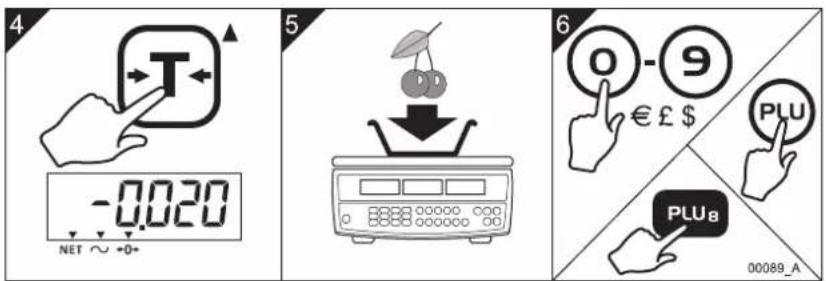
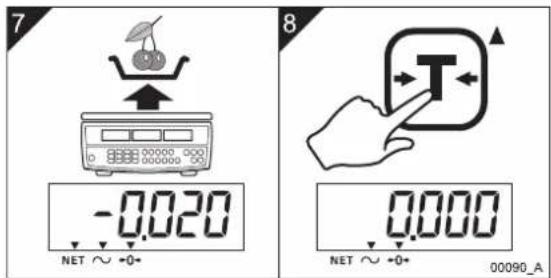
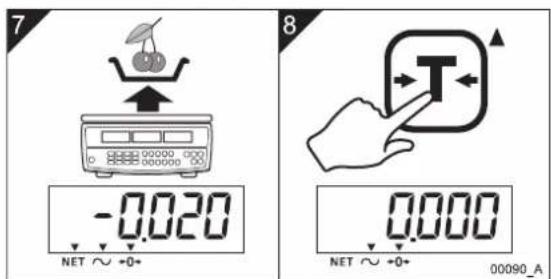
If you know the weight of an item such as a food container or wrapping that you use to contain or pack items on the scale and you want to use this as a tare weight, you can manually enter the tare weight into the scale. The scale deducts the weight of the tare item from the total gross weight and displays the net weight and the total price of the item only.

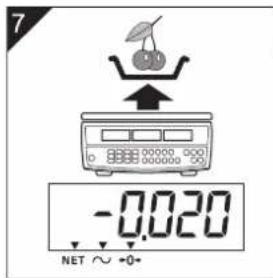
NOTE: When you have entered a tare weight the scale displays a minus figure in the weight display to represent the tare weight.

NOTE: At step 6 you can manually enter the unit price of the item or you can recall the item price using either a direct PLU or an indirect PLU. See Sections 4.9 - 4.12 for information about PLUs.
To enter a tare weight that you know and then weigh an item that has the same tare weight do the steps as follows:
natural_image
Hand icon pointing at a black circular button with an arrow, no text or symbols present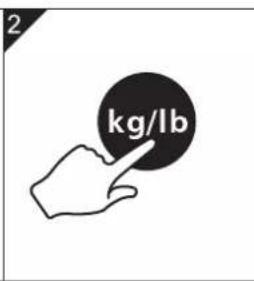
text_image
2 kg/lb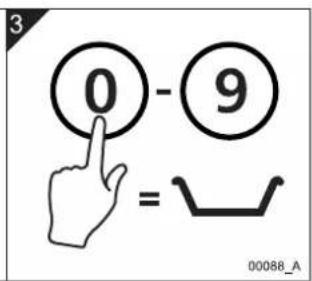
text_image
3 0 - 9 = 00088_AFig 4-4. Weighing using known tares
28 FX 50 User Instructions




natural_image
Pure geometric diagram with intersecting lines and a central circle, no text or symbols present4.5 Weighing using known tares
text_image
4 -0.020 NET ~ +0+ 5 6 0 - 9 € £ $ PLU PLU8 00089_AEnglish
text_image
7 -0.020 NET ∼ +0+ 8 0.000 NET ∼ +0+ 00090_AFig 4-5. Weighing using known tares (continued)
4. Operating the scale
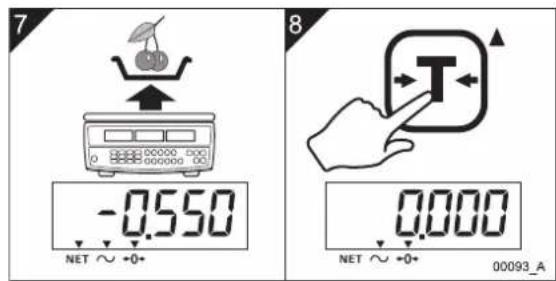
4.6 Weighing using unknown tares
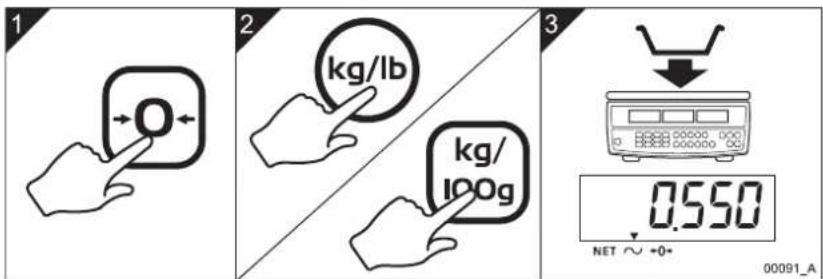
You can weigh items such a food containers and wrapping you use to contain or pack items on the scale and save their tare weights before you weigh the items. You do this so that, when you put items on the scale in a container, the scale deducts the tare weight from the total gross weight and displays the net weight and the total price of the items only.

NOTE: At step 6 you can manually enter the unit price of the item or you can recall the item price using either a direct PLU or an indirect PLU. See Sections 4.9 - 4.12 for information about PLUs.
Do the steps as follows to weigh and save an unknown tare weight:
text_image
1 2 kg/lb kg/ 100g 3 0.550 NET ∼ 0+ 00091_A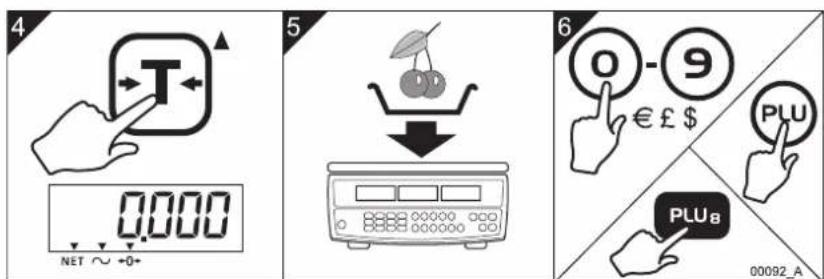
text_image
4 0.000 NET ~ +0+ 5 6 0 - 9 € £ $ PLU PLU_B 00092_AFig 4-6. Weighing using unknown tares
30 FX 50 User Instructions




4.7 Using proportional tares
text_image
7 -0.550 NET ~ +0+ 8 0.000 NET ~ +0+ 00093_AEnglish
Fig 4-7. Weighing using unknown tares (continued)
4.7 Using proportional tares

NOTE: This function is for the USA and Canada variant only.
You can enter the tare weight of items such as a containers as a percentage proportion of the total gross weight of the item and the tare. For example, you can enter a proportional tare of 25% if the gross weight of the items you want to weigh includes a tare weight that is 25% of the gross weight to package the item.

NOTE: At step 6 you can manually enter the unit price of the item or you can recall the item price using either a direct PLU or an indirect PLU. Refer to Sections 4.9 - 4.12 for information about PLUs.


FX50 User.book Page 32 Thursday, August 23, 2007 2:31 PM

4. Operating the scale
To enter an example proportional tare weight of 25% do the steps as follows:
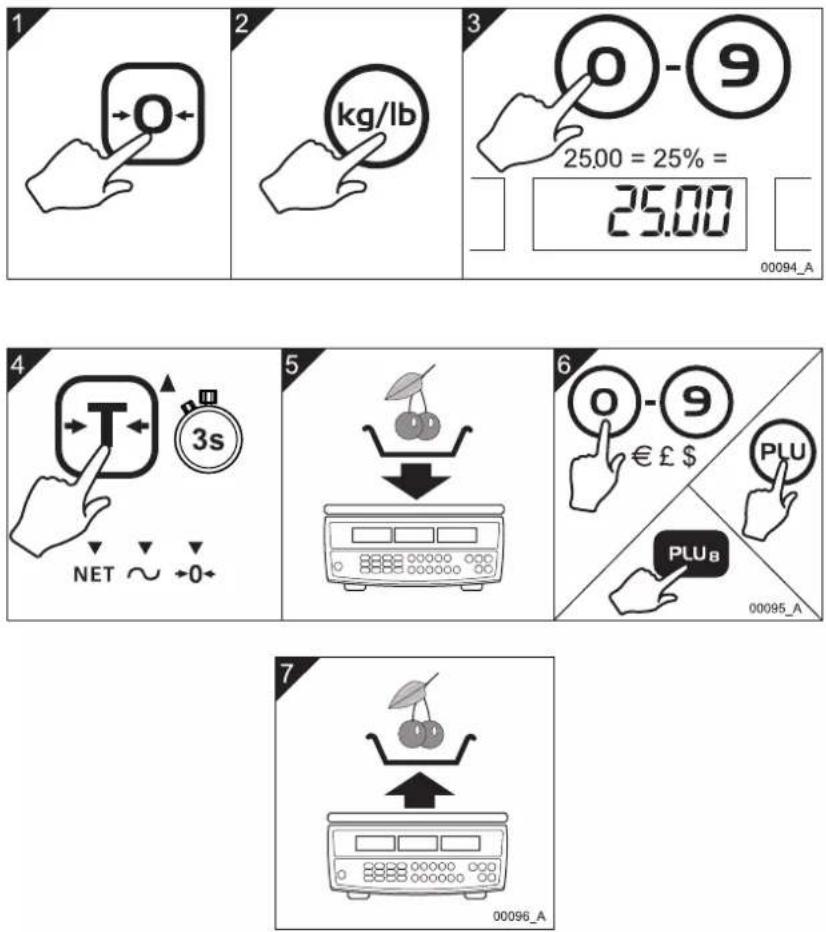
Fig 4-8. Using proportional tares
32 FX 50 User Instructions



4.8 Multiplying a unit price

NOTE: This function is for the USA and Canada variant only.
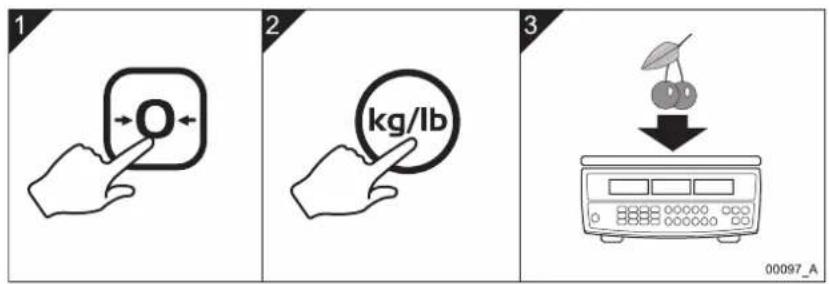
You can weigh items, enter a unit price and then multiply the total price you entered by either two or four. You do this to multiply the total price of items that are priced in divisions of pound units, such as a quarter pound and half a pound.

NOTE: At step 6 you can manually enter the unit price of the item or you can recall the item price using either a direct PLU or an indirect PLU. Refer to Sections 4.9 - 4.12 for information about PLUs.
To multiply a unit price you entered by a multiple of either two or four do these steps:
text_image
1 2 3 00097_A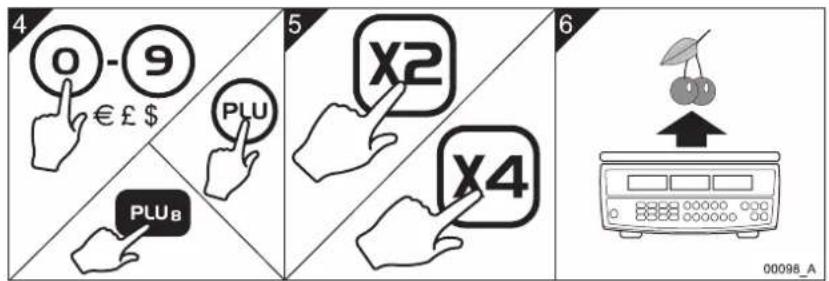
text_image
4 0 - 9 € £ $ PLU PLU_B 5 X2 X4 6 00098_AFig 4-9. Multiplying a unit price
natural_image
Pure geometric crosshair symbols without any text or labelsFX 50 User Instructions 33
natural_image
Pure geometric diagram with intersecting lines and a central circular pattern (no text or symbols)4. Operating the scale
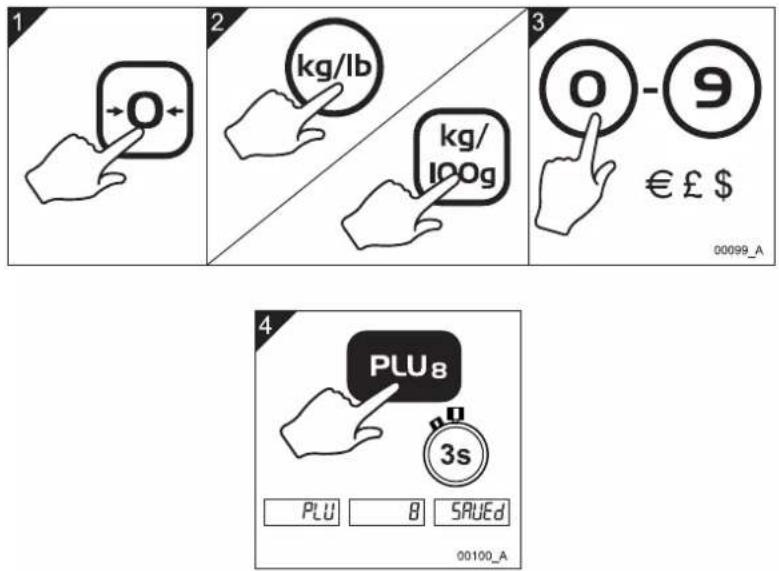
4.9 Programming direct PLUs

NOTE: You can press the direct PLU keys 1 - 2 to recall the units of weight and the item prices of particular items after you have saved this information in the scale's memory.
You can enter and store the units of weight (or the price base for UK, Europe and RoW scale variants) together with different unit prices to the twelve direct Price Look-Up (PLU) keys on the keyboard. This allows you to recall and use a unit price that you have already stored in the scale's memory against a direct PLU key. This means you can quickly weigh items that you sell a lot of without the need to type unit prices for particular items each time you weigh them.
To store the units of weight (or the price base) together with a price against an example direct PLU of number 8 do the steps as follows:
text_image
1 2 kg/lb kg/ 100g 3 0 - 9 € £ $ 00099_A 4 PLU8 3s PLU 8 SRAEEd 00100_AFig 4-10. Programming direct PLUs

NOTE: An additional 38 indirect PLUs are available. See Sections 4.11 and 4.12.
34 FX 50 User Instructions
4.10 Weighing using direct PLUs
When you have programmed unit prices against direct PLU keys you can weigh items more quickly by recalling the preset unit prices you programmed using the direct PLU keys such as PLU.
To weigh an item using an example direct PLU of number 8 do the steps as follows:

NOTE: You can use two methods to weigh items using direct PLUs. You can put the item on the scale and then press the direct PLU key or you can press the direct PLU key and then put the item on the scale (see steps 2 & 3 below).
text_image
1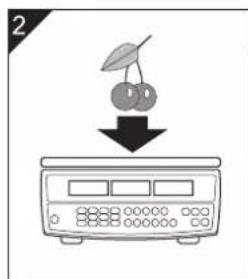
text_image
2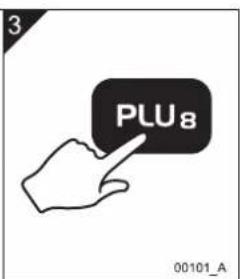
text_image
3 PLU8 00101_A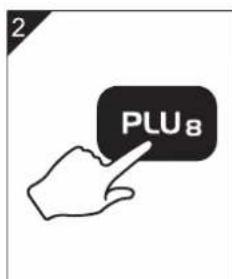
text_image
2 PLU8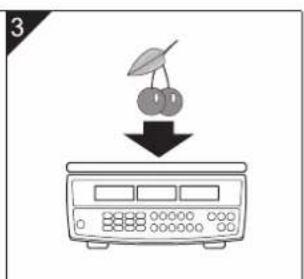
text_image
3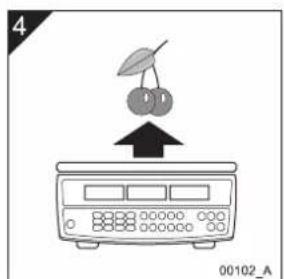
text_image
4 00102_AFig 4-11. Weighing using direct PLUs
4. Operating the scale
4.11 Programming indirect PLUs

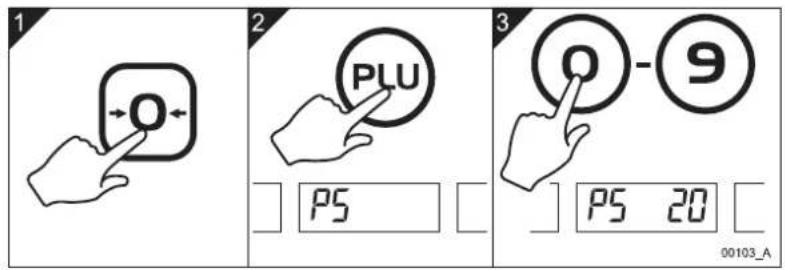
NOTE: Indirect PLUs work the same way as direct PLUs except that, to recall an indirect PLU, you press the key and then manually type the indirect PLU number.
You can enter and store the units of weight (or the price base for UK, Europe and RoW scale variants) together with different unit prices against up to 38 indirect PLU keys that have PLU numbers from 13 to 50 assigned to them. This allows you to recall and use a unit price that you have already stored in the scale's memory. This means you can quickly weigh items that you sell a lot of without the need to type unit prices for particular items each time you weigh them.
To store the units of weight (or the price base) together with a price against an example indirect PLU of number 20 do the steps as follows:
text_image
1 2 3 0 PLU PS PS 20 00103_A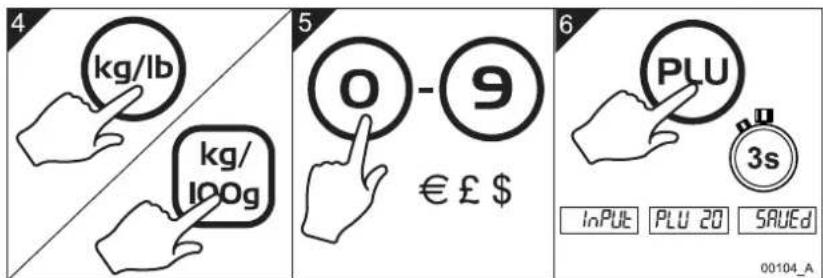
text_image
4 kg/lb kg/ 100g 5 0 - 9 € £ $ 6 PLU 3s INPUT PLU 20 SAEED 00104_AFig 4-12. Programming indirect PLUs
natural_image
Pure geometric crosshair symbol with no text or labels

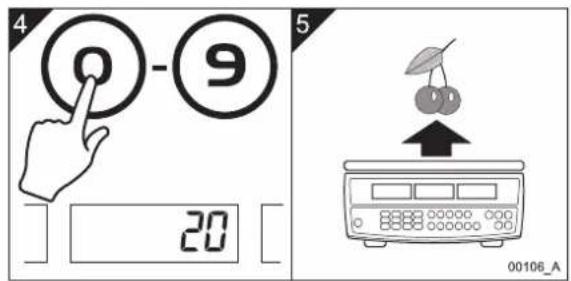
4.12 Weighing using indirect PLUs
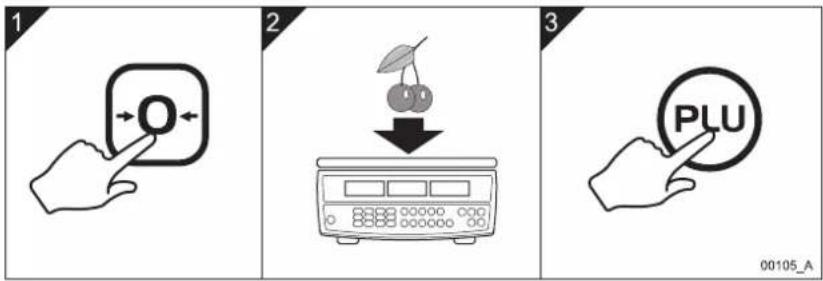
When you have programmed prices against the indirect PLU keys you can weigh items more quickly by recalling the preset price you programmed against an indirect PLU.
To weigh an item using an example indirect PLU of number 20 do the steps as follows:
text_image
1 2 3 00105_A
text_image
4 0 - 9 20 5 00106_AFig 4-13. Weighing using indirect PLUs


FX50 User.book Page 38 Thursday, August 23, 2007 2:31 PM









5. Error codes
If persistent error messages appear on the scale's display:
- Remove the battery to disconnect the scale from the power supply.
- Reinstall the battery to reconnect the power supply.
| Error Code | Problem Action | |
| Err 4 The | initial zero or the zero key is attempting to zero the load that is more than 4% of the scale's maximum capacity. | Remove all weight from the weigh pan then turn on the scale. Press the Zero key to zero the scale. If this does not work the scale needs calibration or service. |
| Err 5 Keyboard error. The keyboard has a short circuit so it must be replaced.Please contact your Avery Berkel dealer. | ||
| Err 6 A/D | converter error. The scale needs calibration or service.Please contact your Avery Berkel dealer. | |


FX50 User.book Page 40 Thursday, August 23, 2007 2:31 PM









Contenido
natural_image
Pure geometric crosshair symbols without any text or labels
natural_image
Pure geometric diagram with intersecting lines and a central circular pattern (no text or symbols)

SPANISH.book Page 2 Thursday, August 23, 2007 2:35 PM
Contenido
natural_image
Pure geometric diagram with intersecting lines and a central circular pattern (no text or symbols)SPANISH.book Page 4 Thursday, August 23, 2007 2:35 PM









text_image
Illustration showing four different hand gestures on a scale, with X and check symbols indicating selection or confirmation.SPANISH.book Page 6 Thursday, August 23, 2007 2:35 PM
text_image
Illustration showing three scenarios of a weather control device with checkmarks and X marks indicating failure or rejection.
text_image
Diagram illustrating a recycling process with labeled components including a trash bin, switch, and computer monitor.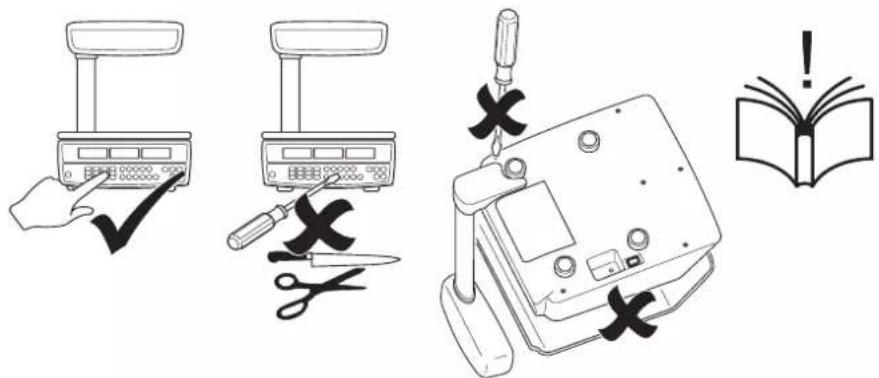
text_image
Illustration showing five different tools and a warning symbol: a hand using a balance scale, a tool with scissors, a switch, a device with X marks, and an open book with an exclamation mark.natural_image
Pure geometric diagram with intersecting lines and a central circular pattern (no text or symbols)natural_image
Illustration of cleaning products including spray bottles, a canister, and a bottle with a warning symbol (no text or labels)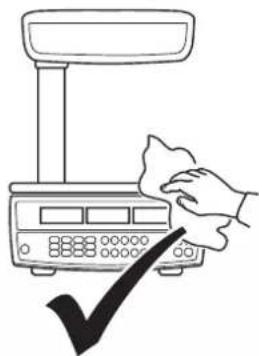
natural_image
Line drawing of a hand cleaning a digital scale with a checkmark (no text or symbols)SPANISH.book Page 8 Thursday, August 23, 2007 2:35 PM










natural_image
Pure geometric crosshair symbols without any text or labels
natural_image
Pure geometric diagram with intersecting lines and a central circular pattern (no text or symbols)SPANISH.book Page 14 Thursday, August 23, 2007 2:35 PM
natural_image
Mechanical assembly diagram showing a clamping tool interacting with a cylindrical component (no text or symbols)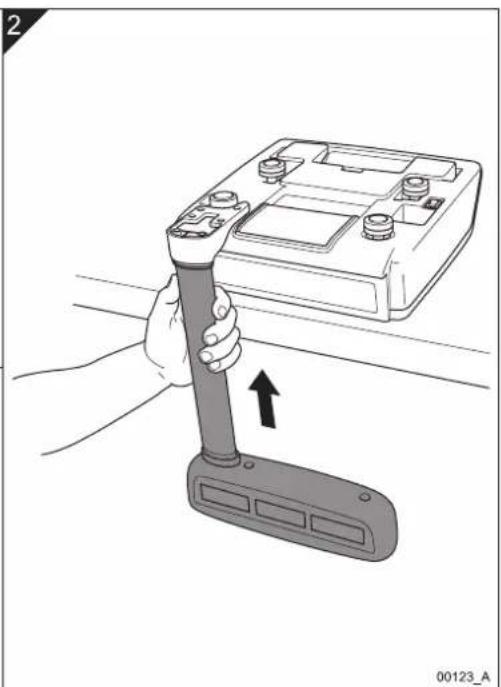
natural_image
Illustration of a hand holding a flashlight next to a battery pack, with an upward arrow indicating motion (no text or symbols)Español
natural_image
Technical line drawing of a mechanical component with a downward arrow indicating direction (no text or symbols)SPANISH.book Page 18 Thursday, August 23, 2007 2:35 PM

text_image
Diagram illustrating mechanical assembly steps with labeled components and check/cancel iconsnatural_image
Pure geometric crosshair symbols without any text or labels
natural_image
Pure geometric diagram with intersecting lines and a central circular pattern (no text or symbols)text_image
Diagram showing a battery terminal with a magnified view of a screw and an upward arrow, indicating a process or operation.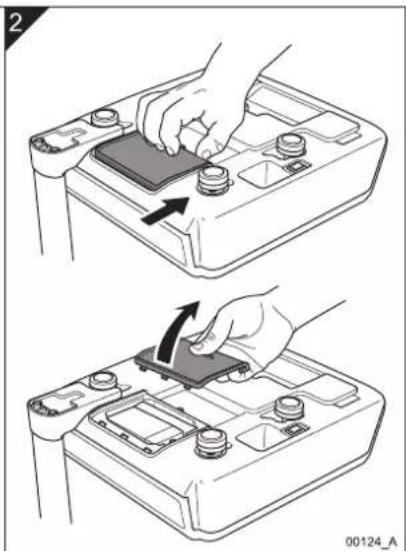
natural_image
Two-step diagram showing hand pressing a component on a battery cover, with an arrow indicating the motion (no text or symbols present)Español
text_image
Diagram showing a hand inserting a component into a battery, with an inset close-up illustrating the internal structure.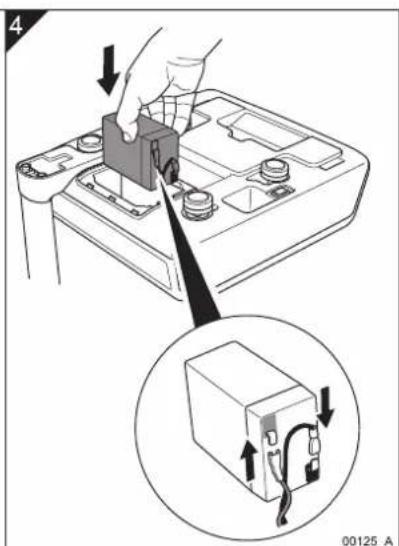
text_image
4 00125_ASPANISH.book Page 22 Thursday, August 23, 2007 2:35 PM
text_image
Diagram illustrating battery mounting process with labeled steps and magnified detail showing bolt disassemblynatural_image
Pure geometric diagram with intersecting lines and a central circular pattern (no text or symbols)flowchart
graph TD
    A["999999"] --> B["000000"]
    C["999999"] --> D["000000"]
    E["999999"] --> F["000000"]
    G["00082_A"] --> H["Speaker icon"]
natural_image
Three geometric crosshair symbols with concentric circles and intersecting lines, no text or labels presentSPANISH.book Page 26 Thursday, August 23, 2007 2:35 PM

natural_image
Pure geometric diagram with intersecting lines and a central circular pattern (no text or symbols)natural_image
Hand pressing a button with an arrow, no text or symbols present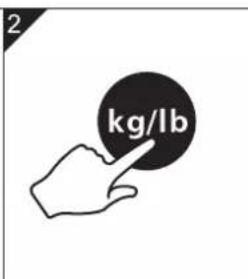
text_image
2 kg/lb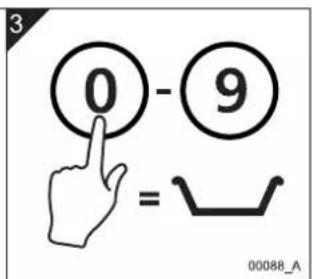
text_image
3 0 - 9 = 00088_Anatural_image
Pure geometric diagram with intersecting lines and a central circular pattern (no text or symbols)SPANISH.book Page 32 Thursday, August 23, 2007 2:35 PM

natural_image
Pure geometric diagram with intersecting lines and a central circular pattern (no text or symbols)natural_image
Pure geometric diagram with intersecting lines and a central circular pattern (no text or symbols)natural_image
Illustration of a digital counter with cherries and an apple on top, no text or symbols presentnatural_image
Pure geometric crosshair symbols without any text or labelsnatural_image
Pure geometric diagram with intersecting lines and a central circular pattern (no text or symbols)SPANISH.book Page 38 Thursday, August 23, 2007 2:35 PM






5. Códigos de error
SPANISH.book Page 40 Thursday, August 23, 2007 2:35 PM









Table des matières
1. Avertissements 3
FRENCH.book Page 2 Thursday, August 23, 2007 2:38 PM
Table des matières
natural_image
Pure geometric diagram with intersecting lines and a central circular pattern (no text or symbols)FRENCH.book Page 4 Thursday, August 23, 2007 2:38 PM










1. Avertissements
1.1 Installation sans danger

text_image
Illustration showing four different hand gestures on a scale, with X and check symbols indicating selection or confirmation.FRENCH.book Page 6 Thursday, August 23, 2007 2:38 PM
1. Avertissements
text_image
Illustration showing three scenarios of a weather control device with checkmarks and X marks indicating failure or rejection.
text_image
Diagram illustrating a recycling process with labeled components including a trash bin, switch, and computer monitor.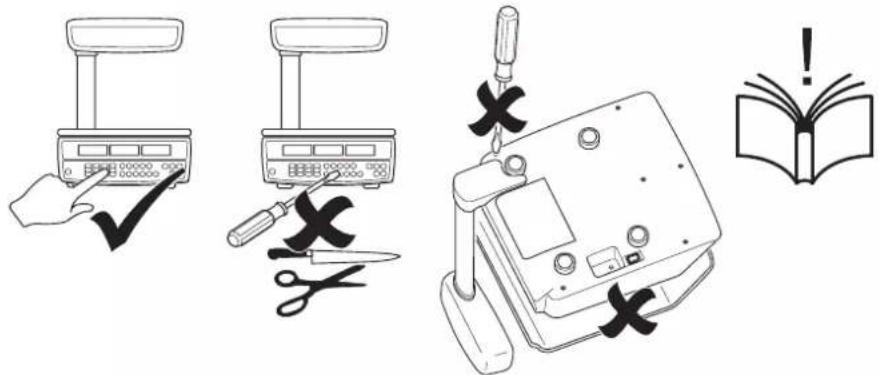
text_image
Illustration showing five different tools and a warning symbol: a hand using a scale, a tool with scissors, a device with cross marks, and an open book.natural_image
Pure geometric diagram with intersecting lines and a central circular pattern (no text or symbols)1.3 Nettoyage de la balance

natural_image
Illustration of cleaning products including spray bottles, a bottle with a cross mark, and a spray can (no text or symbols)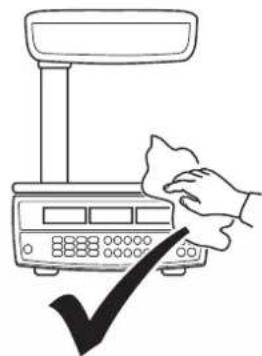
natural_image
Line drawing of a hand cleaning a digital scale with a checkmark (no text or symbols)Fig 1-3. Nettoyage de la balance
FRENCH.book Page 8 Thursday, August 23, 2007 2:38 PM










text_image
Technical diagram showing labeled components of a device with numbered parts and an inset view of the device's internal structure.FRENCH.book Page 14 Thursday, August 23, 2007 2:38 PM
text_image
Technical diagram showing three-step assembly steps of a mechanical device, with arrows indicating movement and component positioning.FRENCH.book Page 18 Thursday, August 23, 2007 2:38 PM

3. Installation de la balance
text_image
Diagram illustrating mechanical assembly steps with labeled components and check/cancel iconsnatural_image
Pure geometric crosshair symbols without any text or labels


3. Installation de la balance

text_image
Diagram showing a battery terminal with a magnified view of a screw and a plus symbol indicating rotation or dislocation.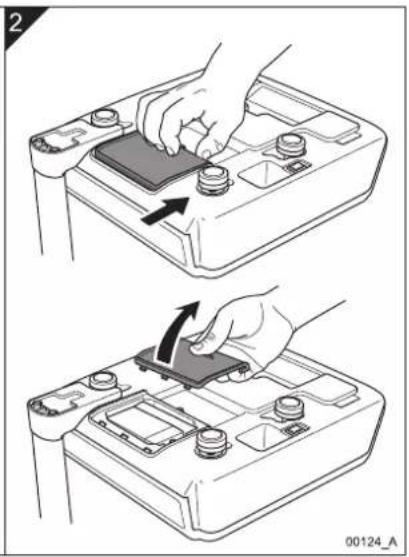
natural_image
Two-step diagram showing hand pressing a button on a battery cover, with no text or symbols present.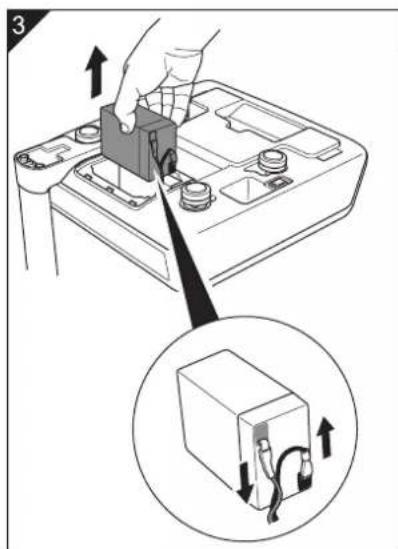
text_image
Diagram showing battery charging process with hand inserting a component and cable routing, labeled with number 3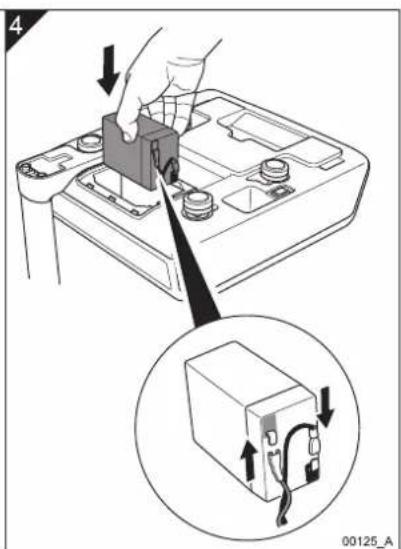
text_image
Diagram showing a hand pressing a component into a battery, with an inset close-up of the component being inserted.natural_image
Pure geometric crosshair symbols without any text or labels
natural_image
Pure geometric diagram with intersecting lines and a central circular pattern (no text or symbols)

FRENCH.book Page 22 Thursday, August 23, 2007 2:38 PM
3. Installation de la balance
text_image
Diagram illustrating battery mounting process with labeled steps and magnified detail showing bolt disassemblynatural_image
Pure geometric diagram with intersecting lines and a central circular pattern (no text or symbols)flowchart
graph TD
    A["999999"] --> B["000000"]
    C["999999"] --> D["000000"]
    E["999999"] --> F["000000"]
    G["00082_A"] --> H["Speaker icon"]
FRENCH.book Page 26 Thursday, August 23, 2007 2:38 PM

natural_image
Pure geometric diagram with intersecting lines and a central circular pattern (no text or symbols)text_image
1 2 3 0 - 9 = 00088_A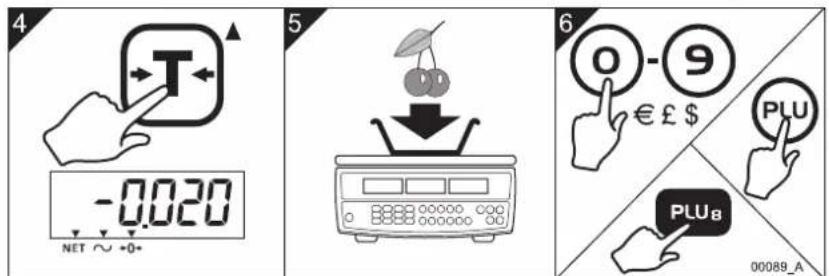
text_image
4 -0.020 NET ∼ +0+ 5 6 0 - 9 € £ $ PLU PLU8 00089_AFrançais
text_image
7 -0.020 NET ∼ +0+ 8 0.000 NET ∼ +0+ 00090_AFRENCH.book Page 32 Thursday, August 23, 2007 2:38 PM
natural_image
Pure geometric diagram with intersecting lines and a central circular pattern (no text or symbols)natural_image
Pure geometric diagram with intersecting lines and a central circular pattern (no text or symbols)natural_image
Three geometric crosshair symbols with central dots and intersecting lines, no text or labels presentnatural_image
Pure geometric diagram with intersecting lines and a central circular pattern (no text or symbols)

FRENCH.book Page 38 Thursday, August 23, 2007 2:38 PM










5. Codes d'erreur
FRENCH.book Page 40 Thursday, August 23, 2007 2:38 PM










Inhalt
1. Warnhinweise 5
GERMAN.book Page 2 Thursday, August 23, 2007 2:41 PM

Inhalt
GERMAN.book Page 4 Thursday, August 23, 2007 2:41 PM








1. Warnhinweise
text_image
Illustration showing four different hand positions of a balance scale with X marks indicating incorrect or incorrect conditions, plus a checkmark for the rightmost scale.GERMAN.book Page 6 Thursday, August 23, 2007 2:41 PM
1. Warnhinweise
text_image
Illustration showing three scenarios of a weather control device with checkmarks and X marks indicating failure or rejection.
text_image
Diagram illustrating a recycling process with labeled components including a trash bin, switch, and computer monitor.00007_A
text_image
Illustration showing a hand using a scale tool to adjust or install a device, with scissors and X marks indicating inspection or repair points.natural_image
Illustration of cleaning products including spray bottles, a bottle with a warning sign, and a spray can (no text or symbols)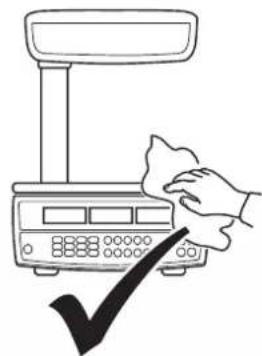
natural_image
Line drawing of a hand cleaning a digital scale with a checkmark (no text or symbols)GERMAN.book Page 8 Thursday, August 23, 2007 2:41 PM









text_image
Technical diagram showing labeled components of a device with numbered parts and an inset view of the device's internal structure.natural_image
Pure geometric crosshair symbols without any text or labels
natural_image
Pure geometric diagram with intersecting lines and a central circular pattern (no text or symbols)GERMAN.book Page 14 Thursday, August 23, 2007 2:41 PM
GERMAN.book Page 16 Thursday, August 23, 2007 2:41 PM









text_image
Technical diagram showing three-step assembly steps of a mechanical device, with arrows indicating movement and component positioning.natural_image
Three geometric crosshair symbols: a target, a circular target with a dark center, and a diagonal target with a black crosshair (no text or labels)natural_image
Pure geometric diagram with intersecting lines and a central circular pattern (no text or symbols)

GERMAN.book Page 18 Thursday, August 23, 2007 2:41 PM

text_image
Diagram illustrating mechanical assembly steps with labeled components and check/cancel iconstext_image
Diagram showing a battery terminal with a magnified view of a screw and a cross symbol indicating rotation or dislocation.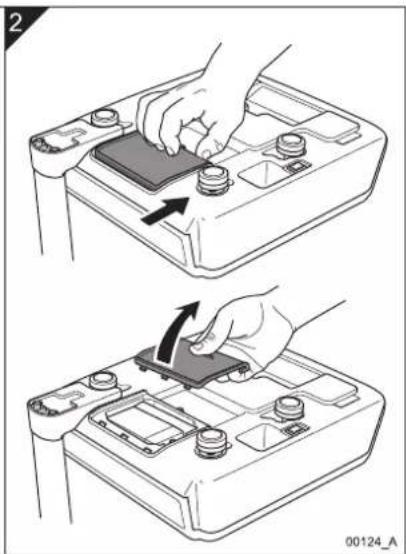
natural_image
Two-step diagram showing hand pressing a button on a battery casing, with arrows indicating the action (no text or symbols present)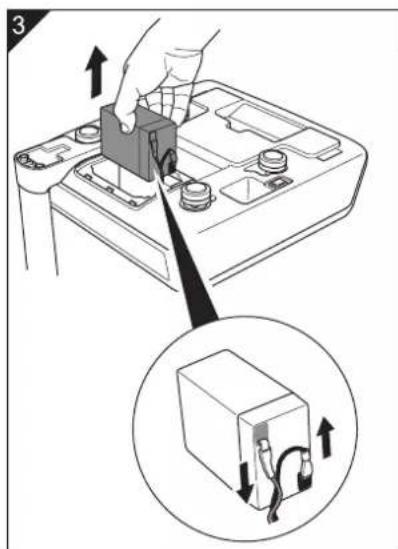
text_image
Diagram showing a hand inserting a component into a battery, with an inset close-up illustrating the internal structure.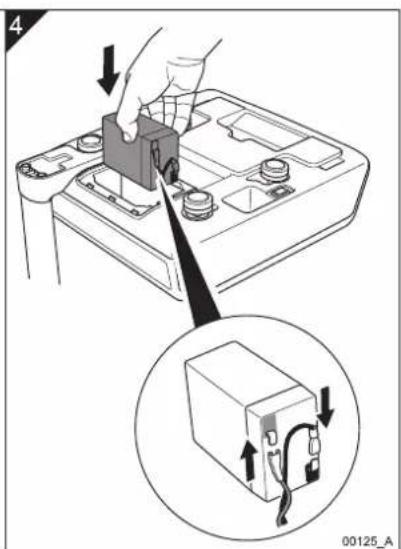
text_image
4 00125_Anatural_image
Three geometric crosshair symbols: a circle, a target, and an arrowhead (no text or labels)natural_image
Pure geometric diagram with intersecting lines and a central circular pattern (no text or symbols)

GERMAN.book Page 22 Thursday, August 23, 2007 2:41 PM
text_image
Diagram illustrating battery charging process with labeled steps and magnified view of screw assemblynatural_image
Pure geometric diagram with intersecting lines and a central circular pattern (no text or symbols)natural_image
Three geometric crosshair symbols: a target, a circular target with a dark center, and a diagonal target with a black dot (no text or labels)natural_image
Pure geometric diagram with intersecting lines and a central circular pattern (no text or symbols)

GERMAN.book Page 26 Thursday, August 23, 2007 2:41 PM

natural_image
Pure geometric diagram with intersecting lines and a central circular pattern (no text or symbols)natural_image
Hand icon pointing at a black circular button with arrows, no text or symbols present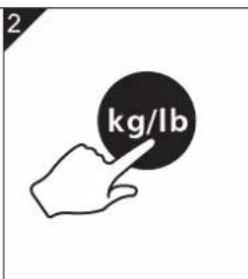
text_image
2 kg/lb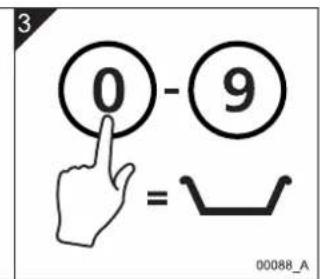
text_image
3 0 - 9 = 00088_Anatural_image
Pure geometric diagram with intersecting lines and a central circular pattern (no text or symbols)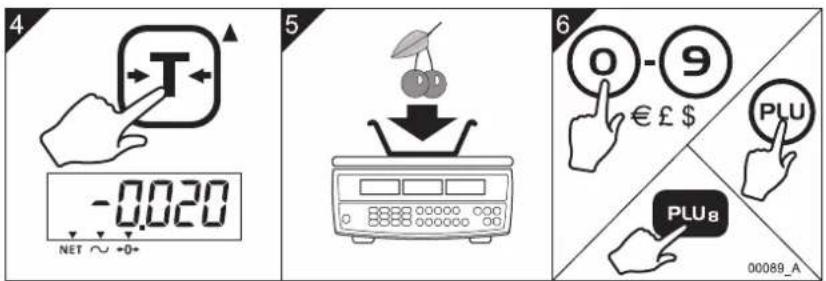
text_image
7 -0.020 NET ∼ •0•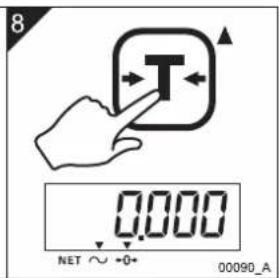
text_image
8 0.000 NET ∼ +0+ 00090_Anatural_image
Three geometric crosshair targets with central dots and intersecting lines, no text or symbols presentnatural_image
Pure geometric diagram with intersecting lines and a central circular pattern (no text or symbols)

GERMAN.book Page 32 Thursday, August 23, 2007 2:41 PM

natural_image
Pure geometric diagram with intersecting lines and a central circular pattern (no text or symbols)natural_image
Pure geometric crosshair symbols without any text or labelsnatural_image
Pure geometric diagram with intersecting lines and a central circular pattern (no text or symbols)GERMAN.book Page 38 Thursday, August 23, 2007 2:41 PM









5. Fehlercodes
GERMAN.book Page 40 Thursday, August 23, 2007 2:41 PM









Sommario
ITALIAN.book Page 2 Thursday, August 23, 2007 5:43 PM

Sommario
ITALIAN.book Page 4 Thursday, August 23, 2007 5:43 PM









text_image
Illustration showing four different hand positions on a scale with X marks and a checkmark, likely illustrating a manual or mechanical operation.ITALIAN.book Page 6 Thursday, August 23, 2007 5:43 PM
text_image
Illustration showing three scenarios of a weather control device with checkmarks and X marks indicating failure or rejection.
text_image
Diagram illustrating a recycling process with labeled components including a trash bin, switch, and computer monitor.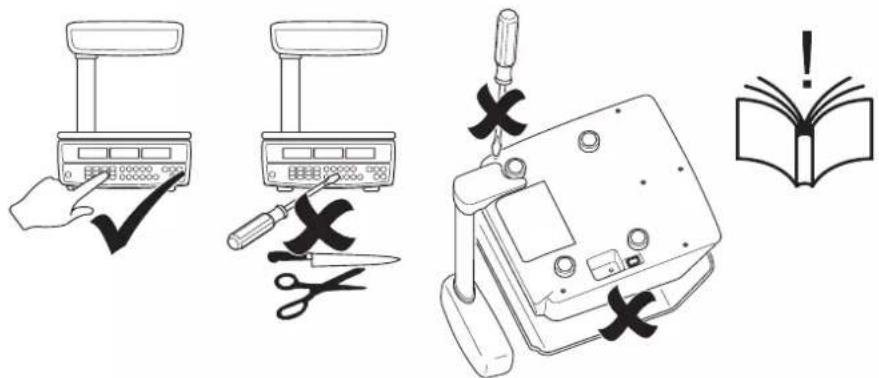
text_image
Illustration showing five different tools and a warning symbol: a hand using a balance scale, a tool with scissors, a switch, a device with X marks, and an open book with an exclamation mark.natural_image
Pure geometric diagram with intersecting lines and a central circular pattern (no text or symbols)natural_image
Illustration of cleaning products including spray bottles, a bottle with a black X mark, and a spray can (no text or symbols)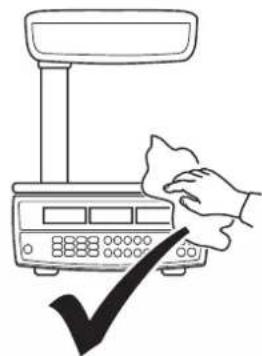
natural_image
Line drawing of a hand cleaning a digital scale with a checkmark (no text or symbols)ITALIAN.book Page 8 Thursday, August 23, 2007 5:43 PM








text_image
Technical diagram showing labeled components of a device with numbered parts and an inset view of the device's internal structure.natural_image
Pure geometric crosshair symbols without any text or labelsFX 50 Manuale d'uso 9
natural_image
Pure geometric diagram with intersecting lines and a central circular pattern (no text or symbols)ITALIAN.book Page 14 Thursday, August 23, 2007 5:43 PM
text_image
Technical diagram showing three-step assembly steps of a mechanical device, with arrows indicating movement and component positioning.ITALIAN.book Page 18 Thursday, August 23, 2007 5:43 PM

text_image
Diagram illustrating mechanical assembly steps with labeled components and check/cancel iconsnatural_image
Two-step diagram showing hand pressing a button on a battery cover, with no text or symbols present.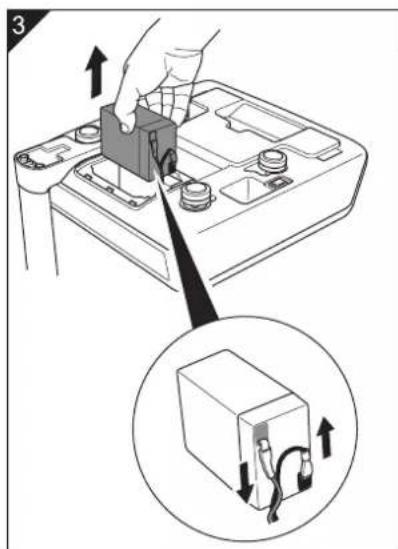
text_image
Diagram showing battery charging process with hand inserting a component and cable routing, labeled with number 3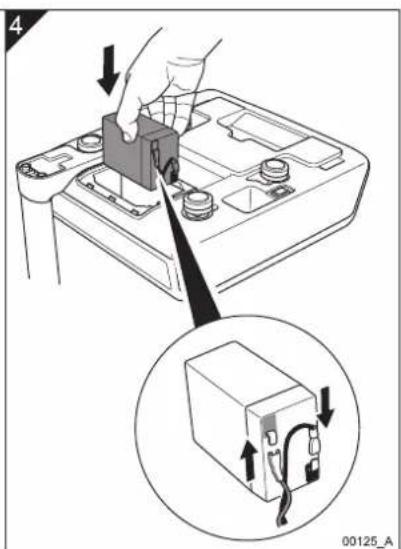
text_image
4 00125_AITALIAN.book Page 22 Thursday, August 23, 2007 5:43 PM
text_image
Diagram illustrating battery charging process with labeled steps and magnified view of screw assemblynatural_image
Pure geometric diagram with intersecting lines and a central circular pattern (no text or symbols)flowchart
graph TD
    A["999999"] --> B["000000"]
    C["999999"] --> D["000000"]
    E["999999"] --> F["000000"]
    G["00082_A"] --> H["Speaker icon"]
ITALIAN.book Page 26 Thursday, August 23, 2007 5:43 PM

natural_image
Pure geometric diagram with intersecting lines and a central circular pattern (no text or symbols)natural_image
Pure geometric crosshair symbols without any text or labelsFX 50 Manuale d'uso 27
natural_image
Pure geometric diagram with intersecting lines and a central circular pattern (no text or symbols)natural_image
Hand pressing a button with an arrow pointing to the center (no text or symbols)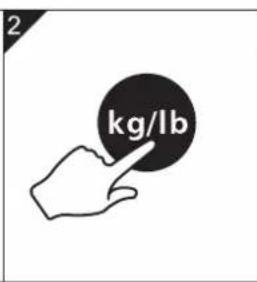
text_image
2 kg/lb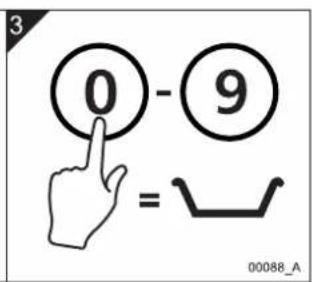
text_image
3 0 - 9 = 00088_Anatural_image
Pure geometric diagram with intersecting lines and a central circular pattern (no text or symbols)natural_image
Three geometric crosshair symbols: a target, a circular target with grid pattern, and an inverted target with crosshairs (no text or labels)FX 50 Manuale d'uso 31



ITALIAN.book Page 32 Thursday, August 23, 2007 5:43 PM
natural_image
Pure geometric diagram with intersecting lines and a central circular pattern (no text or symbols)natural_image
Three geometric crosshair symbols: a target, a circular target with grid pattern, and an inverted target (no text or labels)FX 50 Manuale d'uso 35
natural_image
Pure geometric diagram with intersecting lines and a central circular pattern (no text or symbols)natural_image
Pure geometric crosshair symbol with concentric circles and intersecting lines (no text or labels)

ITALIAN.book Page 38 Thursday, August 23, 2007 5:43 PM









5. Codici di errore
ITALIAN.book Page 40 Thursday, August 23, 2007 5:43 PM









Inhoud
natural_image
Pure geometric crosshair symbols without any text or labels
Inhoud
4.9 Directe PLUs programmeren ....34
4.10 Wegen met directe PLUs .....35
4.11 Indirecte PLUs programmeren ....36
4.12 Wegen met indirecte PLUs .....37
5. Foutcodes
39
DUTCH.book Page 4 Thursday, August 23, 2007 5:52 PM






text_image
Illustration showing four different hand gestures on a control panel, with X and check symbols indicating cancellation or rejection.Fig 1-1. De schaal correct oppakken
Nederlands
DUTCH.book Page 6 Thursday, August 23, 2007 5:52 PM
text_image
Illustration showing three scenarios of a weather control device with checkmarks and X marks indicating failure or rejection.
text_image
Diagram illustrating a recycling process with labeled components including a trash bin, switch, and computer monitor.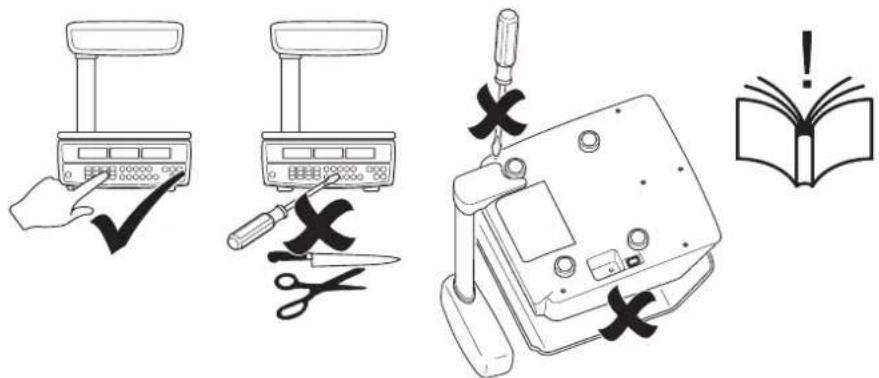
text_image
Illustration showing five different tools and a warning symbol: a hand using a balance scale, a tool with scissors, a switch, a device with X marks, and an open book with an exclamation mark.natural_image
Pure geometric diagram with intersecting lines and a central circular pattern (no text or symbols)natural_image
Illustration of cleaning products including spray bottles, a bottle with a warning sign, and a spray can (no text or symbols)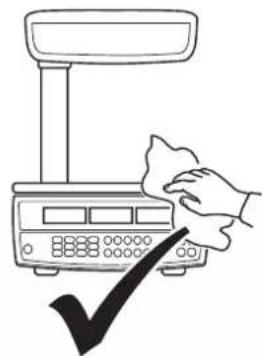
natural_image
Line drawing of a hand cleaning a digital scale with a checkmark (no text or symbols)DUTCH.book Page 8 Thursday, August 23, 2007 5:52 PM









text_image
Diagram showing exploded view of a device with numbered components and labeled parts, including a control panel and connected devices.natural_image
Three geometric crosshair symbols: a target, a circular target with a shaded center, and an inverted triangle with a black dot at the intersection (no text or labels)DUTCH.book Page 14 Thursday, August 23, 2007 5:52 PM
natural_image
Pure geometric diagram with intersecting lines and a central circular pattern (no text or symbols)DUTCH.book Page 16 Thursday, August 23, 2007 5:52 PM









text_image
Technical diagram showing three-step assembly steps of a mechanical device, with arrows indicating movement and component positioning.Fig 3-1. Tower-versie monteren en installeren
Nederlands
DUTCH.book Page 18 Thursday, August 23, 2007 5:52 PM

text_image
Diagram illustrating mechanical adjustment steps with labeled circular diagrams and icons for inspection and reassembly.text_image
Diagram showing a battery terminal with a magnified view of a screw and a cross symbol indicating rotation or dislocation.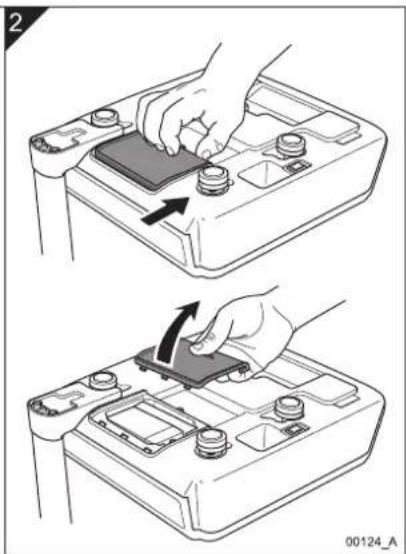
natural_image
Two-step diagram showing hand pressing a button on a battery cover, with arrows indicating the action (no text or symbols present)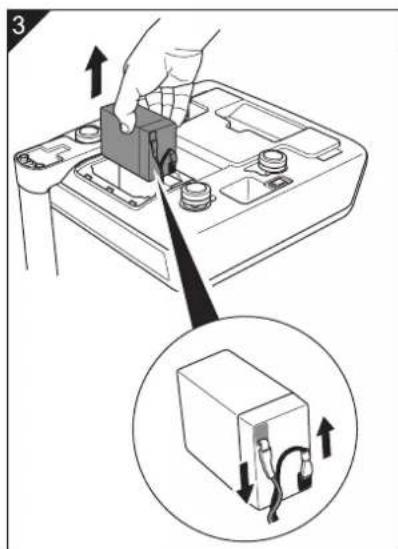
text_image
Diagram showing a hand inserting a component into a battery, with an inset close-up illustrating the internal structure.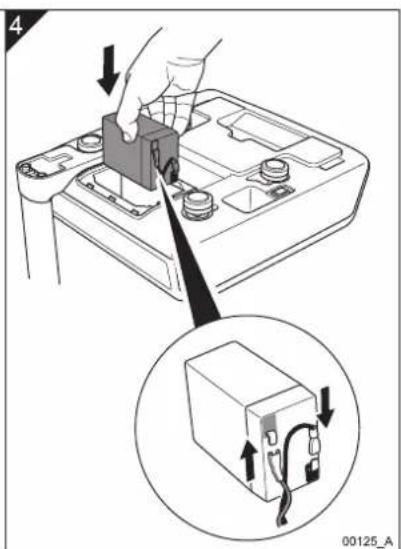
text_image
Diagram showing a hand pressing a component into a battery, with an inset close-up of the component being inserted.Fig 3-3. Batterij vervangen
Nederlands
DUTCH.book Page 22 Thursday, August 23, 2007 5:52 PM
text_image
Diagram illustrating battery mounting process with labeled steps and magnified detail showing bolt disassemblynatural_image
Pure geometric diagram with intersecting lines and a central circular pattern (no text or symbols)DUTCH.book Page 26 Thursday, August 23, 2007 5:52 PM


natural_image
Pure geometric diagram with intersecting lines and a central circular pattern (no text or symbols)natural_image
Three geometric crosshair symbols: a target, a circular target, and an inverted target with intersecting lines (no text or labels)natural_image
Hand pointing at a black circular button with an arrow, no text or symbols present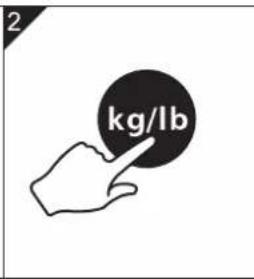
text_image
2 kg/lb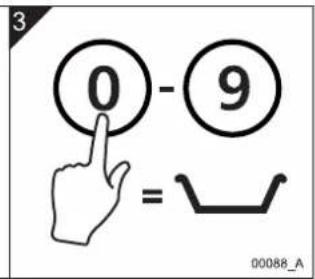
text_image
3 0 - 9 = 00088_Anatural_image
Pure geometric diagram with intersecting lines and a central circular pattern (no text or symbols)DUTCH.book Page 32 Thursday, August 23, 2007 5:52 PM

natural_image
Pure geometric diagram with intersecting lines and a central circular pattern (no text or symbols)natural_image
Pure geometric crosshair symbol with concentric circles and intersecting lines, no text or labels presentnatural_image
Pure geometric diagram with intersecting lines and a central circular pattern (no text or symbols)natural_image
Illustration of a digital scale with a cherries on top and a downward arrow indicating quantity (no text or symbols)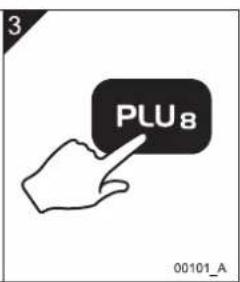
text_image
3 PLU8 00101_A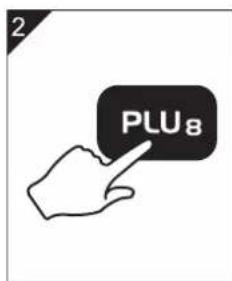
text_image
2 PLU8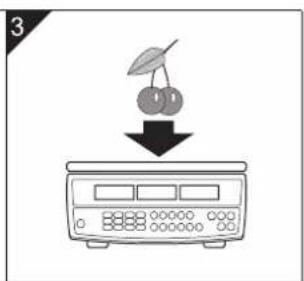
text_image
3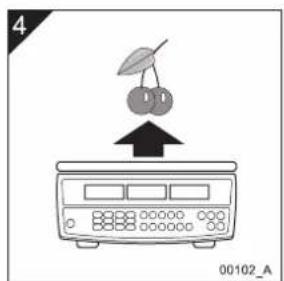
text_image
4 00102_ADUTCH.book Page 38 Thursday, August 23, 2007 5:52 PM









5. Foutcodes
text_image
DUTCH.book Page 40 Thursday, August 23, 2007 5:52 PMAvery Berkel
ENGLISH
Europe
Austria
Avery Weigh-Tronix France SAS
36 Avenue de l'Europe
Domont, Cedex
Tel: +33 (0)8 25 87 08 00
Fax: +33 (0)1 39 35 57 57
Republic of Ireland
Avery Weigh-Tronix
Metrology House
Airton Park, Tallaght
Dublin 24
Tel: +353 1 4000 700
Fax: +353 1 4000 750
United Kingdom
Avery Weigh-Tronix
Avery Berkel Limited
Foundry Lane
Smethwick
West Midlands
England
B66 2LP
Tel: +44 (0)870 90 34343
Fax: +44 (0)870 90 50085
Americas
Canada
Weigh Tronix Canada, ULC
217 Brunswick Blvd, Pointe Claire
Quebec H9R 4R7
Tel: +416 213 9900
Fax: +416 213 9960
Mexico
Automatizacion
Basculas y Control SA do CV
Blvd. Agua Caliente # 9051
Col. Cacho, Tijuana, BC 22150
Tel: +416 213 9900
Fax: +416 213 9960
USA
Avery Berkel North America
1000 Armstrong Drive
Fairmont
MN 56031
Tel: +52 333 634 9050
Fax: +52 333 634 9049
Avery Berkel
ESPANOL
Europa continental
Austria
Avery Weigh-Tronix France SAS
36 Avenue de l'Europe
Domont, Cedex
Tel: +33 (0)8 25 87 08 00
Fax: +33 (0)1 39 35 57 57
Airton Park, Tallaght
Dublin 24
Tel: +353 1 4000 700
Fax: +353 1 4000 750
Reino Unido
Avery Weigh-Tronix
Avery Berkel Limited
Foundry Lane
Smethwick
West Midlands
England
B66 2LP
Tel: +44 (0)870 90 34343
Fax: +44 (0)870 90 50085
Estados Unidos
Canadá
Weigh Tronix Canada, ULC
217 Brunswick Blvd, Pointe Claire
Quebec H9R 4R7
Tel: +416 213 9900
Fax: +416 213 9960
México
Automatizacion
Basculas y Control SA do CV
Blvd. Agua Caliente # 9051
Col. Cacho, Tijuana, BC 22150
Tel: +416 213 9900
Fax: +416 213 9960
EE.UU
Avery Berkel North America
1000 Armstrong Drive
Fairmont
MN 56031
Tel: +52 333 634 9050
Fax: +52 333 634 9049
Avery Berkel
FRANCAIS
Europe
Autriche
Avery Weigh-Tronix France SAS
36 Avenue de l'Europe
Domont, Cedex
Tel: +33 (0)8 25 87 08 00
Fax: +33 (0)1 39 35 57 57
Airton Park, Tallaght
Dublin 24
Tel: +353 1 4000 700
Fax: +353 1 4000 750
Royaume Uni
Avery Weigh-Tronix
Avery Berkel Limited
Foundry Lane
Smethwick
West Midlands
England
B66 2LP
Tel: +44 (0)870 90 34343
Fax: +44 (0)870 90 50085
Amériques
Canada
Weigh Tronix Canada, ULC
217 Brunswick Blvd, Pointe Claire
Quebec H9R 4R7
Tel: +416 213 9900
Fax: +416 213 9960
Mexique
Automatizacion
Basculas y Control SA do CV
Blvd. Agua Caliente # 9051
Col. Cacho, Tijuana, BC 22150
Tel: +416 213 9900
Fax: +416 213 9960
États Unis
Avery Berkel North America
1000 Armstrong Drive
Fairmont
MN 56031
Tel: +52 333 634 9050
Fax: +52 333 634 9049
Avery Berkel
DEUTSCH
Europa
Österreich
Avery Weigh-Tronix France SAS
36 Avenue de l'Europe
Domont, Cedex
Tel: +33 (0)8 25 87 08 00
Fax: +33 (0)1 39 35 57 57
Irland
Avery Weigh-Tronix
Metrology House
Airton Park, Tallaght
Dublin 24
Tel: +353 1 4000 700
Fax: +353 1 4000 750
Avery Berkel Limited
Foundry Lane
Smethwick
West Midlands
England
B66 2LP
Tel: +44 (0)870 90 34343
Fax: +44 (0)870 90 50085
Amerika
Kanada
Weigh Tronix Canada, ULC
217 Brunswick Blvd, Pointe Claire
Quebec H9R 4R7
Tel: +416 213 9900
Fax: +416 213 9960
Mexiko
Automatizacion
Basculas y Control SA do CV
Blvd. Agua Caliente # 9051
Col. Cacho, Tijuana, BC 22150
Tel: +416 213 9900
Fax: +416 213 9960
USA
Avery Berkel North America
1000 Armstrong Drive
Fairmont
MN 56031
Tel: +52 333 634 9050
Fax: +52 333 634 9049
Avery Berkel
ITALIANO
Europa
Austria
Avery Weigh-Tronix France SAS
36 Avenue de l'Europe
Domont, Cedex
Tel: +33 (0)8 25 87 08 00
Fax: +33 (0)1 39 35 57 57
Airton Park, Tallaght
Dublin 24
Tel: +353 1 4000 700
Fax: +353 1 4000 750
Regno Unito
Avery Weigh-Tronix
Avery Berkel Limited
Foundry Lane
Smethwick
West Midlands
England
B66 2LP
Tel: +44 (0)870 90 34343
Fax: +44 (0)870 90 50085
217 Brunswick Blvd, Pointe Claire
Quebec H9R 4R7
Tel: +416 213 9900
Fax: +416 213 9960
Messico
Automatizacion
Basculas y Control SA do CV
Blvd. Agua Caliente # 9051
Col. Cacho, Tijuana, BC 22150
Tel: +416 213 9900
Fax: +416 213 9960
Avery Berkel North America
1000 Armstrong Drive
Fairmont
MN 56031
Tel: +52 333 634 9050
Fax: +52 333 634 9049
Avery Berkel
NEDERLANDS
Europa
Oostenrijk
Avery Weigh-Tronix France SAS
36 Avenue de l'Europe
Domont, Cedex
Tel: +33 (0)8 25 87 08 00
Fax: +33 (0)1 39 35 57 57
Republiek Ierland
Avery Weigh-Tronix
Metrology House
Airton Park, Tallaght
Dublin 24
Tel: +353 1 4000 700
Fax: +353 1 4000 750
Verenigd Koninkrijk
Avery Weigh-Tronix
Avery Berkel Limited
Foundry Lane
Smethwick
West Midlands
England
B66 2LP
Tel: +44 (0)870 90 34343
Fax: +44 (0)870 90 50085
Amerika
Canada
Weigh Tronix Canada, ULC
217 Brunswick Blvd, Pointe Claire
Quebec H9R 4R7
Tel: +416 213 9900
Fax: +416 213 9960
Mexico
Automatizacion
Basculas y Control SA do CV
Blvd. Agua Caliente # 9051
Col. Cacho, Tijuana, BC 22150
Tel: +416 213 9900
Fax: +416 213 9960
USA
Avery Berkel North America
1000 Armstrong Drive
Fairmont
MN 56031
Tel: +52 333 634 9050
Fax: +52 333 634 9049





FX50 User.book Page 47 Thursday, August 23, 2007 2:31 PM










This document contains a general guide only of the product and shall not form part of any contract unless specifically agreed by Avery Berkel Limited in writing in each case on the Order Acknowledgement. The specification of the products described herein may vary from time to time and may be altered without notice. Avery Weight-Tronix is a trading name of Avery Berkel Limited.
Foundry Lane, Smethwick
West Midlands, England B66 2LP
Tel: +44 (0)870 903 4343
Fax: +44 (0)121 224 8183
Email: info@awtxglobal.com
Website: www.averyweigh-tronix.com