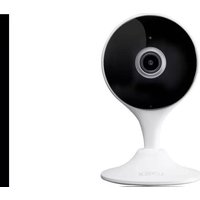
W461ASC-E - Surveillance Camera Lorex - Free user manual and instructions
Find the device manual for free W461ASC-E Lorex in PDF.



User questions about W461ASC-E Lorex
0 question about this device. Answer the ones you know or ask your own.
Ask a new question about this device
Download the instructions for your Surveillance Camera in PDF format for free! Find your manual W461ASC-E - Lorex and take your electronic device back in hand. On this page are published all the documents necessary for the use of your device. W461ASC-E by Lorex.
USER MANUAL W461ASC-E Lorex
- Read this guide carefully and keep it for future reference.
- Follow all instructions for safe use and handling of the product.
- Use camera within given temperature, humidity & voltage levels noted in the camera's specifications.
- Do not disassemble the camera.
- Do not point the camera directly at the sun or a source of intense light.
- Periodic cleaning required. Use a damp cloth only. Do not use any harsh, chemical-based cleaners.
Disclaimers
- The camera is rated for indoor use only. Do not mount the camera outdoors.
- Do not place the magnetic mounting plate on or near other electrical devices.
- This camera includes an Auto Mechanical IR Cut Filter. When the camera changes between Day/Night viewing modes, an audible clicking noise may be heard from the camera. This clicking is normal, and indicates that the camera filter is working.
- Audio recording without consent is illegal in certain jurisdictions. Lorex Corporation assumes no liability for use of its products that does not conform with local laws.
Contents
What's included....1
Camera overview and dimensions....2
Status indicator....3
Step One: Connect to the app....4
Camera placement....5
Step Two: Mounting the camera (optional)......6
Lorex Home app overview....7
What's included
Camera USB

power adapter
USB
power
cable

Magnetic
mounting
plate
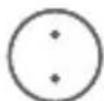
Mounting template

Double-sided
mounting
tape
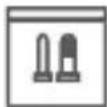
Anchors & screws (x3)

ATTENTION: A REGULATED UL / CSA APPROVED power supply is REQUIRED for use with this (included). Use of a non-regulated, non-conforming power supply can damage this product and the warranty.
Camera overview
text_image
A B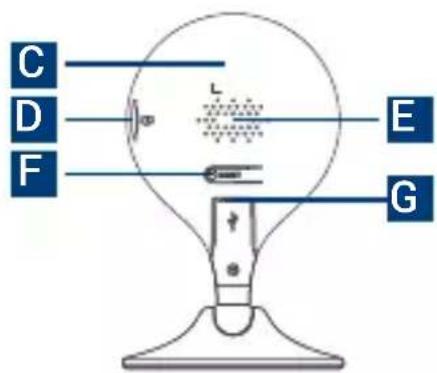
text_image
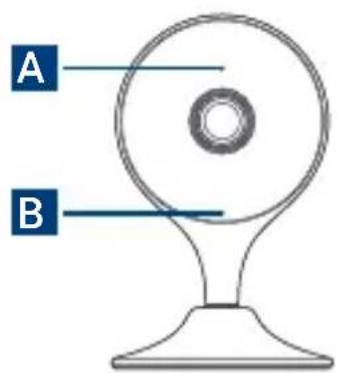
C D F L E GA. Status indicator
B. Microphone
C. Device QR code
D. microSD slot
E. Speaker
F. Reset button
G. Power port
Dimensions
Height: 4.3" (109mm)
Width: 2.7" (68mm)
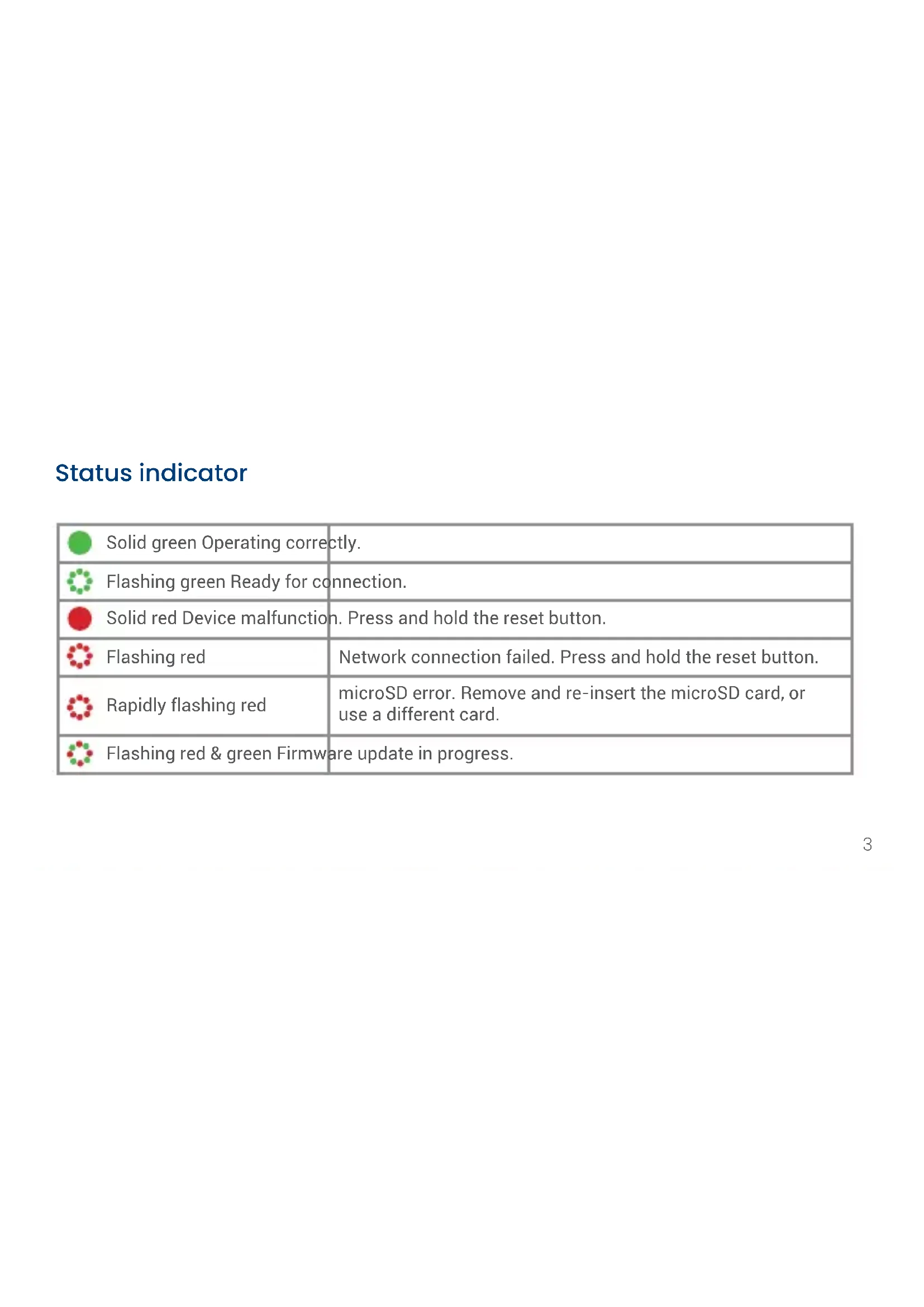
Status indicator
 | Solid green Operating correctly. | |
 | Flashing green Ready for connection. | |
 | Solid red Device malfunction. Press and hold the reset button. | |
 | Flashing red | Network connection failed. Press and hold the reset button. |
 | Rapidly flashing red | microSD error. Remove and re-insert the microSD card, or use a different card. |
 | Flashing red & green Firmware update in progress. |
Step One: Connect to the app
-
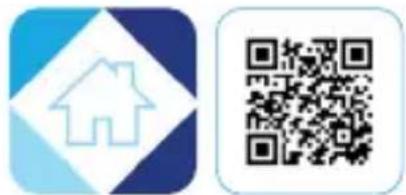
Scan the QR code on this page to download the free Lorex Home app from the App Store or Google Play Store.
-
Open the Lorex Home app.
-
Sign in or sign up and create an account.
-
Connect the USB power cable to the camera and plug the USB power adapter into an outlet.
-
Once the status indicator on the camera is flashing green and the startup chime sounds, tap the + icon to add your camera.
-
Scan the device QR code. If your mobile device cannot scan the QR code, tap Manually enter Device ID.
-
Follow the in-app instructions to complete the setup.
text_image
Two QR codes: one with a house icon and the other a QR code, both in blue and white on a light background.Camera placement
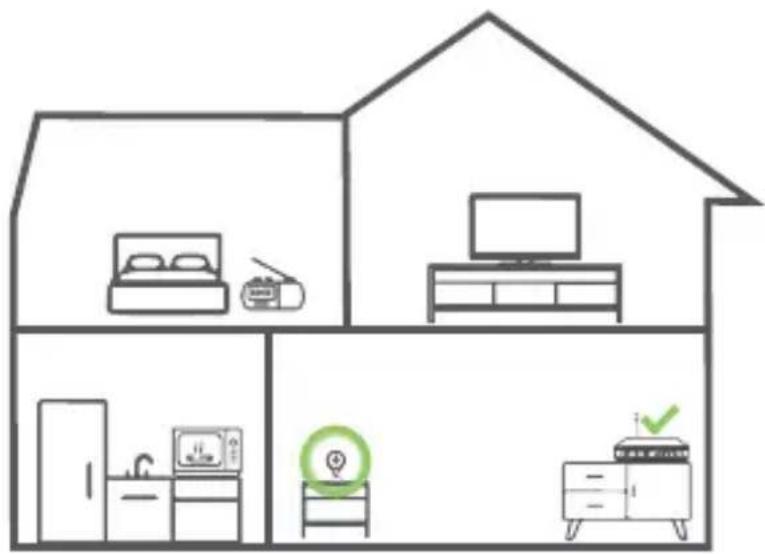
- Place the camera as close to your Wi-Fi router or access point as possible.
- Reduce the number of obstructive materials between the camera and the router or access point. Concrete, brick, metal and wood are the most common materials in your house that can cause poor signal strength.
- Other electronic devices such as microwaves, TVs, cordless phones, and baby monitors can cause signal interference. It is recommended to install the camera as far away from these devices as possible.
text_image
Diagram showing a house with home appliances and kitchen areas, including a TV, refrigerator, washing machine, and air conditioner.Step Two: Mounting the camera (optional)
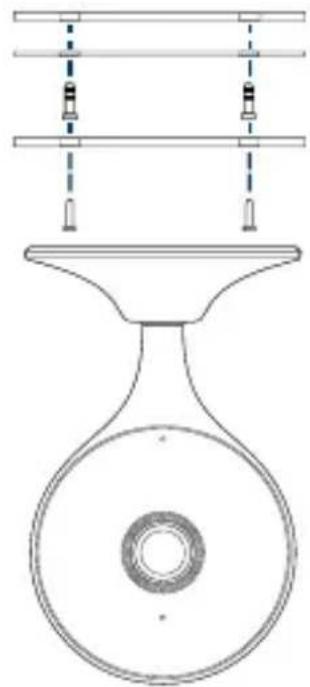
- Use the mounting template to mark two holes for the screws.
- Drill holes using a 1/4" (6mm) drill bit. If mounting to masonry or drywall, gently tap the anchors into the holes.
- Align the magnetic mounting plate with the drilled holes.
- Using a Philips screwdriver and two screws secure the magnetic mounting plate in position.
- Place the camera base onto the magnetic mounting plate.
- Angle and rotate the camera's position as needed.
- Open the camera's settings in the app and enable Image Rotation to flip the camera image.
Image Rotation

natural_image
Technical line drawing of a mechanical component with a circular base and suspended shaft (no text or symbols)Lorex Home app overview
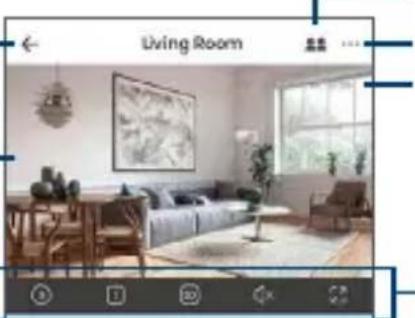
For a complete overview of controls available in the Lorex Home app, go to lorex.com.
Back
Camera live view
natural_image
Interior view of a living room with sofa, coffee table, and wall art (no visible text or symbols)Shared users
Settings Date & time
Two-way talk
Take a snapshot

Seriogranikat;

自然

Richard Vissap
Play back recorded videos
Manually record video
Go on Privacy Mode
to disable the camera's live feed

Trivency folózki
text_image
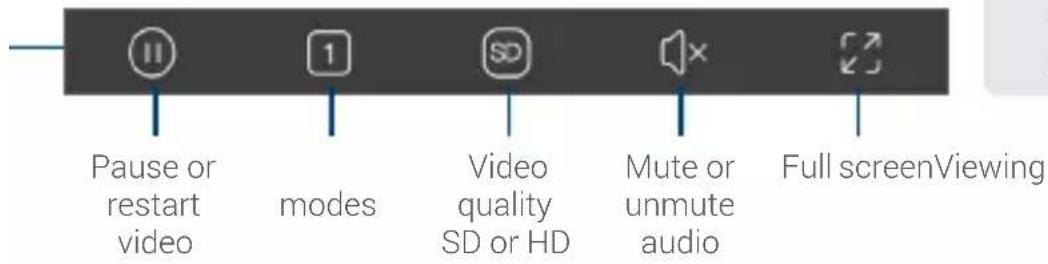
Pause or restart video modes Video quality SD or HD Mute or unmute audio Full screenViewing
Tip!
Change the video quality to SD (Standard Definition) to conserve bandwidth while watching live video. This will not impact the quality of recorded video.
Copyright © 2021 Lorex Corporation
As our products are subject to continuous improvement, Lorex reserves the right to modify product design, specifications and prices, without notice and without incurring any obligation. E&OE. All rights reserved.

This device complies with part 15 of the FCC Rules. Operation is subject to the following two conditions: (1) This device may not cause harmful interference, and (2) This device must accept any interference received, including interference that may cause undesired operation.
For up-to-date information and support, please visit: help.lorex.com
Please see our full Terms of Service and Limited Hardware Warranty Policy at lorex.com/warranty
W461ASC_QSG_TRILINGUAL_R1
LOREX®
Caméra sans fil HD
Série W461ASC
text_image
C D F L E GDimensions
text_image
Two QR codes: one white with a house icon, the other blue with a diamond shape.text_image
Diagram showing a house with various home appliances and icons, including a bed, TV, kitchen, and washing machine.natural_image
Pure technical line drawing of a funnel-shaped device with internal components and dashed lines indicating alignment or measurement (no text or symbols)natural_image
Interior view of a modern living room with sofa, coffee table, and wall art (no visible text or symbols)text_image
User interface toolbar with five labeled icons: play button, timer, standard icon, speaker, and directional arrowsCopyright © 2021 Lorex Corporation
text_image
C D F L E GDimensiones
Altura: 4.3 in (109 mm)
Ancho: 2.7 in (68 mm)
text_image
Two QR codes: one with a white QR code, the other with a house icon inside a blue diamond shape.text_image
Diagram showing a house with various home appliances and icons, including a bed, TV, kitchen, and smart home.natural_image
Technical line drawing of a mechanical component with a funnel and circular base (no text or symbols)Copyright © 2021 Lorex Corporation