
mCam DMC2161 - Surveillance Camera Lorex - Free user manual and instructions
Find the device manual for free mCam DMC2161 Lorex in PDF.


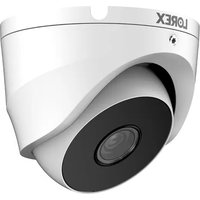
| Product Type | Surveillance Camera |
| Brand | Lorex |
| Model | mCam DMC2161 |
| Connectivity | USB 2.0 |
| Power Supply | USB bus-powered; current per camera ≤ 300 mA |
| Minimum System Requirements | Windows XP, Pentium IV, 256 MB RAM (512 MB recommended), 200 MB storage, Internet connection (DSL/cable), Windows Media Player 9+ |
| Software | mCAM Application with local and remote surveillance |
| Video Recording | Manual and motion-triggered recording |
| Snapshot Capture | Manual and motion-triggered snapshots |
| Motion Detection | Configurable days, time, sensitivity, and actions (record, snapshot, email) |
| Scheduled Events | Set days and time for automatic recording/snapshots |
| Email Alerts | Send snapshot via email on motion detection |
| Remote Viewing | Via Windows Media Player using IP address and port 9868 |
| Mounting Options | Clip mount, wall mount, stand mount (universal bracket included) |
| Language Support | Multiple languages via software selection |
| Compliance | FCC Part 15 Class B, Canadian DOC Class B |
Frequently Asked Questions - mCam DMC2161 Lorex
User questions about mCam DMC2161 Lorex
0 question about this device. Answer the ones you know or ask your own.
Ask a new question about this device
Download the instructions for your Surveillance Camera in PDF format for free! Find your manual mCam DMC2161 - Lorex and take your electronic device back in hand. On this page are published all the documents necessary for the use of your device. mCam DMC2161 by Lorex.
USER MANUAL mCam DMC2161 Lorex
Lorex Technology Inc.
300 Alden Road, Markham, Ontario, Canada L3R 4C1
Lorex Corporation.
3700 Koppers Street, Suite 504, Baltimore, Maryland, 21227

LOREX®
USER MANUAL
mCAM™
LOREX®

LOREX®
www.lorexcctv.com
Under the copyright laws, this documentation may not be copied, photocopied, reproduced, translated, or reduced to any electronic medium or machine readable form, in whole or part without the prior written consent of Lorex Technology Inc., except in the manner described in the documentation.
© Copyright 2007. Lorex Technology Inc., 300 Alden Road, Markham, Ontario, Canada L3R 4C1
Document Revision 4.0


This equipment has been tested and found to comply with the limits for a class B digital device, pursuit to Part 15 of the FCC rules. These limits are designed to provide reasonable protection against harmful interference in a residential installation. This
equipment generates, uses and can radiate radio frequency energy and, if not installed and used in accordance with the instructions, may cause harmful interference to radio communication. However there is no guarantee that interference will not occur in a particular installation. If this equipment does cause harmful interference to radio or television reception, which can be determined by turning the equipment off and on, the user is encouraged to try to correct the interference by one or more of the following measures:
- Reorient or relocate the receiving antenna increases the separation between the equipment and receiver
- Connect the equipment into an outlet on a circuit different from that to switch the receiver is connected
- Consult the dealer or an experience radio or television technician for help.
This device complies with Part 15 of the FCC rules. Operation is subject to the following two conditions:
- This device may not cause harmful interference, and
- This device must accept any interference received, including interference that may cause undesired operation
This digital apparatus does not exceed the Class B limits for radio noise emissions from digital apparatus set out in the Radio Interference Regulations of the Canadian Department of Communications.
ALWAYS USE DISCRETION WHEN INSTALLING VIDEO AND AUDIO SURVEILLANCE EQUIPMENT ESPECIALLY WHEN THERE IS PERCEIVED PRIVACY. INQUIRE REGARDING FEDERAL, STATE AND OR LOCAL REGULATIONS APPLICABLE TO THE LAWFUL INSTALLATION OF VIDEO AND OR AUDIO RECORDING OR SURVEILLANCE. PARTY CONSENT MAY BE REQUIRED
Current rating per camera should not exceed 300mA if on board power from the video capture device is used.
ABOUT THIS MANUAL
This manual is designed to provide you with in depth instruction for the use of mCAM products. We recognize that most functions and features of mCAM hardware and the mCAM software are intuitive by design. However, for functions and features that are not perfectly clear we have developed a couple of icons to convey important information or instruction to you. The icons you will see throughout this manual are as follows:

INFO – Provides additional information about a feature or function to help you understand our products better.

WARNING – Provides information on features and functions that may depend on other factors or yield unexpected results.
1001100110001101010100100100110110011001100110001101010100100100110210011001100110011001

LOREX
TABLE OF CONTENTS
1 Software Installation 2 - 4
2 Setting up the Hardware 5
3 Using the mCAM Application
Main Menu 6-7
Set Start Page
Local Surveillance 8
Play/Stop Video
Mute/Unmute Volume
Record Video
Take Snapshots
Select Device 9
Select Video Device
Select Audio Device
Archive 10 - 11
Search Archive
View Recordings and Snapshots
Motion Detection 12 - 13
Set Days and Time
Set Actions
Set Sensitivity
Scheduled Events 14 - 15
Set Days and Time
Set Actions
Preferences 16
Delete Recordings
Delete Snapshots
Set Start Page
Select Language 17
About 18
4 Remote Surveillance 19
1001100110001101010100100100110110011001100110011001100110011001100110011001100110011001100110011001
I SOFTWARE INSTALLATION

This section will show you how to install the mCAM Application onto your computer.
1
Insert the mCAM application software CD into your computer's CD-Rom drive.
The CD will automatically start the installation program. Follow the on-screen prompts.
Minimum System Requirements:
- Windows XP
- Pentium IV
• 256MB RAM (512MB recommended) - 200MB storage
- Windows Media Center™ is required if you wish to run the enclosed Media Center software
- Internet connection (DSL or cable modem)
- Windows Media Player 9 or above for remote connectivity
* Check www.lorexcctv.com for the most recent software version.
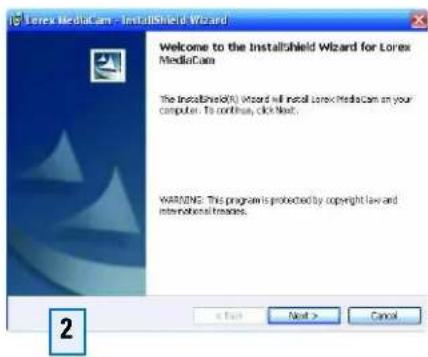
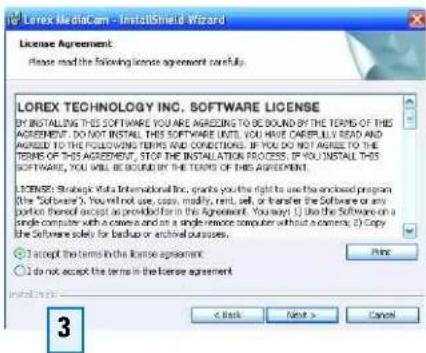

If the CD does not start the installation automatically:

Open My Computer

Double-Click on your CD-Rom Icon
Double-Click on Setup.exe

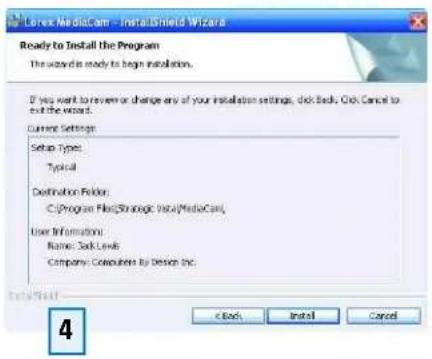
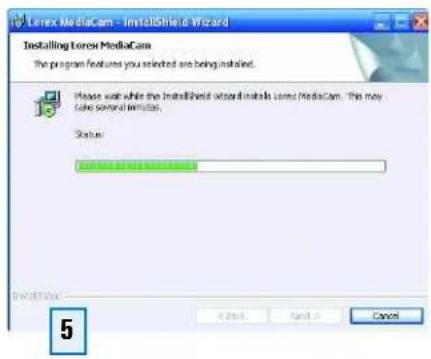
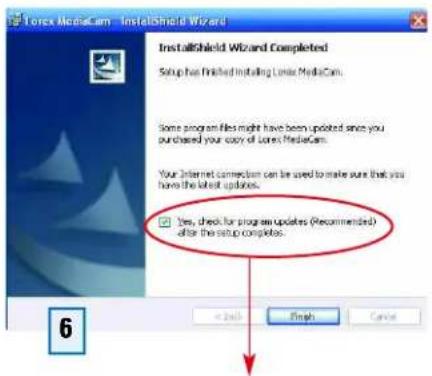
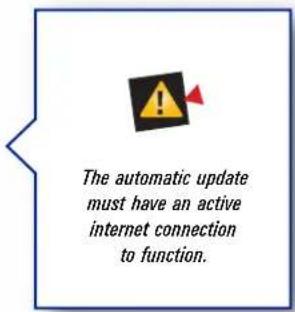
Make sure to check for the most recent program updates.

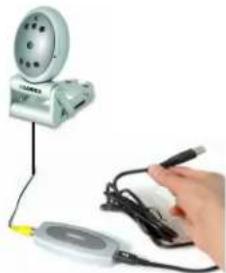
Installation Procedure – This section will show you how to connect your mCAM camera to your computer.
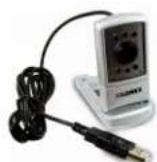
All Lorex® mCAM Cameras feature a simple USB interface to your computer.
natural_image
Hand holding a small electronic device connected to a circular device with a probe (no visible text or symbols)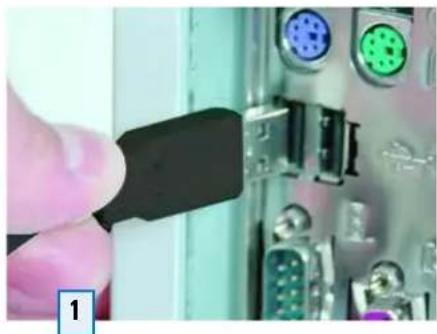
natural_image
Close-up of a hand inserting a black USB into an electronic control panel with multiple colored pins (no visible text or symbols)Plug the USB connector into your computers USB port
natural_image
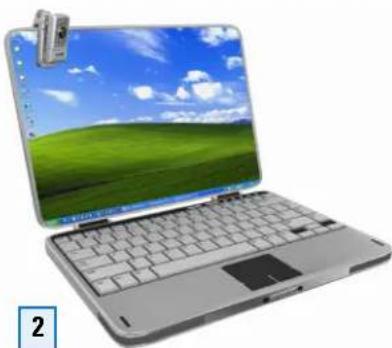
Laptop with a blank desktop wallpaper and a green screen showing a landscape (no visible text or symbols)Mount your camera
Universal mounting bracket/stand and clip allows you to place mCAM anywhere.
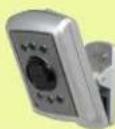
Clip Mount
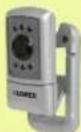
Wall Mount
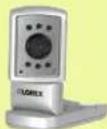
Stand Mount

The camera will be detected by your computer. Follow the wizard steps below.
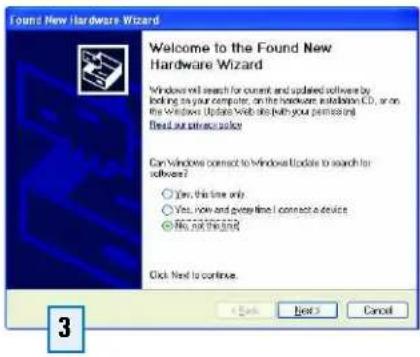
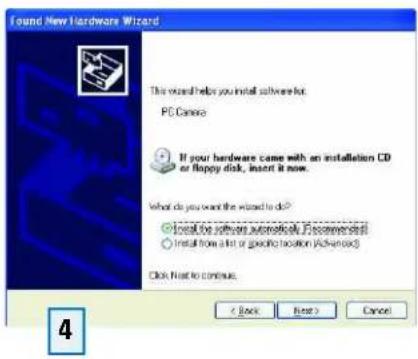
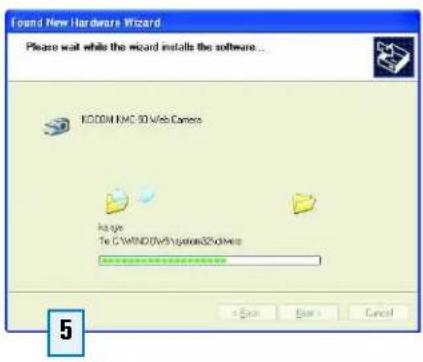
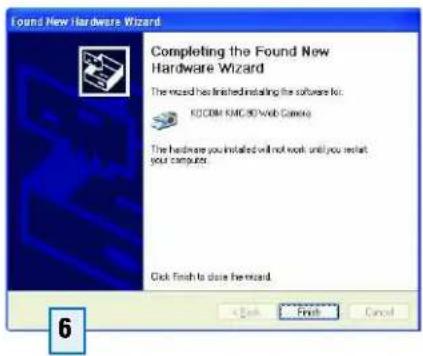
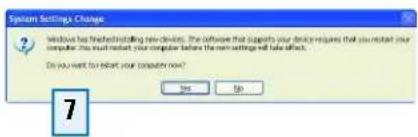

This section will familiarize you the mCAM Software application.
mCAM can run as a Media Center™ application (on computers with Windows Media Center™) or as a web browser application on other Windows operating systems.

For Systems with Microsoft MediaCenter™ navigate to "More Programs"
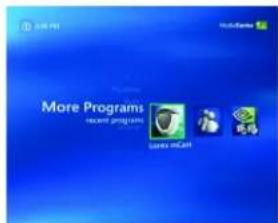
B Select the mCAM icon to open the mCAM Application.
2A For Systems using other Windows operating systems* (see minimum system requirements)
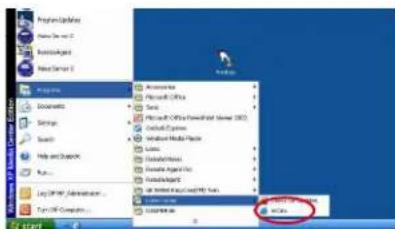
Select Start --> All Programs --> Lorex mCAM --> mCAM to access the Main Menu. This will launch mCAM in your web browser.
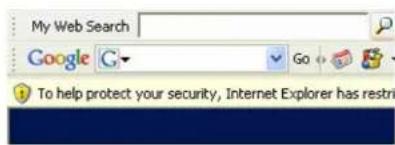
B Allow Active Content from the Security Bar (one time only)
This will allow the ActiveX control to run for this session, but you will need to do this every time you run the application:
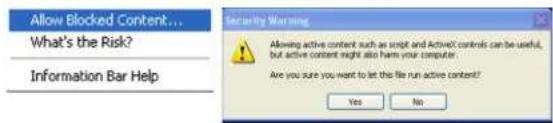
- Click on the Security bar, and select 'Allow Blocked Content' from the dropdown menu.
- Click on the 'Yes' button on the security warning.

LOREX
Default Start Page
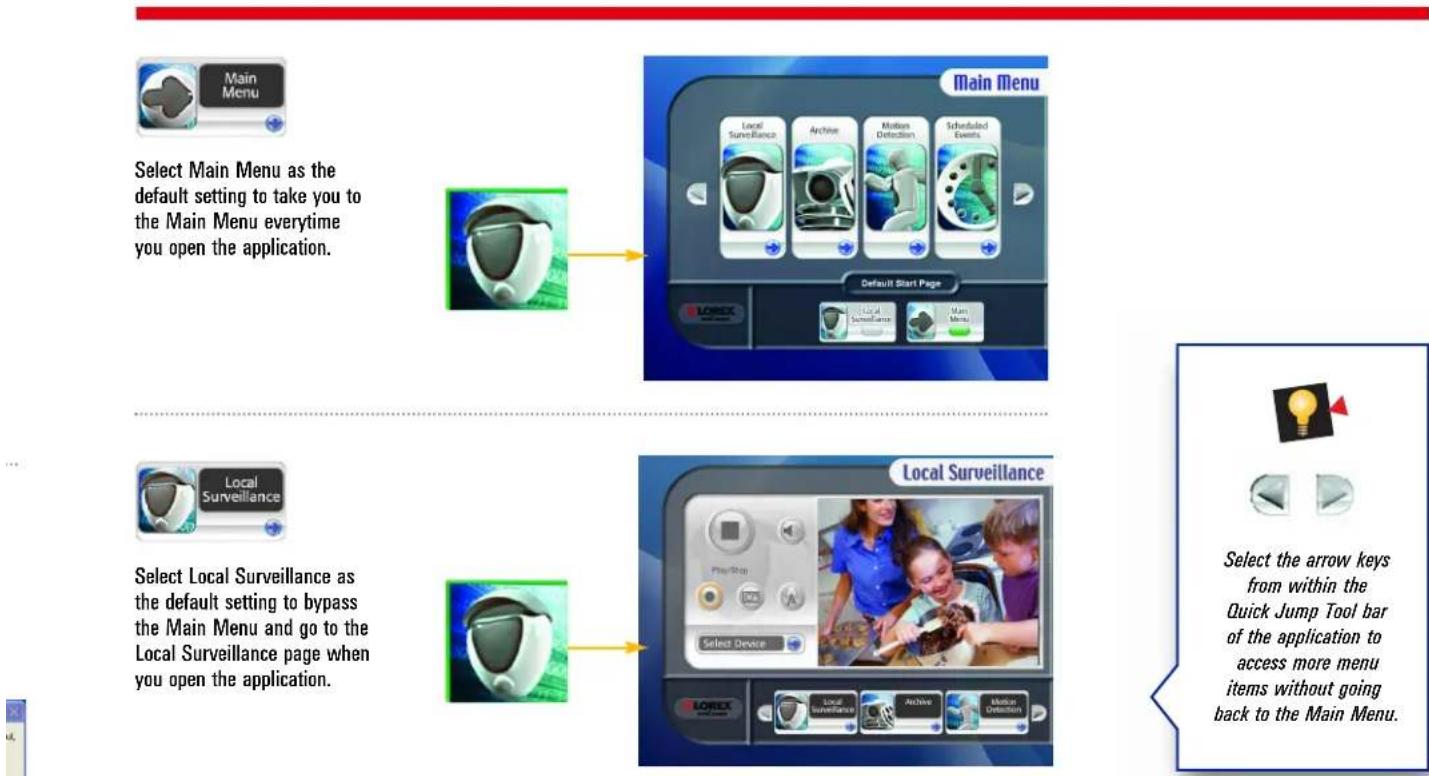
You can set the Default Start Page to Local Surveillance or to Main Menu screen.
Select Main Menu as the default setting to take you to the Main Menu every time you open the application.
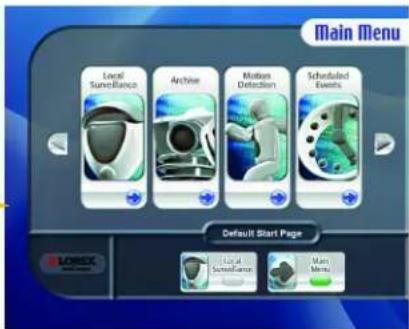
Select Local Surveillance as the default setting to bypass the Main Menu and go to the Local Surveillance page when you open the application.


Select the arrow keys from within the Quick Jump Tool bar of the application to access more menu items without going back to the Main Menu
Default Start Page
1001100110001101010100100100110110011001100110011010101001901901901101100110011001100110011001100110011001100110011001
3 USING THE mCAM APPLICATION
This page is where you can view live video from your mCAM.


Press to Play live video. Press to Stop live video.


Press to Mute the volume. Press to Unmute the volume.


Press to record live video. Press to stop recording.

Press to take a picture of the live video at any given instant.


Press to broadcast live video Press to Stop broadcasting live video.
* Refer to Remote Surveillance section (page 19) in this manual.
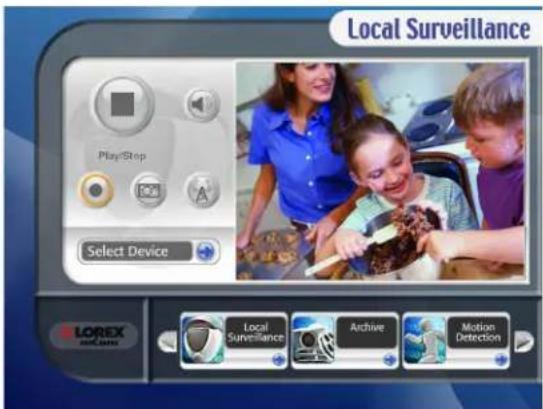

Video must be playing in the Local Surveillance window for Motion Detection and Scheduled Events to function.

You must use the arrows and the OK button on your remote to select Play, Stop, Mute and Record.

If the video screen is flashing with a red frame, the software is detecting motion. See page 12.

This page allows you to select the video and audio device you want to monitor.
Select Video Device
Select the camera you wish to monitor.
Select Audio Device
Select the audio device you wish to monitor.
Save Changes
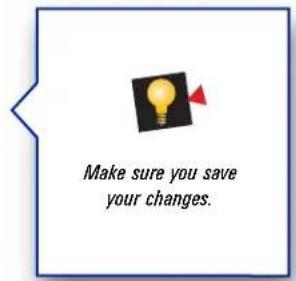
Save your changes before leaving this page.
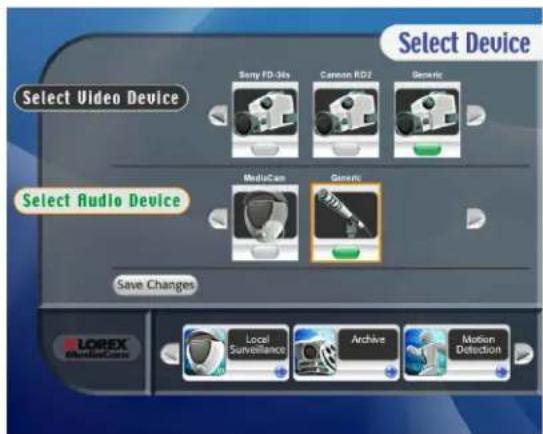

Only video and audio devices plugged in will be displayed.

Local Surveillance will use the video and audio devices selected here.

This page allows you to retrieve previously saved recordings and snapshots.
1 Specify and Search
Set search criteria, by specifying year, month and day.
Select Recordings or Snapshots.
Search Archive
Press the Search Archive button.
2 Select Item
Select the item you wish to view.

Prev 7
Next 7

Press the arrows to view more archived items.
View
Delete
Select to view or delete items in the archive.
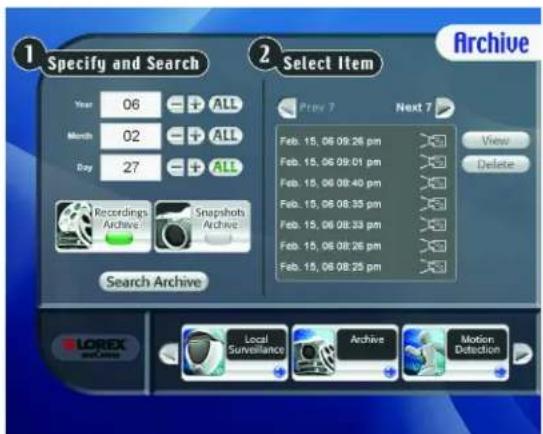

Selecting ALL for the Year will search the archive for items created in that year. Selecting ALL for Month will search the archive for items created in that month for the year specified. Selecting ALL for the Day will search the archive for items created on that day in the month and year specified.


Recordings Archive


Play/pause the current recording.

Stop playback of the current recording.

Delete current recording from archive.


Mute/unmute the volume.


Press to view additional recordings.
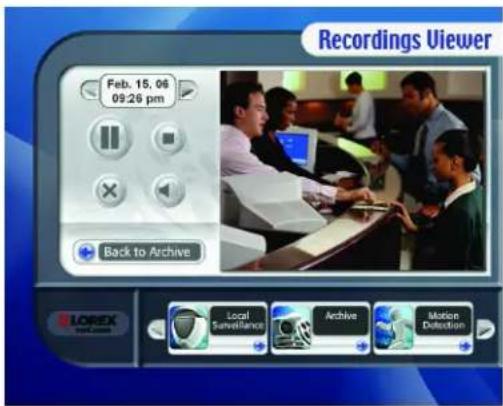

Recordings will play automatically when the Recordings Viewer starts.

Deleting the recording or snapshot will permanently remove it from the archive.

Snapshots Archive

Delete current recording from the archive.


Press to view additional snapshots.
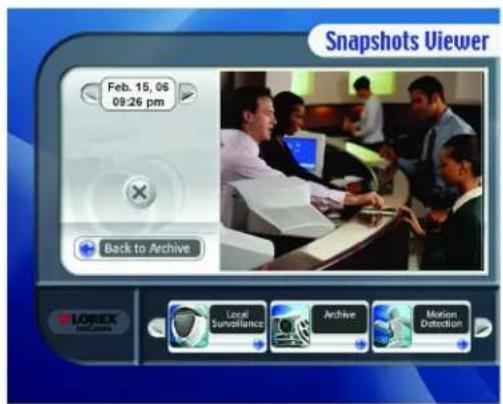
Archive
1001100110001101010100100100110110011001100110021010101001901001101100170017001700170017001700170017001700170017001700170017001700
3 USING THE mCAM APPLICATION
This page will help you setup your camera to record video and take snapshots automatically based on movement within your camera's field of view.
1 Set Days
Select which days of the week mCAM will monitor for motion.
2 Set Time
Select the time range mCAM will monitor for motion on the days selected above.
3 Next
Save Changes
Save your changes before leaving this page.
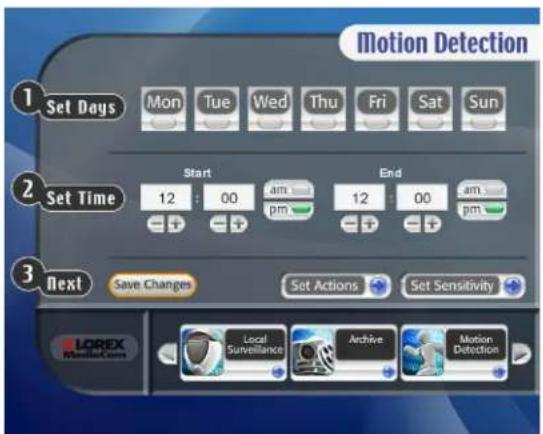

Motion detection is turned on only if at least one day is selected.

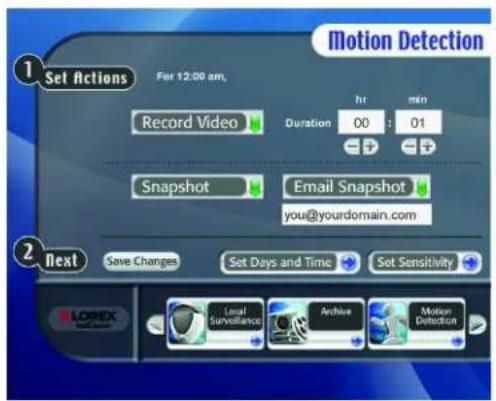
1 Set Actions
Select one or more actions for mCAM to take when motion is detected: Record, Take Snap Shot or Send Email with Snap Shot.
Save Changes
Save your changes before leaving this page.
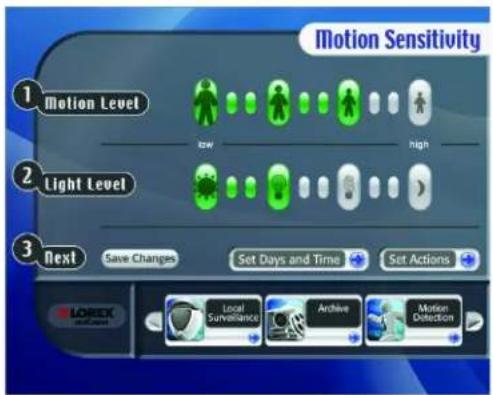
1 Motion Level
Select the level of motion required for mCAM to trigger an action.
2 Light Level
Select the level of light in your environment.
Save Changes
Save your changes before leaving this page.

In order to use the e-mail snapshot feature, you must set your outgoing mail settings on the Preferences page.

A higher Motion Level means greater sensitivity to small movement. A higher Light Level makes the camera less sensitive to motion in darker areas.

Try different Motion and Light Level settings until the desired results have been achieved.

This page will help you set up the mCAM application to record video or take snapshots based on certain days at specific times.
1 Set Days
Select which days of the week mCAM will schedule an event.
2 Set Time
Set the time of the selected days you would like the event to start.
3 Next Save Changes
Save your changes before leaving this page.
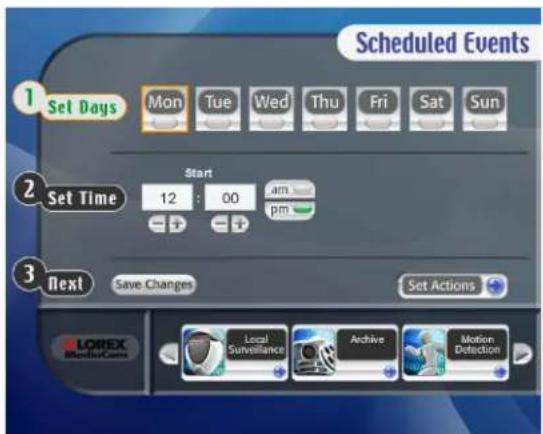

Scheduled Events are turned on only if at least one day is selected.

Video will record at the time specified.

1 Set Actions
Select one or more actions for mCAM to take when motion is detected: Record, Take Snap Shot or Send Email with Snap Shot.
2 Next Save Changes
Save your changes before leaving this page.
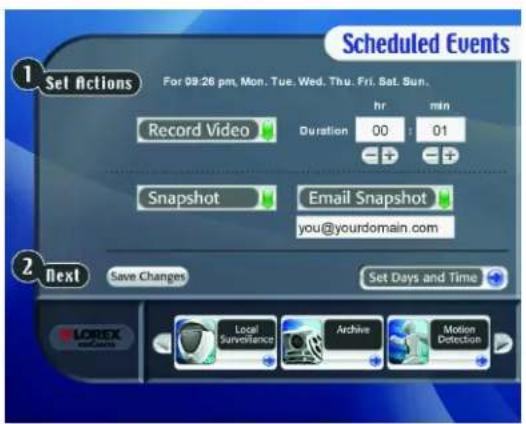

Duration is how long video will be recorded when an event is triggered.

In order to use the e-mail snapshot feature, you must set your outgoing mail settings on the Preferences page.

Settings are independent of the Set Actions page in the Motion Detection section with the exception of the email address.
1001100110001101010100100100110110011001100110021101101010010018911011001100110011002110021
3 USING THE mCAM APPLICATION
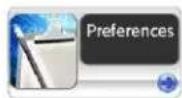
This page is where you may setup system wide mCAM Application parameters.
Delete Recordings
Select the recordings to be purged from the recordings archive by age. Select Save Changes to purge the recordings archive.
Delete Snapshots
Select the snapshots to be purged from the snapshots archive by age. Select Save Changes to purge the snapshots archive.
Email/SMTP
Enter your local email address. Enter your outgoing mail (SMTP) server address.
Username/Password
Enter the logon information for your outbound SMTP email server. Enter your email password.
Save Changes
Save your changes.

The Email and SMTP addresses as well as the Username and Password is the same information you enter when you configure email applications for outbound email such as Outlook or Outlook Express.

You can return to the Preferences page at any time to purge the archive of unwanted items.

This page allows you to select your preferred language.
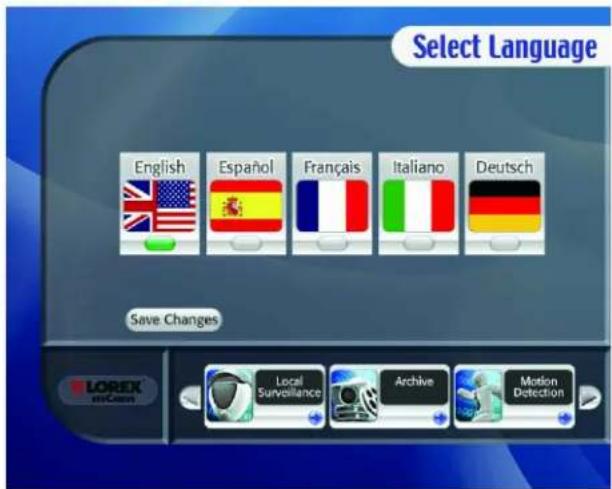

This page provides our support contact information and your software version.
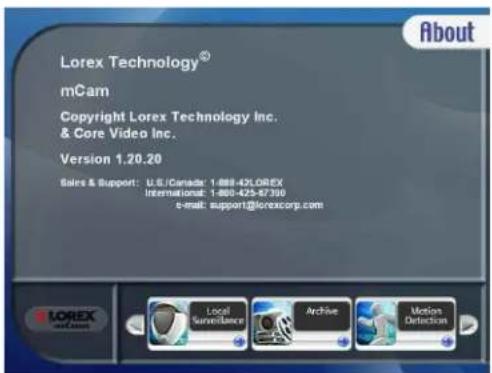

If you call technical support you will need your software version number.
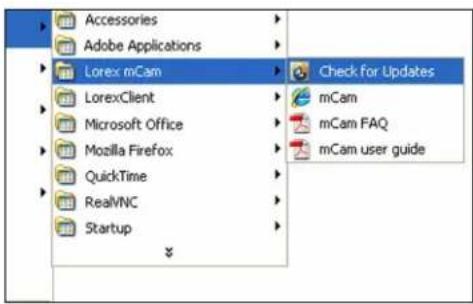
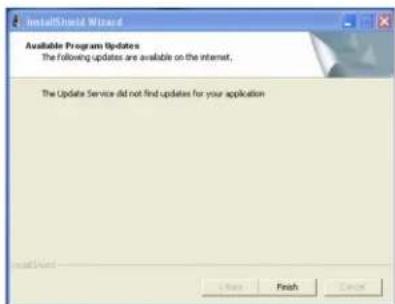

You can check for software updates, FAQs by clicking Start/Programs/Lorex mCAM/ Check for updates.
4
REMOTE SURVEILLANCE

Windows Media Player
This section will familiarize you with using Windows Media Player to remotely view your camera.
ON YOUR LOCAL COMPUTER IN THE LOCAL SURVEILLANCE SCREEN (the computer running the mCAM application)

Press the Broadcast Button

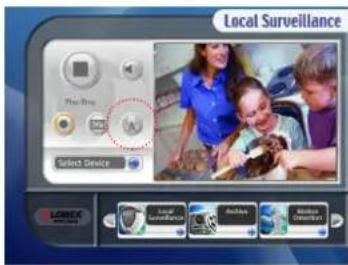
Note: Do not close the Local Surveillance Screen as this will disconnect the broadcasting.
ON YOUR REMOTE COMPUTER

Open Windows Media Player
(click Start/All Programs/Accessories/Entertainment/Windows Media Player)


From Windows Media Player
screen, select menu item File --> Open URL.
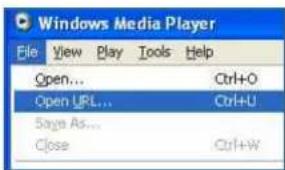

Enter the URL - http://a.b.c.d:9868 - where a.b.c.d is the IP address of the computer running the mCAM application. Click OK.
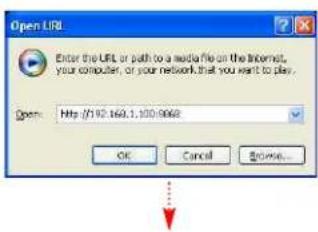

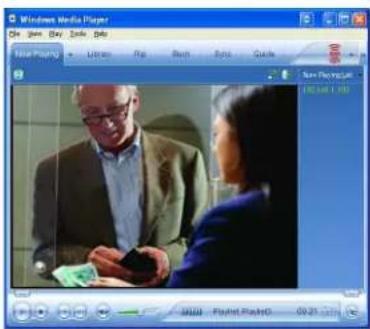
You will now view live video streaming via Windows Media Player.

For detailed information about determining your IP address, configuring your router, and port forwarding, please visit our website www.lorex-cctv.com and click Consumer Guides Section to view Guide on Port Forwarding a Router
- USER MANUAL
- LOREX®
- ABOUT THIS MANUAL
- TABLE OF CONTENTS
- I SOFTWARE INSTALLATION
- 1
- Default Start Page
- USING THE mCAM APPLICATION
- Select Video Device
- Select Audio Device
- Save Changes
- Specify and Search
- Search Archive
- Select Item
- Set Days
- Set Time
- Next
- Set Actions
- Motion Level
- Light Level
- Next Save Changes
- Next Save Changes
- Delete Recordings
- Delete Snapshots
- Email/SMTP
- Username/Password
- 4
- REMOTE SURVEILLANCE
Brand : Lorex
Model : mCam DMC2161
Category : Surveillance Camera