USER MANUAL Indoor Cam C120 eufy
Anker Innovations Limited. All rights reserved, eufy Security and eufy Security Logo are trademarks of Anker Innovations Limited, registered in the United States and other countries. All other trademarks are the property of their respective owners.
51005002219 V01
natural_image
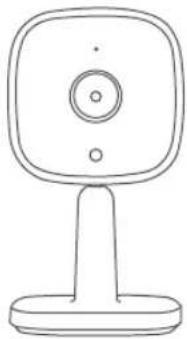
Line drawing of a digital camera with a square head and stand (no text or symbols)
English
Deutsch
Español
Français
Italiano
Nederlands
日本語
لعرّ بِيَة
Table of Contents
What's Included 02
Product Overview 03
Setting up the System 04
Mounting the Indoor Cam 05
Powering on the Indoor Cam 09
Notice
10
WHAT'S INCLUDED
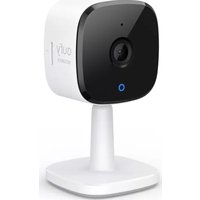
Indoor Cam 2K × 1
Model: T8400
Mounting Plate × 1
USB Cable × |
USB Adapter × I
Mounting Screw Pack × 1
QSG × I
02 English English
PRODUCT OVERVIEW
Indoor Cam 2K
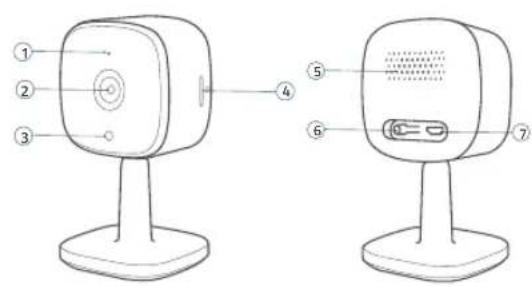
① Microphone
② Lens
③ Status LED
④ SD card slot
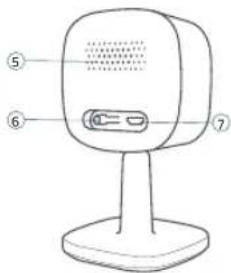
⑤ Speaker
⑥ SYNC button
⑦ Power input
03
SETTING UP THE SYSTEM
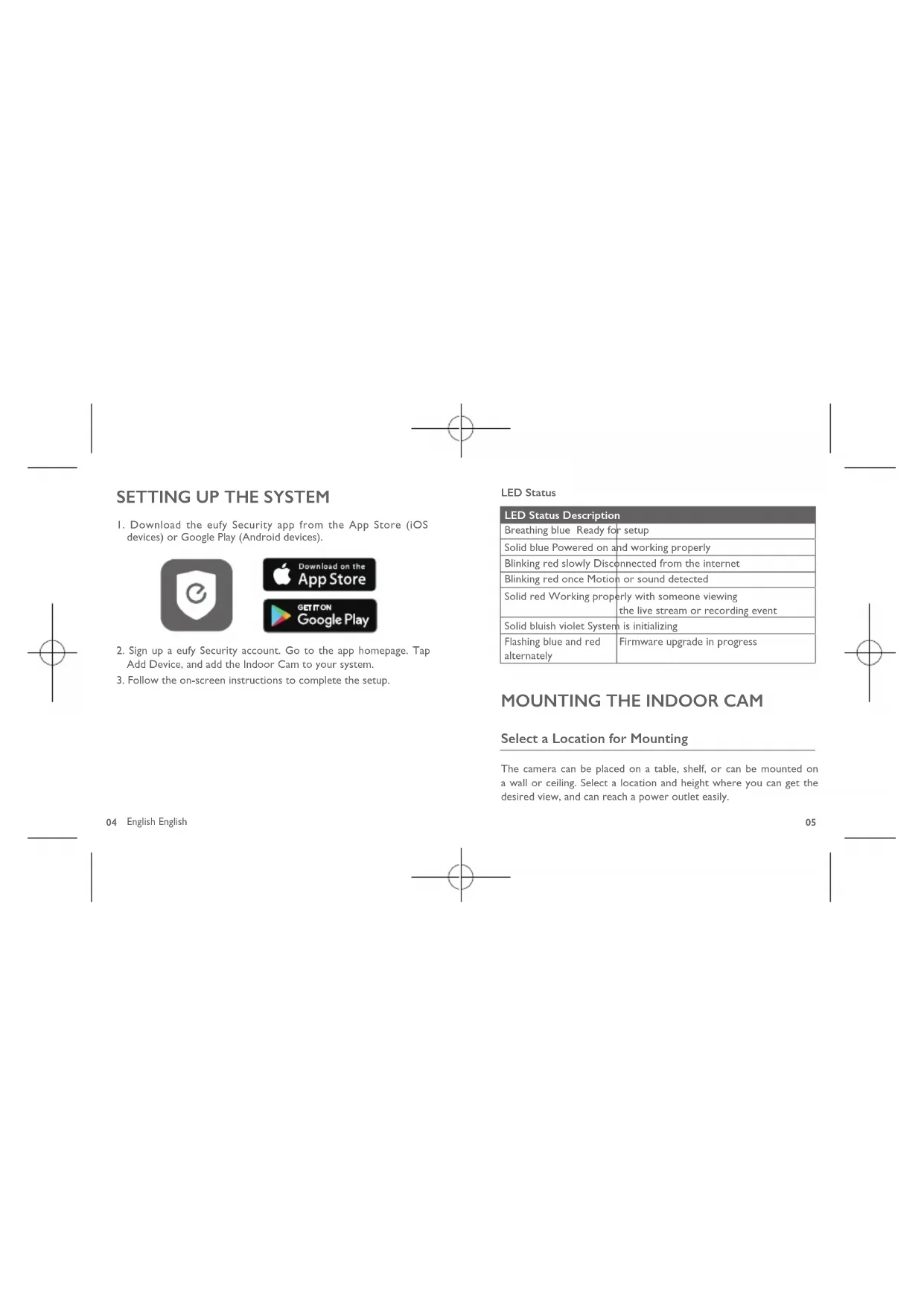
I. Download the eufy Security app from the App Store (iOS devices) or Google Play (Android devices).


- Sign up a eufy Security account. Go to the app homepage. Tap Add Device, and add the Indoor Cam to your system.
- Follow the on-screen instructions to complete the setup.
LED Status
| LED Status Description |
| Breathing blue Ready for setup |
| Solid blue Powered on and working properly |
| Blinking red slowly Disconnected from the internet |
| Blinking red once Motion or sound detected |
| Solid red Working properly with someone viewingthe live stream or recording event |
| Solid bluish violet System is initializing |
| Flashing blue and redalternately | Firmware upgrade in progress |
MOUNTING THE INDOOR CAM
Select a Location for Mounting
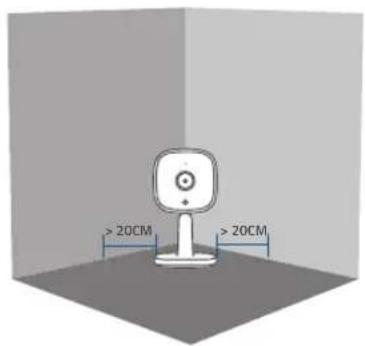
The camera can be placed on a table, shelf, or can be mounted on a wall or ceiling. Select a location and height where you can get the desired view, and can reach a power outlet easily.
natural_image
3D rendering of a small electronic device with two labeled dimensions (>20CM), shown in a corner panel (no text or symbols on the device itself)

- Disconnect the Indoor Cam from the power outlet before mounting.
- Keep the Indoor Cam at least 0.7 ft / 20 cm away from walls or anything that may obstruct the view. Do this to avoid infrared reflection which can have a negative impact on the night vision performance.
Mount the Indoor Cam
The Indoor Cam can be mounted on the wall or ceiling.
To mount the Indoor Cam on the wall:
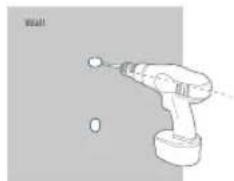
- Align the positioning card and then mark the points at which drilling will be required.
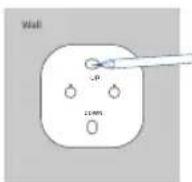
- Drill holes with a 15/64" (6 mm) drill bit.
natural_image
Line drawing of a handheld electric drill bit with a ball, no text or symbols present
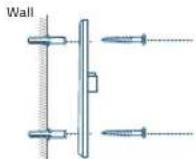
- Align the holes on the mounting plate with those on the wall, matching the direction as UP and Down indicates. Insert the anchors into the holes; anchors are necessary for walls that are made out of hard materials such as concrete, brick, or stucco. Fix the screws with a Phillips-head screwdriver to fasten the mounting plate onto the wall.
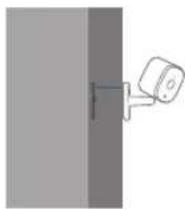
- Align the Indoor Cam's mounting slot with the mounting plate, and then push the camera down until it clicks into place.
08 English English
To mount the Indoor Cam on the ceiling, follow the steps 1-4 to secure the camera base onto the mounting plate.
POWERING ON THE INDOOR CAM
Connect the Indoor Cam to the power outlet using the provided USB cable and USB adapter. After powered on, the Indoor Cam will be connected to the system. When it is successfully connected, the status LED will turn solid blue.
Rotate the Indoor Cam to adjust the view by checking the live streams in the eufy Security app. You are all set to use the Indoor Cam.
For troubleshooting, check Help on the eufy Security app. Refer to the app page for LED indicator status.
NOTICE
FCC Statement
This device complies with Part 15 of the FCC Rules. Operation is subject to the following two conditions: (1) this device may not cause harmful interference, and (2) this device must accept any interference received, including interference that may cause undesired operation.
Warning: Changes or modifications not expressly approved by the party responsible for compliance could void the user's authority to operate the equipment.
Note: This equipment has been tested and found to comply with the limits for a Class B digital device, pursuant to Part 15 of the FCC Rules. These limits are designed to provide reasonable protection against harmful interference in a residential installation.
This equipment generates uses and can radiate radio frequency energy and, if not installed and used in accordance with the instructions, may cause harmful interference to radio communications. However, there is no guarantee that interference will not occur in a particular installation. If this equipment does cause harmful interference to radio or television reception, which can be determined by turning the equipment off and on, the user is encouraged to try to correct the interference by one or more of the following measures: (1) Reorient or relocate the receiving antenna. (2) Increase the separation between the equipment and receiver. (3) Connect the equipment into an outlet on a circuit different from that to which the receiver is connected. (4) Consult the dealer or an experienced radio/ TV technician for help.
FCC Radio Frequency Exposure Statement
The device has been evaluated to meet general RF exposure requirements. The device can be used in fixed/mobile exposure condition. The min separation distance is 20cm. Notice: Shielded cables
All connections to other computing devices must be made using shielded cables to maintain compliance with FCC regulations.
10 English English
The following importer is the responsible party
Company Name: POWER MOBILE LIFE, LLC
Address: 400 108th Ave NE Ste 400, Bellevue, WA 98004-5541
Telephone: 1-800-988-7973

This product complies with the radio interference requirements of the European Community.
Hereby, Anker Innovations Limited declares that this device is in compliance with the essential requirements and other relevant provisions of Directive 2014/53/EU. For the declaration of conformity, visit the Web site: https://www.eufylife.com/.
This product can be used across EU member states.
The adapter shall be installed near the equipment and shall be easily accessible.
Do not use the Device in the environment at too high or too low temperature, never expose the Device under strong sunshine or too wet environment.
The suitable temperature for T8400 and accessories is 0°C-40°C.
When charging, please place the device in an environment that has a normal room temperature and good ventilation.
It is recommended to charge the device in an environment with a temperature that ranges from 5^ C– 25^ C.
Please ensure to use only the charger offered by the manufacturer. Using unauthorized charger may cause danger and violate the authorization of the device and the guarantee article.
This charger is for indoor use only.
The charger type is TEKA006-0501000EU, output voltage/current is 5Vdc/1A. The plug considered as disconnect device of adapter.
RF exposure information: The Maximum Permissible Exposure (MPE) level has been calculated based on a distance of d = 20 cm between the device and the human body. To maintain compliance with RF exposure requirement, use product that maintains a 20cm distance between the device and human body.
Wi-Fi Operating Frequency Range:2412\~2472MHz; Wi-Fi Max Output Power: 17.20dBm (EIRP)
Bluetooth Operating Frequency Range: 2402\~2480MHz; Bluetooth Max Output Power: -4.01dBm (EIRP)
The following importer is the responsible party (contact for EU matters only)
Importer: Anker Technology (UK) Ltd
Importer Address: Suite B, Fairgate House, 205 Kings Road, Tyseley, Birmingham, B11 2AA, United Kingdom

This product is designed and manufactured with high quality materials and components, which can be recycled and reused.

This symbol means the product must not be discarded as household waste, and should be delivered to an appropriate collection facility for recycling. Proper disposal and recycling helps protect natural resources, human health and the environment. For more information on disposal and recycling of this product, contact your local municipality, disposal service, or the shop where you bought this product.
12 English English
IC Statement
This device complies with Industry Canada licence-exempt RSS standard(s). Operation is subject to the following two conditions:
(1) this device may not cause interference, and
(2) this device must accept any interference, including interference that may cause undesired operation of the device."
This Class B digital apparatus complies with Canadian ICES-003.
When using the product, maintain a distance of 20cm from the body to ensure compliance with RF exposure requirements.
natural_image
3D rendering of a small electronic device with two labeled dimensions (>20CM), shown in perspective view against a plain background (no text or symbols on the device itself)

natural_image
Illustration of a handheld electric drill with a headlamp and screw holes (no text or symbols)
Deutsch
natural_image
3D rendering of a camera with two measurement annotations showing >20CM (no text or symbols on the device itself)
Español

natural_image
Line drawing of a handheld electric drill with a ball on top, no text or symbols present
natural_image
Diagram of a wall-mounted sensor or sensor assembly with two sensors and a central component (no text or symbols)
Español
natural_image
3D rendering of a small electronic device with two 20cm height annotations on its side (no text or symbols on the device itself)

natural_image
Line drawing of a hand holding a power tool with a small inset showing a dot (no text or symbols)
Français 3938
natural_image
3D rendering of a small electronic device with two measurement annotations (>20CM) on its side, set against a plain background (no text or symbols on the device itself)
Italiano 4746

natural_image
Illustration of a hand holding a tool with a wall marker and two circular holes (no text or symbols)
① Microfoon
② Lens
③ Status-led
④ SD-kaartsleuf
Nederlands
⑤ Luidspreker
⑥ SYNC-knop
⑦ Voedingsingang
natural_image
3D rendering of a small electronic device with two labeled dimensions (>20CM), shown in perspective view against a plain background (no text or symbols on the device itself)

natural_image
Diagram of a handheld electric drill with a labeled 'Wall' (no other text or symbols)
Nederlands
natural_image
3D rendering of a small electronic device with two 20cm measurement labels on its side (no text or symbols on the device itself)

natural_image
Line drawing of a handheld electric drill with a wall marker and circular base (no text or symbols)
日本語 6766
⑤ مکیر صوت
⑥ زر المزامنة
⑦ إدخال الطاقة
① ميكروfoon
② العدسة
③ للحالة LED
SD ④ فتحة بطاقة
ية لغربيه
إعداد nerظام
natural_image
3D rendering of a smart speaker with two measurement annotations (>20CM) on a plain background (no text or symbols on the device itself)
natural_image
Line drawing of a handheld electric drill with a head and trigger, no text or symbols present
ية لغربيه
12-month Limited Warranty
United States +1 (800) 988 7973 Mon-Fri 9AM-5PM (PT)
United Kingdom +44 (0) 1604 936 200 Mon-Fri 6AM-11AM (GMT)
Germany +49 (0) 69 9579 7960 Mon-Fri 6:00-11:00
Anker Innovations Limited
Room 1318-19, Hollywood Plaza, 610 Nathan
Road,Mongkok,Kowloon,Hong Kong