eufyCam S221 - Surveillance Camera eufy - Free user manual and instructions
Find the device manual for free eufyCam S221 eufy in PDF.



| Brand | Eufy |
| Model | eufyCam S221 (eufyCam 2 Pro T8140) |
| Product type | Wireless outdoor surveillance camera |
| Video resolution | 1080p Full HD |
| Viewing angle | 140° (diagonal) |
| Night vision | Yes, up to 8 meters |
| Power supply | Rechargeable lithium-ion battery (13,400 mAh) |
| Battery life | Up to 365 days (normal use) |
| Charging time | 12 hours (via USB cable) |
| Base station | HomeBase 2 (T8010) included |
| Local storage | Up to 16 GB on microSD (not included) or optional cloud |
| Connectivity | Wi-Fi 2.4 GHz, Ethernet port on HomeBase 2 |
| Motion detection | PIR sensor, adjustable detection zone |
| Audio | Built-in microphone and speaker, two-way audio |
| Protection rating | IP67 (water and dust resistant) |
| Operating temperature | -20 °C to 50 °C |
| Dimensions (camera) | 8.2 x 7.8 x 8.2 cm (approx) |
| Weight (camera) | 315 g (approx) |
| Recommended mounting height | 2 to 3 meters from ground |
| Included accessories | HomeBase 2, power adapter, Ethernet cable, mounting kit |
| Maintenance and cleaning | Clean the lens with a soft, dry cloth. Avoid abrasive products. |
| Safety and compliance | Compliant with Industry Canada CNR and FCC Class B standards. |
| Repairability | Battery not user-replaceable. Spare parts available from customer service. |
Frequently Asked Questions - eufyCam S221 eufy
User questions about eufyCam S221 eufy
0 question about this device. Answer the ones you know or ask your own.
Ask a new question about this device
Download the instructions for your Surveillance Camera in PDF format for free! Find your manual eufyCam S221 - eufy and take your electronic device back in hand. On this page are published all the documents necessary for the use of your device. eufyCam S221 by eufy.
USER MANUAL eufyCam S221 eufy
Anker Innovations Limited. All rights reserved, eufy Security and eufx Security Logo are trademarks of Anker Innovations Limited, registered in the United States and other countries. All other trademarks are the property of their respective owners.
51005002318V02
English
Deutsch
Espanol
Français
Italiano
Nederlandds
Portuguese

80
TABLE OF
CONTENTS
Getting Started
02
06
Mounting the Camera
Product Overview
03
1
Charging eufyCam 2 Pro
Connecting the HomeBase 2
04
12
Notice
Setting Up the System
05
EN 01
GETTING STARTED
For HomeBase 2 installation
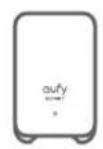
HomeBase 2 (T8010)
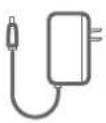
PowerAdapter for HomeBase 2
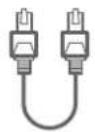
Ethernet Cable
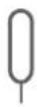
Metal Pin for Resetting
For eufyCam 2 Pro installation

eufyCam 2 Pro (T8140)

Micro-USB Charging Cable

Mounting Bracket

Mounting Screws and Anchors

Indoor Mount

Hook (for Indoor Mount)
1. Camera quantity and accessories vary by bundle package. 2. HomeBase 2 power adapter varies by region.
02 ENEN
2 / PRODUCT OVERVIEW
HomeBase 2
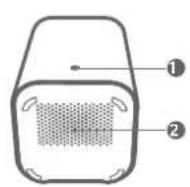
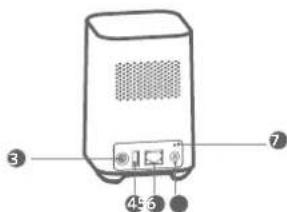
1.Status LED 5.Ethernet port
2. Speaker 6. SYNC/ALARM OFF button
3. Power port 7. Reset button
4. USB port
eufyCam 2 Pro
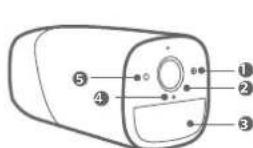
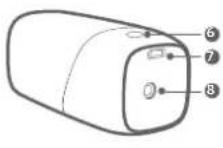
- Photosensitive sensor 5. LED indicator
- Camera lens 6. Sync button
- Motion sensor 7. USB charging port
- Microphone 8. Screw hole
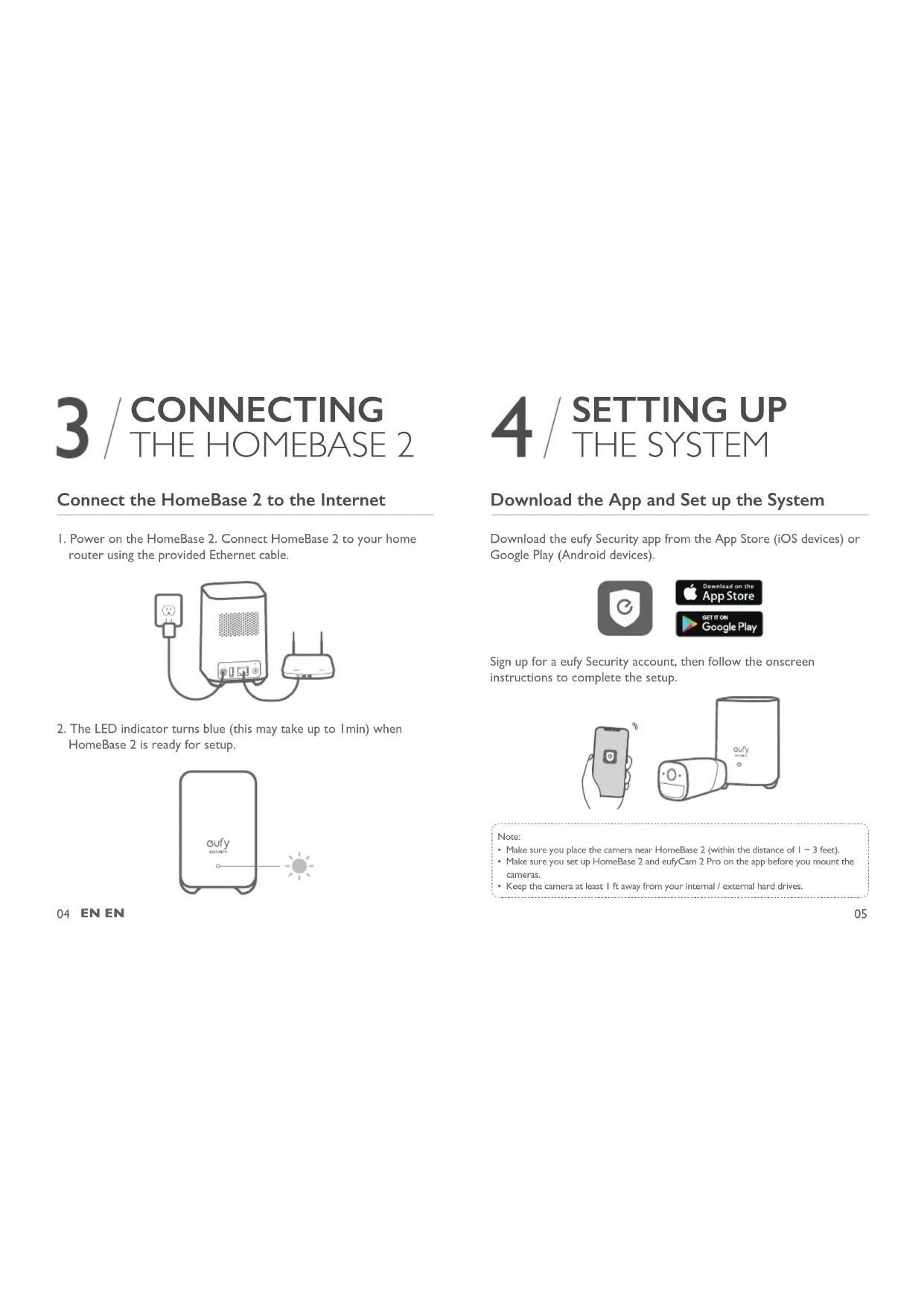
3 / CONNECTING THE HOMEBASE 2
Connect the HomeBase 2 to the Internet
I. Power on the HomeBase 2. Connect HomeBase 2 to your home router using the provided Ethernet cable.
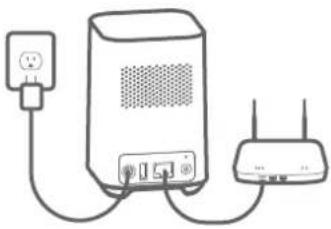
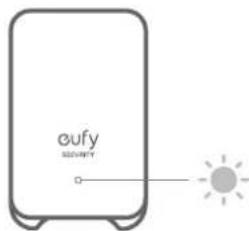
- The LED indicator turns blue (this may take up to 1min) when HomeBase 2 is ready for setup.
04 ENEN
4 / SETTING UP THE SYSTEM
Download the App and Set up the System
Download the eufy Security app from the App Store (iOS devices) or Google Play (Android devices).

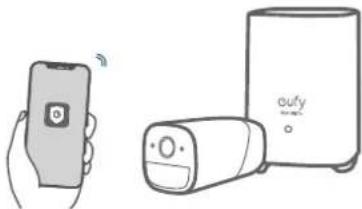
Sign up for a eufy Security account, then follow the onscreen instructions to complete the setup.
Note:
- Make sure you place the camera near HomeBase 2 (within the distance of 1 3 feet).
- Make sure you set up HomeBase 2 and eufyCam 2 Pro on the app before you mount the cameras.
- Keep the camera at least 1 ft away from your internal / external hard drives.
05
5 / MOUNTING THE CAMERA
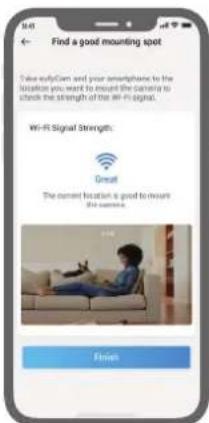
Find a Good Mounting Spot
To find a spot to mount eufyCam 2 Pro, you need to test wireless signal strength.
① Open the eufy Security app, go to Camera Settings > Mounting Guide.
To test the wireless signal strength, take your camera and phone to the location where you want to mount the camera.
③ Move the camera as close to the HomeBase 2 as possible if the wireless.
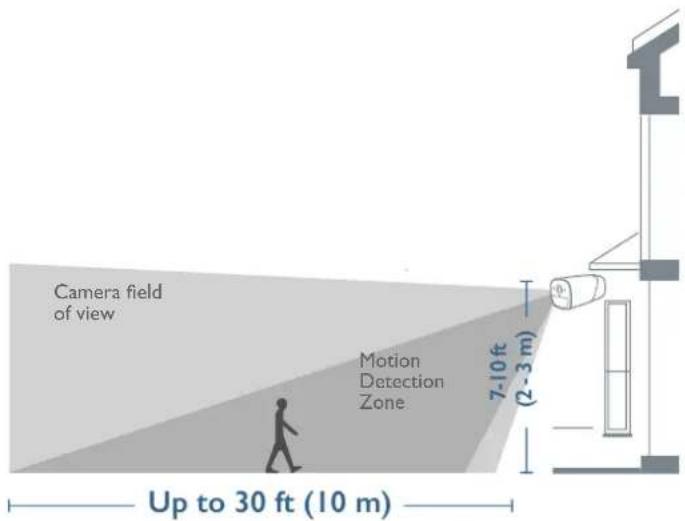
Select Height and Location
Hang eufyCam 2 Pro 7-10 ft (2-3 m) above the ground. This height maximizes the detection range of the motion sensor of eufyCam 2 Pro. Avoid placing eufyCam 2 Pro under direct sunlight.
Mount the camera
The camera can be mounted both indoors and outdoors.
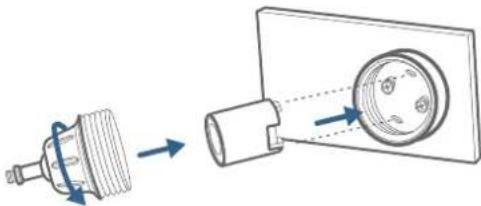
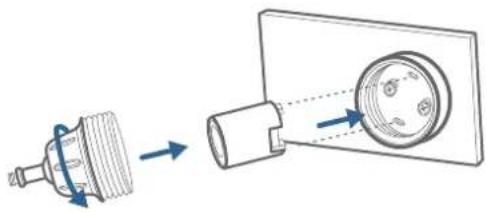
- Turn the knob of the mounting bracket clockwise to loosen and disassemble it.
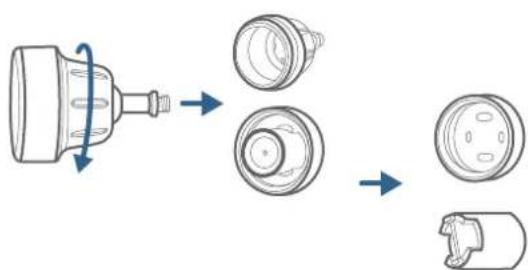
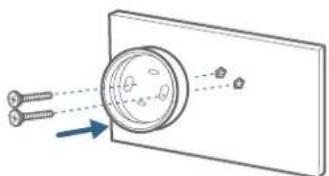
- Drill holes with a 15/64 inch (5.95mm) drill bit, then insert the anchors into the holes; anchors are necessary for walls that are made out of hard materials such as concrete, brick, or stucco.
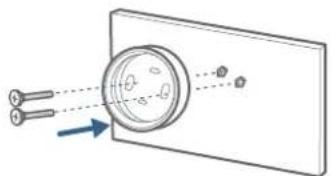
Mount the camera
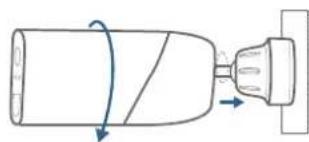
- Firmly screw the base of the mounting bracket onto the wall. Fasten the ball knob of the bracket to the base of the bracket.
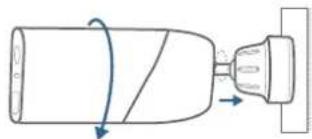
- Tighten eufyCam 2 Pro to the mounting bracket and adjust the viewing angle by checking the live stream feed in the eufy Security app.
Tips:
I. The HomeBase 2 pairs up to 16 cameras, you can repeat the steps mentioned above to add more eufyCam 2 Pro cameras to meet different needs of use.
2. For troubleshooting, check Help on the eufy Security App. Refer to App page for LED indicator status.
Mount the Camera Indoors
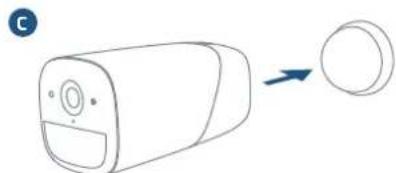
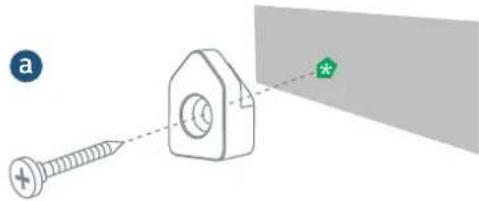
Stick the camera directly to any flat surface made out of iron. Or you can use the indoor mount to mount the camera:
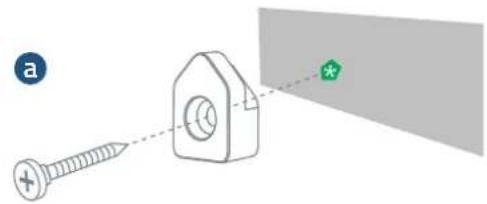
I. Drill a hole. Use the included anchor if it's drywall and fasten the hook.
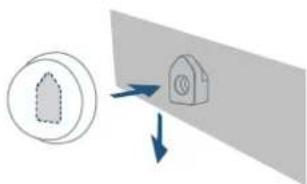
- Hang the indoor mount on the hook.
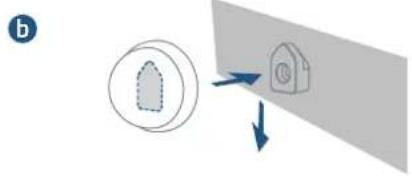
- Attach eufyCam 2 Pro to the indoor mount and adjust the viewing angle.
10 ENEN
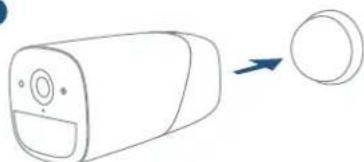
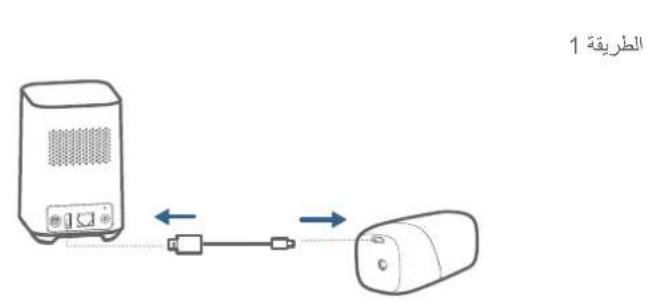
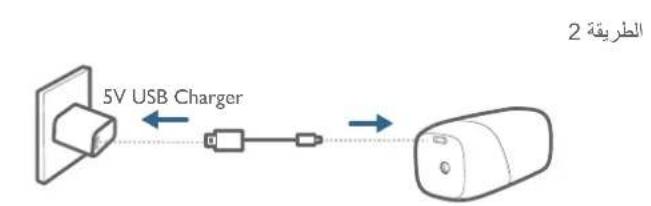
6 / CHARGING EUFYCAM 2 PRO
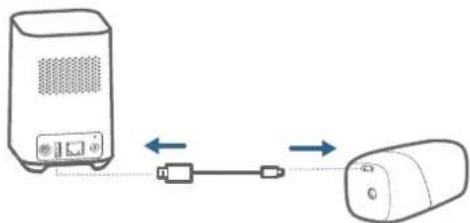
Charge eufyCam 2 Pro
Method I
Method 2
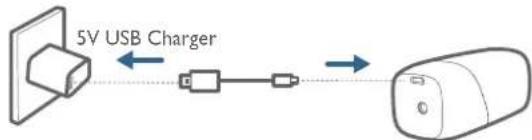
| LED indication | Charging: Steady blue |
| Fully charged: Off | |
| Charging time 12 hours | |
7/NOTICE
FCC Statement
This device complies with Part 15 of the FCC Rules. Operation is subject to the following two conditions: (1) this device may not cause harmful interference; and (2) this device must accept any interference received, including interference that may cause undesired operation.
Warning: Changes on modifications not expressly approved by the party responsible for compliance could void the user's authority to operate the equipment.
Note: This equipment has been tested and found to comply with the limits for a Class B digital device, pursuant to Part 15 of the FCC Rules. These limits are designed to provide reasonable protection against harmful interference in a residential installation.
This equipment generates uses and can radiate radio frequency energy and, if not installed and used in accordance with the instructions may cause harmful interference to radio communications. However, there is no guarantee that interference will not occur in a particular installation. If this equipment does cause harmful interference to radio or television reception, which can be determined by turning the equipment off and on, the user is encouraged to try to correct the interference by one or more of the following measures: (1) Resonant or relocate the receiving antenna; (2) Increase the separation between the equipment and receiver; (3) Connect the equipment into an outlet on a circuit different from that to which the receiver is connected. (4) Consult the dealer or an experienced radio/TV technician for help.
FCC Radio Frequency Exposure Statement
The device has been evaluated to meet general RF exposure requirements. The device can be used in fixed/mobile exposure condition. The min separation distance is 20cm.
Notice: Shielded cables
All connections to other computing devices must be made using shielded cables to maintain compliance with FCC regulations.
The following importer is the responsible party
Company Name: POWER MOBILE LIFE, LLC
Address: 400 108th Ave NE Ste 400, Boulevard, WA 98004-5541
Telephone: 1-800-988-7973
This product complies with the radio interference requirements of the European Community.
Declaration of Conformity
Hereby, Anker Innovations Limited declares that this device is in compliance with the essential requirements and other relevant provisions of Directive 2014/53/EU. For the declaration of conformity, visit the Web site www.oufylife.com Due to the used enclosure material, the product shall only be connected to a USB Interface of version 2.0 or higher.
The adapter shall be installed near the equipment and shall be easily accessible. Do not use the Device in the environment at too high or too low temperature, never expose the Device under strong sunshine or too wet environment.
The suitable temperature for HormeBase 2 and
accessions is-10°C-45°C.
The suitable temperature for eufyCam 2 Pro and accessories is -20^ - 50^
When charging, please place the device in an environment that has a normal room temperature and good ventilation.
It is recommended to charge the device in an environment with a temperature that ranges from 5^ - 25^
Please ensure to use only the charger offered by the manufacturer. Using unauthorized charger may cause danger and violate the authorization of the device and the guarantee article.
This charger is for indoor use only. The charger type is ASSA67W-120200 output voltage/current is 12Vdc/2A. The plug considered as disconnect device of adapter. RF exposure information: The Maximum Permissible Exposure (MPE) level has been calculated based on a distance of d = 20 cm between the device and the human body. To maintain compliance with RF exposure requirement, use product that maintain a 20cm distance between the device and human body.
CAUTION RISK OF EXPLOSION IF BATTERY IS REPLACED BY AN INCORRECT TYPE. DISPOSE OF USED BATTERIES ACCORDING TO THE INSTRUCTIONS.
Wi-Fi Operating Frequency
Range:2412-2472MHz;WiFi Max Output.Power:17.47 dBm
SUBIGFrequencyrange:866-866.8MHzSUBIGOutputPower:5.492dBm
The following importer is the responsible party (contact for EU matters only)
Importer: Ankar Technology (UK) Ltd
Importer Address: Suite B, Fairgate House, 205 Kings Road, Tyseley, Birmingham, B1 2AA, United Kingdom
This product is designed and manufactured with high quality materials and components, which can be recycled and reused.
This symbol means the product must not be discarded as household waste, and should be delivered to an appropriate collection facility for recycling. Proper disposal and recycling helps protect natural resources, human health and the environment. For more information on disposal and recycling of this product, contact your local municipality, disposal service, or the shop where you bought this product.
IC Statement
This device complies with Industry Canada licence-exempt RSS standard(s). Operation is subject to the following two conditions: (1) this device may not cause interference, and (2) this device must accept any interference, including interference that may cause undesired operation of the device."
This Class B digital apparatus complies with Canadian ICES-003.

Cable de charge micro-USB

Support demontage
5 / INSTALAR A CÁMARA
cllall gllll lal 15/64 .2
1. jzol
aie 1e iie aie gai jil pliai yaiall ie gai jill aiis jies sial ayaiy .3
jae jai jai jai jai jai eufyCam 2 Pro Jai S Jai S .4 eufy Security
:
16 10 homeBase 2 1
euyfCam 2 Pro 4
euy Security "eul" 2 LED
1 1
jss s 1 1 1 1 1 1 1 1 1 1 1 1 1 1
1
b
2 eufyCam 1
C
EUFYCAM 2 PRO / 6
eufyCam 2 Pro
12-month limited warranty
United States +1 (800) 988 7973 Mon-Fri 9AM-5PM (PT)
United Kingdom +44 (0) 1604 936 200 Mon-Fri 6AM-11AM (GMT)
Germany +49 (0) 69 9579 7960 Mon-Fri 6:00-11:00
Email Us
Customer Support: support@eufylife.com
Anker Innovations Limited
Room 1318-19, Hollywood Plaza, 610 Nathan Road, Mongkok, Kowloon, Hong Kong

@EuftyOfficial @EuftyOffnl@EuftyOfficial