HV24H1 - TV HKC - Free user manual and instructions
Find the device manual for free HV24H1 HKC in PDF.



| Product Type | LED Television |
| Brand | HKC |
| Model | HV24H1 |
| Screen Size | 24 inches (approx. 61 cm) |
| Screen Resolution | HD 1366 x 768 pixels (estimated) |
| Backlight Type | LED |
| Dimensions (approx.) | 55 x 35 x 8 cm (W x H x D, without stand) |
| Weight (approx.) | 3.5 kg |
| Power Supply | 100-240 V ~ 50/60 Hz (estimated) |
| Power Consumption (operating) | Less than 35 W |
| Power Consumption (standby) | Less than 0.49 W |
| Protection Class | Class II (double insulation) |
| Connectivity | 3 x HDMI, 1 x USB, 1 x AV, 1 x RF antenna, 1 x RJ45, 1 x coaxial audio output, 1 x headphone |
| Main Features | DTT channels, USB media player, Netflix, Prime Video, YouTube, Deezer, PLEX, web browser, VIDAA Free, HbbTV |
| Maintenance and Cleaning | Use a dry, soft cloth. Do not use liquid products. |
| Safety | Do not open the casing. Protect from moisture. Do not expose to rain or humidity. Use a grounded outlet. |
| Spare Parts and Repairability | No user-serviceable parts. Contact qualified personnel. |
| General Information | Smart TV with VIDAA operating system. Remote control included. User manual available for download. |
Frequently Asked Questions - HV24H1 HKC
User questions about HV24H1 HKC
0 question about this device. Answer the ones you know or ask your own.
Ask a new question about this device
Download the instructions for your TV in PDF format for free! Find your manual HV24H1 - HKC and take your electronic device back in hand. On this page are published all the documents necessary for the use of your device. HV24H1 by HKC.
USER MANUAL HV24H1 HKC
natural_image
Illustration of a laptop computer with a blank screen and glossy surface (no text or symbols)HV24H1
HV32H1-D1
HV42F1-D1
HV50U1-D1
HKC
USER'S MANUAL LED TV SET
natural_image
Illustration of a laptop computer with a blank screen and glossy surface (no text or symbols)CONTENIDO
natural_image
Illustration of a computer monitor with blue lightning bolts and a crossed-out screwdriver (no text or symbols)Precaución
natural_image
Simple line drawing of a computer monitor with a blue X mark and a hanging paper curtain (no text or symbols)Precaución
natural_image
Illustration of a computer monitor with a 'X' symbol and a hand holding a spark plug above it (no text or symbols present)Precaución
natural_image
Simple line drawing of a box with a 'X' symbol inside, placed on a stand (no text or labels)Precaución
natural_image
Cartoon illustration of a person standing on a computer monitor with a 'X' symbol, surrounded by floating clouds (no text or symbols present)Precaución
natural_image
Illustration of a computer monitor with an X mark and lightning bolt, placed on a table (no text or symbols)Precaución
natural_image
Illustration of a chef next to a computer monitor and a small globe (no text or symbols)Precaución
natural_image
Simple line drawing of a computer monitor with a pointer and radiating lines (no text or symbols)Precaución
text_image
VIDAA It's all about U prime videos YouTube I knower VODA Free VODA ART TV Show TV TV News Sports YUPPTV Medianatural_image
User interface icons including search, refresh, gear, alarm, and user profile (no text or symbols)text_image
Picture Sound Network Channel Accessibility System i SupportIMAGEN
text_image
Picture Picture Mode Standard > Sound Aspect Ratio Automatic > Network Screen Mode Channel Picture Mode Settings > Accessibility System SupportModo Imagen
text_image
Picture Mode Settings Apply Picture Settings Current Source Adjust current picture mode to apply to all Sources or just current source Backlight Brightness 50 Contrast 50 Colour Saturation 50 Sharpness 28 Adaptive Contrast Medium Noise Reduction MediumES
text_image
Expert Settings Colour Tuner White Balance Block Litter Button Gamma Adjustment 2.2 Gamma Calibration RGB Only Mode Off Adjust the Hue, Saturation and Brightness of colour settings.Ajuste de Color
text_image
Reset Current Mode The current picture settings will revert back to the factory default settings. Do you want to continue? Cancel OKES
SONIDO
text_image
Sound Sound Mode Standard headphones Sound Mode Settings Speakers Select a preset sound mode to suit the type of content if you are listening totext_image
Sound Mode Settings Apply Audio Settings Current Source Bass Boost Surround Sound Dialog Clarity TruVolume Equalizer Wall Mount Setup Auto Volume Control Adjust current sound mode to apply to all sources or just the current sourcetext_image
Speakers Audio Output TV Speaker Digital Audio Output PCM Select the digital audio output format that best suits the audio device type. Digital Audio Drive Lip Sync 3 Balance 0SONIDO
Salida de Audio
Balanced left and right channels.
text_image
Network Network Configuration Disconnected Internet Connection Wake on Wireless Network Wake on LAN Set up the network to gain full access of Smart TV features.text_image
Channel Auto Scan Automatic channel scan Channel Edit Advanced Settingstext_image
Rescan Reception: Cable Operator: Standard Scan Mode: DTV LCN: Off Change Setup RescanRecepción
text_image
Reception Satellite Cable Auto Channel ScanES
Ajuste de Modo
text_image
Mode setup Channel All Channels Scan Mode DTV Search Mode Frequency Scan HCN ID Start Frequency LCN Off Auto Channel ScanEscaneo Automático
text_image
Auto Scan 60% Scan: Process 60% Channel: 0 Radio: 0 Stop Signal Quality Signal Level Reception: AntennaCANAL
text_image
Stop Scan Process Do you want to stop the channel scan? Cancel OKEditar canal
Pulse ▼ / ▲ara seleccionar Editar Canal.
text_image
Channel Management Analogue Edit Antenna Edit Cable Edit ASTRA1 19.2"E Edit FAV1 Edit FAV2 EditAjustes avanzados
text_image
Advanced Settings Manual Scan Channel List Auto Update Programme Guide Auto Up... Perform manual channel scan for ATV and OTVCANAL
Escaneo manual
text_image
DTV Manual Scan Tuner Mode Antenna Channel Number 29 Bandwidth 8MHz Channels Found 0 Signal Quality 0% Signal Level 0% StartEscaneo manual de ATV
text_image
Channel Selection Channel List Analogue Select All Unselect All 1 PC01 2 PZ01 3 PC08 4 PB08 Page UP/Page DownACCESIBILIDAD
text_image
Accessibility Picture Menu Scheme Dark Sound High Contrast Menu Network Menu Transparency Medium Channel Hard of Hearing Subtilties Accessibility Audio Type System Dialogue Enhancement SupportEsquema de menú
text_image
System Picture Time > Sound Timer Settings > Network System PIN > Channel Parental Control > Accessibility Language and Location > System Amazon Alexa Service > Support Application Settings > HDMI & CEC >text_image
Time Time Format 12-hour Set the time display to be 12 or 24-hour format Date/Time Time Zone UTC+1 (Berlin) Daylight Saving Sync from DTVSISTEMA
Formato de Hora
text_image
Power On Timer Power On Timer Repeat Once Weekly Time 12 00 AM Cancel ConfirmSISTEMA
text_image
Power Off Timer Power Off Timer Repeat Once Weekly Time 12 00 AM Cancel ConfirmES
text_image
and Location Location Australia > Choose the location from where you will watch your the Menu Language English > Primary Audio English > Secondary Audio English > Primary Subtitle English > Secondary Subtitle English > Digital Teletext WEST EUR >SISTEMA
Ubicación
text_image
Application Settings Content Sharing HbbTV Clear Cache > Delete Cookies > Do Not Track Mode2 > Prime Video > Netflix Stream video, music or any other content from another device to your TV screen.Compartir contenido
text_image
HDMI & CEC CEC Control Allow HDMI devices to control each other.text_image
Advanced Settings TV Name Smart TV Power Indicator Screerisaver 10 Minutes Input Labels Notifications Enhanced Viewing Setup Wizard Fast Power On Choose a name for your TV. The name will be shown to devices that are available for sharing data.Nombre del TV
text_image
Support System Info View System information. Self Diagnosis E-Manual System Update Disclaimer and Privacy Mobile App Download Reset to Factory DefaultES
text_image
Antenna 1 DT29_1080i No programme 2 DT29_576i No programme 3 DT29_576p No programme 4 DT2-46_1080i No programme 5 Advertising FTA No programme 6 Moviz SC No programme 7 Natura SC No programme Please add Fair or IncomeGuía
text_image
Music3.mp3 Menu Information Playlist Audio Only Settings 3/3 Music1.mp3 04:13 Music2.mp3 04:09 Music3.mp3 03:52 00:03:52Información
USER'S MANUAL LED TV SET
natural_image
Illustration of a laptop computer with a blank screen and glossy surface (no text or symbols)CONTENU
natural_image
Illustration of a computer monitor with blue lightning bolts and a crossed-out screwdriver (no text or symbols)Précaution
natural_image
Simple line drawing of a computer monitor with a blue X mark and a hanging paper curtain (no text or symbols)Précaution
natural_image
Illustration of a computer monitor with a cross symbol and a hand holding a starburst above it (no text or symbols present)Précaution
natural_image
Simple line drawing of a box with a cross symbol inside, placed on a stand (no text or labels)Précaution
natural_image
Cartoon illustration of a person holding a computer monitor with a blue X symbol, surrounded by floating clouds (no text or symbols present)Précaution
natural_image
Illustration of a computer monitor with a blue X mark and a lightning bolt on top, symbolizing speed or urgency (no text or symbols present)Précaution
natural_image
Illustration of a person standing next to a computer monitor and a circular icon with a bird (no text or symbols)Précaution
natural_image
Simple line drawing of a computer monitor with a pointer and screen, emitting rays (no text or symbols)Précaution
text_image
VIDAA It's all about 0 prime videos YouTube I knower VIDA Free VIDA Art YouTube Show TV TV CROUS YUPPTV Medianatural_image
User interface icons including search, refresh, gear, alarm, and user profile (no text or symbols)
text_image
Picture Sound Network Channel Accessibility System i SupportIMAGE
text_image
Picture Mode Settings Apply Picture Settings Current Source Adjust current picture mode to apply to all Sources or just current source Backlight Brightness 50 Contrast 50 Colour Saturation 50 Sharpness 28 Adaptive Contrast Medium Noise Reduction MediumFR
text_image
Expert Settings Colour Tuner White Balance Black Lever Beta Gamma Adjustment 2.2 Gamma Calibration RGB Only Mode Off Adjust the Hue, Saturation and Brightness of colour settingstext_image
Reset Current Mode The current picture settings will revert back to the factory default settings. Do you want to continue? Cancel OKFR
SON
text_image
Sound Sound Mode Standard Headphones Sound Mode Settings Speakers Select a preset sound mode to suit the type of content if you are listening to...text_image
Sound Mode Settings Apply Audio Settings Current Source Adjust current sound mode to apply to all sources or just the current source. Bass Boost Surround Sound Dialog Clarity TruVolume Equalizer Wall Mount Setup Auto Volume Controltext_image
Speakers Audio Output TV Speaker > Digital Audio Output PCM Select the digital audio output format that best suits the audio device type. Digital Audio Battery Lip Sync 3 Balance 0.SON
Sortie audio
text_image
Network Network Configuration Disconnected Internet Connection Wake on Wireless Network Wake on LAN Set up the network to gain full access of Smart TV Features.text_image
Channel Auto Scan > Automatic channel scan Channel Edit > Advanced Settings >text_image
Rescan Reception: Cable Operator: Standard Scan Mode: DTV LCN: Off Change Setup RescanRéception
text_image
Reception Satellite Cable Auto Channel ScanFR
Réglage du mode
text_image
Mode setup Channel All Channels Scan Mode DTV Search Mode Frequency Scan Auto Channel Scan Start Frequency LCN Offtext_image
Auto Scan 60% Scan Process 60% Channel: 0 Radio: 0 Stop Signal Quality Signal Level Reception: AntennaCHAÎNE
text_image
Stop Scan Process Do you want to stop the channel scan? Cancel OKModifier la chaîne
text_image
Channel Management Analogue Edit Antenna Edit Cable Edit ASTRAI 19.2"E Edit FAV1 Edit FAV2 EditRéglages avancés
text_image
Advanced Settings Manual Scan Channel List Auto Update Programme Guide Auto Up... Perform manual channel scan for ATV and OTV.CHAÎNE
Recherche manuelle
text_image
DTV Manual Scan Tuner Mode < Antenna > Channel Number 29 > Bandwidth BMHz Channels Found 0 Signal Quality 0% Signal Level 0% StartRecherche ATV manuelle
text_image
Channel Selection Channel List Analogue Select All Unselect All 1 PC01 2 P201 3 PC08 4 PB08 Page UP Page DownACCESSIBILITÉ
text_image
Accessibility Picture Menu Scheme Dark Sound High Contrast Menu Network Menu Transparency Medium Channel Hard of Hearing Subtitles Accessibility Audio Type System Dialogue Enhancement SupportSchéma de menus
text_image
System Picture Time Sound Timer Settings Network System PIN Channel Parental Control Accessibility Language and Location System Amazon Alexa Service Support Application Settings HDMI & CECtext_image
Timer Settings Sleep Timer Off Power On Timer Power Off Timer Menu Timeout 60s Auto Sleep Off Auto Standby with No Signal 15 Minutes Set the sleep timer to automatically turn the TV off at the specified time.Minuteur
text_image
Power On Timer Power On Timer Repeat Once Weekly Time 12 00 AM Cancel ConfirmSYSTÈME
Minuterie d'arrêt
text_image
Power Off Timer Power Off Timer Repeat Once Weekly Time 12:00 AM Cancel Confirm
text_image
and Location Location Australia > Choose the location from where you will watch your TV. Menu Language English > Primary Audio English > Secondary Audio English > Primary Subtitle English > Secondary Subtitle English > Digital Teletext WEST EUR >SYSTÈME
Emplacement
text_image
Application Settings Content Sharing HbbTV Clear Cache > Delete Cookies > Do Not Track Mode2 > Prime Video > Netflix Stream video, music or any other content from another device to your TV screen.Partager du contenu
text_image
HDMI & CEC CEC Control Allow HDMI devices to control each other. Device Auto Power Cell Device Auto Power Cell 3V AutoPower Cell CEC Devicestext_image
Advanced Settings TV Name Smart TV Power Indicator Screensaver 10 Minutes Input Labels Notifications Enhanced Viewing Setup Wizard Fast Power On Choose a name for your TV. The name will be shown to devices that are available for sharing data.Nom du téléviseur
text_image
Support System info View System information Self Diagnosis E-Manual System Update Disclaimer and Privacy Mobile App Download Reset to Factory DefaultFR
text_image
Music3.mp3 Menu information Playlist Audio Only Settings 3/3 Music1.mp3 04:13 Music2.mp3 04:09 Music3.mp3 03:52 00:03:52Information
USER'S MANUAL LED TV SET
natural_image
Illustration of a laptop computer with a blank screen and glossy surface (no text or symbols)CONTENS
- Warning....64
- Important Safety Information ....65
- Safety Precautions....66
- Remote Control....67
• TV Terminal Connections....68
• Home 68 - Input....69
- Setting....69
• Picture....70 - Sound....73
- Network....75
- Channel....76
- Accessibility 80
- System 81
WARNING

CAUTION
RISK OF ELECTRIC SHOCK, DO NOT OPEN

CAUTION: TO AVOID THE RISK OF ELECTRIC SHOCK.
DO NOT REMOVE COVER (OR BACK).
NO USER- SERVICEABLE PARTS INSIDE.
REFER SERVICING TO QUALIFIED SERVICE PERSONNEL.

This symbol is intended to alert the user to avoid the risk of electric shock, do not disassemble this equipment by anyone except a qualified service personnel.

This symbol is intended to alert the user to the presence of important operating and maintenance instructions in the literature accompanying the equipment.

This equipment is a Class II or double insulated electrical appliance. It has been designed in such a way that it does not require a safety connection to electrical earth.
IMPORTANT SAFETY INFORMATION
- Read these instructions.
- Keep these instructions.
- Heed all warnings.
- Follow all instructions.
- Do not use near water.
- Clear only with dry cloth.
- Do not block any ventilation openings. Install in accordance with the manufacturer's instructions.
- Do not install near any heat sources such as radiators, heat registers, stoves, or other apparatus (including amplifiers) that produce heat.
- Do not defeat the safety purpose of the polarized or grounding-type plug. A polarized plug has two blades with one wider than the other. A grounding type plug has two blades and a third grounding prong. The wide blade or the third prong are provided for your safety. If the provided plug does not fit into your outlet, consult an electrician for replacement of the obsolete outlet.
- Protect the power cord from being walked on or pinched particularly at plugs, convenience receptacles, and the point where they exit from the apparatus.
- Only use attachments/ accessories specified by the manufacturer.
- Use only with the cart, stand, tripod, bracket, or table specified by the manufacturer, or sold with the apparatus. When a cart is used, use caution when moving the cart/ apparatus combination to avoid injury from tip-over.
- Unplug this apparatus during lightning storms or when unused for long periods of time.
- Refer all servicing to qualified service personnel. Servicing is required when the apparatus has been damaged in any way, such as power supply cord or plug is damaged, liquid has been spilled or objects have fallen into the apparatus, the apparatus has been exposed to rain or moisture, does not operate normally, or has been dropped.
- Apparatus shall not be exposed to dripping or splashing and that no objects filled with liquids, such as vases, shall be placed on the apparatus.
- WARNING: To reduce the risk of fire or electric shock, do not expose this apparatus to rain or moisture.
- Mains plug or appliance coupler is used as the disconnect device, shall be readily operable.
- The apparatus shall be connected to a MAINS socket outlet with a protective earthing connection.
- WARNING: The batteries shall not be exposed to excessive heat such as sunshine, fire or the like.
- The ON-MODE Power under Home Mode should be less than 35W.
- The Sleep Mode power should be less than 0.49W.
- This equipment is a Class II or double insulated electrical appliance. It has been designed in such a way that it does not require a safety connection to electrical earth.

HIGH-DEFINITION MULTIMEDIA INTERFACE
"HDMI, the HDMI logo and High-Definition Multimedia Interface are trademarks or registered trademarks of HDMI Licensing LLC."
Thank you for buying this TV! Please read this manual thoroughly before operating the TV. Make sure the TV was not damaged in transit. Should the TV be damaged, do not install it and contact your dealer. Check that you have all the accessories according to the model.
SAFETY PRECAUTIONS
natural_image
Illustration of a computer monitor with blue lightning bolts and a crossed-out screwdriver (no text or symbols)
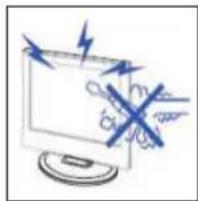
Caution
High voltages are used in the operation of this product. Do not open the product's casing. Refer servicing to qualified service personnel.
natural_image
Simple line drawing of a computer monitor with a blue X mark and a hanging paper curtain (no text or symbols)
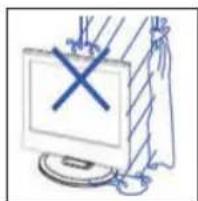
Caution
To prevent fire or electrical shock hazard, do not expose the main unit to rain or moisture, do not place objects filled with liquids, such as vases, on the apparatus.

natural_image
Illustration of a computer monitor with a 'X' symbol and a hand holding a starburst above it (no text or symbols present)
Caution
Do not drop or push objects into the television cabinet slots or openings. Never spill any kind of liquid on the television receiver.
natural_image
Simple line drawing of a box with a cross mark and a small object on top (no text or symbols)
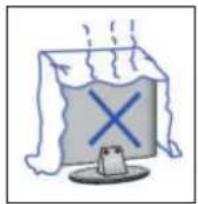
Caution
Avoid exposing the main unit to direct sunlight and other sources of heat. Do not stand the television receiver directly on other producis which give off heat. E. g. video cassette players, Audio amplifiers. Do not block the ventilation boles in the back cover. Ventilation is essential to prevent failure of electrical component!. Do not squash power supply cord under the main unit or other heavy objects.
natural_image
Cartoon illustration of a person standing on a computer monitor with a 'X' symbol, surrounded by floating papers (no text or symbols present)
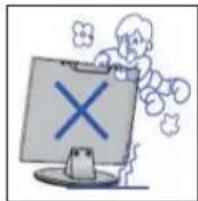
Caution
Never stand on, lean on, push suddenly the product or its stand. You should Pay special attention to children.

natural_image
Illustration of a computer monitor with an X mark and lightning bolt, placed on a table (no text or symbols)
Caution
Do not place the main unit on an unstable cart stand, shelf or table. Serious injury to an individual, and damage to the television, may result if it should fall.
natural_image
Illustration of a person with backpack standing next to a computer monitor and a circular icon with a fish (no text or symbols)
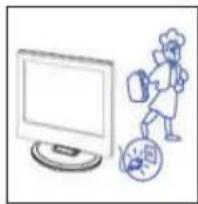
Caution
When the product is not used for an extended period of time, it is advisable to disconnect the AC power cord from the AC outlet.
natural_image
Simple line drawing of a computer monitor with a pointer and radiating lines (no text or symbols)
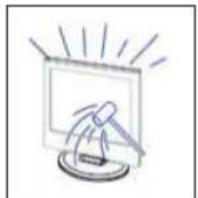
Caution
The LED panel used in this product is made of glass. Therefore, it can break when the product is dropped or applied with impact. Be careful not to be injured by broken glass pieces in case the LED panel breaks.
REMOTE CONTROL
text_image
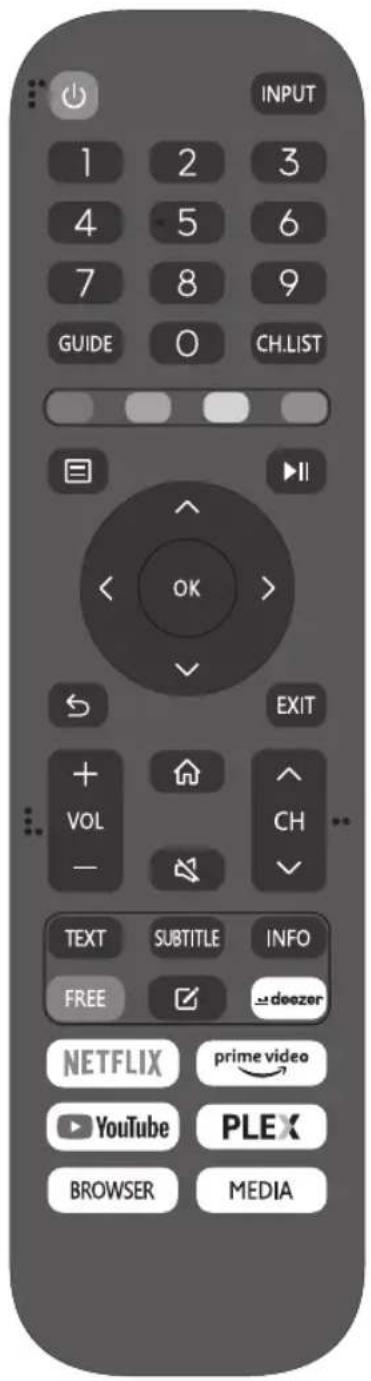
INPUT 1 2 3 4 5 6 7 8 9 GUIDE O CH.LIST EXIT + VOL - TEXT SUBTITLE INFO FREE √ deozer NETFLIX prime video YouTube PLEX BROWSER MEDIA: Power on/off button, press once to turn the TV on and press again to turn the TV off.
INPUT: Press to change signal source.
0-9: Select and switch to a channel using 0 - 9.
GUIDE: Launches the EPG (Electronic Program Guide)
CH.LIST: Display program list.
COLOR BUTTONS (RED, GREEN, YELLOW, BLUE):
Execute corresponding function at that time.
: Displays the main TV menu.
▶: Press to start playing/pause playing the MEDIA. (In USB models)
OK : Enter the selected option or execute the selected operation.
5: Switch back and front between the current and previous channels.
EXIT: Exit the main TV menu.
VOL-/VOL+: Adjust the volume.
CH /CH : Change the channel up and down.
: This button takes you to the HOME screen.
: Press this button to mute or restore sound.
TXT: Press to enter the Teletext mode.
SUBTITLE: Open or close subtitle.
INFO: Display the present screen information such as the current channel and input source.
FREE: Press to enter VIDA Free APP.
: Press to EDIT shortcut keys.
DEEZER: Press to enter deezer APP
NETFLIX: Press to enter Netflix APP.
PRIME VIDEO: Press to enter prime video APP.
YOUTUBE: Press to enter YouTube APP.
PLEX: Press to enter PLEX APP.
BROWSER: Press to enter Browser APP
MEDIA: USB media player, for playback from USB stick.
TV TERMINAL CONNECTIONS
text_image
1 3 4 8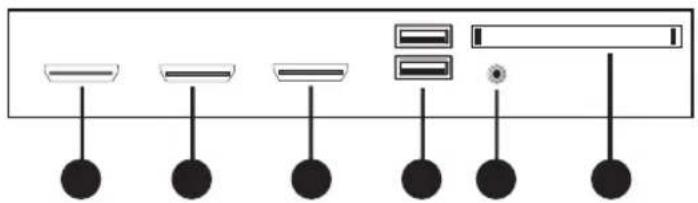
flowchart
graph TD
    A["Component 1"] --> D["Output"]
    B["Component 2"] --> D
    C["Component 3"] --> D
    E["Component 4"] --> D
    F["Component 5"] --> D
    G["Component 6"] --> D
    H["Component 7"] --> D
    I["Component 8"] --> D
    J["Component 9"] --> D
    K["Component 10"] --> D
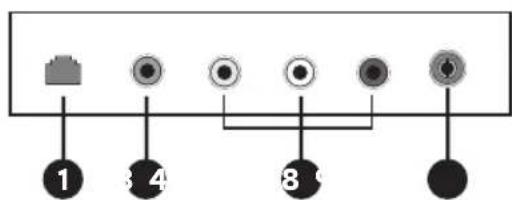
- RJ45
- COAXIAL output terminal.
- AV input terminal.
- RF antenna.
- HDMI3 input terminal.
- HDMI2 input terminal.
- HDMI1 input terminal.
- USB 1 & 2 media player: connect the USB device, such as flash disk to access media function of TV.
- Earphone terminal.
- Cl slot.
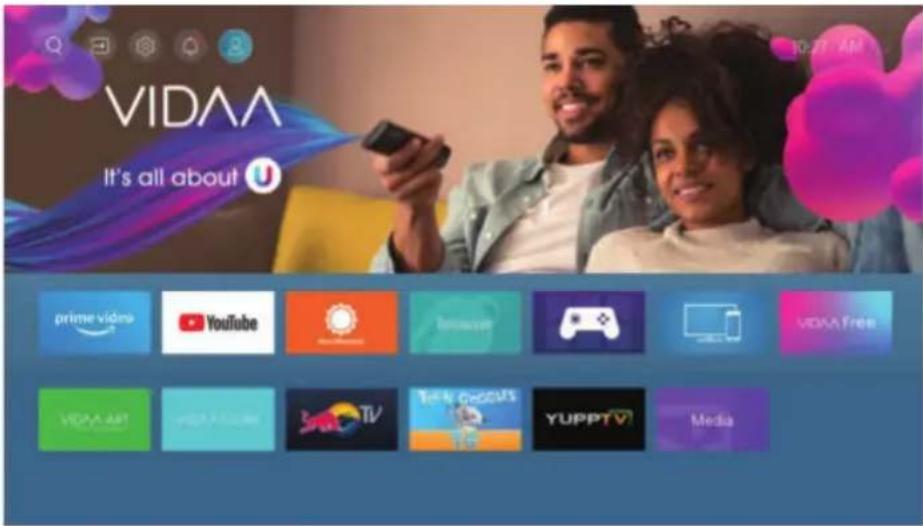
HOME
When finish First Time setup, you can enter HOME screen.
text_image
VIDAA It's all about U prime videos YouTube Inverter VODA Free VODA ART Netflix TV Show Groups YUPPTV MediaPress ▼ / ▲ / ◀ button to select.

natural_image
User interface icons including search, refresh, gear, alarm, and user profile (no text or symbols)
Inputs: Icon to select an input source.

Setting: Various settings can be configured here.

Notifications

VIDAA account
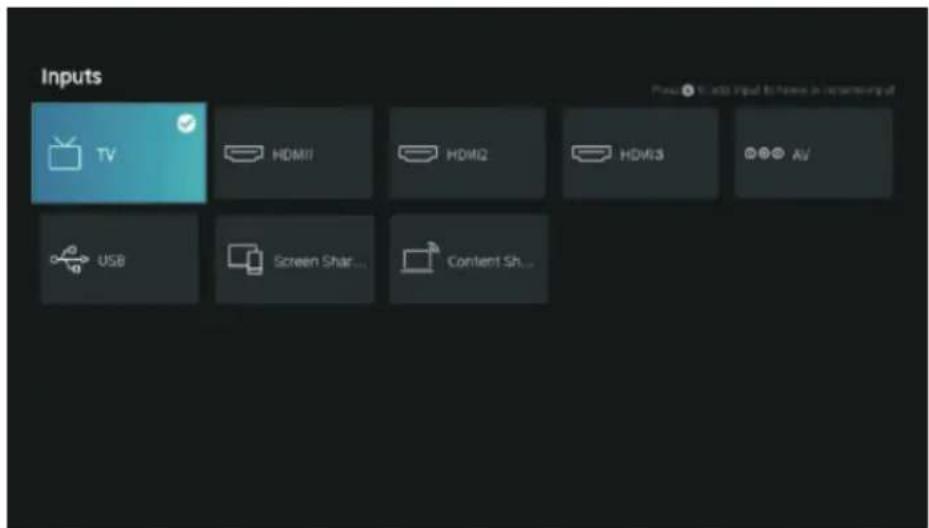
INPUT
text_image
Inputs TV HDMI1 HDMI2 HDMI3 AV USB Screen Shar... Content Sh...Press ▼ button to select Inputs menu.
Press ▼ / ▲ / ◀ button to select.
Press OK to select input.
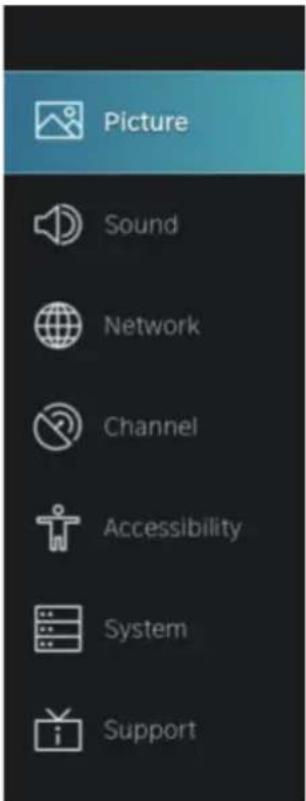
SETTING
text_image
Picture Sound Network Channel Accessibility System SupportPICTURE
- Press ▼ / ▲button to select the option that you want to adjust in the PICTURE menu.
- Press OK button to adjust.
- After finishing your adjustment, press BACK button to save and return to the previous menu.
text_image
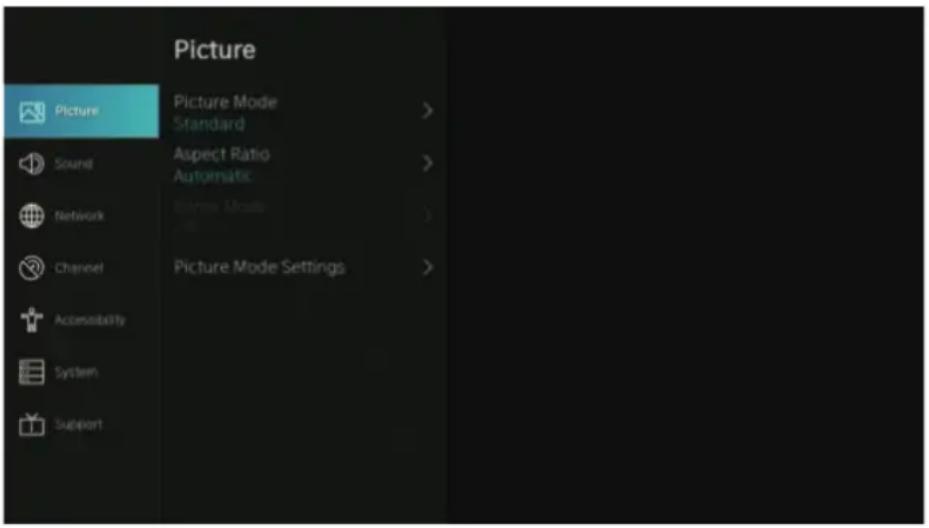
Picture Picture Mode Standard > Sound Aspect Ratio Automatic > Network Screen Mode Channel Picture Mode Settings > Accessibility System SupportPicture Mode
Press ▼ / ▲utton to select Picture Mode, then press OK button to select.
(Optional: Standard/Cinema day/Cinema night/Dynamic/Sports).
Standard The default mode, to make users experience high-quality images under normal light.
Cinema day Enhance the contrast, color and clarity of the screen to make the color more vivid.
Cinema night Reduce the screen contrast, color and clarity to make the screen looks soft.
Dynamic Enhance the contrast, color and clarity of the screen, so that the picture in the dynamic will balance the color.
Sports This mode is more suitable for watching sport video.
Aspect Ratio
Adjust the Aspect Ratio to stretch or zoom in on your picture.
Press ▼ / ▲ button to select Aspect Ratio.
Press ▼ / ▲utton to select Automatic/16:9/4:3/Panoramic/Movie Zoom/Direct.
Game Mode
Press ▼ to select, and press / ◀ to select On/Off.
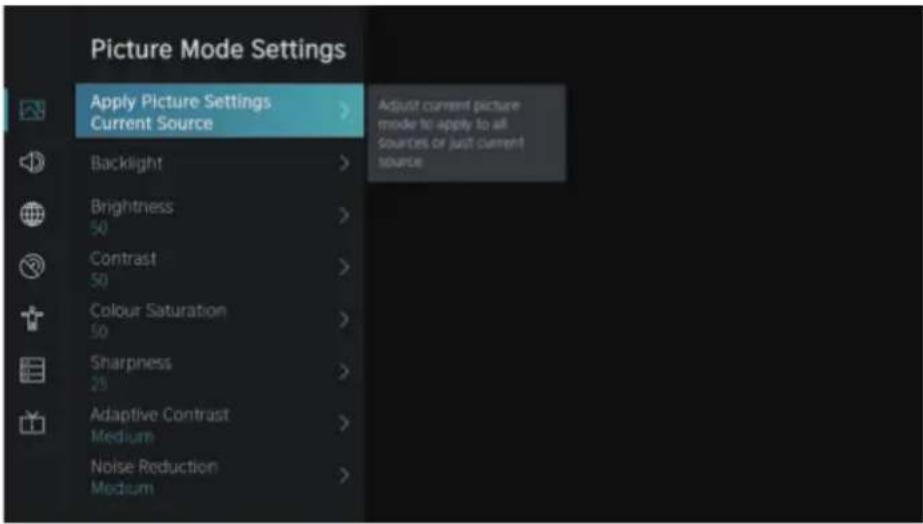
Picture Mode Settings
Press ▼ to select, and press to enter.
PICTURE
text_image
Picture Mode Settings Apply Picture Settings Current Source Adjust current picture mode to apply to all Sources or just current source Backlight Brightness 50 Contrast 50 Colour Saturation 50 Sharpness 25 Adaptive Contrast Medium Noise Reduction MediumZ
Apply Picture Settings
In this menu, you can adjust current picture mode to apply to all sources or just current source.
Press ▼ / ▲o select, and press ▶OK to enter.
(Optional: All Sources/Current Source)
Backlight/Brightness/Contrast/Colour Saturation/Sharpness
Press ▼ / ▲o select, and press /◀ to adjust.
Backlight Adjust image backlight. (Optional:Off/On)
Brightness Adjust image brightness.
Contrast Adjust image contrast.
Colour Saturation Adjust image color density.
Sharpness Adjust the image edge sharpness.
Adaptive Contrast
In this menu, you can automatically darken dark areas and lighten light areas of images to see more details. Press ▼ / ▲o select Adaptive Contrast. press /▲ to select Off/Low/Medium/High.
Noise Reduction
Set up options to eliminate the image noise intensity.
Press ▼ / ▲utton to select Noise Reduction.
Press ◀ / ▶ button to select Off/Low/Medium/High.
MPEG Noise Reduction
Set up options to eliminate the MPEG noise intensity.
Press ▼ / ▲ button to select Noise Reduction.
Press ◀ / ▶ button to select Off/Low/Medium/High.
Color Temperature
Adjust the overall color of the image.
Press ▼ / ▲ button to select Color Temperature.
Press ◀ / ▶ button to select Warm1/Warm2/Standard/Cool.
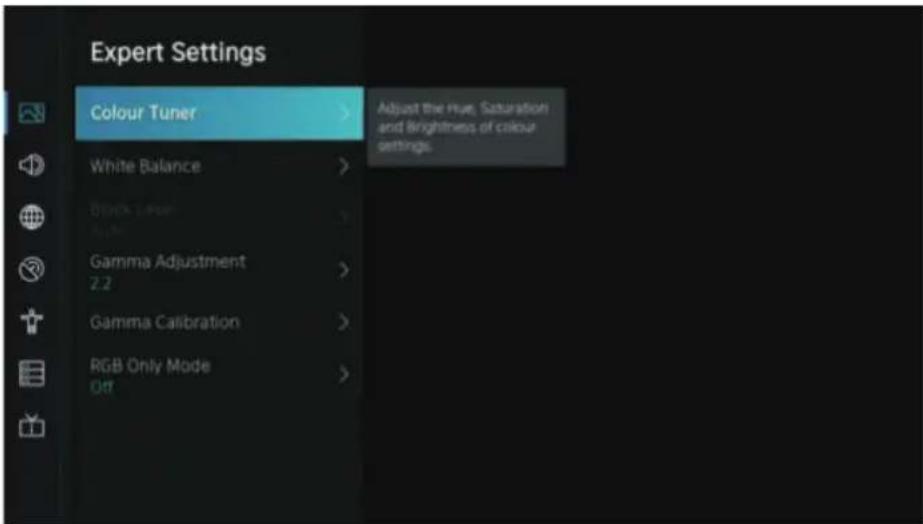
Expert Settings
Adjust the color space and Gamma to best suit the content you're viewing.
Press ▼ / ▲ button to select Expert Settings. Press /◀ button to enter sub-menu.
PICTURE
text_image
Expert Settings Colour Tuner White Balance Block Lase Button Gamma Adjustment 2.2 Gamma Calibration RGB Only Mode Off Adjust the Hue, Saturation and Brightness of colour settings.Colour Tuner
Adjust the Hue, saturation and Brightness of color settings.
Press ▼ / ▲ button to select Colour Tuner.
Press OK /▶ button to enter sub-menu and adjust.
White Balance
Adjust the intensity of red, green and bule lights to view the true colors of all images in the picture.
Press ▼ / ▲utton to select White Balance.
Press OK /▶ button to enter and adjust.
Black Level (Only available on HDMI source)
In this menu, you can adjust the HDMI signal range to be more suitable for content.
Press ▼ / ▲ to select Black Level. Press /▲ to select.
Gamma Adjustment
Press ▼ to select Gamma Adjustment. Press / to select 1.8/2.0/2.2/2.4/2.6.
Gamma Calibration
In this menu, you can adjust the Gamma curve which one you selected.
Press ▼ / ▲o select Gamma Calibration.
Press OK /▶ button to enter sub-menu to adjust.
RGB Only Mode
Press ▼ to select RGB Only Mode. Press / to select Off/Red/Green/Blue.
Overscan
Press ▼ button to select Overscan. Press OK button to select On/Off.
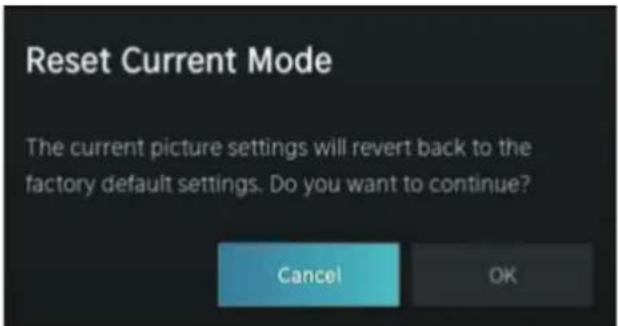
Reset Current Mode
Press ▼ button to select Reset Current Mode. Press OK / button to enter sub-menu.
PICTURE
text_image
Reset Current Mode The current picture settings will revert back to the factory default settings. Do you want to continue? Cancel OKSOUND
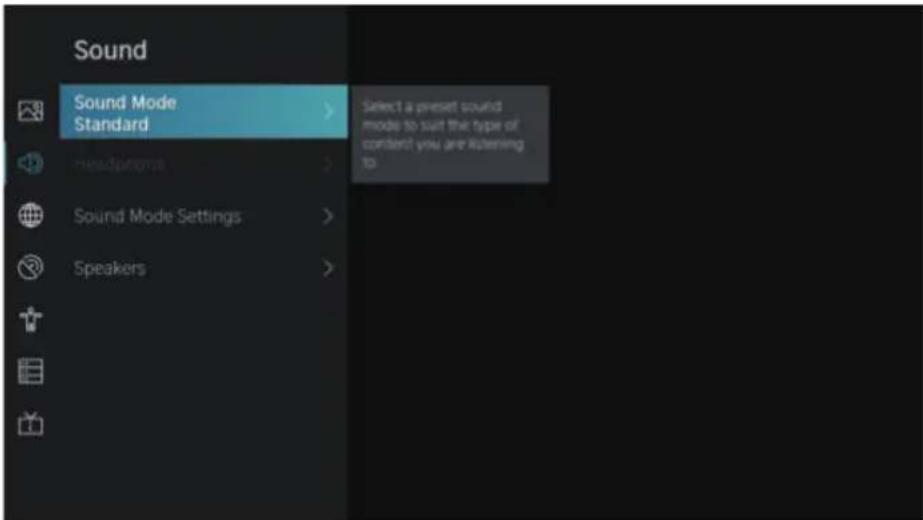
text_image
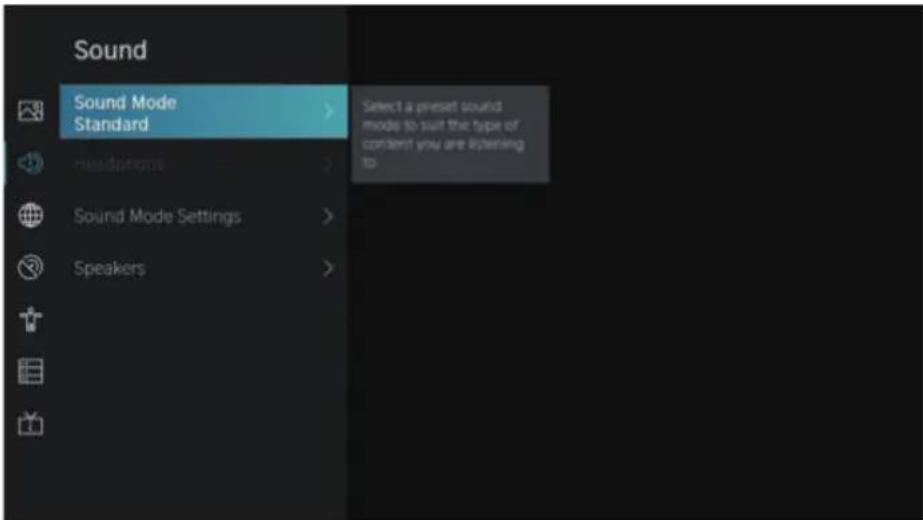
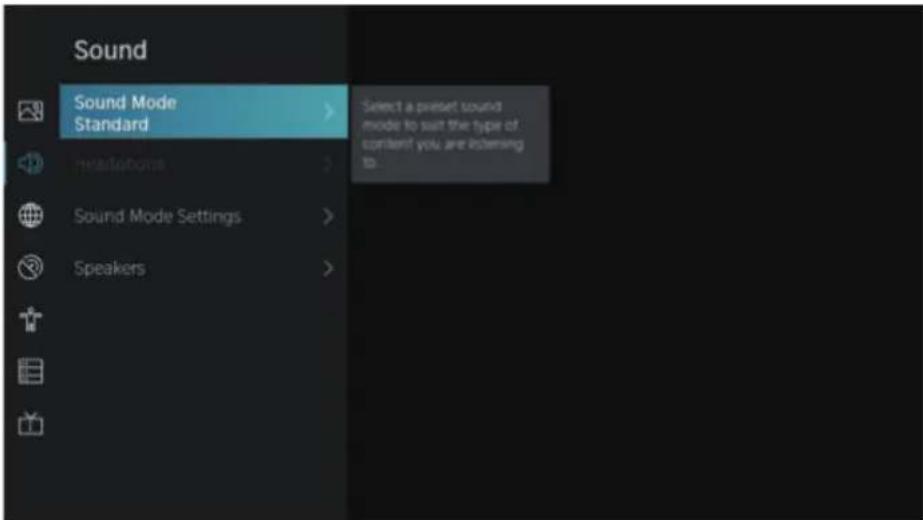
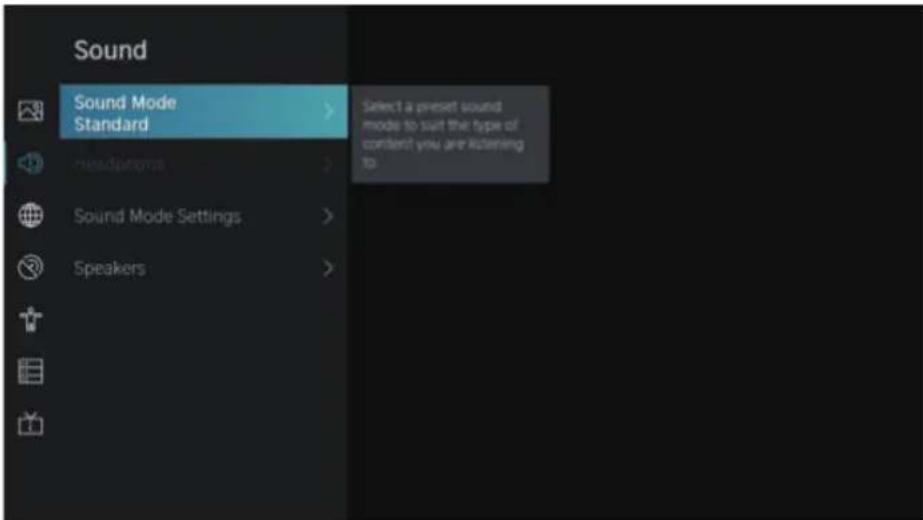
Sound Sound Mode Standard Select a preset sound mode to suit the type of content? you are listening to headphones Sound Mode Settings Speakers- Press ▼ button to select the option that you want to adjust in the SOUND menu.
- Press Enter button to adjust.
- After finishing your adjustment, press BACK button to save and return to the previous menu.
Sound Mode
Press ▼ / ▲utton to select your favorite Sound Mode.
(Optional: Standard/Theatre/Music/Speech/Late Night/Sports.)
Standard Produces a balanced sound in all environments.
Theatre Theatre mode increases the surround sound effect and provides a more prominent subwofer response.
Music Preserves the original sound. Good for musical programs.
Speech Low and high frequencies are attenuated to improve the reproduction and clarity of the human voice.
Late Night Improve the reproduction and clarity of the human voice with a low volume level.
Sports Optimized sound for watching football game.
Headphone
Press ▼ / ▲ button to select Headphone. It only available on headphone is inserted. It can set the sound output mode through headphones.
SOUND
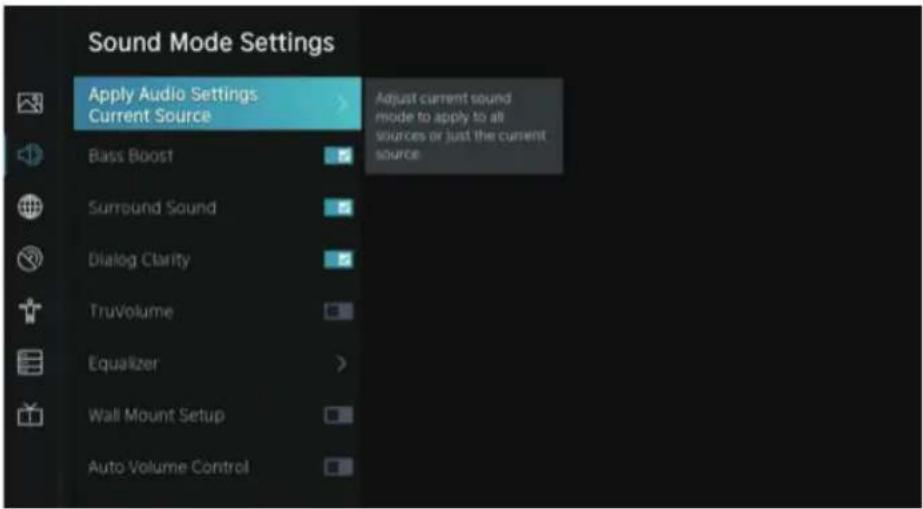
Sound Mode Settings
Press ▼ / ▲ button to select Sound Mode Settings. Press OK / button to enter sub-menu.
text_image
Sound Mode Settings Apply Audio Settings Current Source Bass Boost Surround Sound Dialog Clarity TruVolume Equalizer Wall Mount Setup Auto Volume Control Adjust current sound mode to apply to all sources or just the current sourceApply Audio Settings
Adjust the Current sound mode to apply to all source or just current source.
Press ▼ / ▲ button to select, then press button to select Current Source/All Sources.
Equalizer
Press ▼ button to select, and press / to adjust Equalizer detail.
(Optional: 100Hz/500Hz/1.5KHz/5KHz/10KHz)
Bass Boost / Surround Sound / Dialog Clarity / TruVolume / Wall Mount Setup / Auto Volume Control
Press ▼ / ▲ button to select, and press OK button to select On/Off.
Reset Current Mode
Press ▼ / ▲ button to select, and press / ◀ button to choose restore or not.
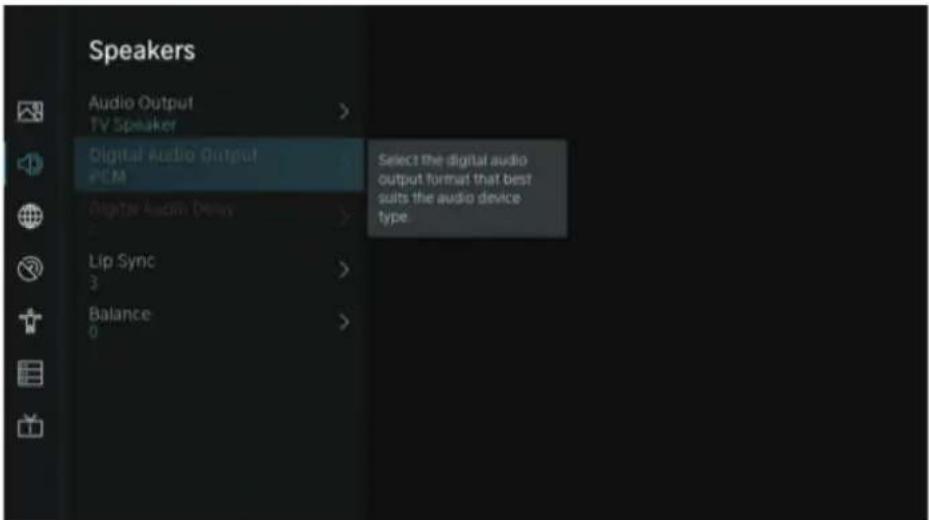
Speakers
Press ▼ button to select Speakers. Press OK / button to enter sub-menu.
text_image
Speakers Audio Output TV Speaker Digital Audio Output PCM Select the digital audio output format that best suits the audio device type. Digital Audio Delay Lip Sync 3 Balance 0SOUND
Audio Output
Press ▼ button to select Audio Output and enter, then press / button to select ARC/TV Speaker/SPDIF Only.
Digital Audio Output
Press ▼ / ▲button to select Digital Audio Out, then press /▼button to select.
Digital Audio Delay
Press ▼ button to select Digital Audio Delay, then press / button to adjust.
Lip Sync
Press ▼ button to select, then press / ◀ button to adjust.
Balance
Balanced left and right channels.
Press ▼ / ▲ button to select Balance. Press / ◀ button to adjust.
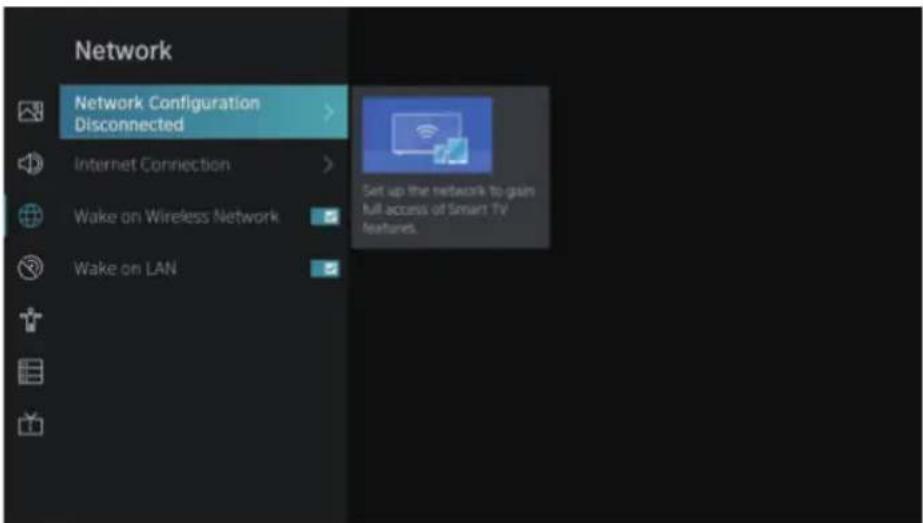
NETWORK
text_image
Network Network Configuration Disconnected Internet Connection Wake on Wireless Network Wake on LAN Set up the network to gain full access of Smart TV Features.Press ▼ / ▲button to select: Network Configuration/Internet Connection/ Wake on Wireless Network/Wake on LAN.
Network Cofiguration
Press ▼ / ▲ button to select Network Configuration to set up the network.
Internet Connection
Press ▼ button to select Internet Connection to check Internet Connection.
Wake on Wireless Network
Press ▼ button to select Wake on Wireless Network, then press OK button to select On/Off.
Wake on LAN
Press ▼ button to select Wake on LAN. Press OK button to select On/Off.
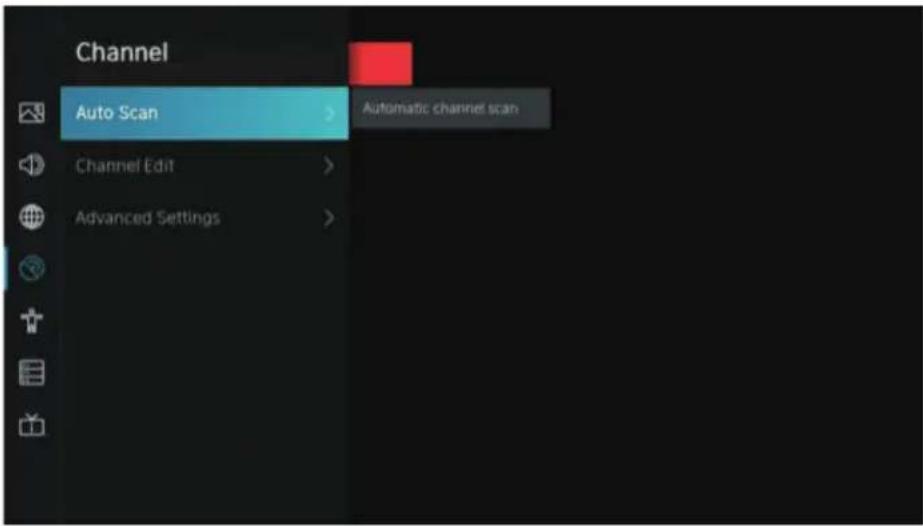
CHANNEL
text_image
Channel Auto Scan Automatic channel scan Channel Edit Advanced Settings- Press ▼ button to select the option that you want to adjust in the Channel menu.
- Press Enter button to adjust.
- After finishing your adjustment, press BACK button to save and return to the previous menu.
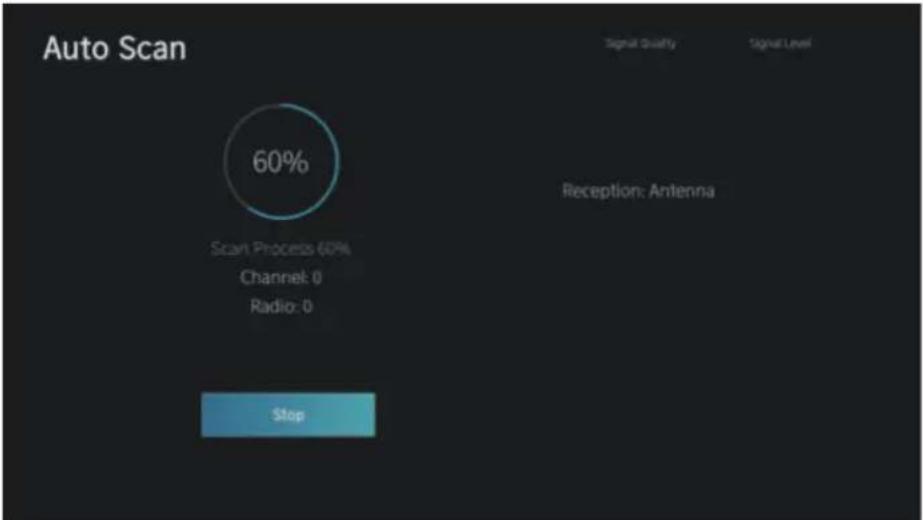
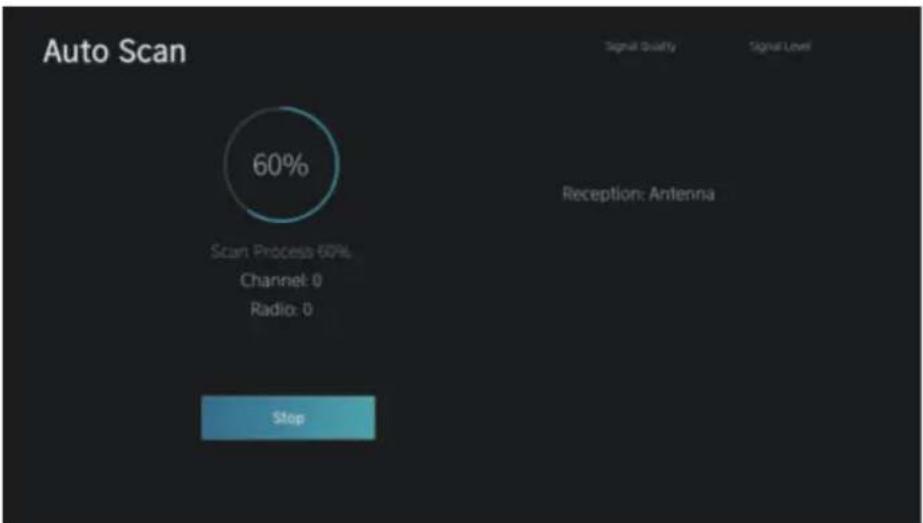
Auto Scan
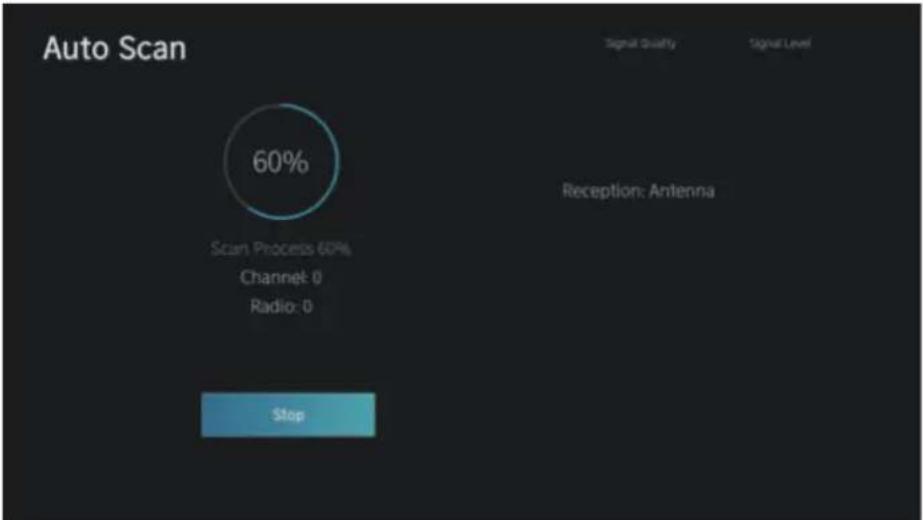
Automatic search can search for effective program channel automatically.
Press ▼ / ▲ button to select Auto Scan, then press OK button to setup.
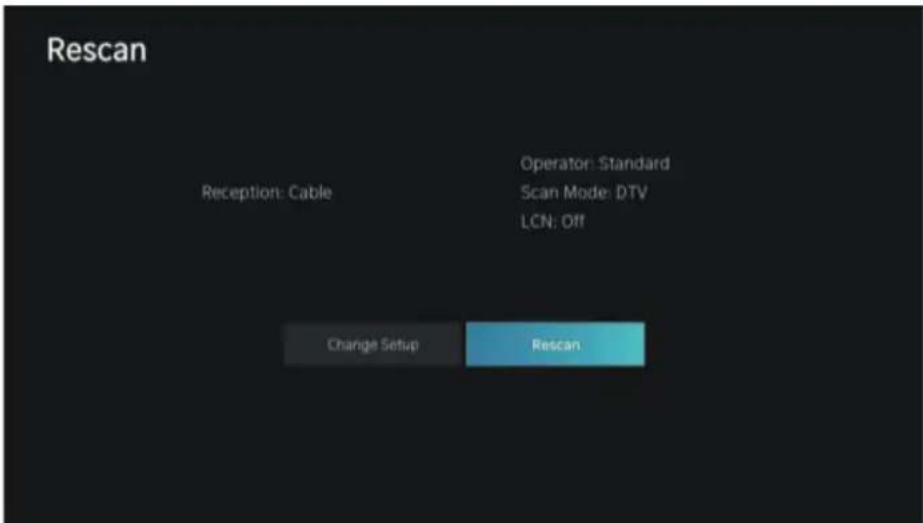
Rescan
In this page, you can choose rescan channel or change setup.
text_image
Rescan Reception: Cable Operator: Standard Scan Mode: DTV LCN: Off Change Setup RescanReception
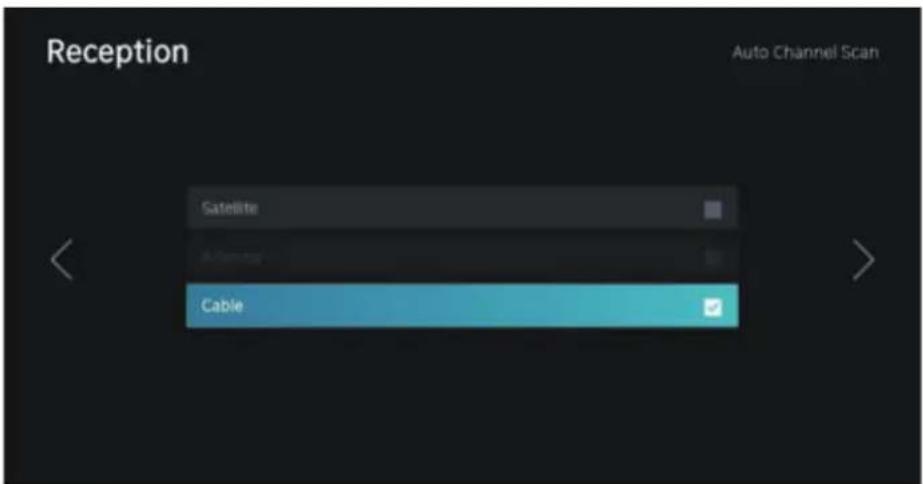
Press ◀/ button to select Reception, and press ▼button to select Antenna/Cable.
CHANNEL
text_image
Reception Satellite Cable Auto Channel ScanZ
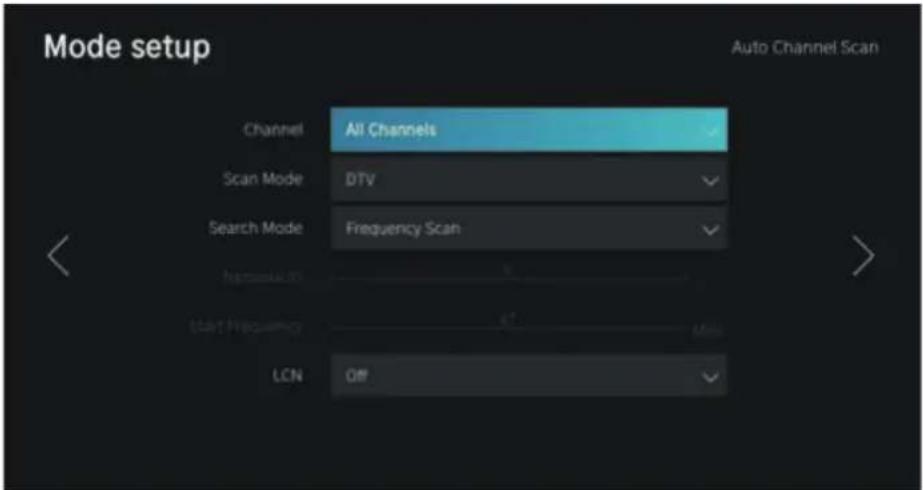
Mode setup
Press ◀ button to select Mode setup, and press /▼button to select Channel/Scan Mode/LCN.
text_image
Mode setup Channel All Channels Scan Mode DTV Search Mode Frequency Scan Start Frequency LCN Off Auto Channel ScanAuto Scan
text_image
Auto Scan 60% Scan: Process 60% Channel: 0 Radio: 0 Stop Signal Quality Signal Level Reception: AntennaCHANNEL
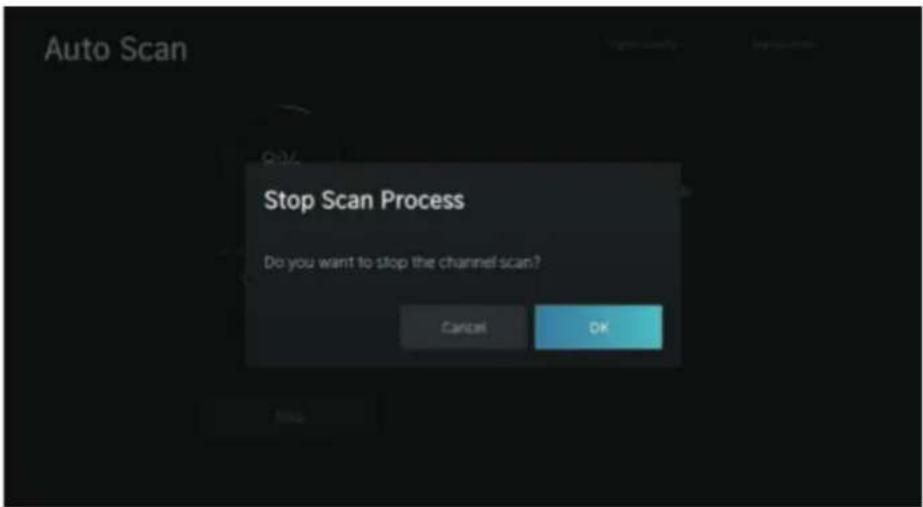
If you want to stop searching, press Stop or Exit button to stop searching.
text_image
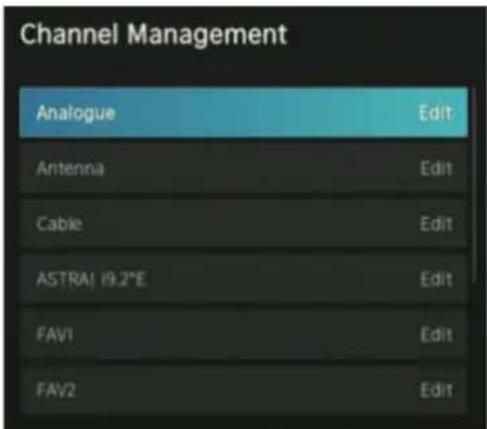
Stop Scan Process Do you want to stop the channel scan? Cancel OKChannel Edit
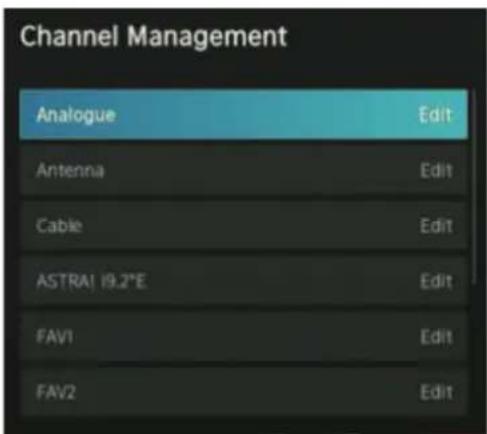
Press ▼ / ▲utton to select Channel Edit.
text_image
Channel Management Analogue Edit Antenna Edit Cable Edit ASTRA1 19.2°E Edit FAV1 Edit FAV2 EditAdvanced Settings
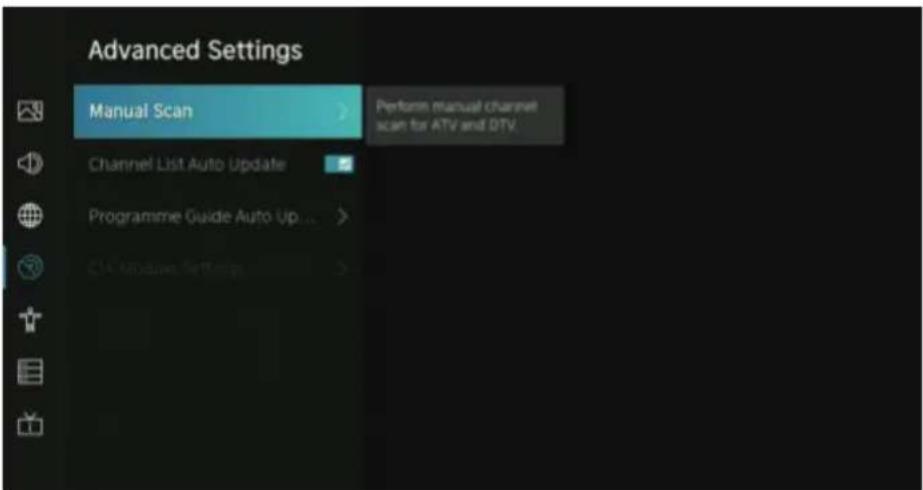
Press ▼ button to select Advanced Settings, then press OK / button to enter.
text_image
Advanced Settings Manual Scan Channel List Auto Update Programme Guide Auto Up... Perform manual channel scan for ATV and OTVCHANNEL
Manual Scan
Press ▼ / ▲ button to select Manual Scan, then press OK button to enter.
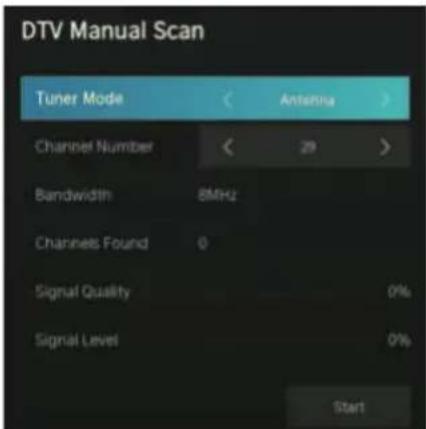
Press ▼ / ▲ button to select DTV Manual Scan/ATV Manual Scan.
DTV Manual Scan
Press ▼ button to select DTV Manual Scan, then press Enter button to enter.
text_image
DTV Manual Scan Tuner Mode Antenna Channel Number 29 Bandwidth 8MHz Channels Found 0 Signal Quality 0% Signal Level 0% StartZ
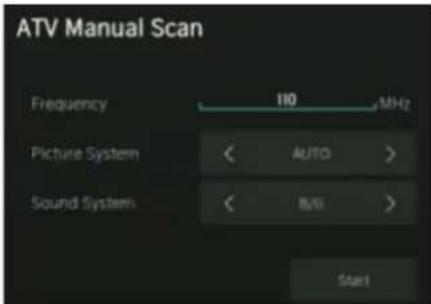
ATV Manual Scan
Press ▼ / ▲ button to select ATV Manual Scan, then press Enter button to enter.
text_image
ATV Manual Scan Frequency 110 MHz Picture System < AUTO > Sound System < B/S > StartChannel List Auto-Update
Press ▼ button to select Channel List Auto-Update, then press OK button to select On/Off.
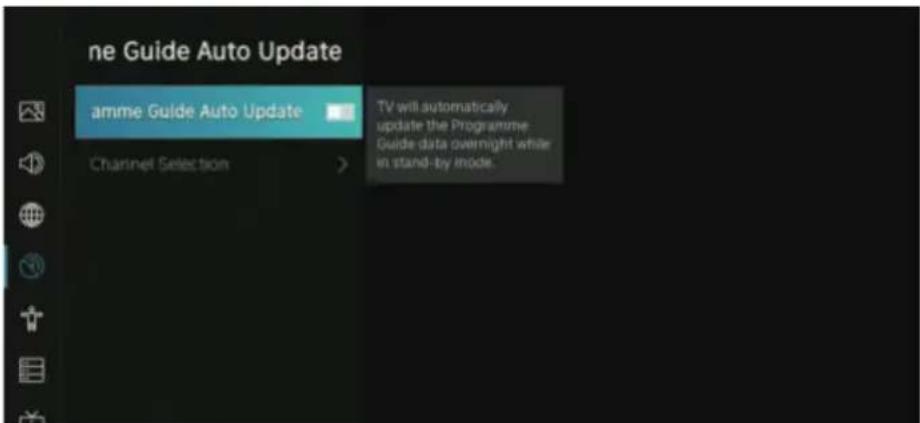
Programme Guide Auto Update
Press ▼ Button to select Programme Auto Update.
text_image
ne Guide Auto Update amme Guide Auto Update Channel Selection > TV will automatically update the Programme Guide data overnight while in stand-by Rhode.CHANNEL
Programme Auto Update
Press ▼ button to select Channel List Auto-Update, then press OK button to select On/Off.
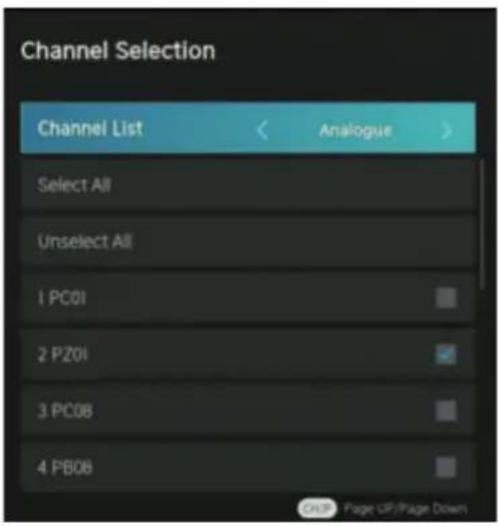
Channel Selection
Press ▼ button to select Channel Selection.
text_image
Channel Selection Channel List Analogue Select All Unselect All 1 PC01 2 PZ0i 3 PC0B 4 PB0B Page 0F/Page DownACCESSIBILITY
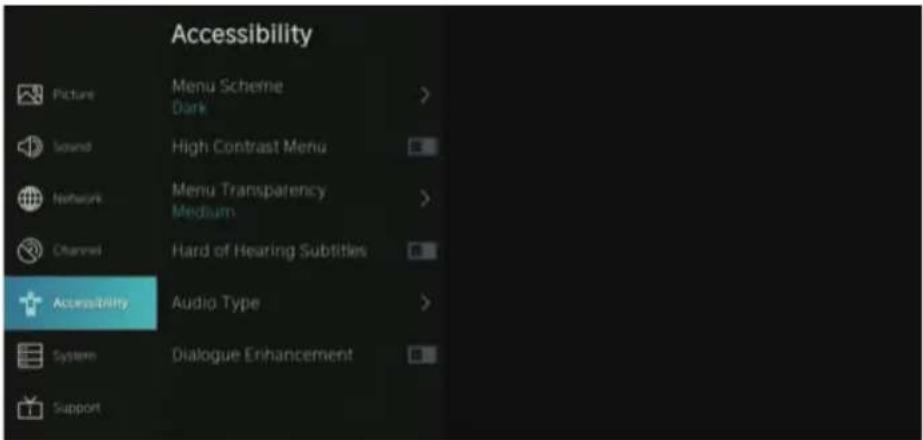
text_image
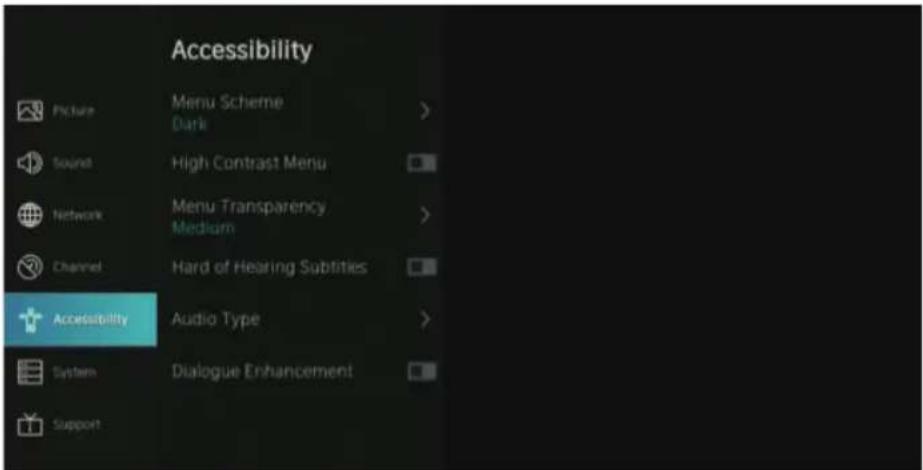
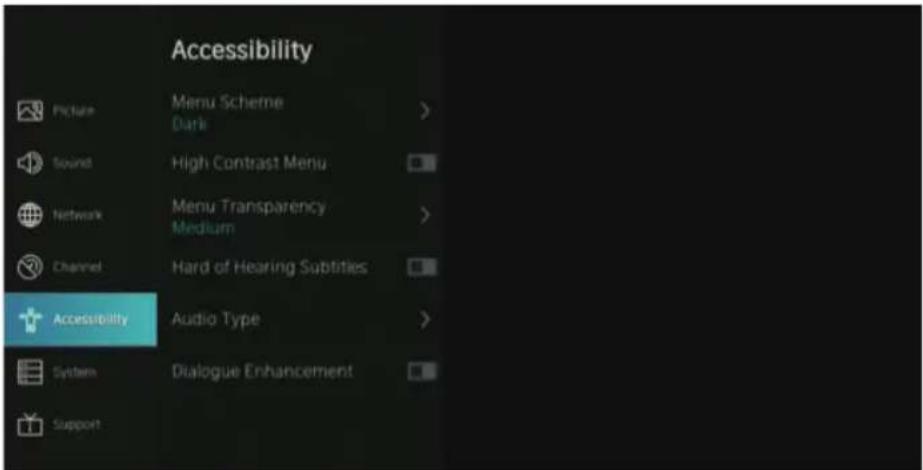
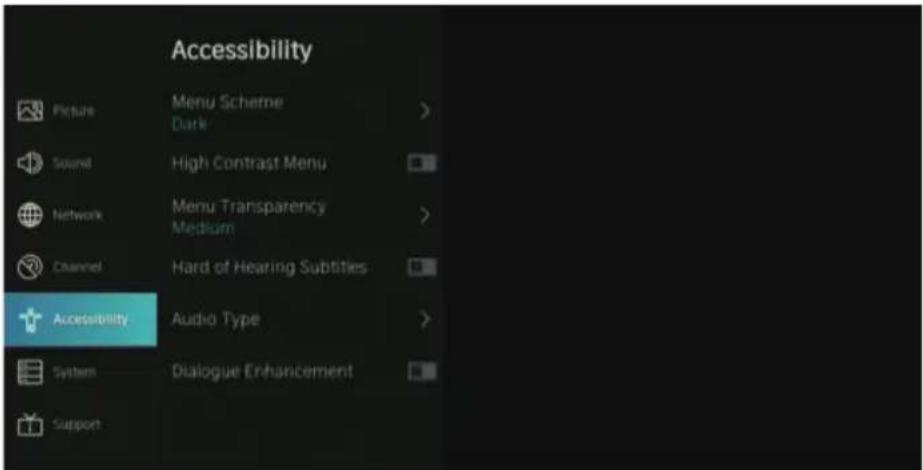
Accessibility Picture Menu Scheme Dark Sound High Contrast Menu Network Menu Transparency Medium Channel Hard of Hearing Subtitles Accessibility Audio Type System Dialogue Enhancement SupportMenu Scheme
Press ▼ button to select Menu Scheme, then press OK / button to choose Dark/Light.
High Contrast Menu
Press ▼ button to select High Contrast Menu, then press OK button to select On/Off.
Menu Transparency
Press ▼ button to select Menu Transparency, then press OK / button to choose Off/Medium/High.
ACCESSIBILITY
Hard of Hearing Subtitles
Press ▼ button to select Hard of Hearing Subtitles, then press OK button to select On/Off.
Audio Type
Press ▼ / ▲ button to select Audio Type, then press Enter button to enter sub-menu. Then press OK /
▶ button to select Normal / Audio Description / Spoken Subtitles / All Supplementary Audio.
Voiceover Volume
Press ▼ button to select Voiceover Volume, then press OK / button to select On/Off.
text_image
System Picture Time > Sound Timer Settings > Network System PIN > Channel Parental Control > Accessibility Language and Location > System Amazon Alexa Service > Support Application Settings > HDMI & CEC >- Press ▼ / ▲utton to select the option that you want to adjust in the System menu.
- Press Enter button to adjust.
- After finishing your adjustment, press BACK button to save and return to the previous menu.
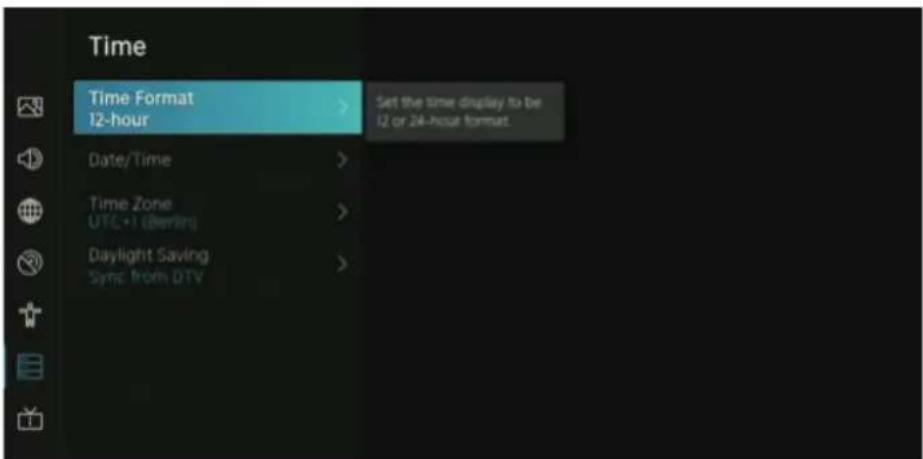
Time
Press ▼ / ▲ button to select Time.
text_image
Time Time Format 12-hour Set the time display to be 12 or 24-hour format Date/Time Time Zone UTC+1 (Berling) Daylight Saving Sync from DTVSYSTEM
Time Format
Press ▼ / ▲ button to select Time Format. (Optional: 12-hour/24-hour)
Date/Time
Set the Date and Time
Press ▼ / ▲ button to select, then press OK / ▶ setup.
Time Zone
Select your time zone
Press ▼ / ▲ button to select Timer zone, then press OK / ▶ enter sub-menu to setup.
Daylight Savings
Press ▼ button to select Daylight Savings. (Optional: Off/On/Sync from DTV)
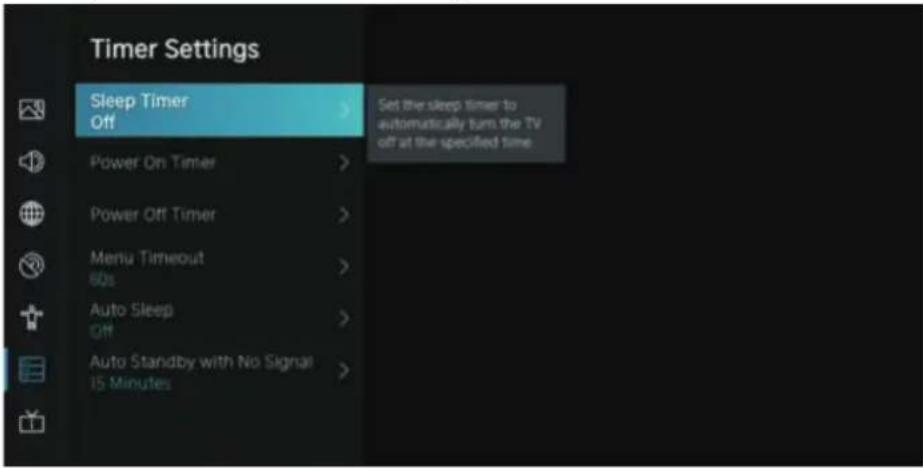
TIMER SETTINGS
Press ▼ button to select Timer Settings.
text_image
Timer Settings Sleep Timer Off Power On Timer Power Off Timer Menu Timeout 60s Auto Sleep Off Auto Standby with No Signal 15 Minutes Set the sleep timer to automatically turn the TV off at the specified timeSleep Timer
Press ▼ button to select Sleep Timer. (Optional: Off/15/30/60/90/120 Minutes/User Defined)
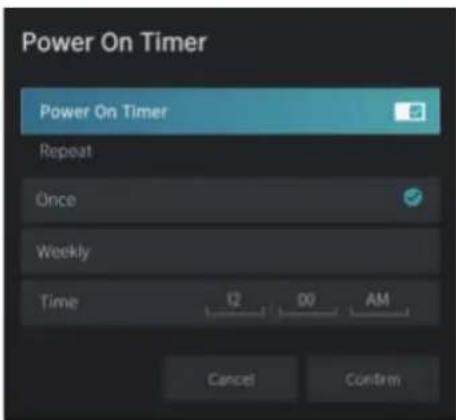
Power On Timer
Press ▼ button to select Power On Timer.
text_image
Power On Timer Power On Timer Repeat Once Weekly Time 12 D0 AM Cancel ConfirmSYSTEM
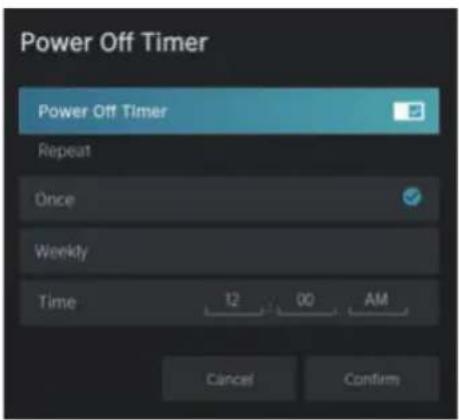
Power Off Timer
Press ▼ / ▲ button to select Power Off Timer.
text_image
Power Off Timer Power Off Timer Repeat Once Weekly Time 12 00 AM Cancel ConfirmZ
Menu Timeout
Press ▼ button to select Menu Timeout. (Optional: Off/10s/20s/30s/60s/5 min)
Auto Sleep
Press ▼ button to select Auto Sleep. (Optional: Off/3H/4H)
Auto Standby with No Signal
Press ▼ button to select Auto Standby with No Signal. (Optional:Off/15 Minutes)
System PIN
Press ▼ button to select System PIN. Change your PIN that you use to access Parental Controls, Auto Channel Scan and Reset To Factory Defaults.
Parental Control
Press ▼ / ▲utton to select Parental Control.
Turn on Parental Controls to block children from being able to view certain programmes.
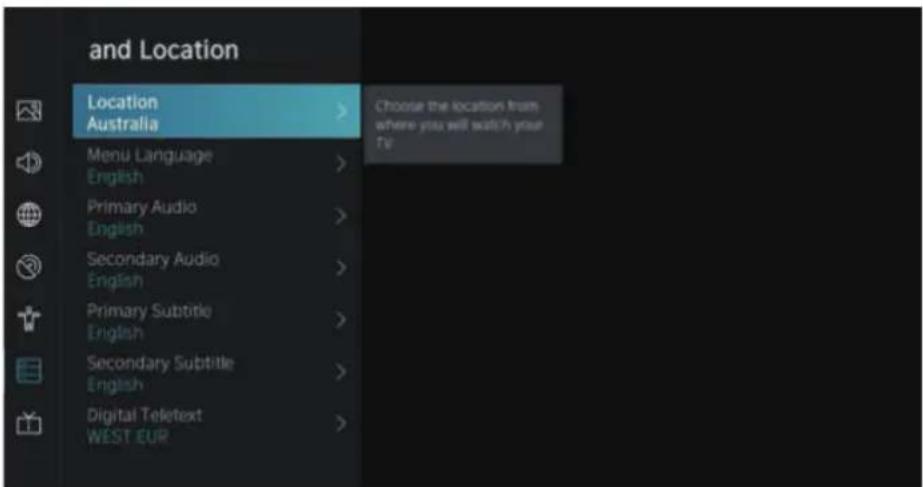
LANGUAGE AND LOCATION
Press ▼ / ▲ button to select Language and Location.
Turn on Parental Controls to block children from being able to view certain programmes.
text_image
and Location Location Australia > Choose the location from where you will watch your The Menu Language English > Primary Audio English > Secondary Audio English > Primary Subtitle English > Secondary Subtitle English > Digital Teletext WEST EUR >SYSTEM
Location
Press ▼ / ▲utton to select Location, and press OK / ▶ select.
Menu Language
Press ▼ button to select Menu Language, and press OK / to select.
Primary Audio
Press ▼ button to select Primary Audio, and press OK / to select.
Secondary Audio
Press ▼ button to select Secondary Audio, and press OK / to select.
Primary Subtitle
Press ▼ button to select Primary Subtitle, and press OK / to select.
Secondary Subtitle
Press ▼ button to select Secondary Subtitle, and press OK / to select.
Digital Teletext
Press ▼ button to select Digital Teletext.
(Optional: WEST EUR / EAST EUR / Russian / Aarabic / Persian / Greek)
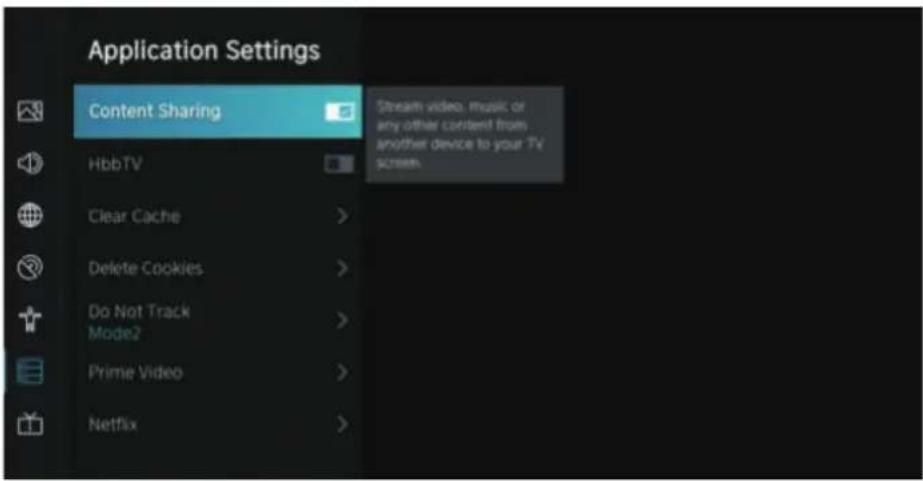
APPLICATION SETTINGS
Press ▼ / ▲utton to select Application Settings.
text_image
Application Settings Content Sharing HbbTV Clear Cache > Delete Cookies > Do Not Track Mode2 > Prime Video > Netflix Stream video, music or any other content from another device to your TV screenContent Sharing
Press ▼ button to select Content Sharing, then press OK button to select On/Off.
Hbb TV
Press ▼ button to select Hbb TV, then press OK button to select On/Off.
Clear Cache
Press ▼ button to select Clear Cache, then press OK / button to enter sub-menu.
Delete Cookie
Press ▼ button to select Delete Cookies, then press OK / button to enter sub-menu.
SYSTEM
Do Not Track
Press ▼ / ▲utton to select Do Not Track, then press OK / button to enter sub-menu
Prime Video
Press ▼ button to select Prime Video, and press OK / to select.
Netflix
Press ▼ button to select Netflix, and press OK / to select.
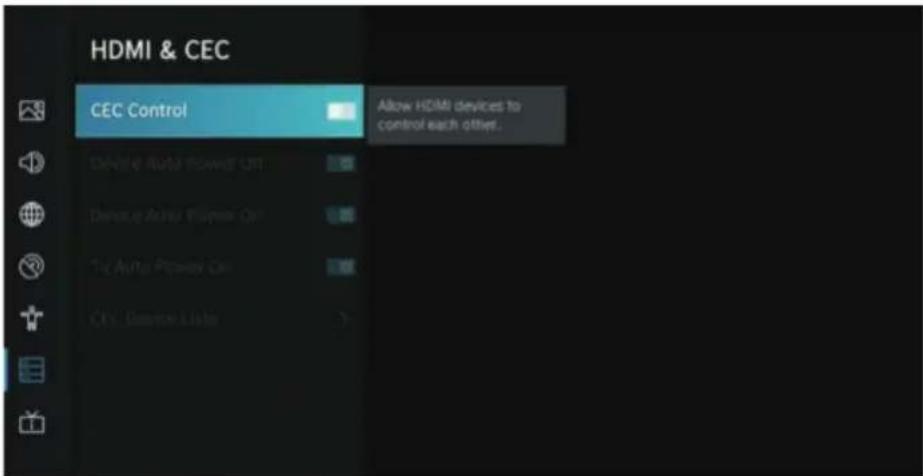
HDMI&CEC
Press ▼ button to select HDMI&CEC, then press OK button to enter sub-menu to select.
text_image
HDMI & CEC CEC Control Allow HDMI devices to control each other. Device Auto Power Opt Device Active T/Smax Opt Auto Power Opt Other Deserger ListarPress ▼ button to select CEC Control/Device Auto Power Off/Device Auto Power On/ TV Auto Power On/CEC Device Lists.
Note: All the Options are available only when the CEC Control select On.
CEC Control
Press ▼ / ▲ button to select CEC Control, and press OK button to select On/Off. The following terms are available only when "On" is selected in CEC Control.
Device Auto Power Off
Press ▼ / ▲ button to select Device Power Off, and press OK to select On/Off.
Device Auto Power On
Press ▼ button to select DeviceAuto Power On, and press OK button to select On/Off.
Tv Auto Power On
Press ▼ button to select TV Auto Power On, and press OK button to select On/Off.
CEC Device Lists
Press ▼ button to select CEC Device Lists, and press OK button to enter.
Usage Mode
Press ▼ / ▲ button to select Usage Mode, then press OK /▶ button to select Home Mode/Store Mode.
SYSTEM
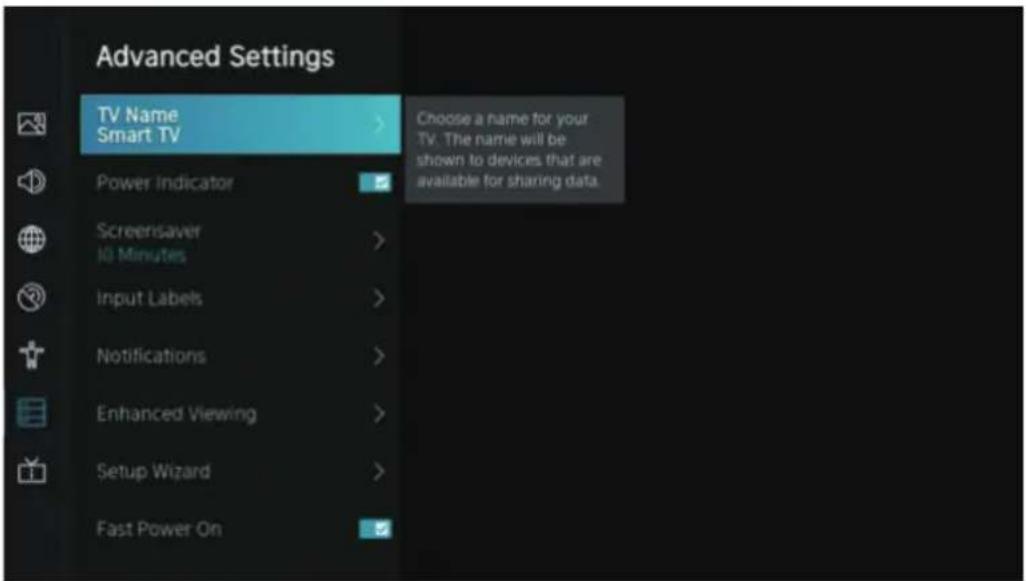
ADVANCED SETTINGS
Press ▼ / ▲ button to select Advanced Settings, then press OK / button to enter
text_image
Advanced Settings TV Name Smart TV Power Indicator Choose a name for your TV. The name will be shown to devices that are available for sharing data. Screenisaver 10 Minutes Input Labels Notifications Enhanced Viewing Setup Wizard Fast Power OnTV Name
Press ▼ button to select TV Name, then press OK / button to setup your TV name.
Screen saver
Press ▼ button to select Screen saver, then press OK / button to enter.
(Optional: None/5 Minutes/10 Minutes/20 Minutes)
Input Labels
Press ▼ / ▲ button to select Input Labels, then press OK / button to enter.
(Optional: TV/AV/HDMI1/HDMI2/HDMI3)
Notifications
Press ▼ / ▲ button to select Notifications, then press OK / button to enter sub-menu and select.
Enhanced Viewing
Press ▼ button to select Enhanced Viewing, then press OK / button to enter sub-menu and select.
Setup Wizard
Press ▼ / ▲ button to select Setup Wizard, then press OK / button to select.
Fast Power On
Press ▼ button to select Fast Power On, then press OK button to select On/Off.
Power On Mode
Press ▼ button to select Power On Mode, then press OK / button to select.
SYSTEM
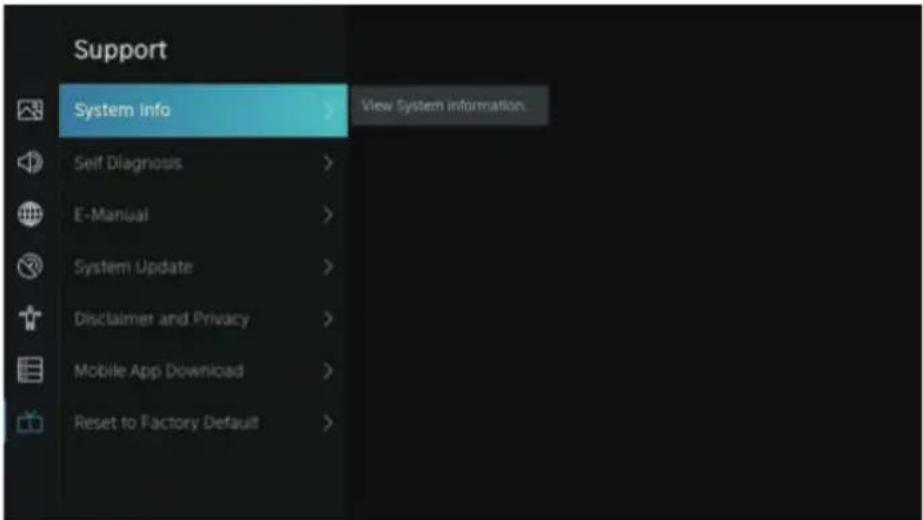
SUPPORT
text_image
Support System info View System information Self Diagnosis E-Manual System Update Disclaimer and Privacy Mobile App Download Reset to Factory DefaultZ
System Info
View System information
Press ▼ / ▲ button to select System Info, then press OK / button to enter sub-menu.
Self Diagnosis
Perform self diagnosis to test sound, picture and connections.
Press ▼ / ▲ button to select Self Diagnosis, then press OK / button to enter sub-menu.
E-Manual
Press ▼ button to select E-Manual, then press OK / button to enter sub-menu.
System Update
Set your TV to receive the latest firmware.
Press ▼ / ▲utton to select System Update, then press OK / button to enter sub-menu.
Disclaimer and Privacy
Click to read the Disclaimer details.
Press ▼ / ▲utton to select Disclaimer and Privacy, then press OK / button to enter sub-menu.
Mobile App Download
Press ▼ button to select Mobile App Download, then press OK / button to enter sub-menu.
Press ▼ /▲ button to select Restore To Factory Default, then press OK /▶ button to enter sub-menu and select.
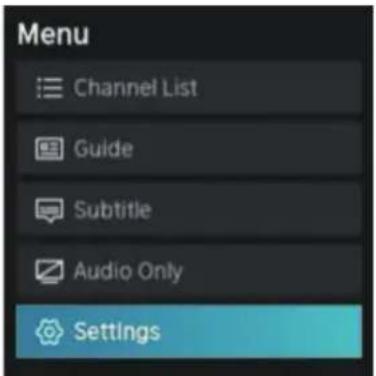
Press MENU button to wakeup Menu, then press ▼ / ▲ button to select.
SYSTEM
text_image
Menu Channel List Guide Subtitle Audio Only SettingsChannel List
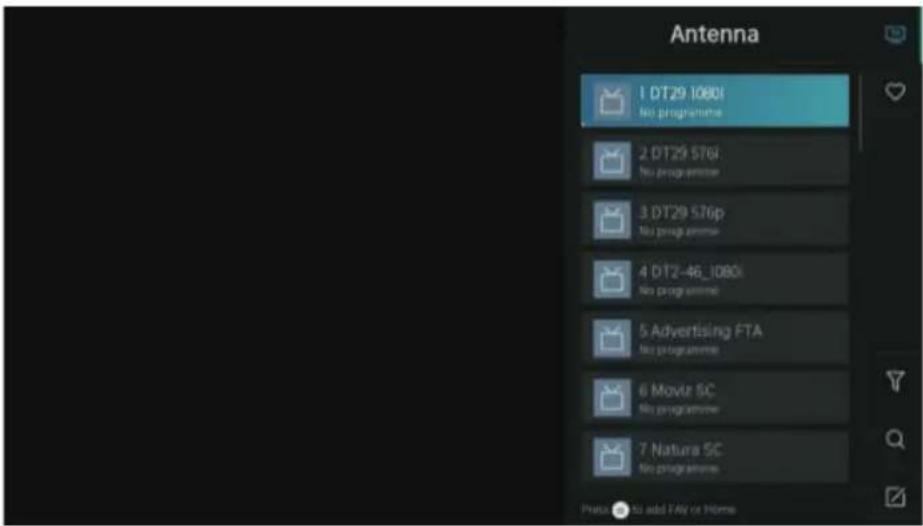
Press ▼ / ▲ button to select Channel List, then press OK button to enter sub-menu.
text_image
Antenna 1 DT29_1080i No programme 2 DT29_576i No programme 3 DT29_576p No programme 4 DT2-46_1080i No programme 5 Advertising FTA No programme 6 Movie SC No programme 7 Natura SC No programme Please add FAIR or HOMEGuide
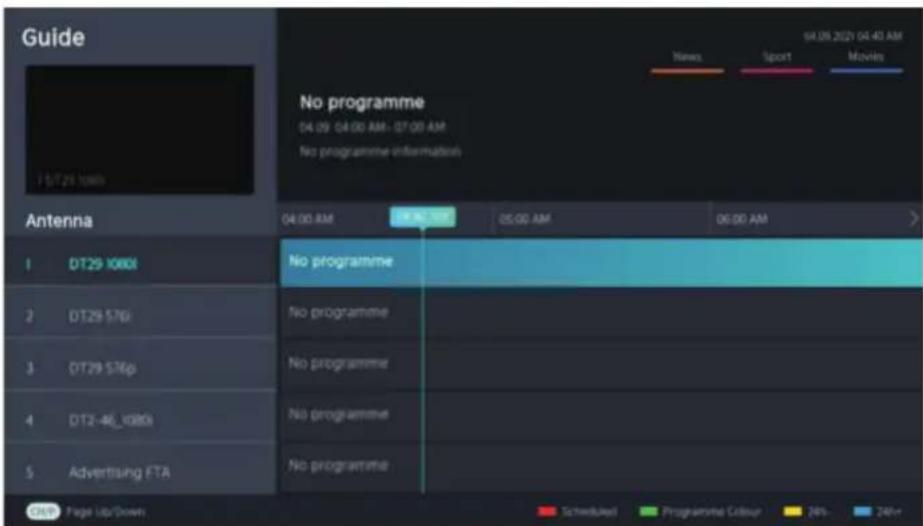
Press ▼ button to select Guide, then press OK button to enter sub-menu.
text_image
Guide No programme 04:09 04:00 AM - 07:00 AM No programme information 15/7/29 hours 04:00 AM 05:00 AM 06:00 AM Antenna 1 DT29_080t 2 DT29_576i 3 DT29_576p 4 DT2-46_080s 5 Advertising FTA No programme No programme No programme No programme Scheduled Programme Colour 24% 24%+SYSTEM
Subtitle
Press ▼ / ▲button to select Subtitle, then press /▼button to select Off/On.
Audio Only
Press ▼ button to select Audio Only. Press OK button enter the sub-menu.
Settings
Press ▼ /▲ button to select Settings. Press OK button enter the sub-menu. Please refer to the home page--Setting part.
MEDIA
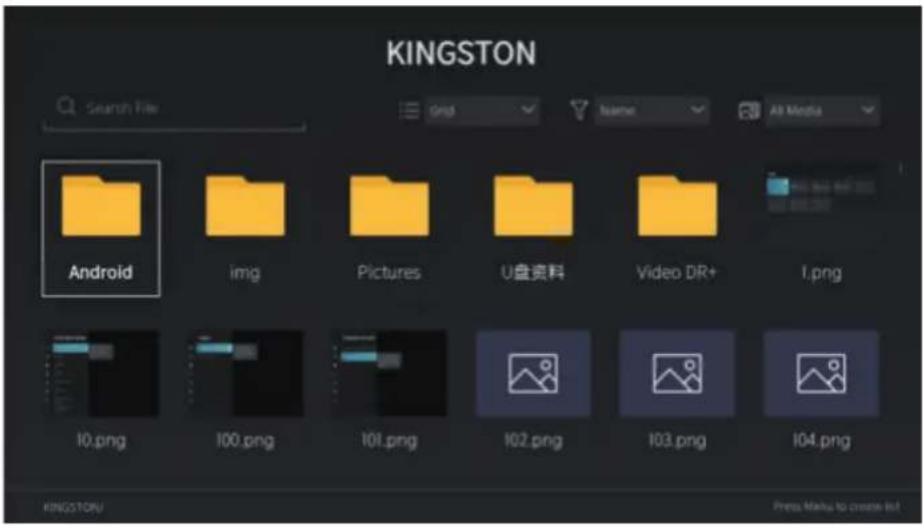
Press ▼ / ▲ / ◀ button to select Media on the Home page or press MEDIA button on the remote, and press OK button to enter the Media Center.
text_image
KINGSTON Search File Grid Name All Media Android img Pictures U盘资料 Video DR+ I.png 10.png 100.png 101.png 102.png 103.png 104.png KINGSTON/ Press Make to create itE
Video
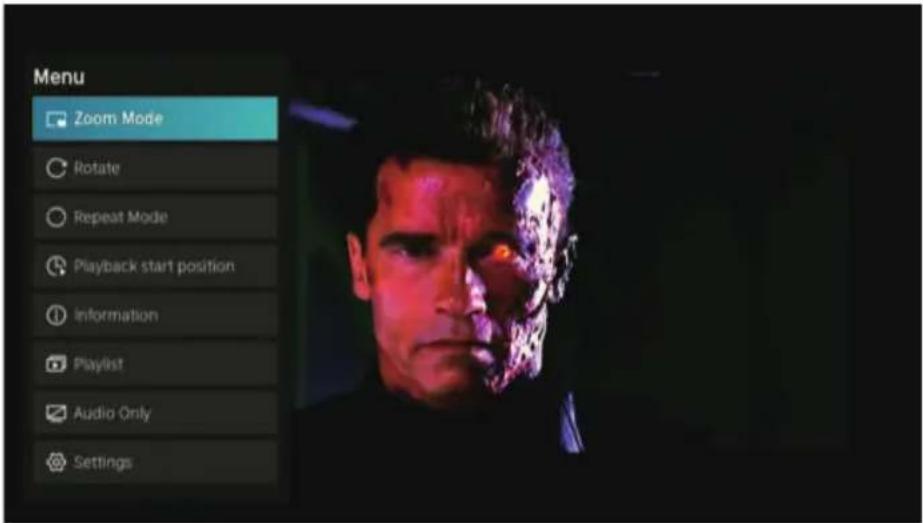
Press ▼ / ▲ button to select Video or All, and press /▼/ ▲ button to select Movies. Press Menu button to display the setting options on the left side.
text_image
Menu Zoom Mode Rotate Repeat Mode Playback start position Information Playlist Audio Only SettingsSYSTEM
Zoom Mode
Press ▼ / ▲ button to select Zoom Mode, and press OK button to select.
(Optional: Fit/Full/Original Size)
Rotate
Press ▼ / ▲ button to select Rotate, and press OK button to select. (Options: Right 90°/Left 90°)
Audio Only
Press ▼ button to select Audio Only, and press OK button to select.
Repeat Mode
Press ▼ button to select Repeat Mode, and press OK button to select.
(Optional: No Repeat / Repeat Current / Repeat All)
Playback start position
Press ▼ / ▲ button to select Playback start position, and press OK button to select.
Information
Press ▼ button to select Information, and press OK button to view.
Play List
Press ▼ button to select Play List, and press OK button to display all available videos.
Audio Only
Press ▼ button to select Audio Only, and press OK button to select.
Audio
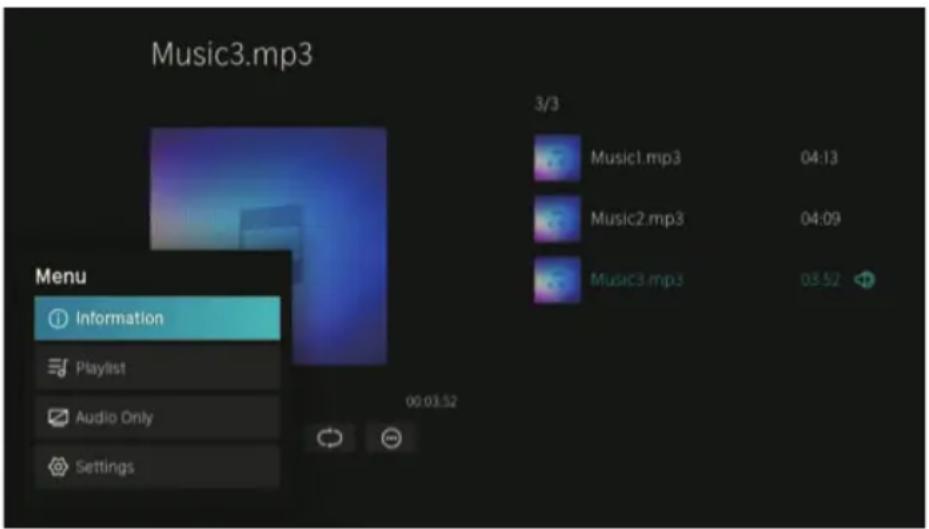
Press ▼ button to select Audio or All, and press / ▼/ ▲button to select Music.
text_image
Music3.mp3 Menu Information Playlist Audio Only Settings 3/3 Music1.mp3 04:13 Music2.mp3 04:09 Music3.mp3 03:52Information
Press ▼ button to select Information, and press OK button to view.
Play List
Press ▼ / ▲ button to select Play List, and press OK button to display all available videos.
(Optional: Pause/Repeat All/Edit)
SYSTEM
Audio Only
Press ▼ / ▲ button to select Audio Only, and press OK button to select.
Image
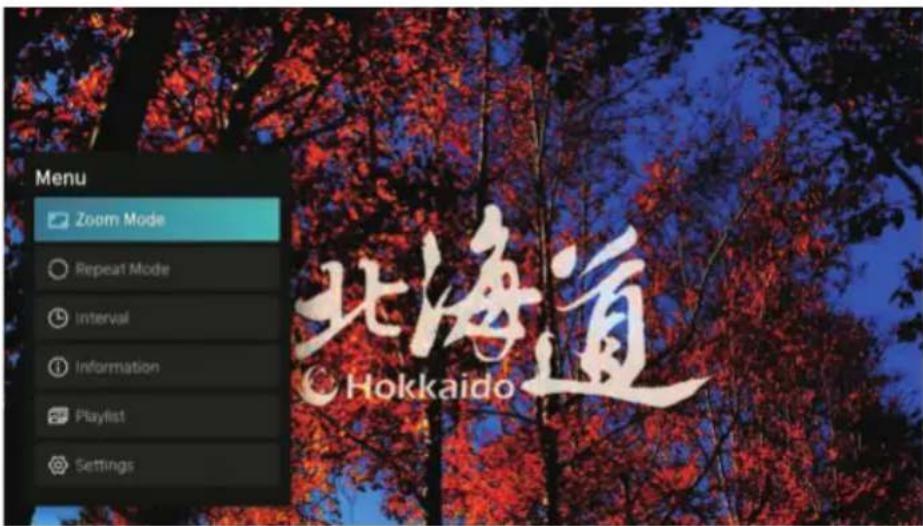
Press ▼ button to select Image or All, and press / ▼/ ▲button to select Picture.
text_image
Menu Zoom Mode Repeat Mode Interval Information Playlist Settings 北海道 HokkaidoZoom Mode
Press ▼ / ▲ button to select Zoom Mode, and press OK button to select. (Optional: Fit/Original Size)
Repeat Mode
Press ▼ / ▲ button to select Repeat Mode, and press OK button to select. (Optional: No Repeat/Repeat All)
Interval
Press ▼ / ▲ button to select Ineterval, and press OK button to select. (Optional: 5S/10S/20S)
Information
Press ▼ button to select Information, and press OK button to view.
Play List
Press ▼ button to select Play List, and press OK button to display all available Picture.
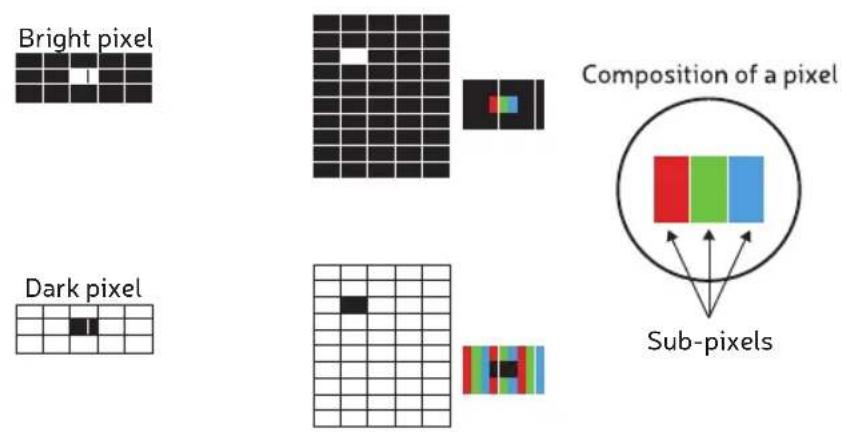
Policy on defective pixels
Due to the complexity of the technology used in the manufacture of LCD, TFT and LED screens, it is possible that some of the pixels that make up the screen may be defective. While it is desirable for all the pixels to function correctly, this is not always possible from a production perspective. For this reason, HKC certi es that its LED TV products meet the criteria of admissible defect described herein and certi es that its LED TV screens are class A.
| Defective pixels | 19"-20"-22"-24" 29"-32" 39"-40" 46"-50" | |||
| Bright pixel (max.) 4 4 4 4 | ||||
| Dark pixel (max.) 8 9 14 16 | ||||
| Maximum permitted sum of pixels | 5 7 12 12 | |||
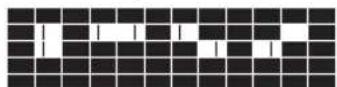
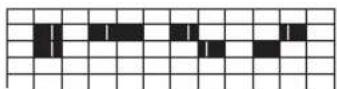
| Double adjacent pixels (max.) 1 1 1 1 | ||||
If an LED TV screen has dark or bright pixels, this is only considered to be a fault by HKC when the ranges established herein for an LED panel to be considered defective are exceeded, thereby allowing HKC to manage the replacement or warranty of the panel due to a product non-conformance. As a rule and except for limited exceptions, HKC considered an LED TV product to be faulty when it has a considerable number of permanently bright or dark pixels. As a reference, an LCD/LED panel has more than 1 million pixels and a single defective pixel is therefore not considered to constitute a lack of conformance and cannot be catalogued as a fault, as this circumstance will not a ect the correct functioning of the product.
Double adjacent bright pixels
Double adjacent dark pixels
Therefore, if an LED screen meets the above criteria, it cannot be changed or repaired as this is not considered to be a lack of product conformance and cannot be catalogues as a defect or fault.
HKC
USER'S MANUAL LED TV SET
natural_image
Illustration of a laptop computer with a blank screen and glossy base (no text or symbols)CONTENIDO
natural_image
Illustration of a computer monitor with blue lightning bolts and a crossed-out screwdriver (no text or symbols)Precaução
natural_image
Simple line drawing of a computer monitor with a blue X mark and a paper curtain beside it (no text or symbols)Precaução
natural_image
Illustration of a computer monitor with a 'X' symbol and a hand holding a starburst above it (no text or symbols present)Precaução
natural_image
Simple line drawing of a box with steam rising, marked with a blue 'X' and a small object on a stand (no text or symbols)Precaução
text_image
Cartoon illustration showing a person holding a computer monitor with a 'X' symbol, surrounded by floating icons and text.Precaução
natural_image
Illustration of a computer monitor with a blue X mark and a lightning bolt on top, no text or symbols present.Precaução
natural_image
Illustration of a chef next to a computer monitor and a small globe (no text or symbols)Precaução
natural_image
Simple line drawing of a computer monitor with a pointer and radiating lines (no text or symbols)Precaução
text_image
VIDAA It's all about U prime videos YouTube Inverter VODA Free VODA ART Netflix TV Show Groups YUPPTV Medianatural_image
User interface icons including search, refresh, gear, alarm, and user profile (no text or symbols)text_image
Picture Sound Network Channel Accessibility System i SupportIMAGEM
text_image
Picture Picture Mode Standard > Sound Aspect Ratio Automatic > Network Source Mode Channel Picture Mode Settings > Accessibility System SupportModo de imagem
text_image
Picture Mode Settings Apply Picture Settings Current Source Adjust current picture mode to apply to all Sources or just current source Backlight Brightness 50 Contrast 50 Colour Saturation 50 Sharpness 25 Adaptive Contrast Medium Noise Reduction Medium
text_image
Expert Settings Colour Tuner White Balance Block Lase Button Gamma Adjustment 2.2 Gamma Calibration RGB Only Mode Ctrl Adjust the Hue, Saturation and Brightness of colour settings.Ajuste de cor
text_image
Reset Current Mode The current picture settings will revert back to the factory default settings. Do you want to continue? Cancel OKSOM
text_image
Sound Sound Mode Standard Select a preset sound mode to suit the type of content? you are listening to headphones Sound Mode Settings Speakerstext_image
Sound Mode Settings Apply Audio Settings Current Source Adjust current sound mode to apply to all sources or just the current source. Bass Boost Surround Sound Dialog Clarity TruVolume Equalizer Wall Mount Setup Auto Volume Controltext_image
Speakers Audio Output TV Speaker Digital Audio output PCM Select the digital audio output format that best suits the audio device type Lip Sync 3 Balance 9SOM
Saída de áudio
text_image
Network Network Configuration Disconnected Internet Connection Wake on Wireless Network Wake on LAN Set up the network to gain full access of Smart TV Features.text_image
Channel Auto Scan > Automatic channel scan Channel Edit > Advanced Settings >text_image
Rescan Reception: Cable Operator: Standard Scan Mode: DTV LCN: Off Change Setup RescanRecepção
text_image
Reception Satellite Cable Auto Channel Scantext_image
Mode setup Channel All Channels Scan Mode DTV Search Mode Frequency Scan Network ID 0 Start Frequency LCN Off Auto Channel ScanPesquisa automática
text_image
Auto Scan 60% Scan Process 60% Channel: 0 Radio: 0 Stop Signal Quality Signal Level Reception: AntennaCANAL
text_image
Stop Scan Process Do you want to stop the channel scan? Cancel OKEditar canal
text_image
Channel Management Analogue Edit Antenna Edit Cable Edit ASTRA1 19.2"E Edit FAV1 Edit FAV2 Edittext_image
Advanced Settings Manual Scan Channel List Auto Update Programme Guide Auto Up... Perform manual channel scan for ATV and OTVCANAL
Pesquisa manual
text_image
DTV Manual Scan Tuner Mode Antenna Channel Number 29 Bandwidth 8MHz Channels Found 0 Signal Quality 0% Signal Level 0% StartPesquisa manual de ATV
text_image
Channel Selection Channel List Analogue Select All Unselect All 1 PC01 2 PZ01 3 PC0B 4 PB0B Page UP/Page DownACESSIBILIDADE
text_image
Accessibility Picture Menu Scheme Dark Sound High Contrast Menu Network Menu Transparency Medium Channel Hard of Hearing Subtitles Accessibility Audio Type System Dialogue Enhancement SupportEsquema de menu
text_image
System Picture Time > Sound Timer Settings > Network System PIN > Channel Parental Control > Accessibility Language and Location > System Amazon Alexa Service > Support Application Settings > HDMI & CEC >text_image
Time Time Format 12-hour Set the time display to be 12 or 24-hour format Date/Time Time Zone UTC+1 (Berlin) Daylight Saving Sync from DTVSISTEMA
Formato de Hora
text_image
Power On Timer Power On Timer Repeat Once Weekly Time 12 00 AM Cancel ConfirmSISTEMA
text_image
Power Off Timer Power Off Timer Repeat Once Weekly Time 12 00 AM Cancel Confirm
text_image
and Location Location Australia > Choose the location from where you will watch your TV Menu Language English > Primary Audio English > Secondary Audio English > Primary Subtitle English > Secondary Subtitle English > Digital Teletext WEST EUR >SISTEMA
Localização
text_image
Application Settings Content Sharing HbbTV Clear Cache > Delete Cookies > Do Not Track Mode2 > Prime Video > Netflix Stream video, music or any other content from another device to your TV screen.text_image
HDMI & CEC CEC Control Device Auto Power Ctrl Device Auto Power Ctrl TV Auto Power Ctrl LED Power Ctrl Allow HDMI devices to control each other.
text_image
Advanced Settings TV Name Smart TV Power Indicator Screerisaver 10 Minutes Input Labels Notifications Enhanced Viewing Setup Wizard Fast Power On Choose a name for your TV. The name will be shown to devices that are available for sharing data.Nome da TV
(Opções: TV/AV/HDMI1/HDMI2/HDMI3)