P771A - Tablet HKC - Free user manual and instructions
Find the device manual for free P771A HKC in PDF.


| Product Type | Tablet |
| Brand | HKC |
| Model | P771A |
| Dimensions (W x H x D) | Approx. 250 x 170 x 10 mm |
| Weight | Approx. 500 g |
| Display | 7.7-inch TFT LCD, 1024x768 pixels |
| Operating System | Android 9.0 or later |
| Processor | Quad-core 1.3 GHz |
| Memory RAM | 2 GB |
| Storage | 32 GB internal, expandable via microSD up to 128 GB |
| Battery Capacity | 4000 mAh Li-Polymer |
| Power Supply | DC 5V 2A via micro USB |
| Connectivity | Wi-Fi 802.11 b/g/n, Bluetooth 4.0 |
| Cameras | Front 2 MP, Rear 5 MP |
| Sensors | G-sensor, light sensor |
| Audio | Built-in speaker, 3.5 mm headphone jack |
| Main Functions | Web browsing, video playback, e-reading, apps, games, office tasks |
| Maintenance & Cleaning | Wipe with a soft dry cloth; avoid liquids and abrasives |
| Safety | Do not disassemble; avoid extreme temperatures; use only provided charger |
| Spare Parts & Repairability | Spare parts may be available through authorized service centers; repairs by qualified personnel recommended |
| General Information | Designed for everyday use; consult user manual for complete instructions |
Frequently Asked Questions - P771A HKC
User questions about P771A HKC
0 question about this device. Answer the ones you know or ask your own.
Ask a new question about this device
Download the instructions for your Tablet in PDF format for free! Find your manual P771A - HKC and take your electronic device back in hand. On this page are published all the documents necessary for the use of your device. P771A by HKC.
USER MANUAL P771A HKC
text_image
HKC Touch the wonderful world7" Capacive Mul-Touch Tablet
Instrucon Manual
HKC brings you the latest in Android™ technology, giving you the performance you want at an aordable price. The crystal clear 7" capacive touch screen is great for watching movies, reading books, surng the web, video conferencing online and more. With Google Play you can take advantage of more than 600,000 apps and games, as well as the world's largest collecon of eBooks, millions of songs, thousands of movies, TV shows and magazines. Designed to enhance your entertainment experience at home or on the go and with up to 9 colors to choose from, you can enjoy your technology in style! Welcome to HKC...
Technical Specicaons:
- Android 4.0 OS (Ice Cream Sandwich)
- 7" Capacive mul-touch screen, 800 x 480 resoluon, 16:9 aspect rao
• 1GHz processor with 1 GB system memory - 8GB onboard storage memory, up to 32GB additional memory via micro SD card slot
- Front facing webcam with microphone
- Built-in Wi-Fi
- Micro USB port
- Pre-loaded with Google™ applicaons including Google Play™, Gmail™, Google Maps™, YouTube™ and more...
- Up to 5 hours of baery life
- Weights 0.5 lbs; 4.75" x 7.55" x 0.375" dimensions
What's in the Box:
- HKC tablet
- instrucon manual
- in ear headphones
- AC charger
- micro USB cable
Switch on/Unlock:
Switch On and unlock: when the device is in the OFF mode, press and hold “Power” key for 3 seconds to enter the Android startup progress bar, it need about 100 seconds enter to the system desktop, the LCD is under locked mode, please press and pull the icon to no glee point, then the LCD will unlock automacally.
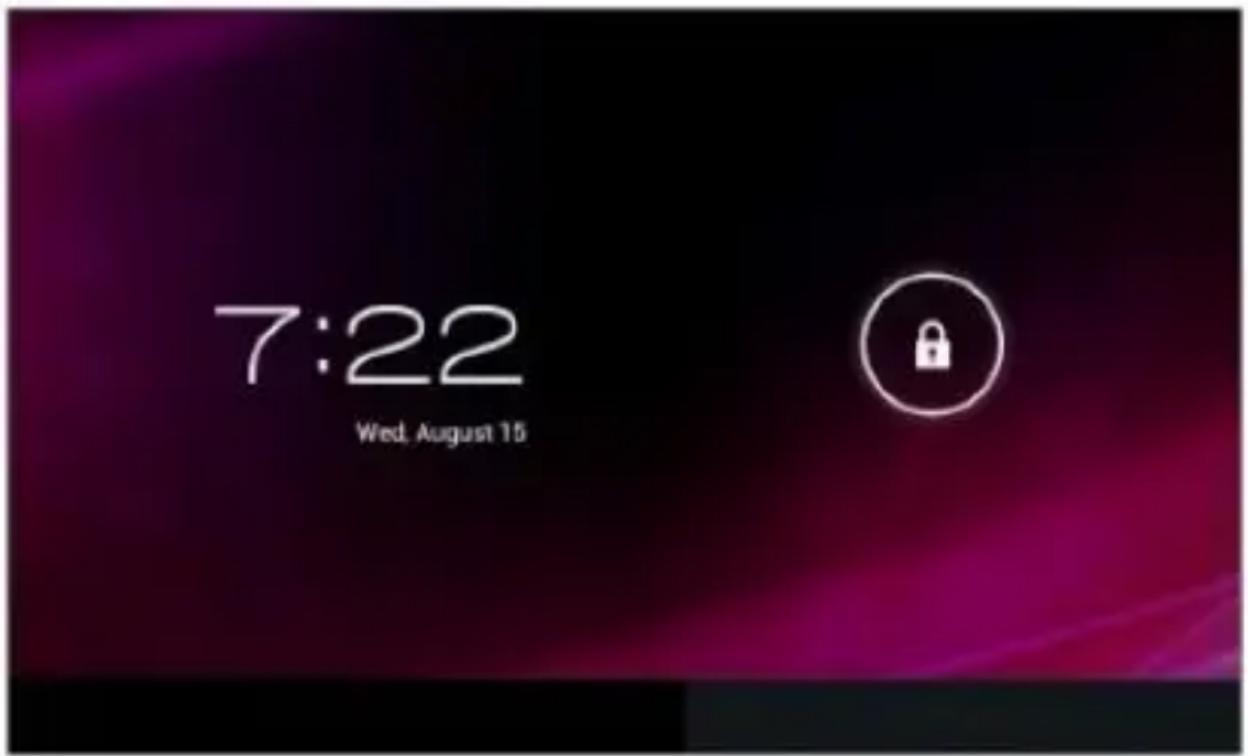
text_image
7:22 Wed, August 15Power Save Modes/Lock screen/Switch OFF:
Press the “POWER” key shortly aer starng up, system will enter to SLEEP power save and lock screen mode. Press the “POWER” key or tap the touch screen. For example: playing music, movie, etc.
Switch OFF: when the device is in the OFF mode, press and hold the "POWER" key for 3 seconds, the screen will display the power o interface, choose the power o opon to conrm, the system will shut down automacally.
【Note】 When the device has low baery, it will alarm connuously and shut down automacally if the device is not being charged and the device cannot start up. Please check if the baery is low, and try it again aer the baery is charged.
Baery Management and Charging:
Charge the baery for about 4-5 hours to make sure the baery is fully charged before the rst me of use.
Insert the micro port of the baery adapter into DC slot on the device, and connect the other side with the power socket. Then the Power indicang lamp of the device will be in a high-lighted blue color, the desktop icon of the baery will keep rolling, which shows it is charging, please wait unl the baery is fully charged, and do not disconnect the power while charging. Once the baery is fully charged, the indicang lamp will change into a dark blue color, the icon on the desktop will stop rolling. When the baery is exhausted completely, please charge at least one minute before starng up.
【Note】In order to keep the baery working in best condion, please pay aenon as follows:
- Please do not charge the baery in high temperatures.
- Do not wait for the baer to be fully depleted before charging again. Keep the baery charged as needed.
- In order to keep the baery in the best condion make sure to charge once per two weeks if you do not use the device for a long me.
Operaon of the Funcon Icons:
Funcon Icon Denions:
| Icon | Function Instruction | Icon | Function Instruction |
 | Back to Home menu |  | Note when the system finds new devices |
 | Show current power status |  | Menu for function block |
 | back |  | Wifi /Ethernet Connection status |
 | menu |  | Remain your last task |
text_image
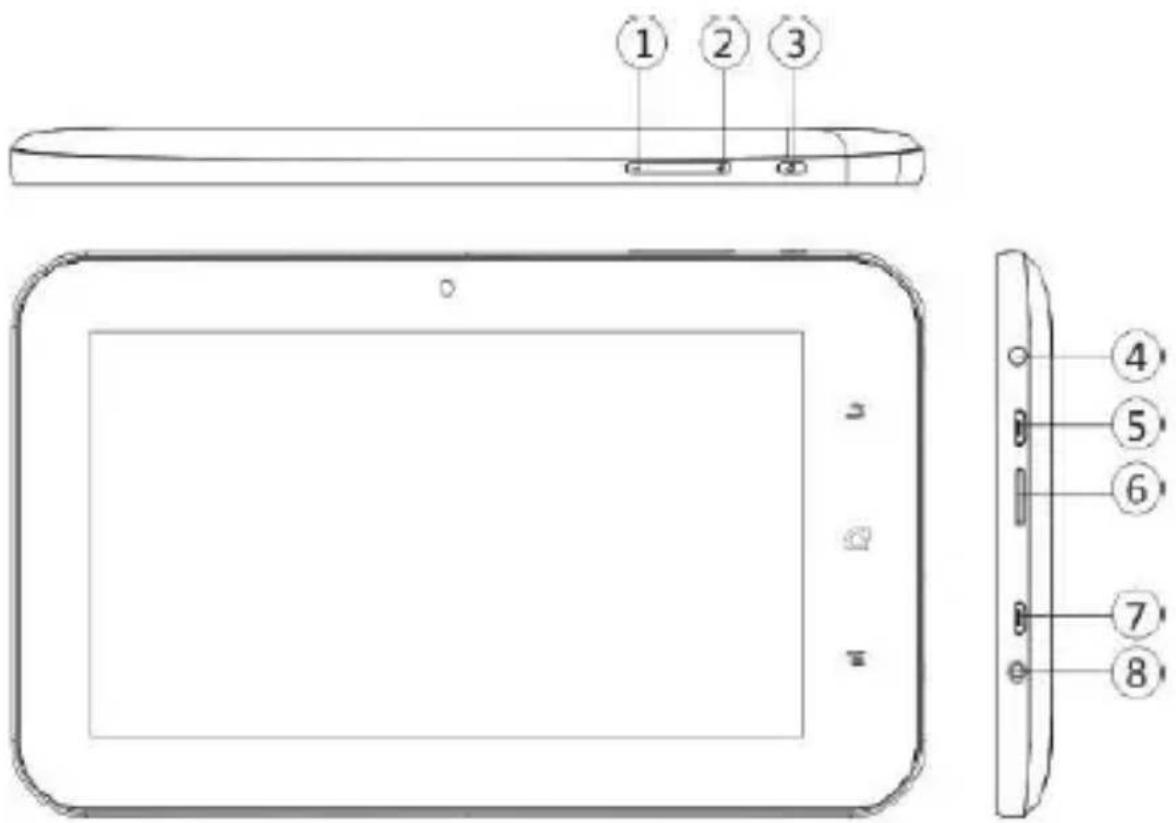
Technical diagram of a tablet device with labeled parts and exploded view, showing front, top, and side views.| Symbol | Name | Descripon |
| 1 | Volume Key | Press Le to Vol - |
| 2 | Volume Key | Press Right to Vol+ |
| 3 | POWER Key | Press the buon shortly to enter sleeping/wake up mode, press for a few seconds to switch ON/OFF |
| 4 | Earphone Slot | Stereo earpiece Jack |
| 5 | USB Slot | MINI 5Pin USB Port, connect to a pc |
| 6 | TF card Slot | TF card slot (Micro SD Card Slot) |
| 7 | HOST Slot | HOST Slot to make USB Connecon |
| 8 | DC Socket | Connect with 5V DC charger |
Wireless and Networks:
WIFI
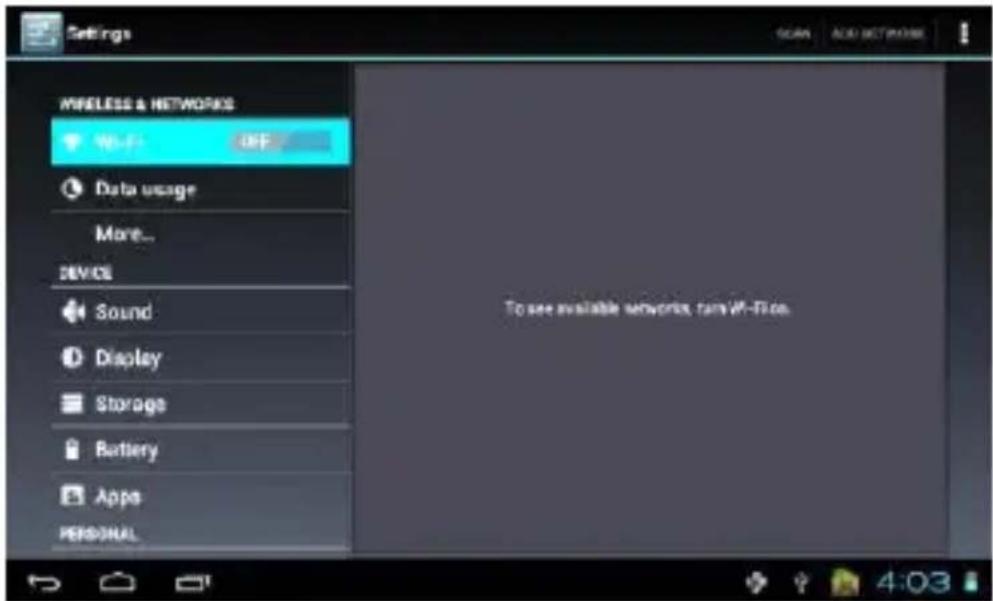
Turn on the Wi-Fi seng: tap the module icon to enter into the funcon menu list; press "seng" and enter into the seng interface; press "wireless and network" to setup, just select the Wi-Fi opon as per below:
text_image
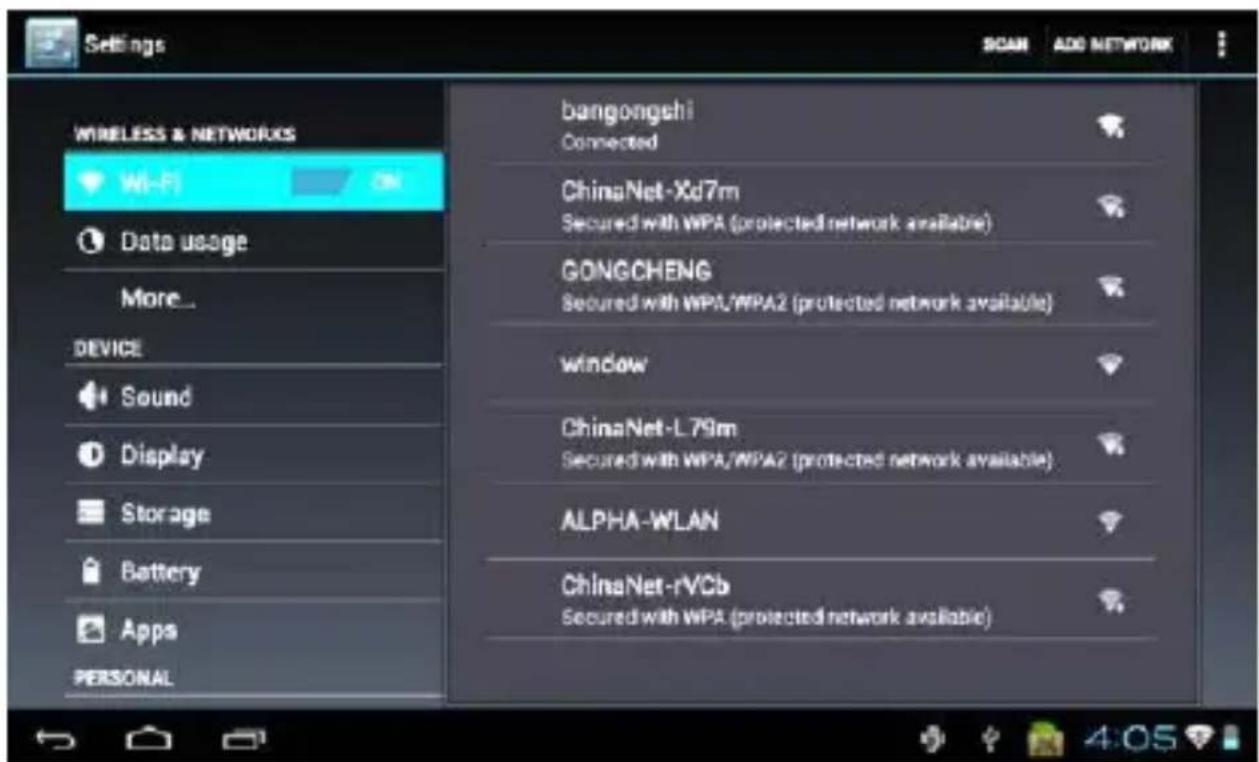
Settings MUSELESS & NETWORKS Wi-Fi OFF Data usage More... DEVICE Sound Display Storage Battery Apps PERSONAL To see available networks, turn off-Flow. 4:03Set the Wi-Fi and connect to a network: press the “Wi-Fi seng to enter into the Wi-Fi opons, the system will nd the Wi names available automacally. Please refer to the picture below, WIF networks available for use will be shown on the right:
text_image
Settings WIRELESS & NETWORKS Wi-Fi Data usage More... DEVICE Sound Display Storage Battery Apps PERSONAL bangongshi Connected ChinaNet-Xd7m Secured with WPA (protected network available) GONGCHENG Secured with WPA/WPA2 (protected network available) window ChinaNet-L 79m Secured with WPA/WPA2 (protected network available) ALPHA-WLAN ChinaNet-rVCb Secured with WPA (protected network available)You can see the network conncon status when you press the network name. There will be a Wi-Fi icon “ [icon]”. Showing the level of Signal
VPN Virtual Private Network:
You can create virtual private networks (VPN) and connect to your private network securely through a public network, such as the internet. You must set a lock screen PIN or password before you can use credenal storage.
Add VPN network and follow the instrucons on the screen.
USB Funcon:
Read USB-disk:
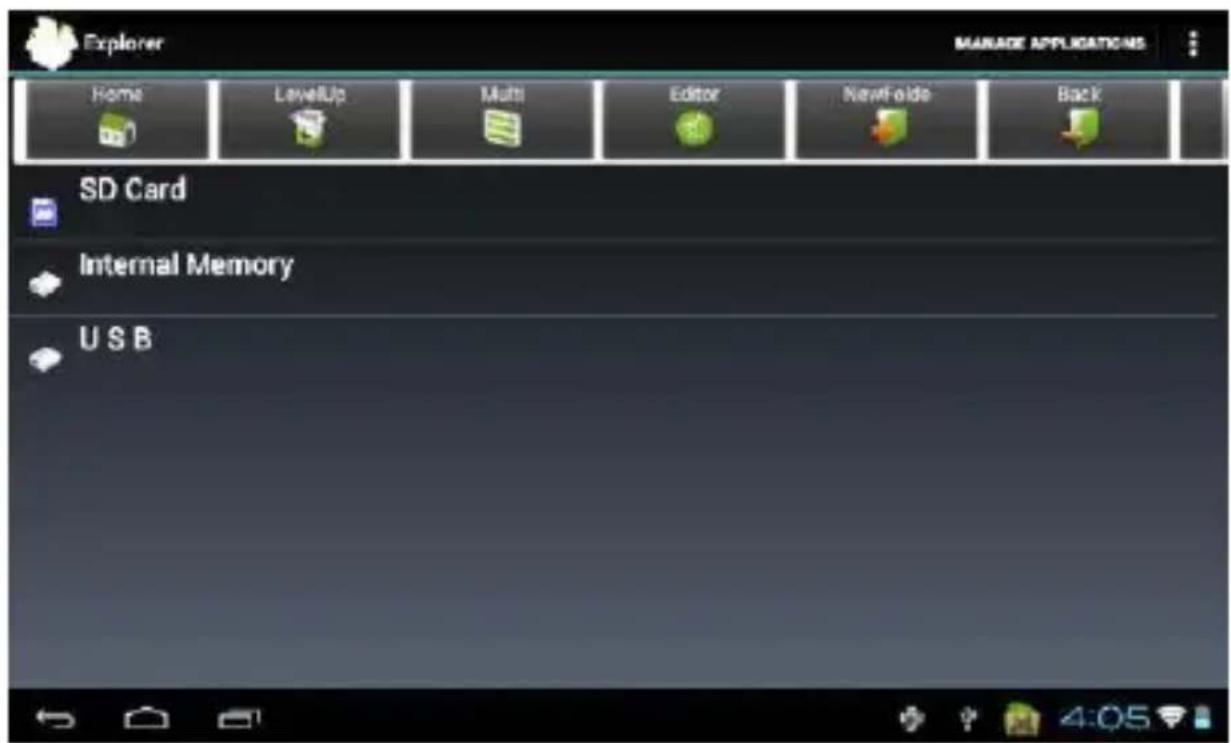
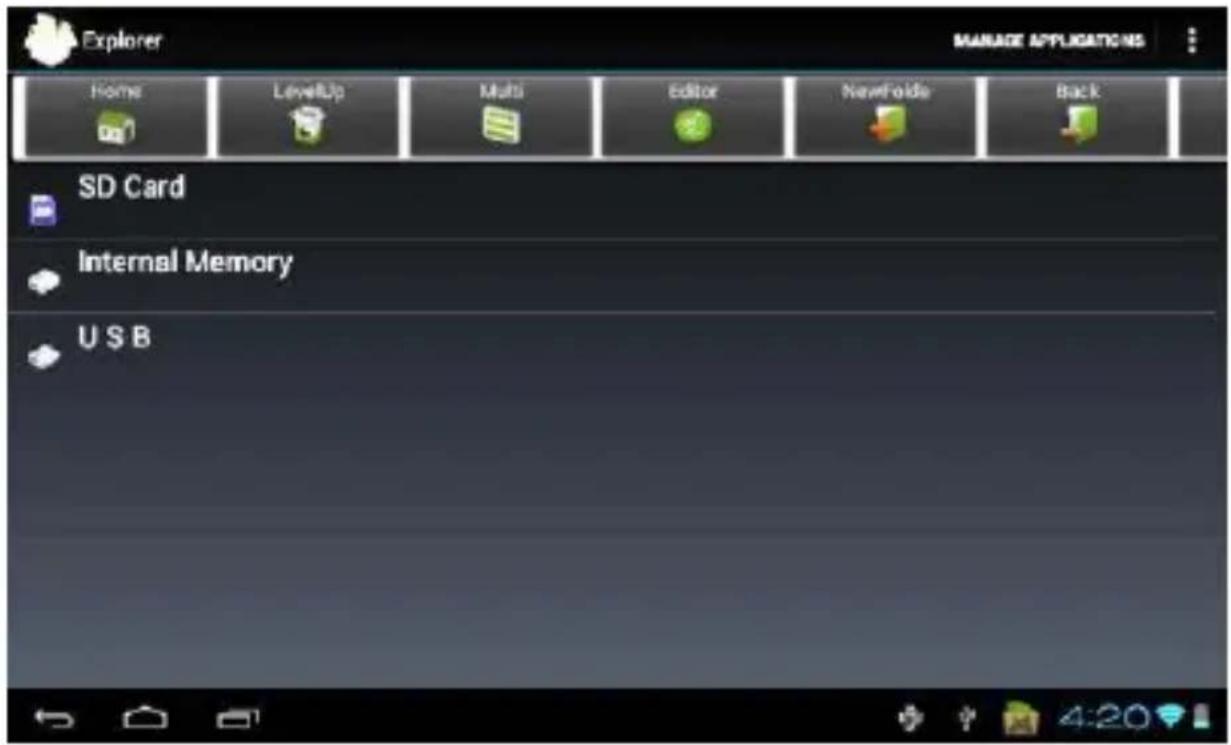
Insert the USB-disk into the Mini USB port and press the “explorer” opon in the desktop, maybe you will need an additional adapter cable to connect between the USB and the device, press “USB” and enter into USB-disk. You may see the image below:
text_image
Explorer MANAGE APPLICATIONS Home LayerUp Multi Editor NewFolde Back SD Card Internal Memory USBCamera Funcon:
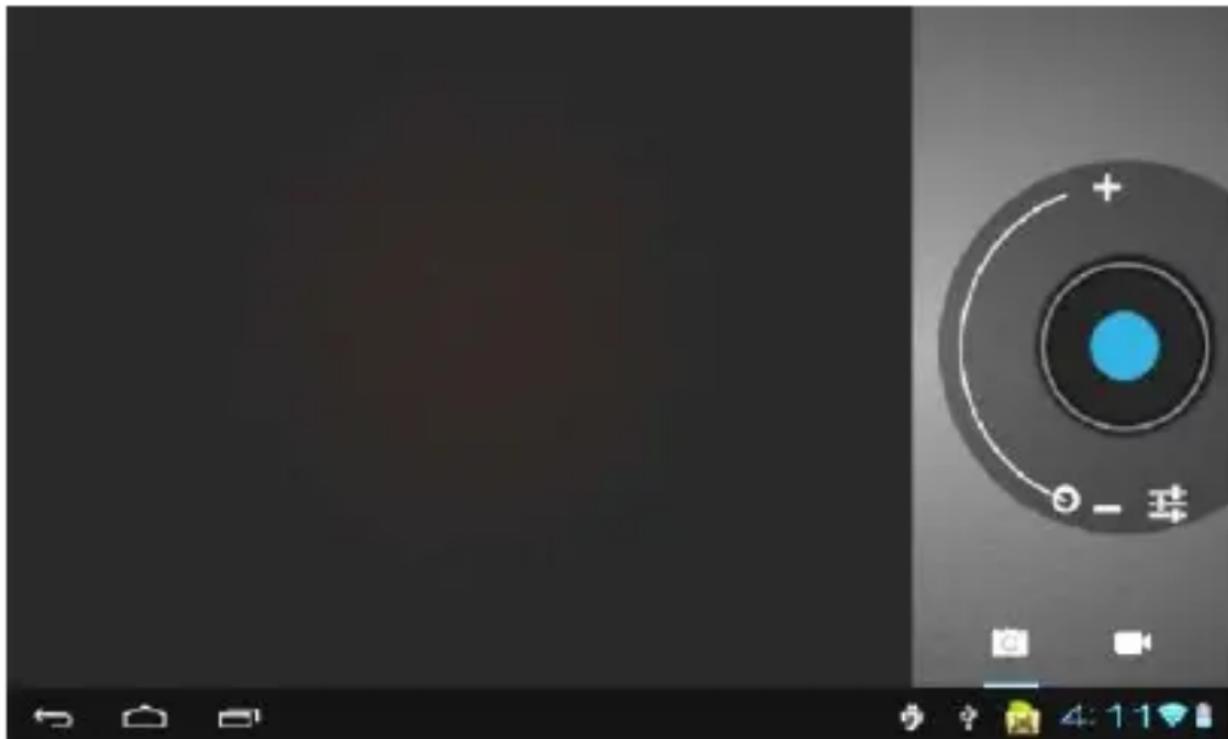
You can use camera to take videos, pictures or for video conferencing funconalies.
Select the Camera Icon to use the funconality:

text_image
Mobile phone interface screenshot showing a circular dial with Chinese label '球' and plus/minus indicatorsDesktop System:
(Mulmedia Music/ Video/ Pictures/Record /E-book)
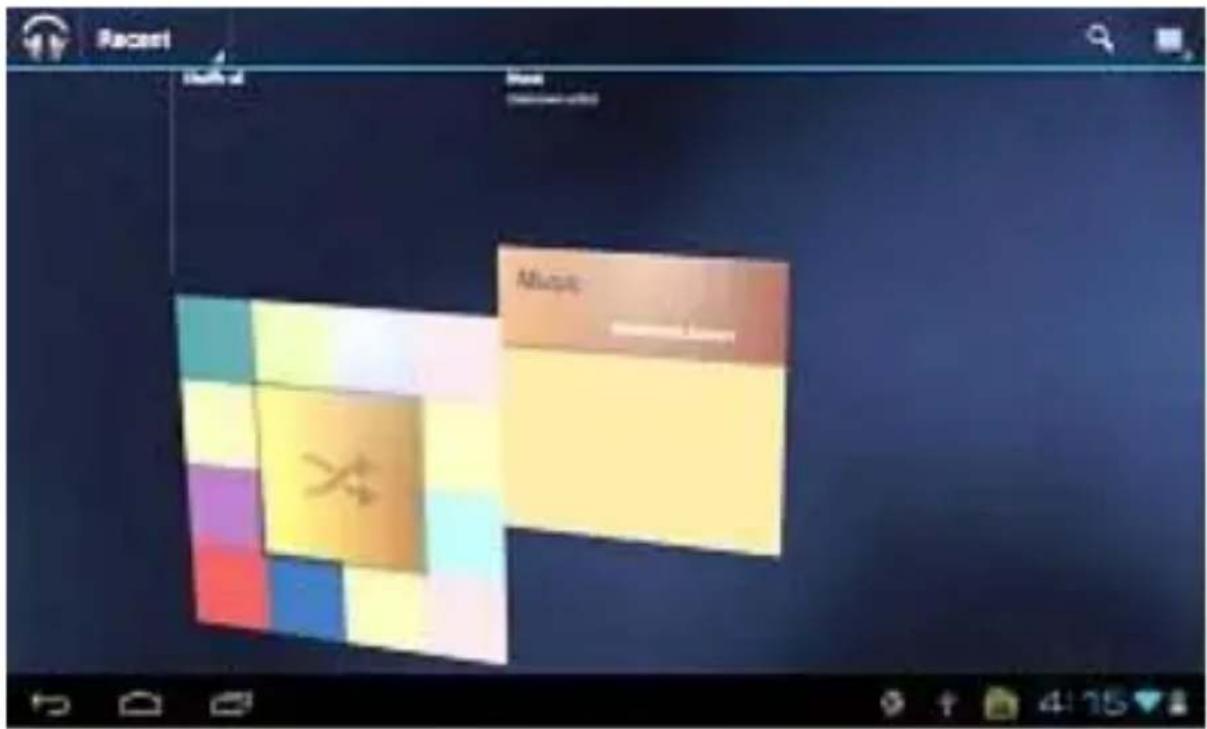
In the main menu or desktop, click the icon 📄 to play audio. When no music les are the audio play list, the system will automacally load the music les from the card to the audio player play list aer turning on the audio player (the device supports the following audio le format: MP3, WAV, MIDI & WMA).
Instruction Manual
If two or more songs are in the music play list area, slide up/down on the touch screen to go page up/down.
Double-click favorites in the list to play music as shown in the following picture:
text_image
Recent Allugs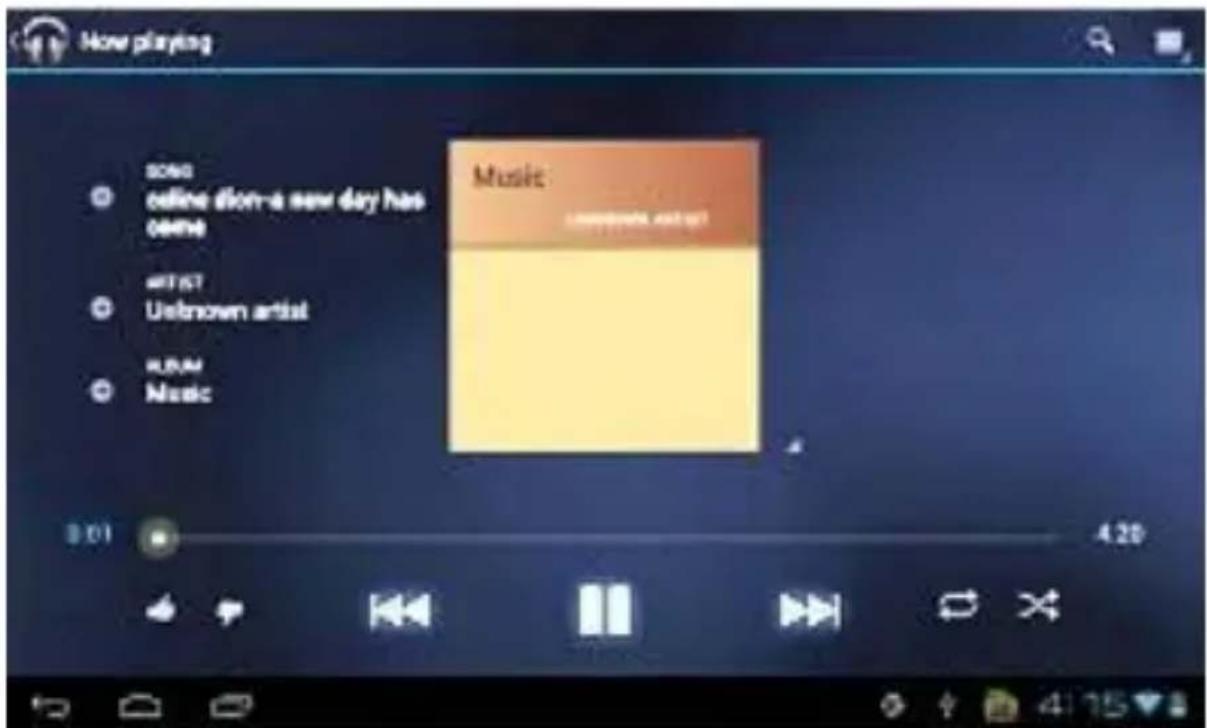
text_image
Now playing SONS online lion-a new day has came MIST Unknown artist KBM Music Music Lemonious art set 3:01 4:20In the music playing interface, tap the “ ☐” buon and then enter the audio playing list.
Drag the playback progress bar audio playback progress.

to adjust
Note: audio player can play WAV recorded les/
Photos:
In the main menu or desktop, tap the picture browsing icon:


natural_image
Grid of nine nature and landscape photos including fruits, cars, landscapes, and roads (no text or symbols)Photo Browser Buon Descripons:
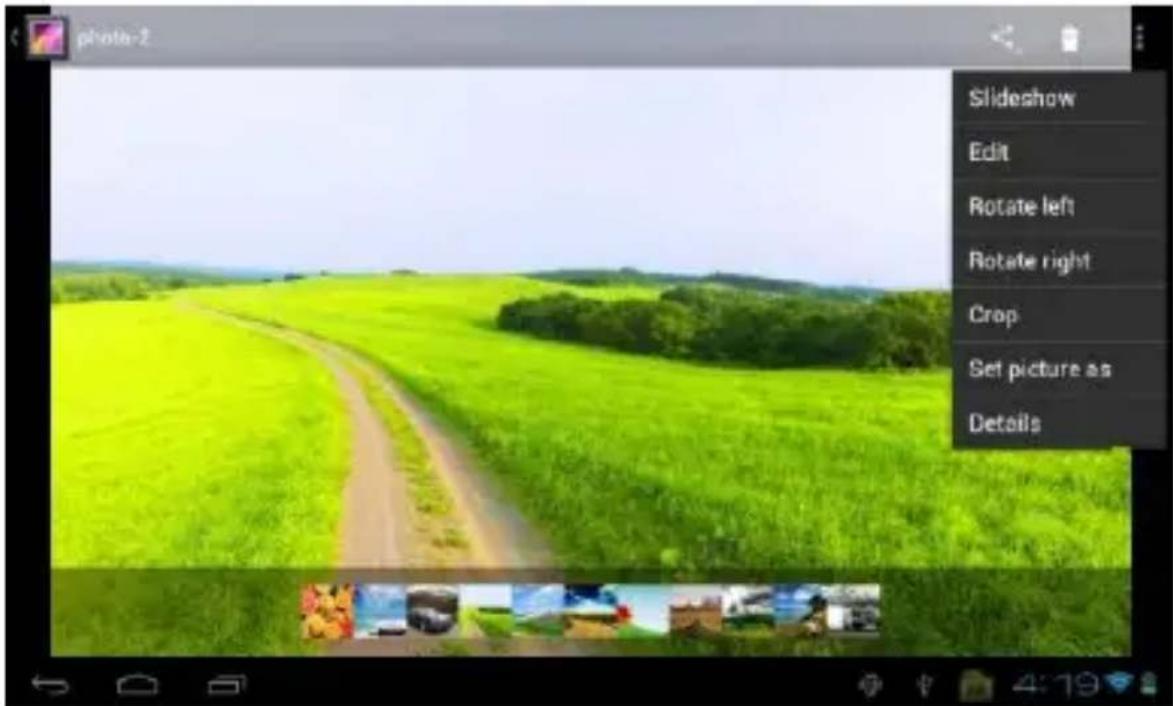
Add Pictures (This device supports BMP, JPG, JPEG, PNG & GIF formats). Open the corresponding folder, nd the image le and add the picture you want. Tap the photo seng buon, and the photo can be set as your wallpaper:
text_image
photo-2 Slideshow Edit Rotate left Rotate right Crop Set picture as DetailsExplorer
In the main menu or desktop, tap the explorer icon to enter the Management Interface, tap 【TF Card】then【Internal Memory】and【USB】to open. Their root directory folders to copy, paste, add, delete, remove and rename operaon opons, then tap previous / next folder or A menu to nish then copy, delete, paste, remove and rename to the correct directory.
To store additional les, you must insert a memory card. Your device accepts micro SD™ or micro SDHC™ memory cards with maximum capacities of 32 GB (depending on memory card manufacturer and type).
text_image
Explorer MANAGE APPLICATIONS Home LevelUp Multi Editor NewFoldie Back SD Card Internal Memory USBDesktop System (Network Applicaons)
text_image
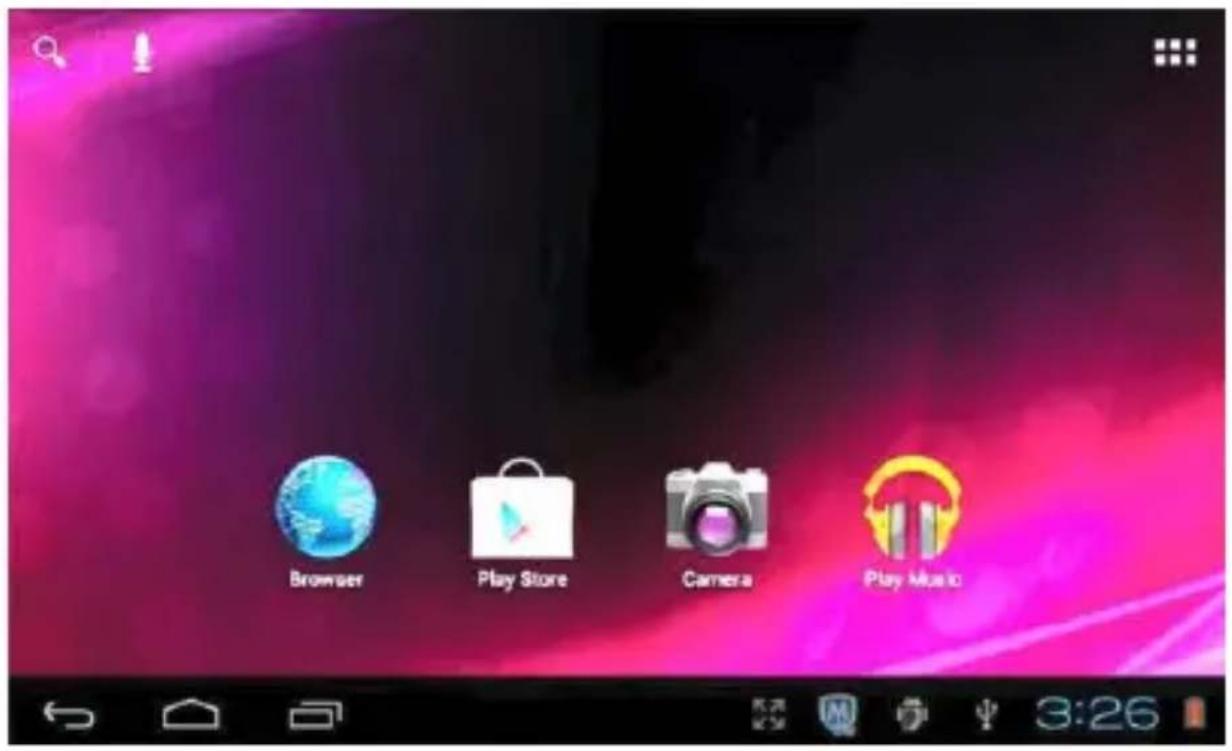
Browser Play Store Camera Play MusicIE Browser
When the WiFi conncon is in normal (for details refer to the Wi-Fi Setngs secon), tap the main menu or desktop's IE browser icon to enter to the IE interface, click the address bar and input the website and click "Go" to enter a corresponding website.
Note: the IE explorer uses the popular third-party IE explorer soware, please follow the IE explorer's standard operang mode to operate.
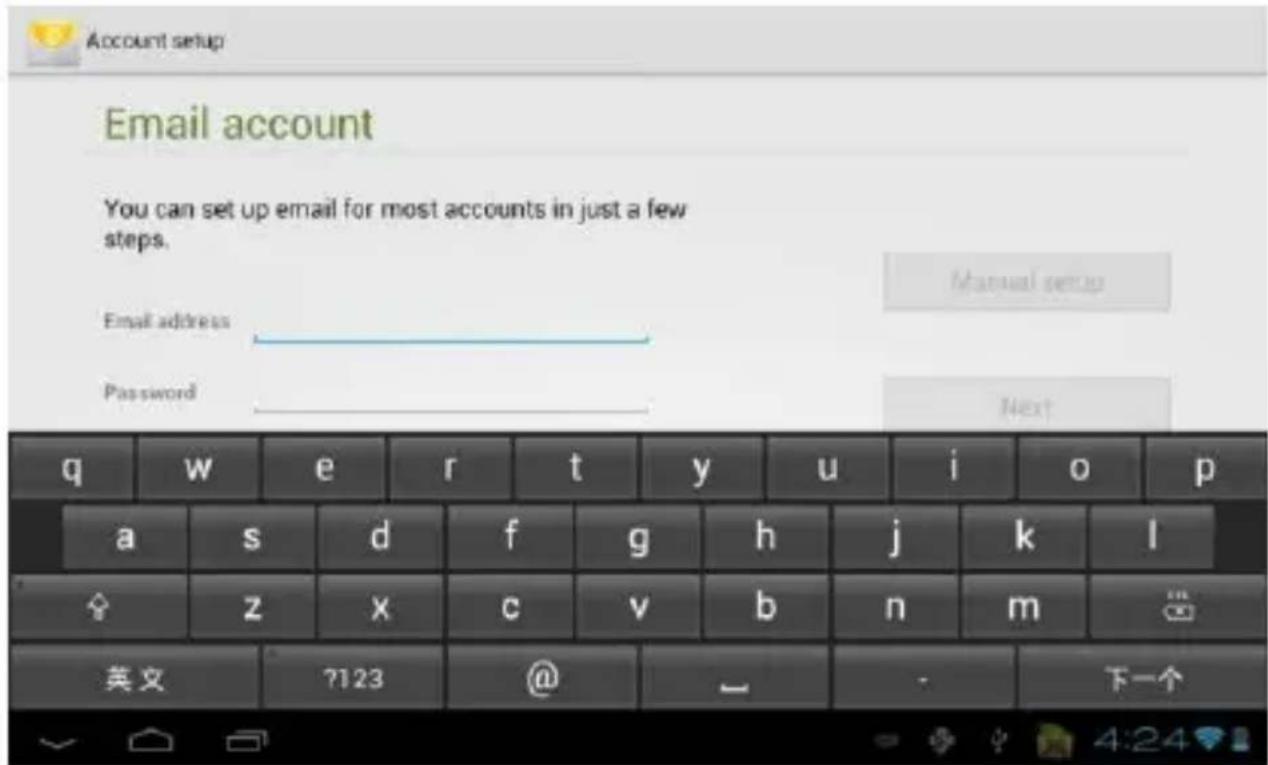
When Wi-Fi conncon is in normal (for details refer to the Wi-Fi Sengs secon), tap the mail icon in main menu or desktop to enter Email.
text_image
Account setup Email account You can set up email for most accounts in just a few steps. Email address Password Manual setup Next q w e r t y u i o p a s d f g h j k l z x c v b n m 英文 7123 @ - 下一个Desktop System (Other Funcons)
Calculator:
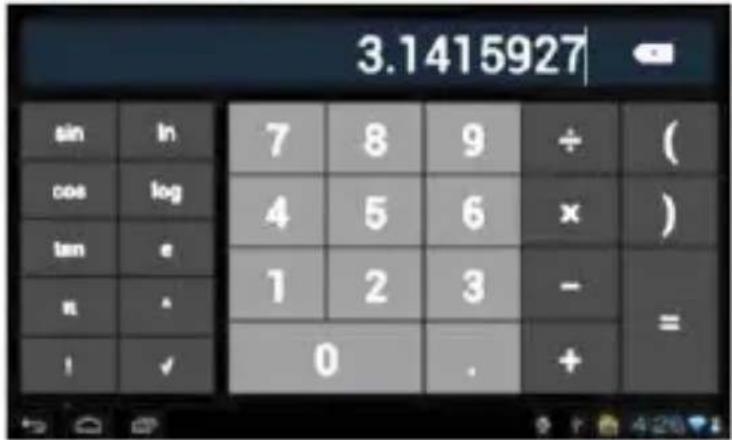
Click the icon on the desktop to open the calculator
text_image
3.1415927 sin ln 7 8 9 ÷ ( cos log 4 5 6 x ) tan e 1 2 3 - = n . 0 . + ! ✓Voice and Display Sengs:
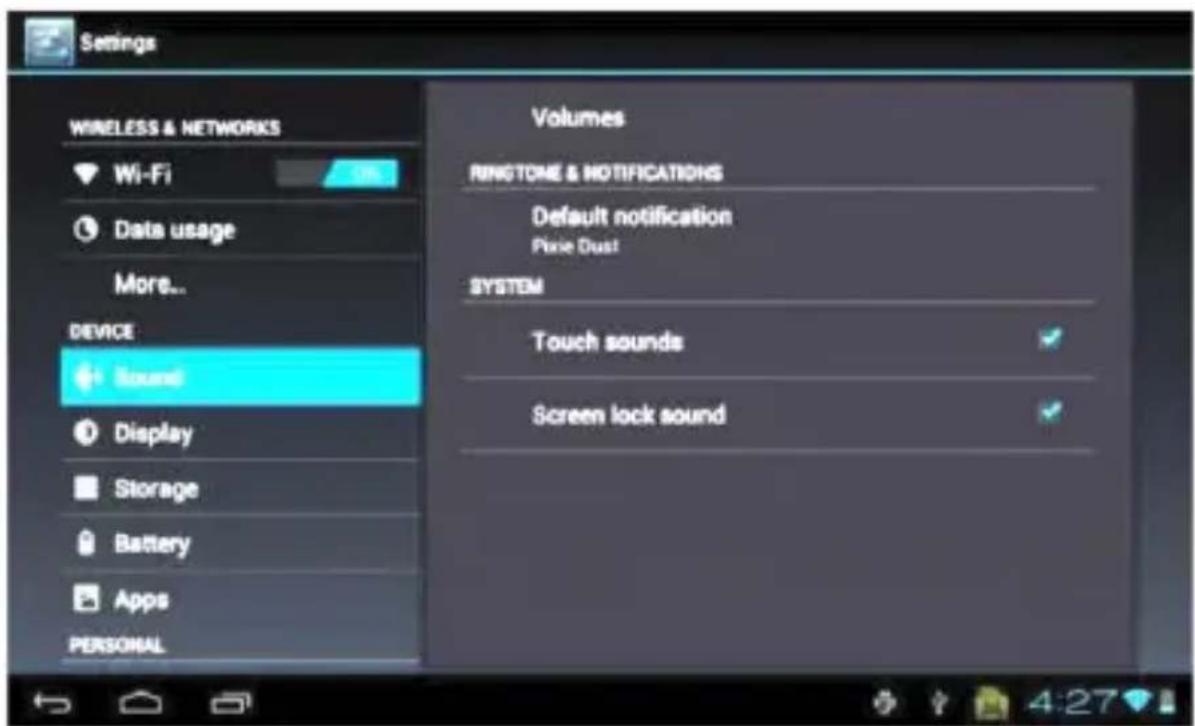
Tap【Sound】to enter the sengs interface:
text_image
Settings WIRELESS & NETWORKS Wi-Fi Data usage More... DEVICE Sound Display Storage Battery Apps PERSONAL Volumes RINSTONE & NOTIFICATIONS Default notification Pixie Dust SYSTEM Touch sounds Screen lock soundMedia Volume Sengs:
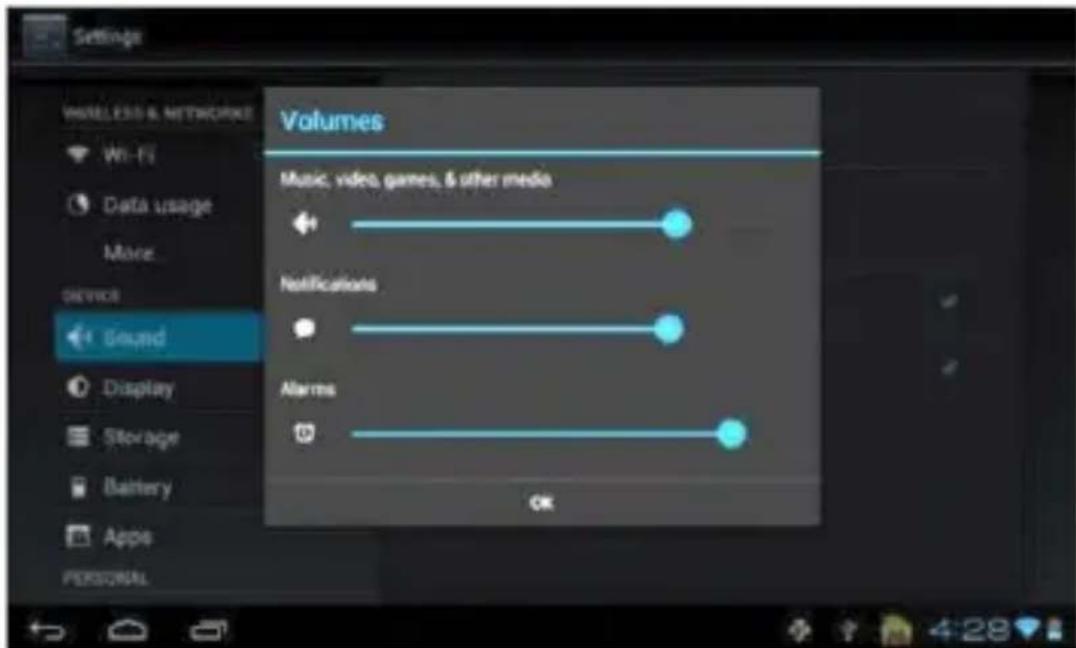
Select 【media volume】to enter the sengs interface, then to set up music and video volume...
text_image
Settings WIRELESS & NETWORKS Wi-Fi Data usage More... Device Sound Display Storage Battery Appis PERSONAL Volumes Music, video, games, & other media Notifications Alarms OKSet operang sound (screen choosing) and SD card nocaons as oponal, tap and click ▪ If the display is highlighted.
Display Sengs:
text_image
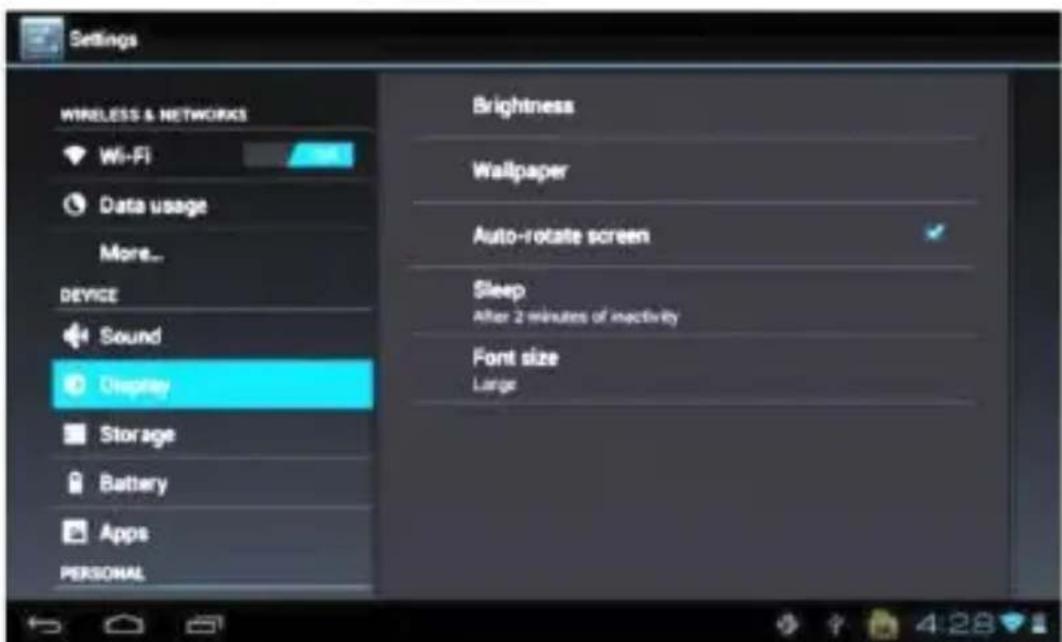
Settings WIRELESS & NETWORKS Wi-Fi Data usage More... DEVICE Sound Display Storage Battery Apps PERSONAL Brightness Wallpaper Auto-rotate screen Sleep After 2 minutes of inactivity Font size Large【Orientaon】The display screen will change the direcon automacally when rotang.
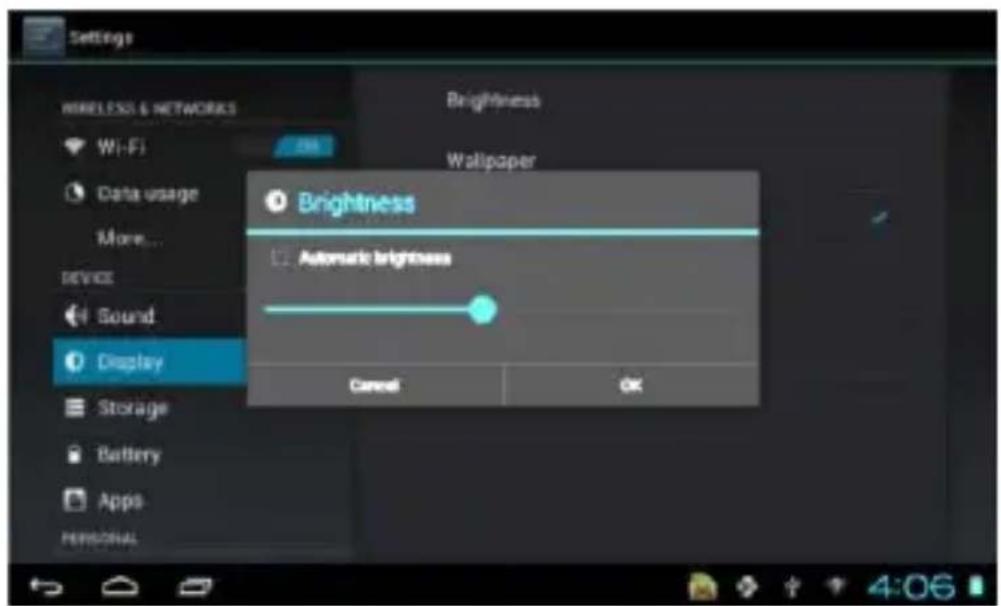
【Brightness】Drag to adjust the brightness, the tap “Ok” or “cancel” to save the changes.
text_image
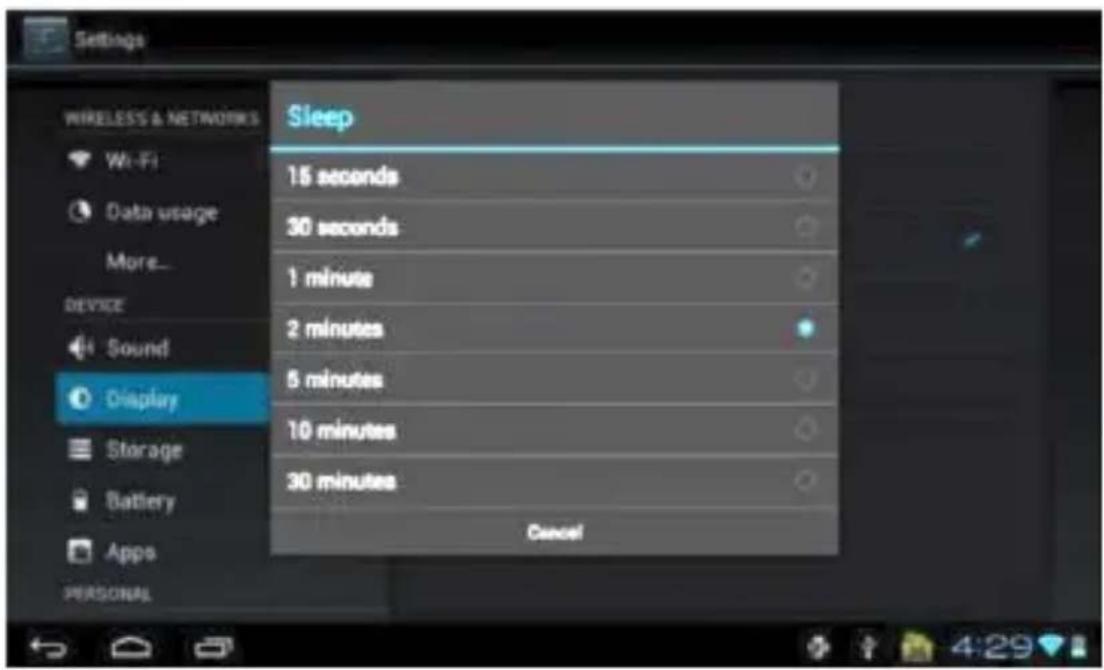
Settings Wireless & NETWORKS Wi-Fi Data usage More... Device Sound Display Storage Battery Apps PERSONAL Brightness Wallpaper Brightness Automatic brightness Cancel OK【Screen Timeout】Select aer how many seconds will you like for the screen to go into power saving mode.
text_image
Settings WIRELESS & NETWORKS Wi-Fi Data usage More... DEVICE Sound Display Storage Battery Apps PERSONAL Sleep 15 seconds 30 seconds 1 minute 2 minutes 5 minutes 10 minutes 30 minutes CancelLocaon and Security Sengs:
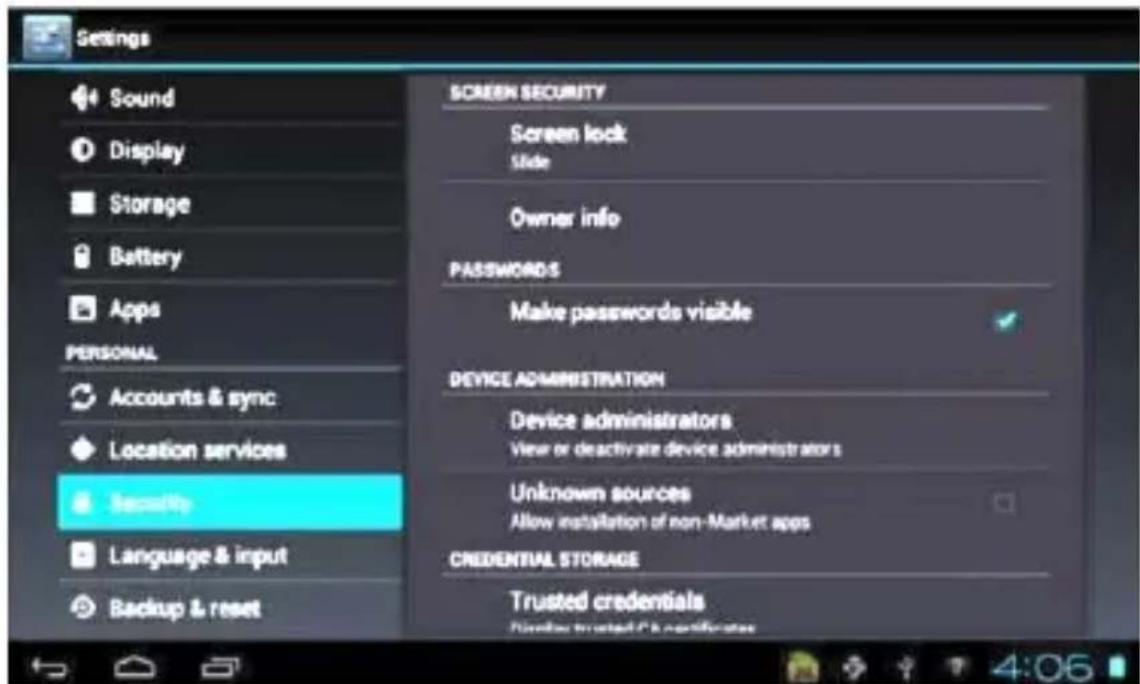
Tap "Locaon and Security" to enter the seng interface:
text_image
Settings Sound Display Storage Battery Apps PERSONAL Accounts & sync Location services Security Language & input Backup & reset SCREEN SECURITY Screen lock Slide Owner info PASSWORDS Make passwords visible DEVICE ADMINISTRATION Device administrators View or deactivate device administrators Unknown sources Allow installation of non-Market apps CREDENTIAL STORAGE Trusted credentials Send trusted C certificatesApps
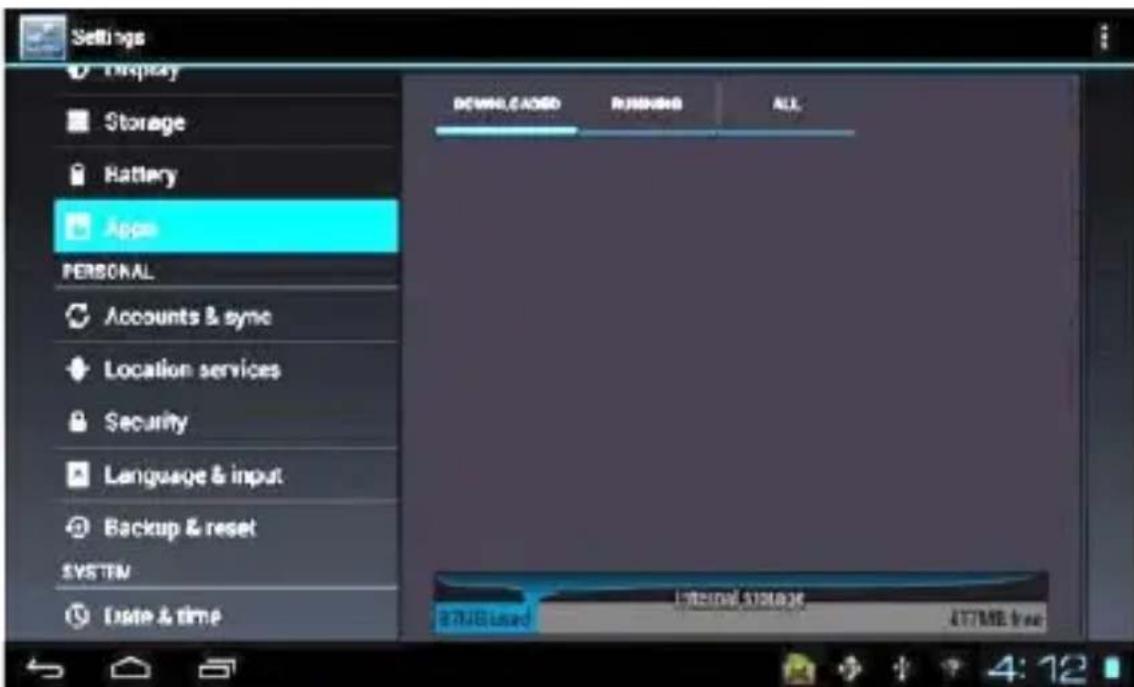
Tap "Apps" to enter apps seng interface:
text_image
Settings Display Storage Battery App PERSONAL Accounts & sync Location services Security Language & input Backup & reset SYSTEM Date & time DCOMC.CADD RUNNING ALL Internal STAGE 27MBased 477MB freeRunning:
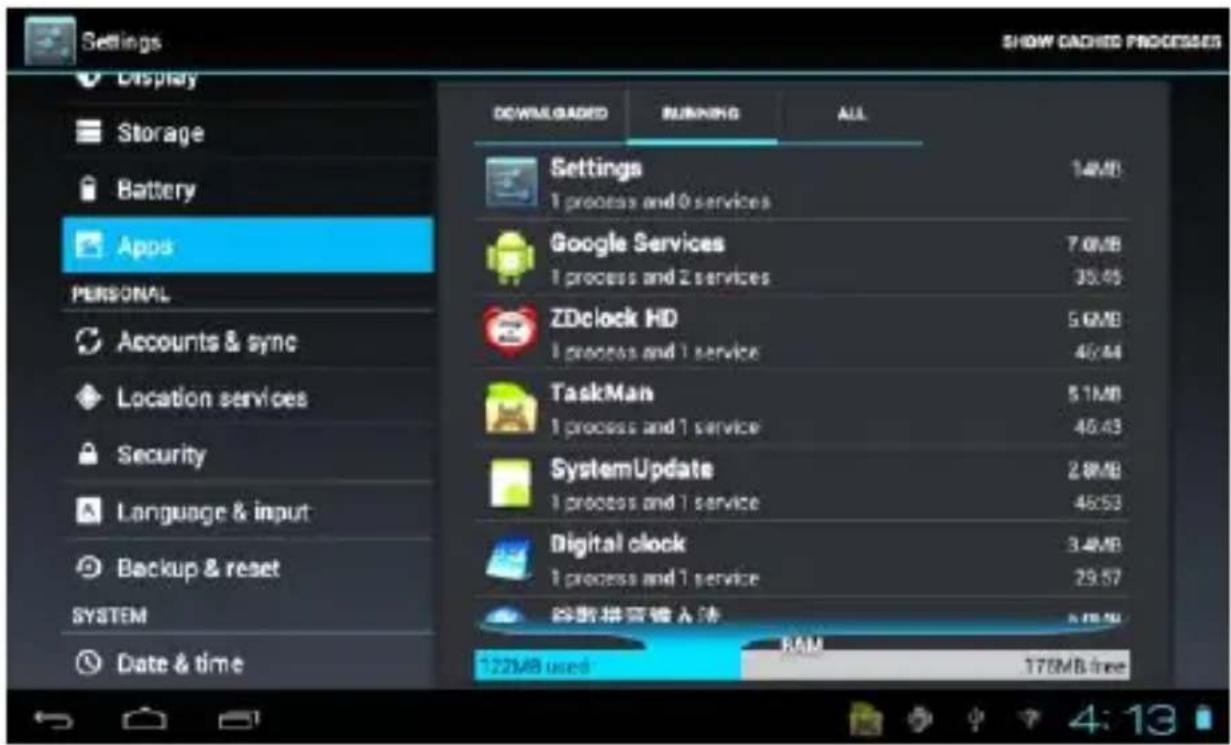
Tap "Running" to see and control the running service:
text_image
Settings Display Storage Battery Apps PERSONAL Accounts & sync Location services Security Language & input Backup & reset SYSTEM Date & time SHOW CACHED PROCESSES DOWNLOADS RUNNING ALL Settings 1 process and 0 services Google Services 7.0MB 1 process and 2 services 35.45 ZDclock HD 5.6MB 1 process and 1 service 46.44 TaskMan 5.1MB 1 process and 1 service 46.43 SystemUpdate 2.8MB 1 process and 1 service 46.53 Digital clock 3.4MB 1 process and 1 service 29.57 网络拼管输入法 8.78 MB RAM 178MB free 122MB usedLanguage & input
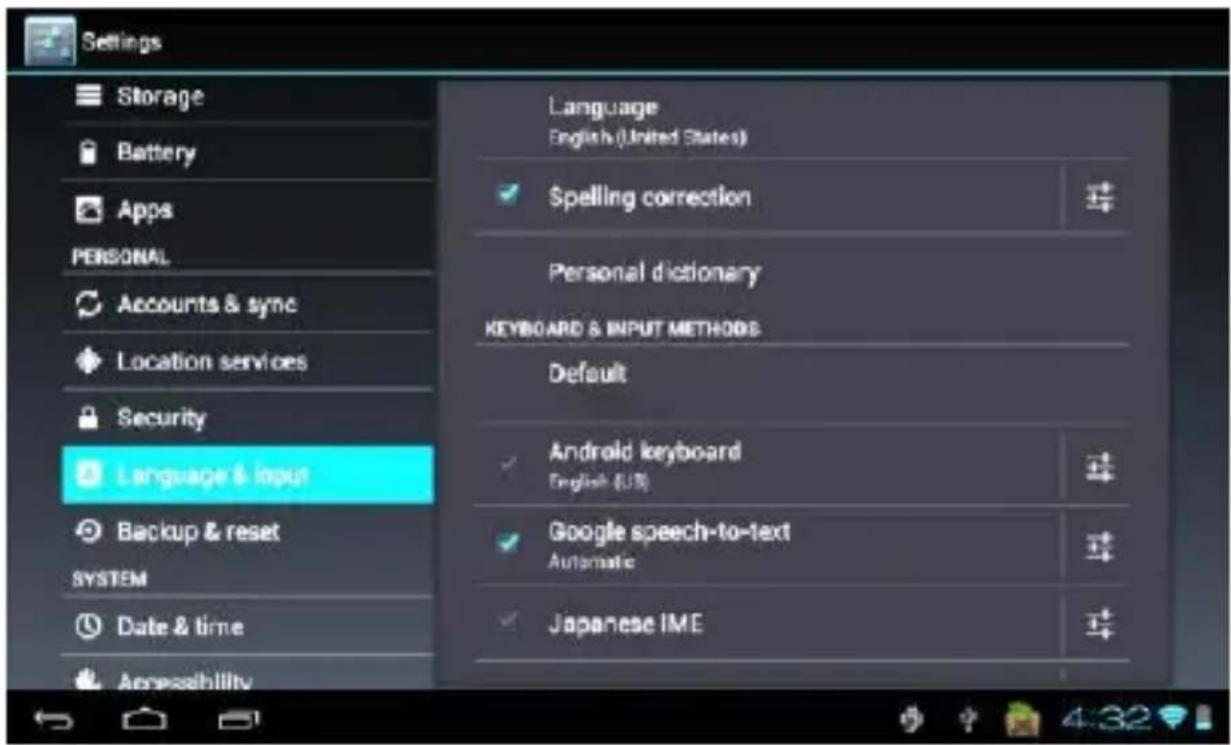
Tap "language & input" to enter the sengs interface:
text_image
Settings Storage Battery Apps PERSONAL Accounts & sync Location services Security Language & input Backup & reset SYSTEM Date & time Accessibility Language English (United States) Spelling correction Personal dictionary KEYBOARD & INPUT METHODS Default Android keyboard English (U.S.) Google speech-to-text Automatic Japanese IMELanguage Seng:
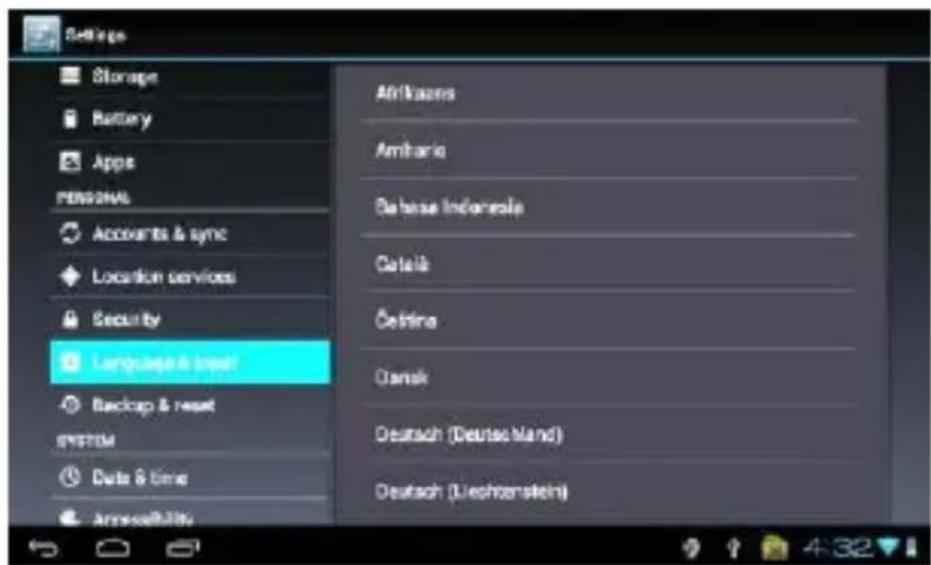
The device support mul-languages, you can select the operaon interface of dierent languages according to your needs. Select the matching language opon, tap ← to conrm.
text_image
Settings Storage Battery Apps PERSONAL Accounts & sync Location services Security Language & press Backup & reset SYSTEM Date & time Annuusability Arikazans Amharis Debase Indonesia Details Oelina Dansk Deutsch (Deutschland) Deutsch (Ueschenstein)Time and Date Seng:
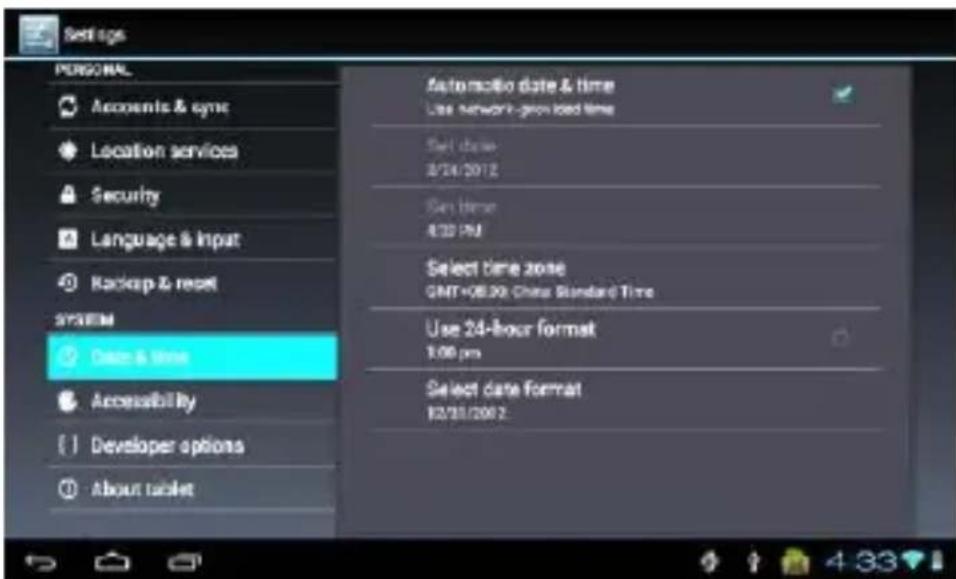
Select the Seng Menu "Date and Time" into seng interface, select the behind the Automac opon, to modify the Date, Time Zone and Time.
Date Setting:
Tap ▲ to select Day, Month Year, and tap the icon to conrm ok.
text_image
Settings PERSONAL Accounts & sync Location services Security Language & Input Backup & reset SYSTEM Case & time Accessibility Developer options About tablet Automatic date & time Use network-provided time Set date: 8/24/2012 Get time: 4:30 PM Select date zone GMT+08.20 China Standard Time Use 24-hour format 1:06 pm Select date format 12/21/2012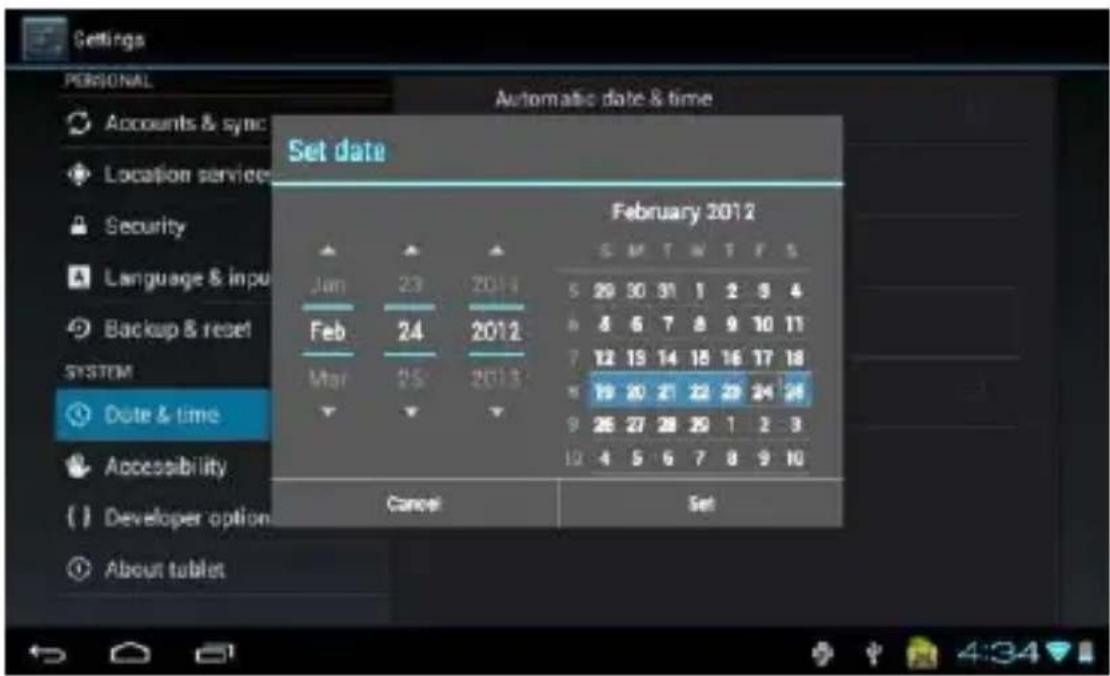
text_image
Settings PERSONAL Automatic date & time Accounts & sync Location service Security Language & input Backup & reset SYSTEM Date & time Accessibility Developer option About tablet Set date February 2012 Jan 23 2014 5 29 30 31 1 2 3 4 Feb 24 2012 6 4 6 7 8 9 10 11 Mar 25 2013 7 12 13 14 15 16 17 18 19 20 21 22 23 24 25 26 27 28 29 1 2 3 4 5 6 7 8 9 10 Cancel SetTime Zone Sengs:
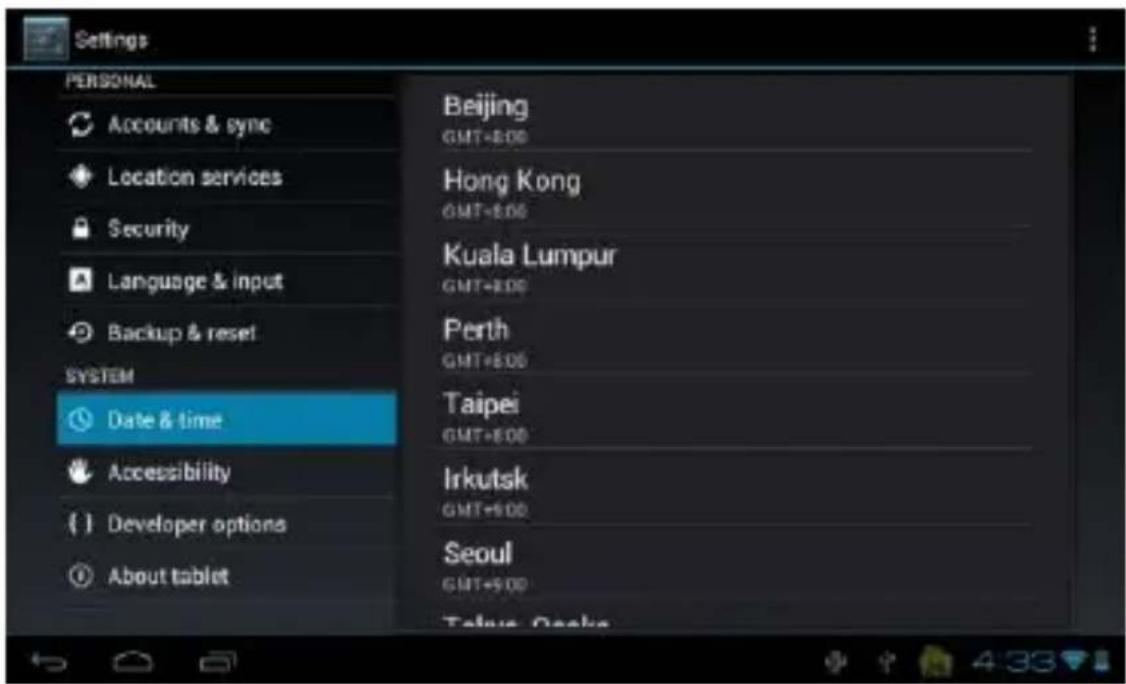
Select the me zone you locate and tap the screen to conrm.
text_image
Settings PERSONAL Accounts & sync Location services Security Language & input Backup & reset SYSTEM Date & time Accessibility Developer options About tablet Beijing GMT+800 Hong Kong GMT+800 Kuala Lumpur GMT+800 Perth GMT+800 Taipei GMT+800 Irkutsk GMT+900 Seoul GMT+900 Telugu, OsakaTime Sengs:
Tap ▲ to select hours, minutes, ex. 14:50, and tap the icon to conrm ok.

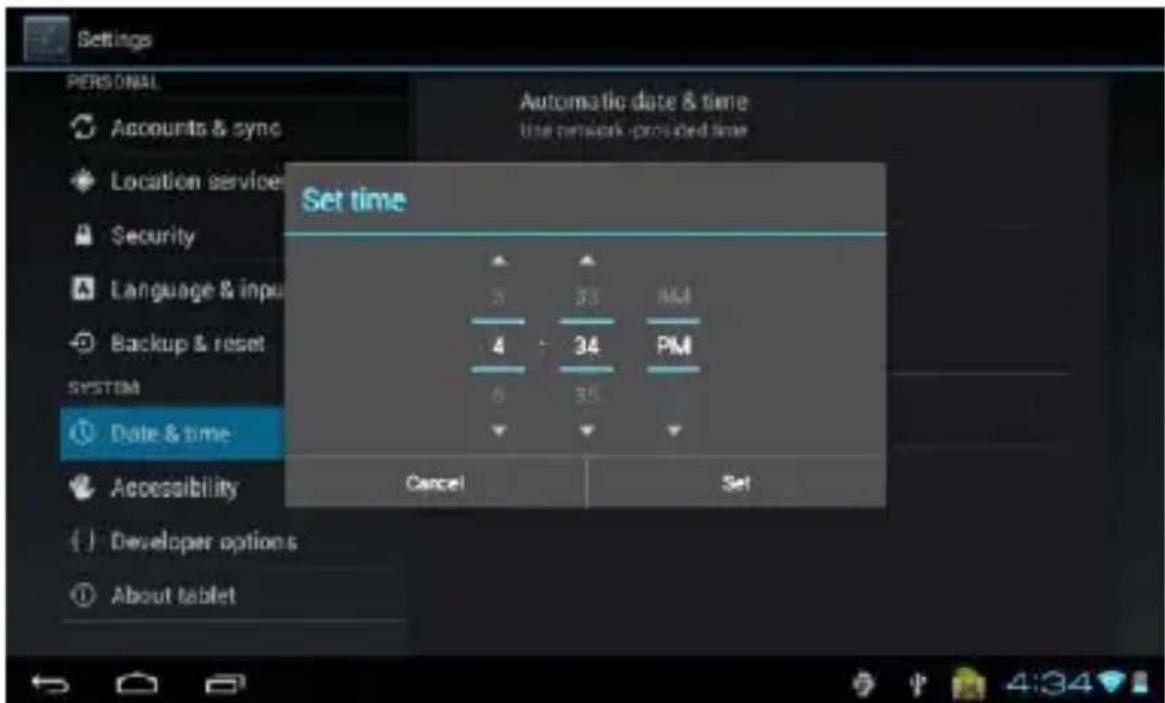
text_image
Settings PERSONAL Accounts & sync Location service Security Language & input Backup & reset SYSTEM Date & time Accessibility Developer options About tablet Automatic date & time Use network provided time Set time 5 33 MM 4 34 PM 6 35 Cancel SetPC Connecvity:
Learn to connect your device to a PC with a USB cable in various USB conncon modes. By connecng the device to a PC, you can transfer les or transfer data to and from your device directly.
About the device:
Check system informaon, legal informaon, device state soware version, etc.
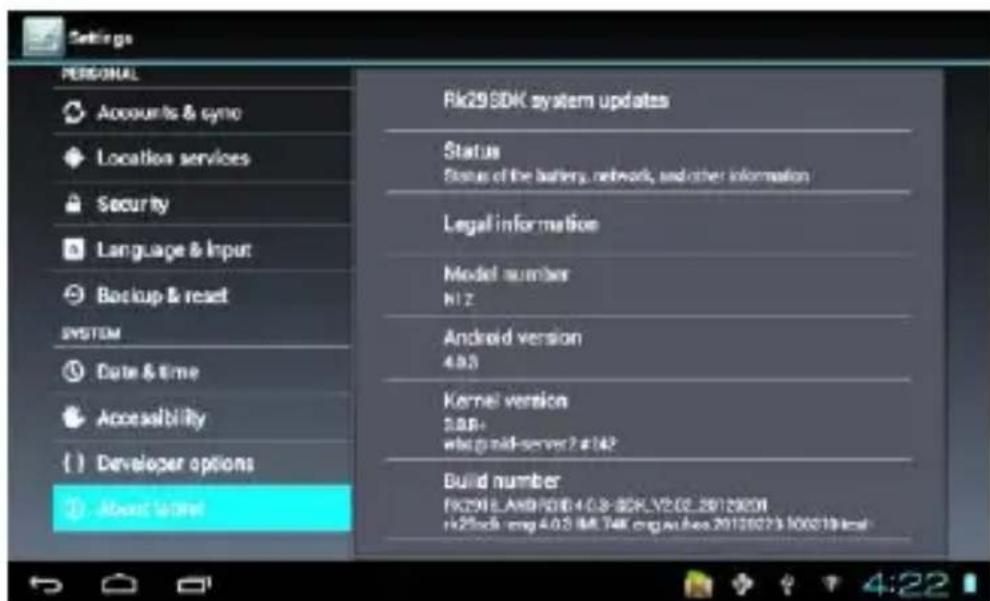
text_image
Settings PERSONAL Accounts & cymo Location services Security Language & Input Backup & reset SYSTEM Date & time Accessibility Developer options About 50%e Rk29 SDK system updates Status Status of the battery, network, and other information Legal information Model number N1Z Android version 4.0.3 Kernel version SAB+ who paid-server? #142 Build number FK2916.AND/SDB-4.0.3-SDK.LV2.02_20120201 rk2916.msg 4.0.3 IM T4K mg@bbox.20120273 100019.htmlDesktop Funcon Icon Sengs:
Add, Move or Delete Desktop Icon
Tap the 📄 icon at the main interface, into funcon menu list, display the enre applicaon icon by pages. Press and drag the applicaon icon to copy to current desktop i.e. set the shortcut on the desktop.
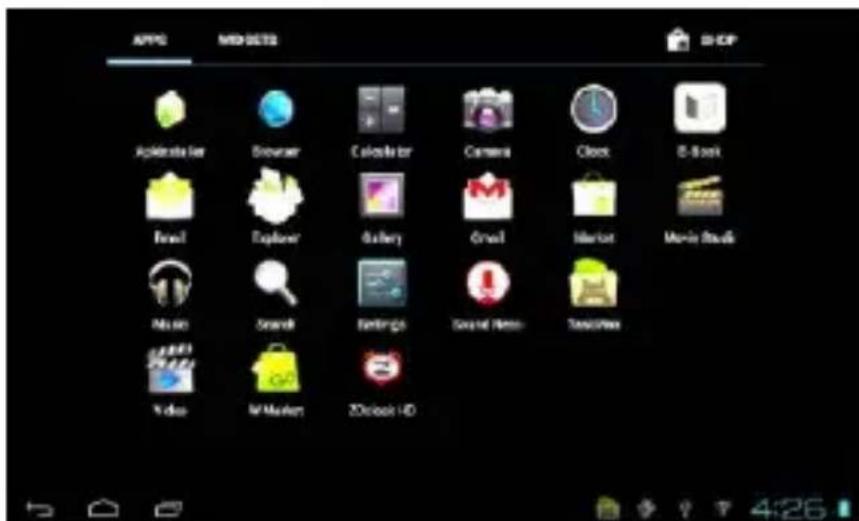
text_image
APPS MIDSETS SHOP Accessory Bar Browser Calculator Camera Clock B-Book Final Explorer Gallery Orval Market Movie Studio Music Search Settings Social Media Touchbox Video M-Market Z-look HDPress the applicaon icon on the desktop for a few seconds to enter into the eding status mode and you can move the icon. When you drag the icon and hold for a few seconds, it will turn to the delete funcon, when you release the icon you can delete it.
How to update the soware on your device:
Please visit www.HKCdigital.com and follow the direcon on the site.
Please contact HKC customer service at 888-999-1683 for further assistance.
REGISTER YOUR TABLET
Keep your tablet up to date with the latest soware updates, and be updated on what is new and upcoming for HKC. Please visit www.hkcdigital.com or mail the following info to HKC to register your tablet;
- Name
• E-mail - Address
- Product Purchased
- Model Purchased
• Where was it Purchased - Date Purchased
- Serial #
- Proof of Purchase
Mail to:
HKC Digital USA, INC. (an: registraon)
20957 Currier Road - Walnut, CA 91789
HKC Limited Warranty – Tablets
This HKC branded Product and delivered new in the original carton to the original purchaser is warranted by HKC against manufacturing defects in materials and workmanship for a limited warranty period of Ninety (90) Days for Labor and One (1) Year Hardware. However, there will only be a 90 day hardware and labor limited warranty for commercial use. HKC is not responsible for Soware defects. Please refer to your Owner's Manual for Soware Provider contact informaon.
This Limited Warranty does not apply to store display products and product sold as a “marked down” special, in “as is” condion, “close outs”, “liquidaon and clearance sales”, 'open box' products missing accessories, no fault found or damaged at me of delivery to HKC’s authorized service center listed below.
Proof of purchase in the form of a Bill of Sale, Receipt or Receipted Invoice is evidence the Product is within the limited warranty period. The
Bill of Sale, Receipt or Receipted Invoice must be presented as a pre-condition to obtaining the limited warranty service.
This limited warranty begins on the original date of purchase, and is valid only on Products purchased through HKC authorized dealers and used in the United States, Canada, and Puerto Rico by the original purchaser. To receive warranty service, the purchaser must contact HKC for problem determinaon and service procedures. Warranty service may only be performed by HKC's authorized service center. The original dated bill of sale, receipt or receipted invoice must be presented upon request as proof of purchase.
HKC's service center listed below will repair your Product or if repairs cannot be made, HKC will replace this Product at no charge with the same or similar Product. If the Product is defective as specied in this limited warranty during the limited warranty period, HKC may use new or remanufactured hardware or products to repair or replace the Product with a similar Product at its sole discretion. All replaced hardware and Products become the property of HKC and must be returned to HKC. Replacement hardware and Products assume the remaining original limited warranty, or ninety (90) days, whichever is longer.
Product freight must be prepaid by original purchaser and shipped in either its original packaging or packaging aording an equal degree of protecon. HKC shall not be responsible for or obligated to replace damaged goods.
If the product is received damaged by HKC's service center, it is the responsibility of the consumer to le a claim against the carrier. HKC's service center will only store the damaged product for 30 days and reserves the right, in its sole discreon, to dispose of the damaged product or ship it back to the consumer at consumer's expense aer 30 days.
This limited warranty covers manufacturing defects in materials and workmanship encountered in normal, and except to the extent otherwise expressly provided for in this statement, noncommercial use of this product, and shall not apply to the following, including, but not limited to: Damage which occurs in shipment; delivery and installaon; applicaons and uses for which this product was not intended; altered product or serial numbers; cosmec damage or exterior nish; accidents, abuse, neglect, re, water, lightning or other acts of nature; use of products, equipment, systems, ulies, services, hardware, supplies, accessories, applicaons, installaons, repairs, external wiring or connectors not supplied or authorized by HKC which damage this Product or result in service problems; incorrect electrical line voltage, octuaons and surges; customer adjustments and failure to follow operang instrucons, cleaning, maintenance and environmental instrucons that are covered and prescribed in the instrucon book; recepon problems and distoron related to noise, echo, interference or other signal transmission and delivery problems; burned-in images. HKC does not warrant uninterrupted or error-free operaon of the product.
THERE ARE NO EXPRESS OR IMPLIED WARRANTIES OTHER THAN THOSE LISTED AND DESCRIBED ABOVE, AND NO WARRANTIES WHETHER EXPRESS OR IMPLIED, INCLUDING, BUT NOT LIMITED TO, ANY IMPLIED WARRANTIES OF MERCHANTABILITY OR FITNESS FOR A PARTICULAR PURPOSE, SHALL APPLY AFTER THE EXPRESS WARRANTY PERIODS STATED ABOVE, AND NO OTHER EXPRESS WARRANTY OR GUARANTY GIVEN BY ANY PERSON, FIRM OR CORPORATION WITH RESPECT TO THIS PRODUCT SHALL BE BINDING ON HKC. REPAIR OR REPLACEMENT AS PROVIDED UNDER THIS LIMITED WARRANTY IS THE EXCLUSIVE REMEDY OF THE CONSUMER. HKC SHALL NOT BE LIABLE FOR ANY INCIDENTAL, OR CONSEQUENTIAL DAMAGES FOR BREACH OF ANY EXPRESS OR IMPLIED WARRANTY ON THIS PRODUCT; EXCEPT TO THE EXTENT PROHIBITED BY APPLICABLE LAW, ANY IMPLIED WARRANTY OF MERCHANTABILITY OR FITNESS FOR A PARTICULAR PURPOSE ON THIS PRODUCT IS LIMITED FOR THE DURATION OF THIS LIMITED WARRANTY. THIS LIMITED WARRANTY SHALL NOT EXTEND TO ANYONE OTHER THAN THE ORIGINAL PURCHASER OF THIS PRODUCT, IS NONTRANSFERABLE AND STATES YOUR EXCLUSIVE REMEDY.
Some states do not allow limitaons on how long an implied warranty lasts, or the exclusion or limitaon of incidental or consequential damages, so the above limitaons or exclusions may not apply to you. This warranty gives you specific legal rights, and you may also have other rights which vary from state to state. Any provision contained herein which is found contrary to state or local laws shall be deemed null and void and the remaining provisions shall connue in full force and eect.