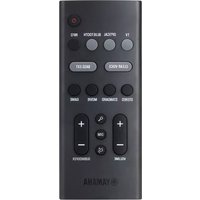
SR-B30A - Soundbar YAMAHA - Free user manual and instructions
Find the device manual for free SR-B30A YAMAHA in PDF.



| Product Type | Soundbar |
| Brand | YAMAHA |
| Model | SR-B30A |
| Dimensions (W x H x D) | Approx 95 cm x 6.5 cm x 10 cm |
| Weight | Approx 2.5 kg |
| Power Supply | 100-240 V AC, 50/60 Hz |
| Power Consumption | 30 W |
| Connectivity | HDMI eARC/ARC, Bluetooth 5.0 |
| Audio Input | HDMI (ARC/eARC) |
| Sound Modes | STEREO, STANDARD, MOVIE, GAME |
| Audio Functions | Clear Voice, Bass Extension |
| HDMI Control | Yes (supports eARC/ARC) |
| Smartphone App | Sound Bar Remote (iOS and Android) |
| Bluetooth Multipoint Connection | Yes (up to 2 devices) |
| Included Accessories | Remote control, HDMI cable, power cord, spacers, mounting template |
| Wall Mounting | Possible (kit included) |
| Maintenance and Cleaning | Wipe with a dry, soft cloth |
| Safety | Do not open, avoid moisture, follow the Safety Guide |
| Spare Parts and Repairability | Contact YAMAHA or an authorized dealer |
| General Information | User manual available in multiple languages |
Frequently Asked Questions - SR-B30A YAMAHA
User questions about SR-B30A YAMAHA
0 question about this device. Answer the ones you know or ask your own.
Ask a new question about this device
Download the instructions for your Soundbar in PDF format for free! Find your manual SR-B30A - YAMAHA and take your electronic device back in hand. On this page are published all the documents necessary for the use of your device. SR-B30A by YAMAHA.
USER MANUAL SR-B30A YAMAHA
Thank you for purchasing this Yamaha product.
This product is a bar-shaped speaker system that can be used by connecting it to a TV. Audio content from a Bluetooth® device can also be played through this product.
- Be sure to read this document and the included Safety Guide to ensure proper and safe use. Keep these documents readily available for future reference.
Safety Guide
Be sure to read the Safety Guide first to ensure safe use.

Quick Guide (this document)
This document describes the procedure for enjoying the sound of a TV.
1 Confirming contents of product package (p. 4)
2 Preparing the remote control (p. 5)
3 Installing the product (p. 5)
4 Connecting to a TV (p. 6)
5 Connecting to power (p. 7)
6 Playing TV sound through the sound bar (p. 7)
Adjusting the sound to your preference (p. 9)
Listening to audio from a Bluetooth® device (p. 10)
Controlling the sound bar with the smartphone app (p. 10)

User Guide
More detailed information is described.
https://manual.yamaha.com/av/23/srb30a/


Confirming contents of product package
This product includes the following main devices and accessories. Take out all items from the box and make sure that all items are present.
■ Main device

Sound bar (SR-B30A)
■ Accessories
Remote control Power cord

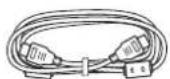
HDMI cable
- Quick Guide (this document)
- Safety Guide
Use when mounting the sound bar on a wall.
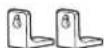
Spacers (×2)

Mounting template

Preparing the remote control
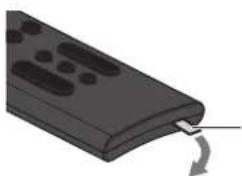
A Lithium battery (CR2025) has already been inserted into the remote control. Pull out the insulation sheet as follows so as to use the remote control.
natural_image
Close-up of a black remote control with a scroll arrow indicating rotation (no text or symbols)Battery insulating strip
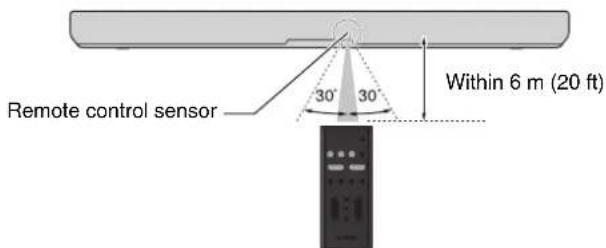
Operating range of the remote control
The remote control can be used to control the functions of this product. When using the remote control, point the remote control at the remote control sensor of the sound bar within the range shown in the following illustration:
Remote control

Installing the product
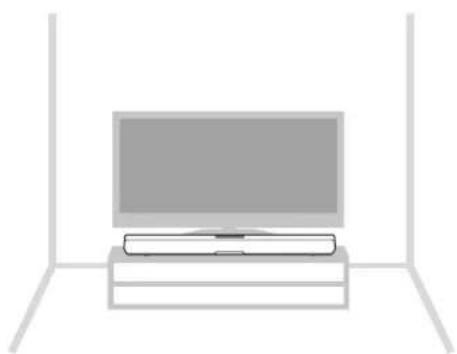
Install the sound bar as shown in the following illustration.
natural_image
Simple line drawing of a flat-screen TV set with a monitor and cable (no text or symbols)For proper installation of the sound bar on a wall, make sure to have the work done by a contractor with qualified service personnel. See the Wall Mounting Installation Guide on our website for the installation method.

Wall Mounting
Installation Guide

Connecting to a TV
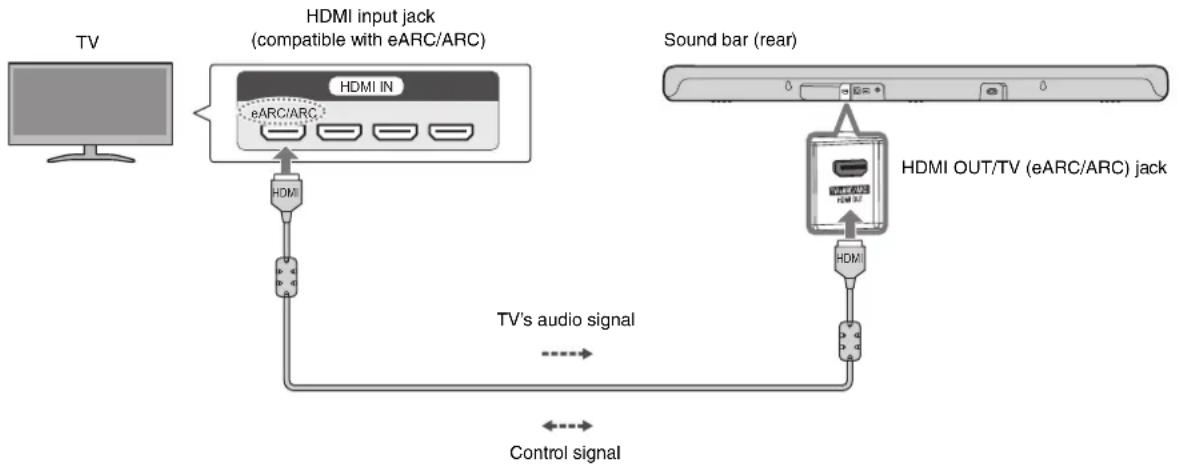
Connect to a TV using the HDMI cable (included)
Connect to an HDMI input jack compatible with Audio Return Channel (labeled as "eARC" or "ARC") on the TV using the included HDMI cable.
flowchart
graph TD
    A["TV"] --> B["HDMI input jack (compatible with eARC/ARC)"]
    B --> C["HDMI IN"]
    C --> D["HDMI"]
    D --> E["TV's audio signal"]
    E --> F["Control signal"]
    G["Sound bar (rear)"] --> H["HDMI OUT/TV (eARC/ARC) jack"]
    H --> I["HDMI"]
    I --> J["HDMI"]
NOTE
- Be sure to use the included HDMI cable.
- When connecting to a TV not compatible with ARC or connecting to an audio device, follow the connection procedure described in the User Guide.

Connecting to power
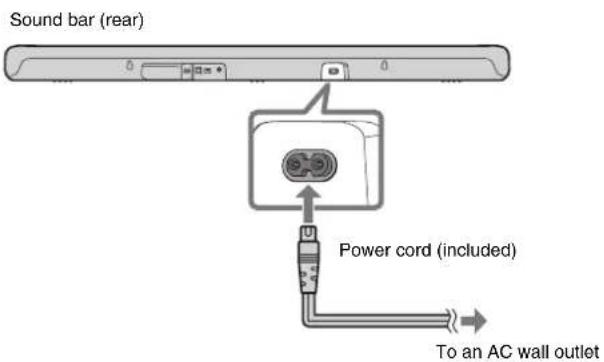
After connecting the sound bar to the TV, connect the sound bar to power as follows:

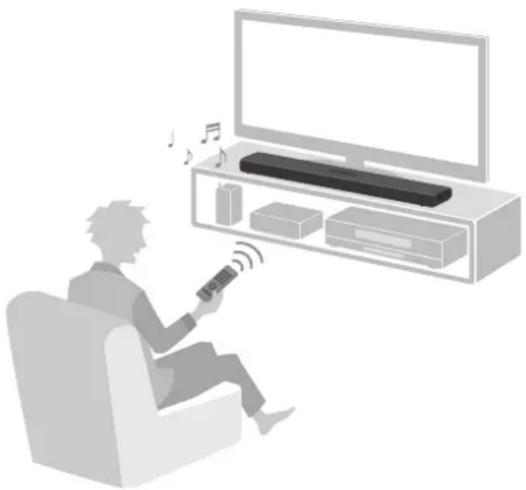
Playing TV sound through the sound bar
1 Turn on the TV.
When the the HDMI Control function of the TV is enabled (p. 8), the sound bar will also turn on. In this case, go to Step 4.
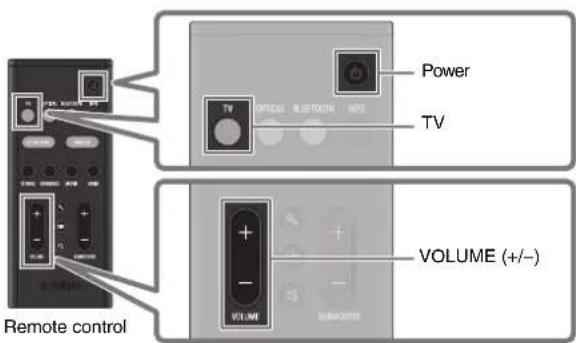
2 Turn on the sound bar.
Press the power button on the remote control.
3 Press TV.
4 Press VOLUME (+/-) to adjust the volume.
HDMI Control function
natural_image
Illustration of a person sitting in a chair watching a TV with musical notes and sound waves (no text or symbols)When the sound bar is connected to the HDMI input jack compatible with Audio Return Channel (labeled as "eARC" or "ARC") on a TV via an HDMI cable, control signals are transmitted from the TV to the sound bar.
This will enable you to use the HDMI Control function to control the sound bar using the TV's remote control. Also, the TV audio signal is transmitted to the sound bar via the HDMI cable.
Therefore, the sound bar can be connected to a TV using a single HDMI cable.
NOTE
- When the sound bar is connected to a TV via HDMI cable, confirm that the TV's settings are properly configured as follows:
- The TV's HDMI Control function is enabled.
- The audio output is not set to the TV speakers.
- Connect AV devices, such as BD/DVD players and set top boxes, to the TV's HDMI input jacks.
Adjusting the sound to your preference
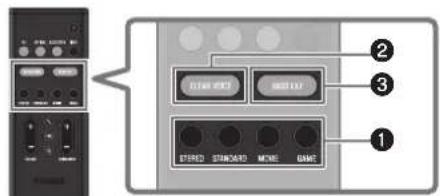
Remote control
① Listening to audio with sound that matches the video or music content (Sound mode)
A sound mode can be selected from among three sound modes that produce surround-sound fields and one sound mode for stereo playback. This function is STANDARD by default.
STEREO
This sound mode provides stereo playback. This sound mode is best suited for music playback.
STANDARD
This sound mode provides surround playback that is best suited for TV programs such as sports broadcasts. It emphasizes human voices and makes them easier to hear, while creating a sense of presence.
MOVIE
This sound mode provides surround playback that is best suited for movies. It creates a sound space that seems to envelop your body.
GAME
This sound mode provides surround playback that is best suited for video games. Accurate localization of individual sound effects provides a highly immersive gaming experience.
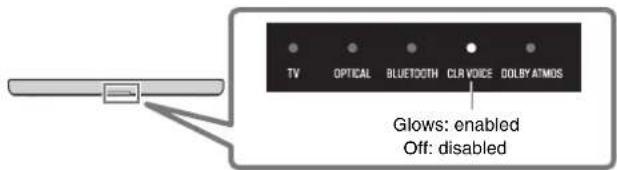
②Playing back human voices clearly (CLEAR VOICE)
The human voices within the audio can be heard more easily when the Clear Voice function is enabled. The function is recommended for playback at a low volume and for movies or dramas that use a lot of background music and sound effects.
Press CLEAR VOICE to enable or disable this function.
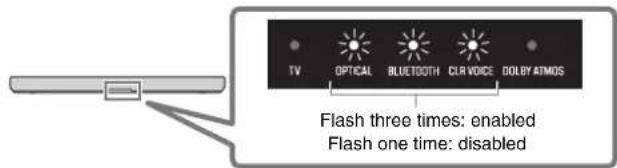
③Enjoying rich bass sound (BASS EXT)
The bass sound is enhanced and becomes richer when the Bass Extension function is enabled.
Press BASS EXT to enable or disable this function.
Listening to audio from a Bluetooth® device
Audio content from a Bluetooth device (such as a smartphone) can be played through the sound bar.
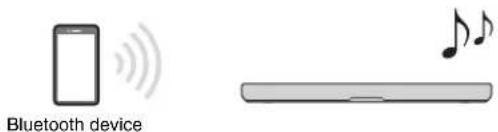
1 Press BLUETOOTH on the remote control to switch the input source to Bluetooth.
2 On the Bluetooth device, enable the Bluetooth function.
A list of Bluetooth devices that can be connected is displayed on the screen of the Bluetooth device.
3 Select "Yamaha SR-B30A" or "SR-B30A" within the list.
4 Play a song on the Bluetooth device when the connection is established.
The sound bar will begin playing audio from the Bluetooth device.
NOTE
This product can be connected to two Bluetooth devices simultaneously (multipoint connection). To switch between two Bluetooth devices to be played, stop playback on the currently playing device and then start playback on the other.
Controlling the sound bar with the smartphone app

By installing the free dedicated app "Sound Bar Remote" on a smartphone, the sound bar can also be controlled from that smartphone. The app allows you to control the sound bar while checking the sound bar settings currently applied, such as sound mode and volume adjustment of each frequency range (tone control), via the app's screen. Search for "Sound Bar Remote" on the App Store or Google Play and install it on the smartphone. For details on the app, see the description of the app on the App Store or Google Play.
NOTE
- To control the sound bar using the app, configure the settings on your smartphone as follows:
- Enable the Bluetooth function.
- For devices using the Android 11 OS or earlier, configure the settings to allow location information to be obtained. The Sound Bar Remote app uses location information from the Android device only to detect the sound bar. The acquired location information will not be used for any other purpose.
- For devices using the Android 12 OS or later, configure the settings to allow the use of nearby devices.
- This sound bar is only compatible with the Sound Bar Remote app. The sound bar cannot be controlled using other apps (such as Sound Bar Controller).
natural_image
Simple line drawing of a flat-screen TV set with a monitor and cable (no text or symbols)natural_image
Illustration of a person sitting in a chair watching a TV with musical notes and sound waves (no text or symbols)Télécommande
natural_image
Close-up of a black remote control device with a curved handle and circular ports, showing a rotation arrow (no text or symbols)Batterie-Isolierstreifen
natural_image
Simple line drawing of a flat-screen TV set with no text or symbolsnatural_image
Illustration of a person sitting in a chair watching television with a mounted remote (no text or symbols visible)Fernbedienung
natural_image
Simple line drawing of a flat-screen TV set with no text or symbolsnatural_image
Illustration of a person sitting in a chair watching a TV with musical notes and sound waves (no text or symbols)Fjärrkontroll
natural_image
Simple line drawing of a flat-screen TV mounted on a stand (no text or symbols)natural_image
Illustration of a person sitting in a chair watching a TV with musical notes and sound waves (no text or symbols)Telecomando
natural_image
Simple line drawing of a flat-screen TV set with no text or symbolsnatural_image
Illustration of a person sitting in a chair watching a TV with a remote, no text or symbols presentMando a distancia
natural_image
Illustration of a remote control device with a scroll wheel (no text or symbols)natural_image
Simple line drawing of a flat-screen TV set with a monitor and stand (no text or symbols)natural_image
Illustration of a person sitting in a chair watching a TV with musical notes and sound waves (no text or symbols)Controle remoto
- Ative a função Bluetooth.
Snelgids (dit document)
natural_image
Simple line drawing of a flat-screen TV set with a monitor and stand (no text or symbols)natural_image
Illustration of a person sitting in a chair watching a TV with a remote, no text or symbols presentnatural_image
Illustration of a remote control panel with a curved handle and circular ports, showing a rotation arrow (no text or symbols)natural_image
Simple line drawing of a flat-screen TV set with no text or symbolsnatural_image
Illustration of a person sitting in a chair watching a TV with musical notes and sound waves (no text or symbols)natural_image
Simple line drawing of a flat-screen TV with a book on the side (no text or symbols)natural_image
Illustration of a person sitting in a chair watching a TV with a microphone and sound waves (no text or symbols)遥控器
https://download.yamaha.com/
© 2023 Yamaha Corporation
Published 06/2023
2023年6月发行
KSOD-A0
VGM6540
G
YAMAHA CORPORATION
10-1 Nakazawa-cho, Naka-ku, Hamamatsu, 430-8650 Japan10-1 Nakazawa-cho, Naka-ku, Hamamatsu, 430-8650 Japan


- Safety Guide
- Quick Guide (this document)
- User Guide
- Confirming contents of product package
- ■ Main device
- ■ Accessories
- Preparing the remote control
- Operating range of the remote control
- Installing the product
- Connecting to a TV
- Connect to a TV using the HDMI cable (included)
- NOTE
- Connecting to power
- Playing TV sound through the sound bar
- HDMI Control function
- Adjusting the sound to your preference
- ① Listening to audio with sound that matches the video or music content (Sound mode)
- STEREO
- STANDARD
- MOVIE
- GAME
- ②Playing back human voices clearly (CLEAR VOICE)
- ③Enjoying rich bass sound (BASS EXT)
- Listening to audio from a Bluetooth® device
- Controlling the sound bar with the smartphone app
- Snelgids (dit document)
Brand : YAMAHA
Model : SR-B30A
Category : Soundbar