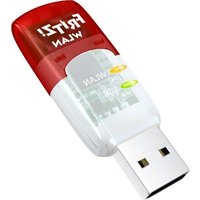
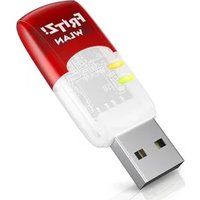
FRITZ!WLAN Stick AC 430 - Wi-Fi USB Key AVM - Free user manual and instructions
Find the device manual for free FRITZ!WLAN Stick AC 430 AVM in PDF.


| Product Type | Wi-Fi USB Stick |
| Brand | AVM |
| Model | FRITZ!WLAN Stick AC 430 |
| Wireless Standards | 802.11b/g/n/a/ac |
| Frequency Bands | 2.4 GHz and 5 GHz |
| Maximum Data Rate (raw) | Up to 433 Mbit/s (5 GHz, 802.11ac) |
| Maximum Data Rate (net) | Up to 200 Mbit/s (5 GHz, 802.11ac) |
| Interface | USB 2.0 |
| Dimensions (approx.) | 20 x 15 x 7 mm |
| Weight (approx.) | 5 g |
| Power Supply | Via USB port |
| LED Indicators | WLAN (wireless connection) and USB (ready) |
| Wireless Security | WPA2, WPS, Stick & Surf |
| Included Software | FRITZ!WLAN (information and configuration) |
| Compatible Operating Systems | Windows 10, 8, 7 |
| Connection Methods | Stick & Surf (automatic with FRITZ!Box), WPS, manual, ad hoc network |
| Operating Temperature | 0 °C to 40 °C |
| Maintenance and Cleaning | Clean with a dry, soft cloth. Do not use solvents. |
| Safety | Do not expose to moisture or extreme temperatures. Disconnect before cleaning. |
| Spare Parts and Repairability | Product not user-serviceable. In case of defect, contact customer service. |
| General Information | Complies with EU directives. Do not dispose of with household waste. |
Frequently Asked Questions - FRITZ!WLAN Stick AC 430 AVM
User questions about FRITZ!WLAN Stick AC 430 AVM
0 question about this device. Answer the ones you know or ask your own.
Ask a new question about this device
Download the instructions for your Wi-Fi USB Key in PDF format for free! Find your manual FRITZ!WLAN Stick AC 430 - AVM and take your electronic device back in hand. On this page are published all the documents necessary for the use of your device. FRITZ!WLAN Stick AC 430 by AVM.
USER MANUAL FRITZ!WLAN Stick AC 430 AVM
- Computer with USB port (USB 2.0 or higher)
- Pentium-class computer or notebook (500 MHz or higher)
• installation in Microsoft Windows 10, Windows 8/7 (32-bit and 64-bit edition), Windows Vista (32-bit edition)
Technical Specifications
- Support for radio networks in accordance with IEEE 802.11n, IEEE 802.11g, IEEE 802.11b, IEEE 802.11a and IEEE 802.11ac
- WPA (Wi-Fi Protected Access) / WPA2 (802.11i) / WEP 64/128-bit (Wired Equivalent Privacy)
• Compatible with USB 2.0 and higher - WPS (Wi-Fi Protected Setup): simple wireless LAN configuration with compatible remote sites
en.avm.de
Installation and Operation
natural_image
Close-up of a FRITZ! WLAN USB device with red and white casing against blue background (no readable text or symbols beyond branding)English 4
Deutsch 16
Español 28
Français 40
Italiano 52
Nederlands 64
Package Contents and Device Features

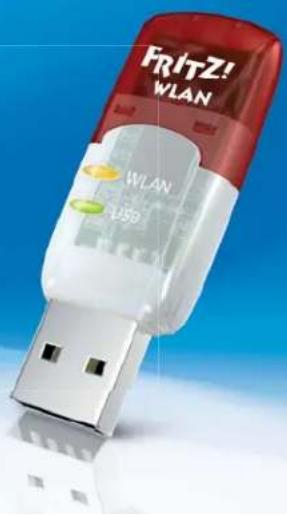
1 FRITZ!WLAN USB Stick AC 430
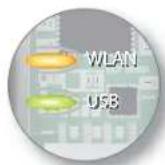
Status display
- WLAN: indicates a wireless LAN connection
- USB: indicates that the stick is ready for operation
Wireless LAN function
• For connecting to the wireless radio network
- Wireless 802.11ac in the 5-GHz band
• Compatible with Wireless 802.11b/g/n/a
This Is the FRITZ!WLAN USB Stick AC 430
This quick introduction shows you the possibilities for deploying and operating your FRITZ!WLAN USB Stick AC 430. Comprehensive information and technical details are presented in the PDF manual available on our website at en.avm.de/service.
The FRITZ!WLAN USB Stick AC 430 is a wireless LAN device for the USB port. At your computer's USB port the FRITZ!WLAN USB Stick AC 430 can establish wireless connections to a wireless access point or direct connections to other wireless devices.
The FRITZ!WLAN USB Stick AC 430 establishes wireless connections using the wireless networking software of the operating system on your computer. With the FRITZ!WLAN software you receive information on your wireless LAN connections and the settings of the FRITZ!WLAN USB Stick AC 430.
Have fun with your FRITZ!WLAN USB Stick AC 430!
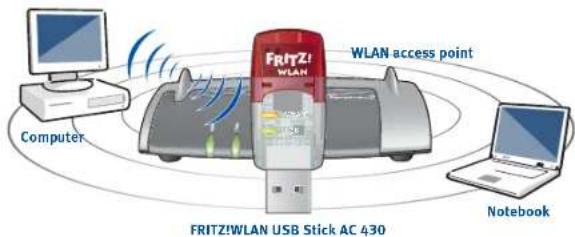
WirelessLANConnections
You can establish wireless LAN connections in three simple ways.
AVM Stick & Surf (page 7)
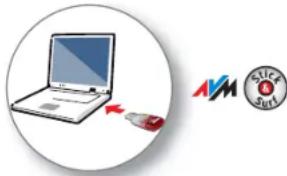
Stick & Surf is especially simple and secure. With Stick & Surf the FRITZ!WLAN USB Stick AC 430 adopts the security settings of a FRITZ!Box and automatically establishes a secure wireless LAN connection.
or
WPS Quick Connection (page 8)
The FRITZ!WLAN USB Stick AC 430 can be connected with the wireless access point via WPS. WPS (Wi-Fi Protected Setup) is a fast and simple way to establish a secure connection between wireless LAN devices. WPS is supported by all current FRITZ!Box models with wireless LAN and by many wireless LAN access points from other manufacturers. See the documentation for your wireless access point.
or
Direct Connections (page 10)
A direct connection, or ad-hoc network, is a wireless LAN consisting of several participants that does without a wireless access point by enabling simple, direct data exchange between the network devices.
Establishing a Wireless Connection with Stick & Surf
With Stick & Surf you can establish a secure wireless connection to your FRITZ!Box automatically using the USB port.
Establishing a Connection
- Insert the FRITZ!WLAN USB Stick AC 430 in the FRITZ!Box.
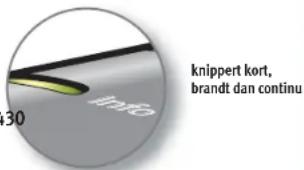
- The Info LED on the FRITZ!Box fl ashes. Wait until the Info LED stops fl ashing and remains lit up.
- Remove the FRITZ!WLAN USB Stick AC 430.
- Insert the FRITZ!WLAN USB Stick AC 430 in your booted computer.
- The device driver installation starts.
- Click AVM FRITZ!WLAN USB Stick AC 430 Installation and confirm the subsequent queries. The FRITZ!WLAN USB Stick AC 430 will be installed.
- The Stick & Surf logo appears and the connection to your FRITZ!Box is established automatically. Please note the information on the FRITZ!WLAN software on page 11.
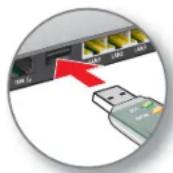

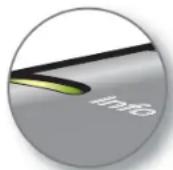
Flashes brief y, then remains lit
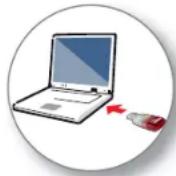

Establishing a Wireless Connection Using WPS Quick Connection
The FRITZ!WLAN USB Stick AC 430 can establish wireless connections to wireless access points with WPS. If a participating wireless LAN device does not support WPS, the connection can be established manually.
Establishing a Connection
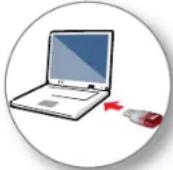
- Insert the FRITZ!WLAN USB Stick AC 430 in your computer.
- Click AVM FRITZ!WLAN USB Stick AC 430 Installation and confirm the subsequent queries. The FRITZ!WLAN USB Stick AC 430 will be installed.
- Click the wireless network icon in the notification area of the Windows task bar.
A list appears on the screen, showing all wireless networks found in the vicinity of the FRITZ!WLAN USB Stick AC 430.
If the list does not appear, click Connect to a network.

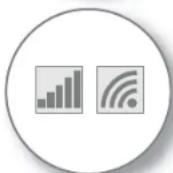
Wireless network icons in Windows 10, 8 and 7

Wireless networks in Windows 10 and 8
- Select the wireless network of a wireless access point and click Connect.
The window for entering the network key appears.
The network key of a FRITZ!Box is printed on the base of the device housing.
If the wireless connection can be established using WPS, the WPS symbol appears as well.
If you are using a FRITZ!Box, press the "WLAN/WPS" button until the "WLAN" LED starts flashing.
The wireless LAN connection will be established.
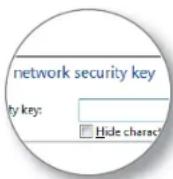
Entering a network key
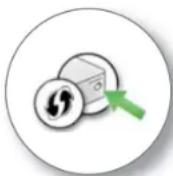
Establishing a connection by pressing the button on the router
DirectConnections
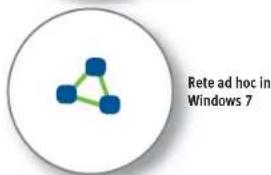
A direct connection (or ad hoc network) is a network consisting of several wireless devices, which does without an access point and enables simple, direct data exchange. The network is set up by one of the wireless LAN devices; the other participants then register with this network.
Establishing a Network
- Insert the FRITZ!WLAN USB Stick AC 430 in your computer.
- Click AVM FRITZ!WLAN USB Stick AC 430 Installation and confirm the subsequent queries. The FRITZ!WLAN USB Stick AC 430 will be installed.
- Click the wireless network icon in the notification area of the Windows task bar.
- Create an ad hoc network.
- Assign a name and a network key.
- The network is set up and awaits users.
For details, see the FRITZ!WLAN USB Stick AC 430 manual at: avm.de/en/service.

Wireless network icon in Windows 7

Ad hoc network in Windows 7
FRITZ!WLANSoftware
The FRITZ!WLAN software is installed on your computer along with the FRITZ!WLAN USB Stick AC 430. With FRITZ!WLAN you receive information on your wireless LAN connection and the settings of the FRITZ!WLAN USB Stick AC 430.
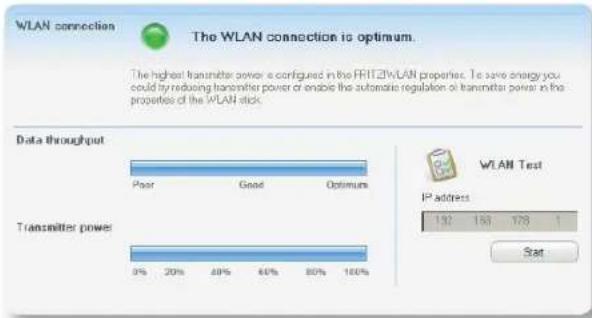
bar
| Data throughput | Transmitter power (%) | | --------------- | --------------------- | | Poor | 0% | | Good | 20% | | Optimum | 40% | | Optimum | 60% | | Optimum | 80% | | Optimum | 100% |Starting FRITZ!WLAN
Double-click the FRITZ!WAN icon in the Windows task bar. FRITZ!WLAN is started.

For details, see the FRITZ!WLAN USB Stick AC 430 manual at: en.avm.de/service.
Wireless LAN Standards
Your FRITZ!WLAN USB Stick AC 430 supports the following wireless LAN standards:
| Frequency band (GHz) Transmission in Mbit/s(gross, maximum) | Transmission in Mbit/s(Net, Maximum) | ||
| 802.11b | 2.4 11 5 | ||
| 802.11g | 2.4 54 25 | ||
| 802.11n | 2.4 / 5 300 150 | ||
| 802.11a | 5 | 5 4 | |
| 802.11ac | 5 433 200 | ||
For wireless LAN connections the FRITZ!WLAN USB Stick AC 430 must use the same standard and the same frequency band as your wireless access point. This means that the settings of the wireless access point determine which standard is used in a radio network.
The best transmission speeds can be achieved by operating your wireless access point in the 5-GHz frequency band. The 5-GHz band is subject to less interference and provides more channels for transmission than the 2.4-GHz frequency band.
Declaration of CE Conformity
AVM declares herewith that the device is compliant with the basic requirements and the relevant rules in directives 2014/53/EU, 2009/125/EC and 2011/65/EU.
The declaration of CE conformity is available at http://en.avm.de/ce.
2
5
Licensing Terms
- The licensing conditions valid for the FRITZ!WLAN USB Stick AC 430 are stipulated in the Online Help of the FRITZ!WLAN software.
- In accordance with the Waste of Electrical and Electronic Equipment Directive, the FRITZ!WLAN USB Stick AC 430 may not be disposed with household waste. Please bring it to your local collection points for disposal.

bar
| Transmitter Power | Data Throughput | | ----------------- | --------------- | | Poor | 9% | | Good | 20% | | Optimum | 49% | | Optimum | 66% | | Optimum | 80% | | Optimum | 100% |Lancer FRITZ!WLAN

Icone wireless in Windows 10, 8 e 7
Reti wireless in Windows 10 e 8
natural_image
Illustration of a laptop connected to a USB symbol (no text or labels)
ProgrammaFRITZ!WLAN
bar
| Data throughput | Transmitter power (%) | | --------------- | --------------------- | | Poor | 3% | | Good | 20% | | Optimum | 100% |Avvio di FRITZ!WLAN

natural_image
Illustration of a laptop connected to a mouse and a circular logo with 'SICK SET' (no text or symbols on the devices)
WiFi-symbol in Windows 7

Ad-hoc-network in Windows 7
ProgrammaFRITZ!WLAN
bar
| Data throughput | Transmitter power (%) | | --------------- | --------------------- | | Poor | 0% | | Good | 20% | | Optimal | 100% |FRITZ!WLAN starten

- Technical Specifications
- en.avm.de
- Installation and Operation
- Package Contents and Device Features
- This Is the FRITZ!WLAN USB Stick AC 430
- WirelessLANConnections
- AVM Stick & Surf (page 7)
- WPS Quick Connection (page 8)
- Direct Connections (page 10)
- Establishing a Wireless Connection with Stick & Surf
- Establishing a Connection
- Establishing a Wireless Connection Using WPS Quick Connection
- DirectConnections
- Establishing a Network
- FRITZ!WLANSoftware
- Starting FRITZ!WLAN
- Wireless LAN Standards
- Declaration of CE Conformity
- Licensing Terms
- Lancer FRITZ!WLAN
- ProgrammaFRITZ!WLAN
- Avvio di FRITZ!WLAN
- FRITZ!WLAN starten
Brand : AVM
Model : FRITZ!WLAN Stick AC 430
Category : Wi-Fi USB Key