
HaierPad W103 - Tablet HAIER - Free user manual and instructions
Find the device manual for free HaierPad W103 HAIER in PDF.


| Product type | Tablet |
| Brand | Haier |
| Model | HaierPad W103 |
| Operating system | Windows 8.1 |
| Screen | 10.1 inches (estimated) |
| Power | USB charger, built-in lithium-ion battery |
| Connectivity | USB, microUSB, miniHDMI, headphone/mic jack, microSD card slot, magnetic keyboard port |
| Cameras | Front and rear cameras |
| Main functions | Touch navigation, Windows apps, multitasking, dual screen, magnetic mobile keyboard |
| Maintenance and cleaning | Clean with a dry cloth; do not use chemicals |
| Safety | Avoid shocks, extreme temperatures, humidity; use approved charger and battery |
| Spare parts and repairability | Haier-approved battery and charger; repair by authorized technician |
| General information | CE certification; WEEE directive; use up to 2000 m altitude |
| Dimensions (approx.) | 257 x 172 x 9.5 mm (estimated) |
| Weight (approx.) | 580 g (estimated) |
Frequently Asked Questions - HaierPad W103 HAIER
User questions about HaierPad W103 HAIER
0 question about this device. Answer the ones you know or ask your own.
Ask a new question about this device
Download the instructions for your Tablet in PDF format for free! Find your manual HaierPad W103 - HAIER and take your electronic device back in hand. On this page are published all the documents necessary for the use of your device. HaierPad W103 by HAIER.
USER MANUAL HaierPad W103 HAIER
natural_image
Abstract geometric design with blue and gray shapes forming a stylized shape (no text or symbols)① Volume-/volume+:permetd'abaisser/releverlevolume.
natural_image
Exterior view of a modern laptop with visible screen and keyboard (no text or symbols)natural_image
Hand interacting with a tablet displaying a grid of app icons (no readable text or symbols)natural_image
Hand interacting with a touchscreen displaying various app icons (no text or symbols visible)natural_image
Illustration of a hand interacting with a touchscreen display (no text or symbols visible)Agrandirlatailledel'image
natural_image
Illustration of a hand interacting with a tablet displaying a grid of app icons (no readable text or symbols)natural_image
Illustration of a hand pointing upward on a tablet screen with colorful app icons (no readable text)natural_image
Illustration of a hand interacting with a touchscreen display showing various app icons (no text or symbols present)natural_image
Computer desktop with open screen, hand gesture overlay, and landscape photo showing a bare tree under cloudy sky (no text or symbols)(Schéma1)

Thank you for your choosing the new Tablet PC.
This guide serves to enable users to get to know and familiar with our product as soon a
Here we have made a brief introduction to the key layout and definitions in figures and w
Contents
I .PrecautionsbeforeUse18
II.KeyLayoutandDefinitions19
III.KeyDescriptionsandApplications20
IV. Introduction to Desktop 21
- Windows8.1 StartScreen21
2.ImageSlideApplication21
- appsIntroduction22
4.CharmMenuColumn24
5.DoubleScreenApplication26
V.BasicOperations27
- Dormancy, Restart, and Poweroff27
- Security Management 27
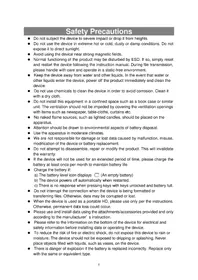
1. Precautions before Use
This production is suitable for use in non-tropic areas below 2,000 meters, and the mark in nameplate indicates the product is suitable for use in non-tropic areas.
- Prevent the Tablet PC from falling to the ground or being strongly impacted otherwise.
- Do not use it in the long term in any environment where the air is too cold, too hot ( <35^ ), too
humid or with too much dust. Do not expose the Tablet PC to sunlight.
- Avoid using it in the strong magnetic and strong static environment as much as possible.
- Once any water or other liquid splashes onto the Tablet PC, close it immediately and do it until it dries out.
- Do not clean the Tablet PC with any detergent containing chemical element or other liquid avoid causing damage due to corrosion and becoming damp. If cleaning is really necessary, it with dry soft cloth tissue paper.
- Our company shall not bear any and all responsibilities for loss or deletion of material in machine caused due to abnormal software and hardware operation, maintenance or any other accident.
- Please back up your important material at any time to avoid loss.
- Please do not disassemble the Tablet PC by yourself; otherwise you will lose the right warranty.
- This product supports the overwhelming majority of mainstream brands of 3G DONGLE network cards. The cases for 3G Dongle may be different. It is suggested that you test it sure it is OK before buying it.
- Quick Use Guide and the relevant software shall be updated at any time. For updated version, visit www.haicr.com for downloading by yourself, and no notice shall be given otherwise.
If any anything is found to be inconsistent with the Quick Use Guide, the material object is prevail. - Replacement with incorrect type batteries may cause explosion. Make sure to use original batteries.
II.KeyLayoutandDefinitions
AllviewID:

① Sound-/sound+:Lower/raisevolume
② Powerbutton: Pressitdowntostartorclosethetouchscreenpanel. Youcanalsoletthe computertoenterdormancythroughthisbuttonorwakefromthedormancymode.
③ Frontcamera:takephotos,andrecordpictures
④ Windowskey:PressthisbuttontoreturntotheStartscreen.
⑤ Movablebasekeyboardinterface: This interface is magnetic, which is convenient for alignment and firmly linking the TablePCandthekeyboard.
⑥ USBInterface: You can read the datathrough USB.
⑦ MiniHDMIInterface:High-DefinitionMultimediaInterface
⑧ MicroUSBInterface: You can read the datathrough USB.
⑨ Socketforearphoneandmicrophone: ThissocketcantransmittheaudiosignalsofTabletPC toloudspeakerorearphone.
⑩ MicroSDcardslot:Thebuilt-instoragecardreaderslotsupportsMicroSDandMicroSDHC format.
⑪ BackCCDcamera:takephotos,andrecordpictures.
⑫ Loudspeaker: The built-in loudspeaker enables you to hear the sound without having to linking additional device.
III. Descriptionsof Keysys
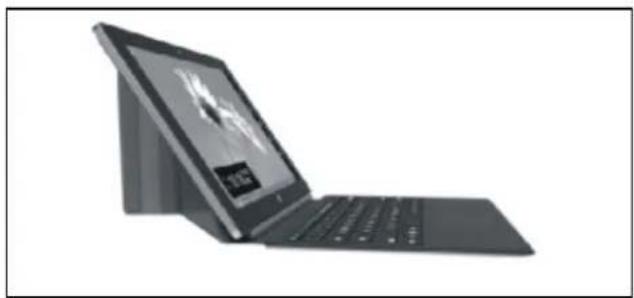
Attention: Keyboardisoptional, and configure the product according to the specific type of the tablet PC you have bought.

① Movablebasekeyboardinterface: Thisinterfaceismagnetic,whichis convenientforalignmentandfirmly linkingtheTablePCandthekeyboard.
②Keyboardgroup:Thekeyboard groupprovidesfullsizeQWERTYkey andbesttypewritingcomfortability.
③ TouchTablet: Usedtocontrolthe cursorontheTabletPC, withthesame functionasamouse.
④ Base:FoldingbaseofTabletPC.
natural_image
Exterior view of a modern laptop with a screen displaying abstract graphics (no visible text or symbols)Useof tabletandkeyboard
VI. Introduction to Desktop
- Windows8.1 startimage: On the start screen, you can seem many programs fixed in the image. These application programs are displayed in the form of "magnet". As long as you click them, you can easily visit them.
YouneedtologonyourMicrosoftaccountbeforetheapplicationprogramcompletelyruns.

- Imageslideapplications
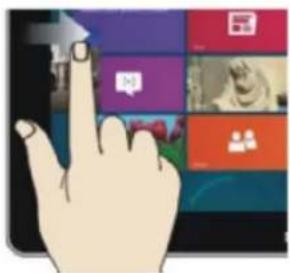
SliderorightSlidetoleft
natural_image
Hand pointing at a colorful app interface with icons on a grid (no readable text or symbols)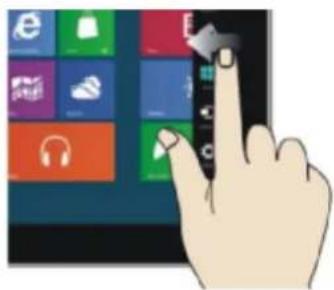
natural_image
Hand interacting with a touchscreen device displaying various app icons (no text or symbols visible)SlidetotherightfromthecleftsideSlidetotheleftfromtherightsideofthe
ofthescreentostarttheapplicationscre
entostartCharmmenucolumn.
programinrunning.
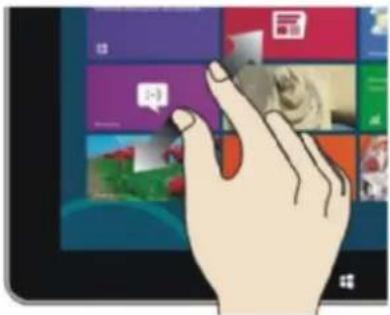
ReduceEnlarge

natural_image
Illustration of a hand interacting with a keyboard and mouse, no text or symbols present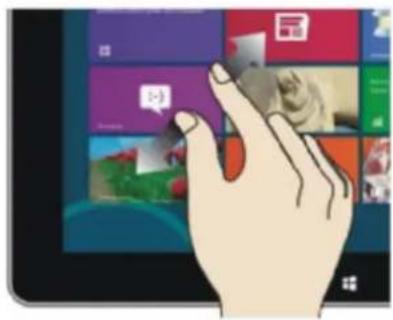
natural_image
Illustration of a hand interacting with a tablet displaying a grid of colorful UI elements (no text or symbols visible)Onthetouchscreen, narrowtwofingers Onthetouchscreen, widentwofingers toreducetheimage. toenlargetheimage.
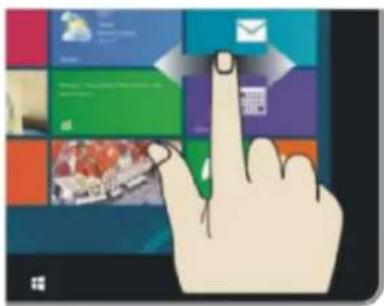
Slide downward

natural_image
Illustration of a hand pointing upward on a tablet screen with colorful app icons (no readable text)Slidewith finger
natural_image
Illustration of a hand interacting with a touchscreen display showing various app icons (no text or symbols present)Instartscreen, slide from the top of the screen. In a short time, slide fingering right is left to view wall application program with the image.
Slideupward
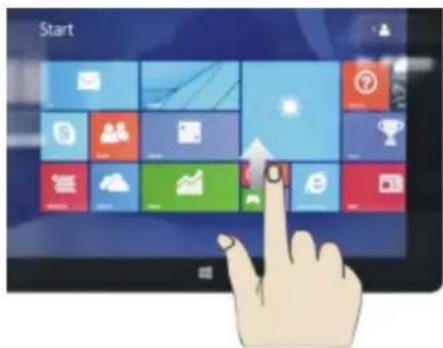
Inthestartscreen, slideupward from the bottom of the screentovisitall application program (APPS) interfaces.
3. IntroductionontoappInterface
Besidestheapplicationprogramsalreadyfixedonthestartscreen,youcanalsostartother applicationprogramsinallapplicationprograms,suchasothersoftwareapplicationprograms attachedtotheTabletPC.

If you want to fix more application programs on the start interface, see the operation in the figure below,(1)lightlytouch,pressandholdtheapplicationprogrammagnetforaboutonesecondand thenletgo,andselect(2)tofixtothestartscreen.

Conversely, if you want to cancel or delete a certain application in the start screen, (1) lightly touch, press and hold the application programmagnet for about one second and then let it go and run, and select (2) attribute column to cancel the programs such as fixation and deletion and then it can be completed.

4. Charmmenucolumn
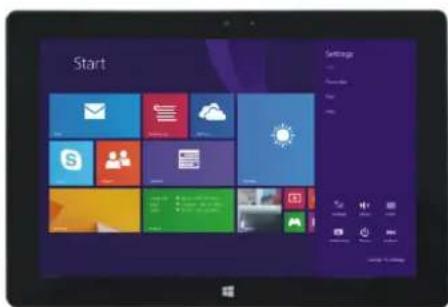
SlideittothelctfromtherightsidcofthescrecentostartCharmmenucolumn,including: Start,Device,Setup,Share,andSearchProgram.
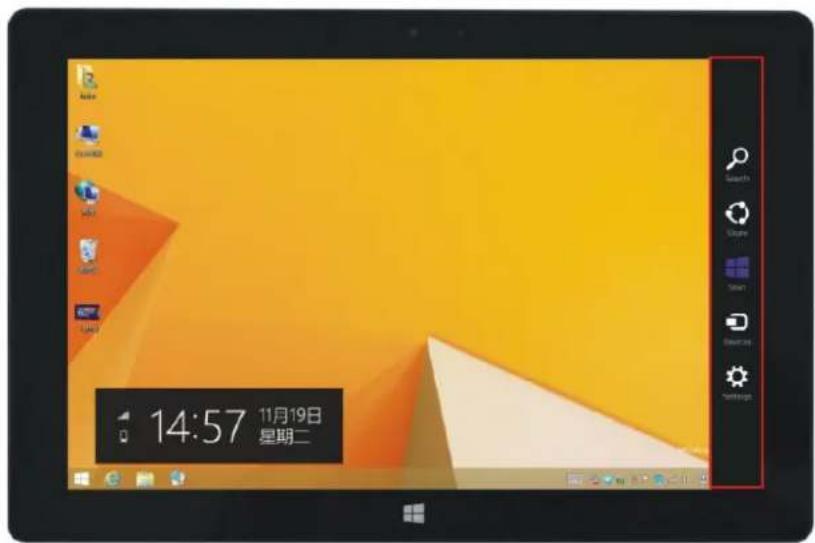
Slide it to the left from the right side of the screen to start Charm menu column, including: Start, Device, Setup, Share, and SearchProgram.

CanletyousearchthefilesandapplicationprogramsintheTabletPC.

Canletyousharetheprogramthroughsocialexchangewebsiteore-mail.

Canreturntothestartscreen.Fromthestartscreen,youcanalsousethisfunctionto returnthecapplicationprogramthatisopenedinthelatest.

Canletyouread, writeandsharefiles, connectexternalscreenorprinterwiththedevice connectedtotheTabletPC.

CanletyousetuptheTablePC.
SearchmenuSharemenu

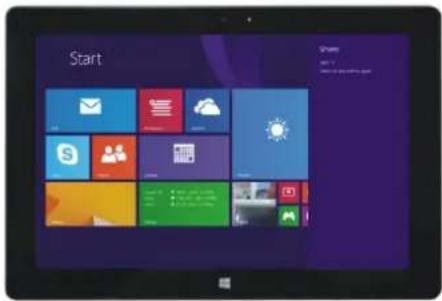
DeviceMenuSetu

pMenu
5. Dual-ScreenApplication
Onmycomputerin(Figure1), slideitinward from the left side of the screen, drag it and hold. Let go when seeing double interfaces appear.
In(Figure2), press the partition button on them middle partition line and drag right handle left to partition the display proportion of the doubles screens.

natural_image
Computer desktop with open screen, calendar, and landscape photo showing a bare tree in a field (no readable text or symbols)(Figure1)

(Figure2)
V. Basic Operations
- Dormancy, restart and power off
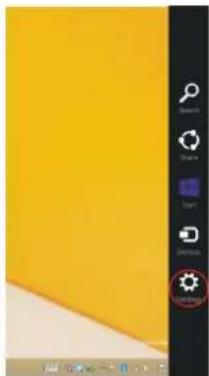
natural_image
Yellow and white graphic design interface with tool icons on the right (no readable text or symbols)

- Security Management
Userandpasswordsetup
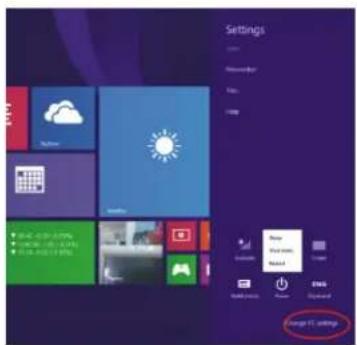


natural_image
Abstract collage of colorful, textured, and green landscape images with no visible text or symbolsMethodforquicksetup:
Clickthe“Setup”buttonin“Charm”setup, and select “Changecomputersetup”. Select “User” on the left and click “Create local account” in “Your account” on other rights side. After inputting the password of Complete Windows LiveId Account, input username, password, confirm password and password prompt.
InformationaboutthemeaningofLogoWEEE(WasteElectricala ndElectronicEquipment):
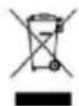
TheWEEElogoontheproductoronitsboxindicatesthatthisproductmustnotbedisposedofordumpedwithyourotherhouseholdwaste. Youareliabletodisposeofallyourelectronicorelectricalwasteequipmentbyrelocatingovertothespecifiedcollectionpointforrecyclingofsuchhazardouswaste.Isolatedcollectionandproperrecoveryofyourelectronicandelectricalwasteequipmentatthetimeofdisposalwillallowustohelpconservingnaturalresources.
Moreover, proper recycling of the electronic and electrical waste equipment will ensure safety of human health and environment.
Dispose of electronic waste, such as batteries according to the instructions.
Caution: risk of explosion if battery is replaced by an incorrect type.
For pluggable equipment, the socket-outlet shall be installed near the equipment and shall be easily accessible.
Information about the meaning of marking CE:

That means that the product answers to essential requirements of the European
Directive 93/68/EEC applicable in the conformity assessment procedures.
This quick start guide and software related thereto may be changed without notice. You could download the latest software on www.haier.com. If this quick start guide does not exactly match the tablet you have before, please always refer to what is stated in the tablet.
Haier
Haier Europe Trading – France
115,123 Avenue Charles de Gaulle
Description: Tablette tactile
EMC directive: EN55022: 2010 + AC: 2011
EN61000-3-2: 2006 + A1: 2009 + A2: 2009
EN61000-3-3:2008
EN55024: 2010
R&TTE directive: EN 62479:2010
ETSI EN 301 489-1 V1.9.2
ETSI EN 301 489-17 V2.2.1
ETSI EN 300 328 V1.7.1
Manufacturer address: Room B4 of Floor 21, No.3 Tower Building, Chinese Technology Research Park, China Technology Exploitation Institute; Gaoxin South first street No.009, Nanshan District, Shenzhen City, Guangdong Province.

Brand : HAIER
Model : HaierPad W103
Category : Tablet