
PAD MINI W800 - Tablet HAIER - Free user manual and instructions
Find the device manual for free PAD MINI W800 HAIER in PDF.


| Product Type | Tablet PC |
| Brand | HAIER |
| Model | PAD MINI W800 |
| Operating System | Windows 8.1 |
| Screen Size | 7 inches (estimated) |
| Screen Type | Capacitive touch screen |
| Front camera | CCD (for photos and videos) |
| Rear camera | CCD (for photos and videos) |
| Ports | Micro USB, Mini HDMI, Micro SD, headphone/microphone jack |
| Speaker | Built-in |
| Battery | Rechargeable lithium-ion |
| Power supply | Charger via Micro USB port |
| Weight | Approximately 300 g (estimated) |
| Dimensions | Approximately 190 x 110 x 10 mm (estimated) |
| Main functions | Web browsing, office work, multimedia, games |
| Maintenance and cleaning | Clean with a dry, soft cloth |
| Safety | Avoid shocks, humidity, extreme temperatures; do not disassemble |
| Spare parts and repairability | Use only Haier accessories; repair by authorized technician |
| General information | Use at altitude < 2000 m, outside tropical zones |
Frequently Asked Questions - PAD MINI W800 HAIER
User questions about PAD MINI W800 HAIER
0 question about this device. Answer the ones you know or ask your own.
Ask a new question about this device
Download the instructions for your Tablet in PDF format for free! Find your manual PAD MINI W800 - HAIER and take your electronic device back in hand. On this page are published all the documents necessary for the use of your device. PAD MINI W800 by HAIER.
USER MANUAL PAD MINI W800 HAIER
Thank you for your choosing the new Tablet PC.
This guide serves to enable users to get to know and familiar with our product as soon as possible. Here we have made a brief introduction to the key layout and definitions in figures and words.
Contents
I. Safety Precautions 18
II. Key Feature and Functionality 21
III. Introduction to Desktop 22
- Windows8.1 Start Screen 22
- Image Slide Application 22
- Apps Introduction 23
- Charm Menu Column 24
- Double Screen Application 25
IV. Basic Operations 26
- Dormancy, Restart, and Power off 26
- Security Management 26
- Refresh or Reset the system 26
V. WEEE and CE Information 27
I. Safety Precautions
- Do not subject the device to severe impact or drop it from heights.
- Do not use the device in extreme hot or cold, dusty or damp conditions. Do not expose it to direct sunlight.
- Avoid using the device near strong magnetic fields.
- Normal functioning of the product may be disturbed by ESD. If so, simply reset and restart the device following the instruction manual. During file transmission, please handle with care and operate in a static-free environment.
- Keep the device away from water and other liquids. In the event that water or other liquids enter the device, power off the product immediately and clean the device.
- Do not use chemicals to clean the device in order to avoid corrosion. Clean it with a dry cloth.
- Do not install this equipment in a confined space such as a book case or similar unit. The ventilation should not be impeded by covering the ventilation openings with items such as newspaper, table-cloths, curtains etc.
- No naked flame sources, such as lighted candles, should be placed on the apparatus.
- Attention should be drawn to environmental aspects of battery disposal.
- Use the apparatus in moderate climates.
- We are not responsible for damage or lost data caused by malfunction, misuse, modification of the device or battery replacement.
- Do not attempt to disassemble, repair or modify the product. This will invalidate the warranty.
- If the device will not be used for an extended period of time, please charge the battery at least once per month to maintain battery life.
- Charge the battery if:
a) The battery level icon displays (An empty battery)
b) The device powers off automatically when restarted.
c) There is no response when pressing keys with keys unlocked and battery full.
- Do not interrupt the connection when the device is being formatted or transferring files. Otherwise, data may be corrupted or lost.
- When the device is used as a portable HD, please use only per the instructions. Otherwise, permanent data loss could occur.
- Please use and install data using the attachments/accessories provided and only according to the manufacturer's instruction.
- Please refer to the information on the bottom of the device for electrical and safety information before installing data or operating the device.
- To reduce the risk of fire or electric shock, do not expose this device to rain or moisture. The device should not be exposed to dripping or splashing. Never place objects filled with liquids, such as vases, on the device.
- There is danger of explosion if the battery is replaced incorrectly. Replace only with the same or equivalent type.
-
The battery (battery or batteries or battery pack) should not be exposed to excessive heat such as sunlight, fire or the like.
-
Please follow responsible procedures for battery disposal.
- If the power adaptor disconnected from the device, the device will remain operable as long as the battery has sufficient charge.
- The power adaptor is a CLASS II apparatus with double insulation, and no external ground is provided.
- Safety symbol explanation:
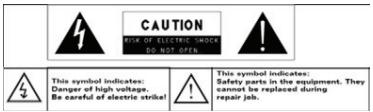
- The lightning flash with arrowhead symbol within an equilateral triangle is intended to alert the user to the presence of non-insulated "dangerous voltage" within the product's enclosure that may be of sufficient magnitude to constitute a risk of electric shock.
- To reduce the risk of electric shock, do not remove the cover (or back) as there are no user-serviceable parts inside. Refer servicing to qualified personnel.
-
The exclamation point within an equilateral triangle is intended to alert the user to the presence of important operating and maintenance instructions in the literature accompanying the device.
-
Correct Disposal of this product. This marking indicates that this product should not be disposed of with other household waste in the EU. To prevent possible harm to the environment or human health from uncontrolled waste disposal, recycle it responsibly to promote the sustainable reuse of material resources. To dispose of your used device, please use the return and collection systems available in your area or contact the retailer where the product was purchased. They can take this product for safe environmental recycling.
-
This equipment should be installed and operated with minimum distance 20cm between the radiator & your body.
- CE in which countries where the product may be used freely: Germany, UK, Italy, Spain, Belgium, Netherlands, Portugal, Greece, Ireland, Denmark, Luxembourg, Austria, Finland, Sweden, Norway and Iceland.
Listening Cautions
- This product respects the current regulations for limiting the output volume of consumer audio devices to a safe level. By listening to your device with headphones or earbuds at high volumes, you run the risk of permanent damage to your ears. Even if you get used to listening at high volumes and it seems normal to you, you still risk the possibility of damaging your hearing. Reduce the volume of your device to a reasonable level to avoid permanent hearing damage. If you hear ringing in your ears, reduce the volume or shut off your device. This device has been tested with the supplied earphones. In order to preserve your hearing, it is advised that you use only the following headphone models: the earphones supplied with your device, or any other headphones that respect the current regulations. Other types of headphones
may produce higher volume levels. (At full power, the prolonged listening of the walkman can damage the ear of the use)
- Do not use while operating a motorized vehicle. It may create a traffic hazard and is illegal in many areas.
- You should use extreme caution or temporarily discontinue use in potentially hazardous situations created by obstructed hearing.
- Even if your headphones or earphones are the open-air type designed to let you hear outside sounds, don't turn up the volume so high that you can't hear what's around you.
- Sound can be deceiving. Over time your hearing "comfort level" adapts to higher volumes of sound. What sounds "normal" can actually be loud and harmful to your hearing. Guard against this by setting the volume of your device at a safe level BEFORE your hearing adapts.
To establish a safe volume level:
a. Start your volume control at a low setting.
b. Slowly increase the sound until you can hear it comfortably and clearly, and without distortion. Once you have established a comfortable sound level, leave it there.
This manual may not reflect your actual device's operation. All information is subject to change without prior notification. Please follow your actual device's operational procedures.
II. Key Layout and Definitions
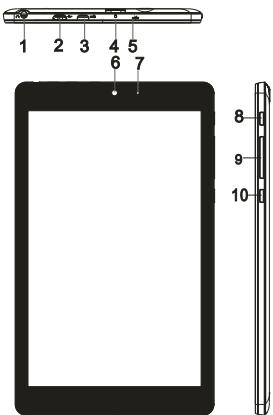
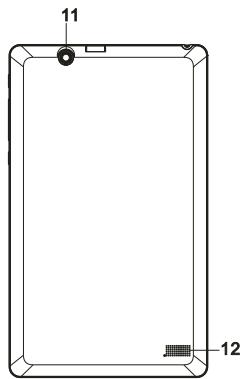
| Feature | Functionality |
| 1. Audio port (3.5 mm) | Connect a headset, headphones, microphones, or other audio equipment to listen to stereo sound, record audio, or make web phone calls. |
| 2. Micro-USB port | • Connect the supplied power adapter to provide power to the tablet and charge the battery. |
| Connect USB devices, via an optional USB conversion cable, for transferring data, music, photos, videos, and so on. | |
| 3. HDMI port | Connect HD television via optional HDMI cable, for switching the display to wider screen. |
| 4. Micro SD card slot | Reads and writes files stored on a Micro SD card. |
| 5. Microphone | Records sounds. |
| Provides sound input while making calls using web-based apps. | |
| 6. Front-facing camera | Capture a front view picture or record videos. |
| Use while making video calls. | |
| 7. Charging indicator | Indicates the battery-charge status. |
| 8. Power button | Press and hold to turn the tablet on or off. |
| Press to turn the display on or off. | |
| 9. Volume+/- buttons | Press to increase/decrease volume |
| 10. Windows button | Press to open the Windows Start screen. |
| Press for quick access to the most recently used app or most recently viewed screen. | |
| 11. Rear camera | Captures pictures or videos. |
| 12. Speaker | Provides audio output. |
Note:
- Both cameras do not support zoom, face tracking.
- The Micro-USB port does not support connecting to a computer or power sharing to connected USB devices.
- When using the tablet for the first time, or after it has been idle for a long time, user should charge the battery for over half an hour before turning it on, so as to guarantee the stability of its system.
III. Introduction to Desktop
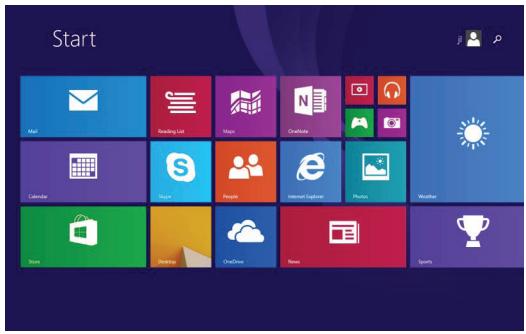
- Windows 8.1 start image: On the start screen, you can see many programs fixed in the image. These application programs are displayed in the form of "magnet". As long as you click them, you can easily visit them.
You need to log on your Microsoft account before the application program completely runs.
2. Image slide applications
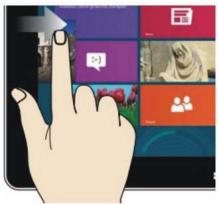
Slide to right
Slide to the right from the left side of the screen to start the application program in running.
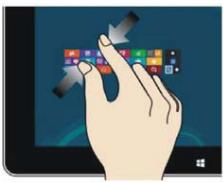
Reduce
On the touch screen, narrow two fingers to reduce the image.
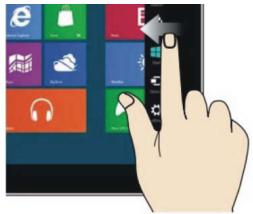
Slide to left
Slide to the left from the right side of the screen to start Charm menu column.
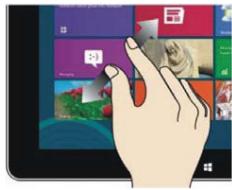
Enlarge
On the touch screen, widen two fingers to enlarge the image.
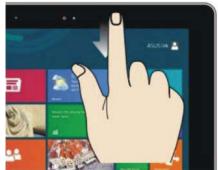
Slide downward
In start screen, slide from the top of the screen to view all application programs
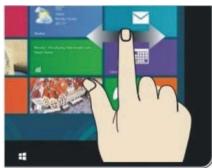
Slide with finger
In start screen, slide finger right / left to move the image.
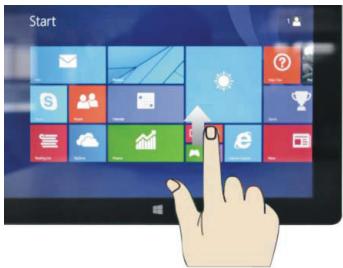
Slide upward
In the start screen, slide upward from the bottom of the screen to visit all application program (APPS) interfaces.
3. Introduction to app Interface
Besides the application programs already fixed on the start screen, you can also start other application programs in all application programs, such as other software application programs attached to the Tablet PC.
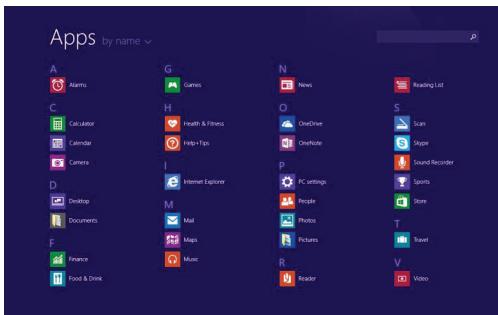
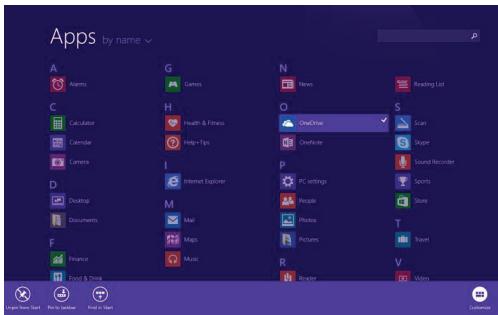
If you want to fix more application programs on the start interface, see the operation in the figure below, (1) lightly touch, press and hold the application program magnet for about one second and then let go, and select (2) to fix to the start screen.
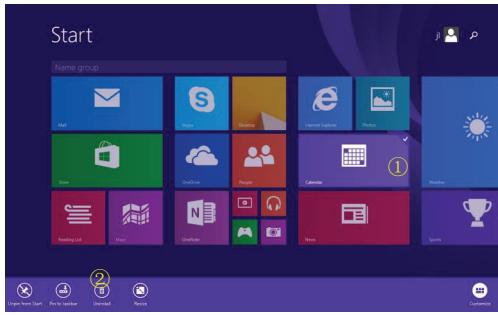
Conversely, if you want to cancel or delete a certain application in the start screen, (1) lightly touch, press and hold the application program magnet for about one second and then let it go and run, and select (2) attribute column to cancel the programs such as fixation and deletion and then it can be completed.
4. Charm menu column
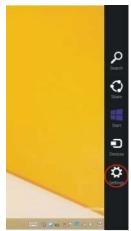
Slide it to the left from the right side of the screen to start Charm menu column, including: Start, Device, Setup, Share, and Search Program.
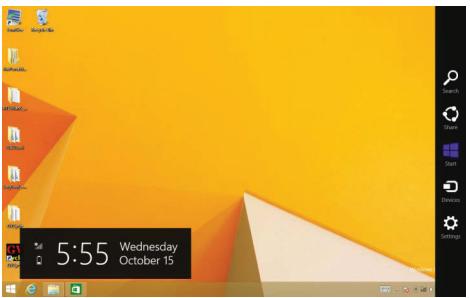
Slide it to the left from the right side of the screen to start Charm menu column, including: Start, Device, Setup, Share, and Search Program.

Can let you search the files and application programs in the Tablet PC.

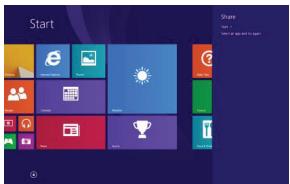
Can let you share the program through social exchange website or e-mail.

Can return to the start screen. From the start screen, you can also use this function to return the application program that is opened in the latest.

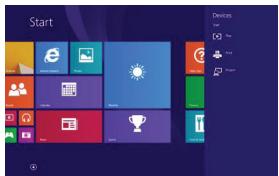
Can let you read, write and share files, connect external screen or printer with the device connected to the Tablet PC.

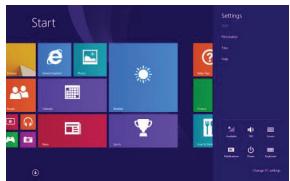
Can let you set up the Table PC.
Search menu
Share menu
Device Menu
Set up Menu
5. Dual-Screen Application
On my computer in (Figure 1), slide it inward from the left side of the screen, drag it and hold. Let go when seeing double interfaces appear.
In (Figure 2), press the partition button on the middle partition line and drag right and left to partition the display proportion of the double screens.
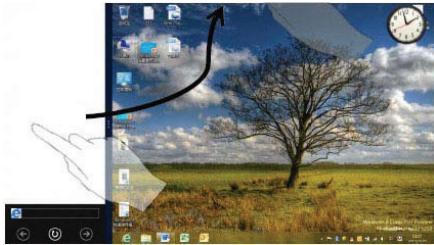
(Figure 1)
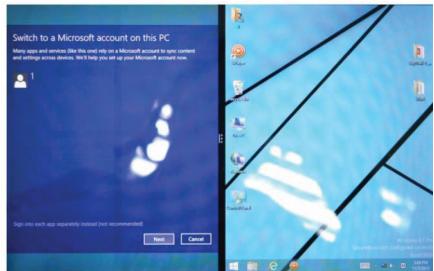
(Figure 2)
IV. Basic Operations
- Dormancy, restart and power off
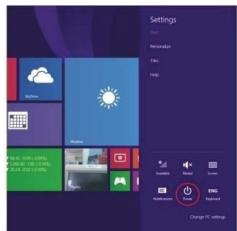
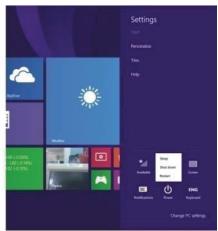
- Security Management
User and password setup
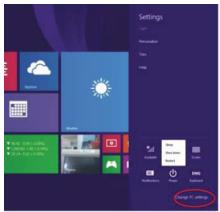
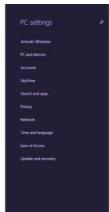
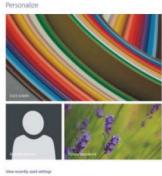
Method for quick setup:
Click the "Setup" button in "Charm" setup, and select "Change computer setup". Select "User" on the left and click "Create local account" in "Your account" on the right side. After inputting the password of Complete Windows Live ld Account, input username, password, confirm password and password prompt.
- Refresh or reset the system
Use the Charm menu:
1) Swipe-in from the right edge of the display to access Charms.
2) Touch Settings Change PC settings Update and recovery Recovery.
3) Select a proper Recovery mode from the menu.Use the shortcut keys:
In shutdown status, user can press and hold Power and Vol- buttons at the same time to boot the device and enter Recovery mode, for the purpose of repairing or resetting the system.
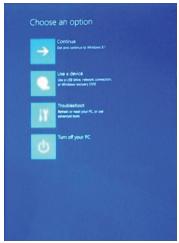
After booting the tablet, user will come to the following screen to choose an option of the recovery mode:
- Continue - Exit without doing anything and continue to Windows 8.1 system.
- Use a device- Refresh the system by using a USB device, network connection, or Windows recovery DVD.
- Troubleshooting- Refresh or reset your PC or use advanced tools.
- Turn off your PC- do nothing and turn off the tablet.
V.WEEE and CE Information
Information about the meaning of Logo WEEE (Waste Electrical and Electronic Equipment):

The WEEE logo on the product or on its box indicates that this product must not be disposed of or dumped with your other household waste. You are liable to dispose of all your electronic or electrical waste equipment by relocating over to the specified collection point for recycling of such hazardous waste. Isolated collection and proper recovery of your electronic and electrical waste equipment at the time of disposal will allow us to help conserving natural resources. Moreover, proper recycling of the electronic and electrical waste equipment will ensure safety of human health and environment.
Dispose of electronic waste, such as batteries according to the instructions.
Caution: risk of explosion if battery is replaced by an incorrect type.
For pluggable equipment, the socket-outlet shall be installed near the equipment and shall be easily accessible.
Information about the meaning of marking CE:
CE That means that the product answers to essential requirements of the European
Directive 93/68/EEC applicable in the conformity assessment procedures.
This quick start guide and software related thereto may be changed without notice. You could download the latest software on www.haier.com. If this quick start guide does not exactly match the tablet you have before, please always refer to what is stated in the tablet.
Haier International(HK) Limited
Room B4 of Floor 21, No.3 Tower Building, Chinese Technology Research Park, China Technology Exploitation Institute; Gaoxin South first street No.009, Nanshan District, Shenzhen City, Guangdong Province.
Product Description: Tablet PC Product Model Name: W800
Declare that the above is in conformity with the provisions of the Council Directives:1999/5/EC(R&TTE) + 2006/95 /EC(LVD) + 2014/30/EU(EMC)
Applied/Complied Harmonized Standards:
LVD directive: EN60950-1:2006 +A11:2009 +A1:2010 +A12:2011+A2:2013
EMC directive : EN55022: 2010 + AC:2011
EN61000-3-2:2006+A1:2009 + A2:2009
EN61000-3-3 : 2013
EN55024: 2010
R&TTE directive: EN 62479:2010
ETSI EN 301 489-1 V1.9.2
ETSI EN 301 489-17 V2.2.1
ETSI EN 300 328 V1.8.1
Haier International(HK) Limited
Date of issue: November 1, 2014
Manufacturer address: Room B4 of Floor 21 ,No.3 Tower Building ,
Chinese Technology Research Park, China Technology Exploitation
Institute; Gaoxin South first street No.009, Nanshan District, Shenzhen
City, Guangdong Province.



Brand : HAIER
Model : PAD MINI W800
Category : Tablet