Pad W700 - Tablet HAIER - Free user manual and instructions
Find the device manual for free Pad W700 HAIER in PDF.


| Product Type | Touchscreen Tablet |
| Brand | Haier |
| Model | Pad W700 |
| Operating system | Windows 10 |
| Processor | Intel Atom (estimated) |
| RAM | 2 GB (estimated) |
| Internal storage | 32 GB (estimated) |
| Display | 10.1 inches (estimated) |
| Display resolution | 1280 x 800 pixels (estimated) |
| Connectivity | Wi-Fi, Bluetooth |
| Ports | 1 x micro-USB, 1 x HDMI, 1 x 3.5 mm audio jack, 1 x micro SD card slot |
| Front camera | Yes, for photos and video calls |
| Rear camera | Yes, for photos and videos |
| Battery | Lithium-ion rechargeable, approximately 5000 mAh (estimated) |
| Battery life | Up to 6 hours (estimated) |
| Weight | Approximately 600 g (estimated) |
| Dimensions (L x W x H) | Approximately 250 x 170 x 10 mm (estimated) |
| Compliance | CE |
| Maintenance and cleaning | Clean with a dry, soft cloth. Do not use chemical products. Avoid moisture. |
| Safety | Do not expose to water, shocks, or extreme temperatures. Use only a Haier-approved charger. Do not disassemble. |
| Spare parts and repairability | Battery is not user-replaceable. Any repair must be carried out by an authorized technician. |
Frequently Asked Questions - Pad W700 HAIER
User questions about Pad W700 HAIER
0 question about this device. Answer the ones you know or ask your own.
Ask a new question about this device
Download the instructions for your Tablet in PDF format for free! Find your manual Pad W700 - HAIER and take your electronic device back in hand. On this page are published all the documents necessary for the use of your device. Pad W700 by HAIER.
USER MANUAL Pad W700 HAIER
natural_image
Abstract geometric design with blue and gray shapes forming triangular forms (no text or symbols)Tablette tactile W700
Manuel utilisateur
Introduction
text_image
Diagram of a tablet device with labeled parts, showing front and back views with numbered labels.text_image
Hand interacting with a touchscreen interface displaying a messaging app and user profile iconstext_image
Hand interacting with a touchscreen device displaying various UI elements and buttons, including 'Scan for app' and 'OK'.natural_image
Illustration of a hand interacting with a tablet device (no text or symbols visible)natural_image
Hand interacting with a tablet displaying a photo interface (no visible text or symbols)text_image
Albums Get some music ■ Get me to go out my own ■ Get me to go out my own ■ Get me to go out my own ■ Get me to go out my ownThank you for your choosing the new Tablet PC.
This guide serves to enable users to get to know and familiar with our product as soon as possible. Here we have made a brief introduction to the key layout and definitions in figures and words.
Contents
IV. Safety Precautions....13
V. Key Feature and Functionality....16
VI. Introduction to Desktop....17
- Windows10 Start Screen....17
- Image Slide Application....17
- Status information column .....18
- Virtual keys column....18
VII. Basic Operations....19
- Dormancy, Restart, and Power off....19
- Update &Security 19
I. SafetyPrecautions
- Do not subject the device to severe impact or drop it from heights.
- Do not use the device in extreme hot or cold, dusty or damp conditions. Do not expose it to direct sunlight.
- Avoid using the device near strong magnetic fields.
- Normal functioning of the product may be disturbed by ESD. If so, simply reset and restart the device following the instruction manual. During file transmission, please handle with care and operate in a static-free environment.
- Keep the device away from water and other liquids. In the event that water or other liquids enter the device, power off the product immediately and clean the device.
- Do not use chemicals to clean the device in order to avoid corrosion. Clean it with a dry cloth.
- Do not install this equipment in a confined space such as a book case or similar unit. The ventilation should not be impeded by covering the ventilation openings with items such as newspaper, table-cloths, curtains etc.
- No naked flame sources, such as lighted candles, should be placed on the apparatus.
- Attention should be drawn to environmental aspects of battery disposal.
- Use the apparatus in moderate climates.
- We are not responsible for damage or lost data caused by malfunction, misuse, modification of the device or battery replacement.
- Do not attempt to disassemble, repair or modify the product. This will invalidate the warranty.
- If the device will not be used for an extended period of time, please charge the battery at least once per month to maintain battery life.
- Charge the battery if:
a) The battery level icon displays □ (An empty battery)
b) The device powers off automatically when restarted.
c) There is no response when pressing keys with keys unlocked and battery full.
- Do not interrupt the connection when the device is being formatted or transferring files. Otherwise, data may be corrupted or lost.
- When the device is used as a portable HD, please use only per the instructions. Otherwise, permanent data losscouldoccur.
- Please use and install data using the attachments/accessories provided and only according to the manufacturer's instruction.
- Please refer to the information on the bottom of the device for electrical and safety information before installing data or operating the device.
- To reduce the risk of fire or electric shock, do not expose this device to rain or moisture. The device should not be exposed to dripping or splashing. Never place objects filled with liquids, such as vases, on the device.
- There is danger of explosion if the battery is replaced incorrectly. Replace only with the same or equivalent type.
- The battery (battery or batteries or battery pack) should not be exposed to excessive heat such as sunlight, fire or the like.
- Please follow responsible procedures for battery disposal.
- If the power adaptor disconnected from the device, the device will remain operable as long as the battery has sufficient charge.
- The power adaptor is a CLASS II apparatus with double insulation, and no external ground is provided.
Listening Cautions
- This product respects the current regulations for limiting the output volume of consumer audio devices to a safe level. By listening to your device with headphones or earbuds at high volumes, you run the risk of permanent damage to your ears. Even if you get used to listening at high volumes and it seems normal to you, you still risk the possibility of damaging your hearing. Reduce the volume of your device to a reasonable level to avoid permanent hearing damage. If you hear ringing in your ears, reduce the volume or shut off your device. This device has been tested with the supplied earphones. In order to preserve your hearing, it is advised that you use only the following headphone models: the earphones supplied with your device, or any other headphones that respect the current regulations. Other types of headphones may produce higher volume levels. (At full power, the prolonged listening of the walkman can damage the ear of the use)
- Do not use while operating a motorized vehicle. It may create a traffic hazard and is illegal in many areas.
- You should use extreme caution or temporarily discontinue use in potentially hazardous situations created by obstructed hearing.
- Even if your headphones or earphones are the open-air type designed to let you hear outside sounds, don't turn up the volume so high that you can't hear what's around you.
- Sound can be deceiving. Over time your hearing “comfort level” adapts to higher volumes of sound. What sounds “normal” can actually be loud and harmful to your hearing. Guard
against this by setting the volume of your device at a safe level BEFORE your hearing adapts.
To establish a safe volume level:
b. Start your volume control at a low setting.
c. Slowly increase the sound until you can hear it comfortably and clearly, and without distortion. Once you have established a comfortable sound level, leave it there.
WEEE and CE Information
Information about the meaning of Logo WEEE (Waste Electrical and Electronic Equipment):
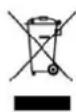
The WEEE logo on the product or on its box indicates that this product must not be disposed of or dumped with your other household waste. You are liable to dispose of all your electronic or electrical waste equipment by relocating over to the specified collection point for recycling of such hazardous waste.
Isolated collection and proper recovery of your electronic and electrical waste equipment at the time of disposal will allow us to help conserving natural resources. Moreover, proper recycling of the electronic and electrical waste equipment will ensure safety of human health and environment.
Dispose of electronic waste, such as batteries according to the instructions.
Caution: risk of explosion if battery is replaced by an incorrect type.
For pluggable equipment, the socket-outlet shall be installed near the equipment and shall be easily accessible.
Information about the meaning of marking CE:

That means that the product answers to essential requirements of the European Directive 93/68/EEC applicable in the conformity assessment procedures.
This quick start guide and software related thereto may be changed without notice. You could download the latest software on www.haier.com. If this quick start guide does not exactly match the tablet you have before, please always refer to what is stated in the tablet.
This manual may not reflect your actual device's operation. All information is subject to change without prior notification. Please follow your actual device's operational procedures.
II.Key Feature and Functionality

text_image
⑤ ⑦ ⑥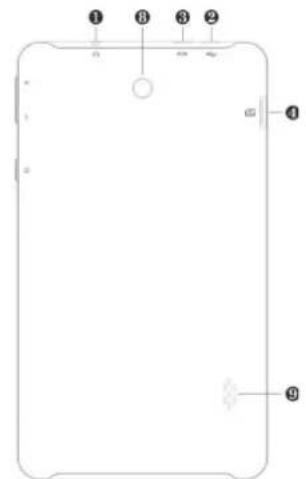
text_image
① ② ③ ④ ⑤ ⑥ ⑦ ⑧| Feature | Functionality |
| 1.Audio port (3.5 mm) | Connect a headset, headphones, microphones, or other audio equipment to listen to stereo sound, record audio, or make web phone calls. |
| 2.Micro-USB port | Connect the supplied power adapter to provide power to the tablet and charge the battery. |
| Connect USB devices, via an optional USB conversion cable, for transferring data, music, photos, videos, and so on. | |
| 3.HDMI port Connect HD television via optional HDMI cable, for switching the display to wider screen. | |
| 4.Micro SD card slot | Reads and writes files stored on a Micro SD card. |
| 5.Front camera Capture a front view picture or record videos. | |
| Use while making video calls. | |
| 6.Power button Press and hold to turn the tablet on or off. | |
| Press to turn the display on or off. | |
| 7.Volume+/- buttons | Press to increase/decrease volume |
| 8.Rear camera Captures pictures or videos. | |
| 9.Speaker Provides audio output. | |
Note:
- Both cameras do not support zoom, face tracking.
-
The Micro-USB port does not support connecting to a computer sharing to connected USB devices.
-
When using the tablet for the first time or after it has been idle for a long time, user should charge the battery for over half an hour before turning it on, so as to guarantee the stability of its system.
III. Introduction to Desktop
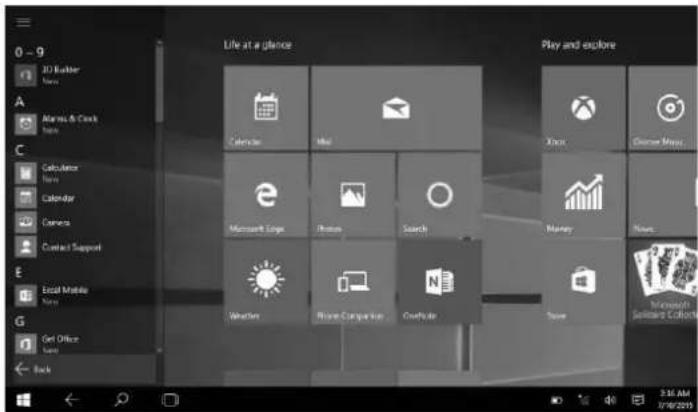
1. Windows10 start image
When your computer boots into Windows, the Start screen appears by default. To access the start screen from any other window or app, use any of the following methods:
Press the Windows button.
Touch the Start button ■ in the lower left corner of the screen.
Note: The functionality of the Start icon is same as Windows button
Remark: Live Tiles can be added or removed by using Pin to taskbar ⏻, Pin to Start or Unpin from Start Ⓧoptions.
text_image
0 - 9 3D Builder A Alarms & Clock Barns Calcinator Barns Calendar Camera Contact Support Local Mobile None G Get Office None Back Life at a glance Play and explore Calendar Mail Open Close Menu Microsoft Edge Photos Search Memory News Weather Phone Comparison Creditie None Microsoft Server Colors 2:16 AM 07/16/20152. Image slide applications
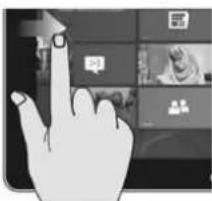
Slide to right
text_image
Hand interacting with a touchscreen interface displaying a virtual meeting scene with icons and textSlide to the right from the left side of the screen to get the back up app list.
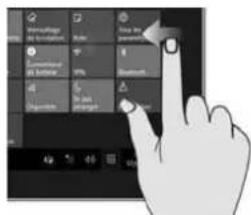
Slide to left
text_image
Hand interacting with a touchscreen interface showing text formatting options and a cursor pointing to the right.Slide to the left from the right side of the screen to get the action center.
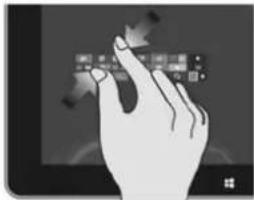
Reduce
natural_image
Illustration of a hand interacting with a tablet device (no text or symbols visible)On the touch screen, narrow two fingersto reduce the image.
Enlarge

natural_image
Hand interacting with a tablet displaying a photo frame (no visible text or symbols)On the touch screen, widen two fingers to enlarge the image.
Slide downward
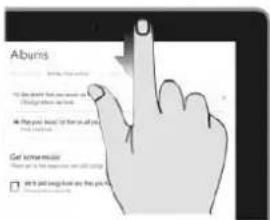
text_image
Aburis Get screen music Do you think you can get your own You can get your own Play your own if you can get your you can get your own Get screen music Do you think you can get your own You can get your own Get screen musicIn app screen, slide from the top of the screento get the exit interface of apps quickly
3. Status information column

Battery information: you can get options: Adjust Screen brightness, Power Options,
Windows Mobility Center.

Wi-Fi Signal information: click you can set to connent the internet and change to
airplane mode.
Volume information: click you can control the volume.

Action center: click you can check the updated notifications, control shortcut keys.
4. Virtual keys column
Click to back main interface
Click to back the previous interface
Click to choose search internet and the device
Click to switch to shut down all back up apps
IV. Basic Operations
1. Dormancy, restart and power off
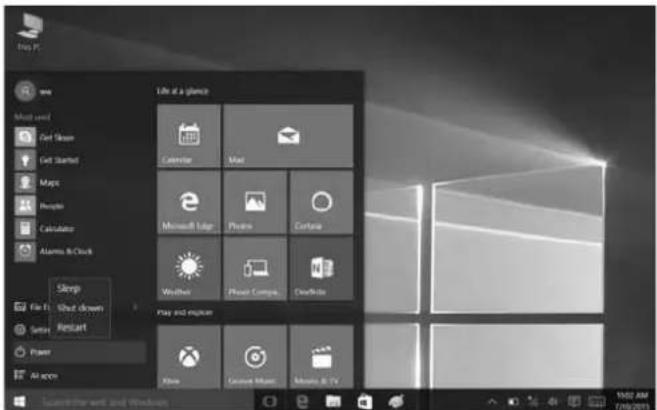
text_image
Live PC new Mood until Get Sound Get Started Maps People Calculator Alstom & Clock Sleep File F: Shut down Reset Reset Power Air access Life at a glance Calendar Mac Microsoft Log Photo Cartoon Weather Private Camps... Checklist Play and explore None Look out Music Music & TV 10/02 AM 7/10/20152. Update&Security
If your PC isn't running well, click the Action Center, then follow below operations to get default settings:
Click All Settings → Update and Security Recovery. → Reset this PC/Advanced startup for option
Caution:
Resetting your tablet erases all data from your tablet, including your account configuration, apps, music, pictures, files, and so on. Make sure that you back up all the required data before you proceed.
Haier
Haier Europe Trading – France
Description: Tablette tactile
EMC directive: EN55022: 2010 /AC:2011
EN61000-3-2:2014
EN61000-3-3:2013
EN55024: 2010
R&TTE directive: EN 62479:2010
EN 301 489-1 V1.9.2
ETSI EN 301 489-17 V2.2.1
ETSI EN 300 328 V1.8.1
Haier Europe Trading Succursale France
Manufacturer address: Room B4 of Floor 21, No.3 Tower Building, Chinese Technology Research Park, China Technology Exploitation Institute; Gaoxin South first street No.009, Nanshan District, Shenzhen City, Guangdong Province.