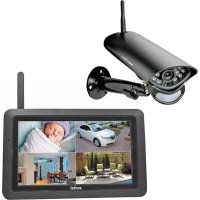
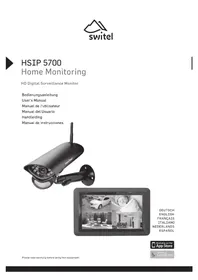
HS 2000 - Surveillance Camera SWITEL - Free user manual and instructions
Find the device manual for free HS 2000 SWITEL in PDF.



| Marque | Switel |
| Modèle | HS 2000 |
| Type de produit | Caméra de surveillance sans fil avec moniteur |
| Fréquence | 2.4 GHz (2,400 à 2,483 GHz) |
| Portée maximale | Jusqu'à 300 mètres en visibilité directe |
| Résolution du moniteur | 800 x 480 pixels, écran LCD 7 pouces (17.8 cm) |
| Capteur de la caméra | 1/4" CMOS couleur, capteur d'image MEG pixel |
| Vision nocturne | LEDs infrarouges avec filtre IR-cut automatique |
| Angle de détection PIR | 70° horizontal, portée jusqu'à 6 m |
| Indice de protection (caméra) | IP54 (résiste aux éclaboussures, pas d'immersion) |
| Alimentation de la caméra | 9 V DC, 600 mA |
| Alimentation du moniteur | 5 V DC, 2 A |
| Type de piles (moniteur) | Accumulateur rechargeable (non spécifié) |
| Fonctions principales | Surveillance vidéo, détection de mouvement, enregistrement sur carte SD, audio bidirectionnel, mode scan, mode auto-séquence, vision nocturne |
| Enregistrement | Sur carte SD (format MPEG4), durée réglable (15s, 30s, 1 min), enregistrement programmé, réécriture automatique |
| Entretien et nettoyage | Nettoyer le boîtier avec un chiffon doux et sans peluche ; ne pas utiliser de nettoyants ni solvants ; nettoyer régulièrement le verre protecteur de la caméra |
| Sécurité | Utiliser uniquement les blocs d'alimentation fournis ; ne pas ouvrir les appareils ; respecter les consignes locales ; Ne pas jeter avec les ordures ménagères |
| Garantie | 24 mois à compter de la date d'achat, hors piles et batteries |
| Service client | Hotline Suisse : 0900 00 1675 (2.60 CHF/min) |
| Température de service (caméra) | -10°C à +50°C |
| Température de service (moniteur) | -10°C à +40°C, humidité 0% à 85% |
Frequently Asked Questions - HS 2000 SWITEL
User questions about HS 2000 SWITEL
0 question about this device. Answer the ones you know or ask your own.
Ask a new question about this device
Download the instructions for your Surveillance Camera in PDF format for free! Find your manual HS 2000 - SWITEL and take your electronic device back in hand. On this page are published all the documents necessary for the use of your device. HS 2000 by SWITEL.
USER MANUAL HS 2000 SWITEL
DEUTSCH
ENGLISH
FRANÇAISE
ITALIANO
Monitor (Empfänger)
Telgo AG, Rte. D'Englisberg 11, 1763 Granges-Paccot, Switzerland

Pflegehinweise
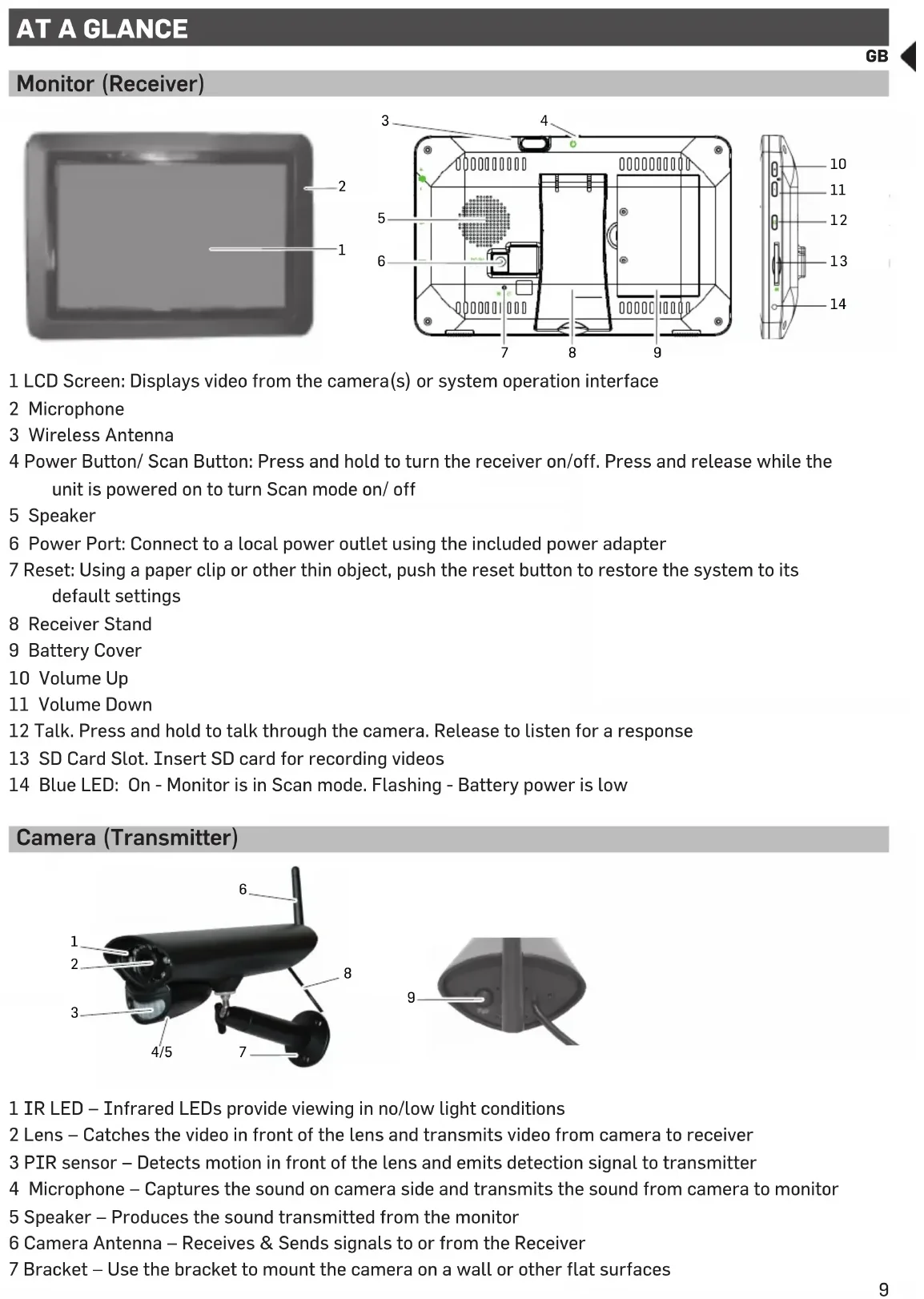
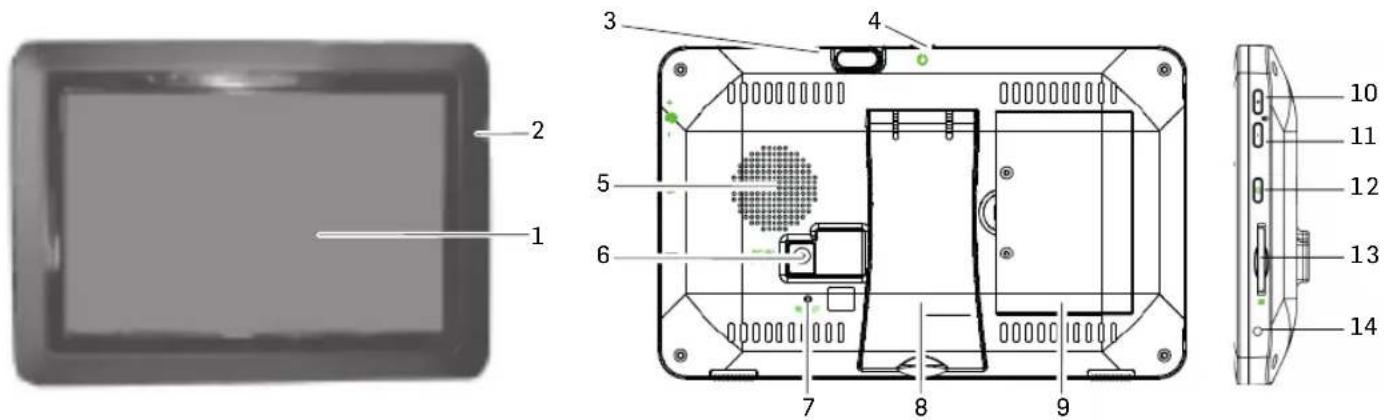
1 LCD Screen: Displays video from the camera(s) or system operation interface
2 Microphone
3 Wireless Antenna
4 Power Button/ Scan Button: Press and hold to turn the receiver on/off. Press and release while the unit is powered on to turn Scan mode on/ off
5 Speaker
6 Power Port: Connect to a local power outlet using the included power adapter
7 Reset: Using a paper clip or other thin object, push the reset button to restore the system to its default settings
8 Receiver Stand
9 Battery Cover
10 Volume Up
11 Volume Down
12 Talk. Press and hold to talk through the camera. Release to listen for a response
13 SD Card Slot. Insert SD card for recording videos
14 Blue LED: On - Monitor is in Scan mode. Flashing - Battery power is low
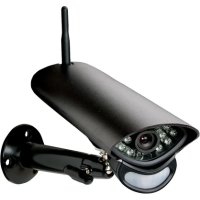
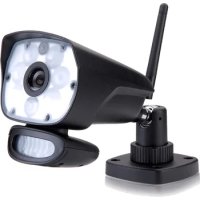
Camera (Transmitter)
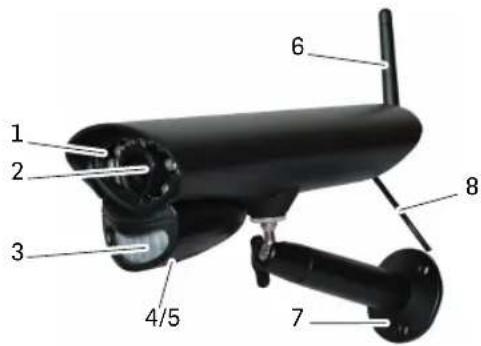
1 IR LED – Infrared LEDs provide viewing in no/low light conditions
2 Lens – Catches the video in front of the lens and transmits video from camera to receiver
3 PIR sensor – Detects motion in front of the lens and emits detection signal to transmitter
4 Microphone – Captures the sound on camera side and transmits the sound from camera to monitor
5 Speaker – Produces the sound transmitted from the monitor
6 Camera Antenna – Receives & Sends signals to or from the Receiver
7 Bracket – Use the bracket to mount the camera on a wall or other flat surfaces
8 Power Jack – Connect the DC 9V Power Adaptor to the Camera
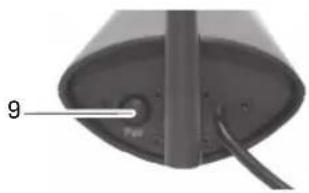
9 Pairing Button – The pairing button is located on the back of the camera behind by the stand mount
Note: This camera includes an Auto Mechanical IR Cut Filter. When the camera changes between day mode and night vision mode, an audible clicking noise may be heard coming from the camera. This clicking is normal, and indicates that the camera filter is working.
SET UP THE HARDWARE
Monitor
1 Flip out the stand on the back of the monitor; and position the antenna.
2 Connect an AC adaptor to the power input on the side of the monitor. Connect the other end of the adapter to a standard indoor power outlet.
3 Press and hold the POWER button on the top of the monitor for 3 - 4 seconds to power it up.
4 The monitor displays the start up UI for a few seconds and then transitions to the LIVE view. The screen remains dark until the cameras are powered up.
Camera
General
The camera included with your monitor is weatherproof and have an IP54 rating. Water can be sprayed on them and they will still work; however, the cameras cannot be submerged.
Although the cameras can be exposed directly to the rain, it is recommended that, if they are used outdoors, they be mounted under some type of cover like a patio overhang or eave. As rainwater drops start to dry on the camera glass, it can create spots that will reflect the light from the infrared LEDs used for night vision, thus causing lower quality video.
Also, as dust, grime, and cobwebs accumulate on the camera glass, they can reflect light from the infrared LED and might lower video quality. Periodically clean the lens glass with a soft cloth.
Placement Considerations
Consider the following when placing cameras:
- The clearest line-of-sight between the camera and monitor is best.
- Walls, especially brick and concrete, shorten the transmission distance.
- Placement next to windows allows better transmission.
- Optimized motion detection range is 6...18 feet for the camera. The farther away an object is, the less accurate the motion detection.
- Avoid having a direct light source in the view of the camera, including street lights, ceiling or floor lamps, spotlights in the driveway, etc.
- Rainfall, pool water ripples/reflections, tree/shrub leaves blowing in the wind – and the shadows they create – can generate motion detection false alarms.
INSTALL CAMERAS
When you are positioning the camera, bring the monitor along; it's much easier to get the camera into the right position when you have the display handy.
1 Position the camera where you want it, plug it into power, and check video on the monitor. Move the camera if the view is not what you want.
2 Hold the base of the camera stand where you want to mount it and mark the location of the screw holes.
3 Use the included screws and anchors to attach the base to the wall or ceiling.
4 Tug gently on the stand to make sure it is securely in place.
MONITOR SCREEN
The monitor's screen has 3 main parts:
• Live View area. The main screen area displays live video from the camera(s).
- Pop Out Menu Tab. Tap this tab to display 4 menus that let you manage the system.
- Icon bars. Icons display on the top and bottom of the monitor screen.
Viewing Modes
The Live View area displays live video from the cameras. Each camera can display in its own section of the screen (quadrant) or on the full screen.
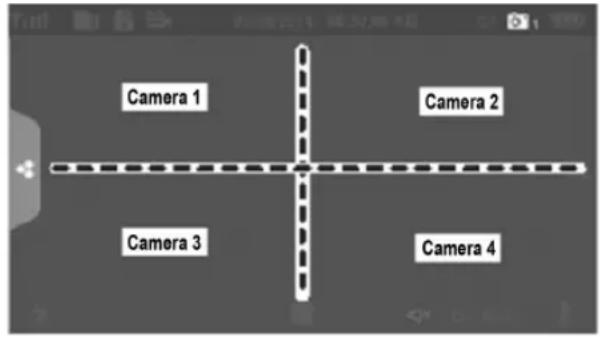
There are 4 viewing modes:
- Quad mode splits the screen's image area into 4 quadrants and displays active camera video in each quadrant. Tap the center of the quadrant to enter Single Channel mode.
- Single Channel mode displays one camera at a time on full screen. Press to change between the channels. Tap the center of the image to return to Quad mode.
- With Scan mode, the monitor's screen and speakers are off until a camera detects motion. That camera then displays at full screen (sound and video on) until there has been no motion for 15 seconds. After that, the monitor screen turns off again. Press and release POWER to turn Scan mode on.
- Auto Sequence. Displays each channel automatically in sequence in full screen display. The system defaults to Auto Sequence mode when Scan mode is turned off. Tap SEQ to turn Auto Sequence mode off and return to Quad mode.
SYSTEM OPERATION
Your monitor operates through a series of screens that let you choose groups of operations.
LIVE VIEW SCREEN
The Live View screen is the monitor's main screen that displays video from your camera(s). You can have the system display a single camera or you can set the screen to display all of them. You can also set the screen to cycle between all live video feeds. Tap the icon to change the Live screen video displays.
LIVE SCREEN ICONS
Different icons display on the monitor screen depending on what is going on with your cameras. This image shows an example of what could be on your screen (the video image is removed to make it easier to see the icons). A table follows of possible icons and their definitions.
Live Screen Example


IGNAL INDICATOR: Shows how strong the camera's signal is. Signal ranges from 4 bars down to 0 bars (out of range).

D CARD: This graphic displays if an SD card is inserted into the monitor. If blue, recording space is available. If red, the SD card is full. Tap this icon to view recorded files.

NEW RECORD INDICATOR: New recordings are saved on the SD card.
RECORDING INDICATOR: When this icon flashes red, it indicates that recording is in progress.
TIME STAMP: Current date/time in month/day/year, hour/minute/second format

SD CARD OVERWRITE: Displays if the SD card is allowed to overwrite files when it is full.

CHANNEL INDICATOR: Displays the current channel number you are currently viewing. If viewing multiple cameras at once, the camera indicator will appear above each video display.

BATTERY INDICATOR: Indicates the LCD monitor's battery life:
Flashing Red- Low battery
Green- Full battery
Flashing Green-Charging

ZOOM INDICATOR: When you tap this icon on the screen, the monitor breaks the screen image into 5 areas. Tap the area you want to see in Zoom. That area displays in 2X size. Tap the icon again to exit Zoom mode.
VOLUME INDICATOR: Indicates current audio volume. You must be in sigle channel viewing mode to change volume. Tap + or - to raise or lower the volume. displays when the volume is off (mute).

TALK BACK INDICATOR: Displays when TALK is pressed. Press and hold TALK on the side of the monitor to talk back through the camera. Release TALK to wait for a reply.

SEQUENCE INDICATOR: Displays when the monitor is in auto switch mode; it will change channels automatically.

CHANGE CHANNEL: Tap this icon to manually change channels.
MOTION RECORDING INDICATOR: Indicates motion detection status.
Blue - Automatic recording OFF.
Red - Automatic recording ON.
POP-UP MENU TAB: Tap to access the pop up menu system.
FUNCTIONS
Tap and the pop-up menus display.
PLAYBACK
Manage recorded files with this screen. You can see what recorded files you have, play them, and delete them.
1 Tap

2 Days that are highlighted have recorded files. Tap the day you want to review and a list of recordings for that day displays.
3 Tap the record you want and it plays, with a control bar across the bottom of the screen.
4 When the file finishes, the monitor displays the Recording File List screen again.
5 Tap the i#n to delete the record if desired.
ALARM
When motion triggers the camera to begin recording, the monitor sounds an alarm tone. This screen lets you determine how loud that tone will be.
1 Tap

2 Tap + or - to increase or decrease the alarm volume. Tap when you are finished.
BRIGHTNESS
This feature allows you to set each camera's brightness level.
1 Tap

2 Tap + or - to increase or decrease the monitor screen brightness. Tap when you are finished.
GENERAL SETTINGS
The General Settings screen contains 6 subsections, each of which may contain sub-screens. These subscreens let you set features about your system. You can turn cameras on and off, establish a specific schedule for specific cameras to record, set the date and time, and motion detection sensitivity, among other features.
1 Tap

| Main Screen Sub-Screen | reen What it Does | |
| Camera Setup Pairing | This system comes with cameras already paired. Use Pairing to assign these cameras to different channels or to pair additional new cameras to the monitor. | |
| ON/OFF Makes the cameras visible to the monitor. | ||
| Resolution Adjusts the video quality of each camera. | ||
| Main Screen Sub-Screen | Green What it Does | |
| Recording Setup Duration | on Set the length of time | the camera records once motion sensitivity triggers the camera to record. Choices are 15 seconds, 30 seconds, or 1 minute (Default - 15 seconds) |
| Schedule Recording Set up | a schedule for pre-determined recording times and lengths. | |
| File Overwrite Overwrites | the oldest recorded data on the SD card once the card is full. | |
| System Settings Date | & Time Set the current time. | |
| Language Changes languages setting for the monitor | ||
| Default Settings Restores | the system to default settings. | |
| Format SD Card Reformats | the SD card and deletes all existing data. | |
| Information | Displays firmware information for the monitor and each camera. | |
| Motion Detection Settings | A single screen lets you set motion detection sensitivity for each camera. It also lets you determine which viewing areas for each camera should be masked from motion detection. | |
ADDING NEW CAMERAS
Your monitor supports a total of four active cameras at a time. When you add a camera, you have to pair it to the monitor (that is, you have to “introduce” the camera and monitor to each other so they can communicate).
- If a camera is already assigned to the channel you want to assign the new camera to, the monitor overwrites the existing camera link with the new one.
- Only pair one camera at a time! The monitor links to the first camera it detects. If two or more camera are in pairing mode, you can't control which camera the monitor will detect first.
PAIR CAMERAS
1 From the Pairing Camera screen, tap the camera image you want to pair. A processing icon displays for a 30 second countdown.
2 During the 30 second countdown, quickly press and release the Pairing button on the camera.
3 The system automatically adjusts the Live View screen accordingly.
TROUBLESHOOTING CAMERA PAIRING
| If... | Try... |
| the camera's signal status icon shows no bars | ·making sure the camera is plugged in.·making sure that the camera's antenna is attahced and the monitor's antenna is extended.·making sure the camera is paired to the correct channel.·re-pairing the camera and monitor. |
| the camera won't pair with the monitor | ·making sure the camera is plugged in.·pressing and releasing the pairing button quickly. Do not press and hold the pairing button. |
| Manually start/stop recording video | 1 Tap the blueicon on the monitor screen. The icon turns red and flashes, indicating that recording have started.2 Tap the icon again to stop recording. The icon turns blue. |
| Set up automatic recording schedule | 1 From General Settings/Recording Setup, tapicon. The Schedule Recording Overview screen displays.2 Tap MODIFY to view the Recording Setup screen. |
| Delete recording schedule | 1 From General Settings/Recording Setup, tapicon. The Schedule Recording Overview screen displays.2 Select the day you want to modify and tap MODIFY to view the recording schedule for that day.3 Select the camera(s) whose schedule you want to delete. Enter the schedule (or part of a schedule) you want to delete and tap DELETE. |
| Watch recorded video | 1 From the Main screen, tap the pop out menu tab and then tapThe Recording File List displays the recorded files.2 Tap the day you want to view, and then tap the file.3 The video begins playing. |
| Delete recorded videos | 1 From the Recorded File List, tap2 Tap YES to confirm deletion. |
| Two-way talk | From the Live View screen, press and hold the TALK button at the side of monitor, sound is now audible through the camera.Release TALK button, the Two-way talk mode exits. |
| Change channels (view a different camera) | 1 Tap theicon.2 The next channel displays. |
APPENDIX
Safety Information
- Please read this operating instruction manual thoroughly and keep it for further use.
- Prevent excessive exposure to smoke, dust, vibration, chemicals, moisture, heat and direct sunlight.
- Furniture polish, over time, may disintegrate the rubber feet of the device which may stain your furniture. To avoid a potential stain, you may want to place the device on a pad or mat.
- Only use the power adapter plugs contained in the material supplied since other power adapter plugs could damage the devices.
- Ensure access to the power adapter plugs is not obstructed by furniture or such.
Intended use
The camera serves a video stream to the monitor. Any other use is considered unintended use.
Unauthorised modification or reconstruction is not permitted. Under no circumstances open the devices or complete any repair work yourself. Observe all local directives and regulations.
Power adapter plug
Attention: Only use the power adapter plug contained in the material supplied since other power adapter plugs could damage the devices. Ensure access to the power adapter plug is not obstructed by furniture or such.
Pay attention that the plug and cable are in perfect condition. Kinked or worn cable represents the risk of a fatal accident!
The power adapter plug supplied fulfils the ecodesign requirements of the European Union (Directive 2005/32/EC). This means that, both in an operating state and in an idling state, the power consumption is considerably lower compared to power adapter plugs with an older design.
Disposal
In order to dispose of your device, take it to a collection point provided by your local public waste authorities (e.g. recycling centre). According to laws on the disposal of electronic and electrical devices, owners are obliged to dispose of old electronic and electrical devices in a separate waste container. The adjacent symbol indicates that the device must not be disposed of in normal domestic waste!
Batteries represent a hazard to health and the environment!
Never open, damage or swallow batteries or allow them to pollute the environment. They may contain toxic, ecologically hazardous heavy metals. You are legally obliged to dispose of power packs and batteries at the point of sale or in the corresponding containers provided at collection points provided by local public waste authorities. Disposal is free of charge. The adjacent symbols indicate that the batteries must not be disposed of in normal domestic waste and must be brought to collection points provided by local public waste authorities.
Packaging materials must be disposed of according to local regulations.


Service hotline
In the case of technical problems, contact our Service hotline. Switzerland: Tel. 0900 00 1675 (national charges, Swisscom at time of going to print: CHF 2.60/min). In the case of claims under the terms of guarantee, contact your sales outlet.
Declaration of conformity
This device fulfils the requirements stipulated in the EU directive:
1999/5 EU directive on radio equipment and telecommunications terminal equipment and the mutual recognition of their conformity. Conformity with the above mentioned directive is

confirmed by the CE symbol on the device. To view the complete Declaration of Conformity, please refer to the free download available on our website www.switel.com.
Telgo AG, Rte. D'Englisberg 11, 1763 Granges-Paccot, Switzerland
Maintenance
- Clean the housing surfaces with a soft, fluff-free cloth.
- Never use cleaning agents or solvents.
Technical data
Communication Range 300m line of sight
Frequency 2,400 ... 2,483 GHz
Image Processing MPEG4
Camera sensor 1/4" Color CMOS MEG pixel Image sensor
PIR angle (horizontal) / range (25°C) 70° / 6 m
Weather proof (Camera) IP54
Operating Temperature (Camera) -10°C ... +50°C
Power Requirement (Camera) 9.0 VDC 600 mA +/- 5%
Monitor display 7" (17,8 cm) Color LCD (800 x 480 pxl)
Operating Temperature (Monitor) -10°C ... +40°C / Humidity 0% ... 85%
Power Requirement (Monitor) 5 V DC 2 A +/- 5%
Guarantee
SWITEL equipment is produced and tested according to the latest production methods. The implementation of carefully chosen materials and highly developed technologies ensure trouble free functioning and a long service life.
The terms of the guarantee do not apply to the rechargeable batteries or power packs used in the products. The period of guarantee is 24 months from the date of purchase.
All deficiencies resulting from material of production faults which occur during the period of guarantee will be eliminated free of charge. Rights to claims under the terms of guarantee are annulled following intervention by the purchaser or third parties. Damage caused as a result of improper handling or operation, incorrect positioning or storing, improper connection or installation, Acts of God or other external influence are not covered by the terms of guarantee.
In the case of complaints, we reserve the right to repair or replace defect parts or provide a replacement device. Replacement parts or devices become our property.
Rights to compensation in the case of damage are excluded where there is no evidence or intent or gross negligence by the manufacturer.
If your equipment shows signs of defect during the period of guarantee, please return to the sales outlet in which you purchased the SWITEL equipment together with the purchase receipt. All rights to claims under the terms of guarantee in accordance with this agreement must be asserted exclusively with regard to your sales outlet.
Two years after the purchase of our products, claims under the terms of guarantee can no longer be asserted.
Telgo AG, Rte. D'Englisberg 11, 1763 Granges-Paccot, Switzerland
Telgo AG, Rte. D'Englisberg 11, 1763 Granges-Paccot, Switzerland

IT
Sensore telecamera 1/4" Color CMOS MEG pixel image sensor


- MONITOR (EMPFÄNGER)
- PFLEGEHINWEISE
- CAMERA (TRANSMITTER)
- SET UP THE HARDWARE
- MONITOR
- CAMERA
- GENERAL
- PLACEMENT CONSIDERATIONS
- INSTALL CAMERAS
- MONITOR SCREEN
- VIEWING MODES
- SYSTEM OPERATION
- LIVE VIEW SCREEN
- LIVE SCREEN ICONS
- LIVE SCREEN EXAMPLE
- FUNCTIONS
- PLAYBACK
- ALARM
- BRIGHTNESS
- GENERAL SETTINGS
- ADDING NEW CAMERAS
- PAIR CAMERAS
- APPENDIX
- SAFETY INFORMATION
- INTENDED USE
- POWER ADAPTER PLUG
- ATTENTION: ONLY USE THE POWER ADAPTER PLUG CONTAINED IN THE MATERIAL SUPPLIED SINCE OTHER POWER ADAPTER PLUGS COULD DAMAGE THE DEVICES. ENSURE ACCESS TO THE POWER ADAPTER PLUG IS NOT OBSTRUCTED BY FURNITURE OR SUCH
- DISPOSAL
- SERVICE HOTLINE
- DECLARATION OF CONFORMITY
- MAINTENANCE
- TECHNICAL DATA
- GUARANTEE
Brand : SWITEL
Model : HS 2000
Category : Surveillance Camera