Camedia C2 Zoom - Camera OLYMPUS - Free user manual and instructions
Find the device manual for free Camedia C2 Zoom OLYMPUS in PDF.



| Product Type | Compact Digital Camera |
| Brand | Olympus |
| Model | Camedia C2 Zoom (C-2 Zoom, D-520 ZOOM, C-220 ZOOM) |
| Sensor | CCD 1/3.2\", 2.11 million pixels (gross), 2.00 effective |
| Lens | Olympus 5-15 mm, f2.8/4.9, 8 elements in 7 groups (equiv. 38-114 mm in 35 mm) |
| Optical Zoom | 3x |
| Digital Zoom | 2.5x (up to 5x in SQ2 mode) |
| LCD Screen | TFT 1.5\", 114,000 pixels |
| Viewfinder | Real image optical viewfinder with focus marks |
| Image Resolutions | 1600×1200 (SHQ/HQ), 1024×768 (SQ1), 640×480 (SQ2) |
| Recording Formats | JPEG (still), Motion JPEG QuickTime (video) |
| Storage | SmartMedia card (4 MB – 128 MB, except 2 MB and 5V) |
| Shutter Speed | 1/2 to 1/1000 sec (night mode: 1 sec) |
| Aperture | f2.8 (wide-angle), f4.9 (tele) |
| Metering Modes | Digital ESP, spot metering |
| Flash | Auto, red-eye reduction, fill-in, off, night, night+red-eye, range approx. 2.5 m |
| Self-timer | 10 sec |
| Shooting Modes | Normal, sequence, movie, close-up, self-portrait, panorama, 2-in-1 |
| Connections | USB (mini-B), video out (VIDEO OUT), DC input (DC IN) |
| Power Source | 4 AA batteries (alkaline, lithium, NiMH, NiCd) or one CR-V3 lithium battery or AC adapter (optional) |
| Dimensions (W×H×D) | 112 × 62 × 35 mm (without protrusions) |
| Weight | 175 g (without batteries or card) |
| Operating Temperature | 0 °C to 40 °C |
| Operating Humidity | 30% to 90% |
| Supplied Accessories | Strap, USB cable, CD-ROM with reference manual, demonstration batteries |
Frequently Asked Questions - Camedia C2 Zoom OLYMPUS
User questions about Camedia C2 Zoom OLYMPUS
0 question about this device. Answer the ones you know or ask your own.
Ask a new question about this device
Download the instructions for your Camera in PDF format for free! Find your manual Camedia C2 Zoom - OLYMPUS and take your electronic device back in hand. On this page are published all the documents necessary for the use of your device. Camedia C2 Zoom by OLYMPUS.
USER MANUAL Camedia C2 Zoom OLYMPUS
These instructions are only for quick reference. For more details on the functions described here, refer to the "Reference Manual" on CD-ROM.
For customers in Europe
“CE” mark indicates that this product complies with the European requirements for safety, health, environment and customer protection. “CE” mark cameras are intended for sales in Europe.
For customers in North and South America
For customers in USA
Declaration of Conformity
Model Number : C-2 Zoom/D-520 ZOOM/C-220 ZOOM
Trade Name : OLYMPUS
Responsible Party : Olympus America Inc.
Address : 2 Corporate Center Drive, Melville, New York 11747-3157 U.S.A.
Telephone Number: 631-844-5000
Tested To Comply With FCC Standards FOR HOME OR OFFICE USE
This device complies with Part 15 of the FCC rules. Operation is subject to the following two conditions:
(1) This device may not cause harmful interference.
(2) This device must accept any interference received, including interference that may cause undesired operation.
For customers in Canada
This Class B digital apparatus meets all requirements of the Canadian Interference-Causing Equipment Regulations.
Trademarks
• IBM is a registered trademark of International Business Machines Corporation.
- Microsoft and Windows are registered trademarks of Microsoft Corporation.
• Macintosh is a trademark of Apple Computer Inc.
- All other company and product names are registered trademarks and/or trademarks of their respective owners.
- The standards for camera file systems referred to in this manual are the “Design Rule for Camera File System/DCF” standards stipulated by the Japan Electronics and Information Technology Industries Association (JEITA).
GETTING STARTED
NAMES OF PARTS
En
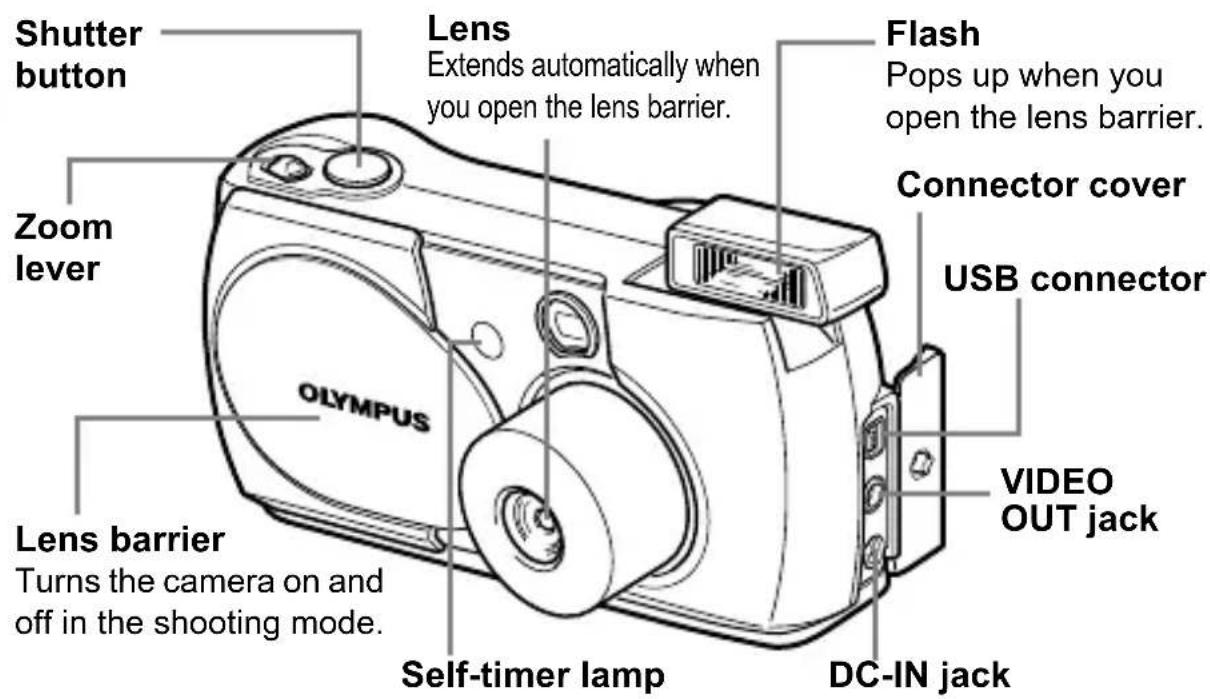

MONITOR INDICATIONS
Shooting mode

| Item Indication | ||
| 1 | Battery check , | |
| 2 | Flash , , , | |
| 3 | Spot metering | |
| 4 | Memory gauge | |
| 5 | Exposure compensation -2.0, -1.5, | -1.0, -0.5, +0.5, +1.0, +1.5, +2.0 |
| 6 | Self-timer/Drive , , | |
| 7 | White balance WB AUTO, , , | |
| 8 | Record mode SHQ, HQ, SQ1, SQ2 | |
| 9 | Number of storable still pictures/Seconds remaining | 16/16" |
| 10 | Number of pixels | 1600 × 1200, 1024 × 768, 640 × 480 |
| 11 | Date and time | '02.01.12 12:30 |
| 12 | File number, Frame number/Playing time | 100-0016, 16/16" |
| 13 | Print reservation, Number of prints | |
| 14 | Protect | |

You can view shooting information details of the recorded picture in the playback mode.
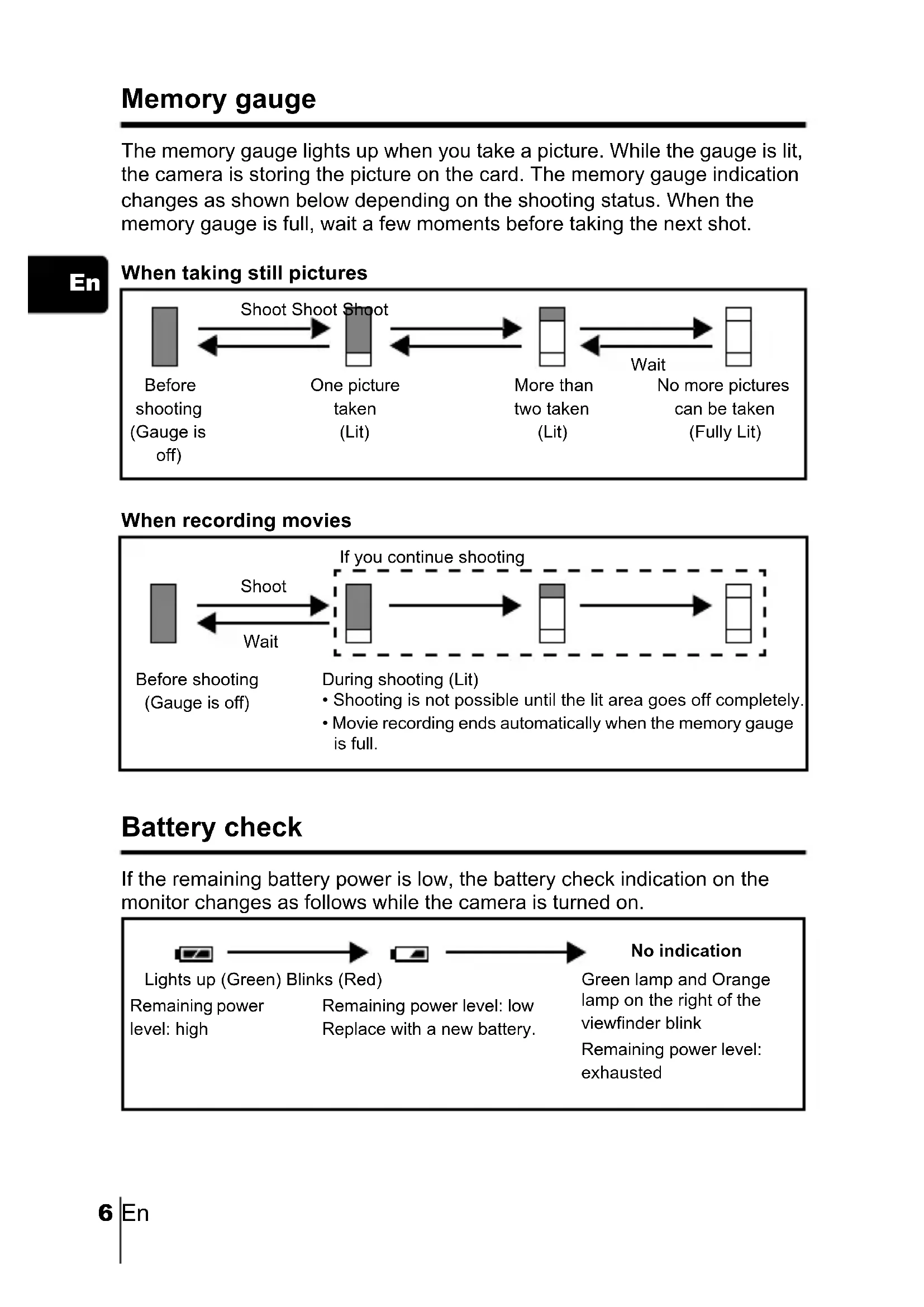
Memory gauge
The memory gauge lights up when you take a picture. While the gauge is lit, the camera is storing the picture on the card. The memory gauge indication changes as shown below depending on the shooting status. When the memory gauge is full, wait a few moments before taking the next shot.
En
When taking still pictures

flowchart
graph LR
    A["Before shooting (Gauge is off)"] --> B["One picture taken (Lit)"]
    B --> C["More than two taken (Lit)"]
    C --> D["No more pictures can be taken (Fully Lit)"]
    D -->|Wait| C
    B <-->|Shoot Shoot Shoot| A
When recording movies

flowchart
graph LR
    A["Before shooting (Gauge is off)"] -->|Shoot| B["When shot is off"]
    B -->|Wait| C["When hit a movie recording end is completely"]
    C --> D["When hit a film record is full"]
    D --> E["When hit a film record is fully"]
    style A fill:#ccc,stroke:#333
    style B fill:#ccc,stroke:#333
    style C fill:#ccc,stroke:#333
    style D fill:#ccc,stroke:#333
    style E fill:#ccc,stroke:#333
Battery check
If the remaining battery power is low, the battery check indication on the monitor changes as follows while the camera is turned on.

flowchart
graph LR
    A["Lights up (Green) Blinks (Red)"] --> B["Green lamp and Orange lamp on the right of the viewfinder blink"]
    B --> C["Remaining power level: low Replace with a new battery."]
    C --> D["No indication"]
    style A fill:#f9f,stroke:#333
    style B fill:#ccf,stroke:#333
    style C fill:#cfc,stroke:#333
    style D fill:#fcc,stroke:#333
ATTACHING THE STRAP
1 Thread the short end of the strap through the strap eyelet.
2 Thread the long end of the strap through the loop that has already gone through the eyelet.
3 Pull the strap tight, making sure that it is securely fastened and does not come loose.

natural_image
Line drawing of a cable being inserted into a device (no text or symbols)En
LOADING THE BATTERIES
1 Make sure that:
• The monitor is off.
• The lens barrier is closed.
- The lamp on the right of the viewfinder is off.
2 Slide the battery compartment cover in the direction of ④ the direction indicated by the ⑤ mark on the cover), and lift it up in the direction of ⑥

Battery insertion direction mark
3 Insert the batteries, making sure that they are correctly oriented as shown in the illustration.
When using AA (R6) batteries

When using a lithium battery pack

natural_image
Diagram of a camera module with a highlighted lens and adjustment knob (no text or symbols)4 Close the battery compartment cover in the direction of ⒶWhile pressing the mark, slide the cover in the direction of ⒶIf the battery compartment cover will not close easily, do not force it. Try pressing the mark with both hands.


The number of pictures that you can store in the camera may vary considerably with AA batteries, depending on the battery manufacturer, camera shooting conditions, etc. Use this type of battery only when you have no other choices available. Turn off the monitor whenever possible to save power.
En
INSERTING THE CARD (SmartMedia)
The pictures you have taken are stored on the card.
1 Make sure that:
• The monitor is off.
• The lens barrier is closed.
• The lamp on the right of the viewfinder is off.
2 Open the card cover.
3 Insert the card as far as it will go in the direction shown in the illustration.
There is an arrow inside the card cover, indicating the direction in which the card should be inserted.
4 Close the card cover securely until it clicks.

Card insertion- direction mark
When shooting pictures
Power on: Open the lens barrier.
The camera turns on in the shooting mode. The lens extends and the flash pops up.
If the lens does not extend, the lens barrier is not fully open.
Open the lens barrier until it clicks.
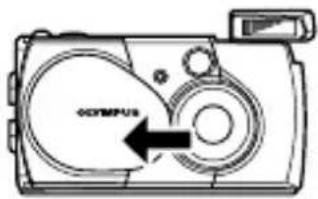
If the date and time have reverted to the factory default settings, Y/M/D appears on the monitor.
Power off: Close the lens barrier slightly until it just touches the lens barrier.
The lens barrier stops just before it touches the lens and the lens retracts. Wait until the lens is fully retracted before closing the lens barrier completely.
The camera turns off. (The monitor also turns off.)
Press the flash down manually until it locks in place.

flowchart
graph LR
    A["Device 1"] --> B["Device 2"]
    B --> C["Device 3"]
    C --> D["Device 4"]

Do not push the lens barrier forcefully against the lens as this may damage the lens or cause it to malfunction.
Power on: Press the (monitor) button with the lens barrier closed.
The camera turns on in the playback mode. The monitor turns on and the last picture taken is displayed.

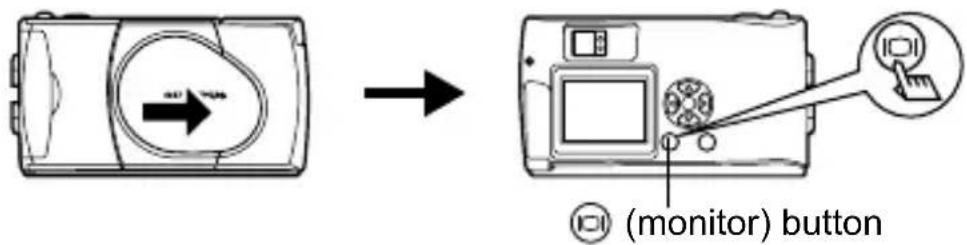
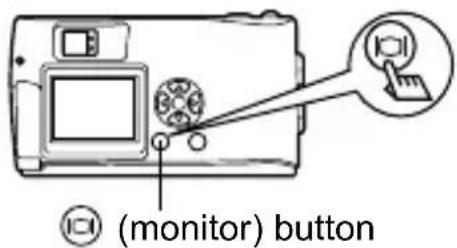
Power off: Press the (monitor).
The monitor and the camera turn off.

Never open the card cover, remove the card or the batteries, or connect or disconnect the AC adapter while the camera is turned on. Doing so could destroy all data on the card. Destroyed data cannot be restored. When changing the card, be sure to turn the camera off before opening the card cover.
SETTING THE DATE AND TIME
1 Open the lens barrier.
2 Press 田.
The shooting mode top menu is displayed.
3 Press on the arrow pad to select MODE MENU.
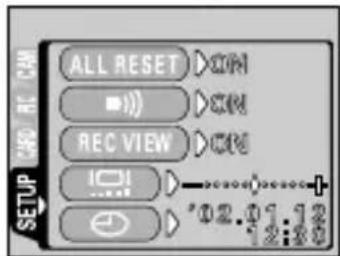
4 Press to select the SETUP tab, then press.
5 Press to select, then press.
6 Press to select one of the following date formats:
Y-M-D (Year/Month/Day)
M-D-Y (Month/Day/Year)
D-M-Y (Day/Month/Year)
Then press
The cursor moves to the next setting field.
7 Press to set the first field, then press to move to the next field.
Press to move back to the previous setting field.
8 Repeat the above steps until the date and time are completely set.
9 Press ☒.
For a more accurate setting, press when the clock hits 00 seconds.
The clock starts when you press
10Close the lens barrier.
The camera turns off.

If the camera is left for about 1 hour with the batteries removed, or if the battery power is exhausted, the date and time settings may be canceled or become incorrect. Before taking important pictures, check that the date and time settings are correct.
MENU FUNCTIONS
USING THE MENUS AND TABS
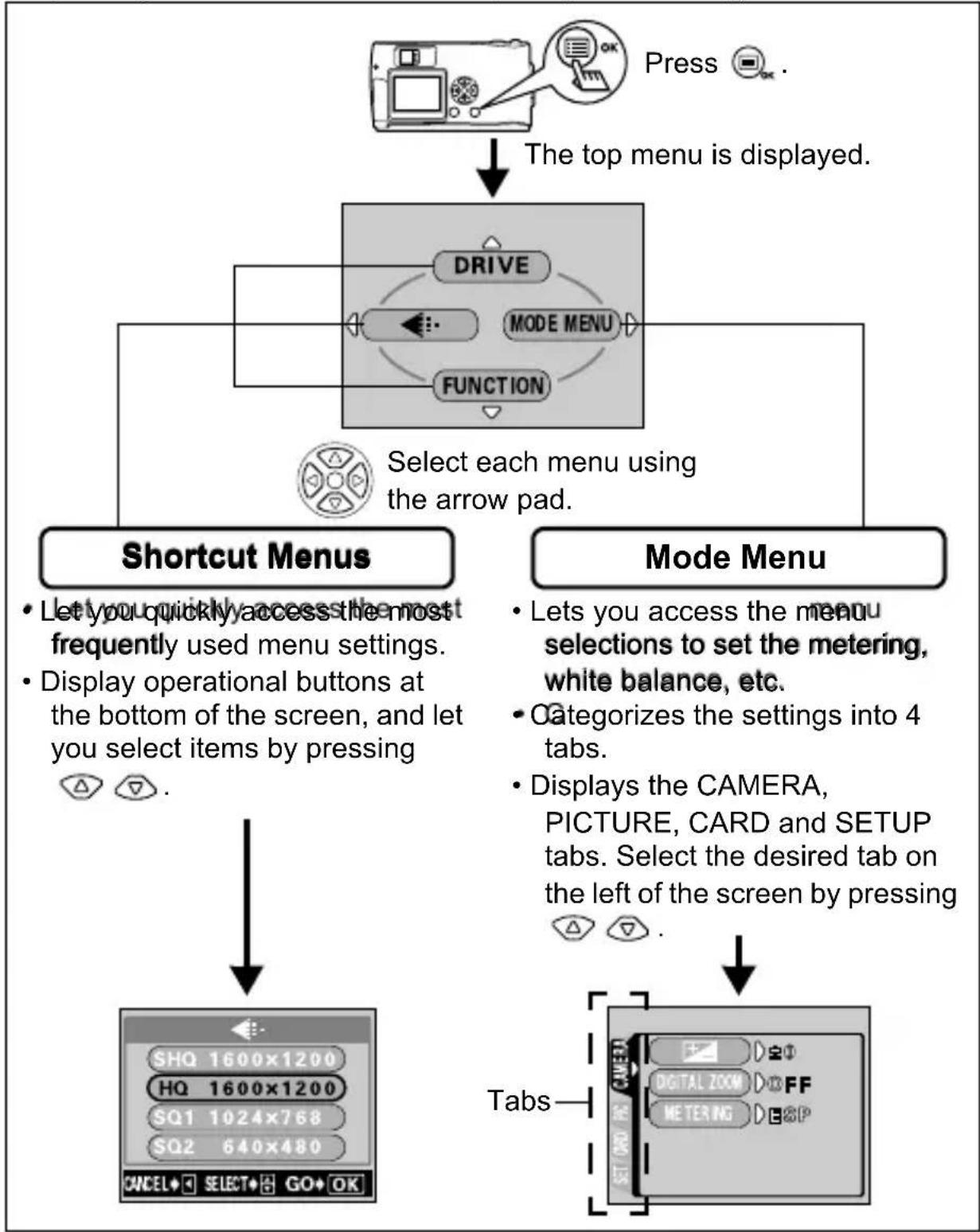
When you turn on the camera and press the top menu is displayed on the monitor. The functions of this camera are set from the menus. This chapter explains how the menus work, using the shooting mode screens.
flowchart
graph TD
    A["Press"] --> B["The top menu is displayed."]
    B --> C["DRIVE"]
    C --> D["MODE MENU"]
    D --> E["FUNCTION"]
    E --> F["Select each menu using the arrow pad."]
    F --> G["Shortcut Menus"]
    G --> H["Let you quickly access the most frequently used menu settings."]
    G --> I["Display operational buttons at the bottom of the screen, and let you select items by pressing △ ▼ ▽."]
    H --> J["ShQ 1600x1200"]
    H --> K["HQ 1600x1200"]
    H --> L["SQ1 1024x768"]
    H --> M["SQ2 640x480"]
    J --> N["Tabs"]
    K --> N
    L --> N
    M --> N
    N --> O["TABS"]
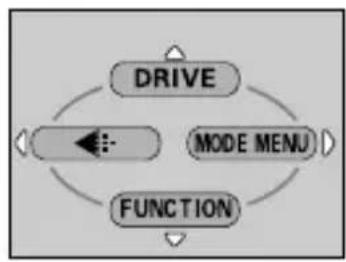
1 Press to display play the top menu, then press ▶.
Top menu
flowchart
graph TD
    A["DRIVE"] --> B["MODE MENU"]
    B --> C["FUNCTION"]
    C --> A
    style A fill:#f9f,stroke:#333
    style B fill:#ccf,stroke:#333
    style C fill:#cfc,stroke:#333

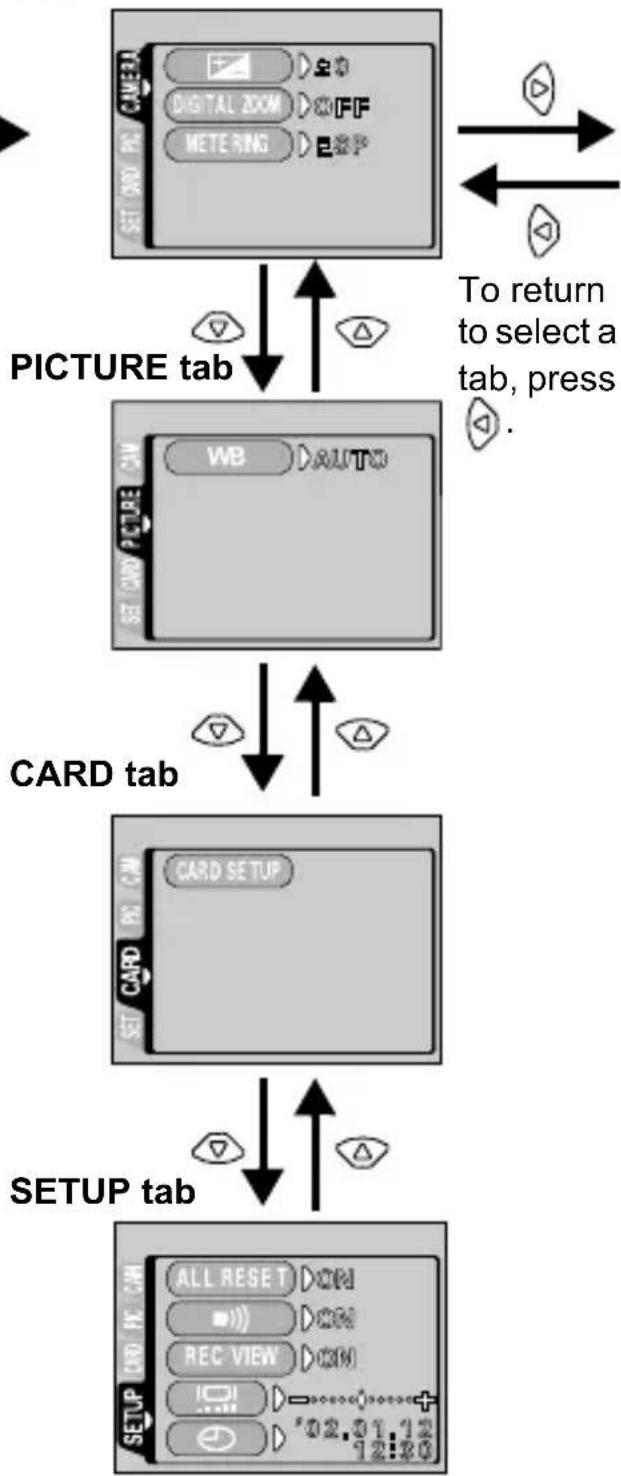
2 Press to select to select a tab, then press to display the menu.
CAMERA tab
flowchart
graph TD
    A["SET CARD PC"] --> B["PICTURE tab"]
    B --> C["WB AUTO"]
    C --> D["CARD tab"]
    D --> E["CARD SETUP"]
    E --> F["SETUP tab"]
    F --> G["ALL RESET COM"]
    G --> H["REC VIEW COM"]
    H --> I["12:20"]
    style A fill:#f9f,stroke:#333
    style B fill:#ccf,stroke:#333
    style C fill:#cfc,stroke:#333
    style D fill:#fcc,stroke:#333
    style E fill:#cff,stroke:#333
    style F fill:#ffc,stroke:#333
    style G fill:#cfc,stroke:#333
    style H fill:#fcc,stroke:#333
    style I fill:#ffc,stroke:#333


3 Press to select the desired item, then press to display the available setting selections.
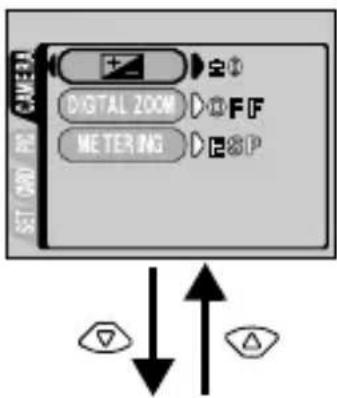
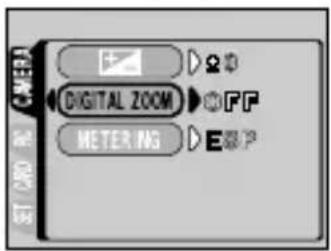
The green frame moves to the selected item.

flowchart
graph TD
    A["Start"] --> B["Right Arrow"]
    C["Start"] --> D["Left Arrow"]
    E["Start"] --> F["Right Arrow"]
    G["Start"] --> H["Left Arrow"]
    I["Start"] --> J["Right Arrow"]
To return to select an item, press

4 Press to select to select the setting.
Setting is completed when the setting has been selected.


To close the menu, press ☐ twice.
- Not all items can be selected depending on the status of the camera and the settings performed. For example, when the movie mode is selected, you cannot select SEPIA, BLACK&WHITE or in the EDIT tab category.
- By pressing the shutter button to take a picture while the menu is displayed, you can take pictures with the currently selected settings.
- If you want to save the settings after the camera is turned off, set All Reset to OFF.
Shooting mode
DRIVE
| Lets you shoot one frame at a time (normal shooting). | |||
| Lets you shoot pictures in succession. | |||
| Lets you shoot movies. | |||
En

Lets you select the resolution and the image quality of the image.
Still picture : SHQ, HQ, SQ1 and SQ2
Movie : HQ, SQ
FUNCTION
| 2 IN 1 | Lets you combine two still pictures taken in succession into one picture. |
| [25cv] | Self-portrait mode:Lets you take a picture of yourself while holding the camera. |
| PANORAMA | Allows panorama pictures to be taken with Olympus CAMEDIA-brand SmartMedia cards. |
Playback mode

Displays all recorded pictures in slide-show fashion.
MOVIE PLAYBACK
Plays back a movie.
INFO
Displays all the shooting information on the monitor.

ERASE
Erases a selected picture.
Mode menus
Mode menu functions are categorized into 4 tabs. Use to select a tab and display the respective functions.
These instructions are only for quick reference. For more details on the functions described here, refer to the “Reference Manual” on CD-ROM.
Shooting mode
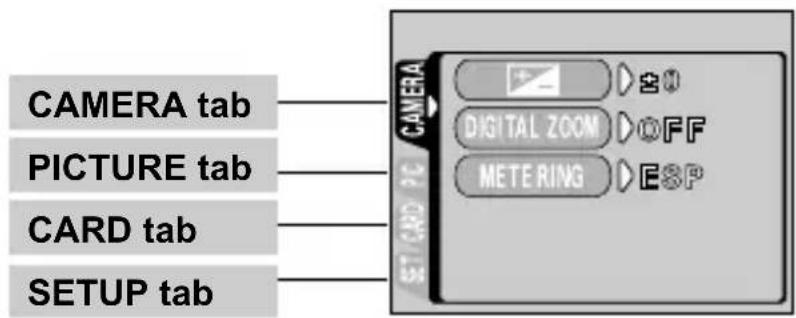
| CAMERA tab | |
| Adjusts the brightness of the image (Exposure compensation). | |
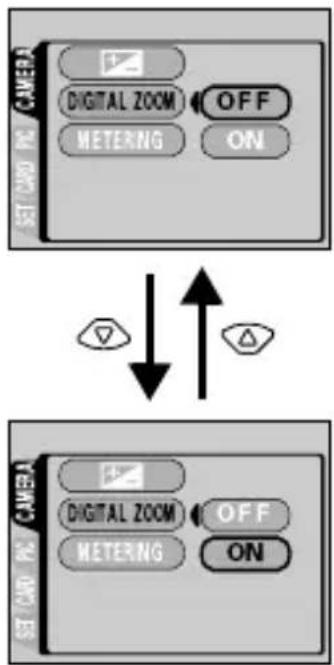
| DIGITAL ZOOM | Extends the maximum optical zoom, making possible up to approximately 5x zoom shooting with the digital zoom function. |
| METERING | Selects the area of the image that will be used to determine exposure or image brightness from the two available settings: ESP or (spot metering). |
| PICTURE tab | |
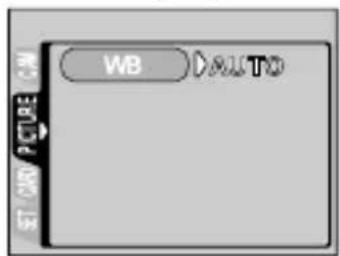
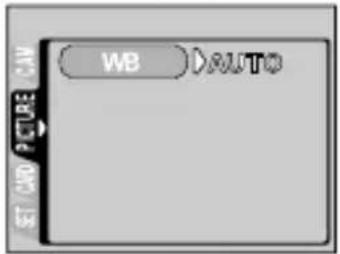
| WB | Sets the appropriate white balance according to the light source. |
| CARD tab | |
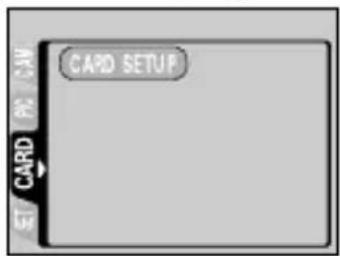
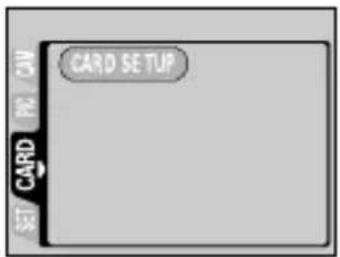
| CARD SETUP Formats a card. | |
| SETUP tab | |
| ALL RESET | Selects whether to save the current camera settings when you turn off the power. |
| ■)Turns the beep | sound (used for warnings, etc.) on and off. |
| REC VIEW | Selects whether to display pictures on the monitor while saving them. |
| Adjusts the brightness of the monitor. | |
| Sets the date and time. | |

| PLAY tab | |
| Protects pictures from accidental erasure. | |
| Rotates pictures 90 degrees clockwise or counter-clockwise. | |
| Stores printing information on the card required for DPOF printers. | |
| EDIT tab | |
| BLACK & WHITE Creates black and white pictures. | |
| SEPIA Creates sepia-toned pictures. | |
| Makes the file size smaller. | |
| INDEX Creates an index picture of a movie in 9 frames. | |
| CARD tab | |
| CARD SETUP | Formats a card.Erases all image data stored on the card. |
| SETUP tab | |
| ALL RESET | Selects whether to save the current camera settings when you turn off the power. |
| Turns the beep sound (used for warnings, etc.) on and off. | |
| Selects the number of frames in the index display. | |
| Adjusts the brightness of the monitor. | |
| Sets the date and time. |
SHOOTING BASICS
TAKING STILL PICTURES
You can take still pictures using either the viewfinder or the monitor. Both methods are easy as all you have to do is to press the shutter button.
En
Taking still pictures using the viewfinder
1 Open the lens barrier.
Slide the lens barrier open until it clicks.
The flash pops up and the lens extends.
2 Position the AF target mark over the subject in the viewfinder.
When the distance from the camera to the subject is less than 0.5 m/1.6 ft, select the macro mode.
3 Press the shutter button gently (halfway).
The green lamp on the right of the viewfinder lights up when the focus and exposure are locked. At this time the sound of the focusing mechanism can be heard from inside the camera, but no picture is being taken.
4 Press the shutter button all the way (fully).
The camera takes the picture.
Taking still pictures using the monitor
1 Open the lens barrier.
Slide the lens barrier open until it clicks.
The flash pops up and the lens extends.
2 Press ☐.
The monitor turns on.
3 Determine the image composition while observing your
subject on the monitor.
4 Take the picture by following the same procedure as for shooting using the viewfinder.
Press the shutter button all the way (fully) to take the picture.
When you want to take pictures with the monitor off, press 📄 again.

Never open the card cover, remove the batteries or disconnect the AC adapter while the orange lamp is blinking. Doing so could destroy stored pictures and prevent storage of pictures you have just taken.
IF CORRECT FOCUS CANNOT BE OBTAINED (FOCUS LOCK)
When the subject you want to focus on is not in the center of the frame and you cannot position the AF target mark on it, you can focus the camera on another point at roughly the same distance (focus lock) and take the picture as explained below.
1 Open the lens barrier.
The camera turns on in the shooting mode.
2 Look into the viewfinder and position the AF target mark on the subject.
When shooting a hard-to-focus subject or a fast-moving subject, point the camera at an object about the same distance away as the subject.


3 Half-press the shutter button until the green lamp on the right of the viewfinder illuminates steady.
The focus and exposure are locked when the green lamp lights up.
4 Keeping the shutter button pressed halfway, recompose your shot in the viewfinder.

natural_image
Black-and-white photo of two smiling people with a crosshair overlay, next to two empty circular buttons (no text or symbols)5 Press the shutter button fully.
RECORDING MOVIES
You can record movies with this camera. Recorded movies can be played back or stored separately as still pictures using the index function.
1 Display the top menu in the shooting mode.
- Open the lens barrier.
- Press.
2 Press to select DRIVE.
3 Press to select, then press.

Movie recording is set and the menu is closed.
The total recordable time depending on the card memory capacity and the 🔗 mark are displayed on the monitor.
4 Record the movie while observing your subject on the monitor.
Press the shutter button fully to start recording. When you press the shutter button, the number of seconds remaining for one record is displayed. Press the shutter button fully again to stop recording.
- ● To cancel movie mode
Press ☐.
The monitor turns off and the movie mode is canceled.
Note
- During movie recording, the flash and optical zoom are disabled.
- It takes longer to store movies than still pictures.
- The seconds remaining varies depending on the record mode and the amount of space available on the card.
- You cannot record movies with sound.
ZOOMING IN ON A SUBJECT (OPTICAL ZOOM)
Telephoto and wide-angle shooting are possible at 3x magnification using the optical zoom (equivalent to 38 mm - 114 mm on a 35mm camera). By combining the 3x optical zoom with the 2.5x digital zoom, you can obtain zoom magnification of approximately 7.5x (equivalent to 38 mm - 285 mm on a 35 mm camera). When the record mode is set to SQ2, the 5x digital zoom is available.
1 Open the lens barrier.
The camera turns on in the shooting mode.
2 Slide the zoom lever while looking in the viewfinder.
Press the zoom lever toward to zoom in, and toward to zoom out.

3 Take the picture while looking in the viewfinder.
Note
Pictures taken with the digital zoom may appear grainy.
TAKING CLOSE-UP PICTURES (MACRO MODE)
The macro mode allows you to shoot a subject at a distance of 0.2 - 0.5 m/0.7 - 1.6 ft.
1 Open the lens barrier.
The camera turns on in the shooting mode.
2 Press △.
The monitor turns on and the current macro setting is displayed.
3 Press while the current macro setting is displayed.
The setting changes between ON and OF each time is pressed. When the macro mode is selected, the macro mode indicator is displayed.
4 Take the picture while observing your subject on the monitor.
To cancel macro mode, press repeatedly until OFI appears.
The macro mode indicator disappears.
USING THE FLASH
1 Open the lens barrier.
The camera turns on in the shooting mode.
2 Press ▶.
The current flash setting is displayed.
3 Press while the current flash setting is displayed.
Each time you press ▶ the flash mode is switched in the following
sequence: AUTO - - 📄 - - ♣ ⚙ ★ ★ 🕒
4 Take the picture.

The flash working range is approximately 2.5 m/8.2 ft.
Auto-flash (No indication)
The flash fires automatically in low light or backlight conditions.
Red-eye reduction flash ( )
The red-eye reduction flash mode reduces this phenomenon by emitting pre-flashes before firing the regular flash.
Fill-in flash ( )
The flash always fires every time the shutter button is released.
Flash off ( )
The flash does not fire even in low light conditions.
Night scene (★)
Use this mode when shooting a subject against a night background.
Night scene with red-eye reduction ( ★○
Use this mode when shooting a portrait against a night background to reduce the red-eye phenomenon.
USING THE SELF-TIMER
This function is useful for taking pictures with yourself included in the photograph. Fix the camera securely on a tripod for self-timer shooting.
1 Open the lens barrier.
The camera turns on in the shooting mode.
2 Press ▽.
The monitor turns on and current self-timer setting is displayed.
3 Press while the current self-timer setting is displayed.
The setting changes between ON and OFF each time is pressed.
4 Press the shutter button fully.
The self-timer lamp lights up for approximately 10 seconds, then starts blinking. After blinking for 2 seconds with beep sound, the picture is taken.
SELECTING THE IMAGE QUALITY (RECORD MODE)
Choose the best record mode for your purposes (printing, editing on a computer, website editing, etc.).
Still picture record modes
| Record mode | Description | Resolution(No. of pixels) | Quality | File size |
| SHQ(Super High Quality) | ·Use this mode when you want to print out an image with high quality or on large paper such as A4 (8.3" × 11.7"/21 cm × 29.7 cm), or you want to process images on a PC.·The image quality is higher, but the number of storable images is fewer. It takes longer to store the images. | 1600 × 1200 pixels* | More clear | Larger |
| HQ(High Quality) | ·Use this mode when you want to edit images on a PC or print them out on postcard size paper.·This mode is the factory default setting. | 1600 × 1200 pixels* | ||
| SQ(Standard Quality) | ·Use this mode when you want to attach images to e-mail or simply view them on a PC.·This is the standard quality mode, and the number of storable images is increased. | 1024× 768 pixels* in SQ1 mode640 × 480 pixels* in SQ2 mode |
En
Movie record modes
| Record mode | Description | Resolution(No. of pixels) | Quality | File size |
| HQ(High Quality) | You can record continuously for 15 seconds at a time. | 320 × 240 pixels* More | Clearer Normal Normal | Larger[A85R]Smaller |
| SQ(Standard Quality) | You can record continuously for 60 seconds at a time. | 160 × 120 pixels* |
* Pixels are the unit used to express the resolution.
1 Display the top menu in the shooting mode.
- Open the lens barrier.
- Press _6k .
2 Press ◇ to select .
3 Press to select one of the record modes, then press

The record modes for still pictures are SHQ, HQ, SQ1 and SQ2; and for movies are HQ and SQ.
The record mode is set and the menu is closed.
4 Take the picture.
You can play back pictures one by one on the monitor.
1 Press with the lens barrier closed.
The monitor turns on and displays the last picture taken. (Single-frame playback)
2 Press △ ▽ ◀ ▶.
: Displays the previous picture.
: Displays the next picture.
: Jumps to the picture 10 frames behind.
: Jumps to the picture 10 frames ahead.
3 Press to cancel playback.
The monitor and camera turn off.
Quick View (Double-click playback)
This function lets you play back pictures during shooting with the lens barrier open. It is useful when you want to check shooting results and resume shooting quickly.
1 Press twice quickly (double-click) in the shooting mode.
The camera immediately enters the playback mode and displays the last picture taken. (Single-frame playback)
2 Press the shutter button gently (halfway).
The camera returns to the shooting mode and you can resume shooting.
Close-up playback
Pictures displayed on the monitor can be enlarged 1.5, 2, 2.5 or 3 times. This function is useful when you want to check the details of a picture.
1 Press with the lens barrier closed.
The monitor turns on and displays the last picture taken.
Press to select the picture you want to enlarge.
2 Press the zoom lever toward ^Q
The picture is magnified 1.5 times. The magnification increases each time the zoom lever is pressed.
To return the picture to the original size (1x), press the zoom lever toward w.
3 By pressing △ ▽ ▶ while the enlarged picture is displayed, you can scroll the picture in the desired direction, enabling you to view a different section.
Index display
This function lets you show several pictures at the same time on the monitor. It is useful for quickly finding the picture you want to view. The number of pictures shown can be 4, 9 or 16.
1 Press with the lens barrier closed.
2 Press the zoom lever toward to enter the index display mode.
3 Use the arrow pad to select a frame.

: Moves to the previous frame.

: Moves to the next frame.

: Jumps to the previous index display (the frames before the top left frame).

: Jumps to the next index display (the frames following the bottom right frame).
4 To return to single-frame playback, press the zoom lever toward ^Q .
PLAYING BACK MOVIES
1 Press with the lens barrier closed.
The monitor turns on.
2 Press to display the desired picture with a indicator, then press
The top menu is displayed.
3 Press to select MOVIE PLAYBACK.
The movie is played back after the orange lamp on the right of the viewfinder blinks and the movie data is downloaded to the camera. When the movie reaches the end, the display returns automatically to the beginning of the movie.
4 Press 3.
The MOVIE PLAYBACK menu is displayed.
PLAYBACK : Plays back the entire movie again.
FRAME BY FRAME: Plays back the movie manually one frame at a time.
EXIT : Leaves the movie playback mode.
5 Press to select the desired operation, then press.

En
Operations when FRAME BY FRAME is selected

: Displays the first frame of the movie.

: Displays the last frame of the movie.

: Displays the next frame. The movie can be displayed continuously by holding the button down.

: Displays the previous frame. The movie can be displayed continuously in reverse by holding the button down.

: Displays the MOVIE PLAYBACK menu.
PROTECTING PICTURES (PROTECT)
You are recommended to protect important pictures to avoid accidentally erasing them.
1 Press with the lens barrier closed.
The monitor turns on.
2 Press to select the picture you want to protect.
3 Press ; then press .
The mode menu is displayed.
4 Press to select the PLAY tab, then press.
5 Press to select, then press.
6 Press to select ON.
The selected picture is protected.
To close the menu, press twice.


Protected pictures cannot be erased by the single-frame/all-frame erase function, but they can be all erased with the format function.
ERASING PICTURES
Recorded pictures can also be erased. This can be done either one frame at a time or all the pictures in the card.

Once erased, pictures cannot be restored. Check each picture before erasing to avoid accidentally erasing pictures you want to keep.
En
Single-frame erase
1 Press with the lens barrier closed.
The monitor turns on.
2 Press to select the picture you want to erase.
3 Press
The top menu is displayed.
4 Press to select ERASE.
5 Press to select YES, then press.
The picture is erased and the menu is closed.
All-frame erase
1 Display the top menu in the playback mode.
- Press with the lens barrier closed.
- Press.
2 Press to select MODE MENU.
3 Press to select the CARD tab, then press.
4 Press ▶.
5 Press to select ALL ERASE, then press.
6 Press to select YES, then press.
All the pictures are erased.
FORMATTING
This function lets you format a card. Formatting prepares cards to receive data. Before using non-Olympus cards or cards which have been formatted on a PC, you must format them with this camera.

Caution
All existing data, including protected data is erased when the card is formatted. Once erased, pictures cannot be restored, so make sure that you do not erase important data.
En
1 Display the top menu in the shooting mode.
- Open the lens barrier.
- Press.
2 Press to select MODE MENU.
3 Press to select CARD tab, then press.

4 Press ▶.
5 Press to select YES, then press.

PRINT SETTINGS
By specifying the desired number of prints of each picture on the card and whether or not the date and time are to be printed, you can print out the desired pictures according to the print reservation data with a DPOF-compatible printer or at a DPOF photo lab.
What is DPOF?
DPOF is short for Digital Print Order Format. DPOF is a format used to record automatic print information from cameras.
By specifying which pictures are to be printed, the pictures can be printed easily by DPOF-compatible printing service labs or on a personal DPOF-compatible printer.
Confirm the print reservation data
If print reservation data is already stored on the card, the PRINT ORDER SETTING screen appears, giving you the choice of resetting the data or keeping it. If there is no print reservation data, this screen does not appear and you can proceed to the next operation.
Select single-frame or all-frame reservation
Select whether you want to specify the number of prints for a selected frame, or if you want one print of all the frames.
Set the number of prints (only for single-frame reservation)
Display the frame to be printed and set the desired number of prints.
Set the date/time printing data
You can include the shooting date or time on the print.
Confirm the reservation data
Check the number of ordered frames, the total number of prints, and the date/time printing data.
For more details, refer to the "Reference Manual" on CD-ROM.
DOWNLOADING PICTURES TO A COMPUTER
By connecting the camera to a computer with the provided USB cable, images on a card can be transferred to the computer. Some OS's (operating systems) may need a special setup before connecting to the camera for the first time. Follow the chart below. For details of the procedures in the chart, refer to the "Reference Manual" on the software CD.

flowchart
graph TD
    A["Identifying the OS"] --> B["Windows 98/98 SE (Second Edition)"]
    A --> C["Windows Me/2000/XP"]
    A --> D["Mac OS 9.0 - 9.1/OSX (10.0)"]
    B --> E["Installing the USB driver for Windows 98"]
    C --> F["Connecting the camera to the computer using the provided USB cable"]
    D --> G["Confirming the computer recognizes the camera"]
    E --> H["Downloading image files"]
    F --> I["Disconnecting the USB cable"]
    G --> I
    H --> I
    I --> J["Disconnecting the USB cable"]
Even if your computer has a USB connector, data transfer may not function correctly if you are using one of the operating systems listed below or if you have an add-on USB connector (extension card, etc.).
- Windows 95/NT 4.0
• Windows 98/98 SE upgrade from Windows 95
• Mac OS 8.6 or lower (except Mac OS 8.6 equipped with USB MASS Storage Support 1.3.5 installed at the factory) - Data transfer is not guaranteed on a home-built PC system or PCs with no factory installed OS.

- You can view images using: graphics applications that support the JPEG file format (Paint Shop Pro, Photoshop, etc.); Internet browsers (Netscape Communicator, Microsoft Internet Explorer, etc.); CAMEDIA Master software; or other software. For details on using commercial graphics applications, refer to their instruction manuals.
- QuickTime is needed for playing back movies. QuickTime is included on the provided software CD.
- If you want to process images, make sure to download them to your computer first. Depending on the software, image files may be destroyed if the images are processed (rotated, etc.) while they are on the card.
FOR OTHER OS USERS
Users running other OS cannot use the provided USB cable to connect the camera directly to a computer.
● Windows 95 ● Windows NT ● Mac OS before OS 9
You can download images directly to your computer using an optional floppy disk adapter or PC card adapter.
Does your computer have a USB interface?
Is there a port marked □on your computer?

flowchart
graph TD
    A["No"] --> B{Is your OS one of the following?}
    B --> C["Windows 98"]
    B --> D["Windows 2000"]
    B --> E["Windows Me"]
    B --> F["Windows XP"]
    B --> G["Mac OS 9/X"]
    H["Yes"] --> I["Is your OS one of the following?"]
    I --> J["Windows 98"]
    I --> K["Windows 2000"]
    I --> L["Windows Me"]
    I --> M["Windows XP"]
    I --> N["Mac OS 9/X"]
    O["Yes"] --> P["Is your OS one of the following?"]
    P --> Q["Windows 98"]
    P --> R["Windows 2000"]
    P --> S["Windows Me"]
    P --> T["Windows XP"]
    P --> U["Mac OS 9/X"]
Connect the camera directly to your computer using the
provided USB cable.

Use the optional USB
SmartMedia reader/writer.
*Not compatible with Mac OS X. Depending on the model, you can download the driver from the Olympus website. For details, visit our website.
Does your computer have a built-in PC card slot?


Use the optional PC card adapter.
*Not supported by Windows NT4.0 or lower.

Does your computer have a built-in floppy disk drive?


Use the optional FlashPath floppy disk adapter.

Consult your nearest Olympus representative.
For more details, refer to the "Reference Manual" on CD-ROM.
OPTIONAL ACCESSORIES
As of February 2002
- Camera case
- AC adapter
• Standard SmartMedia card (8/16/32/64/128MB) - Floppy disk adapter
- PC card adapter
- Olympus-brand removable media reader/writer
- NiMH battery
- NiMH battery charger
• CR-V3 long life lithium batteries
• P-400 and P-200 photo printers for Olympus digital cameras
Visit the Olympus home page for the latest information on optional items. http://www.olympus.com/
ERROR CODES
En
| Monitor Possible cause Corrective action | ||
 | The card is not inserted, or it cannot be recognized. | Insert a card, or reinsert the card correctly. |
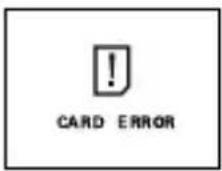 | Cannot record, play back or erase pictures on this card. | Wipe the gold contacts with a piece of cleaning paper (commercially available) and insert the card again. If the problem is still not corrected, format the card. If the card cannot be formatted, this card cannot be used. |
 | Writing to the card is prohibited. | If you are taking pictures, remove the write-protect seal attached to the card. For more details, refer to the provided instruction manual for the card. |
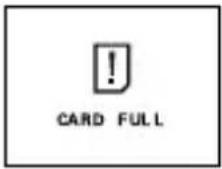 | There is no empty space on the card, so no more pictures can be taken. | Replace the card or erase unwanted pictures. Before erasing, download important images to a PC. |
| There is no empty space on the card, so it cannot record new information such as print reservation data and other functions. | Replace the card or erase unwanted pictures. Before erasing, download important images to a PC. | |
 | There are no pictures on the card. | The card contains no pictures. Record pictures. |
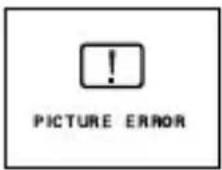 | The selected picture cannot be played back on this camera. | Use image processing software on a PC to view it. If that cannot be done, the image file is partially damaged. |
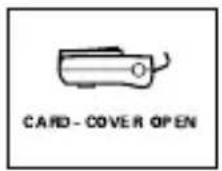 | The card cover is open. Close the card cover. | |

The card is not formatted. Format the card.

SPECIFICATIONS
En
| Product type Digital camera (for shooting and displaying) | |
| Recording systemStill Digital recording, JPEG (in accordance with Design rule for Camera File system (DCF)), Digital Print Order Format (DPOF)Movie QuickTime Motion JPEG support | |
| Memory SmartMedia (4 | MB - 128 MB)*All cards except 2 MB and 5 V. |
| Recording image resolution | 1600 × 1200 pixels (SHQ/HQ)1024 × 768 pixels (SQ1)640 × 480 pixels (SQ2) |
| No. of storable pictures(When an 8 MB card is used) | Approx. 5 frames (SHQ)Approx. 16 frames (HQ)Approx. 29 frames (SQ1)Approx. 49 frames (SQ2) |
| No. of effective pixels 2 | 000,000 pixels |
| Image pickup device 1/3.2" CCD solid-state image pickup, 2,110,000 pixels (gross) | |
| Lens Olympus lens 5 - 1 | 5 mm, f 2.8/4.9, 8 elements in 7 groups (equivalent to 38 mm to 114 mm lens on 35 mm camera) |
| Photometric system Digital ESP metering | |
| Aperture f 2.8, f 4.9 | |
| Shutter speed 1/2 to 1/1 | 1000 sec. (Night scene mode: 1 sec.) |
| Shooting range 0.5 m to | (1.6 ft to∞) (normal)∞0.2 m to 0.5 m (0.7 ft to 1.6 ft) (macro mode) |
| Viewfinder Optical real image viewfinder (with AF target mark) | |
| Monitor | 1.5" TFT color LCD display, 114,000 pixels |
| Flash charging time | Approx. 9 sec. |
| Outer connector | DC-IN jack, USB connector (mini - B) |
| Automatic calendar system | Up to 2099 |
| Operating environmentTemperatureHumidity 30% | 0°C to 40°C (32°F to 104°F) (operation)-20°C to 60°C (-4°F to 140°F) (storage)to 90% (operation)10% to 90% (storage) |
| Power supply Two AA (R6) alkaline batteries, lithium batteries,NiMH batteries or NiCd batteriesOr a lithium CR-V3 battery packOr AC adapter (optional)* Manganese (zinc-carbon) batteries cannot be used. | |
| Dimensions | 112 mm (W) × 62 mm (H) × 35 mm (D)(4.4" × 2.4" × 1.4")(excluding protrusions) |
| Weight 175 g (0.4 lb) (without batteries or card) | |
SPECIFICATIONS ARE SUBJECT TO CHANGE WITHOUT ANY NOTICE OR OBLIGATION ON THE PART OF THE MANUFACTURER.
TABLE DES MATIÈRES
GUIDE RAPIDE DE DÉMARRAGE 40
FONCTIONS DES MENUS 48
PRINCIPES DE BASE DE LA PRISE DE VUE ..... 54
SÉLECTION DE LA QUALITÉ ET DE LA TAILLE DE
L'IMAGE (MODE D'ENREGISTREMENT).... 59
AFFICHAGE 61
RÉGLAGES D'IMPRESSION.... 66
TRANSFERT DES PHOTOS VERS UN ORDINATEUR 67
ACCESSOIRES EN OPTION 69
CODES D'ERREUR 70
FICHE TECHNIQUE 72
natural_image
Diagram of a device with cable and connector, showing a curved arrow indicating rotation or movement (no text or symbols present)Fr
MISE EN PLACE DES PILES
natural_image
Diagram of a handheld device with a lock and adjustment knob (no text or symbols)MISE SOUS/HORS TENSION
Languette PICTURE
Languette SETUP


flowchart
graph TD
    A["Top Left Arrow"] --> B["Right Arrow"]
    C["Left Arrow"] --> D["Left Arrow"]
    E["Bottom Left Arrow"] --> F["Right Arrow"]
    G["Bottom Right Arrow"] --> H["OK"]

flowchart
graph TD
    A["CAMERA"] --> B["SET CAP/RC"]
    B --> C["DIGITAL ZOOM OFF"]
    B --> D["METERING ON"]
    E["CAMERA"] --> F["SET CAP/RC"]
    F --> G["DIGITAL ZOOM OFF"]
    F --> H["METERING ON"]
natural_image
Black-and-white photo of a person in a video frame with two circular buttons on the right side (no text or symbols)Voyant vert
natural_image
Black-and-white photo of two smiling people with a crosshair overlay, next to a rectangular panel with three circles (no text or symbols)natural_image
Diagram of a cable being inserted into a device (no text or symbols present)EINLEGEN DER BATTERIEN
natural_image
Diagram of a camera module with a lock and adjustment knob (no text or symbols)

natural_image
Black-and-white photo of a person in a mobile phone interface with two circular buttons (no text or symbols visible)Grüne Sucher-LED
natural_image
Two smiling people in a studio setting with two circular buttons on the right side (no text or symbols)natural_image
Line drawing of a cable being inserted into a device (no text or symbols)INSTALAR LAS PILAS
1 Compruebe que:
natural_image
Line drawing of a handheld device with a scroll wheel and control panel (no text or symbols)flowchart
graph TD
    A["Top Left Arrow"] --> B["Right Arrow"]
    C["Bottom Left Arrow"] --> D["Left Arrow"]
Pestaña
PICTURE

Pestaña CARD

Pestaña SETUP


natural_image
Black-and-white photo of a person in front of a screen with two circular buttons on the right side (no text or symbols visible)Lámpara verde

natural_image
Two smiling people in a studio setting with two circular buttons on the right side (no text or symbols)natural_image
Diagram of a cable being inserted into a device (no text or symbols present)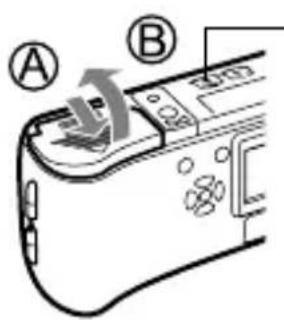
電池插入 方向標誌
3 按插圖所示方向正確插入電池。
使用 AA(R6)
電池時

使用鋰電池
組件時

natural_image
Diagram of a device's internal components, possibly a camera or scanner, with no visible text or symbols.flowchart
graph LR
    A["Camera with 'COMPUS' label"] --> B["Internal component with 'COMPUS' label"]
    B --> C["Final device with 'COMPUS' label"]


(液晶顯示屏) 鈕
中文

注意
PICTURE 標籤


CARD 標籤
SETUP 標籤

中文
3 按
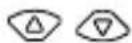
目,然後按設定選項。
選擇所需的項顯示可使用的
4 按
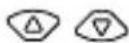
選擇設定。
改變設定後設定完成。

flowchart
graph TD
    A["Camera"] --> B["Digital Zoom"]
    B --> C["METERING"]
    C --> D["Adjustment"]
    D --> E["Downward Arrow"]
    E --> F["Change"]
    F --> G["Downward Arrow"]
    G --> H["Change"]
    H --> I["Downward Arrow"]
綠色框移到所選的項目。
flowchart
graph TD
    A["Start"] --> B["Right Arrow"]
    C["Left Arrow"] --> D["Right Arrow"]
    E["Bottom Icon"] --> F["Right Icon"]
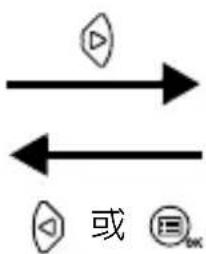
要退回重新 選擇項目,按 或
flowchart
graph TD
    A["SET CARD PC CAMERA"] --> B["Digital Zoom OFF"]
    A --> C["METERING ON"]
    D["SET CARD PC CAMERA"] --> E["Digital Zoom OFF"]
    D --> F["METERING ON"]
要關閉選單,按兩次
natural_image
Black-and-white photo of two smiling people in front of a screen with two circular buttons on the right side (no text or symbols)5 完全按下快門鈕。
記錄活動影像
3 看著取景器拍摄。

以數碼變焦拍攝的影像可能會呈現出粒狀。
拍攝近距影像(近拍模式)
San-Ei Building, 22-2, Nishi Shinjuku 1-chome, Shinjuku-ku, Tokyo, Japan Customer support (Japanese language only): Tel. 0426-42-7499 Tokyo
OLYMPUS AMERICA INC.
Two Corporate Center Drive, Melville, NY 11747-3157, U.S.A. Tel. 631-844-5000
Technical Support (USA)
24/7 online automated help: http://support.olympusamerica.com/
Phone customer support: Tel. 1-888-553-4448 (Toll-free)
Our phone customer support is available from 8 am to 10 pm
(Monday to Friday) ET
E-Mail: distec@olympus.com
Olympus software updates can be obtained at: http://olympus.com/digital/
Adobe [Photoshop] Support
Adobe software updates and technical information can be obtained at:
http://www.adobe.com/support/
OLYMPUS OPTICAL CO. (EUROPA) GMBH.
Premises/Goods delivery: Wendenstraße 14-18, 20097 Hamburg, Germany
Tel. 040-237730
Letters: Postfach 10 49 08, 20034 Hamburg, Germany
Hotline Numbers for customers in Europe:
Tel. 01805-67 10 83 for Germany
Tel. 00800-67 10 83 00 for Austria, Belgium, Denmark, France,
Netherlands, Norway, Sweden, Switzerland,
United Kingdom
Tel. +49 180 5-67 10 83 for Finland, Italy, Luxembourg, Portugal,
Spain, Czech Republic
Tel. +49 40-237 73 899 for Greece, Croatia, Hungary, and the rest of Europe
Our Hotline is available from 9 am to 6 pm (Monday to Friday)
E-Mail: di.support@olympus-europa.com
- For customers in Europe
- For customers in North and South America
- For customers in USA
- For customers in Canada
- Trademarks
- GETTING STARTED
- NAMES OF PARTS
- MONITOR INDICATIONS
- Memory gauge
- En
- Battery check
- ATTACHING THE STRAP
- LOADING THE BATTERIES
- Make sure that:
- INSERTING THE CARD (SmartMedia)
- Open the card cover.
- Insert the card as far as it will go in the direction shown in the illustration.
- Close the card cover securely until it clicks.
- When shooting pictures
- Power on: Open the lens barrier.
- Power off: Close the lens barrier slightly until it just touches the lens barrier.
- SETTING THE DATE AND TIME
- MENU FUNCTIONS
- USING THE MENUS AND TABS
- Shooting mode
- Playback mode
- MOVIE PLAYBACK
- INFO
- ERASE
- Mode menus
- SHOOTING BASICS
- TAKING STILL PICTURES
- Taking still pictures using the viewfinder
- Open the lens barrier.
- Position the AF target mark over the subject in the viewfinder.
- Press the shutter button gently (halfway).
- Press the shutter button all the way (fully).
- Taking still pictures using the monitor
- Press ☐.
- Determine the image composition while observing your
- Take the picture by following the same procedure as for shooting using the viewfinder.
- IF CORRECT FOCUS CANNOT BE OBTAINED (FOCUS LOCK)
- RECORDING MOVIES
- Note
- ZOOMING IN ON A SUBJECT (OPTICAL ZOOM)
- TAKING CLOSE-UP PICTURES (MACRO MODE)
- USING THE FLASH
- Auto-flash (No indication)
- Red-eye reduction flash ( )
- Fill-in flash ( )
- Flash off ( )
- Night scene (★)
- Night scene with red-eye reduction ( ★○
- USING THE SELF-TIMER
- SELECTING THE IMAGE QUALITY (RECORD MODE)
- Press with the lens barrier closed.
- Press △ ▽ ◀ ▶.
- Press to cancel playback.
- Quick View (Double-click playback)
- Press twice quickly (double-click) in the shooting mode.
- Press the shutter button gently (halfway).
- Close-up playback
- Press the zoom lever toward Q
- Index display
- PLAYING BACK MOVIES
- Press 3.
- Press to select the desired operation, then press.
- Operations when FRAME BY FRAME is selected
- PROTECTING PICTURES (PROTECT)
- ERASING PICTURES
- Single-frame erase
- All-frame erase
- FORMATTING
- PRINT SETTINGS
- What is DPOF?
- Confirm the print reservation data
- Select single-frame or all-frame reservation
- Set the number of prints (only for single-frame reservation)
- Set the date/time printing data
- Confirm the reservation data
- DOWNLOADING PICTURES TO A COMPUTER
- FOR OTHER OS USERS
- OPTIONAL ACCESSORIES
- ERROR CODES
- SPECIFICATIONS
- TABLE DES MATIÈRES
- MISE EN PLACE DES PILES
- MISE SOUS/HORS TENSION
- EINLEGEN DER BATTERIEN
- INSTALAR LAS PILAS
- Compruebe que:
- 中文
- 按
- 按
- 記錄活動影像
- 看著取景器拍摄。
- 拍攝近距影像(近拍模式)
- OLYMPUS AMERICA INC.
- Technical Support (USA)
- Adobe [Photoshop] Support
- OLYMPUS OPTICAL CO. (EUROPA) GMBH.
- Hotline Numbers for customers in Europe:
Brand : OLYMPUS
Model : Camedia C2 Zoom
Category : Camera