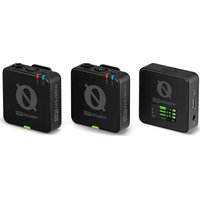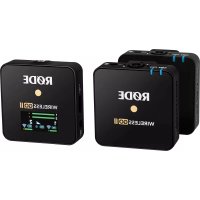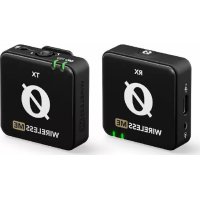
Wireless ME - Microphone Røde - Free user manual and instructions
Find the device manual for free Wireless ME Røde in PDF.


User questions about Wireless ME Røde
0 question about this device. Answer the ones you know or ask your own.
Ask a new question about this device
Download the instructions for your Microphone in PDF format for free! Find your manual Wireless ME - Røde and take your electronic device back in hand. On this page are published all the documents necessary for the use of your device. Wireless ME by Røde.
USER MANUAL Wireless ME Røde
Wireless ME / USER GUIDE & SUPPORT
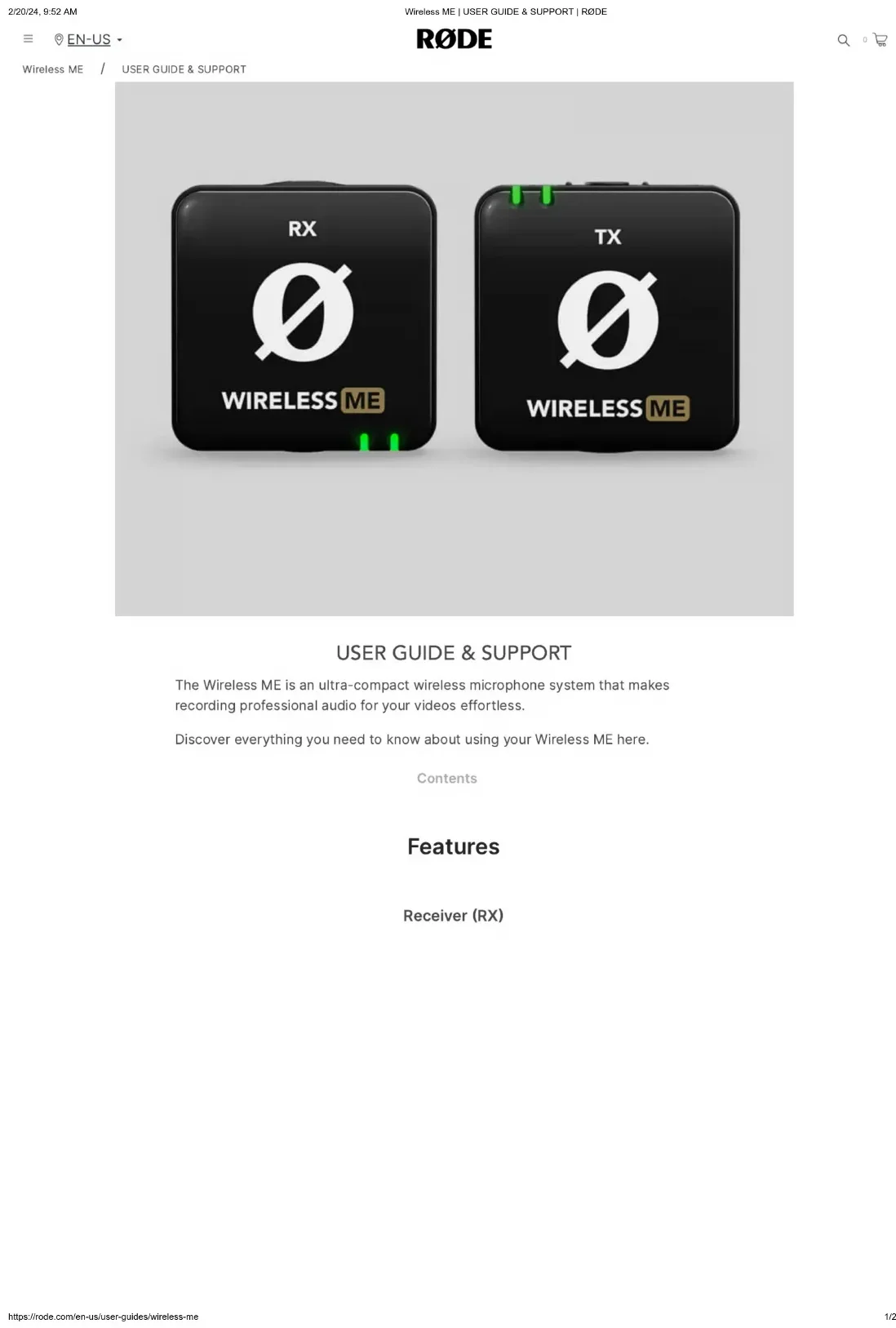
text_image
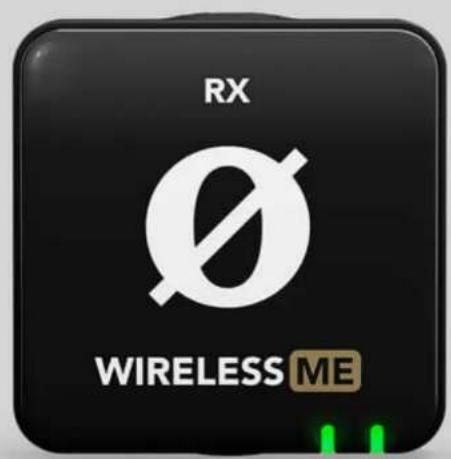
RX WIRELESS ME
text_image
TX WIRELESS MEUSER GUIDE & SUPPORT
The Wireless ME is an ultra-compact wireless microphone system that makes recording professional audio for your videos effortless.
Discover everything you need to know about using your Wireless ME here.
Contents
Features
Receiver (RX)
Wireless ME / USER GUIDE & SUPPORT
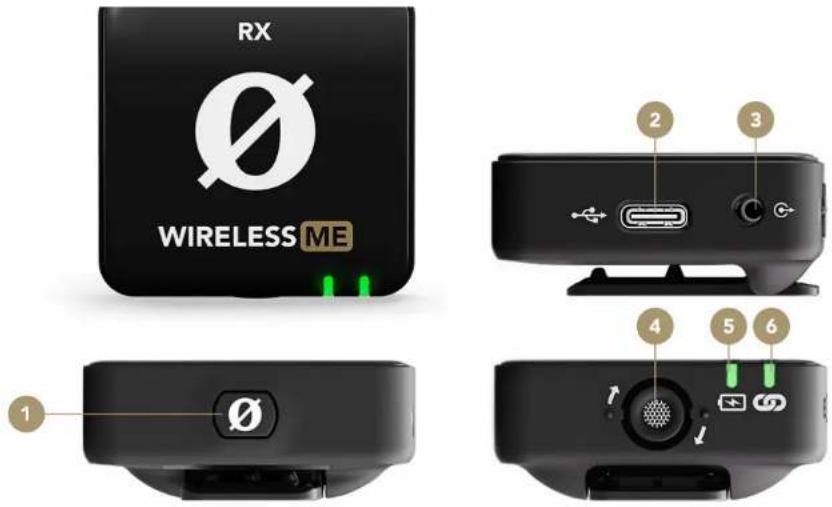
text_image
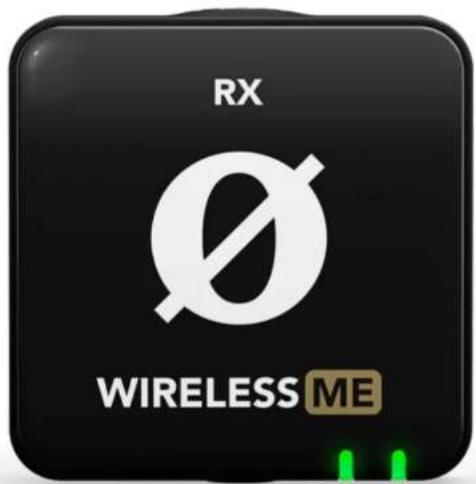
RX WIRELESS ME 1 2 3 4 5 61 Power Button
2 USB-C Connector
3 3.5mm TRS Output
4 In-built Microphone
5 Battery Indicator LED
6 Connectivity Indicator LED
Transmitter (TX)
text_image
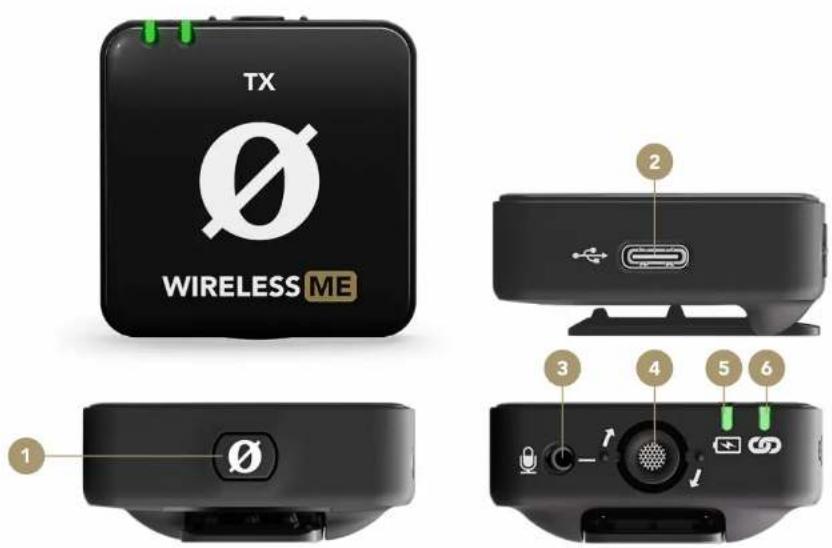
TX WIRELESS ME 1 2 3 4 5 61 Power Button
2 USB-C Connector
3 3.5mm TRS Microphone Input
4 In-built Microphone
5 Battery Indicator LED
Getting Started
The Wireless ME consists of both a transmitter (TX) and receiver (RX). The transmitter picks up audio either with its in-built microphone or an external mic plugged into its 3.5mm input, and then transmits this audio to the receiver wirelessly. The receiver then sends this audio via either USB-C or its 3.5mm output to your camera, phone, computer or another audio device.
Powering On and Pairing
To turn on your Wireless ME, simply press and hold the power buttons on both the transmitter and receiver for three (3) seconds. Repeat the process to power down both units.
The Wireless ME's transmitter and receiver are already paired out of the box. When you turn them both on, you'll notice the connectivity indicator LED on the RX unit flash amber* briefly before turning to solid amber, indicating that it has paired to the transmitter.
Manually Pairing
With both units powered on, simply short-press the power button on the transmitter and receiver to enter pairing mode. As long as neither unit is already paired to another device, they will quickly pair and the connectivity indicator LEDs will remain solid.
Note: Both the transmitter and receiver will automatically power down after three (3) minutes if they aren't paired.
* The connectivity LED may be green rather than amber if the ME Mic is switched on. See the below section on the ME Mic to learn more.
text_image
RX WIRELESS ME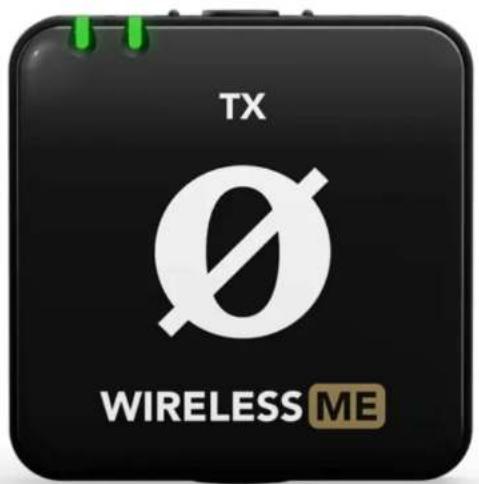
text_image
TX WIRELESS MEAttaching Wireless ME
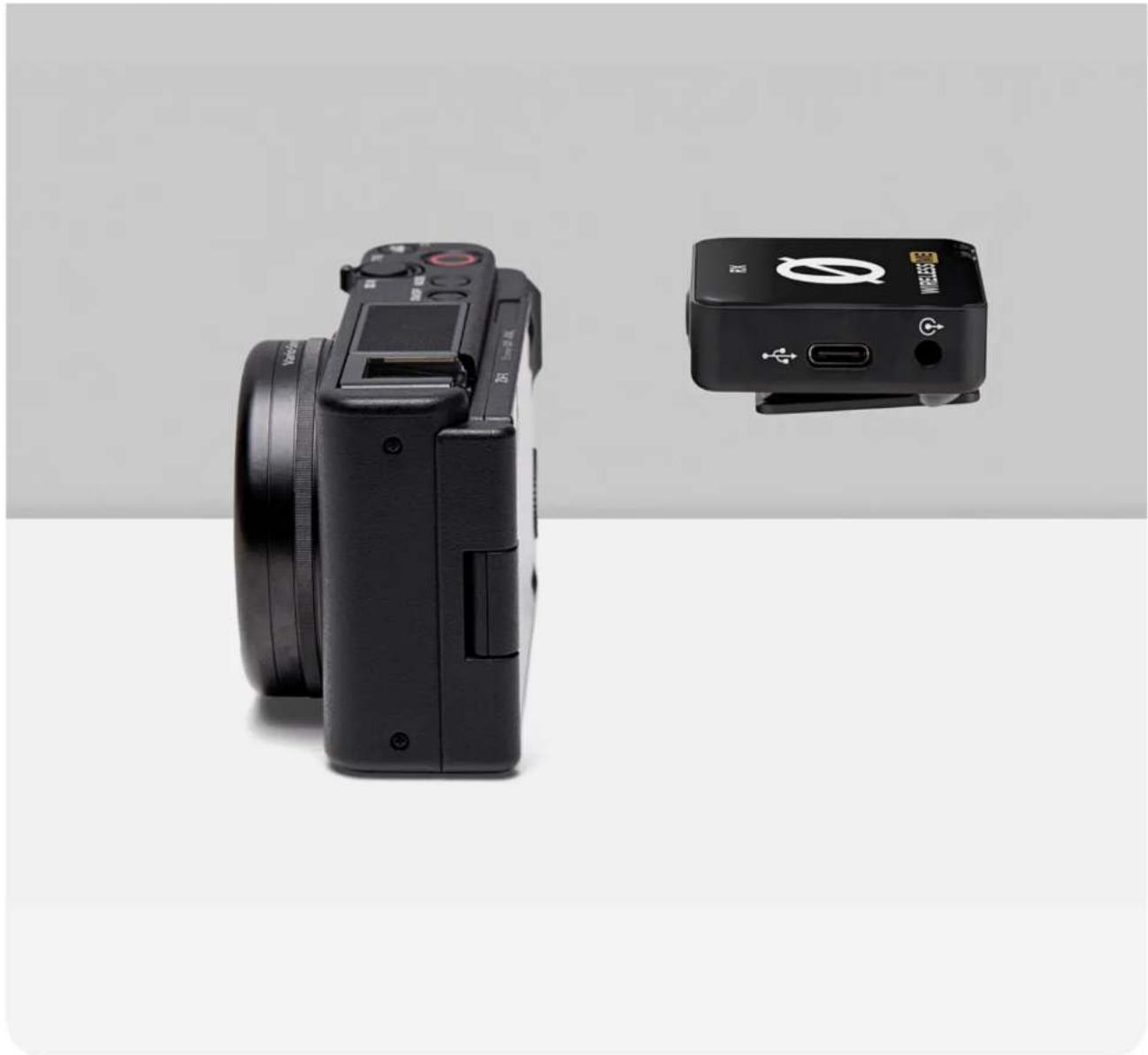
Both the Wireless ME's transmitter and receiver feature a clip that can be used to attach the units to clothing and other items. The clip can also slot into the cold shoe mount of a camera or similar device to firmly secure it in place.
MagClip GO
You can use the MagClip GO (available separately) to attach your Wireless ME directly to the back of a magnet-compatible smartphone, such as MagSafe-equipped iPhones.
Wireless ME / USER GUIDE & SUPPORT
natural_image
Black digital camera and compact device on a plain background (no visible text or symbols)Connecting an External Microphone
The Wireless ME transmitter features a 3.5mm TRS input for connecting an external microphone, such as the Lavalier GO, or an on-camera microphone like the VideoMicro II. Simply plug the external microphone into the 3.5mm input. This will bypass the in-built microphone and start using the external mic as the audio input. If you're using an on-camera microphone, plug one end of the included SC2 TRS cable (with two black plugs) into the transmitter's input and the other end into your microphone.
Wireless ME / USER GUIDE & SUPPORT
natural_image
Close-up of a hand holding a wireless ear adapter device with a gold connector, placed on a dark pants sleeve (no text or symbols visible on the device itself)Pro Tip
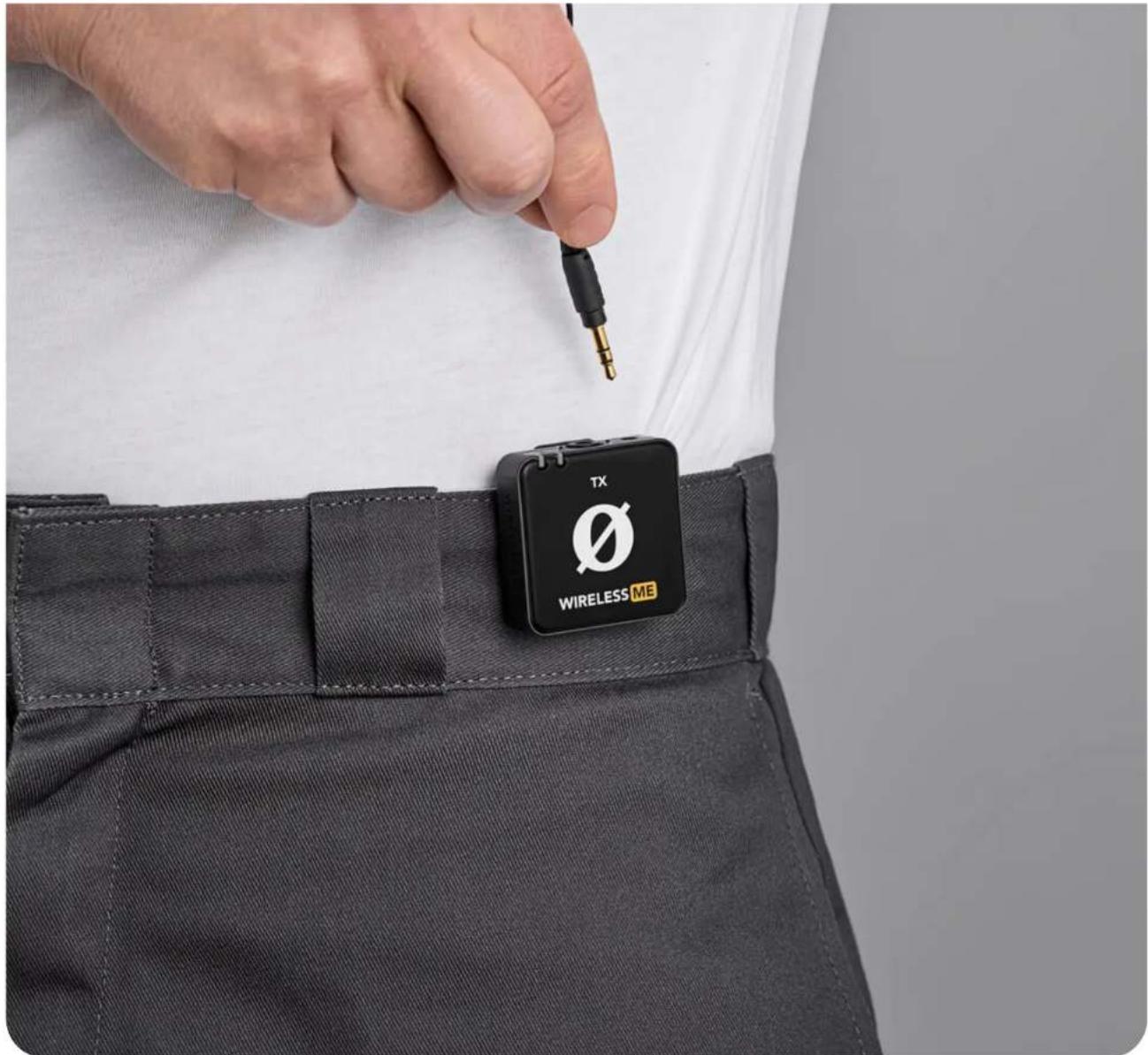
For a more discreet setup, you can clip the Wireless ME's transmitter to the belt or rear of your subject's clothing and run a lavalier microphone to their shirt collar. You can also select the "Dim" LED setting to reduce the brightness of both the transmitter and receiver's indicator lights via R∅DE Central.
Device Connectivity
Wireless ME / USER GUIDE & SUPPORT
natural_image
Black wireless camera with red cable and green indicator lights, shown against a plain background (no text or symbols on device body)Connecting to a Camera
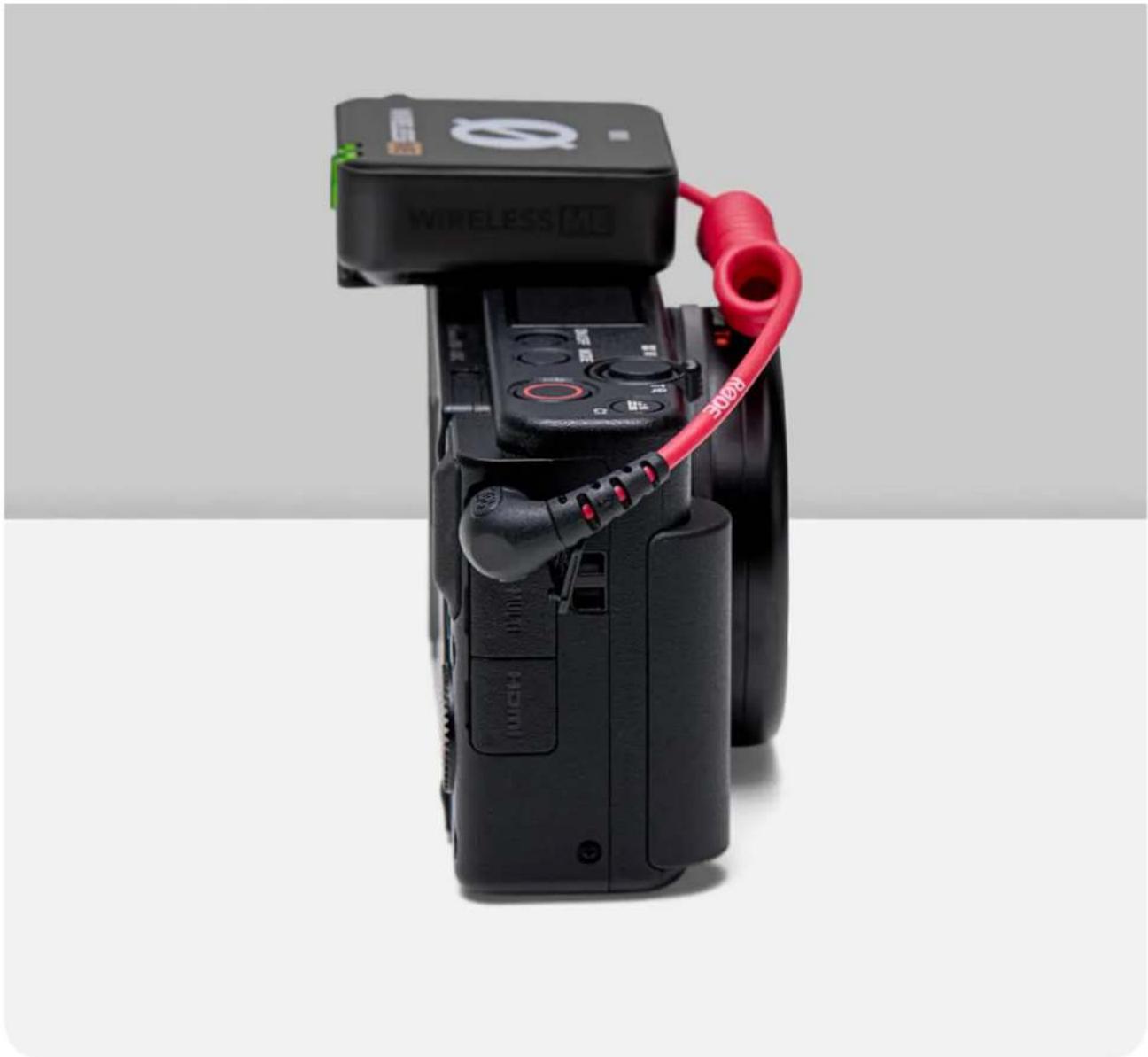
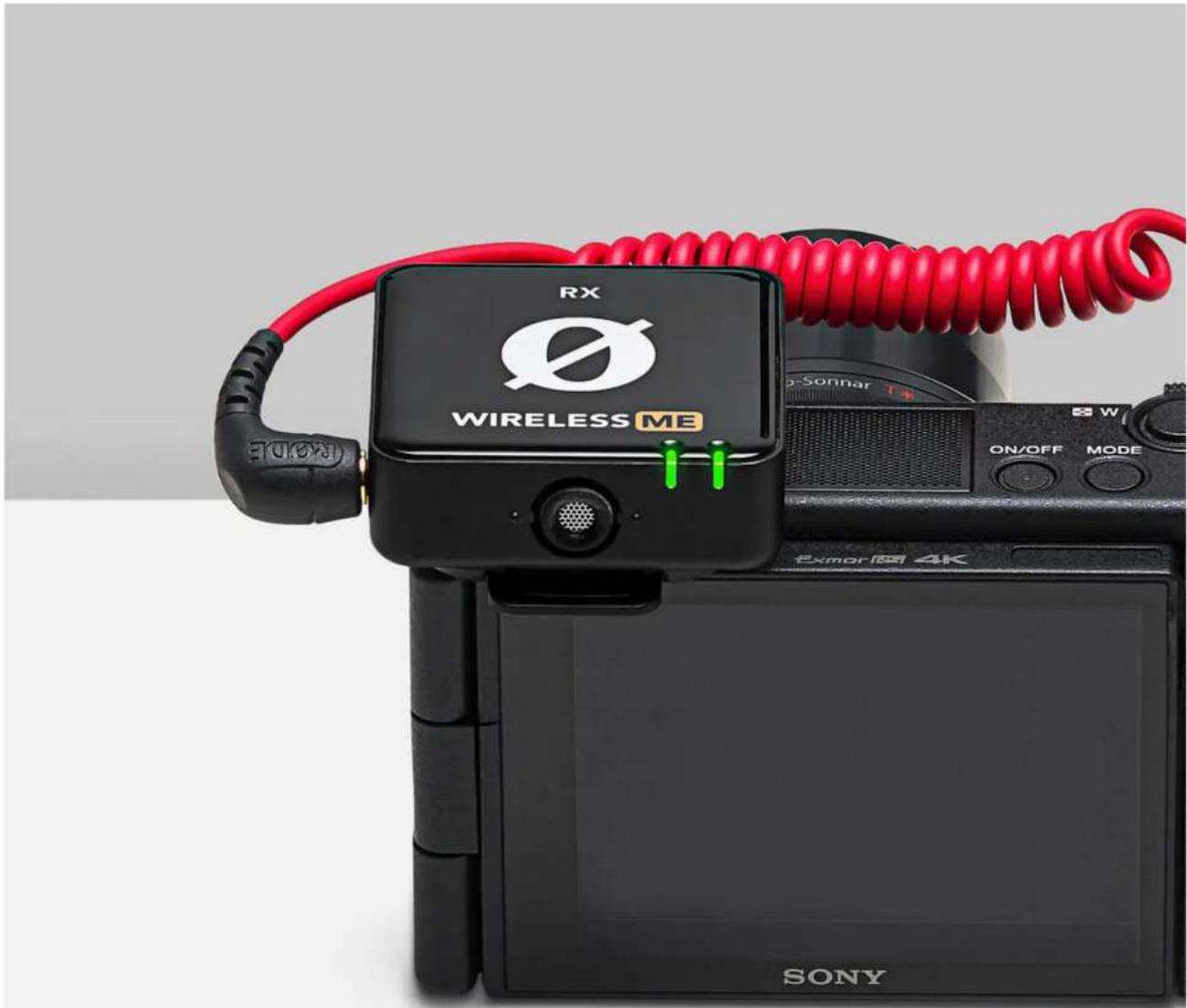
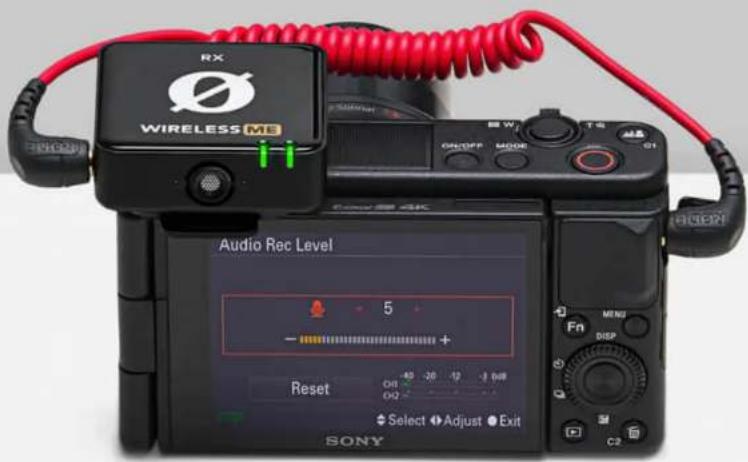
Use the supplied SC2 cable (with the two black plugs) to connect your Wireless ME receiver to a camera or other device with a 3.5mm TRS input. With the receiver in your camera's shoe mount, the SC2 cable is the perfect length for running between your Wireless ME receiver's output and camera's input.
Wireless ME / USER GUIDE & SUPPORT
text_image
ROOT RX WIRELESS ME NONEConnecting to a Computer
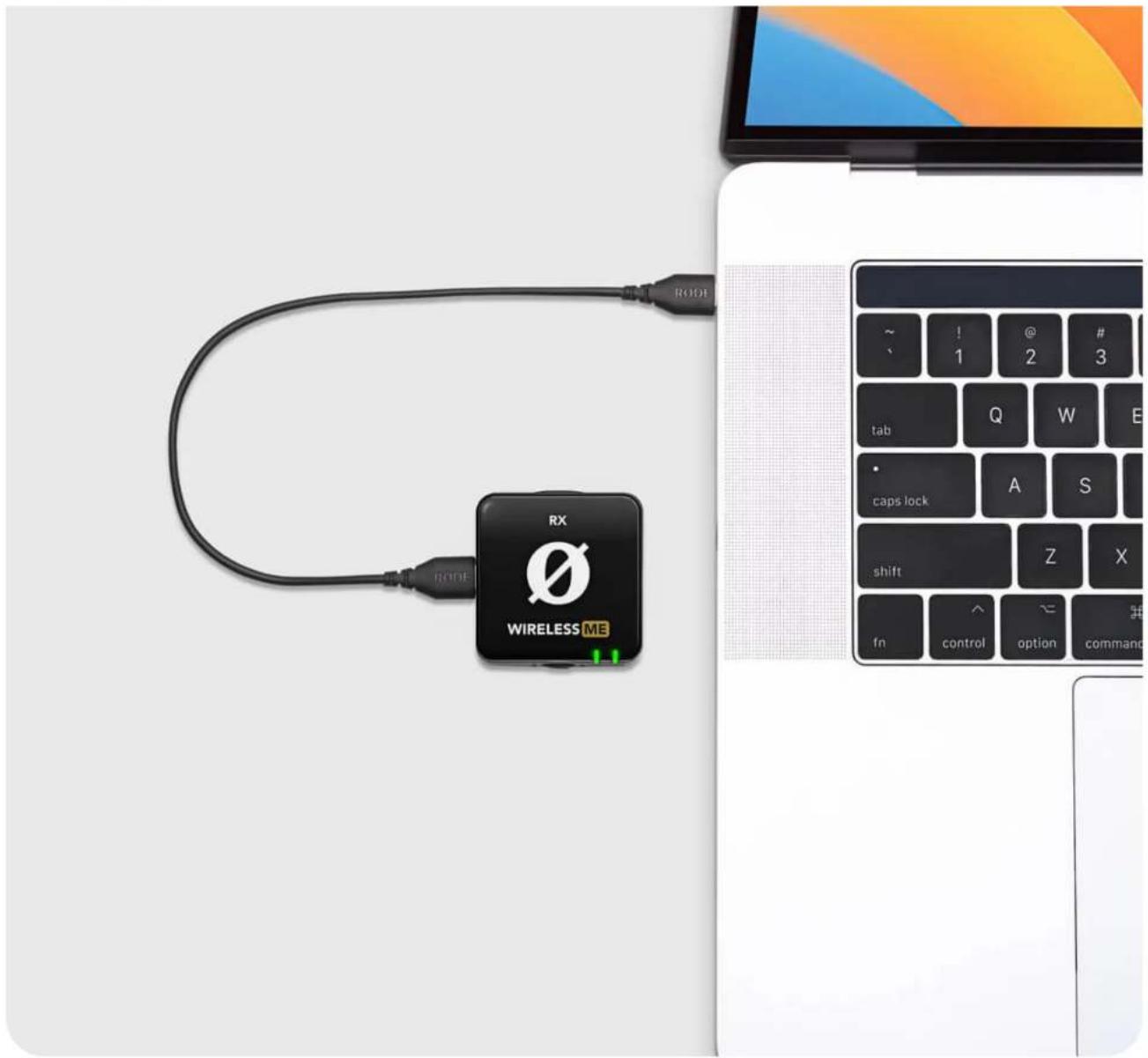
Use the supplied USB-C to USB-C cable to connect the Wireless ME receiver to any computer with a USB-C input, then go to your audio settings and select "Wireless ME RX" as your input device. This essentially turns the Wireless ME receiver into a wireless USB audio interface. If your computer only features a USB-A port, use a USB-C to USB-A cable like the R∅DE SC18.
text_image
Wireless Me RX 00:00.0 RX WIRELESS ME Library Record SettingsConnecting to a Mobile Device
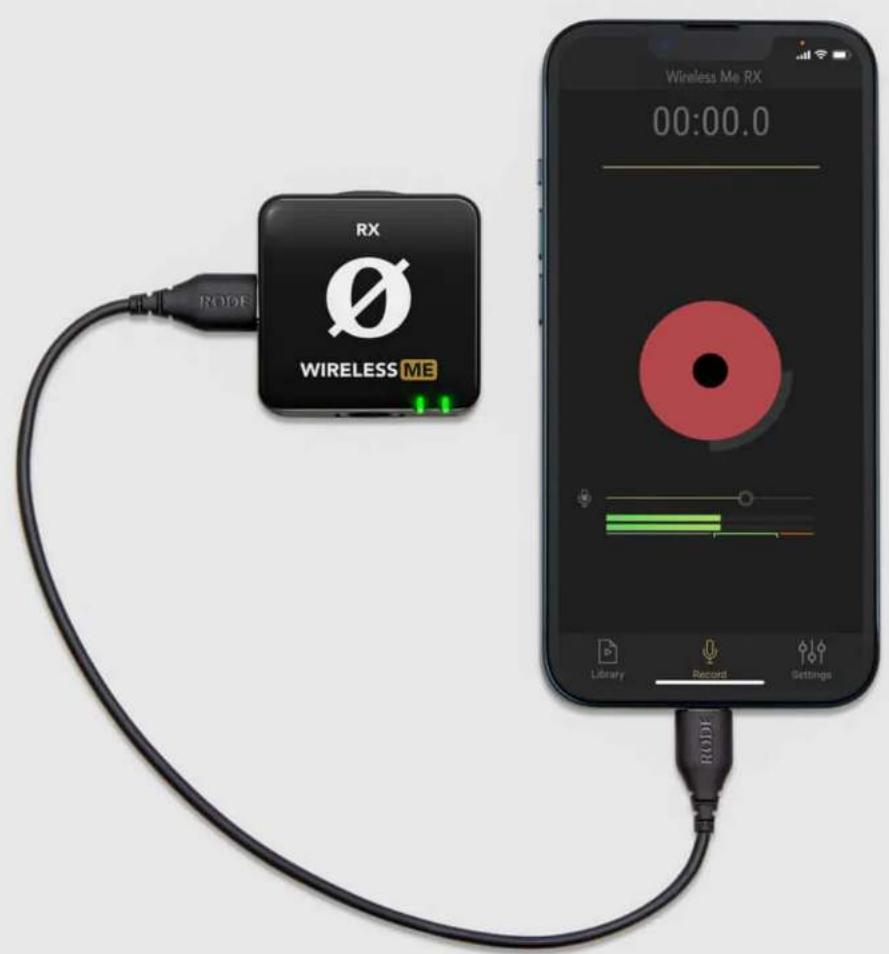
To connect the receiver to a smartphone or tablet, you can use the SC21 USB-C to Lightning cable, or SC22 USB-C to USB-C cable included with the Wireless ME.
Note: You can also use the SC7 TRS to TRRS cable (with the grey plug) to connect to phones, tablets and laptops that have TRRS inputs. Simply plug the black end into your Wireless ME receiver and the grey end into your device or the 3.5mm adaptor that came with your device.
Connecting to the R∅DECaster Series
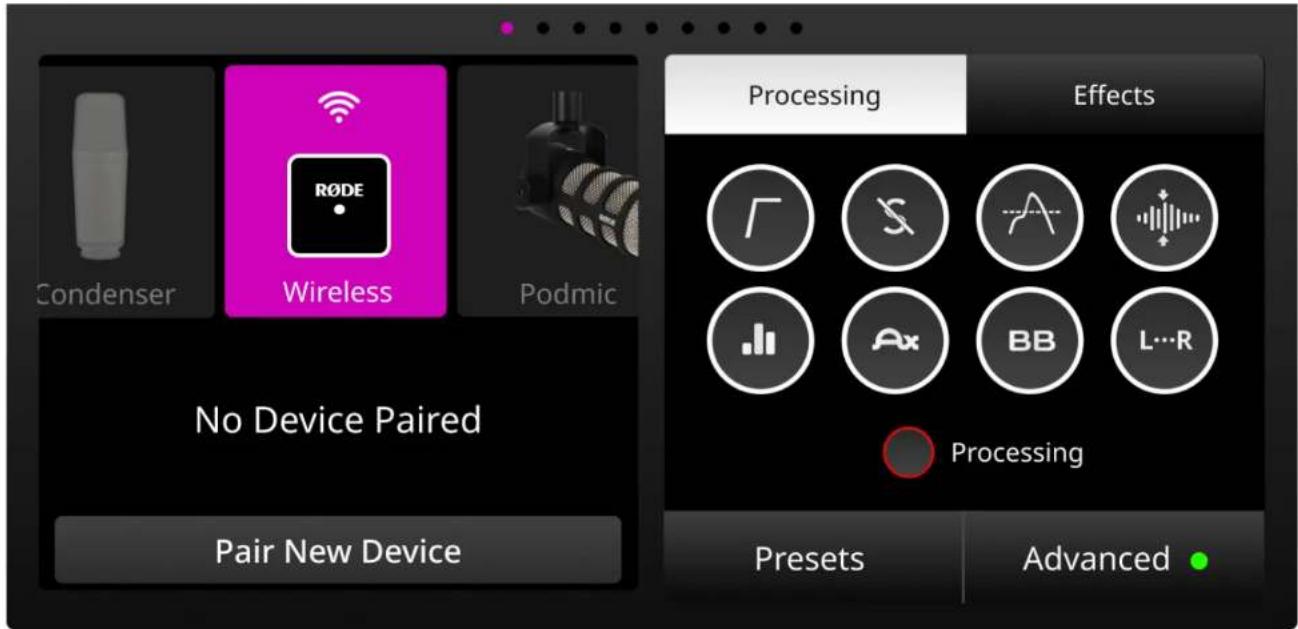
You can pair up to two Wireless ME transmitters to the R∅DECaster Pro II or R∅DECaster Duo and they will be treated like any other input channel, meaning that you can record, mix and apply the APHEX® processing, effects to your wireless audio. To pair a Wireless ME transmitter to your R∅DECaster Pro II or Duo, access the channel set-up screen by pressing the physical button above the fader you wish to assign your wireless device to. On this screen, you will see a list of microphone, instrument and other input options that you can scroll through. Scroll to the left to select the 'Wireless' option, tap 'Pair New Device' to enter pairing mode, power on your Wireless ME transmitter and short-press its power button (ensuring that the transmitter isn't already connected to another receiver). Your device's connectivity, mute and battery status will be displayed on this screen.
Note: Assigning any of the four input channels to the 'Wireless' option will override the associated physical XLR/TRS input, meaning that you won't hear any audio coming from microphones or instruments plugged into that channel.
Wireless ME / USER GUIDE & SUPPORT
text_image
Condenser Wireless Podmic No Device Paired Pair New Device Processing Effects Processing Presets AdvancedLEDs, Battery and Charging
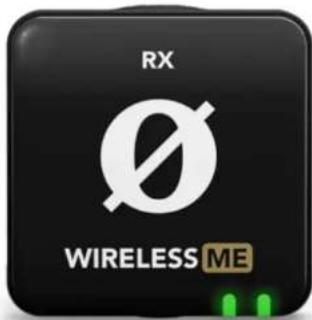
The Wireless ME's indicator LEDs provide feedback on battery and connectivity conditions. The connectivity indicator LED will flash slowly when unpaired and will start to flash more quickly when attempting to pair. When successfully paired, the connectivity indicator LEDs will be solid.
Note: The connectivity indicator LED on the receiver will be amber if the ME Mic is switched off, and green if it is switched on.
Batteries
The Wireless ME's transmitter and receiver each have an in-built lithium-ion battery that can last up to seven (7) hours. When the battery is getting low on either unit, the battery LED will turn amber and when it is very low, it will turn red. This LED will start flashing red when the battery level is critical.
The Wireless ME can be recharged using the supplied SC22 USB-C to USB-C cable. While charging, the battery LED on the transmitter and receiver will flash green. The LEDs will turn solid green when fully charged. You can still use the Wireless ME while it's charging.
Note: You can lower the brightness of the LEDs by selecting the "Dim" option in R∅DE Central under the LEDs setting.
Wireless ME / USER GUIDE & SUPPORT
text_image
RX WIRELESS ME
text_image
TX WIRELESS ME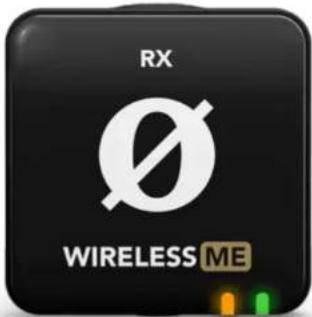
text_image
RX WIRELESS ME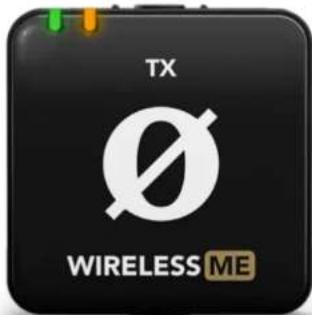
text_image
TX WIRELESS ME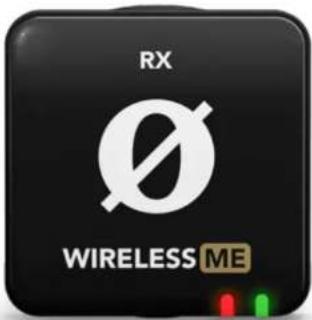
text_image
RX WIRELESS ME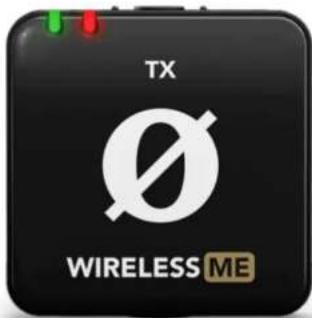
text_image
TX WIRELESS MEAdjusting Wireless ME Settings Using R∅DE Central
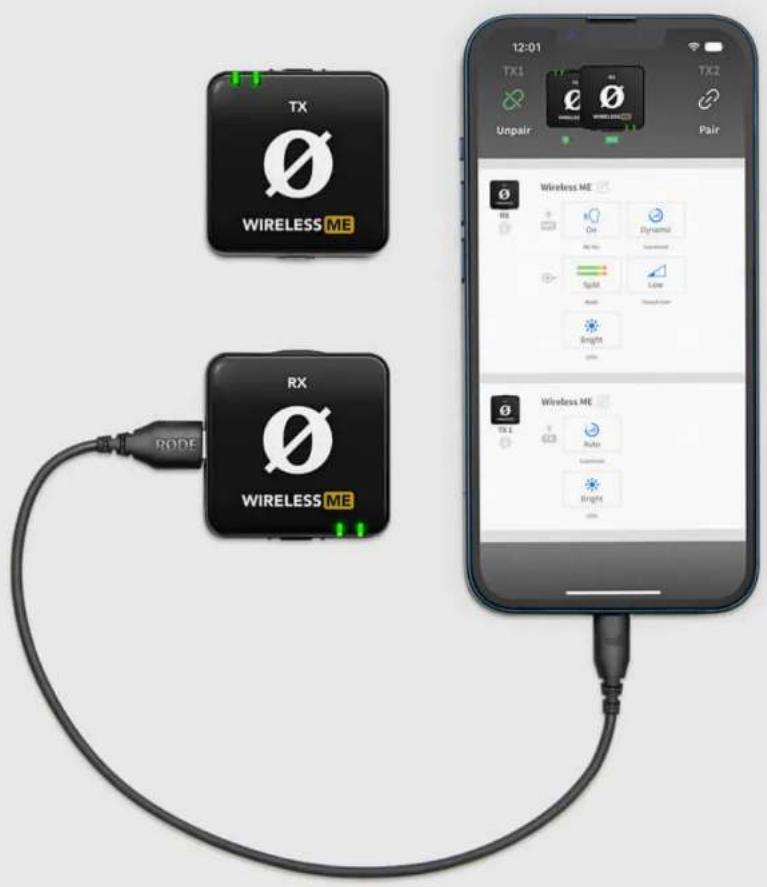
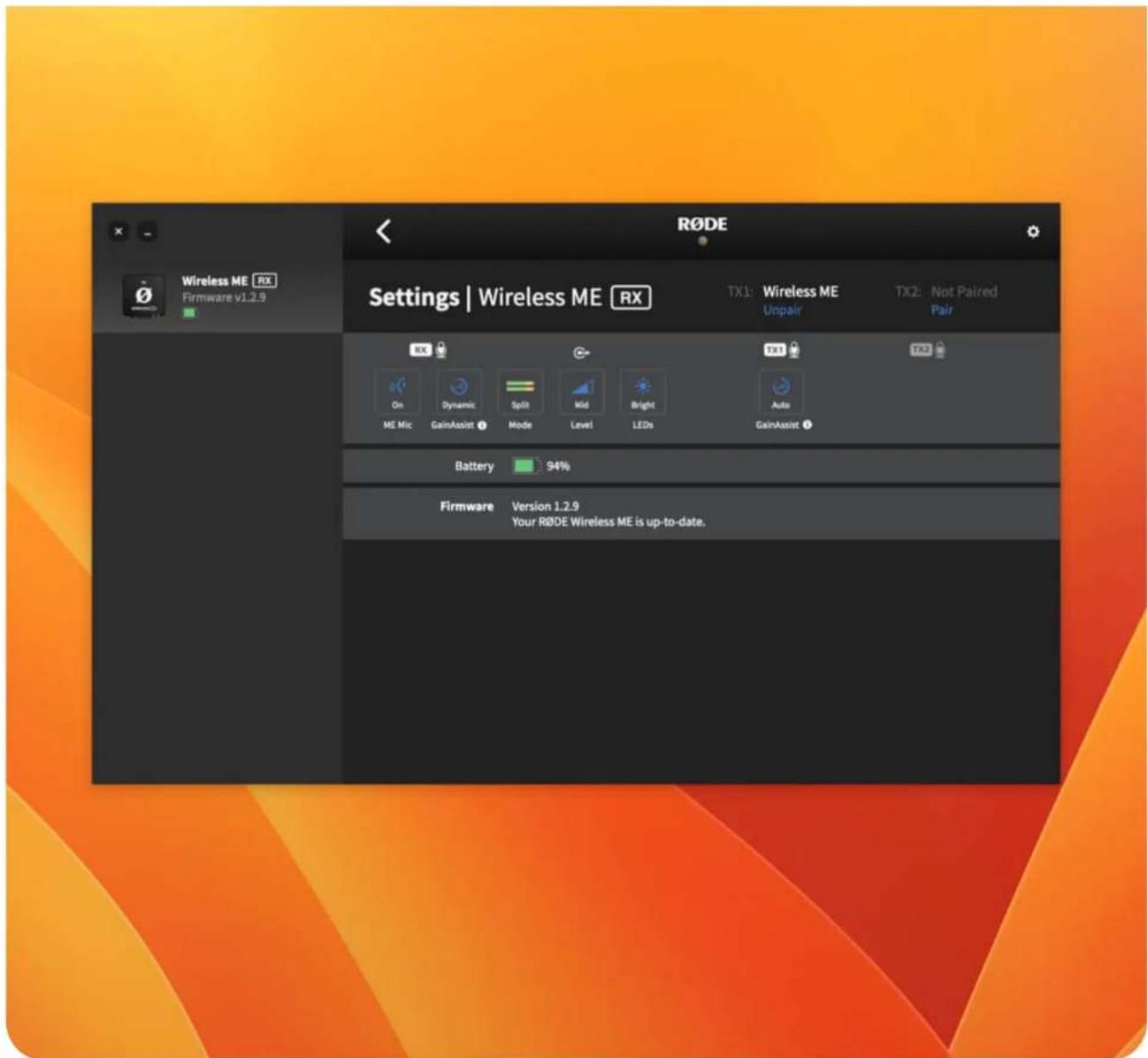
R∅DE Central is an easy-to-use desktop and mobile companion app for the Wireless ME that allows for complete device configuration anywhere. Once you adjust these settings using R∅DE Central, they will persist on your Wireless ME for use with other devices like cameras, computers and smartphones. The settings include:
- Enabling or disabling the ME Mic
- Setting the GainAssist mode (Auto, Dynamic, Off)
• Pairing and unpairing up to two transmitters - Switching between Split and Merged modes
- Setting output gain
- Adjusting LED brightness
- Updating to the latest firmware
Download it for free to unlock the full potential of your Wireless ME.
Note: OS Requirements – MacOS 10.14 or later; Windows 10 Version 1803 or later; iOS 14 or later; Android 9.0 or later.
Learn More
Wireless ME / USER GUIDE & SUPPORT
text_image
TX WIRELESS ME RX WIRELESS ME 12:01 TX1 Unpair TX2 WIRELESS ME Pair Wireless ME On Dynamical Play No. 1 Squilt Light Bright Color Wireless ME TX 1 Rode Bright ColorME Mic (Receiver Microphone)
As well as the microphone on the transmitter, the receiver also has a built-in microphone (the 'ME Mic'), which allows the Wireless ME to record from both in front of and behind the camera. With the receiver connected to your phone or computer, open R∅DE Central and turn "ME Mic" on. By default, the ME Mic will be off.
Note: When the ME Mic is off, the receiver's connectivity indicator LED will be amber. It will turn green if the ME Mic is switched on.
Wireless ME / USER GUIDE & SUPPORT
text_image
RX WIRELESS ME Exmor-图 2K SONYGainAssist
The Wireless ME features intelligent GainAssist technology, which automatically controls the microphone levels to ensure they are perfectly balanced and to prevent your audio from clipping. There are two different GainAssist modes available, Auto and Dynamic, and you can turn it off. The receiver and transmitter's microphone can have different modes selected.
With the receiver connected to your phone or computer, open R∅DE Central and adjust the "GainAssist" setting. Both the transmitter and receiver will be set to Auto by default.
Auto
The Auto GainAssist mode will give you a smoother, more consistent sound, which can be better in a recording scenario like an interview where your audio levels are jumping around a lot.
Dynamic
The Dynamic GainAssist mode balances your audio while maintaining dynamics, resulting in a more "natural" sound. This can be better in a controlled recording environment where the sound you're recording is more even.
Off
To disengage GainAssist, select the "Off" mode.
Wireless ME / USER GUIDE & SUPPORT
text_image
RODE Settings | Wireless ME RX TX1: Wireless ME Unpair TX2: Not Paired Pair RX On Dynamic Split Mid Bright Auto ME Mic GainAssist Mode Level LEDs GainAssist Battery 94% Firmware Version 1.2.9 Your RODE Wireless ME is up-to-date.Setting Gain Levels With A Camera
While GainAssist will help prevent clipping, it is still possible for your camera's preamp to distort if your audio levels are set incorrectly. To avoid this, it's important to set your Wireless ME output gain and your camera's input gain to the appropriate levels.
Output Gain
The Wireless ME features a three-level output gain control (Low - 0dB, Medium - 10dB, and High - 20dB) which you can adjust to suit your device. We recommend setting your camera's input volume as low as possible and adjusting the output gain on your Wireless ME to increase volume if needed.
Camera Settings
Many cameras come with a number of audio settings enabled by default, such as equalisation, noise reduction and AGC (Automatic Gain Control) – these are primarily implemented to improve the sound of the camera's on-board microphone, which is typically of low quality. Turn all of these settings off when using your camera with your Wireless ME. When setting your camera gain, start low and use the Wireless ME's output gain control to increase the volume if needed. Your audio level should be jumping around the 70% mark of the level meter while you or your subject is talking. If your output gain is set to High, increase your camera's gain in small increments until the desired audio level is achieved.
Note: Check out this article for more information on how to get the best audio from your camera.
Wireless ME / USER GUIDE & SUPPORT
text_image
RX WIRELESS ME Audio Rec Level 5 Reset Obl O2 Select Adjust Exit SONY ON/OFF MODE FN DISP C2Pairing Multiple Transmitters
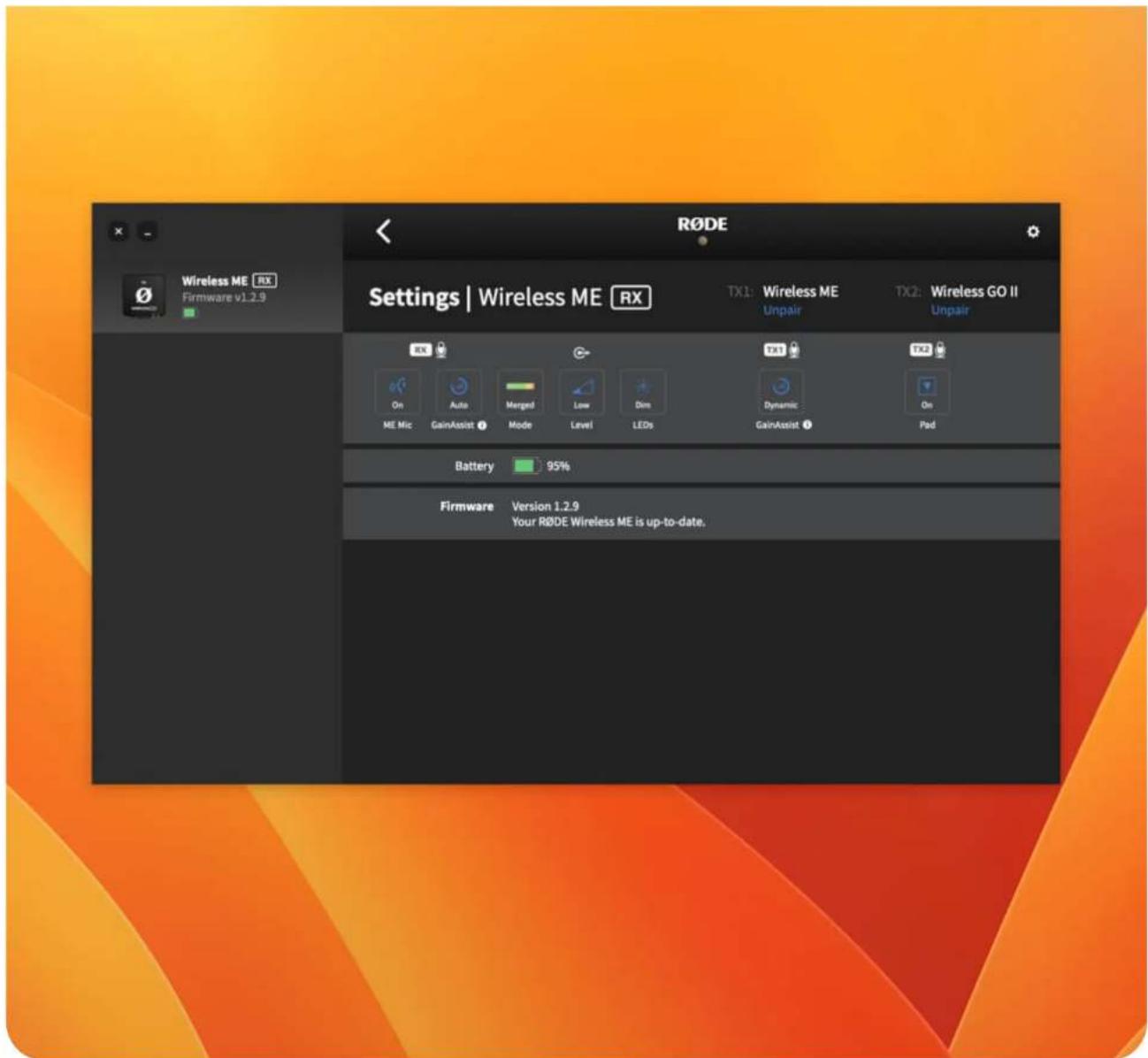
If you have another R∅DE Series IV wireless transmitter (such as the Wireless GO II or another Wireless ME), you can pair up to two transmitters to a single Wireless ME receiver. To do this, connect your Wireless ME RX to R∅DE Central on desktop or mobile, turn on the transmitter you're trying to connect and put it in pairing mode, then tap the 'pair' button under either TX1 or TX2 in R∅DE Central. Once paired, you can tap 'unpair' to unpair a transmitter.
Note: If you have two transmitters paired to your Wireless ME RX and the ME Mic is also enabled, both of your transmitters will record to the left channel and the ME Mic will record to the right channel (in Split mode). In Merged mode, all three audio sources are summed to the one (mono) channel – see below for more information on Split and Merged mode.
Wireless ME / USER GUIDE & SUPPORT
text_image
RODE Settings | Wireless ME RX TX1: Wireless ME Unpair TX2: Wireless GO II Unpair RX On Auto Merge Low Dim Dynamic Me Mic GainAssist Mode Level LEDs GainAssist Pad Battery 95% Firmware Version 1.2.9 Your RODE Wireless ME is up-to-date.Merged & Split Mode
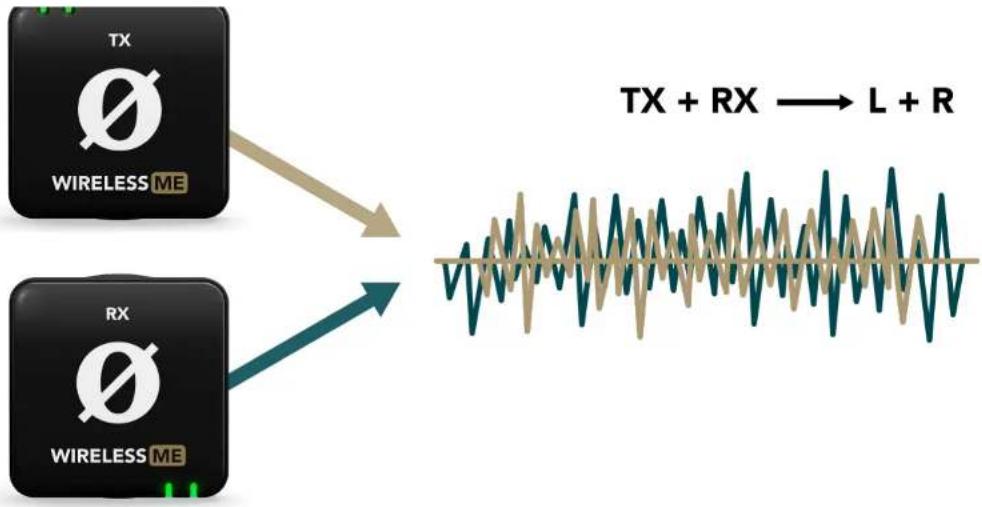
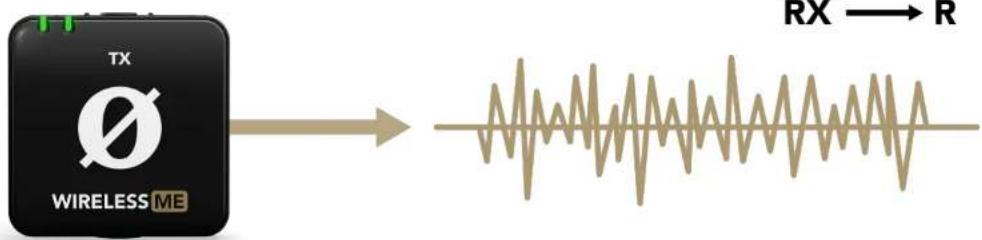
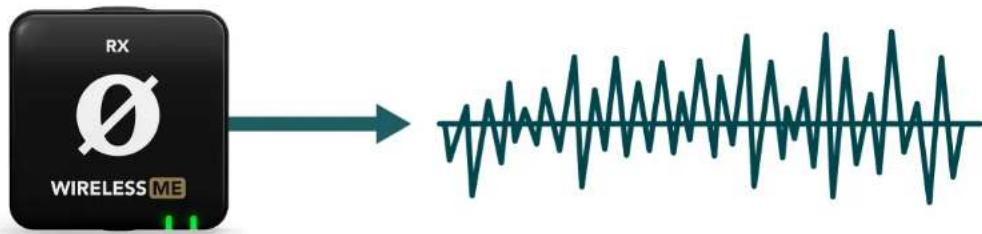
When using the Wireless ME with more than one microphone (either with the ME Mic on, with two transmitters paired, or both), you have the option to record in either 'Split' or 'Merged' mode. This allows you to record the transmitter and receiver's microphone audio onto separate channels or combine the two.
To switch between the two settings, connect the receiver to your computer or smartphone, open R∅DE Central, and click the "Mode" setting to toggle between 'Split' and 'Merged'.
Merged Mode
Merged mode is a quick and easy solution if you don't want to do much work in post-production, as both the transmitter and receiver's audio will be combined into a single summed output. Merged mode is on by default.
Split Mode
Split mode is great for two-person interviews and similar situations where you need to be able to edit and mix each sound source independently in post-production. In this mode, the transmitter and receiver's microphones will be recorded onto separate channels (left and right respectively) on the Wireless ME's output. This means you'll hear the recorded audio from the transmitter in the left channel and the receiver's audio in the right channel until you separate them in post-production.
Note: If you are in 'Split' mode with two transmitters connected and the 'ME Mic' activated, the two transmitters will be summed onto the left channel and the ME Mic will be on the right channel.
Wireless ME / USER GUIDE & SUPPORT
TX
flowchart
graph LR
    A["TX\nWIRELESS ME"] --> B["TX + RX → L + R"]
    C["RX\nWIRELESS ME"] --> B
RX
text_image
TX WIRELESS ME RX → RTX
text_image
RX WIRELESS MERX
| Transmitter (TX) | ME Mic | Output Mode |
| No transmitter paired | On | Merged Mode Only |
| 1 Transmitter | Off | Merged Mode Only |
| 1 Transmitter | On | Merged or Split (Left: TX, Right: ME Mic) |
| 1 Transmitter (paired but off) | On | Merged or Split (Left: TX, Right: ME Mic) |
| 2 Transmitters | On | Merged or Split (Left: TX1 + TX2, Right: ME Mic) |
| 2 Transmitters | Off | Merged or Split* |
* This option appears if a transmitter is assigned on both TX1 and TX2, even if one of them is turned off.
Using the Windshields
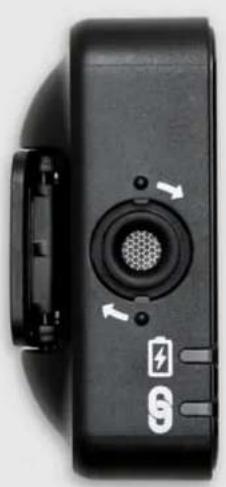
The Wireless ME comes with two furry windshields. To securely attach them, align the two white dots on the windshield with the black dots on the TX or RX unit, then push the windshield down and twist clockwise to lock in place. Reverse the process to remove them. The windshields are designed to ensure an extremely strong connection and will not fall, even with vigorous use.
natural_image
Close-up of a black electronic device with a circular vent and directional arrows indicating motion (no text or symbols)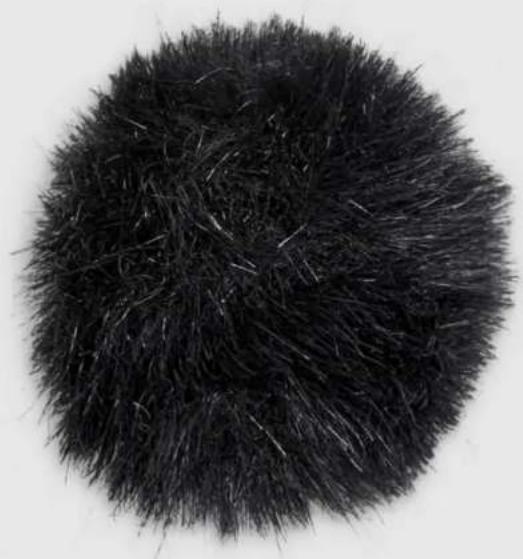
natural_image
Close-up of a black, spiky, fibrous material on a white background (no text or symbols)R∅DE Capture
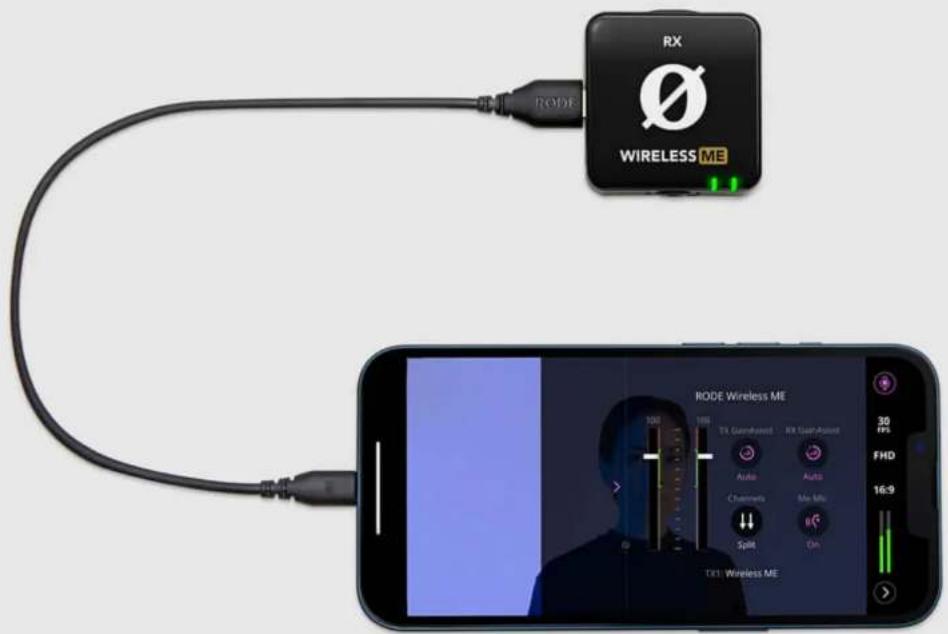
R∅DE Capture is a video recording app that pairs seamlessly with R∅DE microphones for professional video and audio capture. As well as being able to access Wireless ME device configuration, R∅DE Capture's dual-camera mode makes it ideal for recording video and audio from both in front of and behind the camera when the Wireless ME's transmitter and receiver microphones are both switched on.
When using Wireless ME with R∅DE Capture, you can set the ME Mic to 'Auto' mode. This will automatically enable the built-in microphone on the receiver when you engage the dual cam mode in Capture, and disable the ME Mic when you return to single camera operation.
Note: Any settings adjusted using R∅DE Capture will persist on your Wireless ME for use with other devices like cameras, computers and smartphones.
Wireless ME / USER GUIDE & SUPPORT
text_image
RX WIRELESS ME RODE Wireless ME TX1 Wireless ME 100 198 TR Glandyest Auto Auto Chemicals Mix Mix Split On 30 fps FHD 16:9R∅DE Connect
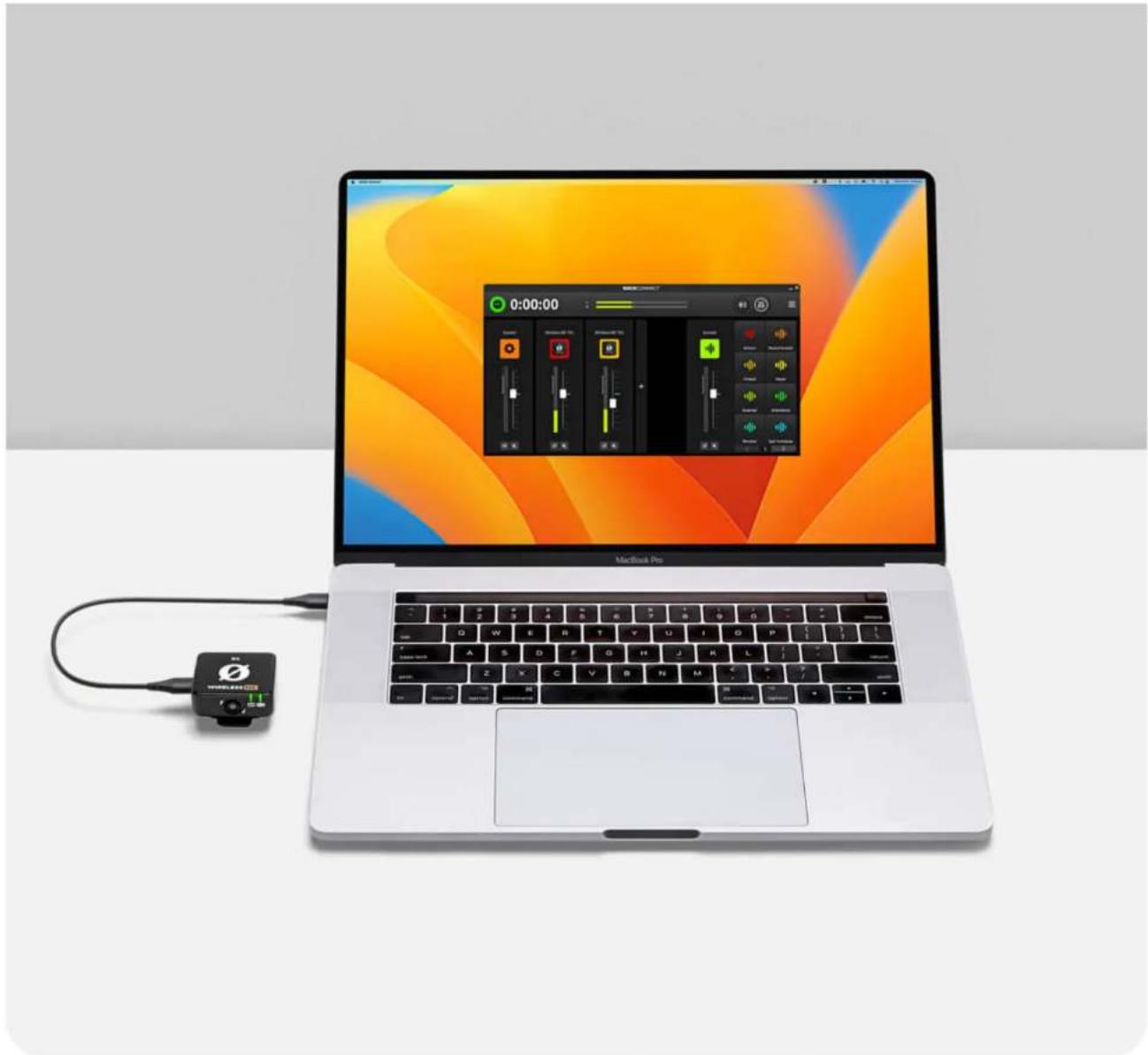
R∅DE Connect is a simple and powerful software solution for podcasting and streaming with the Wireless ME. Capable of connecting up to four Wireless ME receivers or transmitters to a single computer, R∅DE Connect is the easiest way to create professional sounding podcasts. It's also incredibly useful for streamers, with dedicated outputs for connecting to streaming software like OBS or XSplit.
Note: Any settings adjusted using R∅DE Connect will persist on your Wireless ME for use with other devices like cameras, computers and smartphones.
Mac Download
Windows Download
Wireless ME / USER GUIDE & SUPPORT
natural_image
Laptop with a connected audio player and a digital audio workstation displaying multiple controls (no readable text or symbols on the device)R∅DE Reporter
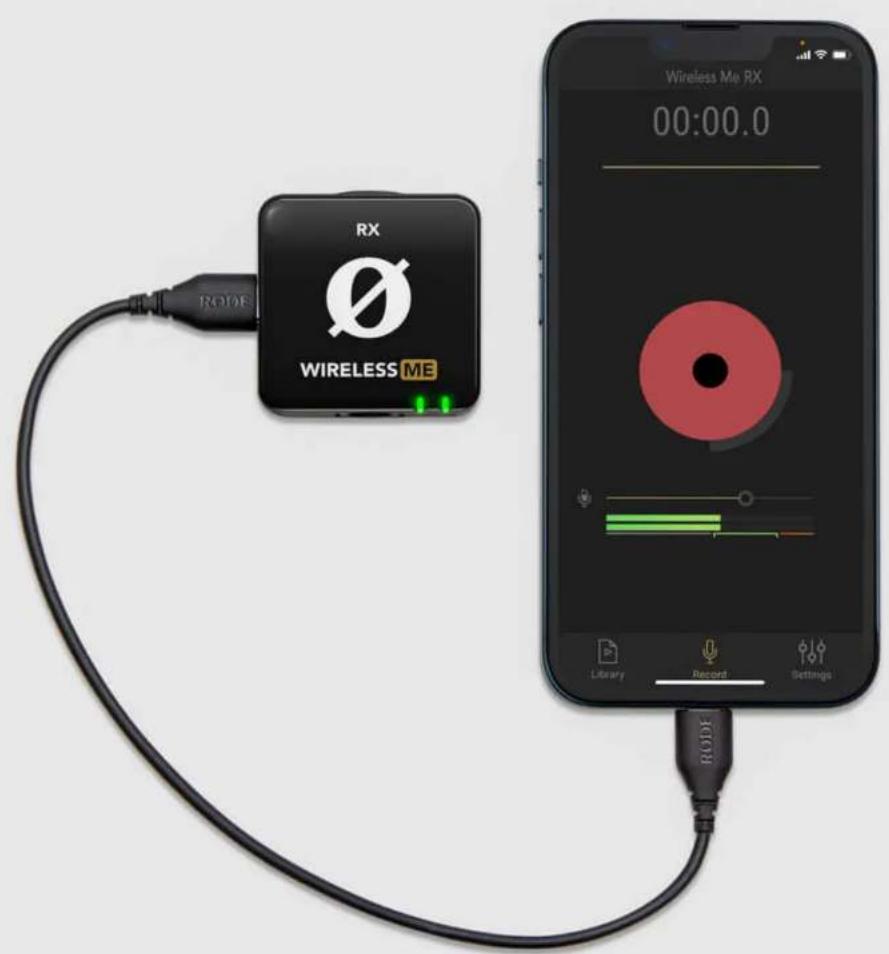
R∅DE Reporter is a mobile recording app for iOS and Android that also acts as a companion for a range of R∅DE microphones. It offers a simple and intuitive solution for recording audio onto your phone when connected to your Wireless ME.

Download for iOS

Download for Android
Wireless ME / USER GUIDE & SUPPORT
text_image
RWDF RWDF WIRELESS ME 00:00.0 Library Record SettingsUpdating Firmware
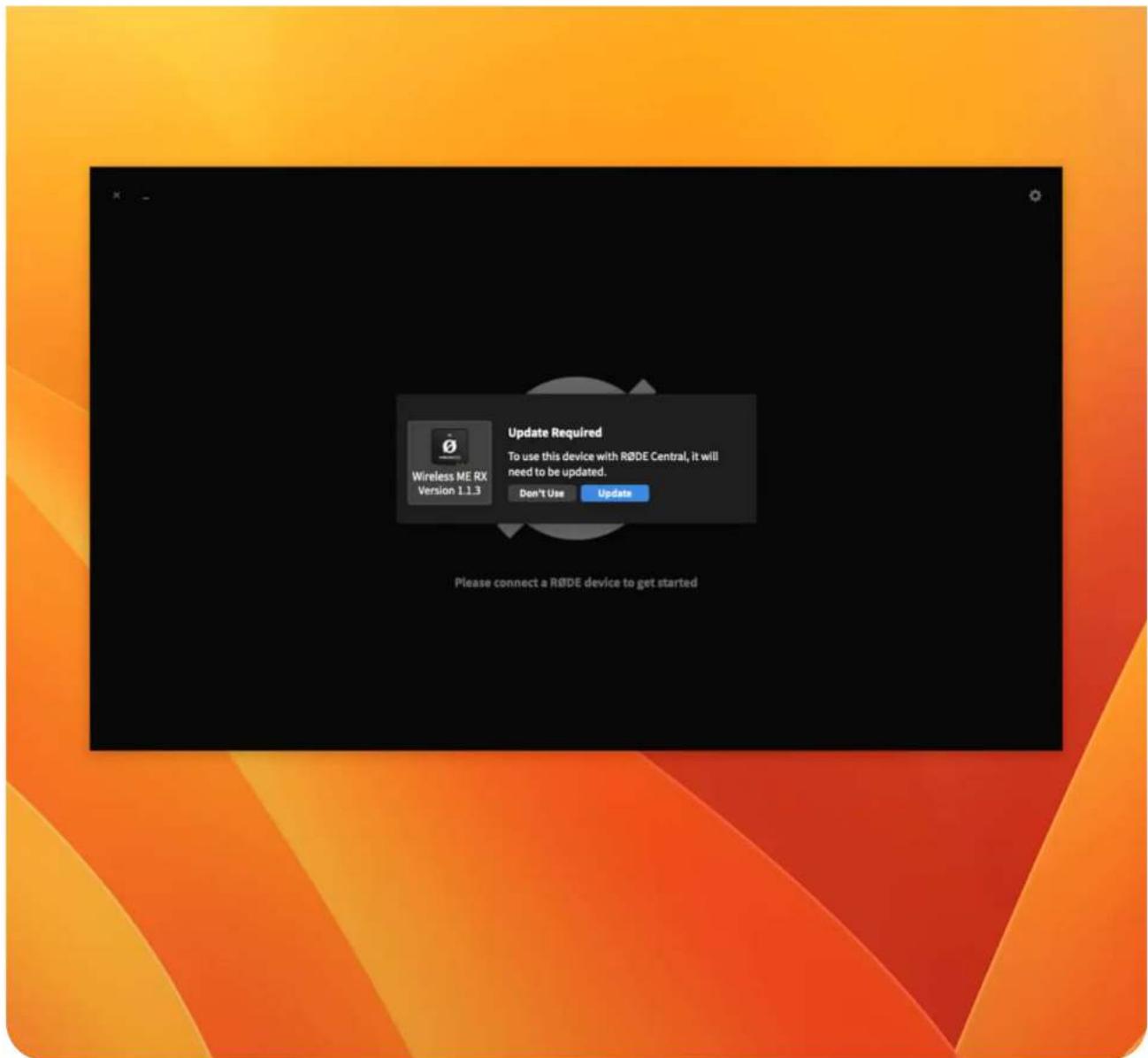
To update your Wireless ME firmware, connect both your receiver (RX) and transmitter (TX) to your computer and open R∅DE Central – if you're on mobile, you'll need to repeat the process for each unit, one at a time. You should automatically be prompted to update your firmware if an update is available, but you can access a manual update from within R∅DE Central if not.
Wireless ME / USER GUIDE & SUPPORT
text_image
Wireless ME RX Version 1.1.3 Update Required To use this device with RODE Central, it will need to be updated. Don't Use Update Please connect a RODE device to get startedProducts
Microphones
Headphones
Interfaces and Mixers
Accessories
Apps
Apparel
Support
Contact R∅DE
Service Centre
Warranty
Where to Buy
Authorised Dealers
Company
About R∅DE
News and Info
Job Opportunities
Account
Create Account
Subscribe to our latest news and offers
Subscribe
R∅DE

© 2024 R∅DE All Rights Reserved.