
TSP847L - Printer Star Micronics - Free user manual and instructions
Find the device manual for free TSP847L Star Micronics in PDF.


| Product type | Thermal ticket printer |
| Brand | Star Micronics |
| Model | TSP847L |
| Weight (with max roll) | Approximately 2.9 kg |
| Power supply | Power adapter PS60-24A (input AC 100-240 V, 50/60 Hz, output DC 24 V ±5%, 2.0 A) |
| Consumable | Thermal paper, width 111.5 ± 0.5 mm, max outer diameter 100 mm |
| Interface | Parallel (with ferrite core) or serial |
| Special functions | Auto-printing, hex dump, adjustable paper end detection |
| Maintenance | Clean the print head with isopropyl alcohol and the paper holder every 6 months or 1 million lines |
| Installation conditions | Stable, clean surface, away from vibrations, heat, humidity, and dust |
| Safety | Print head temperature sensor, overheat protection; dangerous cutter blade |
| Repairability | Non-recoverable errors (memory, EPROM, thermistor, power supply) requiring repair by the dealer |
| Wall mounting | Possible with wall mount (dimensions: 121 x 168 x 14.5 mm, weight 0.27 kg) |
| Optional accessories | Power adapter PS60-24A, interface cable, wall mount |
Frequently Asked Questions - TSP847L Star Micronics
User questions about TSP847L Star Micronics
0 question about this device. Answer the ones you know or ask your own.
Ask a new question about this device
Download the instructions for your Printer in PDF format for free! Find your manual TSP847L - Star Micronics and take your electronic device back in hand. On this page are published all the documents necessary for the use of your device. TSP847L by Star Micronics.
USER MANUAL TSP847L Star Micronics
Federal Communications Commission Radio Frequency Interference Statement
This equipment has been tested and found to comply with the limits for a Class A digital device, pursuant to Part 15 of the FCC Rules. These limits are designed to provide reasonable protection against harmful interference when the equipment is operated in a commercial environment. This equipment generates, uses and can radiate radio frequency energy and, if not installed and used in accordance with the instruction manual, may cause harmful interference to radio communications. Operation of this equipment in a residential area is likely to cause harmful interference in which case the user will be required to correct the interference at his own expense.
For compliance with the Federal Noise Interference Standard, this equipment requires a shielded cable.
This statement will be applied only for the printers marketed in U.S.A.
Statement of The Canadian Department of Communications Radio Interference Regulations
This digital apparatus does not exceed the Class A limits for radio noise emissions from digital apparatus set out in the Radio Interference Regulations of the Canadian Department of Communications.
The above statement applies only to printers marketed in Canada.
CE Manufacturer's Declaration of Conformity
EC Council Directive 89/336/EEC of 3 May 1989
This product, has been designed and manufactured in accordance with the International Standards EN 50081-1/01.92 and EN 50082-1/01.92, following the provisions of the Electro Magnetic Compatibility Directive of the European Communities as of May 1989.
EC Council Directive 73/23/EEC and 93/68/EEC of 22 July 1993
This product, has been designed and manufactured in accordance with the International Standards EN 60950, following the provisions of the Low Voltage Directive of the European Communities as of July 1993.
The above statement applies only to printers marketed in EU.
Trademark acknowledgments
TSP700: Star Micronics Co., Ltd.
ESC/POS: Seiko Epson Corporation
Notice
- All rights reserved. Reproduction of any part of this manual in any form whatsoever, without STAR's express permission is forbidden.
- The contents of this manual are subject to change without notice.
- All efforts have been made to ensure the accuracy of the contents of this manual at the time of going to press. However, should any errors be detected, STAR would greatly appreciate being informed of them.
- The above notwithstanding, STAR can assume no responsibility for any errors in this manual.
TABLE OF CONTENTS
1. Parts Identification and Nomenclature 1
1-1. Choosing a place for the printer 3
1-2. Mounting hardware for wall mount model 3
2. Consumable Parts and AC Adapter 6
3. Connecting Cables and AC Adapter.. 8
3-1. Interface Cable 8
3-2. Connecting to a Peripheral Unit 10
3-3. Connecting the Optional AC Adapter 11
3-4. Turning Power On 12
4. Control Panel and Other Functions 13
4-1. Control Panel 13
4-2. Errors 13
4-3. Self Printing 15
5. Loading the Roll Paper 17
6. Adjusting the Near-end Sensor 19
7. Preventing and Clearing Paper Jams 21
7-1. Preventing Paper Jams 21
7-2. Removing Paper Jam 21
8. Periodical Cleaning 22
8-1. Cleaning the Thermal Head 22
8-2. Cleaning the Paper Holder 22
Appendix A: Specifications. 96
A-1. General Specifications 96
A-2.AutoCutter Specifications 98
A-3. Interface 98
A-4. Electrical Characteristics 98
A-5. Environmental Requirements 99
A-6. Reliability 99
A-7. Black mark specifications 100
Appendix B: Dip Switch Setting. 101
B-1. Parallel Interface Type 102
B-2. Serial Interface Type 104
Appendix C: Parallel Interface 105
Appendix D: Serial Interface. 108
D-1.RS-232C Connector 108
D-2. Cable Connections 109
D-3. Electrical Characteristics 109
Appendix E: Peripheral Unit Drive Circuit 110
Appendix F: Memory Switch Settings 111
Please access the following URL
http://www_star-micronics.co.jp/service/frame_sp_spr_e.htm for the latest revision of the manual.
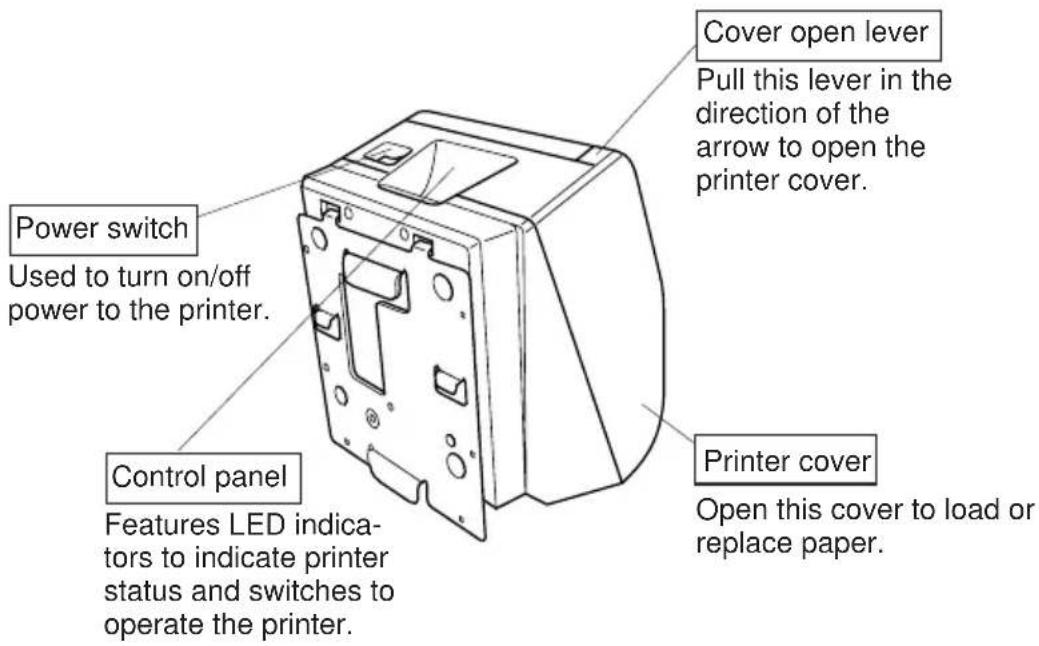
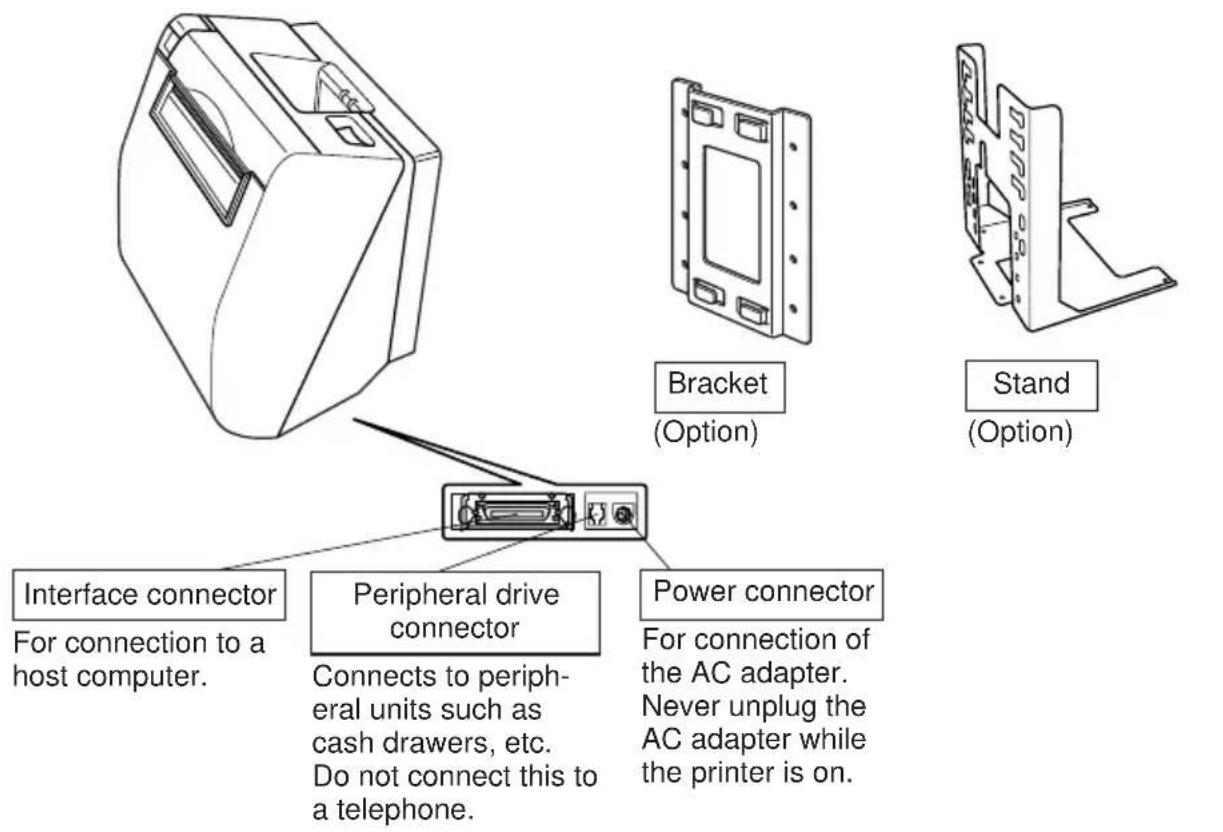
1. Parts Identification and Nomenclature
Standard Model
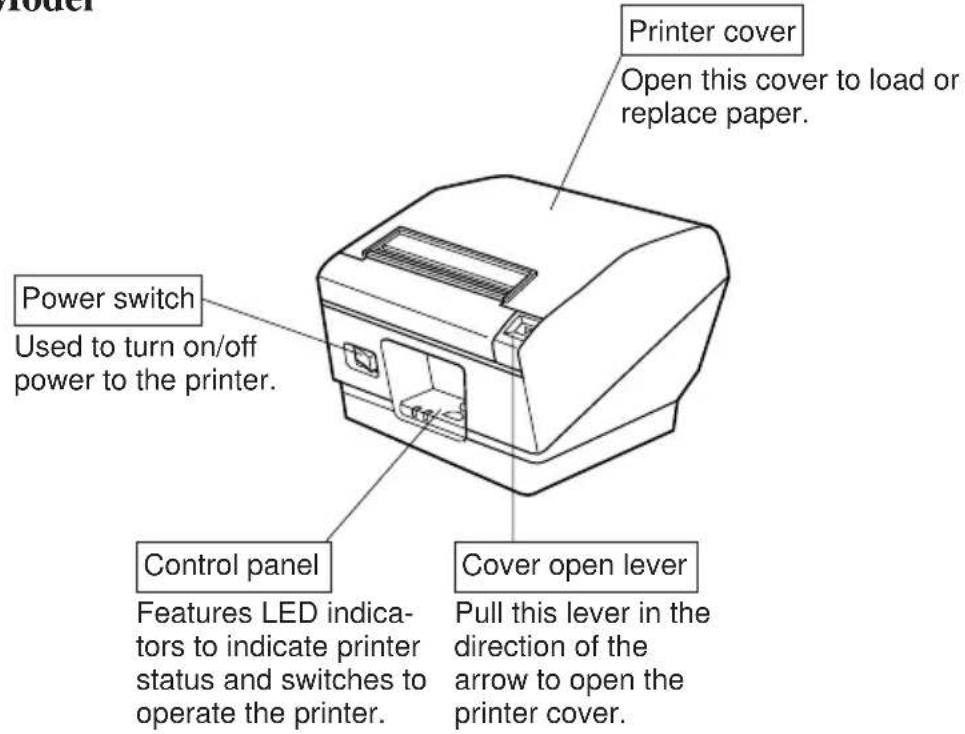
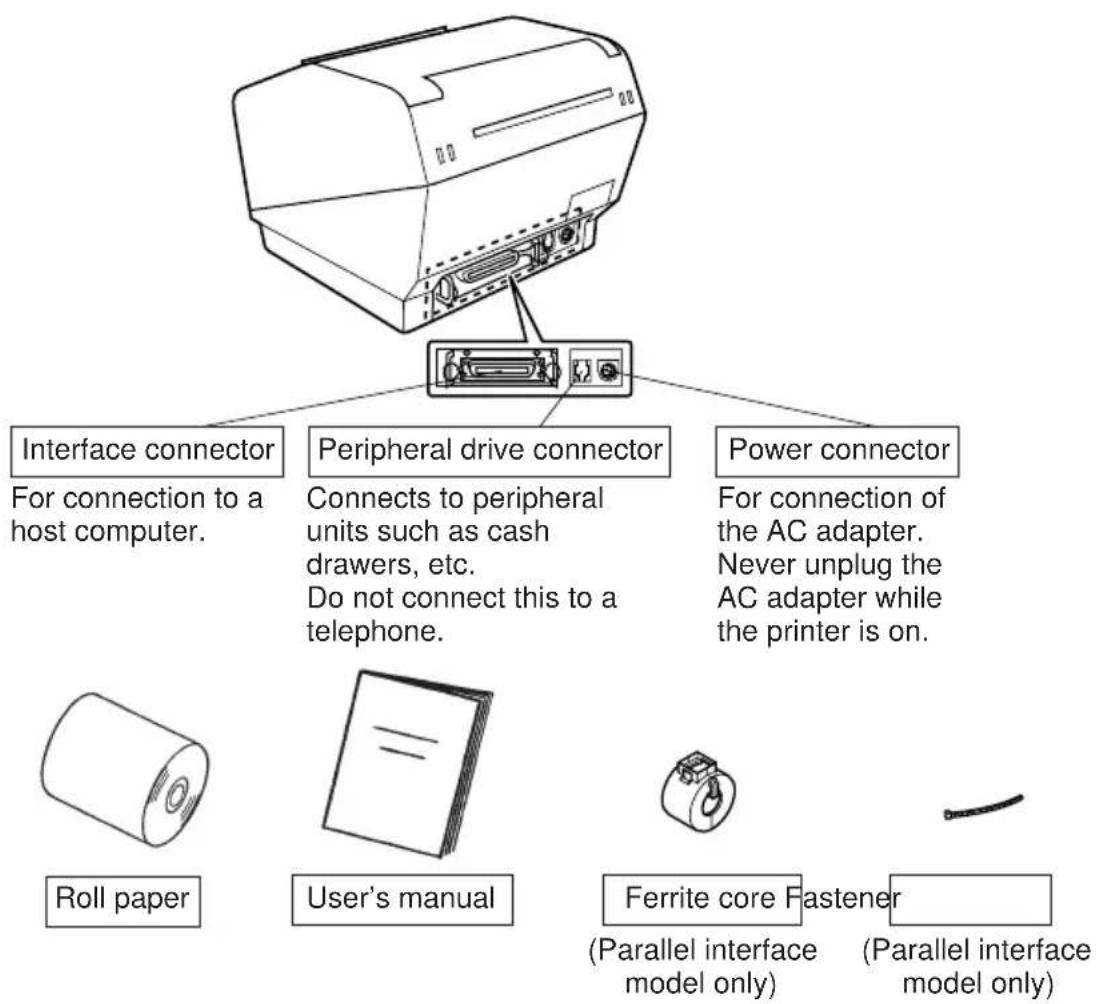
Wall Mount/Stand Model
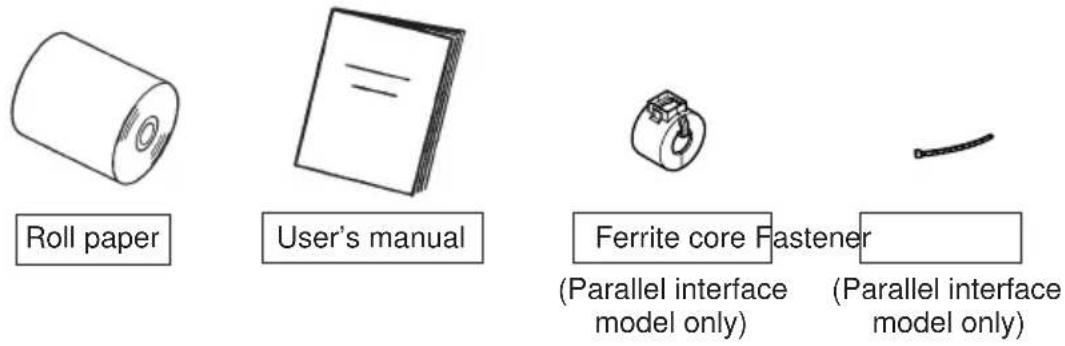
1-1. Choosing a place for the printer
Before actually unpacking the printer, you should take a few minutes to think about where you plan to use it. Remember the following points when doing this.
Choose a firm, level surface where the printer will not be exposed to vibration.
The power outlet you plan to connect to for power should be nearby and unobstructed.
Make sure that the printer is close enough to your host computer for you to connect the two.
Make sure that the printer is not exposed to direct sunlight.
- Make sure that the printer is well away from heaters and other sources of extreme heat.
Make sure that the surrounding area is clean, dry, and free of dust.
- Make sure that the printer is connected to a reliable power outlet. It should not be on the same electric circuit as copiers, refrigerators, or other appliances that cause power spikes.
Make sure that the room where you are using the printer is not too humid.
1-2. Mounting hardware for wall mount model
Precautions when mounting
Unplug the power cord from the outlet before starting any of the following operations.
Select a location where the unit will not be exposed to water or impact. Make sure the wall material has sufficient width for mounting the brackets.
- Carefully select screws for mounting the bracket to the wall. These screws must have sufficient strength to hold the printer and must be long enough to enter the wall and provide a secure mounting. Remember that we will in no way be responsible for damage resulting from the printer falling due to insufficient mounting strength.
The weight of the printer, including a roll of paper with the largest diameter, is approximately 2.9kg
The screws for mounting the bracket must have both a shear and tensile strength capable of withstanding a load of 12kgf (118 N) or more. It is recommended that anchor nuts be used.
A screw diameter of 4mm is recommended.
Always use all eight (8) screw holes in the mounting bracket when securing the mounting bracket to the wall.
Mount the bracket to the wall so that its mounting accuracy is within a range of ± 2^ perpendicular.
The wall used for mounting should be 90^ ± 2^ to the horizontal reference.
1-2-1. Specifications of the wall mounting bracket
| Wall mounting bracket outer dimensions | 121 · 168 · 14.5 mm (Width · Height · Depth) | ||
| Wall mounting bracket weight | Approx. 0.27 kg. | ||
| Screws for wall mounting bracket ·Not included in the package. The customer is to prepare the screws that meet the type of wall to be used for mounting. | Wood structure wall | The eight (8) screws used must have both a shear and tensile strength capable of withstanding a load of 12 kgf (118 N) or more | Use commercially available screws that have sufficient strength to withstand the weight of the printer. |
| Concrete wall | The anchor nuts used must have both a shear and tensile strength capable of withstanding a load of 12 kgf (118 N) or more | ||
1-2-2. Mounting the bracket for the wall mount model
1 Make sure there is enough room for the printer with the printer cover open, especially in front of the printer.
② As shown in the illustration to the right, place the mounting bracket against the wall where the printer is to be mounted and mark the positions of the screw holes.
③ Drill holes at the locations marked.
④ Secure the bracket in place using screws with a diameter of 4mm .
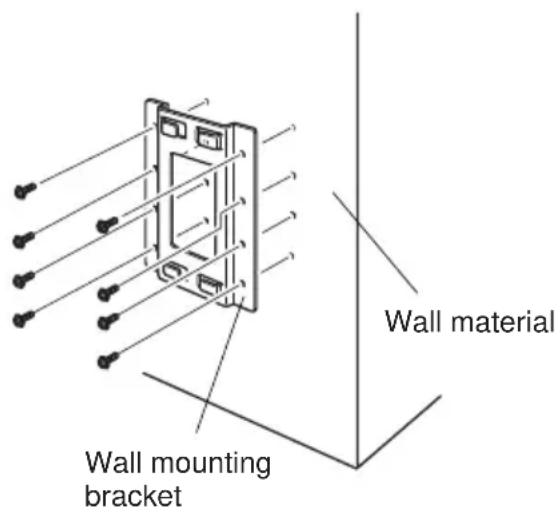
| Wood structure wall Concrete | structure wall |
| ·Locate the beams in the wall and mount using them. ·Do not tighten the screws or anchors to locations with one wall sheet. Always make sure that the screws penetrate the beams. (This is so the weight of the printer can be supported.) ·Screw ·Beam ·Wall | ·Drive the anchor nuts into the wall and tighten the screws. ·Anchor nuts ·Concrete wall |
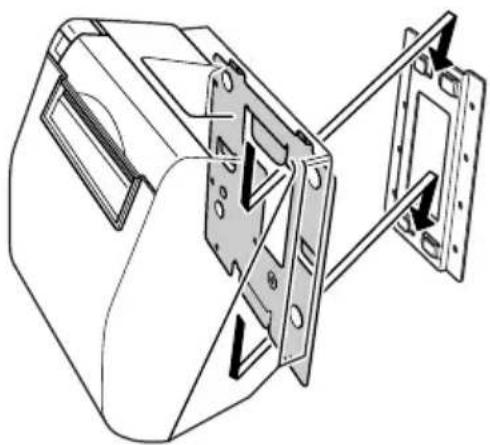
Position the printer over the wall bracket and then slide it downwards to set it in place.
The printer is fixed in place by interlocking the hook on the place attached to the bottom of the printer with the hook connector on the bracket. It is not necessary to secure it further with screws, etc.
2. Consumable Parts and AC Adapter
When consumable parts have run out, use those specified in the table below. Make sure that the AC adapter specified in the table is used.
Use of consumable parts or AC adapter which are not specified in the table may result in damage to the printer, fire or electric shock.
(1) Roll paper specification
Thermal paper
Thickness: 65 150m
Width: 111.5 ± 0.5 ~mm
Outer roll diameter: 100mm or less
Take up paper roll width: 112_-1^+0.3 mm
Core outer/inner diameter
Paper thickness Core outer Core inner
65\~75m 18±1mm 12±1mm
65 75 m 32± 1mm 25.4mm
75 150m 32± 1mm 25.4mm
Printed surface: Outer edge of roll
Tail end handling: Do not use paste or glue to secure the roll paper or its core.
Do not fold the tail end of the paper.
(2) Recommended paper
Mitsubishi Paper Mills Limited
P220AG (normal type paper), 65 m thickness)
HP220A (high image stability paper), 65~ (thickness)
HP220AB-1 (high image stability paper), 75m thickness)
P220AB (normal type paper, card ticket), 85~cm (thickness)
P220AC-1 (normal type paper, card ticket), 95 m thickness
P220AC (normal type paper, card ticket), 105~m (thickness)
P220AD (normal type paper, card ticket), 130~ thickness)
P220AE-1 (normal type paper, card ticket), 150 m thickness
Oji Paper Co., Ltd.
PD150R (normal type paper), 75~cm (thickness)
PD160R (high image stability paper), 65 / 75 m thickness)
Nippon Paper Industries
TF50KS-E2C (normal type paper), 65 m thickness
Depending on the type and thickness of the paper, it may be necessary to change the settings for printing darkness. To change the darkness settings, use the printing darkness settings command <ESC> <RS> 'd' n. Refer to the separate programmer's manual for details.
(3) AC adapter (option)
Model name: PS60-24 A
Input: 100 to 240V AC, 50 / 60Hz
Output: DC24± 5% 2.0A (5.0 A Load 10 sec. Max)
Important!
Access the following URL for the information of the recommended paper.
3. Connecting Cables and AC Adapter
3-1. Interface Cable
3-1-1. Ferrite Core Installation (Parallel interface model only)
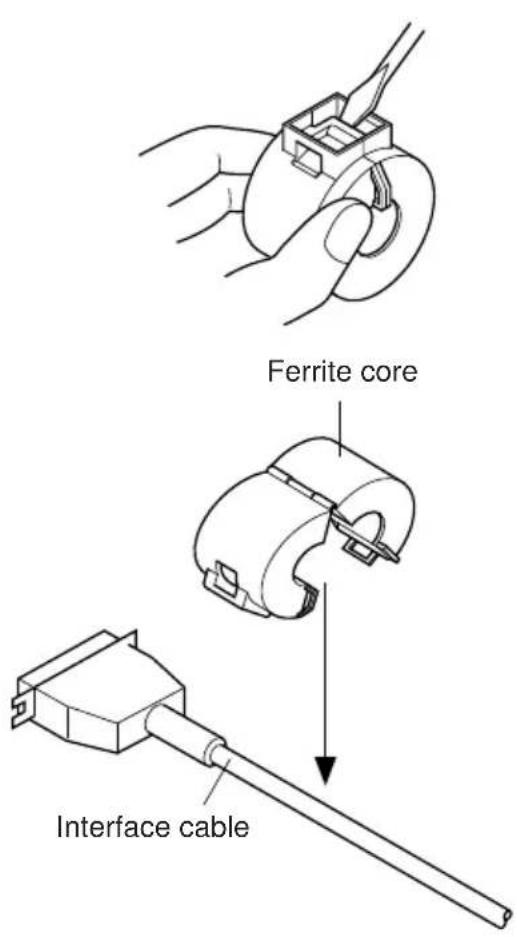
(1) For only the parallel interface model, affix the ferrite core onto the cable as shown in the illustration below.
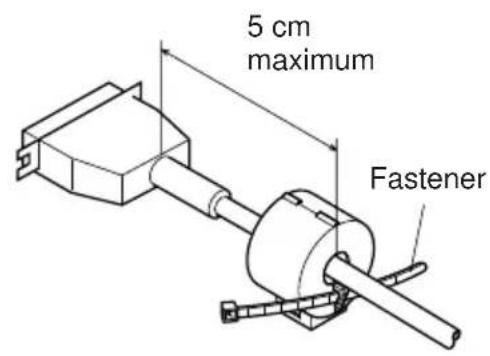
(2) Pass the fastener through the ferrite core.
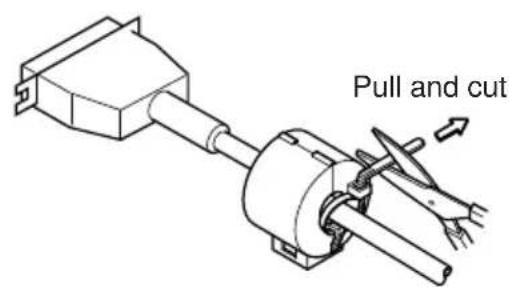
(3)Loop the fastener around the cable and lock it. Use scissors to cut off any excess.
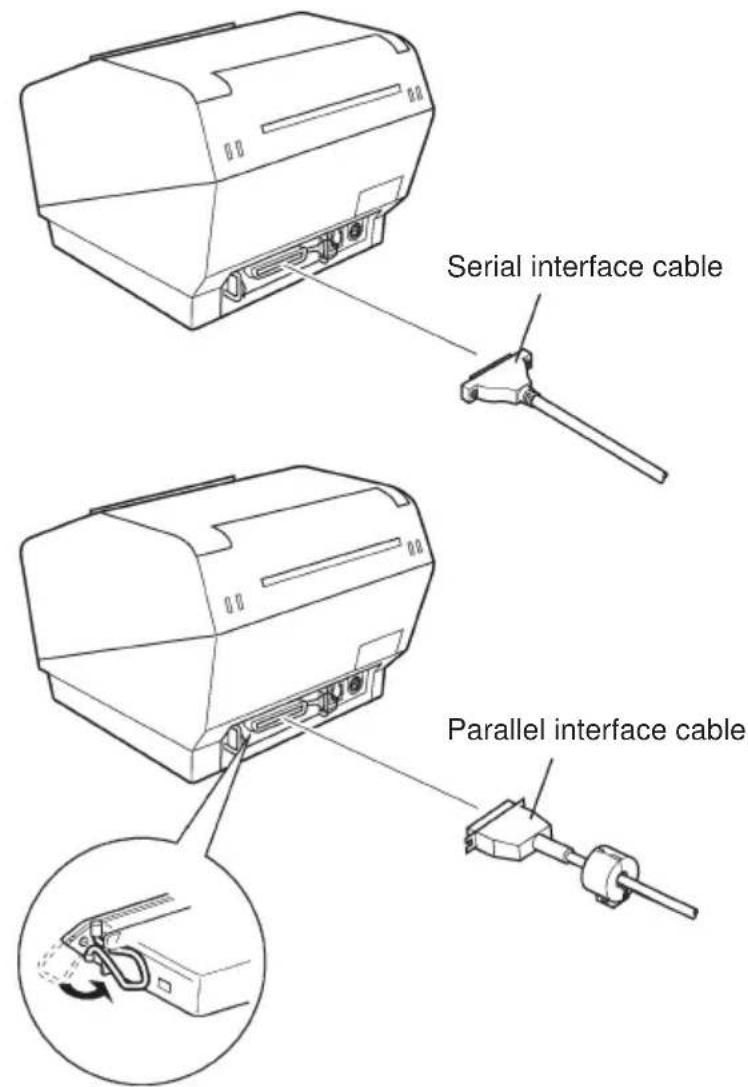
3-1-2. Connecting the Interface Cable
Note: Before connecting/disconnecting the interface cable, make sure that power to the printer and all the devices connected to the printer is turned off. Also make sure the power cable plug is disconnected from the AC outlet.
(1)Connect the interface cable to the connector on the rear panel of the printer.
(2) In the case of a serial interface, tighten the connector screws. In the case of a parallel interface, fasten the connector clasps.
3-2. Connecting to a Peripheral Unit
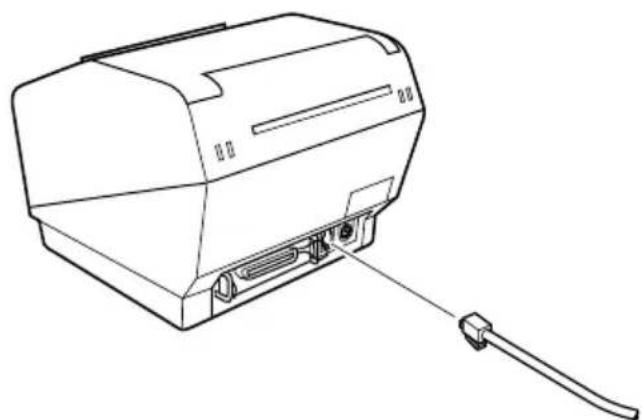
You can connect a peripheral unit to the printer using a modular plug. The following describes how to install the ferrite core and make the actual connection. See "Modular plug" on page 80 for details about the type of modular plug that is required. Note that this printer does not come with a modular plug or wire, so it is up to you to obtain one that suits your needs.
Important!
Make sure that the printer is turned off and unplugged from the AC outlet and that the computer is turned off before making connections.
(1) Connect the peripheral drive cable to the connector on the rear panel of the printer.
Important!
Do not connect a telephone line into the peripheral drive connector. Failure to observe this may result in damage to the printer.
Also, for safety purposes, do not connect wiring to the external drive connector if there is a chance it may carry peripheral voltage.
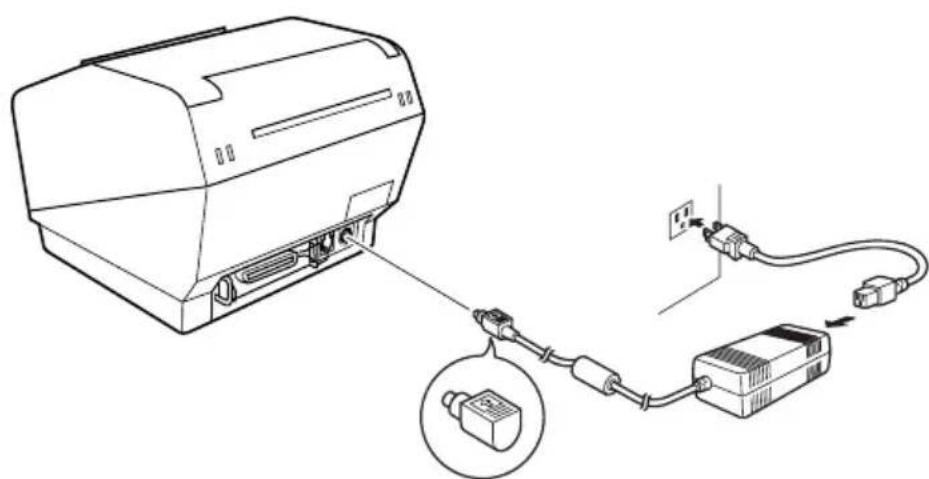
3-3. Connecting the Optional AC Adapter
Note: Before connecting/disconnecting the AC adapter, make sure that power to the printer and all the devices connected to the printer is turned off. Also make sure the power cable plug is disconnected from the AC outlet.
(1)Connect the AC adapter to the power cable.
Note: Use only the standard AC adapter and power cable.
(2)Connect AC adapter to the connector on the printer.
(3)Insert the power cable plug into an AC outlet.
3-4. Turning Power On
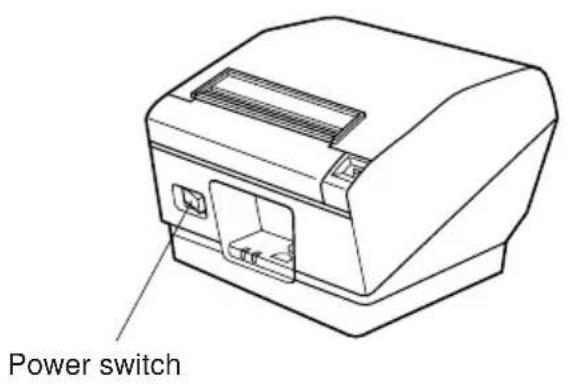
Make sure that the AC adapter has been connected as described in 3-3.
(1) Set the power switch located on the front of the printer to on. The POWER lamp on the control panel will light up.
Important!
We recommend that you unplug the printer from the power outlet whenever you do not plan to use it for long periods. Because of this, you should locate the printer so that the power outlet it is plugged into is nearby and easy to access.
4. Control Panel and Other Functions
4-1. Control Panel
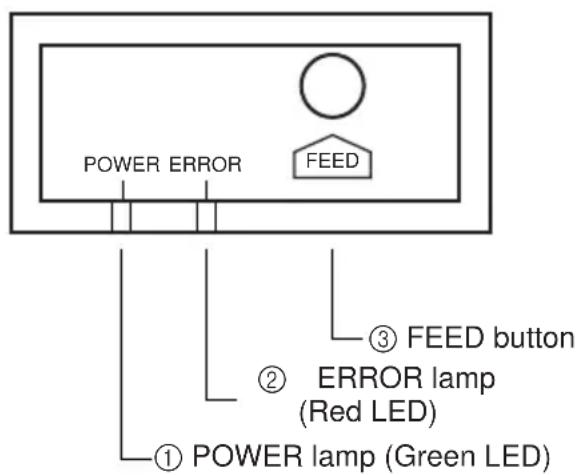
① POWER lamp (Green LED) Lights when the power is ON
② ERROR lamp (Red LED) Indicates various errors in combination with POWER lamp
③ FEED button Press the FEED button to feed roll paper.
4-2. Errors
1) Automatically recoverable error
| Error Description | POWER lamp | ERROR lamp | Recovery Conditions |
| Head high temperature detection | Flashes at 0.5 second intervals | Off | Automatically recovered after the print head has cooled. |
| Cover open error | On | On | Automatically recovered by closing the printer cover. |
2) Recoverable error
| Error Description | POWER lamp | ERROR lamp | Recovery Conditions |
| Paper cut error | Off | Flashes at 0.125 second intervals | Recovered If the cutter returns to the home position after turning the power OFF and ON. |
Note
1) If the cutter doesn't return to the home position, or doesn't perform the initial movement, it cannot be recovered.
2) If the paper is jammed, turn the power off, clear the jammed paper, then turn the power ON.
| Error Description | POWER lamp | ERROR lamp | Recovery Conditions |
| RAM error | Off | On | This is not a recoverable error. Consult dealer for repairs. |
| EPROM error | Flashes at 0.25 second intervals | Flashes at 0.25 second intervals | This is not a recoverable error. Consult dealer for repairs. |
| Thermistor error | Flashes at 0.5 second intervals | Flashes at 0.5 second intervals | |
| Power supply er- ror | Flashes at 1 second intervals | Flashes at 1 second intervals | This is not a recoverable error. Consult dealer for repairs. |
Note
1) If a non recoverable error occurs, turn the power OFF immediately.
2) When Power supply error occurs, there is a possibility that the power supply unit has a trouble.
For other non recoverable errors, please consult the dealer for repairs.
4) Paper detection error
| Error Description | POWER lamp | ERROR lamp | Recovery Conditions |
| Paper out error | On | Flashes at 0.5 second intervals | Automatically recovered by loading a new paper roll, then closing the printer cover. |
| Paper near end | On | Flashes at 2 second intervals | Indicators show that the paper end is approaching, but the printer continues to print. |
4-3. Self Printing
(1)Test Printing
Turn the power on while holding the FEED button depressed. Test printing will be performed according to the Ver. No., DIP switch settings and character order. When the FEED button is depressed at the time of the end of test printing, only the characters will be printed out repeatedly.
*** TSP800 Ver1.00
Interface : Parallel
DIP Switch 1
Sw 12345678
On ****
Off
1,2 = Emulation : Star Line
4 = Sensor Adjustment : Off
5 = INIT Reset : Enable
6 = BUSY : All
7 = ASB : Disable
Memory Switch FEDCBA9876543210 HEX. <0> 000000000000000 0000 <1> 000000000000000 0000
./0123456789::<=?@ABCDEFGHI.. ./0123456789::<=?@ABCDEFGHIJKLMNOPqn ./0123456789::<=?@ABCDEFGHIJKLMNOPQRSTUVWXYZ[]_ abcdefghijklmnpqr /0123456789::<=?@ABCDEFGHIJKLMNOPQRSTUVWXYZ[]^_ abcdefghijklmnpqrs 0123456789::<=?@ABCDEFGHIJKLMNOPQRSTUVWXYZ[]^_ abcdefghijklmnpqrst 123456789::<=?@ABCDEFGHIJKLMNOPQRSTUVWXYZ[]^_ abcdefghijklmnpqrstu 23456789::<=?@ABCDEFGHIJKLMNOPQRSTUVWXYZ[]^_ abcdefghijklmnpqrstuv 3456789::<=?@ABCDEFGHIJKLMNOPQRSTUVWXYZ[]^_ abcdefghijklmnpqrstuvw 456789::<=?@ABCDEFGHIJKLMNOPQRSTUVWXYZ[]^_ abcdefghijklmnpqrstuvwx 56789::<=?@ABCDEFGHIJKLMNOPQRSTUVWXYZ[]^_ abcdefghijklmnpqrstuvwxy
(2)HexadecimalDumpMode
Open the printer cover, then turn the power on while holding the FEED button. When the cover is closed, “ HEX DUMP PRINTING ” is printed, and the printer enters the Hexadecimal Dump Mode.
Each of the signals sent from the computer to the printer will be printed out in hexadecimal code.
This function allows you to check if a control code sent to the printer by the program being used is correct or not. The final line is not printed if its data is less than one full line. However, if the FEED button is pushed, the final line is printed. To turn off the mode, it is necessary to turn off the printer completely.
| *** HEX DUMP PRINTING *** | ||||||||
| 20 | 21 | 22 | 23 | 24 | 25 | 26 | 27 | !''#$%&' |
| 28 | 29 | 2A | 2B | 2C | 2D | 2E | 2F | ()*,-,./ |
| 30 | 31 | 32 | 33 | 34 | 35 | 36 | 37 | 01234567 |
| 38 | 39 | 3A | 3B | 3C | 3D | 3E | 3F | 89:;<=>? |
| 40 | 41 | 42 | 43 | 44 | 45 | 46 | 47 | @ABCDEFG |
| 48 | 49 | 4A | 4B | 4C | 4D | 4E | 4F | HIJKLMNO |
| 50 | 51 | 52 | 53 | 54 | 55 | 56 | 57 | PQRSTUVW |
5. Loading the Roll Paper
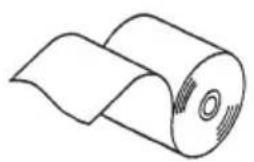
Be sure to use roll paper that matches the printer's specification.
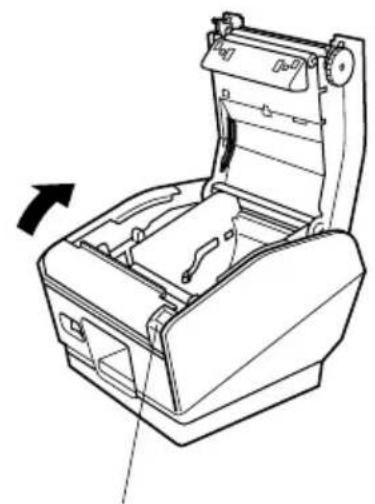
Cover open lever
Push the Cover open lever, and open the printer cover.
O

X
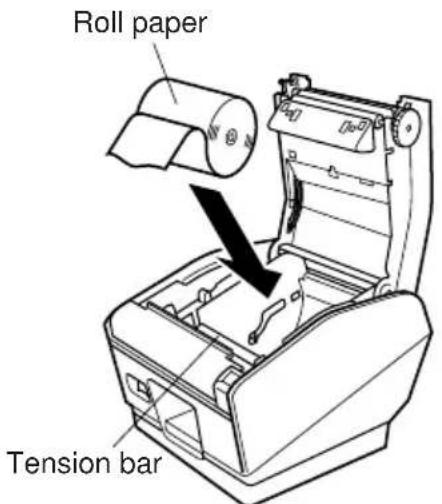
(Standard Model)
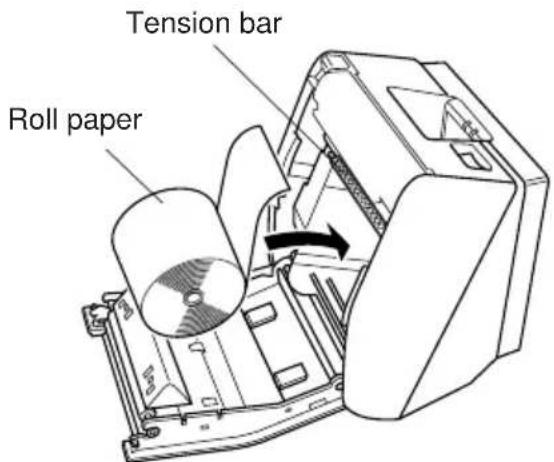
(Wall Mount/Standard Model)
While observing the direction of the roll, set the paper roll into the hollow, and pull on the leading edge of the paper toward you.
Note 1: When you use a paper of the thickness which needs the tension bar (65 mm paper thickness < 100 mm), make sure not to pass the paper under the tension bar.
Note 2: When you use a paper of the thickness which doesn't need the tension bar (100×m = paper thickness 50 ×m), please remove two screws at both sides of the tension bar with a screwdriver, and remove the tension bar unit in advance. Ordinarily, this procedure (removal of the tension bar) should already have been done by your dealer.
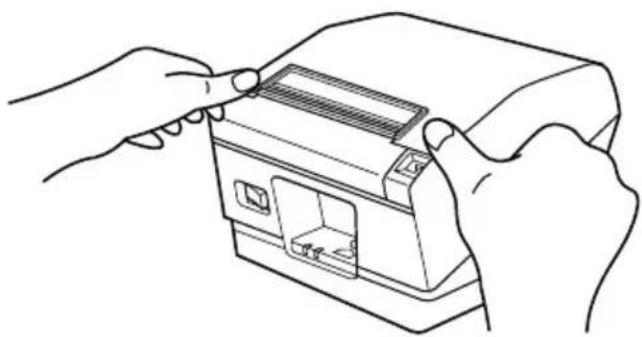
Push down both sides of the printer cover to close.
Note: Make sure that the printer cover is securely closed.
Important!
-
Do not touch the cutter blade.
-
There is a cutter inside the paper outlet slot. Not only should you not put your hand in the paper outlet slot while printing is in progress, never put your hand into the outlet even when printing is not in progress.
-
The printer cover can be opened when replacing the paper. However, since the cutter blade is on the inside of the printer cover, be careful not to place your face or hands too close to the cutter blade.
-
Do not operate the cover open lever while pressing on the printer cover with your hand.
-
Do not pull out paper while the printer cover is closed.
-
The heating element and the driver IC of the thermal head are easily damaged. Do not touch them with metal objects, sandpaper, etc.
-
During and immediately after printing, the area around the thermal head is very hot. Do not touch it, as you could be burned.
-
Printing quality may suffer if the thermal head heating element becomes soiled by being touched with your hands. Do not touch the thermal head heating element.
-
There is a risk of damage to the driver IC of the thermal head from static electricity. Please exercise caution.
-
The printing quality and working life of the thermal head cannot be guaranteed if any paper other than that recommended is used. In particular, paper containing [Na+, K+, Cl-] may drastically reduce the working life of the thermal head. Please exercise caution.
-
Do not operate the printer if there is moisture on the front surface of the head from condensation, etc.
6. Adjusting the Near-end Sensor
Use the following procedure to adjust the near-end sensor so it is compatible with the size of roll paper you are using.
① Open the printer cover.
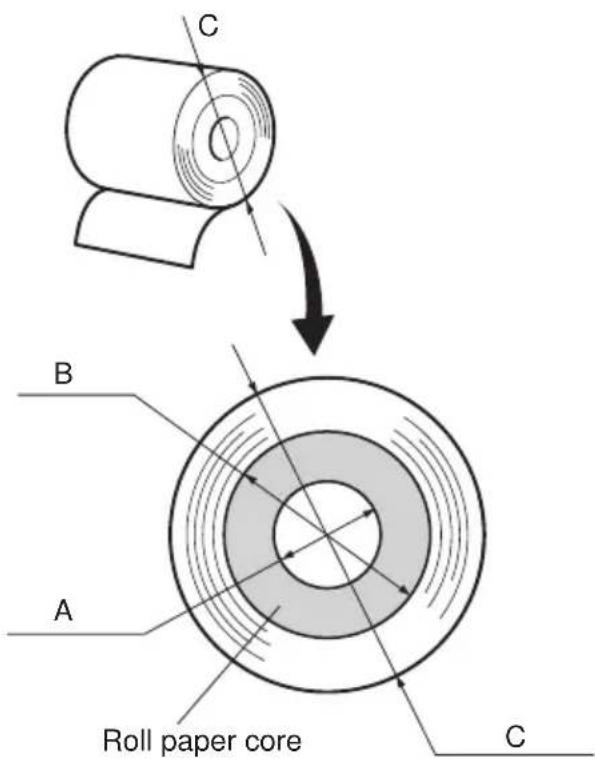
② Determine the diameter of the roll paper you are using and find the required setting in the table below.
③ Insert the tip of a ballpoint pen or similar pointer object into the hole of the adjuster. While pressing the adjuster, slide it up or down to the setting that matches the roll paper you are using.
Make sure the tab indicated by the arrow in the illustration is inside one of the grooves.
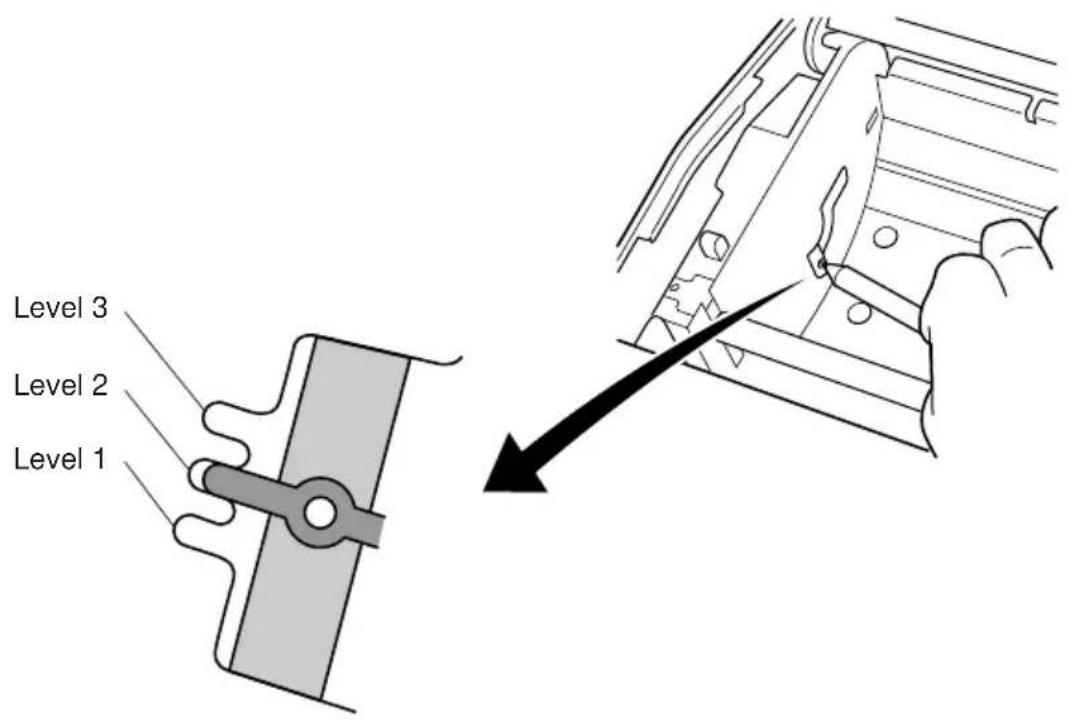
Important!
The wall mount model can only be used at level 3, and therefore must not be modified. Make the necessary adjustments to the standard model.
Adjustment value according to the paper you are using
| Paper thickness (×m) | When using the paper roll with a core whose inside diameter (A):ø12, outside diameter (B):ø18 | |||||
| Detected diameter (C) (Approx. mm) | Remained paper length (Approx. m) | |||||
| Level 1 Level 2 Level 3 Level 1 Level 2 | Level 3 | |||||
| 65 | ø23ø27 | ø31 | 2.5 4.9 7.7 | |||
| 75 | 2.1 4.2 6.7 | |||||
| Paper thickness (×m) | When using the paper roll with a core whose inside diameter (A):ø25.4, outside diameter (B):ø32 | |||||
| Detected diameter (C) (Approx. mm) | Remained paper length (Approx. m) | |||||
| Level 1 Level 2 Level 3 | Level 1 Level 2 | Level 3 | ||||
| 65 | ø36ø40 | ø44 | 2.8 6.4 10.4 | |||
| 75 | 2.4 5.5 9 | 0 | ||||
| 85 | 2.1 4.9 7 | 9 | ||||
| 95 | 1.9 4.4 7 | 1 | ||||
| 105 | 1.7 4.0 6 | 4 | ||||
| 130 | 1.4 3.2 5 | 2 | ||||
| 150 | 1.2 2.8 4 | 5 | ||||
Note
1) The standard model is set to level 1 prior to being shipped from the factory.
The wall mount model is set to level 3.
The wall mount model can only be used at level 3, and therefore must not be modified.
2) The C dimension and the remained paper length are the calculated values. There may be some variations in actual mechanism.
7. Preventing and Clearing Paper Jams
7-1. Preventing Paper Jams
The paper should not be touched during ejection and before it is cut.
Pressing or pulling the paper during ejection may cause a paper jam, paper cutting failure or line feed failure.
7-2. Removing Paper Jam
If a paper jam occurs, clear it as described below.
(1) Set the power switch to off to turn off power to the printer.
(2)Pull the lever toward you to open the printer cover.
(3)Remove the jammed paper.
Note: Take care not to damage the printer when removing the jammed paper. Since it is easy to damage the thermal head in particular, take care not to touch it.
(4)Position the roll paper straight and close the printer cover gently.
Note 1: Make sure that the paper is positioned straight. If the printer cover is closed with the paper skewed, a paper jam may result.
Note 2: Lock the printer cover by pressing down on the sides. Do not try to close it by pressing down on the center. The cover may not lock properly.
(5) Set the power switch to on to turn on power to the printer. Make sure that the ERROR LED is not lit.
Note: While the ERROR LED is lit, the printer will not accept any commands such as the print command, so make sure that the printer cover is locked properly.
8. Periodical Cleaning
Printed characters may become partially unclear due to accumulated paper dust and dirt. To prevent such a problem, paper dust collected in the paper holder and paper transport section and on the surface of the thermal head must be removed periodically. Such cleaning is recommended to be carried out once six month or one million lines.
8-1. Cleaning the Thermal Head
To remove blackish dust collected on the surface of the thermal head, wipe it with alcohol (IPA).
Note: The thermal head is easy to damage, so clean it gently with a soft cloth. Take sufficient care not to scratch it when cleaning it.
8-2. Cleaning the Paper Holder
Use a soft cloth to remove paper dust from the paper holder and paper transport section.
TABLE DES MATIERES
Mitsubishi paper mills limited
Nippon paper industries
1,2 = Emulation : Star Line
4 = Sensor Adjustment : Off
5 = INIT Reset : Enable
6 = BUSY : All
7 = ASB : Disable
Memory Switch
FEDCBA9876543210 HEX.
<0> 000000000000000 0000
<1> 000000000000000 0000
= 12 × 3456789 ÷ ( -7 )
.-.0123456789::<=?@ABCDEFG
- / 0123456789: < = >? @ABCDEFGHJKLMNOPqr\n/0123456789::<=?@ABCDEFGHJKLMNOPQRSTUVWXYZ[_]_abcdefghijklmnopqr\n/0123456789::<=?@ABCDEFGHJKLMNOPQRSTUVWXYZ[_]_abcdefghijklmnopqrs\n0123456789::<=?@ABCDEFGHJKLMNOPQRSTUVWXYZ[_]_abcdefghijklmnopqrst\n123456789::<=?@ABCDEFGHJKLMNOPQRSTUVWXYZ[_]_abcdefghijklmnopqrstu\n23456789::<=?@ABCDEFGHJKLMNOPQRSTUVWXYZ[_]_abcdefghijklmnopqrstuv\n3456789::<=?@ABCDEFGHJKLMNOPQRSTUVWXYZ[_]_abcdefghijklmnopqrstuvw\n456789::<=?@ABCDEFGHJKLMNOPQRSTUVWXYZ[_]_abcdefghijklmnopqrstuvwx\n56789::<=?@ABCDEFGHJKLMNOPQRSTUVWXYZ[_]_abcdefghijklmnopqrstuvwxy
(2) Mode de vidage hexadecimal
Nippon Paper Industries
TF50KS-E2C (Normalpapier), 65 m (Dicke)
1.2 = Emulation : Star Line
4 = Sensor Adjustment : Off
5 = INIT Reset : Enable
6 = BUSY : All
7 = ASB : Disable
Memory Switch
FEDCBA9876543210 HEX.
<0> 000000000000000 0000
<1> 0000000000000000
123456789 : 1 < - 7 < 100
.-.0123456789:::=>?@ABCDEFGH
- ./0123456789 : : < = > ?@ABCDEFGHIJKLMNOP
./0123456789::<=?@ABCDEFGHJKLMNOPQRSTUVWXYZ[]_abcdefghijklmnopqrr
/0123456789::<=?@ABCDEFGHIJKLMNOPQRSTUVWXYZ[\~_abcdefghiJKLMnopQRS
0123456789::<=?@ABCDEFGHJKLMNOPQRSTUVWXYZ[ ]^_abcdefghijklmnopqrst
123456789::<=>?@ABCDEFGHIJKLMNOPQRSTUVWXYZ[\~`abcdefghijklmnopqrstu
23456789::<=?@ABCDEFGHJKLMNOPQRSTUVWXYZ[]^_abcdefghijklmnpqrstuv
3456789::<=?@ABCDEFGHIJKLMNOPQRSTUVWXYZ[\~`^abcdefghijklmnopqrstuvw
456789::<=?@ABCDEFGHIJKLMNOPQRSTUVWXYZ[ ]^_abcdefghijklmnopqrstuvwx
56789::<=?@ABCDEFGHIJKLMNOPQRSTUVWXYZ[ ]^`_abcdefghiJKLMnopqrstuvwxy
Mitsubishi Paper Mills Limited
Nippon Paper Industries
Uscita: 24± 5% CC, 2,0 A (5,0 A carico 10 sec. mass.)
Important!
*** TSP800 Ver1.00
Interface : Parallel
DIP Switch 1
Sw 12345678
On ******
Off
1,2 = Emulation : Star Line
4 = Sensor Adjustment : Off
5 = INIT Reset : Enable
6 = BUSY : All
7 = ASB : Disable
Memory Switch FEDCBA9876543210 HEX. <0> 000000000000000 0000 <1> 000000000000000 0000 .-/.0123456789::<=?@ABCDEFGH1. ../0123456789::<=?@ABCDEFGHIJKLMNOPq.. /0123456789::<=?@ABCDEFGHIJKLMNOPQRSTUVWXYZ[\]^_ abcdefghijklmnopqr /0123456789::<=?@ABCDEFGHIJKLMNOPQRSTUVWXYZ[\]^_ abcdefghijklmnopqrs 0123456789::<=?@ABCDEFGHIJKLMNOPQRSTUVWXYZ[\]^_ abcdefghijklmnopqrst 123456789::<=?@ABCDEFGHIJKLMNOPQRSTUVWXYZ[\]^_ abcdefghijklmnopqrstu 23456789::<=?@ABCDEFGHIJKLMNOPQRSTUVWXYZ[\]^_ abcdefghijklmnopqrstuv 3456789::<=?@ABCDEFGHIJKLMNOPQRSTUVWXYZ[\]^_ abcdefghijklmnopqrstuvw 456789::<=?@ABCDEFGHIJKLMNOPQRSTUVWXYZ[\]^_ abcdefghijklmnopqrstuvwx 56789::<=?@ABCDEFGHIJKLMNOPQRSTUVWXYZ[\]^_ abcdefghijklmnopqrstuvwxy
Appendix A: Specifications
A-1. General Specifications
(1) Printing method Direct line thermal printing
(2)Print speed Max. 1200 dots/sec. (150 mm/sec.)
(3)Dot density 203 dpi: 8 dots/mm (0.125 mm/dot)
(4) Printing width Max. 104mm
(5)Number of print columns 69 (12·24 dots)
(6)Roll paper Refer to chapter 2 for details on the recommended roll
paper. Paper width: 111.5± 0.5mm Roll diameter: 100mm or le
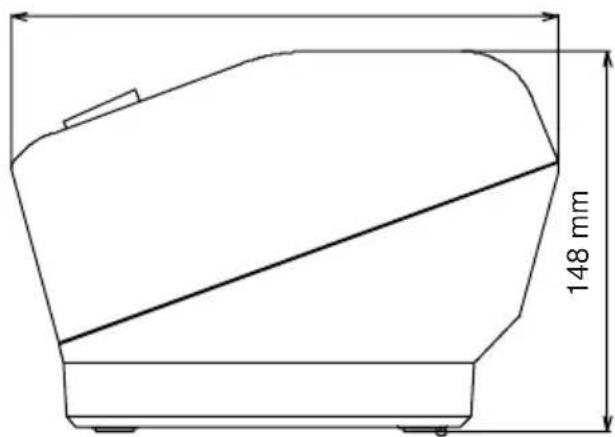
(7)Overall dimension Standard model: 180(W)· 213(D)· 148(H)mm Wall mount model: 180(W)· 153(D)· 213(H)mm
(8)Weight Standard model: Approx. 1.9kg Wall mount model: Approx. 2.2kg
(9)Noise Approx. 55 dB
Standard Model
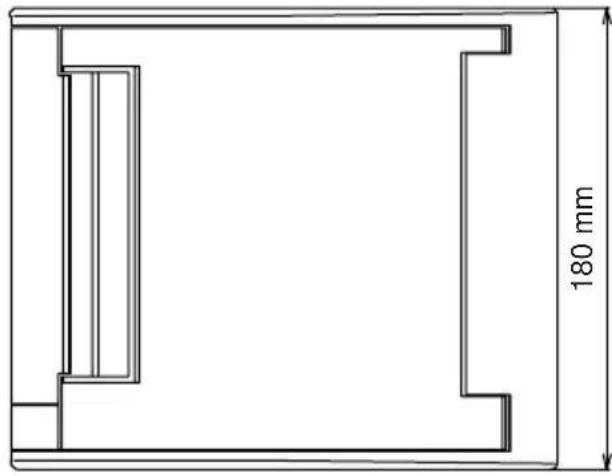
213 mm
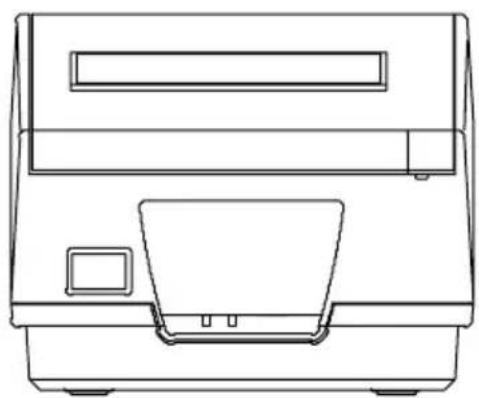
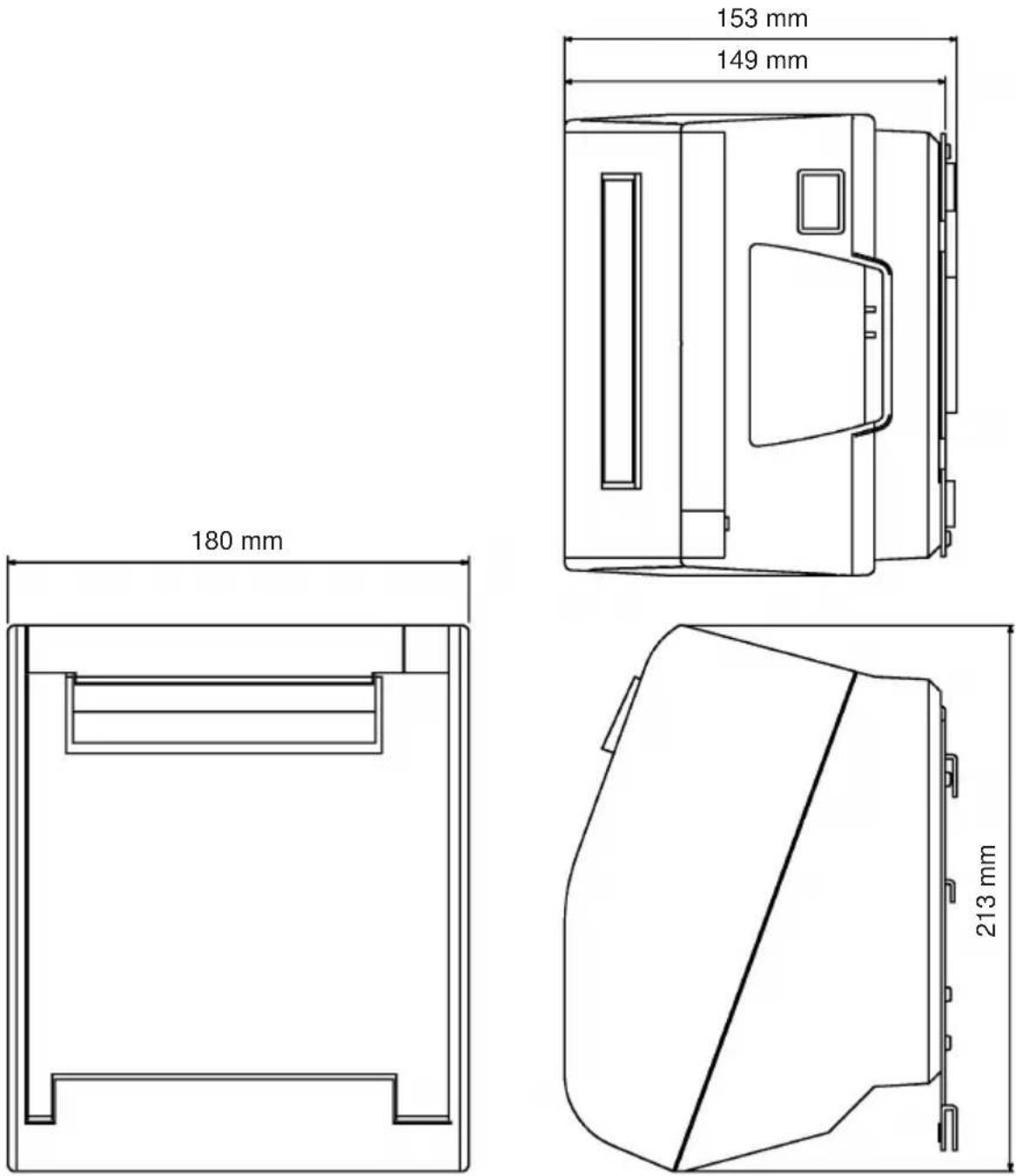
Wall Mount Model
A-2. Auto Cutter Specifications
(1)Cutting frequency Max. 20 cuts per minute
(2) Thickness of paper 0.065 0.15 ~mm
A-3. Interface
RS232C serial interface or Two-way parallel interface (IEEE1284)
A-4. Electrical Characteristics
(1)Input Voltage DC 24V± 10%
(2)Current Consumption Operating: Approx. 1.8 A (at ASCII printing)
Peak: Approx. 10 A (at print duty 100% , for 10 seconds or less)
Stand-by: Approx. 0.1 A
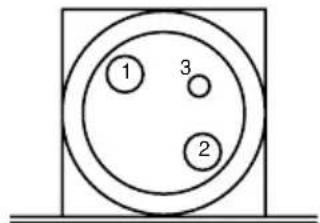
(3)Power Connector
| Pin No. | Function |
| 1 Drive power | |
| 2 Signal GND | |
| 3 N.C. | |
| Shell Frame ground | |
Important!
- When using a printer power supply other than the optional AC adaptor (PS60-24A), be sure that the following cautions are observed.
- Use a power supply of DC 24 V ±10% and more than 2.0A (5.0A Load 10 sec. Min) with SELV output approved by IEC60950.
- Be careful about installing the printer in an area where there is noise. Take the appropriate measures to protect against electrostatic AC line noise, etc.
A-5. Environmental Requirements
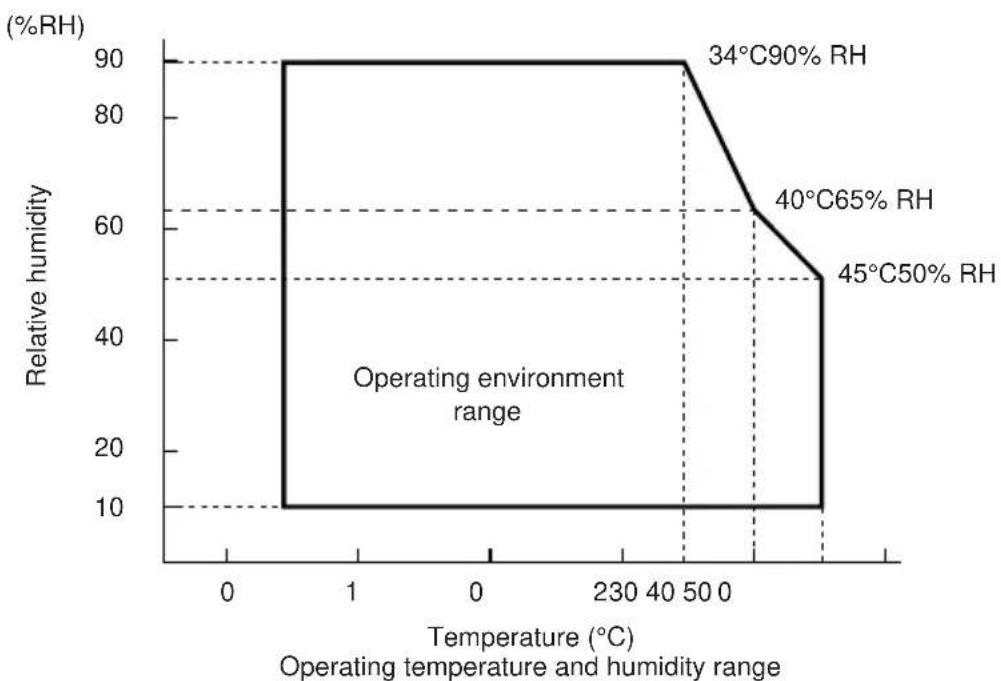
(1)Operating
Temperature 5^ to 45^
Humidity 10% to 90% RH (without condensation)
(2)Transport/storage (except for paper)
Temperature - 20^ to 60^
Humidity 10% to 90% RH (without condensation)
A-6. Reliability
(1)MCBF 37 million lines (based on an average printing rate of
12.5% with paper thickness in the range 65 m to 75 m
20 million lines (based on an average printing rate of 12.5% with paper thickness in the range 76 m to 150 m )
(2) Cutter life 1.0 million cuttings (if the paper thickness is between
65 and 75 m
0.9 million cuttings (if the paper thickness is between 75 and 100 m )
0.18 million cuttings (if the paper thickness is between 100 and 130 m )
0.15 million cuttings (if the paper thickness is between 130 and 150~ m )
A-7. Black mark specifications
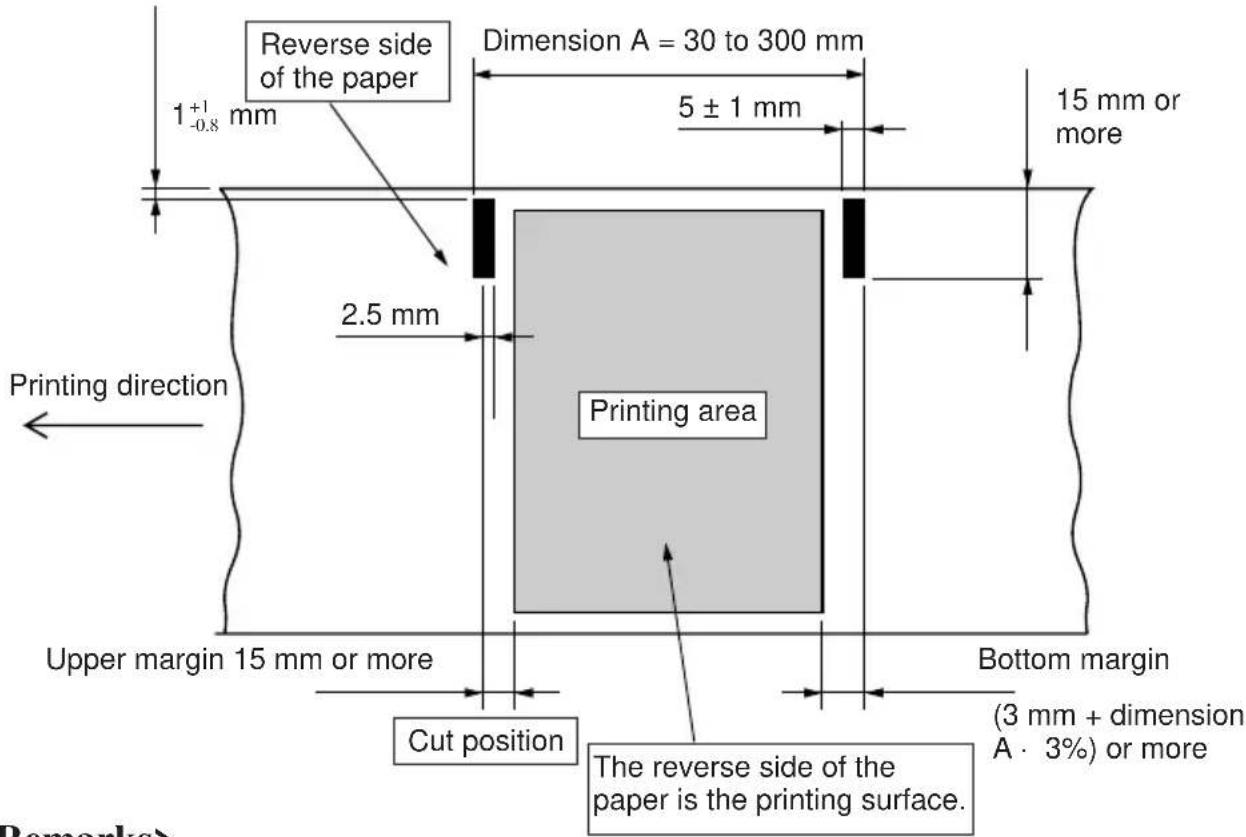
1.) The cut position shown above is when the print starting position correct value for Appendix F: memory switch 2 is the default setting.
2.) The black mark's PCS value must be 0.90 or more.
3.) Note that accuracy of starting printing with the black mark sensor must be within ± 2mm of the standard printing positions, the printing length must be within ± 2mm of the set value in consideration of discrepancies occurring in the processing accuracy of the platen diameter and environmental temperature in the initial state, and a -5% error margin against the set value must be taken into account in consideration of life expectancy and attention paid to the print layout when using pre-printed paper.
4.) The printing area must be within the usable range shown in the above diagram when using black marks. With regards to the top margin, approximately 14mm is established between the print position and the cut position (auto cutter,) and the paper is fed through 1mm or more (eight dot lines) if printing is performed after the cutting operations, making a total of 15mm or more for the margin. Ensure that the margin shown in the above diagram is used to prevent the printing area value in the paper feed direction from exceeding the pitch of the black mark. Note that if this margin is not used, it may result in pages being skipped and other defects.
[Example of the printing area setting]
<When the pitch of the black mark (dimension A) is 100mm
Top margin: 15 mm/ bottom margin: 3 mm + ( 100 mm · 0.03) = 6 mm
From this, it is clear that the printing area in the paper feed direction must be 79mm or less.
Appendix B: Dip Switch Setting
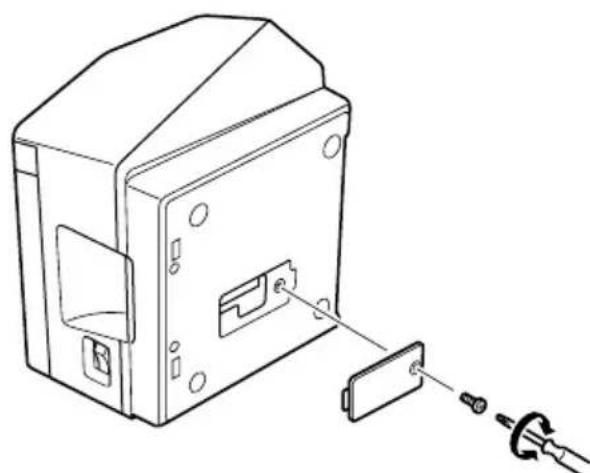
Two DIP switches are provided at the bottom of the printer, and can be set as given in the table below. Be sure to set the power switch to off before changing the settings. It is recommended to use a pointed item like a pen or flat-blade driver screw to change the settings. The settings will become effective when the power switch is set to on again.
The following is the procedure for changing the settings on DIP switches.
-
Make sure the printer is turned off.
-
Remove the screw from the DIP switch cover. Then take off the DIP switch cover, as shown in the illustration below.
-
Set the switches using a pointed tool, such as a pen or flat-blade screwdriver.
-
Replace the DIP switch cover. Then secure it with the screw. The new settings take effect when you turn on the printer.
B-1. Parallel Interface Type
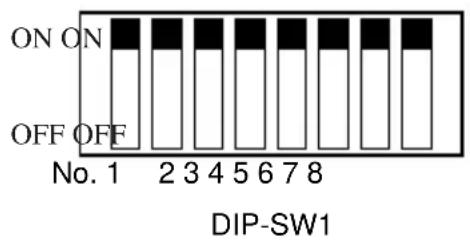
DIP-SW 1
| Switch 1-1 Switch 1-2 | Command emulation | |
| ON ON Star Line | Mode | |
| OFF ON Star Page | Mode | |
| ON OFF DP8340 | Mode |
The factory settings of DIP switch are all on.
The functions of switches 1-3 through 1-8 will change according to the command emulation that has been set using switches 1-1 and 1-2.
(1) Star Line mode
| Switch | Function ON OFF | ||
| 1-1 Command emulation | Always ON | ||
| 1-2 Command emulation | Always ON | ||
| 1-3 Should not be changed (Should be set to on) | |||
| 1-4 Sensor adjustment | Invalid | Valid | |
| 1-5 Pin #31 (INIT) reset signal | Valid | Invalid | |
| 1-6 Handshaking conditions (conditions for BUSY) | Offline or receive buffer full | Receive buffer full | |
| 1-7 Automatic status back function | Invalid | Valid | |
| 1-8 Should not be changed (Should be set to on) | |||
(2) Star Page mode
| Switch | Function ON OFF | ||
| 1-1 Command emulation | Always OFF | ||
| 1-2 Command emulation | Always ON | ||
| 1-3 Should not be changed (Should be set to on) | |||
| 1-4 Sensor adjustment | Invalid | Valid | |
| 1-5 Pin #31 (INIT) reset signal | Valid | Invalid | |
| 1-6 Handshaking conditions (conditions for BUSY) | Offline or receive buffer full | Receive buffer full | |
| 1-7 Automatic status back function | Invalid | Valid | |
| 1-8 Should not be changed (Should be set to on) | |||
(3) DP8340 mode
| Switch | Function ON OFF | ||
| 1-1 C | Command emulation Always ON | ||
| 1-2 C | Command emulation Always OFF | ||
| 1-3 C | Control cord CR Invalid Same as LF | ||
| 1-4 C | Character table (See below) | ||
| 1-5 C | Character table (See below) | ||
| 1-6 C | International character set (See below) | ||
| 1-7 C | International character set (See below) | ||
| 1-8 C | International character set (See below) | ||
Character Table
| Switch | USA & Europe IB | M#1 IBM#2 JAPAN | ||
| 1-4 ON OFF | ON OFF | |||
| 1-5 ON ON | OFF OFF |
International Character Set
| Switch | USA | France | Germany | England | Denmark | Sweden 1 | Itary | Spain 1 |
| 1-6 | ON | OFF | ON | OFF | ON | OFF | ON | OFF |
| 1-7 | ON | ON | OFF | OFF | ON | ON | OFF | OFF |
| 1-8 | ON | ON | ON | ON | OFF | OFF | OFF | OFF |
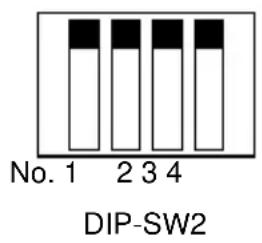
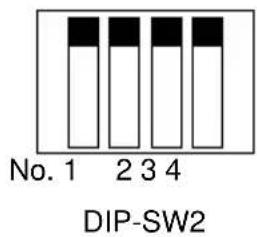
DIP-SW 2
| Switch | Function ON OFF | ||
| 2-1 | Always ON | Should be set to on | |
| 2-2 | |||
| 2-3 | |||
| 2-4 | |||
The factory settings of DIP switch are all on.
B-2. Serial Interface Type
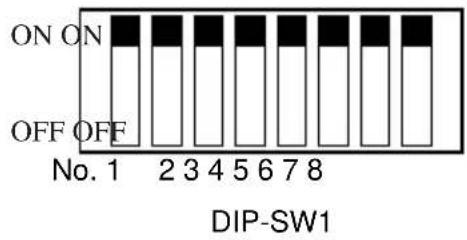
DIP-SW 1
| Switch 1-1 Switch 1-2 | Command emulation | |
| ON ON Star Line | Mode | |
| OFF ON Star Page | Mode | |
| ON OFF DP8340 | Mode |
The factory settings of DIP switch are all on.
The functions of switches 1-3 through 1-8 will change according to the command emulation that has been set using switches 1-1 and 1-2.
(1) Star Line mode
| Switch | Function ON OFF | ||
| 1-1 Command emulation | Always ON | ||
| 1-2 Command emulation | Always ON | ||
| 1-3 Should not be changed (Should be set to on) | |||
| 1-4 Sensor adjustment | Invalid | Valid | |
| 1-5 Should not be changed (Should be set to on) | |||
| 1-6 Handshaking conditions (conditions for BUSY) | Offline or receive buffer full | Receive buffer full | |
| 1-7 Automatic status back function | Invalid | Valid | |
| 1-8 Should not be changed (Should be set to on) | |||
(2) Star Page mode
| Switch | Function ON OFF | ||
| 1-1 Command emulation | Always OFF | ||
| 1-2 Command emulation | Always ON | ||
| 1-3 Should not be changed (Should be set to on) | |||
| 1-4 Sensor adjustment | Invalid | Valid | |
| 1-5 Should not be changed (Should be set to on) | |||
| 1-6 Handshaking conditions (conditions for BUSY) | Offline or receive buffer full | Receive buffer full | |
| 1-7 Automatic status back function | Invalid | Valid | |
| 1-8 Should not be changed (Should be set to on) | |||
(3) DP8340 mode
| Switch | Function ON OFF | ||
| 1-1 Command emulation Always ON | |||
| 1-2 Command emulation Always OFF | |||
| 1-3 Control cord CR Invalid Same as LF | |||
| 1-4 Character table (See below) | |||
| 1-5 Character table (See below) | |||
| 1-6 International character set (See below) | |||
| 1-7 International character set (See below) | |||
| 1-8 International character set (See below) | |||
Character Table
| Switch | USA & Europe IB | M#1 IBM#2 JAPAN | ||
| 1-4 ON OFF | ON OFF | |||
| 1-5 ON ON | OFF OFF |
International Character Set
| Switch | USA | France | Germany | England | Denmark | Sweden 1 | Itary | Spain 1 |
| 1-6 | ON | OFF | ON | OFF | ON | OFF | ON | OFF |
| 1-7 | ON | ON | OFF | OFF | ON | ON | OFF | OFF |
| 1-8 | ON | ON | ON | ON | OFF | OFF | OFF | OFF |
DIP-SW 2
| Switch | Function ON OFF | ||
| 2-1 | Always ON | Should be set to on | |
| 2-2 | |||
| 2-3 | |||
| 2-4 | |||
The factory settings of DIP switch are all on.
The following is the procedure for changing the settings on DIP switch No. 3.
- Turn off the printer and all components connected to it.
- Remove the 2 screws.
- Remove the serial interface board unit.
- Change the setting of the DIP switches.
- Replace the serial interface board unit.
Then secure it with the screws.
- Turn on the printer and all components connected to it.
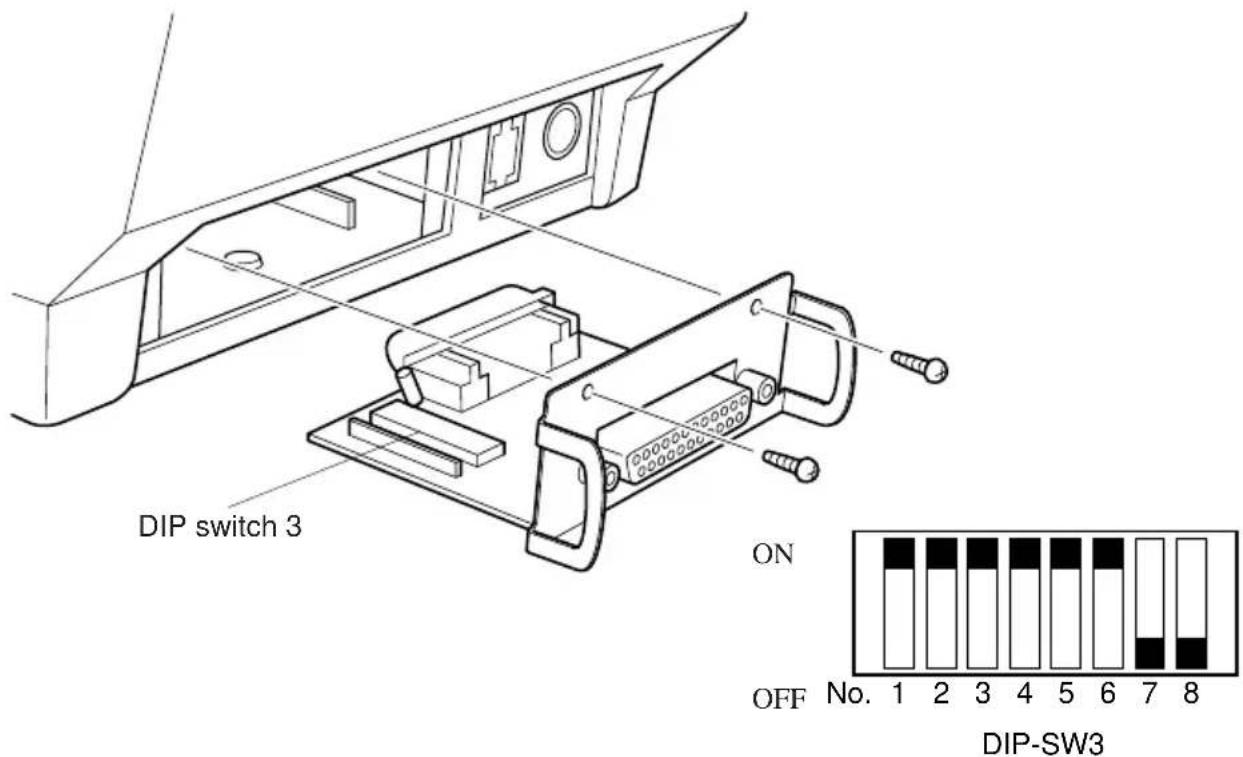
The factory settings of DIP switch are all on, except for switches 7 and 8.
DIP-SW 3
| Switch | Function ON OFF | ||
| 3-1 | Baud Rate See table below | ||
| 3-2 | |||
| 3-3 Data Length 8 bits 7 bits | |||
| 3-4 Parity Check Disabled Enabled | |||
| 3-5 Parity Odd Even | |||
| 3-6 Handshake DTR XON/XOFF | |||
| 3-7 | Should not be changed (Should be set to off) | — | — |
| 3-8 | |||
| Baud Rate Switch 3-1 | Switch 3-2 | |
| 4800BPS | OFF | ON |
| 9600BPS ON | ON | |
| 19200BPS | ON | OFF |
Appendix C: Parallel Interface
The two-way parallel interface is compatible with the IEEE1284 compatibility mode, nibble mode and byte mode. Refer to the separate programmer's manual for details.
Table of Connection Signals for Each Mode
| Pin No. | Direction | Compatibility Mode Nibble Mode Byte Mode Signal Name Signal Name Sgnal Name | ||
| 1 In nStrobe HostClock Host Clock | ||||
| 2 In/Out Data0 Data0 Data0 | ||||
| 3 In/Out Data1 Data1 Data1 | ||||
| 4 In/Out Data2 Data2 Data2 | ||||
| 5 In/Out Data3 Data3 Data3 | ||||
| 6 In/Out Data4 Data4 Data4 | ||||
| 7 In/Out Data5 Data5 Data5 | ||||
| 8 In/Out Data6 Data6 Data6 | ||||
| 9 In/Out Data7 Data7 Data7 | ||||
| 10 Out nAck PtrClk PtrClk | ||||
| 11 Out | Busy | PtrBusy/Data3,7 | PtrBusy | |
| 12 | Out | PError | AckDataReq/Data2,6 | AckDataReq |
| 13 Out Select | Xflag/Data1,5 | Xflag | ||
| 14 | N/C | HostBusy | HostBusy | |
| 15 | N/C | - | - | |
| 16 | Signal GND | Signal GND | Signal GND | |
| 17 | Frame GND | Flame GND | Flame GND | |
| 18 OUT | +5V | +5V | +5V | |
| 19~30 | Twisted Pair Return | Twisted Pair Return | Twisted Pair Return | |
| 31 | In | nInit | nInit | nInit |
| 32 Out nFault | nDataAvail/Data0,4 | nDataAvail | ||
| 33 | External GND | - | - | |
| 34 | N/C | - | - | |
| 35 | N/C | - | - | |
| 36 | In | nSelectIn | 1284Active | 1284Active |
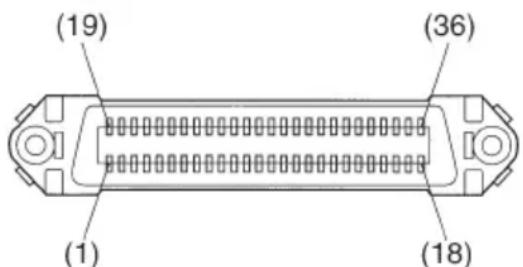
This connector mates with an Amphenol 57-30360 connector
Appendix D: Serial Interface
D-1. RS-232C Connector
| Pin No. | Signal name | Direction | Function | |
| 25 Pin | 9 Pin | |||
| 1 F | GND | — Frame ground | ||
| 2 3 | TXD | OUT Transmission data | ||
| 3 2 | RXD | IN Receive data | ||
| 4 7 | RTS | OUT Request To Send: The | printer sets this signal to “SPACE” when it is ready to send. | |
| 5 N | C Not used | |||
| 8 CTS IN Status of this signal is not checked. | ||||
| 6 6 | DSR IN Status of this signal is not checked. | |||
| 7 5 | S-GND — Signal ground | |||
| 8~19 | 1,9 | N/C Not used | ||
| 20 | 4 | DTR | OUT | Indicates whether data receive from host is enabled or disabled. DTR/DSR Communication Mode Space when receive is enabled. X-On/X-Off Communication Mode Always space, except during following conditions: • Period between reset and communication enabled • During self-test printing |
| 21~24 | N/C Not used | |||
| 25 | INIT IN Not used | |||

D-Sub 25 pin
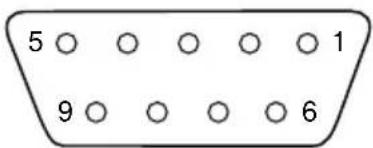
D-Sub 9 pin
D-2. Cable Connections
The followings are a recommended interface cable connections.
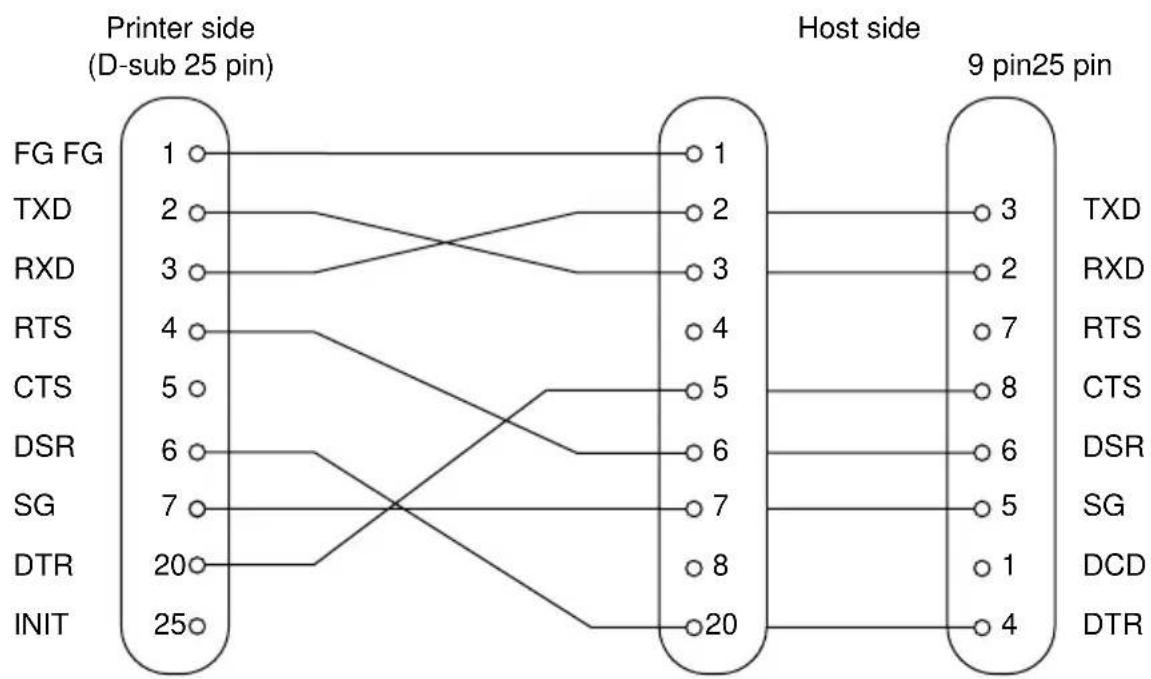
Note Use shielded wire less than 3m in length.
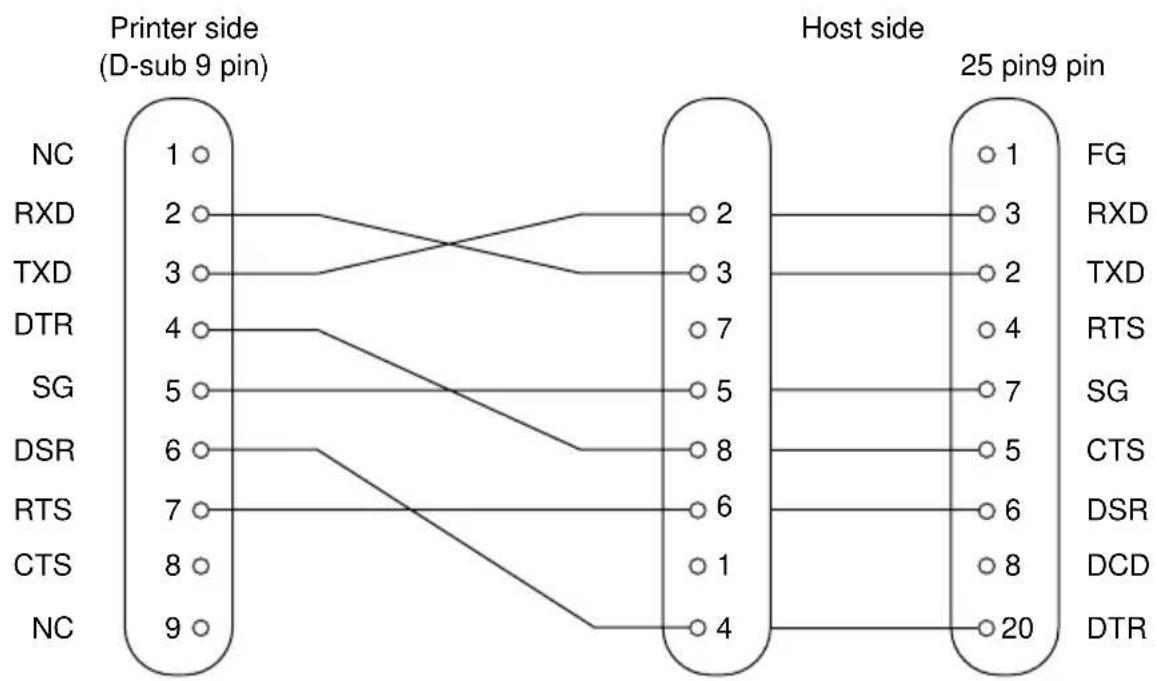
Note Use shielded wire less than 3m in length.
D-3. Electrical Characteristics
| Voltage Data | signal Control signal Binary status | |
| -3V to -15VMark OFF 1 | ||
| +3V to +15VSpace ON 0 |
Appendix E: Peripheral Unit Drive Circuit
Peripheral Drive Connector
| Pin No. | Signal name direction | Function | I/O |
| 1 FG Frame ground — | |||
| 2 DRD1 Drive signal 1 OUT | |||
| 3 +24V Drive power OUT | |||
| 4 +24V Drive power OUT | |||
| 5 DRD2 Drive signal 2 OUT | |||
| 6 DRSNS Sense signal IN | |||
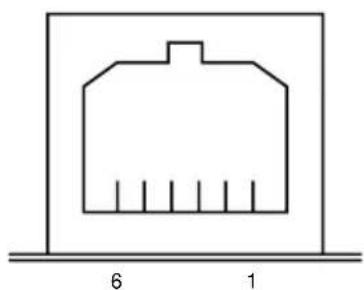
Modular plug
Modular plug: MOLEX 90075-0007, AMP641337, or JAPAN BURNDY B-66-4
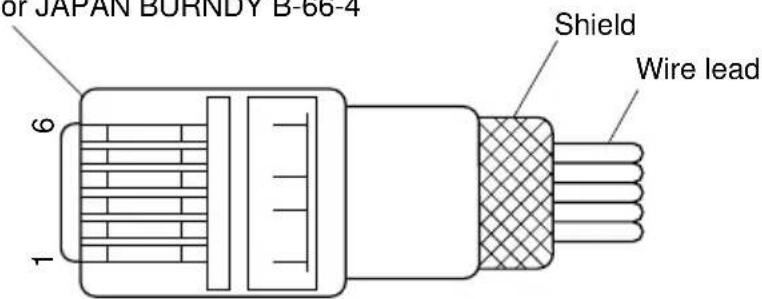
Notes 1. A shield cable must be used.
- It is not possible to drive two drives simultaneously.
- The peripheral drive duty must satisfy the following: ON time / (ON time + OFF time) ≤ 0.2
- The resistance of the peripheral drive solenoid must be 24 or higher.
If it is lower than 24 , over-current may flow into the solenoid, causing the solenoid to burn.
Appendix F: Memory Switch Settings
Each memory switch is stored in EEPROM. For details on the functions and settings of memory switches, see the separate Programmer's Manual.
The table below shows the factory settings for the memory switches.
| Memory Switch Hexadecimal Code | |
| 0 0000 | |
| 1 0000 | |
| 2 0000 | |
| 3 0000 | |
Warning!
Changing the memory switch settings can cause the printer to fail to operate correctly.

ELECTRONICPRODUCTS DIVISION STARMICRONICSCO.,LTD.
536 Nanatsushinnya, Shimizu, Shizuoka, 424-0066 Japan
Tel: 0543-47-0112. Fax: 0543-48-5013
Please access the following URL
http://www star-micronics.co.jp/service/
frame_sp_spr_e.htm
for the lastest revision of the manual.
OVERSEAS SUBSIDIARY COMPANIES STAR MICRONICS AMERICA, INC.
1150 King Georges Post Road, Edison, NJ 08837-3729 U.S.A.
Tel: 732-623-5555, Fax: 732-623-5590
STAR MICRONICS U.K. LTD.
Star House, Peregrine Business Park, Gomm Road,
High Wycombe, Bucks, HP13 7DL, U.K.
Tel: 01494-471111, Fax: 01494-473333