Vision 1 - Camcorder Dragon Touch - Free user manual and instructions
Find the device manual for free Vision 1 Dragon Touch in PDF.


| Product Type | Sport camcorder (action cam) |
| Brand | Dragon Touch |
| Model | Vision 1 |
| Maximum video resolution | 1080p (1920x1080) |
| Maximum photo resolution | 12 Megapixels |
| Digital zoom | 4X |
| Screen type | LCD |
| Power supply | Built-in rechargeable battery |
| Storage | microSD card (up to 64 GB, class 10 or UHS-I) |
| Connectivity | Micro USB port (charging and data transfer) |
| Remote control | Included (CR2032 battery) |
| Main functions | Video recording, photo, burst mode, loop recording, self-timer, screen saver, auto power off |
| Available languages | French, English, German, Spanish, Italian, etc. |
| Maintenance | Regularly format the SD card; clean the lens with a soft dry cloth |
| Safety | Do not expose to extreme temperatures; do not disassemble the battery; avoid contact with liquids |
| Spare parts and repairability | Built-in battery not user replaceable; remote control with replaceable CR2032 battery; USB cable included |
Frequently Asked Questions - Vision 1 Dragon Touch
User questions about Vision 1 Dragon Touch
0 question about this device. Answer the ones you know or ask your own.
Ask a new question about this device
Download the instructions for your Camcorder in PDF format for free! Find your manual Vision 1 - Dragon Touch and take your electronic device back in hand. On this page are published all the documents necessary for the use of your device. Vision 1 by Dragon Touch.
USER MANUAL Vision 1 Dragon Touch
Your Vision 1
Accessories 4
Getting Started 4
Overview of Modes 5
Customizing Your Vision 1 8
Shooting Films-video Mode 11
Capturing Ohotos-photo Mode 11
Playing Back Your Content 11
12
Adjusting The Zoom Level 12
Reformatting Your Microsd Card 12
Maximizing Battery Life 12
Battery Storage and Handling 13
Remote 13
Mounting Your Camera 16
Contact Us 17
YOUR VISION 1
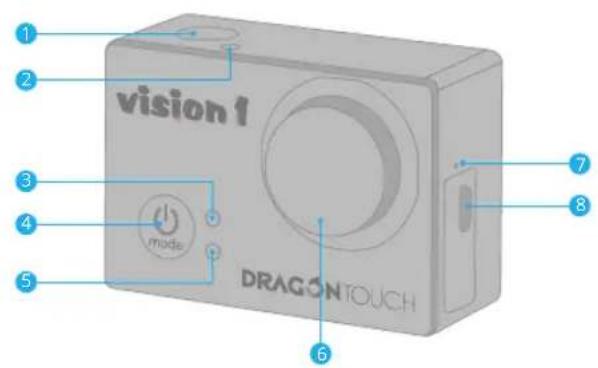
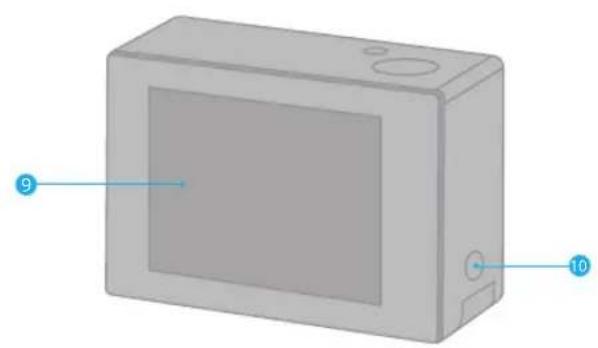
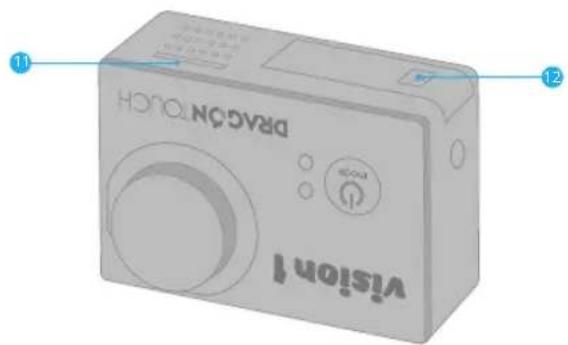
1 Shutter/Select/OK Button
Working Status Light
Working Status Light
4 Power/Mode Button
Charging Status Light
6 Lens
7 Microphone
8 Charging Port/Data Transfer Jack
Screen
10 Down Button
MicroSD Slot
12 Battery Door
Note: Camera does not record sound when it is in the waterproof case.
ACCESSIONS
| Waterproof Housing | Handle Bar/ Pole Mount | Mount 1 Mo | Mount 2 Mo | |
| Bandages Battery USB Cable | Helmer Mounts |
GETTING STARTED
Welcome to your new Vision 1. To capture video and photos, you need a microSD card (sold separately).
MICROSD CARDS
Use brand name memory cards that meet these requirements:
- microSD, microSDHC, or microSDXC
Class 10 or UHS-I rating
Capacity up to 64GB (FAT32)
Note:
- Please format the microSD card firstly in this camera before using. To keep your microSD card in good condition, reformat it on a regular basis. Reformating erases all of your content, so be sure to offload your photos and videos first.
- FAT32 format microSD card stops recording when the storage of each file is over 4GB and starts to record again on a new file.
Battery
Please make sure the battery is full of power when use it for the first time.
POWERING ON + OFF
To Power On:
Press and hold the Mode button for three seconds. The camera beeps while the camera status light is on. When information appears on the LCD display or the camera status screen, your camera is on.
To Power Off:
Press and hold the Mode button for three seconds. The camera beeps while the camera status light is off.
SWITCHING MODE
To Switch Mode:
Turn on camera, press Mode button to switch mode.
To Exit Mode:
Press the Mode button to exit mode.
OVERVIEW OF MODES
There are 6 modes: Video, Photo, Playback, Video Setting, Photo Setting, General Setting.
Video Mode
Video Mode is the default mode when you turn on the camera.
In Video Mode, press OK button, the camera starts recording video. Press OK button to stop recording video.
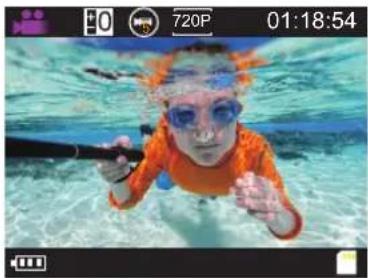
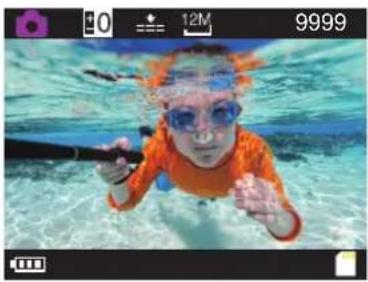
Photo Mode
Press Mode button once to switch to Photo Mode after you turn on camera. In Photo Mode, press OK button, the camera takes a photo.
Playback Mode
Press Mode button two times to switch to Playback Mode after you turn on camera. In Playback Mode, press the Down button to scroll through video or photo files.
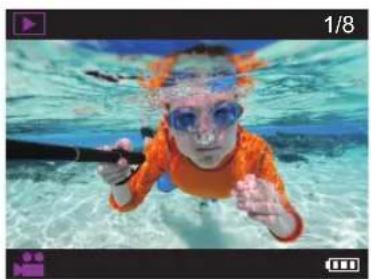
Video Setting Mode
Press Mode button several times to switch to Video Setting Mode. You can change camera settings in this mode.
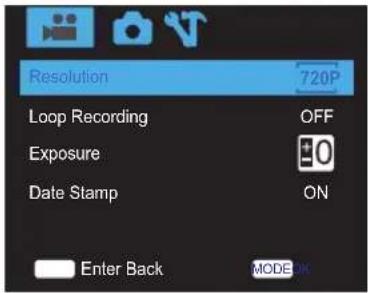
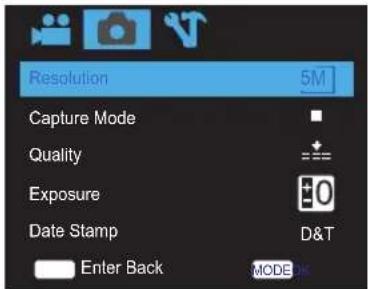
Photo Setting Mode
Press Mode button several times to switch to Photo Setting Mode. You can change camera settings in this mode.
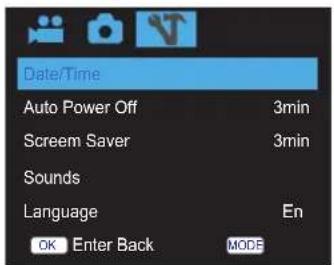
General Setting Mode
Press Mode button several times to switch to Camera Setting Mode. You can change General settings in this mode.
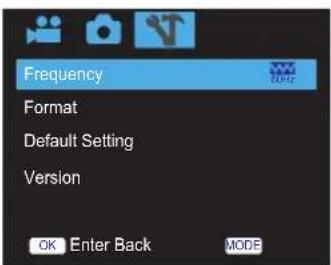
CUSTOMIZING YOUR VISION 1
Video Setting
- Video Resolution: 1080P 19201080/720P 1280720/VGA 640*480
Default setting is 1080P.
- Loop Recording: Off/5minutes/10minutes/15minutes
Default setting is Off.
Using Loop Recording, you can continuously record video, but save only the moments that you want. For example, if you select a 5-minute interval, only the previous 5 minutes are saved when you press the OK button to stop recording. If you record for 5 minutes and do not press the OK button to stop recording and save, the camera records a new 5-minute interval by recording over your previous 5 minutes of footage. When the microSD card is full, the new files will cover the old one if loop recording is on.
3.Exposure: -2.0, -1.7, -1.3, -1.0, -0.7, -0.3, 0, 0.3, 0.7, 1.0, 1.3, 1.7, 2.0
Default setting is 0.
By default, your camera uses the entire image to determine the appropriate exposure level. However, Exposure lets you select an area that you want the camera to prioritize when determining exposure. This setting is particularly useful in shots where an important region might otherwise be over- or underexposed.
When you change this setting, the LCD display immediately shows you the effect on your image. If you change modes, the camera returns to using the entire scene to determine the correct level of exposure.
- Date Stamp: Off/On
Default setting is On.
Photo Setting
- Photo Resolution: 12M/10M/8M/5M/3M/2M/1.3M/VGA
Default setting is 5M.
- Capture Mode: Single/Self 2S/Self 105/Burst
Default setting is Single.
- Quality: Super Fine/Fine/Normal
Default setting is Fine.
4.Exposure:2.0,1.7,1.3,1.0,0.7,0.3,0,0.3,0.7,1.0,1.3,1.7,2.0
Default setting is 0.
- Data Stamp: Off, Date, Date/Time
Default setting is Date/Time.
General Setting
-
Date/Time: MM/DD/YYYY
-
Auto Power Off: 1min/3min/5min/off
Default setting is 3min.
Shutter: On/Off, default is on.
Start-up: None/1/2/3, default is None.
Beep: On/Off, default is On
Volume: 0 / 1 / 2 / 3 / 4, default is 1.
- Language: 简体中文, 繁體中文, English, 日本語, Pyckui, Deutsch, Français
Italiano, Espanol, Polski, Nederlandse, Portugues, Turkey
Default setting is English.
- Frequency: 50Hz/60Hz
Default is 60Hz.
- Format: Yes/No
To keep your microSD card in good condition, reformat it on a regular basis.
Reformatting erases all of your content, so be sure to offload your photos and videos first.
- Default Setting: No/Yes
This option resets all settings to their default values.
- Version
Model: Vision1
Version: FX191025V1
Manufacturer: DragonTouch
You can check the model, version and manufacturer of your Vision 1.
SHOOTING FILMS-VIDEO MODE
- To start recording: Press the Shutter/Select Button. The camera status light will flash while recording.
- To stop recording Press the Shutter/Select Button
- When recording starts, to switch modes is not available. To switch mode, please stop recording first.
- This camera automatically stops recording when battery is out of power.
Your video will be saved automatically before the camera powers OFF.
CAPTURING OHOTOS-PHOTO MODE
- Shooting photo: In Photo Mode, press OK Button to shoot photos.
- Burst: To use this function, go to Settings - Photo setting - Capture Mode, select Burst. Then go to Photo Mode, press Shutter/Select Button to burst. Set Burst to off, the camera would be in normal shooting mode.
You can play back your content on the camera's LCD display, your computer, TV, or smartphone/tablet.
You can also play back content by inserting the microSD card directly into a device, such as a computer or compatible TV. With this method, playback resolution depends on the resolution of the device and its ability to play back that resolution.
VIEWING VIDEOS AND PHOTOS ON YOUR Vision 1
- Enter Playback mode. If your microSD card contains a lot of content, it might take a minute for it to load.
- Press the Down button to scroll through the video or photo files.
Note: This camera does not support MAC computer or iPad tablet
DELETING PHOTOS OR VIDEOS
- Enter Playback mode.
- Press Down button to scroll through the video or photo files.
- Press and hold OK button for three seconds.
Two options will show up, "Lock" and "Delete".
- Press Down button then OK button, the selected file will be deleted.
5.To exit Playback mode,press Mode button.
The Zoom function lets you adjust how close or far away the subject appears in your photo. The default is no zoom. Zoom function is available in Video and Photo Mode. Vision 1 can 4X zoom.
- Turn on Vision 1.
- Enter Video or Photo Mode.
- Press and hold Down button to adjust the zoom level.
REFORMATTING YOUR MICROSD CARD
To keep your micro5D card in good condition, reformat it on a regular basis. Reformatting erases all of your content, so be sure to offload your photos and videos first.
- Turn on Vision 1:
- Enter Camera Setting.
- Press Down button to find the "Format" option.
- Press OK button, the screen shows "All data will be deleted? Yes / No".
- Choose Yes then press OK button, then you format your microSD card successfully.
MAXIMIZING BATTERY LIFE
If the battery reaches 0% while recording, the camera saves the file and powers off. To maximize battery life, follow these guidelines when possible:
- Capture video at lower frame rates and resolutions.
- Use Screen Saver setting.
BATTERY STORAGE AND HANDLING
The camera contains sensitive components, including the battery. Avoid exposing your camera to very cold or very hot temperatures. Low or high temperature conditions may temporarily shorten the battery life or cause the camera to temporarily stop working properly. Avoid dramatic changes in temperature or humidity when using the camera, as condensation may form on or within the camera. Do not dry the camera or battery with an external heat source such as a microwave oven or hair dryer. Damage to the camera or battery caused by contact with liquid inside the camera is not covered under the warranty.
Do not store your battery with metal objects, such as coins, keys or necklaces. If the battery terminals come in contact with metal objects, this may cause a fire. Do not make any unauthorized alterations to the camera. Doing so may compromise safety, regulatory compliance, performance, and may void the warranty.
WARNING: Do not drop, disassemble, open, crush, bend, deform, puncture, shred, microwave, incinerate or paint the camera or battery. Do not insert foreign objects into the battery opening on the camera. Do not use the camera or the battery if it has been damaged - for example, if cracked, punctured or harmed by water. Disassembling or puncturing the battery can cause an explosion or fire.
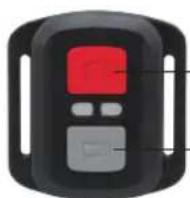
REMOTE
Photo Button
Video Button
Splashproof only, not waterproof.
VIDEO
To record Video, verify the camera is in Video mode.
To start recording:
Press the Grey Video Button. The camera will emit one beep and the camera light will flash while recording.
To stop recording:
Press the Grey Video Button again. The camera will emit one beep and the camera light will stop flashing while recording.
PHOTO
To capture a photo, verify the camera is in Photo mode.
To take a photo:
Press the Red Photo Button. The camera will emit a camera shutter sound.
CR2032 BATTERY REPLACEMENT FOR VISION 1 REMOTE
- Use a 1.8mm Phillips tip screwdriver to remove the 4 screws on the back cover of the remote, allowing you to open it.
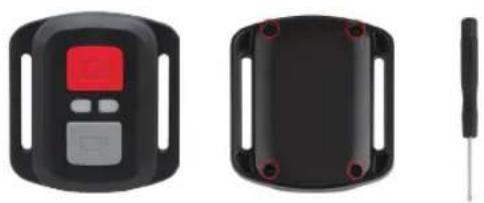
- Remove another 4 screws on PCB board.
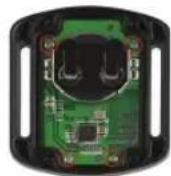
- Lift the PCB board and slide out the battery, as shown in the picture.
Note: Do NOT rotate the PCB board to avoid reversing the camera and video button functions.
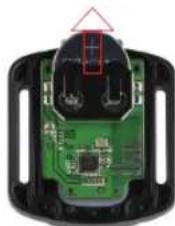
-
Install the new battery, keeping the " ^+ pole facing up.
-
Install all 4 screws back onto the PCB board.
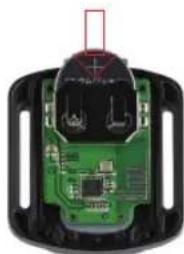
- Install all 4 screws back into the cover.
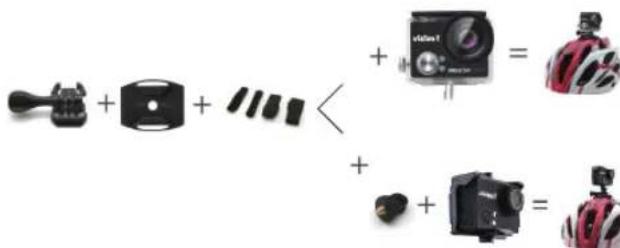
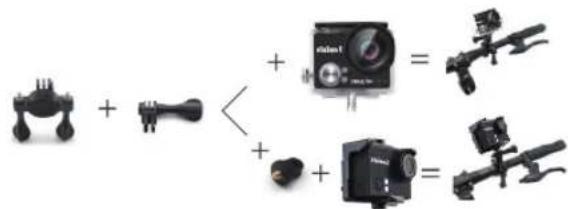
MOUNTING YOUR CAMERA
Attach your camera to helmets, gear and equipment.
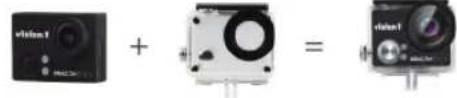

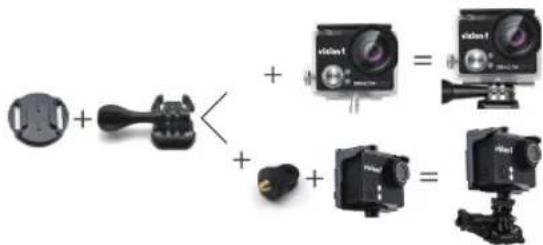
English
CONTACT US
For any inquiries with Dragon Touch products, please feel free to contact us, we will respond within 24 hours.
E-mail: cs@dragontouch.com
Tel: 888-811-1140 (US) Mon-Fri (except holidays) 9am-5pm (EST)
Official website: www.dragontouch.com
CONTENIDO
Su Vision 1 19
Accesorios 21
Cómo comenza 21
Press the Red Photo Button. The camera will emit a camera shutter sound.
REEMPLAZO DE BATORIA CR2032 PARA VISION 1 REMOTO
- Enregistrement en Boucle: Off/5minutes/10minutes/15minutes
- Mode de capture: Single/Self 2S/Self 10S/Burst.
5.Data Stamp:Desactive,Date,Date/Heure.