RR949 - Remote control ROTEL - Free user manual and instructions
Find the device manual for free RR949 ROTEL in PDF.


| Product Type | Universal Remote Control |
| Brand | Rotel |
| Model | RR949 |
| Power Supply | 4 AAA batteries |
| Number of controllable components | Up to 8 |
| Programming | By 3-digit code or auto search |
| Backlight | Yes, 7 seconds duration |
| Shift Key | Yes, for secondary functions |
| Communication Type | Infrared |
| Maintenance | Soft dry cloth, lint-free |
| Safety | Do not disassemble, do not drop |
| Warranty | Void if disassembled |
| Number of batteries | 4 AAA batteries |
| Main Functions | Control of multiple audio/video devices, source selection, transport, volume, etc. |
| Compatibility | Wide range of brands (Rotel, Sony, Panasonic, etc.) |
| Spare Parts | No user-serviceable parts |
| Manual Language | French, English, etc. |
Frequently Asked Questions - RR949 ROTEL
User questions about RR949 ROTEL
0 question about this device. Answer the ones you know or ask your own.
Ask a new question about this device
Download the instructions for your Remote control in PDF format for free! Find your manual RR949 - ROTEL and take your electronic device back in hand. On this page are published all the documents necessary for the use of your device. RR949 by ROTEL.
USER MANUAL RR949 ROTEL
Thank you for purchasing the RR-949 Universal Remote Control. It is designed to operate all current Rotel products as well as a wide range of popular audio and video components from other manufacturers. You will find that the RR-949 Remote Control is a significant improvement over conventional remotes in overall convenience and ease of operation.
Please take a few moments to read this user guide. You'll find the time well spent as it will significantly shorten your search for remote control sanity.
Some Preliminary Precautions
- The RR-949 is surprisingly rugged but it is not indestructible. So please don't drop it — particularly not on a concrete floor! With normal care, the RR-949's low maintenance design will let you enjoy its convenience for years to come.
- When the RR-949 needs a bit of cleaning, use a soft, lint-free damp cloth.
- Above all, don't try to take the RR-949 apart. There isn't anything inside you can fix anyway and disassembly will void the warranty.
Battery Installation
Remove the RR-949 and the package of 4 AAA batteries from the packing material. Turn the RR-949 over and lift the cover off the battery compartment by compressing the release tab and lifting up.
Place the four AAA batteries inside (follow the polarity drawing on the bottom of the compartment) and replace the cover. MAKE SURE you install the batteries correctly!
Using the RR-949
The RR-949 can replace up to eight different remote controls. Stored in memory are control codes to operate your specific audio/video components, selected from hundreds of models in the RR-949's extensive database. Programming the RR-949 to operate your components takes just minutes and need only be done once. See the PROGRAMMING section of this manual for easy to follow instructions.
Once the programming is complete, you select a component with the press of a button and turn the RR-949 into the remote control for your Rotel CD player or your Sony TV set or your Panasonic video recorder. Then, you simply press command buttons that duplicate the functions on the remote that came with your component.
To get started, look at the layout of the RR-949 and the following operating instructions:
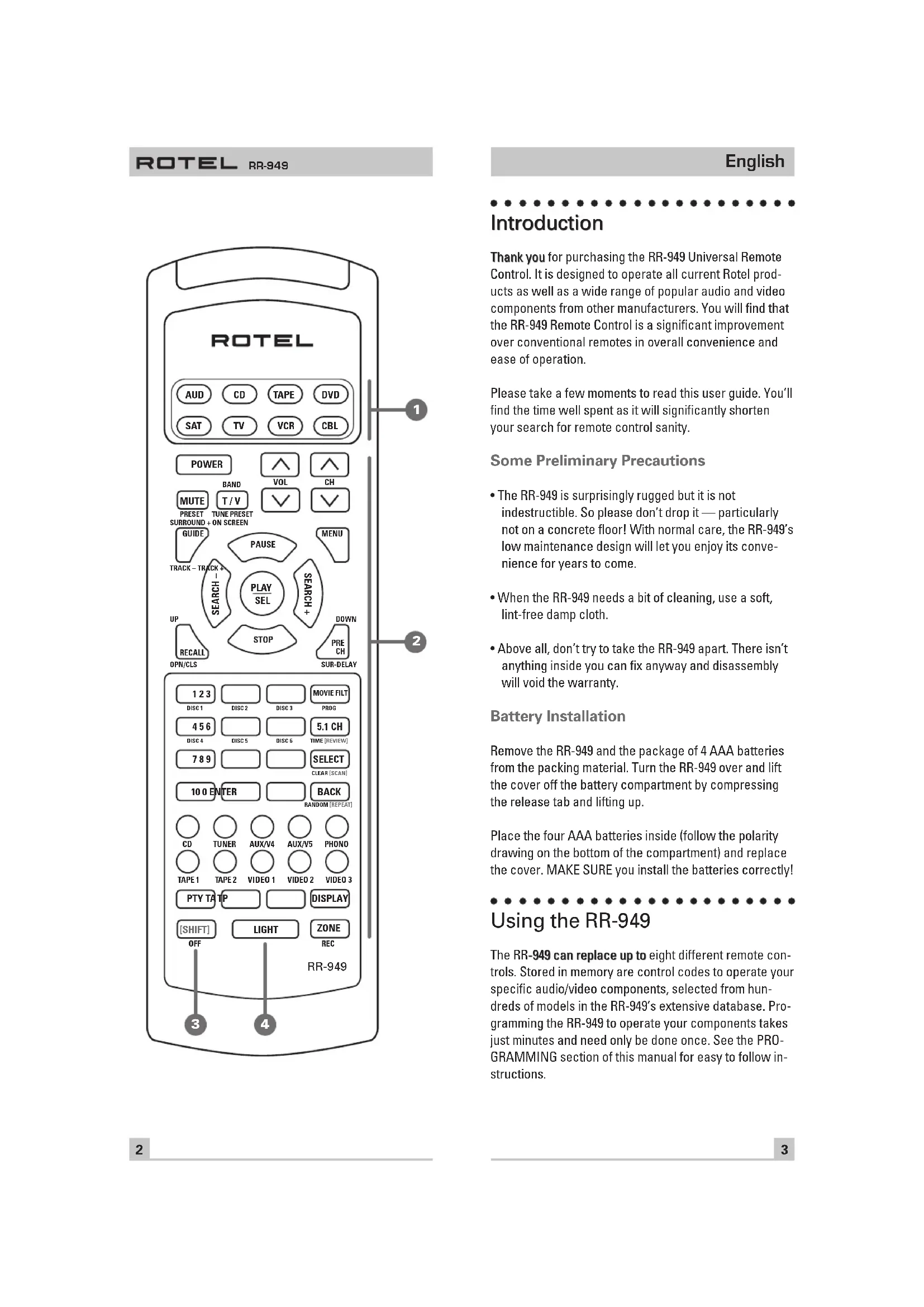
Device Buttons 1
Eight buttons at the top of the RR-949 determine which set of commands is currently active. For example, if you press the AUDIO button (labeled AUD), the RR-949 becomes the remote control for your Rotel Surround Sound Processor. If you press the TV button, the RR-949 becomes the remote control for your TV set.
These buttons are also used in programming the RR-949. See the PROGRAMMING section below for details.
Command Buttons 2
This large group of buttons duplicates the functions on the remote controls for your audio/video components. A general description of these functions follows. Detailed information on the specific function of each button can be found in the CONTROL COMMANDS tables.
At the top of this group of buttons are basic controls such as Power, Volume, Channel Selection, etc.
Below these is a group of buttons that duplicate the transport functions on a tape recorder or VCR (Stop, Play, Pause, etc.) as well as the Up and Down commands that might be found on a cable or satellite TV receiver.
The next group of buttons duplicates the numeric keypad buttons such as might be used for direct track selection on a CD Player or direct channel selection on a TV set. Included in this section are special command buttons providing functions found on various components.
Near the bottom of this group of buttons are ten round source selection buttons labelled CD, TUNER, TAPE, etc. These duplicate the source input selection buttons on a receiver, preamplifier, or surround sound processor. The function of these buttons is not the same as the DEVICE buttons at the top of the remote control. The DEVICE buttons determine which command set is active on the RR-949. The source select COMMAND buttons switch inputs on the audio/video component being controlled.
Below the source selection button are five more command buttons: a row of four buttons used to control RDS functions on tuners and receivers and a ZONE/REC button used for certain functions on preamplifiers and processors.
To operate the RR-949:
Step One: Press a DEVICE button to activate the commands for the desired component. This command set will remain active until you press a different DEVICE button.
Step Two: Press COMMAND buttons to operate the component you have selected.
Remember that the COMMAND buttons duplicate many controls on many different types of audio/video components and their function may vary depending on the type of component selected. For example, the PLAY/SELECT button engages the play mode on a CD Player, but it duplicates the SELECT function on a cable TV converter.
Note: The RR-949 tells you which command set is active. Each time you press a COMMAND button, the active DEVICE key blinks red to tell you which component you are controlling. If the COMMAND button that you press has no function in the active command set (for example, the numeric keys in VCR mode), no DEVICE button will blink, indicating that the COMMAND button is inactive.
The COMMAND buttons are labelled, often with multiple labels if the button serves different purposes for different kinds of components. As long as you remember that pressing a DEVICE button turns the RR-949 into, for example, a CD player remote control or a VCR remote control, the functions of each button should be intuitive. Tables listing the function of each button for each type of component are supplied with this manual.
A few buttons have a second function, activated by pressing and releasing the SHIFT button before pressing the COMMAND button, as described below.
Shift Button 3
The SHIFT button activates additional commands for some buttons. These functions are shown in italics on the illustrations and in the command tables. To activate one of these commands, press and release the SHIFT button and then press the desired COMMAND button.
Light Button

The LIGHT button turns on backlighting so you can see the buttons in a dark room. The lights stay on for 7 seconds and will stay on for an additional 7 seconds each time another button is pressed.
Programming
The RR-949 can replace up to eight different remote controls, one for each of the eight DEVICE buttons. Before you use it, you must program the RR-949, i.e. tell it which audio/video components you wish it to control.
The RR-949 contains hundreds of command sets for various A/V components. Programming the remote involves selecting the command sets that correspond to the components in your system, and assigning them to the eight DEVICE buttons by entering a three digit code. This need only be done once during initial set-up of the RR-949.
The easiest way to proceed is to find your components and corresponding three-digit codes from the list of codes supplied with this manual. If your component is not listed, there is an alternative auto-search method for finding the right command set.
Three Digit Code Programming
Find your audio/video component in the code list and note the 3-digit code(s):
Step One: Turn on the component you wish to memorize.
Step Two: Press the corresponding DEVICE button (for example, if you are memorizing the command set for a CD player, press the CD DEVICE button at the top of the RR-949). While pressing the DEVICE button, simultaneously press the MUTE button and hold both for at least one second. The DEVICE key will light in red for 20 seconds, indicating that you have entered the program mode. The next step must be done within this 20 second period, or the RR-949 will revert to its standard operating mode.
Step Three: Point the RR-949 at the audio/video component and enter the 3-digit code, using the numeric buttons. The DEVICE key will flash each time you enter a digit. If you have entered the correct code, the component will turn off. If there is more than one 3-digit code for your brand of source component, continue entering additional 3-digit codes from the list until the component turns off, indicating that you have found the right one.
Step Four: Store the code number by pressing the corresponding DEVICE button again. The button will blink twice to confirm the storage of the code in memory.
Step Five: Test the COMMAND buttons, using the tables as a reference for the available functions. If the functions do not work correctly, repeat the above steps, with the next available 3-digit code from the list for your brand of component.
Repeat the steps above for each of up to eight components, assigning each one to the appropriate DEVICE key.
Auto-Search Programming
If the code table does not provide a 3-digit code or if none of the code numbers assigned to your brand of component work, use the following auto-search method to find a code number that will operate your components.
Step One: Turn on the component you wish to operate.
Step Two: Press the corresponding DEVICE button and the MUTE button, simultaneously for one second or more. The LED will light for 20 seconds.
Step Three: Press and hold the CH UP or CH DOWN button. This sends a succession of Power ON/OFF code signals that are stored in memory. Stop pressing the CH button as soon as the component turns off, signifying that you have found a code set that operates that component.
Step Four: Press the DEVICE button to store the code set you have found. The button will blink twice to confirm that you have stored the code.
Step Five: Test the remote control functions. If any do not work properly, repeat the preceding steps until you find the right code.
Displaying a Code Number
To find out which 3-digit code is currently stored on a DEVICE button:
Step One: Press the DEVICE button and the MUTE button simultaneously for one second or more. The DEVICE button will light red for 20 seconds.
Step Two: Press the RECALL button. The DEVICE button will blink a number of times, indicating the first digit in the code, followed by a one second interval with the light off, followed by a number of blinks indicating the second digit, followed by another interval, followed by blinks indicating the third digit. For example, one blink, three blinks, and eight blinks, with one second intervals in between, represents the 3-digit code number 138.
Note: The number ZERO in a 3-digit code is represented by 10 blinks.
Volume Punch Through
It may be desirable to have the AUDIO or TV volume commands available at all times. For example, when using the RR-949 to control your CD player, you might want the VOLUME buttons (which would normally be inactive in CD mode) to change the volume of your preamp or surround sound processor. This feature, called Volume Punch Through, can be used to make the volume commands from either the AUDIO or TV device mode available in other device modes.
To set-up the Volume Punch Through feature:
Step One: Press the DEVICE button (the device you wish to transfer the volume function to) and the MUTE button simultaneously for at least one second.
Step Two: Press the VOLUME UP button.
Step Three: Press the AUDIO or TV DEVICE button (the device you wish to transfer the volume function from). The DEVICE button will blink twice to confirm.
Example: To have the AUDIO volume command prevail in the VCR mode, press the VCR DEVICE button in Step One and the AUDIO DEVICE button in Step 3.
Mapping a Component to Another Device Button
In some systems, you may need to program one command set to another DEVICE button. For example, if you have two CD players, you may wish to use the SAT DEVICE button to store and activate commands for a second CD player. To reassign device codes to another button:
Step One: Press the new DEVICE button where you wish to store the command set and the MUTE button simultaneously for at least one second.
Step Two: Press the DEVICE button corresponding to the command set you wish to transfer in order to access the command sets for that type of component.
Step Three: Enter the 3-digit code for the audio/video component you wish to transfer.
Step Four: Press the DEVICE button where you wish to store the command set. It will blink twice to confirm.
Example: To store CD commands on the SAT DEVICE button, press the SAT DEVICE button in Steps One and Four. Press the CD DEVICE button in Step Two.
Introduction
North Reading, MA 01864-2699
USA
Phone: +1 978-664-3820
Fax: +1 978-664-4109
Rotel Europe
Meadow Road
Worthing, West Sussex BN11 2RX
England
Phone: +44 (0)1903 524 813
Fax: +44 (0)1903 524 831
Rotel Deutschland
Kleine Heide 12
Brand : ROTEL
Model : RR949
Category : Remote control