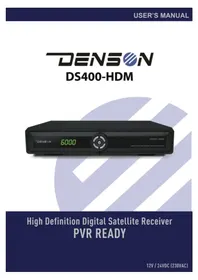
DS400HDM - Receiver Denson - Free user manual and instructions

Find the device manual for free DS400HDM Denson in PDF.

📄 100 pages English EN Download 💬 AI Question
Notice Denson DS400HDM - page 5
View the manual : Français FR English EN Nederlands NL

User questions about DS400HDM Denson

0 question about this device. Answer the ones you know or ask your own.

Ask a new question about this device

L'email reste privé : il sert seulement à vous prévenir si quelqu'un répond à votre question.

No questions yet. Be the first to ask one.

Download the instructions for your Receiver in PDF format for free! Find your manual DS400HDM - Denson and take your electronic device back in hand. On this page are published all the documents necessary for the use of your device. DS400HDM by Denson.

USER MANUAL DS400HDM Denson

USER`s MANUAL High Definition Digital Satellite Receiver PVR Ready DS400-HDM 12V / 24VDC (230VAC) ENGLISHAll the safety and operating instructions should be read before operating this product. The safety and operating instructions should be retained for future reference. All warnings on the product and in the operating instructions should be adhered to. All operating and usage instructions should be followed. Unplug this product from the wall outlet before cleaning. -Do not use liquid or aerosol cleaners. Use a damp cloth for cleaning and place the receiver in well ventilated and no-heat environment. -Do not use attachments not recommended by the product manufacturer as they may cause hazards. -Do not use this product near water for example, near a bath tub, wash bowl, kitchen sink or laundry tub, in a wet basement, or near swimming pool, and the like. -Do not place this product on an unstable cart, stand, tripod, bracket, or table. The product may fall, causing serious injury to a child or an adult and serious damage to the product. -Use only with a cart, stand tripod, bracket, or table recommended by the manufacturer or sold with the product. -Any mounting of the product should follow the manufacture's instructions, and should use a mounting accessory recommended by the manufacturer. -This apparatus shall not be exposed to dripping or splashing and that no object filled with liquids, such as vases, shall be placed on the apparatus. -The main plug is used as the disconnect device. The disconnect device shall remain operable.

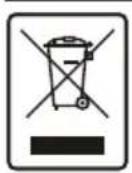
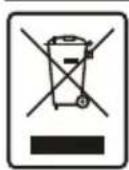
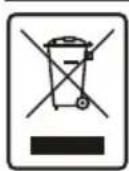
Instruction about the ‘WEEE’ Symbol Disposal of Old Electrical & Electronic Equipment (Applicable in the European Union and other European countries with separate collection systems) This symbol on the product or on its packaging indicates that this product shall not be treated as household waste. Instead it shall be handed over to the applicable collection point for the recycling of electrical and electronic equipment. By ensuring this product is disposed of correctly, you will help prevent potential negative consequences for the environment and human health, which could otherwise be caused by inappropriate waste handling of this product. The recycling of materials will help to conserve natural resources. For more detailed information about recycling of this product, please contact your local city office, your household waste disposal service or the shop where you purchased the product.CONTENTS

1-1 Main Features 1-2 Accessories

2. Controls & Features

2-1 Front Panel 2-2 Rear Panel 2-3 Remote Control Unit(RCU)

3. Connection Diagram of the Receiver

3-1 Connecting to the antenna 3-2 Connecting to TV and VCR 3-3 Connecting to HiFi system 3-4 Connecting to TV with VCR and Motorized System (DiSEqC 1.2 / USALS)

4-1 Channel Information 4-2 Changing Channels 4-3 Volume Control 4-4 Channel List for TV/Radio/Favorite 4-5 Program Guide 4-6 Teletext 4-7 Subtitles 4-8 A/V Selection

1-1 Main Features 1-2 Accessories User's manual : 1 Remote control unit : 1 Batteries (AAA Type) : 2 AC/DC Adaptor: 1 (including power cord) Cigarette Lighter: 1 External IR Sensor: 1 HDMI Cable: 1 SCART Cable: 1 Mounting Brackets: 1 64 programmable satellites / 6,000 programmable channels 950~2150 Mhz IF range 2 Slot Common Interface DVB-S/DVB-S2 Compliant (EN 300307) MPEG2 MP@HL, MPEG4 Part10/H.264 1 LNB input, IF loop through for 2nd receiver Variable input symbol rate 1 ~ 45Msps Easy auto satellite program searching Multi language menu Electronic Program Guide 8 favorite channel group selection / parental lock Auto NTSC / PAL switching Teletext supported by OSD and VBI USB / RS 232 downloading Data transfer / PC-to-receiver DiSEqC version 1.0/1.1/1.2/1.3 supported USB 2.0 Master HDMI Video Resolution 1080i, 720p, 576i, 576p, 480i, 480p

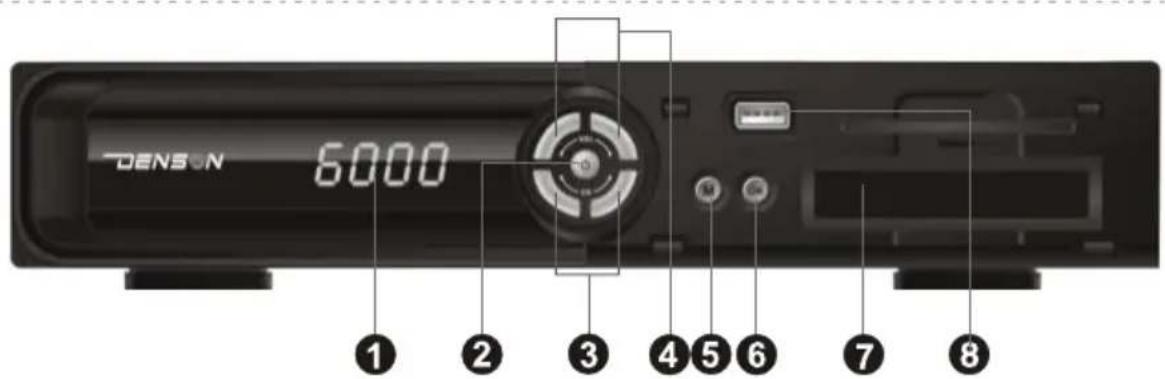
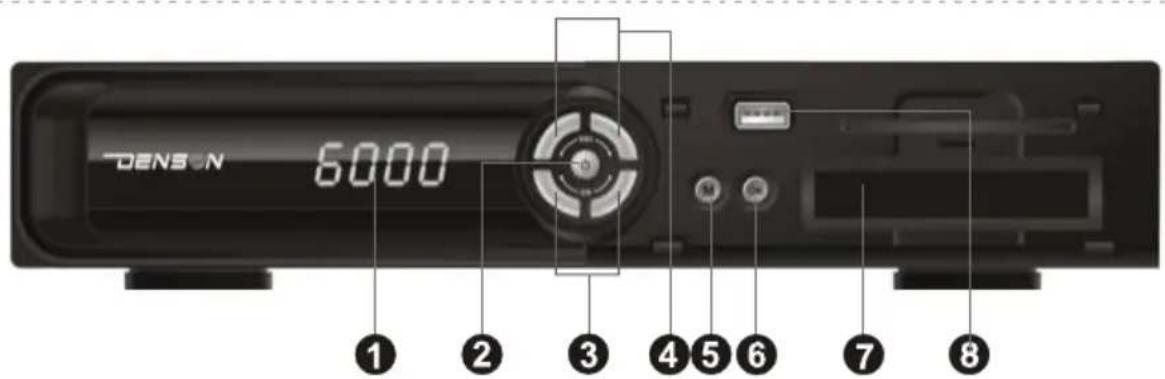
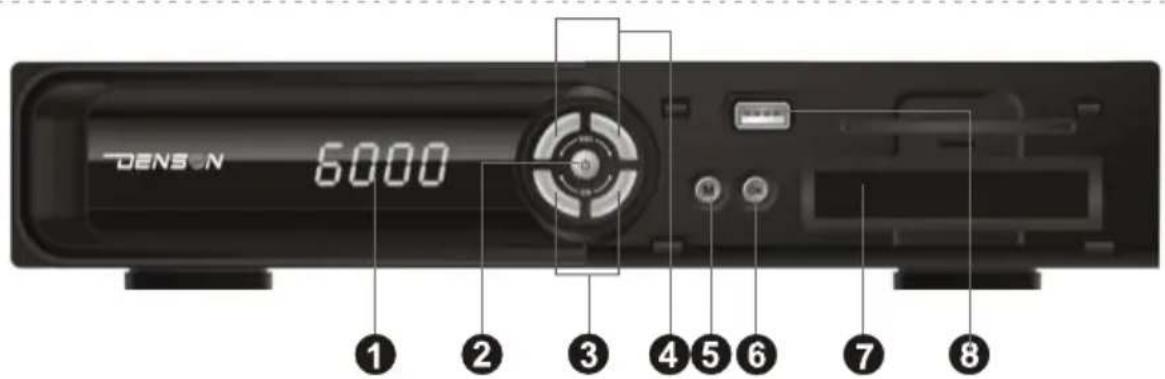
Display Power ( ) Power on & off CH. ▲,▼ Channel up & down. VOL. ▲,▼ Volume up & down. Menu Used to display the main menu.

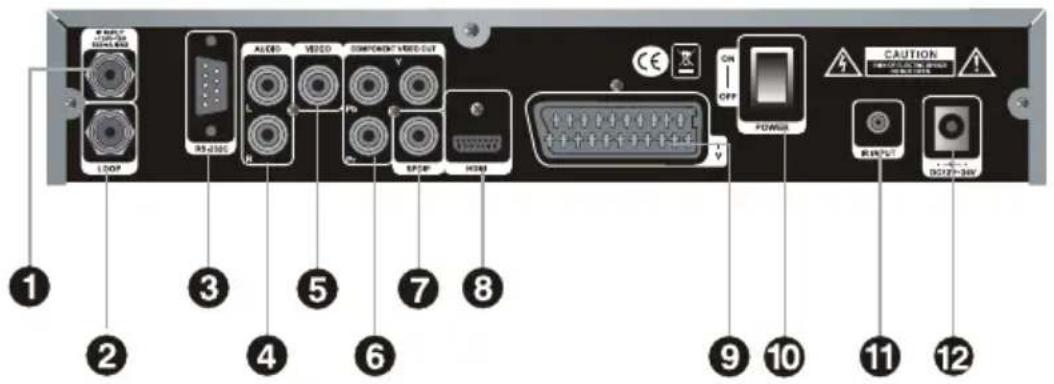
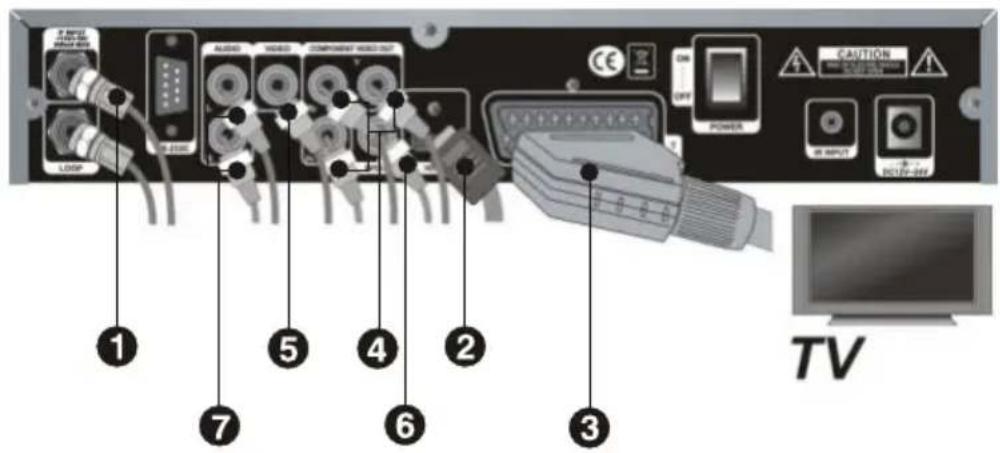
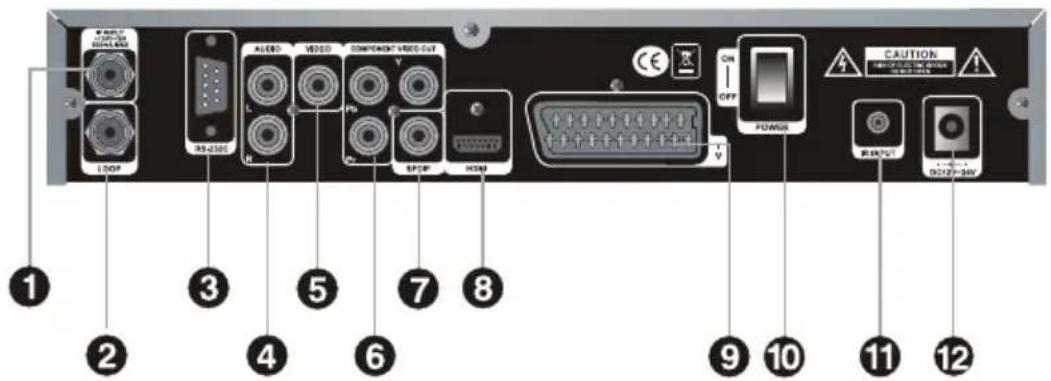
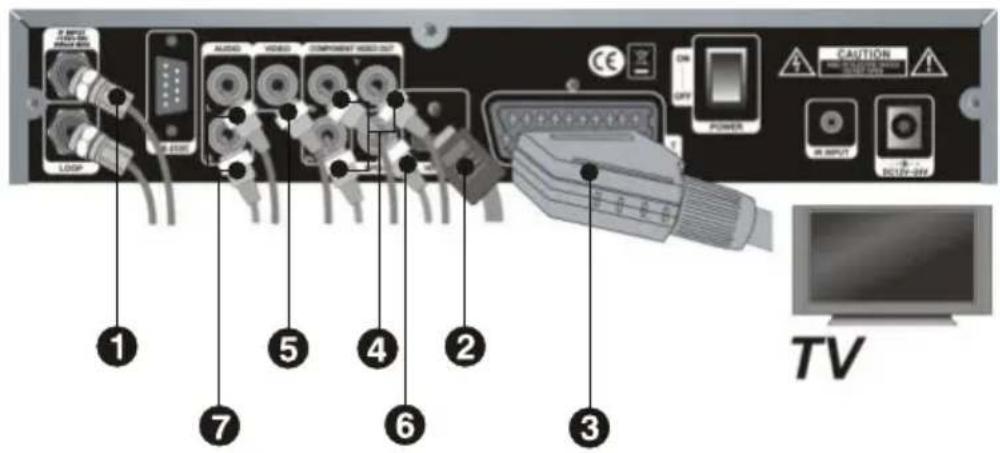
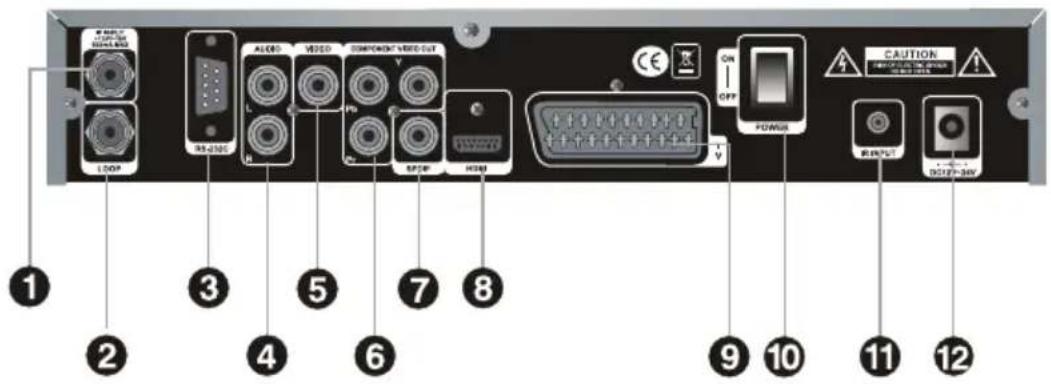
To show TV/Radio channel list and to select a program. 2 slots Common Interface USB Port Connect to the USB memory or external HDD05 IF INPUT : Satellite broadcasting signal input socket. LOOP : IF loop-through output to second receiver RS232C : Serial port for upgrade and data transfer. AUDIO L/R : Stereo audio output socket for the television set or the audio system. (White/red) Video RCA Connector : Composite Video Output COMPONENT : For Connection to LCD or PLASMA TV S/PDIF : Dolby Digital output socket for the audio system. HDMI : Audio and video output socket for the high definition television set. TV (SCART) : Audio and video output socket for the television set. Power On/OFF Switch IR INPUT : External IR sensor DC12V~24V : For connection to AC/DC Adaptor or Cigarette Lighter2. Controls & Features 2-3 Remote Control Unit (RCU)

062. Controls & Features

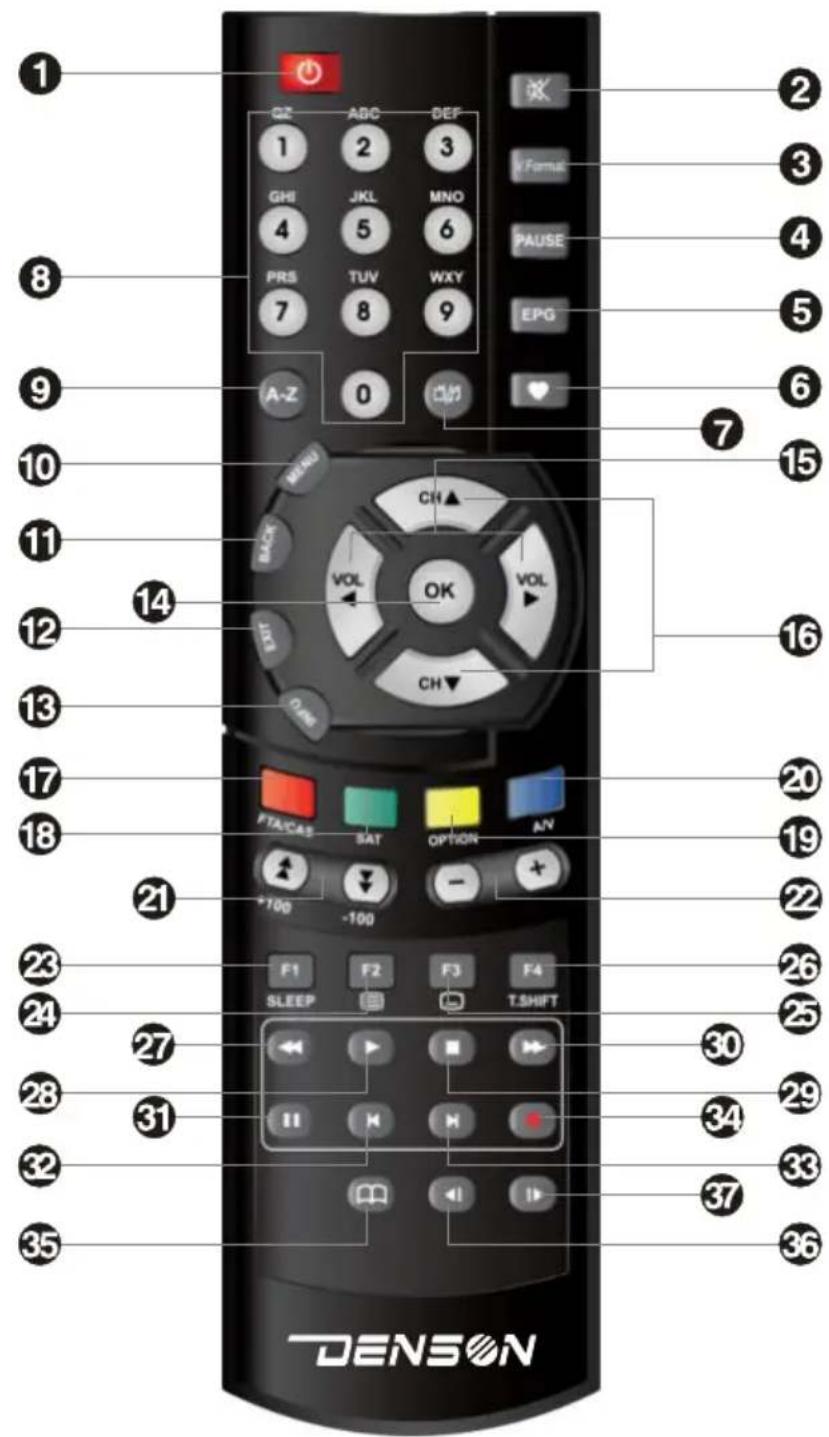
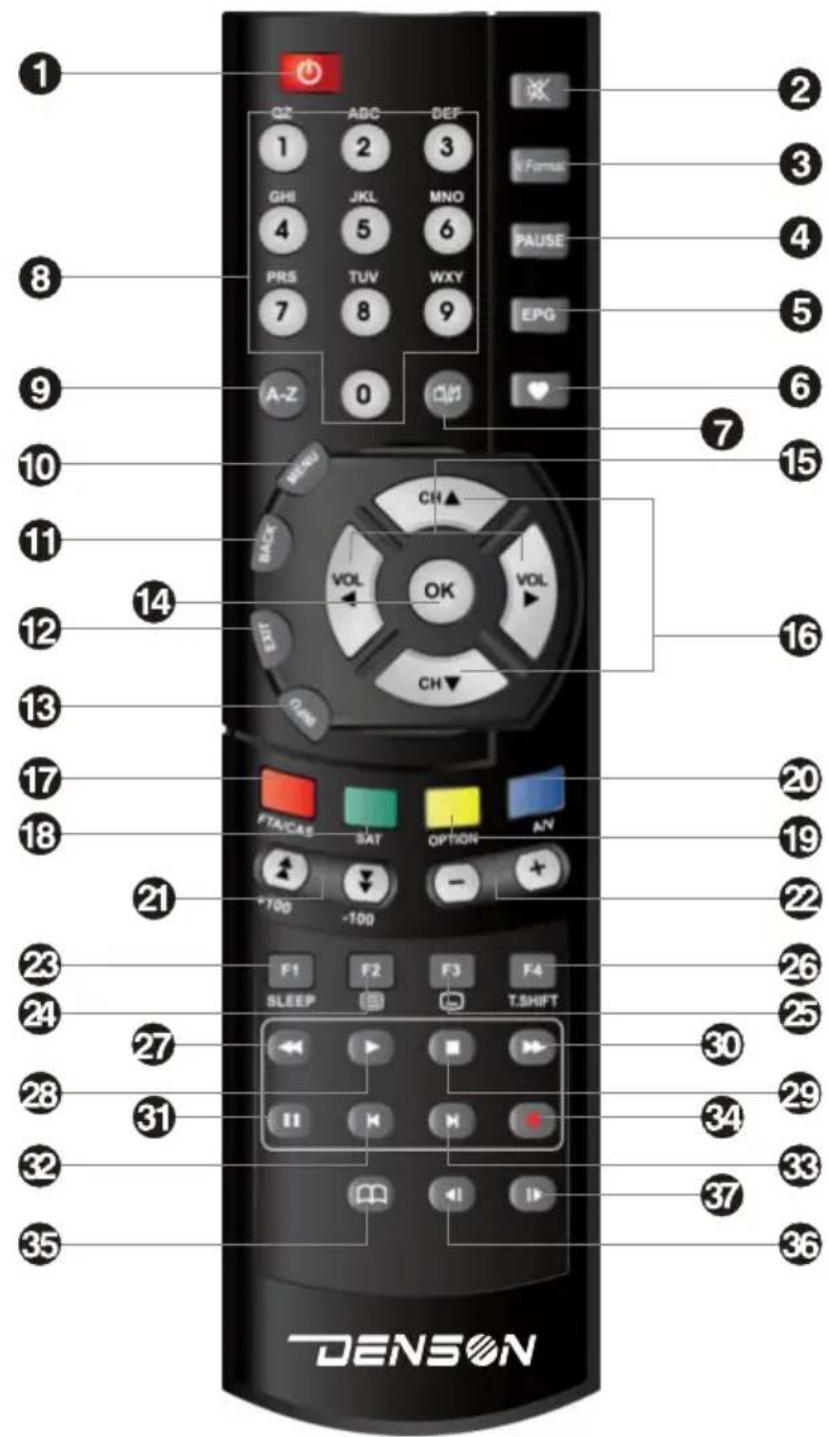
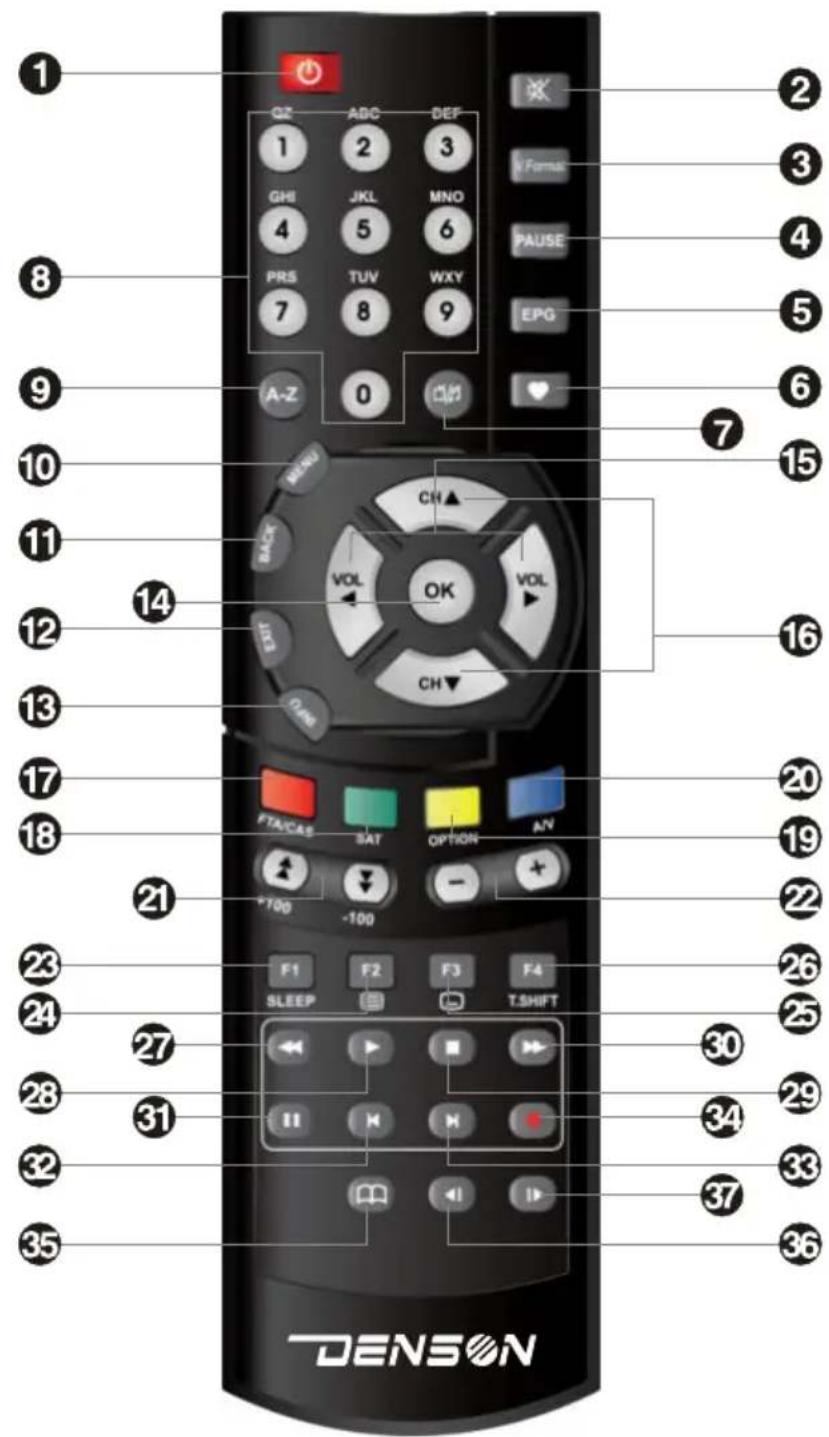
2-3 Remote Control Unit (RCU) (POWER) : turns the receiver on and off. (MUTE) : switches the sound on and off. V.Format : changes the video format. Pause : pauses the screen while viewing but audio remains active. EPG : shows program information about the selected channel. FAV : opens Filter box for favorite channel. : selects TV mode or Radio mode. Numeric (0~9) : enables to select channel directly. A-Z : used for channel sorting. MENU : displays the main menu BACK : returns to the previous mode or menu. EXIT : returns to the viewing mode from any menu mode. INFO : displays channel information. OK : selects a program, the highlighted line or parameter value or shows the TV/radio channel list while watching TV or listening to the radio. VOL. , : moves the highlighted line or changes volume up/down. CH. , : moves the highlighted line or changes channel up/down. FTA/CAS : opens Filter box for FTA/CAS. SAT : opens Filter box for satellites. OPTION : displays Multifeed box. A/V : displays the audio and video configuration. (+100), (-100)(Page up/down button)s : moves the highlighted line to the next page or changes the channel up/down by 100 channels. +, - : Used to move the highlight bar, change parameters, and volume up/down. F1(SLEEP) : Sleep function in the viewing mode. : displays teletext available. : displays subtitle available. T.SHIFT : setup Time-Shift function On/Off (Rewind) : Rewind video play speed to 2X4X8 (Play) : playing files. (Stop) : stop playing files. (Fast Forward) : fast forward Play speed by 2X4X8 (Pause) : pause playing file. : jumps backward. : jumps forward. (Record) : starts recording (Bookmark) : Bookmark function under view mode Go to the bookmarked position. : play slow backward playing file (Slow) : play slow forward playing file RED, GREEN, YELLOW, BLUE : These color buttons are used to select functions such as Delete, Move, Rename, Sort.

073. Connection Diagram of the Receiver

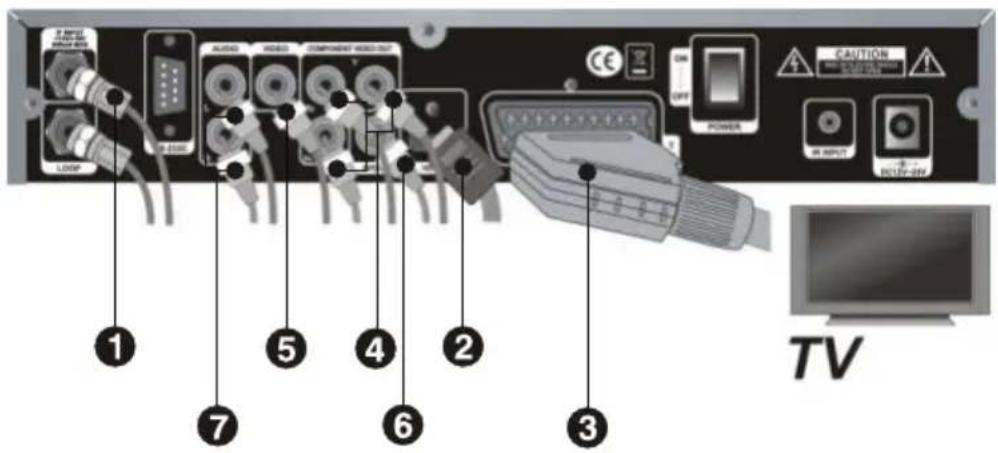
SCART (TV) : Plug side end of the SCART cable into the TV socket on the digital receiver, and the other side of it into the matching socket on TV. You do not have to make audio connections unless you use a conversion cable, such as SCART-to-Component. If not, you have to make audio connections.

3-1 Connecting the antenna Connect the antenna cable to the IF INPUT connector. If you have another digital receiver, link it to the LOOP THROUGH connector. 3-2 Connecting to a TV HDMI : Plug one side of the HDMI cable into the HDMI socket on the digital receiver and the other side of it into the matching socket on TV. If you have a high definition TV set, HDMI gives the best results. In addition, you don't have to make audio connections because the HDMI connector can output stereo audio or Dolby digital audio.3. Connection Diagram of the Receiver

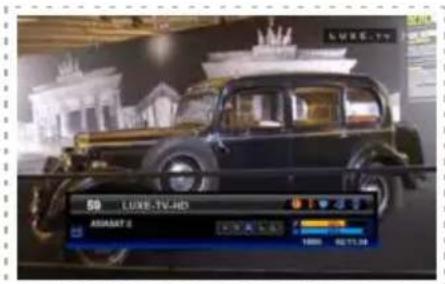
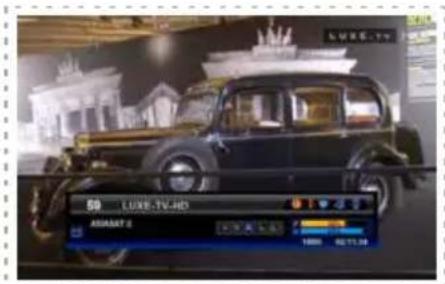
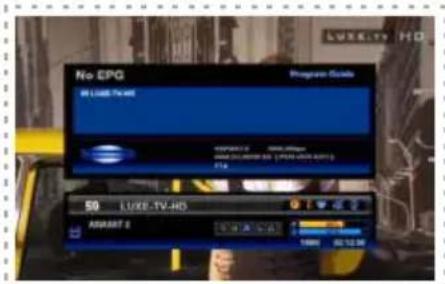
Component connector (YPbPr) : Plug each side of the RCA cables into the matching color sockets (BLUE, GREEN and RED) on the digital receiver, and the other side into the matching color sockets on TV. You have to make audio connections. 3-3 Connecting to HiFi System You can enjoy Dolby digital audio by connecting S/PDIF cable to your digital audio systems. In this case TV or audio system must be able to decode Dolby digital audio. In order to get stereo sound, you need to connect RCA cable from the AUDIO L/R sockets on the receiver to the LINE, AUX, SPACE or EXTRA input sockets on your HiFi system. 3-4 Connecting to Motorized System (DiSEqC / USALS) Connect a coaxial cable to the IF input connector on the receiver and the other to the REC or receiver connector on the DiSEqC / USALS motor. Please refer to DiSEqC / USALS connection. VIDEO : Plug one side of the RCA cable into the VIDEO(yellow) socket on the digital receiver and the other side into the matching socket on your TV. You cannot view high definition video with the composite connector. In addition, you have to make audio connections.4. Function Guide The information may include : 1)Current time 2)Current channel number & name, satellite name & TP information 3)Symbol for CAS, Teletext, Alternate Audio, EPG, Parental lock information 4)Signal meter(Power, Quality) 5)Program information : Whenever you press the INFO button, the program information window will appear. 6)Resolution of the screen (1080i, 720p, 576i, 576p, 480i, 480p) 4-1 Channel Information Every time you change channels, program information will be displayed for a few seconds. 4-3 Volume Control 4-2 Changing Channels You may change the channel by simply entering the channel number using your RCU 0~9 buttons. Alternately, you may use the , buttons on the RCU and/or the front panel of the receiver. Press , buttons on the RCU to control the volume. The volume indicator will show whenever you control the volume on the screen for a few seconds and disappear automatically.

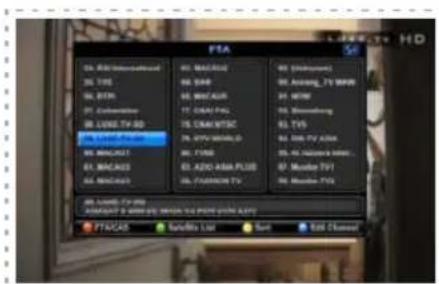
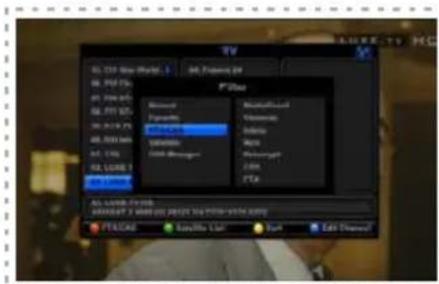
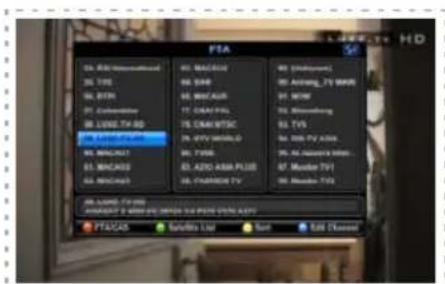
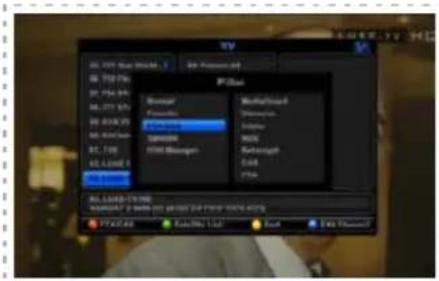
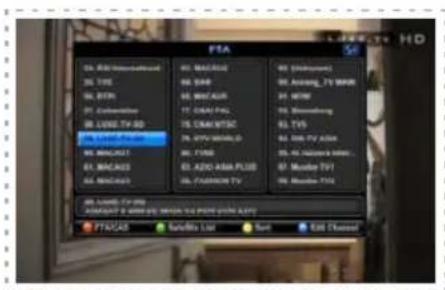
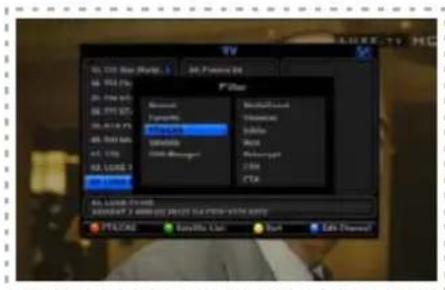
Press OK to display the channel list on the screen. Select channel you want by moving the highlighted line using , , , and press OK. Press to open the favorite filter list and select one. (Refer to the Favorite channel menu in page 17 to set favorite channel.) 4-4 Channel List for TV/Radio/Favorite Whenever you press the button, Filter Box for favorite channel is opened automatically. You can select a favorite channel on Filter box using

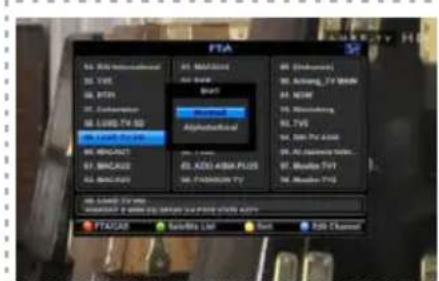
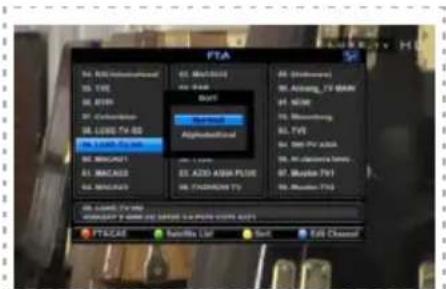
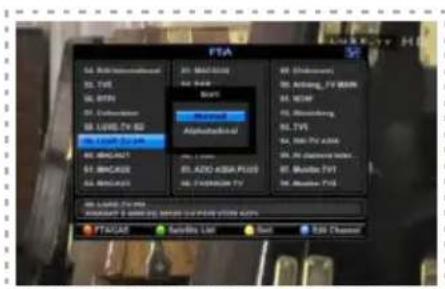
(Refer to Edit Channel menu in page 16) [Color Keys] 1)RED(FTA/CAS) : Press RED button to open Filter box for FTA/CAS and select one using , , and press OK 2)GREEN(Satellite List) : Press GREEN button to open Filter box for Satellite and select one using , , and press OK. 3)YELLOW(Sort) : Press Yellow button to open sort box and select one (Normal / Alphabetical) using , and press OK. -In case of selection of “Normal”, you can sort channel using by numeric key on RCU. -In case of selection of “Alphabetical”, you can sort channel using by alphabetical key on RCU.

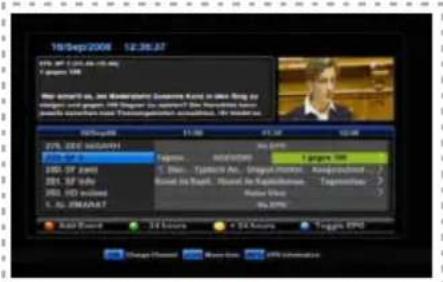
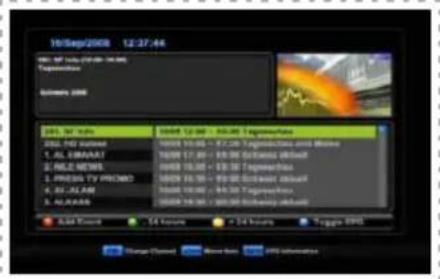
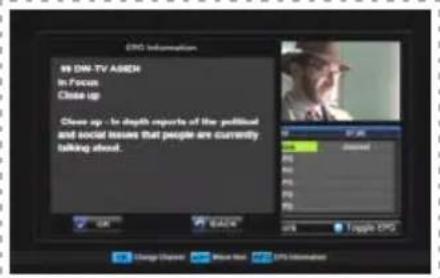
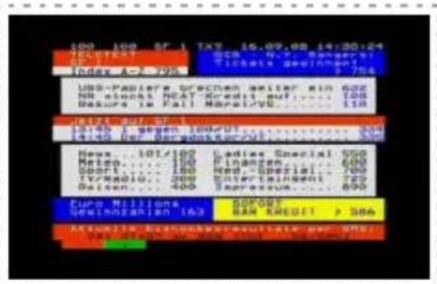
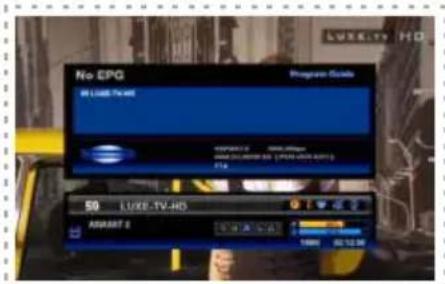
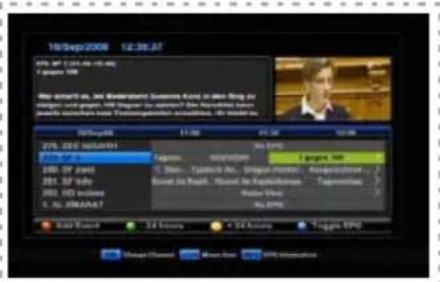
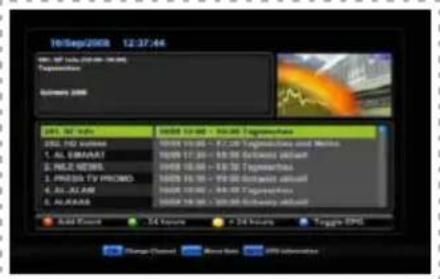
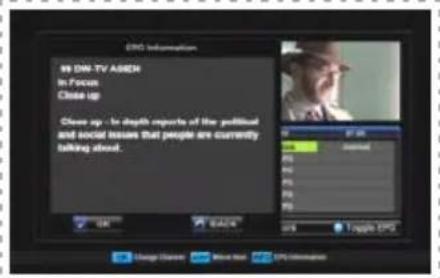
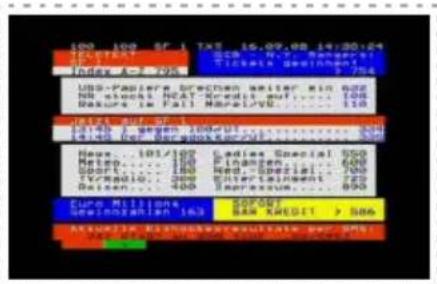
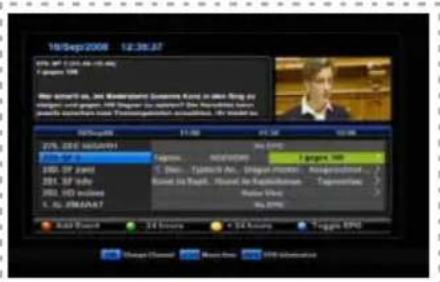
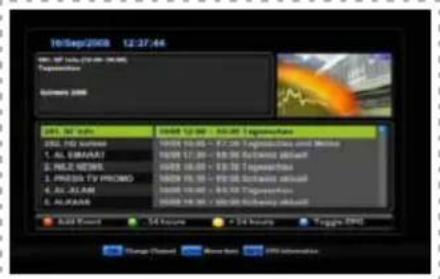
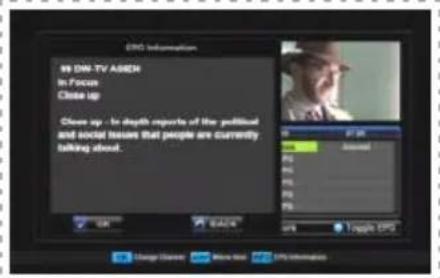
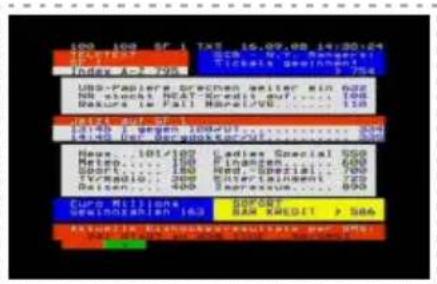
4-5 Program Guide Program Guide shows the current and scheduled programs that are or will be available on each channel with a short summary for each program. Press EPG button, EPG box will be displayed on the screen. Press , , , buttons to check the information of other programs and channels. You can reserve the time of watching a TV program you want. Select the program you want using , , , . Press RED button to ADD Event of reserving program for watching, program name would be changed to RED color after adding event of program. Press RED button again to cancel the Event. (Refer to Event Timer in page20 for detail Event setting.) Press Green button to move -24hours of EPG. Press Yellow button to move +24hours of EPG. 4-6 Teletext The display of Teletext is based on the transmitted data using the EBU teletext specification and DVB Bitmap. It is available only when the current channel carries teletext service data. VBI insertion mode and OSD(On Screen Display) mode are supported. In the VBI insertion mode, which is always on, can only be viewed on TV which supports teletext using your TV's RCU. In the OSD mode, you can view teletext even though your TV does not support teletext. To watch teletext in OSD mode, press button on the RCU. 0 ~ 9 : Press page number. , : Page up and down. , : Page left and right list. , : Page number increase and decrease by 1.4. Function Guide

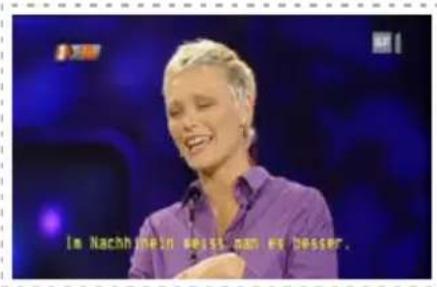
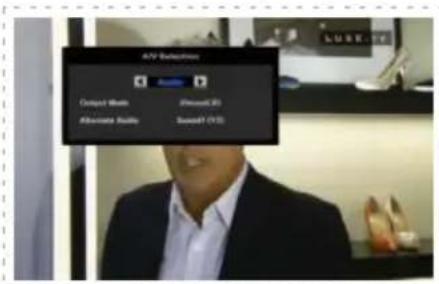
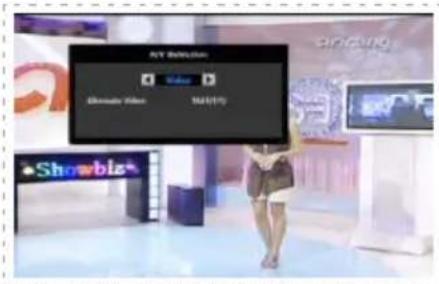
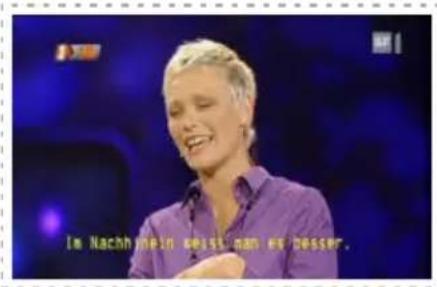
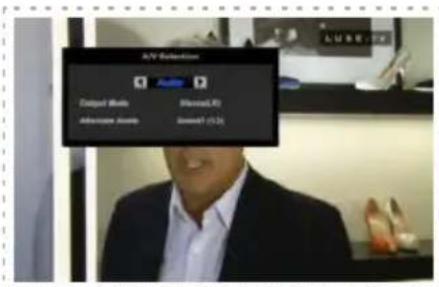
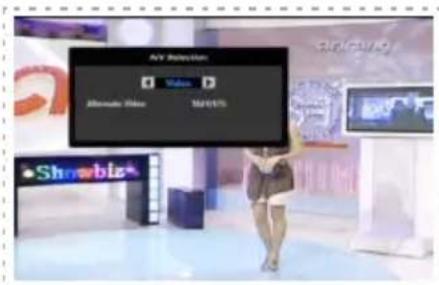
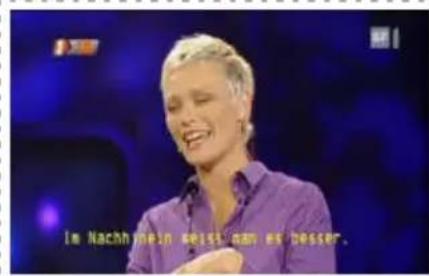
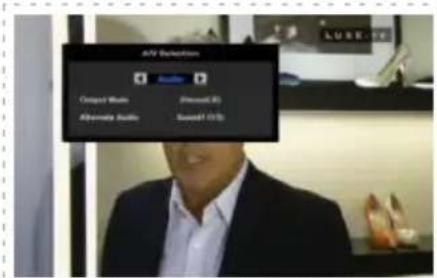
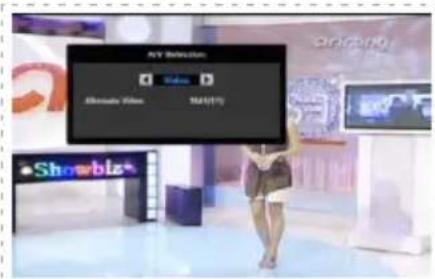
4-7 Subtitles You can see the symbol active when the current channel provides subtitle service. Press button and select language you want in the language selection menu. Press OK button to display subtitle on the screen in the language you select. Press button again to cancel. 4-8 A/V Selection Quick adjustment for setting Audio / Video can be done by pressing Blue button in the viewing mode. You can use , buttons to change the setting modes of audio or video. Output Mode : select the audio output mode among stereo(LR), Mono(LL) and Mono(RR) Alternate Audio : select the audio channel in case that several audio channels input. Alternate Video : select the video channel in case that several video channels input. Output Mode : select the audio output mode among stereo(LR), Mono(LL) and Mono(RR) Alternate Audio : select the audio channel in case that several audio channels input. Alternate Video : select the video channel in case that several video channels input.5. Main menu

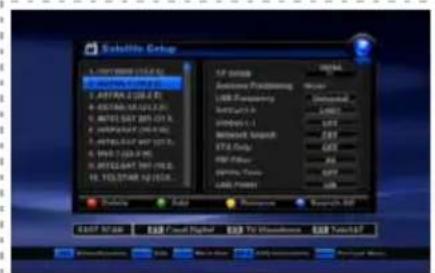
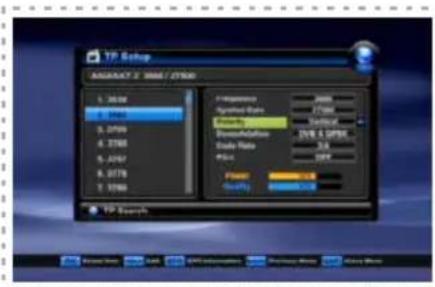
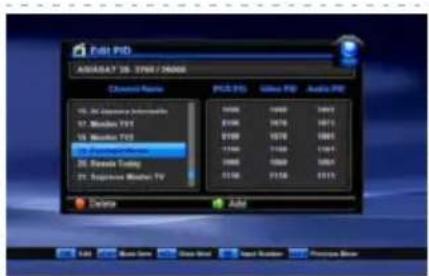
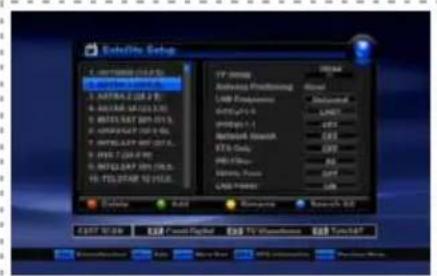
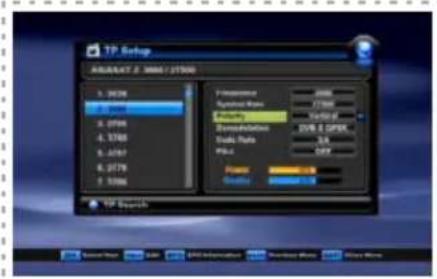
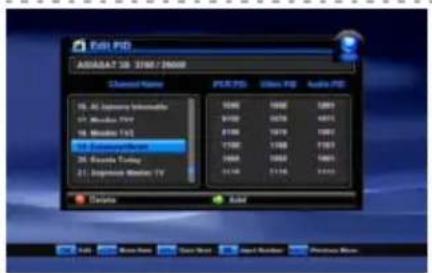
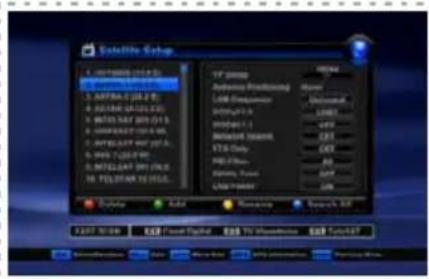
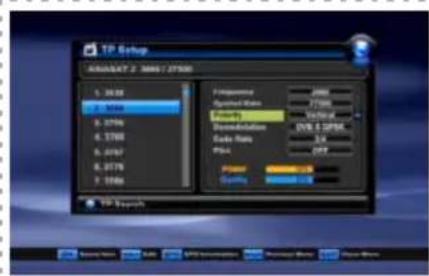
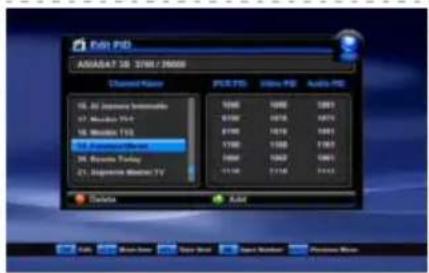
You can install the TP Setup, Antenna positioning and the other related to Satellite Setup in this section. Press RED button to delete the highlighted SAT. Press GREEN button to add the SAT. Press YELLOW button to rename the highlighted SAT. Press BLUE button to search all TP in the highlighted SAT. Move to LNB Frequency, DiSEqC, Network Search, FTA only, PID Filter, 22KHz Tone, LNB Power using , , , and adjust the types of them using , . 5-1 Installation Select TP Setup using , , and press OK. TP Setup box will show up on the screen. Select Frequency, Symbol Rate, Polarity, Demodulation, Code, Pilot using , , , and adjust the types of them using , , , . Press RED button to delete the highlighted TP. Press GREEN button to add TP. Press YELLOW button to edit PID. Press BLUE button to search all channels. 5-1-1 TP Setup Use this in case of a specific Transponder which has non-DVB standard channels and which only can be found when you have entered the necessary settings. You can also add or delete channels from a specific TP. PCR PID : Enter PID (Packet Identifier) for the PCR (Program clock Reference). Video PID : Enter PID for the video signal. Audio PID : Enter PID for the audio signal. 5-1-2 Edit PID (Yellow button in TP Setup) There are 3 groups of channels you might be interested in. Press F1, F2 or F3 button to select a group you want. The channels in the group you select will be searched and saved in channel list. Only the channels in the group you select will remain in channel list after FAST SCAN.5. Main menu

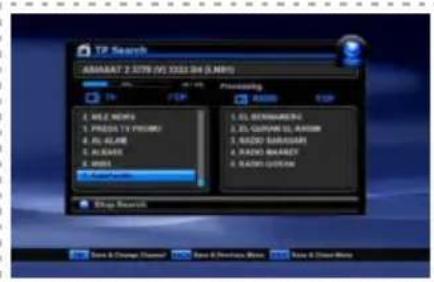
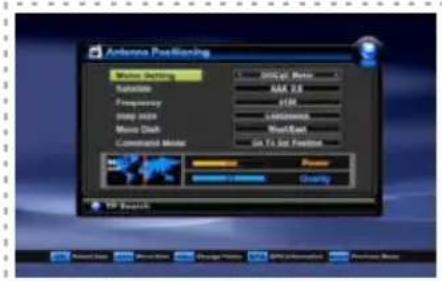
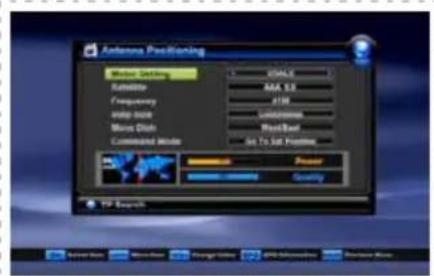
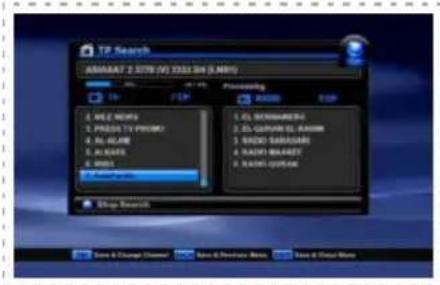
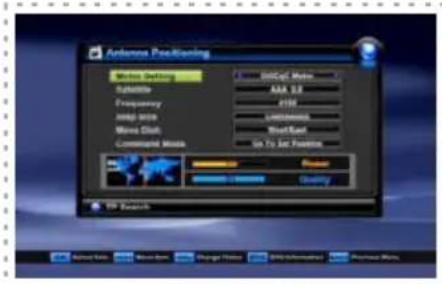
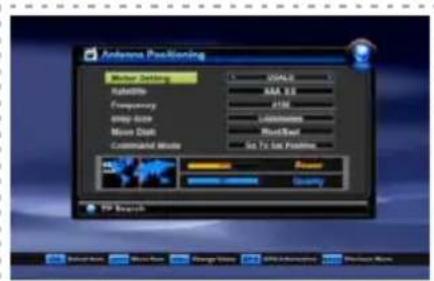
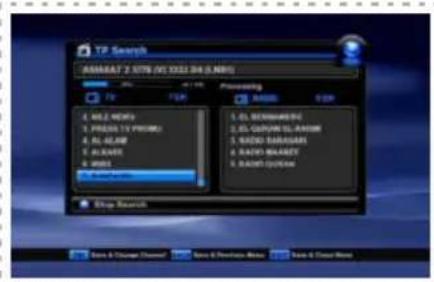
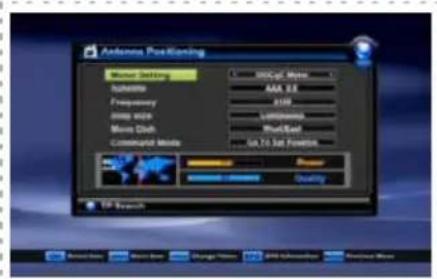
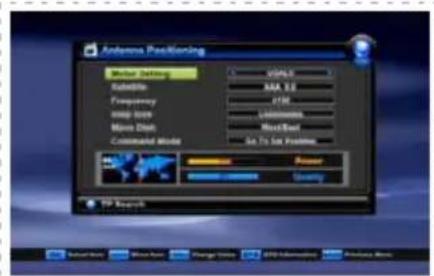
5-1-3 Search All (Blue key in TP Setup)/TP Search By pressing BLUE button in the TP Setup, this mode will search all channel of the satellite without regarding the frequency. By pressing Right( ) button and adjusting the frequency or leave as it is, you can search the specific channel regarding the frequency you choose. 5-1-4 Antenna Positioning Select DiSEqC Motor in Motor Setting box. Select appropriate Satellite, Frequency, and Step size (1,2,3,4STEP / Continuous) Select Move Dish menu and press , buttons to move West or East. Antenna will move to the direction you press (West, East) as per the Step Size you select in Step Size menu. Select appropriate option in Command Mode(Save, Reset, Go To Sat Position, Go To Position 0, Set East Limit, Set West Limit, Disable Limits, Enable Limits, Recalculate). DiSEqC Select Antenna Positioning using , button and press OK. Antenna Positioning box will Show up on the screen. USALS Select USALS in Motor Setting box. Move to Satellite and press OK to select Satellite. Select Go To Position 0 in Command Mode for “Position 0” which is the imaginary point on the geostationary orbit of the satellite and press OK. Select Go To Sat Position in Command Mode for “Sat Position” which is calculated from the “Position 0” and press OK. Use the Step Size and Move Dish commands to move the antenna if you want to manually control the antenna position. Press RED button to change the satellite position (My Longitude and My Latitude). *Unicable setting -You can use “Unicable” using by , key in Motor Setting box. In this case, you can set frequency using by , key in SCR ID box and can set frequency using by numeric key, in detail.5. Main menu

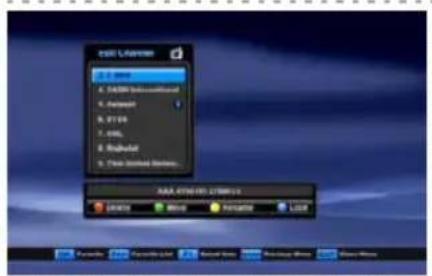
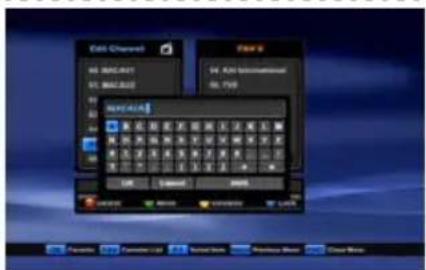
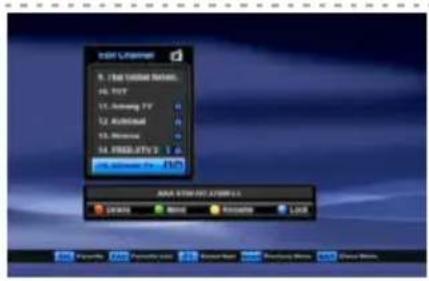
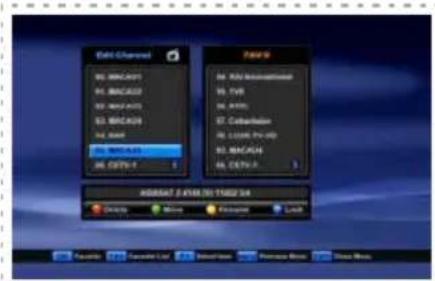
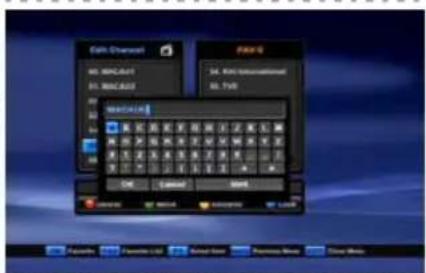
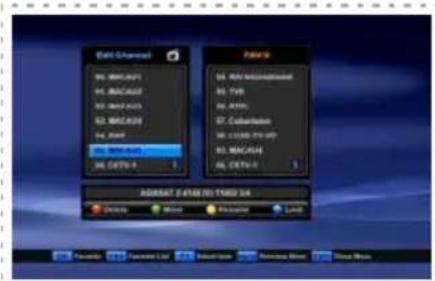
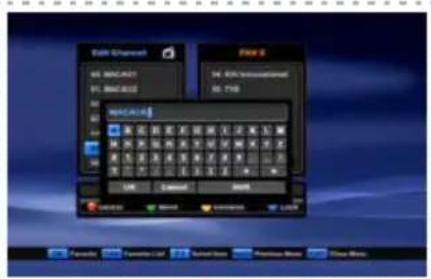
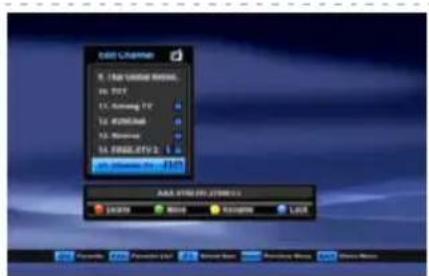
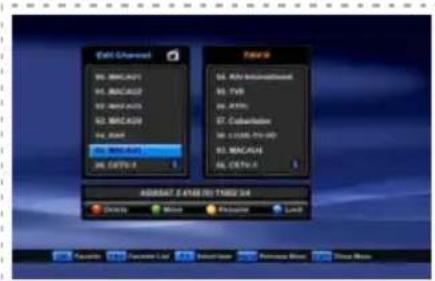
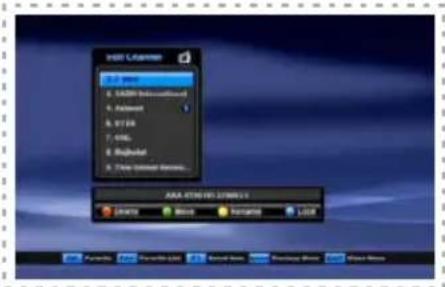
Rename Channels Select the channel you want to rename using , . Press YELLOW button. Keypad will display on the screen. Select the characters(A…Z, 0…9) using , , , . Press OK for typing. Select OK on the Keypad and press OK to save. Channel Lock Select the channel you want to lock using , . Press BLUE button to lock the channel. will show up at the end of the channel name. Move Channels Select the channel you want to move to other position in the channel box using , . Press GREEN button to move the channel you want. Move the selected channel to where you want using

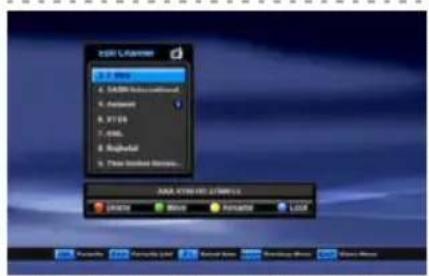
Press OK to confirm the position. *Move Channel Group -You can move channel group. Select channels, you want to move, using by F1 key and press GREEN key in where you want to locate. 5-2 System Setting 5-2-1 Edit Channel The factory set password is 0000. You can edit channel lists in this section. Press RED button to delete the selected channel. WARNING box will display on the screen, select the type of deletion you want using , . ( Selected Channel : deletes only the selected channel / Selected TP Channel : deletes all channels in the same TP / Selected Sat. Channel : deletes all channels in the same satellite / All channels : deletes all channels) Press OK to delete. Press BACK to cancel of deletion.5. Main menu
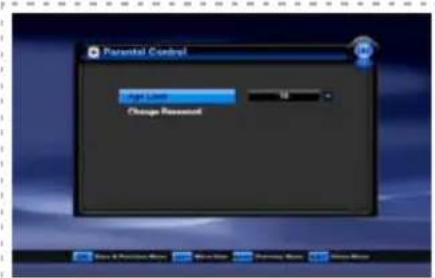
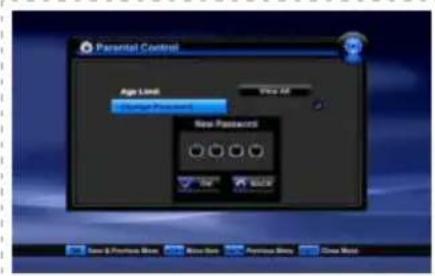
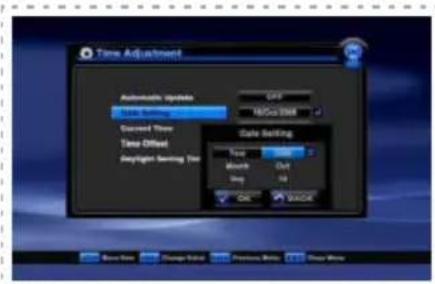
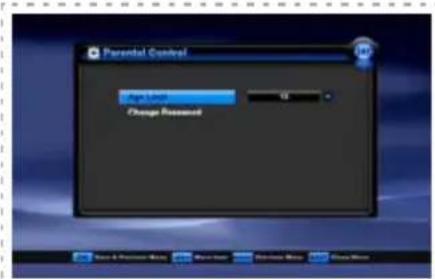
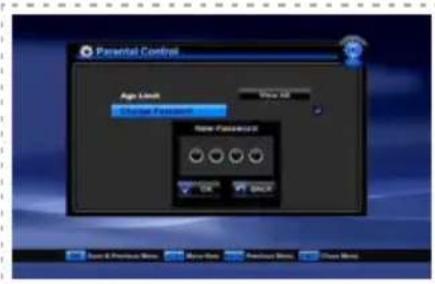
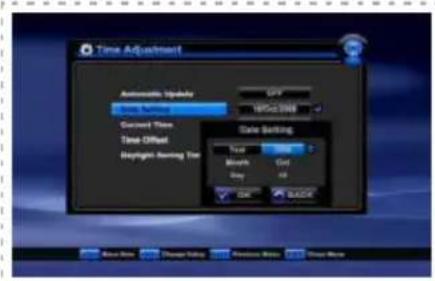
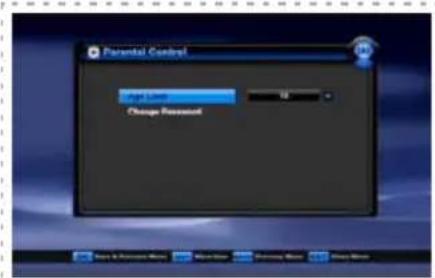
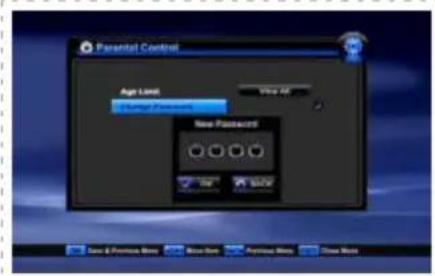
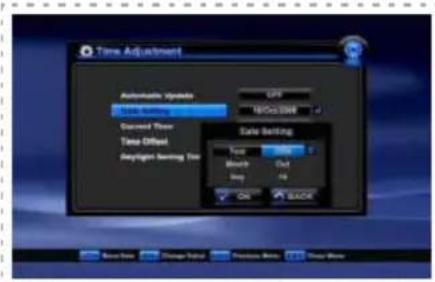
Parental Control You can set the censorship classification or change the password. Select the type of limitation using , . (7/12/15/18/Lock All/ View All) Change Password Select Change Password and press OK. New Password box will display. Enter the password and press OK. Verify Password will display. Enter the same password as the new password. Press OK to save. 5-2-2 Parental Control Favorite channel Press to create and change the number of the favorite channel lists up to 8. The favorite channel box will display on the screen and the number of favorite channel box will be changed as you repeat to press . Select the channel you want to add using , and press OK. The channel name you selected will display in the FAV box. The information will be saved automatically as you go to other menu. The time set will be used as the standardized time for TV Guide, Wake up / Sleep time. The current time is based on the TDT(time description table) in the stream of the current program(Automatic Update should be ON) -Automatic Update ON : Set Time Offset with GMT and Daylight Saving Time. -Automatic Update OFF : Select Date Setting / Current Time / Time Offset using , . Press OK and numeric button for time, date, year or , for Month. 5-2-3 Time Adjustment5. Main menu

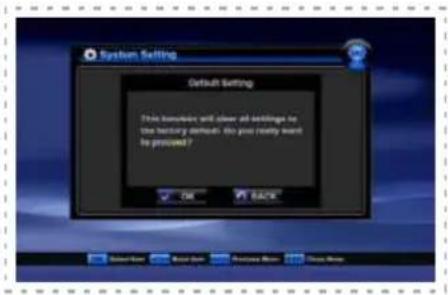
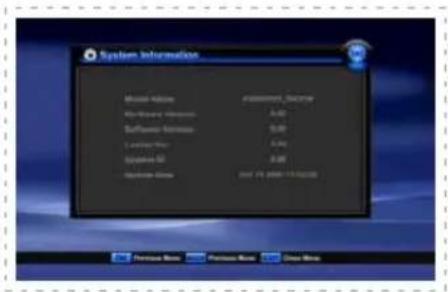
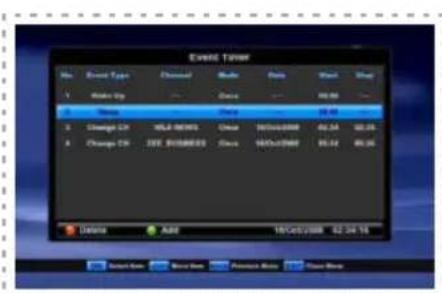
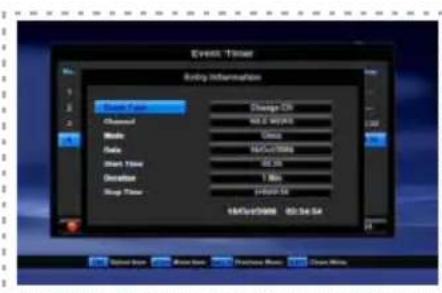
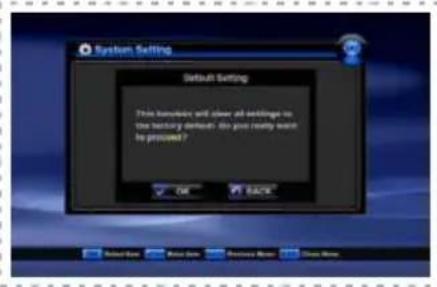
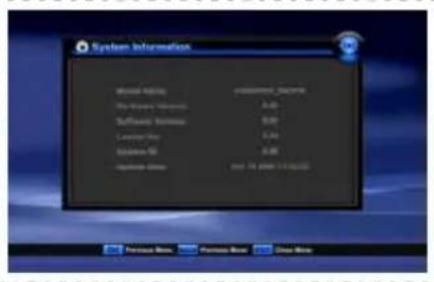
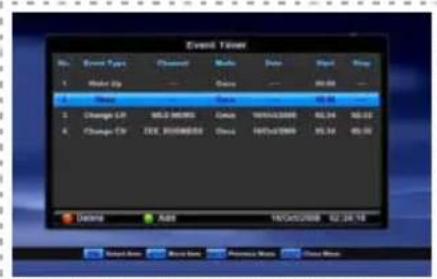
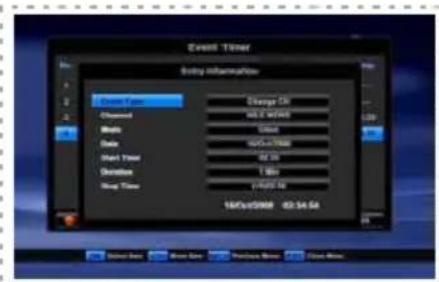
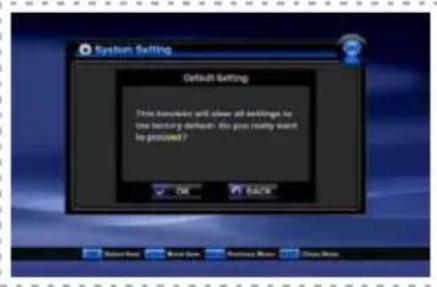
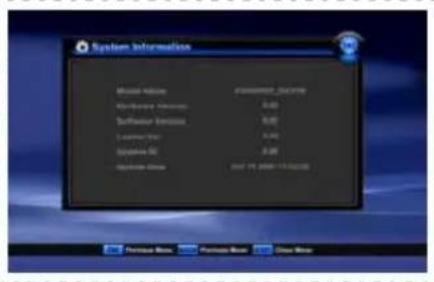
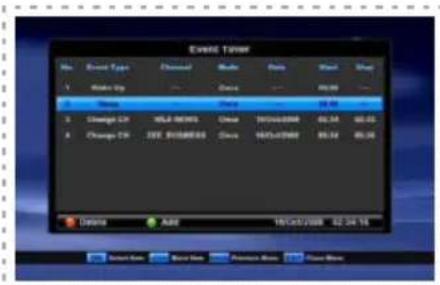
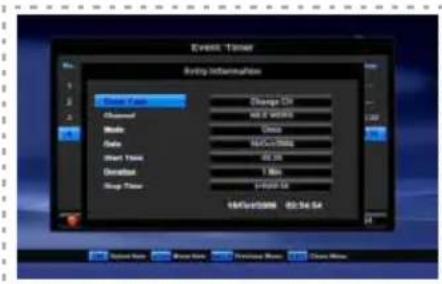
This function will clear all settings to the factory default. All satellite and transponder lists will be set to the factory default. Press OK to execute the default Setting. Press BACK to cancel and return to System Installation Menu. 5-2-4 Default Setting This section displays the information of current hardware and software version, loader version, ID and update date. Manufacturer 5-2-5 System Information There is four kinds of event type (Change CH/ Wake Up / Sleep / Record CH) Press Green(Add) button to add event. Select Event Type using , utton among Change CH, Wake Up, Sleep and Record CH. Select Channel using OK button. Select Mode using , utton among Once, Daily and Weekly. Select Date using OK or button, press , , , button to input Day, Month and Year. Select Start Time using OK or button, press , , , button to input time. Select Duration using , or numeric buttons. Select Stop Time using OK or , button, press , , , button to input time. 5-2-6 Event Timer5. Main menu

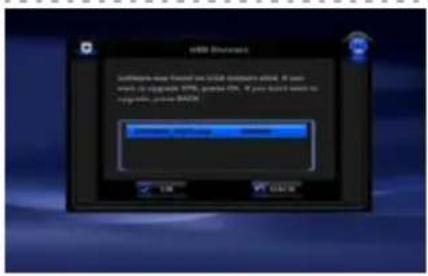
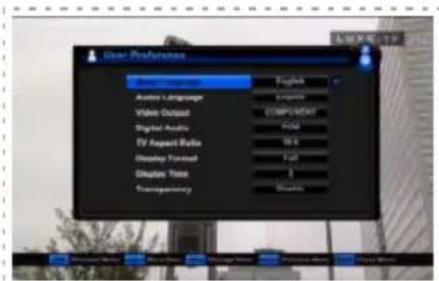
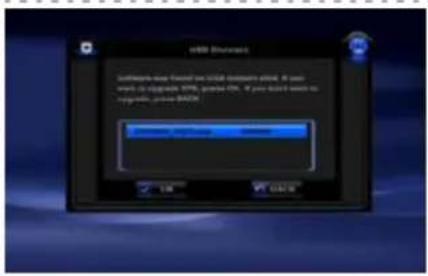
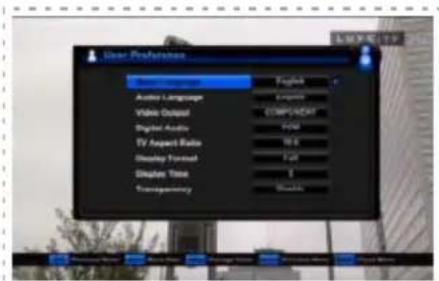
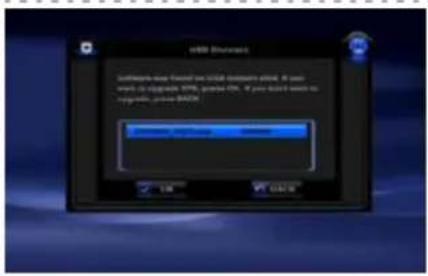
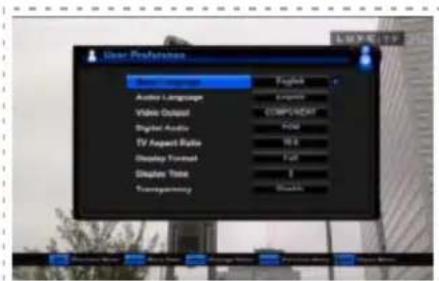
5-2-7 Software Upgrade by USB (1)Copy the latest firmware upgrade file to a USB flash drive. (2)Connect the USB flash drive to the USB port in receiver, and a window will be appeared in the TV Monitor. (3)Select the firmware upgrade file and press OK key on your RCU, and then the selected data are transferred to the receiver and upgrade - Menu Language : English / Arabic / Persian / Turkish / German / French / Spanish / Russian / Polish / Czech / Greek / Dutch / Portuguese / Hungarian / Italian / Slovak / Swedish / Slovenian / Bulgarian - Audio Language : English / French / German / Italian / Russian / Turkish / Czech / Danish / Hungarian / Portuguese / Spanish / Swedish / Polish / Arabic / Persian / Finnish / Dutch / Rumanian - Video Output : CVBS / RGB / COMPONENT - Digital Audio : PCM / Dolby Digital - TV Aspect Ratio : 4:3 / 16:9 - Display Format : Letterbox / Center / Full - Display Time : 1~20 / Enable / Disable - Transparency : 25% / 50% / 75% / Disable 5-3 User Preference Select appropriate settings by pressing Left/Right( / ) buttons at each menu. All the settings will be automatically applied by going back to the Main Menu. gets started. When the upgrade is completed,the receiver will be automatically rebooted. If you do not press any key on RCU for 5 seconds, the upgrade will automatically started with the presently selected firmware. (4)The upgradeable firmware is Program file and Channel data file5. Main menu

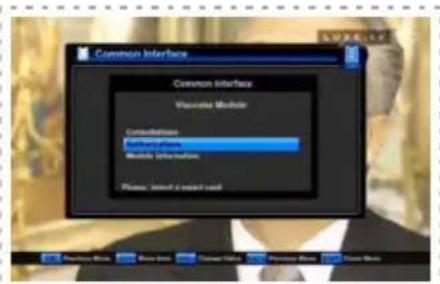
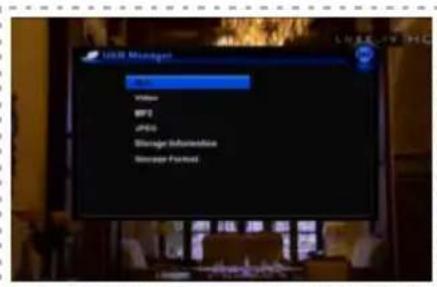
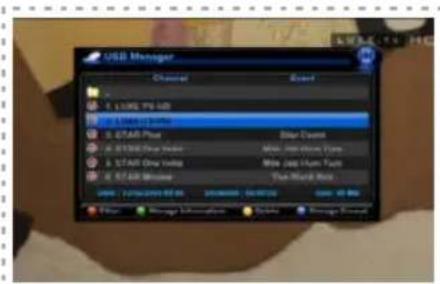
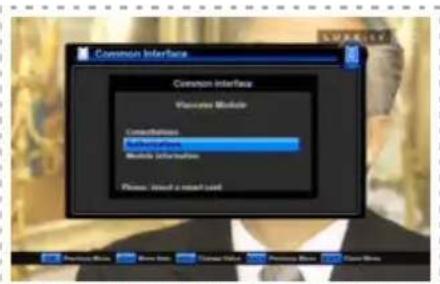
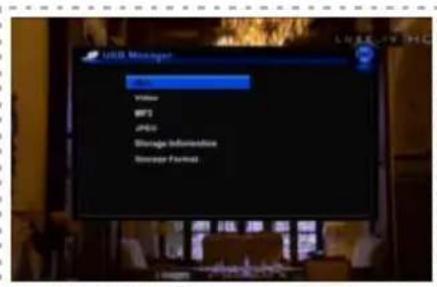
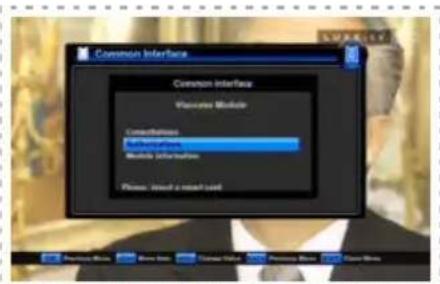
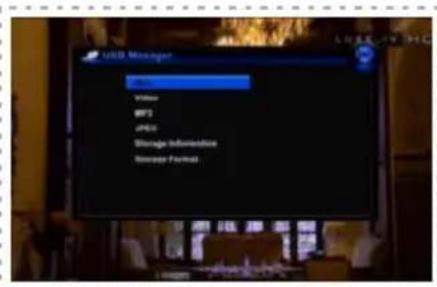
There are four types of list for different kinds of media files in USB storage device(ALL, Video, MP3, JPEG). You can check Storage Information and Storage Format in this menu. You can select appropriate menu by pressing OK button. 5-5 USB Manager You can see the information of CAM in common interface of the receiver. Select the common interface you want and press OK. The information of CAM in common interface will displays on the screen. 5-4 Common Interface6. Personal Video Recorder

6-1. Recommended Device -External USB Hard Disk Drive. (Recommended HDD : 7200RPM) -USB Flash memory stick. -Format Type : FAT16/FAT32 (The System does not support NTFS and other file system) 6-2. Recording fucntion Press button to start recording a program. 6-2-1. Recording 6-2-2. Stop recording Press button or button to stop recording. After then, it shows a message to ask whether you want to stop or not. Use OK button to stop recording and use Back button to continue recording. 6-2-3. Play mode File List Press button to show file list. Recorded files(*.ts), MP3 and JPEG files can played with external USB memory (HDD).22

6. Personal Video Recorder

Select a file Use the ▲,▼ button to select the file you want to watch and press OK button. INFO window During playing of recorded file, if you want to check file name, play time, total recorded time, press INFO button. Stop playing Press button to stop playing.If you press BACK or EXIT button, then you can stop recording after selection of “OK” in the message window. Change playing mode Press Green button repeatedly to change playing mode in MP3 as Repeat once, Repeat all, Repeat once within folder, Repeat all within folder. (Press Green button to start and stop Slideshow within folder during JPEG file playback.)6. Personal Video Recorder

6-2-4. Trick Play Function Fast foward Press button during playing of recorded file, the file will be played at 2X speed maximum up to 32X. Rewind Press button during playing of recorded file, the file will be rewind at 1X speed maximum down to 32X. Skip forward Press button during playing of recorded file, the file will be forwarded at 5% from current point. Skip backward Press button during playing of recorded file, the file will be back-warded at 5% from current point.6. Personal Video Recorder

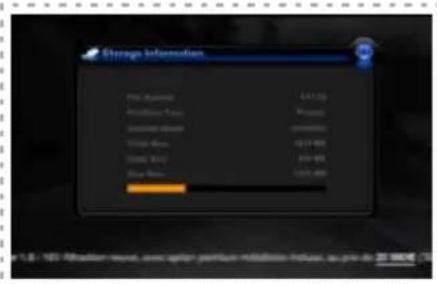
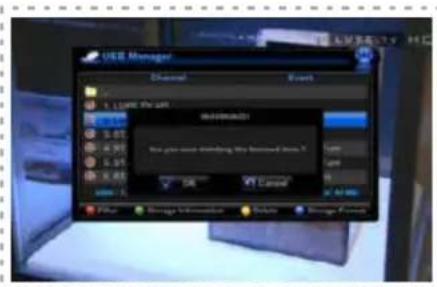
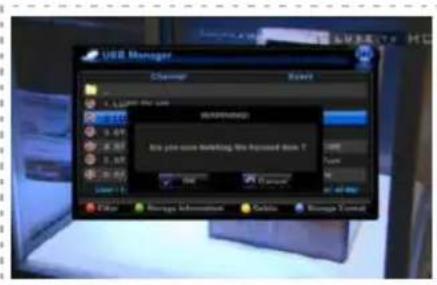
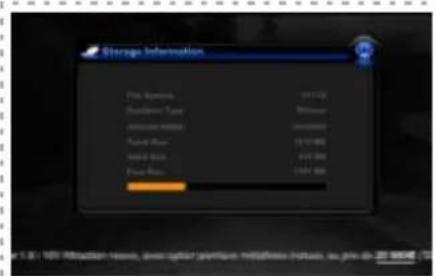
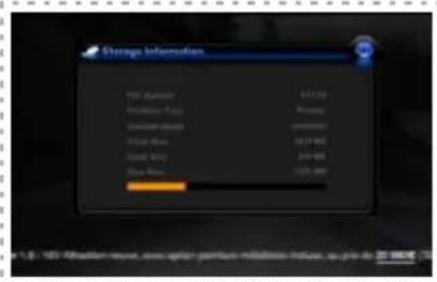
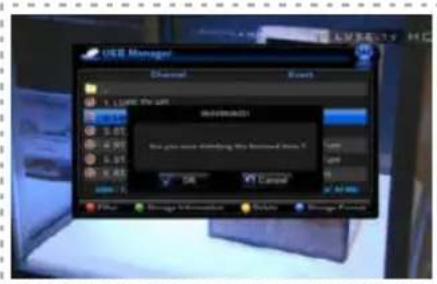
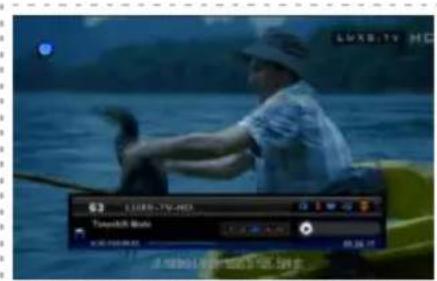
Strorage information In the file list,press GREEN button to show storage information. You can check total size, occupied size and empty size etc. *. You can see file list using by button while recording a program. 6-2-5. Function in List Delete In the file list, press YELLOW button to delete file or folder. If you delete some folder, files in the folder will be deleted accordingly. Format(Only HDD) In the file list, press BLUE button to format HDD. This function is concerned only related to HDD. 6-2-6. Time Shift Recording function You can perform Time Shift Recording function with using the trick play buttons while playing a program. Press T.SHIFT button to start and stop Time Shift recording function. Trick Play functions can perform in limited condition depends on the size of Time Shift Recording file. Filter In the file list, press RED button to show Filter window. You can select different media type for list as below. - All: Show all supported file in folder. - Video: Show all recorded files in PVR folder. - MP3: Show all MP3 files in current folder. - JPEG: Show all JPEG files in current folder.7. Troubleshooting

There may be various reasons for abnormal operation of the unit. Therefore, if the unit dies not work properly, check the unit according to the procedures shown in the table below. Problem Possible causes What to do *The display on the front panel does not light up. *No sound or picture. *Black-and-White screen or V-Hold problem *The RCU is not working *Main cable is not connected. *Wrong connection of the video/audio output to the TV input terminal. *Wrong connection of satellite antenna cable. *Wrong direction of satellite antenna. *No signal or weak signal. *Wrong setting of channel information in System Installation Menu. *Your TV mode is different from satellite broadcasting mode. *Battery exhausted. *Fluorescent light interfering with the remote controller. *RCU is incorrectly aimed *Check that the main cable is plugged into the power socket *Connect two terminals co- rrectly with a SCART cable or RCA or RF cable. *Connect the antenna cable correctly. *Adjust the direction of antenna. *Check the cable connections LNB and other equipment connected between the LNB and the receiver or adjust the antenna. *Type the setting value correctly. *Use TV of same mode. Use a NTSC/PAL converter connected to the receiver TV. *Change the batteries. *Switch off the light. *Aim the RCU at the receiver.26

6-1. Recommended Device -External USB Hard Disk Drive. (Recommended HDD : 7200RPM) -USB Flash memory stick. -Format Type : FAT16/FAT32 (The System does not support NTFS and other file system) 6-2. Recording fucntion Press button to start recording a program. 6-2-1. Recording 6-2-2. Stop recording Press button or button to stop recording. After then, it shows a message to ask whether you want to stop or not. Use OK button to stop recording and use Back button to continue recording. 6-2-3. Play mode File List Press button to show file list. Recorded files(*.ts), MP3 and JPEG files can played with external USB memory (HDD).22

6. Personal Video Recorder

Select a file Use the ▲,▼ button to select the file you want to watch and press OK button. INFO window During playing of recorded file, if you want to check file name, play time, total recorded time, press INFO button. Stop playing Press button to stop playing.If you press BACK or EXIT button, then you can stop recording after selection of “OK” in the message window. Change playing mode Press Green button repeatedly to change playing mode in MP3 as Repeat once, Repeat all, Repeat once within folder, Repeat all within folder. (Press Green button to start and stop Slideshow within folder during JPEG file playback.)6. Personal Video Recorder

6-2-4. Trick Play Function Fast foward Press button during playing of recorded file, the file will be played at 2X speed maximum up to 32X. Rewind Press button during playing of recorded file, the file will be rewind at 1X speed maximum down to 32X. Skip forward Press button during playing of recorded file, the file will be forwarded at 5% from current point. Skip backward Press button during playing of recorded file, the file will be back-warded at 5% from current point.6. Personal Video Recorder

Strorage information In the file list,press GREEN button to show storage information. You can check total size, occupied size and empty size etc. *. You can see file list using by button while recording a program. 6-2-5. Function in List Delete In the file list, press YELLOW button to delete file or folder. If you delete some folder, files in the folder will be deleted accordingly. Format(Only HDD) In the file list, press BLUE button to format HDD. This function is concerned only related to HDD. 6-2-6. Time Shift Recording function You can perform Time Shift Recording function with using the trick play buttons while playing a program. Press T.SHIFT button to start and stop Time Shift recording function. Trick Play functions can perform in limited condition depends on the size of Time Shift Recording file. Filter In the file list, press RED button to show Filter window. You can select different media type for list as below. - All: Show all supported file in folder. - Video: Show all recorded files in PVR folder. - MP3: Show all MP3 files in current folder. - JPEG: Show all JPEG files in current folder.7. Guide de dépannage

Manual assistant
Powered by Anthropic
Waiting for your message
Product information

Brand : Denson

Model : DS400HDM

Category : Receiver