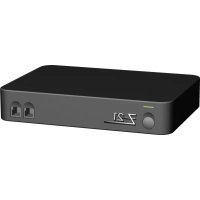
10820 - USB hub Roco - Free user manual and instructions
Find the device manual for free 10820 Roco in PDF.


| Product type | Digital command station for model trains (Z21 system) |
| Model | 10820 Roco Z21 |
| Power supply | Included power adapter (ref. 10851), input 230 V~, output DC |
| Track voltage | 12-24 V, adjustable via software (max 24 V input, 1 V less output) |
| Max track current | 3.2 A |
| Supported protocols | DCC and Motorola |
| Locomotive capacity | Up to 9,999 DCC locomotive decoders |
| Turnout capacity | Up to 2,048 DCC turnout decoders |
| Interfaces | LAN, 3x X-BUS, R-BUS, L-BUS, B-BUS, CAN, LocoNet, Sniffer BUS, RailCom |
| Wireless connection | Included WiFi router (network Z21_xxxx, PIN password on back) |
| Compatible apps | Mobile Z21 (iOS/Android), Z21 cabs, multiMAUS, Lokmaus 2 |
| Programming track | Yes, separate (Prog Track terminals) with RailCom |
| Feedback | RailCom on main track and programming track |
| Update | Via smartphone/tablet connected to the Internet |
| Accessory compatibility | Roco and Fleischmann digital (RocoNet, X-BUS) |
| Dimensions | Approximately 17 x 12 x 5 cm (estimate) |
| Weight | Approximately 500 g (estimate) |
| Maintenance | Wipe with a soft dry cloth. Do not use harsh chemicals. |
| Safety | Do not open the casing (loss of warranty). Use only the supplied adapter. Avoid short circuits. |
| Spare parts | Power adapter (ref. 10851), WiFi router, network cable. Contact Roco service. |
| Warranty | Limited warranty. Opening the casing voids the warranty. |
Frequently Asked Questions - 10820 Roco
User questions about 10820 Roco
0 question about this device. Answer the ones you know or ask your own.
Ask a new question about this device
Download the instructions for your USB hub in PDF format for free! Find your manual 10820 - Roco and take your electronic device back in hand. On this page are published all the documents necessary for the use of your device. 10820 by Roco.
USER MANUAL 10820 Roco
natural_image
Front view of a network switch device labeled 'Z21' with ports and indicator lights (no readable text beyond branding)natural_image
Interior view of a vehicle cockpit with open dashboard and steering wheel (no visible text or symbols)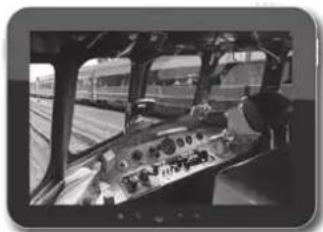
natural_image
Interior view of a train cockpit with control panel and tracks, no visible text or symbols
natural_image
Interior view of a mechanical assembly or machinery with no visible text or symbolsLegal Notice
Please note the following cautions before using your Z21 Digital System:
▶ When combining Roco or Fleischmann components with third-party products, the warranty for damage or malfunctions lapses.
▶ Any warranty claim lapses if the casings of the Z21 Digital Centre and Router are opened.
▶ Carry out all cabling works only when the power is switched off!
▶ Work carefully and make sure that no shortcircuits can occur when connecting the track system to the mains! Incorrect wiring can destroy the digital components. If necessary, consult your dealer.
▶ Positively do not connect an analogue transformer or other digital systems or centres to the same power circuit or neighbouring power circuits in parallel to digital control. This can result in the destruction of the Z21 Digital Centre!
▶ Do not use the Z21 Digital Centre with current Roco amplifiers (e.g. Art. Nos. 10761 and 10764).
Änderungen von Konstruktion und Ausführung vorbehalten! • We reserve the right to change the construction and design! • Nous nous réservons le droit de modifier la construction et le dessin ! • Ci riserviamo il dintto di variare la costruzione e il design! • Verandering van model en construcie voorbehouden. Bitte diese Beschreibung zum späteren Gebrauch aufbewahren! • Please retain these instructions for further reference! • Pire d'bien vouloir conserver ce mode d'emploi en vue d'une future utilisation ! • Conservate queste istruzioni per un futuro utilizzo! • Deze handleding altijd bewaren.
Imprint
All rights, modifications, errors and delivery options reserved.
Specifications and illustrations without obligation. All changes reserved.
Thank you for buying the Z21 Digital System of Roco and Fleischmann!
With the Z21 Digital System, model railway control is as easy and exciting as never before: locomotives, switches and digital components of Roco and Fleischmann can be controlled easily and conveniently from your smartphone or tablet PC – ensuring maximum driving fun from the first moment! The Z21 Digital System is made up of three modules:
The Z21 Digital Centre is a high-performing state-of-the-art multi-protocol centre. It integrates perfectly into your model layout and allows controlling locomotives and digital components easily and conveniently by smartphone, tablet PC or multiMAUS.
The Z21 mobile app is a universal control software for Android and iOS-based smartphones and tablet PCs. With this app, you can control all locomotives with DCC or Motorola decoders and program loco libraries, entire locomotives, loco functions and digital components.
The Z21 driver stands are apps with detailed reproductions of actual locomotive driver stands. Become a virtual loco driver – and run your favourite locomotive with your tablet PC from an exact virtual driver stand.
The following pages will explain everything you need to know to connect and operate the Z21 Digital System to your layout. In addition, the manual contains many practical tips for digital operation and you will learn which digital components of Roco and Fleischmann can be combined with the Z21 Digital System.
You can see: We still have a lot to do. So let's go!
Contents
Z21 Digital Centre Connections 35
- Unpack, Connect and Go 36
1.1 How to Connect Your Z21 Digital System 36
1.2 How to Start Your WLAN Router 38
1.3 How to Install the Z21 Mobile App 38
- Z21 Digital Centre: State-of-the-Art Model Railway Control 39
2.1 Connection of Additional Control Devices 40
2.2 Compatibility with Roco and Fleischmann Components 40
2.3 Power Supply for the Z21 Digital Centre 41
2.4 Operation of Digital Locomotives 42
2.5 Upgrading of Analogue Locomotives 43
2.6 Resetting the Z21 Digital Centre 43
2.7 Update of Z21 Digital Centre 43
2.8 Programming and Read-Out Track 44
2.9 Feedback at Programming and Main Track 45
-
Driving with a Booster 46
-
Loops in Digital Operation 48
-
Z21 Mobile App: First Steps 50
5.1 Controls 51
5.2 Settings 52
5.3 Locomotive Library 53
5.4 Programming Loco Settings 54
5.5 Access to Loco Functions 55
5.6 Assignment of Digital Functions 56
5.7 Setting and Handling of Magnetic Items 57
- View from the Driver Stand 58
Z21 Digital Centre Connections
Front
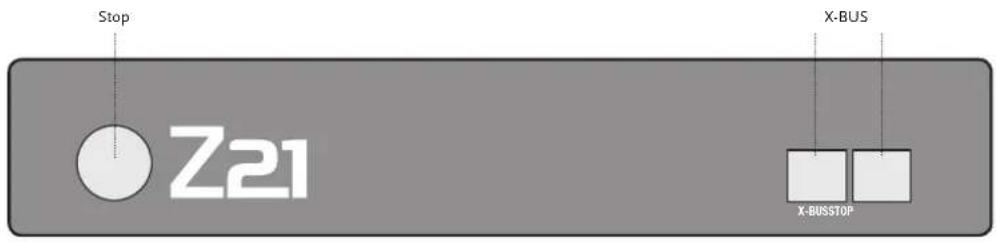
text_image
Stop Z21 X-BUS X-BUSSTOPBack
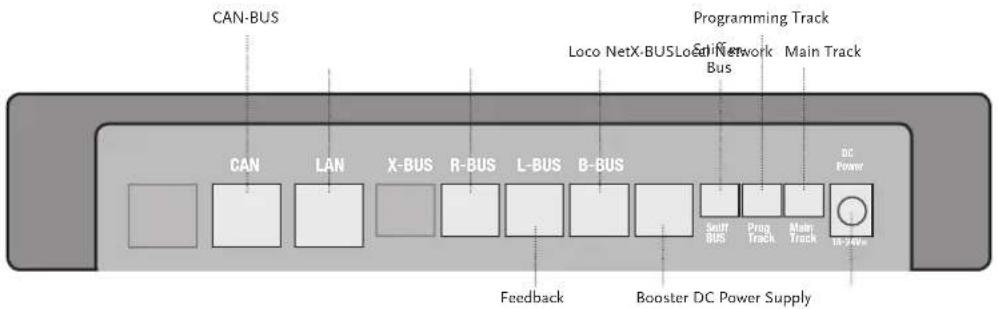
text_image
CAN-BUS Programming Track Loco NetX-BUS Local Network Bus Main Track CAN LAN X-BUS R-BUS L-BUS B-BUS DC Power Sefft Bus Piga Track Main Track to 340w Feedback Booster DC Power Supply1. Unpack, Connect and Go
This manual shows you how to operate your Z21 Digital System and control your layout using the Z21 mobile and driver stand apps. Please prepare the following items:
▶ the Z21 Digital Centre and the supplied AC adaptor
▶ the supplied WLAN router and the supplied AC adaptor
▶ the supplied network cable
▶ your smartphone or tablet PC with Internet access, optionally or additionally the multiMAUS (Art. No. 10810)
In addition, you will also need access to your Roco and Fleischmann layout, ideally prepared with a powered track without capacitor, as e.g. Art. No. 61190 (geoLine), Art. No. 42517 (RocoLine), Art. No. 22217 (Fleischmann N) or Art. No. 6430 (Fleischmann H0).
1.1 How to Connect Your Z21 Digital System
- Place the Z21 Digital Centre into your system for good accessibility.
- Connect the supplied clamping terminal to the powered track. Ensure good contact.
- Plug the cable of your powered track into the track socket "Main Track" of the Z21 Digital Centre.
- Connect the switching adaptor to the DC power socket "DC Power".
- Connect the switching adaptor of the Z21 Digital Centre to the mains power outlet.
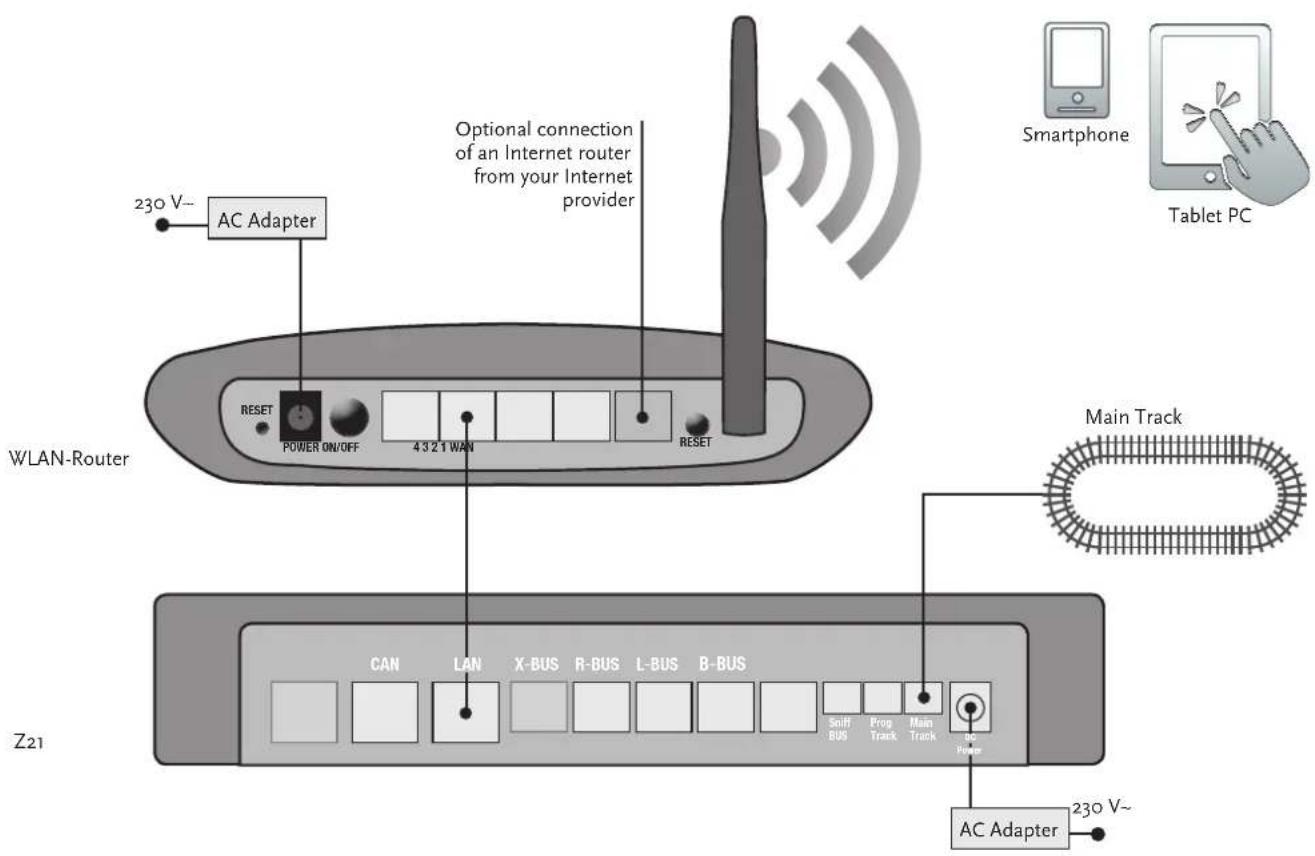
text_image
230 V~ AC Adapter Optional connection of an Internet router from your Internet provider WLAN-Router RESET POWER ON/OFF 4 3 2 1 WAN RESET CAN LAN X-BUS R-BUS L-BUS B-BUS Z21 Main Track Sniff BUS Prog Track Main Track AC Power 230 V~ Smartphone Tablet PCRefer to pages 16 and following on what other Roco and Fleischmann components can be used with the Z21 Digital Centre.
Z21 mobile app system requirements:
▶ iPad as of v1.3
▶ iPhone and iPod as of iOS 4.2
▶ Android devices as of v2.3
1.2 How to Start Your WLAN Router
Connect the Z21 Digital Centre to the supplied WLAN router to allow operating your layout using external peripherals such as a smartphone or tablet PC.
- Place the WLAN router on top of or next to the controller. Select a location to ensure a trouble-free connection between router and smartphone or tablet PC.
- Connect the LAN port of the Digital Centre to a LAN port of the WLAN router using the supplied network cable.
- If you have an Internet connection, you can optionally cable the WLAN router via a WAN port to the router of your Internet provider. This allows accessing the existing connection to the Internet from your smartphone or tablet PC to download updates or information.
Ready! Your Z21 Digital System is now ready for use. Next, you will learn how to install the Z21 mobile control app on your smartphone and how to connect your smartphone or tablet PC with the Z21 Digital Centre.
1.3 How to Install the Z21 Mobile App
▶ Make sure that your smartphone or tablet PC is connected to the Internet.
▶ Register the smartphone or tablet PC with the Z21 WLAN. To register with Android or iOS systems, consult the manual of your peripheral device.
▶ When using an iPad (as of version 1.3) or an iPhone or iPod (as of iOS 4.2), use the AppStore.
▶ When using an android smartphone or tablet (as of version 2.3) phone, change to Google Play.
▶ Use the search function to look for the "Z21 Mobile". Install the app.
▶ Start the app. The start-up screen displays. Let's go!
▶ More on the operation of the Z21 Mobile App, see Pages 50 and following.
2. Z21 Digital Centre
Start out into the future of model railway control with Roco and Fleischmann: with the Z21 Digital Centre, you can control your layout from your smartphone or tablet PC with utmost convenience – maximum driving fun and uncompromising faithfulness to the original.
The state-of-the-art multiprotocol centre is the ideal control system for locos with DCC or Motorola decoder and the perfect control for your digital components. The Centre connects your layout and digital locos by WLAN with your smartphone or tablet PC and the control apps installed in them, or optionally with one of our digital driver stand or the Z21 Mobile App.
▶ Controls up to 9,999 DCC loco decoders
▶ Controls up to 2,048 DCC switch decoders
▶ Adjustable, rectified track voltage (12-24 V, 3A) for smooth driving operation
▶ Compatible with multiMAUS models and Lokmaus 2
▶ Separate programming track connection with ZIMO decoder update
▶ Automatic loco detection and feedback via RailCom®
▶ Many interfaces: LAN, three X buses, loco feedback, Loco Net, CAN and Booster Bus, Sniffer Bus
▶ Software and sound updates via smartphone
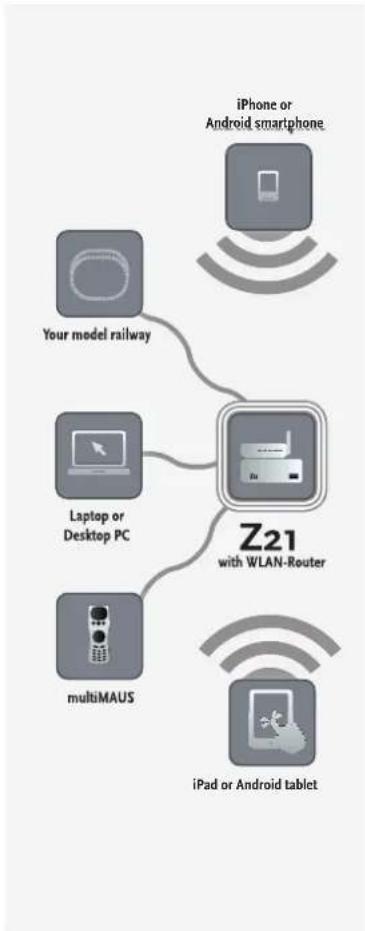
flowchart
graph TD
    A["iPhone or Android smartphone"] --> B["Your model railway"]
    C["Laptop or Desktop PC"] --> D["Z21 with WLAN-Router"]
    E["multiMAUS"] --> D
    F["iPad or Android tablet"] --> D

Warning: Positively do not connect an analogue transformer to the power circuit of your digital system! Destruction of the Z21 Digital Centre would be the result!
2.1 Connection of Additional Control Devices
You will probably prefer to control your Z21 Digital System from your smartphone or tablet PC. But if you want to share control with others or do not have your smartphone at hand, you can also connect your current multiMAUS or local mouse control devices to the X Bus sockets of the Z21 Digital Centre.
Each of these control devices can interface with all locos and digital components. This allows controlling at any time locos controlled by other devices by selecting any function of the corresponding loco or the loco controller from your Z21 mobile app.
2.2 Compatibility with Roco and Fleischmann Components
The Z21 Digital Centre can be connected without problem to all Roco and Fleischmann digital devices, based on the RocoNet or the X Bus protocol. These include:
▶ multiMAUS, Lokmaus 2 and Lokmaus R3 (Art. No. 10760, 10790, 10860 and 10792)
▶ Keyboard (Art. No. 10770) and RouteControl (Art. No. 10772)
▶ Roco booster (not RailCom® compatible, Art. No. 10762 and 10765)
▶ For further information on compatibility, see online www.Z21.eu.
2.3 Power Supply for the Z21 Digital Centre
As a power supply for the Z21 Digital Centre, please use exclusively the supplied AC adaptor (Art. No. 10851). Positively do not use a wound-core transformer!
With the Z21 Digital System, you can modify the voltage applied to your system at any time by software. For this purpose, change to the menu "Z21 Settings" in the Z21 mobile app. Always make sure to stay in 11 to 23 V range. Typical voltage ranges are from 14 to 18 V (for the gauges H0 and TT) and approx. 12 V (for the gauge N).
Maximum input voltage for the Z21 Digital System is 24 V. The maximum track voltage is always 1 V below the input voltage.
The Z21 Digital Centre is designed for loads of up to 3.2 A. If frequent power cuts occur in the system due to overloads, please install a booster (see Page 46).
Note: To find out the current power consumption of your system, check the menu point "Power Centre" in the "Z21 Settings" menu of the Z21 mobile app.

Warning: Positively do not connect the Z21 Digital Centre to Roco amplifiers Art. Nos. 10761 and 10764! Use these components only on electrically separate layout parts connected only by transition tracks.

Note: How to compute the power consumption of an HO system:
▶ Stationary locos with light: approx. 100 mA
▶ Travelling locos depending on size and load: 300 – 600 mA
▶ Illuminated coaches: approx. 30 mA per minibulb (expect considerable fluctuations!)
▶ Digital coupling or smoke generator: approx. 100 mA
▶ Digital switch drive or switch decoder: approx. 500 mA as reserve

Note: Easy programming of your loco decoder
▶ Place loco onto programming track
▶ Start the Z21 mobile app
▶ Switch to programming mode
▶ Enter the new parameters
▶ Ready!
2.4 Operation of Digital Locomotives
The Z21 Digital System is suitable for the control of all locomotives using Roco loco decoders or any DCC-compatible decoders. Your Z21 Digital System can administer up to 9,999 loco decoders.
The preconfi guration by the factory of all Roco and Fleischmann locos is decoder address 3. If you use several locos on your system simultaneously, you need to assign a separate decoder address to each one.
With the Z21 Digital System, this is very simple: put the locomotive as the only loco onto the programming track. Select the locomotive on Z21 mobile app and give it a name and decoder address not yet assigned in the programming mode. That's it!
All magnetic items (switches, decoupling tracks, signal decoders) equipped with a digital decoder can be programmed and controlled with the Z21 mobile app just as easily.
2.5 Upgrading of Analogue Locomotives
Locomotives and components without decoder cannot be used in the Z21 Digital System.
Due to the entirely different voltage supply, the use of a non-decoder loco results in a highly irritating high-frequency noise. In addition, there is a risk that the motors will be damaged.
However, many analogue models can be refitted with loco decoders and so made suitable for use on your Z21 layout. With locomotives with a free slot and an operational digital interface, this is very simple and easy because as a rule, the decoder merely needs to be plugged into a free socket.
2.6 Resetting the Z21 Digital Centre
If your digital system no longer operates flawlessly, please reset your Z21 Digital Centre to the factory setting as follows:
▶ Press the stop key on the front of the unit.
▶ Keep the key depressed for 5 seconds. The LED light starts flashing in purple.
This shows the Z21 Digital Centre has been reset to the factory setting. If the digital system still does not operate flawlessly, contact your dealer.
2.7 Update of Z21 Digital Centre
When your smartphone or tablet PC is connected to the Internet, you can search for apps and the Z21 firmware in the "Updates" section of software updates at the AppStore and Google Play.

Warning: Locomotives and components without decoder cannot be used on the Z21 Digital System.

Note: You can have your locomotives converted in a professional workshop. For a list of recommended suppliers, see www.roco.cc/en/service-partner.

Note: The fi rmware of your Zimo loco decoder can be updated very conveniently via the programming track. For this purpose, simply drive the respective locomotive to the programming track. In the Z21 mobile app, switch to programming mode and select the menu item "Decoder Update.

Warning: Only one loco can be read out and/or programmed at the same time.

Note: When setting the length of the programming track, take the longer tenders of steam locomotives into account!
2.8 Programming and Read-Out Track
As long as you wish to program one single loco decoder, you can program it directly on the main track. For this purpose, simply mark the loco in the Z21 mobile app, switch to programming mode and change the desired parameters.
If you want to read the decoder settings or do not know the decoder adress anymore, we recommend the use of a separate programming track.
You can use any partial section of your layout as a programming track – simply isolate it on both ends with insulated rail connectors (Art. Nos. 42611, 61192, 6433 or 9403) or separator rails and then connect it to a power supply element (Art. No. 61190) at the "Prog Track" socket of the Digital Centre.
To program a loco, simply drive it to the corresponding track section. Then change your Z21 mobile app to programming mode (for details, see www.z21.eu). The Z21 Digital Centre now switches the track automatically into programming and read mode.
You can now read the decoder data of the locomotive in the Z21 mobile app via RailCom and set new CV values for the locomotive. For details, also see www.z21.eu.
2.9 Feedback at Programming and Main Track
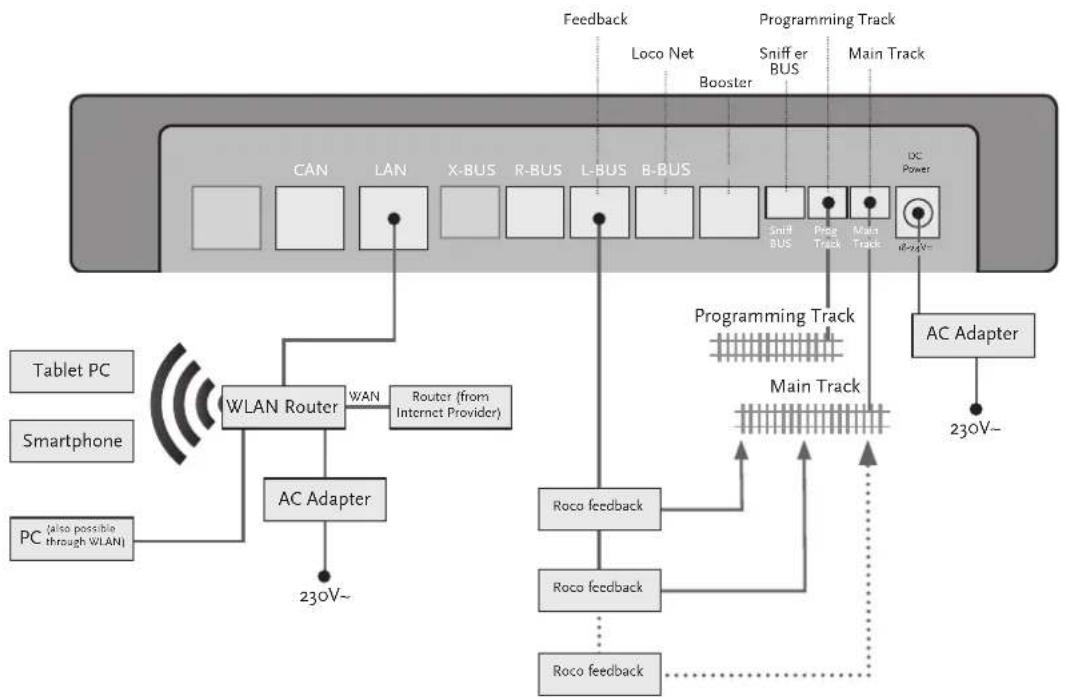
flowchart
graph TD
    A["Device Interface"] --> B["CAN"]
    B --> C["LAN"]
    C --> D["X-BUS"]
    D --> E["R-BUS"]
    E --> F["L-BUS"]
    F --> G["B-BUS"]
    G --> H["Switch BUS"]
    H --> I["Preg Track"]
    I --> J["Main Track"]
    J --> K["DC Power"]
    K --> L["AC Adapter"]
    L --> M["230V~"]
    N["Tablet PC"] --> O["WLAN Router"]
    P["Smartphone"] --> O
    Q["PC (also possible through WLAN)"] --> O
    O --> R["AC Adapter"]
    R --> S["230V~"]
    T["Feedback"] --> U["Loco Net"]
    U --> V["Booster"]
    V --> W["Sniffer BUS"]
    W --> X["Main Track"]
    X --> Y["DC Power"]
    Y --> Z["Programming Track"]
    Z --> AA["Main Track"]
    AA --> AB["Roco feedback"]
    AB --> AC["Roco feedback"]
    AC --> AD["Roco feedback"]
    AD --> AE["..."]
    AF["230V~"] --> AG["AC Adapter"]

If power consumption exceeds 2.5 A, the section is overloaded and must be divided.

Warning: The booster and the Z21 Digital Centre must not be operated with the same transformer or AC adaptor!

Make sure that at the change-over turnouts, the tracks have the same polarity to avoid shortcircuits when driving over the separating turnouts. Make sure that powered tracks have no capacitors.
3. Driving with a Booster
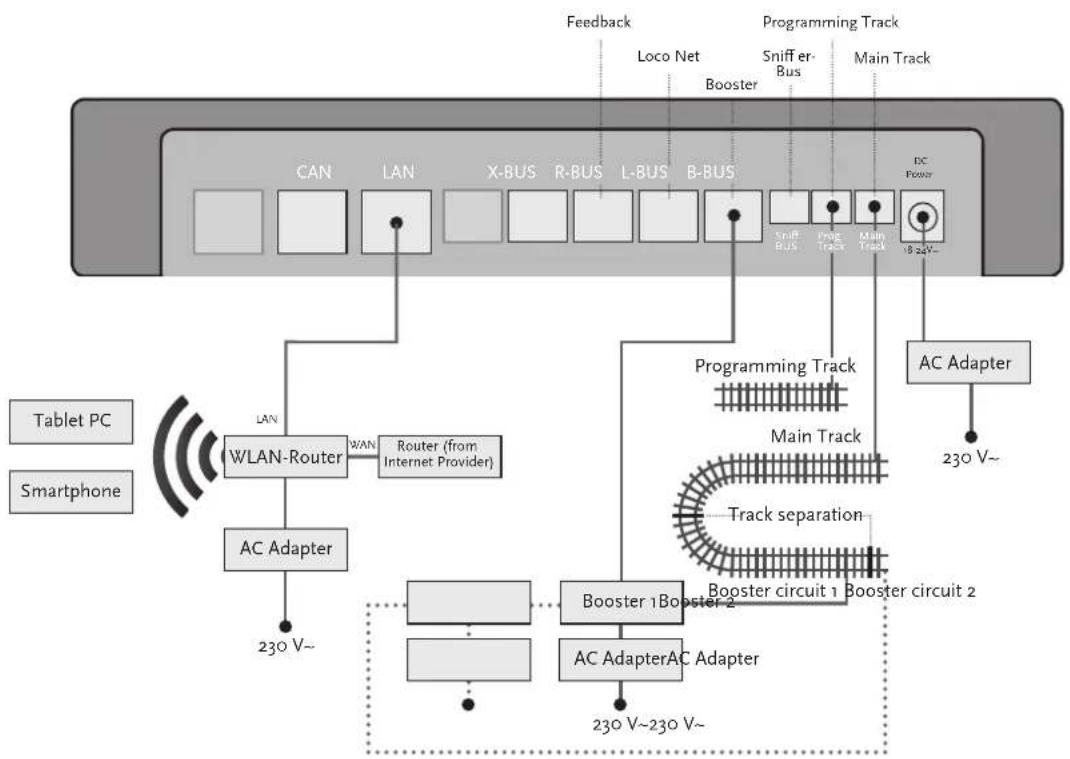
When your system turns off frequently without a loco or coach having derailed or in the absence of a wiring error, as a rule this suggests an overload due too many power consumers. In this case, a booster (Art. No. 10765) which supplies extra power to the layout via an extra transformer (Art. No. 10718, 10725 or 10850) will help.
Installation is simple:
Subdivide your system into two supply sections having approximately the same power consumption. Separate the tracks on both sides using insulated rail connectors (Art. No. 42611, 61192, 6433 or 9403) or separator tracks.
▶ Attach a power supply element to the new supply section (e.g. geoLine Art. No. 61190) or another separator track and connect it to the "Track Out" socket of the booster.
▶ Now connect the booster to its transformer.
Connect the "Booster In" socket on the booster with the "B Bus" socket of the Z21 Digital Centre. Use the dedicated cable supplied with the booster for this purpose. A detailed cabling diagram is found on Page 47.
You can connect up to three more boosters to the "Booster Out" socket of the booster when necessary. If more than four boosters are needed for your layout, a brake generator (Art. No. 10779) must be connected in place of the fourth booster. Up to four more boosters can then be connected to the "Booster Out" socket.
flowchart
graph TD
    A["CAN"] --> B["LAN"]
    B --> C["X-BUS"]
    C --> D["R-BUS"]
    D --> E["L-BUS"]
    E --> F["B-BUS"]
    F --> G["Switch Bus"]
    F --> H["Prog Track"]
    F --> I["Main Track"]
    G --> J["DC Power"]
    H --> J
    I --> J
    K["Tablet PC"] --> L["WLAN-Router"]
    M["Smartphone"] --> L
    L --> N["AC Adapter"]
    N --> O["230 V~"]
    P["Controller"] --> Q["Booster 1 Booster 2"]
    Q --> R["AC AdapterAC Adapter"]
    S["Feedback"] --> T["Loco Net"]
    T --> U["Booster"]
    U --> V["Sniffer Bus"]
    V --> W["Main Track"]
    X["Programming Track"] --> Y["Main Track"]
    Z["AC Adapter"] --> AA["230 V~"]
    AB["Track separation"] --> AC["Booster circuit 1 Booster circuit 2"]

Note: To make sure that the loop module responds quickly enough, the sensitivity must be set prior to operation using the potentiometer visible at the side. Observe operating instructions.
4. Loops in Digital Operation
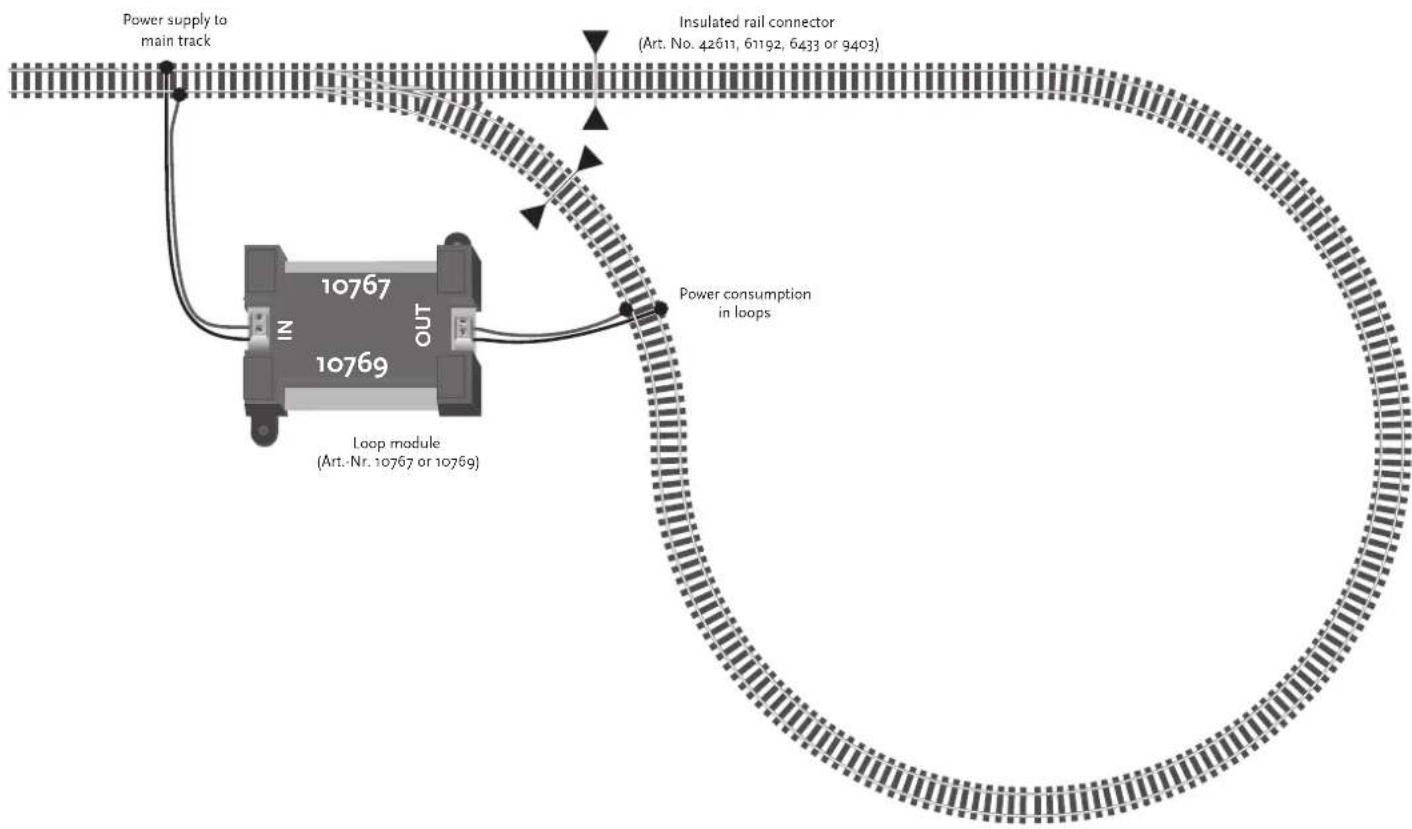
Every DC railway enthusiast knows the following problem: if after a loop, the left rail profi le meets the right one, a shortcircuit occurs without the appropriate wiring.
With our loop modules (Art. No. 10767 or 10769), this switching problem in digital operation is elegantly taken care of: simply separate the loop on both sides on two poles and insulate the rest using insulated connectors (Art. No. 42611, 61192, 6433 or 9403) electrically from the remainder of the layout (see Page 49). The separated layout portion within the loop must be longer than the longest train which is to drive through the loop. The power to the loop is supplied by the loop module which is connected either to the track outside the loop or to the Z21 Digital Centre.
And this is how the loop module works: as soon as a train enters the loop regardless of the direction, shortcircuit detection occurs in the module. The polarity in the loop is automatically changed before the shortcircuit detection of the Digital Centre is aware of it or before the trains slows down. The polarity reversal is repeated when the train leaves the loop. Thus, the train can pass through a loop without stopping or operator intervention.
flowchart
graph TD
    A["Power supply to main track"] --> B["10767"]
    B --> C["10769"]
    C --> D["Insulated rail connector (Art. No. 42611, 61192, 6433 or 9403)"]
    D --> E["Power consumption in loops"]
    E --> F["Loop module (Art. Nr. 10767 or 10769)"]

Note: You can get a Z21 Mobile App free of charge in the AppStore from Apple or from Google Play.
System requirements:
▶ iPad v1.3 or later
▶ iPhone and iPod iOS 4.2 or later
▶ Android devices v2.3 or later

Note: Illustrations may vary depending on display size or updates!

Note: The function selection of apps is constantly extended by regular updates!
5. Z21 Mobile App: First Steps
On the following pages, you will learn everything you need to know to control your digital locomotives using the Z21 Mobile App via your smartphone or tablet PC. When you start the Z21 Mobile App, you see the following start-up screen
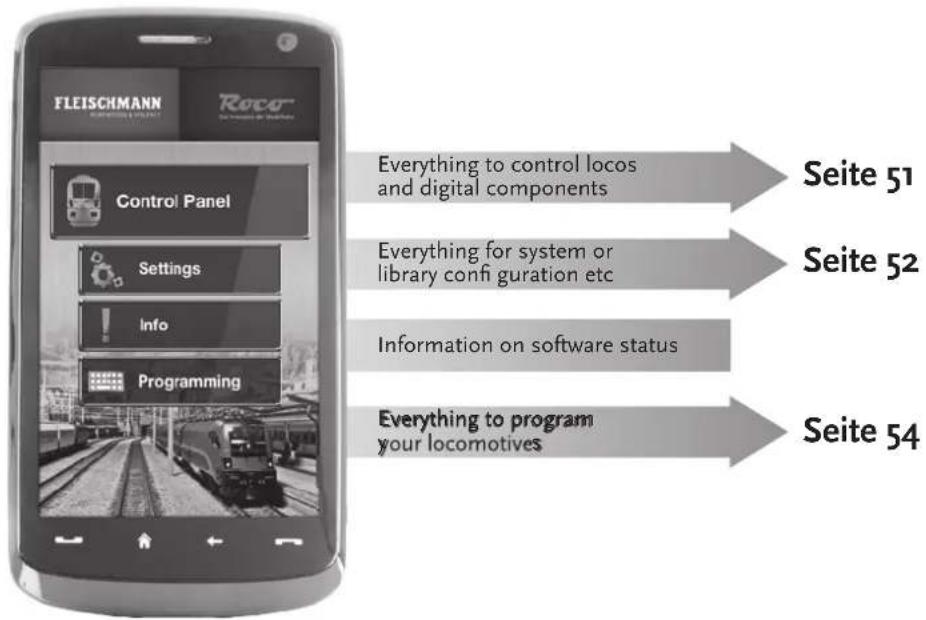
text_image
FLEISCHMANN Control Panel Settings Info Programming Everything to control locos and digital components Everything for system or library configuration etc Information on software status Everything to program your locomotives Seite 51 Seite 52 Seite 545.1 Controls
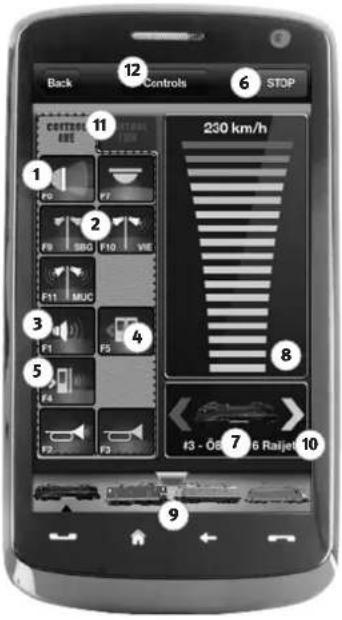
The registry card "Controls" of the Z21 Mobile App allows controlling all digital locomotives of your layout conveniently by touch. The surface is designed for unambiguous and intuitively comprehensible ergonomically laid out icons:
text_image
Back Controls STOP 12 11 230 km/h F9 F7 F9 SBG F10 VIE F11 MUC F1 F5 F4 F2 F3 8 7 6 Rajjet 10 9Functions (loco-specific):
① Front lights on/off
② Station announcements
③ Locomotive sound on/off
④ Doors opening
⑤ Door noise
⑥ Emergency stop
⑦ Selected loco
⑧ Speed display
⑨ Loco library fast access
10 Direction indication/change
11 Function panel
12 Driver stand

Highlights:
▶ Universal control for all digital locomotives
▶ Convenient access to all loco functions
▶ Quick exchange of locomotives
▶ Precise speed control

Highlights:
▶ All important system parameters at a glance
▶ Customized configuration of Apps and Z21 Digital Centre
▶ Clear intuitive user-friendly service
▶ Flexible import and export options
5.2 Settings
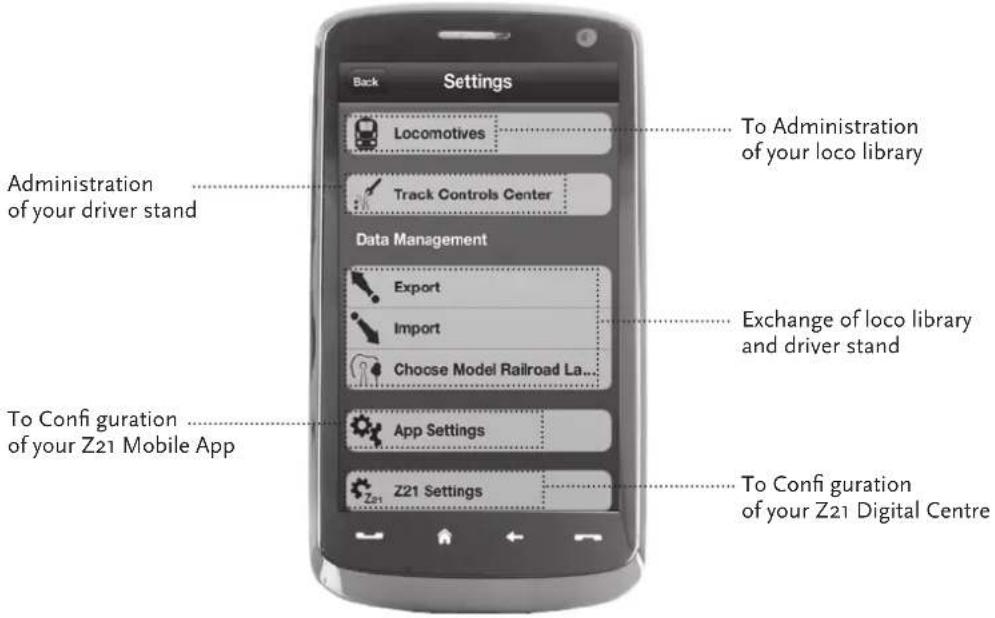
This register card allows entering all major settings into your Z21 Digital System, from basic system configuration via Z21 centre settings up to the definition of customized parameters for your loco library.
text_image
Back Settings Locomotives Administration of your driver stand Track Controls Center Data Management Export Import Choose Model Railroad La... Exchange of loco library and driver stand App Settings Z21 Settings To Configuration of your Z21 Mobile App To Administration of your loco library To Configuration of your Z21 Digital Centre5.3 Locomotive Library
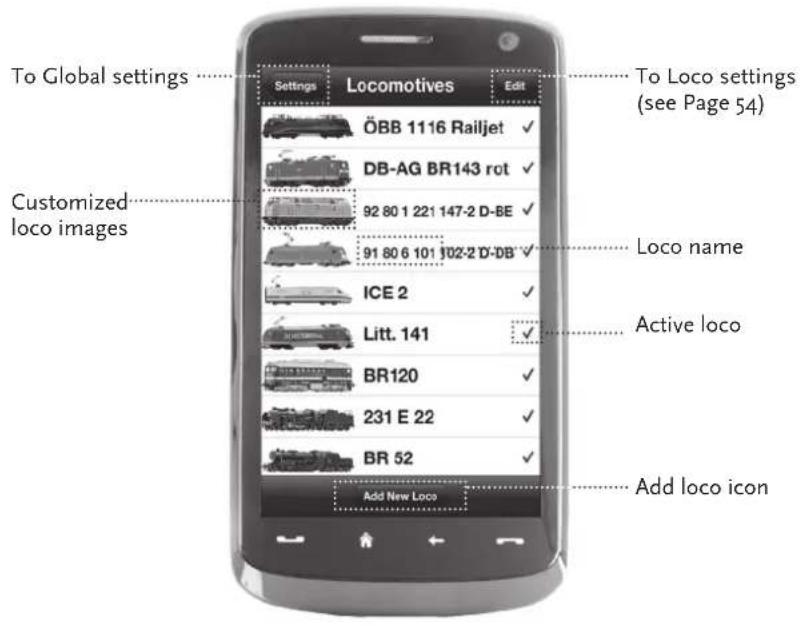
Build yourself a complete library of your locomotives in the Z21 Mobile App. This makes it easy to change trains and guarantees an optimal control of your collection at all times.
text_image
To Global settings Settings Locomotives Edit To Loco settings (see Page 54) ÖBB 1116 Railjet ✓ DB-AG BR143 rot ✓ 92 80 1 221 147-2 D-BE ✓ 91 80 6 101 102-2 D-DB ✓ Customized loco images Loco name ICE 2 ✓ Active loco Litt. 141 ✓ BR120 ✓ 231 E 22 ✓ BR 52 ✓ Add loco icon Add New Loco
Highlights:
▶ Clearly arranged library of all your digital models
▶ Supports an unlimited number of entries
▶ Assigns individual names and/or nicknames
▶ Deposit your own loco images for an optimal overview

Highlights:
▶ Clear access to major loco settings
▶ Quick assignment of loco addresses
▶ Easy orientation for new model railway fans

Note: To store any changes, touch the button "Store". To undo any changes, touch the button "Locomotives" at the top left.
5.4 Programming Loco Settings
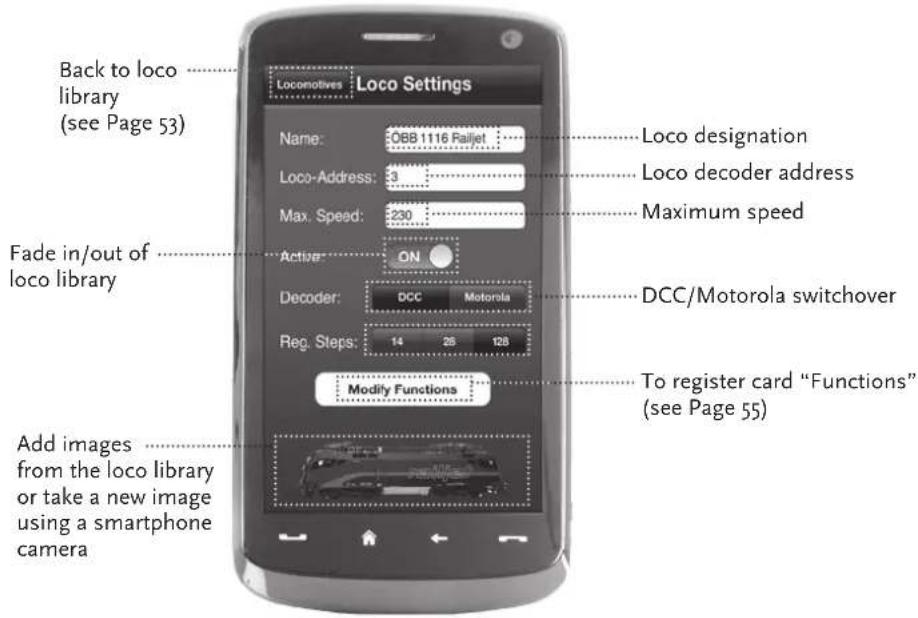
You can lay down the basic settings for each of your locomotives in the register card "Loco Settings". Only the most important parameters are given here. This allows even beginners to quickly find their way.
text_image
Back to loco library (see Page 53) Fade in/out of loco library Locomotives Loco Settings Name: OBB 1116 Railjet Loco-Address: 30 Max. Speed: 230 Active: ON Decoder: DCC Motorola Reg. Steps: 14 25 128 Modify Functions Add images from the loco library or take a new image using a smartphone camera Loco designation Loco decoder address Maximum speed DCC/Motorola switchover To register card "Functions" (see Page 55)5.5 Access to Loco Functions
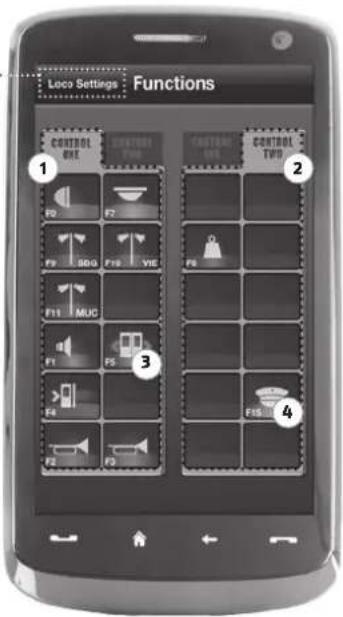
Through the register card "Functions", you can access the digital functions of your locomotives easily and quickly. Instead of having to input complicated codes, just touch the unambiguous icons – makes driving trains twice the fun.
Back to .....
loco library
(see Page 53)
text_image
Loca Settings Functions 1 2 3 4Loco Functions:
① Function Panel 1
② Function Panel 2
③ Function icon
4 Function name

Highlights:
▶ Quick access to all digital functions of your locos
▶ Activation by touch
▶ Intuitive icons ensure easy handling
▶ Customized arrangement of icons on two panels
▶ Conf i gurable function names help keeping track

Notes on Operation:
▶ To create a new function, touch an empty fi eld in the panel.
▶ To relocate functions, drag over to the desired fi eld.
▶ To delete a function, keep it depressed until "X" appears, then touch the "X".

Highlights:
▶ Fast access to key function parameters
▶ Customized locomotive configuration
▶ Easy programming by touch
▶ Support of individual functions
5.6 Assignment of Digital Functions
This allows you to assign, name and program the digital functions of your locomotives in a few steps.
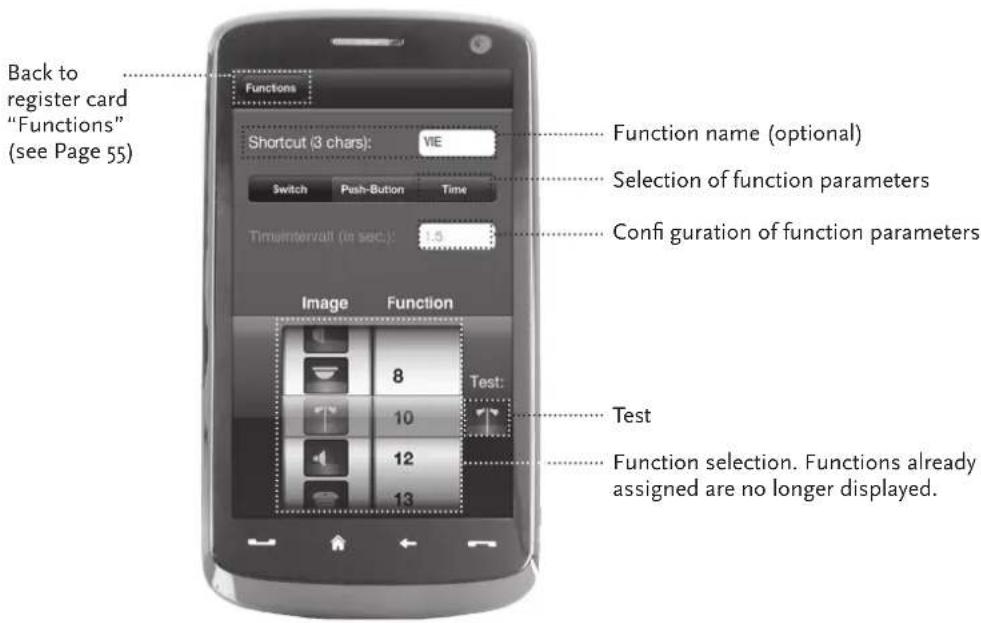
text_image
Back to register card "Functions" (see Page 55) Functions Shortcut (3 chars): VIE Switch Push-Button Time TimuIntervait (in sec): 1.5 Function name (optional) Selection of function parameters Configuration of function parameters Image Function 8 Test: 10 12 13 Test Function selection. Functions already assigned are no longer displayed.5.7 Setting and Handling of Magnetic Items
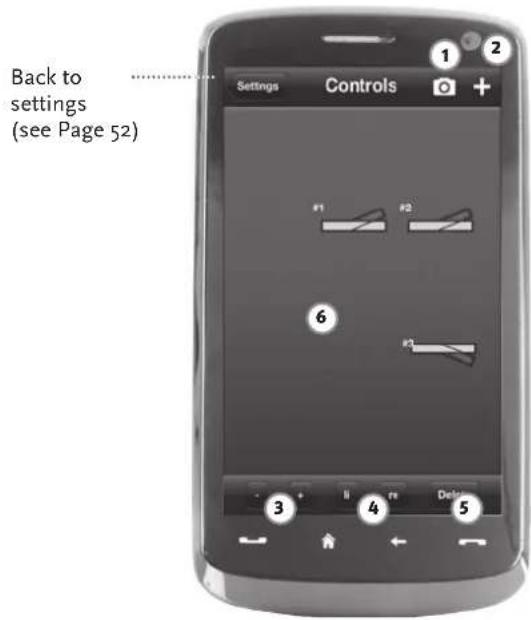
With this menu, you can set up and switch digital magnetized items on the layout quickly and conveniently. Switches, signals and other digital components can be controlled easily with your fingertips.
text_image
Back to settings (see Page 52) Settings Controls 1 2 6 3 4 Delete① Create background image
② Create new article
③ Change size
4 Rotate
5 Delete
6 Briefly tap touch magnetized items to configure. Touch magnetized items longer to change sizes and angles.

Highlights:
▶ Easy control of all magnetized articles on the layout
▶ Switch management by touch
▶ Visualization with customized background images
▶ For switches, signals and all other digital components

Highlights
▶ Reproduction of historical driver stands for maximum driving fun
▶ Select the desired speed for every kind of drive, from beginner to pro
▶ Fade out your own background images and slideshows to create the perfect atmosphere
▶ Download current driving data from the decoder via RailCom©
▶ Steam, diesel and E-loco driving stands available in the AppStore and from Google Play (as of July 2012)
▶ Further apps on major new products and long-term favourites in preparation
▶ For iPads v1.3 and over and Android tablets v2.3 or over
6. View from the Driver Stand
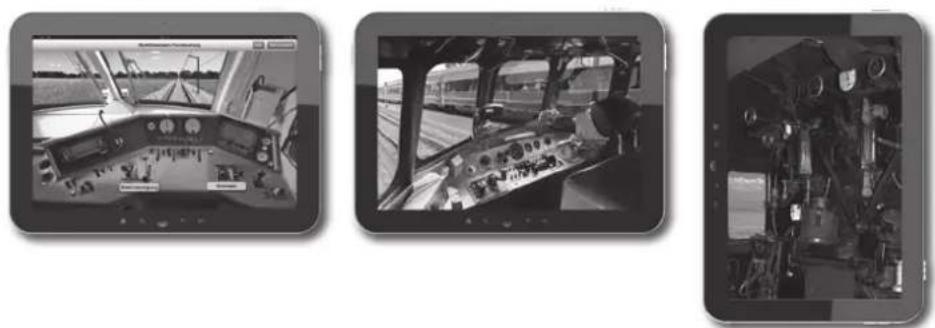
Get aboard and control your loco from an exactly reproduced virtual loco stand. Maximum driving fun guaranteed!
The model-specific driver stand apps are controlled by simply touching the clearly laid out operating elements. Slide your finger over the virtual accelerator and the locomotive starts putting on speed. Touch the signal horn and the characteristic locomotive sound will appear. The headlights, interior illumination and all other digital functions of our assortment can be operated just as easily.
Photo-realistic driver stands are available in the AppStore or from Google Play. Further driver stand apps will soon follow – for many favourites of our assortment and for all major current novelties.
E-Loco Diesel loco Steam loco
natural_image
Three-panel grayscale image showing a train cockpit interior with control panels and equipment, no visible text or symbols.text_image
Settings Controls 1 2 #1 #2 6 #3 #4 5natural_image
Three-panel image showing a train cockpit interior with dashboard and control panels, no visible text or symbols.Anmeldung am WLAN
text_image
TP-LINK® Model No.: TL-WR740N 150Mbps Wireless N Router Power: 9V = 0.6A Default Access: http://tplinklogir.net Username: admin Password: admin CE1588① Model TL-WR740N Ver 4.22 SN 123914 8009 MAC 90F6529A5A76 PIN: 88025827 This device completely with part of the PDS, other components are used to use Selecting the conditions (1). This device may not be suitable for assistance, or (2) this device must offer any different services including interference that is used in the network.In order to control your Z21 Digital System via smartphone or tablet PC, connect your device to the supplied WLAN router:
▶ Connect the Z21 Digital Centre and the router as described in the Quick Start Guide.
The Z21 WLAN network appears in the list of all available networks.
The Z21 network is named "Z21_wxyz", with "wxyz" being the final four digits of the serial number of your router (as stated at the bottom side of the router, within the "S/N" box).
▶ Tap the network name.
▶ Enter the PIN to join the network.
▶ Find the PIN at the bottom side of the router, within the "PIN" box.
▶ Done!
Francais
Apple, iPad, iPhone, iOS are trademarks of Apple Inc., registered in the U.S. and other countries. / App Store is a service mark of Apple Inc. / Android is a trademark of Google Inc. / Google Play is a service mark of Google Inc. / RailCom is a registered trademark of Lenz Elektronik GmbH. / Motorola is a registered trademark of Motorola Inc., Tempe-Phoenix, USA // All rights, modifications, errors and delivery options reserved! / Specifications and illustrations without obligation. / Recommended price without obligation. Changes reserved. / Editor: Modelleisenbahn München GmbH / Triebstr. 14 / 80993 München / Germany